

No Connection Needed
The EDI connector does not need a connection or any credentials. Add its actions to a workflow and use them right away.Supported Standards and Documents
The EDI connector supports five standards, X12, EDIFACT, EANCOM, HL7 and TRADACOMS, and the following documents. EANCOM uses the same documents as EDIFACT.
X12 versions 003040, 004010 and 005010, EDIFACT versions D93A, D96A, D01B and D03A, EANCOM versions D96A and D01B, and HL7 versions 2.3, 2.3.1, 2.4, 2.5, 2.5.1, 2.6, 2.7 and 2.8 are supported. TRADACOMS uses release 9 only. Every version of a standard uses the same document fields. The version only changes the header of the EDI you generate.
Warning: Do not send protected health information (PHI) through the HL7 actions. Engini does not have a Business Associate Agreement (BAA). See HL7 below.
Note: X12 850, 810 and 856 and EDIFACT ORDERS, INVOIC and DESADV were built first. Support for the other nine X12 and EDIFACT documents is initial: they follow the standard, but have not yet been validated against real partner files. Support for EANCOM, HL7 and TRADACOMS is initial for every document, including the EANCOM documents that are shared with EDIFACT. Test them with a sample file from your partner before you rely on them.
EANCOM
EANCOM is the GS1 retail version of EDIFACT. It has the same documents and fields as EDIFACT, so you select EANCOM as the standard and pick the document from the same list. In Parse EDI, the entries shown as EDIFACT / EANCOM read both.- Generate EDI offers the EANCOM versions D96A (EANCOM 97) and D01B (EANCOM 2002). If you leave Version empty, it uses D96A.
- Engini fills in the EANCOM association assigned code in the message header (UNH02) for you, for example EAN008 for an ORDERS in D96A. A value you provide is not changed.
- Like EDIFACT, the interchange header uses the character set UNOC, version 3.
HL7
Warning: Do not send protected health information (PHI) through the HL7 actions. Engini does not have a Business Associate Agreement (BAA), so it must not be used to process patient data. Use test data without real patient details. HL7 here means HL7 v2 messages, the pipe-delimited format that starts with an MSH segment. Three message types are supported: ADT_A01, ORU_R01 and ORM_O01. ADT_A01 is also used for the ADT events A04, A08 and A13, which share its structure.- Parse EDI returns one document for each message (each MSH) of the type you select. The batch header and trailer segments (FHS, BHS, BTS, FTS) are skipped.
- Generate EDI writes one message for each document, one after the other. Engini fills in the date and time (MSH-7), the control id (MSH-10), the processing id P (MSH-11) and the version (MSH-12) if you leave them empty. If you leave Version empty, it uses 2.5.1.
- A repeating HL7 field, such as the patient identifier (PID03), the patient name (PID05) or the observation value (OBX05), is a list, even when it holds one value.
TRADACOMS
TRADACOMS is the UK retail standard. A TRADACOMS file holds one type of file: ORDHDR (order file), DELHDR (delivery file) or INVFIL (invoice file), with one message for each order, delivery or invoice. To create two types, use two Generate EDI steps.- Parse EDI returns one document for each message of the file. Each document also carries the values of the file’s header and trailer, such as the sender and the receiver.
- Generate EDI creates one file with one message for each document. The file’s header and trailer values are taken from the first document. Engini recalculates the message and file counts, and fills in the trailer total if you leave it empty.
- TRADACOMS has a single version, so Generate EDI does not show the Version field for it.
Actions
Use Parse EDI to read an EDI file you receive and use its data in the next steps. Use Generate EDI to create an EDI file you send. Both actions work with the document types listed above.Generate EDI
Creates EDI text from your workflow data. Choose the standard and the document type, then provide the document either as JSON or by filling in its fields one by one. The action returns the EDI as text. Use it in the next steps of your workflow, for example to save it as a file or send it to your partner.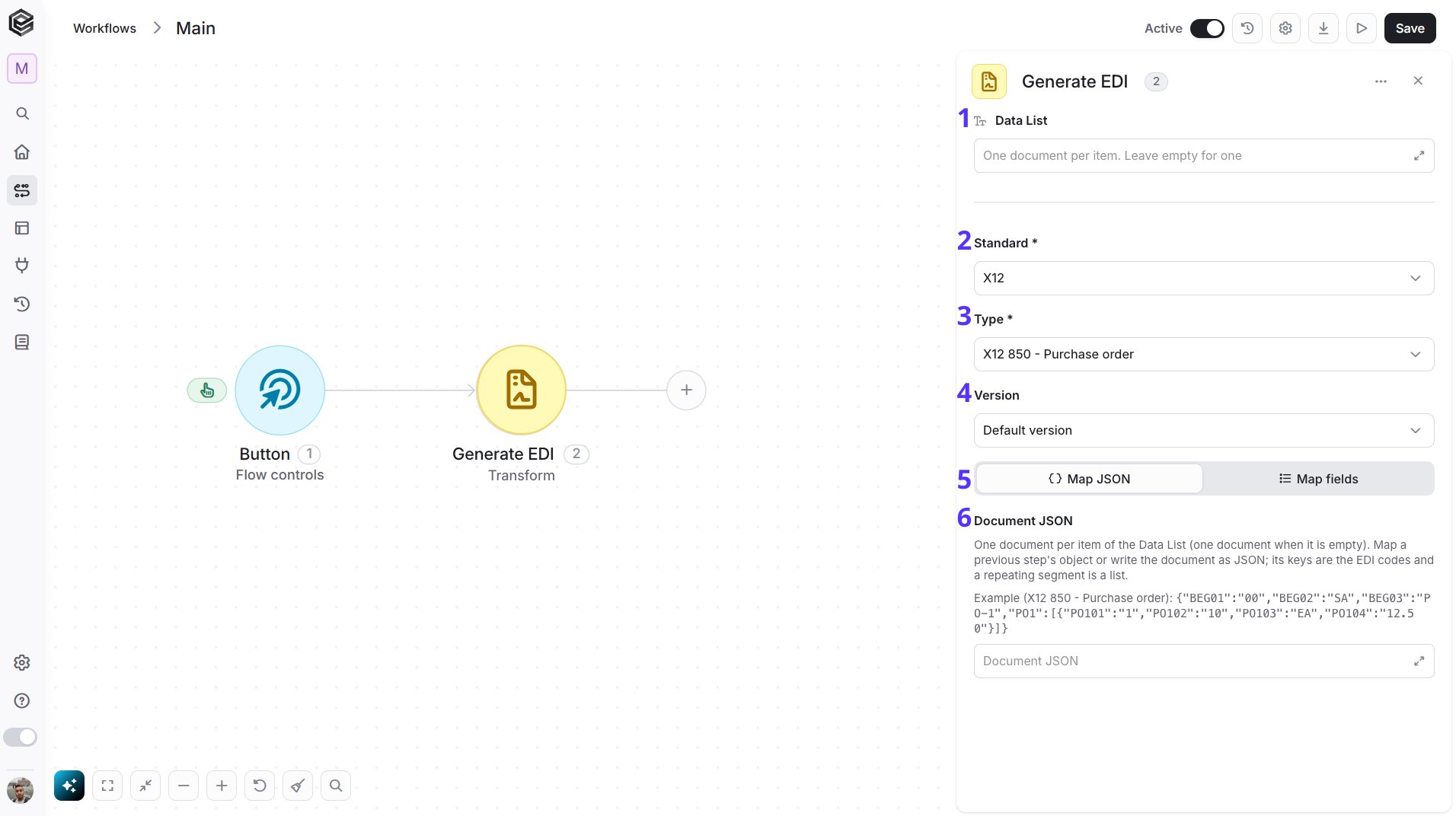
- Data List - Optional. To create several documents in one EDI file, select or map a list from a previous step. Engini creates one document for each item in the list. Leave it empty to create a single document.
- Standard - Select X12, EDIFACT, EANCOM, HL7 or TRADACOMS. This field is required.
- Type - Select the document to create, for example X12 850 - Purchase order. The list shows the documents of the standard you selected, so select the standard first. For TRADACOMS, select the type of file to create: ORDHDR, DELHDR or INVFIL. A TRADACOMS file holds one type only. This field is required.
- Version - Optional. Select the version of the standard. If you leave it empty, Engini uses 004010 for X12, D96A for EDIFACT and EANCOM, and 2.5.1 for HL7. This field is not shown for TRADACOMS, which has a single version.
- Map JSON / Map fields - Choose how you provide the document. Map JSON lets you map or write the whole document as JSON. Map fields lets you pick each field of the document and give it a value. Map JSON is selected by default.
- Document JSON - Shown in Map JSON mode. Map an object from a previous step, or write the document as JSON. See Map JSON below. If you leave the field empty and use a Data List, each item of the list is used as the document.
- Engini writes the envelope and the counters for you: it adds the standard’s header and closing segments where it has them, and recalculates the segment counts. The sender, receiver and other header values are taken from the first document. A header value you provide is used as you wrote it, and values you leave empty get a default value. Control numbers are generated automatically.
- Several documents are written into one EDI file. For X12, EDIFACT and EANCOM, that is one interchange, and for X12 the documents share one functional group. For HL7, each document is its own message, written one after the other. For TRADACOMS, the file holds one message for each document.
- For an X12 997 and an EDIFACT CONTRL, Engini fills in the acknowledgement counts and status codes that you leave empty. A value you provide is never changed.
- To add a segment that the document type does not define, add an extraSegments list to the document JSON. Each item has a Segment, for example REF, and its Elements as a list of values.
- Generated X12 always uses a colon (:) as the sub-element separator, even if your document JSON has a different value in ISA16.
- A value cannot contain a character that the EDI uses as a separator, for example an asterisk in X12.
- An EDIFACT REMADV needs a value in UNS01 (Section identification).
Map JSON
Map JSON is the default. You give the whole document as one JSON value in the Document JSON field: map an object from a previous step, or write the JSON yourself.- Each key is the EDI code of a field, for example BEG03 for the purchase order number in an X12 850.
- A segment that repeats, such as the order lines (PO1), is a list. Each item of the list is an object with its own EDI codes. In HL7, a repeating field such as PID03 or PID05 is also a list.
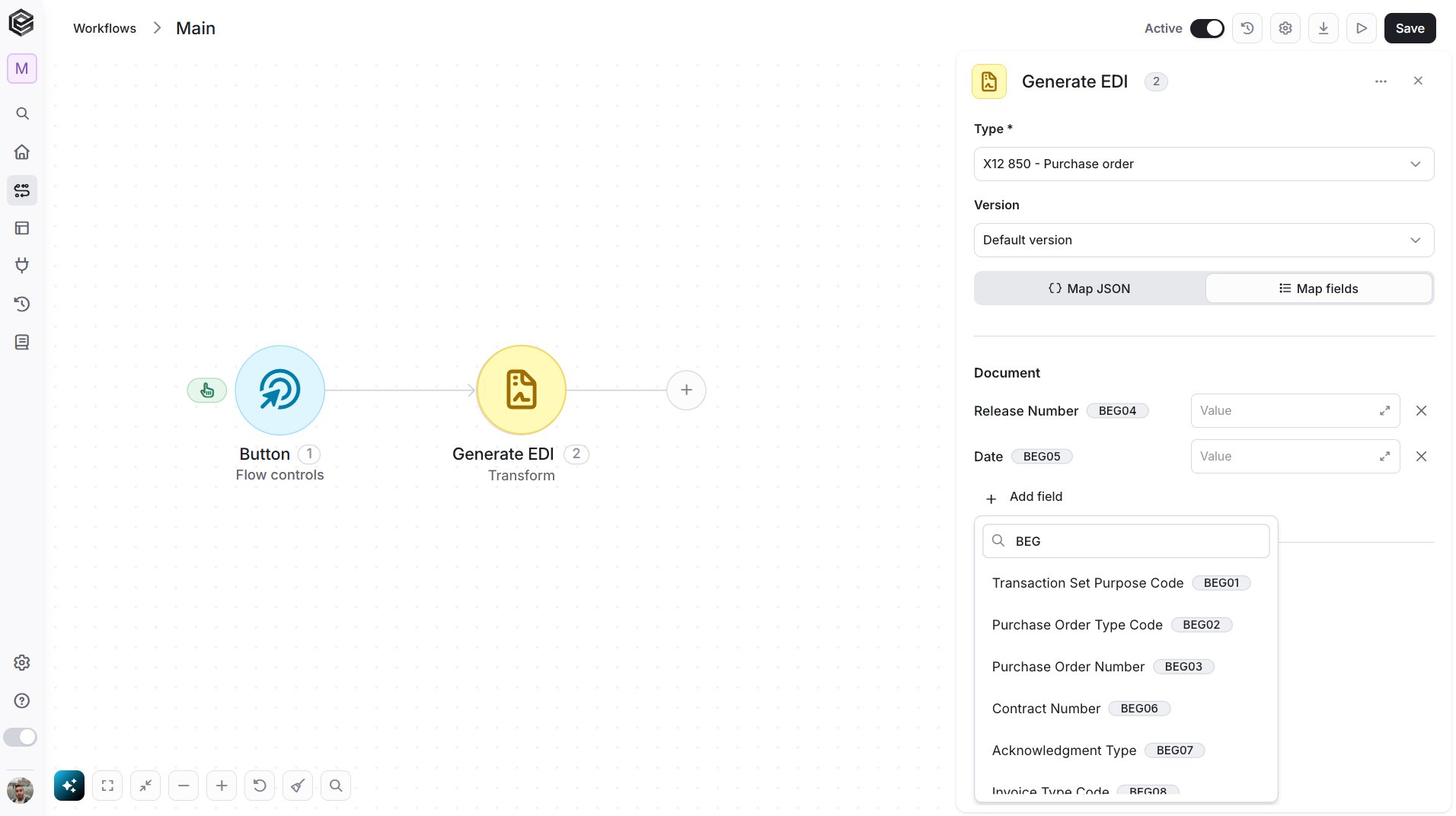
- Above the field, Engini shows an example for the document type you selected. To find the code of any other field, switch to Map fields and use Add field, which lists every field with its name and its EDI code, or use Parse EDI and read the Output Schema.
- You can map values from previous steps inside the JSON. When you use a Data List, the field is filled once for each item, so you can map the values of the current item.
- To create several documents, either map a list in Data List and give one document per item, or leave Document JSON empty and each item of the Data List is used as a document.
Map fields
Select Map fields to build the document field by field, instead of writing it as JSON. The panel then shows the fields of the document in groups, starting with the Document group.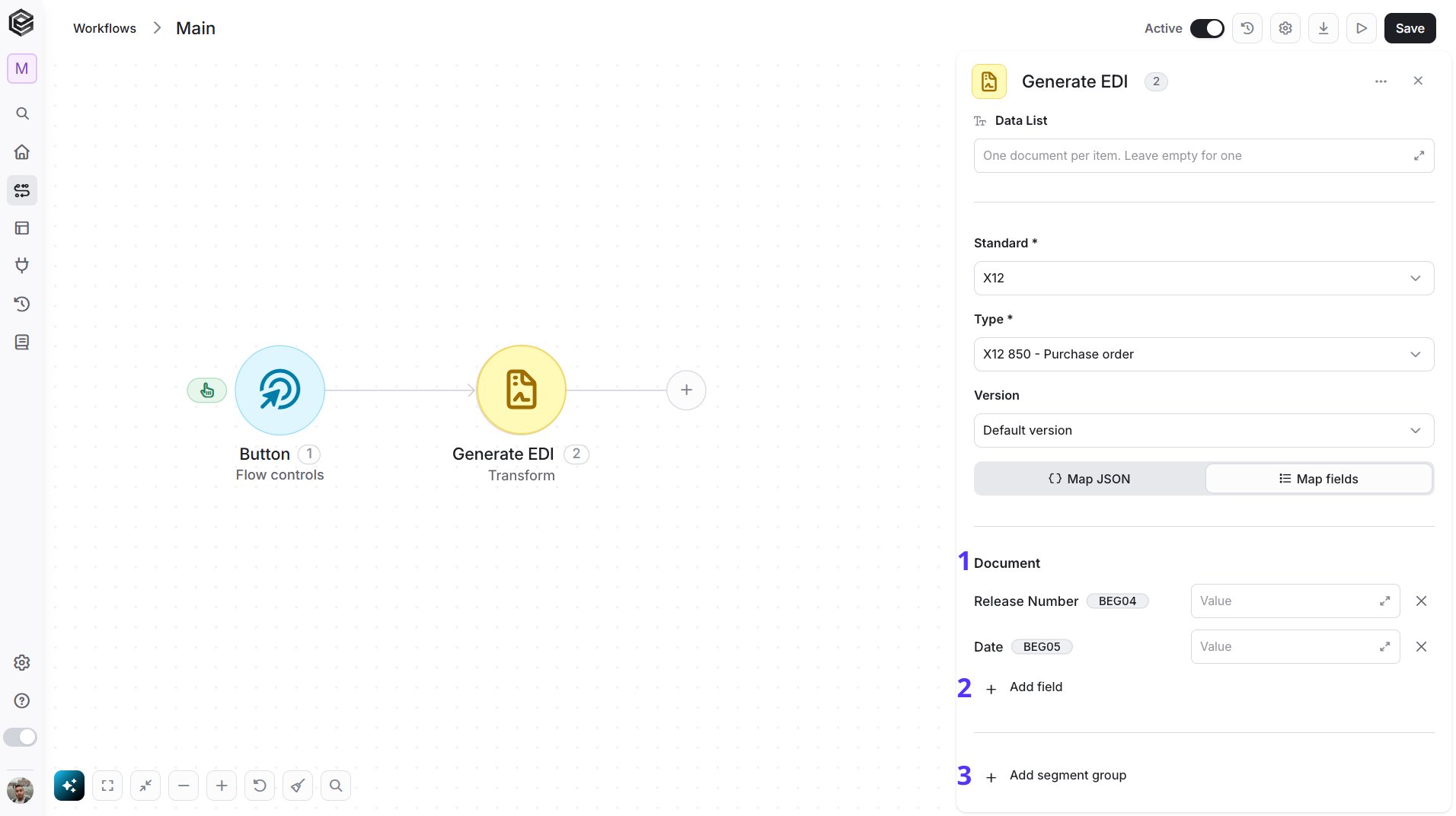
- Document - The group of the document’s own fields. Each row shows the field name, its EDI code and a value box that you fill in or map from a previous step. Click the X at the end of a row to remove the field. Fields you do not add are left out of the EDI.
- Add field - Click Add field to add one of the document’s fields to the group.
- Add segment group - Click Add segment group to add a part of the document that repeats, such as the order lines. Each group has its own Data List field, where you select the list that the group repeats for. Then add the fields of each item with Add field.
Parse EDI
Reads EDI text and returns its content as structured data, so you can use each field in the next steps of your workflow. Engini detects the standard from the file (X12, EDIFACT or EANCOM, HL7 or TRADACOMS), so you only choose the type of document to read. The action returns the document with the fields of the type you selected. The fields use the standard’s EDI codes, such as BEG03 for the purchase order number in an X12 850, and a segment that repeats, such as the order lines, is returned as a list. If the file contains several documents of the type you selected, they are returned as a list of documents.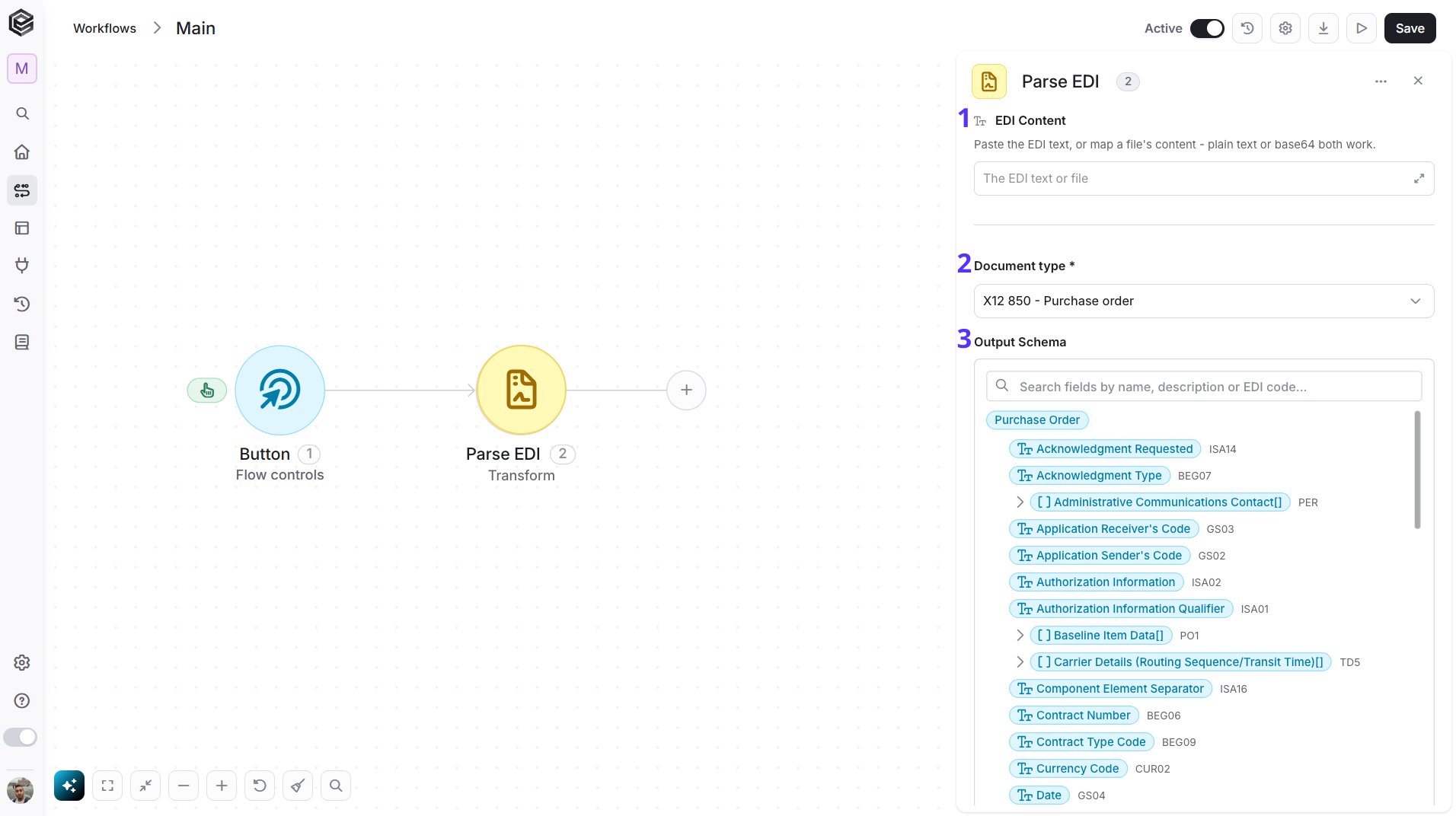
- EDI Content - Enter the EDI to read, or map it from a previous step, for example the content of a file. Plain text and Base64 both work.
- Document type - Select the type of document in the file, for example X12 850 - Purchase order. For an EANCOM file, select the EDIFACT / EANCOM entry. For a TRADACOMS file, select the type of file: ORDHDR, DELHDR or INVFIL. The step reads only documents of this type. This field is required.
- Output Schema - Shows the fields that the step returns for the document type you selected, so you can map them in the next steps. Each field shows its name and its EDI code. Use the search box to find a field by its name, description or EDI code. The fields of the document type are read-only. Click Add custom field to add a field of your own, as described below.
- If the file does not contain a document of the type you selected, or its counts do not match, the step fails and shows the reason.
- Segments that the document type does not define are returned in an extraSegments list. Each item has the Segment and its Elements as they appear in the file.
- The X12 856 keeps its hierarchy (HL segments) as one flat list of HL items.
- An HL7 repeating field, such as PID03 or PID05, is returned as a list.
- For a TRADACOMS file, each message of the file is returned as one document, with the values of the file’s header and trailer.
Add custom field
Use a custom field to read a value that is not in the Output Schema, for example a reference number from a REF segment. Click Add custom field under the group where the value belongs. Custom fields stay when you change the document type.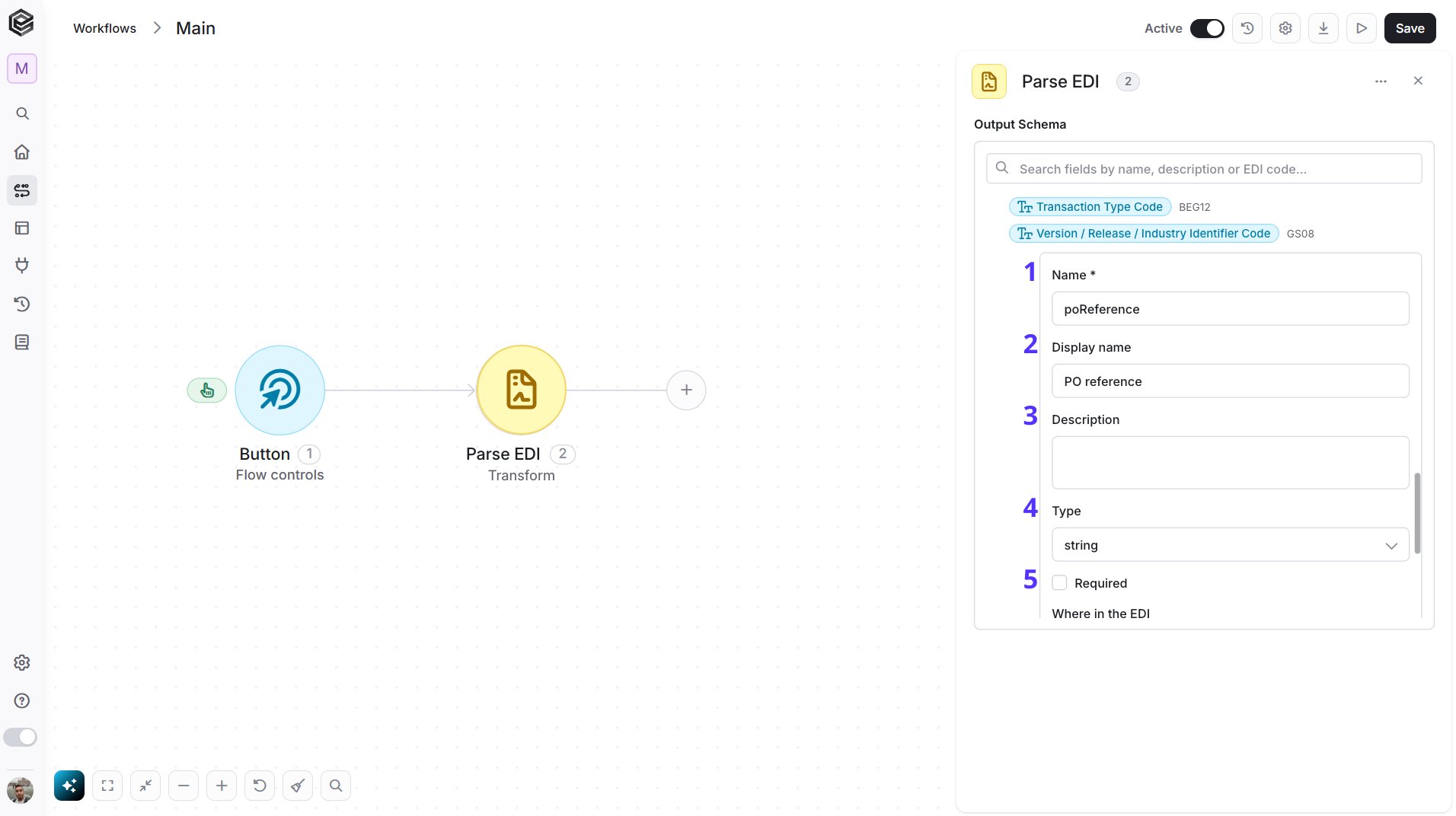
- Name - Enter a unique name for the field.
- Display name - Optional. The name that is shown for the field when you map it in the next steps.
- Description - Optional. Enter a short description of the field.
- Type - Select the type of the value: string, number, boolean, date or datetime.
- Required - Select it if the field must always have a value.
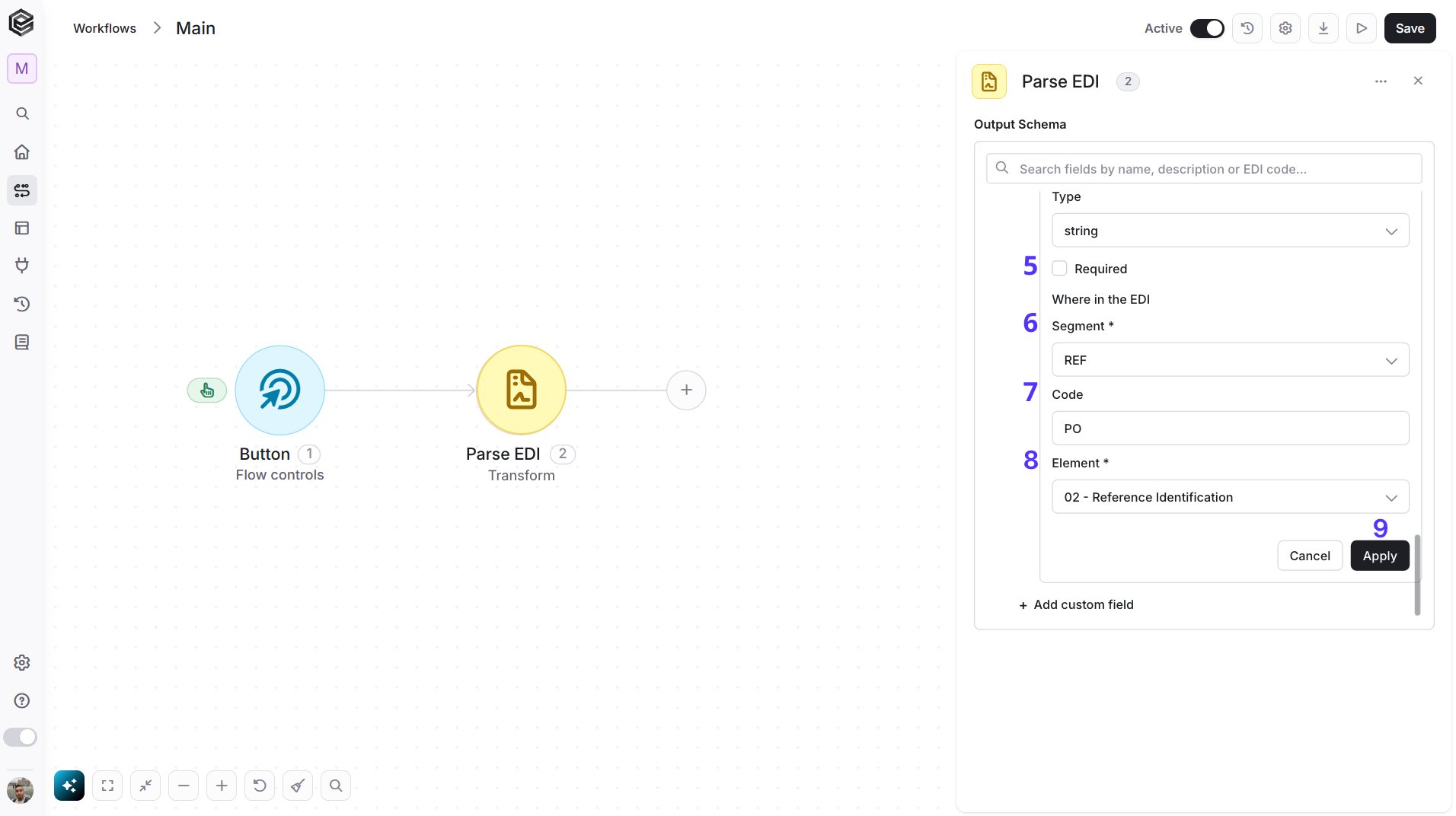
- Segment - Under Where in the EDI, select the segment to read, for example REF. If the segment is not in the list, select Other segment and enter its tag. This field is required.
- Code - Optional. The first element of the segment, if you need a specific one. For example, enter PO to read the REF segment that starts with PO.
- Element - Select the position of the value in the segment, for example 02. For a part of a composite element, use the format 01-02. This field is required.
- Apply - Click Apply to save the field.