

Getting Started with Slack
Prerequisites
- A Slack account.
Connecting Engini to Slack
- Enter your Engini account at https://app.engini.io.
-
Navigate to Connections page by clicking on the Connections on the left side bar or by clicking here.
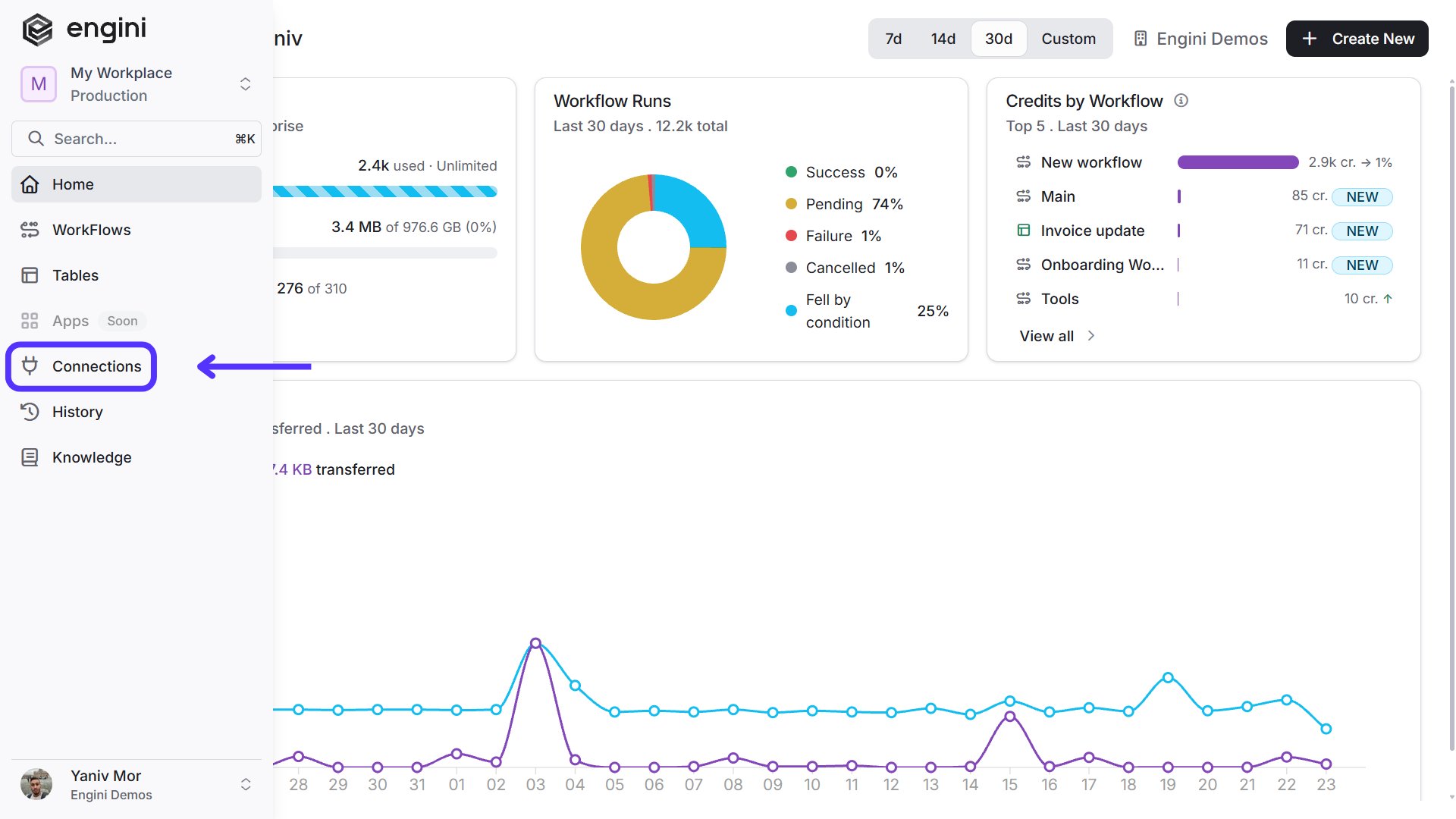
-
Click on the “New Integration” option located at the top bar.
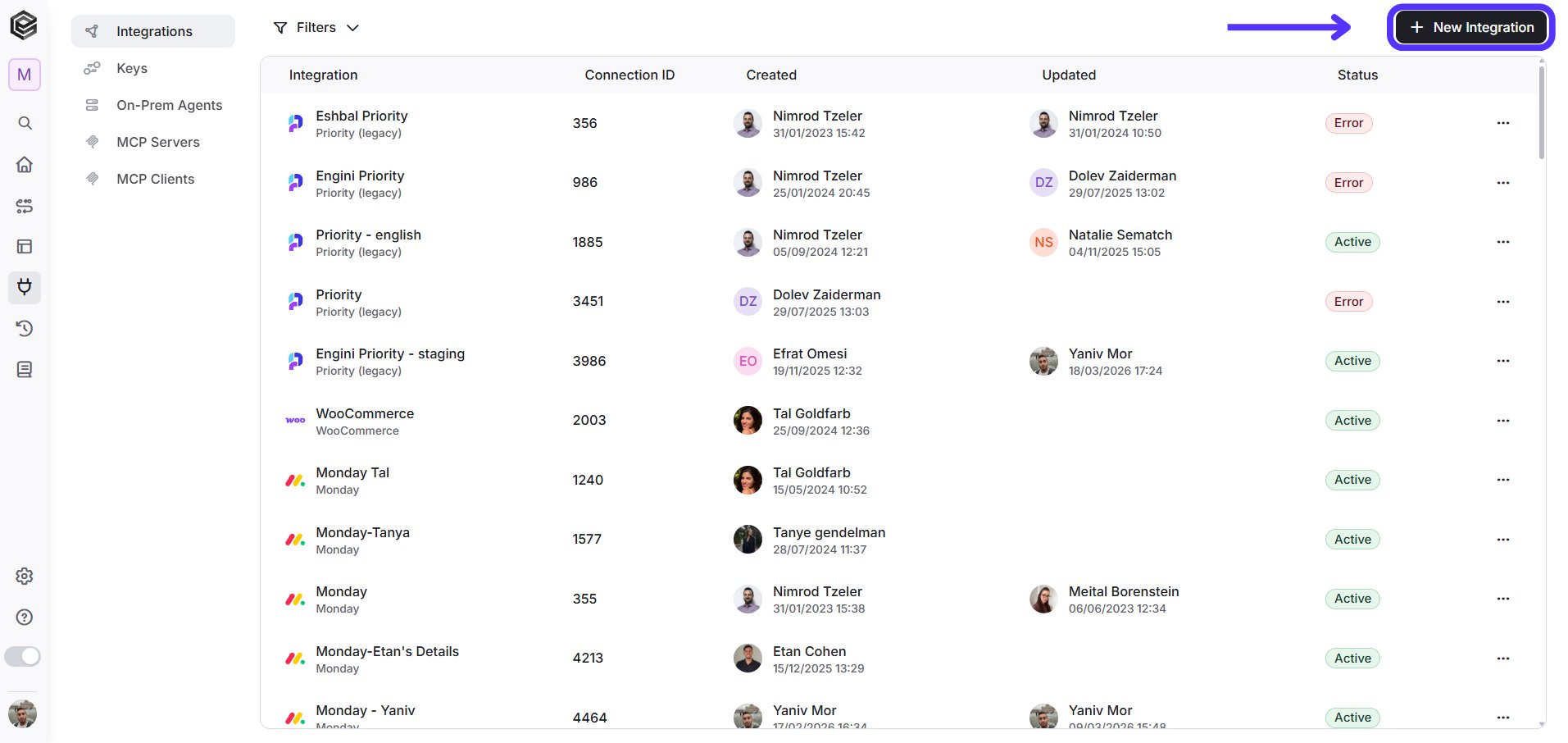
-
Choose Slack option from the available applications.
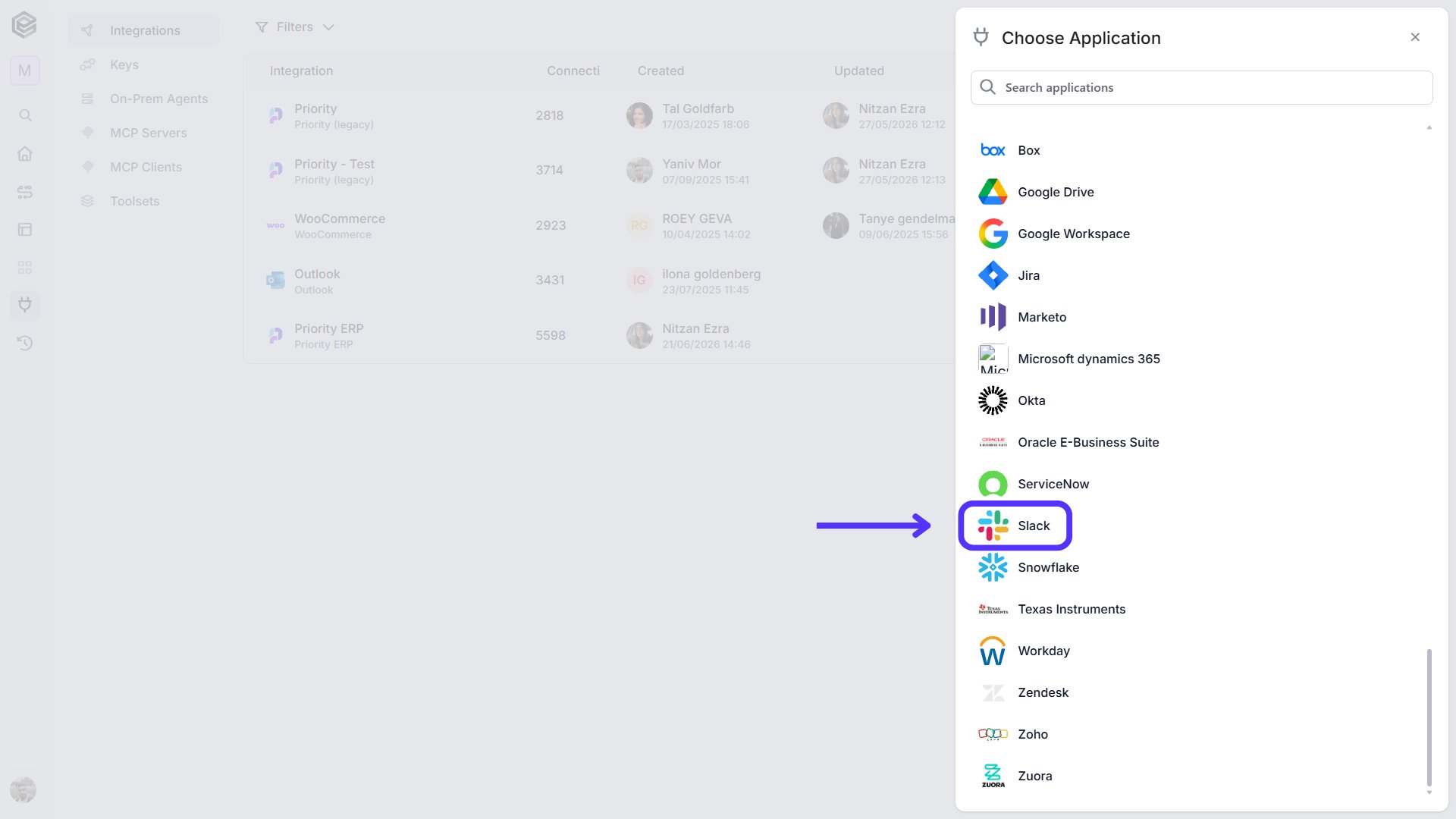
-
Enter the following details in the “Add Connection” form:

- Connection name - Enter unique identifier for the connection within Engini.
-
Connection Type:
- User: Connects Engini to Slack using a specific user’s permissions, allowing workflows to perform actions on behalf of that user.
- Bot: Connects Engini to Slack through a bot, enabling workflows to interact with Slack channels and users autonomously, without relying on a specific user’s permissions.
- Access Token - A credential used to authenticate and authorize access to Slack’s API. Depending on your connection type (user or bot), the token grants Engini the necessary permissions to perform actions within your Slack workspace.
- Sign in to your Slack account, review the requested permissions, and click “Allow” to grant Engini access to interact with your Slack workspace.
- Click on the Save button to save the connection.
Triggers
Actions that initiate or “trigger a workflow. There are three types of triggers related to Slack Connection:Check for New Files
Triggers the workflow when a new file is uploaded.
- Channel Type - Choose the type of Slack channel where the trigger will be active: Direct Messages, Multiparty Direct Messages, Private Channel, or Public Channel.
- Channel ID - Select the specific channel ID where the trigger will be applied.
- File Types - You can choose to monitor all file types or specify individual types such as Spaces, Snippets, Images, GDocs, ZIPs, and PDFs.
- Starting (UTC) – Select the start date and time for the scheduled trigger.
- Recur every – Choose the time interval for triggering and checking emails. The minimum time interval is 15 minutes.
-
Add time frame – You can specify a time frame during which the trigger will operate.

- Click on “Add time frame” button.
- Select a specific time frame to activate the trigger. For example, every 15 minutes from 8 AM to 5 PM.
- Top N - Specifies the maximum number of entries to retrieve, with a default setting of all entries if left blank.
- Add Conditions - Click Add Conditions to define conditions that narrow down the data list and return only the relevant items. To learn more about using filters, click here.
Check for New Messages
Triggers the workflow when a new message is posted in a selected Slack channel.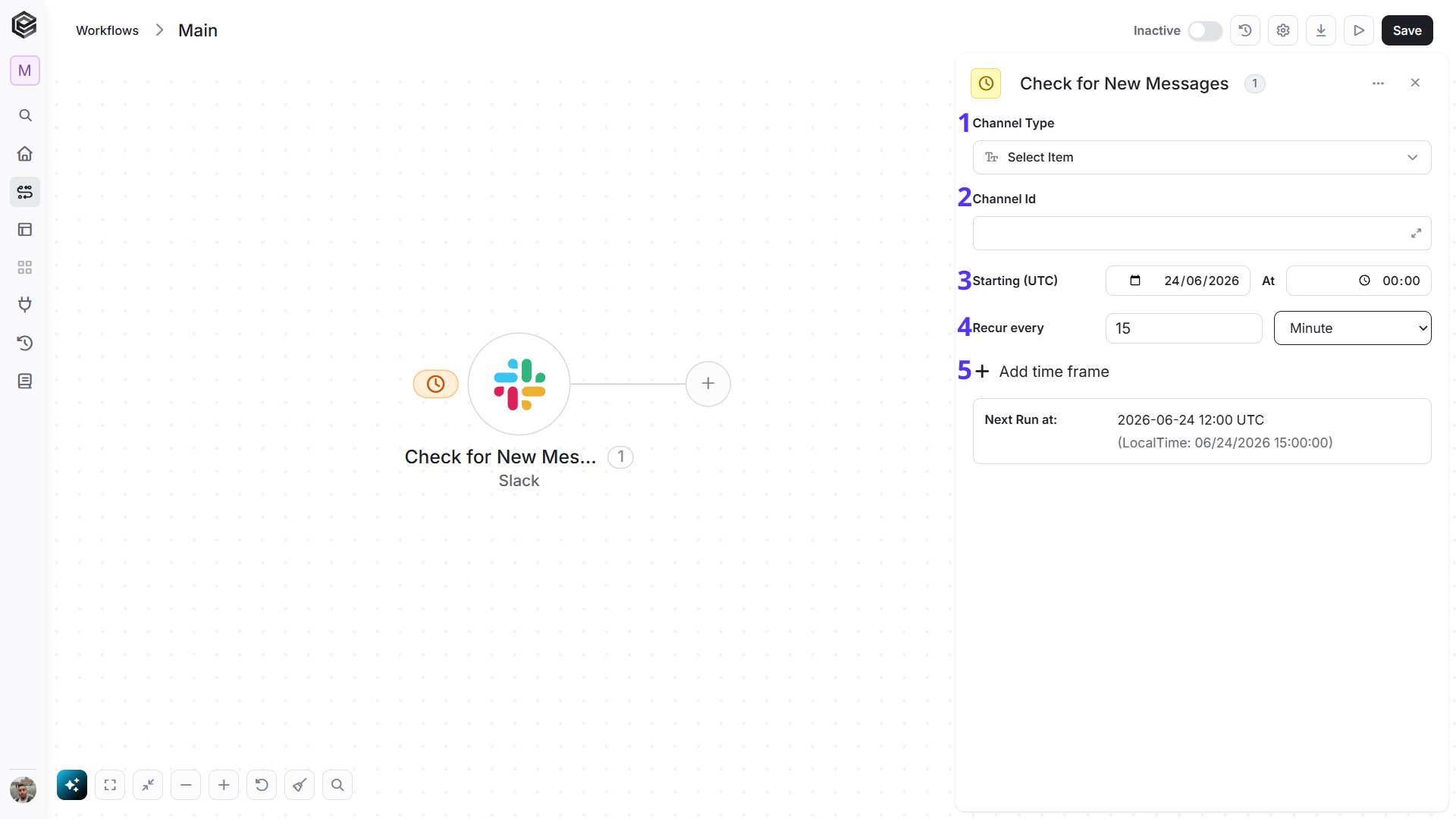
- Channel Type - Choose the type of Slack channel where the trigger will be active: Direct Messages, Multiparty Direct Messages, Private Channel, or Public Channel.
- Channel ID - Select the specific channel ID where the trigger will be applied.
- Starting (UTC) – Select the start date and time for the scheduled trigger.
- Recur every – Choose the time interval for triggering and checking emails. The minimum time interval is 15 minutes.
-
Add time frame – You can specify a time frame during which the trigger will operate.
- Click on “Add time frame” button.
- Select a specific time frame to activate the trigger. For example, every 15 minutes from 8 AM to 5 PM.
Check for User Updated
Triggers the workflow when users are created or updated across the entire Slack workspace.
- Starting (UTC) – Select the start date and time for the scheduled trigger.
- Recur every – Choose the time interval for triggering and checking emails. The minimum time interval is 15 minutes.
-
Add time frame – You can specify a time frame during which the trigger will operate.
- Click on “Add time frame” button.
- Select a specific time frame to activate the trigger. For example, every 15 minutes from 8 AM to 5 PM.
Actions
Specific tasks you want to perform in your Slack workspace through Engini. These actions can automate communication, manage files, or interact with channels and users within Slack.Create Conversation
Creates a new Slack channel with a specified name, and optionally sets it as private or public.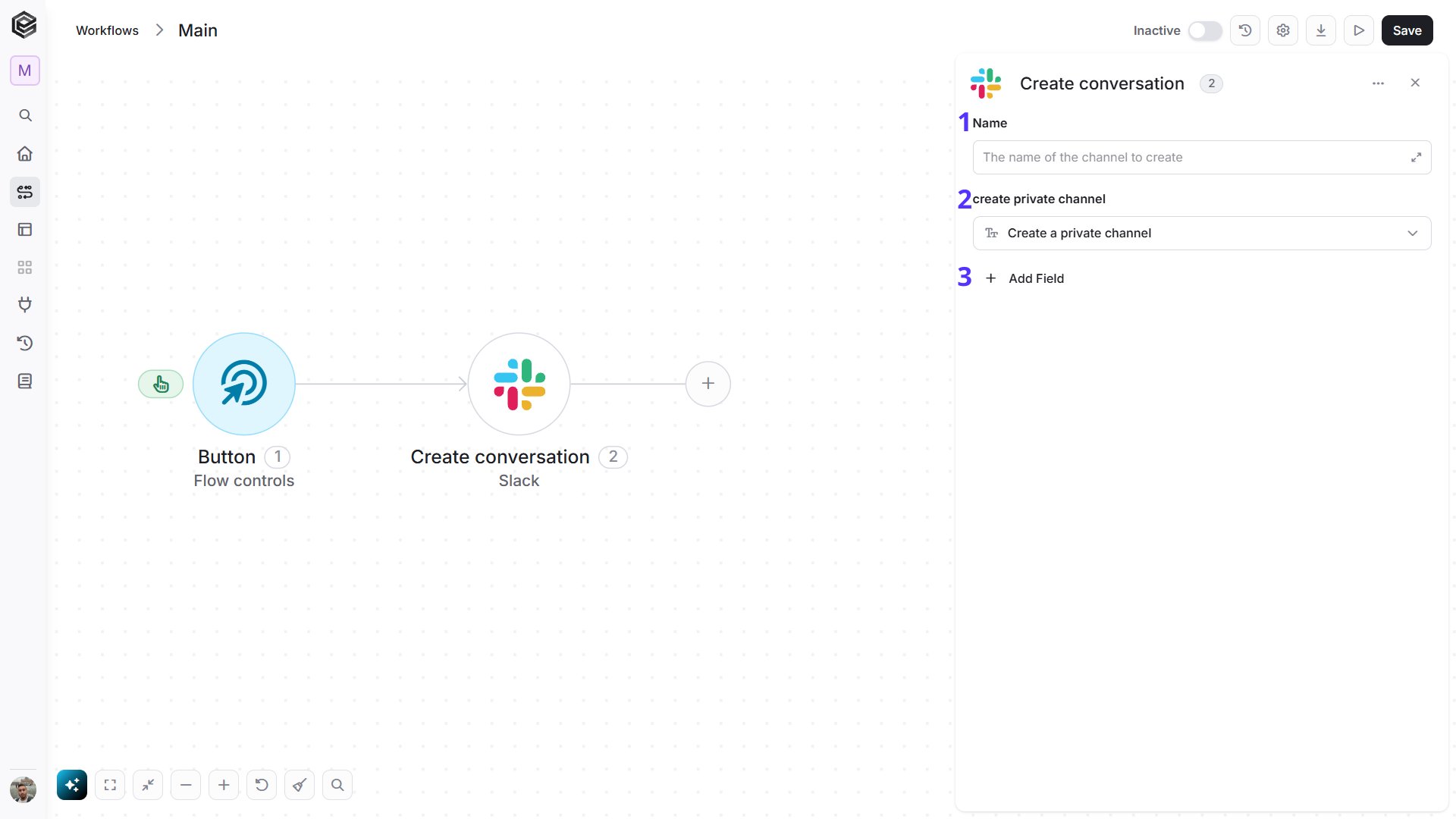
- Name - Choose the name for the new channel.
- Create Private Channel (Boolean) - Set to true if you want the channel to be private, or false for a public channel.
- Add Field - Click Add Field to add and populate additional fields for the selected activity. To learn more about managing activity data, click here.
Create Message
Sends a new message to a specified Slack channel, with options to customize the bot’s username, include rich formatting blocks, and more.
- Channel ID - Specify the channel where the message will be posted.
- Text - Enter the content of the message.
- Add Field - Click Add Field to add and populate additional fields for the selected activity. To learn more about managing activity data, click here.
Update Message
Updates the content of an existing message in a Slack channel.
- Channel ID - Select the channel where the message you want to update is located.
- Timestamp of Message - Enter the timestamp of the message you want to update.
- Enter Text - Input the new text that will replace the current message content.
Get Channels
Downloads a file from Slack using a private URL.
- Channel Types - Enter a comma-separated list of channel types (use concat if needed) to specify which types of channels to retrieve.
- Top N - Enter the total number of channels to retrieve (default is unlimited).
- Add Filter - Click Add Filter to define conditions that narrow down the data list and return only the relevant items. To learn more about using filters, click here.
Get Members in a Channel
Retrieves a list of members in a specified channel.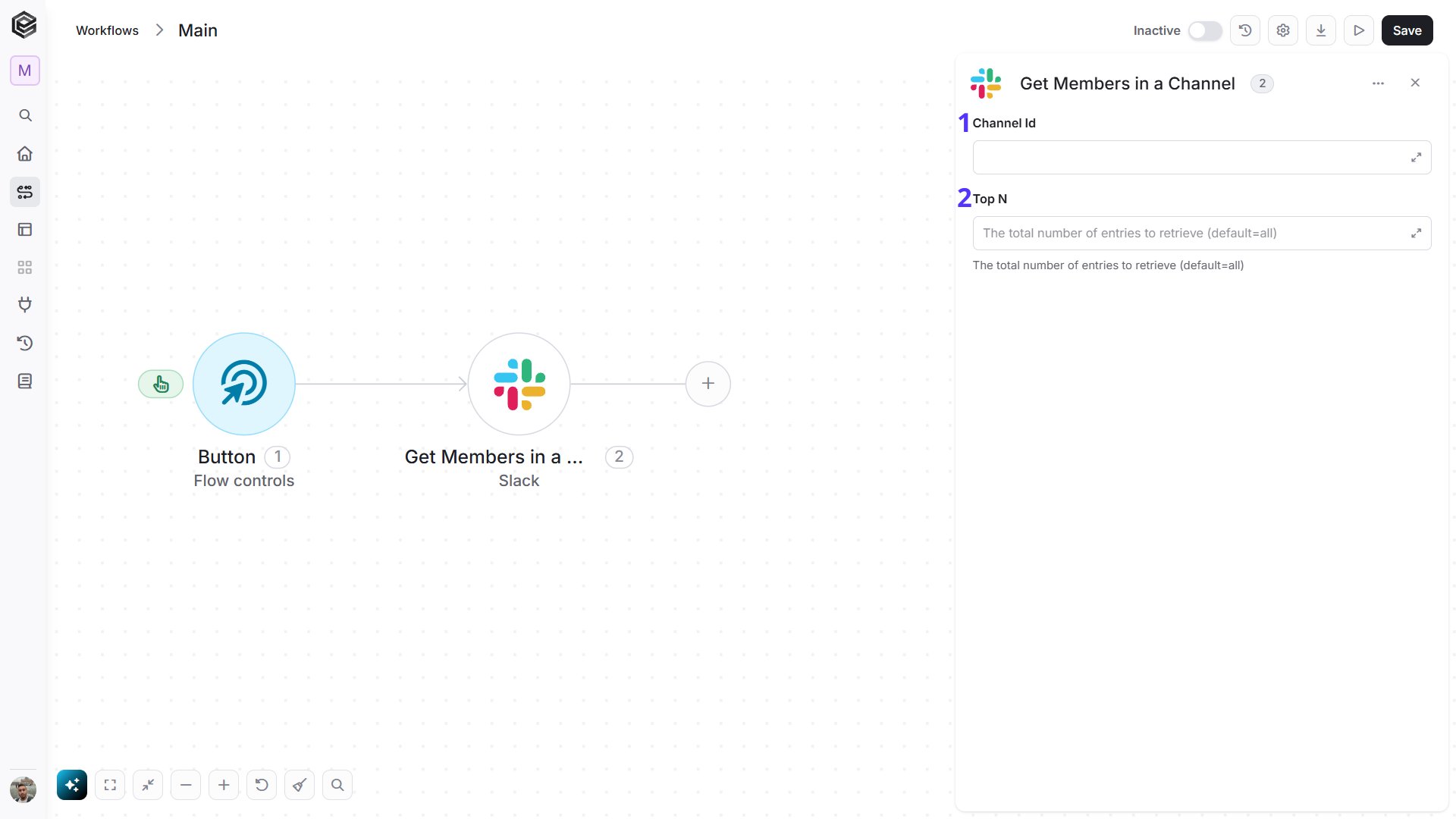
- Channel ID - Select the ID of the channel from which you want to retrieve the list of members.
- Top N - Enter the total number of channels to retrieve (default is unlimited).
Get Messages
Retrieves messages from a Slack channel based on selected filters.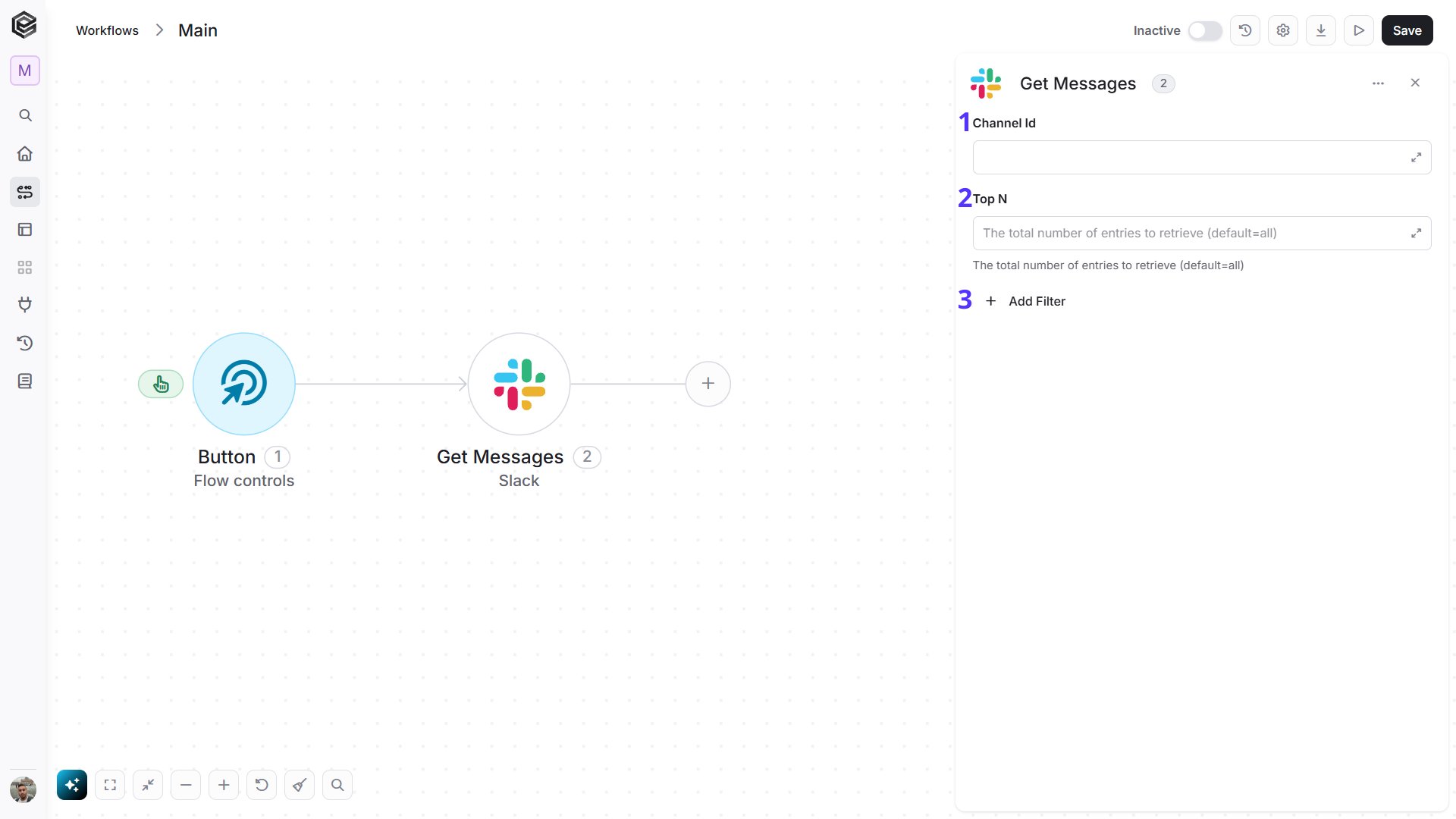
- Channel Types - Enter a comma-separated list of channel types (use concat if needed) to specify which types of channels to retrieve.
- Top N - Enter the total number of channels to retrieve (default is unlimited).
- Add Filter - Click Add Filter to define conditions that narrow down the data list and return only the relevant items. To learn more about using filters, click here.
Get Message
Retrieves messages from a Slack channel starting from a specified timestamp.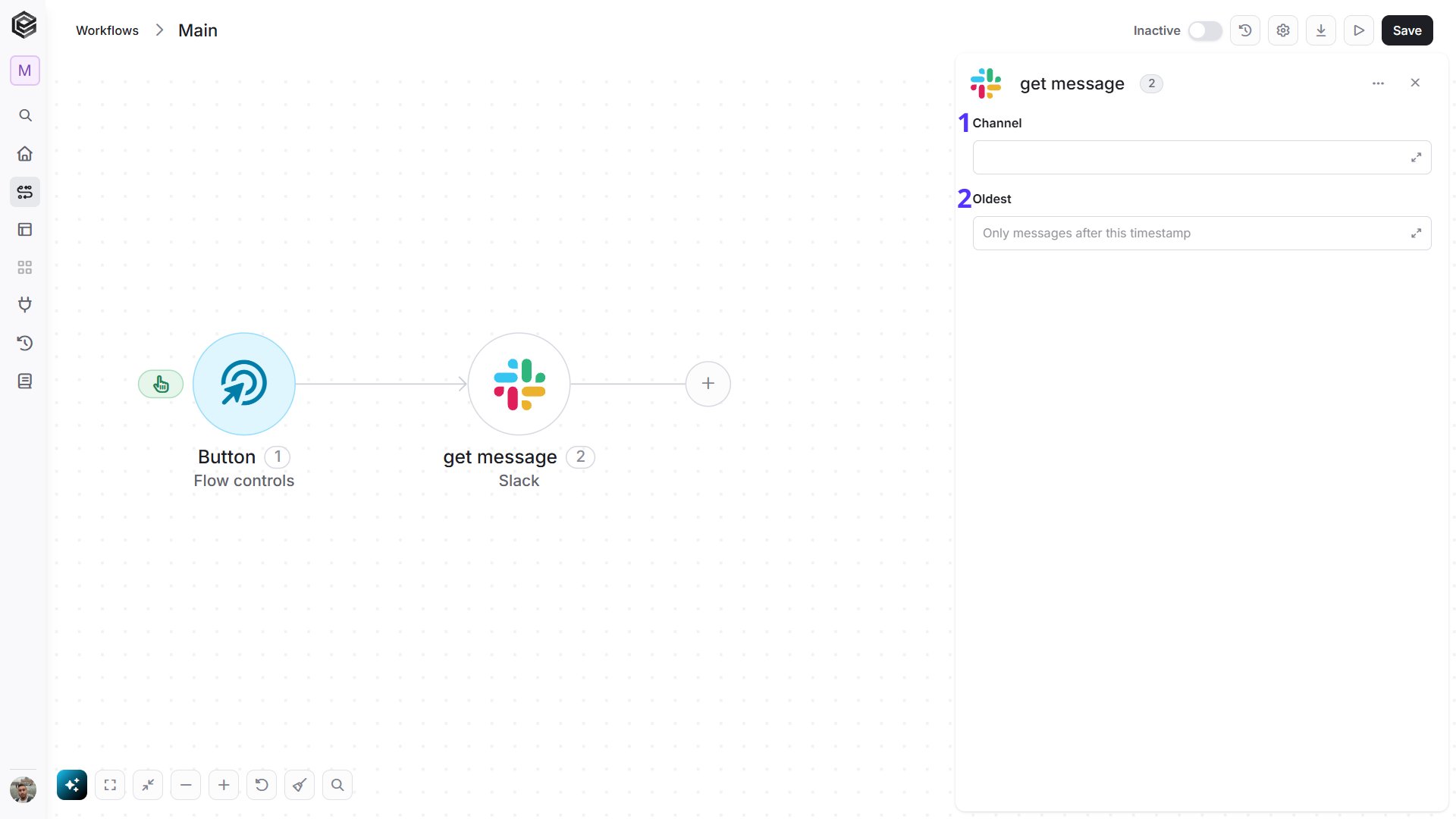
- Channel - Select the channel from which you want to retrieve messages.
- Oldest - Specify the earliest timestamp to filter messages, retrieving only those posted after this timestamp.
Search For a Message
Searches for messages in Slack based on keywords and additional filters.
- Search Query - This is the keyword or phrase you want to search for within messages in your Slack workspace. It helps you find specific messages that contain the words or terms you’re looking for.
- Add Filter - Click Add Filter to define conditions that narrow down the data list and return only the relevant items. To learn more about using filters, click here.
Get User
Retrieves user details based on the user ID.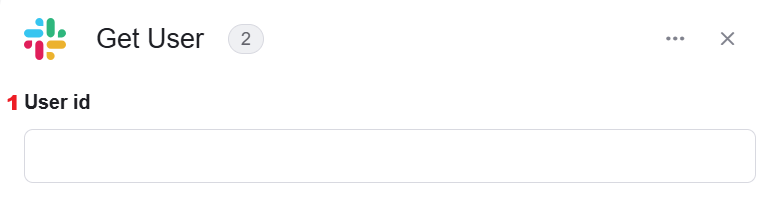
- User ID - Select the ID of the user you want to retrieve information for.
Get Users
Retrieve a list of users and their details in your Slack workspace.
Invite User to Conversation
Invites users to a conversation in a specified channel.
- Channel ID - Select the ID of the channel where you want to invite the user.
- User(s) ID - Select the ID(s) of the user(s) you want to invite to the conversation.
Get Replies
Retrieves replies to a specific message in a Slack channel.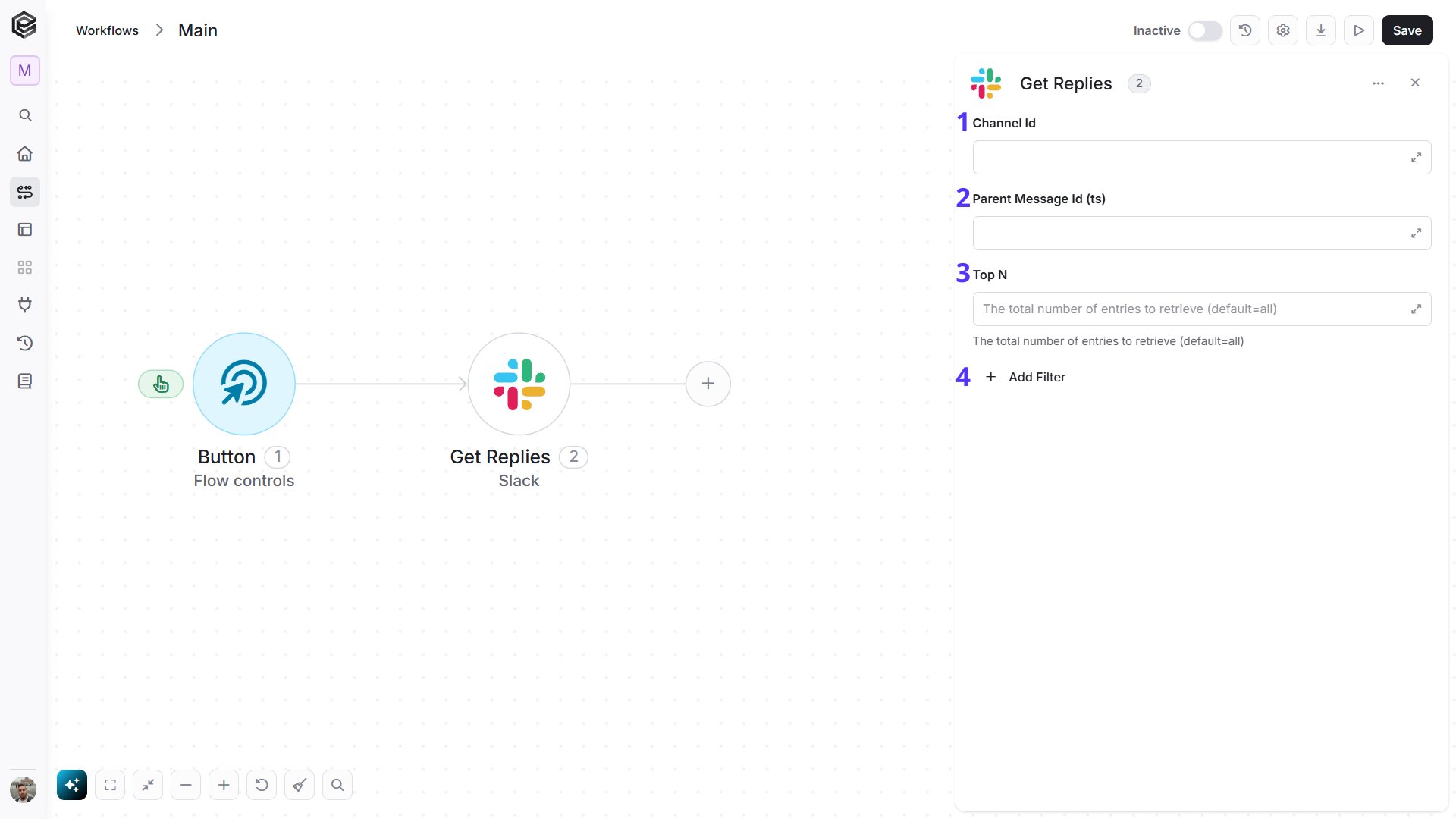
- Channel ID - Select the ID of the channel from which you want to retrieve replies.
- Parent Message ID (ts) - Enter the timestamp (ts) of the parent message for which you want to retrieve replies.
- Top N - Enter the total number of channels to retrieve (default is unlimited).
- Add Filter - Click Add Filter to define conditions that narrow down the data list and return only the relevant items. To learn more about using filters, click here.
Set Conversation Topic
Sets or updates the topic of a conversation in a Slack channel.
- Channel ID - Select the channel for which you want to set the topic.
- Topic - Enter the topic you want to set for the selected channel.
Set Conversation Purpose
Sets or updates the purpose of a conversation in a Slack channel.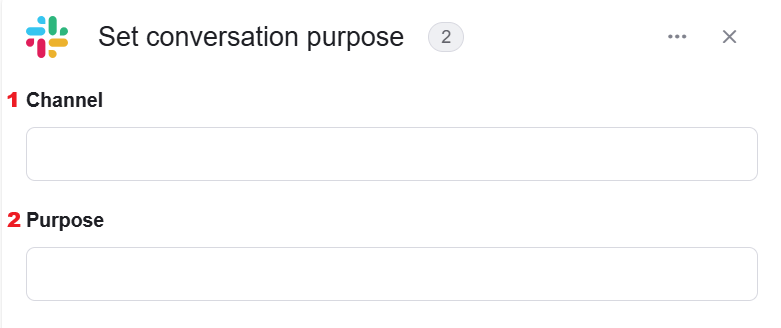
- Channel Select the channel for which you want to set the purpose.
- Purpose - Enter the purpose or description you want to set for the selected channel.
Get Reactions
Retrieves reactions (emojis) to a specific message or file.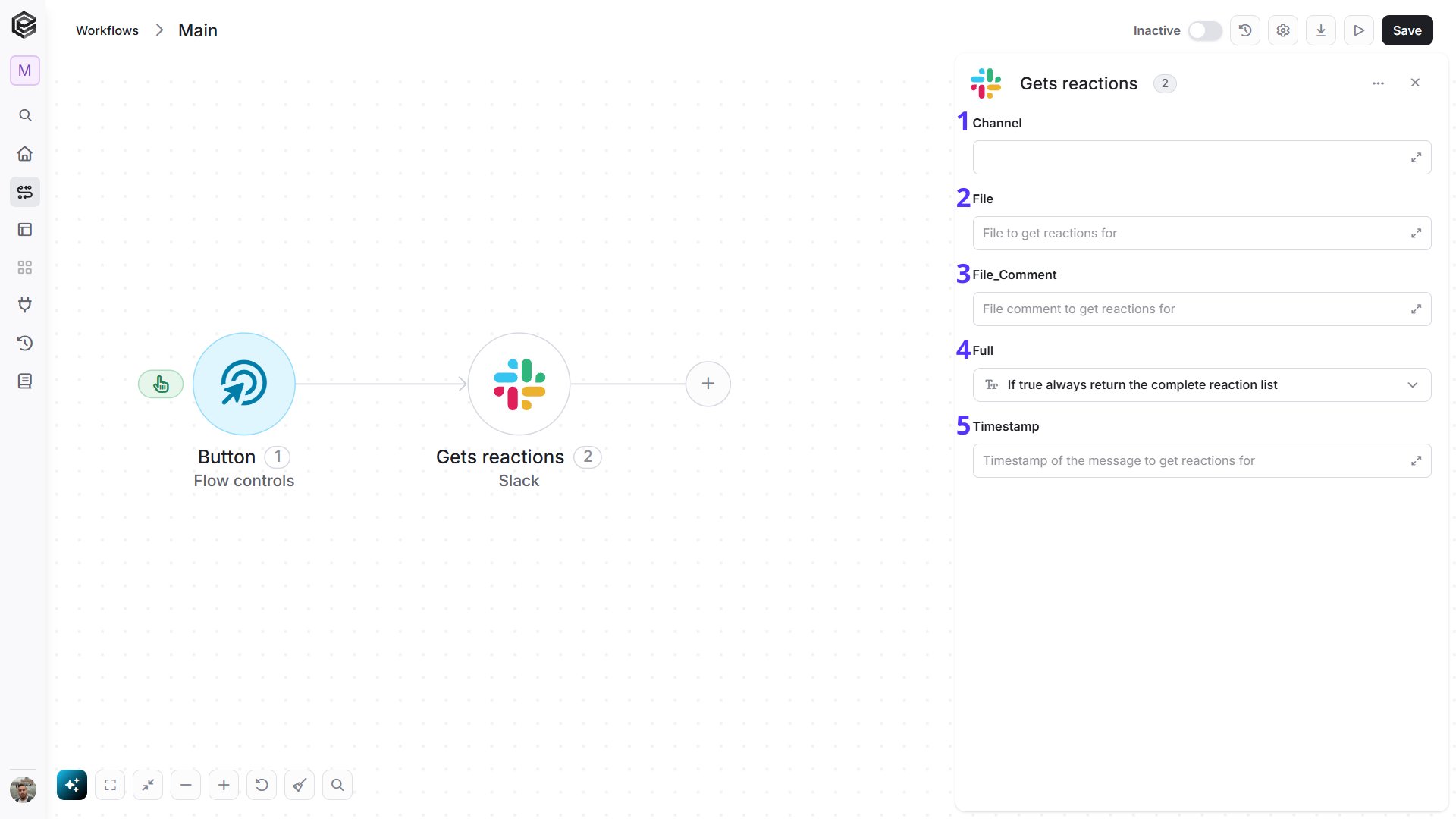
- Channel - Select the channel where the message or file is located.
- File - Specify the file for which you want to get reactions.
- File Comment - Specify the file comment for which you want to get reactions.
- Full - Set to true if you want to always return the complete reaction list.
- Timestamp - Enter the timestamp of the message for which you want to retrieve reactions.
Get Files
Retrieves files from a Slack channel based on selected criteria.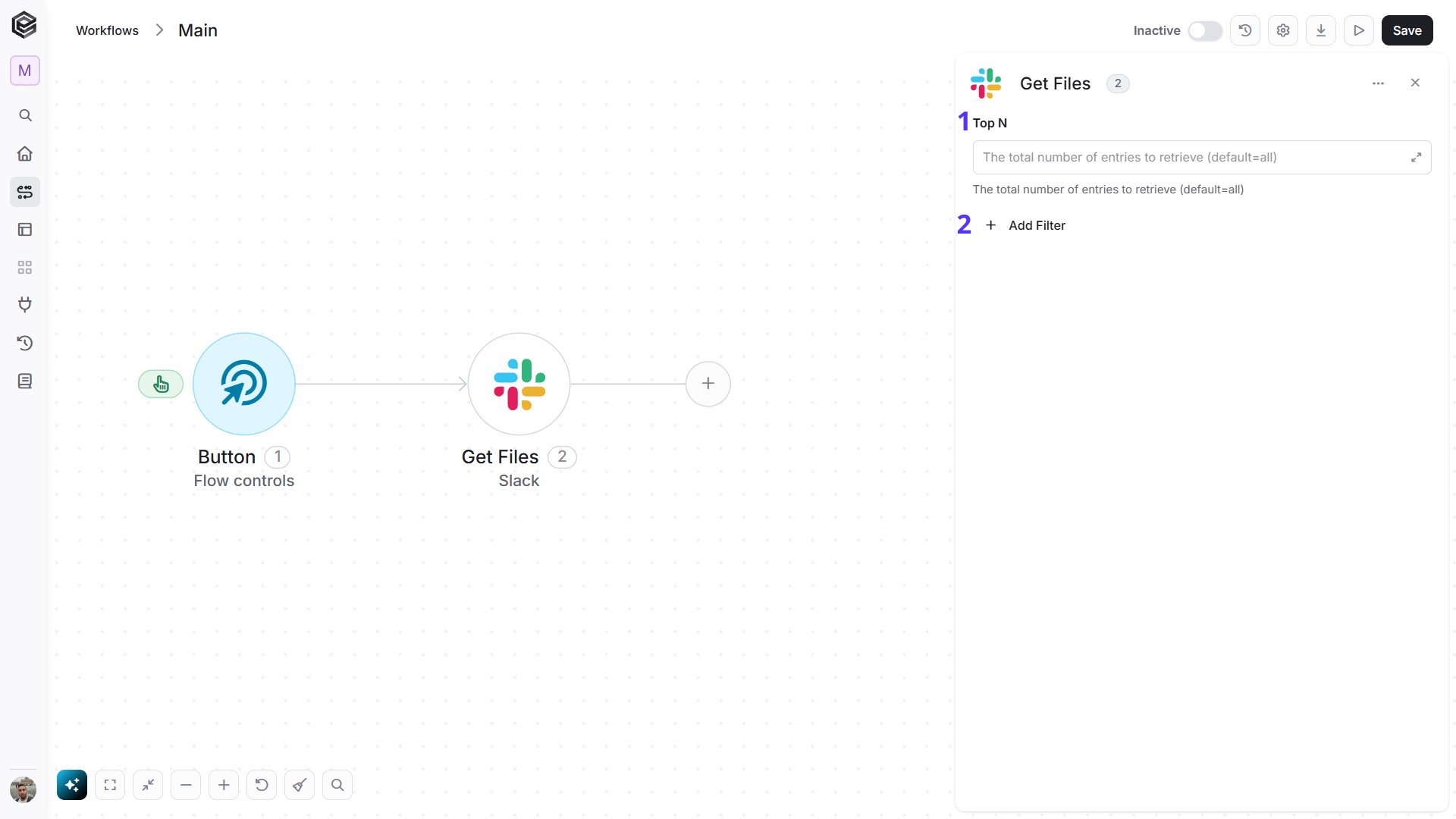
- Top N - Enter the total number of channels to retrieve (default is unlimited).
- Add Filter - Click Add Filter to define conditions that narrow down the data list and return only the relevant items. To learn more about using filters, click here.
Upload a File
Uploads a file to a specified Slack channel, with options to include a message and specify file details.
- Channel ID - Select the channel where the message you want to update is located.
- Timestamp of Message - Enter the timestamp of the message you want to update.
- Enter Text - Input the new text that will replace the current message content.
Download File
Downloads a file from Slack using a private URL.
- URL Private Download - Enter the private download URL of the file you want to download.
Delete a File
Deletes a specific file from the Slack workspace.
- File ID - Enter the ID of the file you wish to delete from the Slack workspace.
Delete Message
Deletes a specific message in a Slack channel based on its timestamp.
- Channel ID - Enter the ID of the channel where the message you want to delete is located.
- Timestamp of Message - Enter the timestamp of the message you wish to delete.
Create Reminder
Creates a new reminder with specified text and time.
- Text - A field to enter the reminder text.
- Time - A field to specify the time for the reminder.
- Add Field - Click Add Field to add and populate additional fields for the selected activity. To learn more about managing activity data, click here.
Get Reminders
Retrieves a list of reminders based on the selected team ID.
- Add Filter - Click Add Filter to define conditions that narrow down the data list and return only the relevant items. To learn more about using filters, click here.
Delete Reminder
Deletes a specific reminder by its ID.
- Reminder - Enter the ID of the reminder you wish to delete.
- Team ID - Specify the team or workspace ID associated with the reminder.
Archive Conversation
Archives a specified Slack channel, making it read-only and removing it from active channel lists.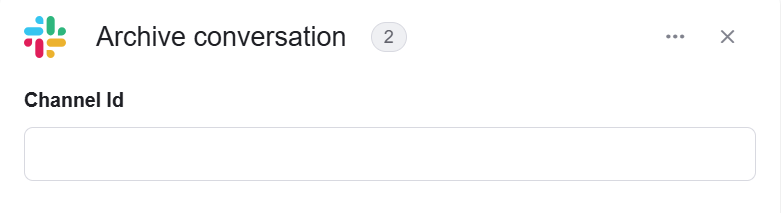
- Channel ID - Select the channel you want to archive.
Unarchive Conversation
Restores a previously archived Slack channel, making it active and accessible again.
- Channel - Choose the channel you want to unarchive.
Append Block to Blocks Array
Adds a new block to an existing array of blocks in a Slack message, allowing for enhanced formatting and interactive content.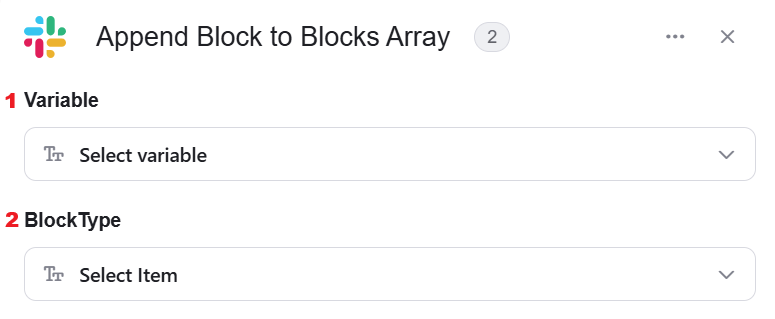
- Variable - The specific array or message object where the new content block will be added.
- BlockType - The format of the content being added, such as text, image, or a divider.