

Getting Started with Dropbox
Prerequisites
- A Dropbox account.
- An Active API Key. Note: Make sure to allow the required permissions (scopes) in Dropbox when connecting your account otherwise, some activities may not work properly.
Add a connection to Dropbox in Engini
- Enter your Engini account at https://app.engini.io.
-
Navigate to Connections page by clicking on the Connections on the left sidebar or by clicking here.

-
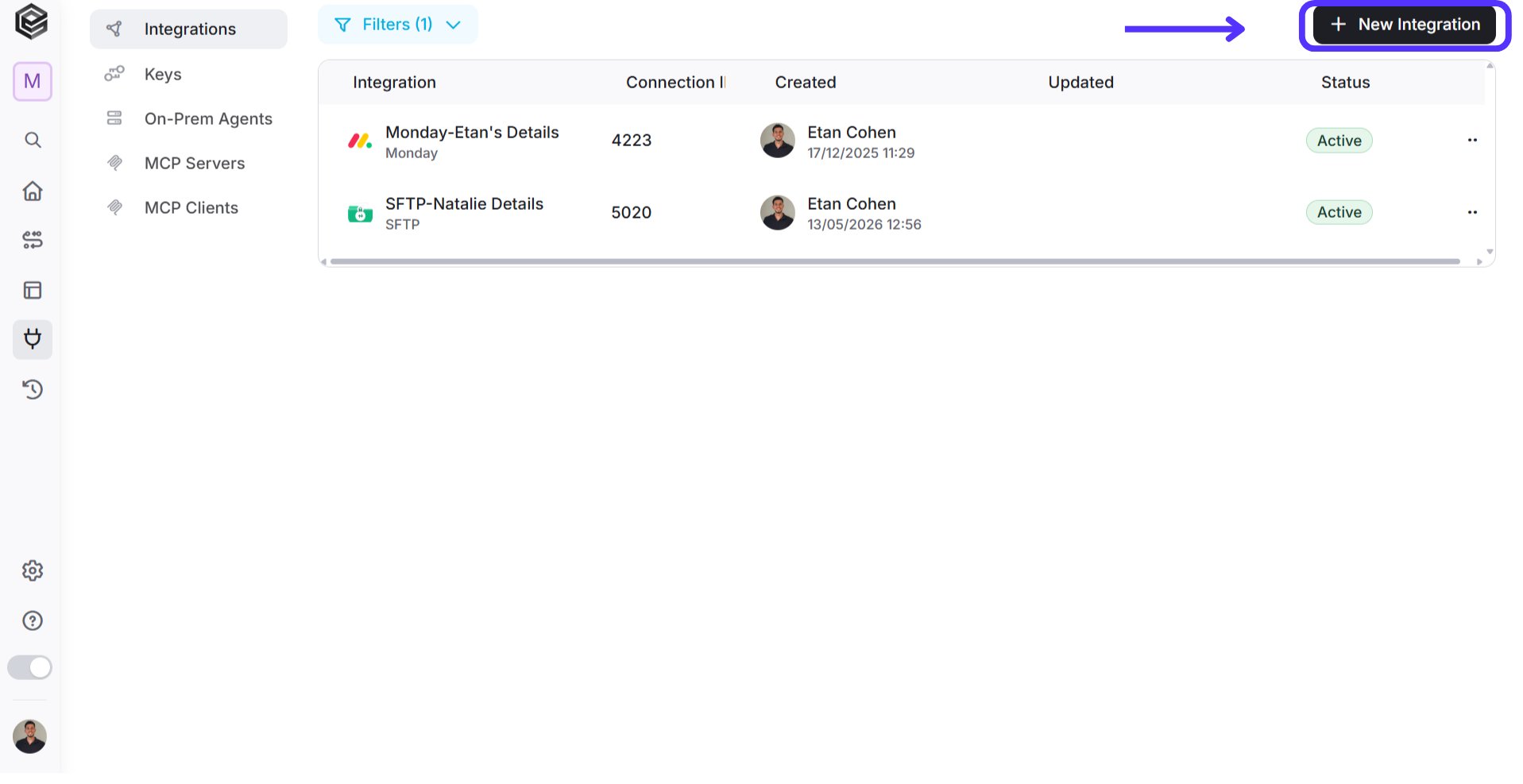
Click on the “New Integration” option located at the topbar.
-
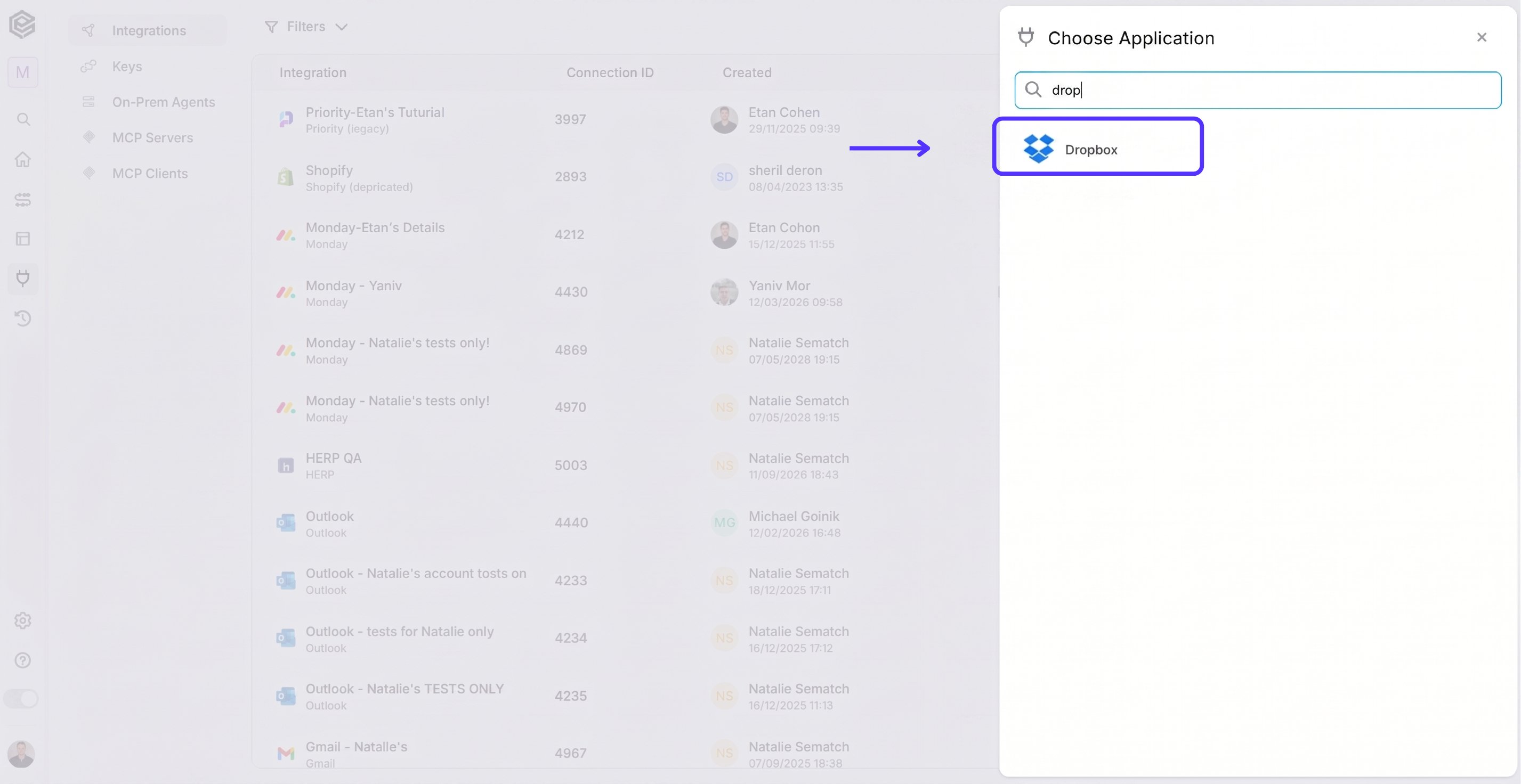
Choose Dropbox option from the available applications.
- Enter the details in the “Add Connection” form
OAuth2
Sign in using your account.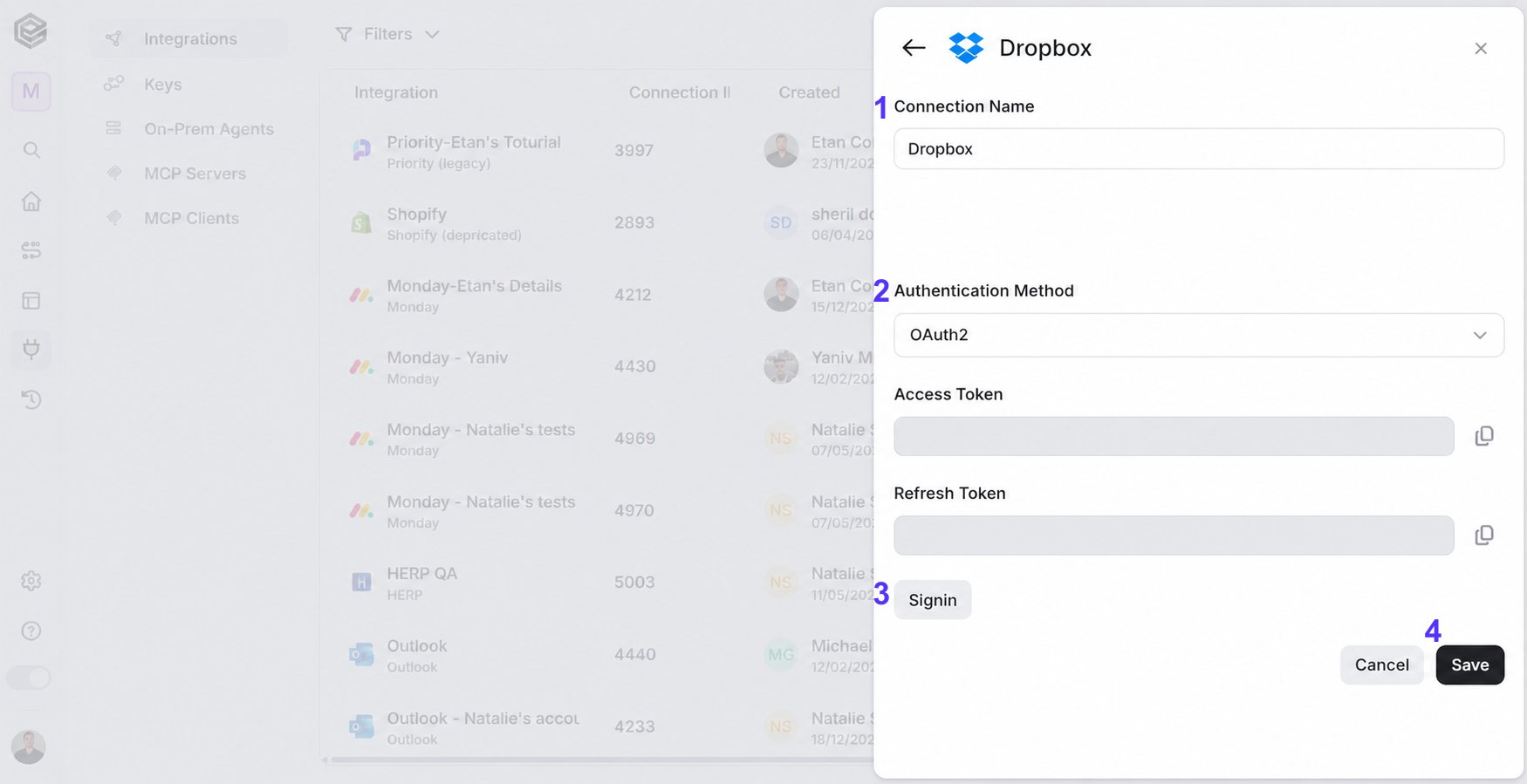
- Connection name - Enter unique identifier for the connection within Engini.
- Authentication Method - Select OAuth2.
- Click on the “Sign in” button.
-
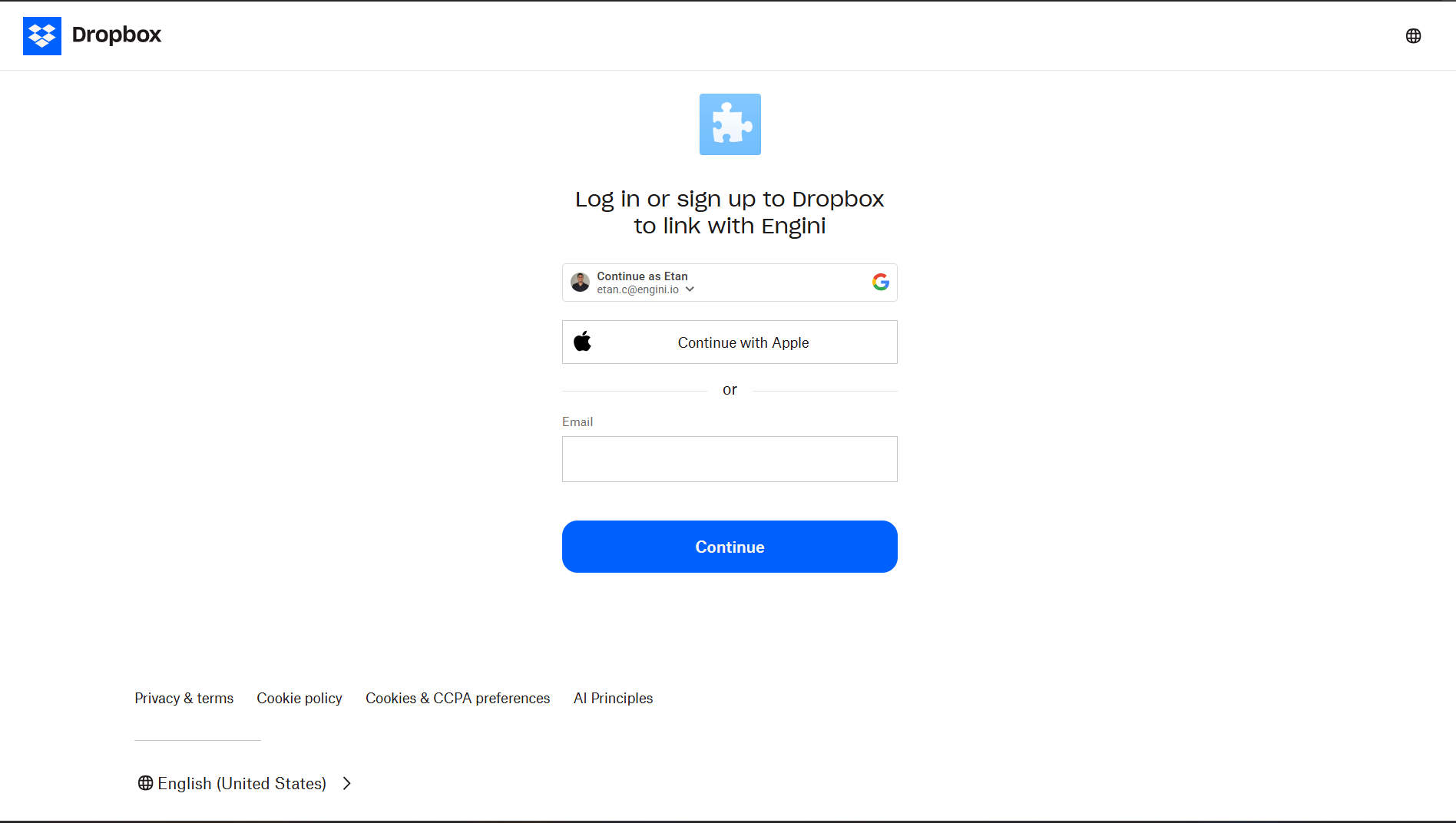
Sign into your Dropbox account.
-
Fields automatically populated post connecting to a Dropbox account include:
- Access Token: A token for authorization to access Google services.
- Refresh Token: A token used to obtain a new access token when the current one expires.
-
Fields automatically populated post connecting to a Dropbox account include:
- Click on the save button to save the connection.
Actions
Get Files Or Folders
Retrieves all subfolders and files inside a specified Dropbox folder. This activity allows you to list the contents of a folder so you can use them in the next steps of your workflow.
- Path (From) - Specifies the Dropbox folder whose contents you want to retrieve.
3 Ways to Fill It:
- Dynamic Value - Choose through a live, auto-generated list of your Dropbox folders and subfolders.
- Dynamic Mapping - Map a Path variable from a previous step in your workflow so it changes automatically based on real-time data.
- Static Text - Provide a folder path such as “/Invoices”.
- Top N - Limits the number of results returned. If left empty, all items are retrieved.
- Add Filter - Click Add Filter to define conditions that narrow down the data list and return only the relevant items. To learn more about using filters, click here.
Get File
The Get File activity retrieves detailed information about a specific file in Dropbox such as its size, creation date, and version ID.
-
Dynamic List- Choose through a live, auto-generated list of your Dropbox folders and subfolders to select the file.
- Dynamic Mapping- Map a Path variable from a previous step in your workflow so it changes automatically based on real-time data.
- Static Text -Provide a folder path such as “/Invoices”.
Get File Request
This action retrieves detailed information about a specific “File Request” created in the connected Dropbox account.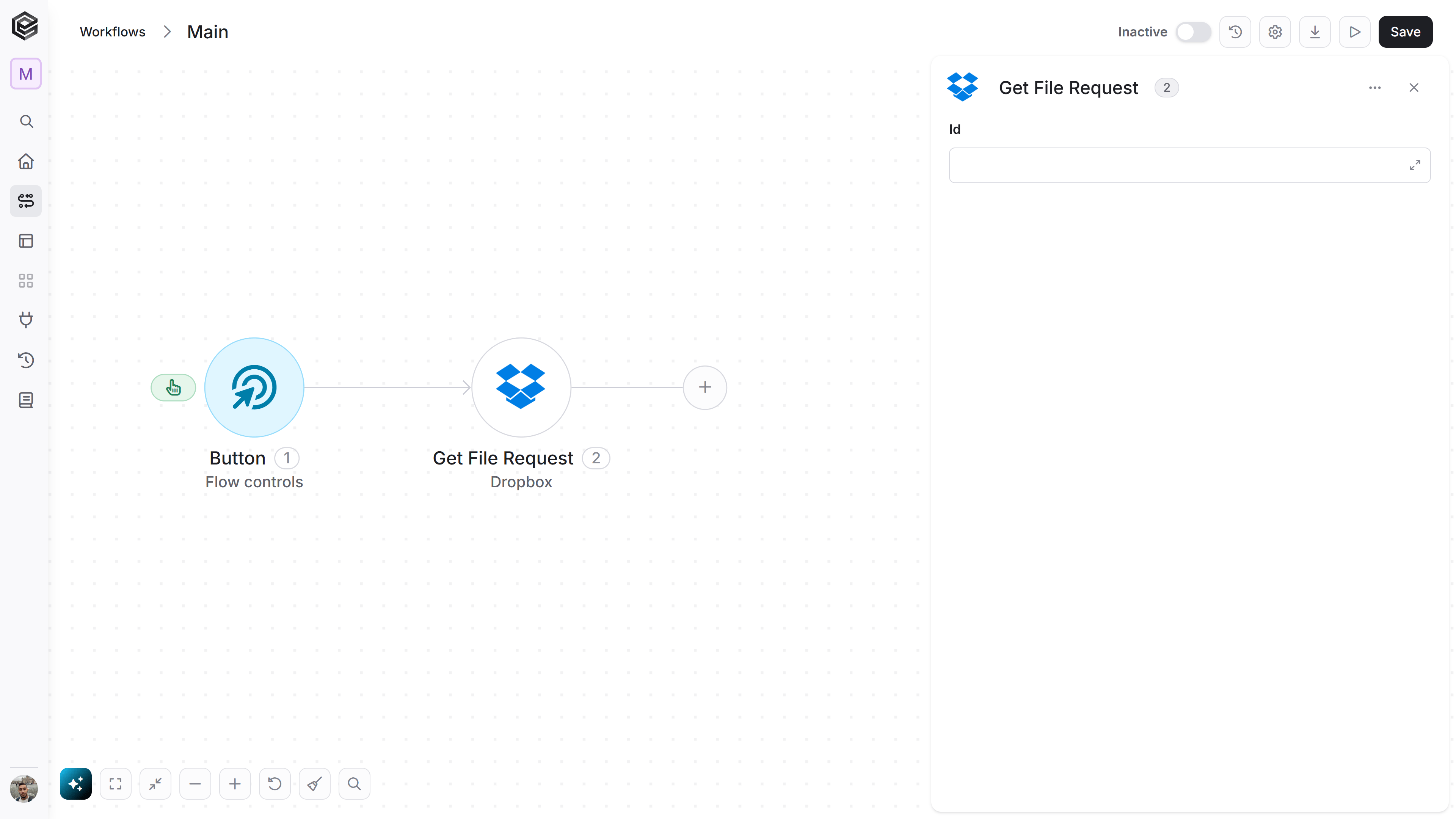
- Id - Specify your file request. You have 3 ways to fill it:
- Dynamic List - Choose through a live, auto-generated list of your Dropbox file requests names.
- Dynamic Mapping - Map a file request id from a previous steps in your workflow.
- Static Text - Provide a file request id.
Get File Requests
Retrieves a list of multiple file requests created in the connected Dropbox account, rather than just fetching information about a single one.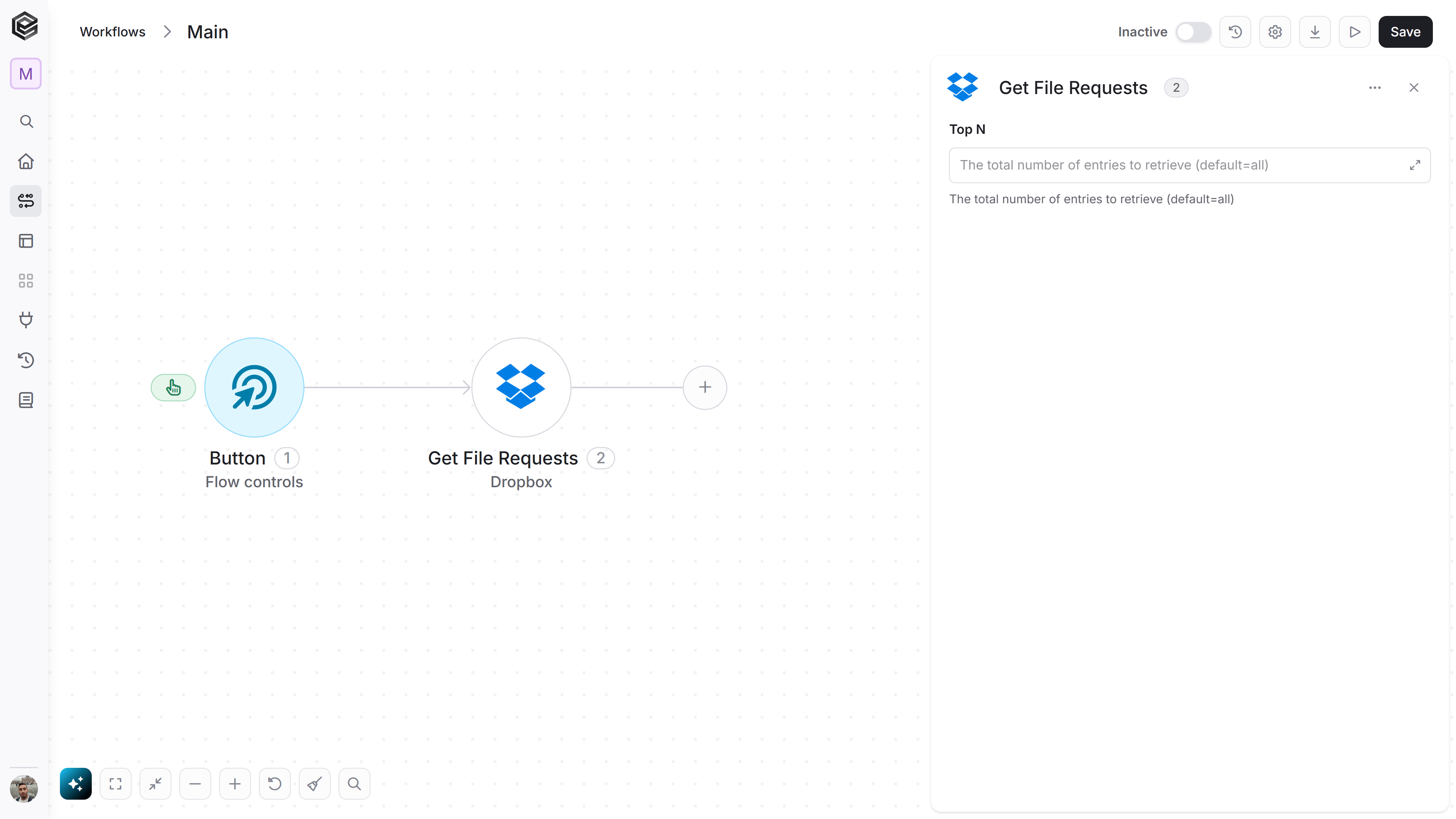
- Top N - Limits the number of results returned. If left empty, all items are retrieved.
Get File Revisions
Retrieves the version history (revisions) of a specific file in Dropbox. It allows you to see metadata for older versions of the file.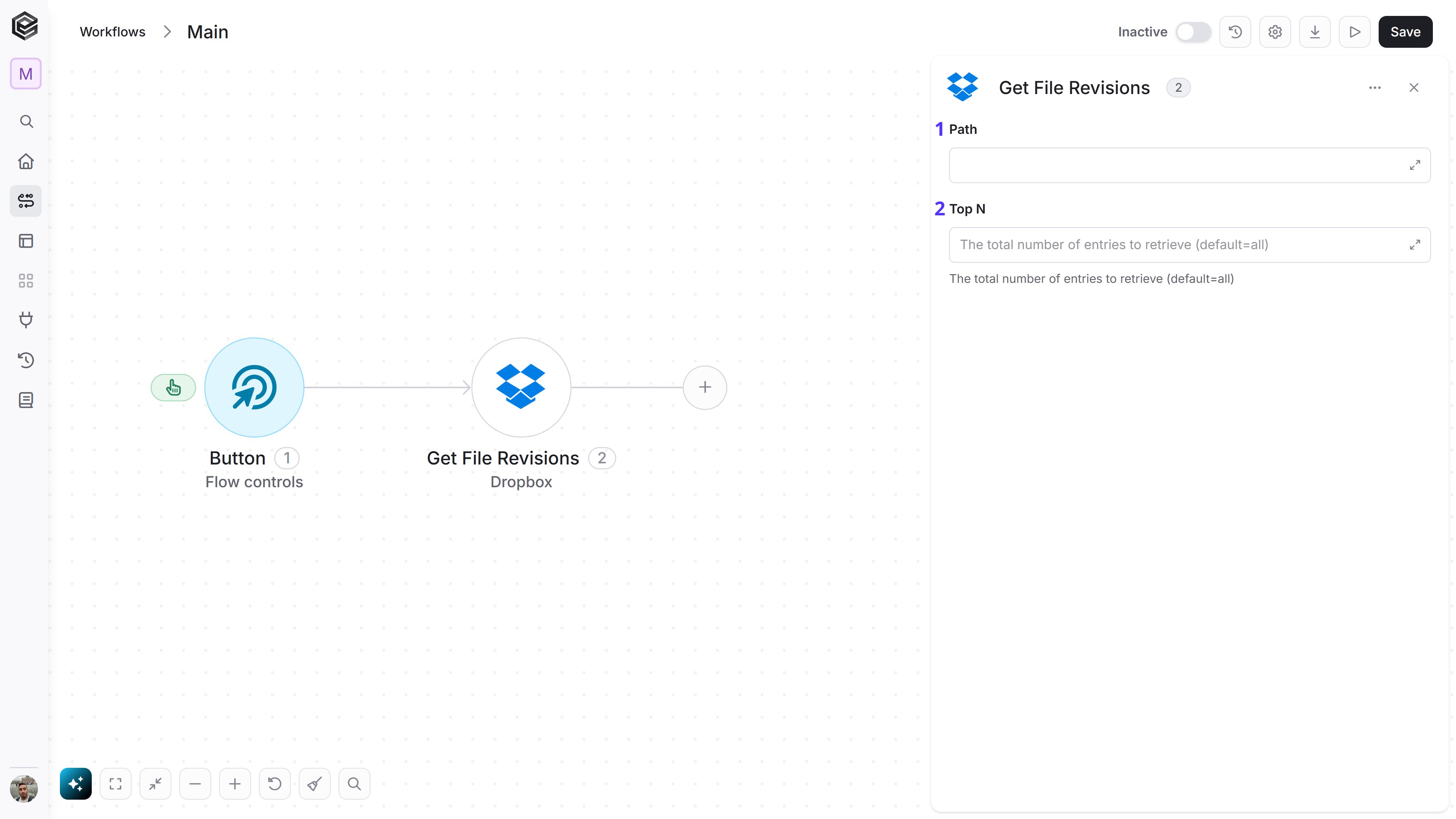
- Path (From) - The specific file path in your Dropbox account for which you want to retrieve the version history. You have 3 ways to fill it:
- Dynamic List - Choose through a live, auto-generated list of your Dropbox folders and subfolders.
- Dynamic Mapping - Map a Path variable from a previous step in your workflow so it changes automatically based on real-time data.
- Static Text - Provide a folder path such as “/Invoices”.
- Top N - The maximum number of past versions to return. Leaving this field blank defaults to retrieving all available revisions for that file.
Create File Request
Creates a new Dropbox file request so others can upload files to a specific folder in your Dropbox.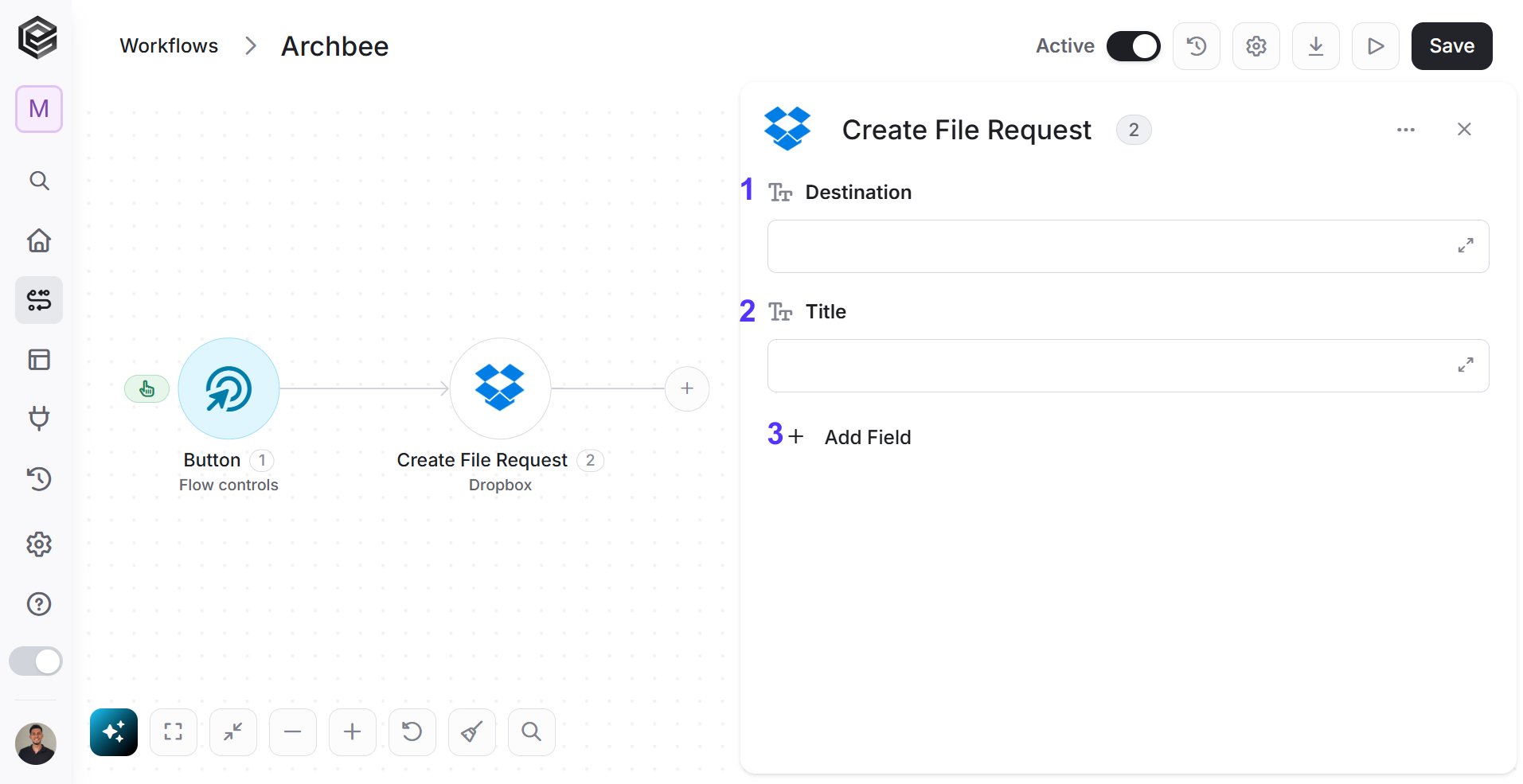
- Destination - The Dropbox folder where uploaded files will be saved. For example: “/File Requests/Project Documents”.
3 ways to fill it:
- Dynamic List - Choose through a live, auto-generated list of your Dropbox folders and subfolders to select one.
- Dynamic Mapping - Map a Path variable from a previous step in your workflow so it changes automatically based on real-time data.
- Static Text - Provide a folder path such as “/Invoices”.
- Title - The name of the file request.
- Add Field - Click Add Field to add and populate additional fields for the selected activity. To learn more about managing activity data, click here.
Delete Closed File Requests
Closes a Dropbox file request so people can no longer upload files through it.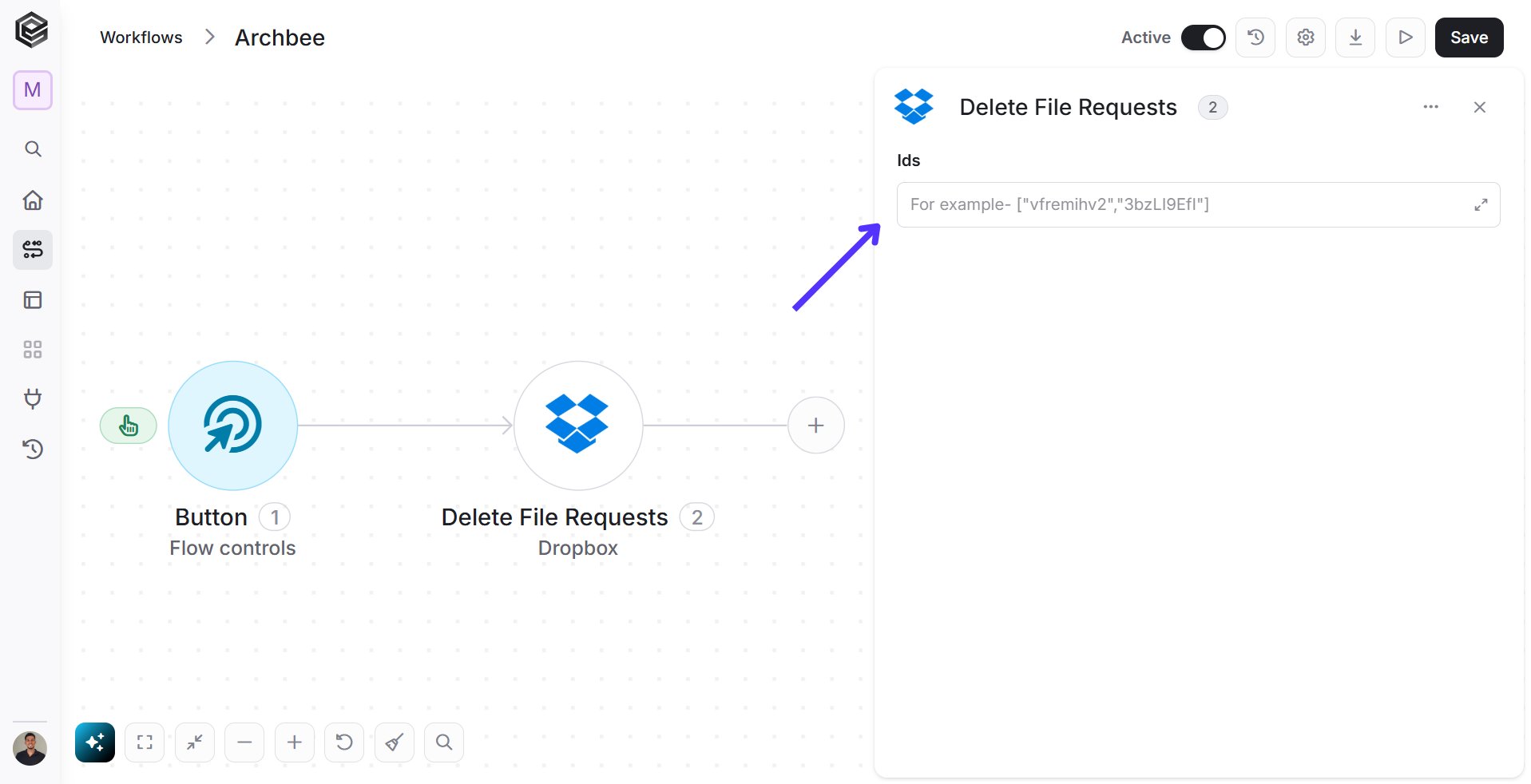
Delete File Or Folder
Deletes a specific file or an entire folder (including all of its contents) from your connected Dropbox account.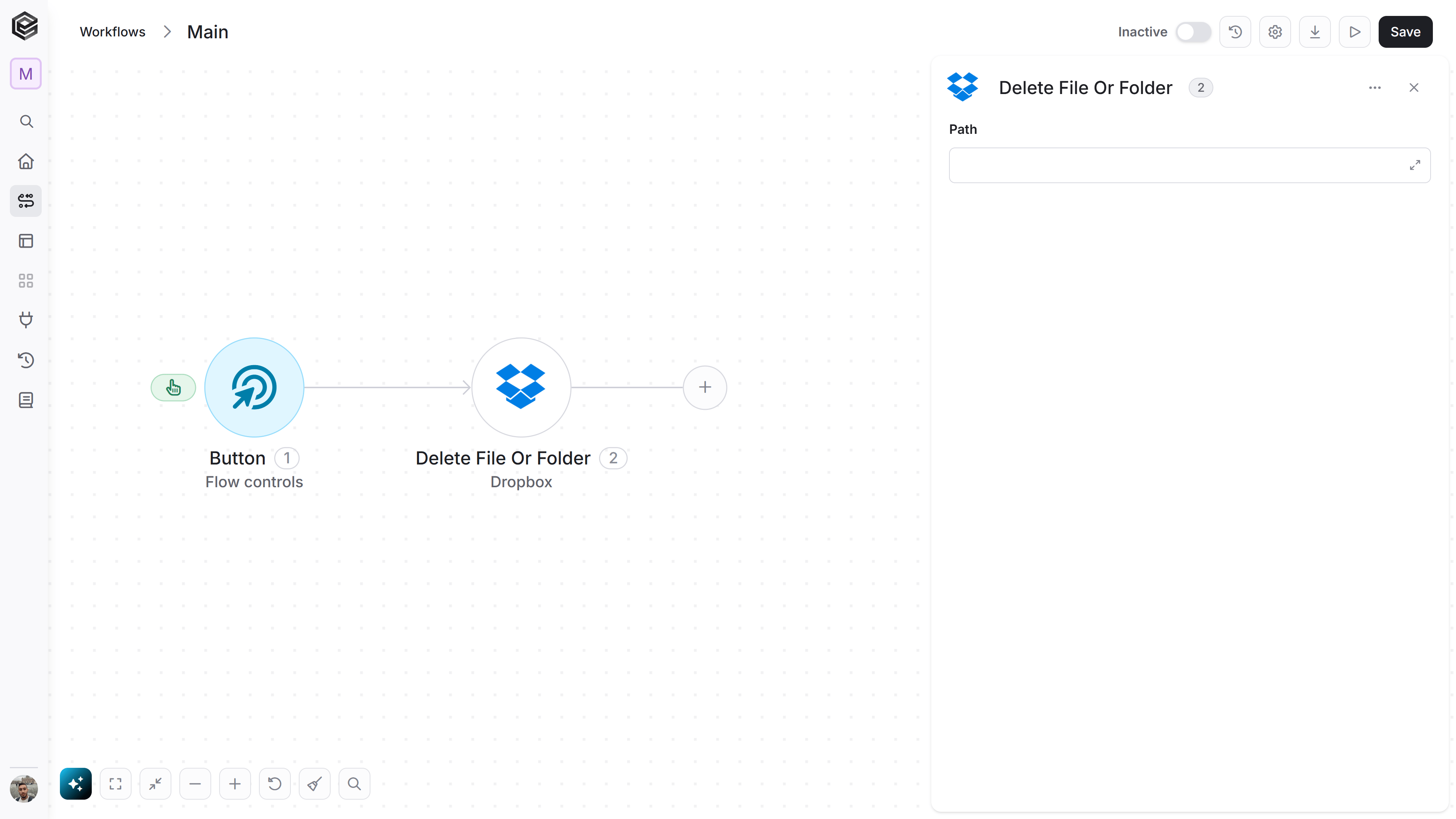
- Path (From) - The explicit Dropbox path of the item you wish to remove. You have 3 ways to fill it:
- Dynamic List - Choose through a live, auto-generated list of your Dropbox folders and subfolders to select one.
- Dynamic Mapping - Map a Path variable from a previous step in your workflow so it changes automatically based on real-time data.
- Static Text - Provide a folder path such as “/Invoices”.
Create Folder
This action creates a new folder at a specified path within your connected Dropbox account to help you structure and organize your files.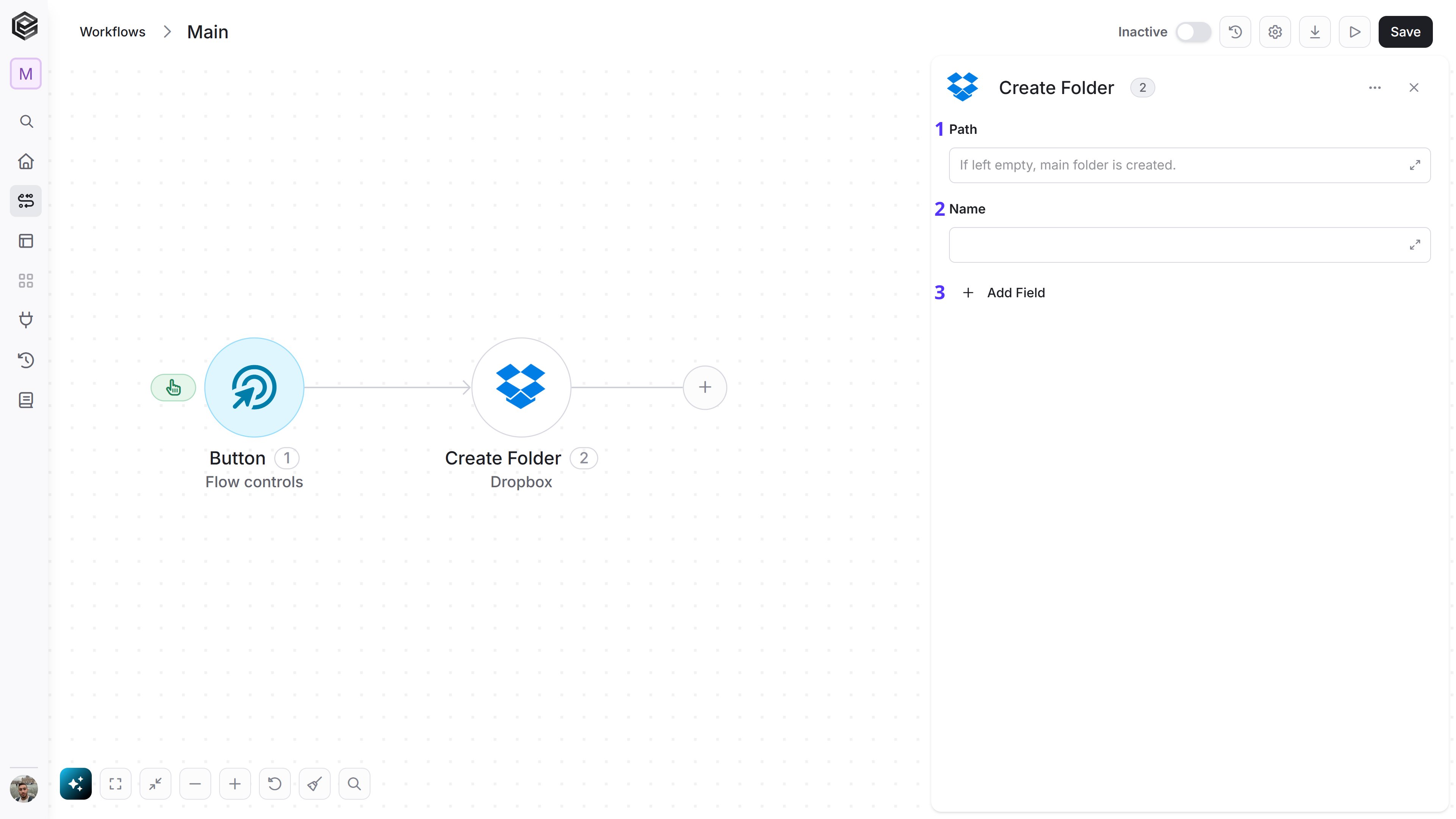
- Path (From) - The parent directory where the new folder should be located. You have 3 ways to fill it:
- Dynamic List - Choose through a live, auto-generated list of your Dropbox folders and subfolders to select one.
- Dynamic Mapping - Map a Path variable from a previous step in your workflow so it changes automatically based on real-time data.
- Static Text - Provide a folder path such as “/Invoices”.
- Name - Choose a unique name for this folder
- Add Field - Click Add Field to add and populate additional fields for the selected activity. To learn more about managing activity data, click here.
Download File
This activity allows you to get the content of a file in your Dropbox app.
- File Path - Specifies the Dropbox folder whose contents you want to retrieve.
3 Ways to Fill It:
- Dynamic List - Choose through a live, auto-generated list of your Dropbox folders and subfolders to select one.
- Dynamic Mapping - Map a Path variable from a previous step in your workflow so it changes automatically based on real-time data.
- Static Text - Provide a folder path such as “/Invoices”.
Update File Request
Updates the settings of an existing Dropbox file request, such as its title, description, or deadline.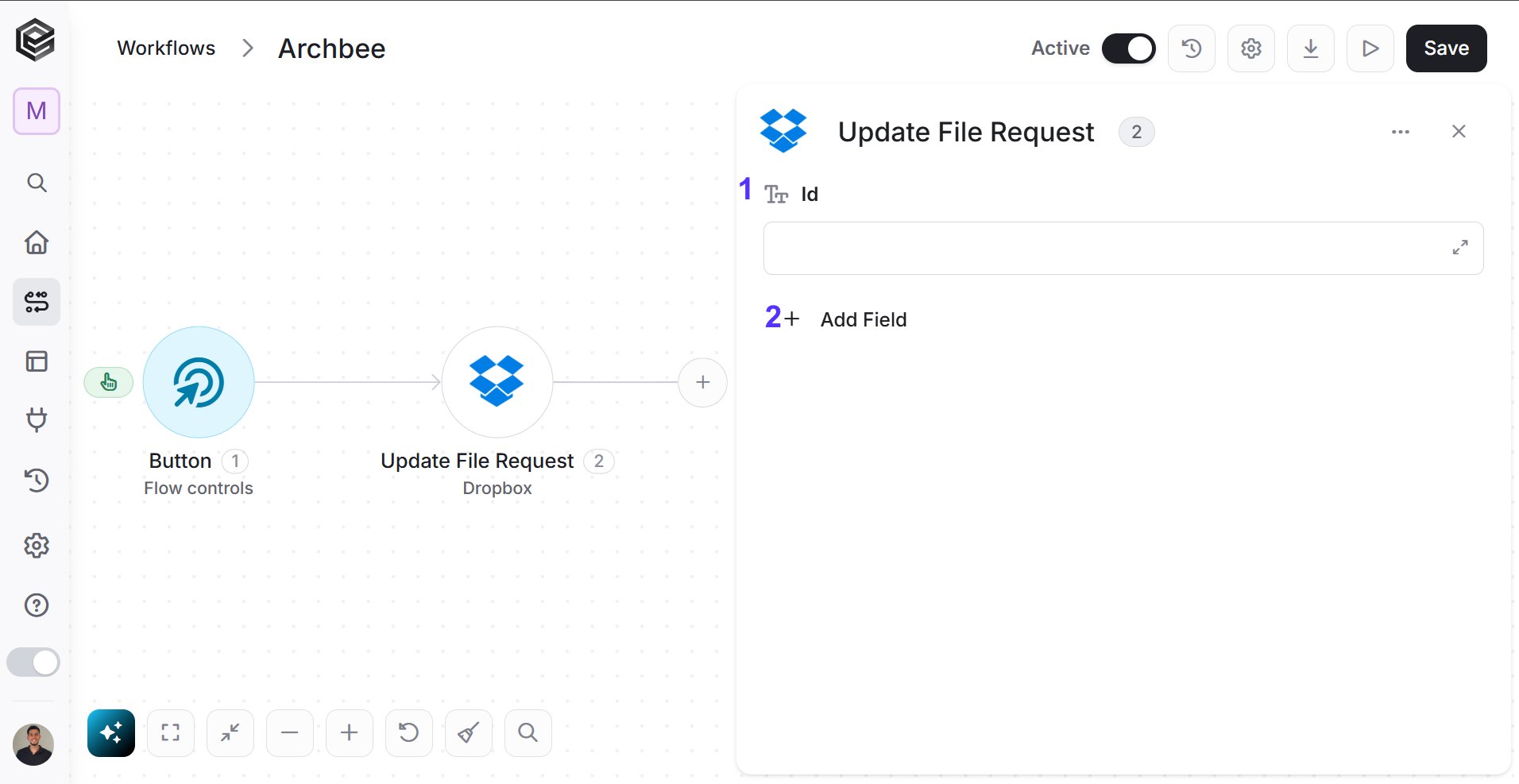
- Id - The unique identifier of the file request you want to update. Click on the field to open a dynamic list showing all your file requests names from your Dropbox account. Note: You can also manually input a specific ID or map it dynamically using the output from a previous activity.
- Add Field - Click Add Field to add and populate additional fields for the selected activity. To learn more about managing activity data, click here.
Upload File
Uploads a file to a specified location in your Dropbox account.
- Path (From) - Specifies the Dropbox folder whose contents you want to retrieve.
3 Ways to Fill It:
- Dynamic List - Choose through a live, auto-generated list of your Dropbox folders and subfolders to select one.
- Dynamic Mapping - Map a Path variable from a previous step in your workflow so it changes automatically based on real-time data.
- Static Text - Provide a folder path such as “/Invoices”.
- Content - Insert the content of the file in as a BASE64 format.
- File Name - Choose a unique name for this file, make sure you write at the end of the the corresponding file type( e.g. image.png, document.pdf..).
- Mode - Choose from the dropdown list if you want to Add a new file , Overwrite an existing one or Update
- Add Field - Click Add Field to add and populate additional fields for the selected activity. To learn more about managing activity data, click here.
Move Folder Or File
transfers an existing file or folder from its current location to a new directory within your connected Dropbox account.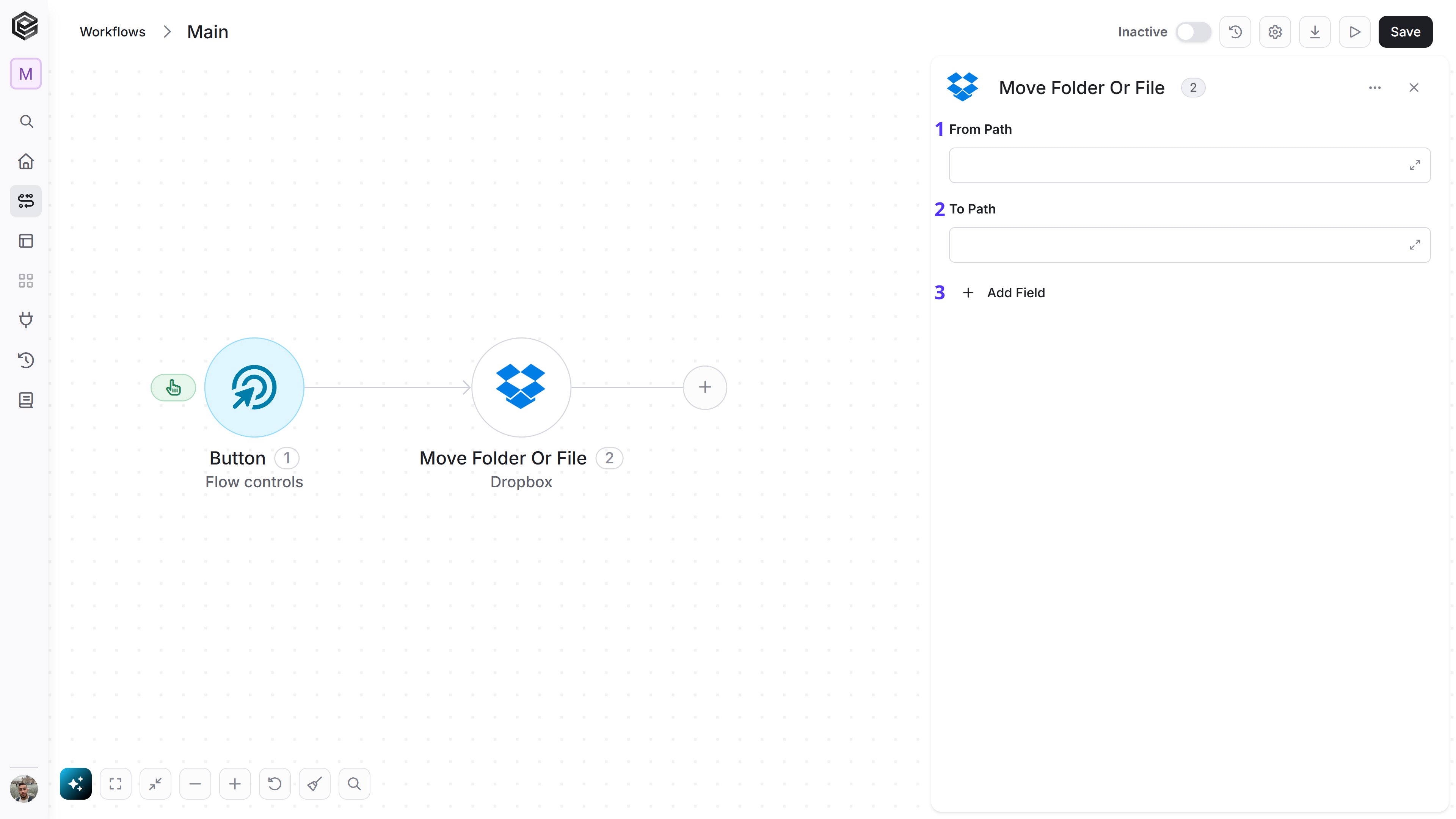
- From Path - The current full Dropbox path of the file or folder you want to relocate. 3 Ways to Fill It:
- Dynamic List - Choose through a live, auto-generated list of your Dropbox folders and subfolders to select one.
- Dynamic Mapping - Map a Path variable from a previous step in your workflow so it changes automatically based on real-time data.
- Static Text - Provide a folder path such as “/Templates/report.pdf”.
- To Path - The exact target destination path where the item should be moved, including the desired item name at the end of the destination path (e.g., /Archive/report.pdf).
- Add field- Click Add Field to add and populate additional fields for the selected activity. To learn more about managing activity data, click here.
Copy File Or Folder
Creates a duplicate copy of an existing file or folder and places it into a new destination path within your connected Dropbox account, leaving the original item untouched.
- Path (From) - The full Dropbox path of the original file or folder you want to duplicate.
3 Ways to Fill It:
- Dynamic List - Choose through a live, auto-generated list of your Dropbox folders and subfolders to select one.
- Dynamic Mapping - Map a Path variable from a previous step in your workflow so it changes automatically based on real-time data.
- Static Text - Provide a folder path such as “/Templates/report.pdf”.
- To Path - The exact target destination path where the item should be moved, including the desired item name at the end of the destination path (e.g., /Archive/report.pdf).
- Add field - Click Add Field to add and populate additional fields for the selected activity. To learn more about managing activity data, click here.
Restore File
This action reverts an existing file back to a specific older version from its version history.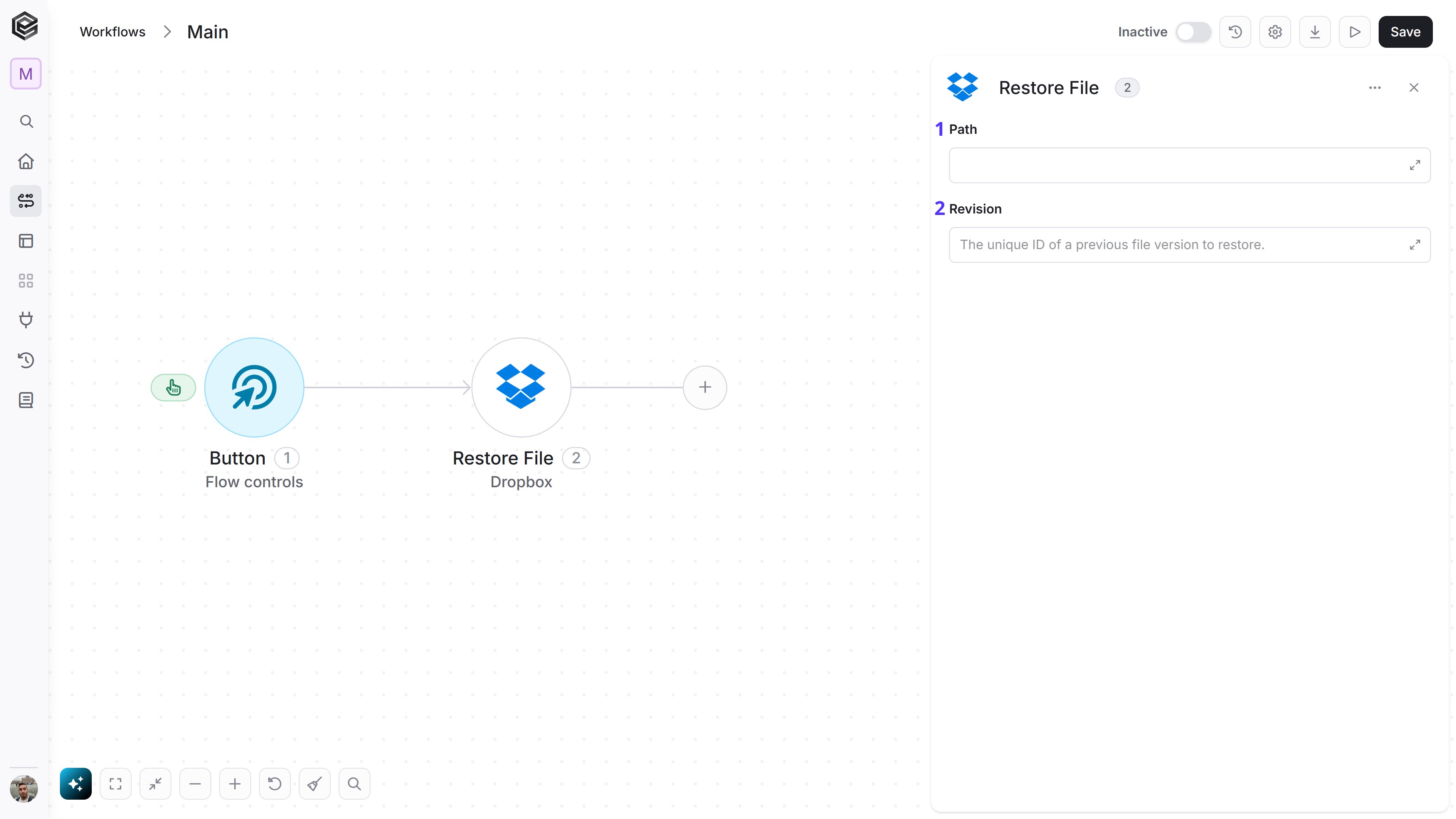
- Path (From) - The full Dropbox path of the file you want to roll back. 3 Ways to Fill It:
- Dynamic List - Choose through a live, auto-generated list of your Dropbox folders and subfolders to select one.
- Dynamic Mapping - Map a Path variable from a previous step in your workflow so it changes automatically based on real-time data.
- Static Text - Provide a file path.
- Revision - The unique ID of the specific previous file version you want to restore. This ID is typically extracted and mapped dynamically from the outputs of a Get File Revisions step.
Create Share Link
Creates a shared link for a specific file or folder in Dropbox, allowing the item to be accessed through a generated URL.
- Path - The Dropbox path of the file or folder for which you want to create a shared link. You have 3 ways to fill it:
- Dynamic List - Choose through a live, auto-generated list of your Dropbox files and folders.
- Dynamic Mapping - Map a Path value from a previous step in your workflow.
- Static Text - Provide a Dropbox path such as “/Documents/report.pdf”.
- Add Field - Click Add Field to add and populate additional fields for the selected activity. To learn more about managing activity data, click here.
Update Share Link
Updates the settings of an existing Dropbox shared link.
- URL - The existing Dropbox shared link you want to update. You can enter the URL manually or dynamically map it from a previous activity, such as the output of the Create Share Link action.
- Add Field - After entering the URL, Click Add Field to add and populate additional fields for the selected activity. To learn more about managing activity data, click here.
Send API Request
This activity allows you to send a custom API request directly to Dropbox.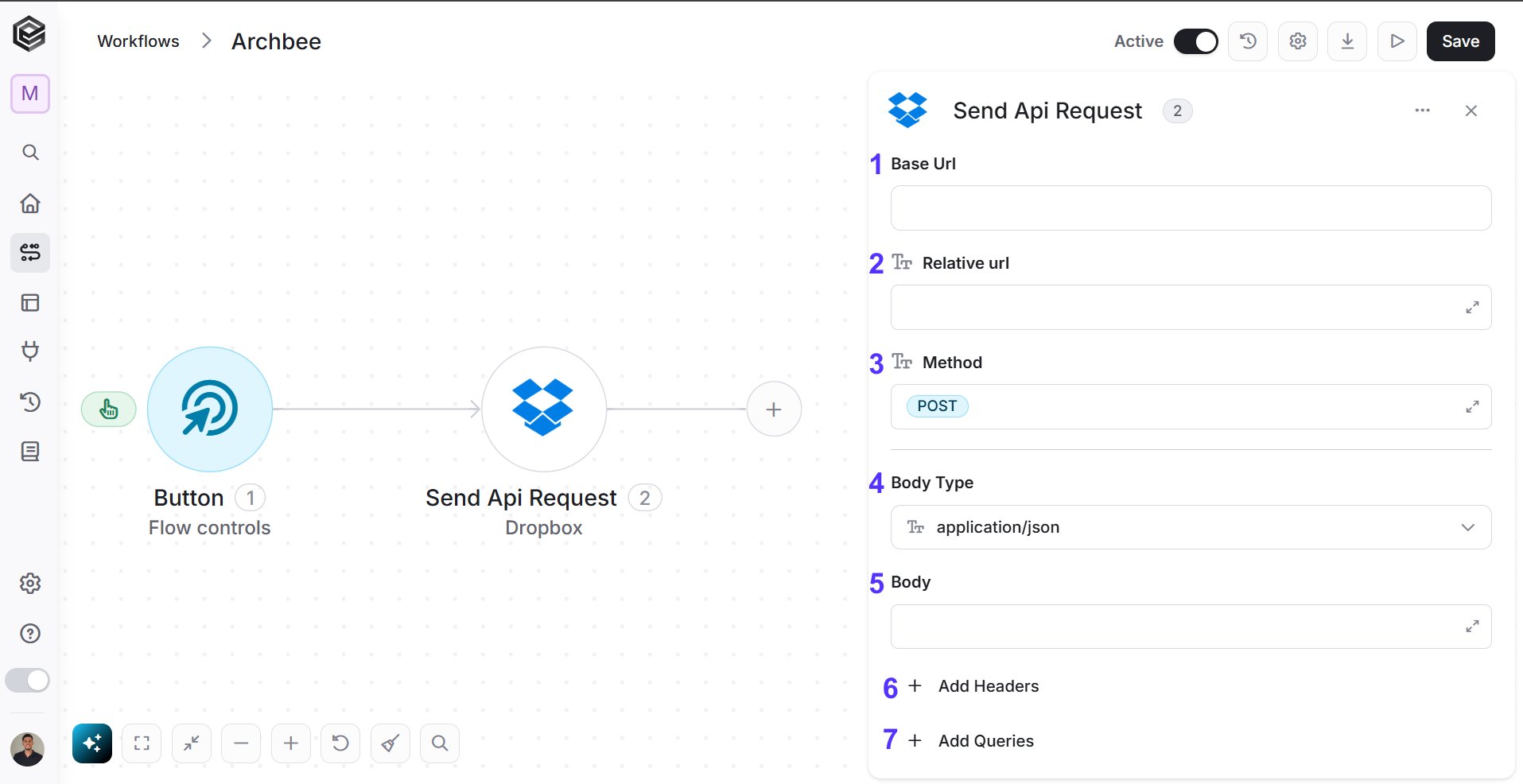
- Base Url – This is the root URL of the API you’re sending the request to.
- Relative url – You can specify additional path segments or parameters that need to be added to the end of the automatically generated URL. This allows you to customize the specific request you want to perform.
- Method – Select the HTTP method (e.g., Get, Post, Put, Delete, Patch).
- Body Type – Defines the format of the data in the body of your request. Commonly used values include application/json (as shown), which means the body will contain a JSON-formatted payload.
- Body – Contains any data that is being sent to the server.
- Add Headers – Additional metadata about the request, such as the type of data the Engini can accept, the length of the request body, and authentication information.
- Add Queries – The query refers to the parameters or data that are included in the URL of an HTTP request to provide additional information or instructions to the server.