

Add a Connection to Trello in Engini
Prerequisites
- A Trello account.
Connecting Engini to Trello
- Enter your Engini account at https://app.engini.io.
-
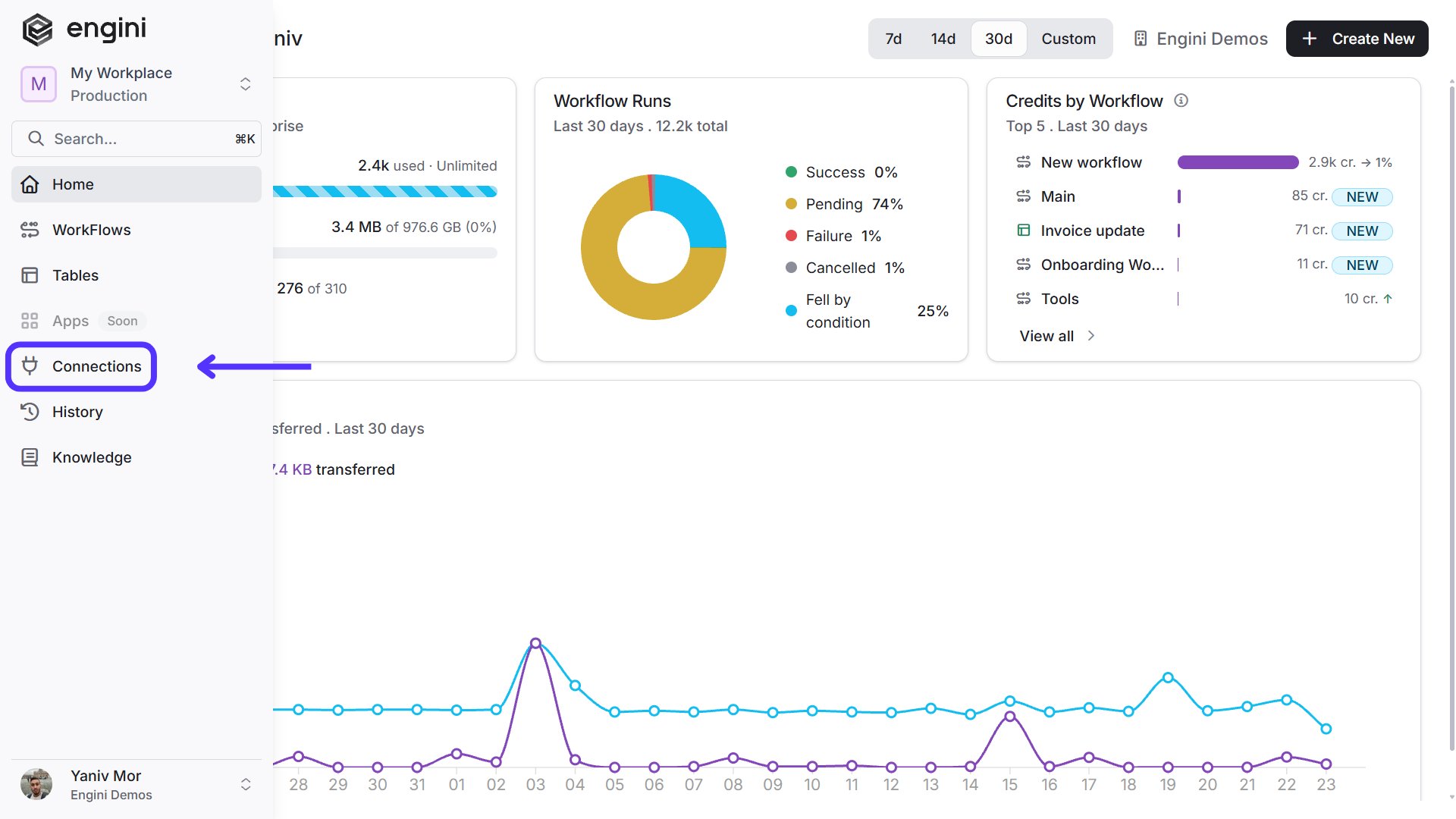
Navigate to the Connections page by clicking on Connections in the left sidebar or by clicking here.
-
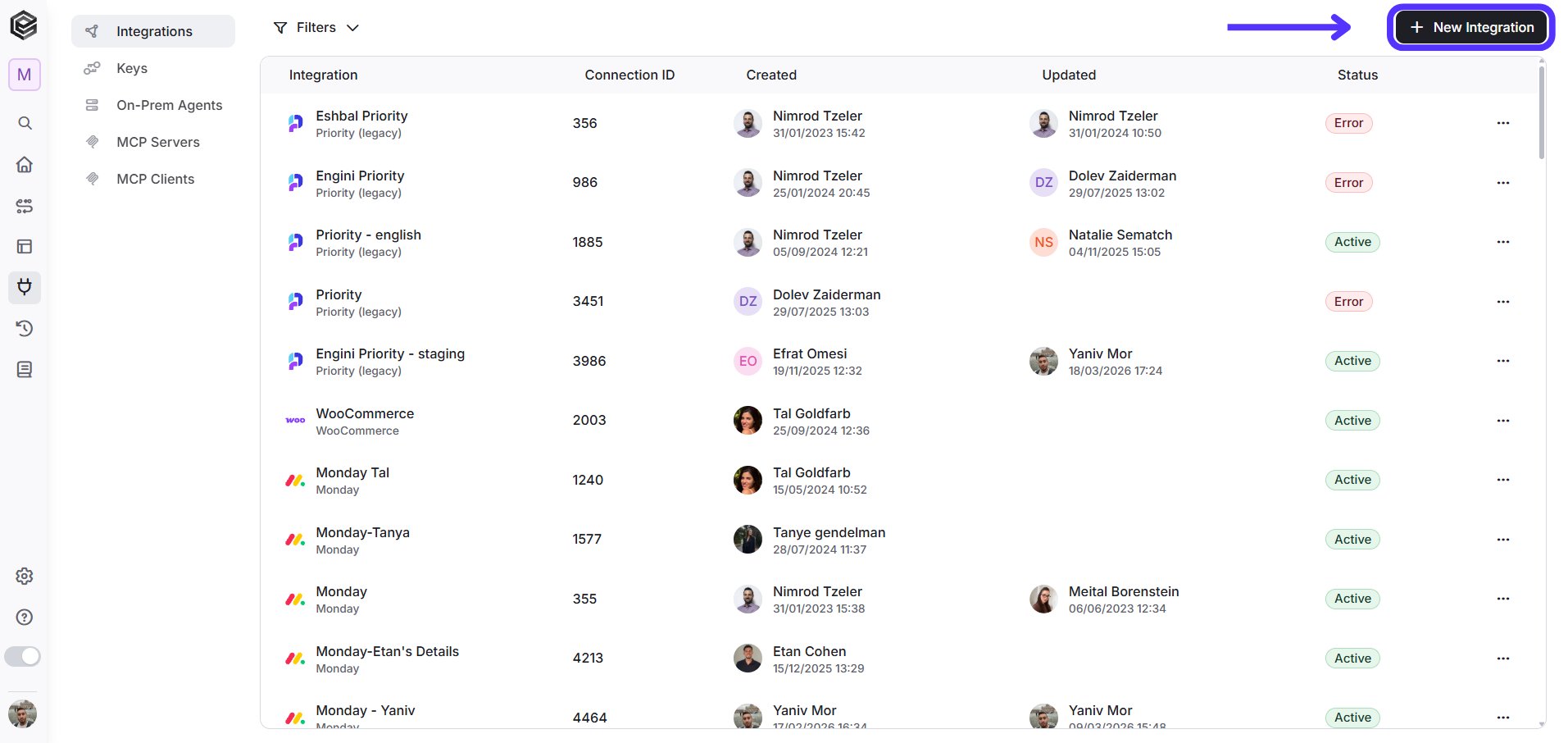
Click on the “New Integration” option located at the top bar.
-
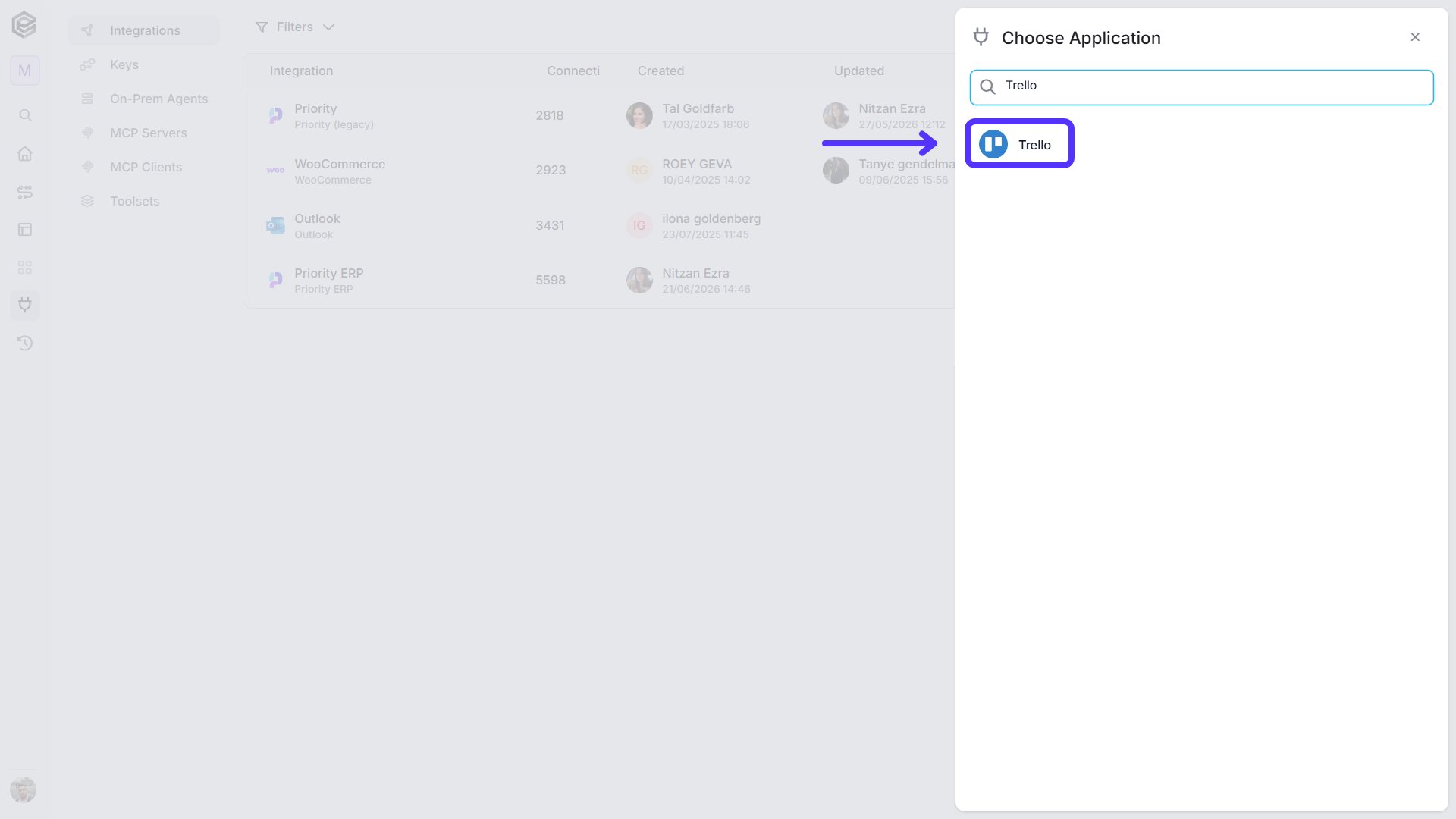
Choose the Trello option from the available applications.
-
Enter the following details in the “New Integration” form and press Save:
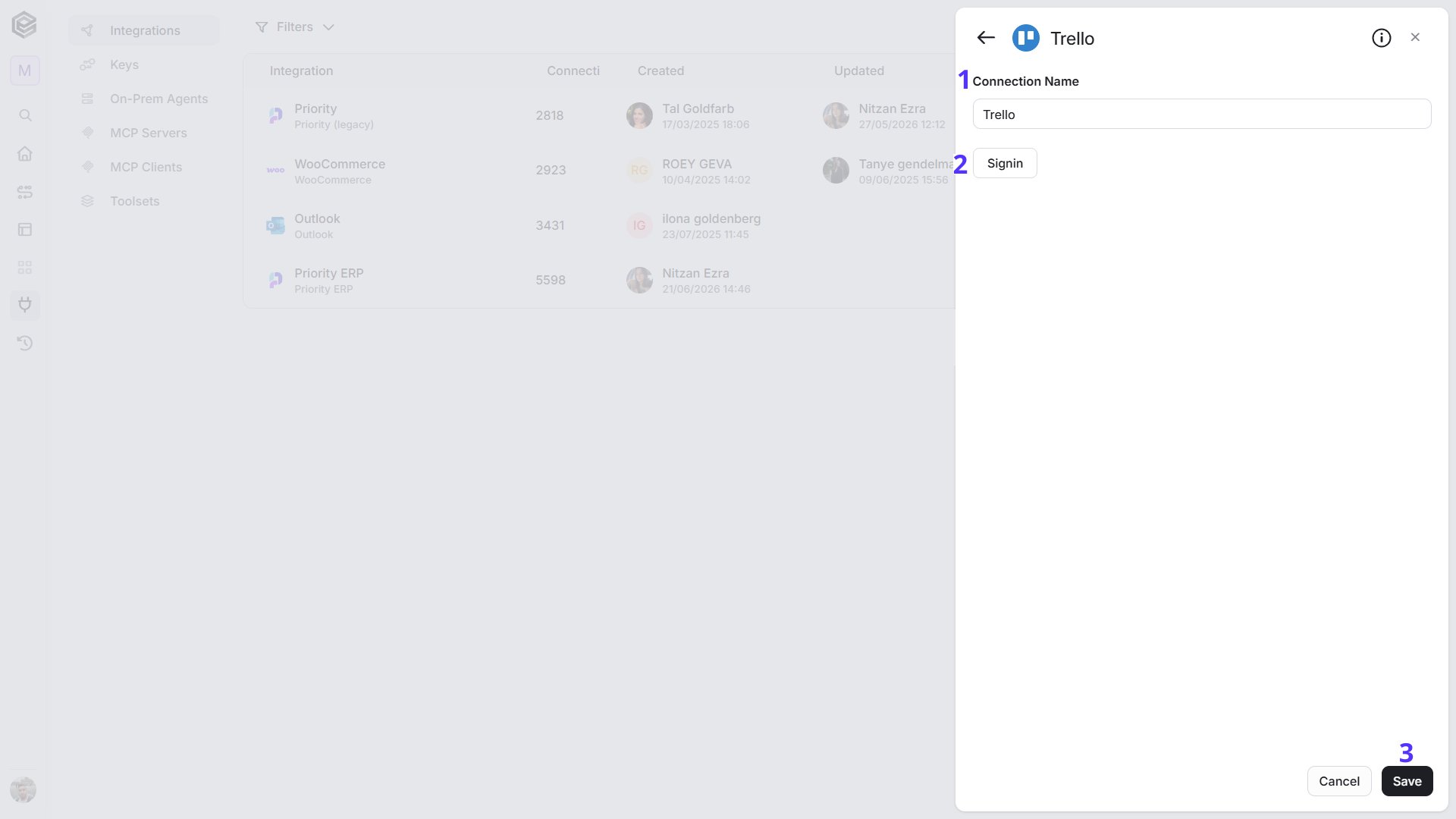
- Connection Name - Enter a name that helps identify the Trello connection.
- Signin - Click Signin and sign in to your Trello account. Trello asks you to allow Engini to access your account, with read and write access that does not expire. Click Allow.
- Save - Click Save to create the connection.
Triggers
Check for New Boards Created by Me
Starts the workflow when the Trello member who owns the connection creates a new board. Engini checks Trello on the schedule you set.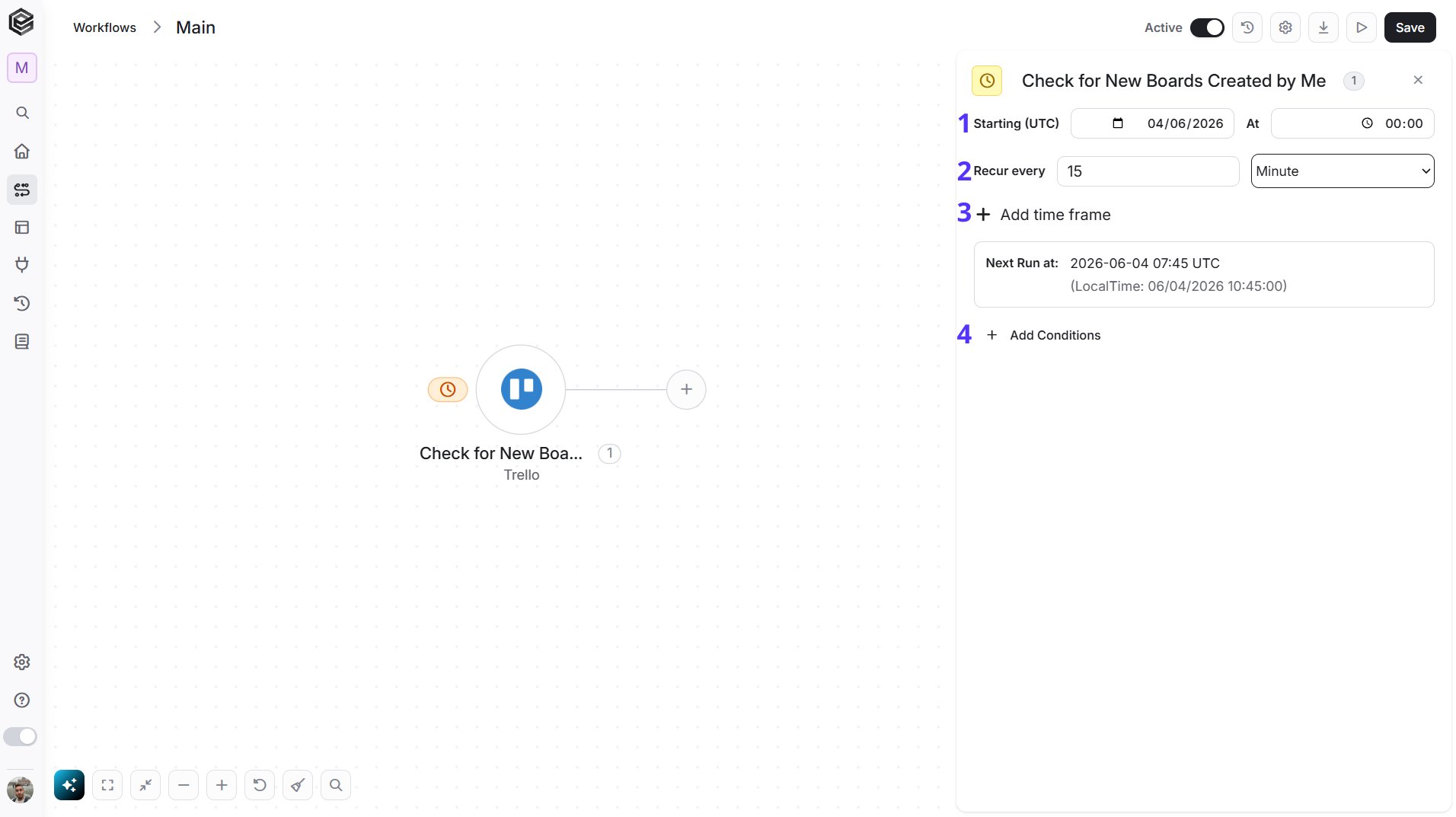
- Starting (UTC) - Select the start date and time for the scheduled trigger.
- Recur every - Choose the time interval for triggering and checking boards. The minimum time interval is 15 minutes.
- Add time frame - You can specify a time frame during which the trigger will operate.
- Add Conditions - Click Add Conditions to define conditions that narrow down the data list and return only the relevant items. To learn more about using filters, click here.
2026-01-31T00:00:00Z.
What the trigger returns: the new items it finds. Each item includes:
- Action ID - The ID of the Trello action that recorded the creation.
- Member ID - The ID of the member who created the board.
- Type - The type of the action.
- Date - When the board was created.
- Data - The board that was created: its ID, name and short link.
Check for New Cards
Starts the workflow when new cards appear on a Trello board. Engini checks Trello on the schedule you set.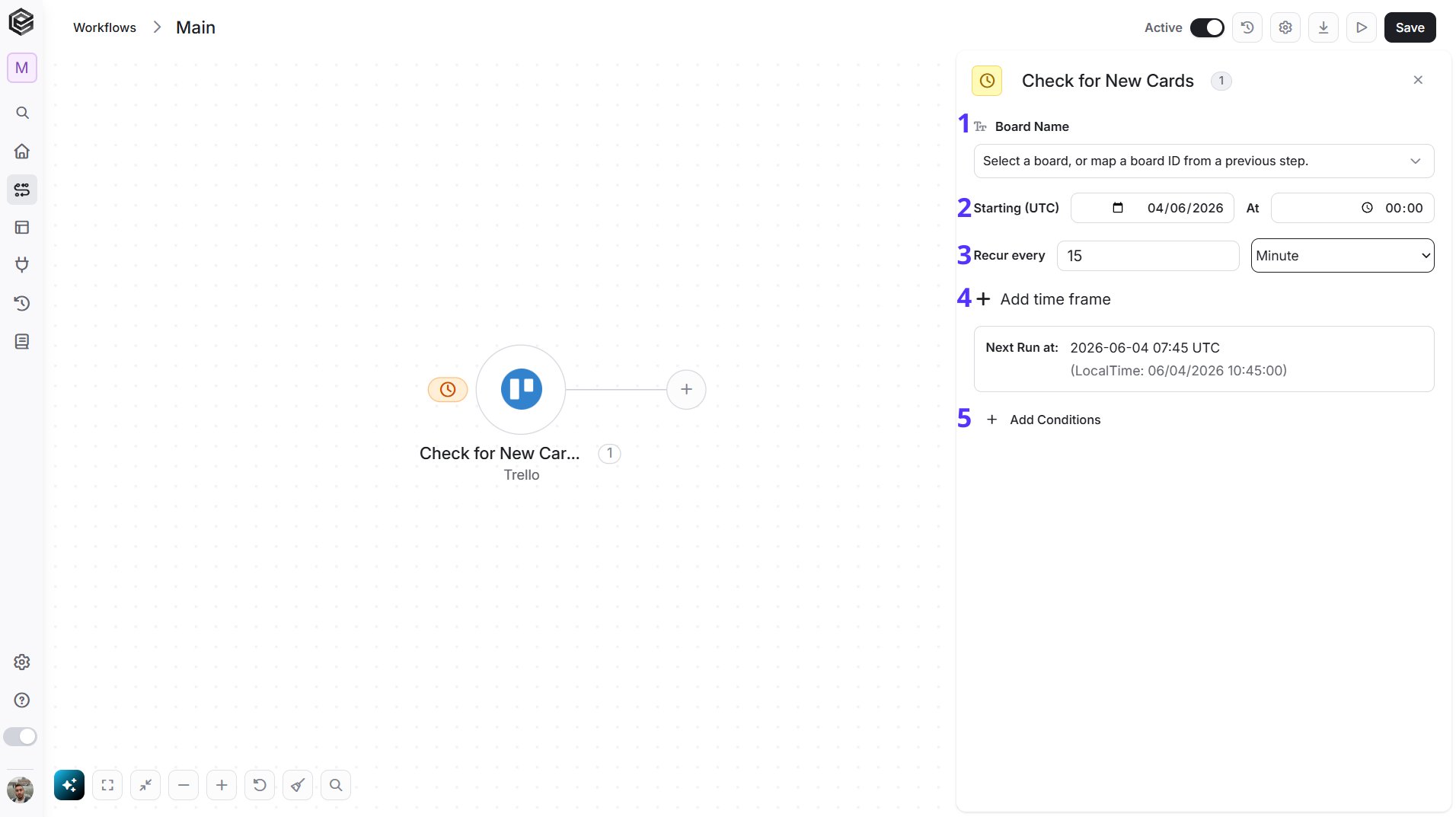
- Board Name - The Trello board to watch. You have 3 ways to fill it:
- Dynamic List - Choose through a live, auto-generated list of your Trello boards.
- Dynamic Mapping - Map a Board ID variable from a previous step in your workflow so it changes automatically based on real-time data.
- Static Text - Provide a board ID such as “5f1e2a3b4c5d6e7f8a9b0c1d”.
- Starting (UTC) - Select the start date and time for the scheduled trigger.
- Recur every - Choose the time interval for triggering and checking cards. The minimum time interval is 15 minutes.
- Add time frame - You can specify a time frame during which the trigger will operate.
- Add Conditions - Click Add Conditions to define conditions that narrow down the data list and return only the relevant items. To learn more about using filters, click here.
2026-01-31T00:00:00Z).
What the trigger returns: the new items it finds. Each item includes:
- Card ID - The ID of the card.
- Name - The title of the card.
- Description - The description of the card.
- Closed - Whether the card is archived.
- Board ID - The board the card is on.
- List ID - The list the card is in.
- Position - The position of the card in its list.
- Due Date - The due date of the card.
- Due Complete - Whether the due date is marked as complete.
- Last Activity Date - When the card was last active.
- URL - The link to the card in Trello.
- Short URL - The short link to the card.
- Member IDs - The IDs of the members assigned to the card.
- Label IDs - The IDs of the labels on the card.
Check for New Comments
Starts the workflow when new comments are added to a Trello card. Engini checks Trello on the schedule you set.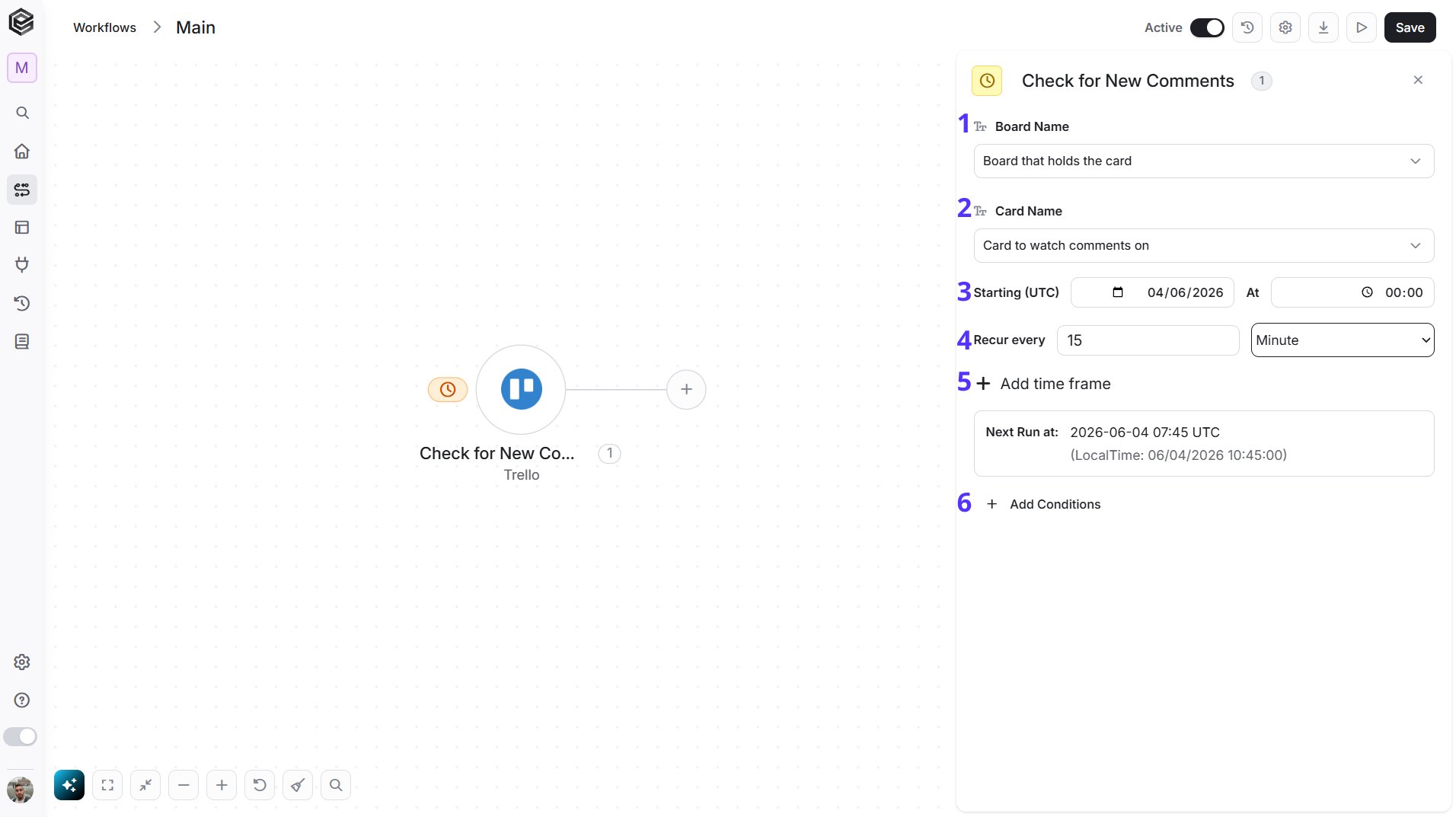
- Board Name - The Trello board that holds the card. You have 3 ways to fill it:
- Dynamic List - Choose through a live, auto-generated list of your Trello boards.
- Dynamic Mapping - Map a Board ID variable from a previous step in your workflow so it changes automatically based on real-time data.
- Static Text - Provide a board ID such as “5f1e2a3b4c5d6e7f8a9b0c1d”.
- Card Name - The card to watch for new comments. Select the board first to load its cards. You have 3 ways to fill it:
- Dynamic List - Choose through a live, auto-generated list of the cards on the selected board.
- Dynamic Mapping - Map a Card ID variable from a previous step in your workflow so it changes automatically based on real-time data.
- Static Text - Provide a card ID such as “5f1e2a3b4c5d6e7f8a9b0c1d”.
- Starting (UTC) - Select the start date and time for the scheduled trigger.
- Recur every - Choose the time interval for triggering and checking comments. The minimum time interval is 15 minutes.
- Add time frame - You can specify a time frame during which the trigger will operate.
- Add Conditions - Click Add Conditions to define conditions that narrow down the data list and return only the relevant items. To learn more about using filters, click here.
2026-01-31T00:00:00Z.
What the trigger returns: the new items it finds. Each item includes:
- Action ID - The ID of the comment.
- Member ID - The ID of the member who wrote the comment.
- Type - The type of the action.
- Date - When the comment was made.
- Data - The details of the comment, including its text.
Check for New Attachments
Starts the workflow when new attachments are added to a Trello card. Engini checks Trello on the schedule you set.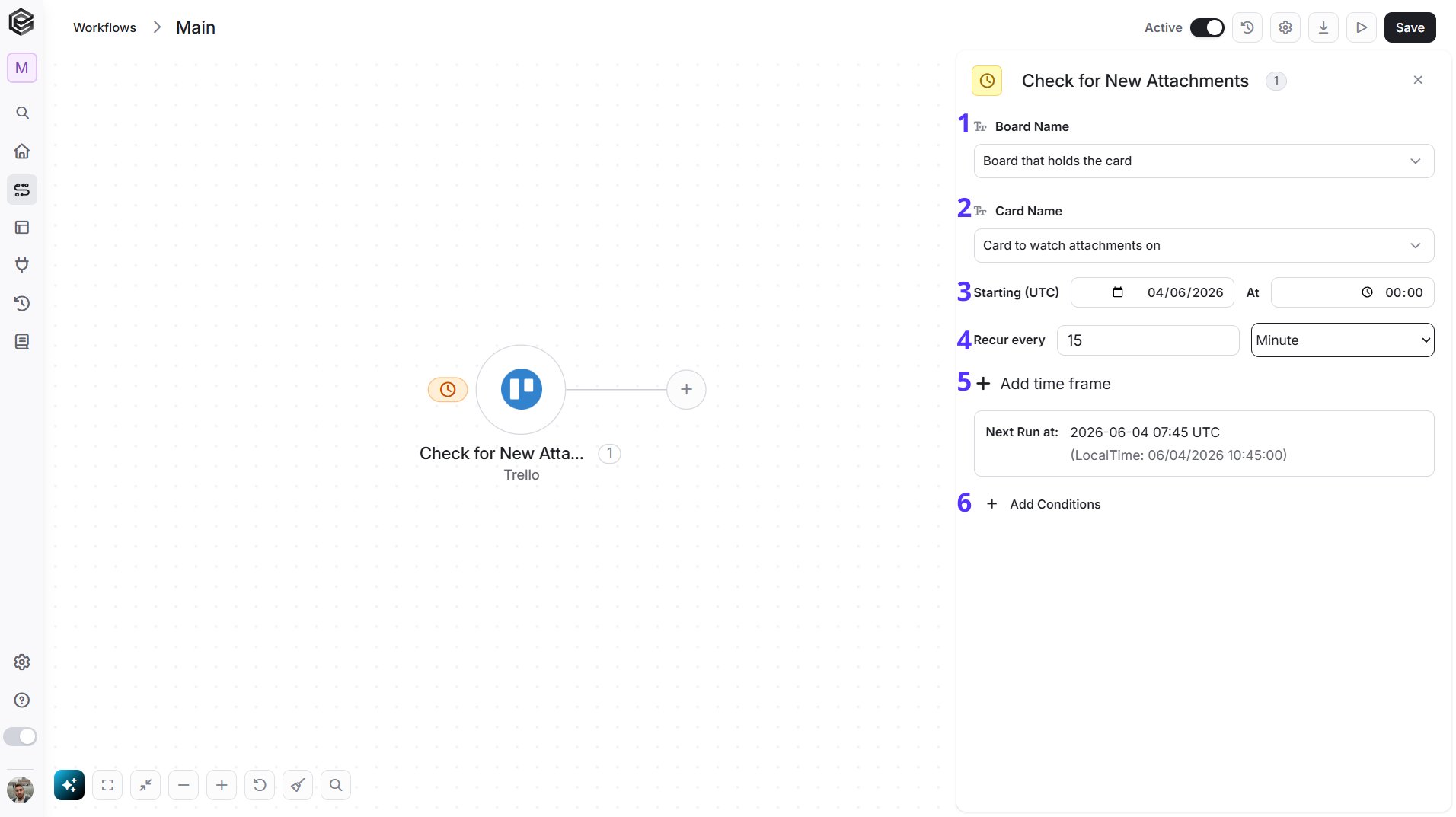
- Board Name - The Trello board that holds the card. You have 3 ways to fill it:
- Dynamic List - Choose through a live, auto-generated list of your Trello boards.
- Dynamic Mapping - Map a Board ID variable from a previous step in your workflow so it changes automatically based on real-time data.
- Static Text - Provide a board ID such as “5f1e2a3b4c5d6e7f8a9b0c1d”.
- Card Name - The card to watch for new attachments. Select the board first to load its cards. You have 3 ways to fill it:
- Dynamic List - Choose through a live, auto-generated list of the cards on the selected board.
- Dynamic Mapping - Map a Card ID variable from a previous step in your workflow so it changes automatically based on real-time data.
- Static Text - Provide a card ID such as “5f1e2a3b4c5d6e7f8a9b0c1d”.
- Starting (UTC) - Select the start date and time for the scheduled trigger.
- Recur every - Choose the time interval for triggering and checking attachments. The minimum time interval is 15 minutes.
- Add time frame - You can specify a time frame during which the trigger will operate.
- Add Conditions - Click Add Conditions to define conditions that narrow down the data list and return only the relevant items. To learn more about using filters, click here.
2026-01-31T00:00:00Z.
What the trigger returns: the new items it finds. Each item includes:
- Action ID - The ID of the action that recorded the new attachment.
- Member ID - The ID of the member who added the attachment.
- Type - The type of the action, addAttachmentToCard.
- Date - When the attachment was added.
- Data - The details of the attachment, such as its web address (Data › Attachment › URL).
Check for New Notifications
Starts the workflow when the Trello member who owns the connection gets new notifications. Engini checks Trello on the schedule you set.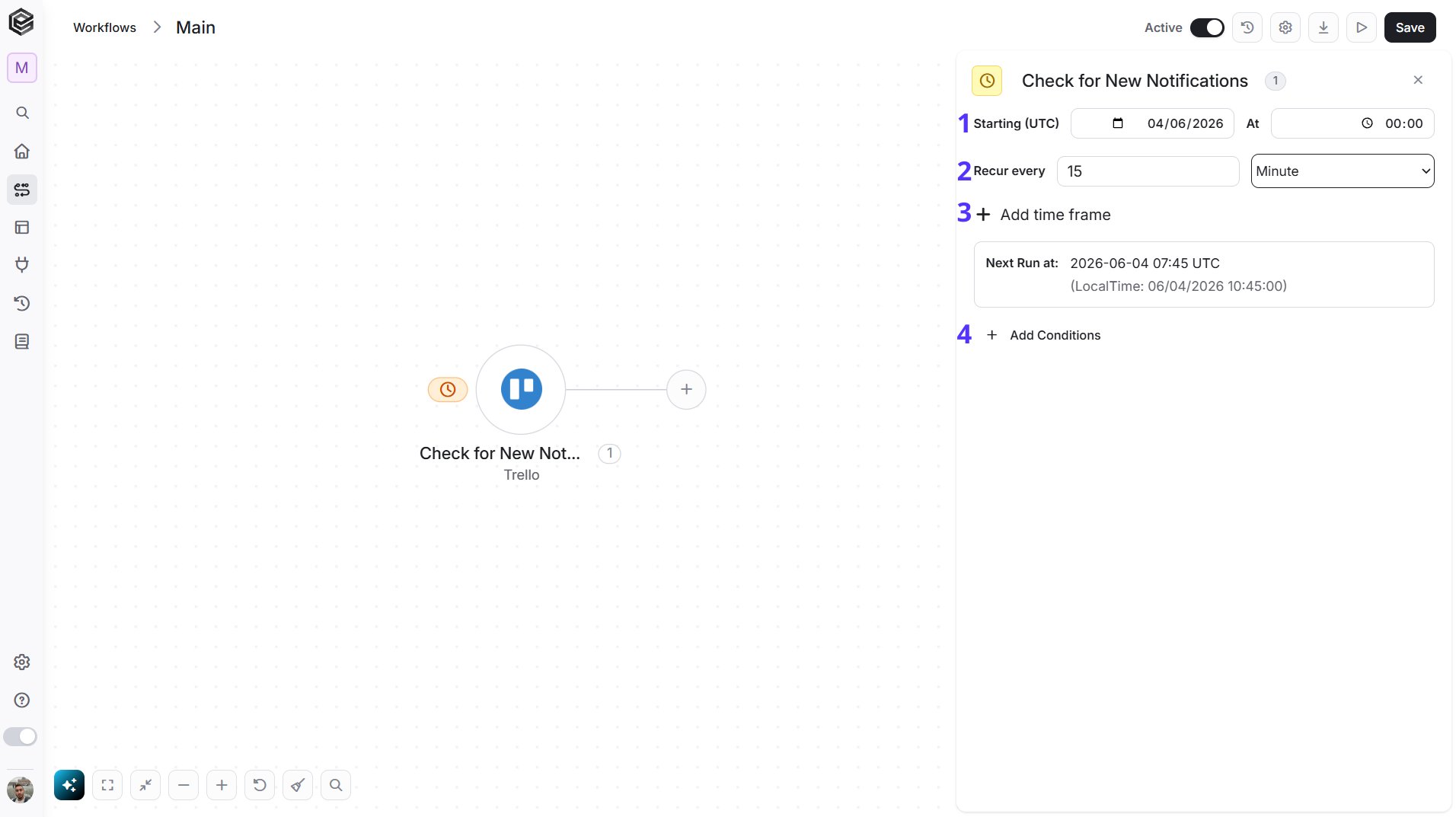
- Starting (UTC) - Select the start date and time for the scheduled trigger.
- Recur every - Choose the time interval for triggering and checking notifications. The minimum time interval is 15 minutes.
- Add time frame - You can specify a time frame during which the trigger will operate.
- Add Conditions - Click Add Conditions to define conditions that narrow down the data list and return only the relevant items. To learn more about using filters, click here.
- Notification ID - The ID of the notification.
- Type - The type of the notification.
- Date - When the notification was created.
- Unread - Whether the notification is still unread.
- Member ID - The ID of the member who triggered the notification.
Board Activity Created
Starts the workflow when something happens on a Trello board you choose. Trello notifies Engini right away, so there is no schedule to set.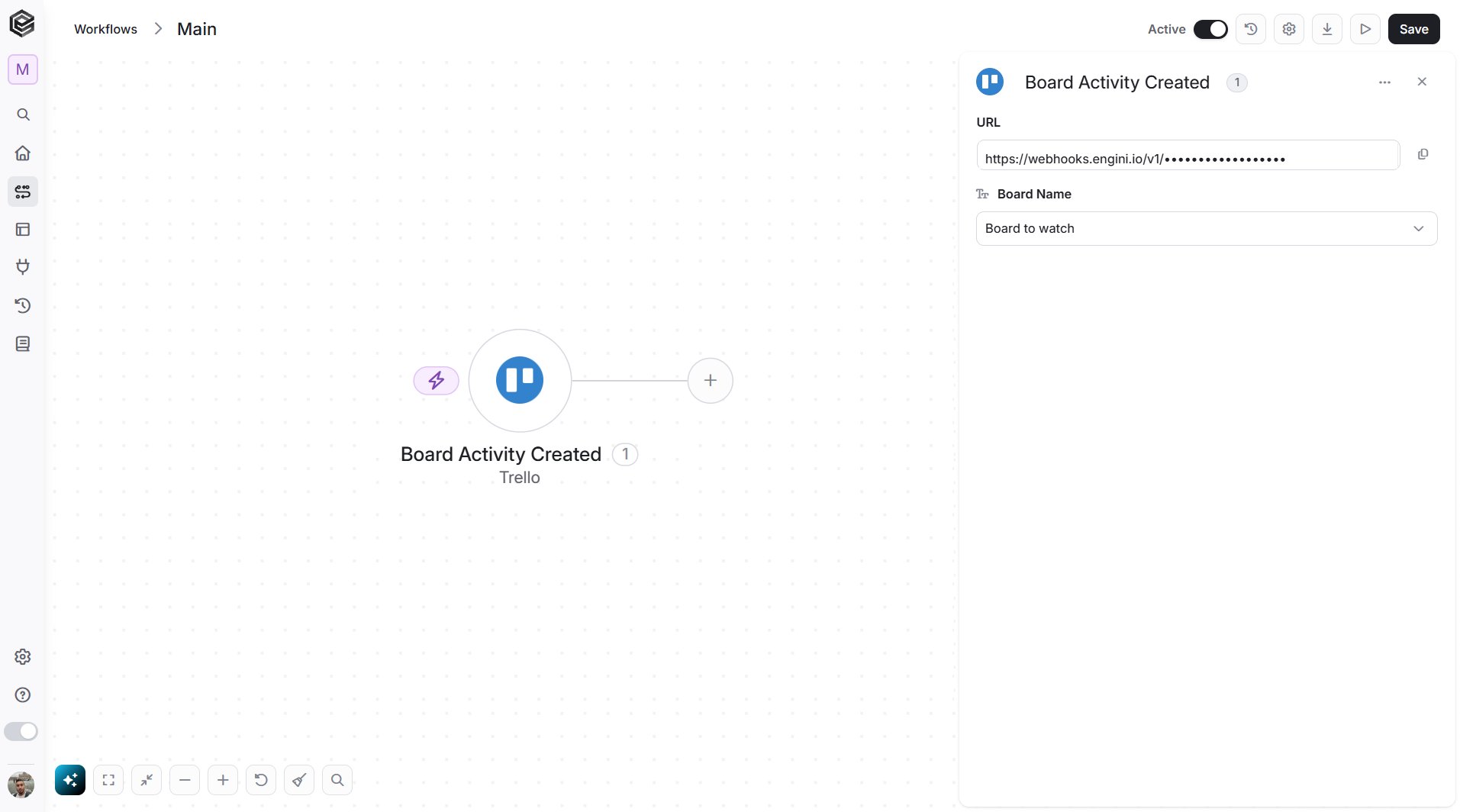
- Board Name - The Trello board to watch. You have 3 ways to fill it:
- Dynamic List - Choose through a live, auto-generated list of your Trello boards.
- Dynamic Mapping - Map a Board ID variable from a previous step in your workflow so it changes automatically based on real-time data.
- Static Text - Provide a board ID such as “5f1e2a3b4c5d6e7f8a9b0c1d”.
- Action - The details of the activity, such as what happened and who did it.
- Model - The board the activity happened on.
- Webhook - The Trello webhook that sent the activity.
Actions
Get My Boards
Retrieves the boards of the Trello member who owns the connection.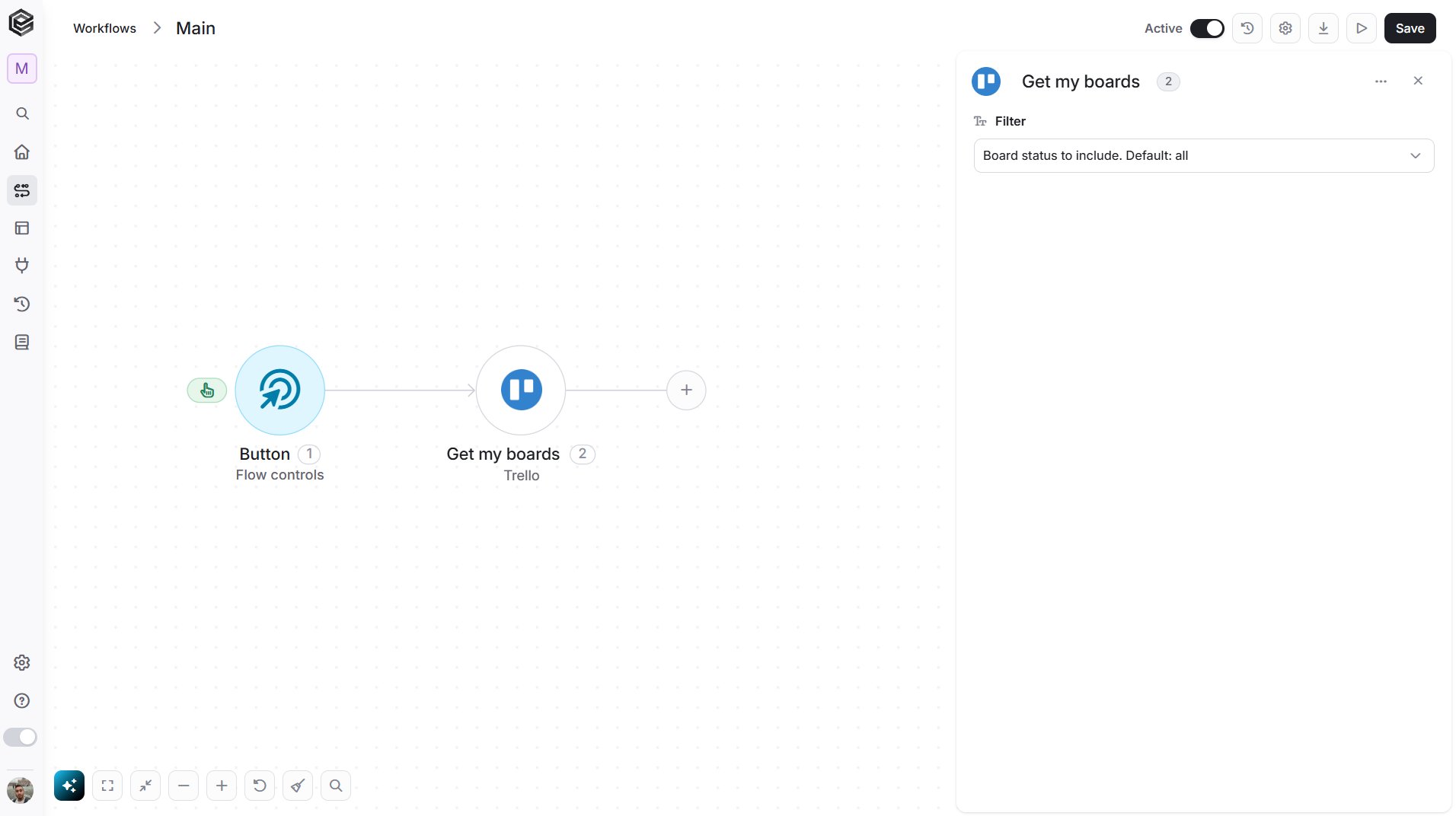
- Filter - Choose which boards to return: All, Open, Closed, Member Boards, Organization Boards, Public Boards or Starred.
Get a Board
Retrieves the details of a Trello board.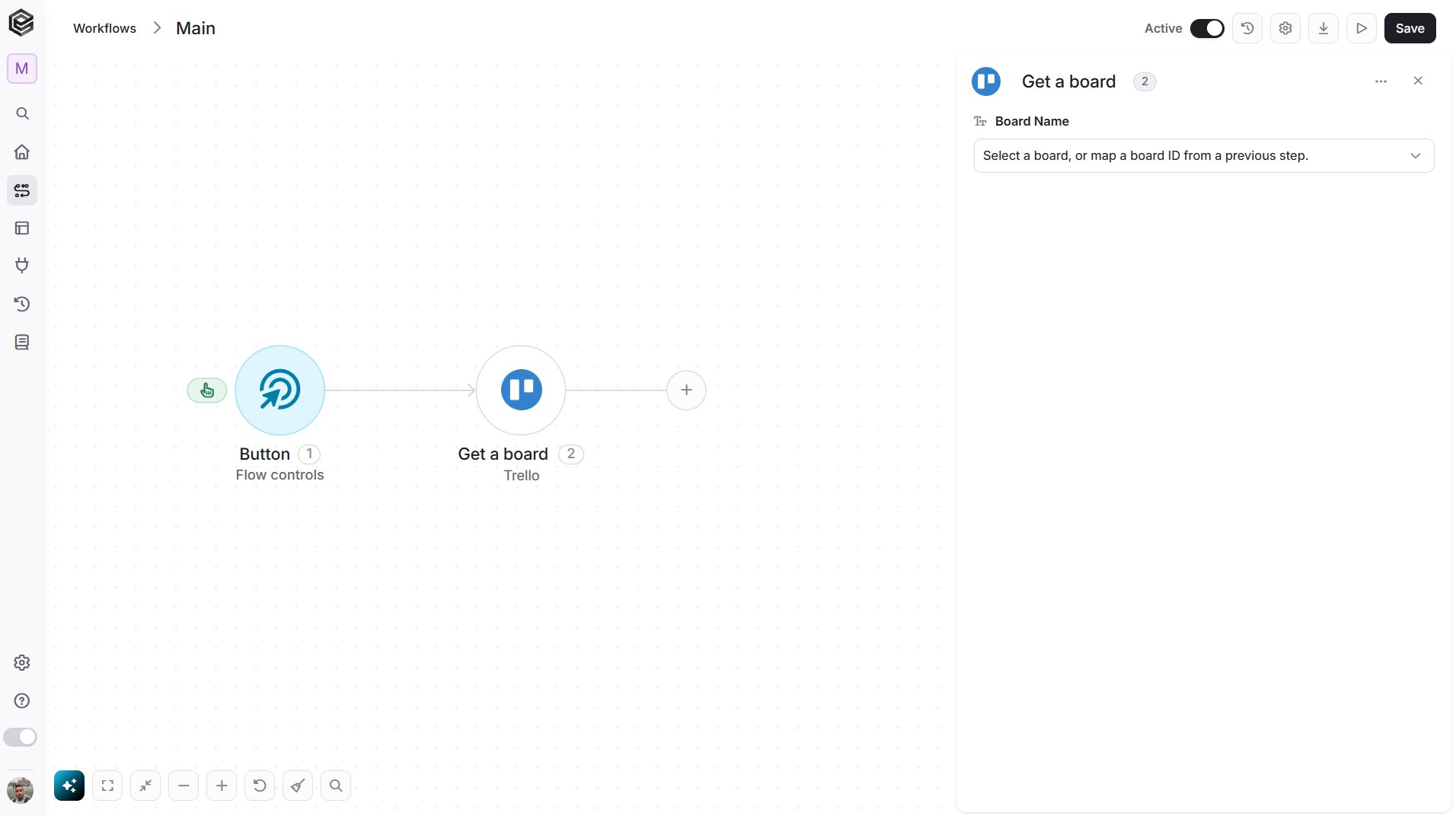
- Board Name - The Trello board that you want to retrieve. You have 3 ways to fill it:
- Dynamic List - Choose through a live, auto-generated list of your Trello boards.
- Dynamic Mapping - Map a Board ID variable from a previous step in your workflow so it changes automatically based on real-time data.
- Static Text - Provide a board ID such as “5f1e2a3b4c5d6e7f8a9b0c1d”.
Create a Board
Creates a new Trello board.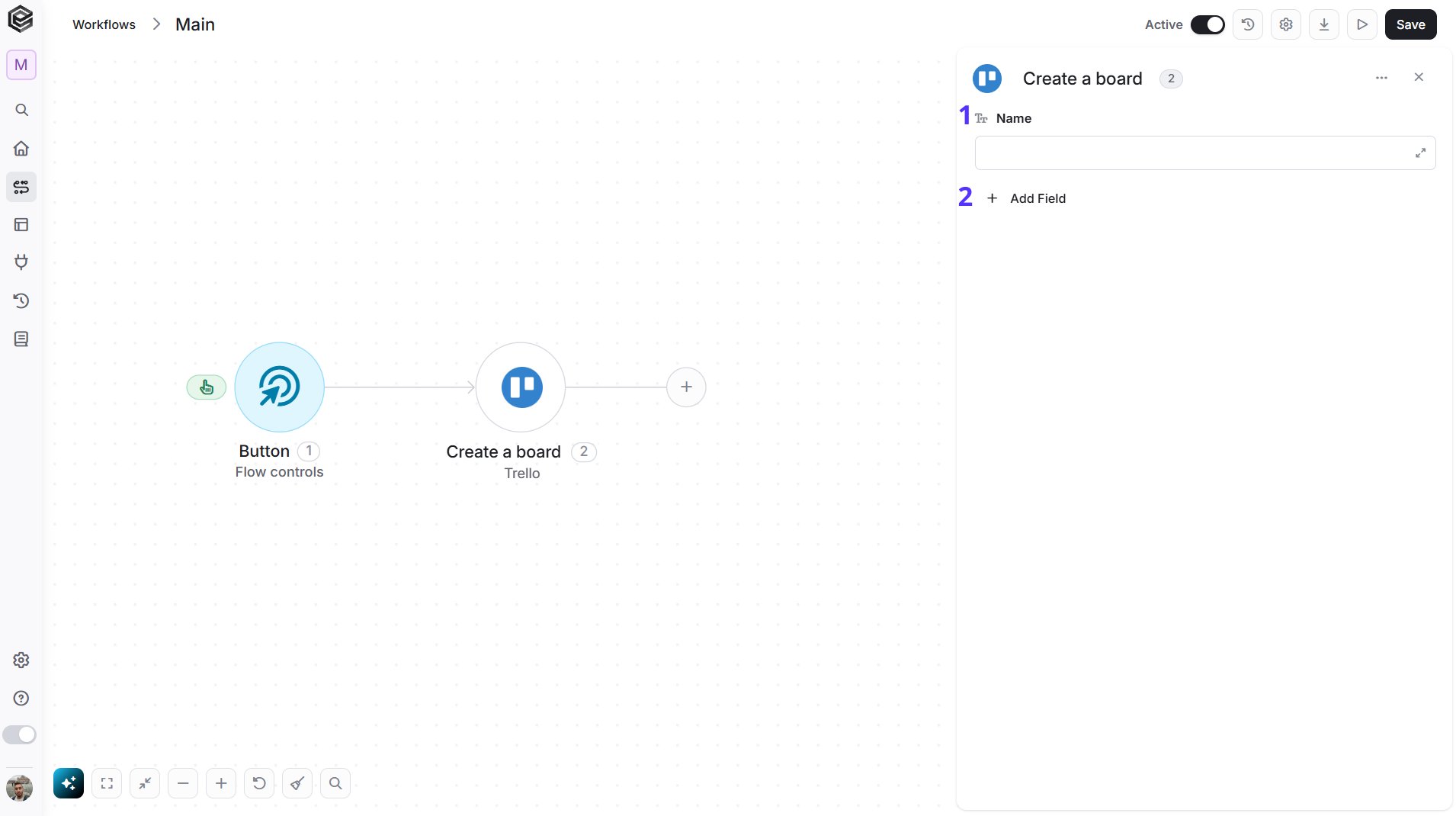
- Name - The name of the new board.
- Add Field - Click Add Field to add and populate additional fields for the selected activity. To learn more about managing activity data, click here.
Edit a Board
Updates the name, description or settings of a Trello board.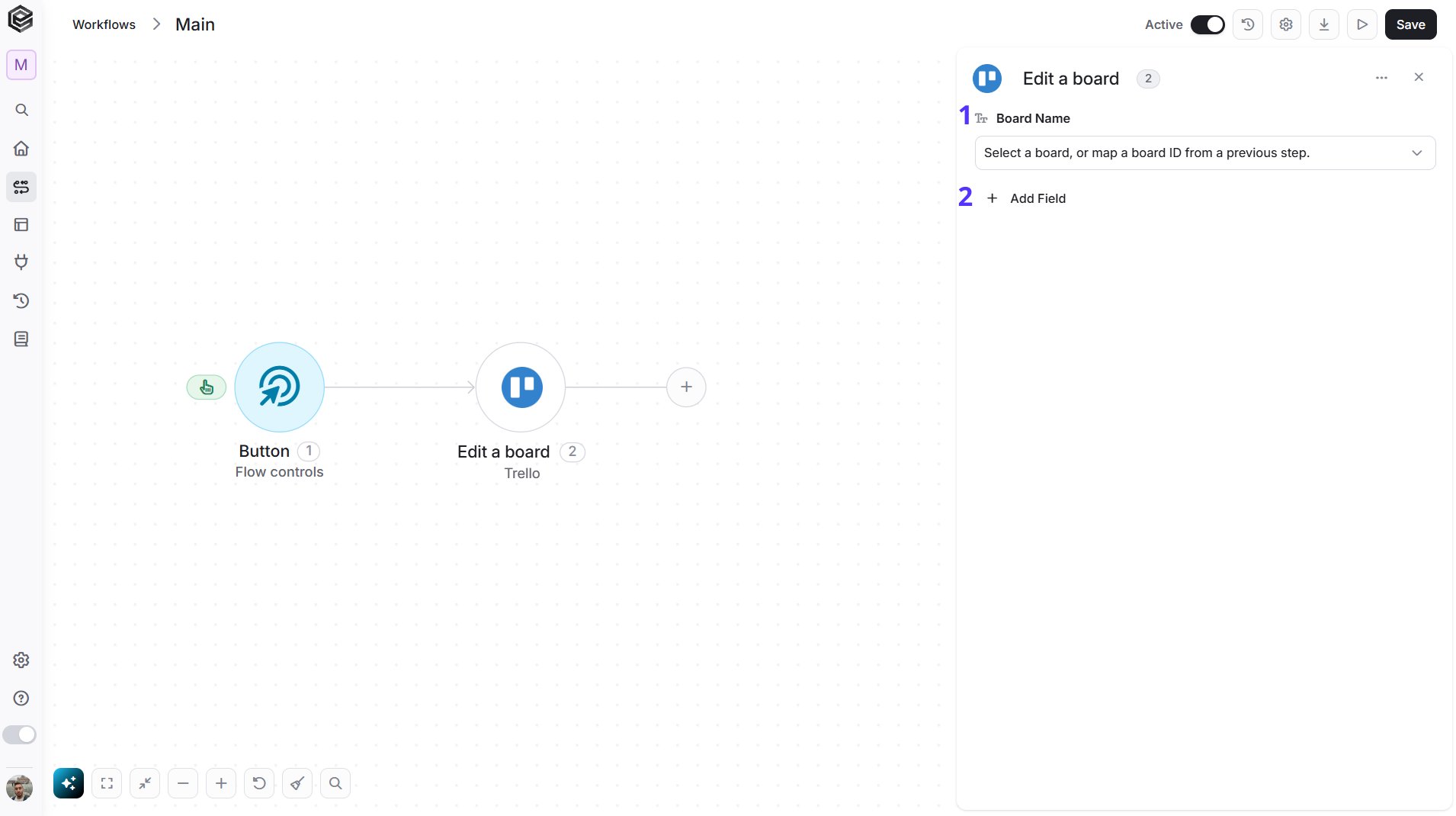
- Board Name - The Trello board that you want to edit. You have 3 ways to fill it:
- Dynamic List - Choose through a live, auto-generated list of your Trello boards.
- Dynamic Mapping - Map a Board ID variable from a previous step in your workflow so it changes automatically based on real-time data.
- Static Text - Provide a board ID such as “5f1e2a3b4c5d6e7f8a9b0c1d”.
- Add Field - Click Add Field to add and populate additional fields for the selected activity. To learn more about managing activity data, click here.
Search for Boards
Searches Trello for boards that match your text.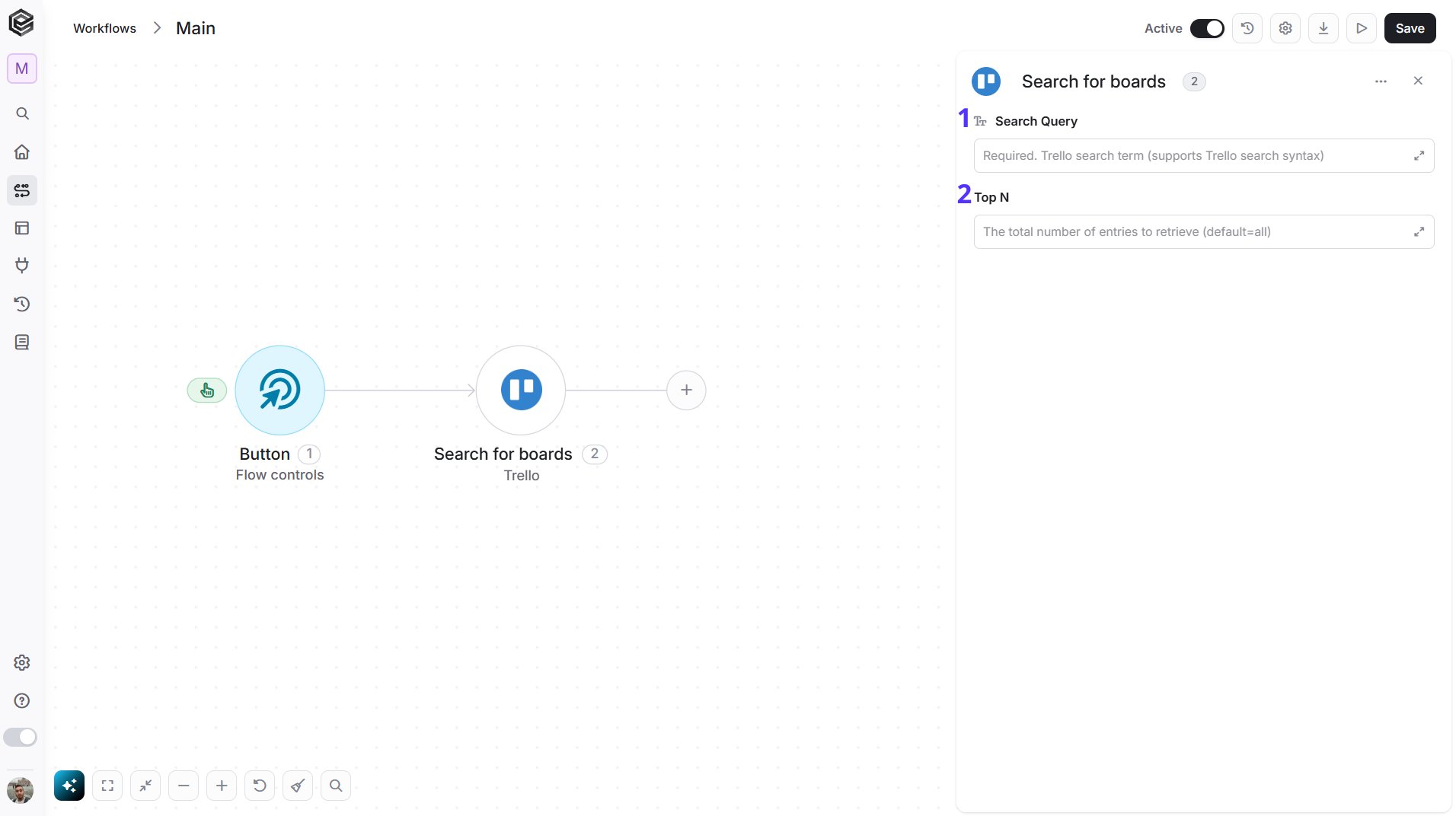
- Search Query - The text to search for. Trello search syntax is supported.
- Top N - Optional. The maximum number of boards to return, up to 1000.
Add Member to Board
Adds a member to a Trello board.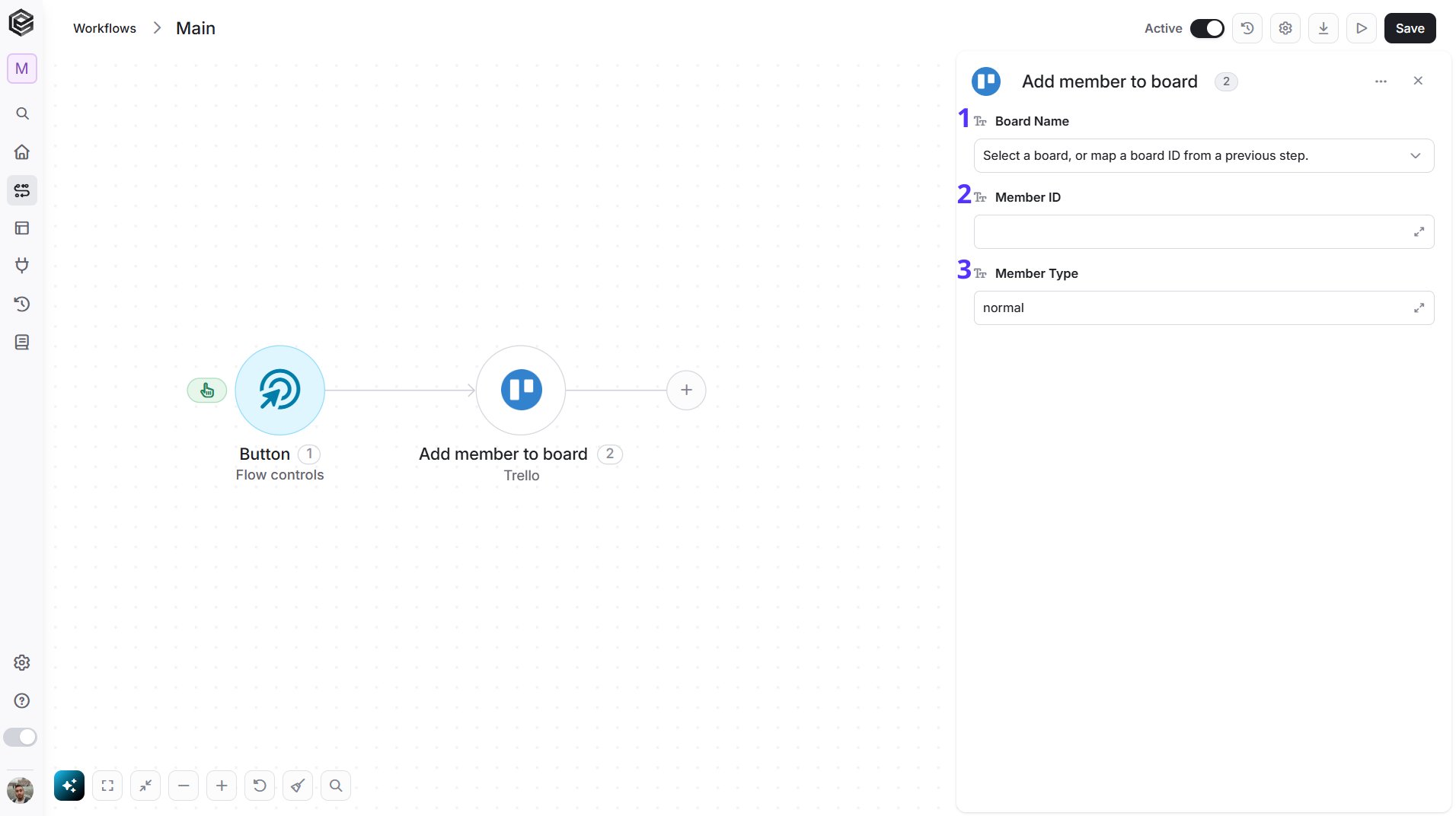
- Board Name - The Trello board that the member joins. You have 3 ways to fill it:
- Dynamic List - Choose through a live, auto-generated list of your Trello boards.
- Dynamic Mapping - Map a Board ID variable from a previous step in your workflow so it changes automatically based on real-time data.
- Static Text - Provide a board ID such as “5f1e2a3b4c5d6e7f8a9b0c1d”.
- Member ID - The ID of the Trello member to add.
- Member Type - The role of the member on the board: admin, normal or observer. The default is normal.
Remove Member from Board
Removes a member from a Trello board.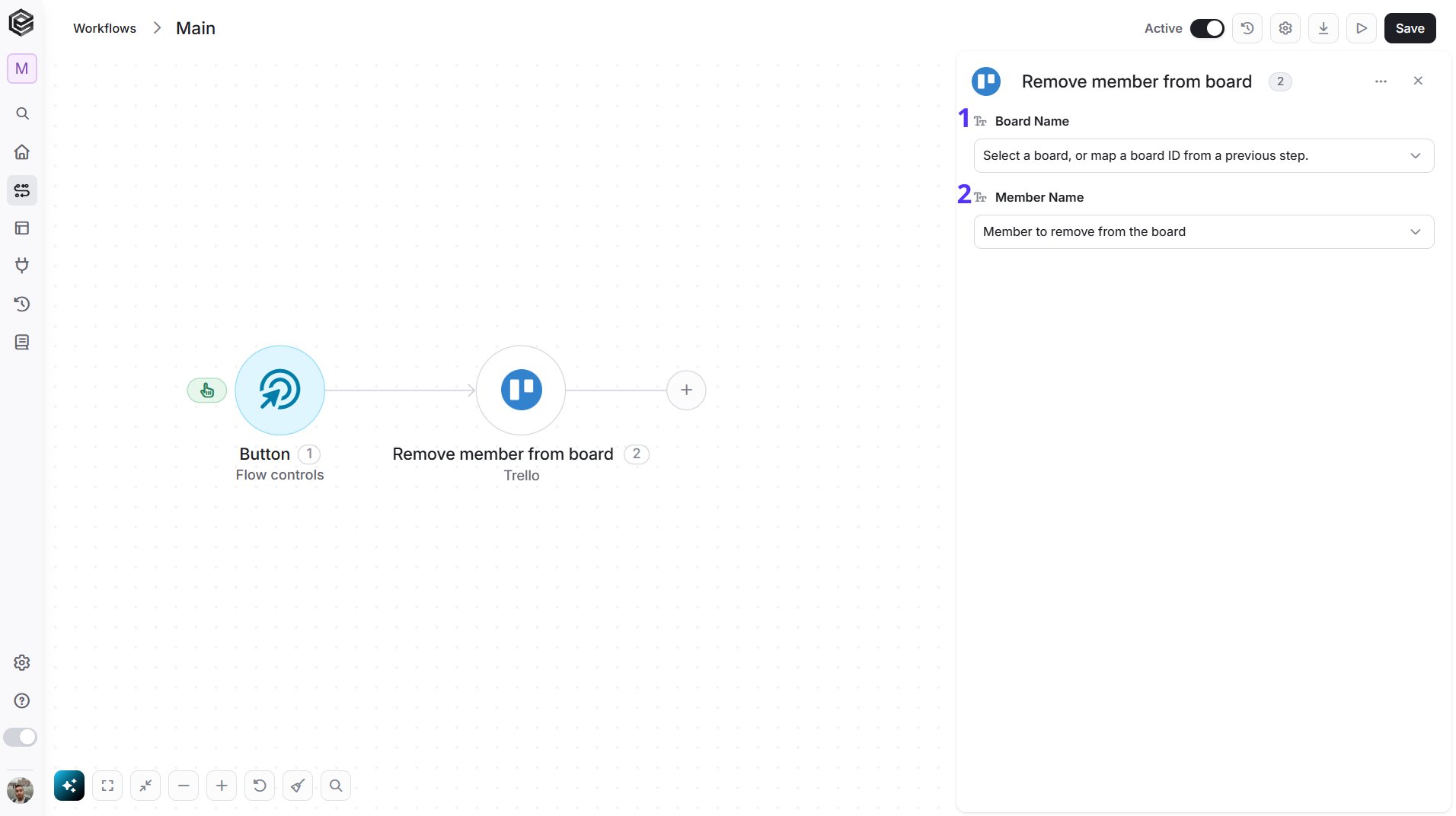
- Board Name - The Trello board that the member leaves. You have 3 ways to fill it:
- Dynamic List - Choose through a live, auto-generated list of your Trello boards.
- Dynamic Mapping - Map a Board ID variable from a previous step in your workflow so it changes automatically based on real-time data.
- Static Text - Provide a board ID such as “5f1e2a3b4c5d6e7f8a9b0c1d”.
- Member Name - The member to remove from the board. Select the board first to load its members. You have 3 ways to fill it:
- Dynamic List - Choose through a live, auto-generated list of the members of the selected board.
- Dynamic Mapping - Map a Member ID variable from a previous step in your workflow so it changes automatically based on real-time data.
- Static Text - Provide a member ID such as “5f1e2a3b4c5d6e7f8a9b0c1d”.
Get a List
Retrieves the details of a Trello list.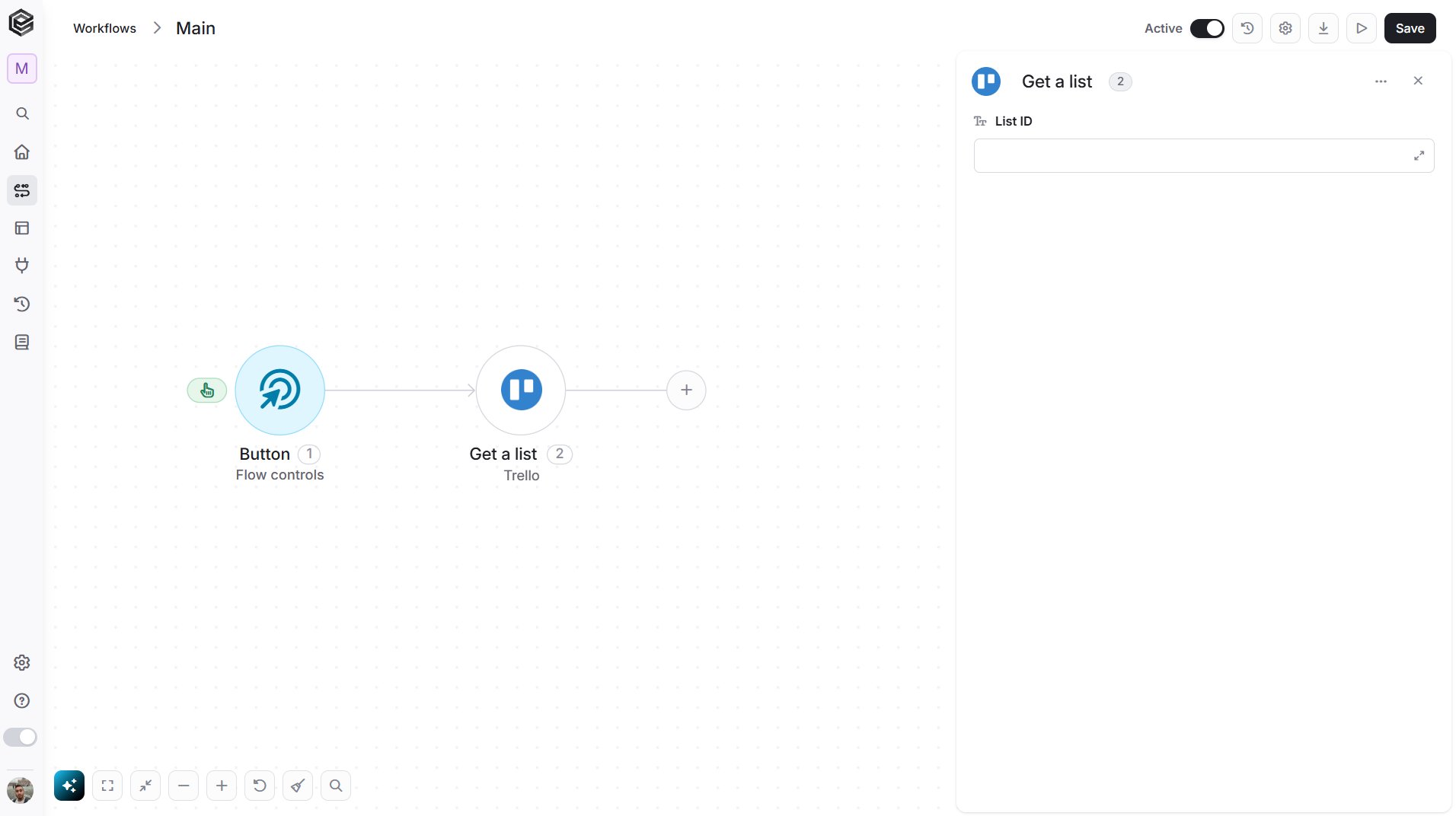
- List ID - The ID of the list to retrieve. Map it from a previous step, such as Get Board Lists.
Get Board Lists
Retrieves the lists of a Trello board.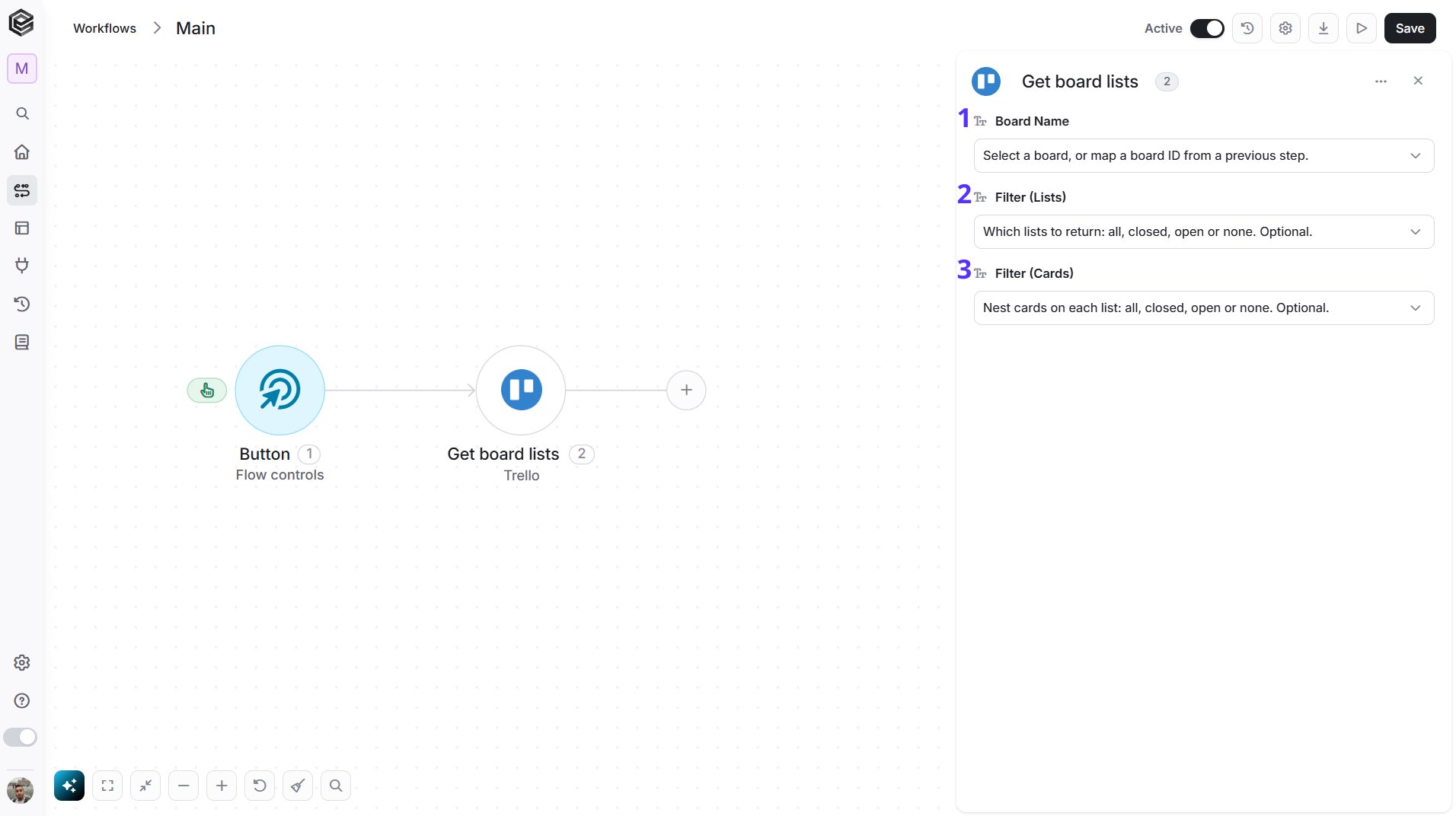
- Board Name - The Trello board that you want to read. You have 3 ways to fill it:
- Dynamic List - Choose through a live, auto-generated list of your Trello boards.
- Dynamic Mapping - Map a Board ID variable from a previous step in your workflow so it changes automatically based on real-time data.
- Static Text - Provide a board ID such as “5f1e2a3b4c5d6e7f8a9b0c1d”.
- Filter (Lists) - Optional. Choose which lists to return: All, Closed, None or Open.
- Filter (Cards) - Optional. Choose which cards to nest inside each list: All, Closed, None or Open.
Create a List
Creates a new list on a Trello board.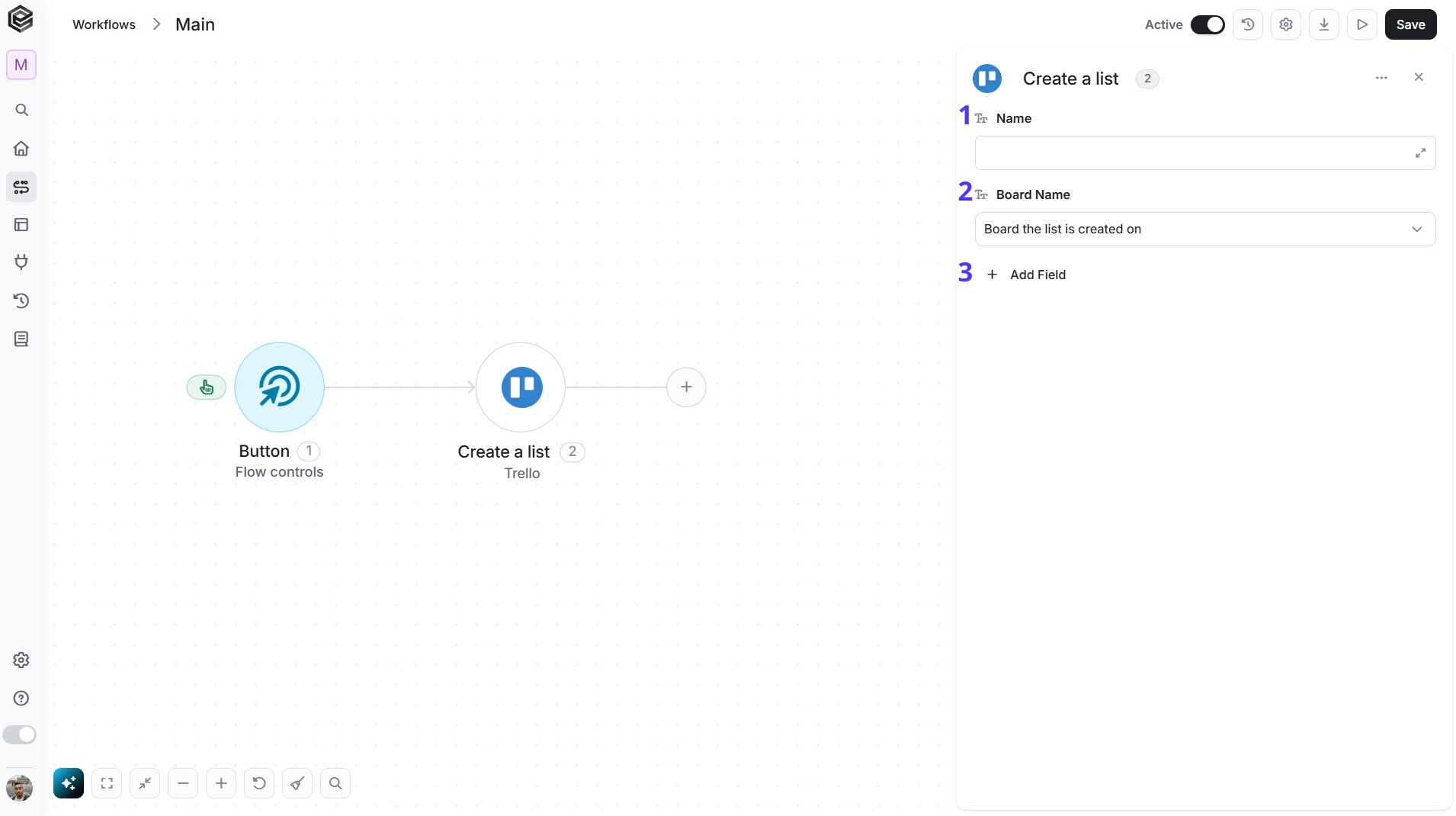
- Name - The name of the new list.
- Board Name - The board to create the list on. You have 3 ways to fill it:
- Dynamic List - Choose through a live, auto-generated list of your Trello boards.
- Dynamic Mapping - Map a Board ID variable from a previous step in your workflow so it changes automatically based on real-time data.
- Static Text - Provide a board ID such as “5f1e2a3b4c5d6e7f8a9b0c1d”.
- Add Field - Click Add Field to add and populate additional fields for the selected activity. To learn more about managing activity data, click here.
Edit a List
Updates the name, position or status of a Trello list.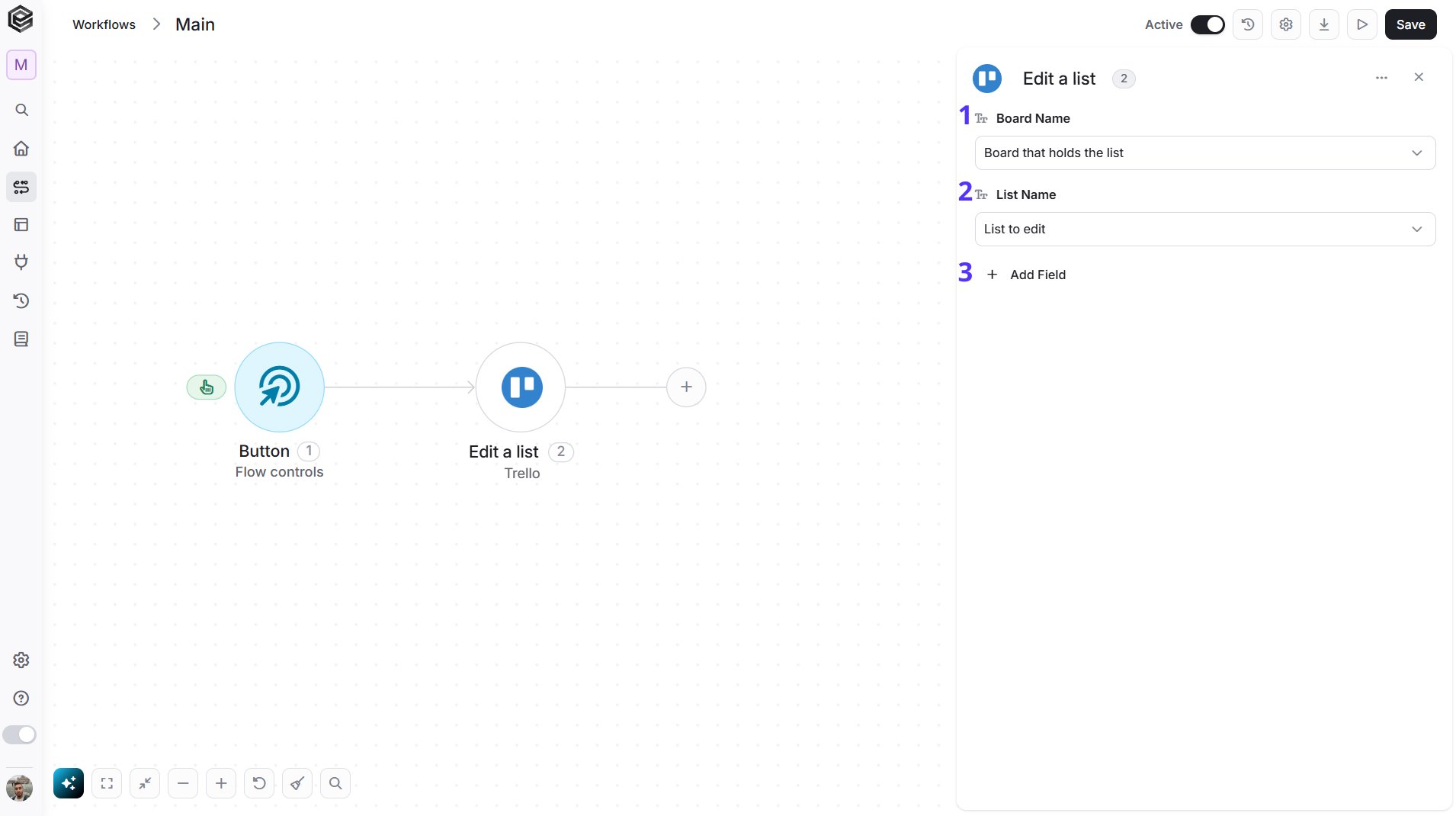
- Board Name - The Trello board that holds the list. You have 3 ways to fill it:
- Dynamic List - Choose through a live, auto-generated list of your Trello boards.
- Dynamic Mapping - Map a Board ID variable from a previous step in your workflow so it changes automatically based on real-time data.
- Static Text - Provide a board ID such as “5f1e2a3b4c5d6e7f8a9b0c1d”.
- List Name - The list to edit. Select the board first to load its lists. You have 3 ways to fill it:
- Dynamic List - Choose through a live, auto-generated list of the lists on the selected board.
- Dynamic Mapping - Map a List ID variable from a previous step in your workflow so it changes automatically based on real-time data.
- Static Text - Provide a list ID such as “5f1e2a3b4c5d6e7f8a9b0c1d”.
- Add Field - Click Add Field to add and populate additional fields for the selected activity. To learn more about managing activity data, click here.
Get a Card
Retrieves the details of a Trello card.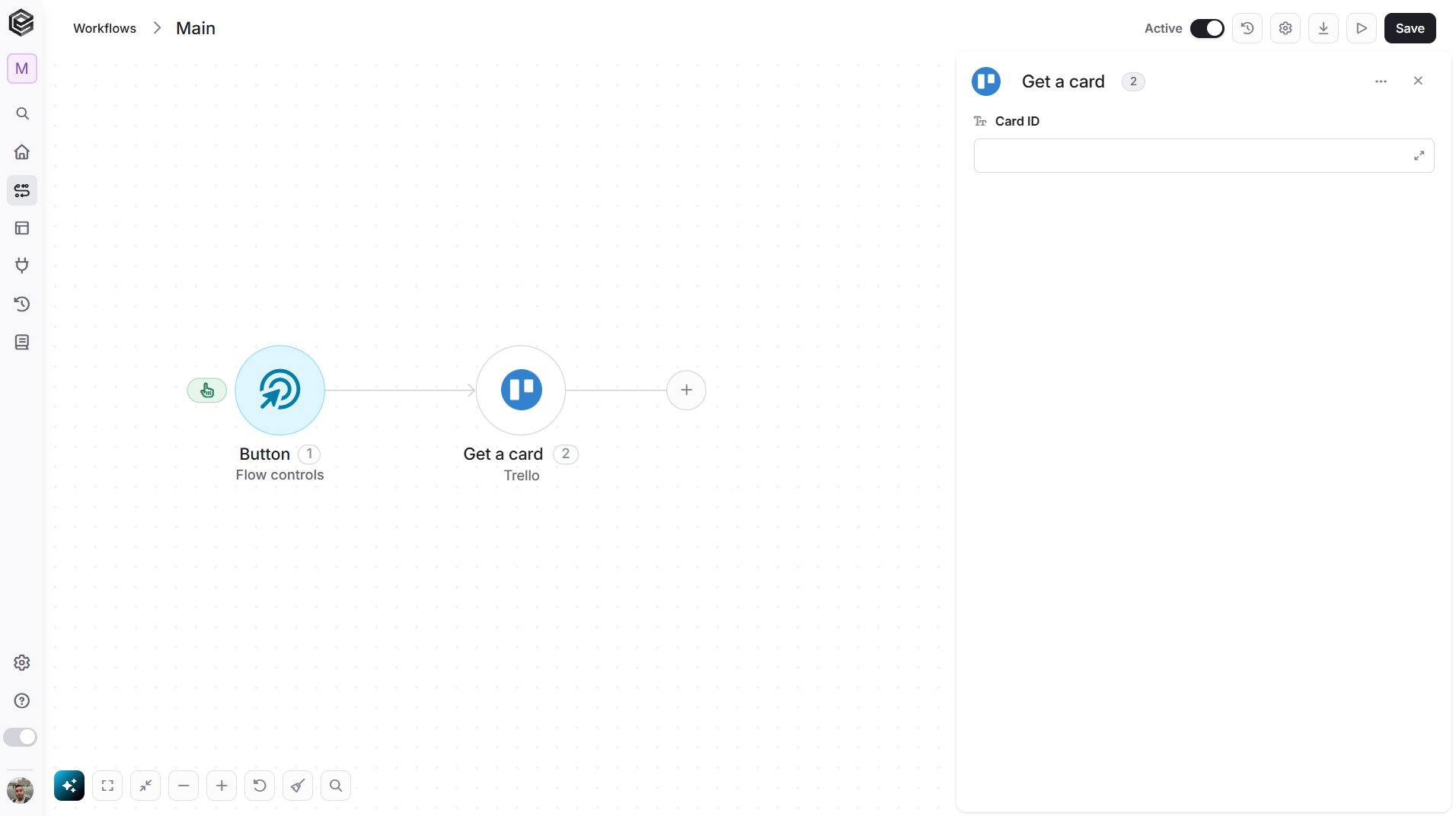
- Card ID - The ID of the card to retrieve. Map it from a previous step, such as List Board Cards.
List Board Cards
Retrieves the cards on a Trello board.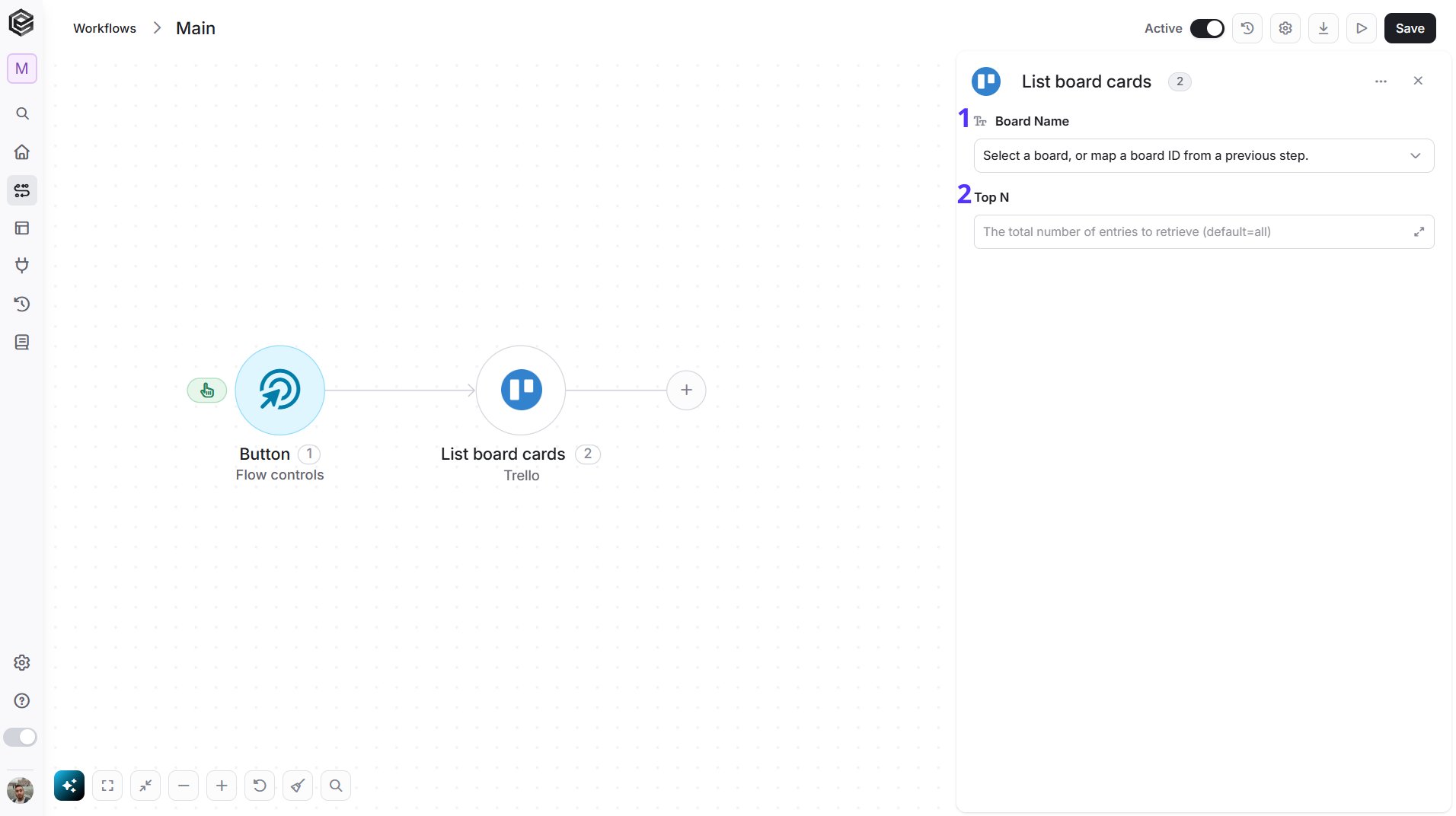
- Board Name - The Trello board that you want to read. You have 3 ways to fill it:
- Dynamic List - Choose through a live, auto-generated list of your Trello boards.
- Dynamic Mapping - Map a Board ID variable from a previous step in your workflow so it changes automatically based on real-time data.
- Static Text - Provide a board ID such as “5f1e2a3b4c5d6e7f8a9b0c1d”.
- Top N - You can set the maximum number of records Engini will return for the object you chose (default = all records).
List List Cards
Retrieves the cards in a Trello list.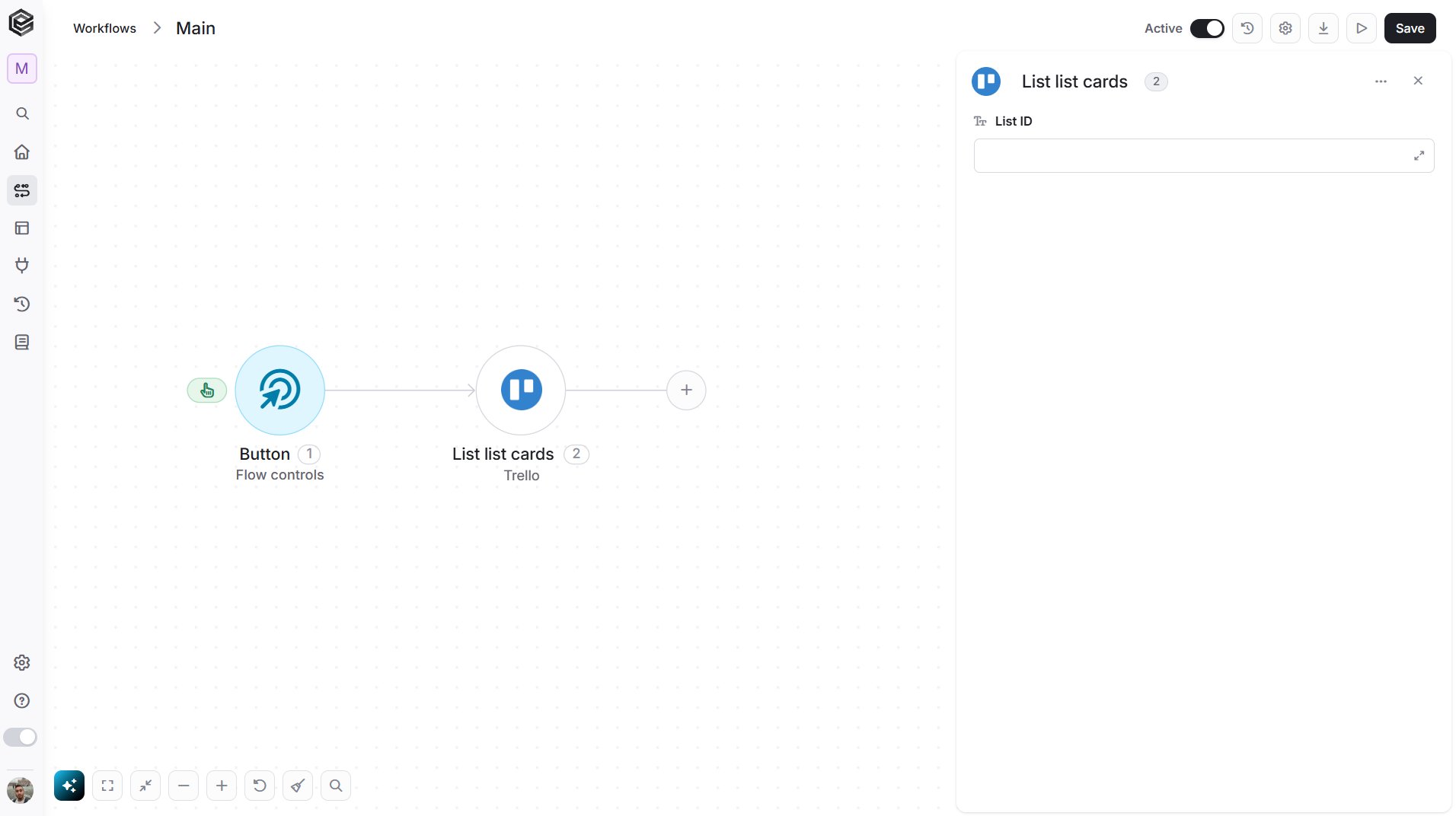
- List ID - The ID of the list. Map it from a previous step, such as Get Board Lists.
Search for Cards
Searches Trello for cards that match your text.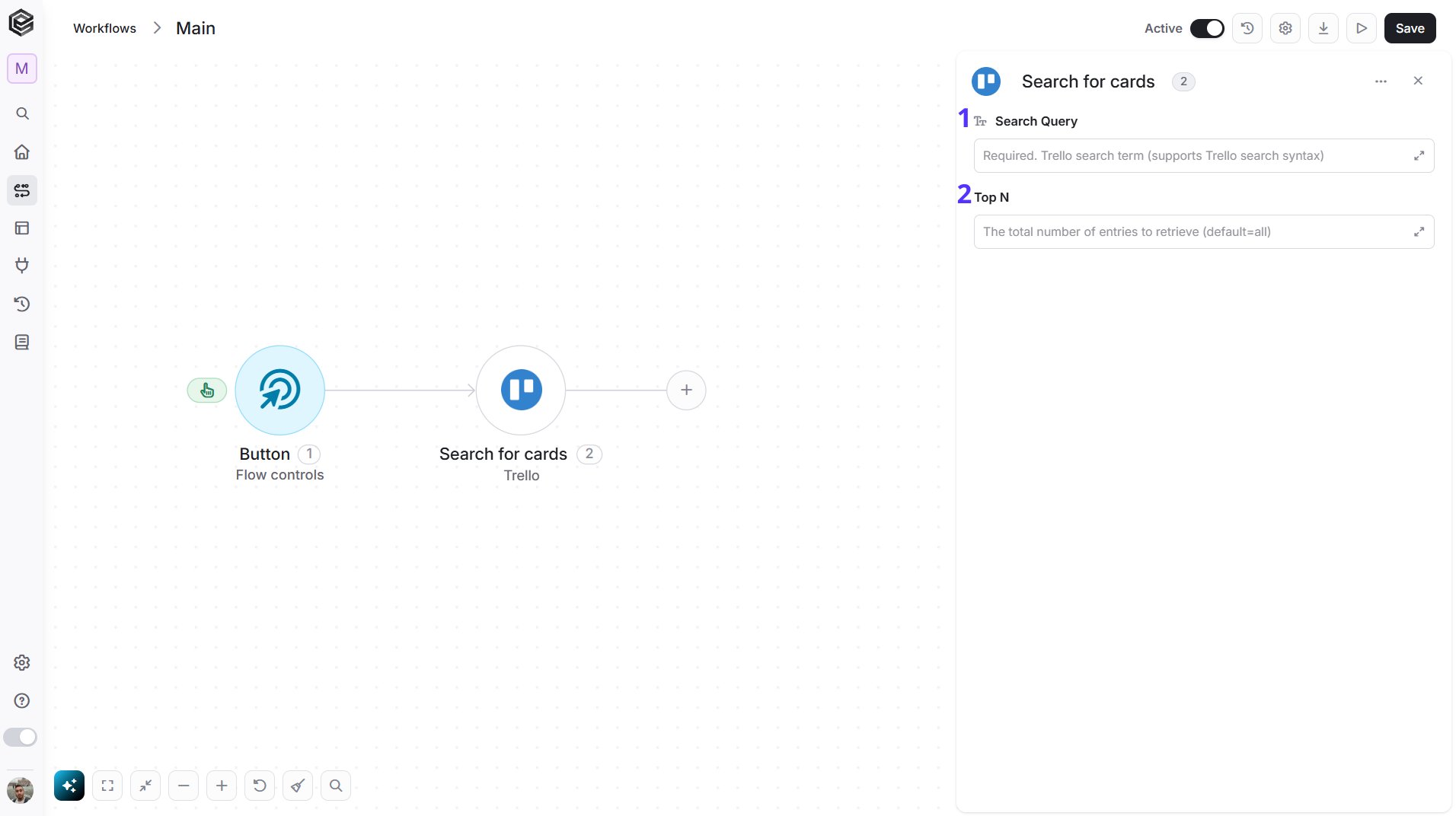
- Search Query - The text to search for. Trello search syntax is supported.
- Top N - Optional. The maximum number of cards to return, up to 1000.
Create a Card
Creates a new card in a Trello list.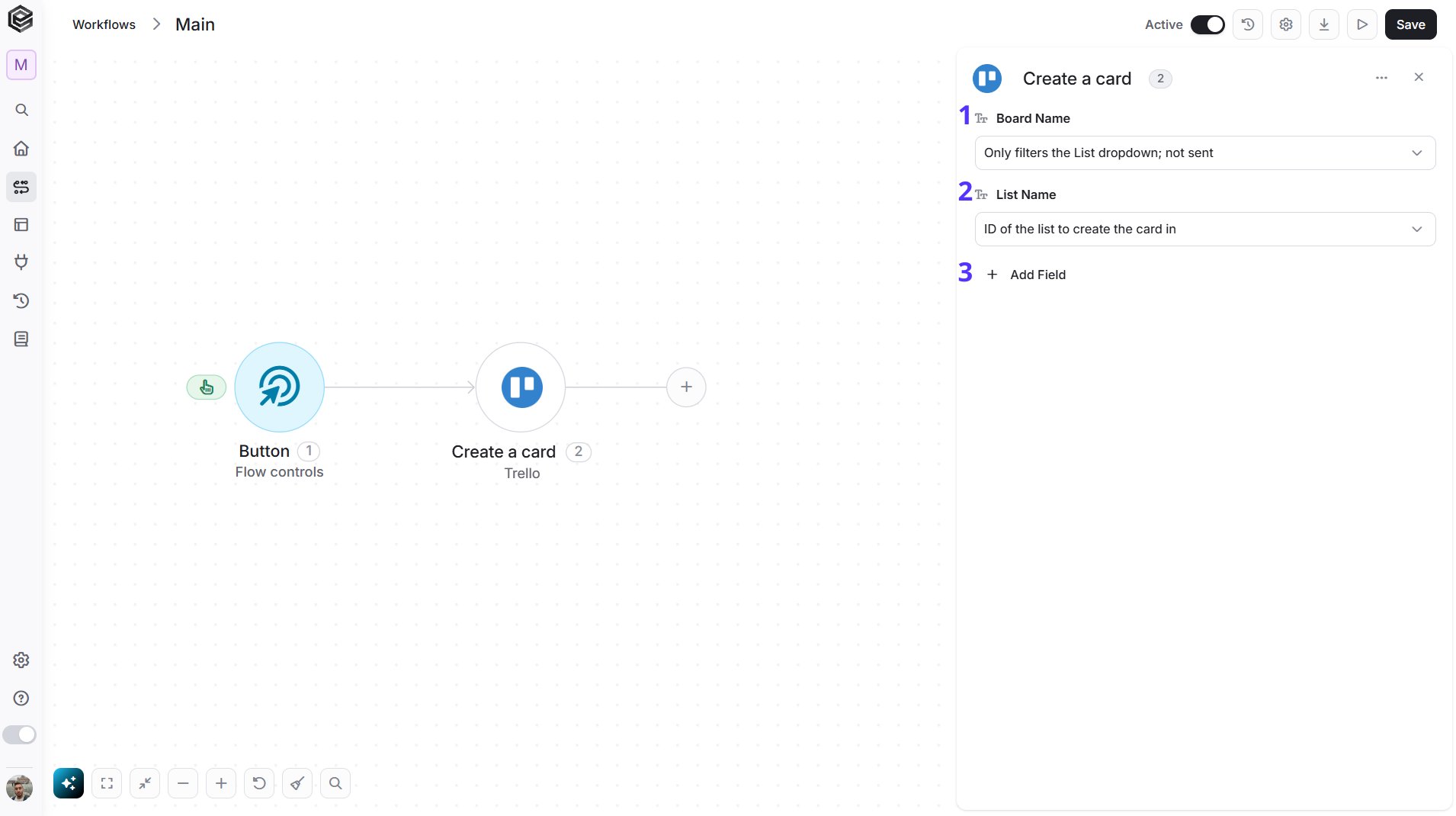
- Board Name - The board that holds the list. Select it first to load its lists. You have 3 ways to fill it:
- Dynamic List - Choose through a live, auto-generated list of your Trello boards.
- Dynamic Mapping - Map a Board ID variable from a previous step in your workflow so it changes automatically based on real-time data.
- Static Text - Provide a board ID such as “5f1e2a3b4c5d6e7f8a9b0c1d”.
- List Name - The list to create the card in. You have 3 ways to fill it:
- Dynamic List - Choose through a live, auto-generated list of the lists on the selected board.
- Dynamic Mapping - Map a List ID variable from a previous step in your workflow so it changes automatically based on real-time data.
- Static Text - Provide a list ID such as “5f1e2a3b4c5d6e7f8a9b0c1d”.
- Add Field - Click Add Field to add and populate additional fields for the selected activity. To learn more about managing activity data, click here.
Edit a Card
Updates the fields of a Trello card or moves it.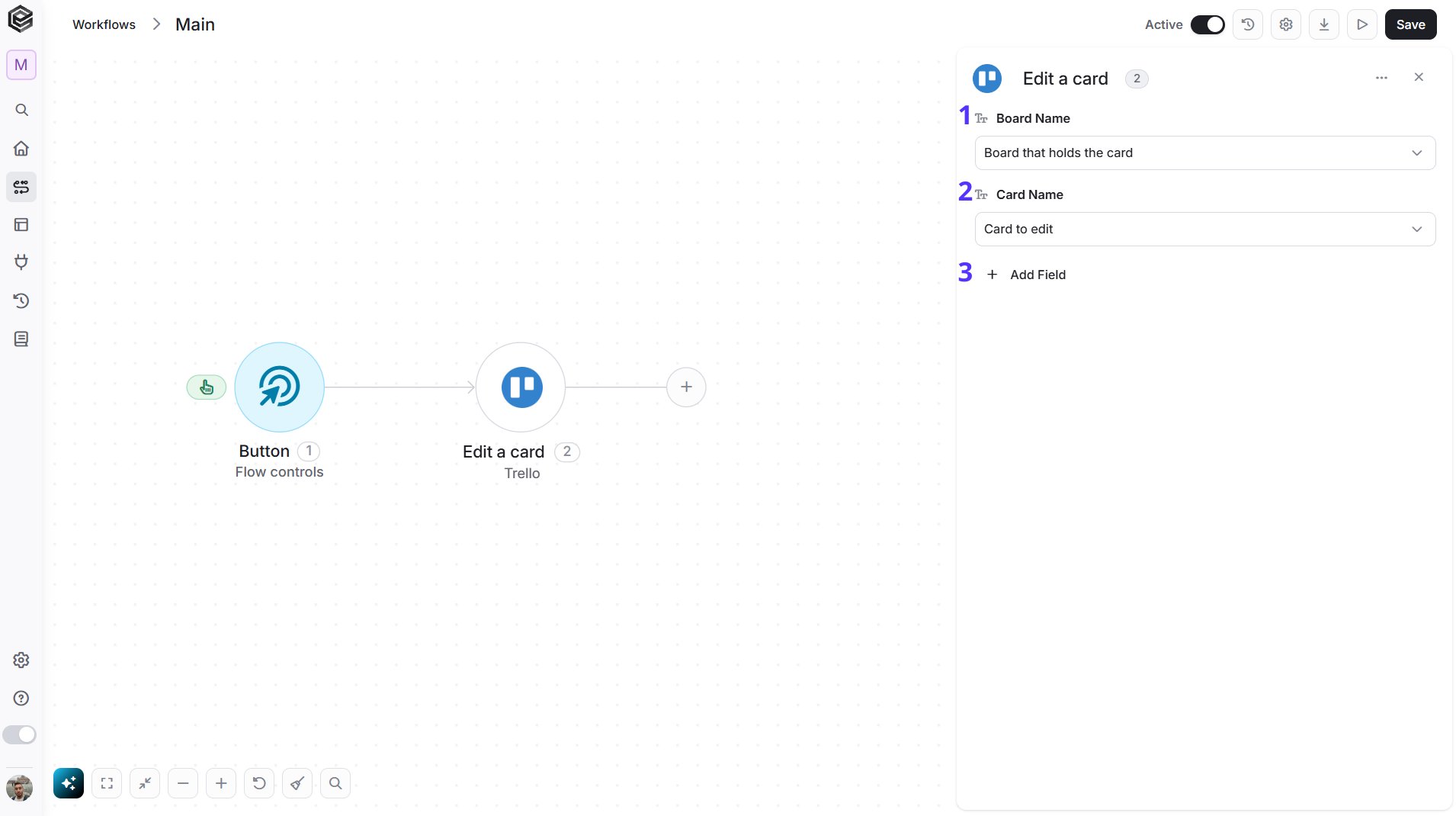
- Board Name - The Trello board that holds the card. You have 3 ways to fill it:
- Dynamic List - Choose through a live, auto-generated list of your Trello boards.
- Dynamic Mapping - Map a Board ID variable from a previous step in your workflow so it changes automatically based on real-time data.
- Static Text - Provide a board ID such as “5f1e2a3b4c5d6e7f8a9b0c1d”.
- Card Name - The Trello card to edit. Select the board first to load its cards. You have 3 ways to fill it:
- Dynamic List - Choose through a live, auto-generated list of the cards on the selected board.
- Dynamic Mapping - Map a Card ID variable from a previous step in your workflow so it changes automatically based on real-time data.
- Static Text - Provide a card ID such as “5f1e2a3b4c5d6e7f8a9b0c1d”.
- Add Field - Click Add Field to add and populate additional fields for the selected activity. To learn more about managing activity data, click here.
Delete a Card
Deletes a Trello card.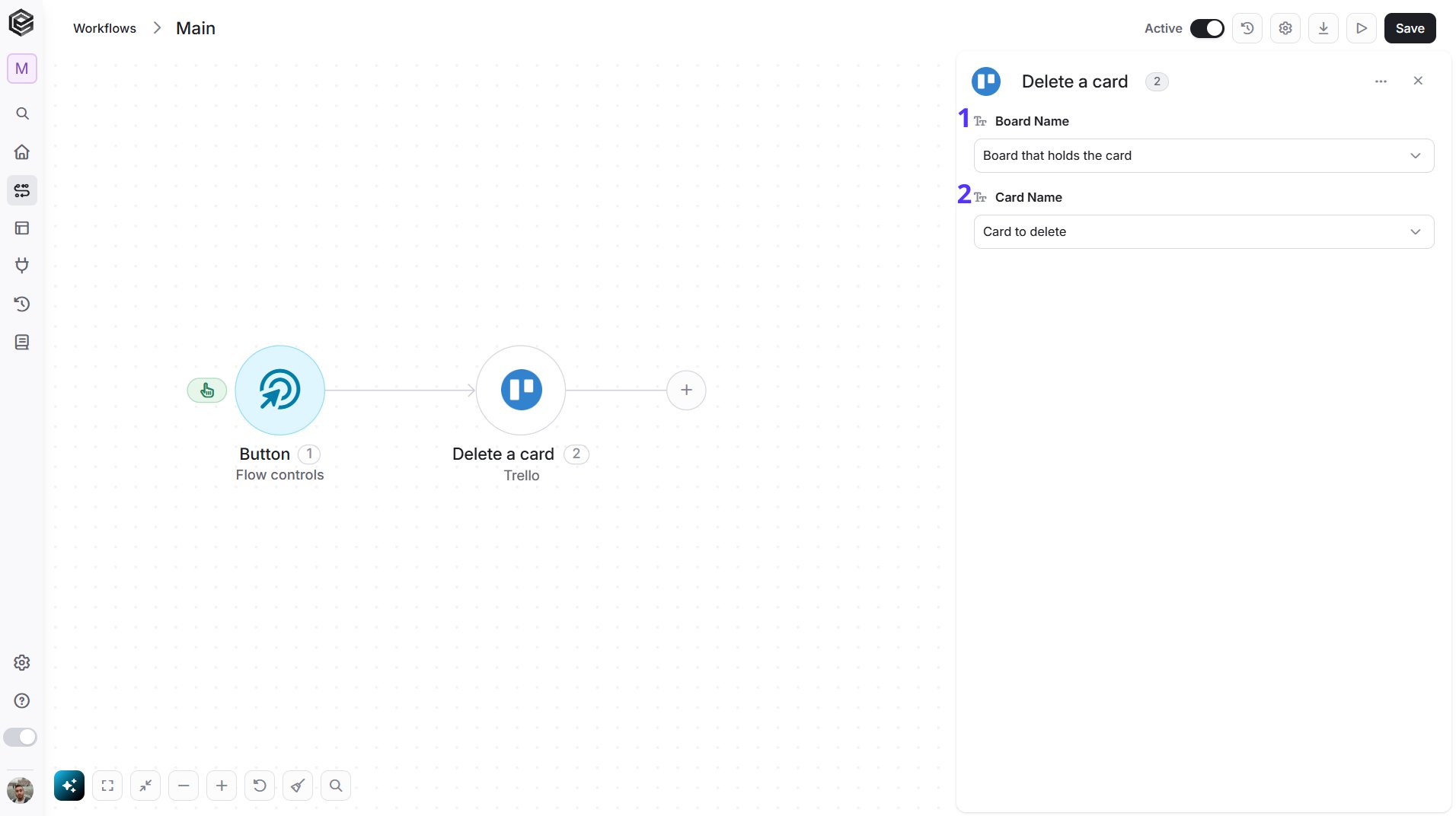
- Board Name - The Trello board that holds the card. You have 3 ways to fill it:
- Dynamic List - Choose through a live, auto-generated list of your Trello boards.
- Dynamic Mapping - Map a Board ID variable from a previous step in your workflow so it changes automatically based on real-time data.
- Static Text - Provide a board ID such as “5f1e2a3b4c5d6e7f8a9b0c1d”.
- Card Name - The Trello card to delete. Select the board first to load its cards. You have 3 ways to fill it:
- Dynamic List - Choose through a live, auto-generated list of the cards on the selected board.
- Dynamic Mapping - Map a Card ID variable from a previous step in your workflow so it changes automatically based on real-time data.
- Static Text - Provide a card ID such as “5f1e2a3b4c5d6e7f8a9b0c1d”.
Add Label to Card
Adds a label to a Trello card.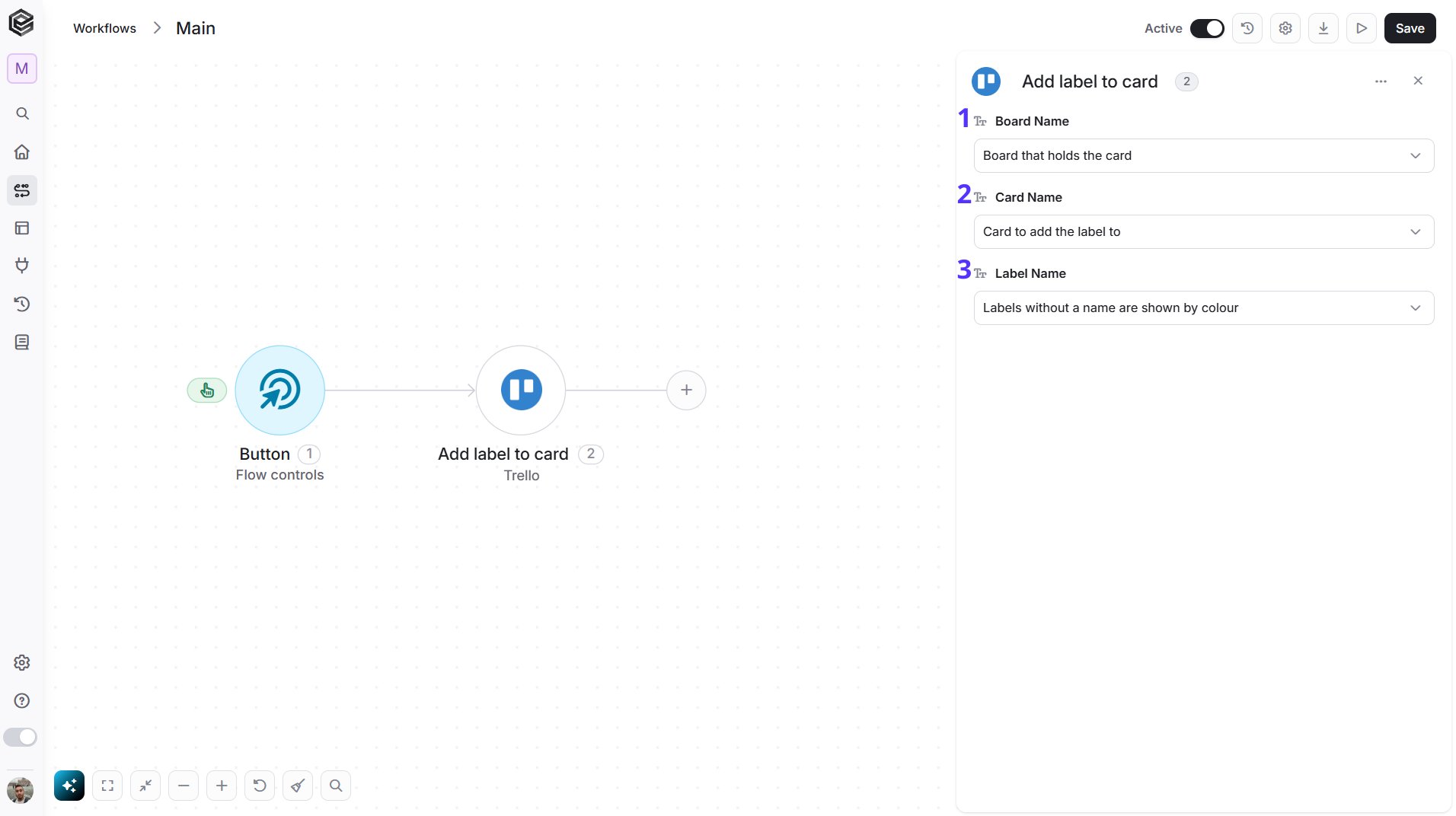
- Board Name - The Trello board that holds the card. You have 3 ways to fill it:
- Dynamic List - Choose through a live, auto-generated list of your Trello boards.
- Dynamic Mapping - Map a Board ID variable from a previous step in your workflow so it changes automatically based on real-time data.
- Static Text - Provide a board ID such as “5f1e2a3b4c5d6e7f8a9b0c1d”.
- Card Name - The Trello card to label. Select the board first to load its cards. You have 3 ways to fill it:
- Dynamic List - Choose through a live, auto-generated list of the cards on the selected board.
- Dynamic Mapping - Map a Card ID variable from a previous step in your workflow so it changes automatically based on real-time data.
- Static Text - Provide a card ID such as “5f1e2a3b4c5d6e7f8a9b0c1d”.
- Label Name - The label to add. Labels without a name are shown by color. You have 3 ways to fill it:
- Dynamic List - Choose through a live, auto-generated list of the labels on the selected board.
- Dynamic Mapping - Map a Label ID variable from a previous step in your workflow so it changes automatically based on real-time data.
- Static Text - Provide a label ID such as “5f1e2a3b4c5d6e7f8a9b0c1d”.
Remove Label from Card
Removes a label from a Trello card.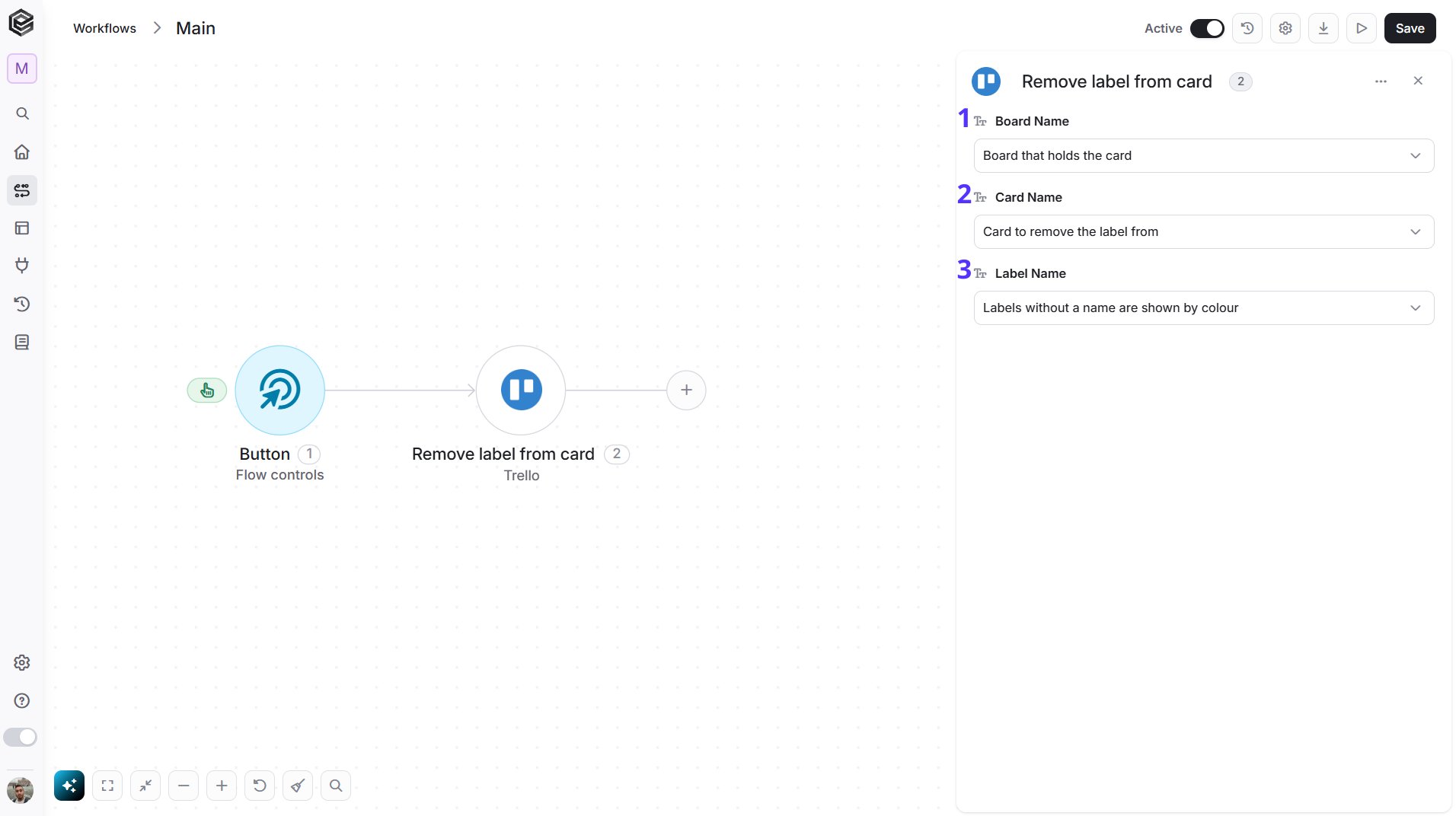
- Board Name - The Trello board that holds the card. You have 3 ways to fill it:
- Dynamic List - Choose through a live, auto-generated list of your Trello boards.
- Dynamic Mapping - Map a Board ID variable from a previous step in your workflow so it changes automatically based on real-time data.
- Static Text - Provide a board ID such as “5f1e2a3b4c5d6e7f8a9b0c1d”.
- Card Name - The Trello card to remove the label from. Select the board first to load its cards. You have 3 ways to fill it:
- Dynamic List - Choose through a live, auto-generated list of the cards on the selected board.
- Dynamic Mapping - Map a Card ID variable from a previous step in your workflow so it changes automatically based on real-time data.
- Static Text - Provide a card ID such as “5f1e2a3b4c5d6e7f8a9b0c1d”.
- Label Name - The label to remove. Labels without a name are shown by color. You have 3 ways to fill it:
- Dynamic List - Choose through a live, auto-generated list of the labels on the selected board.
- Dynamic Mapping - Map a Label ID variable from a previous step in your workflow so it changes automatically based on real-time data.
- Static Text - Provide a label ID such as “5f1e2a3b4c5d6e7f8a9b0c1d”.
Add Member to Card
Assigns a member to a Trello card.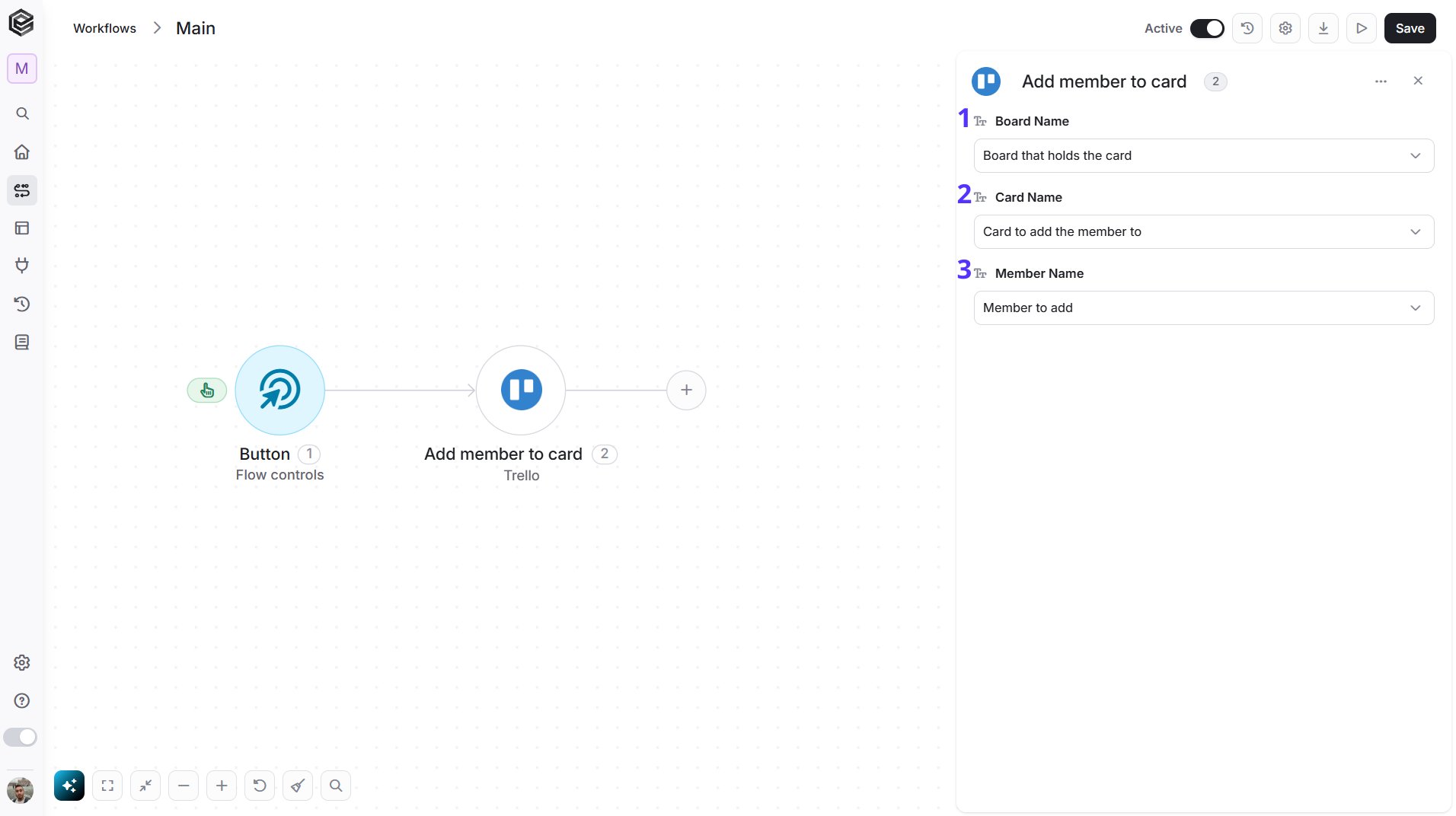
- Board Name - The Trello board that holds the card. You have 3 ways to fill it:
- Dynamic List - Choose through a live, auto-generated list of your Trello boards.
- Dynamic Mapping - Map a Board ID variable from a previous step in your workflow so it changes automatically based on real-time data.
- Static Text - Provide a board ID such as “5f1e2a3b4c5d6e7f8a9b0c1d”.
- Card Name - The Trello card to assign the member to. Select the board first to load its cards. You have 3 ways to fill it:
- Dynamic List - Choose through a live, auto-generated list of the cards on the selected board.
- Dynamic Mapping - Map a Card ID variable from a previous step in your workflow so it changes automatically based on real-time data.
- Static Text - Provide a card ID such as “5f1e2a3b4c5d6e7f8a9b0c1d”.
- Member Name - The member to add to the card. You have 3 ways to fill it:
- Dynamic List - Choose through a live, auto-generated list of the members of the selected board.
- Dynamic Mapping - Map a Member ID variable from a previous step in your workflow so it changes automatically based on real-time data.
- Static Text - Provide a member ID such as “5f1e2a3b4c5d6e7f8a9b0c1d”.
Remove Member from Card
Removes a member from a Trello card.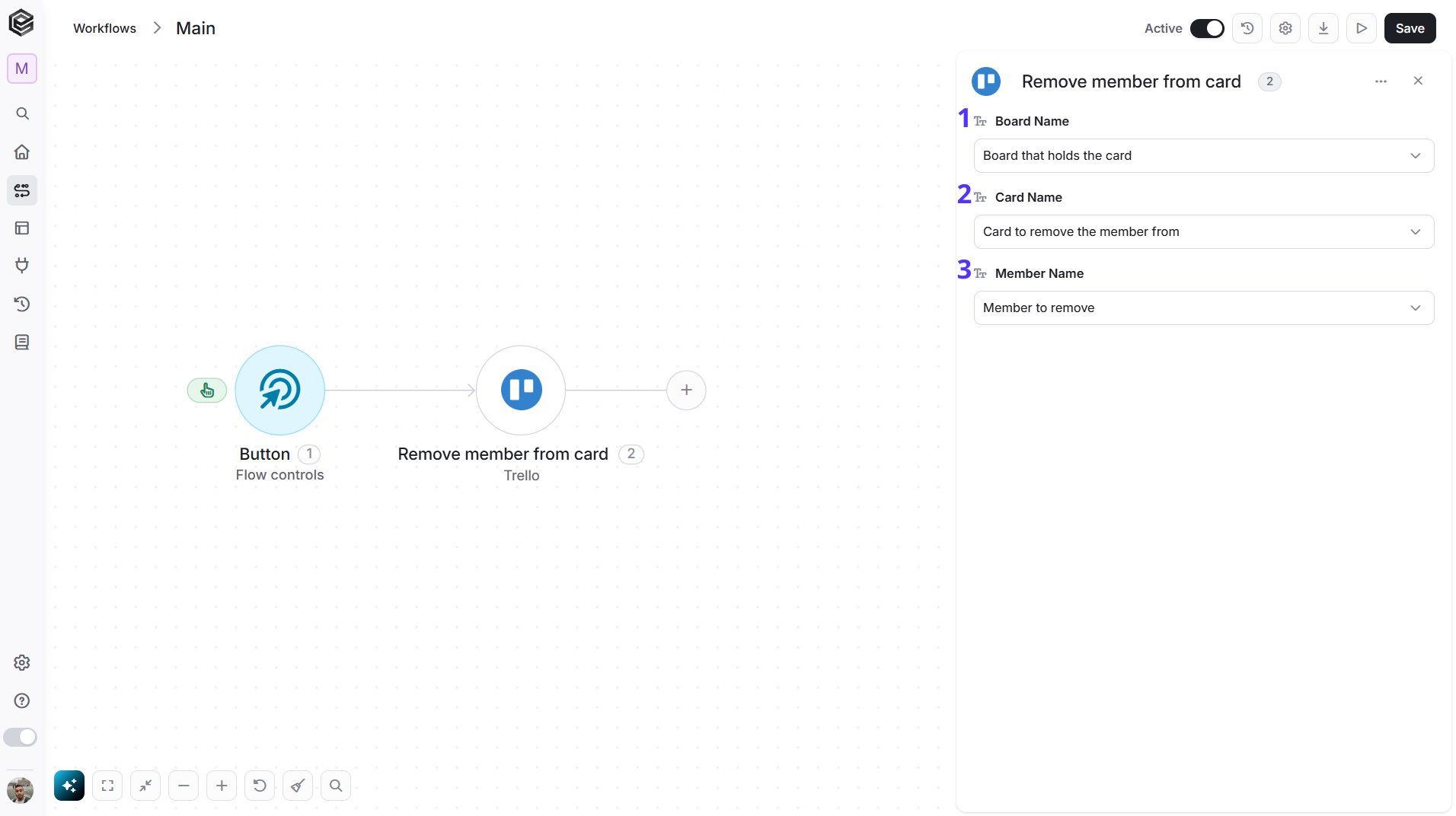
- Board Name - The Trello board that holds the card. You have 3 ways to fill it:
- Dynamic List - Choose through a live, auto-generated list of your Trello boards.
- Dynamic Mapping - Map a Board ID variable from a previous step in your workflow so it changes automatically based on real-time data.
- Static Text - Provide a board ID such as “5f1e2a3b4c5d6e7f8a9b0c1d”.
- Card Name - The Trello card to remove the member from. Select the board first to load its cards. You have 3 ways to fill it:
- Dynamic List - Choose through a live, auto-generated list of the cards on the selected board.
- Dynamic Mapping - Map a Card ID variable from a previous step in your workflow so it changes automatically based on real-time data.
- Static Text - Provide a card ID such as “5f1e2a3b4c5d6e7f8a9b0c1d”.
- Member Name - The member to remove from the card. You have 3 ways to fill it:
- Dynamic List - Choose through a live, auto-generated list of the members of the selected board.
- Dynamic Mapping - Map a Member ID variable from a previous step in your workflow so it changes automatically based on real-time data.
- Static Text - Provide a member ID such as “5f1e2a3b4c5d6e7f8a9b0c1d”.
Create a Comment
Adds a comment to a Trello card.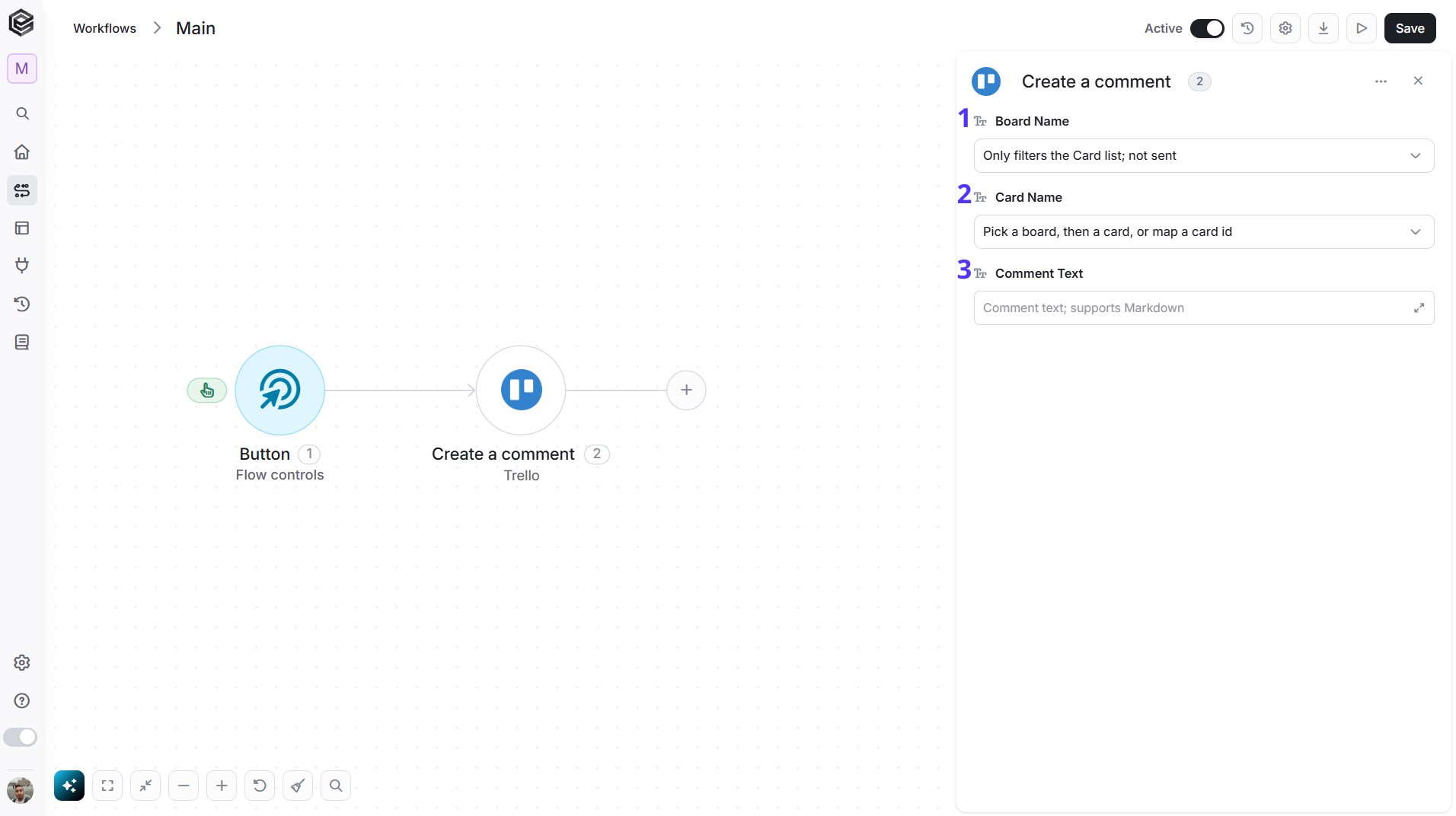
- Board Name - The board that holds the card. Select it first to load its cards. You have 3 ways to fill it:
- Dynamic List - Choose through a live, auto-generated list of your Trello boards.
- Dynamic Mapping - Map a Board ID variable from a previous step in your workflow so it changes automatically based on real-time data.
- Static Text - Provide a board ID such as “5f1e2a3b4c5d6e7f8a9b0c1d”.
- Card Name - The card to comment on. You have 3 ways to fill it:
- Dynamic List - Choose through a live, auto-generated list of the cards on the selected board.
- Dynamic Mapping - Map a Card ID variable from a previous step in your workflow so it changes automatically based on real-time data.
- Static Text - Provide a card ID such as “5f1e2a3b4c5d6e7f8a9b0c1d”.
- Comment Text - The text of the comment. Markdown is supported.
Edit a Comment
Replaces the text of a comment on a Trello card.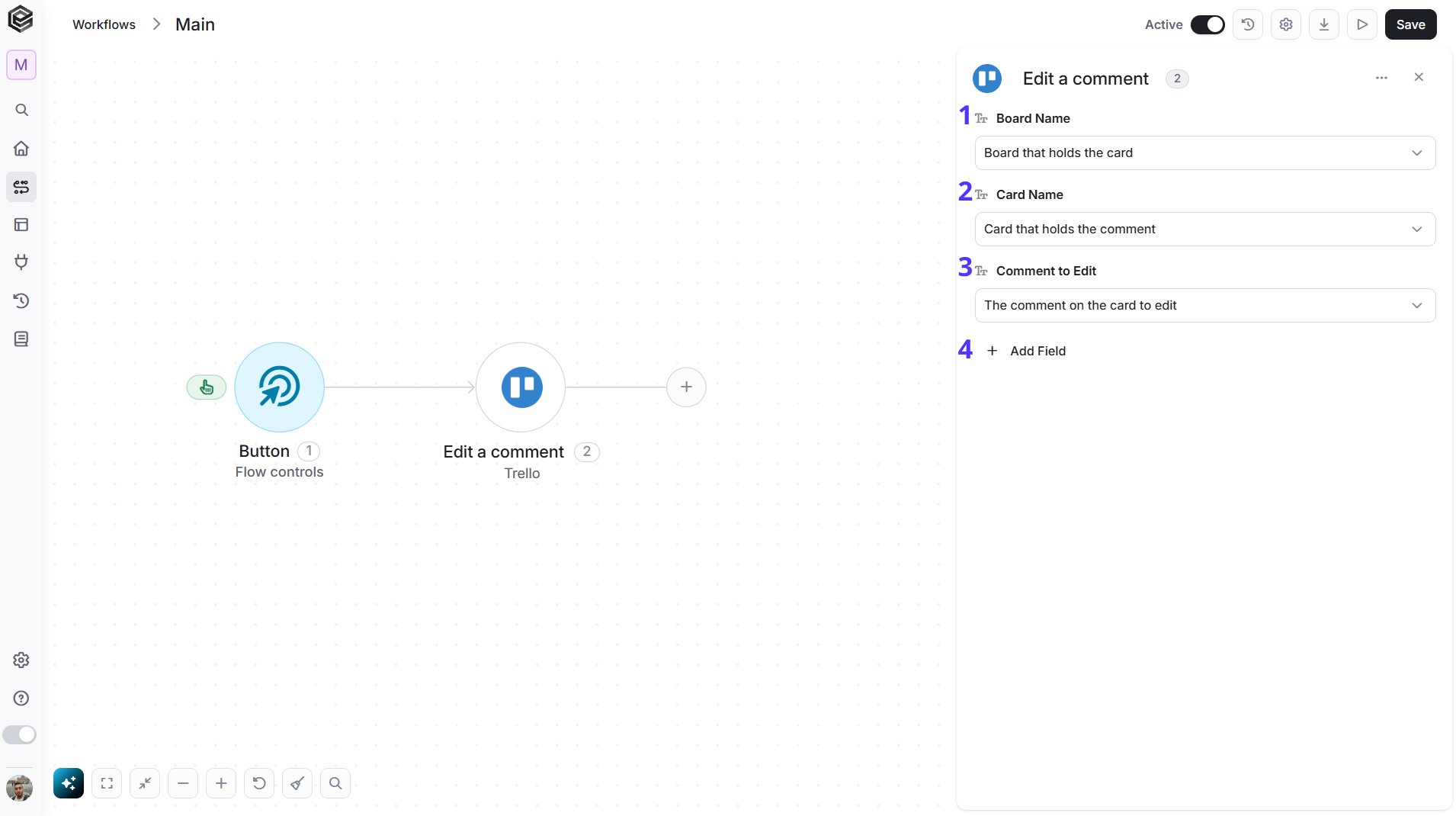
- Board Name - The Trello board that holds the card. You have 3 ways to fill it:
- Dynamic List - Choose through a live, auto-generated list of your Trello boards.
- Dynamic Mapping - Map a Board ID variable from a previous step in your workflow so it changes automatically based on real-time data.
- Static Text - Provide a board ID such as “5f1e2a3b4c5d6e7f8a9b0c1d”.
- Card Name - The card that holds the comment. Select the board first to load its cards. You have 3 ways to fill it:
- Dynamic List - Choose through a live, auto-generated list of the cards on the selected board.
- Dynamic Mapping - Map a Card ID variable from a previous step in your workflow so it changes automatically based on real-time data.
- Static Text - Provide a card ID such as “5f1e2a3b4c5d6e7f8a9b0c1d”.
- Comment to Edit - The comment to edit. Select the card first to load its comments. You have 3 ways to fill it:
- Dynamic List - Choose through a live, auto-generated list of the comments on the selected card.
- Dynamic Mapping - Map a Comment ID variable from a previous step in your workflow so it changes automatically based on real-time data.
- Static Text - Provide a comment ID such as “5f1e2a3b4c5d6e7f8a9b0c1d”.
- Add Field - Click Add Field to add and populate additional fields for the selected activity. To learn more about managing activity data, click here.
- New Comment Text - The text that replaces the current comment.
List Comments
Retrieves the comments on a Trello card.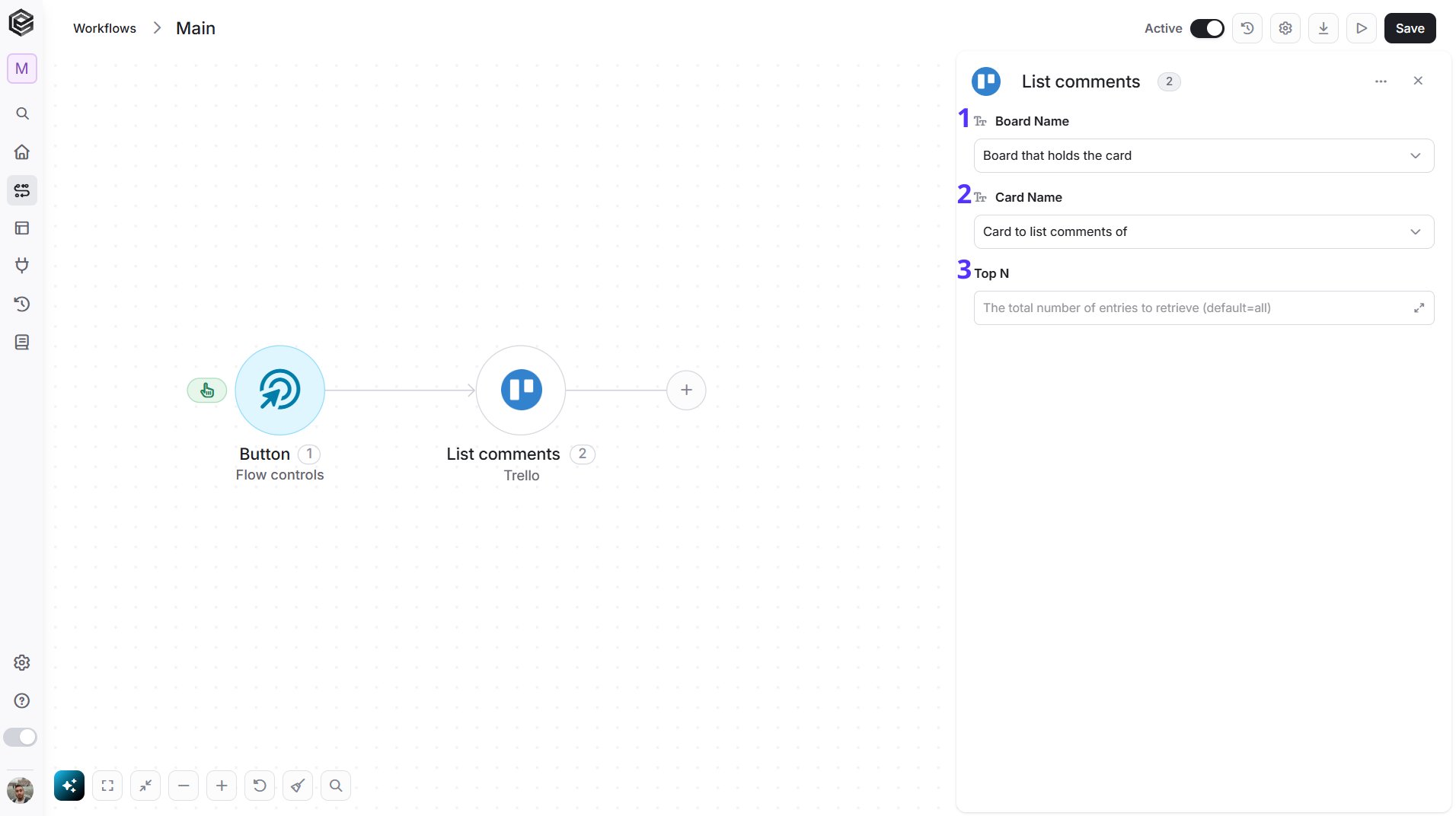
- Board Name - The Trello board that holds the card. You have 3 ways to fill it:
- Dynamic List - Choose through a live, auto-generated list of your Trello boards.
- Dynamic Mapping - Map a Board ID variable from a previous step in your workflow so it changes automatically based on real-time data.
- Static Text - Provide a board ID such as “5f1e2a3b4c5d6e7f8a9b0c1d”.
- Card Name - The Trello card to list the comments of. Select the board first to load its cards. You have 3 ways to fill it:
- Dynamic List - Choose through a live, auto-generated list of the cards on the selected board.
- Dynamic Mapping - Map a Card ID variable from a previous step in your workflow so it changes automatically based on real-time data.
- Static Text - Provide a card ID such as “5f1e2a3b4c5d6e7f8a9b0c1d”.
- Top N - You can set the maximum number of records Engini will return for the object you chose (default = all records).
Delete a Comment
Deletes a comment from a Trello card.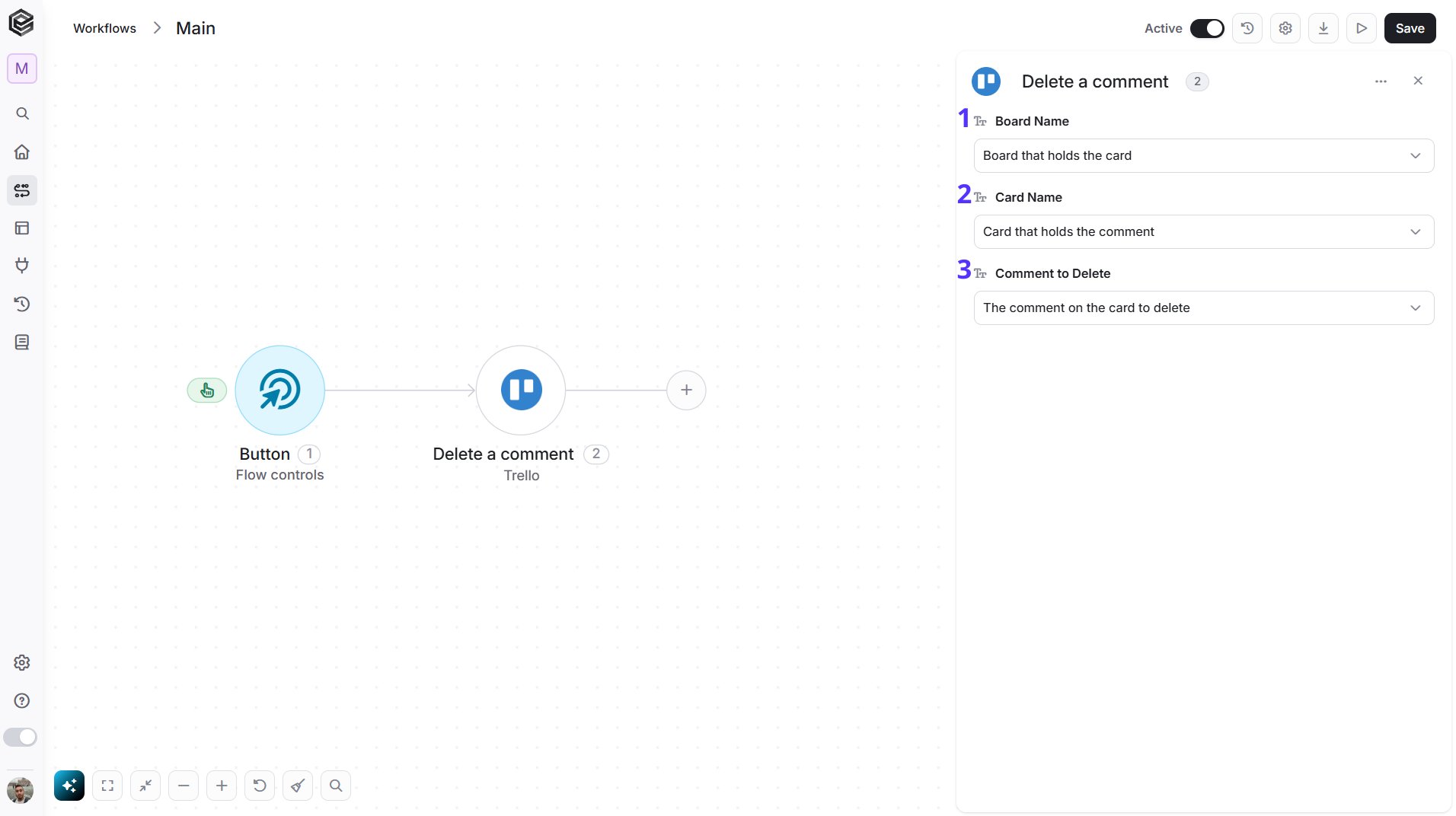
- Board Name - The Trello board that holds the card. You have 3 ways to fill it:
- Dynamic List - Choose through a live, auto-generated list of your Trello boards.
- Dynamic Mapping - Map a Board ID variable from a previous step in your workflow so it changes automatically based on real-time data.
- Static Text - Provide a board ID such as “5f1e2a3b4c5d6e7f8a9b0c1d”.
- Card Name - The card that holds the comment. Select the board first to load its cards. You have 3 ways to fill it:
- Dynamic List - Choose through a live, auto-generated list of the cards on the selected board.
- Dynamic Mapping - Map a Card ID variable from a previous step in your workflow so it changes automatically based on real-time data.
- Static Text - Provide a card ID such as “5f1e2a3b4c5d6e7f8a9b0c1d”.
- Comment to Delete - The comment to delete. Select the card first to load its comments. You have 3 ways to fill it:
- Dynamic List - Choose through a live, auto-generated list of the comments on the selected card.
- Dynamic Mapping - Map a Comment ID variable from a previous step in your workflow so it changes automatically based on real-time data.
- Static Text - Provide a comment ID such as “5f1e2a3b4c5d6e7f8a9b0c1d”.
List Card Attachments
Retrieves the attachments of a Trello card.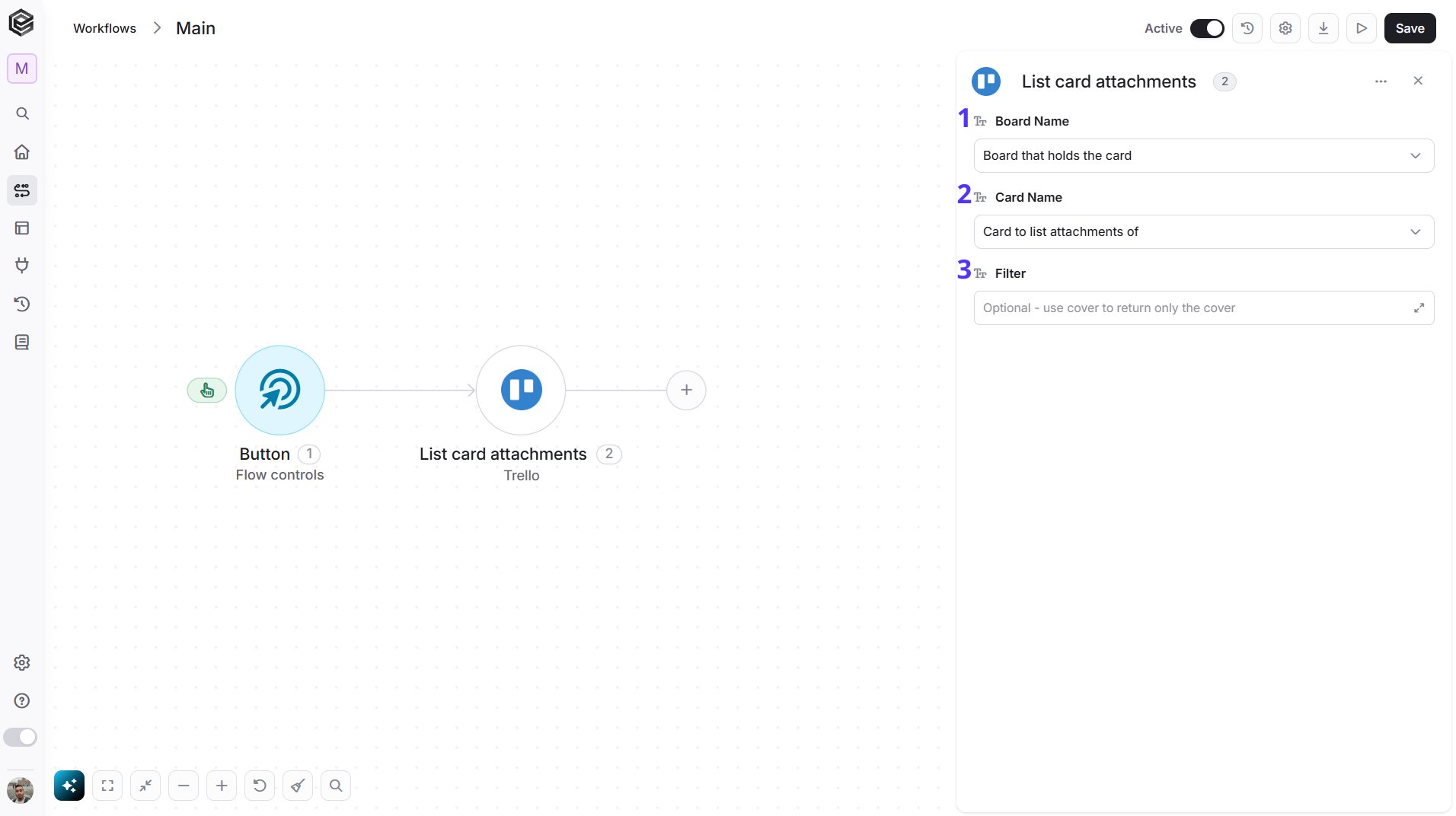
- Board Name - The Trello board that holds the card. You have 3 ways to fill it:
- Dynamic List - Choose through a live, auto-generated list of your Trello boards.
- Dynamic Mapping - Map a Board ID variable from a previous step in your workflow so it changes automatically based on real-time data.
- Static Text - Provide a board ID such as “5f1e2a3b4c5d6e7f8a9b0c1d”.
- Card Name - The Trello card to list the attachments of. Select the board first to load its cards. You have 3 ways to fill it:
- Dynamic List - Choose through a live, auto-generated list of the cards on the selected board.
- Dynamic Mapping - Map a Card ID variable from a previous step in your workflow so it changes automatically based on real-time data.
- Static Text - Provide a card ID such as “5f1e2a3b4c5d6e7f8a9b0c1d”.
- Filter - Optional. Enter cover to return only the attachment used as the card cover.
Get Card Attachment
Retrieves one attachment of a Trello card.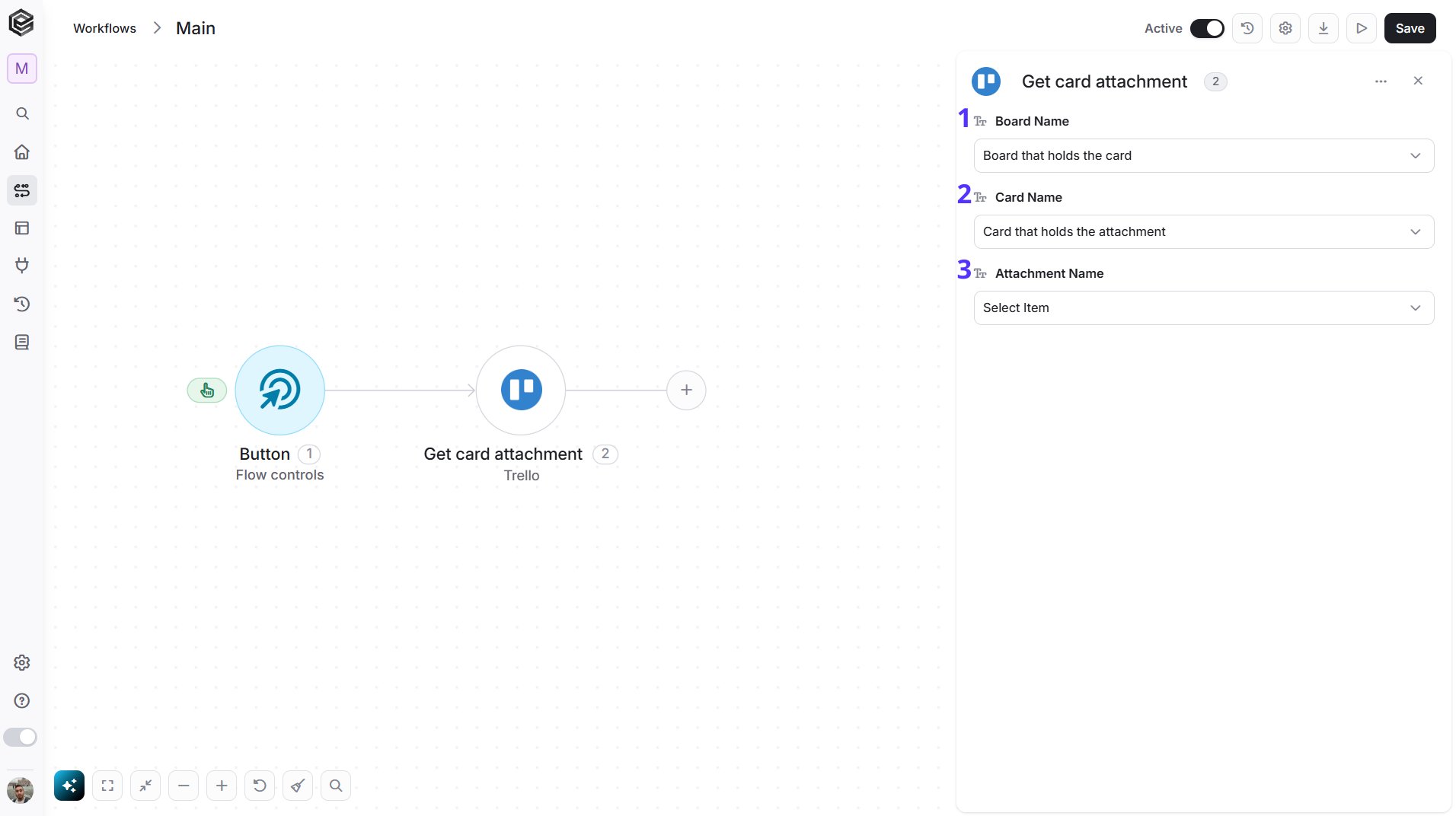
- Board Name - The Trello board that holds the card. You have 3 ways to fill it:
- Dynamic List - Choose through a live, auto-generated list of your Trello boards.
- Dynamic Mapping - Map a Board ID variable from a previous step in your workflow so it changes automatically based on real-time data.
- Static Text - Provide a board ID such as “5f1e2a3b4c5d6e7f8a9b0c1d”.
- Card Name - The card that holds the attachment. Select the board first to load its cards. You have 3 ways to fill it:
- Dynamic List - Choose through a live, auto-generated list of the cards on the selected board.
- Dynamic Mapping - Map a Card ID variable from a previous step in your workflow so it changes automatically based on real-time data.
- Static Text - Provide a card ID such as “5f1e2a3b4c5d6e7f8a9b0c1d”.
- Attachment Name - The attachment to retrieve. Select the card first to load its attachments. You have 3 ways to fill it:
- Dynamic List - Choose through a live, auto-generated list of the attachments on the selected card.
- Dynamic Mapping - Map a Attachment ID variable from a previous step in your workflow so it changes automatically based on real-time data.
- Static Text - Provide a attachment ID such as “5f1e2a3b4c5d6e7f8a9b0c1d”.
Add an Attachment
Attaches a web link or a file to a Trello card.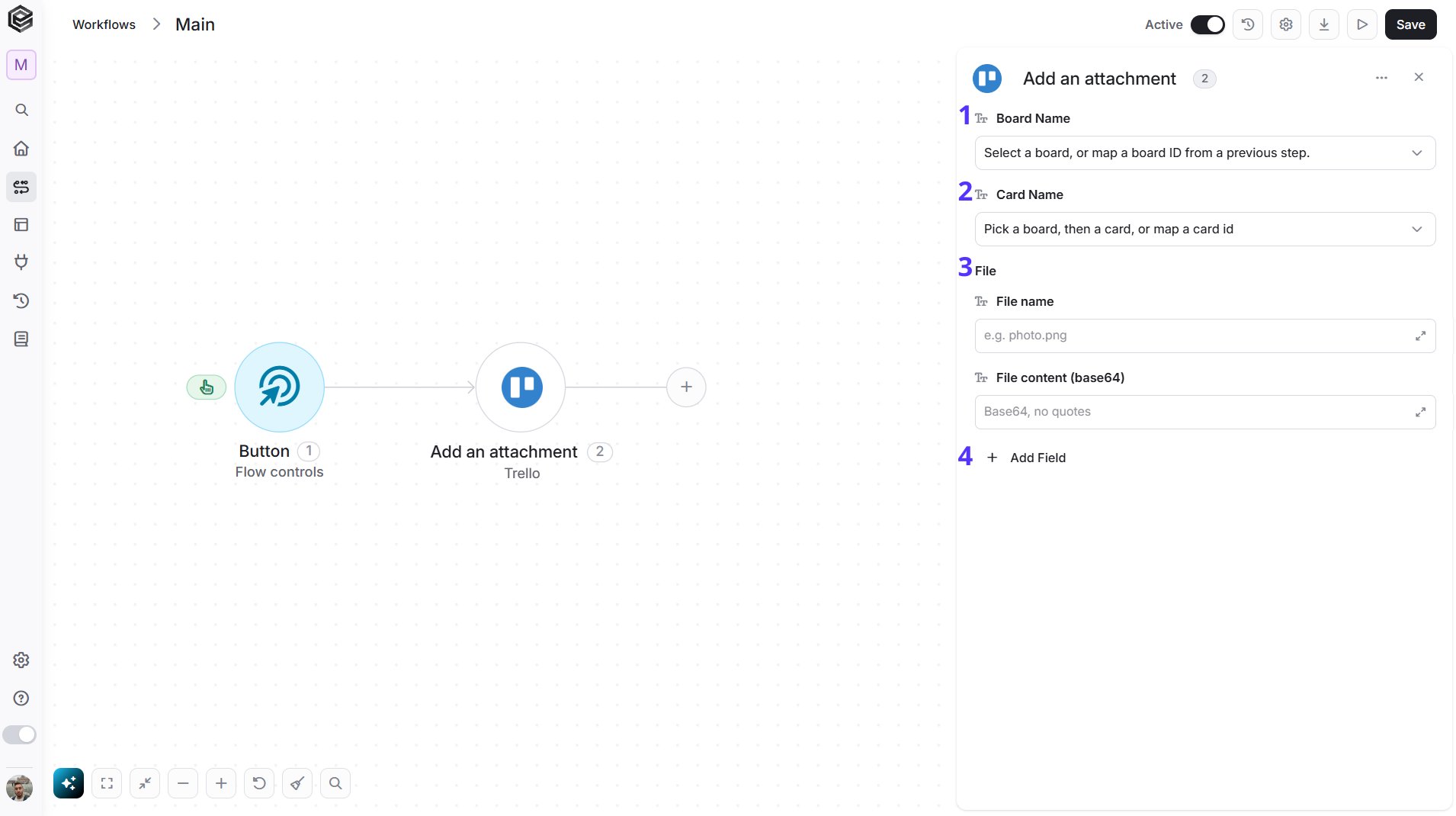
- Board Name - The Trello board that holds the card. You have 3 ways to fill it:
- Dynamic List - Choose through a live, auto-generated list of your Trello boards.
- Dynamic Mapping - Map a Board ID variable from a previous step in your workflow so it changes automatically based on real-time data.
- Static Text - Provide a board ID such as “5f1e2a3b4c5d6e7f8a9b0c1d”.
- Card Name - The card to attach to. Select the board first to load its cards. You have 3 ways to fill it:
- Dynamic List - Choose through a live, auto-generated list of the cards on the selected board.
- Dynamic Mapping - Map a Card ID variable from a previous step in your workflow so it changes automatically based on real-time data.
- Static Text - Provide a card ID such as “5f1e2a3b4c5d6e7f8a9b0c1d”.
- File - Optional. Use it to upload a file instead of a link. Fill in both fields below:
- File name - The name of the file, including its extension, such as photo.png.
- File content (base64) - The content of the file, encoded as Base64 text. Map it from a previous step that returns file content.
- Add Field - Click Add Field to add and populate additional fields for the selected activity. To learn more about managing activity data, click here.
Upload an Attachment to a Card
Uploads a file to a Trello card as an attachment.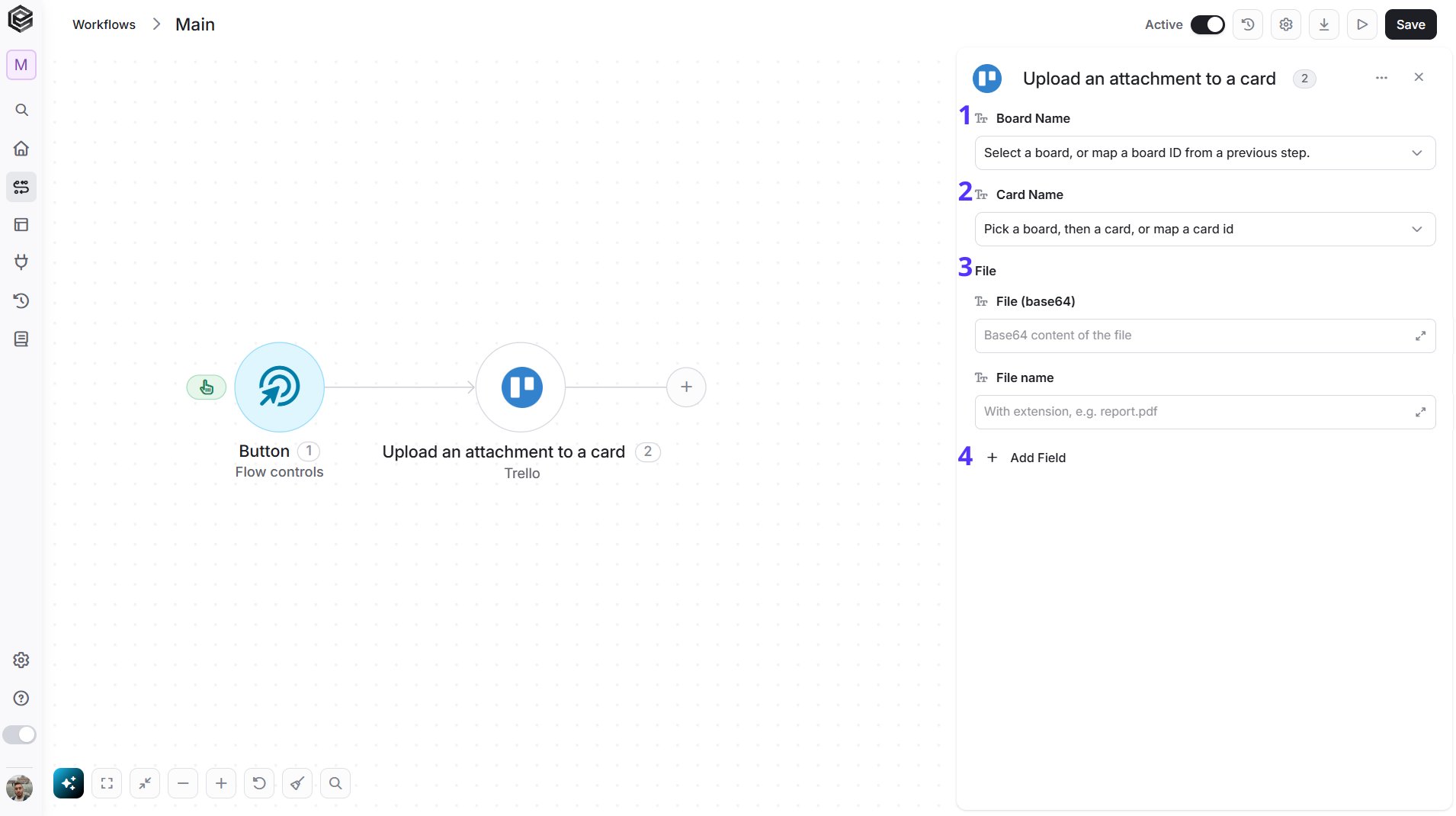
- Board Name - The Trello board that holds the card. You have 3 ways to fill it:
- Dynamic List - Choose through a live, auto-generated list of your Trello boards.
- Dynamic Mapping - Map a Board ID variable from a previous step in your workflow so it changes automatically based on real-time data.
- Static Text - Provide a board ID such as “5f1e2a3b4c5d6e7f8a9b0c1d”.
- Card Name - The card to attach the file to. Select the board first to load its cards. You have 3 ways to fill it:
- Dynamic List - Choose through a live, auto-generated list of the cards on the selected board.
- Dynamic Mapping - Map a Card ID variable from a previous step in your workflow so it changes automatically based on real-time data.
- Static Text - Provide a card ID such as “5f1e2a3b4c5d6e7f8a9b0c1d”.
- File - The file to upload. Fill in both fields below:
- File (base64) - The content of the file, encoded as Base64 text. Map it from a previous step that returns file content.
- File name - The name of the file, including its extension, such as report.pdf.
- Add Field - Click Add Field to add and populate additional fields for the selected activity. To learn more about managing activity data, click here.
Delete an Attachment
Deletes an attachment from a Trello card.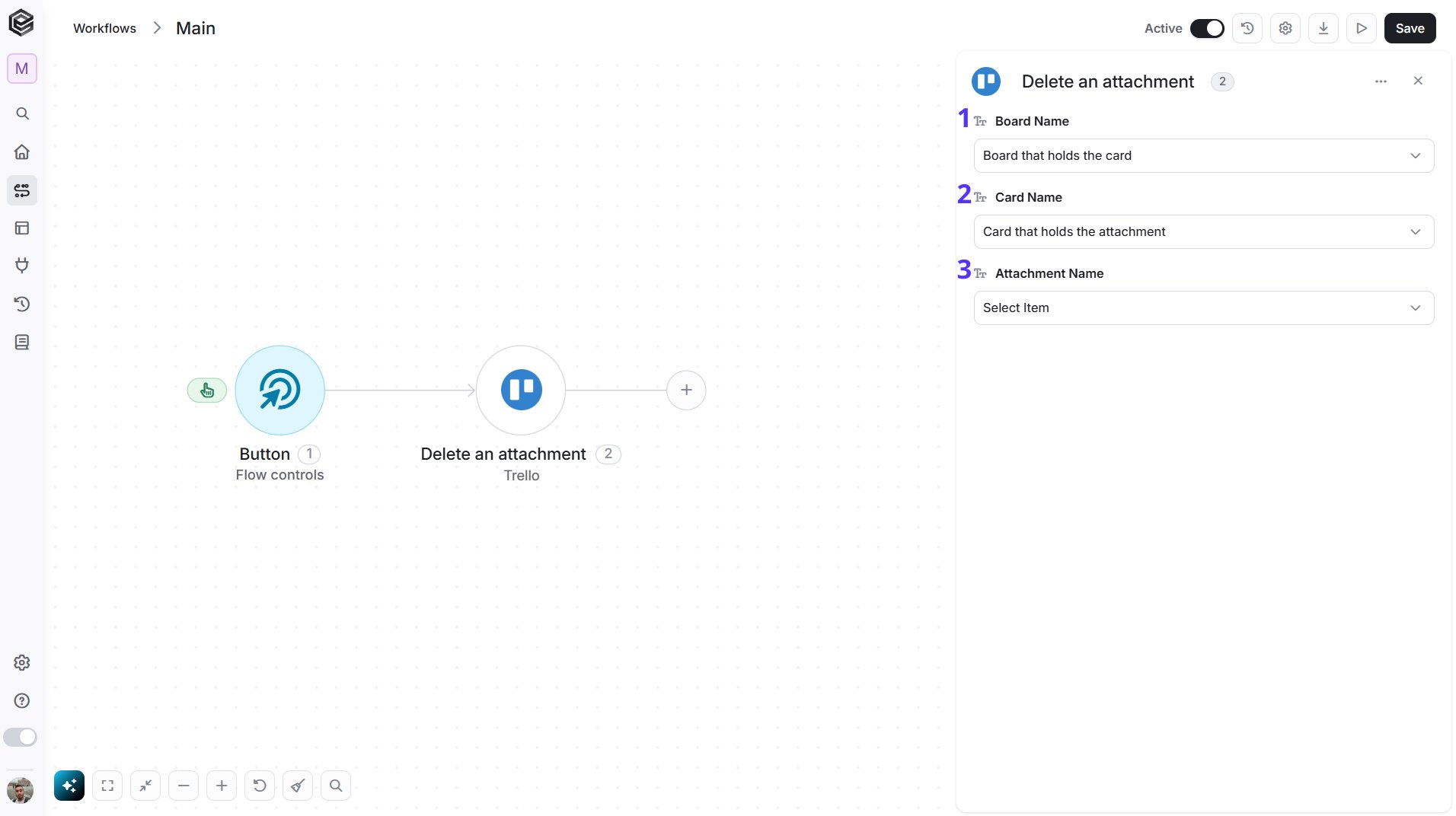
- Board Name - The Trello board that holds the card. You have 3 ways to fill it:
- Dynamic List - Choose through a live, auto-generated list of your Trello boards.
- Dynamic Mapping - Map a Board ID variable from a previous step in your workflow so it changes automatically based on real-time data.
- Static Text - Provide a board ID such as “5f1e2a3b4c5d6e7f8a9b0c1d”.
- Card Name - The card that holds the attachment. Select the board first to load its cards. You have 3 ways to fill it:
- Dynamic List - Choose through a live, auto-generated list of the cards on the selected board.
- Dynamic Mapping - Map a Card ID variable from a previous step in your workflow so it changes automatically based on real-time data.
- Static Text - Provide a card ID such as “5f1e2a3b4c5d6e7f8a9b0c1d”.
- Attachment Name - The attachment to delete. Select the card first to load its attachments. You have 3 ways to fill it:
- Dynamic List - Choose through a live, auto-generated list of the attachments on the selected card.
- Dynamic Mapping - Map a Attachment ID variable from a previous step in your workflow so it changes automatically based on real-time data.
- Static Text - Provide a attachment ID such as “5f1e2a3b4c5d6e7f8a9b0c1d”.
Create a Custom Field
Creates a custom field on a Trello board.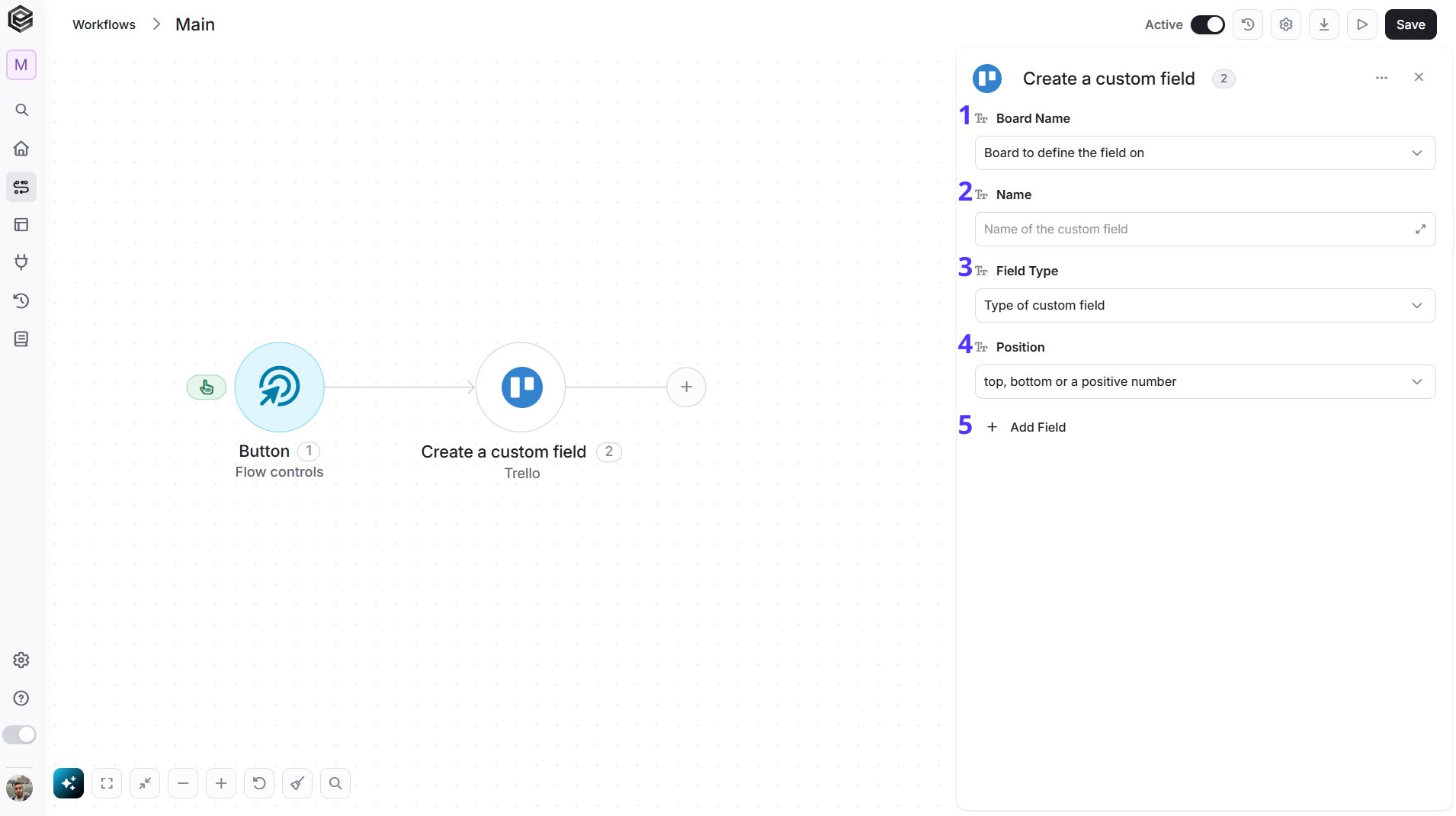
- Board Name - The board to create the custom field on. You have 3 ways to fill it:
- Dynamic List - Choose through a live, auto-generated list of your Trello boards.
- Dynamic Mapping - Map a Board ID variable from a previous step in your workflow so it changes automatically based on real-time data.
- Static Text - Provide a board ID such as “5f1e2a3b4c5d6e7f8a9b0c1d”.
- Name - The name of the custom field.
- Field Type - The type of the custom field: Checkbox, List, Number, Text or Date.
- Position - Where the field appears: Top or Bottom.
- Add Field - Click Add Field to add and populate additional fields for the selected activity. To learn more about managing activity data, click here.
Get Custom Field
Retrieves the details of a Trello custom field.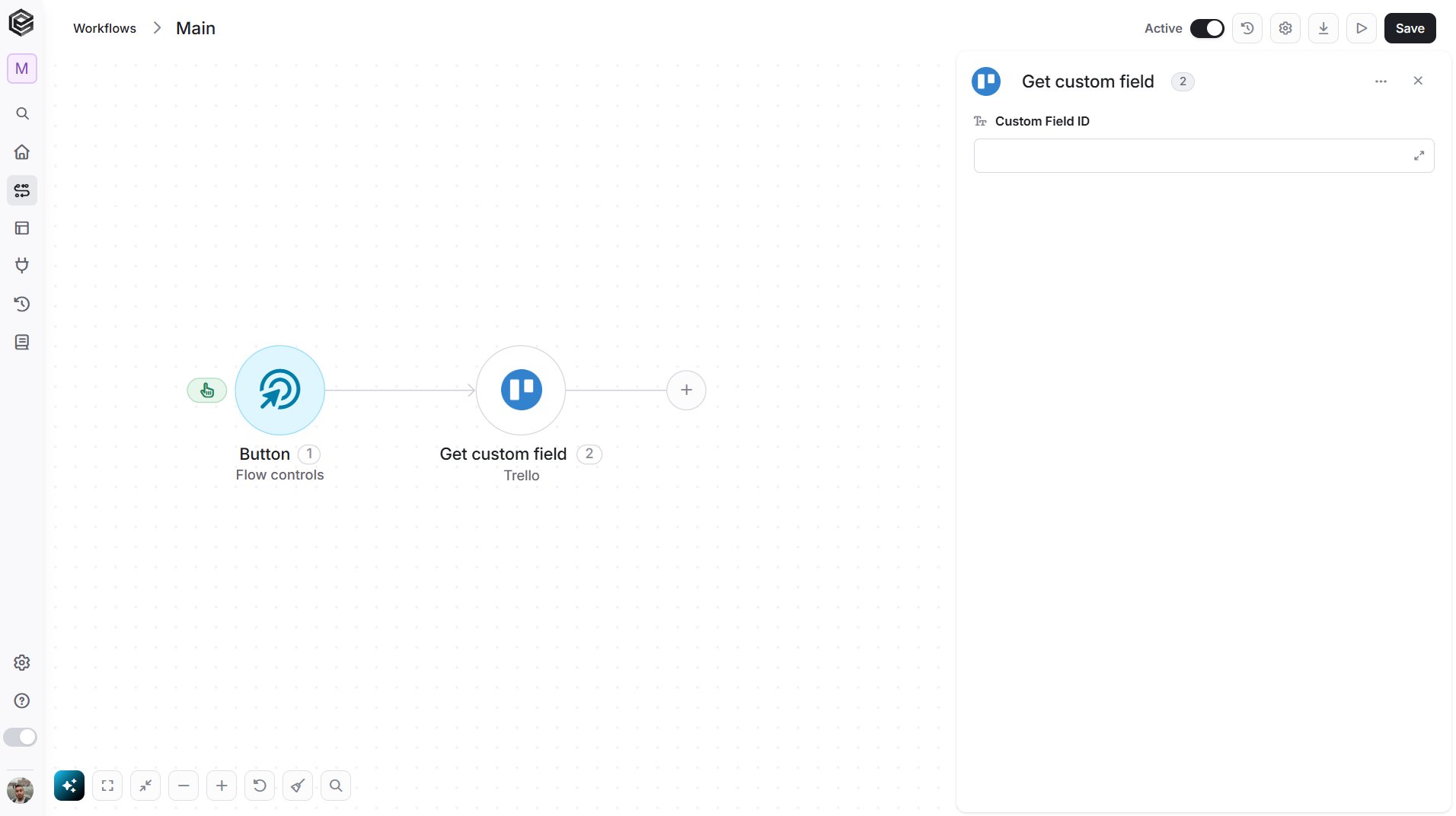
- Custom Field ID - The ID of the custom field. Map it from a previous step, such as Get Board Custom Fields.
Get Custom Field Options
Retrieves the choices of a Trello list custom field.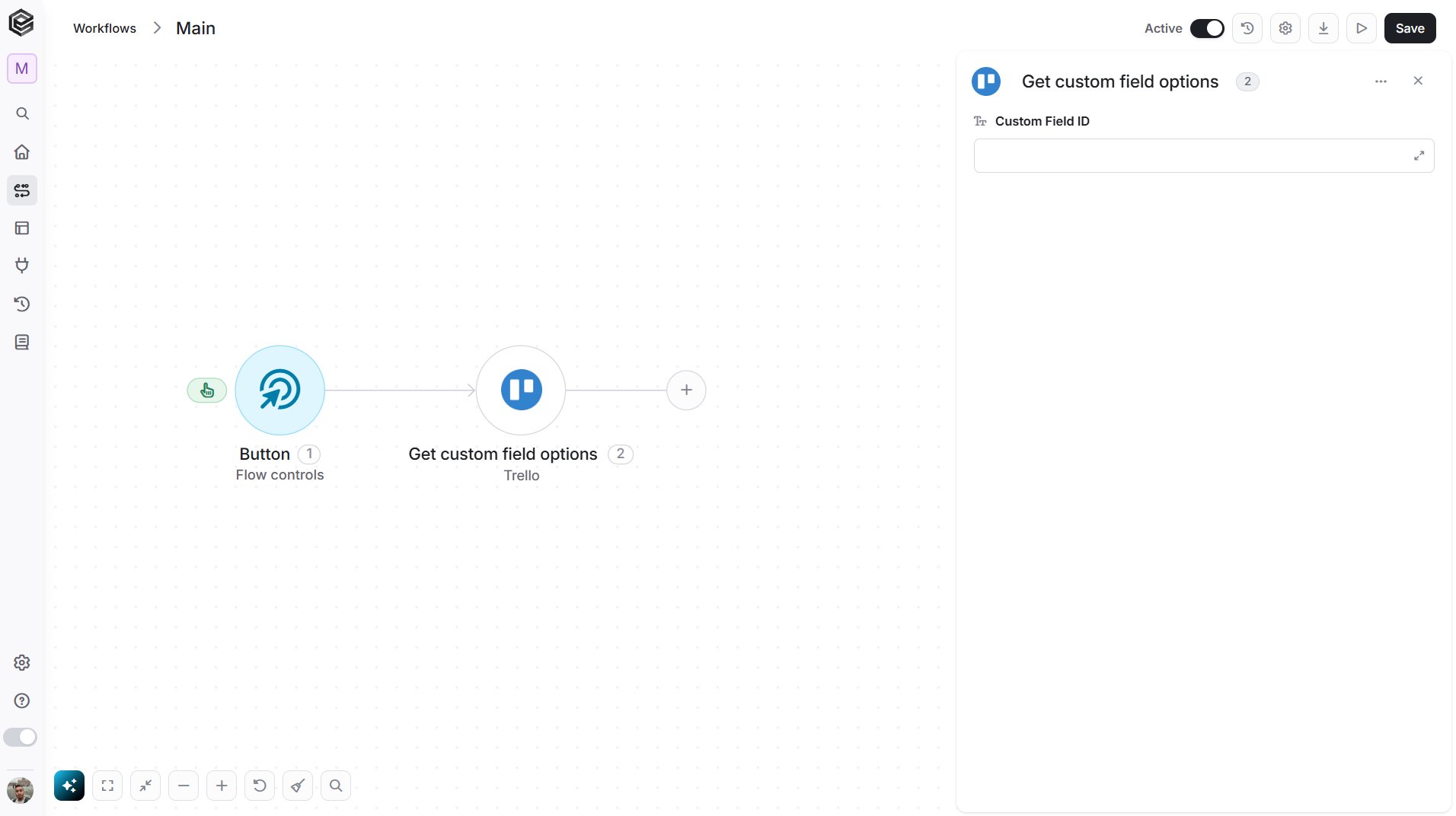
- Custom Field ID - The ID of the list custom field. Map it from a previous step, such as Get Board Custom Fields.
Set Custom Field Value on a Card
Sets the value of a custom field on a Trello card.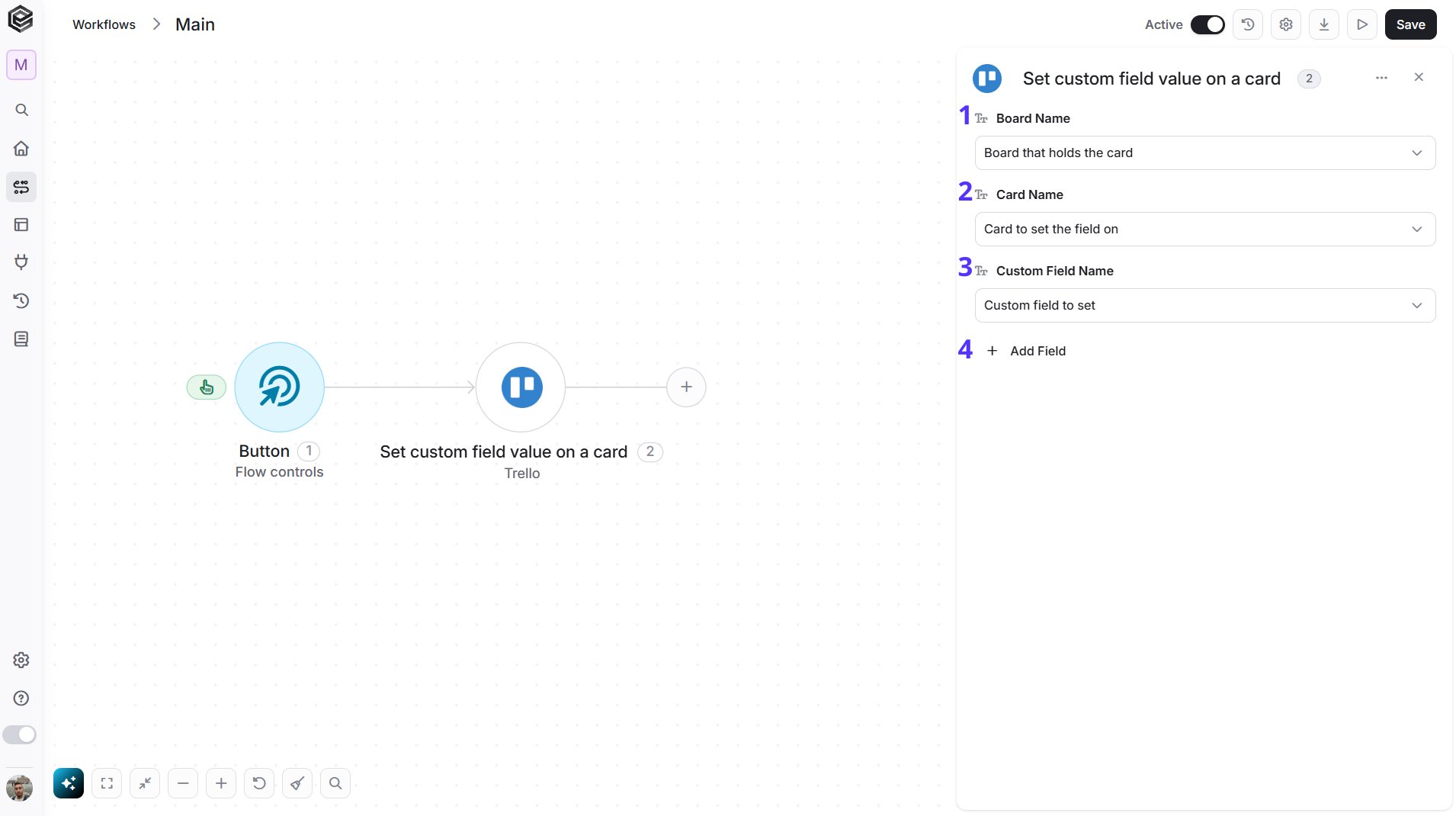
- Board Name - The Trello board that holds the card. You have 3 ways to fill it:
- Dynamic List - Choose through a live, auto-generated list of your Trello boards.
- Dynamic Mapping - Map a Board ID variable from a previous step in your workflow so it changes automatically based on real-time data.
- Static Text - Provide a board ID such as “5f1e2a3b4c5d6e7f8a9b0c1d”.
- Card Name - The Trello card to set the field on. Select the board first to load its cards. You have 3 ways to fill it:
- Dynamic List - Choose through a live, auto-generated list of the cards on the selected board.
- Dynamic Mapping - Map a Card ID variable from a previous step in your workflow so it changes automatically based on real-time data.
- Static Text - Provide a card ID such as “5f1e2a3b4c5d6e7f8a9b0c1d”.
- Custom Field Name - The custom field to set. Select the board first to load its custom fields. You have 3 ways to fill it:
- Dynamic List - Choose through a live, auto-generated list of the custom fields on the selected board.
- Dynamic Mapping - Map a Custom Field ID variable from a previous step in your workflow so it changes automatically based on real-time data.
- Static Text - Provide a custom field ID such as “5f1e2a3b4c5d6e7f8a9b0c1d”.
- Add Field - Click Add Field to add and populate additional fields for the selected activity. To learn more about managing activity data, click here.
Get Board Custom Fields
Retrieves the custom fields defined on a Trello board.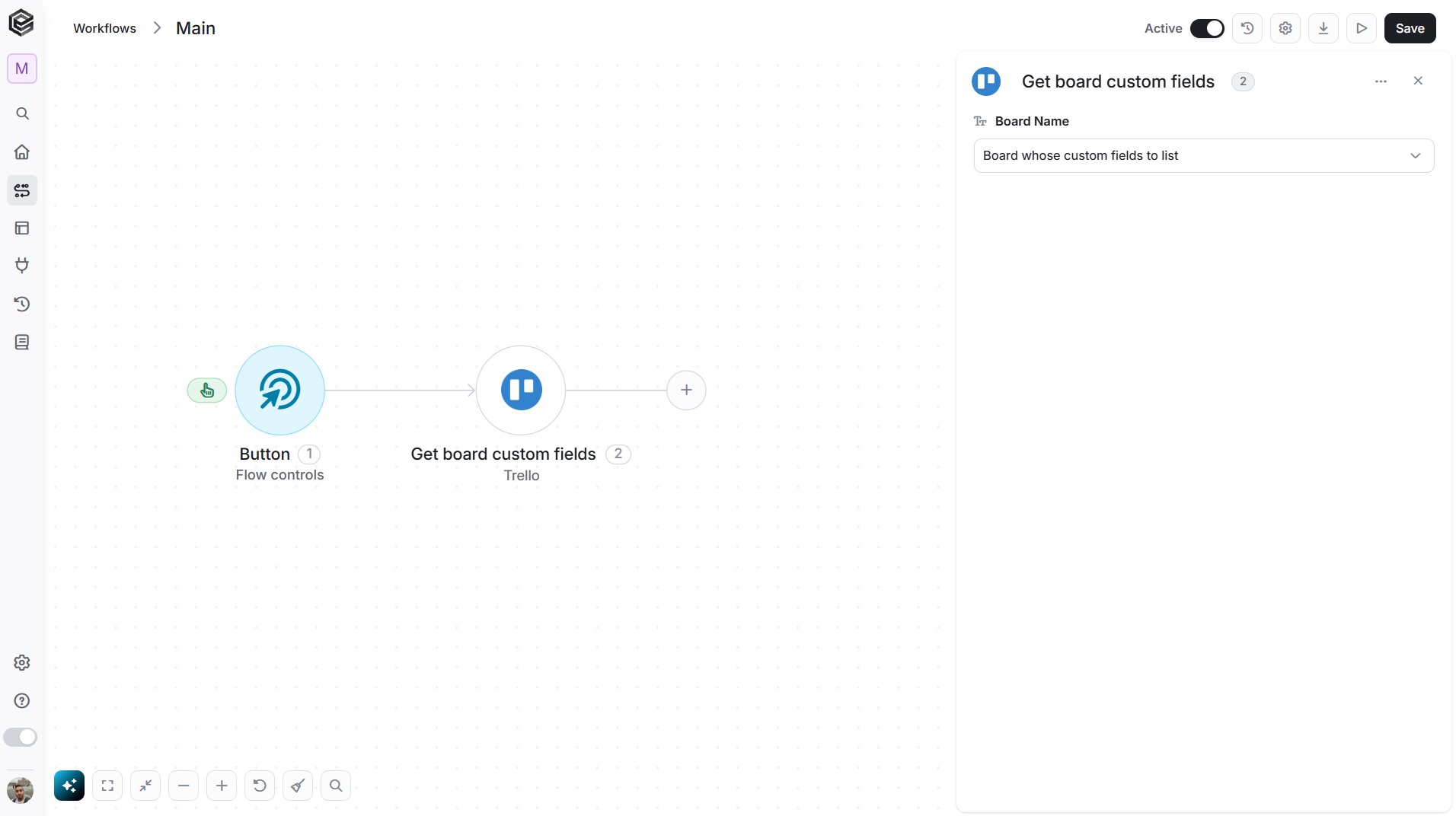
- Board Name - The Trello board that you want to read. You have 3 ways to fill it:
- Dynamic List - Choose through a live, auto-generated list of your Trello boards.
- Dynamic Mapping - Map a Board ID variable from a previous step in your workflow so it changes automatically based on real-time data.
- Static Text - Provide a board ID such as “5f1e2a3b4c5d6e7f8a9b0c1d”.
Create a Checklist
Creates a checklist on a Trello card.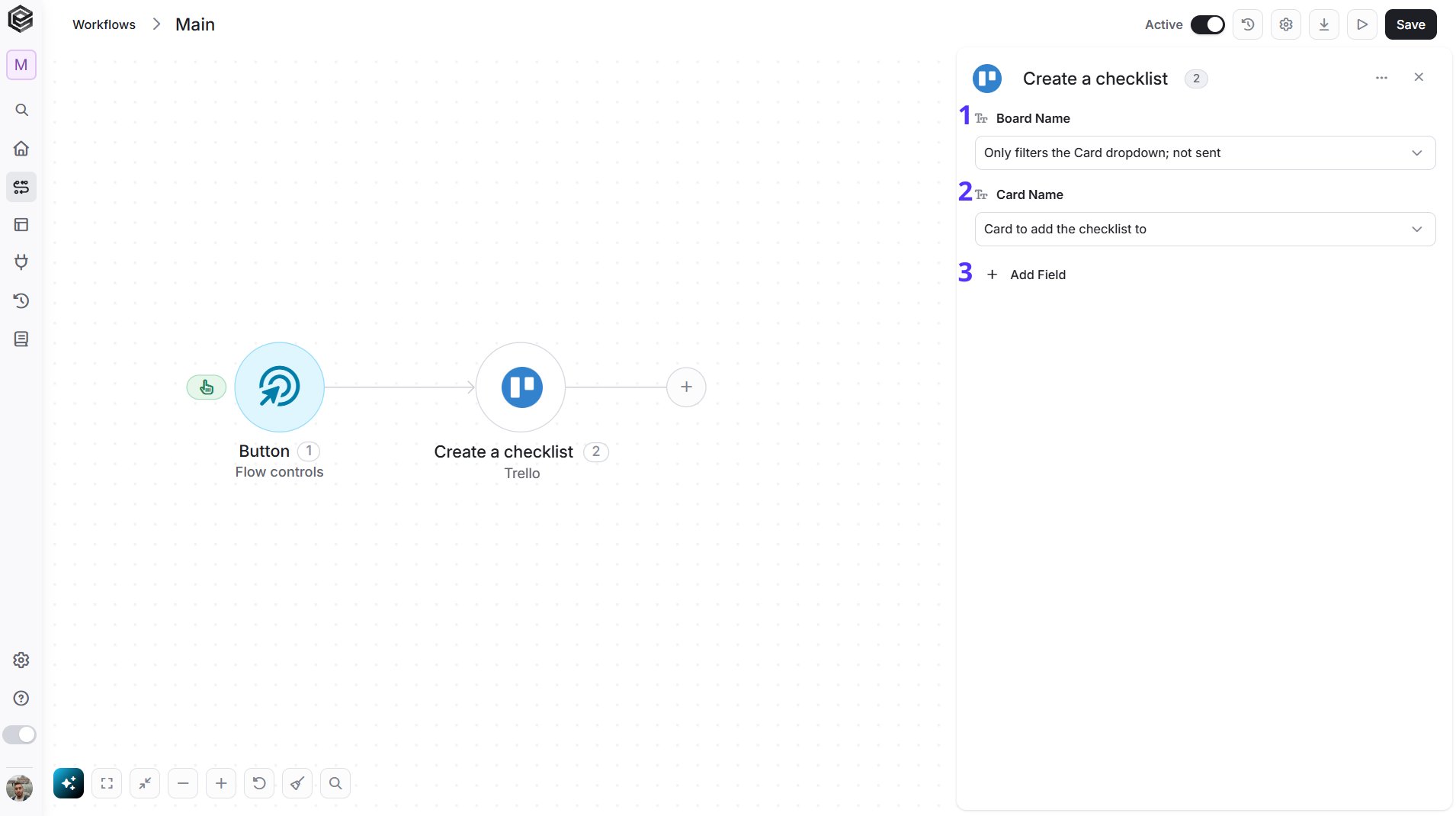
- Board Name - The board that holds the card. Select it first to load its cards. You have 3 ways to fill it:
- Dynamic List - Choose through a live, auto-generated list of your Trello boards.
- Dynamic Mapping - Map a Board ID variable from a previous step in your workflow so it changes automatically based on real-time data.
- Static Text - Provide a board ID such as “5f1e2a3b4c5d6e7f8a9b0c1d”.
- Card Name - The card to add the checklist to. You have 3 ways to fill it:
- Dynamic List - Choose through a live, auto-generated list of the cards on the selected board.
- Dynamic Mapping - Map a Card ID variable from a previous step in your workflow so it changes automatically based on real-time data.
- Static Text - Provide a card ID such as “5f1e2a3b4c5d6e7f8a9b0c1d”.
- Add Field - Click Add Field to add and populate additional fields for the selected activity. To learn more about managing activity data, click here.
Get a Checklist
Retrieves a Trello checklist.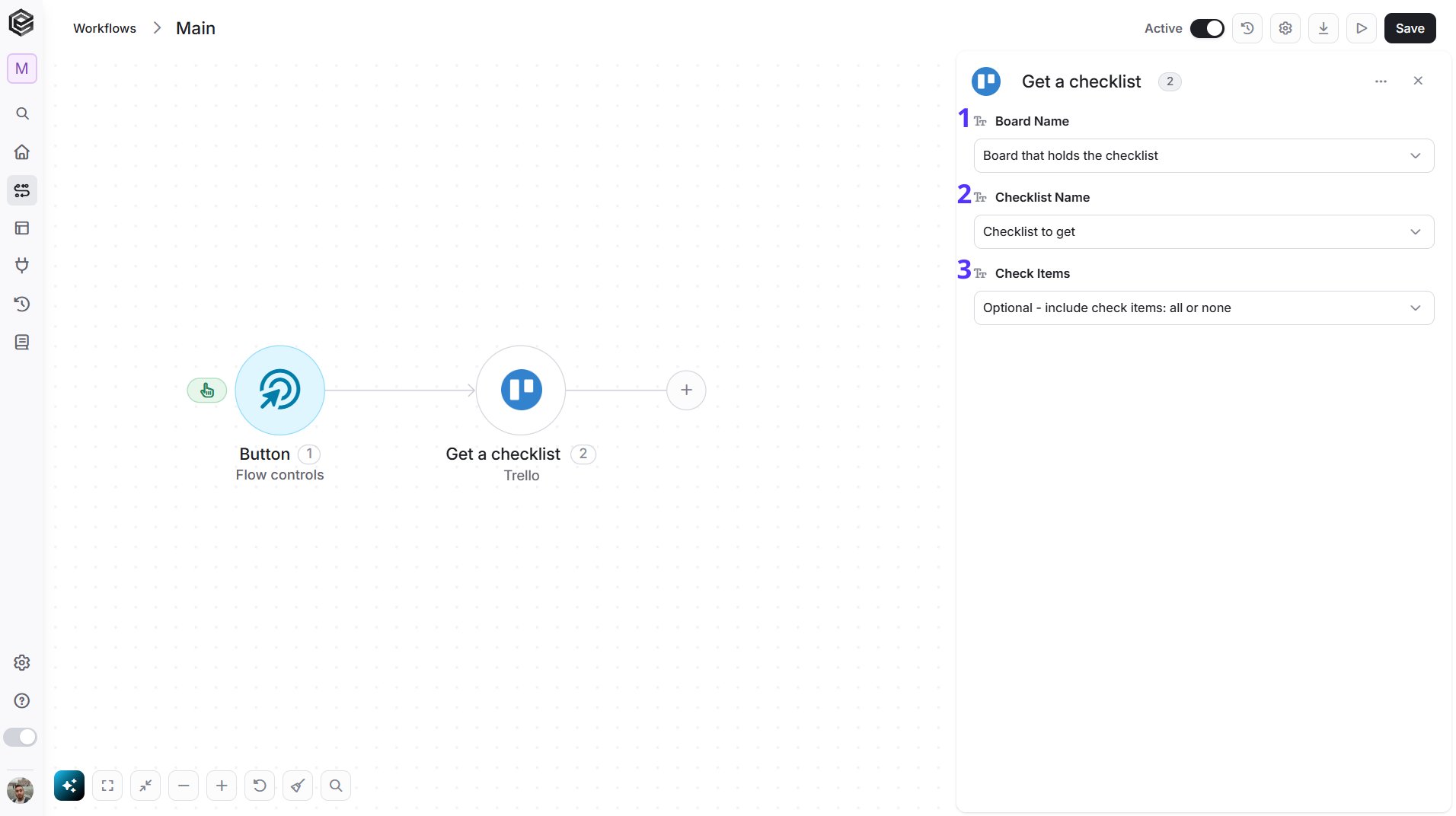
- Board Name - The Trello board that holds the checklist. You have 3 ways to fill it:
- Dynamic List - Choose through a live, auto-generated list of your Trello boards.
- Dynamic Mapping - Map a Board ID variable from a previous step in your workflow so it changes automatically based on real-time data.
- Static Text - Provide a board ID such as “5f1e2a3b4c5d6e7f8a9b0c1d”.
- Checklist Name - The checklist to retrieve. Select the board first to load its checklists. You have 3 ways to fill it:
- Dynamic List - Choose through a live, auto-generated list of the checklists on the selected board.
- Dynamic Mapping - Map a Checklist ID variable from a previous step in your workflow so it changes automatically based on real-time data.
- Static Text - Provide a checklist ID such as “5f1e2a3b4c5d6e7f8a9b0c1d”.
- Check Items - Optional. Choose whether to include the checklist items: All or None.
Delete a Checklist
Deletes a Trello checklist.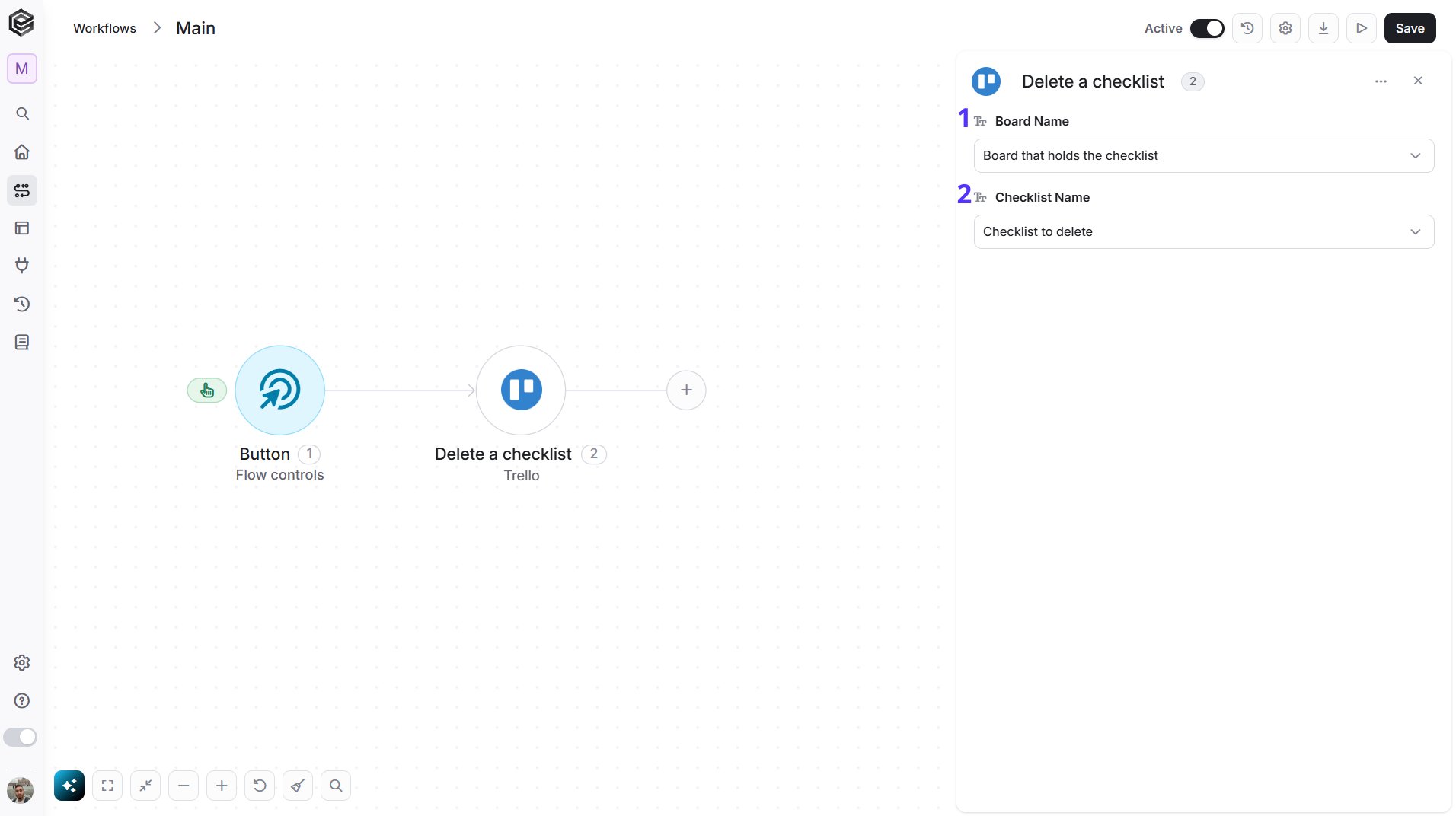
- Board Name - The Trello board that holds the checklist. You have 3 ways to fill it:
- Dynamic List - Choose through a live, auto-generated list of your Trello boards.
- Dynamic Mapping - Map a Board ID variable from a previous step in your workflow so it changes automatically based on real-time data.
- Static Text - Provide a board ID such as “5f1e2a3b4c5d6e7f8a9b0c1d”.
- Checklist Name - The checklist to delete. Select the board first to load its checklists. You have 3 ways to fill it:
- Dynamic List - Choose through a live, auto-generated list of the checklists on the selected board.
- Dynamic Mapping - Map a Checklist ID variable from a previous step in your workflow so it changes automatically based on real-time data.
- Static Text - Provide a checklist ID such as “5f1e2a3b4c5d6e7f8a9b0c1d”.
Get a Card Checklists
Retrieves the checklists of a Trello card.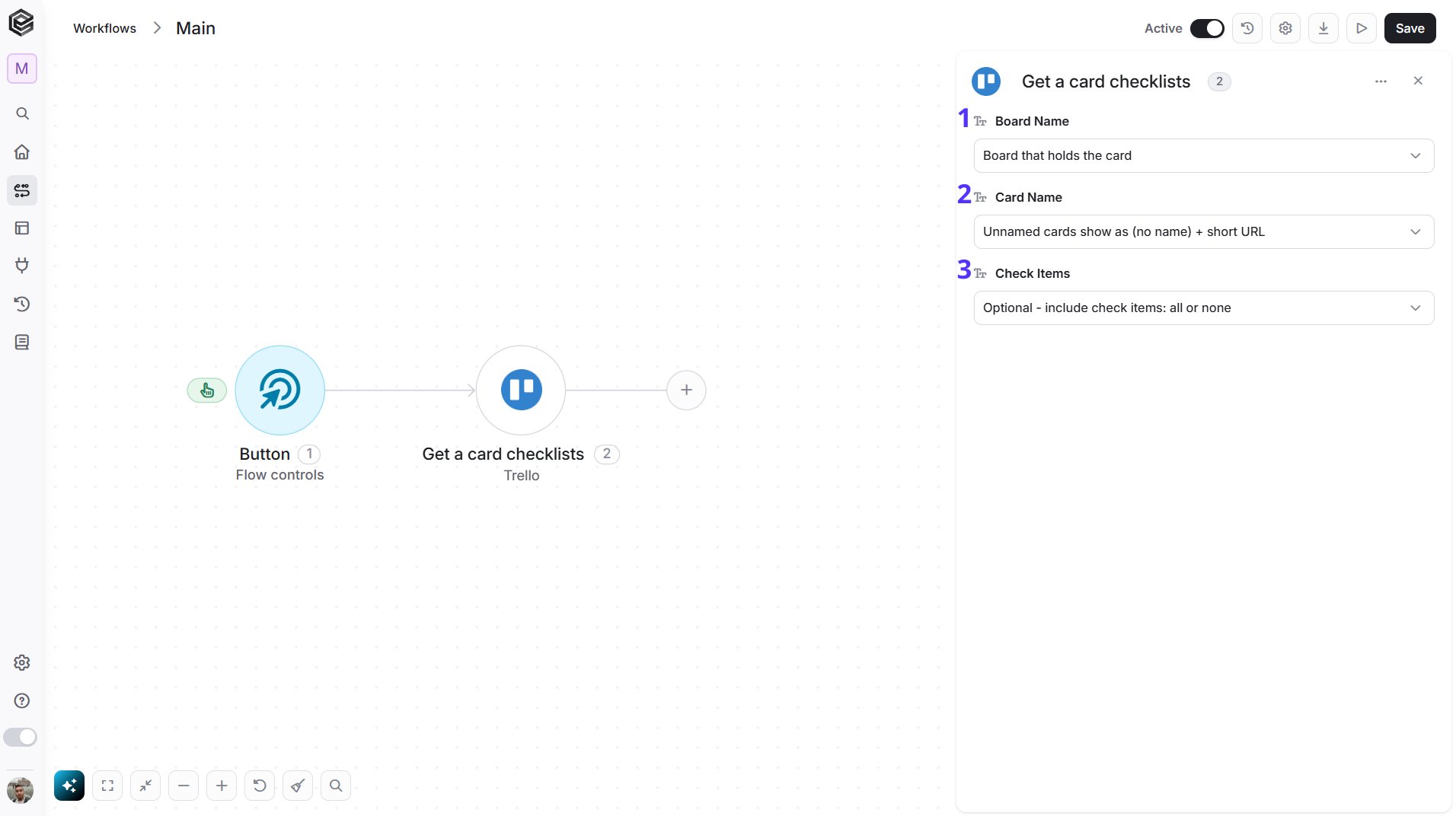
- Board Name - The Trello board that holds the card. You have 3 ways to fill it:
- Dynamic List - Choose through a live, auto-generated list of your Trello boards.
- Dynamic Mapping - Map a Board ID variable from a previous step in your workflow so it changes automatically based on real-time data.
- Static Text - Provide a board ID such as “5f1e2a3b4c5d6e7f8a9b0c1d”.
- Card Name - The Trello card to read the checklists of. Select the board first to load its cards. You have 3 ways to fill it:
- Dynamic List - Choose through a live, auto-generated list of the cards on the selected board.
- Dynamic Mapping - Map a Card ID variable from a previous step in your workflow so it changes automatically based on real-time data.
- Static Text - Provide a card ID such as “5f1e2a3b4c5d6e7f8a9b0c1d”.
- Check Items - Optional. Choose whether to include the checklist items: All or None.
Get Board Checklists
Retrieves all the checklists on a Trello board, with the card each one belongs to.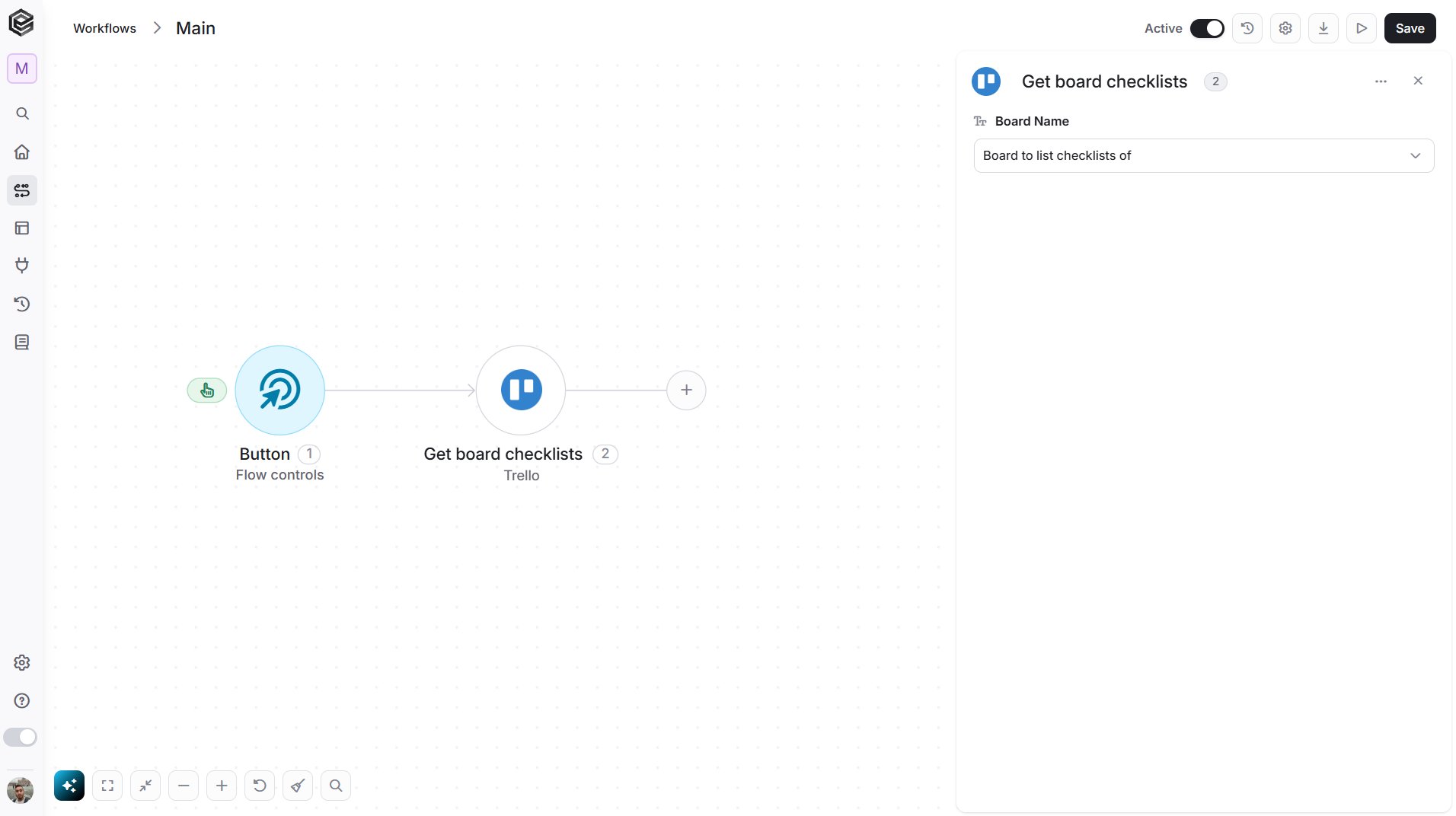
- Board Name - The Trello board that you want to read. You have 3 ways to fill it:
- Dynamic List - Choose through a live, auto-generated list of your Trello boards.
- Dynamic Mapping - Map a Board ID variable from a previous step in your workflow so it changes automatically based on real-time data.
- Static Text - Provide a board ID such as “5f1e2a3b4c5d6e7f8a9b0c1d”.
Create a Checklist Item
Adds an item to a Trello checklist.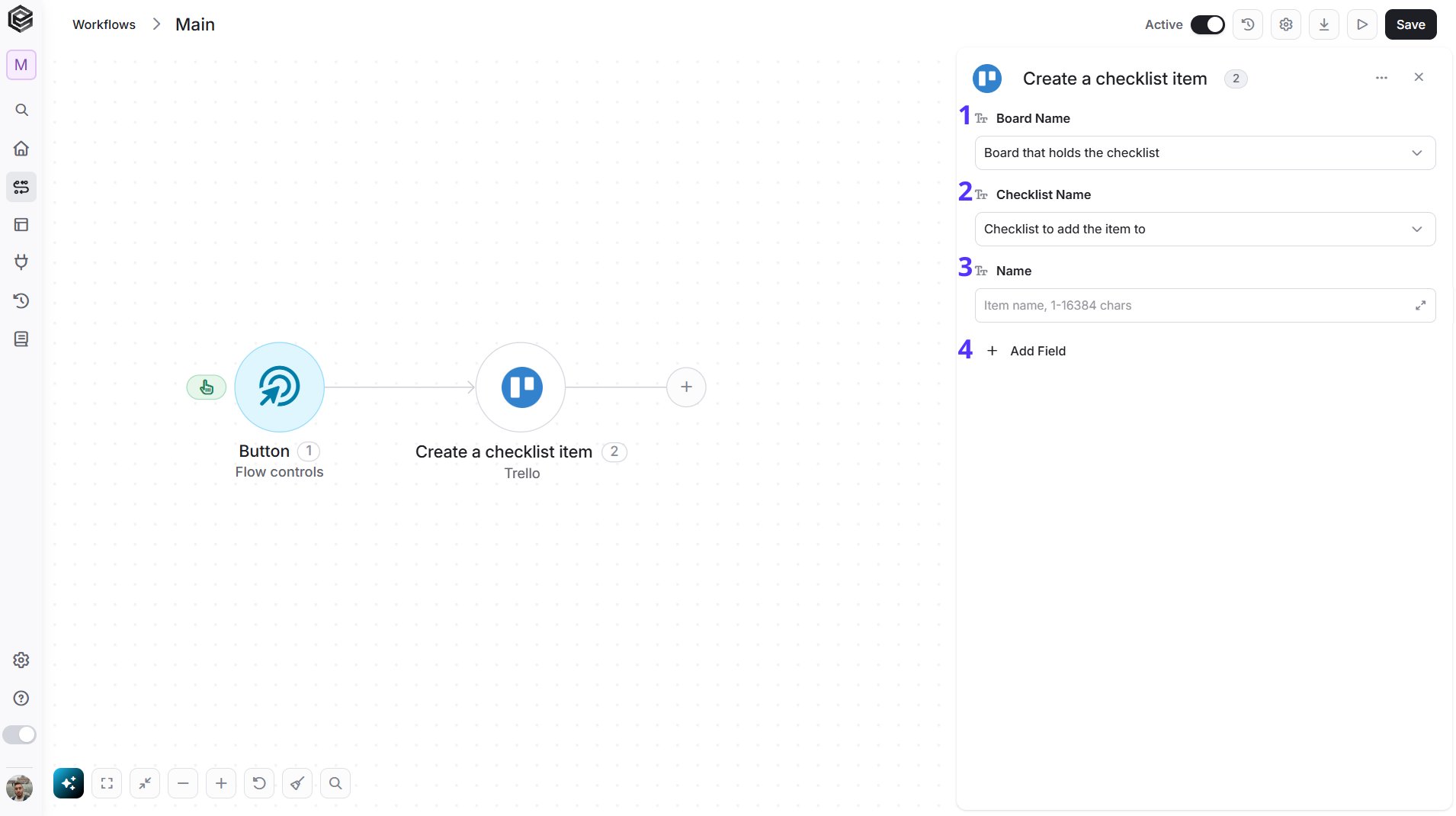
- Board Name - The Trello board that holds the checklist. You have 3 ways to fill it:
- Dynamic List - Choose through a live, auto-generated list of your Trello boards.
- Dynamic Mapping - Map a Board ID variable from a previous step in your workflow so it changes automatically based on real-time data.
- Static Text - Provide a board ID such as “5f1e2a3b4c5d6e7f8a9b0c1d”.
- Checklist Name - The checklist to add the item to. Select the board first to load its checklists. You have 3 ways to fill it:
- Dynamic List - Choose through a live, auto-generated list of the checklists on the selected board.
- Dynamic Mapping - Map a Checklist ID variable from a previous step in your workflow so it changes automatically based on real-time data.
- Static Text - Provide a checklist ID such as “5f1e2a3b4c5d6e7f8a9b0c1d”.
- Name - The text of the checklist item.
- Add Field - Click Add Field to add and populate additional fields for the selected activity. To learn more about managing activity data, click here.
Edit a Checklist Item
Updates an item of a Trello checklist.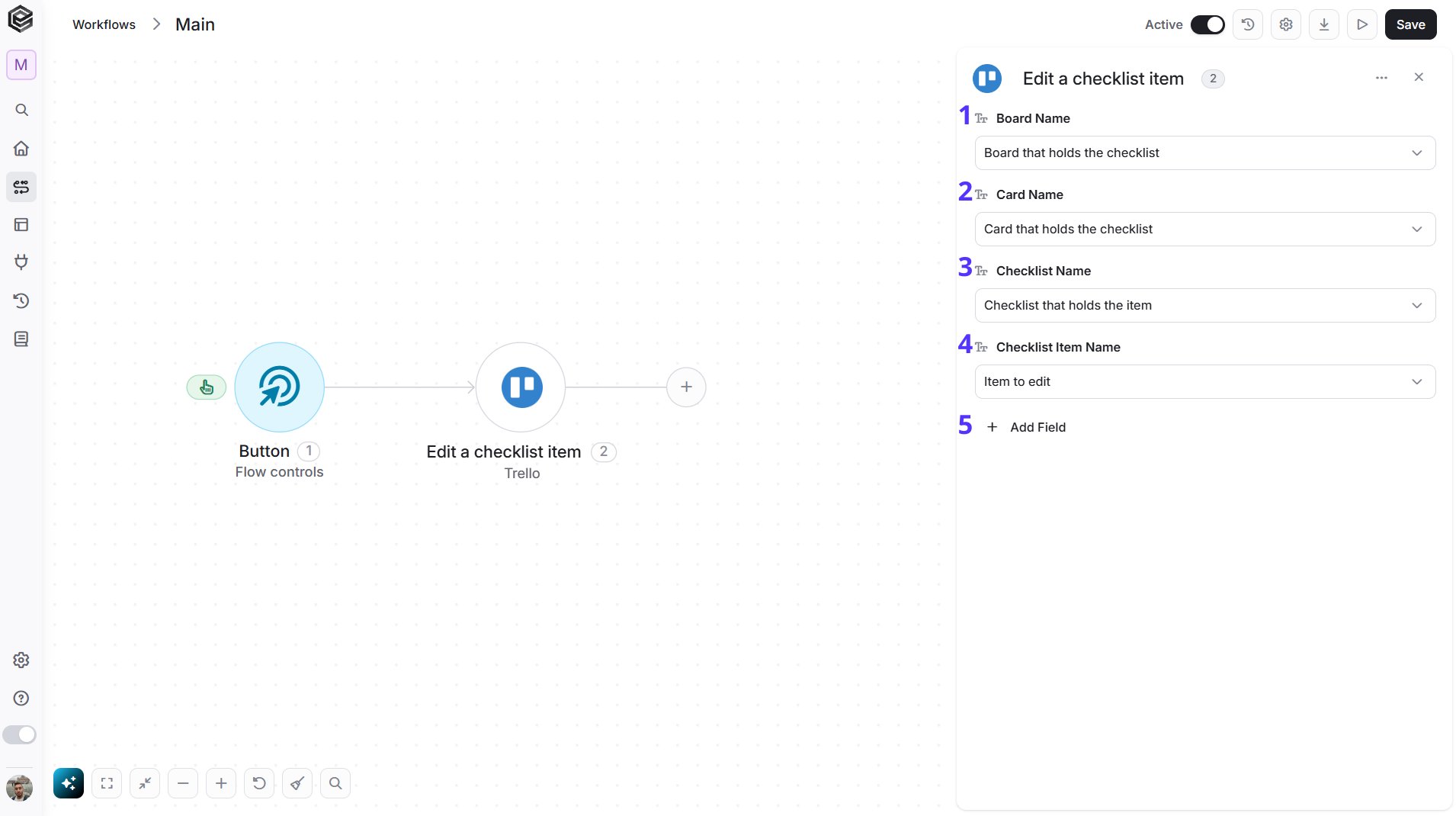
- Board Name - The Trello board that holds the checklist. You have 3 ways to fill it:
- Dynamic List - Choose through a live, auto-generated list of your Trello boards.
- Dynamic Mapping - Map a Board ID variable from a previous step in your workflow so it changes automatically based on real-time data.
- Static Text - Provide a board ID such as “5f1e2a3b4c5d6e7f8a9b0c1d”.
- Card Name - The card that holds the checklist. Select the board first to load its cards. You have 3 ways to fill it:
- Dynamic List - Choose through a live, auto-generated list of the cards on the selected board.
- Dynamic Mapping - Map a Card ID variable from a previous step in your workflow so it changes automatically based on real-time data.
- Static Text - Provide a card ID such as “5f1e2a3b4c5d6e7f8a9b0c1d”.
- Checklist Name - The checklist that holds the item. Select the card first to load its checklists. You have 3 ways to fill it:
- Dynamic List - Choose through a live, auto-generated list of the checklists on the selected card.
- Dynamic Mapping - Map a Checklist ID variable from a previous step in your workflow so it changes automatically based on real-time data.
- Static Text - Provide a checklist ID such as “5f1e2a3b4c5d6e7f8a9b0c1d”.
- Checklist Item Name - The item to edit. Select the checklist first to load its items. You have 3 ways to fill it:
- Dynamic List - Choose through a live, auto-generated list of the items of the selected checklist.
- Dynamic Mapping - Map a Checklist Item ID variable from a previous step in your workflow so it changes automatically based on real-time data.
- Static Text - Provide a checklist item ID such as “5f1e2a3b4c5d6e7f8a9b0c1d”.
- Add Field - Click Add Field to add and populate additional fields for the selected activity. To learn more about managing activity data, click here.
Remove a Checklist Item
Removes an item from a Trello checklist.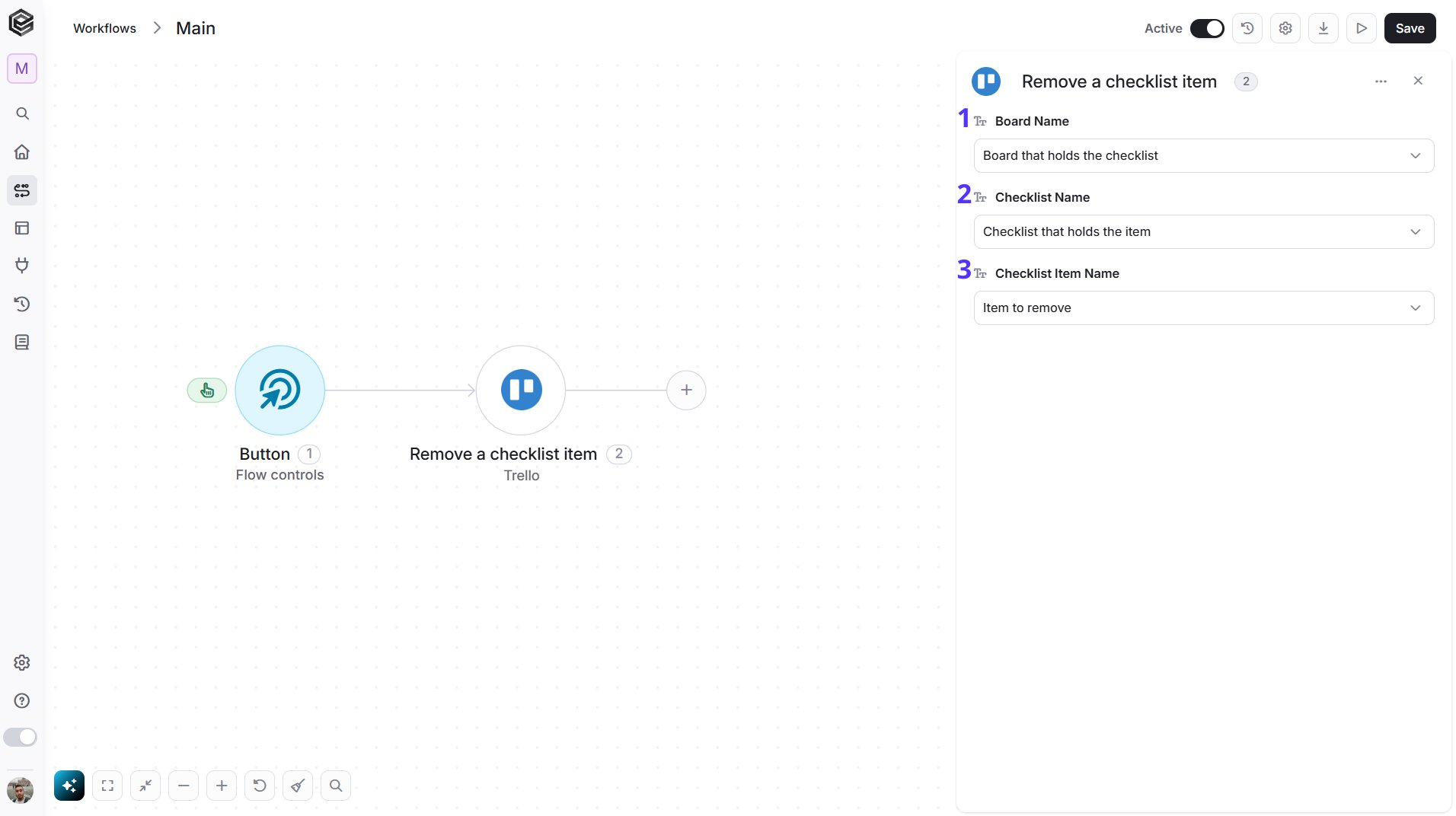
- Board Name - The Trello board that holds the checklist. You have 3 ways to fill it:
- Dynamic List - Choose through a live, auto-generated list of your Trello boards.
- Dynamic Mapping - Map a Board ID variable from a previous step in your workflow so it changes automatically based on real-time data.
- Static Text - Provide a board ID such as “5f1e2a3b4c5d6e7f8a9b0c1d”.
- Checklist Name - The checklist that holds the item. Select the board first to load its checklists. You have 3 ways to fill it:
- Dynamic List - Choose through a live, auto-generated list of the checklists on the selected board.
- Dynamic Mapping - Map a Checklist ID variable from a previous step in your workflow so it changes automatically based on real-time data.
- Static Text - Provide a checklist ID such as “5f1e2a3b4c5d6e7f8a9b0c1d”.
- Checklist Item Name - The item to remove. Select the checklist first to load its items. You have 3 ways to fill it:
- Dynamic List - Choose through a live, auto-generated list of the items of the selected checklist.
- Dynamic Mapping - Map a Checklist Item ID variable from a previous step in your workflow so it changes automatically based on real-time data.
- Static Text - Provide a checklist item ID such as “5f1e2a3b4c5d6e7f8a9b0c1d”.
Get Checklist Items
Retrieves the items of a Trello checklist.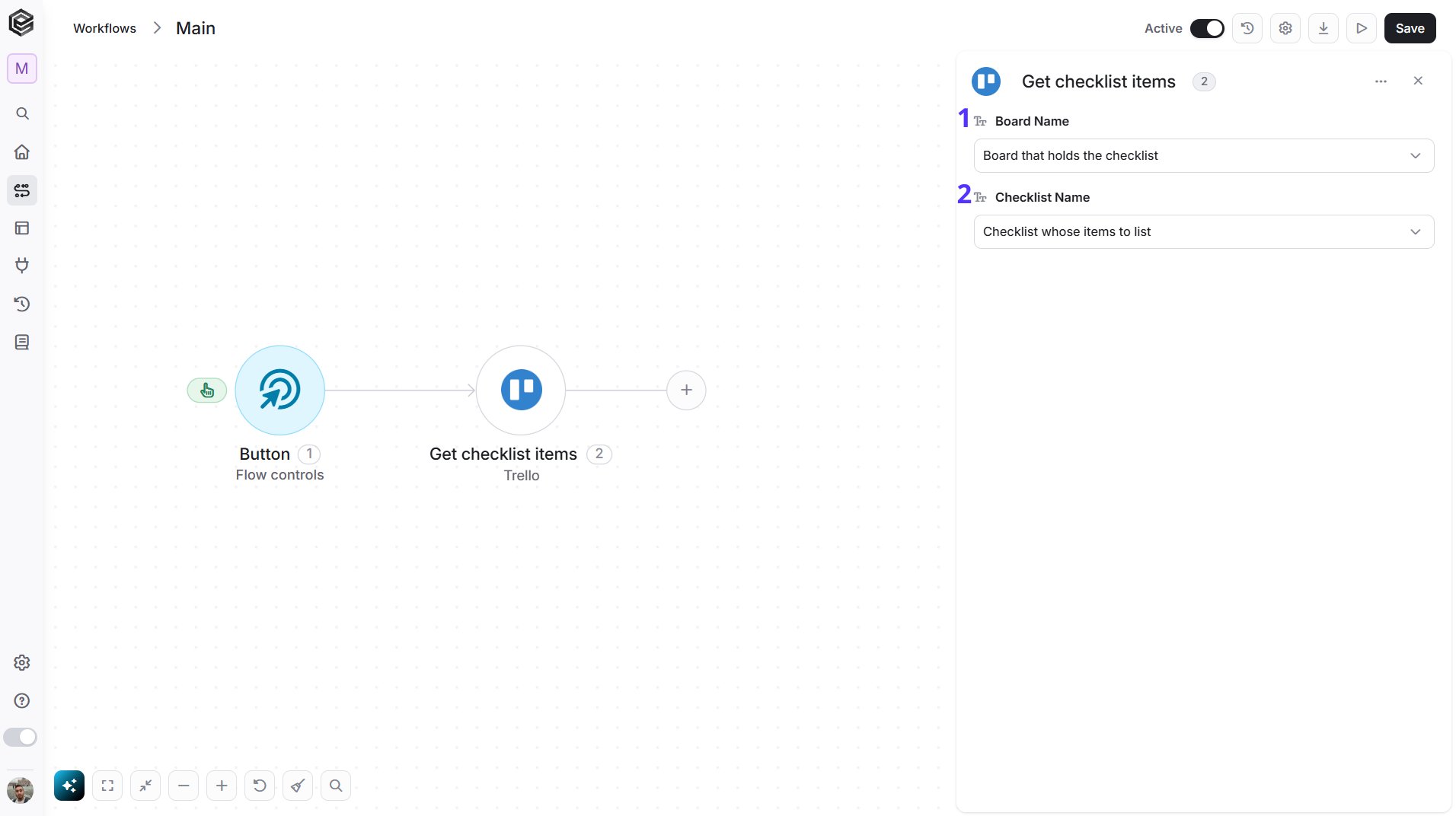
- Board Name - The Trello board that holds the checklist. You have 3 ways to fill it:
- Dynamic List - Choose through a live, auto-generated list of your Trello boards.
- Dynamic Mapping - Map a Board ID variable from a previous step in your workflow so it changes automatically based on real-time data.
- Static Text - Provide a board ID such as “5f1e2a3b4c5d6e7f8a9b0c1d”.
- Checklist Name - The checklist whose items to list. Select the board first to load its checklists. You have 3 ways to fill it:
- Dynamic List - Choose through a live, auto-generated list of the checklists on the selected board.
- Dynamic Mapping - Map a Checklist ID variable from a previous step in your workflow so it changes automatically based on real-time data.
- Static Text - Provide a checklist ID such as “5f1e2a3b4c5d6e7f8a9b0c1d”.
Get a Label
Retrieves a Trello label.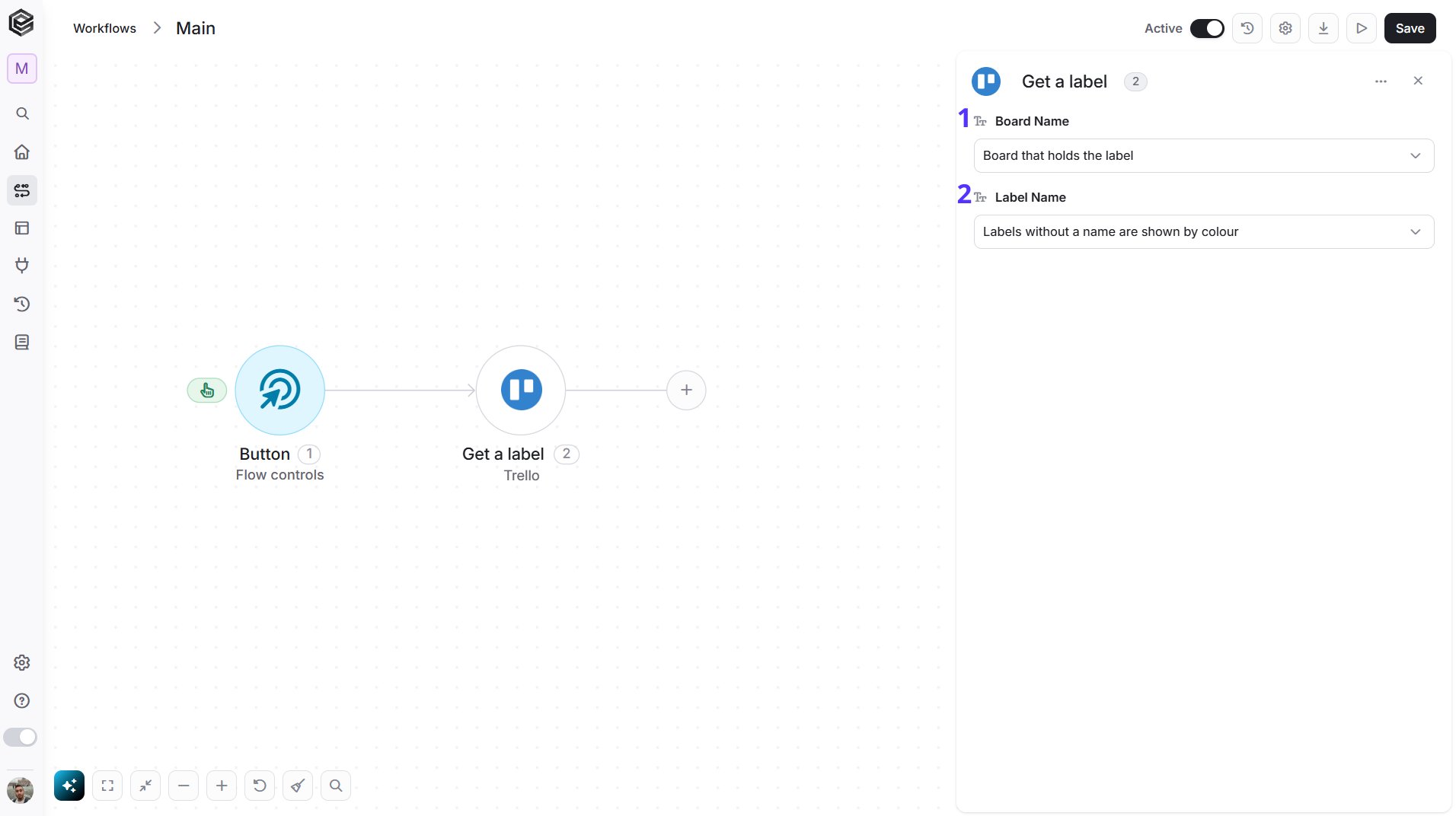
- Board Name - The Trello board that holds the label. You have 3 ways to fill it:
- Dynamic List - Choose through a live, auto-generated list of your Trello boards.
- Dynamic Mapping - Map a Board ID variable from a previous step in your workflow so it changes automatically based on real-time data.
- Static Text - Provide a board ID such as “5f1e2a3b4c5d6e7f8a9b0c1d”.
- Label Name - The label to retrieve. Labels without a name are shown by color. You have 3 ways to fill it:
- Dynamic List - Choose through a live, auto-generated list of the labels on the selected board.
- Dynamic Mapping - Map a Label ID variable from a previous step in your workflow so it changes automatically based on real-time data.
- Static Text - Provide a label ID such as “5f1e2a3b4c5d6e7f8a9b0c1d”.
Get Board Labels
Retrieves the labels of a Trello board.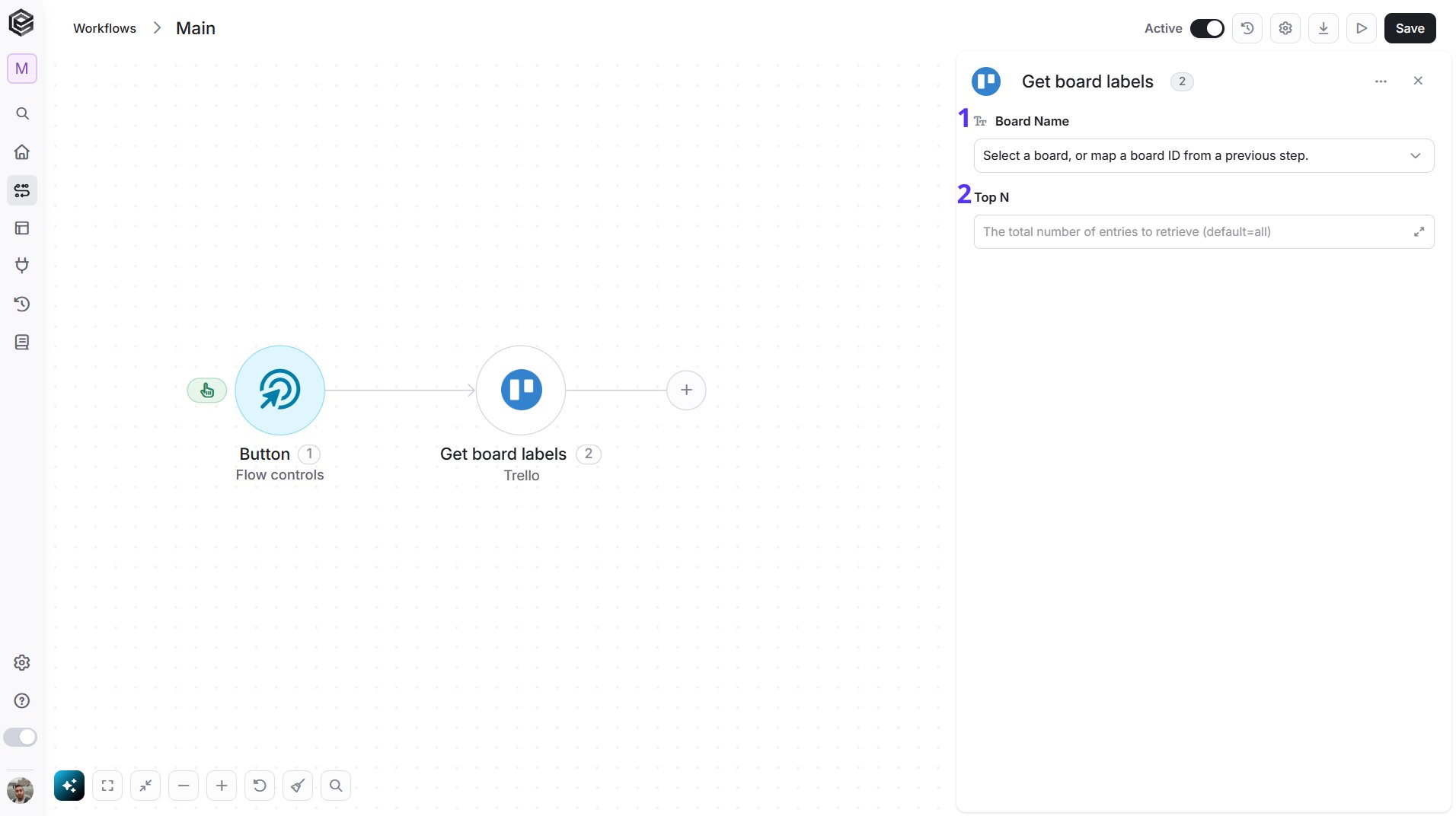
- Board Name - The Trello board that you want to read. You have 3 ways to fill it:
- Dynamic List - Choose through a live, auto-generated list of your Trello boards.
- Dynamic Mapping - Map a Board ID variable from a previous step in your workflow so it changes automatically based on real-time data.
- Static Text - Provide a board ID such as “5f1e2a3b4c5d6e7f8a9b0c1d”.
- Top N - You can set the maximum number of records Engini will return for the object you chose (default = all records).
Delete a Label
Deletes a Trello label.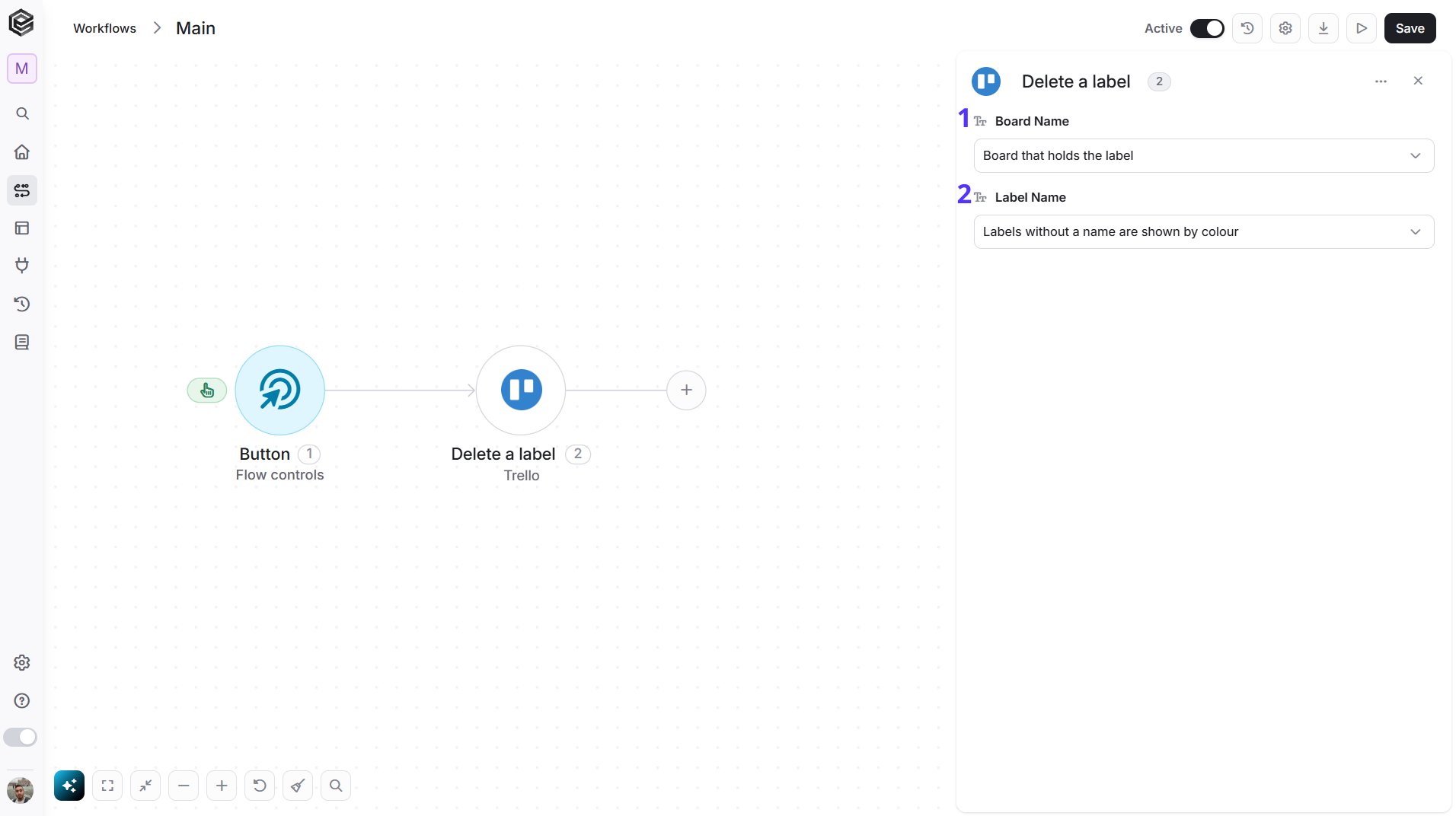
- Board Name - The Trello board that holds the label. You have 3 ways to fill it:
- Dynamic List - Choose through a live, auto-generated list of your Trello boards.
- Dynamic Mapping - Map a Board ID variable from a previous step in your workflow so it changes automatically based on real-time data.
- Static Text - Provide a board ID such as “5f1e2a3b4c5d6e7f8a9b0c1d”.
- Label Name - The label to delete. Labels without a name are shown by color. You have 3 ways to fill it:
- Dynamic List - Choose through a live, auto-generated list of the labels on the selected board.
- Dynamic Mapping - Map a Label ID variable from a previous step in your workflow so it changes automatically based on real-time data.
- Static Text - Provide a label ID such as “5f1e2a3b4c5d6e7f8a9b0c1d”.
Create a Label
Creates a label on a Trello board.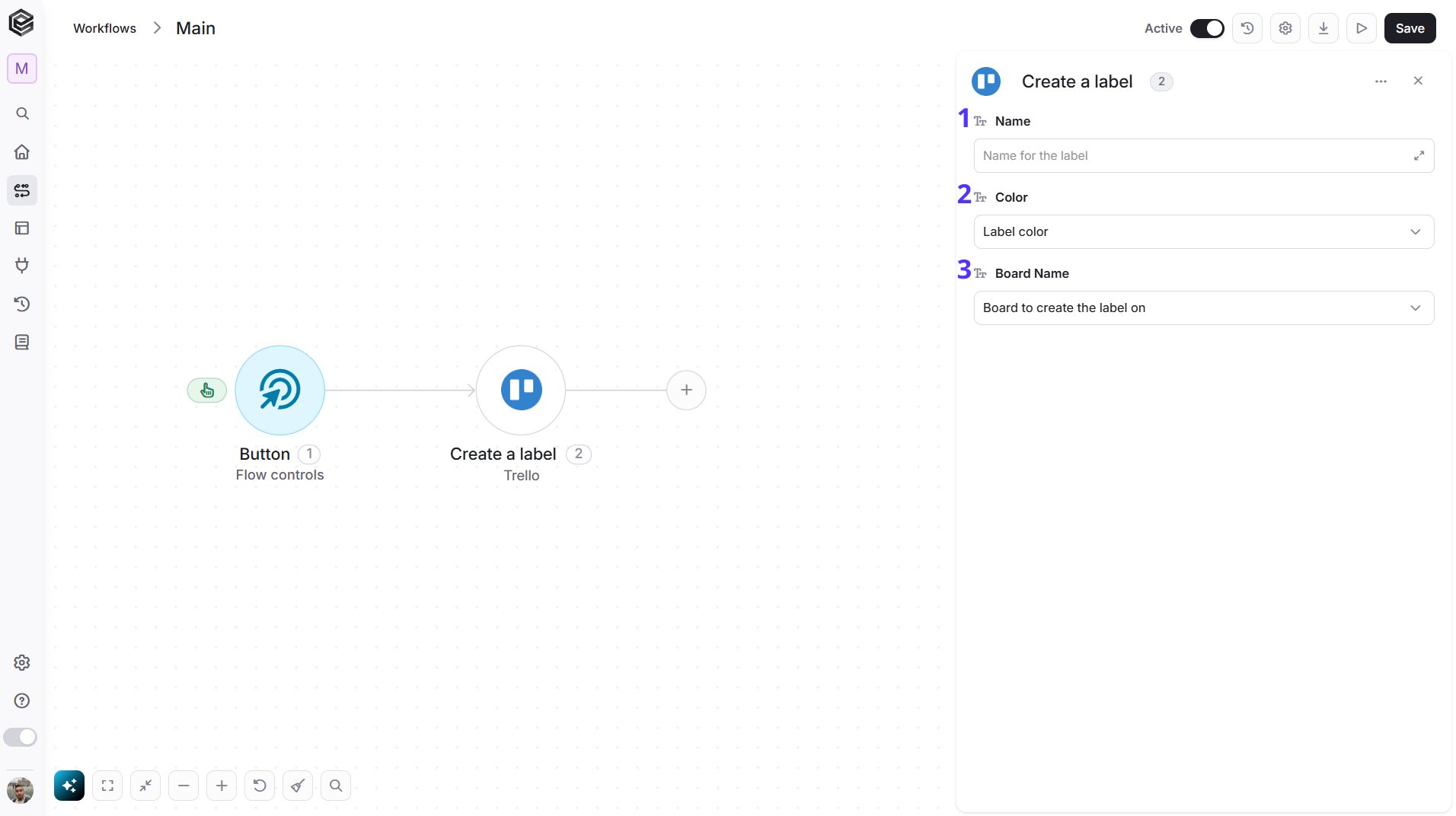
- Name - The name of the label.
- Color - The color of the label: Green, Yellow, Orange, Red, Purple, Blue, Sky, Lime, Pink or Black.
- Board Name - The board to create the label on. You have 3 ways to fill it:
- Dynamic List - Choose through a live, auto-generated list of your Trello boards.
- Dynamic Mapping - Map a Board ID variable from a previous step in your workflow so it changes automatically based on real-time data.
- Static Text - Provide a board ID such as “5f1e2a3b4c5d6e7f8a9b0c1d”.
Edit a Label
Updates the name or color of a Trello label.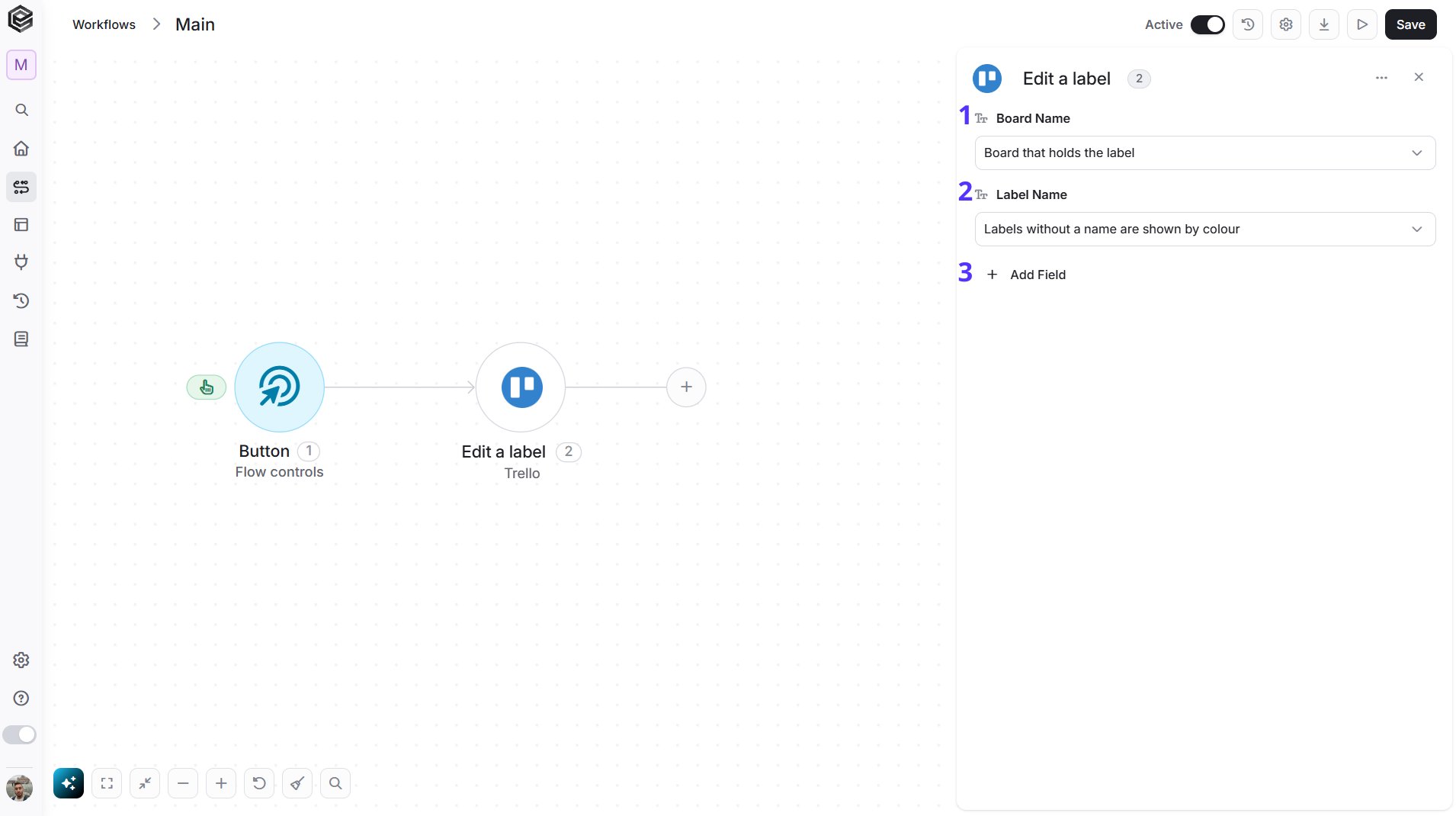
- Board Name - The Trello board that holds the label. You have 3 ways to fill it:
- Dynamic List - Choose through a live, auto-generated list of your Trello boards.
- Dynamic Mapping - Map a Board ID variable from a previous step in your workflow so it changes automatically based on real-time data.
- Static Text - Provide a board ID such as “5f1e2a3b4c5d6e7f8a9b0c1d”.
- Label Name - The label to edit. Labels without a name are shown by color. You have 3 ways to fill it:
- Dynamic List - Choose through a live, auto-generated list of the labels on the selected board.
- Dynamic Mapping - Map a Label ID variable from a previous step in your workflow so it changes automatically based on real-time data.
- Static Text - Provide a label ID such as “5f1e2a3b4c5d6e7f8a9b0c1d”.
- Add Field - Click Add Field to add and populate additional fields for the selected activity. To learn more about managing activity data, click here.
Search for Organizations
Searches Trello for Workspaces that match your text.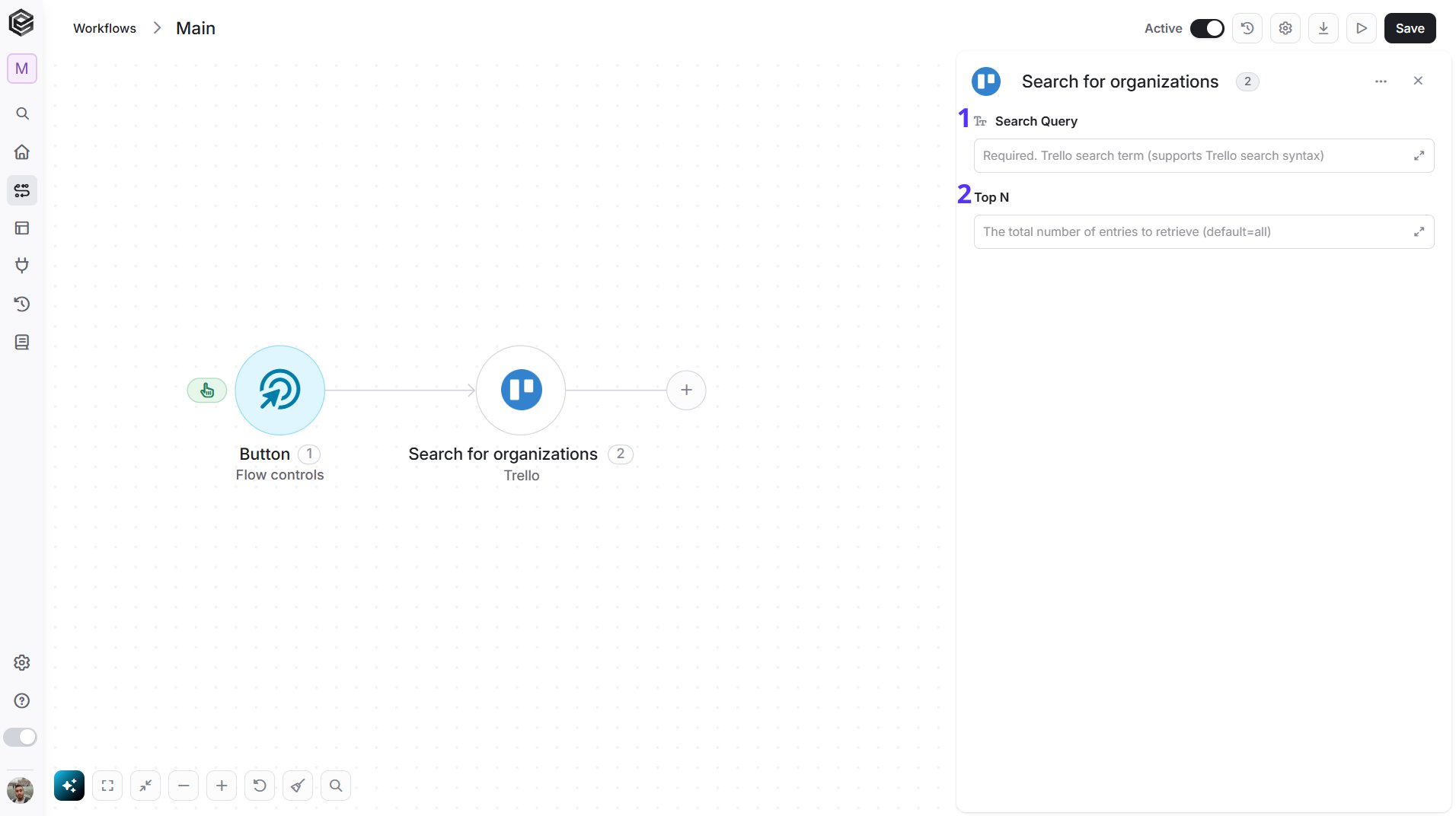
- Search Query - The text to search for. Trello search syntax is supported.
- Top N - Optional. The maximum number of Workspaces to return, up to 1000.
Search for Members
Searches Trello for members that match your text.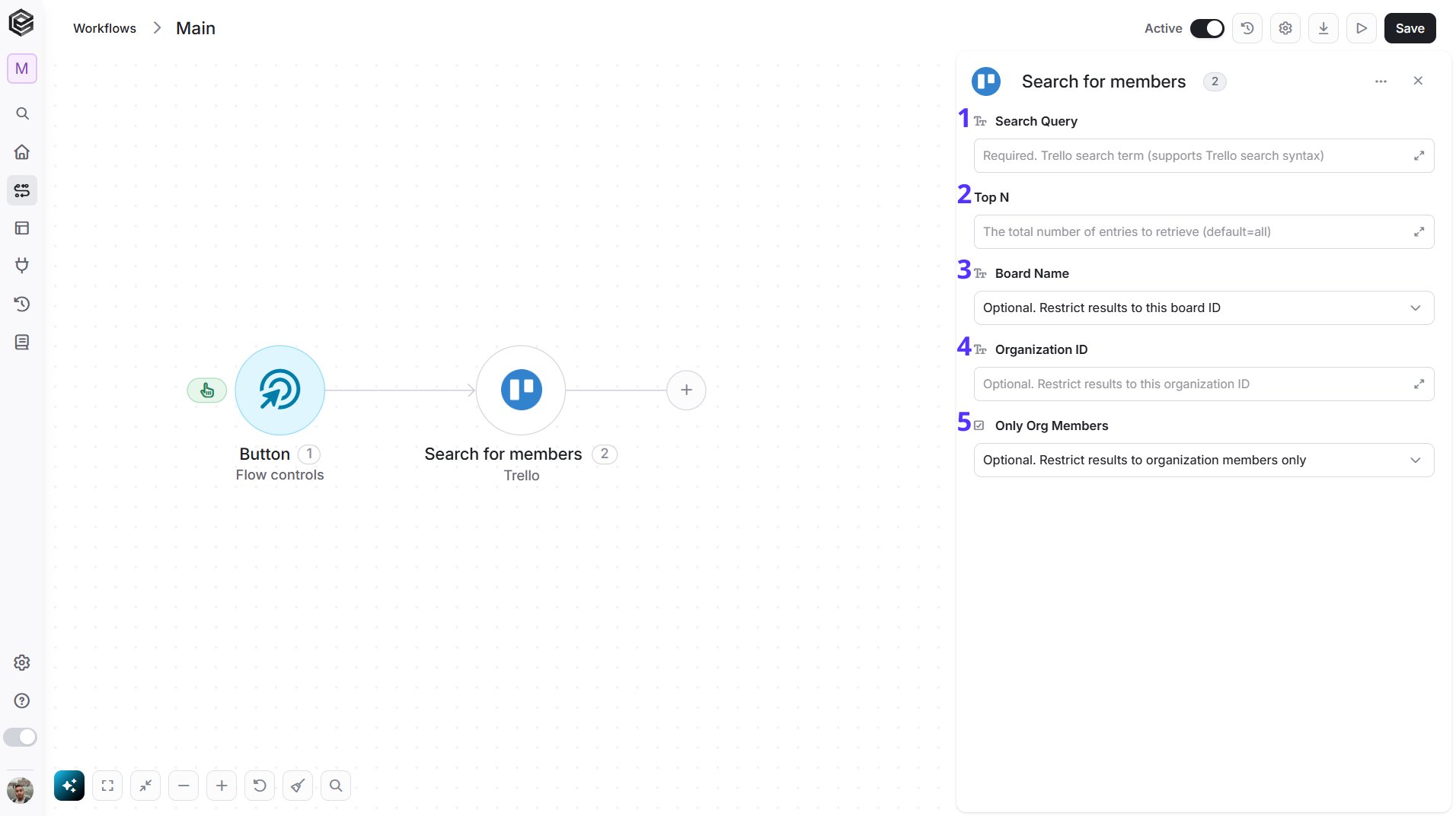
- Search Query - The text to search for. Trello search syntax is supported.
- Top N - Optional. The maximum number of members to return, up to 20.
- Board Name - Optional. Limits the results to the members of this board. You have 3 ways to fill it:
- Dynamic List - Choose through a live, auto-generated list of your Trello boards.
- Dynamic Mapping - Map a Board ID variable from a previous step in your workflow so it changes automatically based on real-time data.
- Static Text - Provide a board ID such as “5f1e2a3b4c5d6e7f8a9b0c1d”.
- Organization ID - Optional. Limits the results to the members of this Workspace.
- Only Org Members - Optional. Choose whether to return only members of the Workspace.
Get Board Members
Retrieves the members of a Trello board.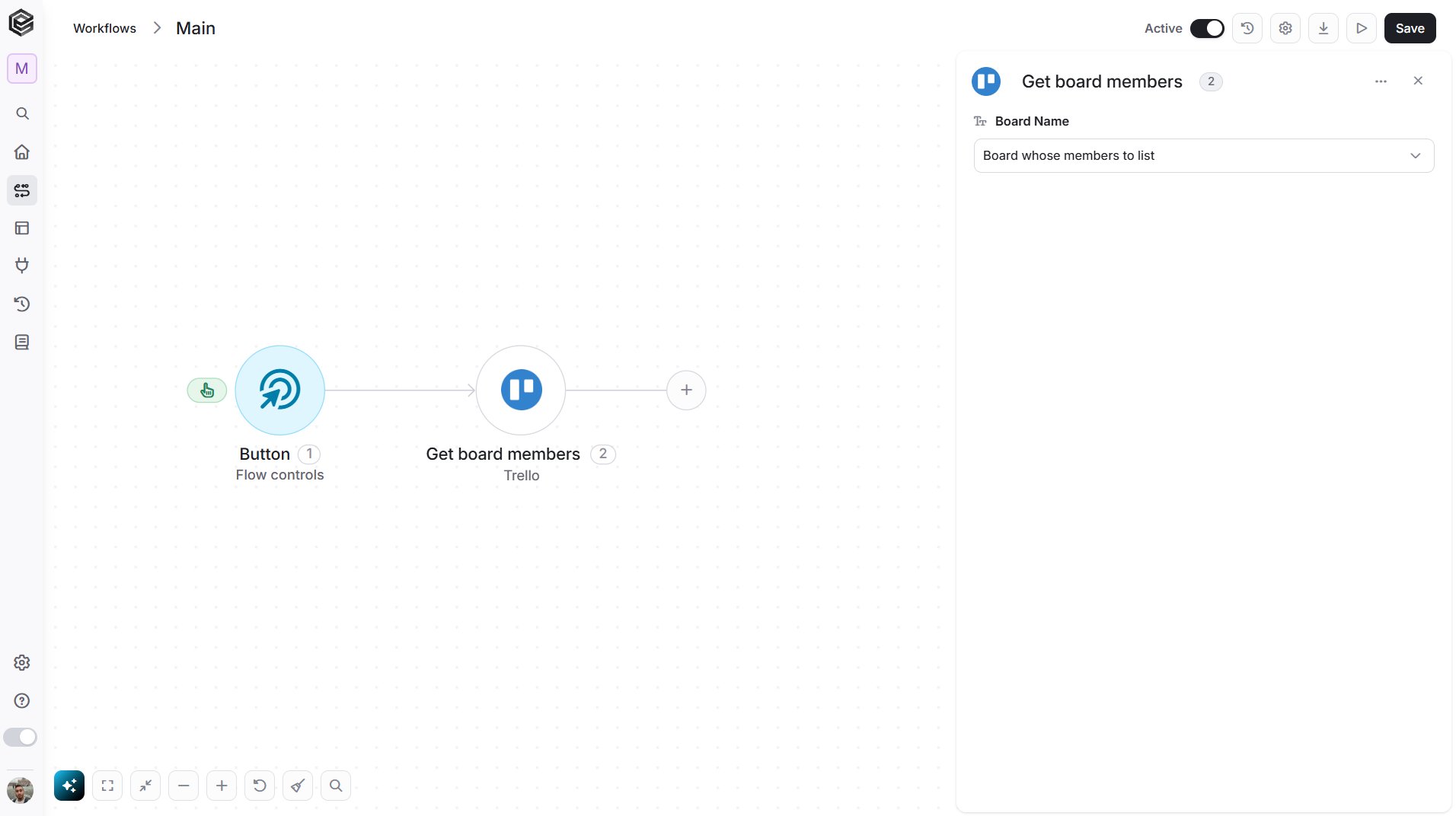
- Board Name - The Trello board that you want to read. You have 3 ways to fill it:
- Dynamic List - Choose through a live, auto-generated list of your Trello boards.
- Dynamic Mapping - Map a Board ID variable from a previous step in your workflow so it changes automatically based on real-time data.
- Static Text - Provide a board ID such as “5f1e2a3b4c5d6e7f8a9b0c1d”.
Create Export for Organization
Starts an export of the data of a Trello Workspace.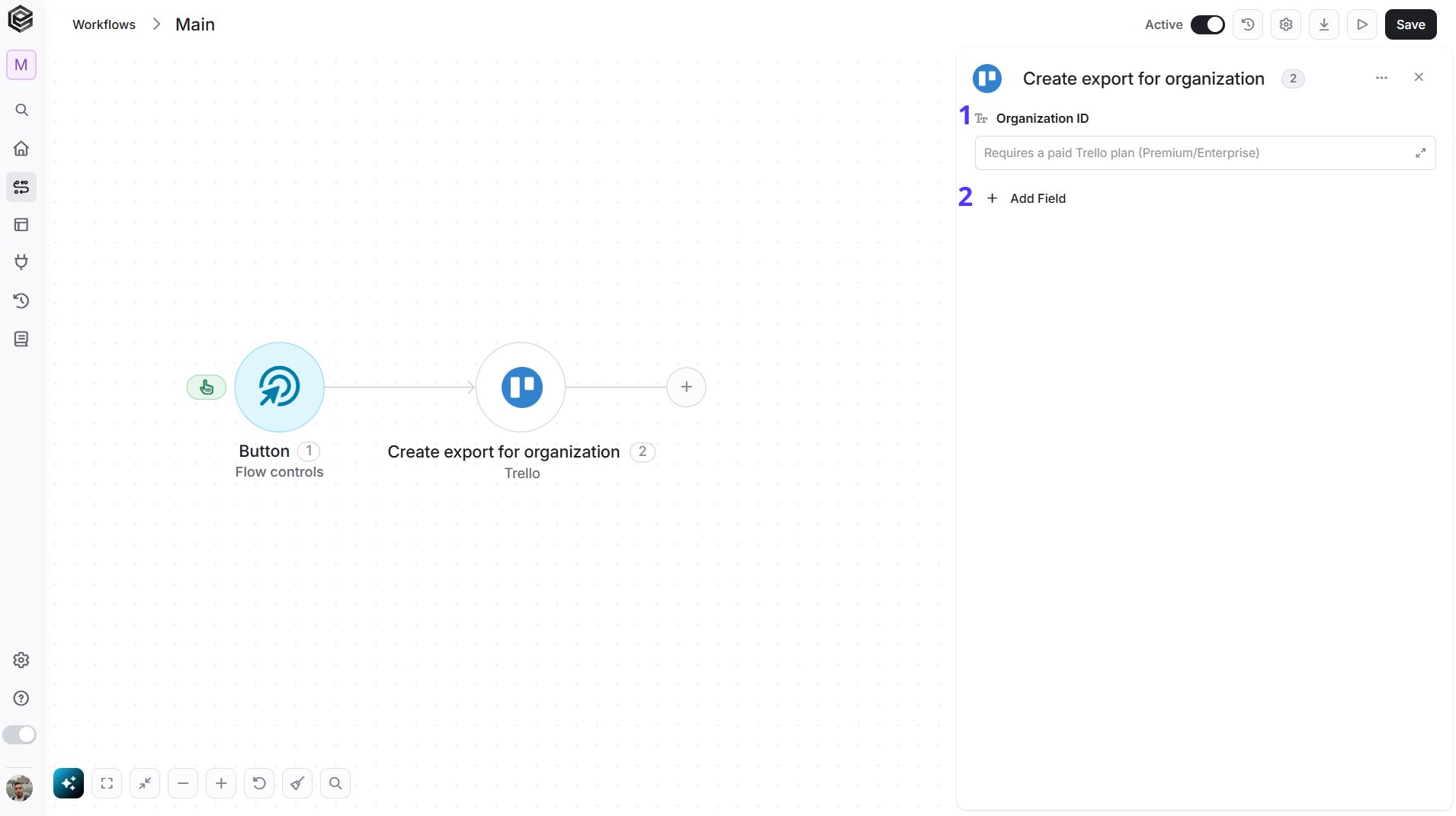
- Organization ID - The ID of the Workspace to export.
- Add Field - Click Add Field to add and populate additional fields for the selected activity. To learn more about managing activity data, click here.