

What is SFTP?
SFTP stands for SSH File Transfer Protocol. While it serves the same purpose as FTP transferring files between a server and a client it is built on a completely different technology. SFTP uses Secure Shell (SSH) to encrypt all data, including your username and password, ensuring that your information remains private and protected from interception during the transfer.Connecting Engini to SFTP
- Enter your Engini account at https://app.engini.io.
-
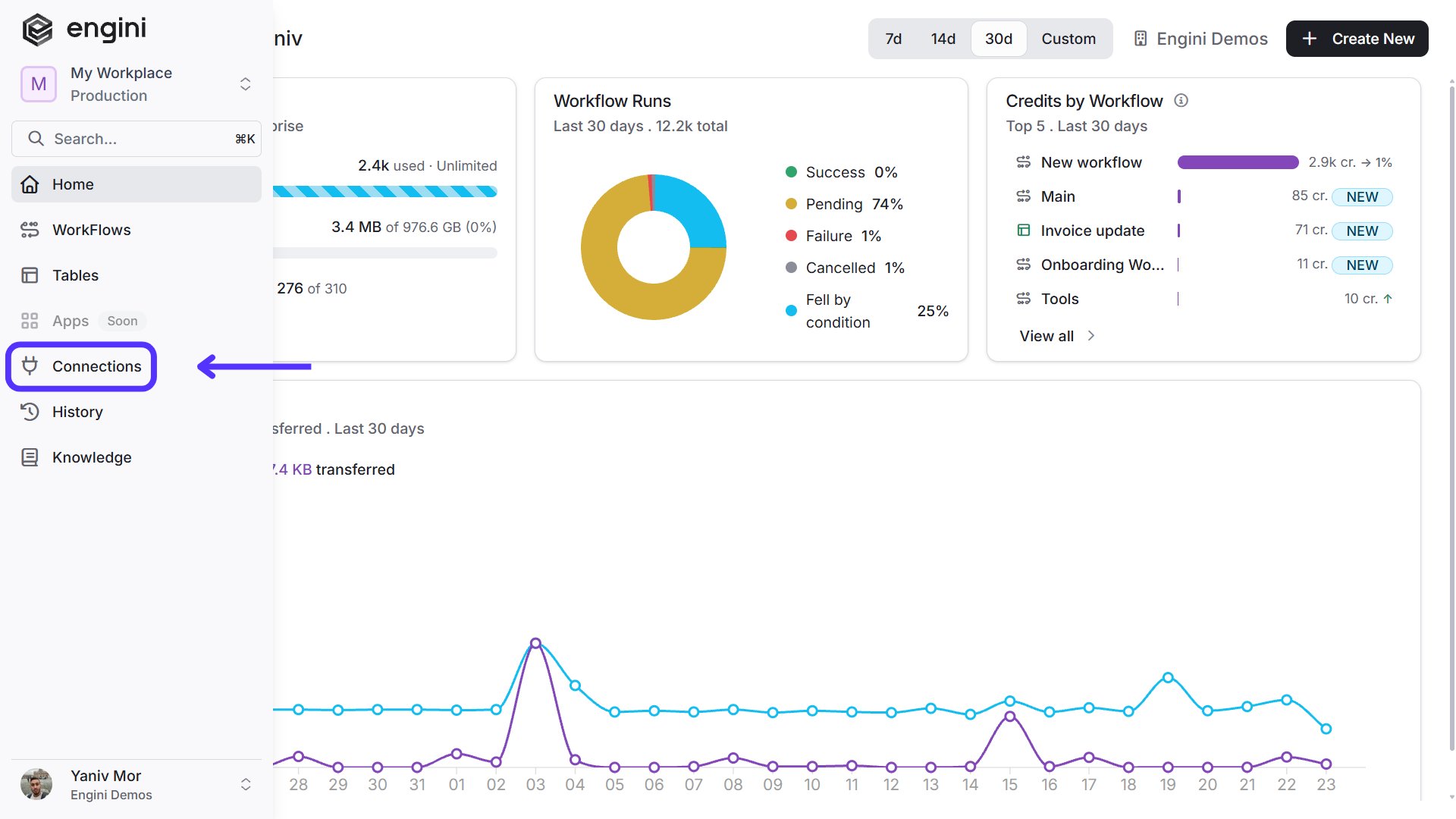
Navigate to Connections page by clicking on the Connections on the left sidebar or by clicking here.
-
Click on the New Integration option located at the topbar.

-
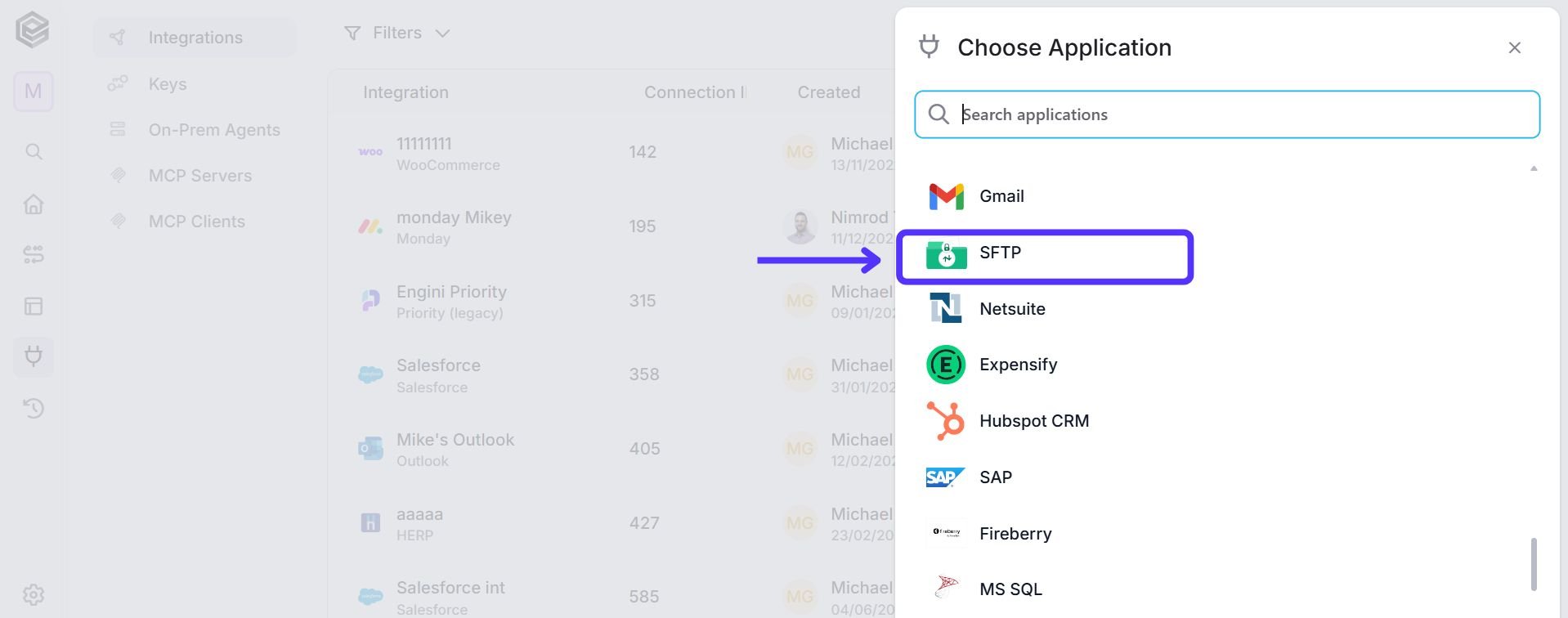
Choose SFTP’s option from the available applications.
-
Enter the following details in the “Edit Connection” form:

- Connection Name - Enter a unique and descriptive name for this connection. This name will help you easily identify and manage your connection within your system.
- Host - The address of the SFTP server (domain or IP) that Engini will connect to for file transfers.
-
SFTP Port – The default port number for SFTP is 22. When an SFTP client establishes a connection with a server, it connects to port 22 on the server. However, SFTP can also use other port numbers depending on the configuration of the server.
Ensure that SFTP access is available via the chosen port. Please send an email to support@engini.io to receive our IP address. - Authentication Method - Select how you want to log in. You can choose between a standard Password or an Private Key.
-
Private Key (PEM format) - Paste your private key text here. It should be in PEM format.
- Private Key Passphrase - If your key is encrypted with a password, enter it here. Leave this blank if your key does not require one.
- Username - The login name of the SFTP account, used to identify and authenticate the user on the SFTP server.
- Password - The secret credential linked to the username, required to securely authenticate the connection to the SFTP server.
- Save Settings - Click on the save button to save the connection.
Activities
List Folder Content
This activity allows you to retrieve a list of all items located within a specific directory on your SFTP server.
- Folder path - Click the empty field to enter the path of the folder. The path refers to the path relative to the root folder of the SFTP service.
- Content type- Files and Folders.
Move a File
This activity allows you to relocate a file from one directory to another within your SFTP server. This is commonly used to organize processed files or move data into an archive folder.
- Source path - The source path refers to the path relative to the root folder of the SFTP service where the file you want to move is located. Click on the empty field to enter the source path.
- File name
- Click on the empty field
- Enter the current name of the file.
- Destination path - Destination path refers to the path relative to the root folder of the SFTP service where you want to move the file to.
- Click on the empty field to enter the destination path.
Rename File
This activity allows you to change the name of an existing file on your SFTP server without changing its directory location.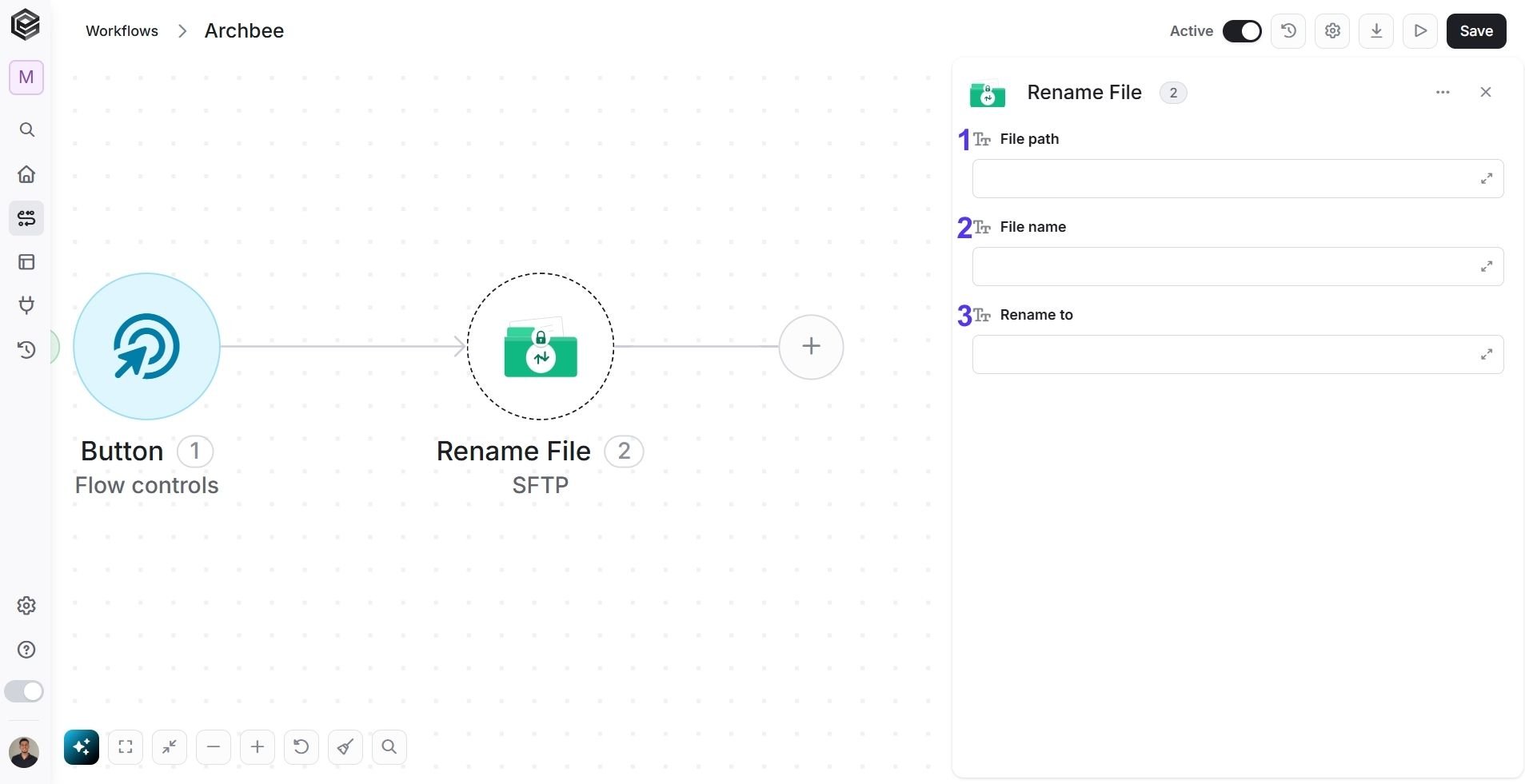
- File path - The source path refers to the path relative to the root folder of the SFTP service where the file you want to move is located.
- File name
- Click on the empty field.
- Enter the current name of the file.
- Rename to
- Click on the empty field.
- Select from the tooltip the new name of the file. you can use:
- Static value – number / string. when using strings, you need to surround them with single quotes (‘).
- Property value from a previous activity (Using the tooltip that opens when clicking on the field).
Create Folder
This activity allows you to generate a new directory at a specific location on your SFTP server.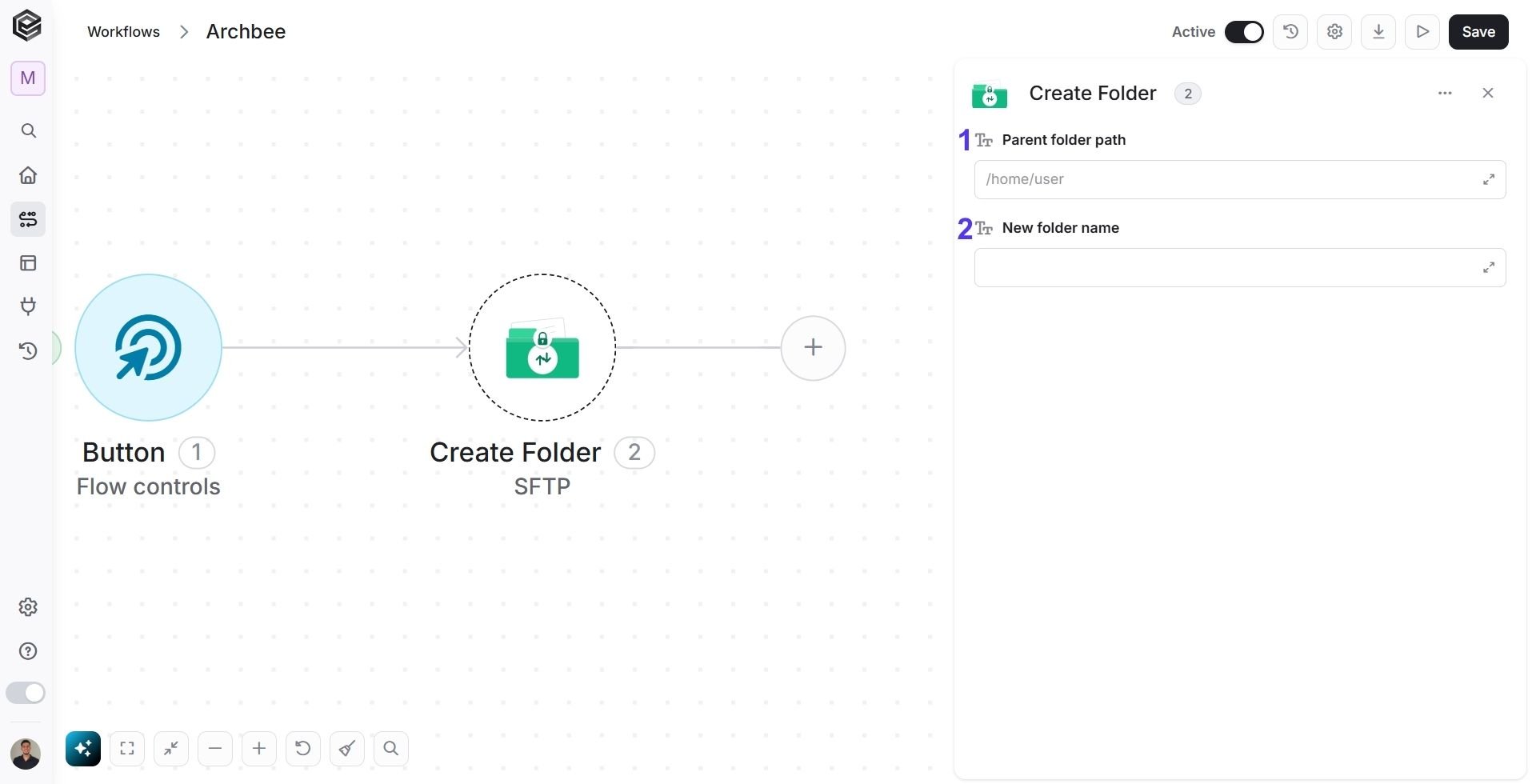
- Parent Folder Path - The folder path refers to the path relative to the root folder of the SFTP service where you want to create a folder. Click on the empty field to enter the folder path.
- New folder name
- Click on the empty field.
- Select from the tooltip the new name of the folder. you can use:
- Static value – number / string. when using strings, you need to surround them with single quotes (‘).
- Property value from a previous activity (Using the tooltip that opens when clicking on the field).
Delete Folder
This activity allows you to permanently remove a specific directory from your SFTP server.
Delete File
This activity allows you to permanently remove a specific file from your SFTP server.
- Folder Path- Click the empty field to enter the path of the folder you want to delete a file from. The path is relative to the root folder of the SFTP service.
- File name
- Click on the empty field.
- Enter the name of the file you want to delete.
Rename Folder
This activity allows you to change the name of an existing directory on your SFTP server.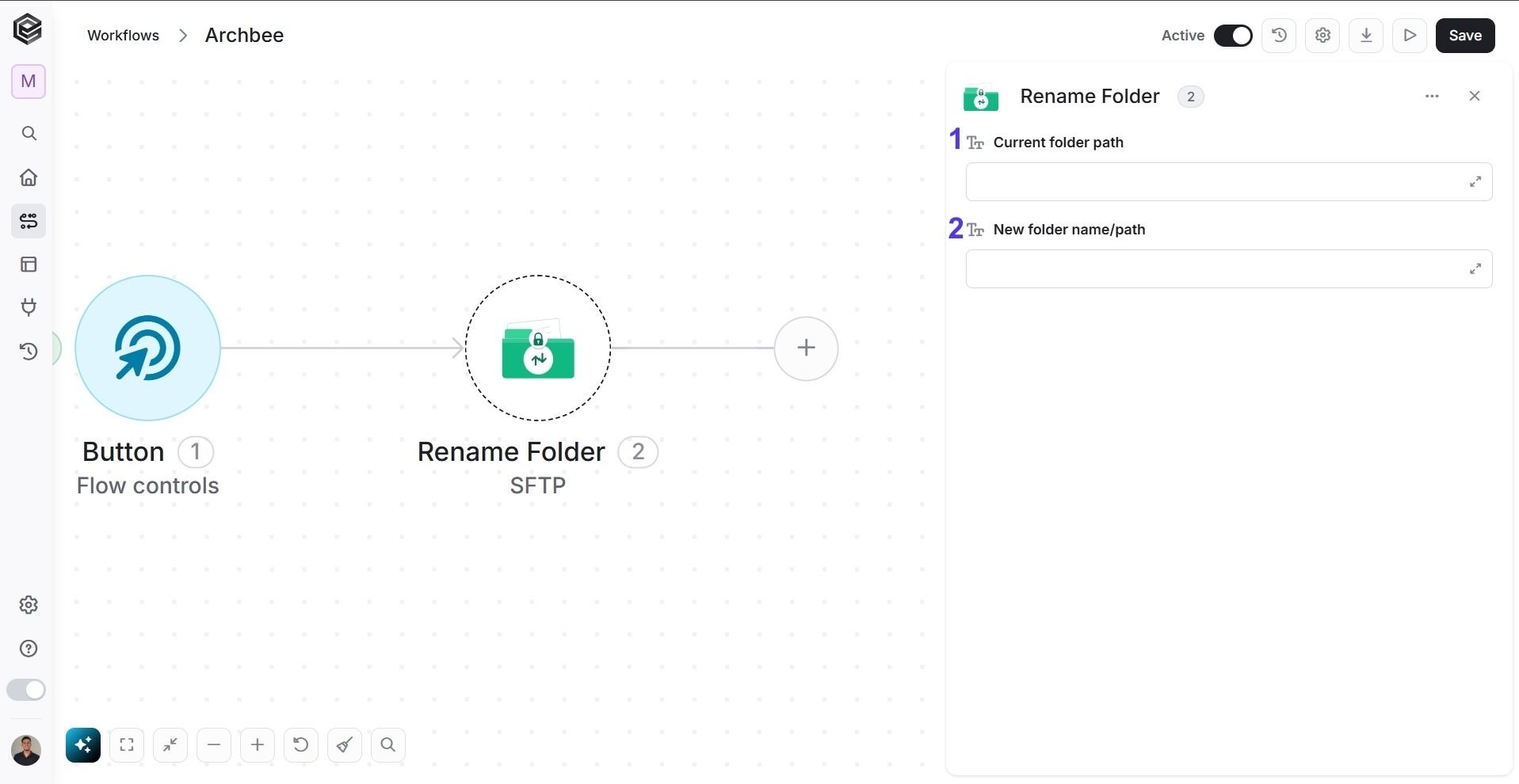
- Current Folder Path - Click the empty field to enter the path of the folder you want to rename, the path is relative to the root folder of the SFTP service.
- New folder name/path
- Click on the empty field.
- Select from the tooltip the new name of the folder. you can use:
- Static value – number / string. when using strings, you need to surround them with single quotes (‘).
- Property value from a previous activity (Using the tooltip that opens when clicking on the field).
Get File
This activity allows you to retrieve a specific file from your SFTP server so its content can be used in your workflow.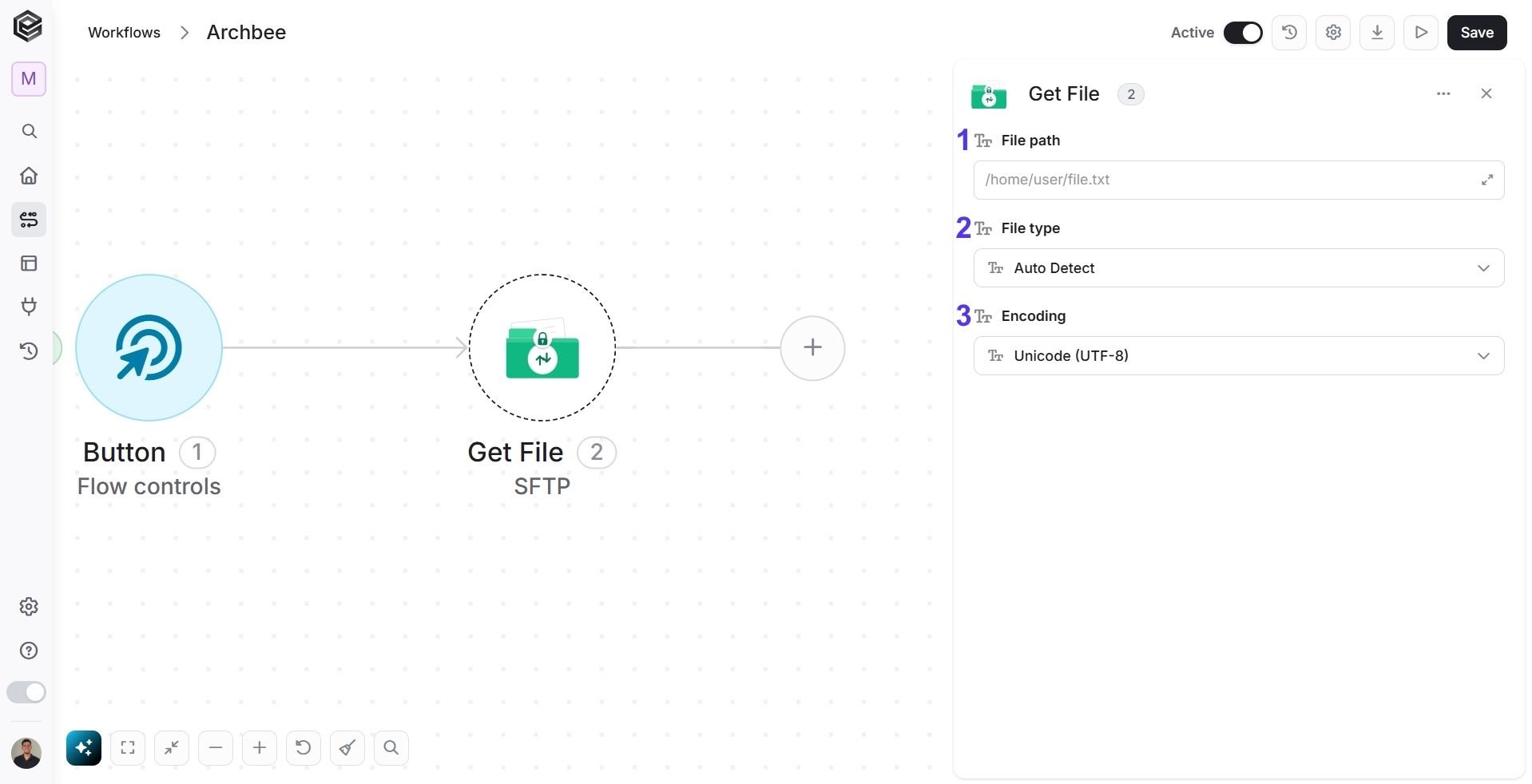
- File path - The file path refers to the specific location of the file you want to get, relative to the root folder of the SFTP service. Click on the empty field to enter the file path.
- File type - Select from the drop down the file type:
- Auto Detect
- Binary
- Text
- If the file type is text, choose the encoding type from the drop down next to encoding field.
- Encoding- Select the character encoding (e.g., Unicode UTF-8) that matches the format of your file to ensure the text is read correctly.
Upload File
This activity allows you to transfer a file from your workflow and save it directly onto your SFTP server.
- File path - The file path refers to the specific location where you want to create a file relative to the root folder of the SFTP service. Click on the empty field to enter the file path.
-
File name
- Click on the empty field.
- Select from the tooltip the name of the new file. you can use:
- Static value – number / string. when using strings, you need to surround them with single quotes (‘).
- Property value from a previous activity (Using the tooltip that opens when clicking on the field).
-
File content
- Click on the empty field and the tooltip will pop up showing the options you can choose.
- You can populate the field in one of the following options:
- Static value – number / string. when using strings, you need to surround them with single quotes (‘).
- Property value from a previous activity (Using the tooltip that opens when clicking on the field).
- Expression – using functions and/or Previous activity properties and/or static values (Using the tooltip that opens when clicking on the field).
-
File type

-
Select from the drop down the file type:
- Auto Detect
- Binary
- Text
-
Select from the drop down the file type:
Update File Permissions
This activity allows you to modify the access rights of a specific file or folder on your SFTP server using standard numeric notation.
- File/Folder path - Enter the path relative to the root folder of the SFTP service for the item you wish to update. Click the empty field to enter the path.
- Permissions (e.g. 755, 644) - Enter the numeric permission mode. This 3-digit number determines the access level for the Owner, Group, and Others.
- Static value – A specific number (e.g., 755).
- Property value – Use the tooltip to select a dynamic value from a previous activity.
Append to file
This activity allows you to add new content to the end of an existing file on your SFTP server without overwriting the original data. This is ideal for updating logs or adding records to a running list.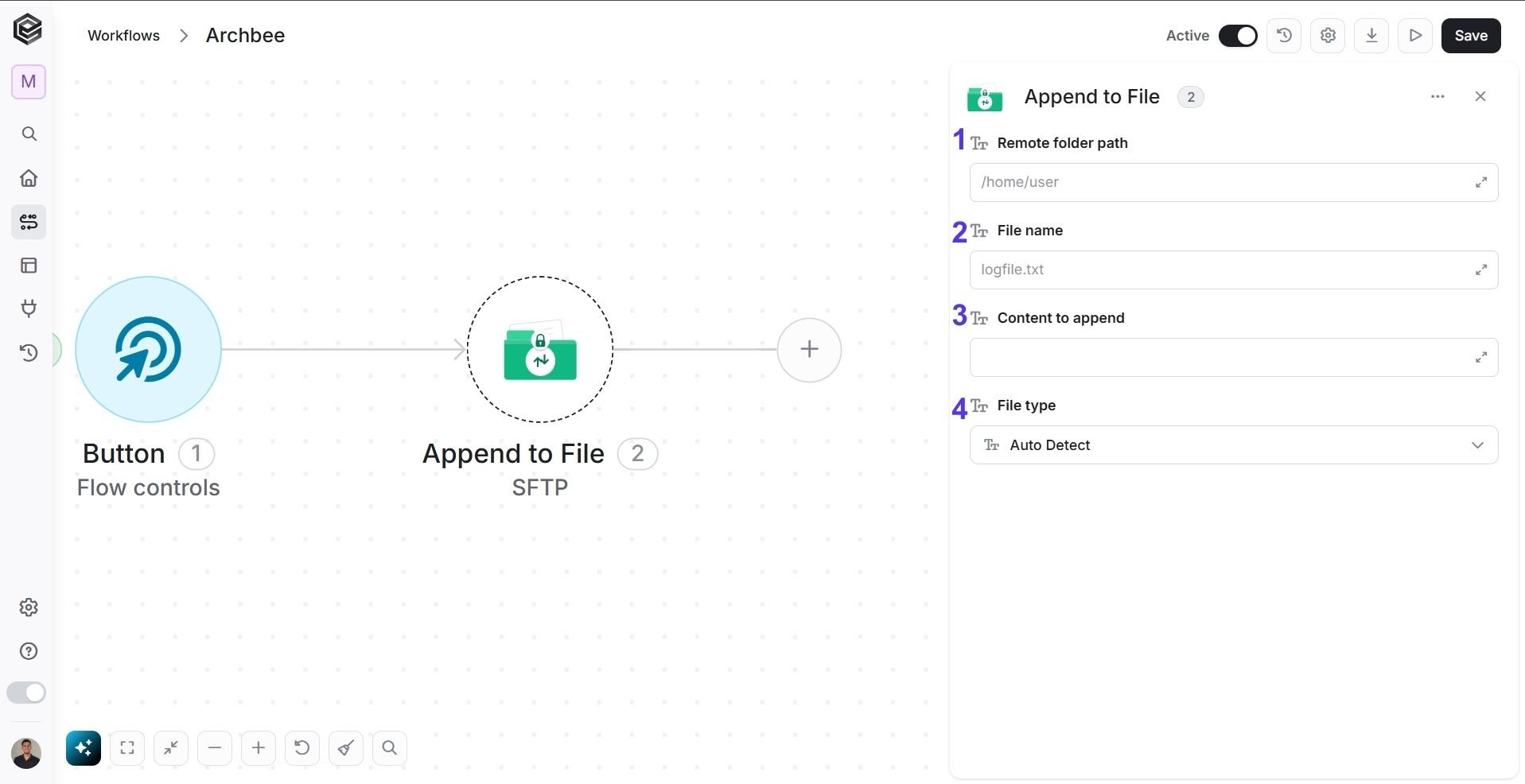
- File path - The file path refers to the specific location of the file you want to append to relative to the root folder of the SFTP service.
- Click on the empty field to enter the file path.
- File name
- Click on the empty field.
- Select from the tooltip the file you want to append to. you can use:
- Static value – number / string. when using strings, you need to surround them with single quotes (‘).
- Property value from a previous activity (Using the tooltip that opens when clicking on the field).
- File type
- Select from the drop down the file type:
- Auto Detect
- Binary
- Text
- Select from the drop down the file type:
- File content
- Click on the empty field and the tooltip will pop up showing the options you can choose.
- You can populate the field in one of the following options:
- Static value – number / string. when using strings, you need to surround them with single quotes (‘).
- Property value from a previous activity (Using the tooltip that opens when clicking on the field).
- Expression – using functions and/or Previous activity properties and/or static values (Using the tooltip that opens when clicking on the field).