

Add a Connection to Pinecone in Engini
Prerequisites
- A Pinecone account.
- A Pinecone API key. In the Pinecone console, open API keys and create or copy a key.
Connecting Engini to Pinecone
- Enter your Engini account at https://app.engini.io.
-
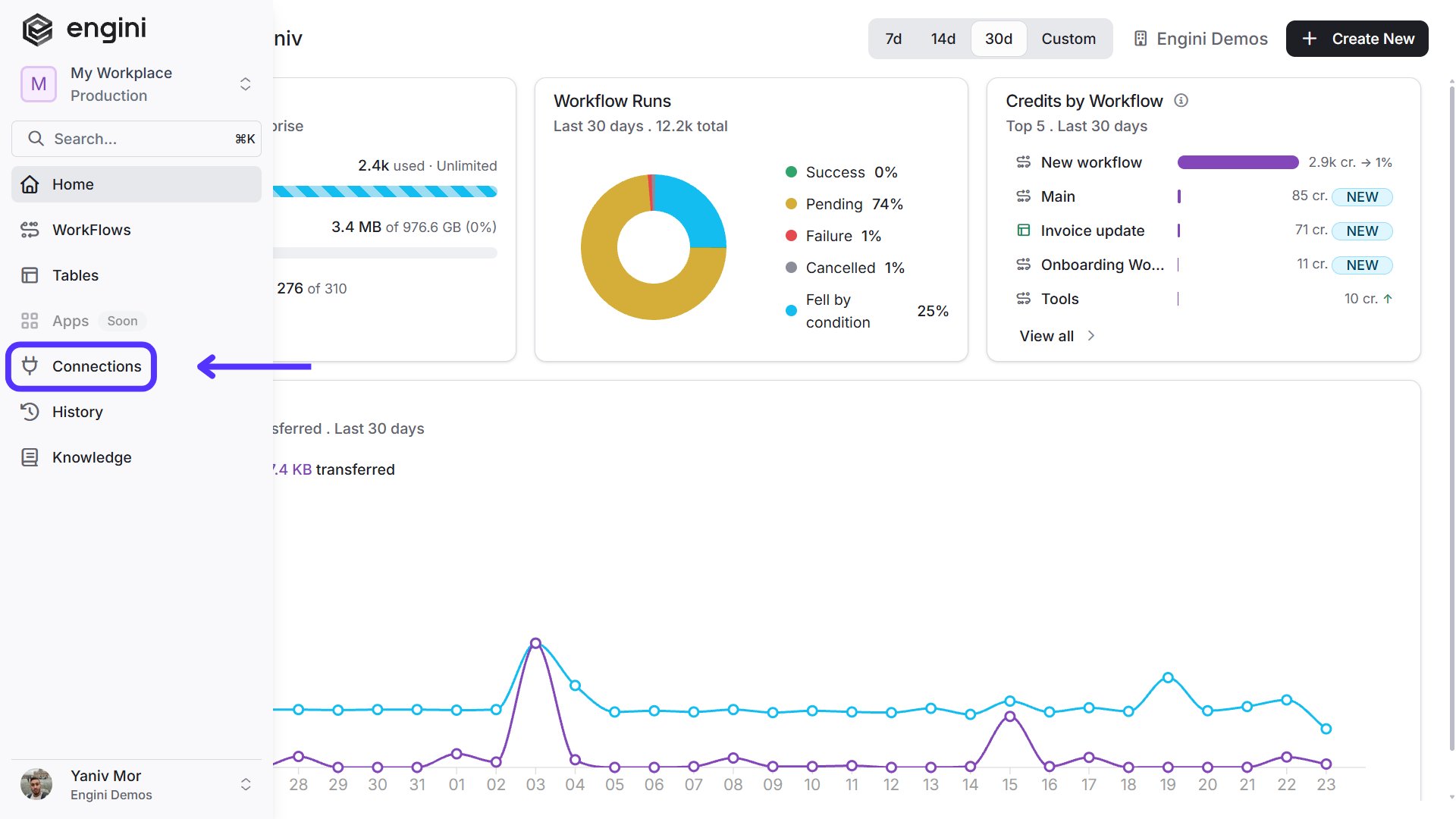
Navigate to the Connections page by clicking on Connections in the left sidebar or by clicking here.
-
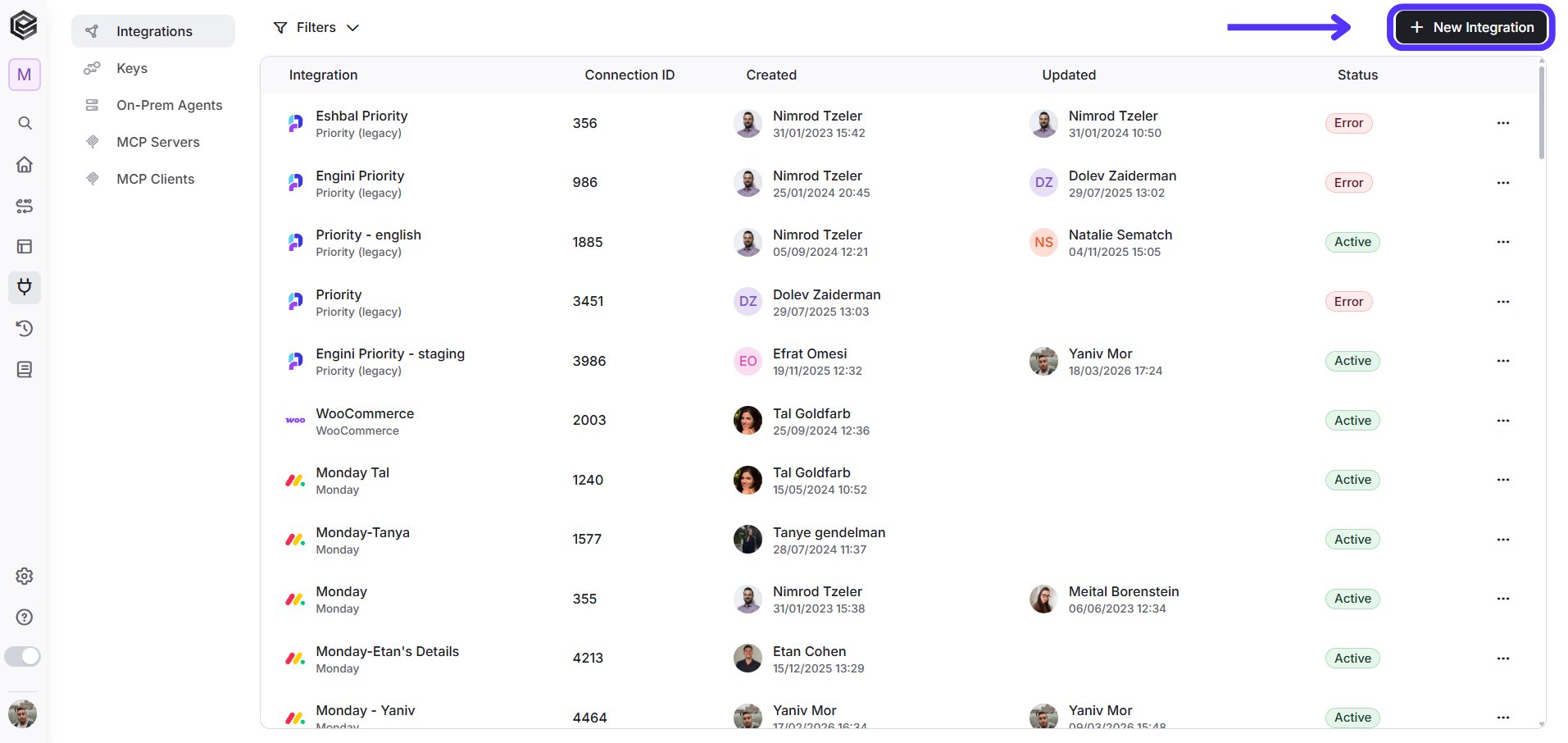
Click on the “New Integration” option located at the top bar.
-
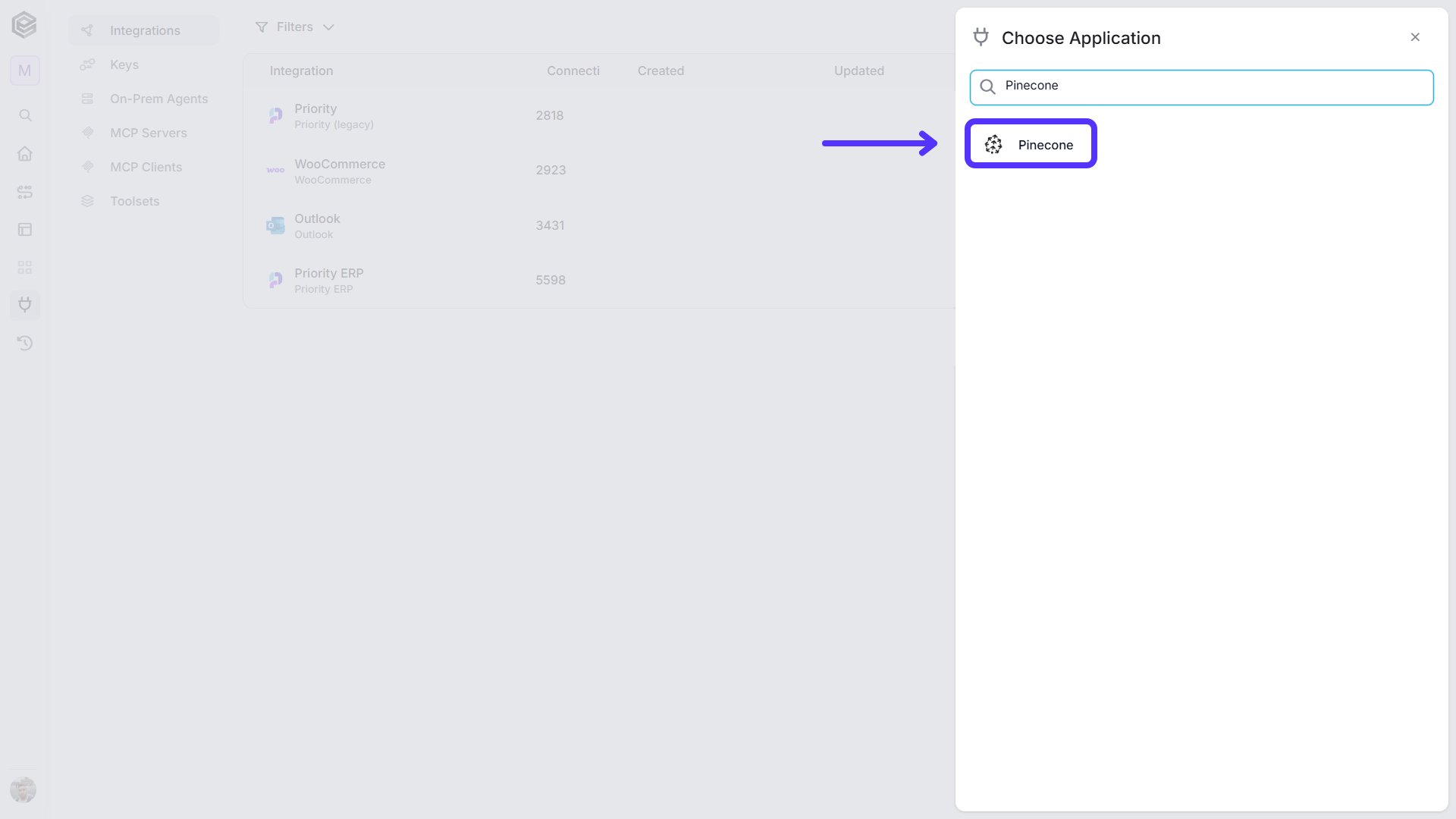
Choose the Pinecone option from the available applications.
-
Enter the following details in the “New Integration” form and press Save:
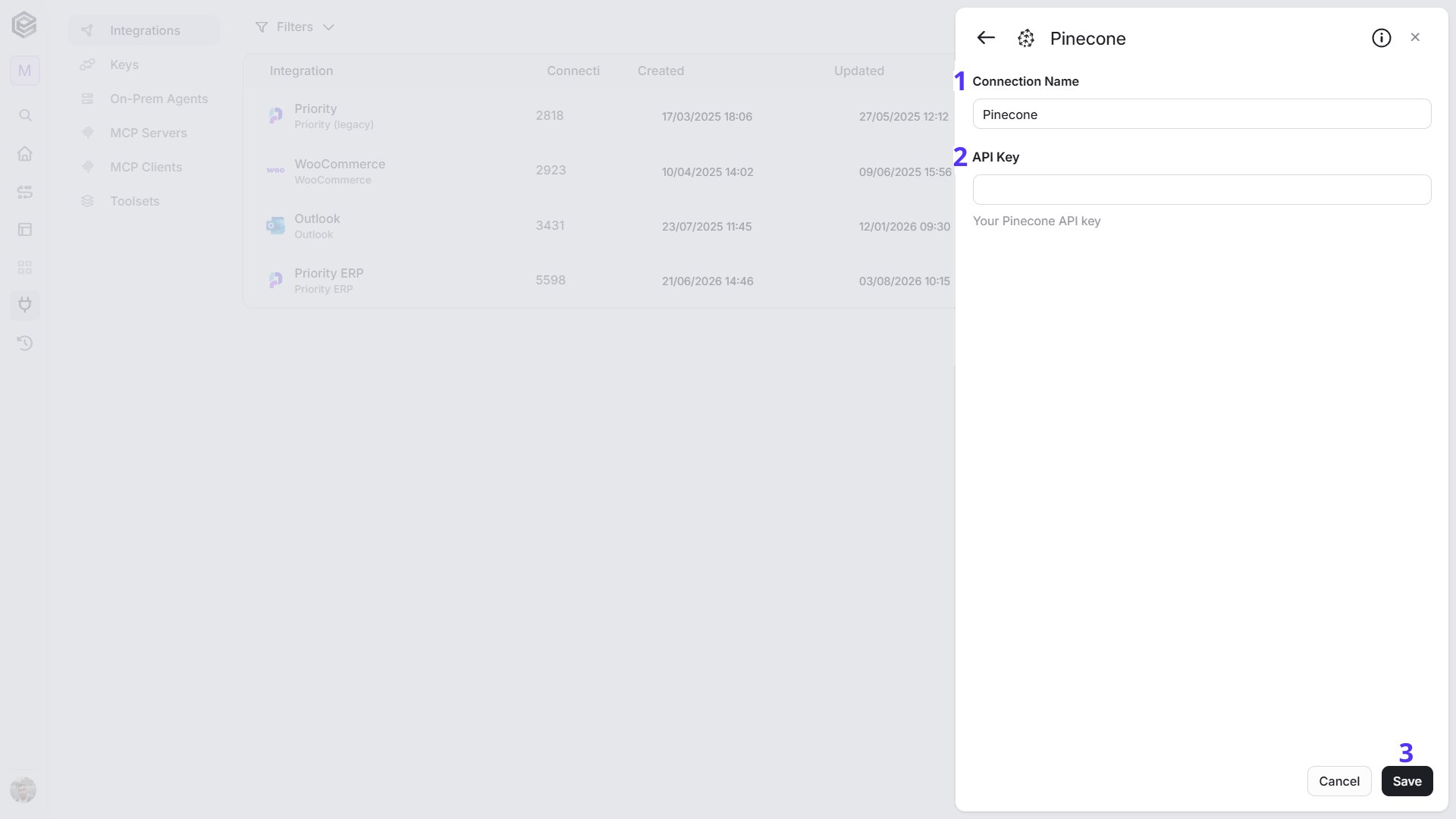
- Connection Name - Enter a name that helps identify the Pinecone connection.
- API Key - Enter your Pinecone API key. You can copy it from the API keys page of the Pinecone console.
- Save - Click Save to create the connection.
Actions
Every action that works with records starts with an Index Id field. Click it to choose one of the indexes in your Pinecone account. Note: Create or Update Text Records and Get Similar Records by Text work only with an index that has integrated embedding, which means Pinecone turns your text into vectors for you. The other record actions work with any index.Create or Update Records
Adds records to an index. A record that already exists is replaced.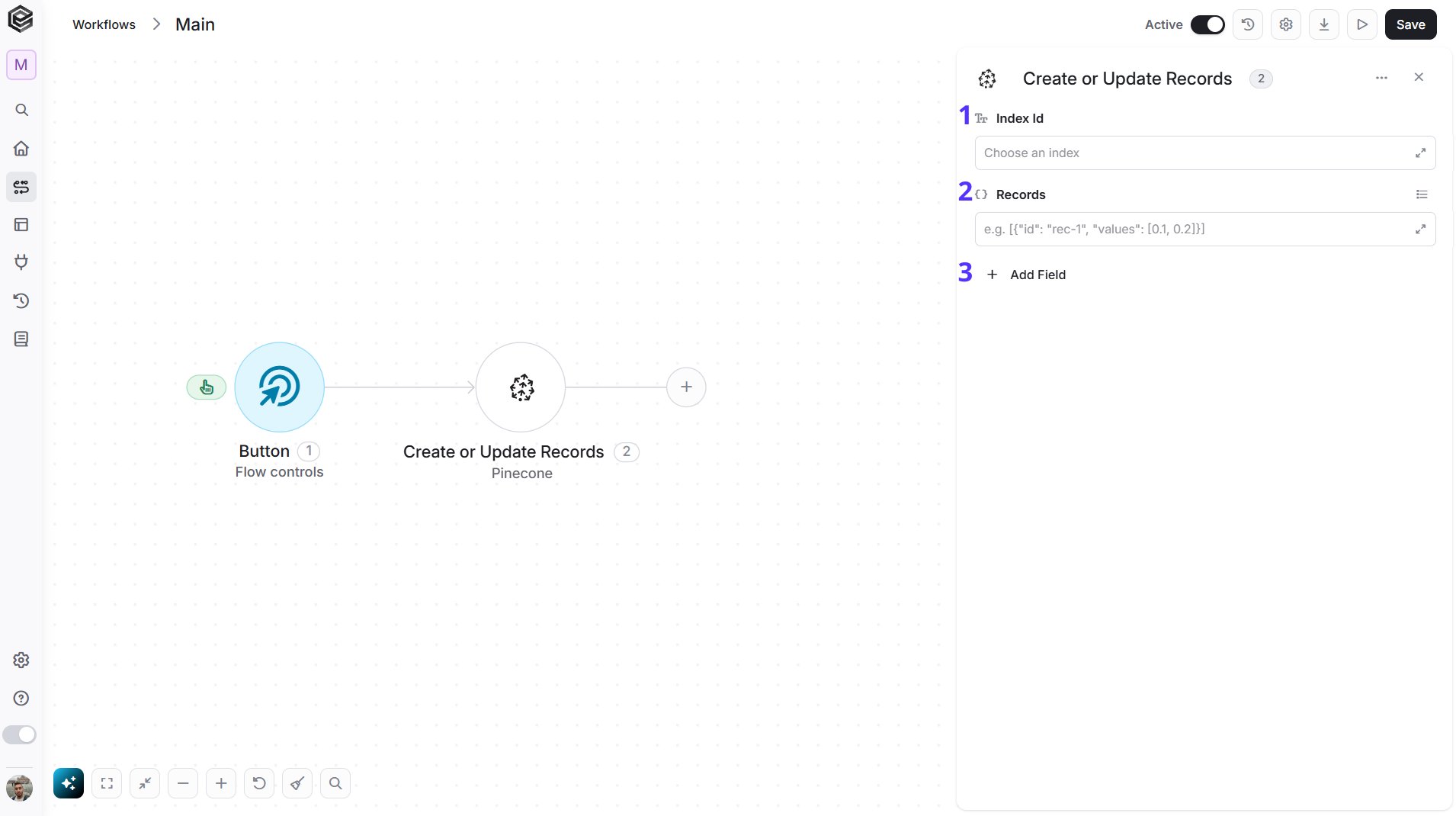
- Index Id - The Pinecone index to write to.
- Records - The records to add, as a JSON array. Each record has an
id, itsvalues(the vector) and, optionally,metadata, for example[{"id": "rec-1", "values": [0.1, 0.2, 0.3], "metadata": {"genre": "drama"}}]. The number of values must match the dimension of the index. - Add Field - Click Add Field to add and populate additional fields for the selected activity. To learn more about managing activity data, click here.
- Namespace - The namespace to write the records to. Leave it empty to use the default namespace.
Create or Update Text Records
Adds records to an index from their text. Pinecone creates the vectors for you, so this action needs an index with integrated embedding.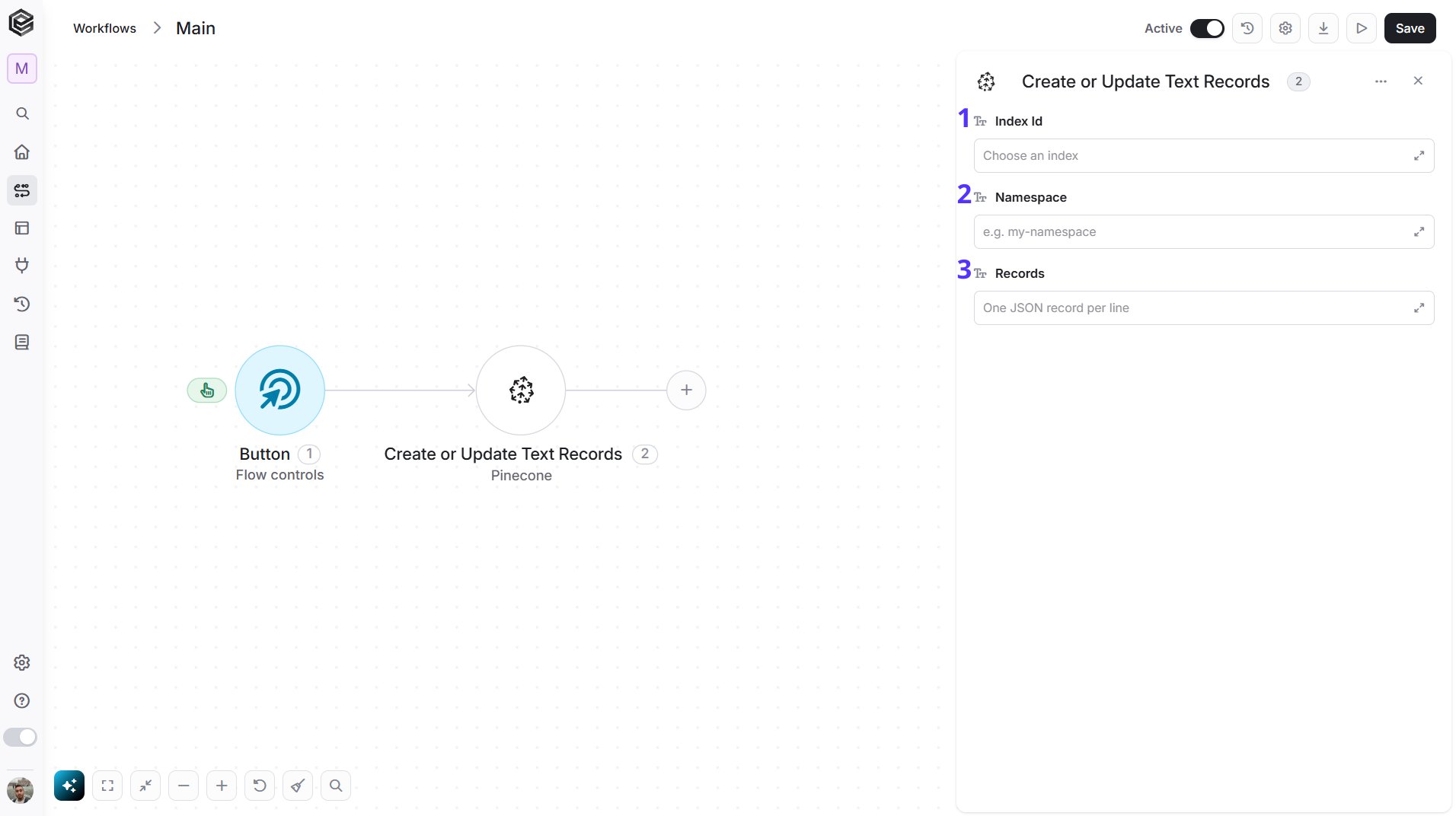
- Index Id - The Pinecone index to write to. It must have integrated embedding.
- Namespace - The namespace to write the records to, for example
my-namespace. - Records - The records to add, one JSON record per line. Each record has an
_idand the text field that your index is set up to embed, for example{"_id": "rec-1", "chunk_text": "Apples are good for digestion."}.
Delete Index
Deletes an index from your Pinecone account.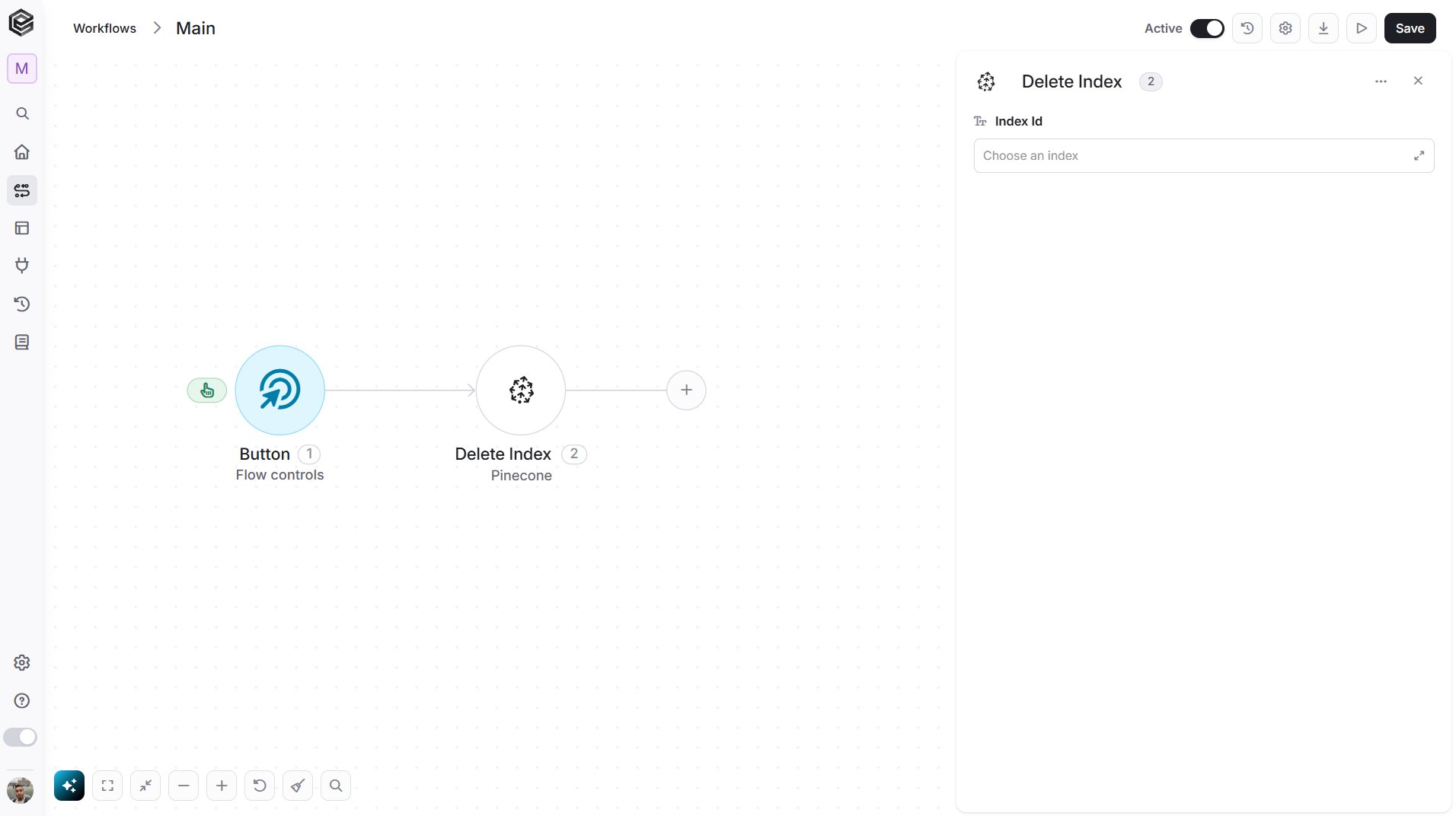
- Index Id - Click the field and choose the index to delete.
Delete Records
Deletes records from an index by their ids.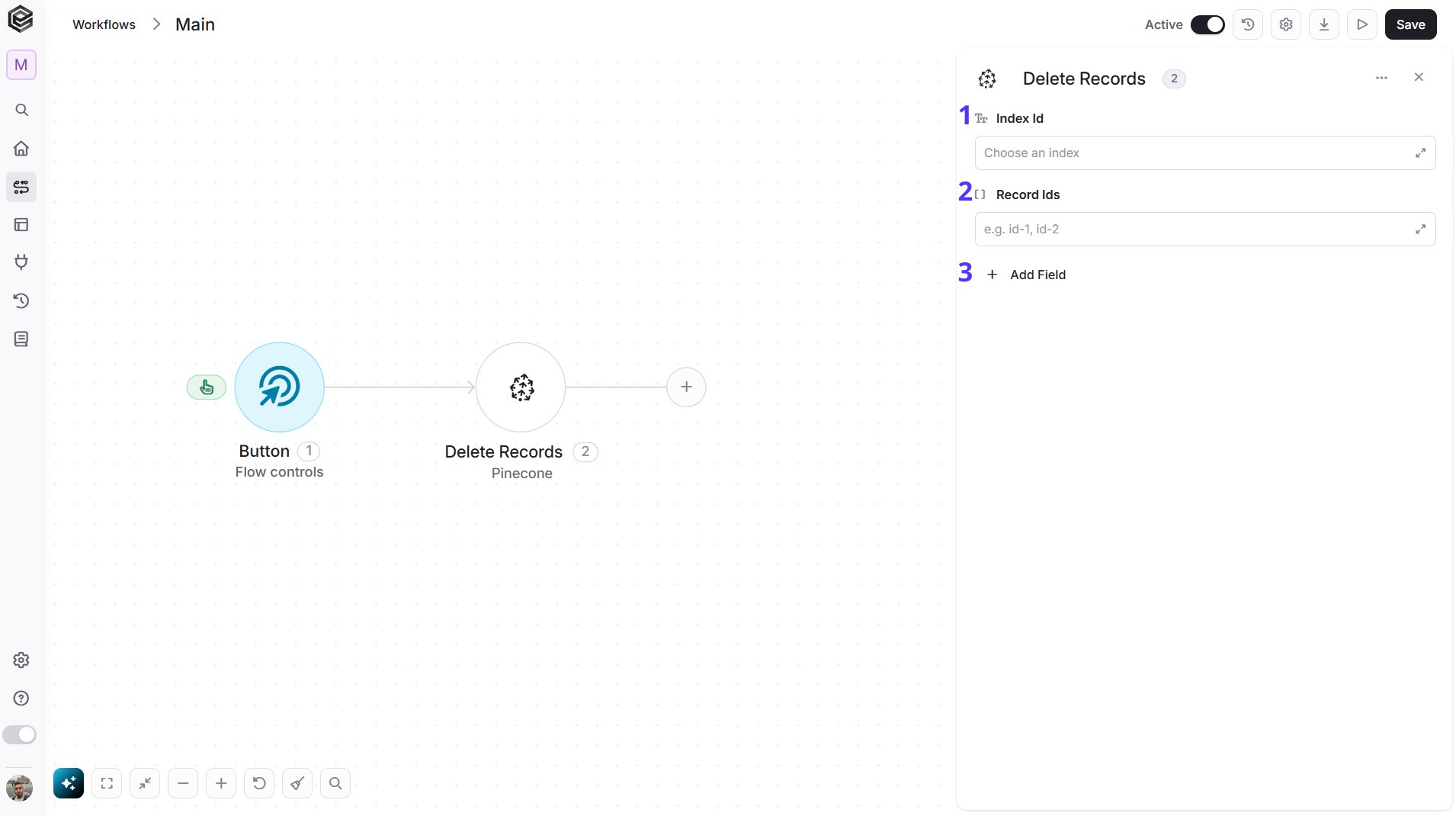
- Index Id - The Pinecone index the records are in.
- Record Ids - The ids of the records to delete, for example
id-1, id-2. - Add Field - Click Add Field to add and populate additional fields for the selected activity. To learn more about managing activity data, click here.
- Namespace - The namespace the records are in. Leave it empty to use the default namespace.
Get Index
Gets the details of one index.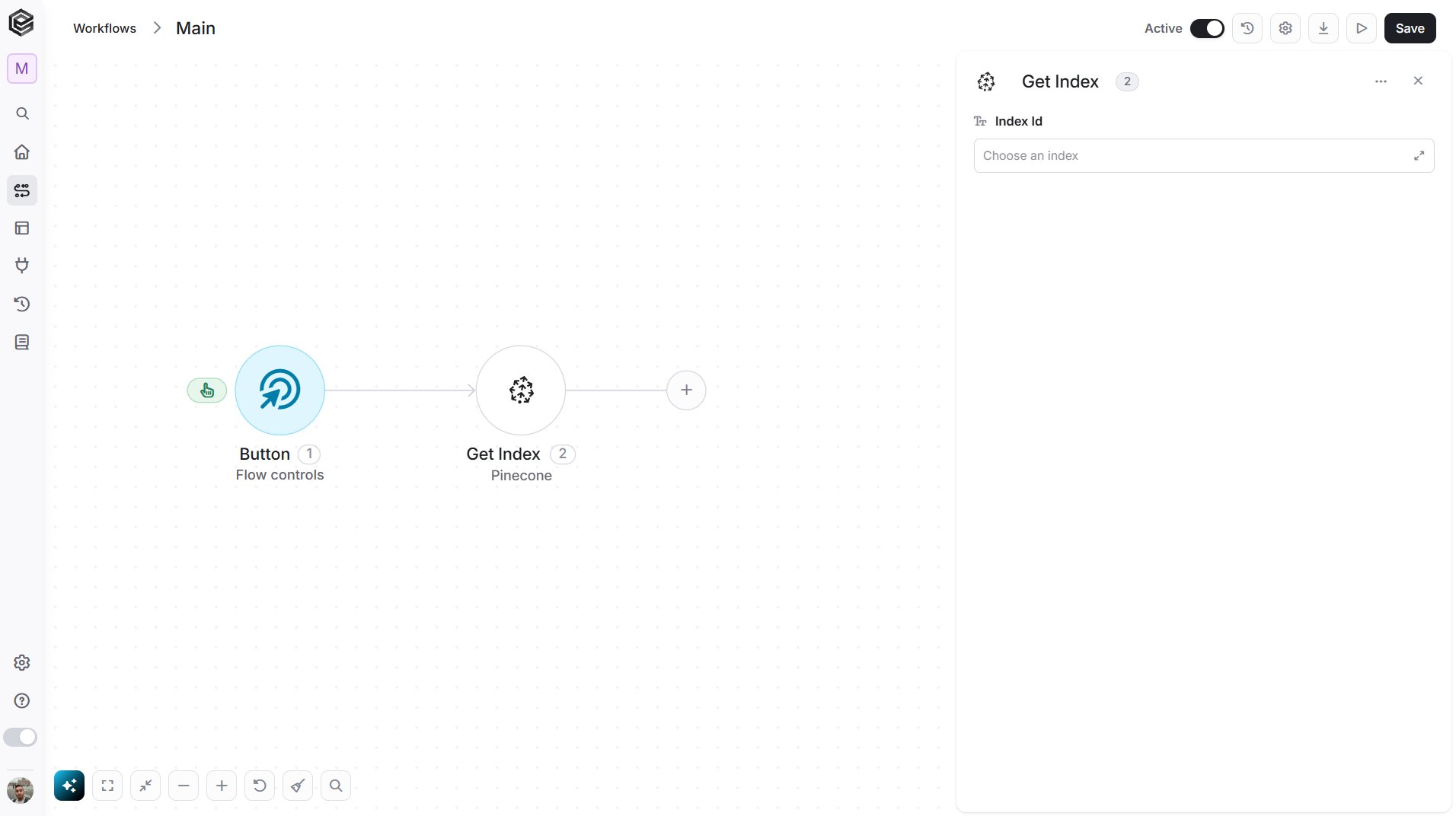
- Index Id - Click the field and choose the index to get.
Get Indexes
Gets all the indexes in your Pinecone account. This action has no fields to fill in.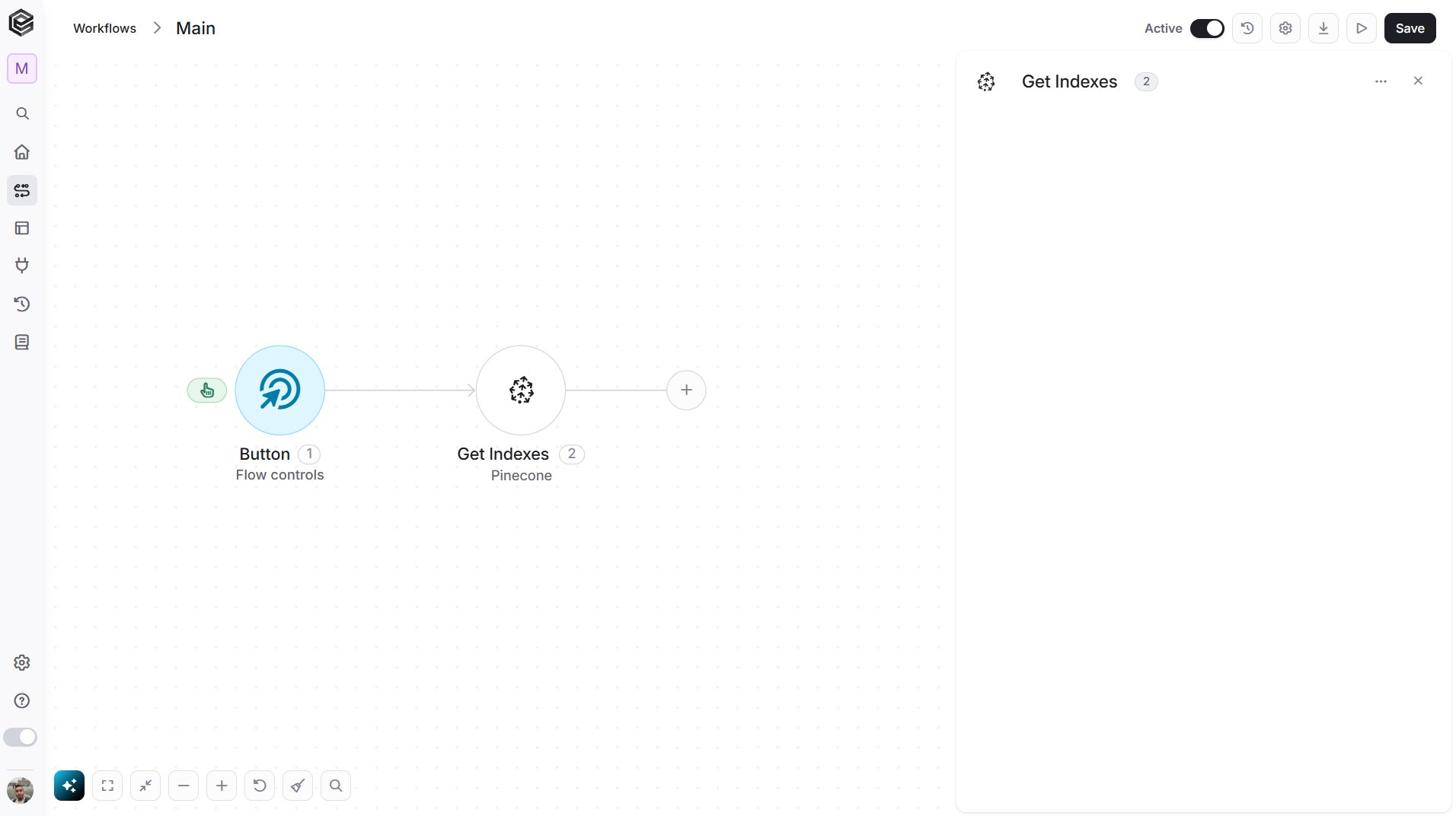
Get Record
Gets one record from an index by its id.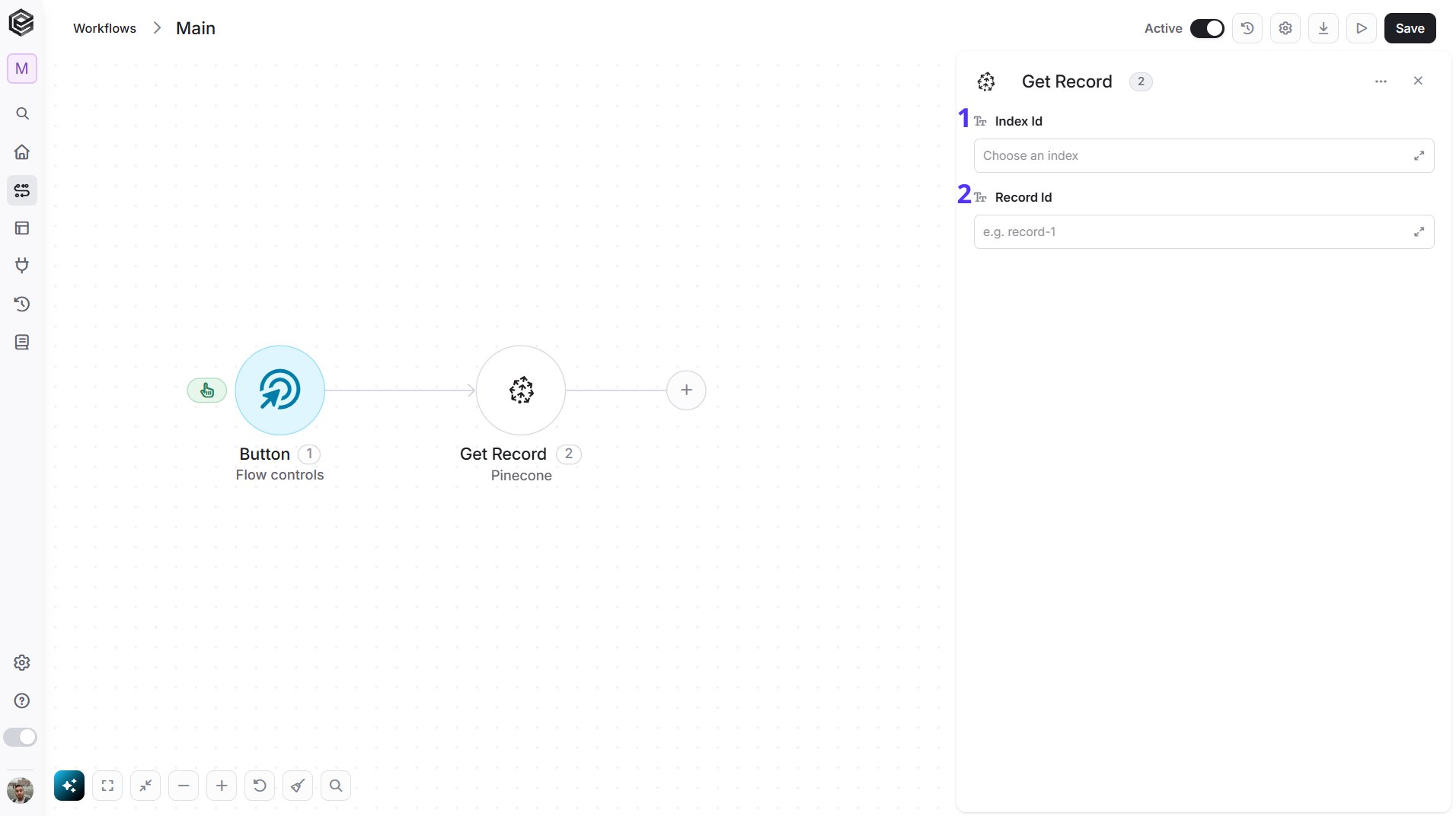
- Index Id - The Pinecone index the record is in.
- Record Id - The id of the record to get, for example
record-1.
Get Similar Records
Finds the records in an index that are most similar to a vector or to an existing record.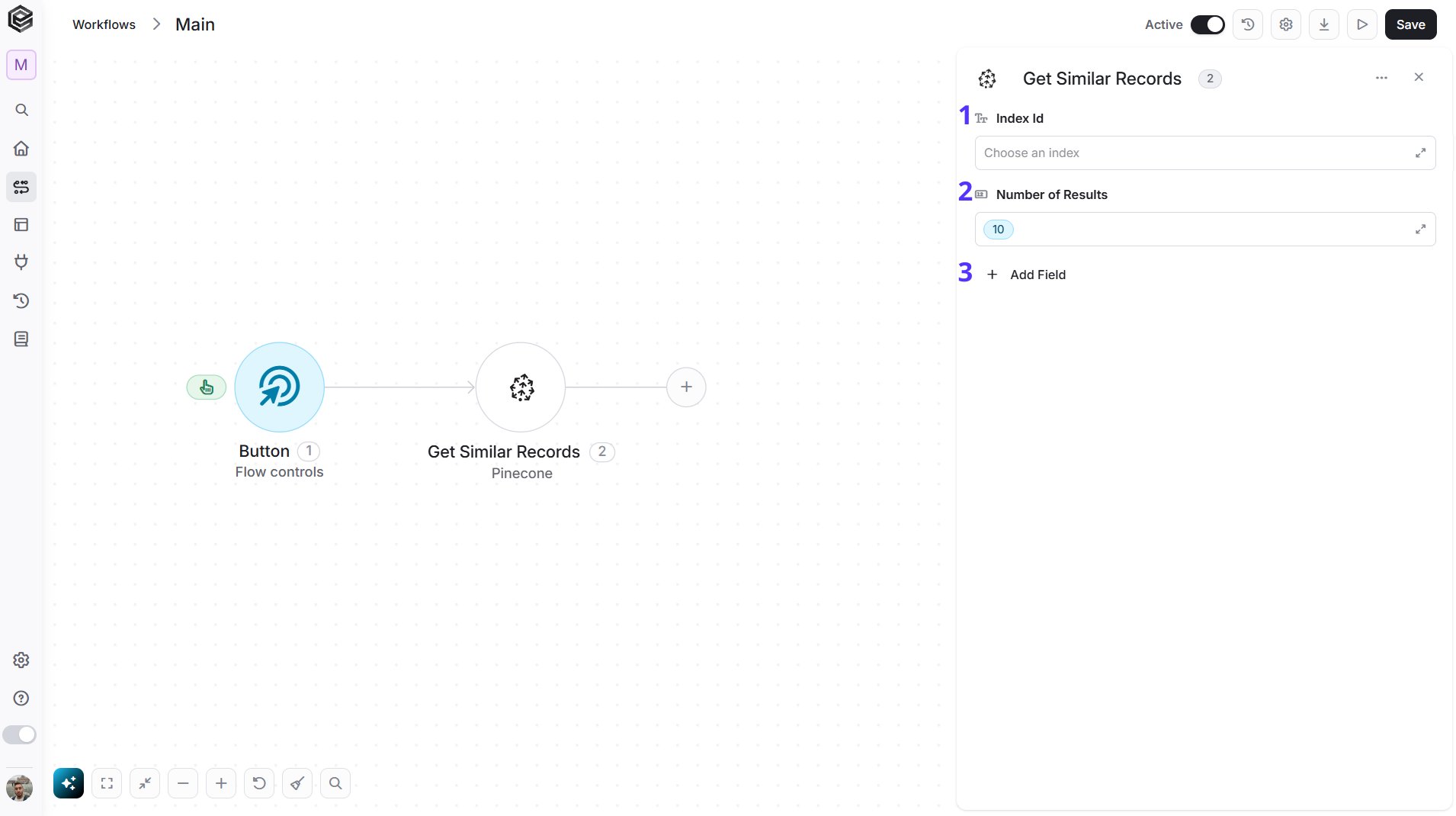
- Index Id - The Pinecone index to search.
- Number of Results - How many similar records to return. The default is 10.
- Add Field - Click Add Field to add and populate additional fields for the selected activity. To learn more about managing activity data, click here.
- Query Vector - The vector to search with, as a list of numbers. Use it, or Record Id, to say what to compare against.
- Record Id - The id of an existing record. Pinecone searches for the records most similar to it.
- Namespace - The namespace to search. Leave it empty to use the default namespace.
- Metadata Filter - A filter on the records’ metadata, written as JSON, for example
{"genre": "drama"}. Only records that match are returned. - Include Metadata - Choose whether each returned record includes its metadata.
- Include Values - Choose whether each returned record includes its vector values.
Get Similar Records by Text
Finds the records in an index that are most similar to a piece of text. Pinecone turns the text into a vector for you, so this action needs an index with integrated embedding.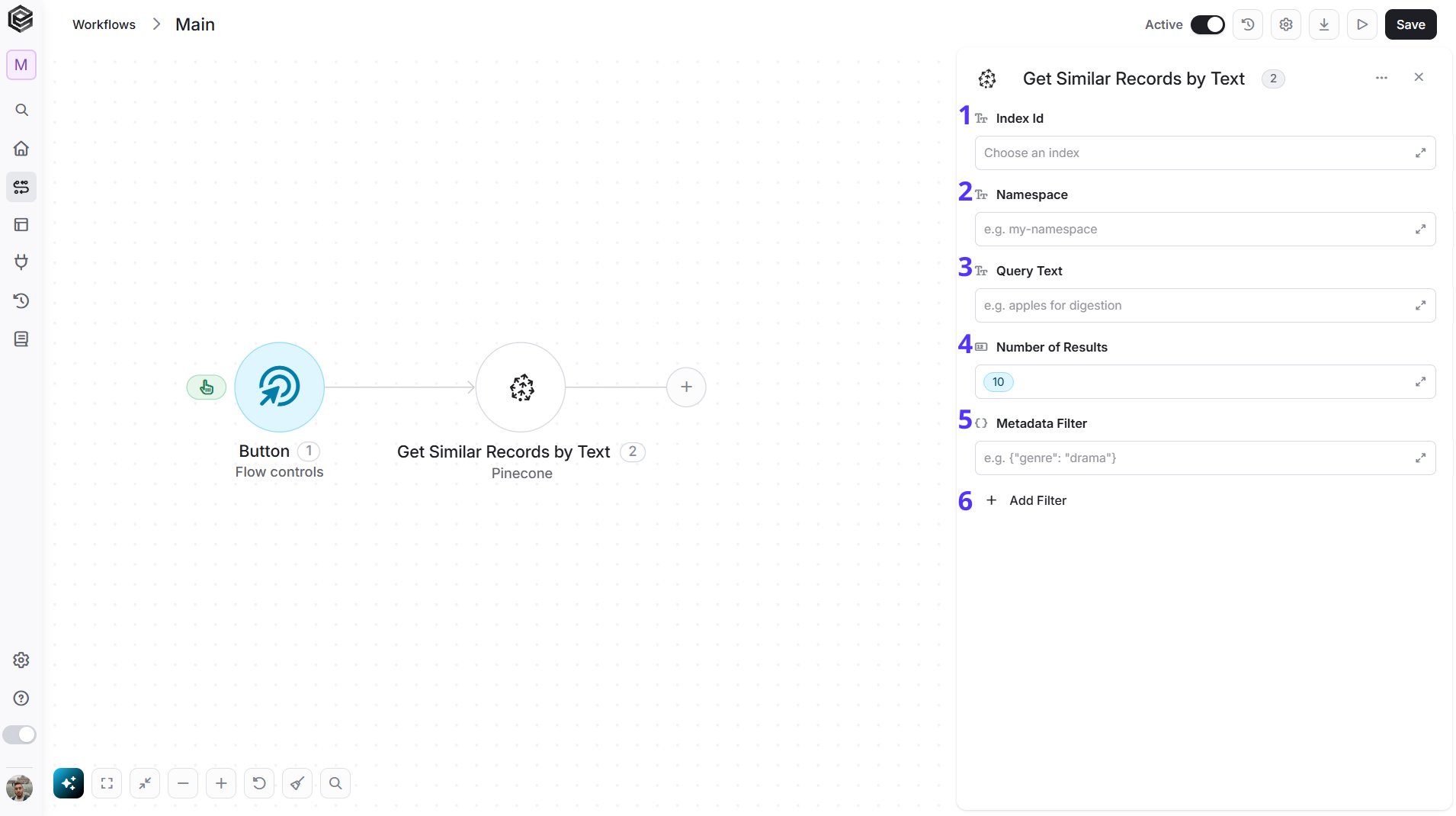
- Index Id - The Pinecone index to search. It must have integrated embedding.
- Namespace - The namespace to search, for example
my-namespace. - Query Text - The text to look for similar records to, for example
apples for digestion. - Number of Results - How many similar records to return. The default is 10.
- Metadata Filter - Optional. A filter on the records’ metadata, written as JSON, for example
{"genre": "drama"}. Only records that match are returned. - Add Filter - Click Add Filter to choose which fields of each record are returned (Fields To Return). To learn more about using filters, click here.
Update Index
Changes the settings of an existing index.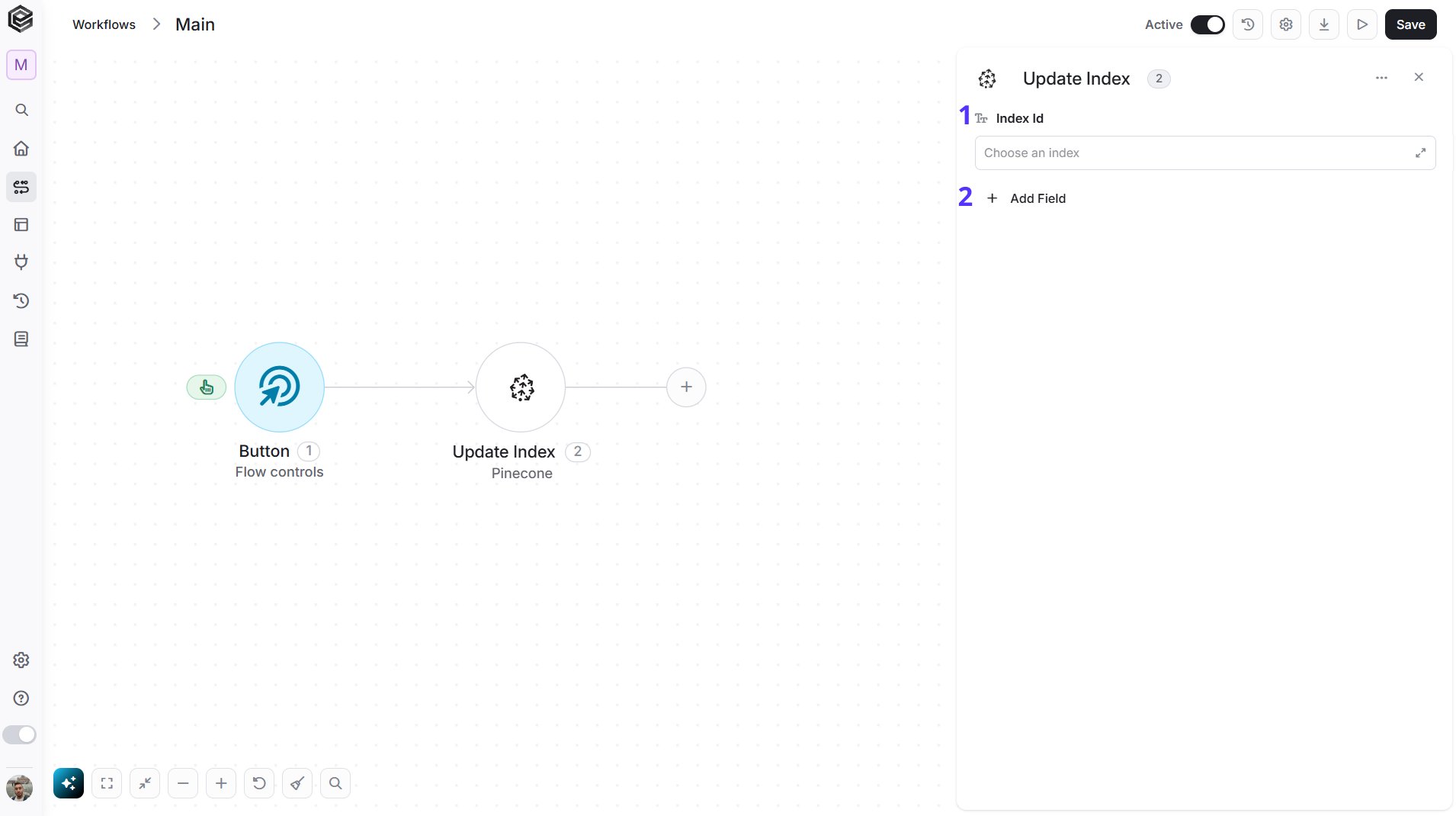
- Index Id - Click the field and choose the index to update.
- Add Field - Click Add Field to add and populate additional fields for the selected activity. To learn more about managing activity data, click here.
- Deletion Protection - Choose enabled or disabled to turn deletion protection on or off for the index.
- Tags - The tags to attach to the index, as key and value pairs, for example a tag key and its value.
Update Record
Changes an existing record in an index.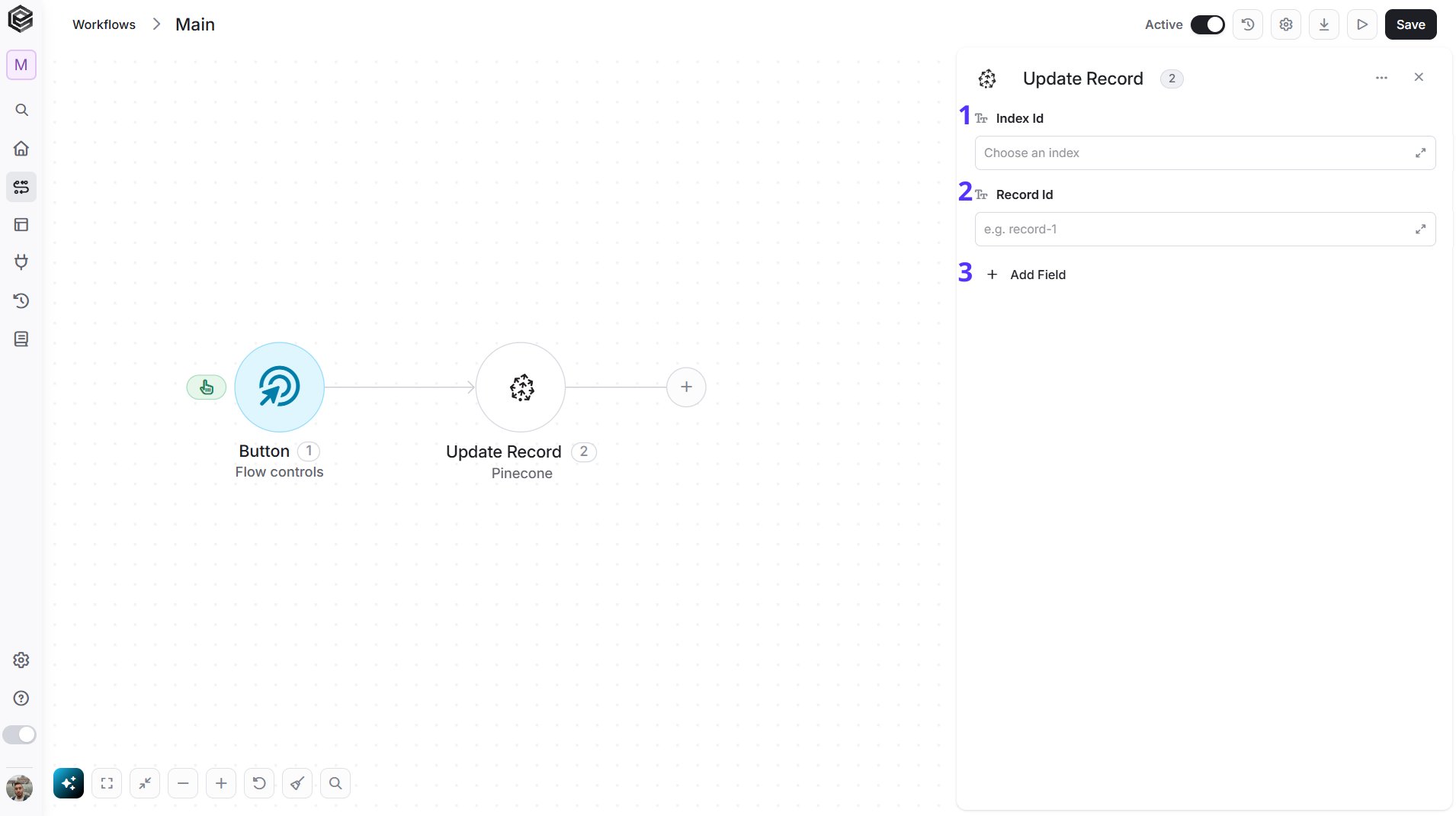
- Index Id - The Pinecone index the record is in.
- Record Id - The id of the record to update, for example
record-1. - Add Field - Click Add Field to add and populate additional fields for the selected activity. To learn more about managing activity data, click here.
- Namespace - The namespace the record is in. Leave it empty to use the default namespace.
- Values - The new vector values of the record, as a list of numbers.
- Metadata To Set - Metadata to set on the record, written as JSON, for example
{"genre": "drama"}.
Send API Request
This activity allows you to send a custom API request directly to Pinecone’s API.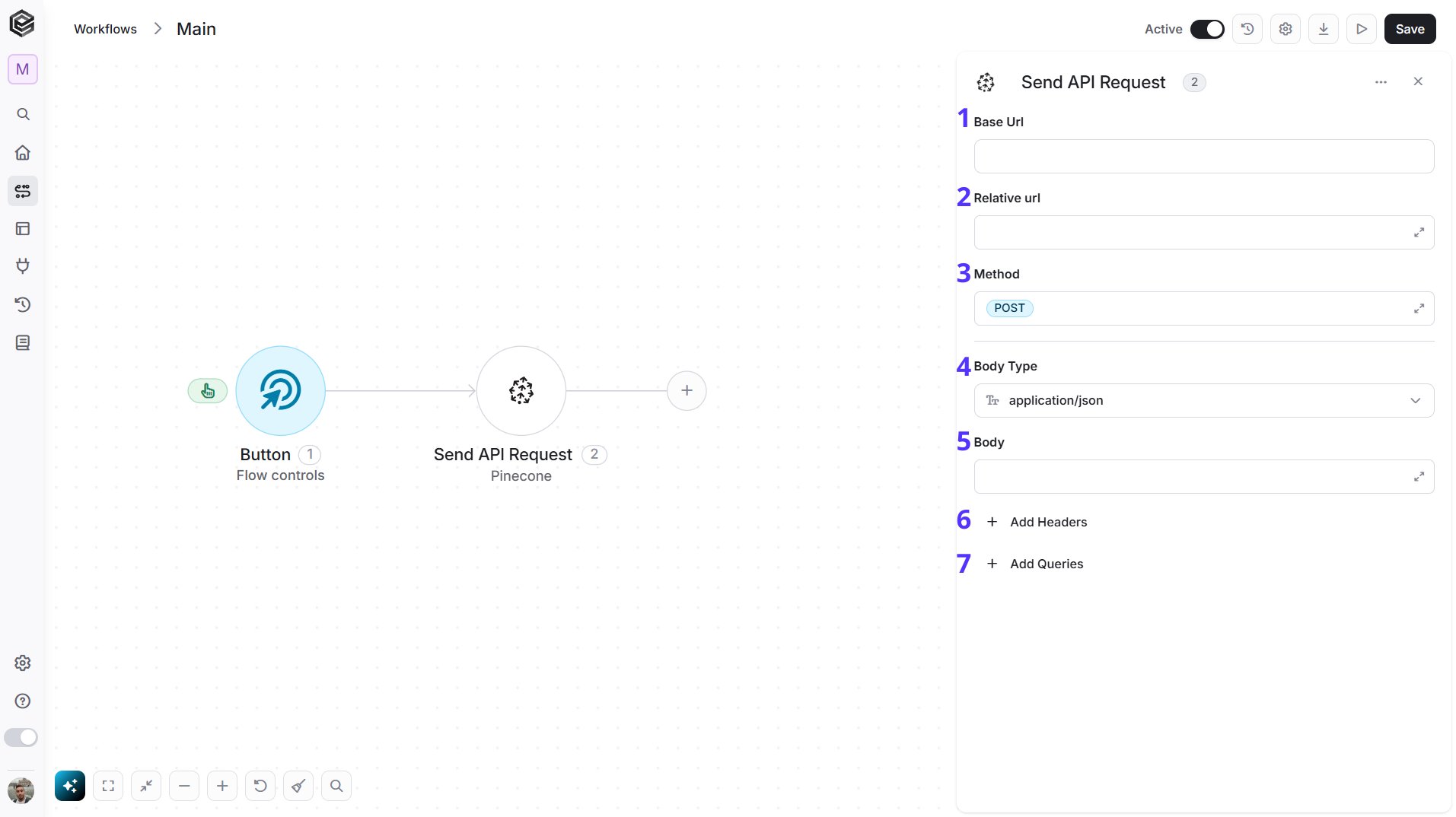
- Base Url - The root URL of the Pinecone API. It is filled in from your Pinecone connection and can’t be edited here.
- Relative url - You can specify additional path segments or parameters that need to be added to the end of the Base Url. This allows you to customize the specific request you want to perform.
- Method - Select the HTTP method (e.g., Get, Post, Put, Delete, Patch). The default is POST.
- Body Type - Defines the format of the data in the body of your request. The default, application/json, means the body contains a JSON-formatted payload.
- application/json – Sends the request body in JSON format. Commonly used by REST APIs.
- Custom (use Content-Type header) – Allows you to define a custom body format by manually setting the Content-Type header. Add a
Content-Typerow in Add Headers with the media type you need (for exampleapplication/xml). With any other Body Type, a Content-Type you type in Add Headers is not sent; Engini sets it from the Body Type. - application/x-www-form-urlencoded – Sends the body as URL-encoded key-value pairs, commonly used in form submissions.
- file – Sends a file as the request body.
- multipart/form-data – Sends form data that may include both text fields and files.
- text/html – Sends the request body as HTML content.
- text/plain – Sends the request body as plain text.
- text/xml – Sends the request body in XML format.
- Body - Contains any data that is being sent to the server.
- Add Headers - Additional metadata about the request, such as the type of data Engini can accept, the length of the request body, and authentication information.
- Add Queries - The query refers to the parameters or data that are included in the URL of an HTTP request to provide additional information or instructions to the server.