

Add a Connection to Box in Engini
Prerequisites
- A Box account.
- Only for the Custom OAuth2 method: a Box app that uses User Authentication (OAuth 2.0), created in the Box Developer Console (see below).
- To use the Box Sign actions, Box Sign must be available on your Box account.
Create your Box app (Custom OAuth2 only)
With the OAuth2 method you sign in to Box and don’t need your own Box app, so you can skip this section. With the Custom OAuth2 method, Engini connects to Box through an app that you create in your own Box account.- Sign in to Box and open the Developer Console.
- Select Create Platform App, choose Custom App, enter a name for the app and choose User Authentication (OAuth 2.0) as the authentication method.
- Open the app’s Configuration tab and copy the Client ID and the Client Secret from OAuth 2.0 Credentials. You will enter them in Engini.
- Under OAuth 2.0 Redirect URIs, add this address:
https://workflowapi.engini.io/api/auth/OAuthRedirectUrl - Under Application Scopes, turn on Read all files and folders stored in Box and Write all files and folders stored in Box. Also turn on Manage webhooks if you use the File Event Occurred or Folder Event Occurred triggers, and Manage signature requests if you use the Box Sign actions.
- Select Save Changes.
Connecting Engini to Box
- Enter your Engini account at https://app.engini.io.
-
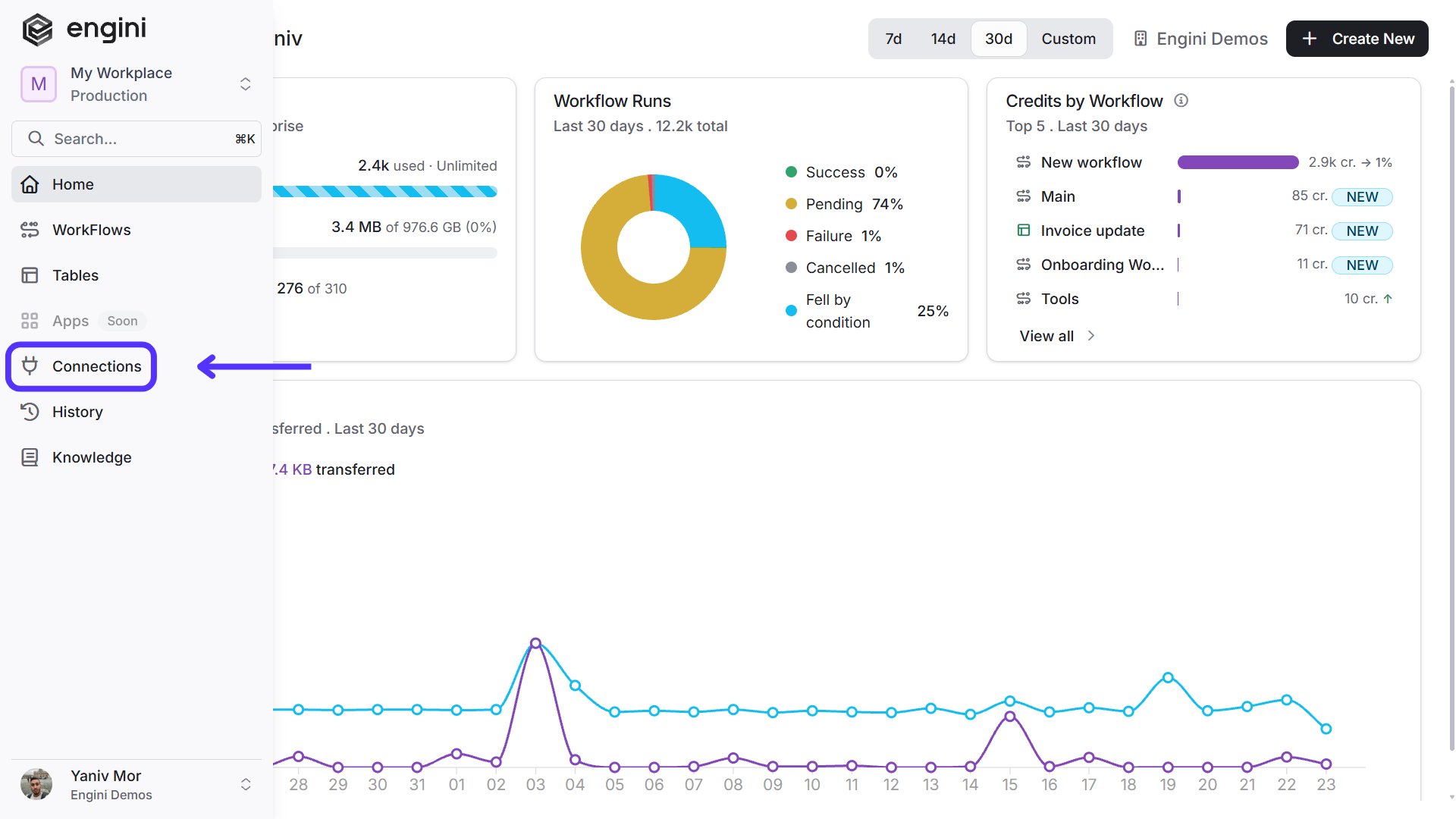
Navigate to the Connections page by clicking on Connections in the left sidebar or by clicking here.
-
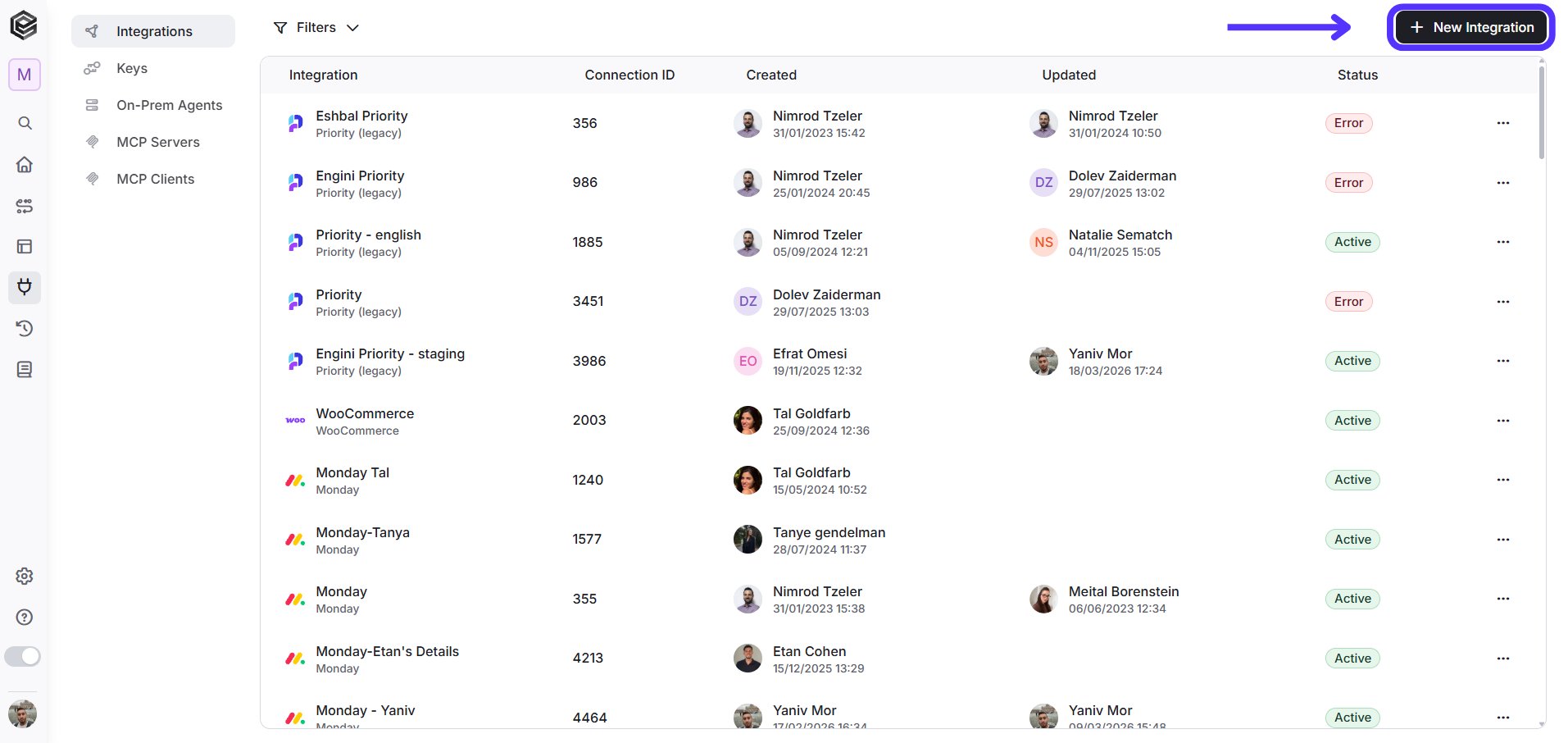
Click on the “New Integration” option located at the top bar.
-
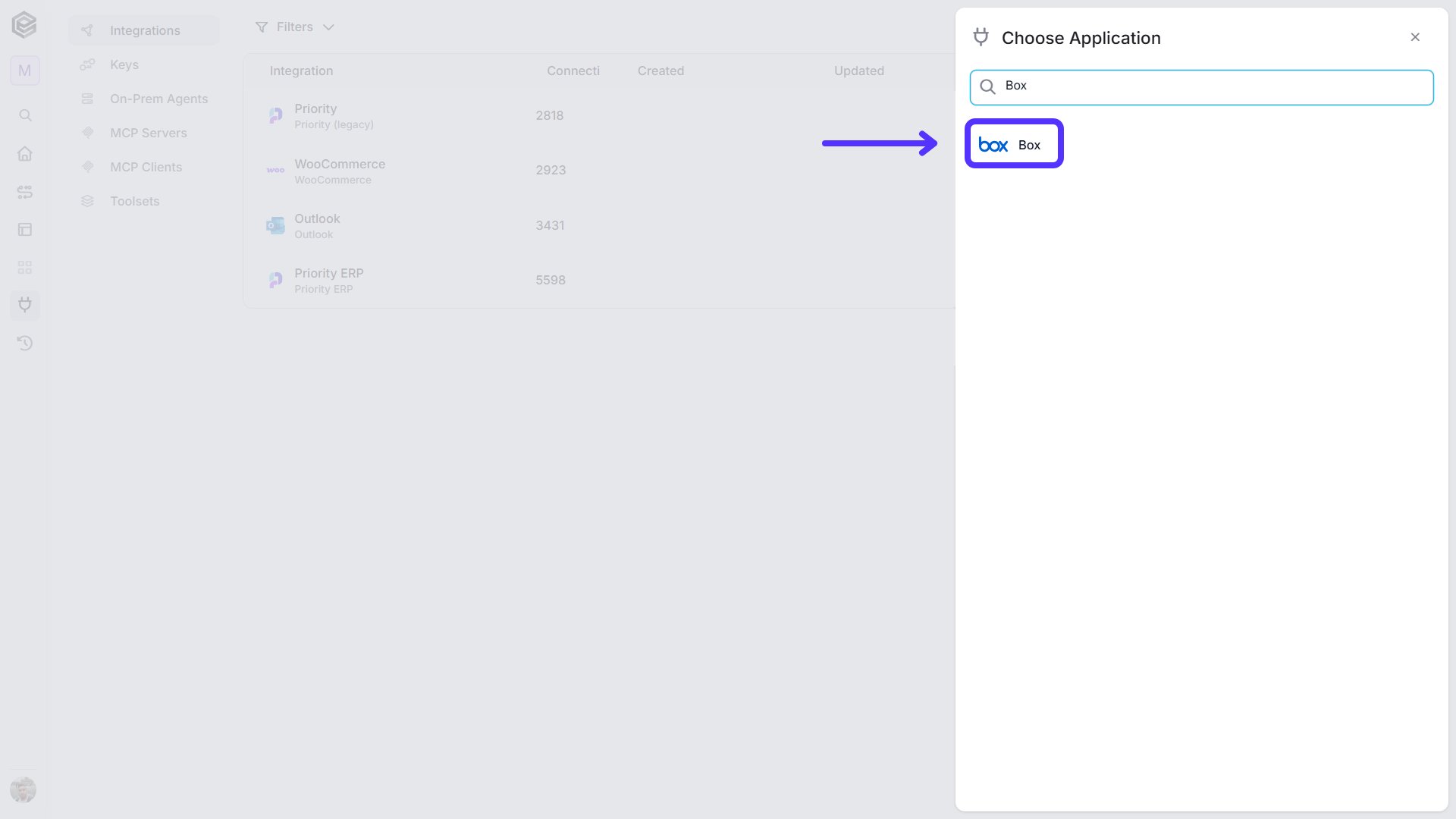
Choose the Box option from the available applications.
- Enter the following details in the “New Integration” form and press Save. There are two authentication methods, and the form differs depending on the one you choose. Follow the instructions for your method.
OAuth2
This method uses Engini’s own Box app, so you don’t need to create a Box app or enter a Client Id or Client Secret. You sign in with your Box account.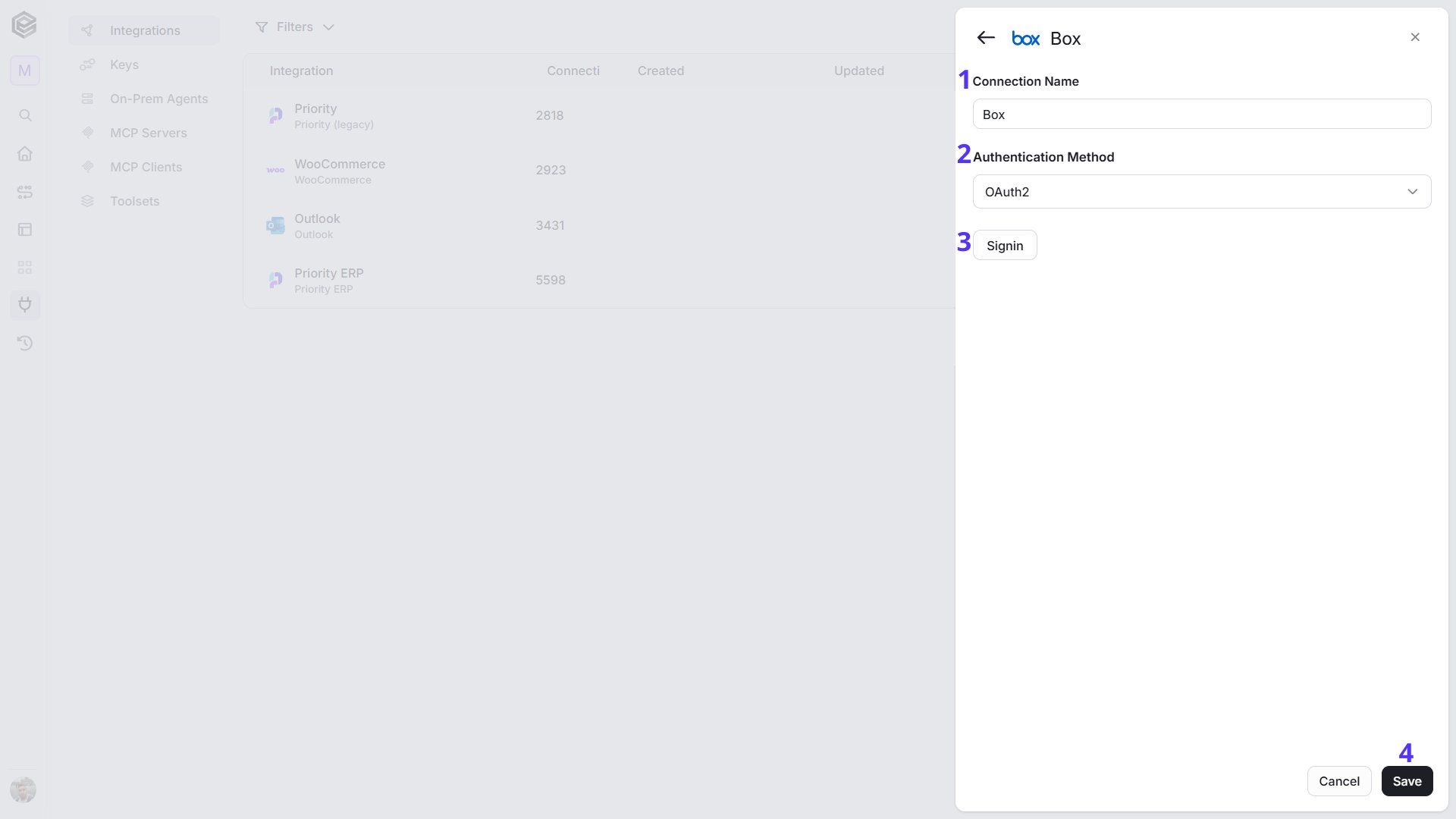
Custom OAuth2
This method connects through the Box app you created above, so you must enter its Client Id and Client Secret.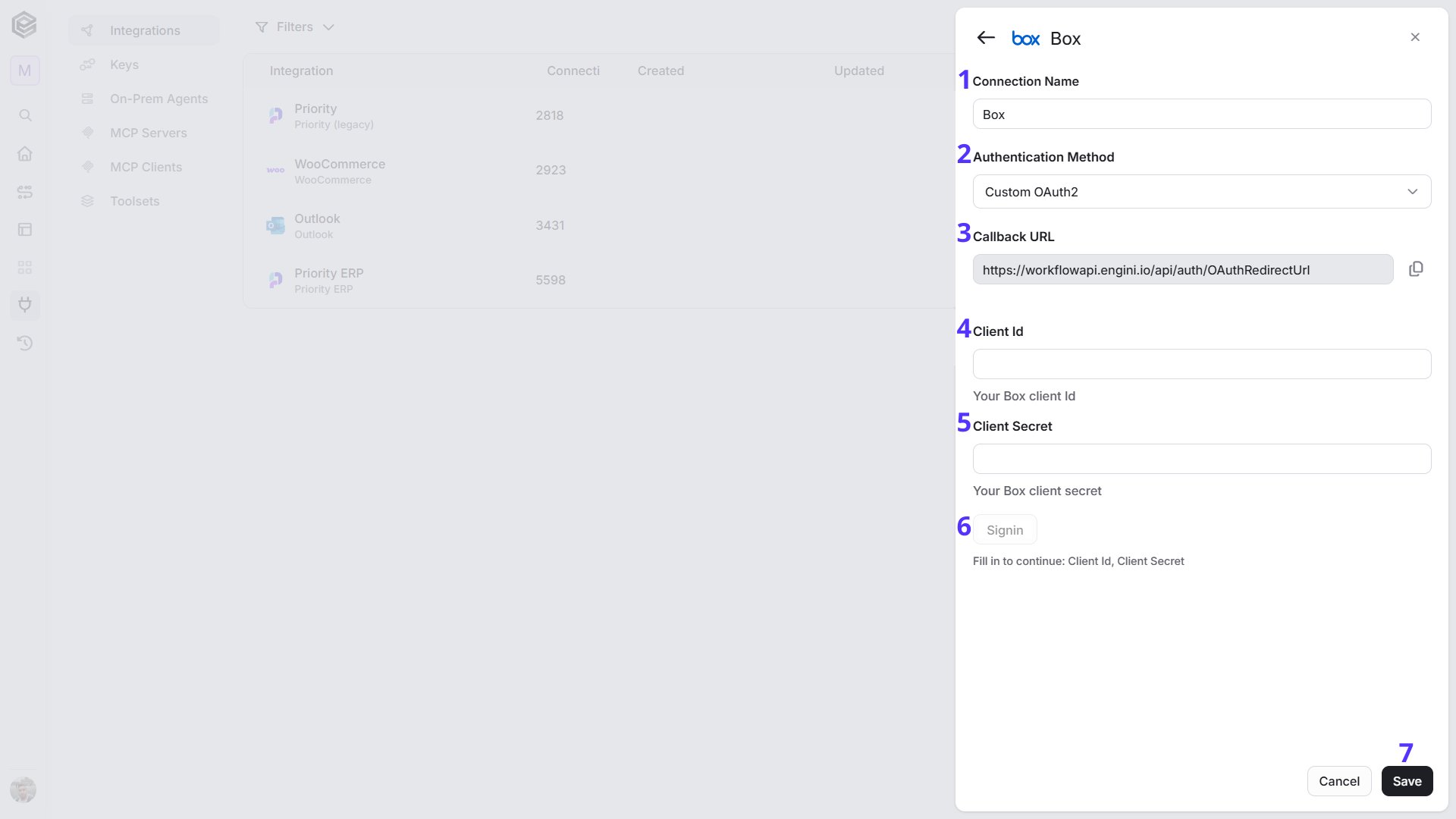
https://workflowapi.engini.io/api/auth/OAuthRedirectUrl). Click the copy button next to it and make sure this address is listed under OAuth 2.0 Redirect URIs in your Box app. Do this before you sign in.
4. Client Id - Enter the Client ID of your Box app. You can find it in the Box Developer Console, in your app’s Configuration tab.
5. Client Secret - Enter the Client Secret of the same Box app, from the same tab.
6. Signin - This button stays greyed out (“Fill in to continue: Client Id, Client Secret”) until you fill in the Client Id and Client Secret. Then click it, sign in to Box and approve the access request. You return to Engini when it is done.
7. Save - Click Save to create the connection.
Triggers
Check for New Files
Starts the workflow for every new item added to a Box folder. Engini checks the folder on the schedule you set. The first check only records what is already in the folder and starts nothing. After that, each check starts the workflow once for every new item.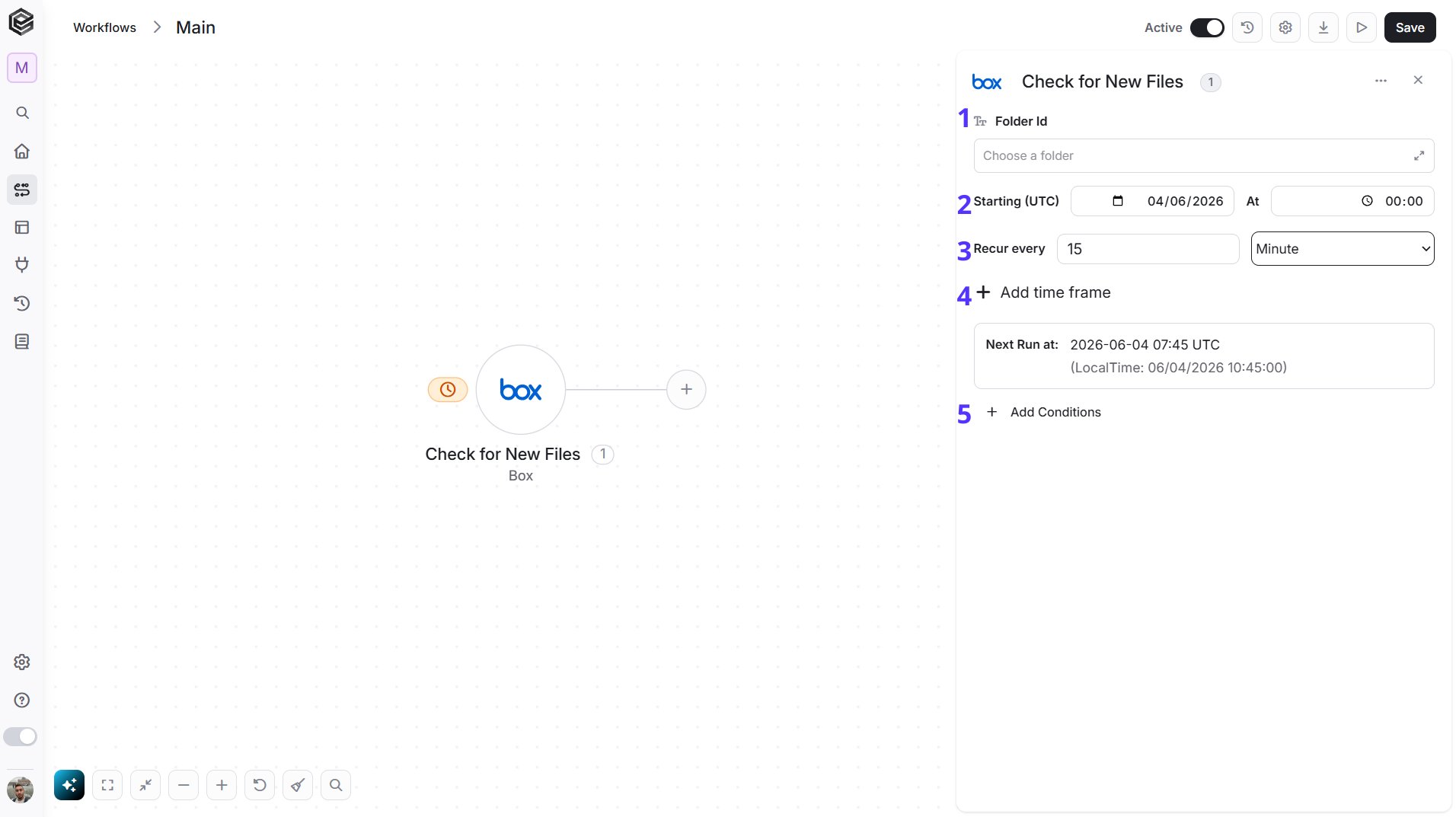
- Folder Id - Select the folder to watch from the list, or map a Folder Id from an earlier step. Choose All Files to watch the root folder. The trigger watches this one folder only.
- Starting (UTC) - Select the date and time of the first check.
- Recur every - Choose how often Engini checks the folder for new files. The minimum interval is 15 minutes.
- Add time frame - Click Add time frame to limit the checks to certain hours of the day.
- Add Conditions - Click Add Conditions to define conditions that narrow down which new items start the workflow, for example only files with a certain extension. To learn more about using filters, click here.
File Event Occurred
Starts the workflow when something happens to a file you choose, such as it being uploaded, renamed or downloaded. Box notifies Engini as it happens, so you don’t set a schedule and the workflow usually starts within seconds. Engini registers the webhook in Box when you turn the workflow on and removes it when you turn the workflow off.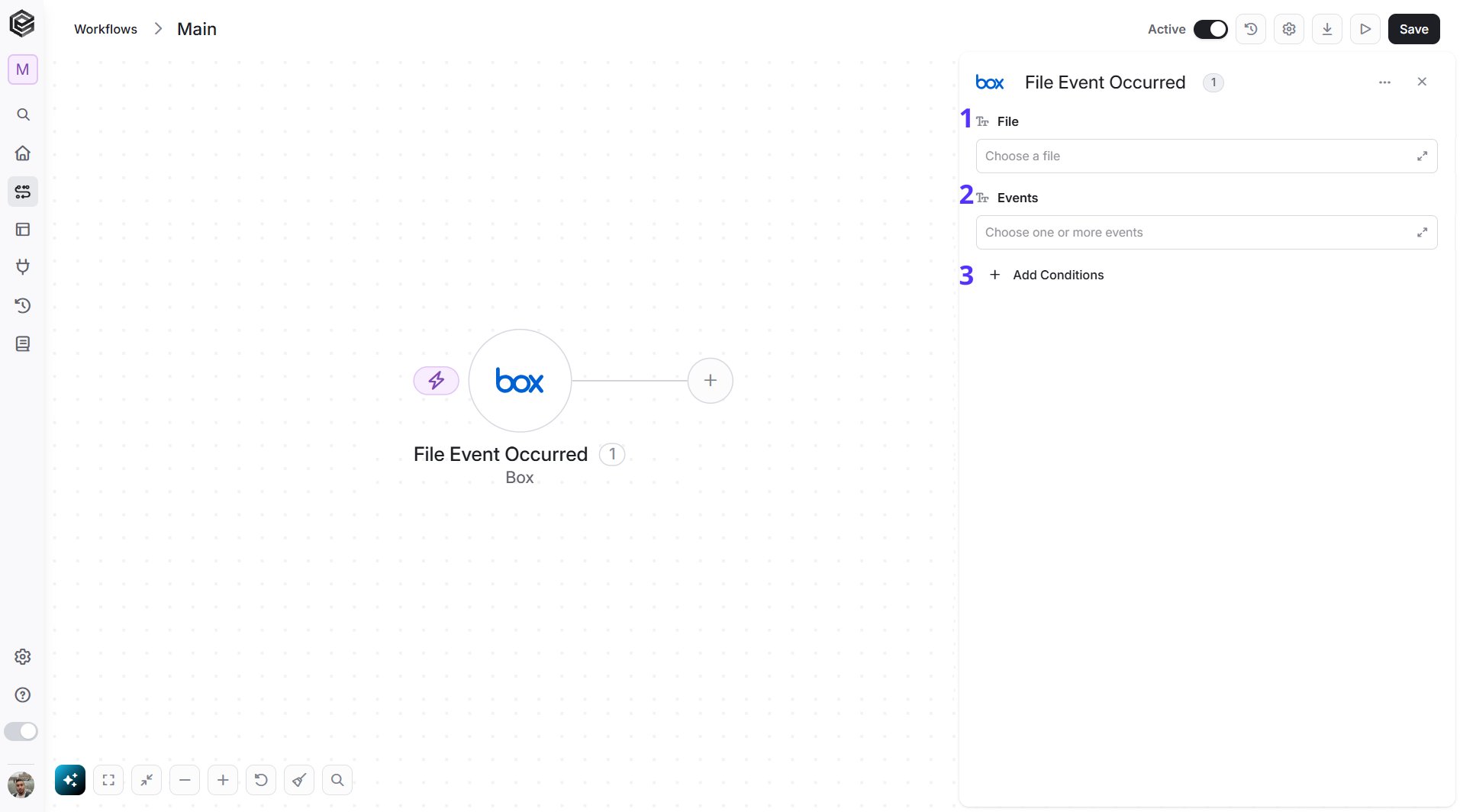
- File - Select the file to watch from the list, or map a File Id from an earlier step.
- Events - Choose one or more events that start the workflow: File uploaded, File previewed, File downloaded, File trashed, File deleted, File restored, File copied, File moved, File locked, File unlocked or File renamed.
- Add Conditions - Click Add Conditions to define conditions that narrow down which events start the workflow. To learn more about using filters, click here.
Folder Event Occurred
Starts the workflow when something happens to a folder you choose, such as it being created, renamed or moved. Box notifies Engini as it happens, so you don’t set a schedule and the workflow usually starts within seconds. Engini registers the webhook in Box when you turn the workflow on and removes it when you turn the workflow off.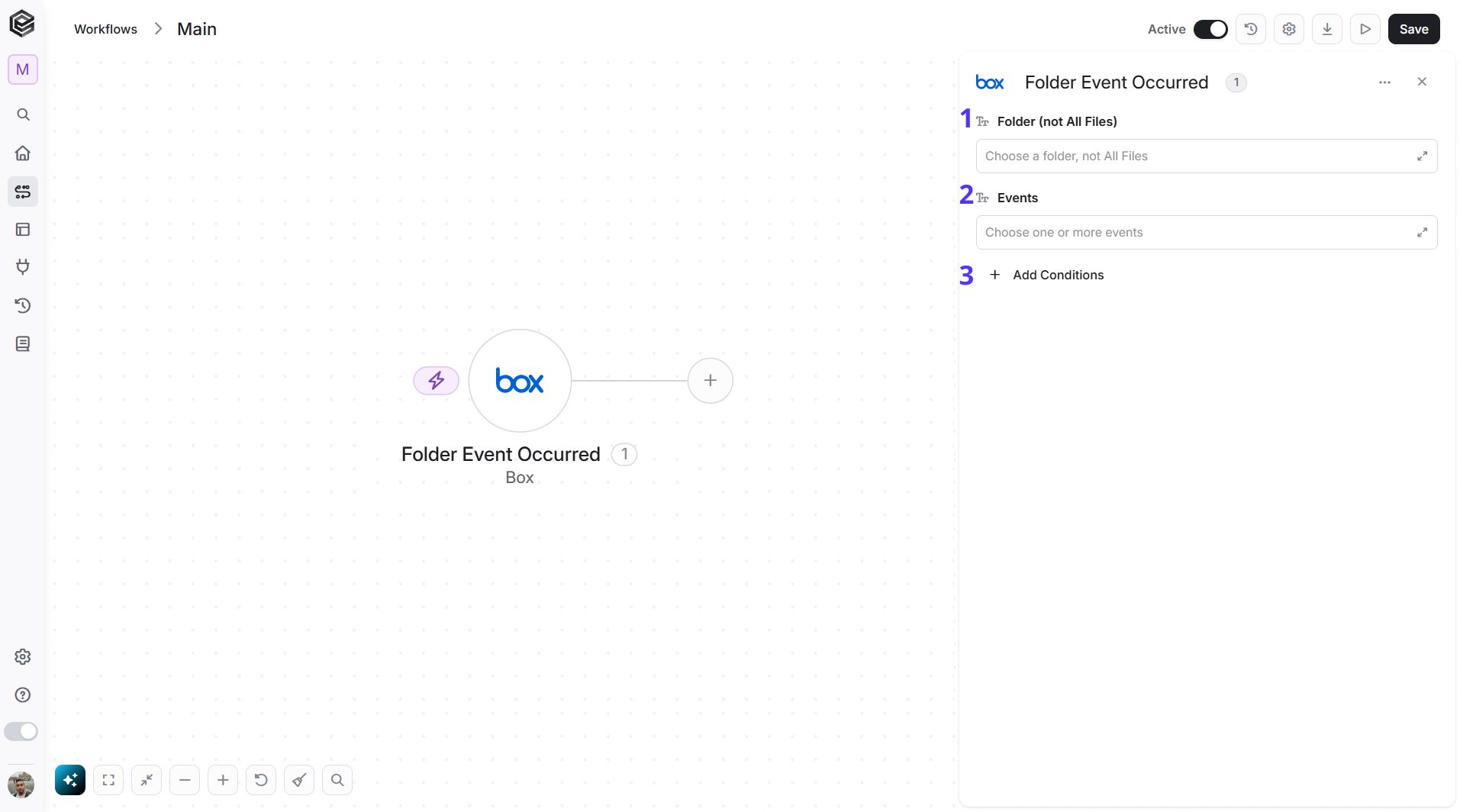
- Folder (not All Files) - Select the folder to watch from the list, or map a Folder Id from an earlier step. You can’t watch All Files (the root folder), so choose a specific folder. The webhook also covers the sub-folders of the folder you choose.
- Events - Choose one or more events that start the workflow: Folder created, Folder renamed, Folder downloaded, Folder restored, Folder deleted, Folder copied, Folder moved or Folder trashed.
- Add Conditions - Click Add Conditions to define conditions that narrow down which events start the workflow. To learn more about using filters, click here.
Actions
Box identifies every file and folder by an Id. Wherever an action asks for a File Id or a Folder Id, you can pick the item from a list or map its Id from an earlier step. The folder list shows your folders up to three levels deep, with their path (for example Reports / 2026), and the root folder is listed as All Files. The file list shows the files in folders up to two levels deep. For an item deeper than that, map its Id from an earlier step, for example from Get Folder Items. You can also find the Id in the item’s Box web address, for exampleapp.box.com/file/123456789.
Add Shared Link to File
Creates or updates the shared link of a file, so people can open it without being added to it in Box.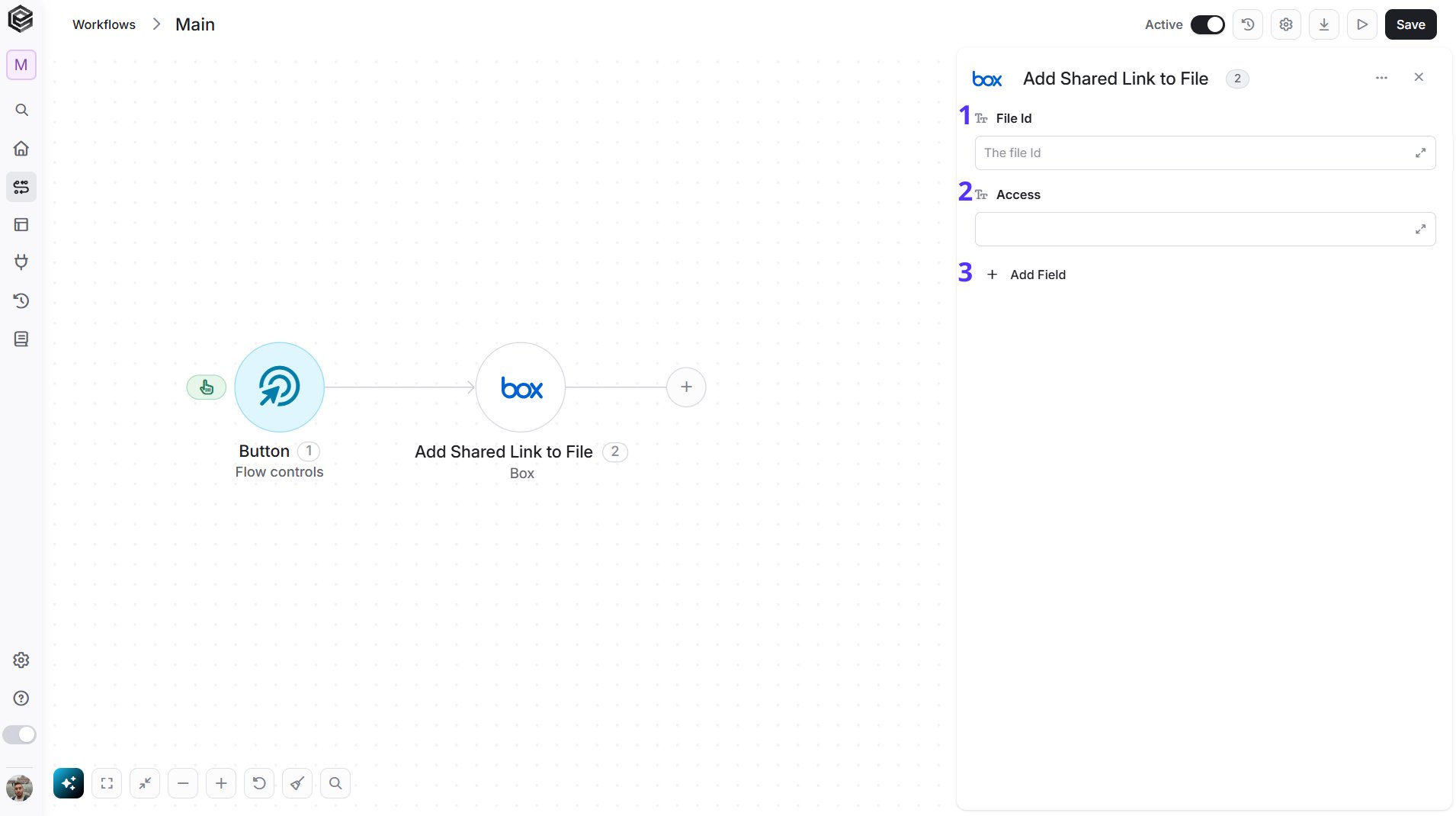
- File Id - Select the file from the list, or map a File Id from an earlier step.
- Access - Choose who can open the link: Open (anyone with the link), Company or Collaborators.
- Add Field - Click Add Field to add and populate additional fields for the selected activity. To learn more about managing activity data, click here.
- Password - A password people must enter to open the link.
- Vanity Name - A custom name for the link, for example
my-team-link. - Expires At - The date and time when the link stops working, for example
2026-12-31T23:59:59Z. - Can Download - Choose whether people with the link can download the file.
Add Shared Link to Folder
Creates or updates the shared link of a folder, so people can open it without being added to it in Box.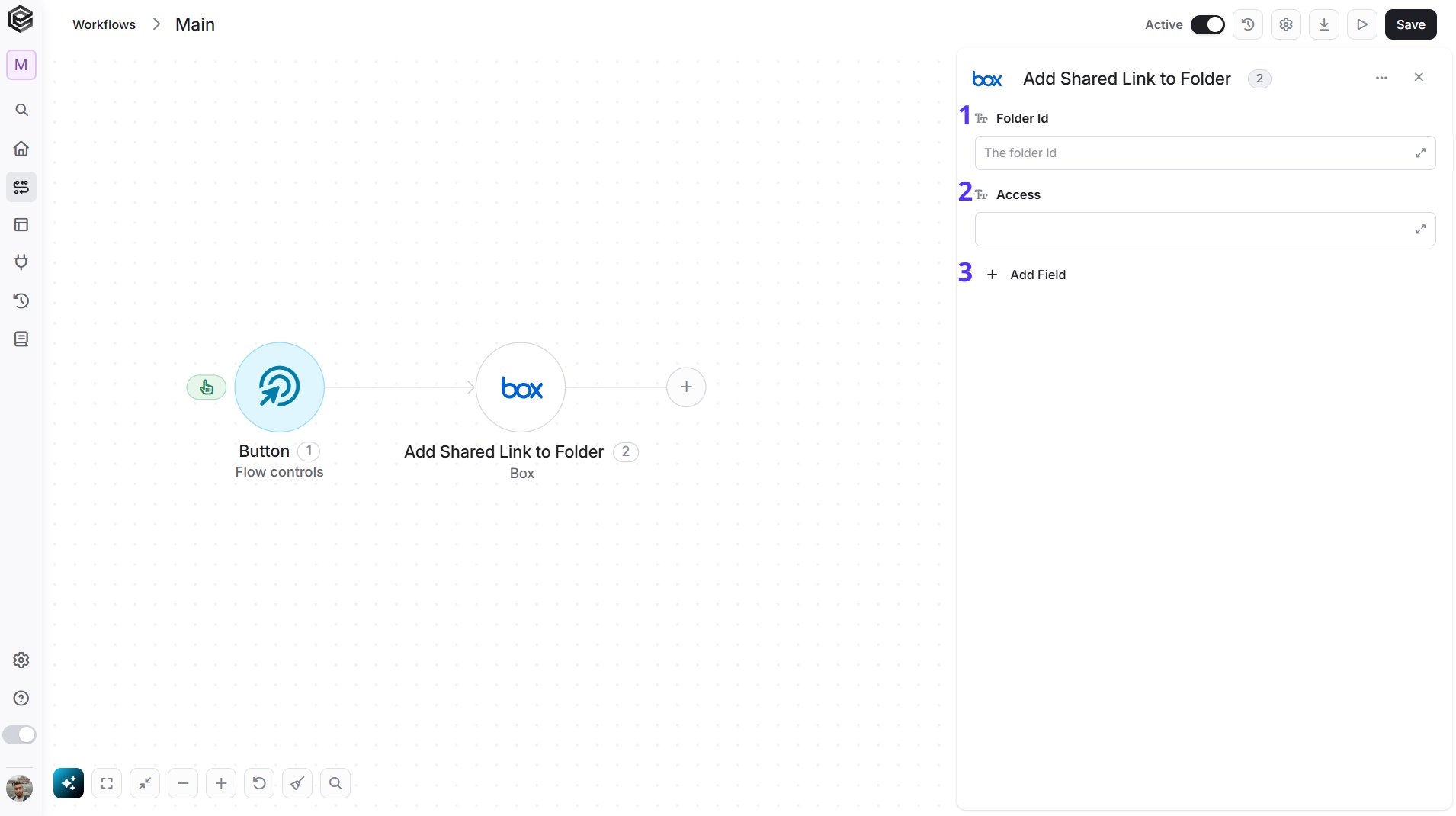
- Folder Id - Select the folder from the list, or map a Folder Id from an earlier step.
- Access - Choose who can open the link: Open (anyone with the link), Company or Collaborators.
- Add Field - Click Add Field to add and populate additional fields for the selected activity. To learn more about managing activity data, click here.
- Password - A password people must enter to open the link.
- Vanity Name - A custom name for the link, for example
my-team-link. - Expires At - The date and time when the link stops working, for example
2026-12-31T23:59:59Z. - Can Download - Choose whether people with the link can download the files in the folder.
Cancel Sign Request
Cancels a Box Sign request that is still in progress.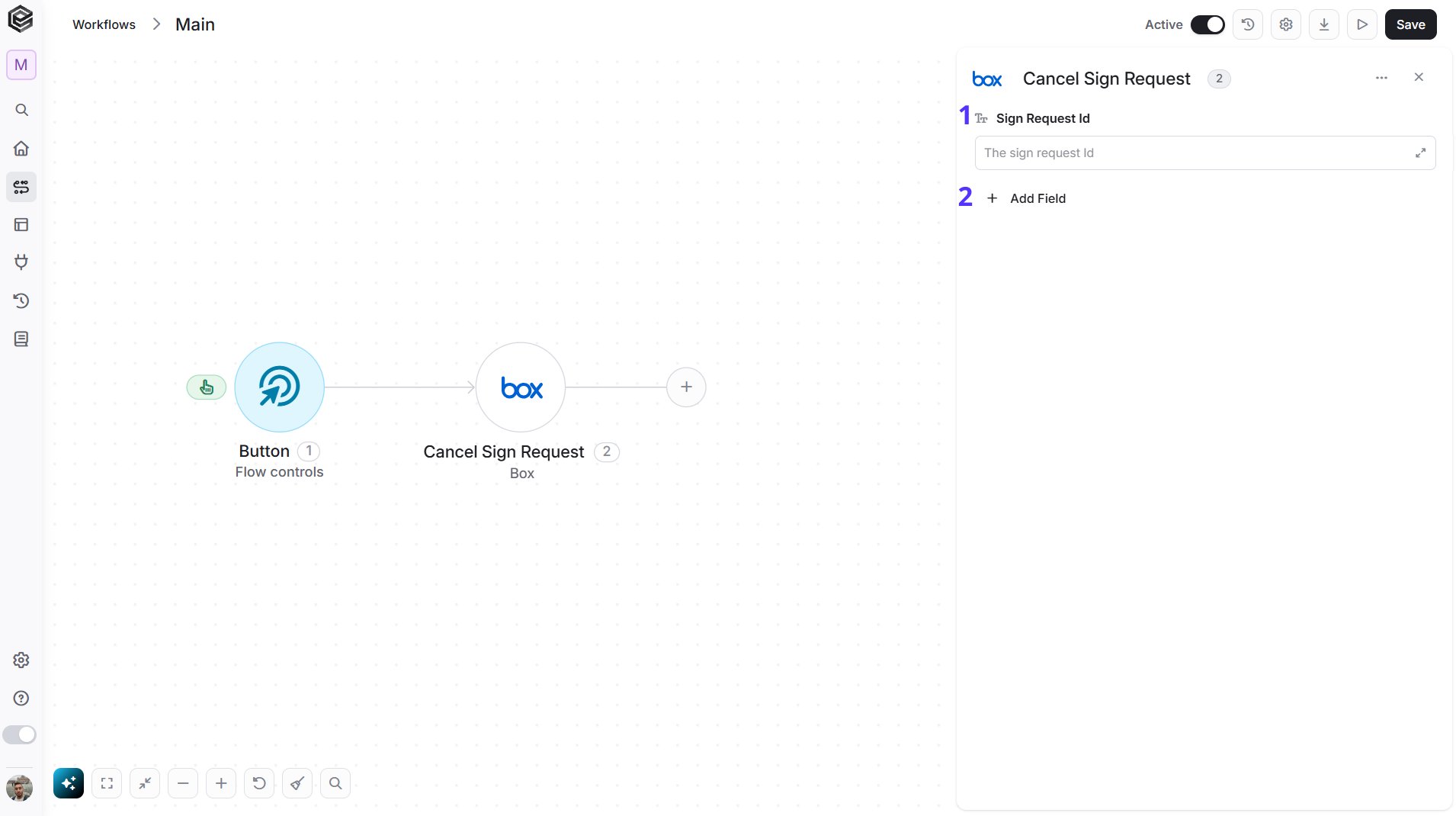
- Sign Request Id - Select the sign request from the list, or map a Sign Request Id from an earlier step, for example from Create Sign Request.
- Add Field - Click Add Field to add and populate additional fields for the selected activity. To learn more about managing activity data, click here.
- Reason - Why the request is cancelled, for example
Sent by mistake.
Copy Folder
Copies a folder and its contents into another folder.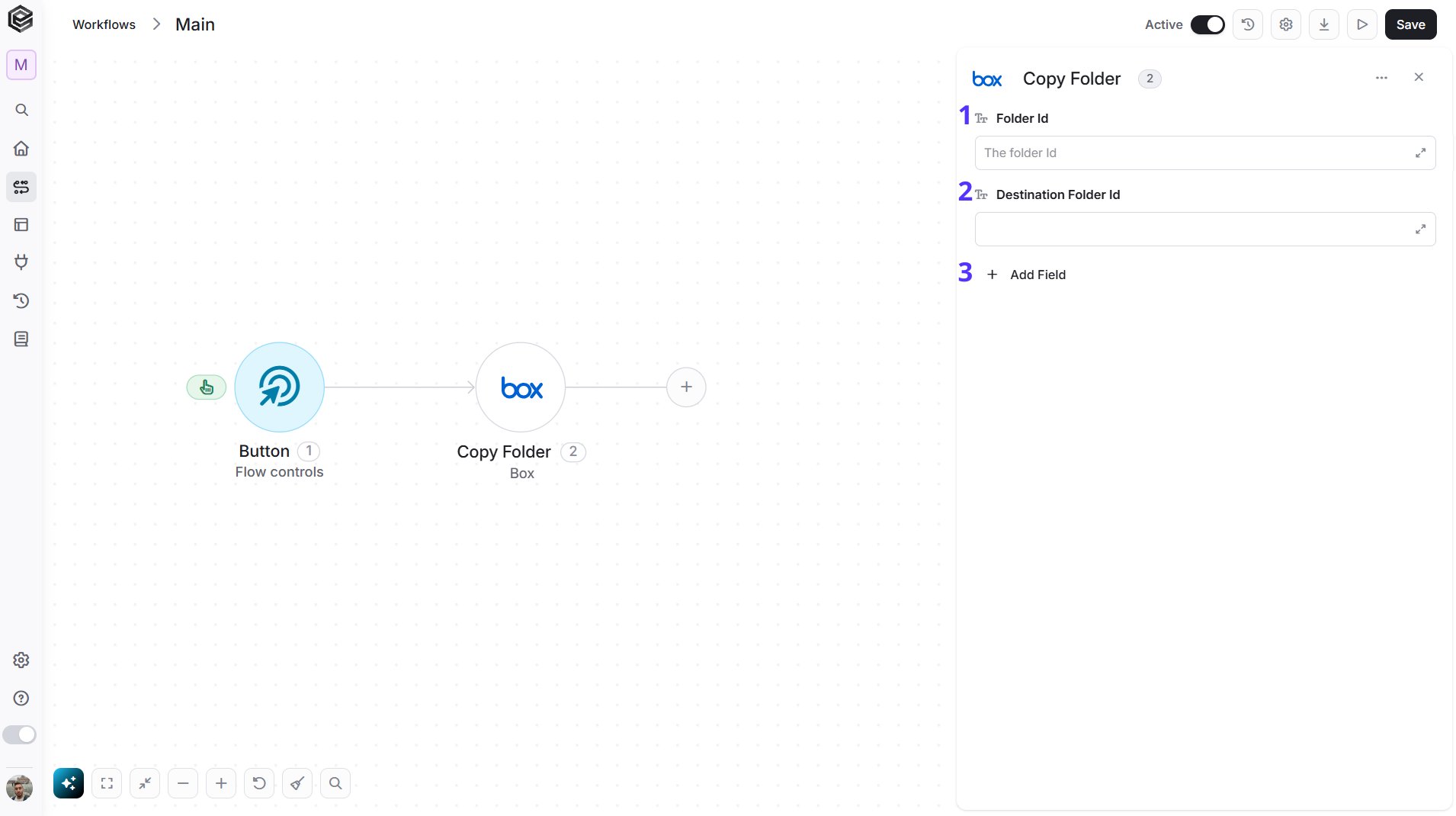
- Folder Id - Select the folder to copy from the list, or map a Folder Id from an earlier step.
- Destination Folder Id - Select the folder to copy into from the list, or map its Folder Id from an earlier step.
- Add Field - Click Add Field to add and populate additional fields for the selected activity. To learn more about managing activity data, click here.
- New Name - A name for the copy, for example
Copy of Reports.
Create Comment
Adds a comment to a file.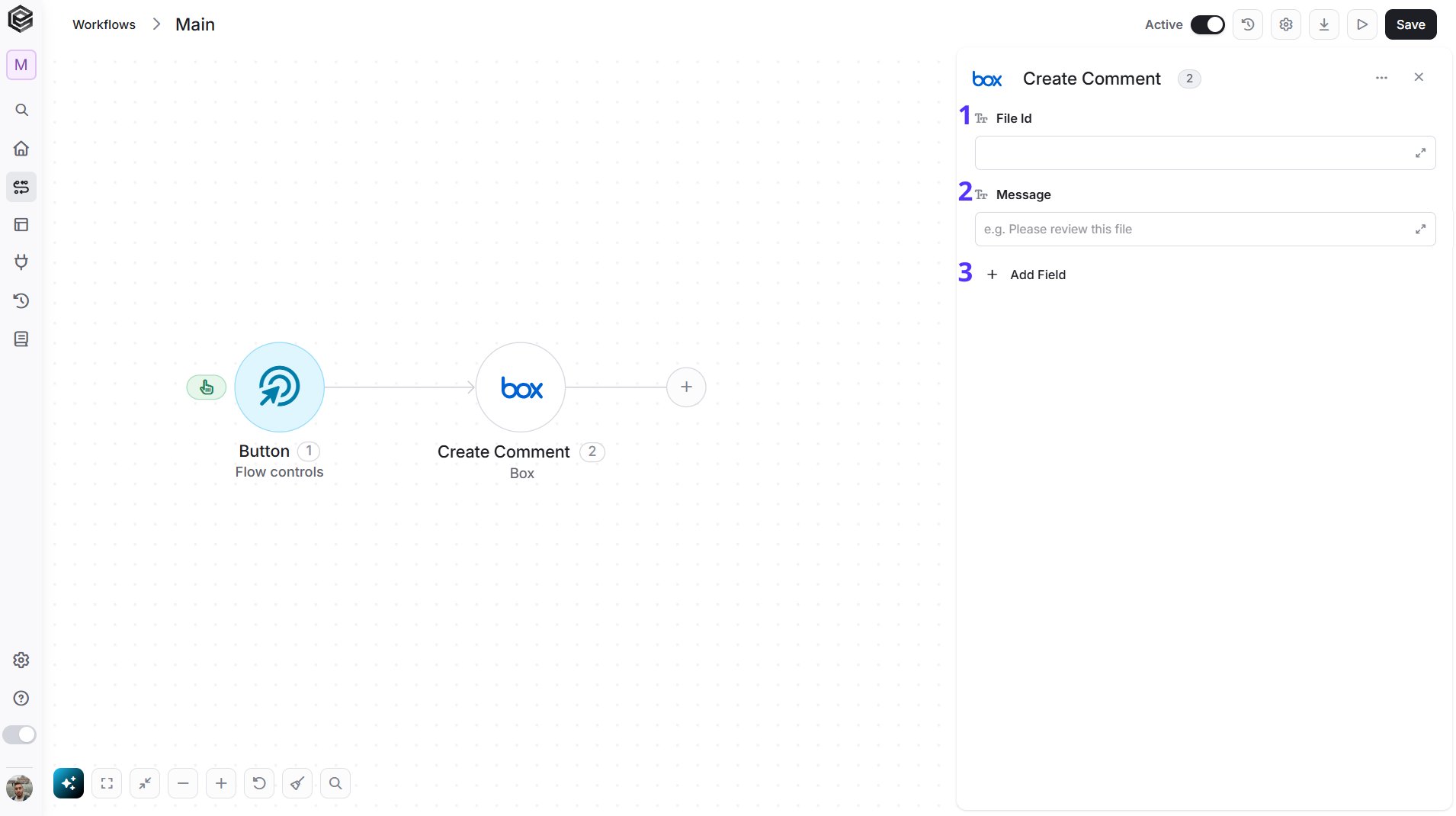
- File Id - Select the file to comment on from the list, or map a File Id from an earlier step.
- Message - The text of the comment, for example
Please review this file. - Add Field - Click Add Field to add and populate additional fields for the selected activity. To learn more about managing activity data, click here.
- Item Type - The kind of item the comment is attached to. The default is
file. - Tagged Message - The text of the comment when it mentions Box users, written in the format Box uses for mentions.
Create File Metadata Instance
Attaches a metadata template, with its values, to a file.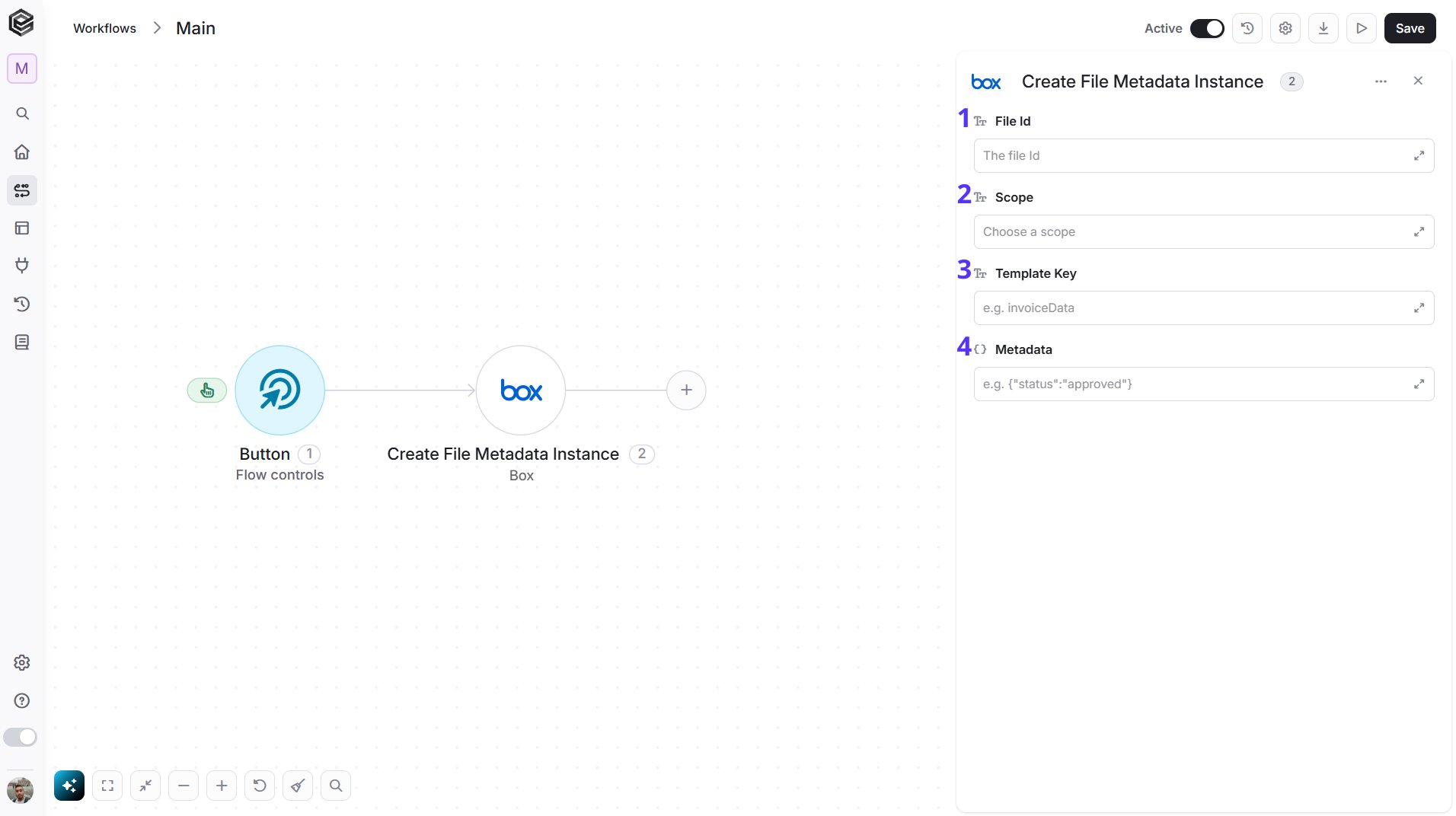
- File Id - Select the file from the list, or map a File Id from an earlier step.
- Scope - Choose where the template lives: Enterprise for templates created in your own Box account, or Global for the templates Box provides to everyone, such as
properties. - Template Key - The key of the metadata template, for example
invoiceData. - Metadata - The values to store, written as a JSON object that matches the fields of the template, for example
{"status":"approved"}.
Create Folder
Creates a new folder inside a parent folder.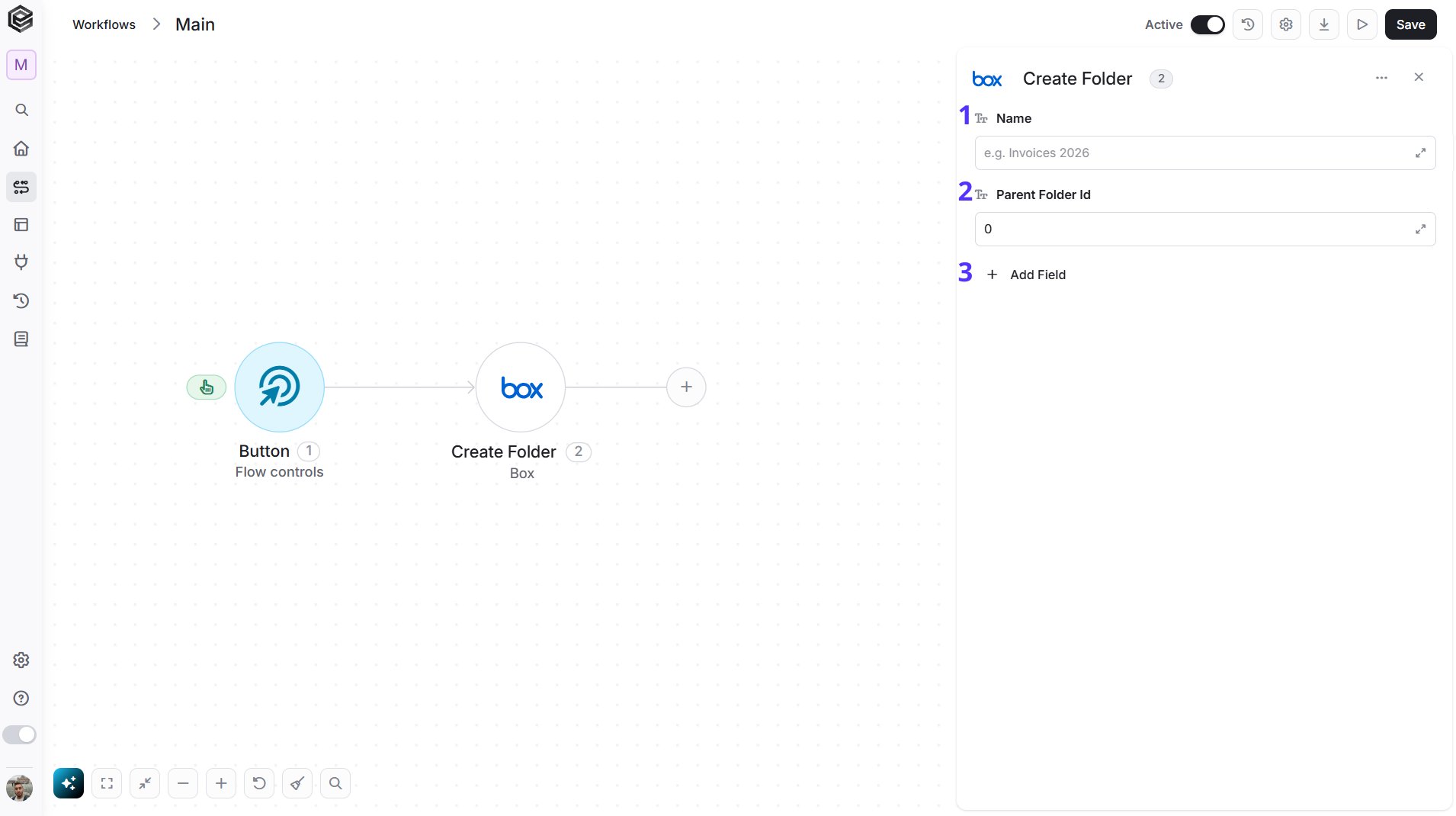
- Name - The name of the new folder, for example
Invoices 2026. - Parent Folder Id - Select the folder to create it in from the list, or map a Folder Id from an earlier step. The field starts with
0, the root folder (All Files). - Add Field - Click Add Field to add and populate additional fields for the selected activity. To learn more about managing activity data, click here.
- Upload Email Access - Choose who can send files to the folder by email: Open or Collaborators.
- Sync State - Choose whether the folder is synced by the Box desktop apps: Synced, Not synced or Partially synced.
Create Folder Metadata Instance
Attaches a metadata template, with its values, to a folder.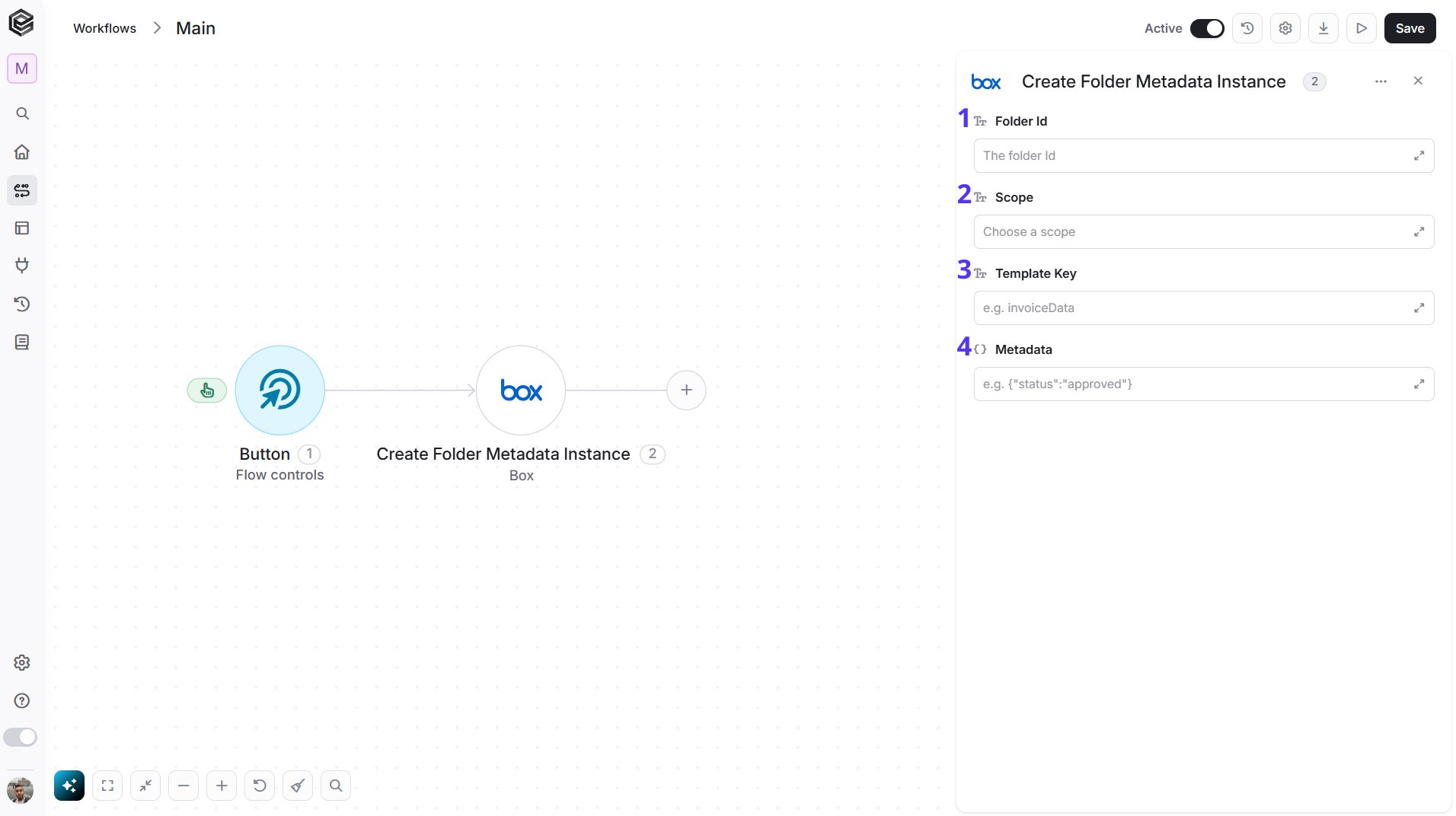
- Folder Id - Select the folder from the list, or map a Folder Id from an earlier step.
- Scope - Choose where the template lives: Enterprise for templates created in your own Box account, or Global for the templates Box provides to everyone, such as
properties. - Template Key - The key of the metadata template, for example
invoiceData. - Metadata - The values to store, written as a JSON object that matches the fields of the template, for example
{"status":"approved"}.
Create Sign Request
Sends a Box Sign request, so the people you choose can sign the files you select.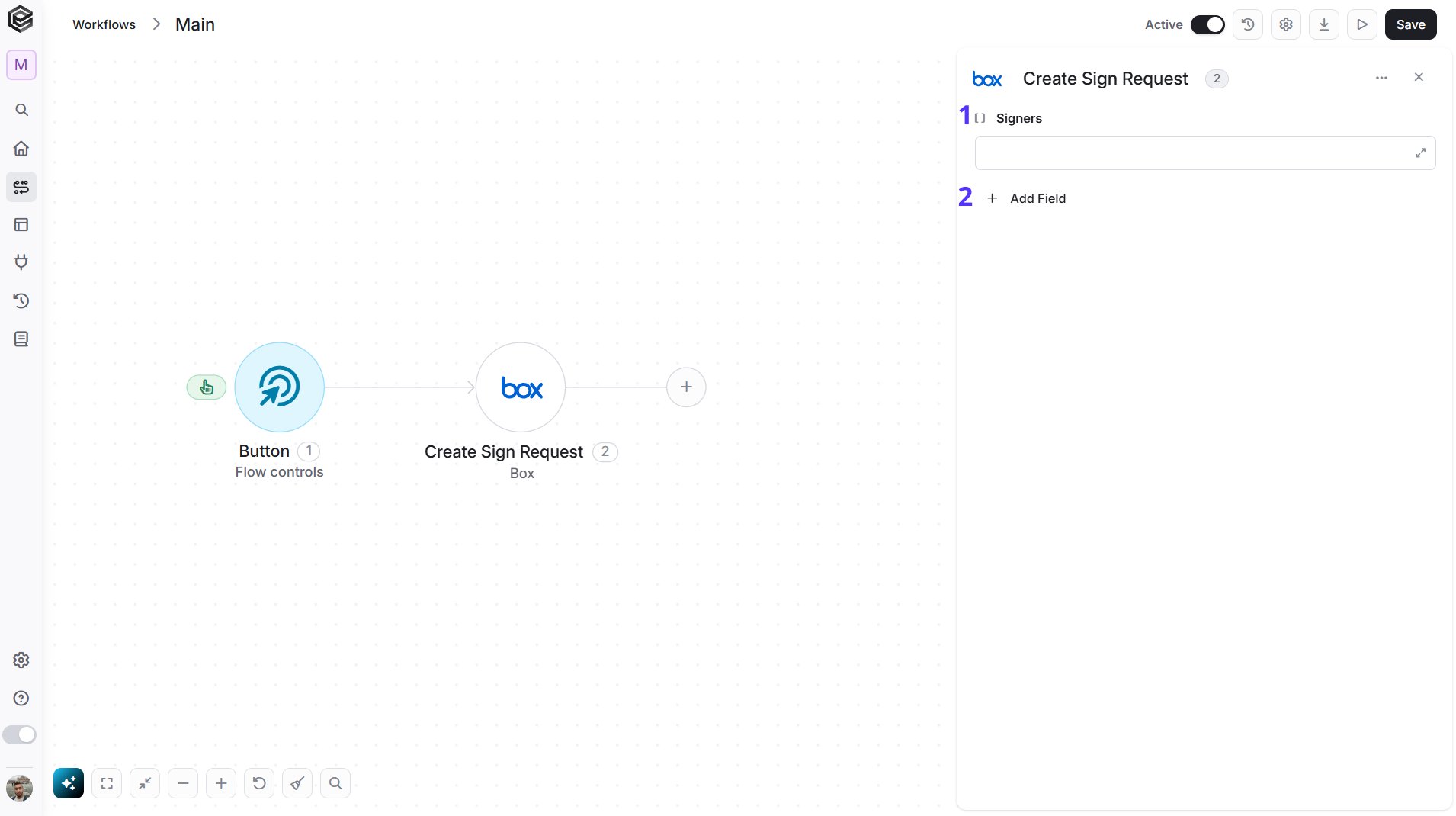
- Signers - The people who must sign. Build the list with Initialize Object Array and Append to Object Array, or with Map Object Array, and select that list here. Each signer needs an Email; a signer can also have an Order, a Role (Signer, Approver or Final copy reader), a Language, Sign In Person and Login Required.
- Add Field - Click Add Field to add and populate additional fields for the selected activity. To learn more about managing activity data, click here.
- Name - The name of the sign request, for example
NDA for Acme. - Source Files - The files to sign. Build the list the same way as Signers; each entry needs a File Id.
- Folder Id - Select the folder where the signed documents are saved from the list, or map a Folder Id from an earlier step.
- Email Subject - The subject of the email sent to the signers, for example
Please sign this document. - Email Message - The text of the email sent to the signers.
- Send Reminders - Choose whether Box reminds signers who have not signed yet.
- Allow Text Signatures - Choose whether signers can type their signature instead of drawing it.
- Prepare Document First - Choose whether the document must be prepared in Box before it is sent.
- Days Valid - The number of days the request stays open, for example
7. - External Id - An Id from your own system that you want to keep with the request.
- Redirect URL - The web address where signers go after they sign.
- Declined Redirect URL - The web address where signers go if they decline.
- Signature Color - The color of the signature: Blue, Black or Red.
- Template Id - The Id of the Box Sign template the request is based on.
- Parent Folder Type - The type of the folder in Folder Id. The default is
folder.
Delete File
Moves a file to the Box trash.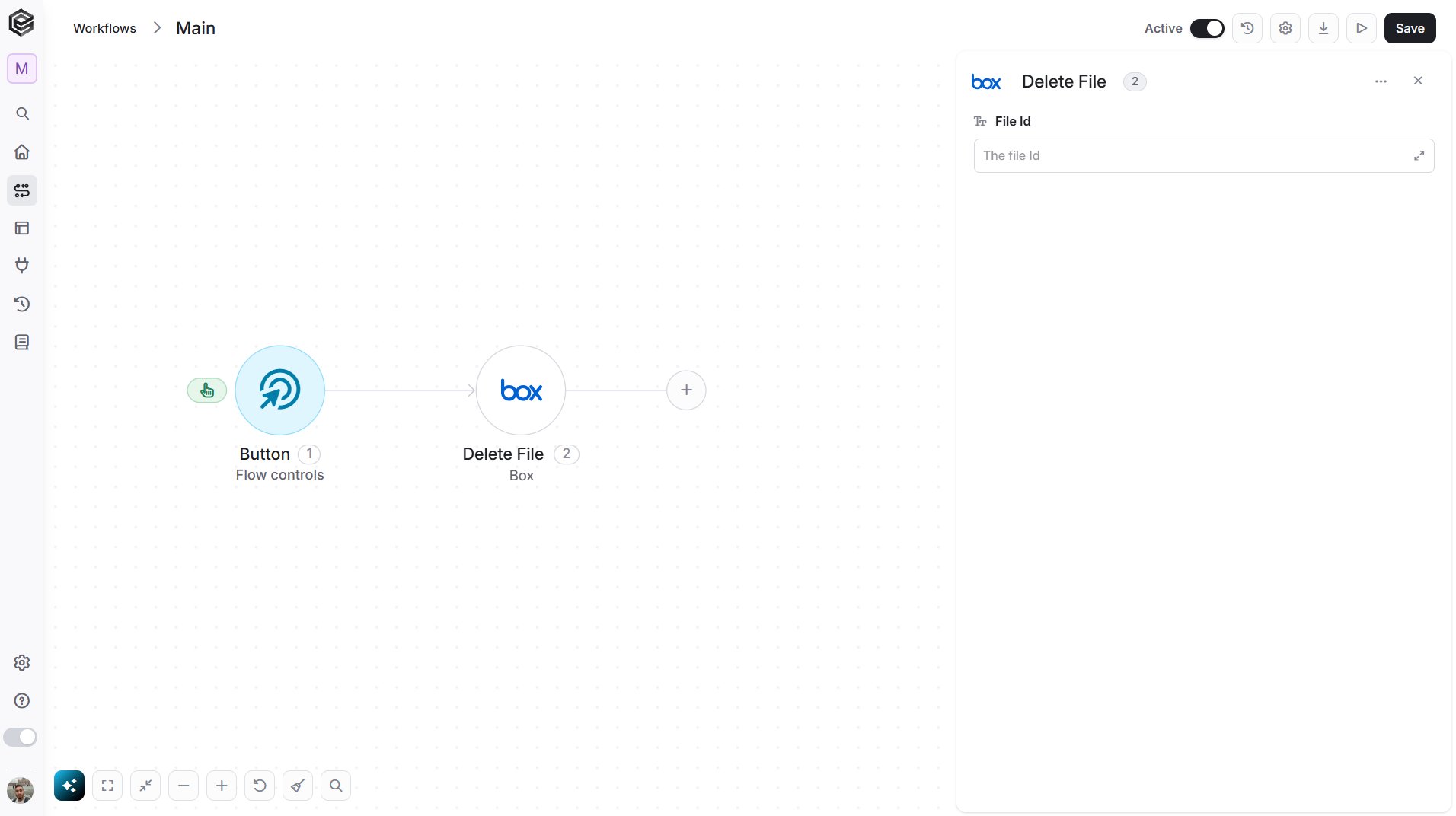
- File Id - Select the file to delete from the list, or map a File Id from an earlier step.
Delete Folder
Moves a folder to the Box trash.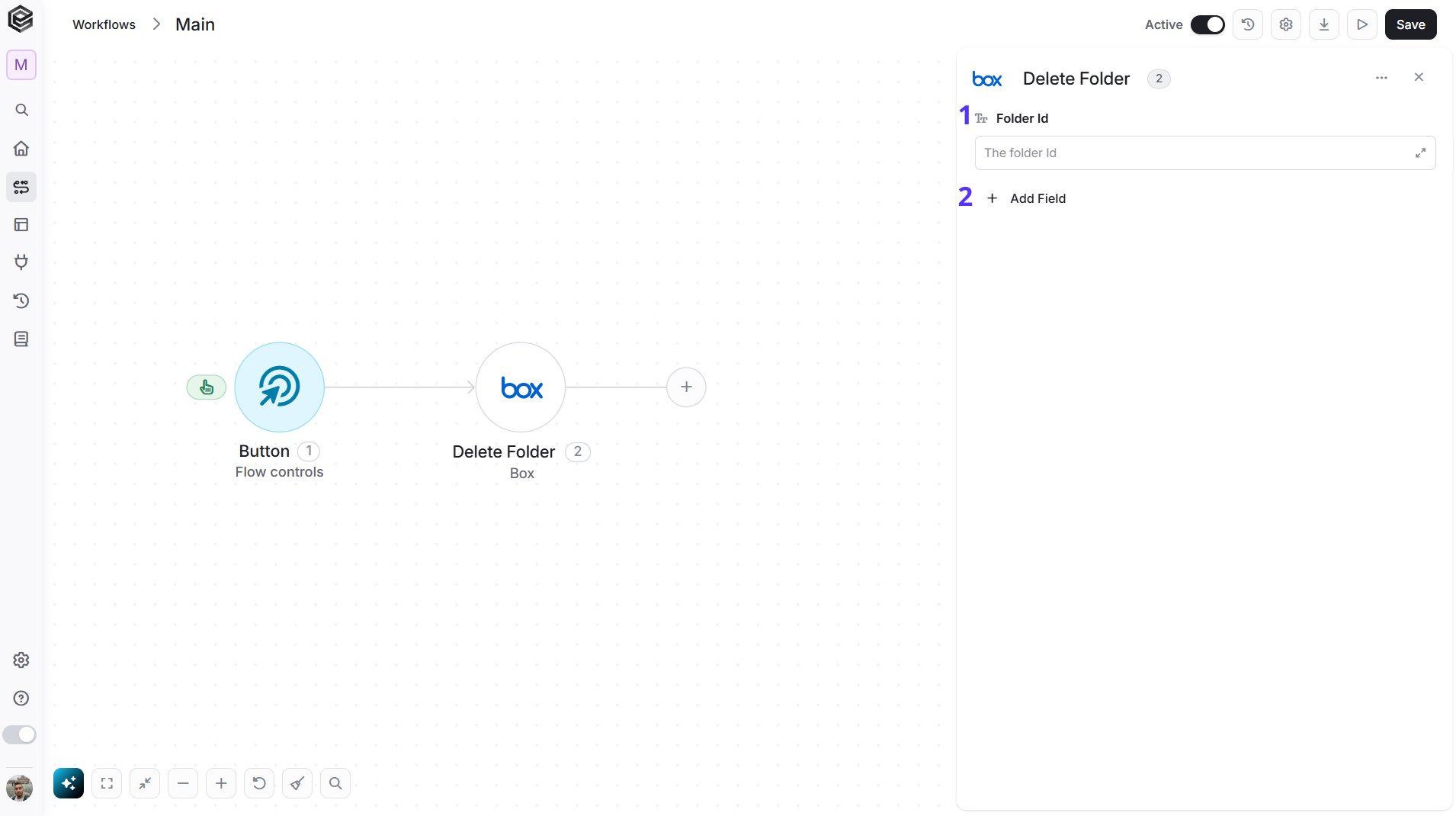
- Folder Id - Select the folder to delete from the list, or map a Folder Id from an earlier step.
- Add Field - Click Add Field to add and populate additional fields for the selected activity. To learn more about managing activity data, click here.
- Delete Contents - Choose Yes to delete a folder that is not empty, together with everything in it.
Download File
Downloads the content of a file. The file is returned as a base64 string, together with its file name and size, so later steps can use it.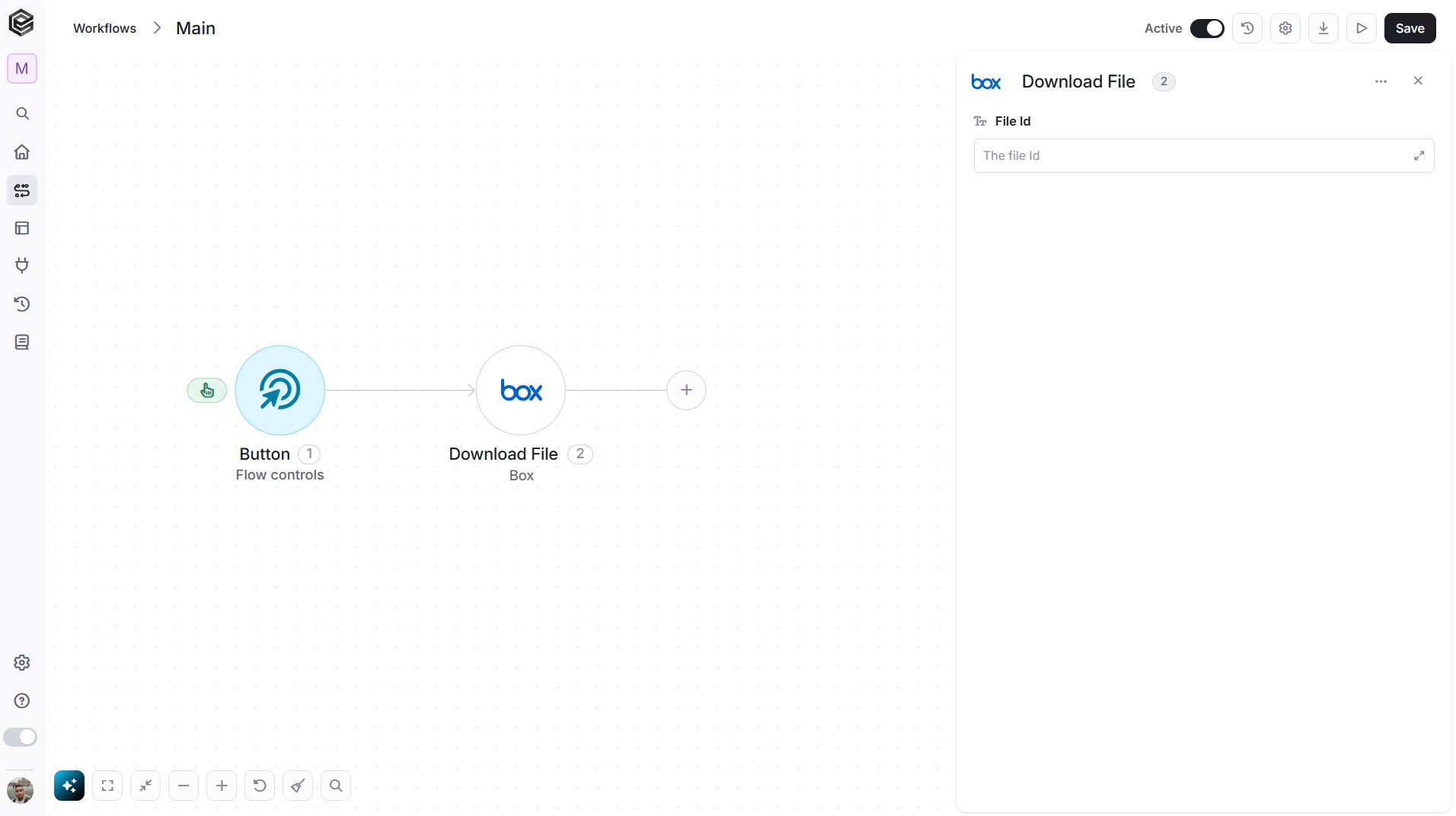
- File Id - Select the file to download from the list, or map a File Id from an earlier step.
Get File
Retrieves the details of a file, such as its name, size, owner and dates.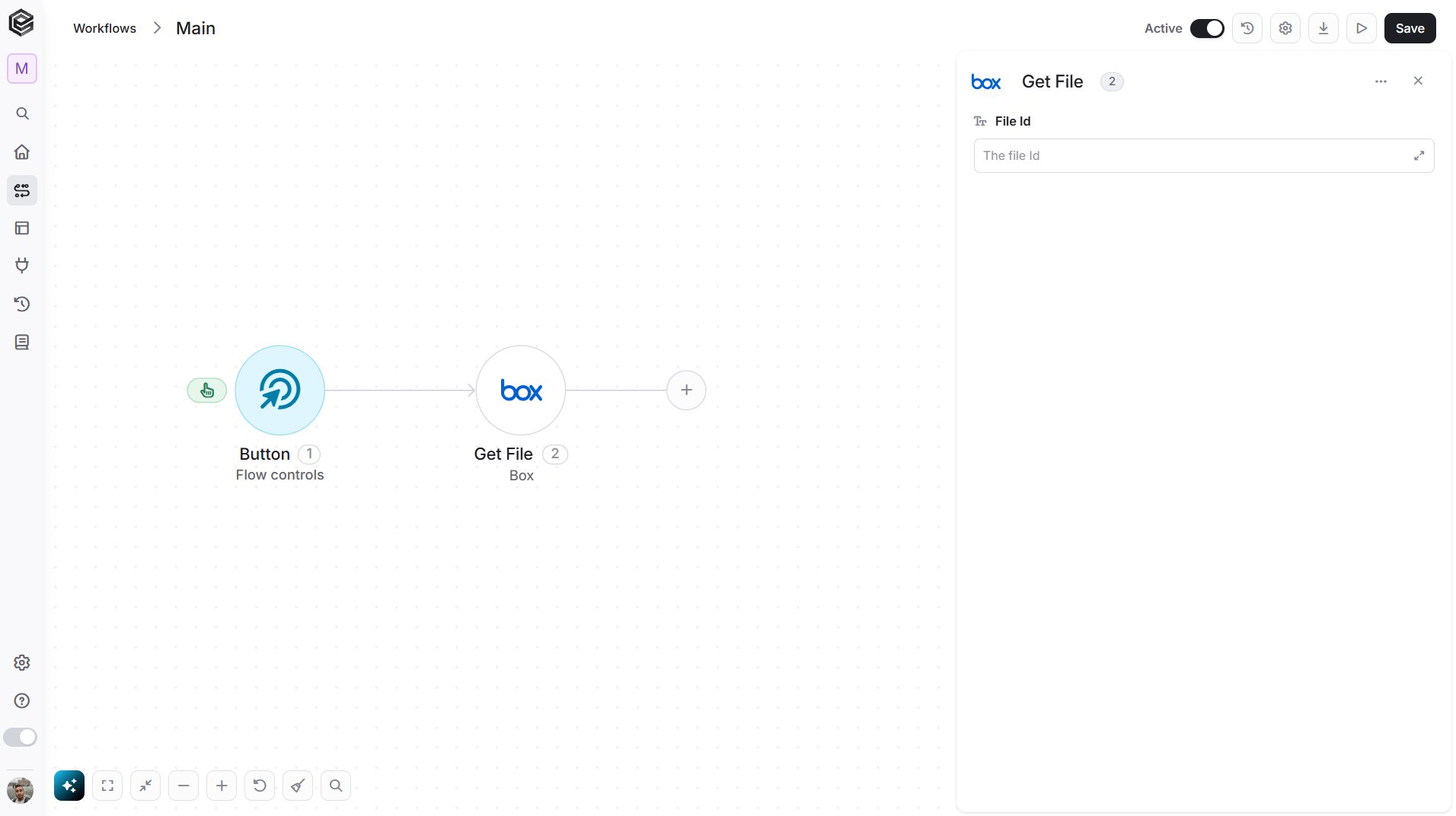
- File Id - Select the file from the list, or map a File Id from an earlier step.
Get File Metadata
Retrieves all the metadata instances attached to a file.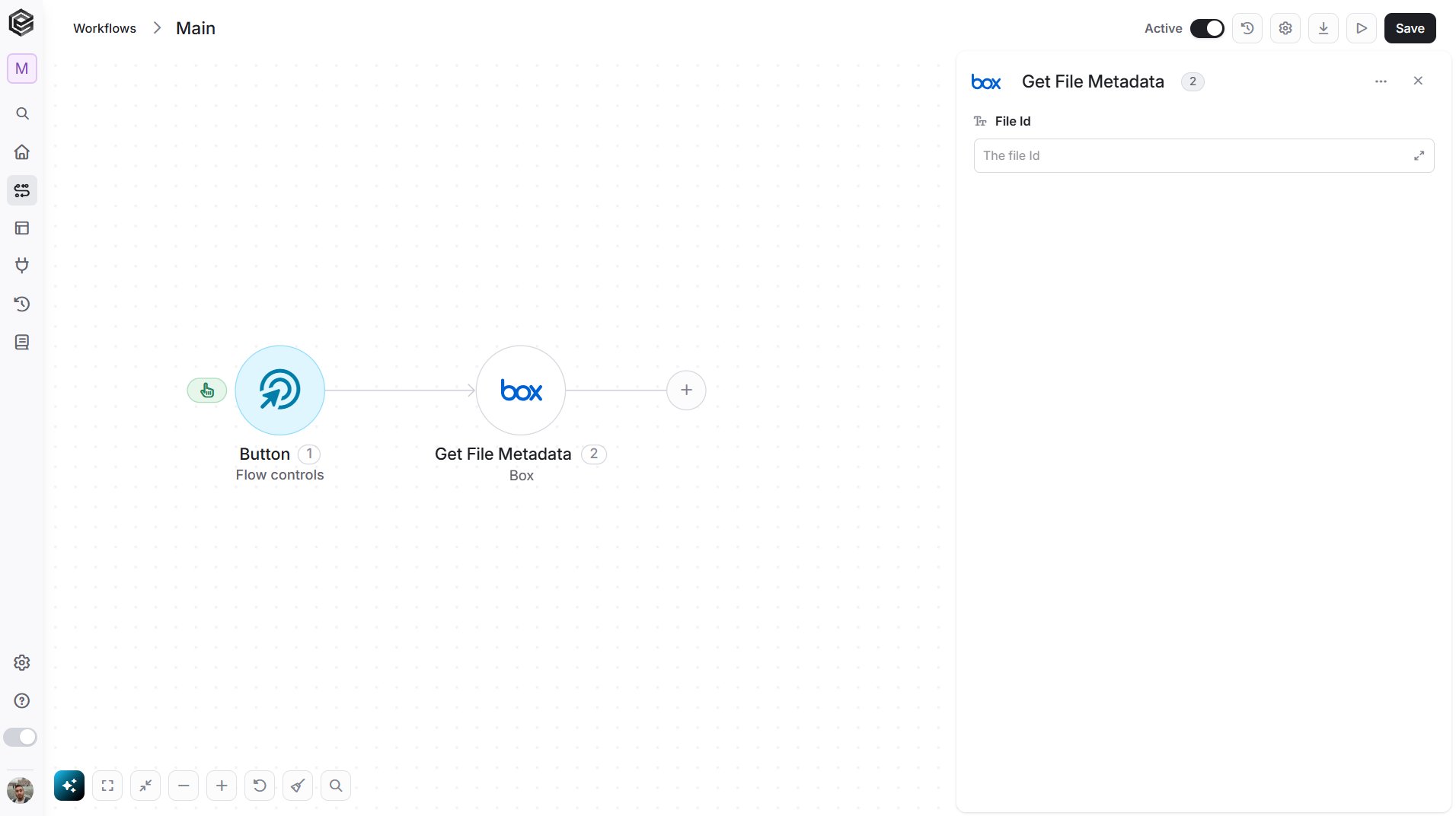
- File Id - Select the file from the list, or map a File Id from an earlier step.
Get Folder
Retrieves the details of a folder, such as its name, owner and dates.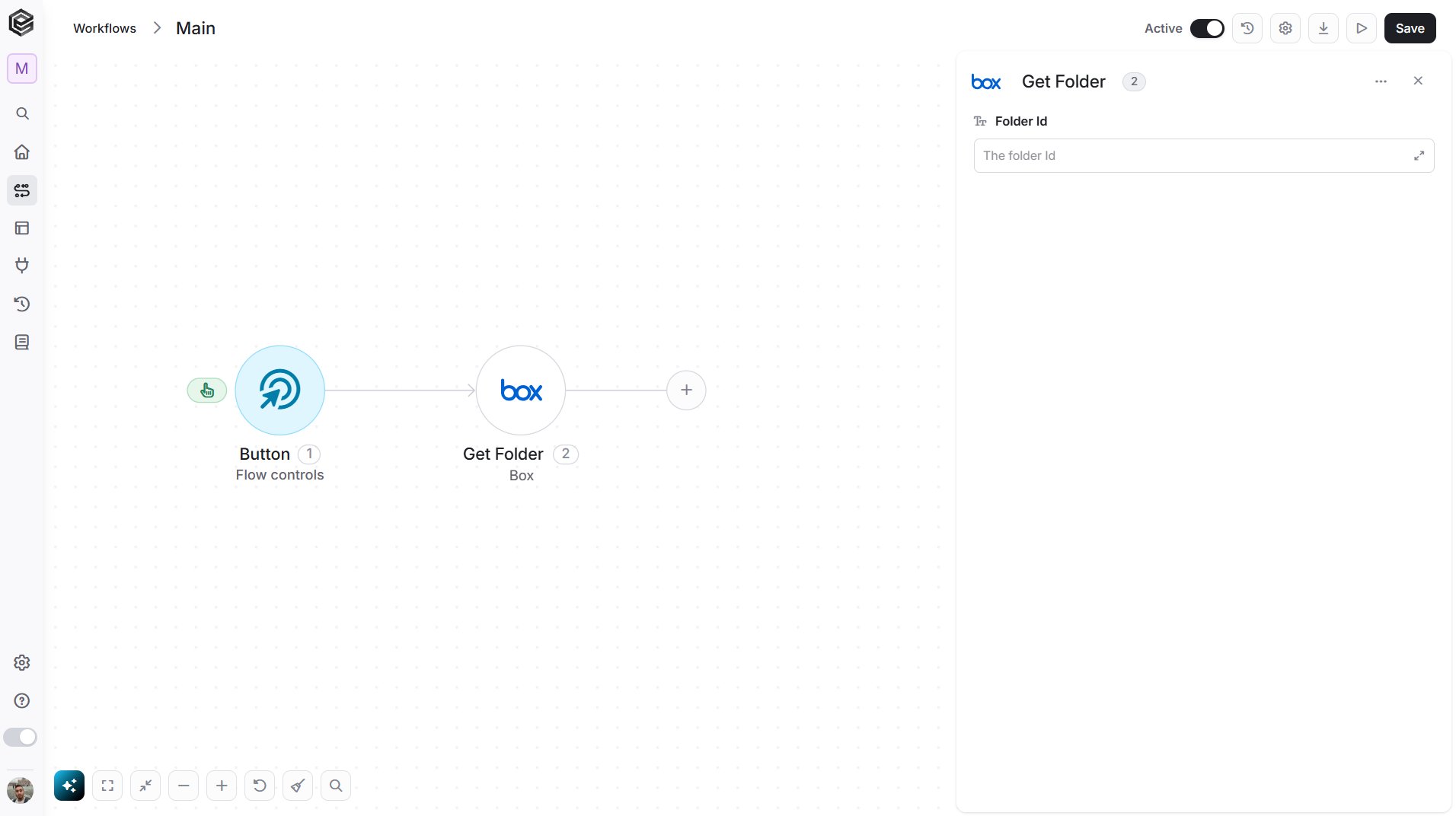
- Folder Id - Select the folder from the list, or map a Folder Id from an earlier step.
Get Folder Items
Retrieves the files, folders and web links inside a folder.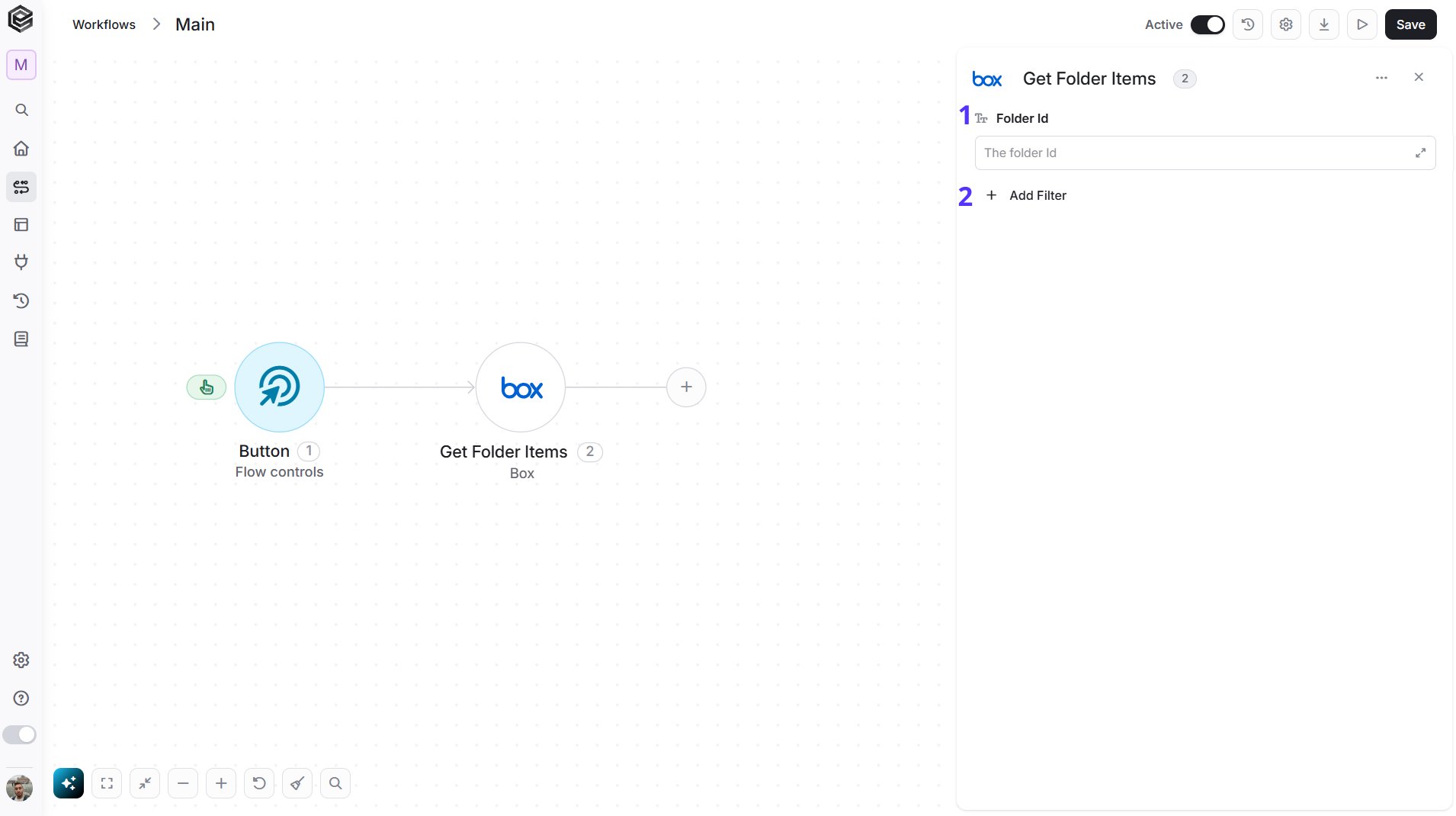
- Folder Id - Select the folder from the list, or map a Folder Id from an earlier step. Choose All Files for the root folder.
- Add Filter - Click Add Filter to choose how the items are ordered. To learn more about using filters, click here.
- Sort By - Choose what the items are sorted by: Id, Name, Date or Size.
- Sort Direction - Choose Ascending or Descending.
Get Folder Metadata
Retrieves all the metadata instances attached to a folder.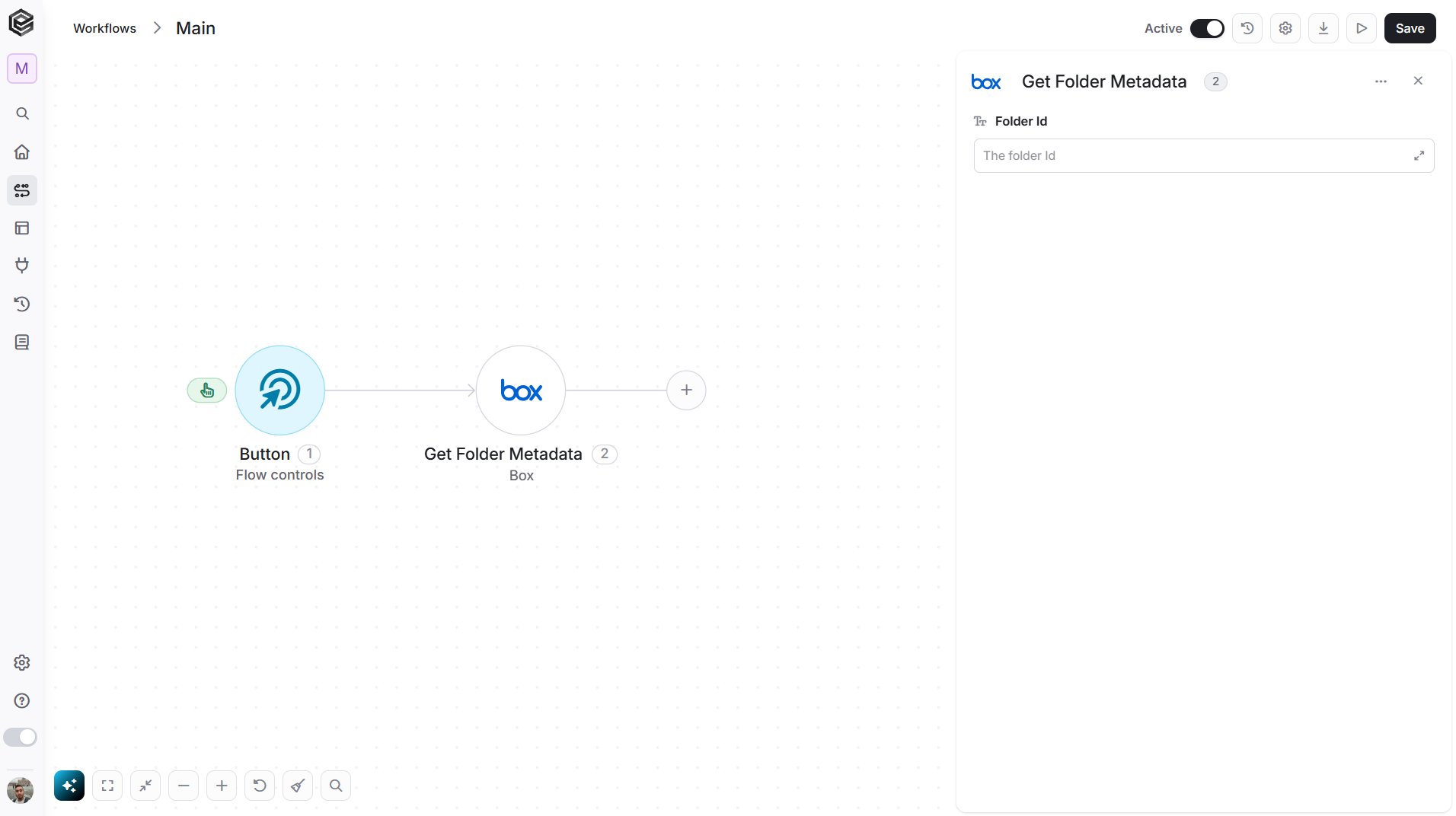
- Folder Id - Select the folder from the list, or map a Folder Id from an earlier step.
Get Item by Shared Link
Retrieves the file or folder behind a Box shared link, even when you are not a collaborator on it.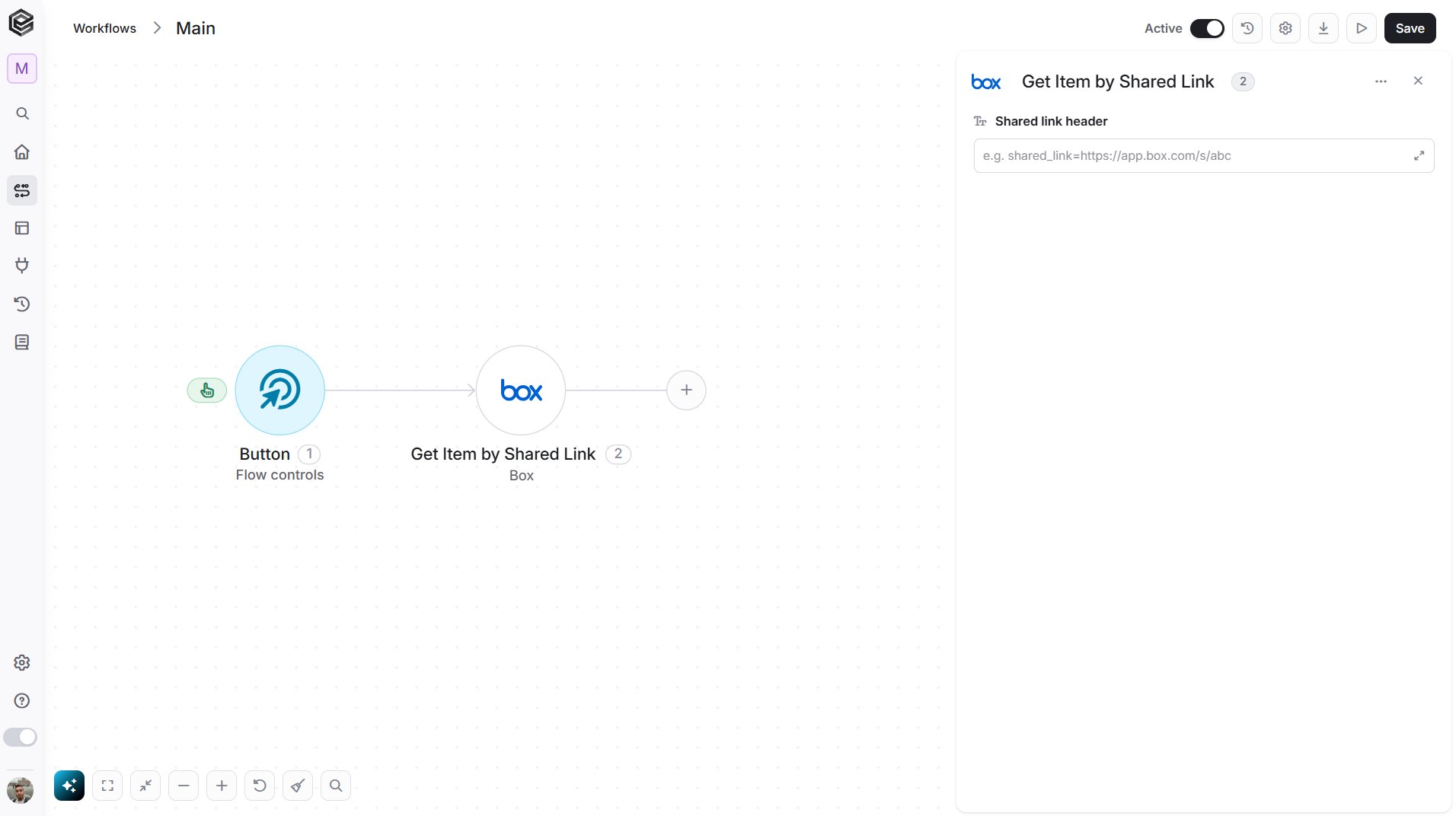
- Shared link header - Enter the shared link in the form
shared_link=followed by the link, for exampleshared_link=https://app.box.com/s/abc. If the link has a password, add&shared_link_password=and the password at the end.
Get Sign Request
Retrieves the details and the status of a Box Sign request.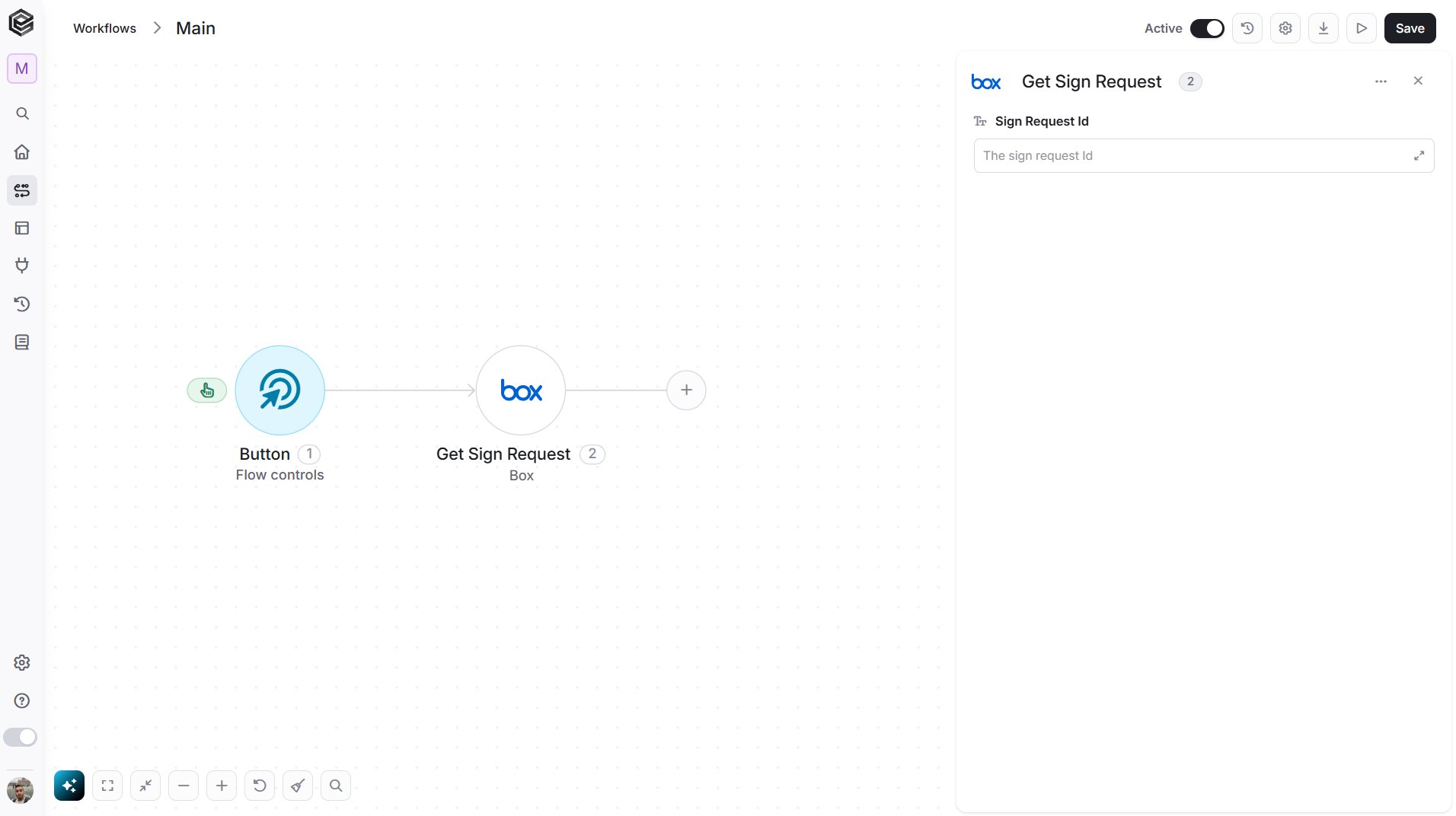
- Sign Request Id - Select the sign request from the list, or map a Sign Request Id from an earlier step, for example from Create Sign Request.
Get Sign Requests
Retrieves the Box Sign requests of the connected user.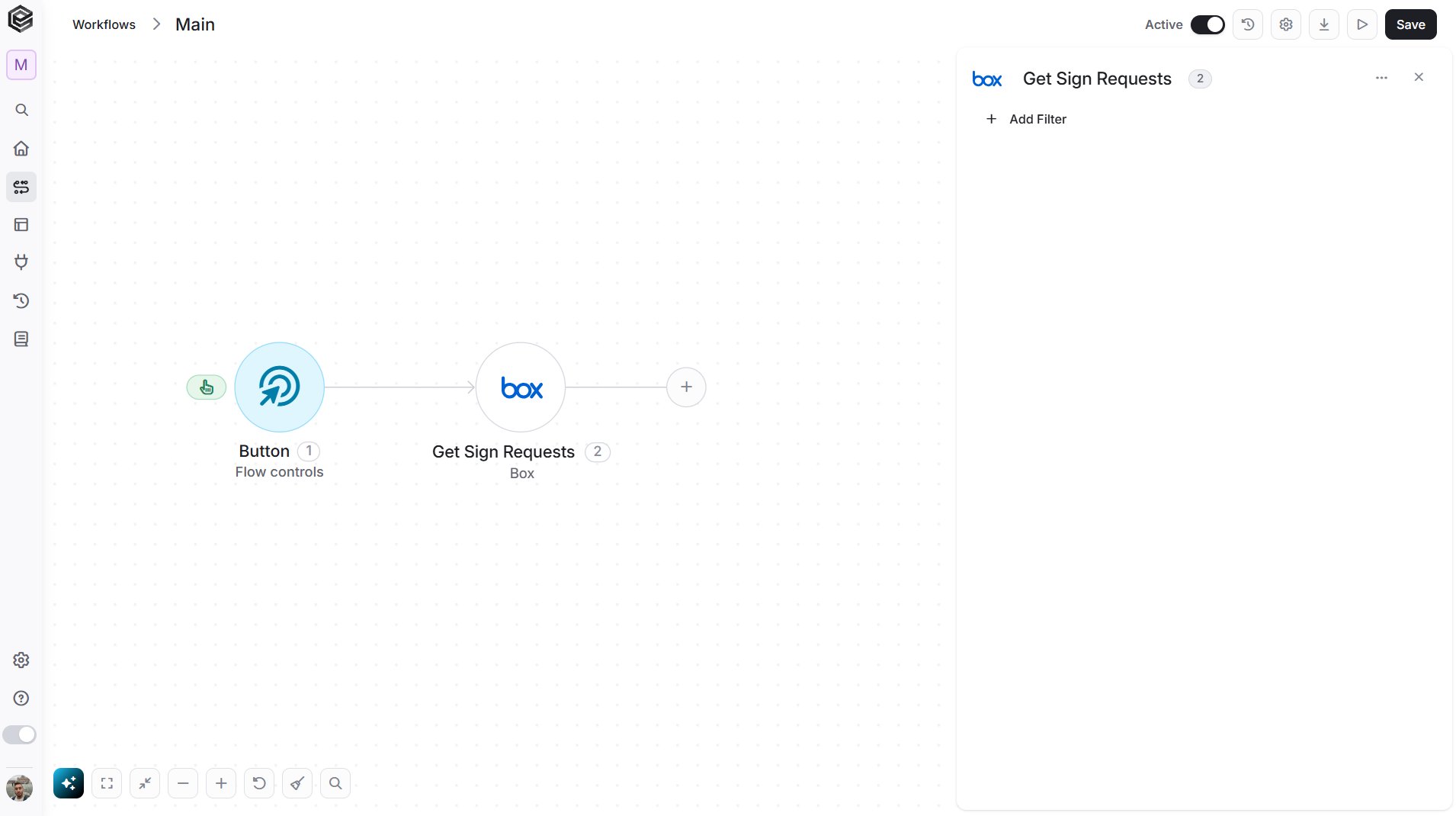
- Add Filter - Click Add Filter to narrow down the requests that are returned. To learn more about using filters, click here.
- Sender Emails - Return only the requests sent by these people, as email addresses separated by commas, for example
name@example.com. - Shared Requests - Choose whether to return the requests that belong to other people but that you collaborate on.
Rename File
Renames a file.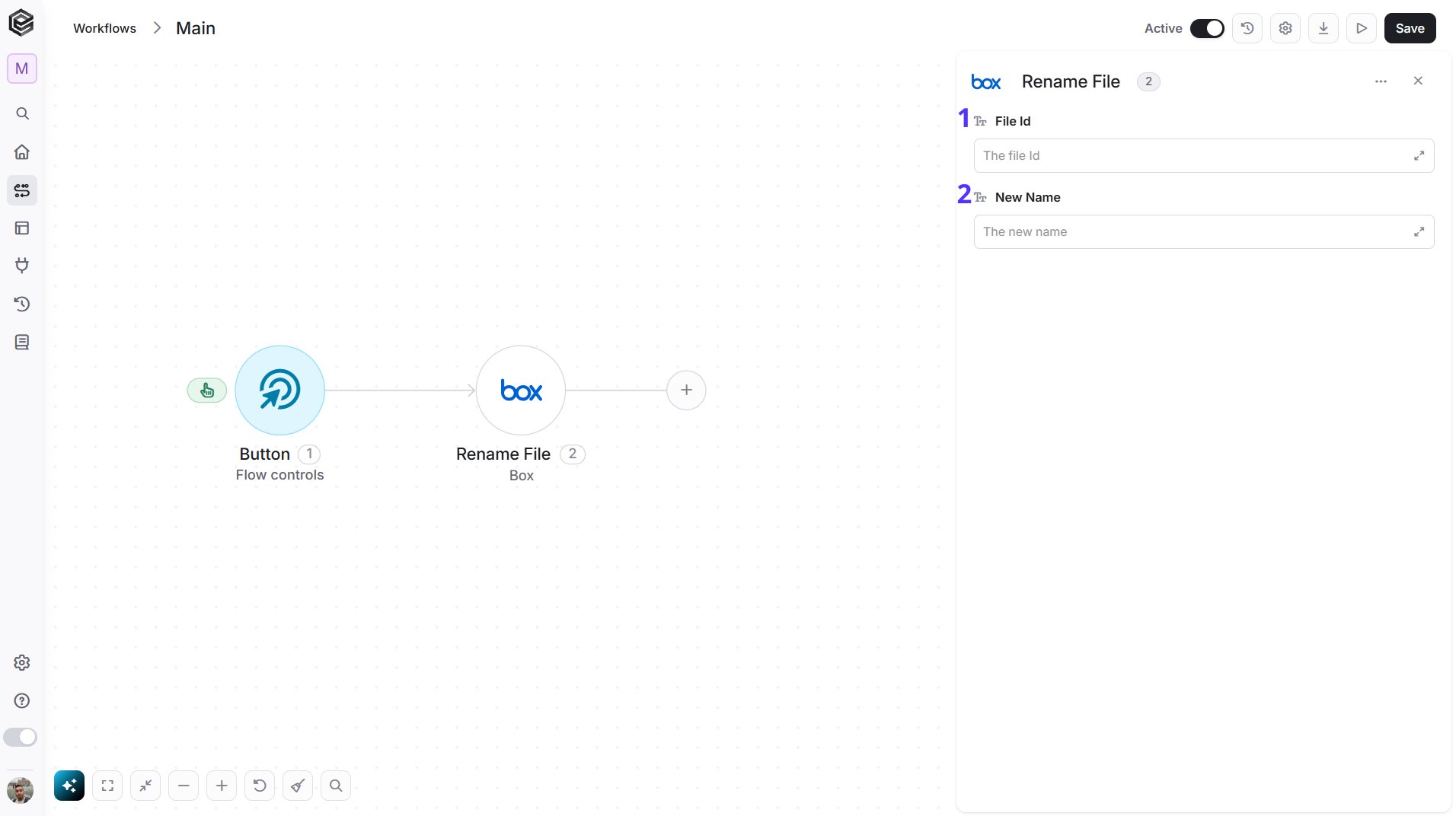
- File Id - Select the file from the list, or map a File Id from an earlier step.
- New Name - The new name of the file, for example
Final report.
Rename Folder
Renames a folder.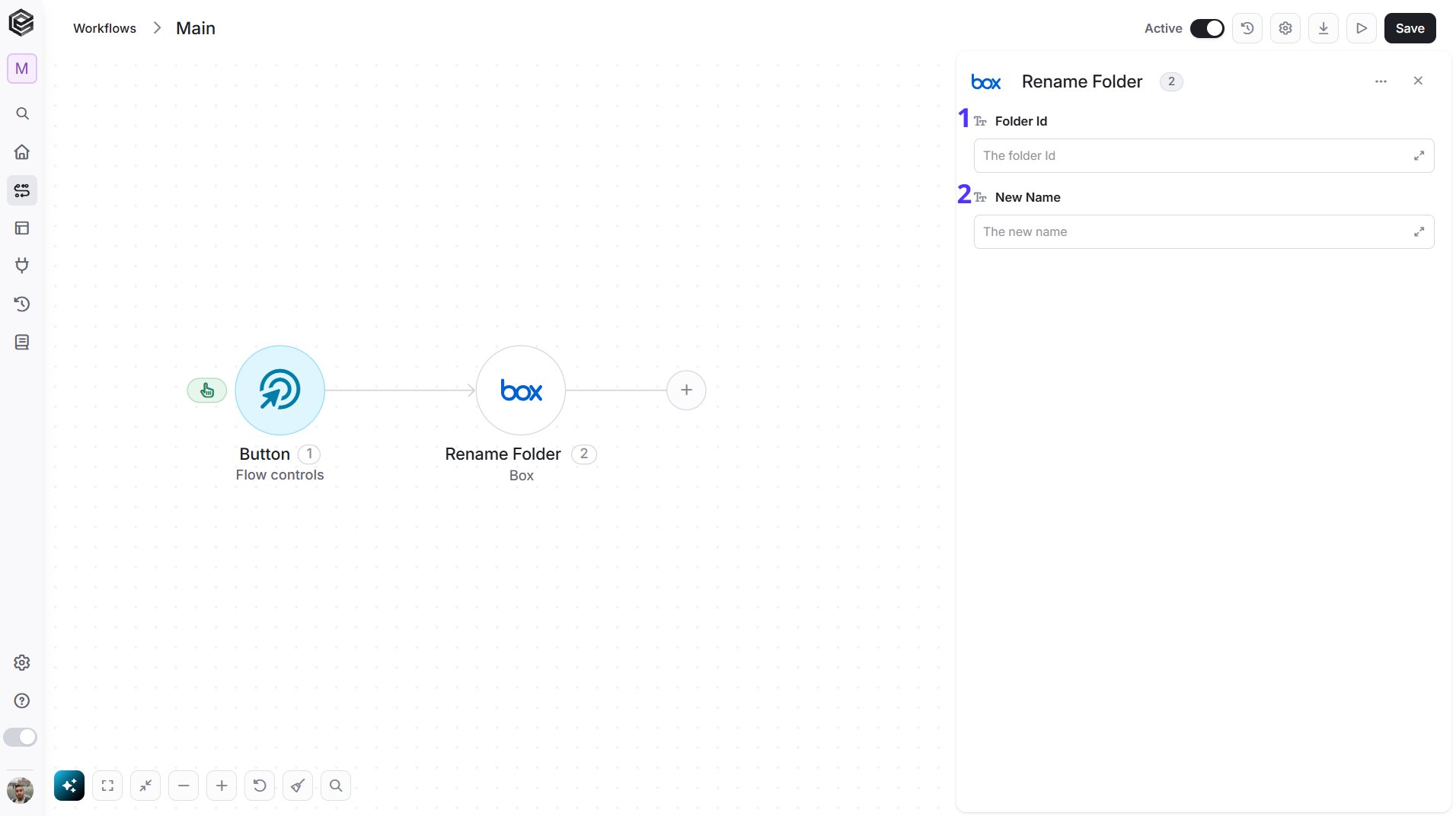
- Folder Id - Select the folder from the list, or map a Folder Id from an earlier step.
- New Name - The new name of the folder, for example
Archive 2026.
Search for Content
Searches Box for files, folders and web links by text, type, dates, owners or folders.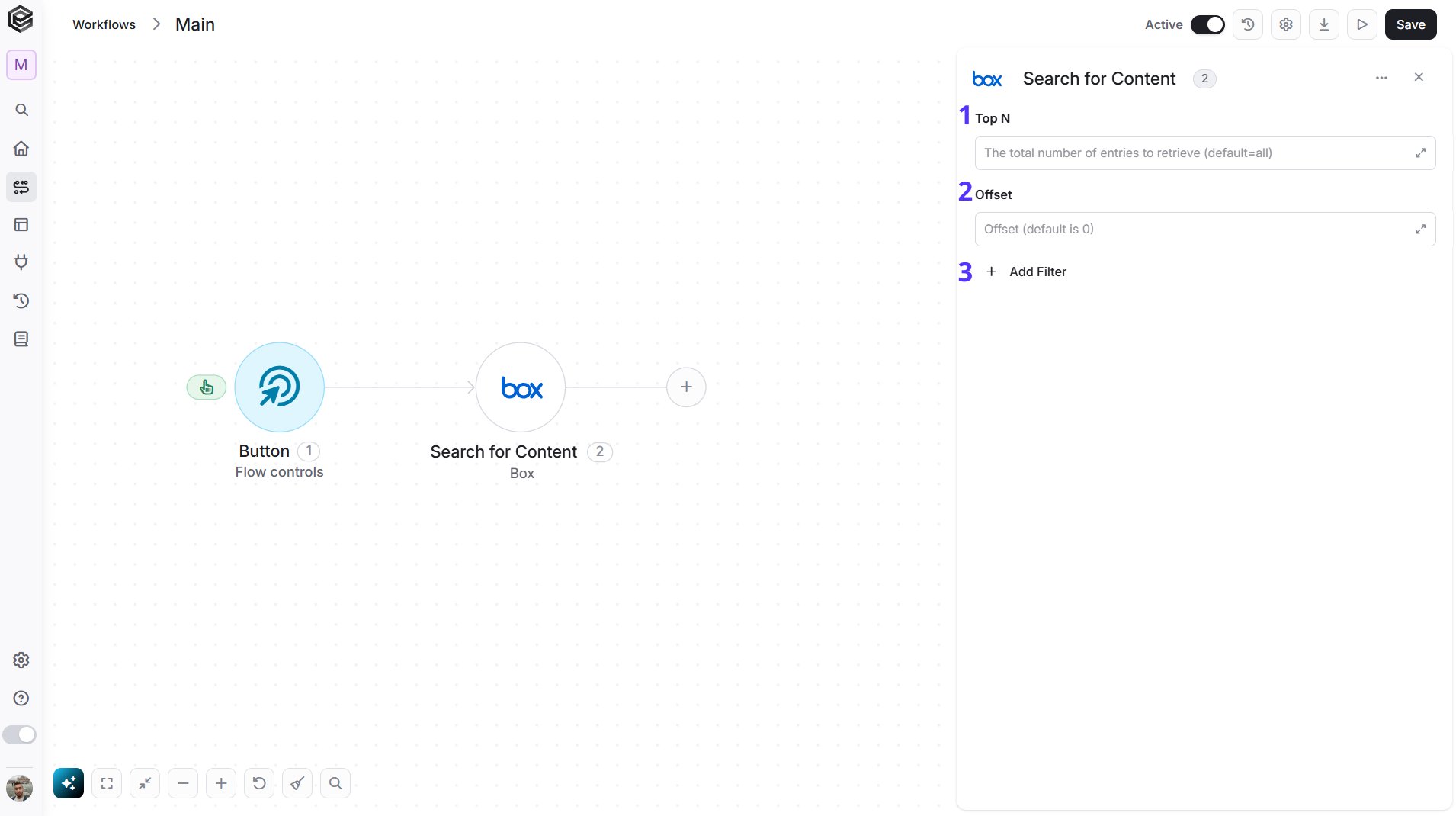
- Top N - You can set the maximum number of records Engini will return for the object you chose (default = all records).
- Offset - The offset parameter allows you to skip a certain number of records from the beginning of the result set (default = 0 records).
- Add Filter - Click Add Filter to define conditions that narrow down the data list and return only the relevant items. To learn more about using filters, click here.
- Search Text - The words to look for, for example
quarterly report. - Item Type - Return only files, folders or web links.
- Scope - Search the content of the connected user (User content) or of the whole Box account (Enterprise content).
- Search In - Choose where Box looks for the text: Name, Description, File content, Comments or Tags.
- File Extensions - Return only files with these extensions, separated by commas, for example
pdf,docx. - In Folder Ids - Search only inside these folders, as folder Ids separated by commas, for example
12345. - Owner User Ids - Return only items owned by these users, as user Ids separated by commas, for example
12345,67890. - Updated By User Ids - Return only items last updated by these users, as user Ids separated by commas.
- Created Between - Return only items created in this period, as two dates separated by a comma, for example
2026-01-01T00:00:00Z,2026-02-01T00:00:00Z. - Updated Between - Return only items updated in this period, in the same format.
- Size Range - Return only items within this size in bytes, as a minimum and a maximum separated by a comma, for example
1000,5000000. - Trashed Items - Choose Non-trashed only, Trashed only or All items.
- Sort By - Sort the results by Modified date or Relevance.
- Sort Direction - Choose Ascending or Descending.
Update File
Updates the details of a file.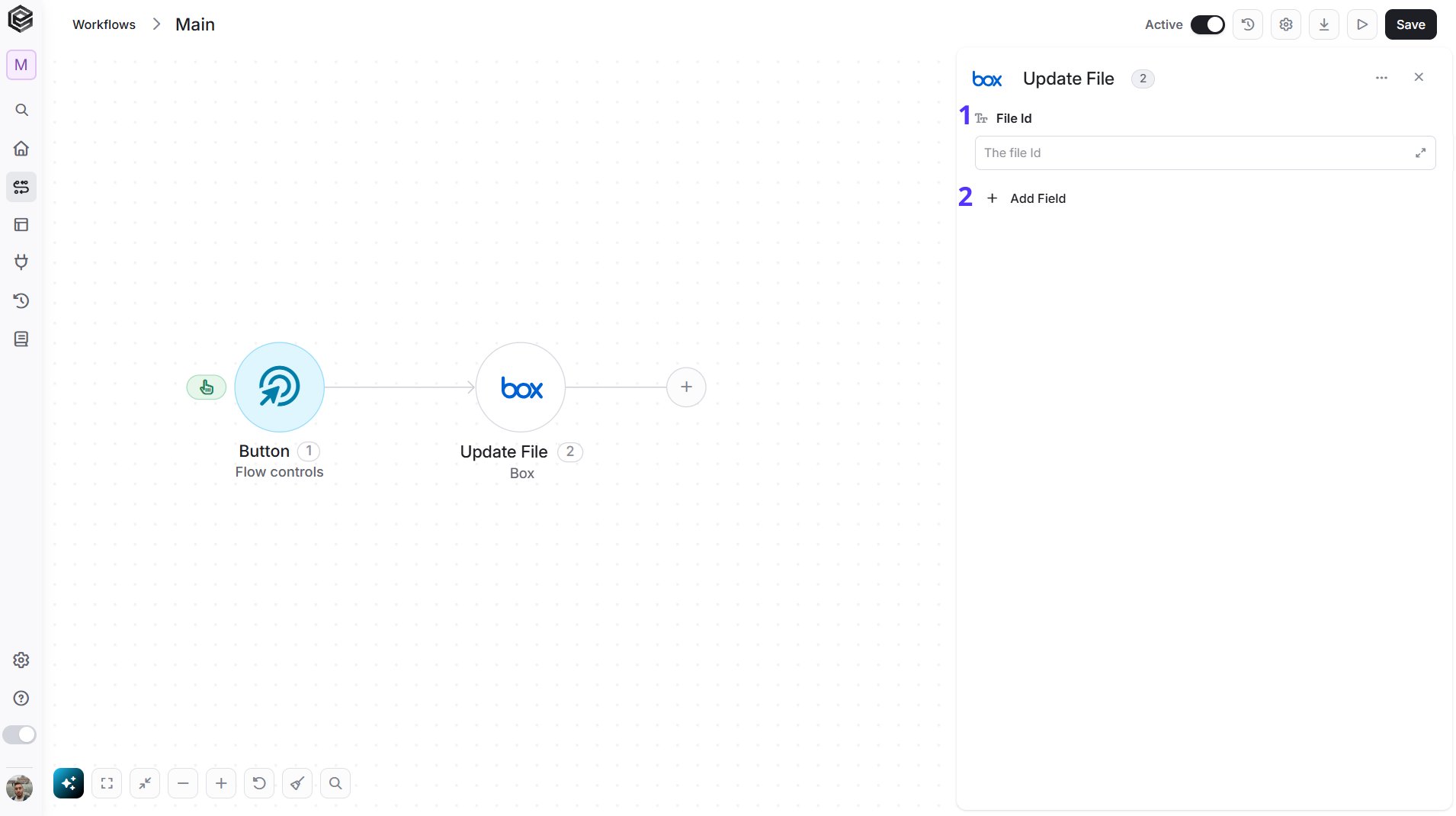
- File Id - Select the file from the list, or map a File Id from an earlier step.
- Add Field - Click Add Field to add and populate additional fields for the selected activity. To learn more about managing activity data, click here.
- Name - A new name for the file, for example
report.pdf. - Description - A new description for the file.
- Move To Folder Id - Select the folder to move the file into from the list, or map a Folder Id from an earlier step.
- Tags - The tags to put on the file.
- Download Permission - Choose who can download the file: Open or Company.
- Retention End - The date and time when the retention of the file ends, for example
2026-12-31T23:59:59Z.
Update File Metadata
Changes the values of a metadata instance on a file, using JSON Patch operations.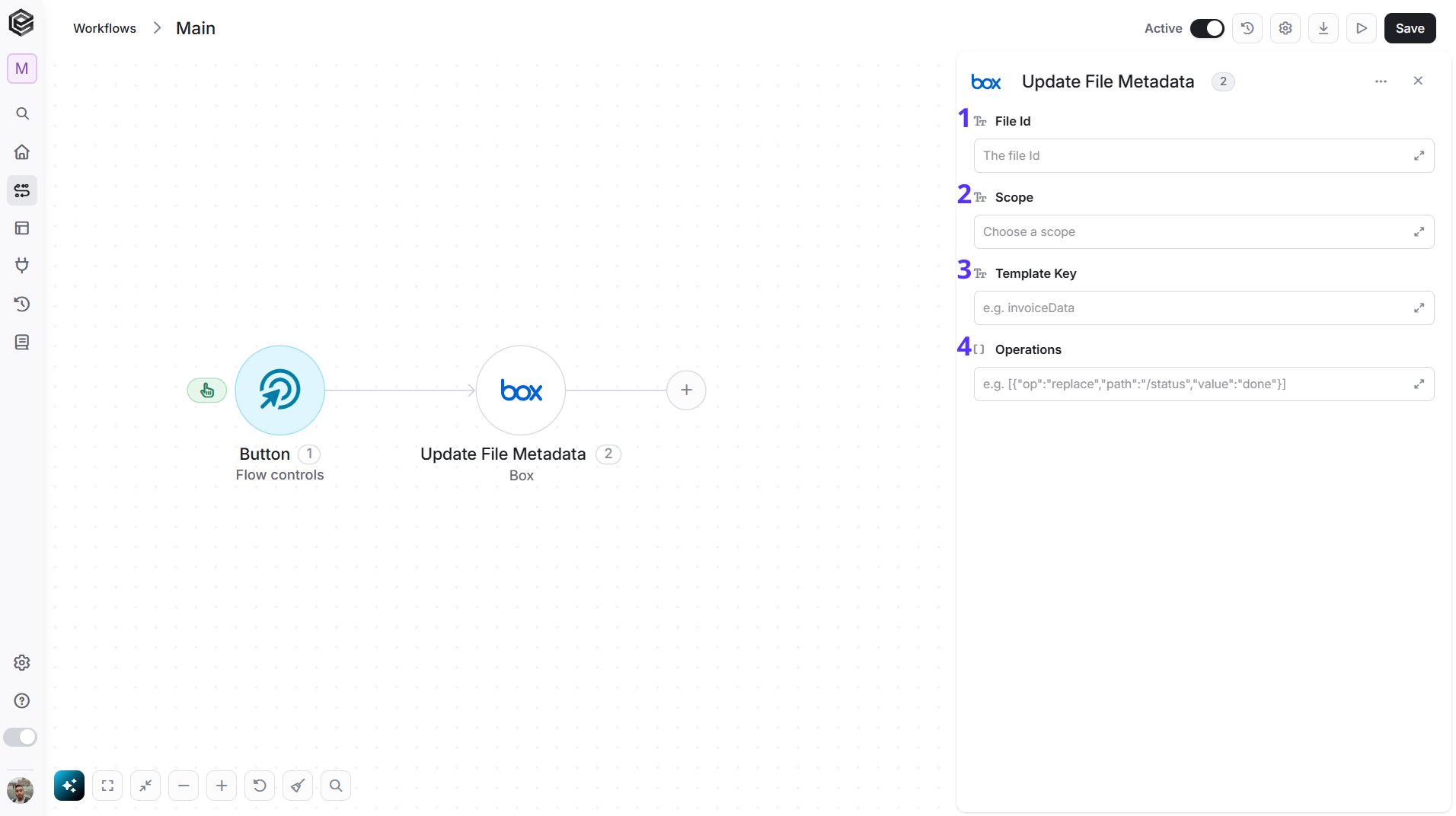
- File Id - Select the file from the list, or map a File Id from an earlier step.
- Scope - Choose where the template lives: Enterprise or Global.
- Template Key - The key of the metadata template, for example
invoiceData. - Operations - The changes to make, written as a JSON Patch list, for example
[{"op":"replace","path":"/status","value":"done"}]. Each change names the operation (such as add, replace or remove), the path of the template field and the new value.
Update Folder
Updates the details of a folder.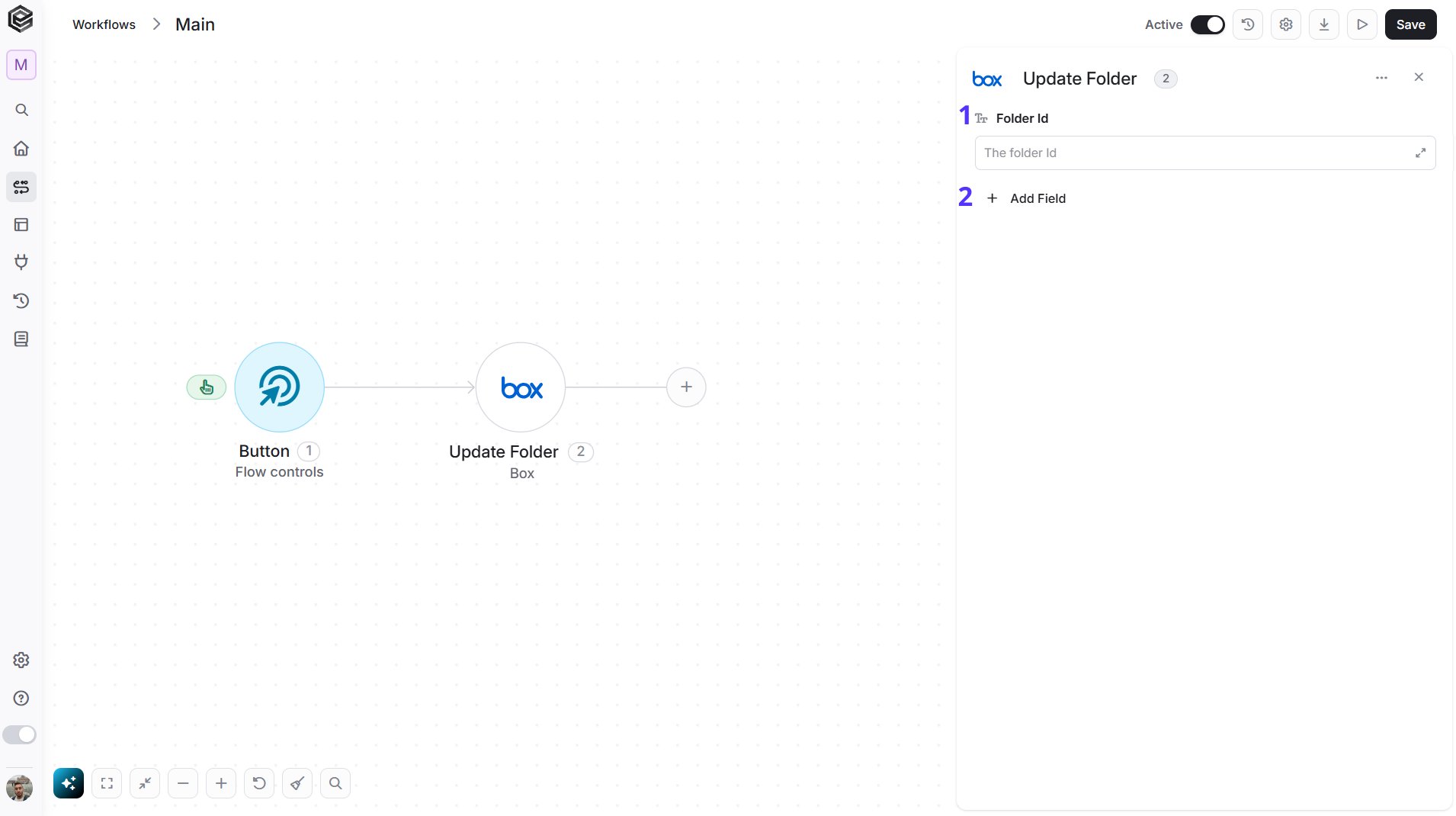
- Folder Id - Select the folder from the list, or map a Folder Id from an earlier step.
- Add Field - Click Add Field to add and populate additional fields for the selected activity. To learn more about managing activity data, click here.
- Name - A new name for the folder, for example
Archive. - Description - A new description for the folder.
- Move To Folder Id - Select the folder to move this folder into from the list, or map a Folder Id from an earlier step.
- Tags - The tags to put on the folder.
- Sync State - Choose whether the folder is synced by the Box desktop apps: Synced, Not synced or Partially synced.
- Non-owners Can Invite - Choose whether people who do not own the folder can invite others to it.
- Non-owners See Collaborators - Choose whether people who do not own the folder can see who else has access to it.
- Restrict To Company - Choose whether collaboration on the folder is limited to people in your company.
- Upload Email Access - Choose who can send files to the folder by email: Open or Collaborators.
Update Folder Metadata
Changes the values of a metadata instance on a folder, using JSON Patch operations.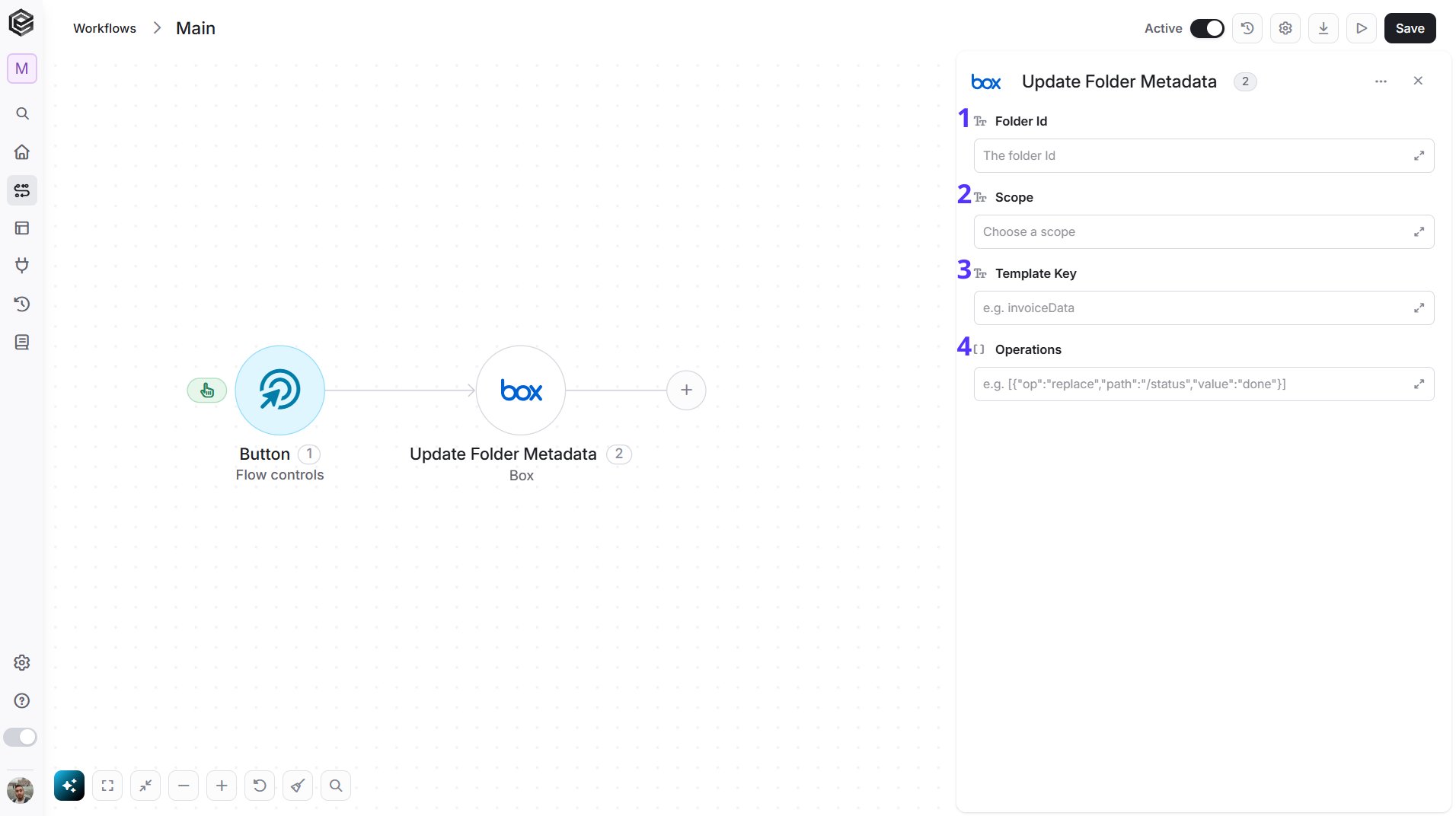
- Folder Id - Select the folder from the list, or map a Folder Id from an earlier step.
- Scope - Choose where the template lives: Enterprise or Global.
- Template Key - The key of the metadata template, for example
invoiceData. - Operations - The changes to make, written as a JSON Patch list, for example
[{"op":"replace","path":"/status","value":"done"}]. Each change names the operation (such as add, replace or remove), the path of the template field and the new value.
Upload File
Uploads a new file to a Box folder. The file’s content comes from an earlier step.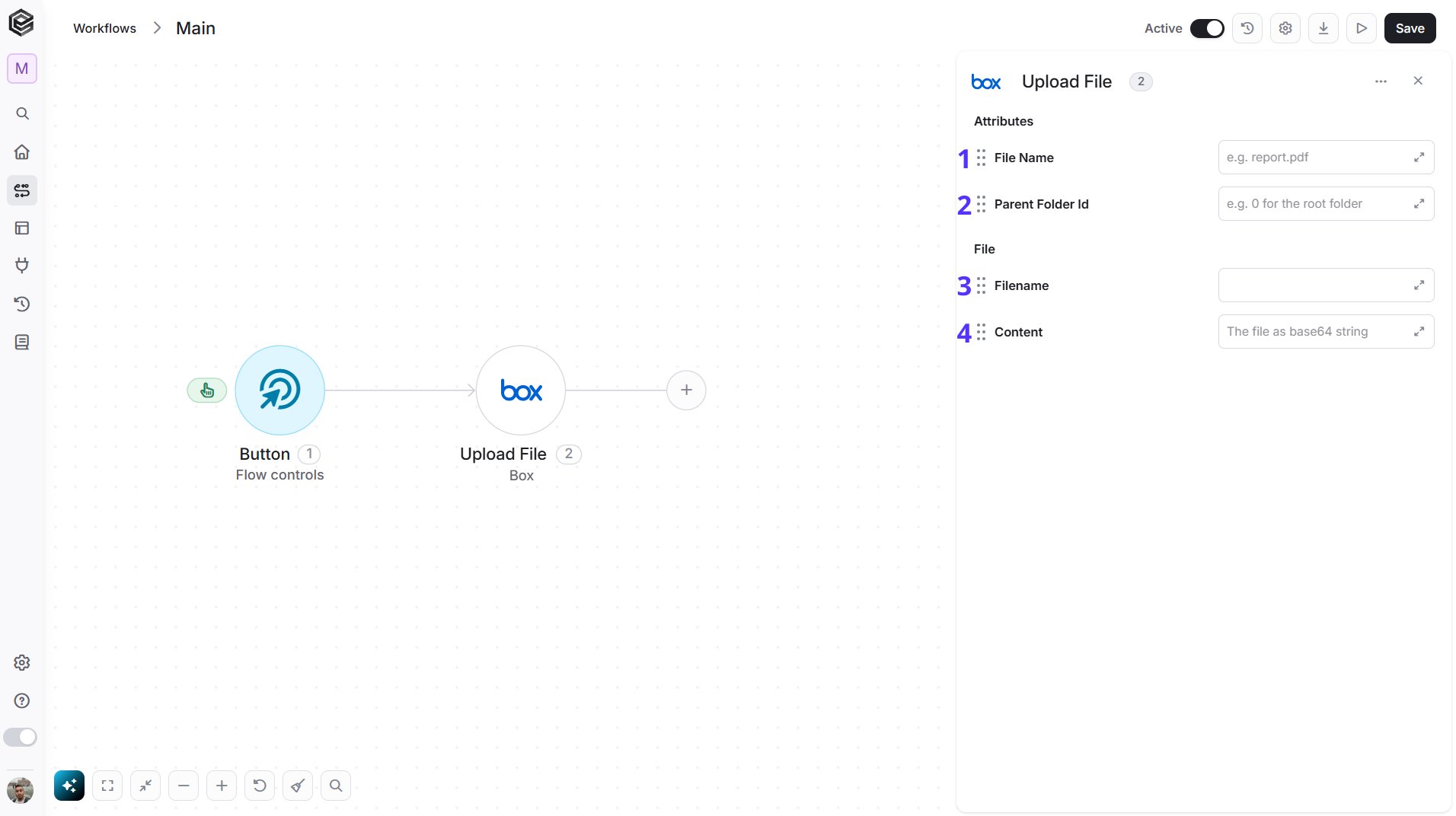
- File Name - The name the file gets in Box, including its extension, for example
report.pdf. - Parent Folder Id - The folder to upload into. Select the folder from the list, or map a Folder Id from an earlier step, for example from Get Folder Items or Create Folder. Choose All Files for the root folder.
- Filename - The name of the file being uploaded, for example
report.pdf. Map it from the earlier step that produced the file, such as the file name of a download or an email attachment. - Content - The file’s content as a base64 string. Map it from an earlier step that returns the file, such as Download File in Box, a download from another app or an email attachment.
Initialize Object Array
Creates a new object array variable in your workflow to store structured Box data for use in later steps.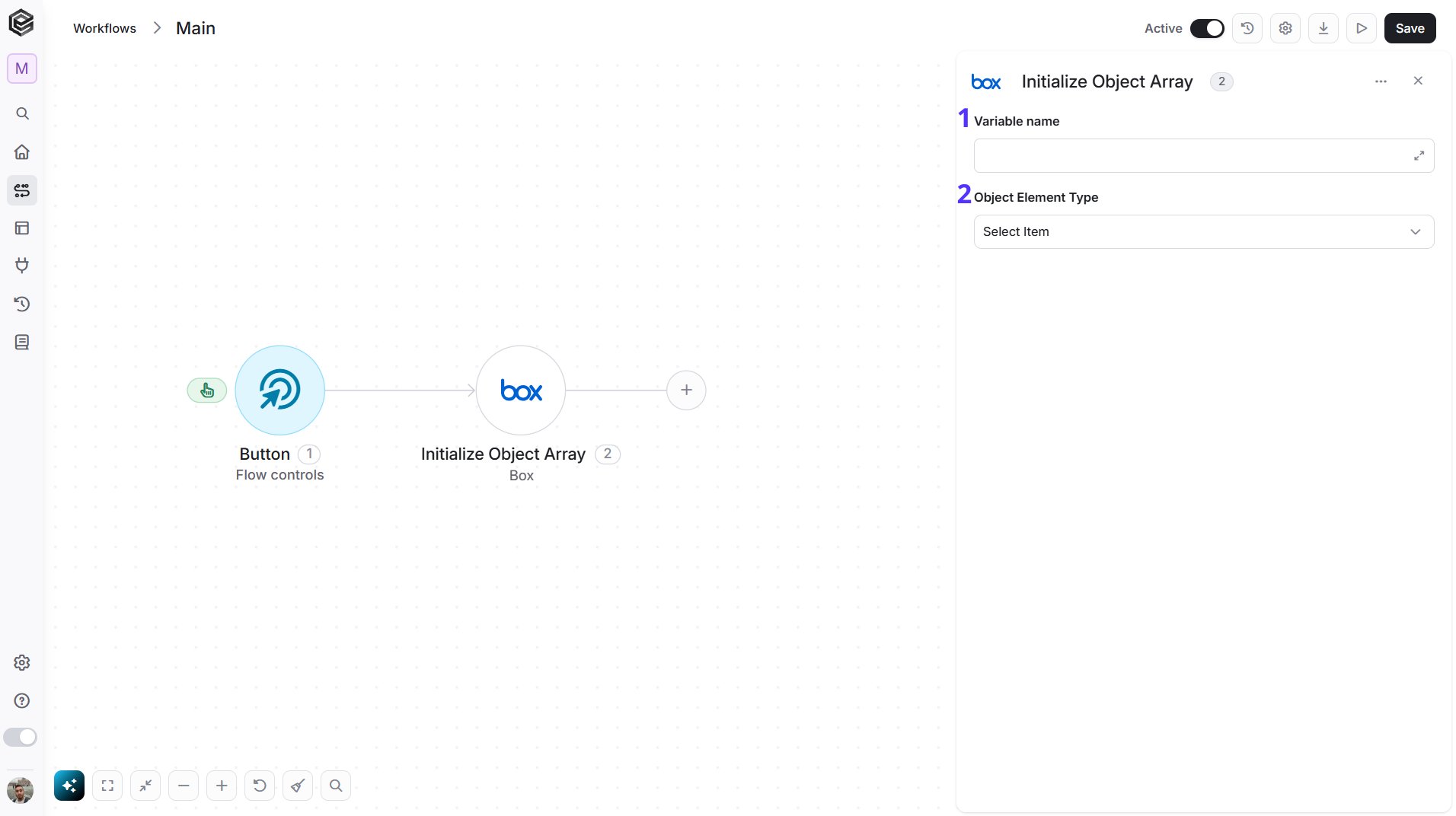
- Variable name - Enter the name of the variable that will hold the object array. This name will be used throughout the workflow whenever you refer to this object array.
- Object Element Type - Select the type of object the array will store. The selected type determines the structure of the array and opens its fields so you can fill in the values for the first entry.
Append to Object Array
Adds a new entry to an existing object array variable in your workflow.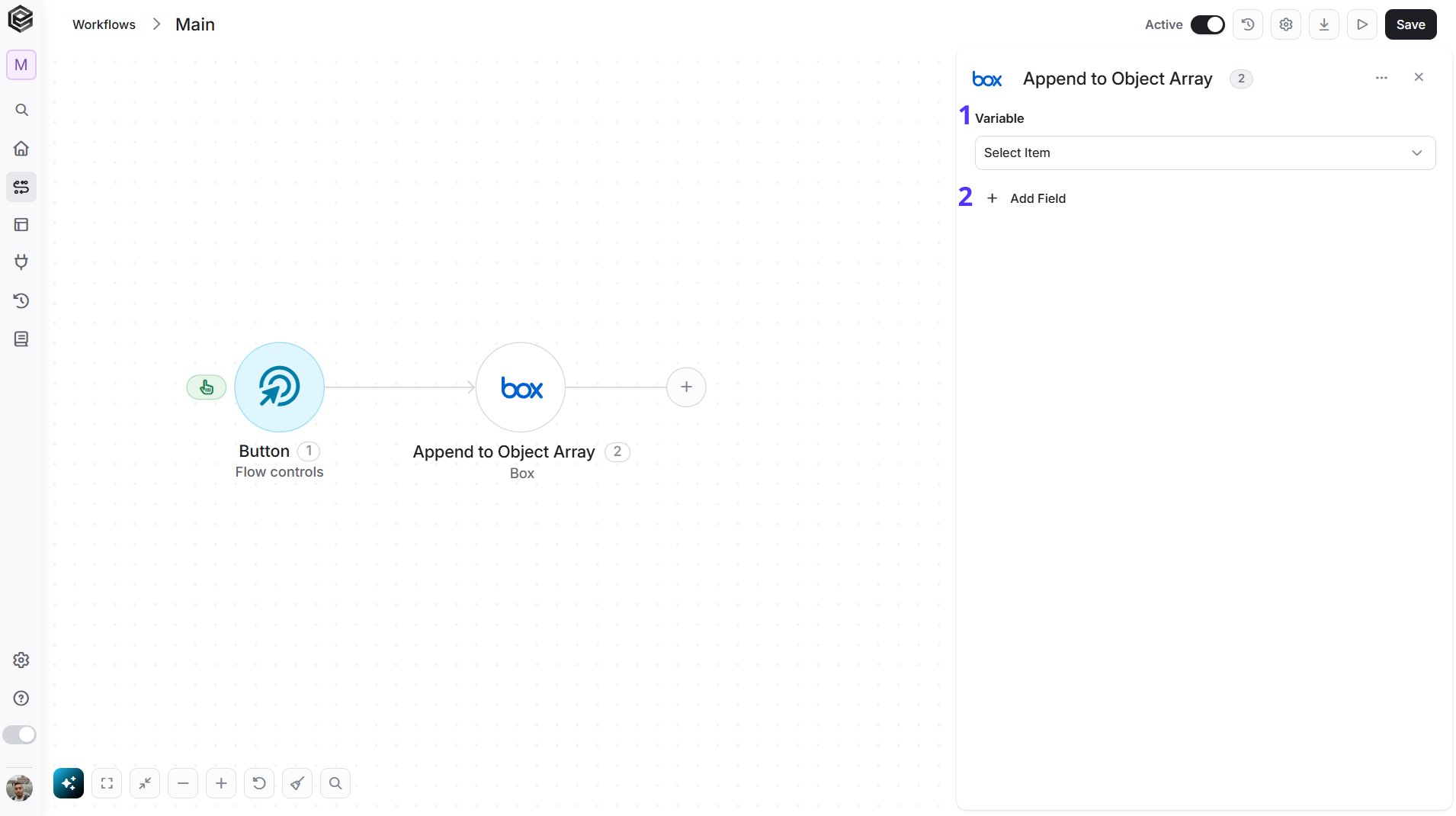
- Variable - Select the object array variable you want to append to. This must be an already initialized object array.
- Add Field - Click Add Field to add and populate additional fields for the selected activity. To learn more about managing activity data, click here.
Map Object Array
Transforms a list of data into a structured object array that can be used later in the workflow. It iterates over each item in the selected data list and maps it into a structured entry.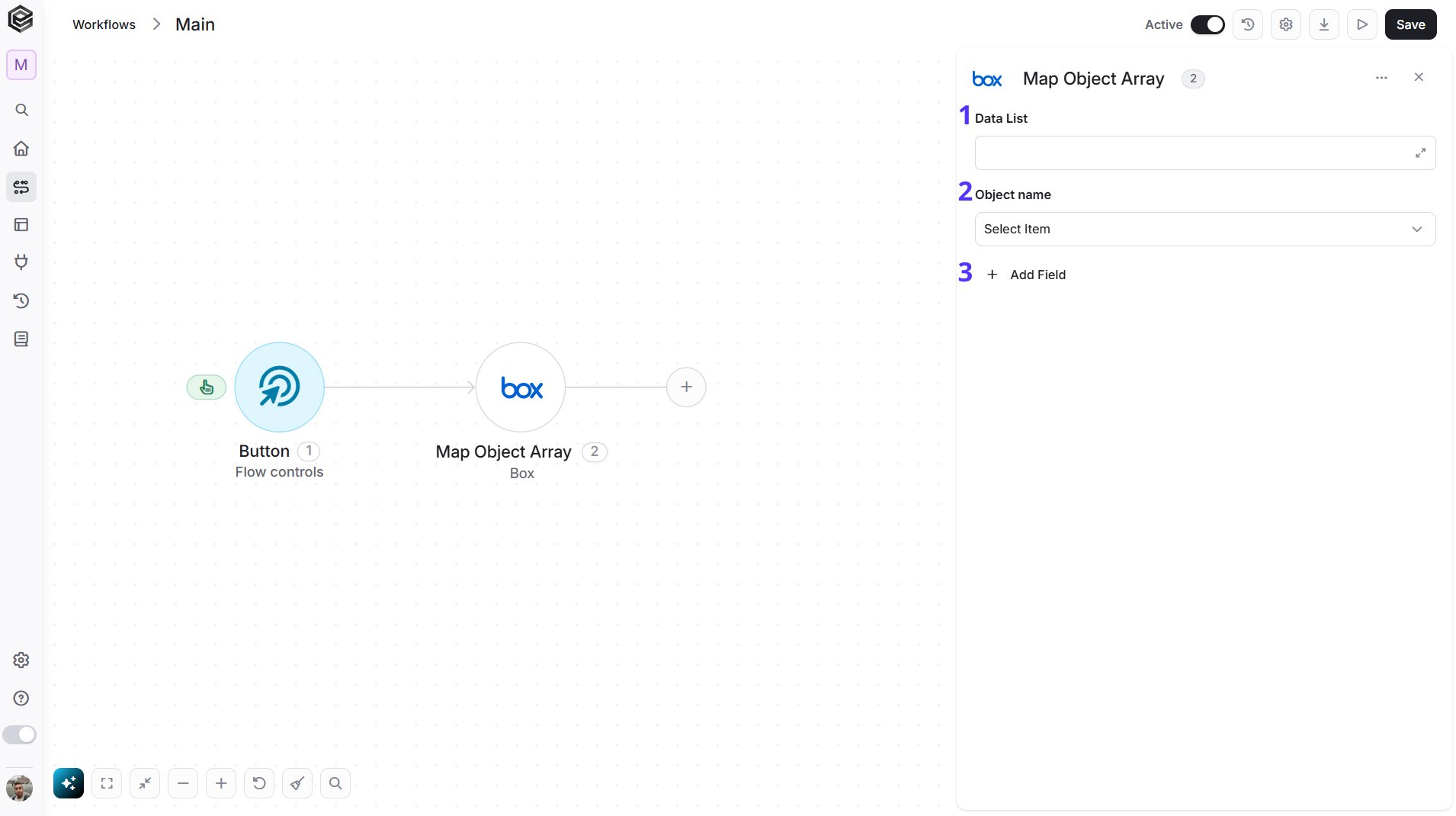
- Data List - Select or map the array or list of data you want to iterate over and transform.
- Object name - Define the name of the temporary object that represents each item during the mapping. You will use this name when referencing fields from the current item.
- Add Field - Click Add Field to add and populate additional fields for the selected activity. To learn more about managing activity data, click here.
Send API Request
This activity allows you to send a custom API request directly to Box’s API.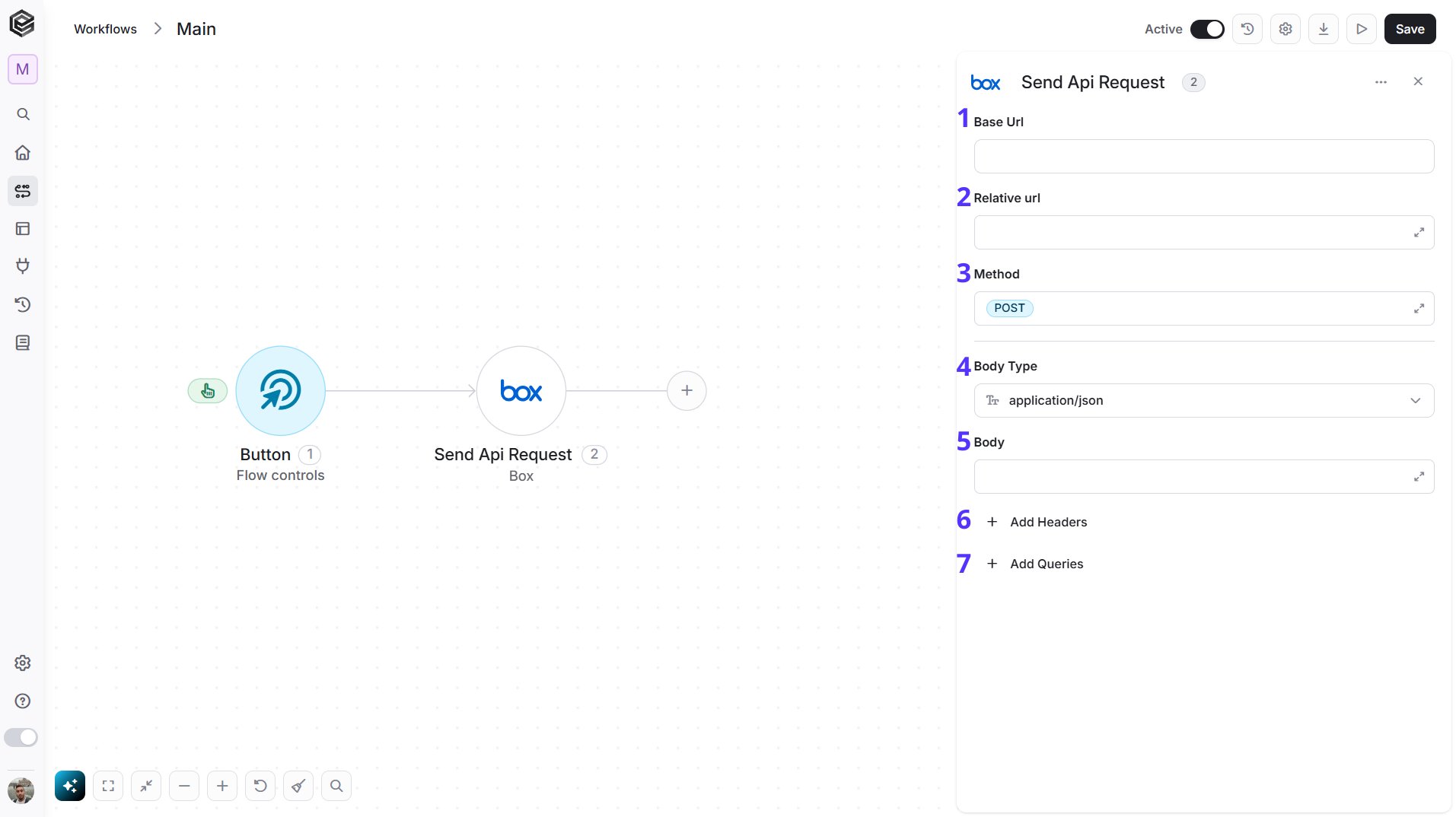
- Base Url - The root URL of the Box API. It is filled in from your Box connection and can’t be edited here.
- Relative url - You can specify additional path segments or parameters that need to be added to the end of the Base Url. This allows you to customize the specific request you want to perform.
- Method - Select the HTTP method (e.g., Get, Post, Put, Delete, Patch). The default is POST.
- Body Type - Defines the format of the data in the body of your request. The default, application/json, means the body contains a JSON-formatted payload.
- application/json – Sends the request body in JSON format. Commonly used by REST APIs.
- custom – Allows you to define a custom body format by manually setting the Content-Type header. Add a
Content-Typerow in Add Headers with the media type you need (for exampleapplication/xml). With any other Body Type, a Content-Type you type in Add Headers is not sent; Engini sets it from the Body Type, and the run history shows it underheadersnotsent. - application/x-www-form-urlencoded – Sends the body as URL-encoded key-value pairs, commonly used in form submissions.
- file – Sends a file as the request body.
- multipart/form-data – Sends form data that may include both text fields and files.
- text/html – Sends the request body as HTML content.
- text/plain – Sends the request body as plain text.
- text/xml – Sends the request body in XML format.
- Body - Contains any data that is being sent to the server.
- Add Headers - Additional metadata about the request, such as the type of data Engini can accept, the length of the request body, and authentication information.
- Add Queries - The query refers to the parameters or data that are included in the URL of an HTTP request to provide additional information or instructions to the server.