

Add a Connection to Telegram in Engini
Prerequisites
- A Telegram account.
- A Telegram bot and its API token, created with BotFather.
Retrieve your Telegram API Token
-
Open BotFather in Telegram: search for @BotFather in your Telegram app.
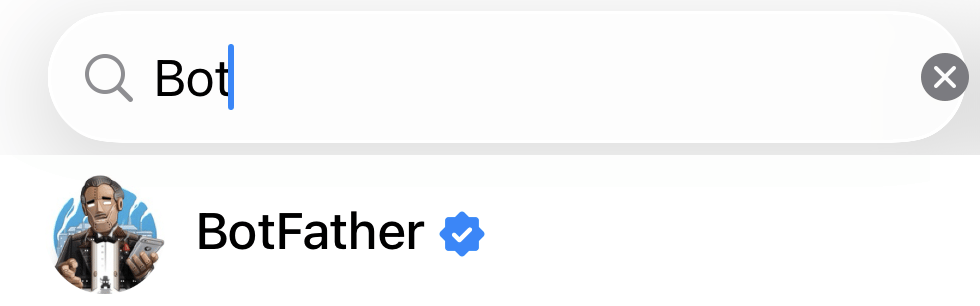
- Start a chat by sending the command /start and follow the instructions.
-
Create a new bot: send the command /newbot, then follow the instructions to give your bot a Name (how users see it) and a Username (its unique ID, must end in “bot”).
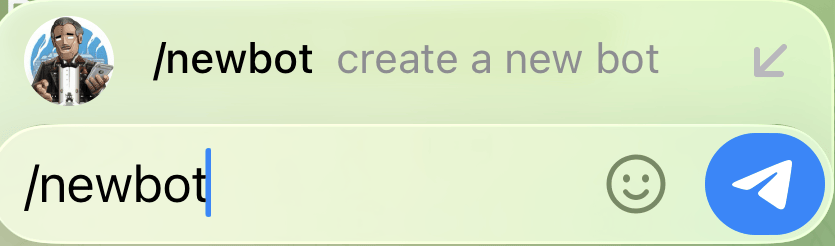
- Copy the API token: after the bot is created, BotFather gives you an HTTP API Token. You will paste it into Engini.
Connecting Engini to Telegram
- Enter your Engini account at https://app.engini.io.
-
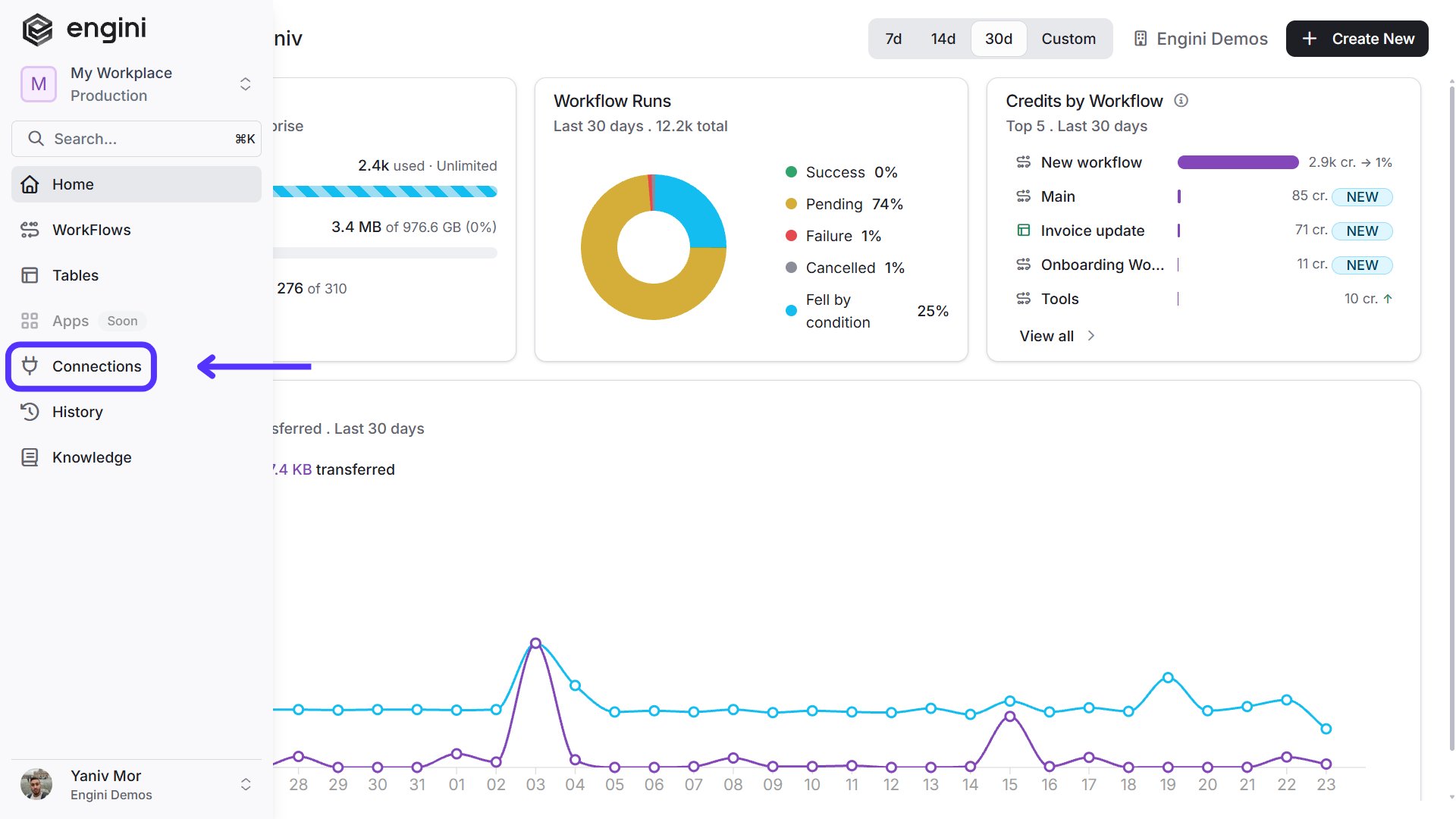
Navigate to the Connections page by clicking on Connections in the left sidebar or by clicking here.
-
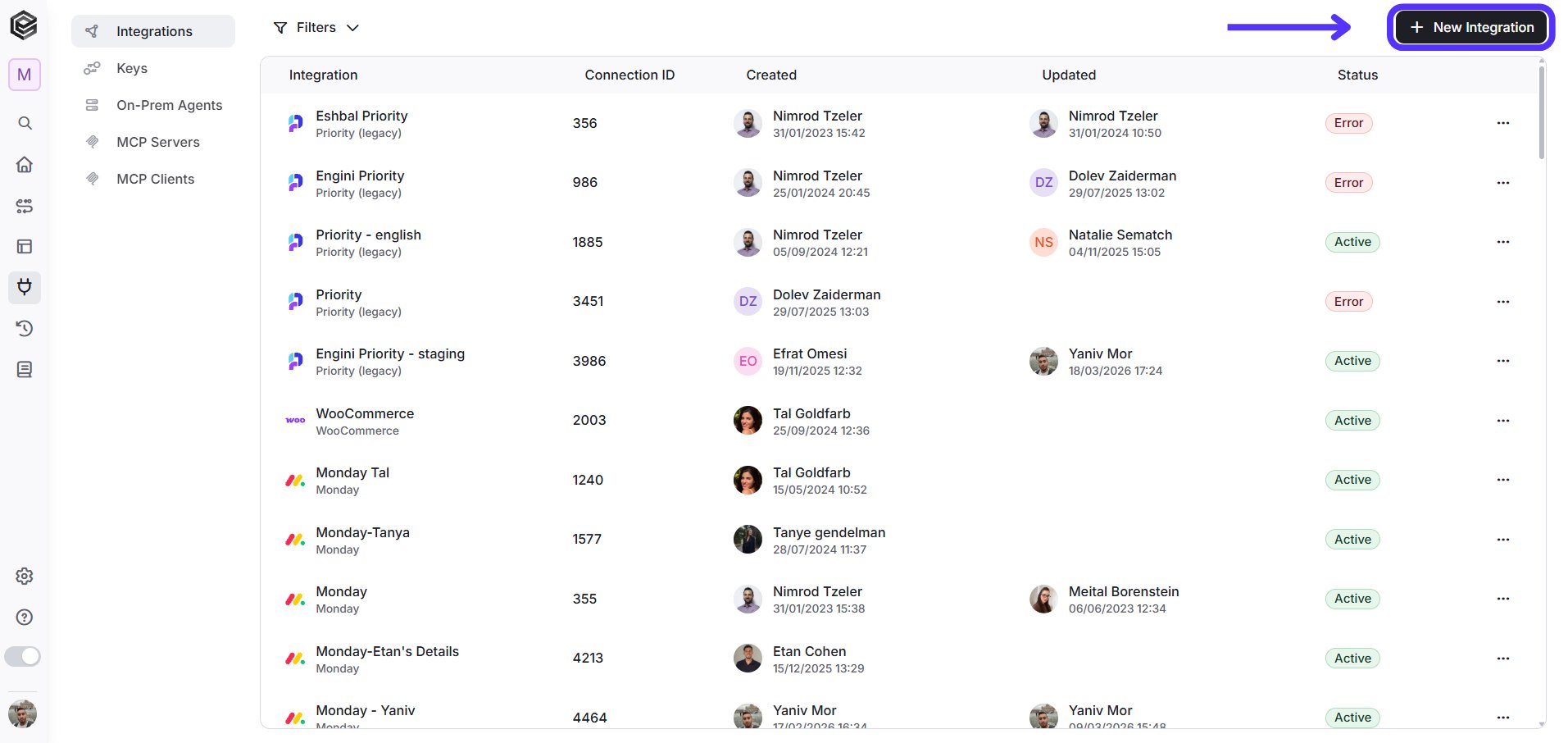
Click on the “New Integration” option located at the top bar.
-
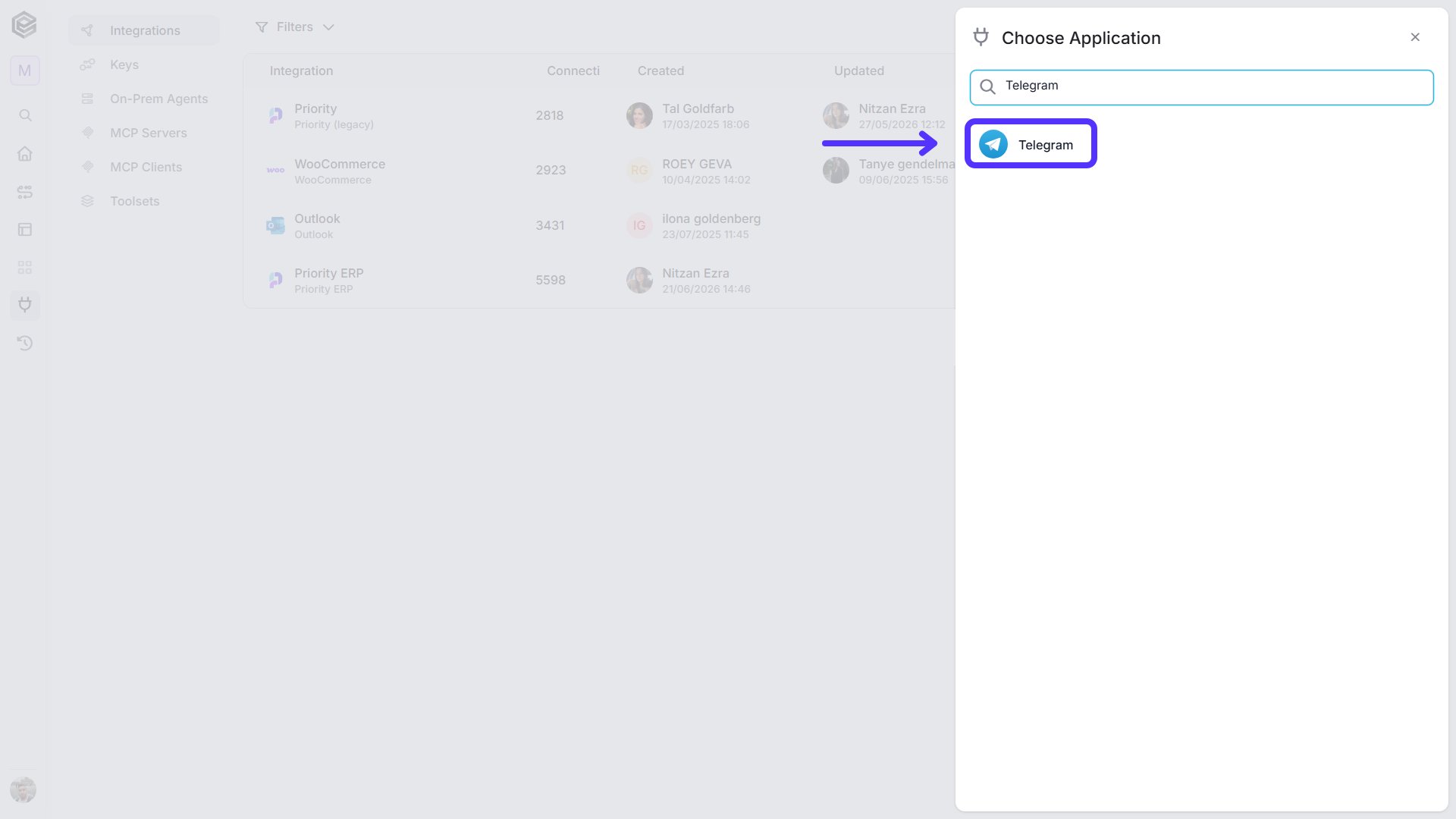
Choose the Telegram option from the available applications.
-
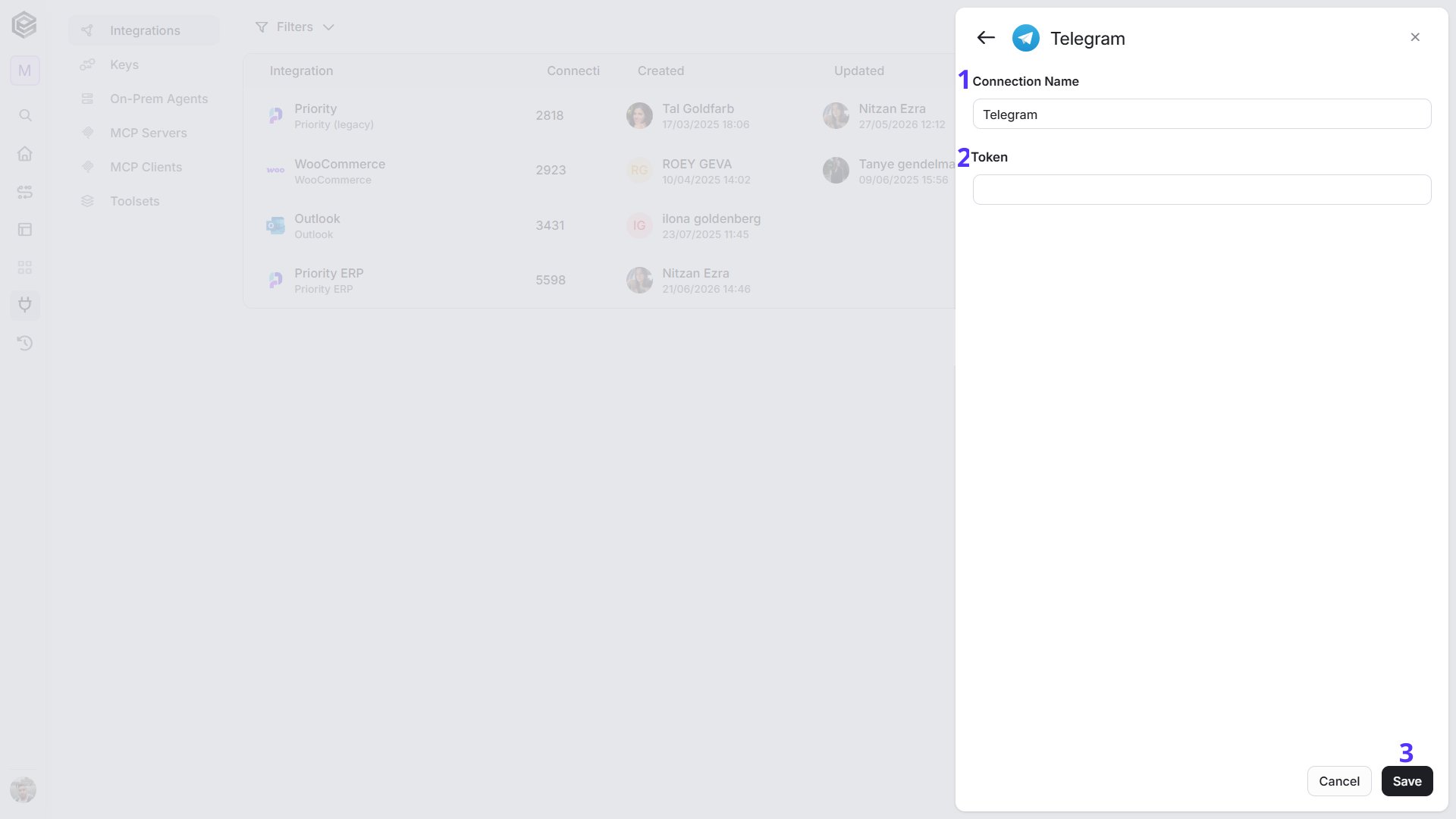
Enter the following details in the “New Integration” form and press Save:
Triggers
Telegram Webhook
Starts the workflow when your bot receives an update, such as a message sent to it.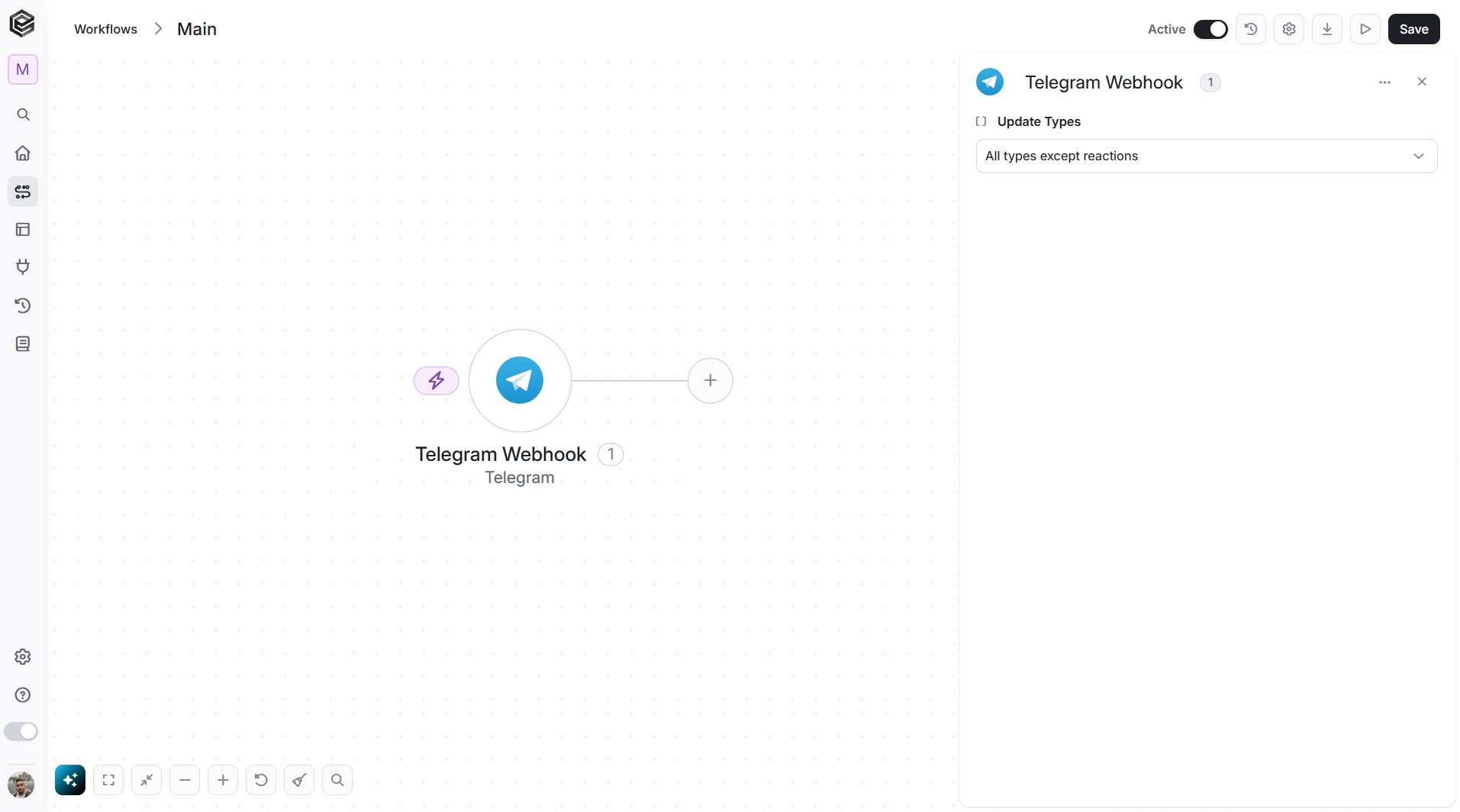
- Update Types - Choose which kinds of updates start the workflow, for example Message, Edited Message, Channel Post or Callback Query. You can select several. Leave it empty to receive Telegram’s default set of updates, which does not include reaction updates. To receive them, select Message Reaction or Message Reaction Count.
Actions
Most actions need a Chat Id. Telegram gives each private chat, group and channel its own ID. Where an action offers a list, pick the chat from it instead of typing the ID. The list shows only chats that were active in the last 24 hours, so a chat that has been quiet for longer will not appear. You can also map the ID from the Telegram Webhook trigger when someone writes to your bot.Send a Text Message
Sends a text message from your bot to a chat.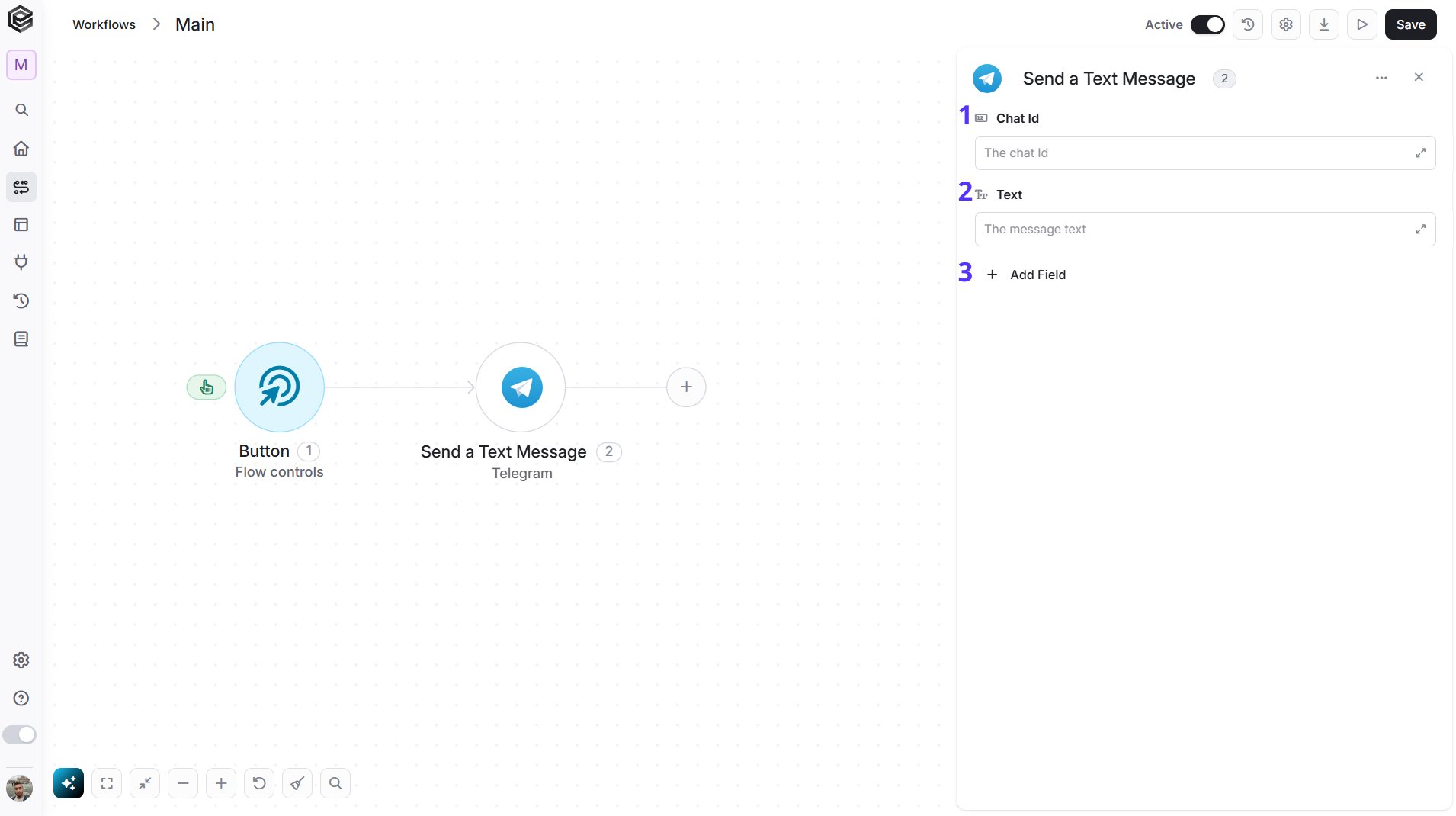
- Chat Id - Enter the ID of the chat (private chat, group or channel). You can also map it from a previous step, for example the Telegram Webhook trigger.
- Text - Type the message you want to send. You can use data from previous steps in your workflow to make the message dynamic.
- Add Field - Click Add Field to add and populate additional fields for the selected activity. To learn more about managing activity data, click here.
Update a Text message
Edits the text of a message your bot already sent.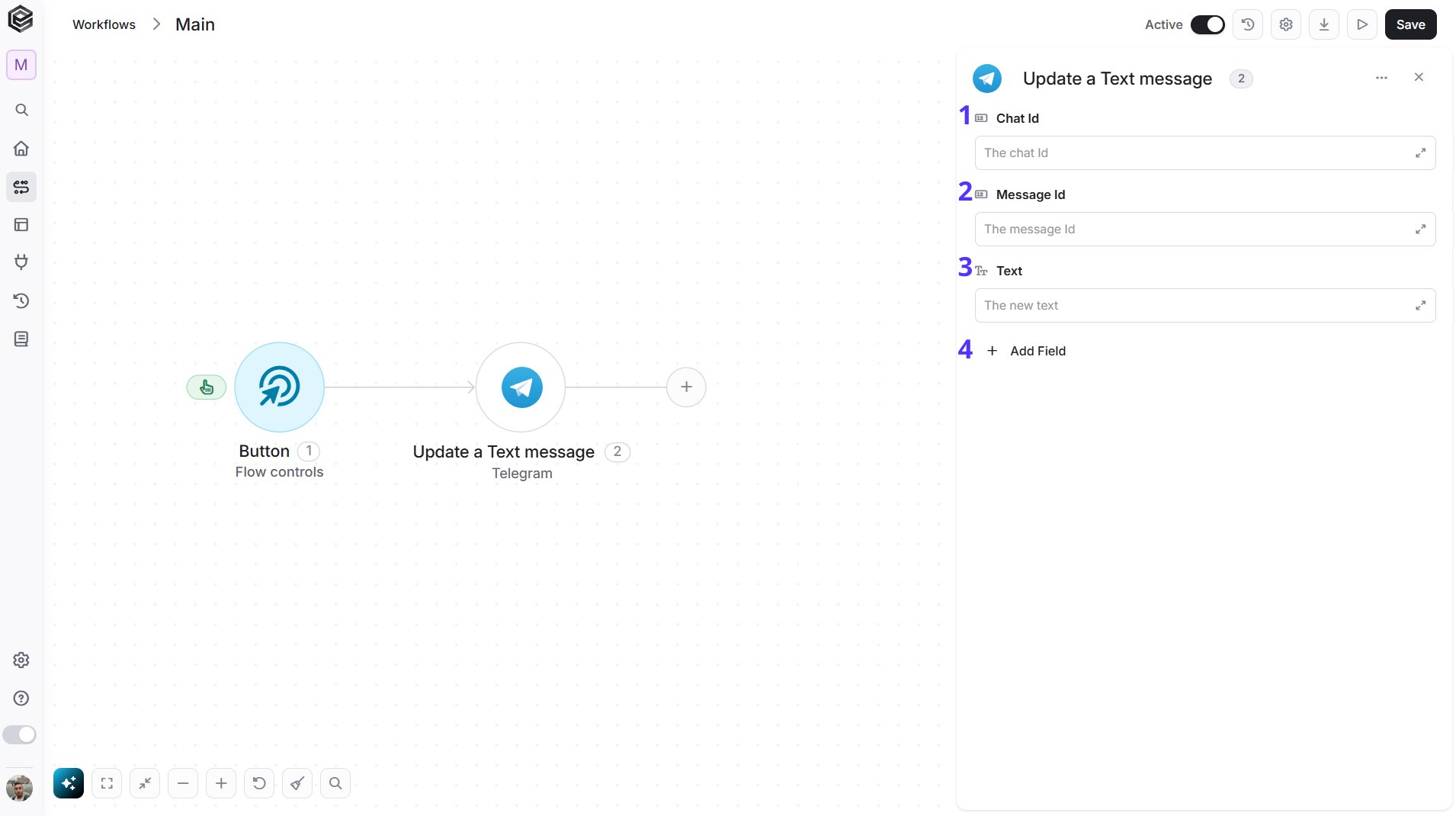
- Chat Id - The ID of the chat (private chat, group or channel). Pick it from the list of chats (only chats active in the last 24 hours appear), map it from a previous step such as the Telegram Webhook trigger, or type it.
- Message Id - The ID of the message. Pick it from the list of recent messages (only the last 24 hours), map it from a previous step, or type it.
- Text - Enter the new text of the message.
- Add Field - Click Add Field to add and populate additional fields for the selected activity. To learn more about managing activity data, click here.
Update a Message Caption
Edits the caption of a media message your bot sent, such as a photo, video or document.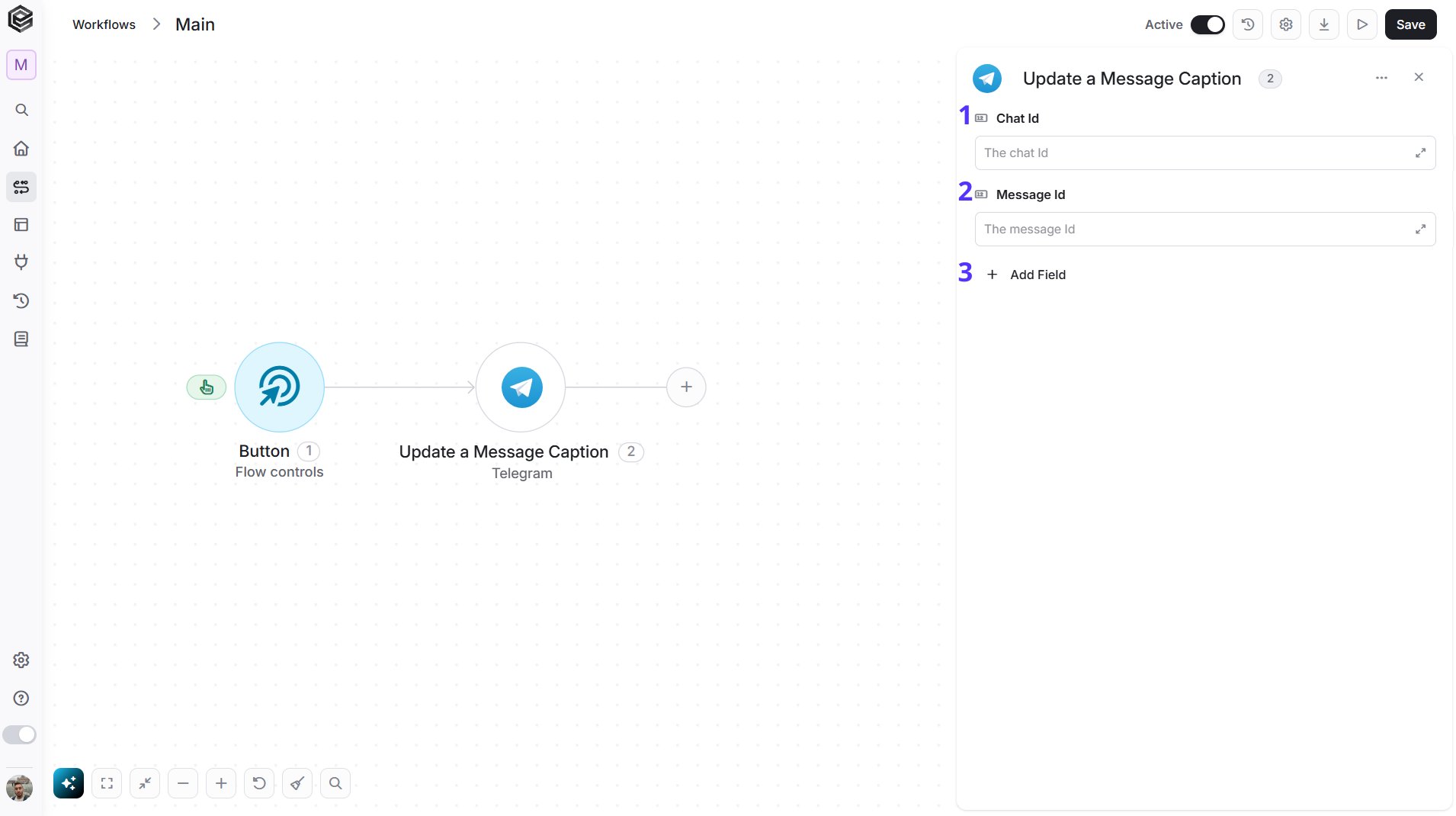
- Chat Id - The ID of the chat (private chat, group or channel). Pick it from the list of chats (only chats active in the last 24 hours appear), map it from a previous step such as the Telegram Webhook trigger, or type it.
- Message Id - The ID of the message whose caption you want to change. Pick it from the list of recent messages (only the last 24 hours), map it from a previous step, or type it.
- Add Field - Click Add Field to add and populate additional fields for the selected activity. To learn more about managing activity data, click here.
Update Media Message
Replaces the media of a message your bot sent.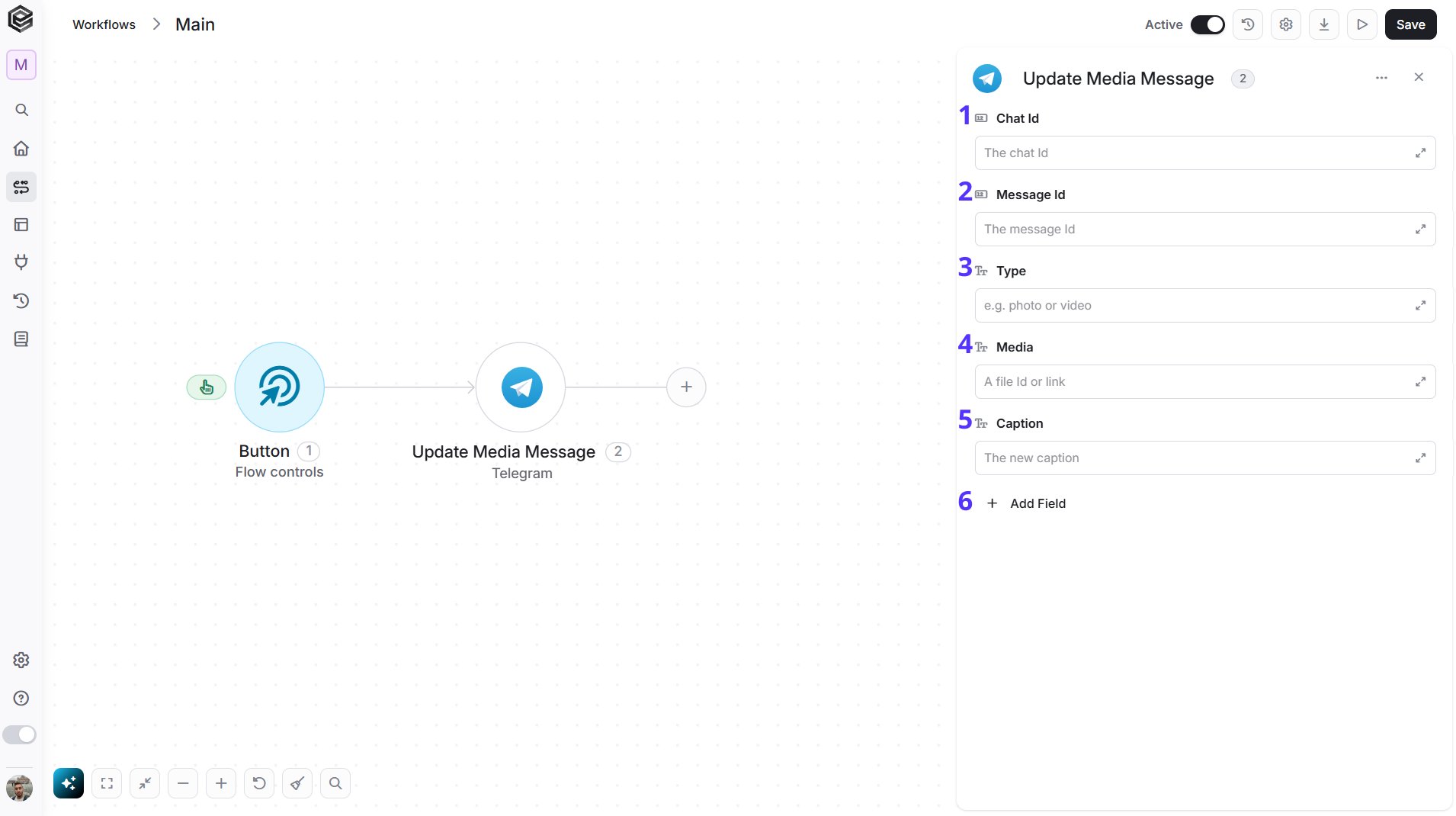
- Chat Id - The ID of the chat (private chat, group or channel). Pick it from the list of chats (only chats active in the last 24 hours appear), map it from a previous step such as the Telegram Webhook trigger, or type it.
- Message Id - The ID of the message. Pick it from the list of recent messages (only the last 24 hours), map it from a previous step, or type it.
- Type - Enter the type of the new media.
- Media - Enter the new media file.
- Caption - Enter the caption for the new media.
- Add Field - Click Add Field to add and populate additional fields for the selected activity. To learn more about managing activity data, click here.
Forward a Message
Forwards a message from one chat to another.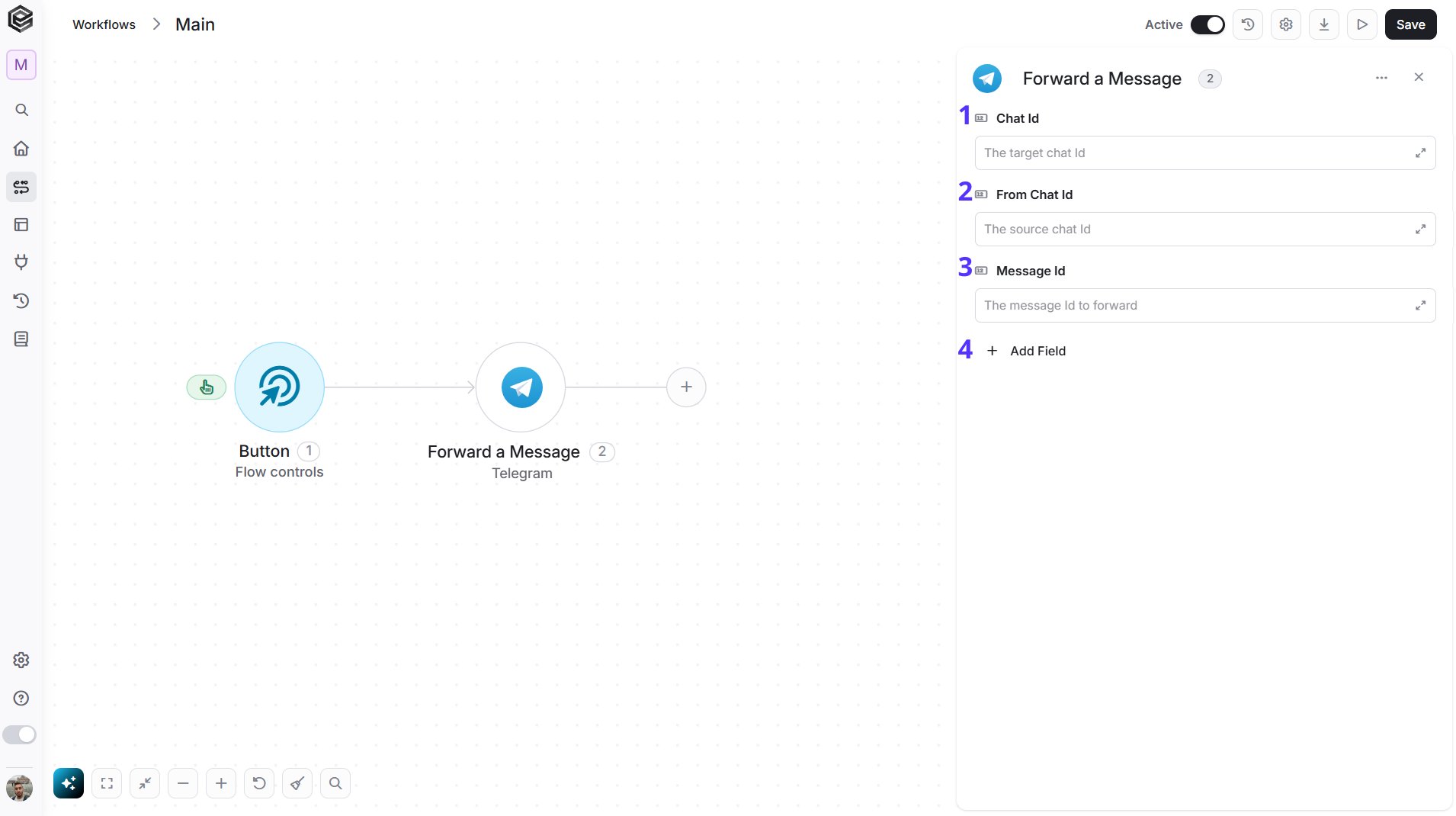
- Chat Id - The ID of the chat you want to forward the message to. Pick it from the list of chats (only chats active in the last 24 hours appear), map it from a previous step such as the Telegram Webhook trigger, or type it.
- From Chat Id - The ID of the chat the message comes from. Pick it from the list of chats (only chats active in the last 24 hours appear), map it from a previous step such as the Telegram Webhook trigger, or type it.
- Message Id - The ID of the message. Pick it from the list of recent messages (only the last 24 hours), map it from a previous step, or type it.
- Add Field - Click Add Field to add and populate additional fields for the selected activity. To learn more about managing activity data, click here.
Delete Message
Deletes a message from a chat.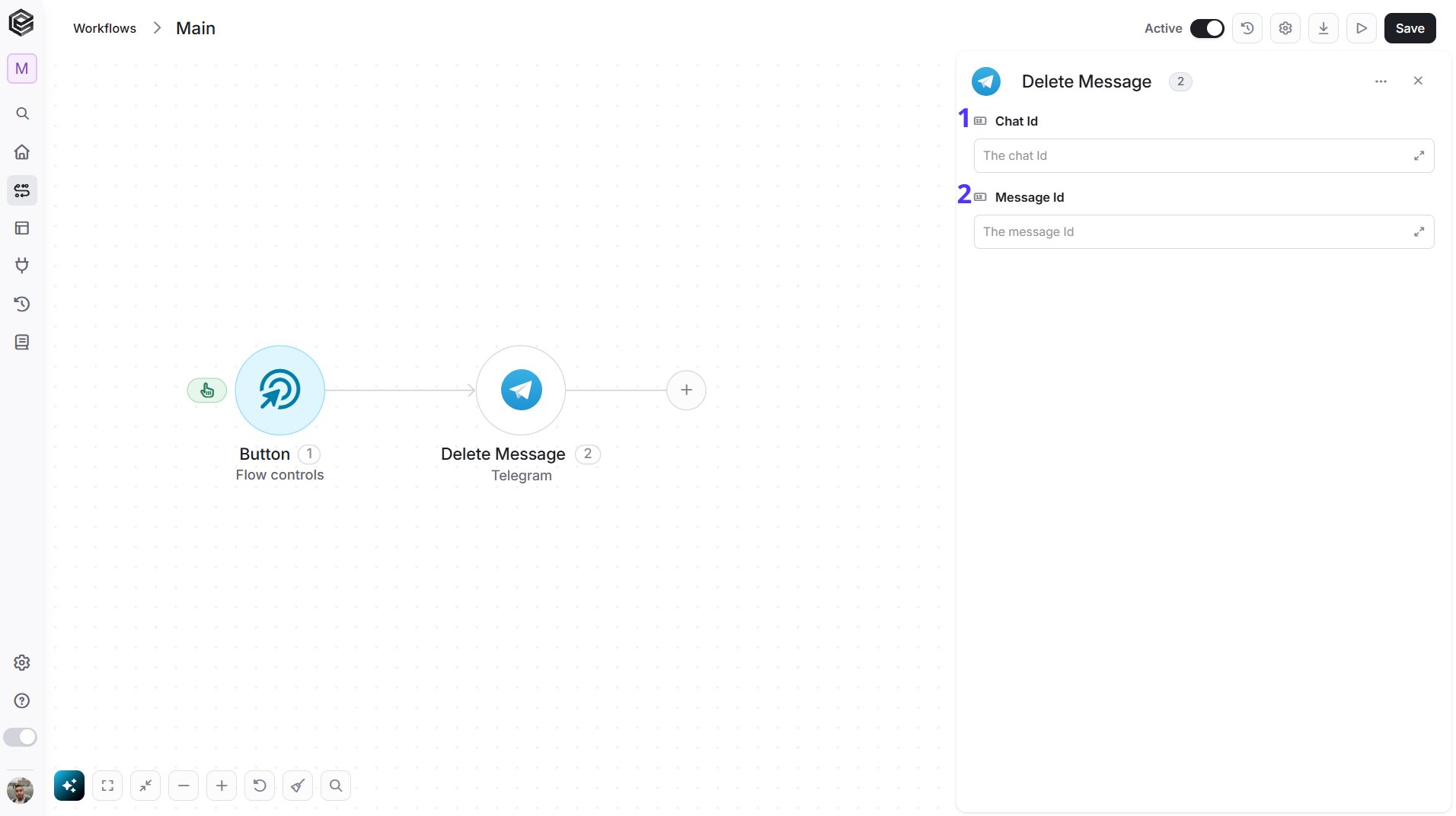
- Chat Id - The ID of the chat (private chat, group or channel). Pick it from the list of chats (only chats active in the last 24 hours appear), map it from a previous step such as the Telegram Webhook trigger, or type it.
- Message Id - The ID of the message. Pick it from the list of recent messages (only the last 24 hours), map it from a previous step, or type it.
Pin a Message
Pins a message at the top of a chat.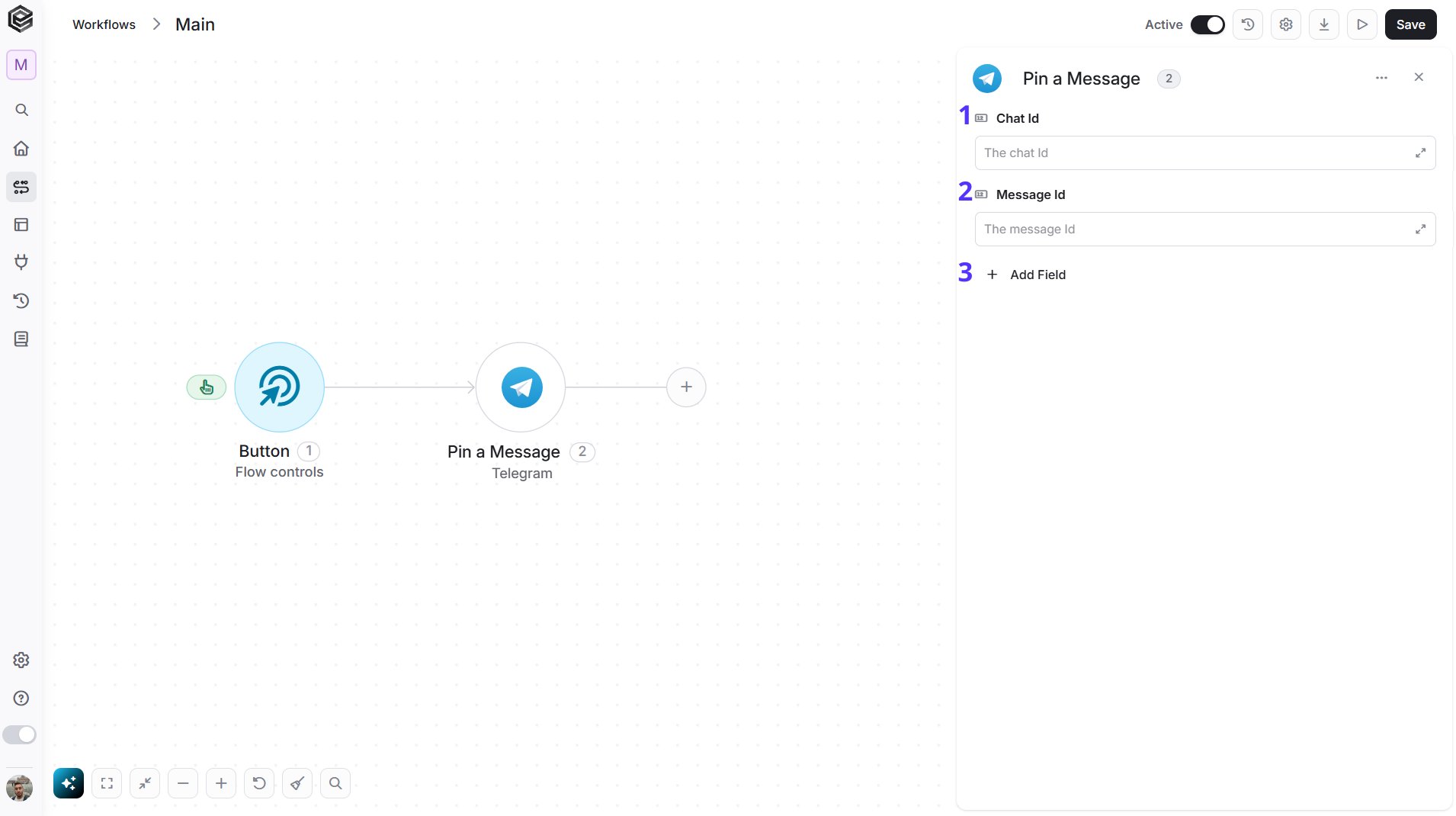
- Chat Id - The ID of the chat (private chat, group or channel). Pick it from the list of chats (only chats active in the last 24 hours appear), map it from a previous step such as the Telegram Webhook trigger, or type it.
- Message Id - The ID of the message. Pick it from the list of recent messages (only the last 24 hours), map it from a previous step, or type it.
- Add Field - Click Add Field to add and populate additional fields for the selected activity. To learn more about managing activity data, click here.
Unpin a Message
Unpins a message from a chat.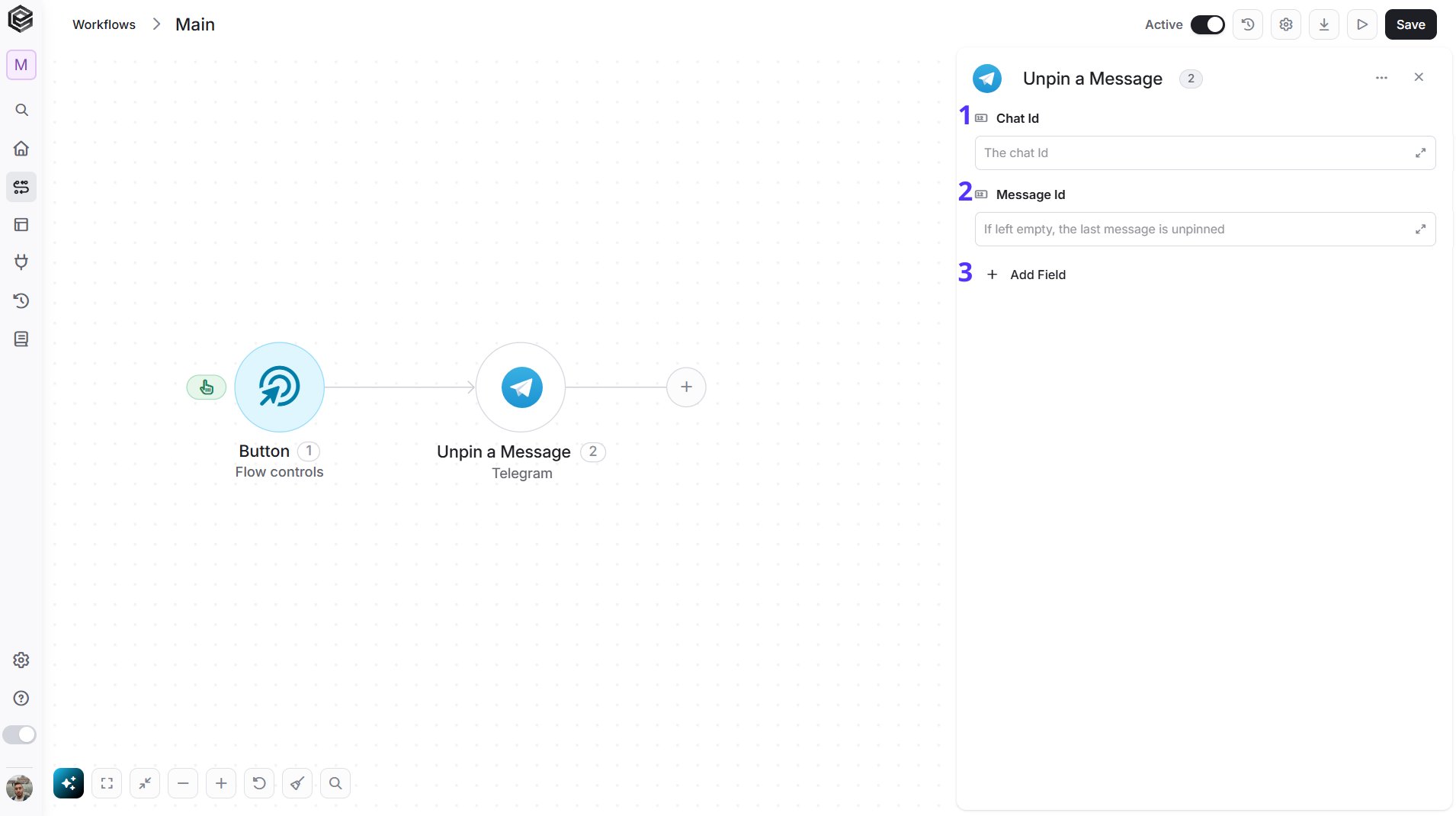
- Chat Id - The ID of the chat (private chat, group or channel). Pick it from the list of chats (only chats active in the last 24 hours appear), map it from a previous step such as the Telegram Webhook trigger, or type it.
- Message Id - The ID of the message you want to unpin. Pick it from the list of recent messages (only the last 24 hours), map it from a previous step, or type it.
- Add Field - Click Add Field to add and populate additional fields for the selected activity. To learn more about managing activity data, click here.
Send an Image
Sends an image from your bot to a chat.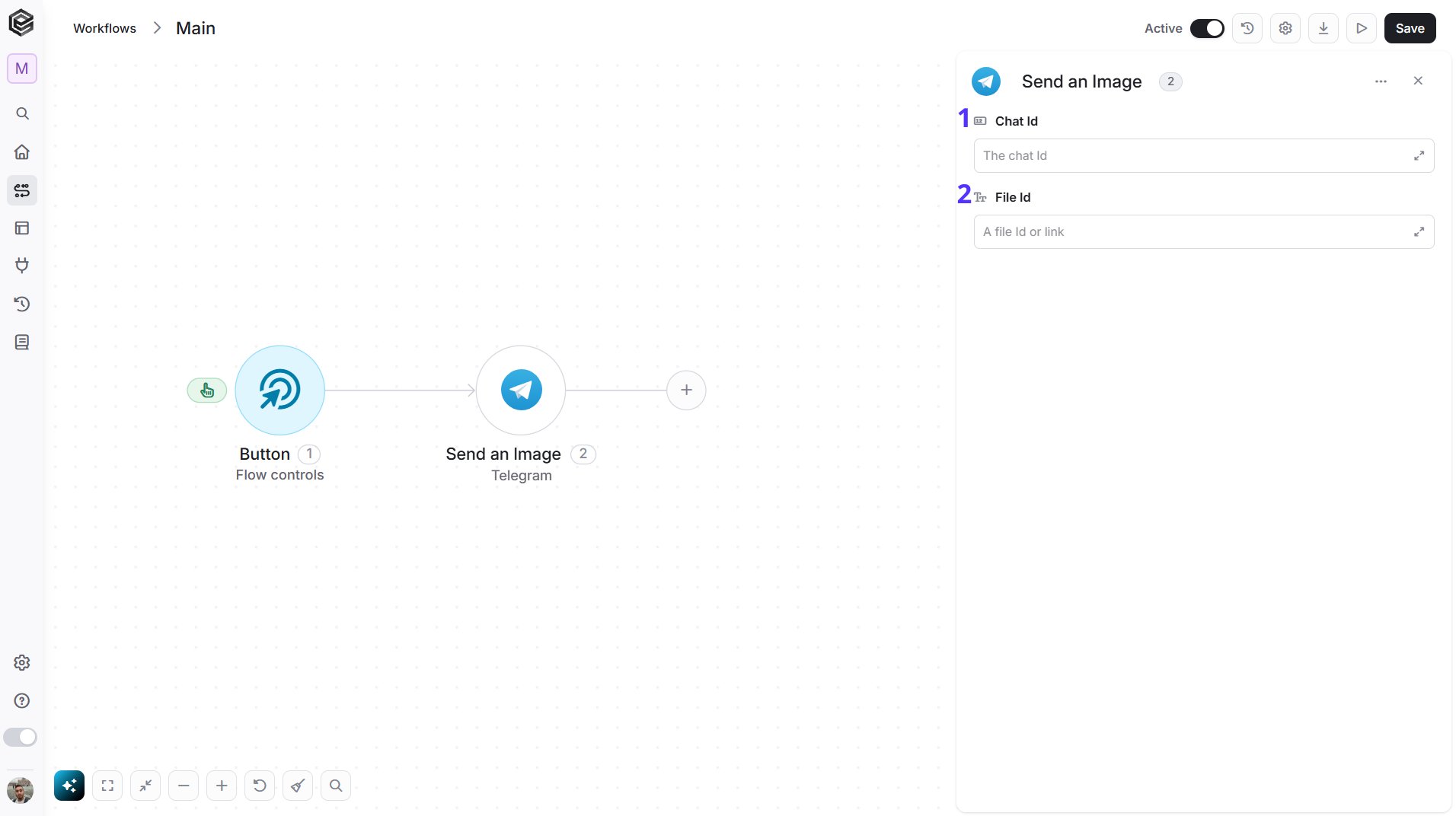
- Chat Id - The ID of the chat (private chat, group or channel). Pick it from the list of chats (only chats active in the last 24 hours appear), map it from a previous step such as the Telegram Webhook trigger, or type it.
- File Id - The Telegram file ID of the file to send. Pick it from the list of recent files (only the last 24 hours), map it from a previous step, or type it.
Send a Document
Sends a document, such as a PDF, from your bot to a chat.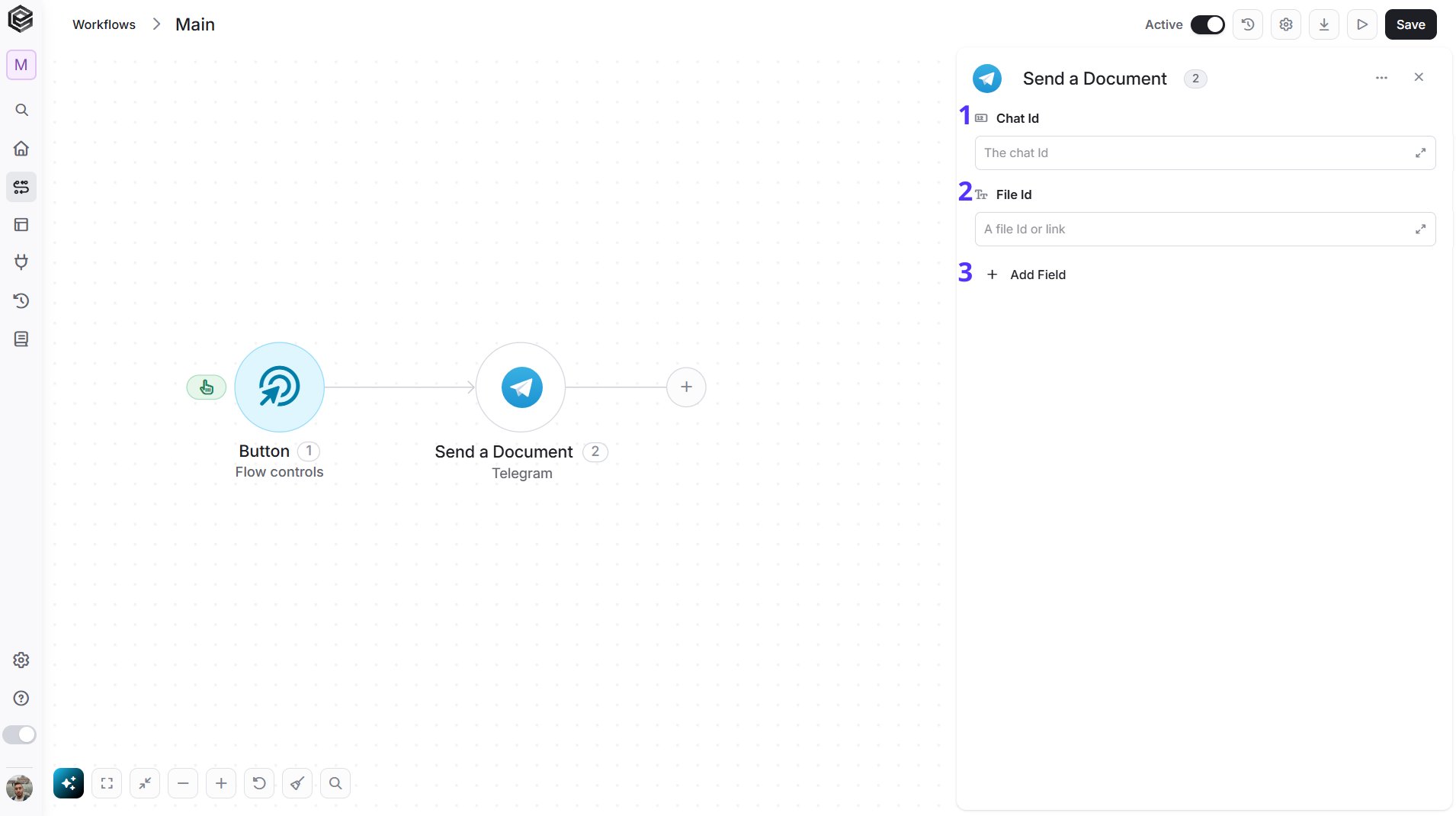
- Chat Id - Enter the ID of the chat (private chat, group or channel). You can also map it from a previous step, for example the Telegram Webhook trigger.
- File Id - Enter the Telegram file ID of the file to send. You can map it from a previous step, for example the Telegram Webhook trigger when a user sends a file to your bot.
- Add Field - Click Add Field to add and populate additional fields for the selected activity. To learn more about managing activity data, click here.
Send an Album
Sends a group of photos, videos or files from your bot to a chat as one album.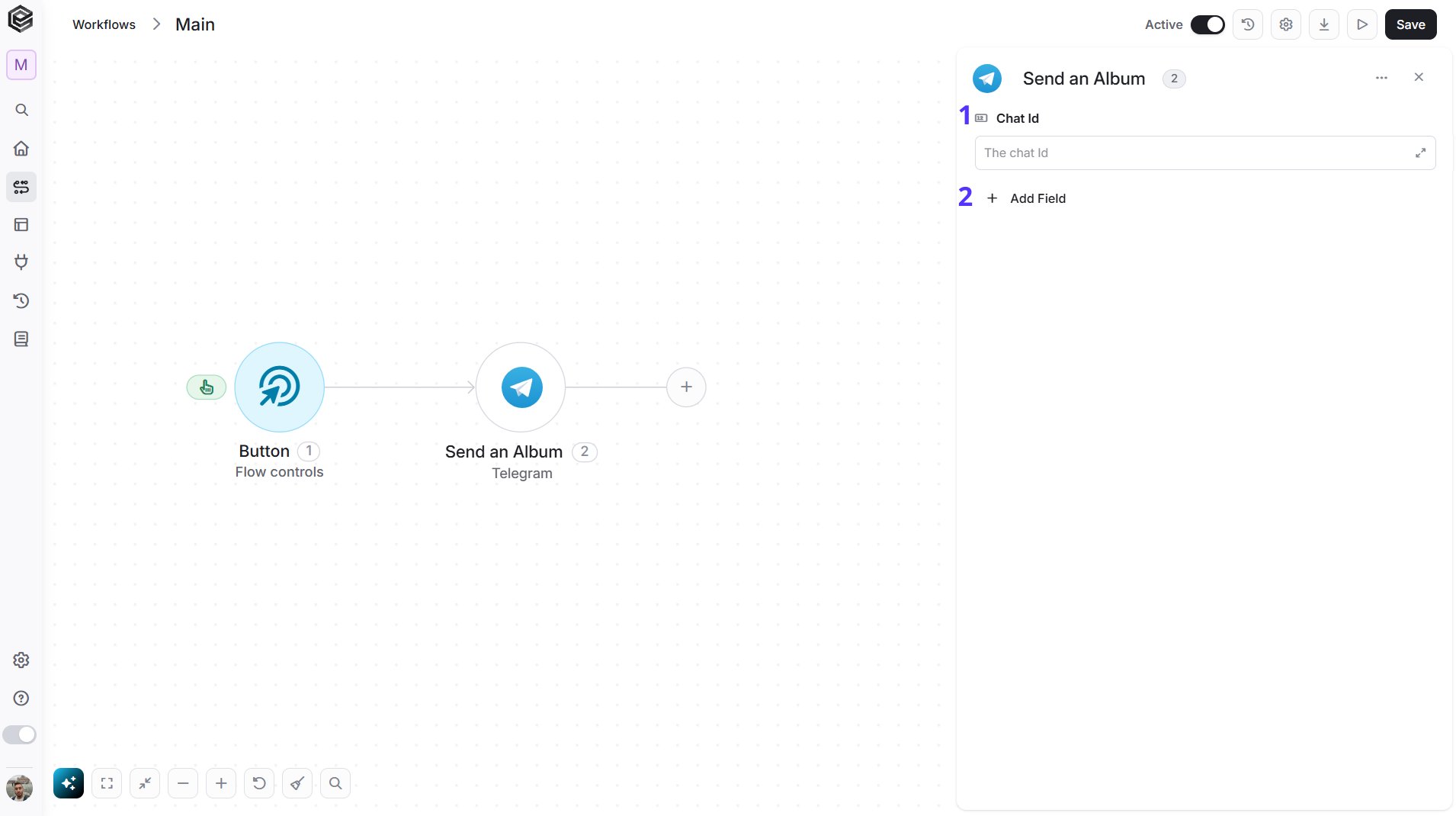
- Chat Id - The ID of the chat (private chat, group or channel). Pick it from the list of chats (only chats active in the last 24 hours appear), map it from a previous step such as the Telegram Webhook trigger, or type it.
- Add Field - Click Add Field to add and populate additional fields for the selected activity. To learn more about managing activity data, click here.
Send a Sticker
Sends a sticker from your bot to a chat.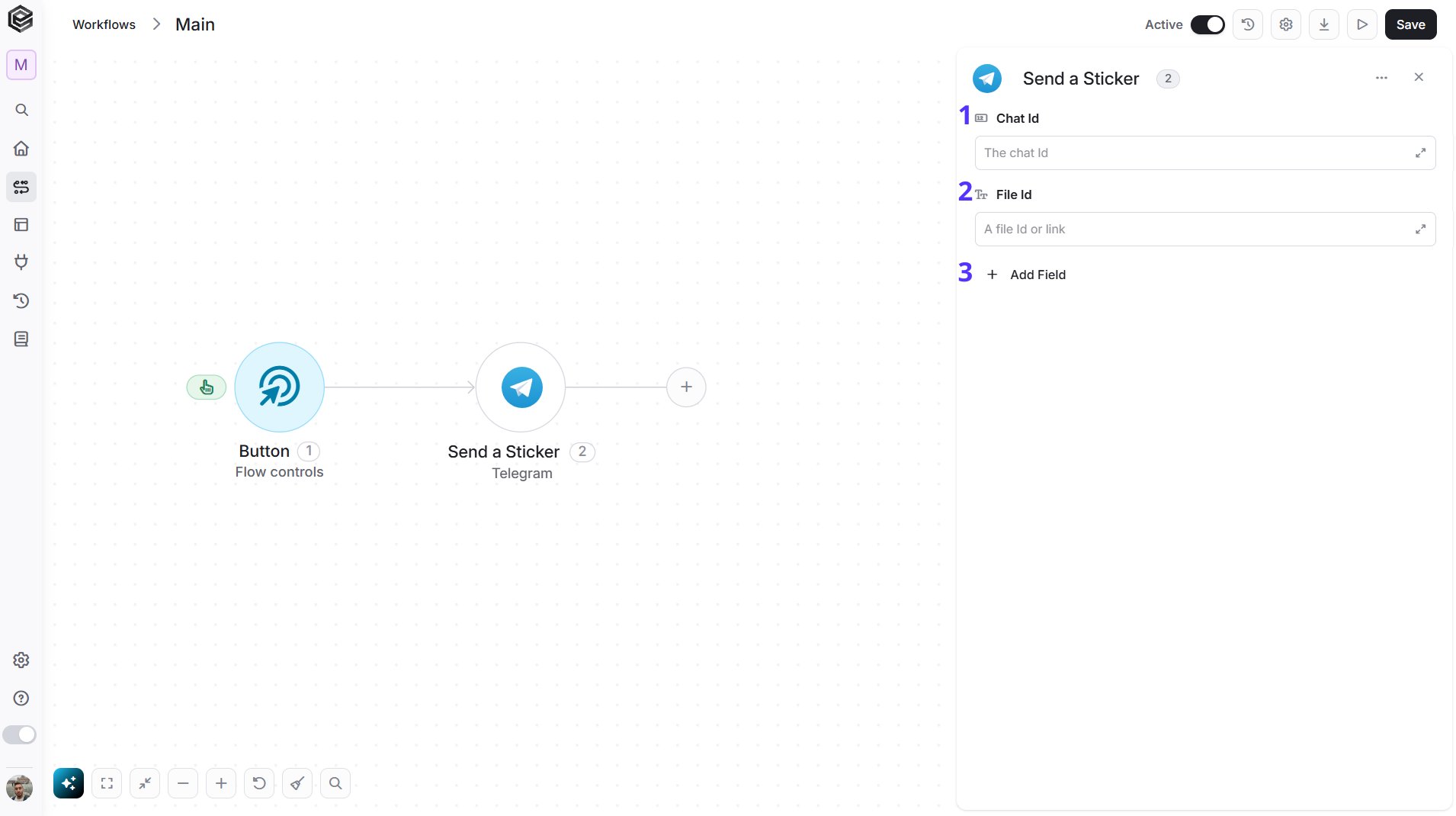
- Chat Id - The ID of the chat (private chat, group or channel). Pick it from the list of chats (only chats active in the last 24 hours appear), map it from a previous step such as the Telegram Webhook trigger, or type it.
- File Id - The Telegram file ID of the file to send. Pick it from the list of recent files (only the last 24 hours), map it from a previous step, or type it.
- Add Field - Click Add Field to add and populate additional fields for the selected activity. To learn more about managing activity data, click here.
Send Video
Sends a video from your bot to a chat.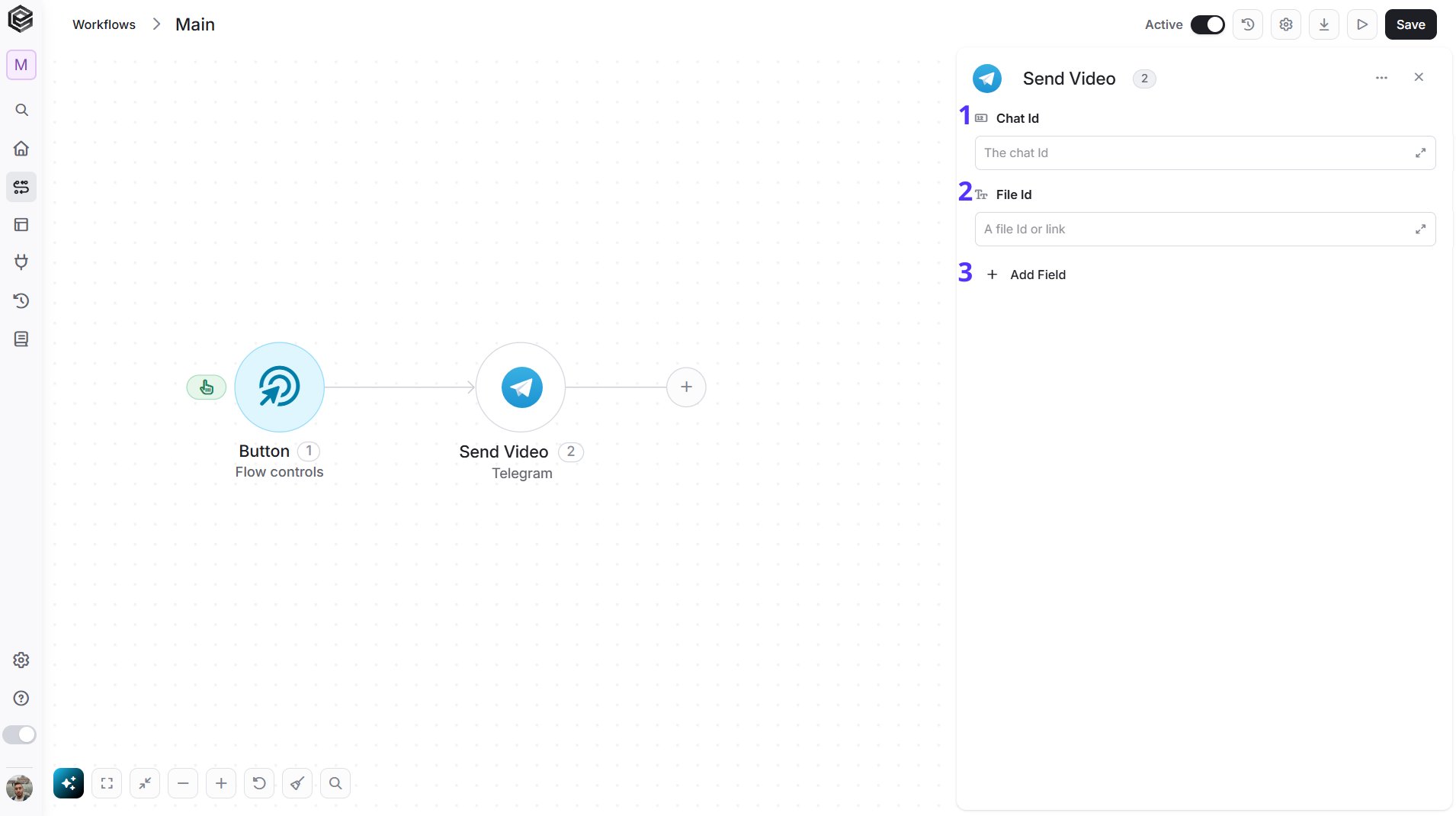
- Chat Id - The ID of the chat (private chat, group or channel). Pick it from the list of chats (only chats active in the last 24 hours appear), map it from a previous step such as the Telegram Webhook trigger, or type it.
- File Id - The Telegram file ID of the file to send. Pick it from the list of recent files (only the last 24 hours), map it from a previous step, or type it.
- Add Field - Click Add Field to add and populate additional fields for the selected activity. To learn more about managing activity data, click here.
Send a Video Note
Sends a round video message from your bot to a chat.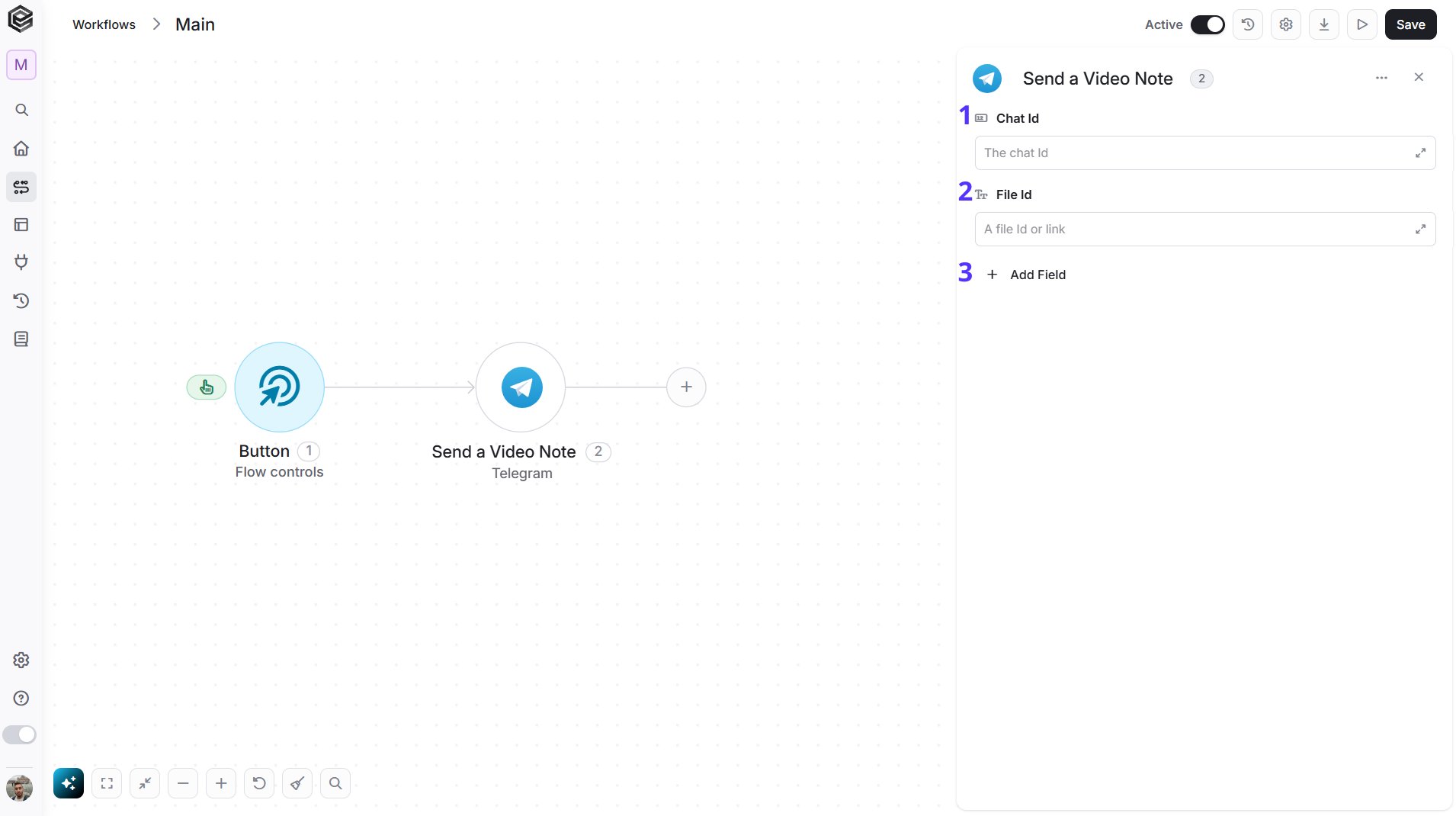
- Chat Id - The ID of the chat (private chat, group or channel). Pick it from the list of chats (only chats active in the last 24 hours appear), map it from a previous step such as the Telegram Webhook trigger, or type it.
- File Id - The Telegram file ID of the file to send. Pick it from the list of recent files (only the last 24 hours), map it from a previous step, or type it.
- Add Field - Click Add Field to add and populate additional fields for the selected activity. To learn more about managing activity data, click here.
Send a Voice Message
Sends an audio recording from your bot to a chat as a voice message.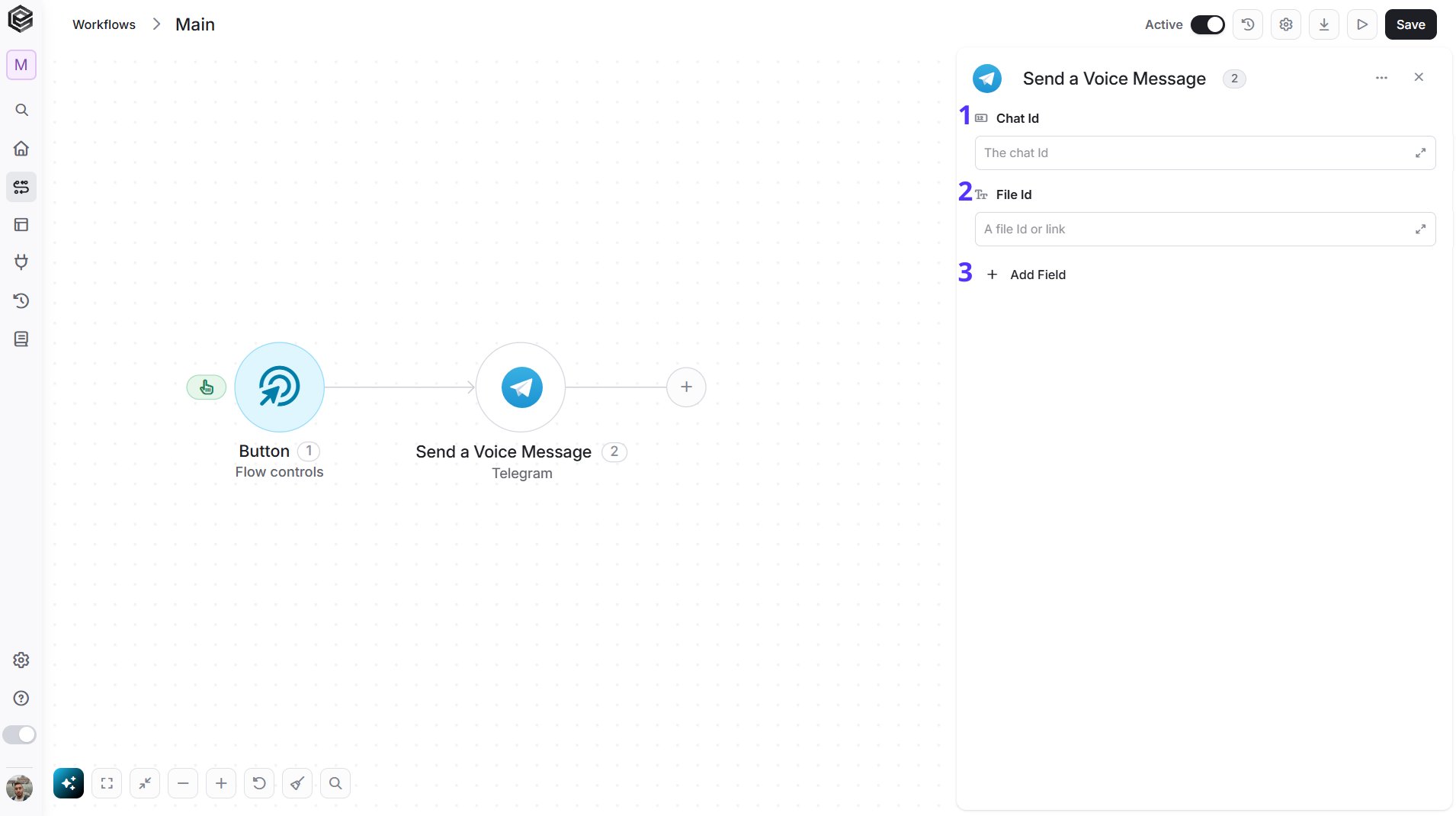
- Chat Id - The ID of the chat (private chat, group or channel). Pick it from the list of chats (only chats active in the last 24 hours appear), map it from a previous step such as the Telegram Webhook trigger, or type it.
- File Id - The Telegram file ID of the file to send. Pick it from the list of recent files (only the last 24 hours), map it from a previous step, or type it.
- Add Field - Click Add Field to add and populate additional fields for the selected activity. To learn more about managing activity data, click here.
Send an Invoice
Sends an invoice message from your bot to a chat.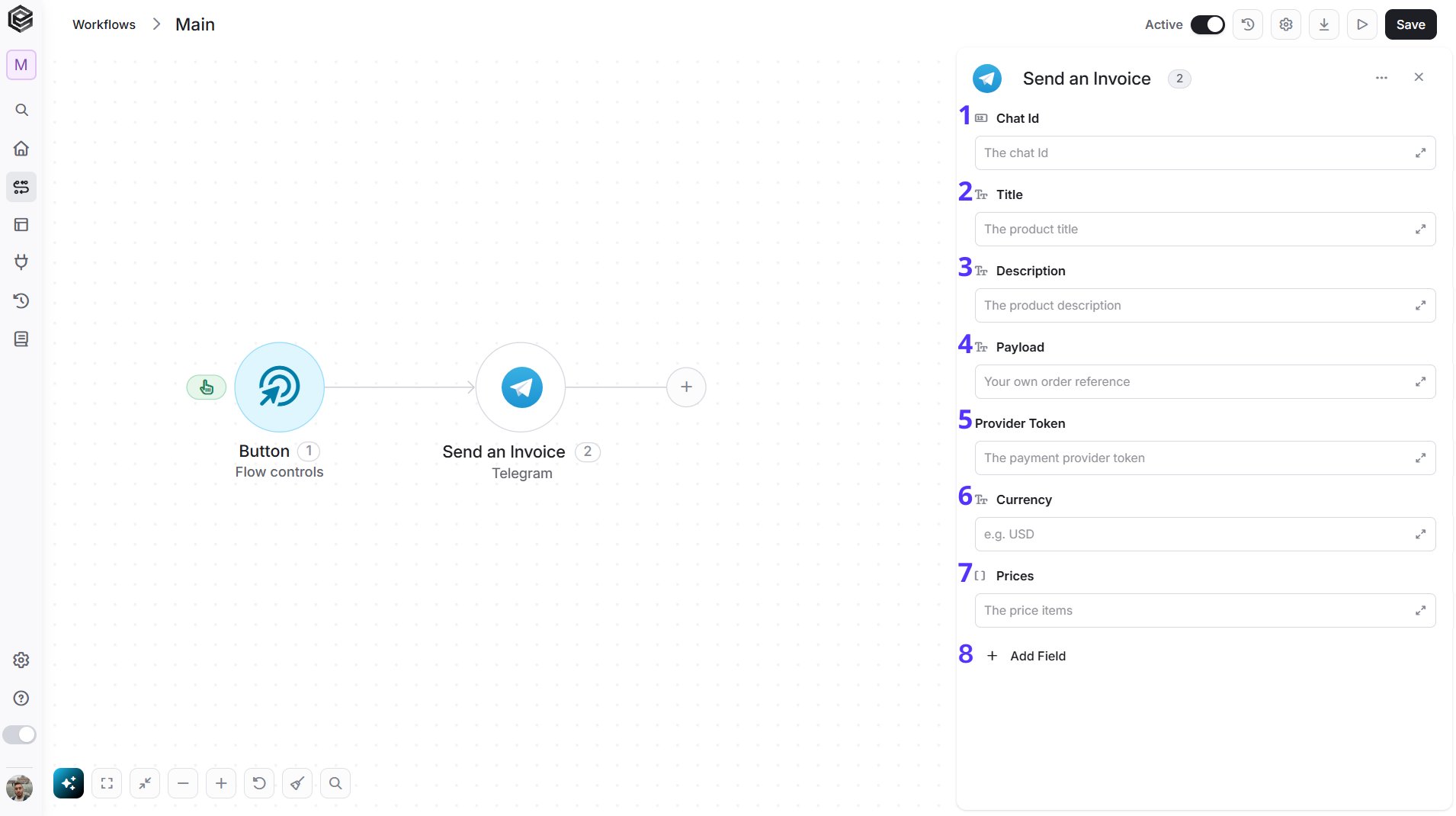
- Chat Id - The ID of the chat (private chat, group or channel). Pick it from the list of chats (only chats active in the last 24 hours appear), map it from a previous step such as the Telegram Webhook trigger, or type it.
- Title - Enter the product name.
- Description - Enter a description of the product.
- Payload - Enter an internal identifier for the invoice. It is returned to your bot after the payment and is not shown to the customer.
- Provider Token - Enter the token of your payment provider.
- Currency - Enter the three-letter currency code, for example USD.
- Prices - Enter the list of price items that make up the total.
- Add Field - Click Add Field to add and populate additional fields for the selected activity. To learn more about managing activity data, click here.
Get File
Retrieves information about a file, such as its path on Telegram’s servers.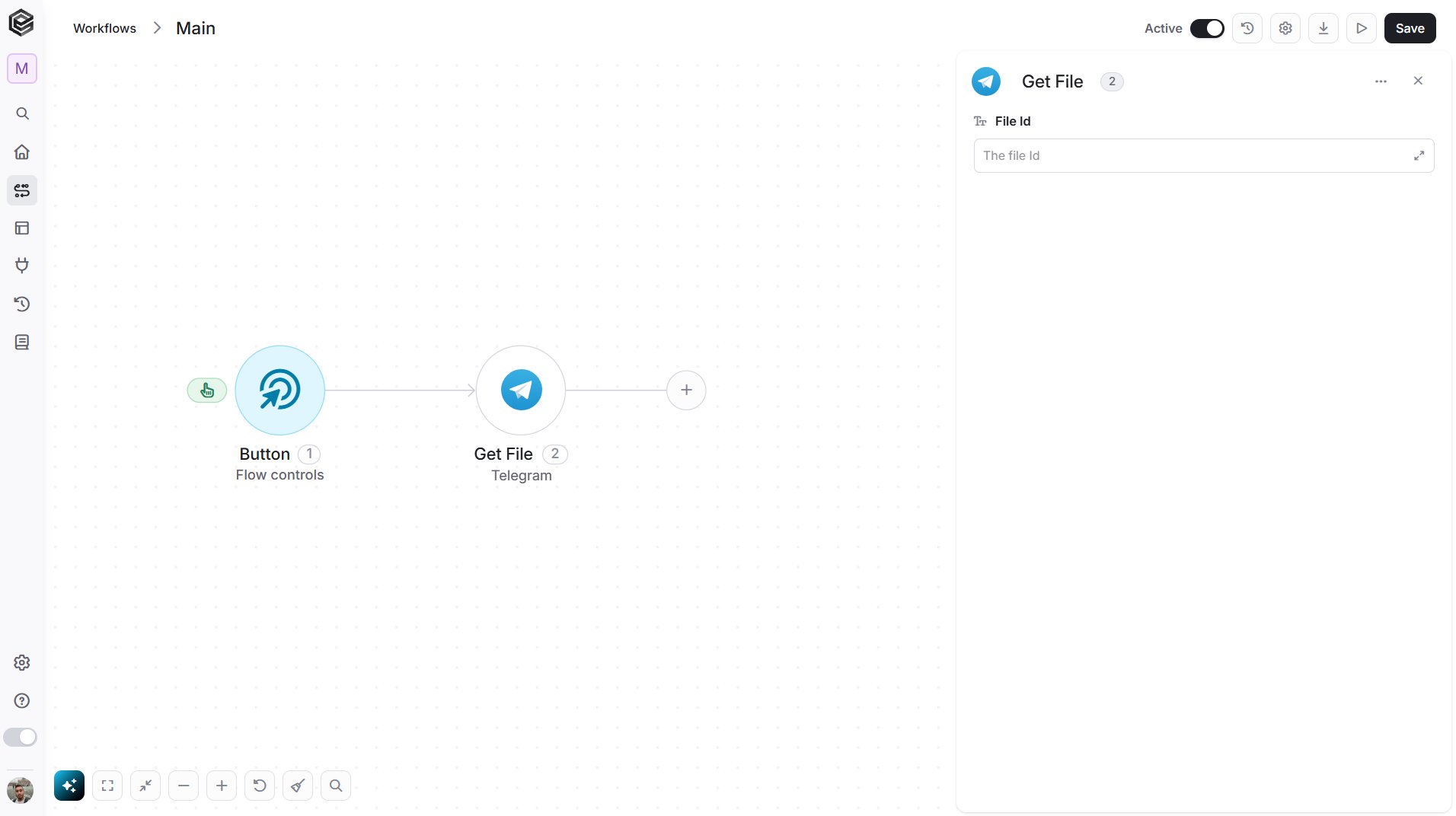
- File Id - The Telegram file ID. Pick it from the list of recent files (only the last 24 hours), map it from a previous step, or type it.
Download File
Downloads a file from Telegram.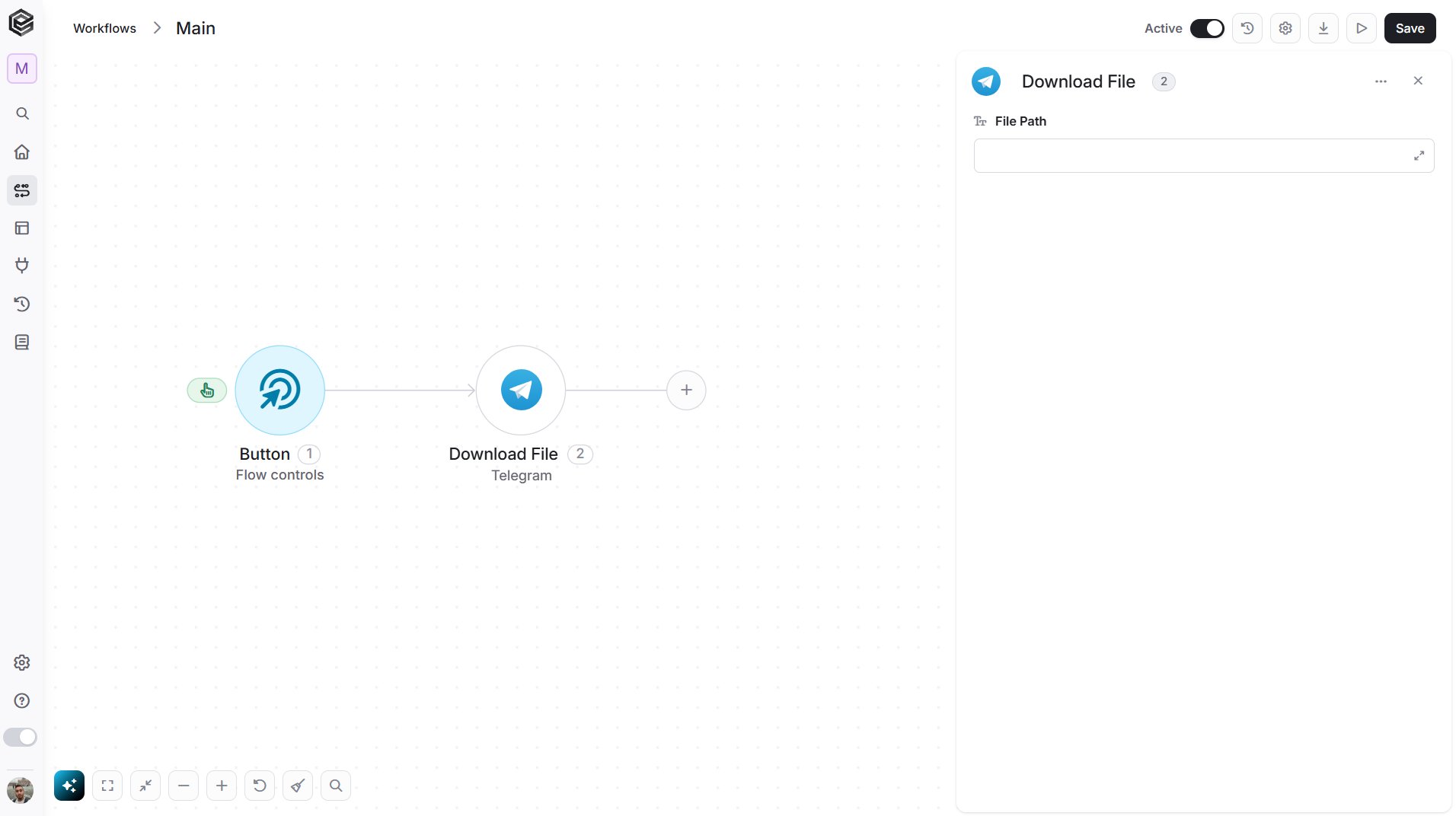
- File Path - Enter the file path returned by Get File.
Get Updates
Retrieves the messages and other updates your bot has received.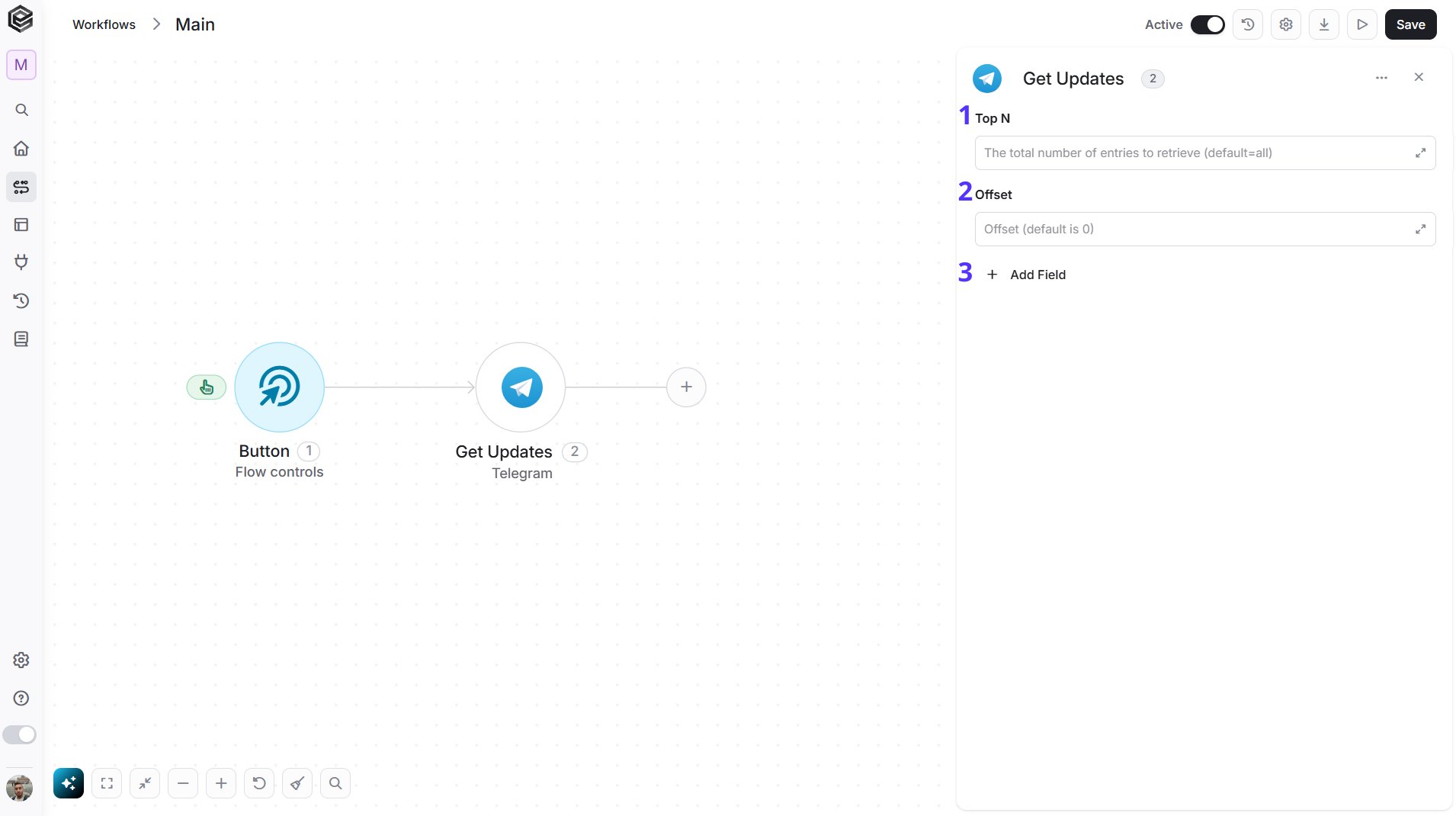
- Top N - You can set the maximum number of records Engini will return for the object you chose (default = all records).
- Offset - The offset parameter allows you to skip a certain number of records from the beginning of the result set (default = 0 records).
- Add Field - Click Add Field to add and populate additional fields for the selected activity. To learn more about managing activity data, click here.
Get Chat
Retrieves information about a chat.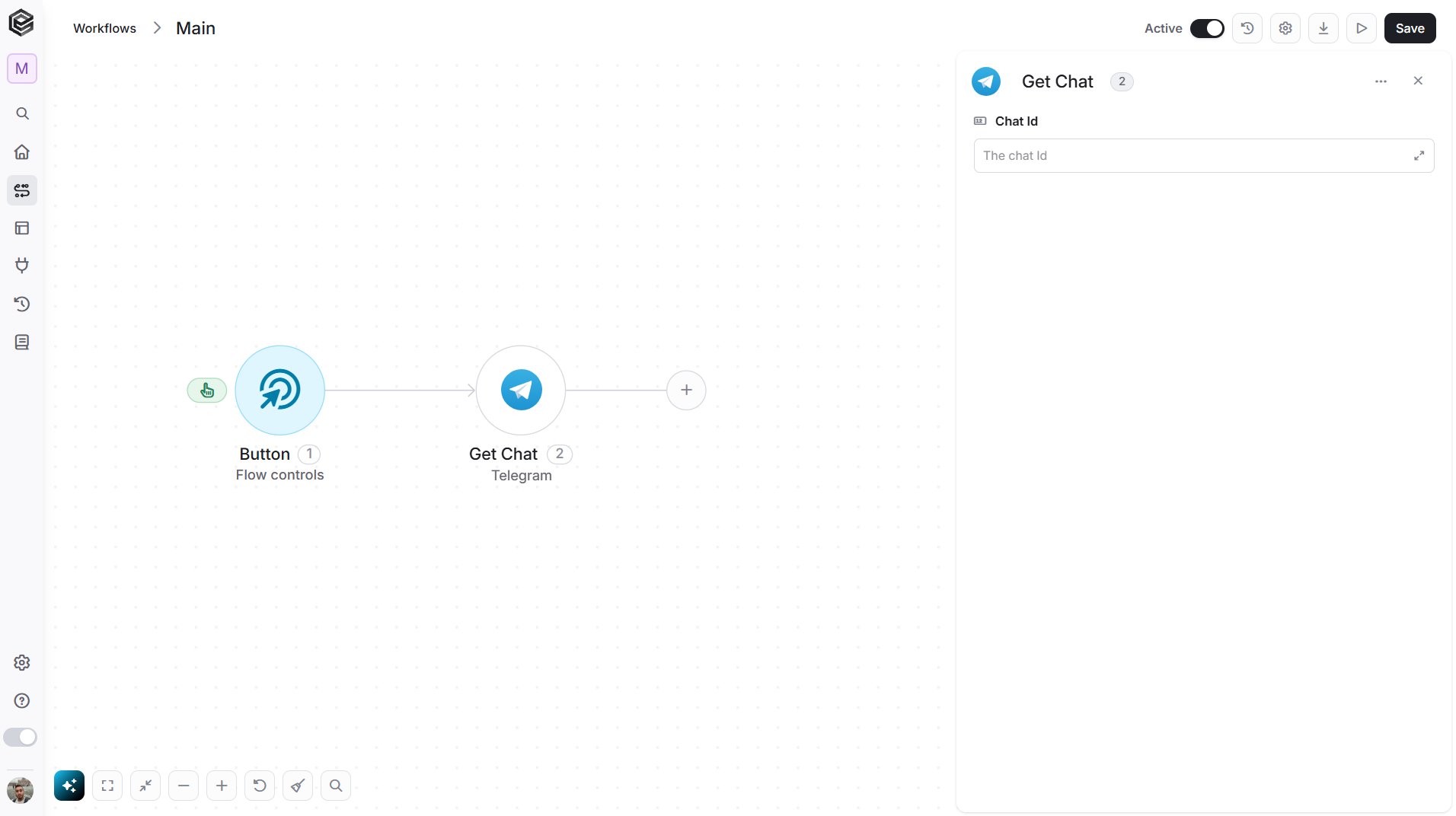
- Chat Id - The ID of the chat you want to inspect. Pick it from the list of chats (only chats active in the last 24 hours appear), map it from a previous step such as the Telegram Webhook trigger, or type it.
Get Administrators in a Chat
Retrieves the list of administrators of a group or channel.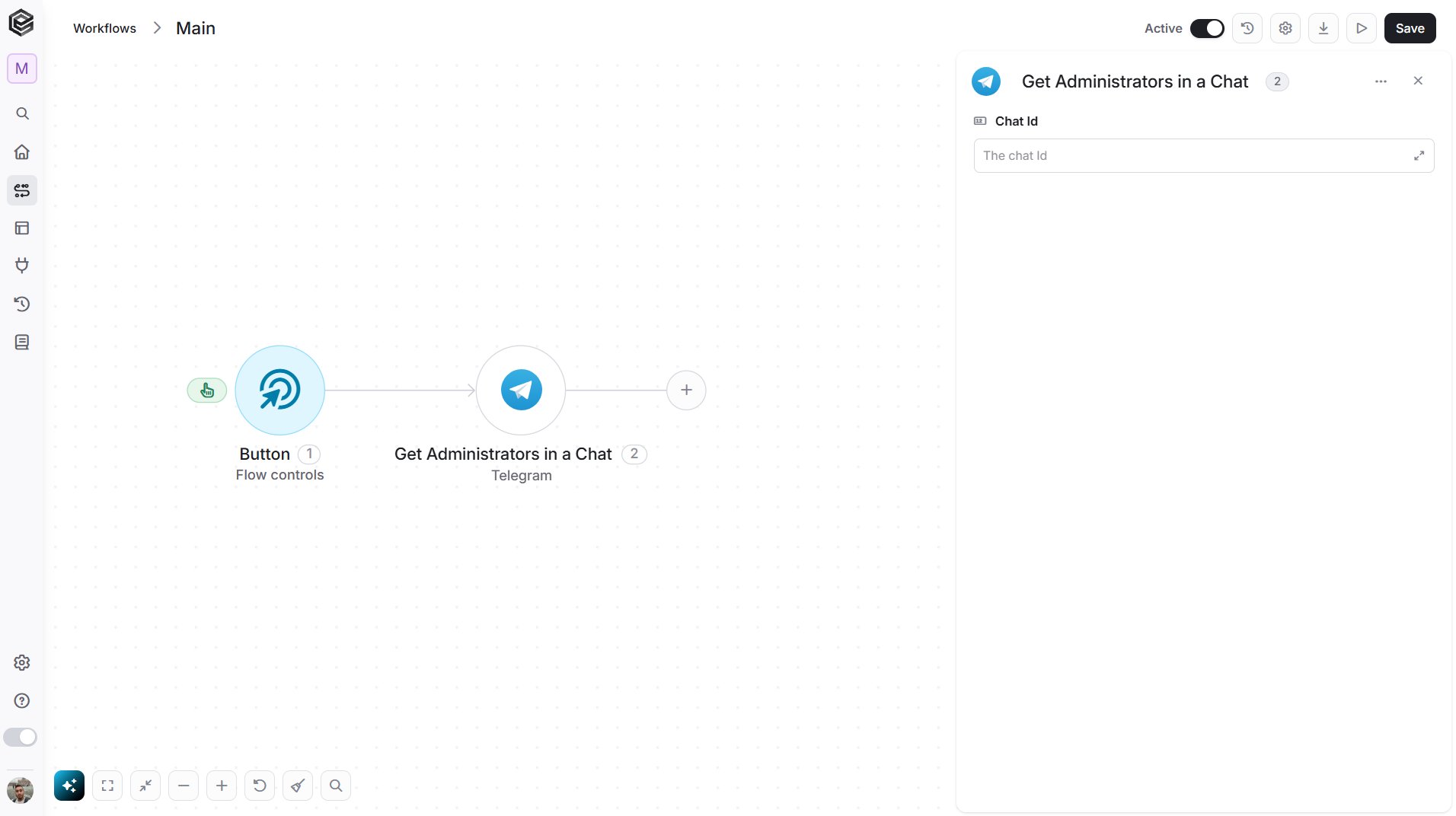
- Chat Id - The ID of the chat (private chat, group or channel). Pick it from the list of chats (only chats active in the last 24 hours appear), map it from a previous step such as the Telegram Webhook trigger, or type it.
Get the Number of Members in a Chat
Retrieves the number of members in a group or channel.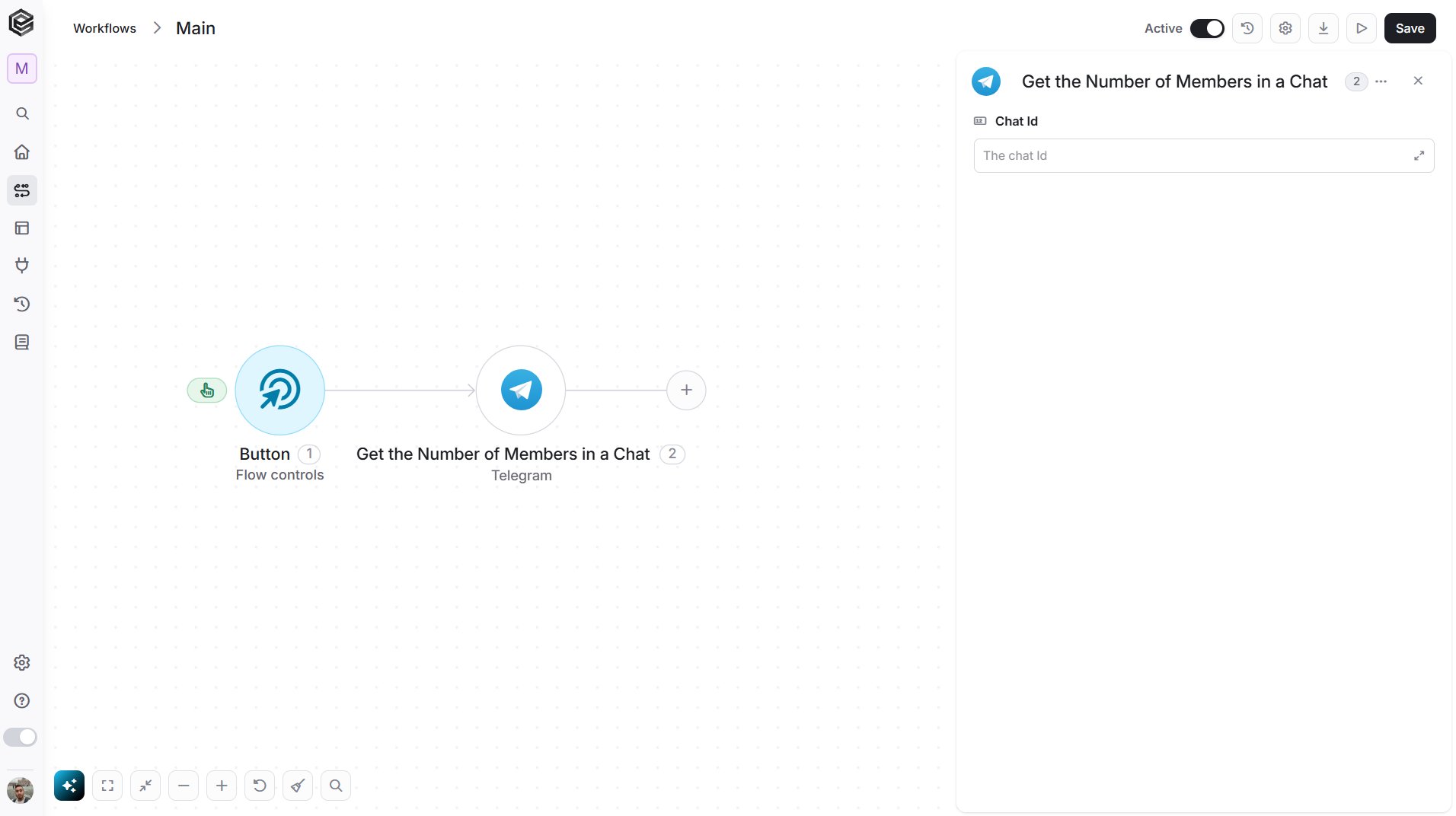
- Chat Id - The ID of the chat (private chat, group or channel). Pick it from the list of chats (only chats active in the last 24 hours appear), map it from a previous step such as the Telegram Webhook trigger, or type it.
Create a Chat Invite Link
Creates a new invite link for a group or channel.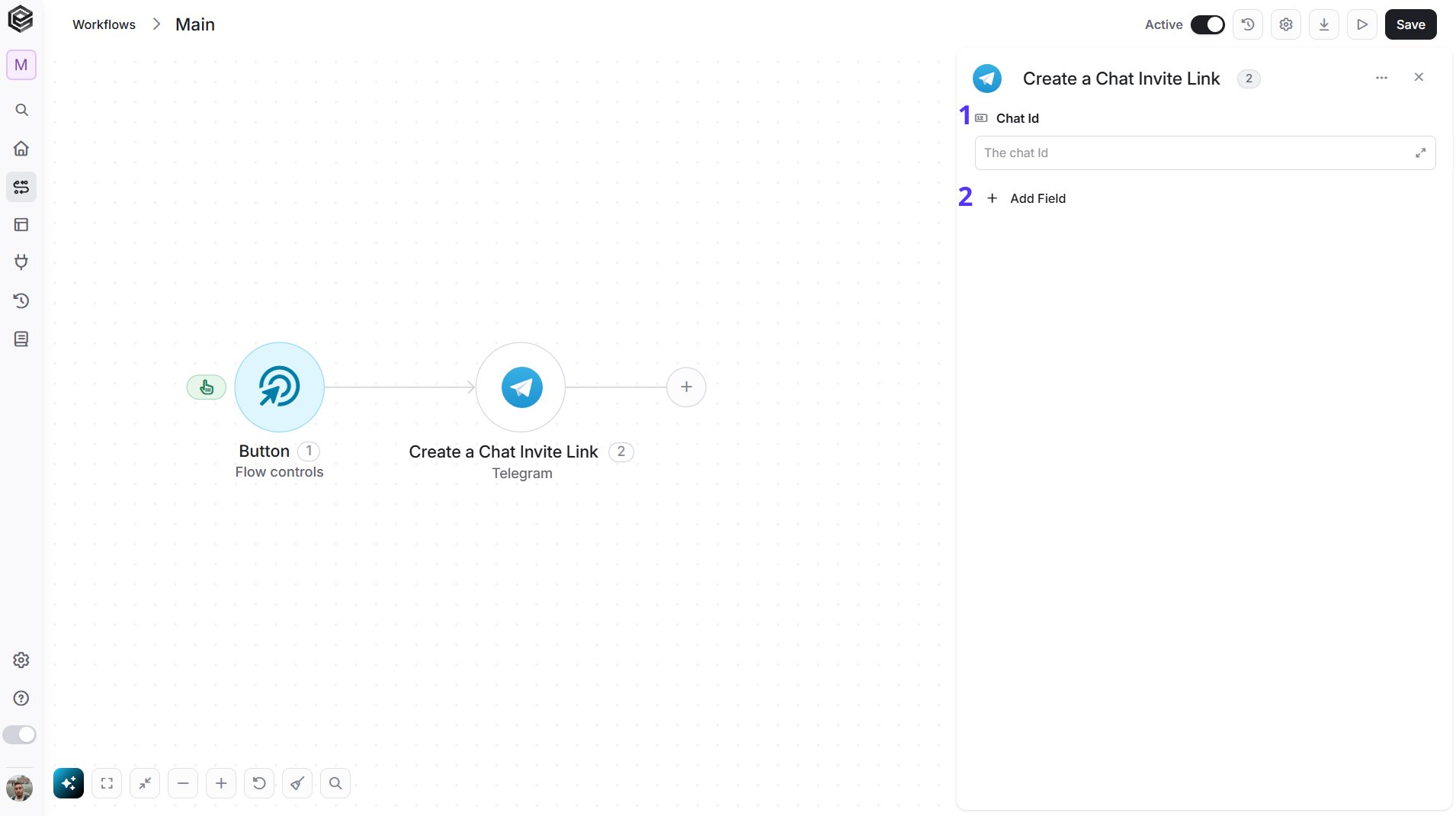
- Chat Id - The ID of the group or channel. Pick it from the list of chats (only chats active in the last 24 hours appear), map it from a previous step such as the Telegram Webhook trigger, or type it.
- Add Field - Click Add Field to add and populate additional fields for the selected activity. To learn more about managing activity data, click here.
Update Chat Invite Link
Edits an invite link that your bot created.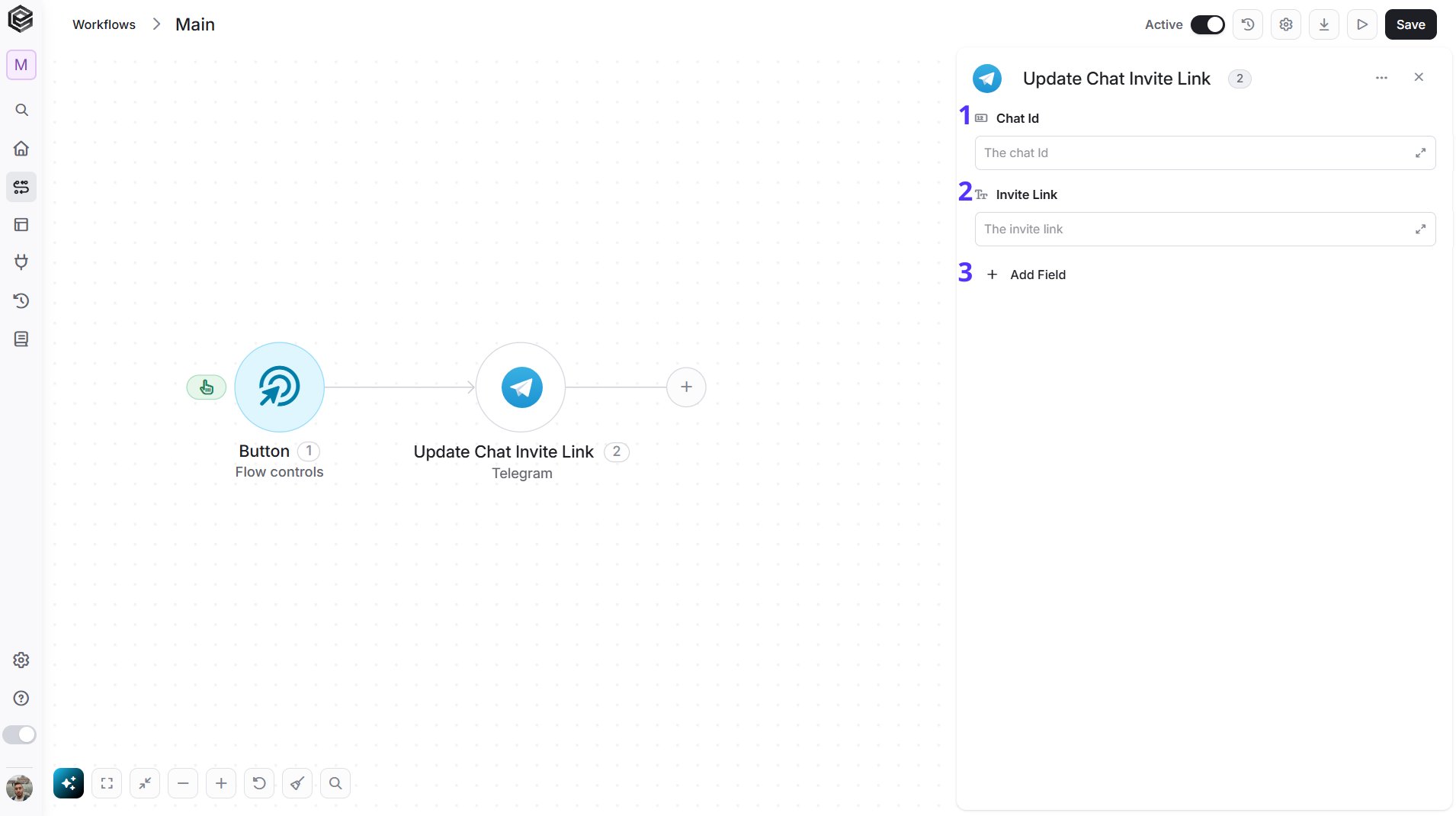
- Chat Id - The ID of the group or channel where the link was created. Pick it from the list of chats (only chats active in the last 24 hours appear), map it from a previous step such as the Telegram Webhook trigger, or type it.
- Invite Link - Enter the invite link you want to update.
- Add Field - Click Add Field to add and populate additional fields for the selected activity. To learn more about managing activity data, click here.
Delete Chat Invite Link
Revokes an invite link so that it can no longer be used to join the chat.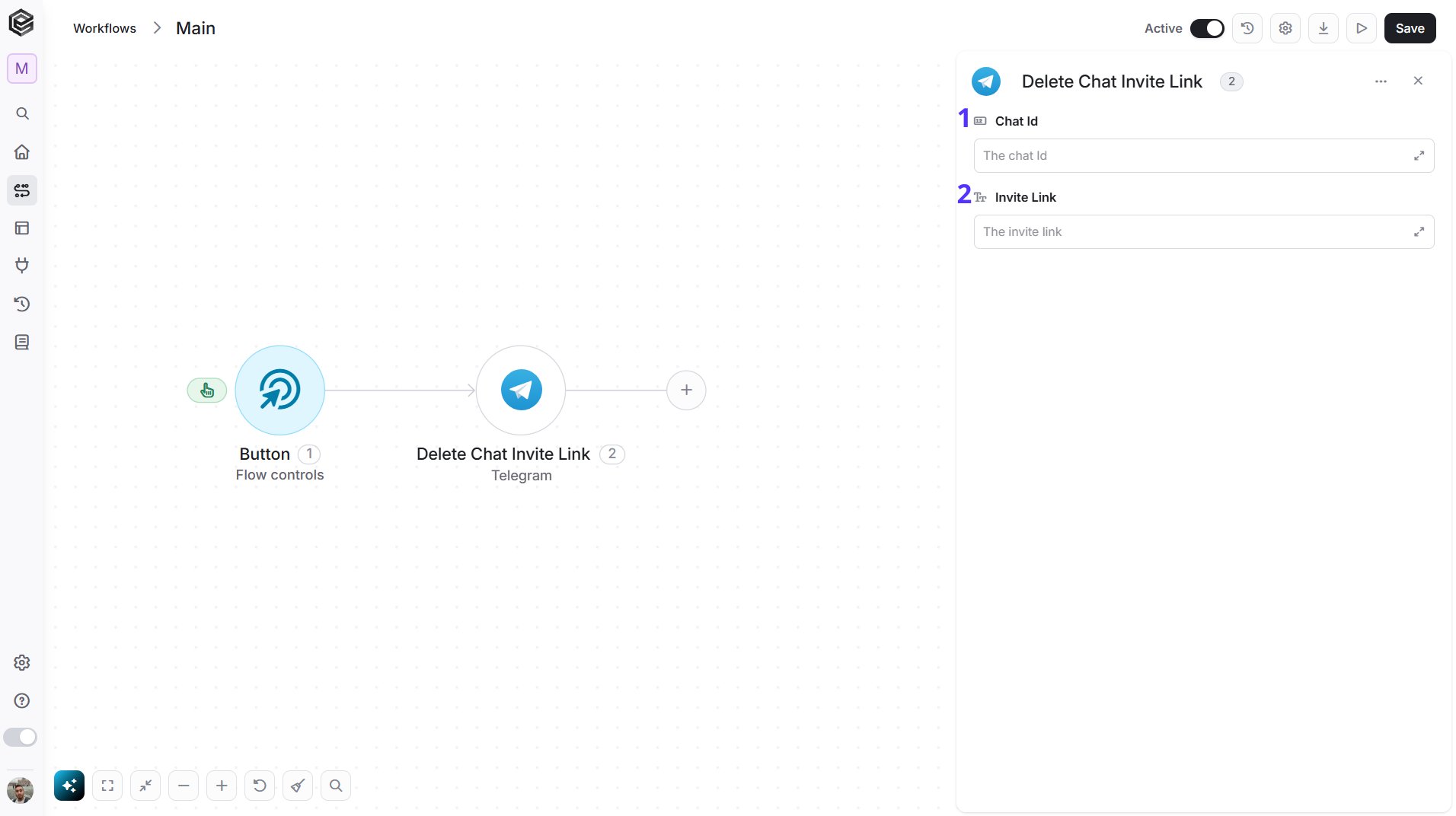
- Chat Id - The ID of the group or channel where the link was created. Pick it from the list of chats (only chats active in the last 24 hours appear), map it from a previous step such as the Telegram Webhook trigger, or type it.
- Invite Link - Enter the invite link you want to revoke.
Kick a Chat Member
Removes a user from a group or channel.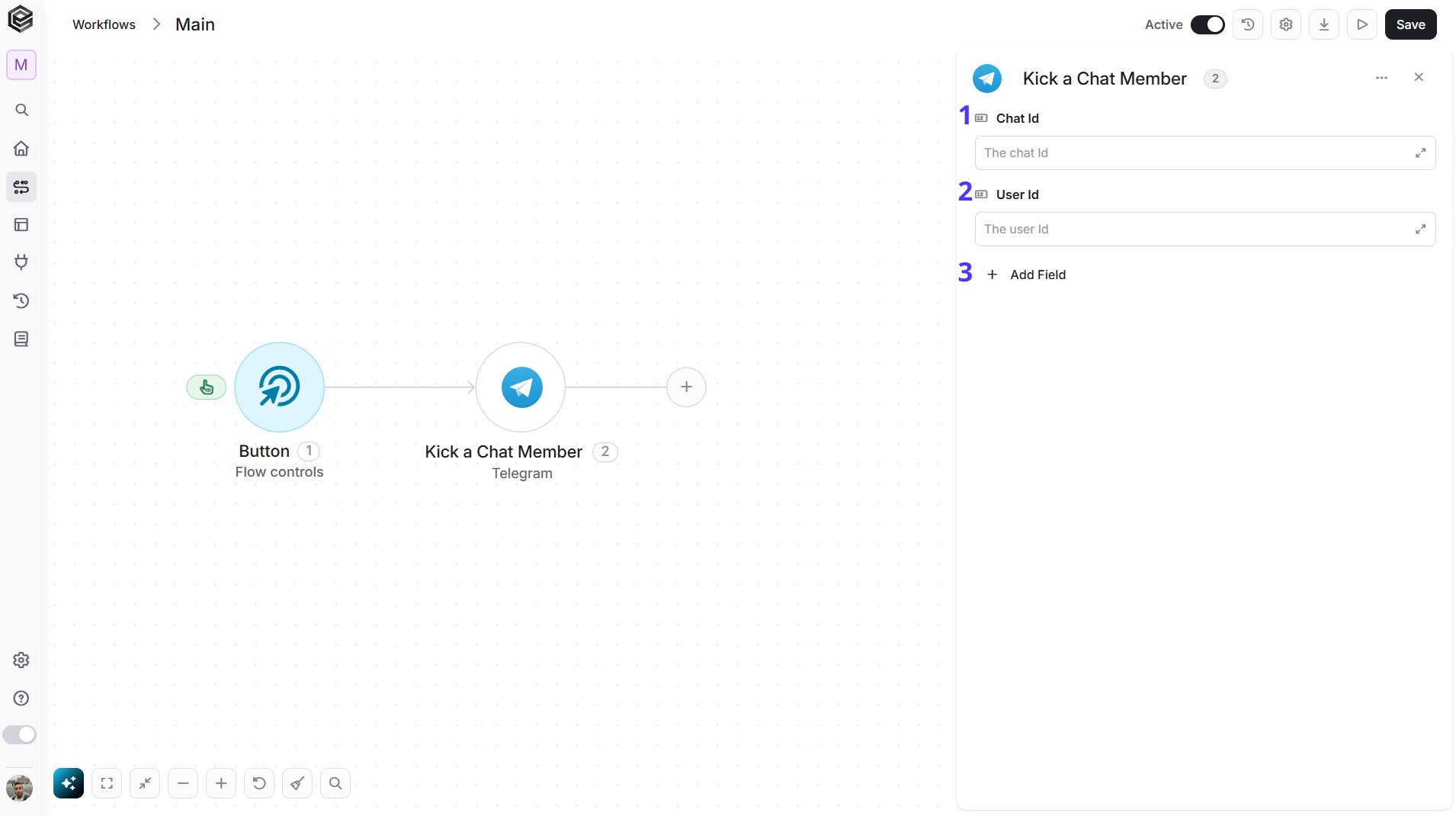
- Chat Id - The ID of the group or channel. Pick it from the list of chats (only chats active in the last 24 hours appear), map it from a previous step such as the Telegram Webhook trigger, or type it.
- User Id - The Telegram ID of the user you want to remove. Pick it from the list of recent users (only those active in the last 24 hours), map it from a previous step, or type it.
- Add Field - Click Add Field to add and populate additional fields for the selected activity. To learn more about managing activity data, click here.
Promote a Chat Member
Gives a user administrator rights in a group or channel.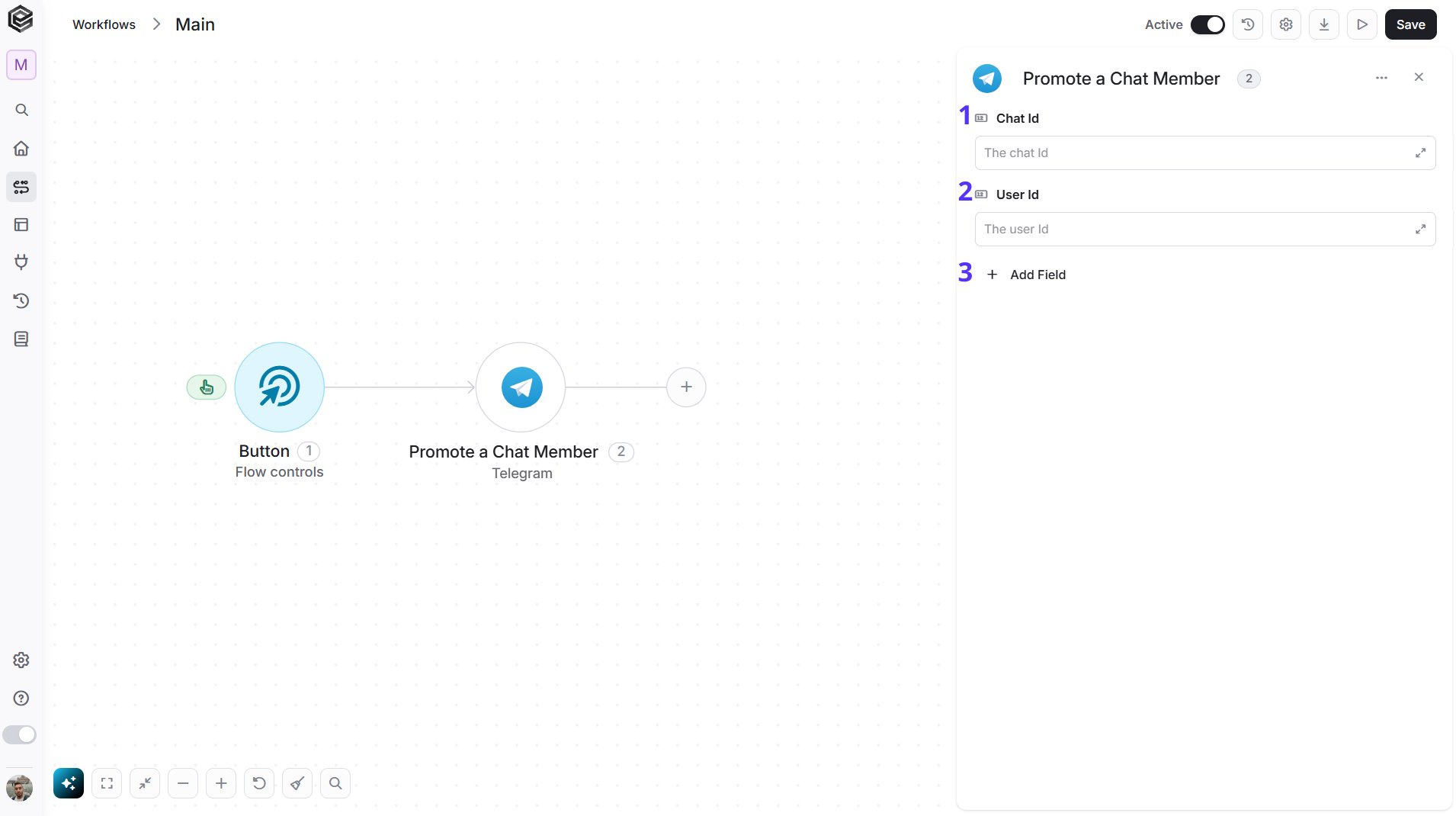
- Chat Id - The ID of the group or channel. Pick it from the list of chats (only chats active in the last 24 hours appear), map it from a previous step such as the Telegram Webhook trigger, or type it.
- User Id - The Telegram ID of the user you want to promote. Pick it from the list of recent users (only those active in the last 24 hours), map it from a previous step, or type it.
- Add Field - Click Add Field to add and populate additional fields for the selected activity. To learn more about managing activity data, click here.
Restrict a Chat Member
Limits what a user can do in a supergroup.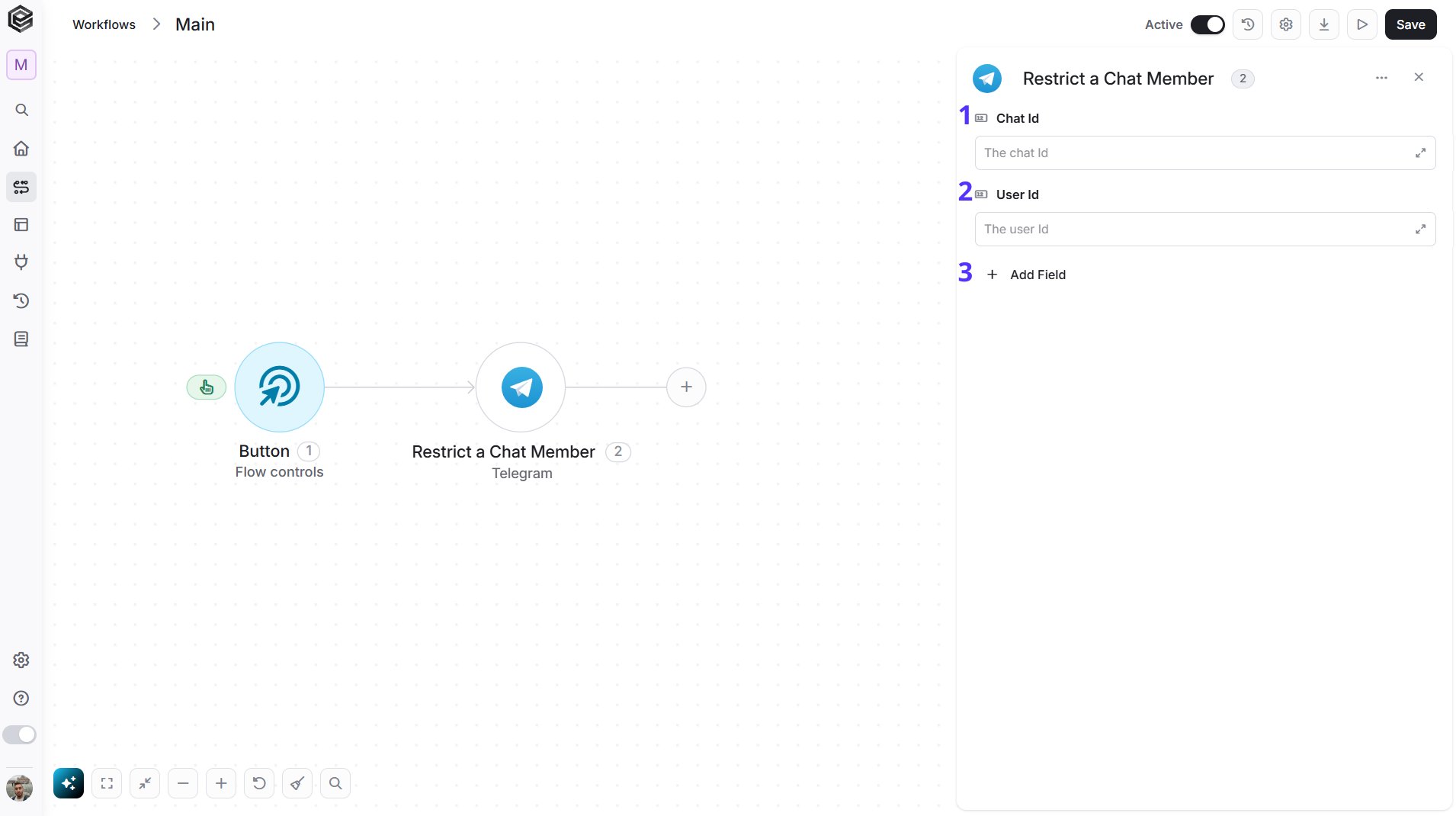
- Chat Id - The ID of the supergroup. Pick it from the list of chats (only chats active in the last 24 hours appear), map it from a previous step such as the Telegram Webhook trigger, or type it.
- User Id - The Telegram ID of the user you want to restrict. Pick it from the list of recent users (only those active in the last 24 hours), map it from a previous step, or type it.
- Add Field - Click Add Field to add and populate additional fields for the selected activity. To learn more about managing activity data, click here.
Get Me (Bot)
Retrieves basic information about your bot, such as its name and username.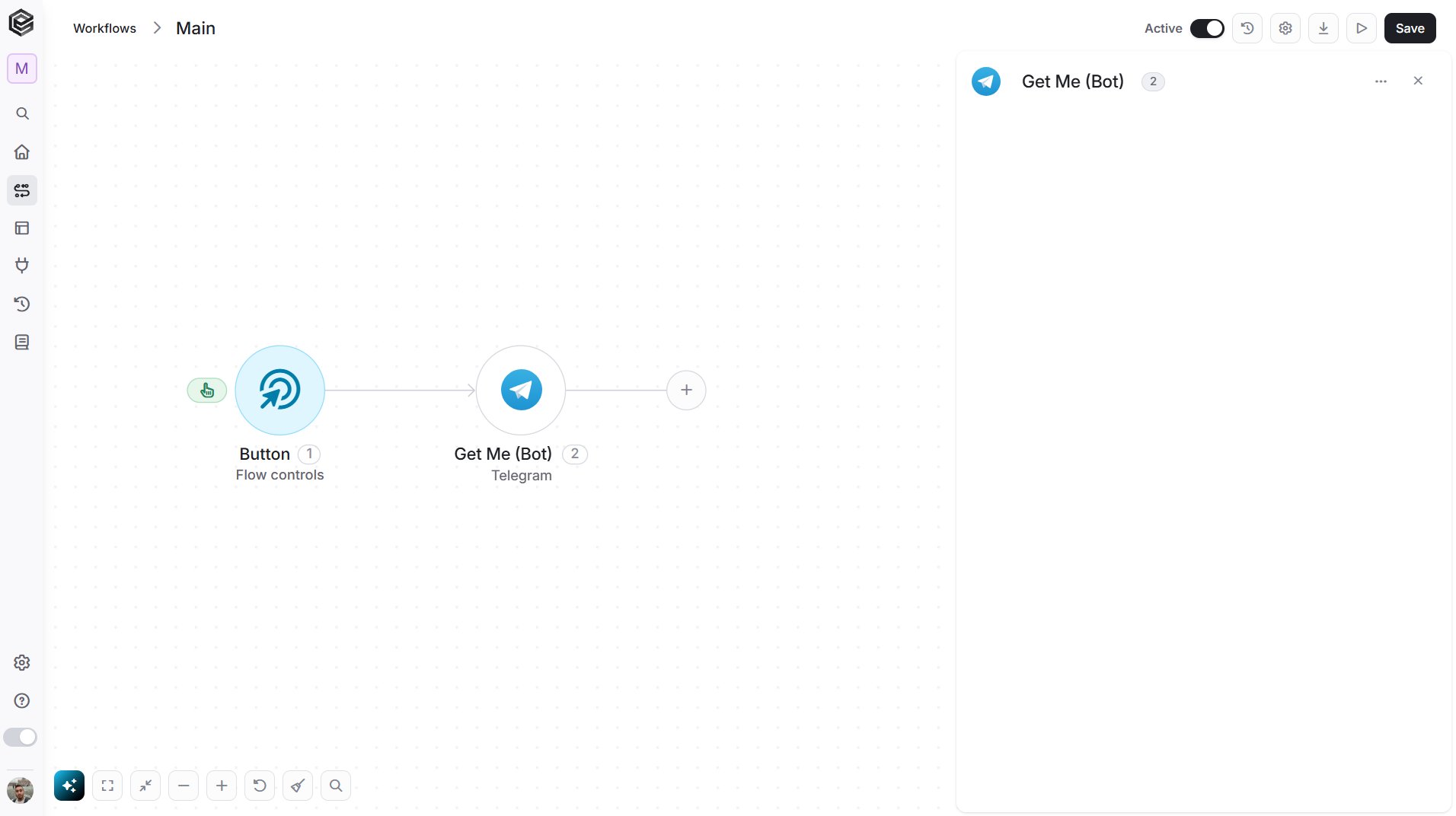
Send API Request
This activity allows you to send a custom API request directly to Telegram’s Bot API.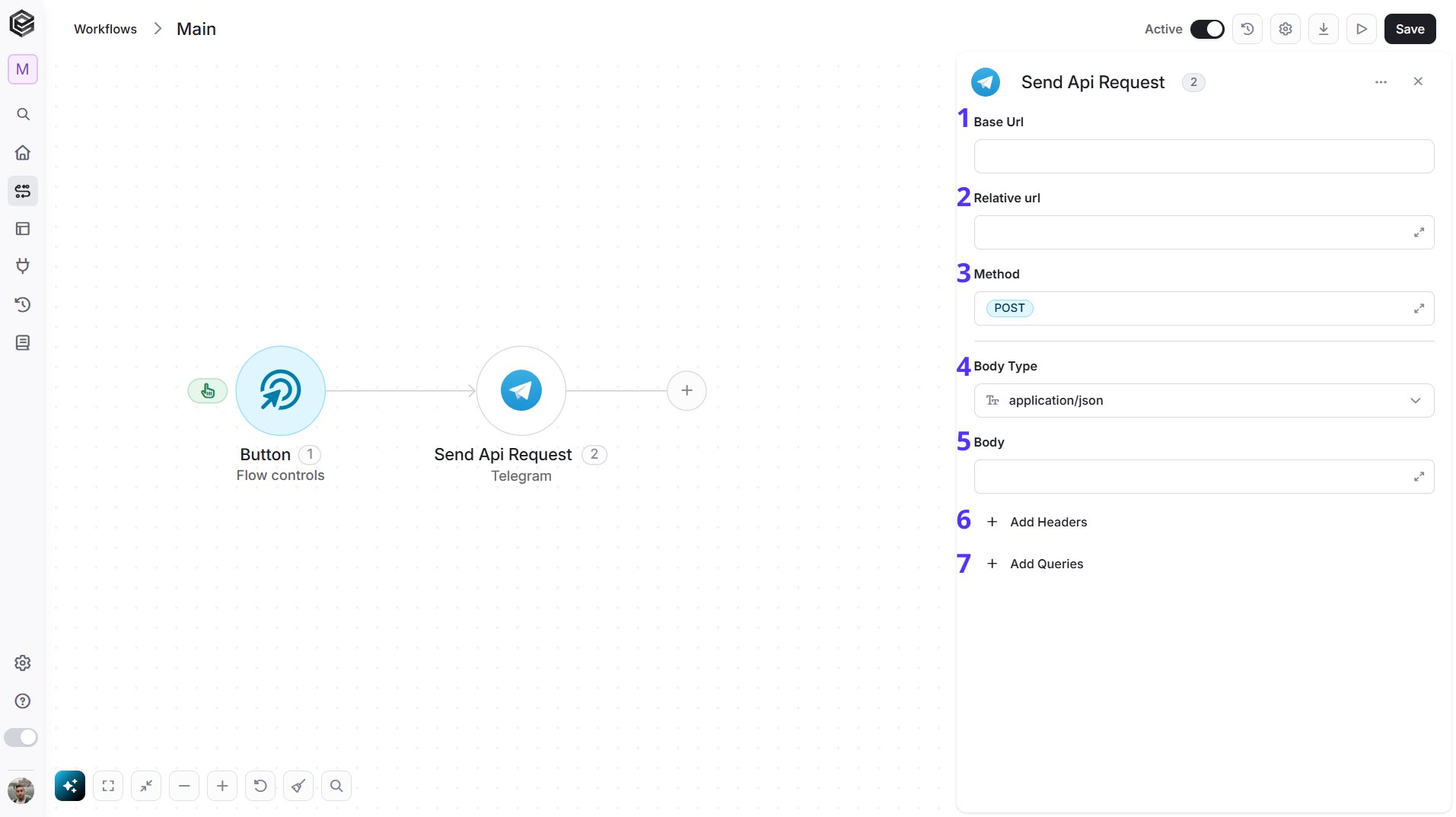
- Base Url - The root address Engini sends the request to. It is filled in automatically from your Telegram connection (https://api.telegram.org/bot followed by your bot’s token) and can’t be edited here, so you never type the token yourself.
- Relative url - The Telegram Bot API method you want to call, added to the end of the Base Url. Start it with a slash, for example /getMe or /sendChatAction. Every method name is listed in the Telegram Bot API reference.
- Method - The HTTP method of the request. Telegram accepts GET and POST for its methods, so use POST when you send a body and GET when you only read data. POST is selected by default; the list also offers PUT, PATCH and DELETE, which Telegram doesn’t use.
- Body Type - The format of the data you send in the Body. For Telegram, keep application/json (the default) and write the Body as JSON. Choose multipart/form-data only when a method uploads a file.
- Body - The data you send to the method, written as JSON, for example
{"chat_id": 123456789, "action": "typing"}for /sendChatAction. Each method’s required parameters are listed in the Bot API reference. Leave it empty for methods that take no parameters, such as /getMe. - Add Headers - Extra request headers, entered as a name and a value. Telegram doesn’t need any, because the Body Type already sets the content type and the token is part of the Base Url, so you can usually skip it.
- Add Queries - Parameters added to the end of the URL, entered as a name and a value, for example chat_id with the value -1001234567890 when you call /getChatMemberCount with GET. Use them instead of a Body for simple GET calls.