

Prerequisites
Before you begin, ensure the following connections are established:- Connection between Engini and Monday. Learn how to connect monday to Engini
- Connection between Engini and Priority. Learn how to connect priority to Engini
Initialize Variable
To get started insert the simple trigger called Button, and then let’s initialize a variable that will later hold the error’s title of error in Priority:
- Name - Click on the empty field and choose from the tooltip a name for the variable. For example “Errors”
- Type - Choose from the drop down the “Array” option.
- Value - Sets the initial value of the variable.
Parse JSON / XML
Next, add a new activity and choose the “Parse JSON/XML” activity of Engini:
- Click on the empty field and the tooltip will pop up showing contents from the previous activities which you can choose to parse.
-
Press on the “Functions” button located on the topbar, then go to “Workflow functions” and choose the “Errors()” function.

-
Press the blue phrase “Load Json/Xml sample to generate structure” and a window will open.

- Paste this JSON sample payload and press “Save”:
For Each Loop
Add a new activity and choose the “For Each Loop” activity of Engini: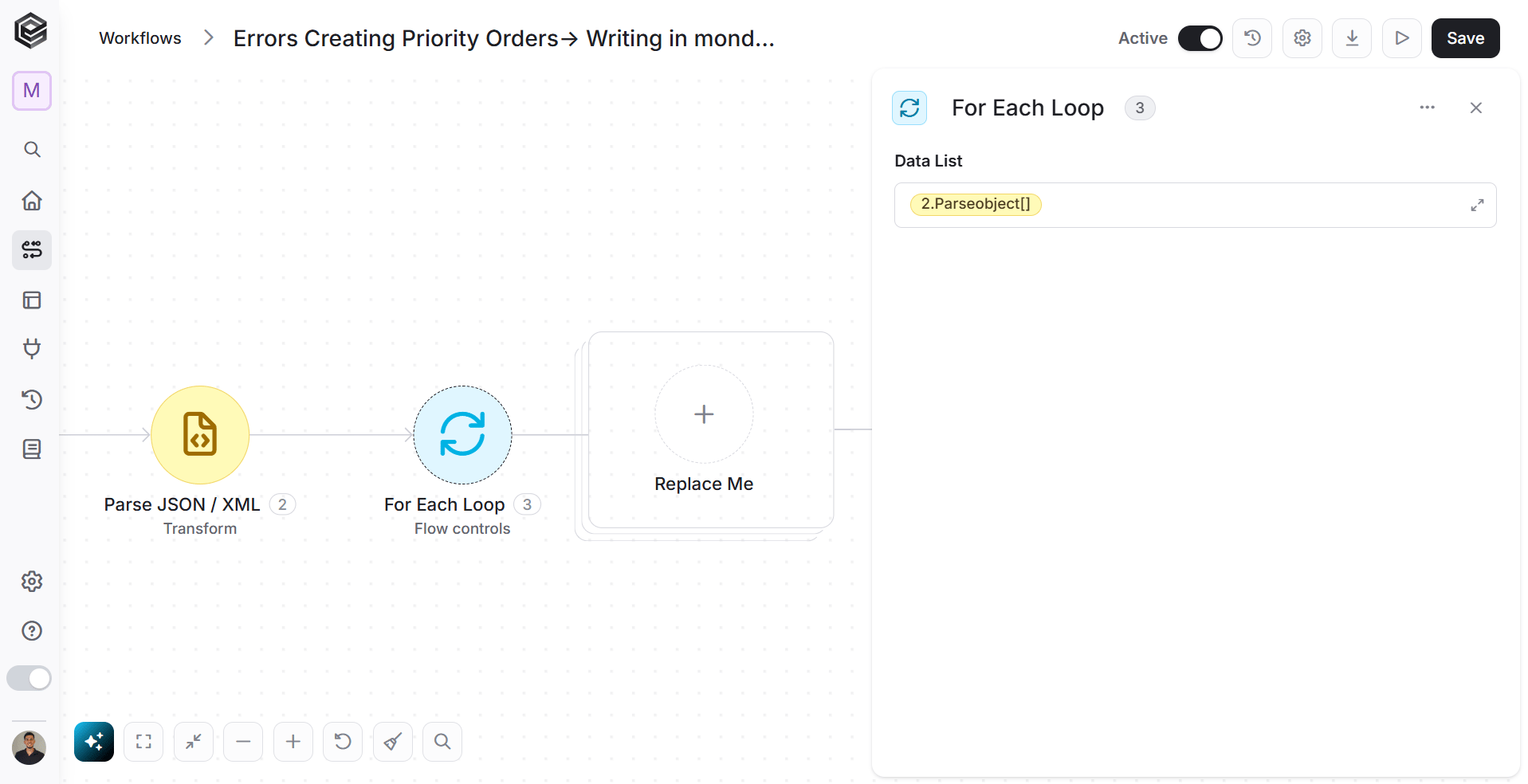
- Click on the empty field and the tooltip will pop up showing contents from the previous activities which you can choose.
-
In the pop-up window that appears, click on “Dynamic Content” in the top toolbar, then navigate to the “Parse JSON/XML” property and choose the “parseobject[]” value.

Append to Array variable
Now, Inside “For each loop” block, add a new activity and choose the “Append to Array variable” activity of Engini:
- Click on the drop down and choose the name you gave the variable you initialize. For example “Errors”.
- Click on the empty field next to the “value” and the tooltip will pop up showing contents from the previous activities.
-
In the popped-up tooltip, click on “Dynamic Content” in the top of the tooltip, then navigate to the “Parse JSON/XML” property and choose the “jsonobject[]” value.

Compose string
Add a new activity inside the For Each Loop action and choose the “Compose string” activity of Engini: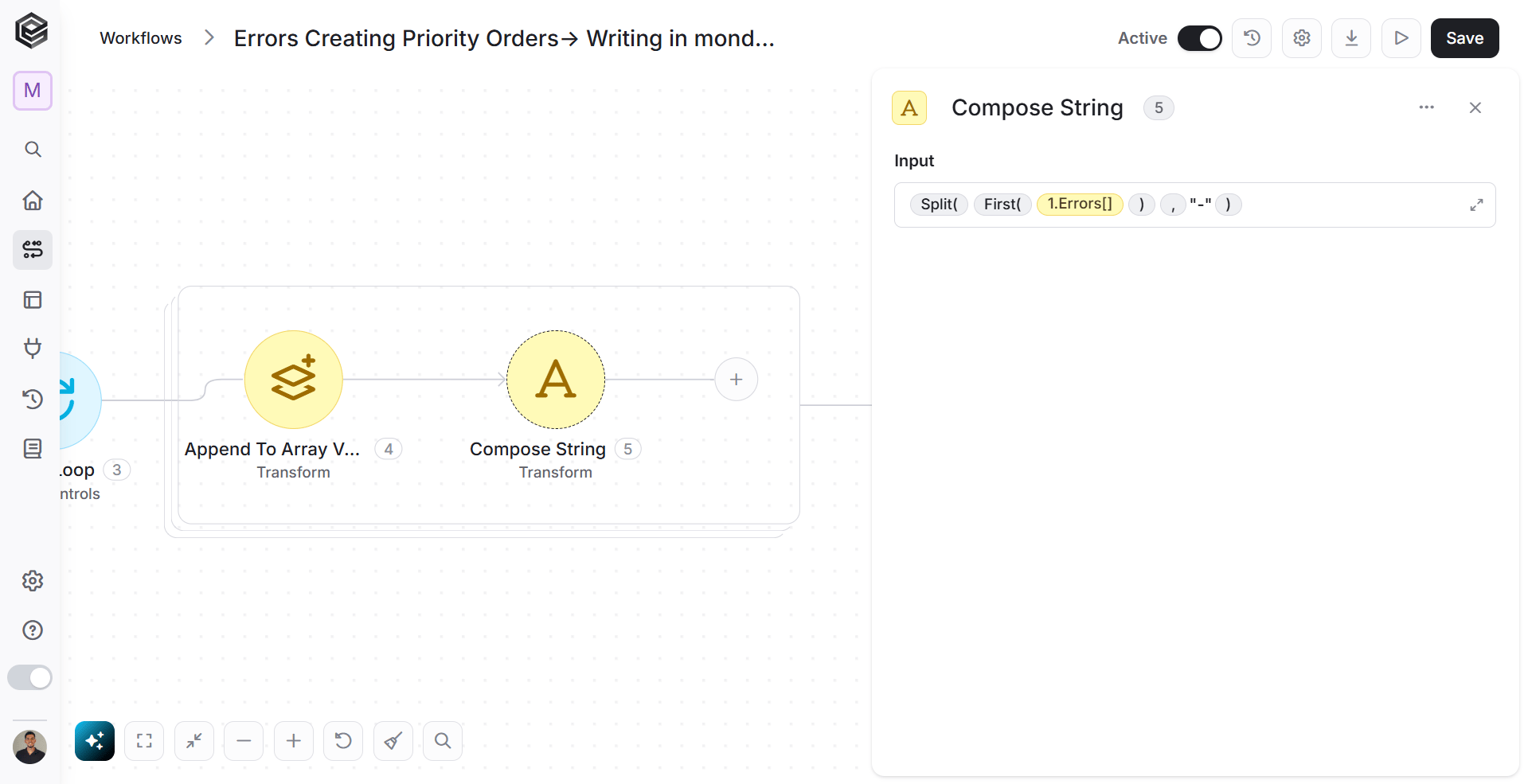
- Click on the empty field and the tooltip will pop up showing contents from the previous activities which you can choose.
-
Press on the “Functions” button located on the top of the tooltip then go to “Text functions” and choose the “Split()” function.
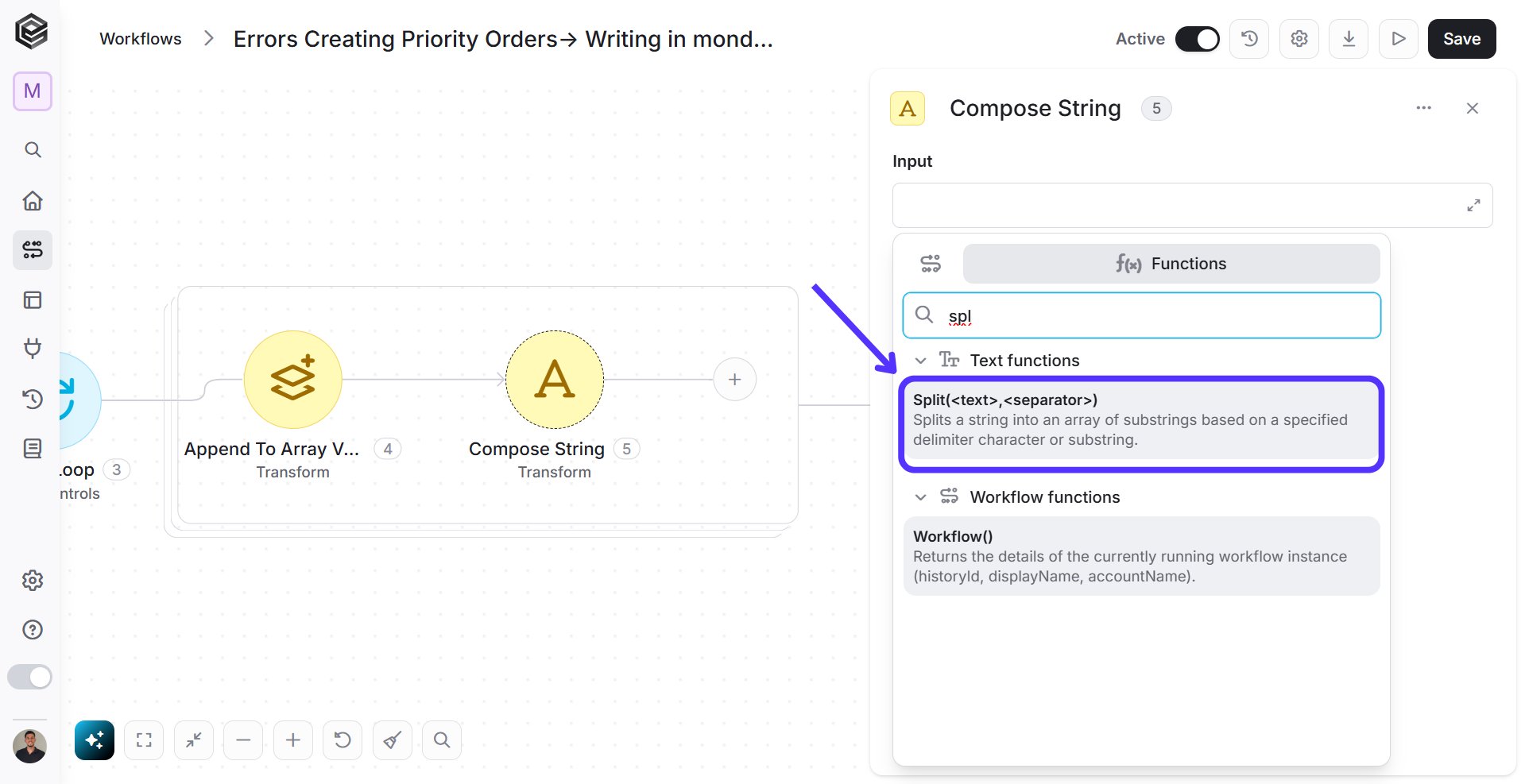
-
Add function to the first place inside the “split” function.
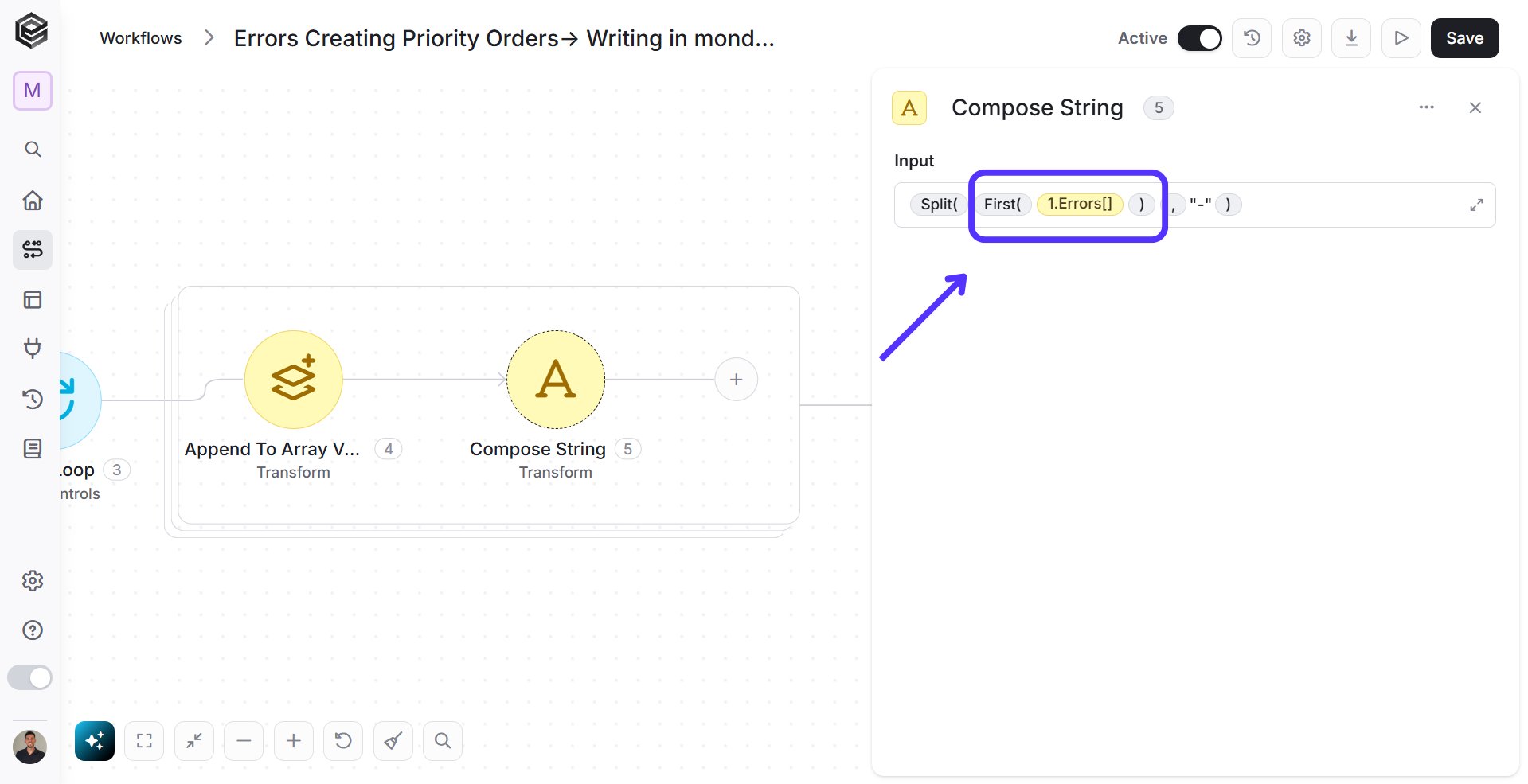
- Click on the first place inside the “split” function and the tooltip will pop up showing contents from the previous activities which you can choose.
-
Press on the “Functions” button located on the top of the tooltip then go to “Text functions” and choose the “Split()” function.
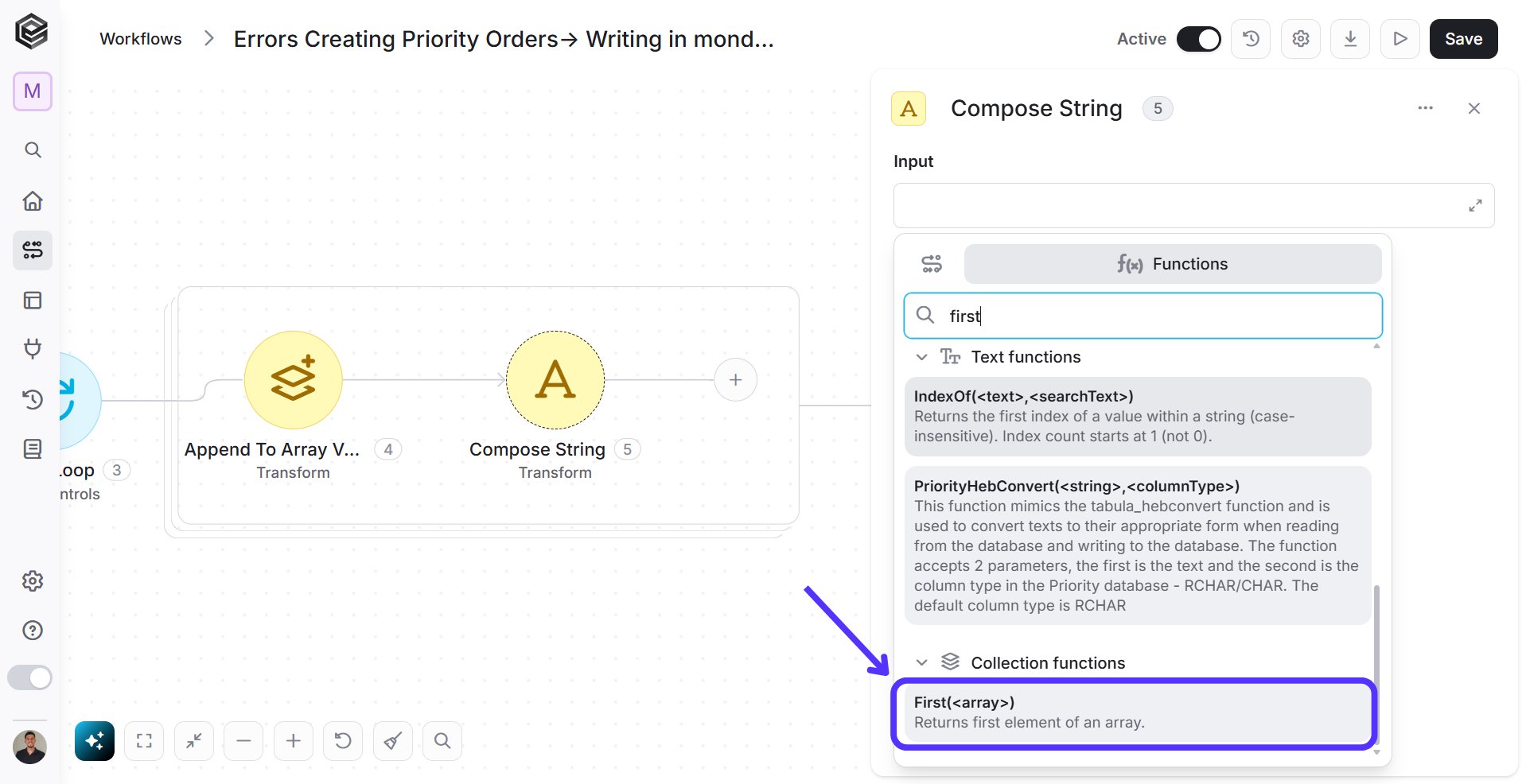
- Click on the empty place ( ) inside the “First” function and the tooltip will pop up showing contents from the previous activities which you can choose.
-
Press on the “Dynamic Content” located on the top of the tooltip, then go to “Variable – Errors” activity and choose the “Errors[]” value.

-
Add phrase to the second place inside the “split” function.

- Click on the second place inside the “split” function and the tooltip will pop up showing contents from the previous activities which you can choose.
- Close the tooltip and write manually the value “-“.
Get Items
Add a new activity inside the loop, choose the “Get Items” activity of monday.com: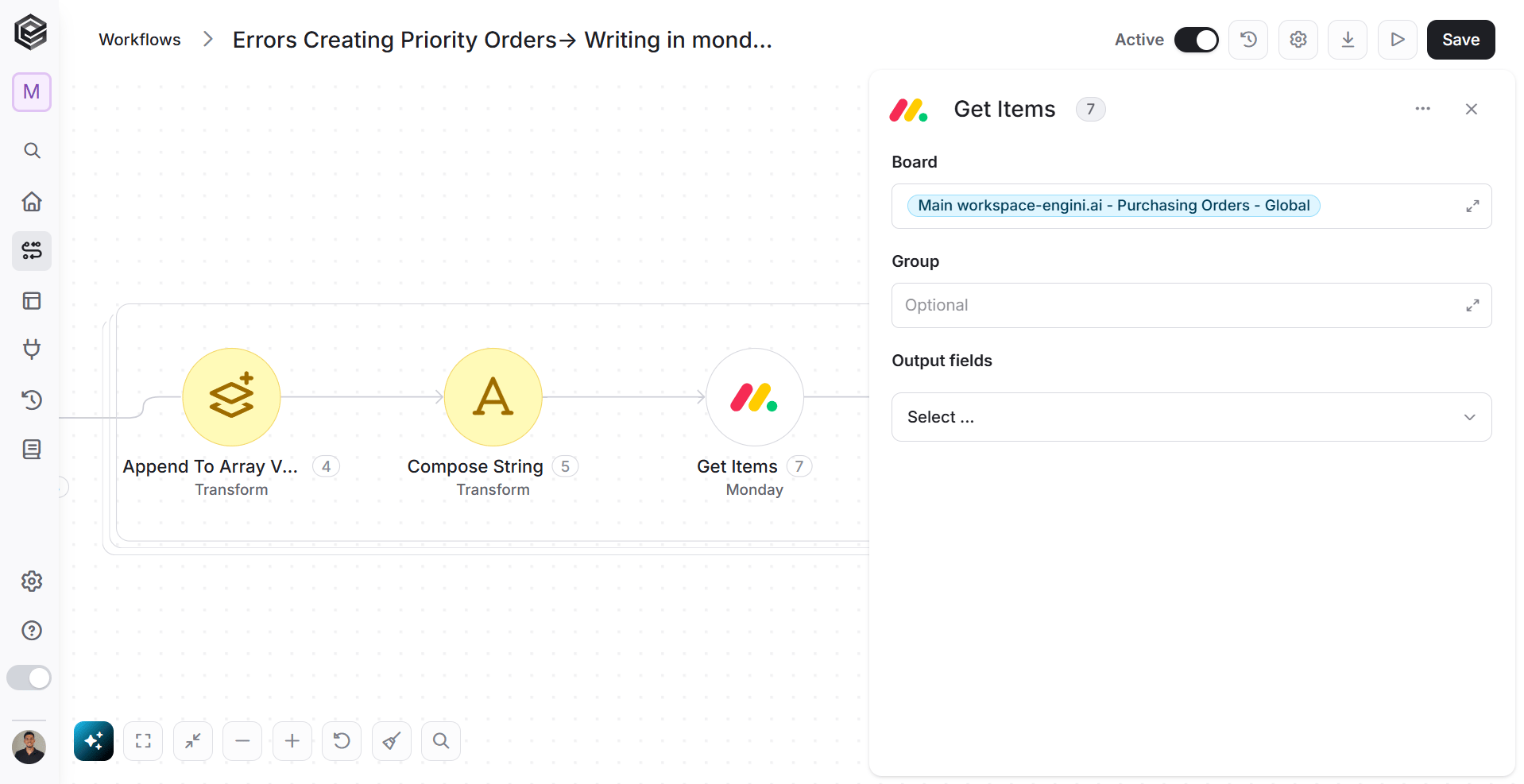
Update Item
Add a new activity inside the loop, choose the “Update Item” activity of monday.com: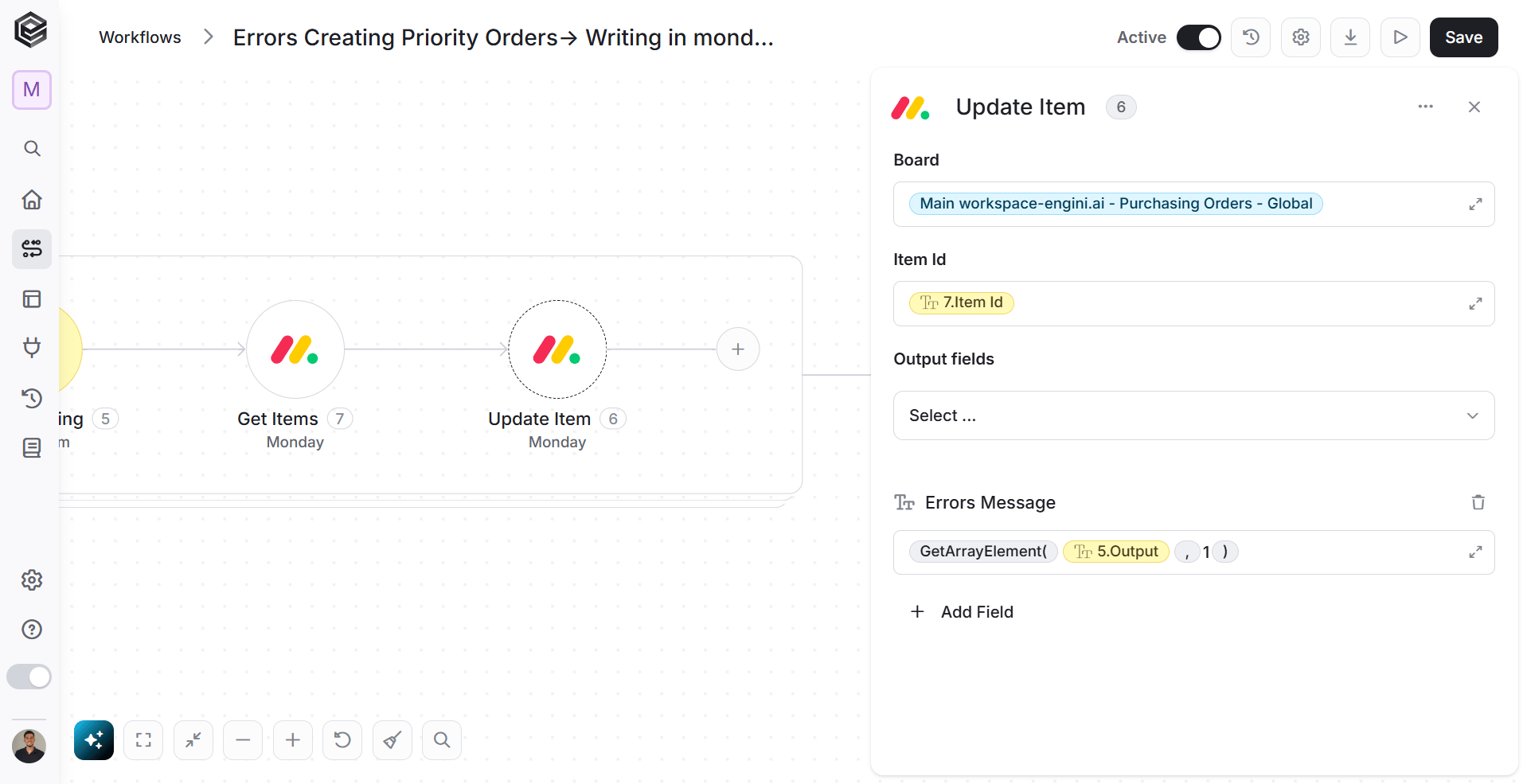
- Fill the “Board” and “Item Id” fields according to your needs.
- Fields
- Click on the drop down and choose the field you want to update. For example “Error Message”.
- Click on the empty field and the tooltip will pop up showing contents from the previous activities.
-
Press on the “Functions” button located on the top bar, then go to “Collection functions” and choose the “GetArrayElement()” function.

-
Add value to the first place inside the “GetArrayElement” function.
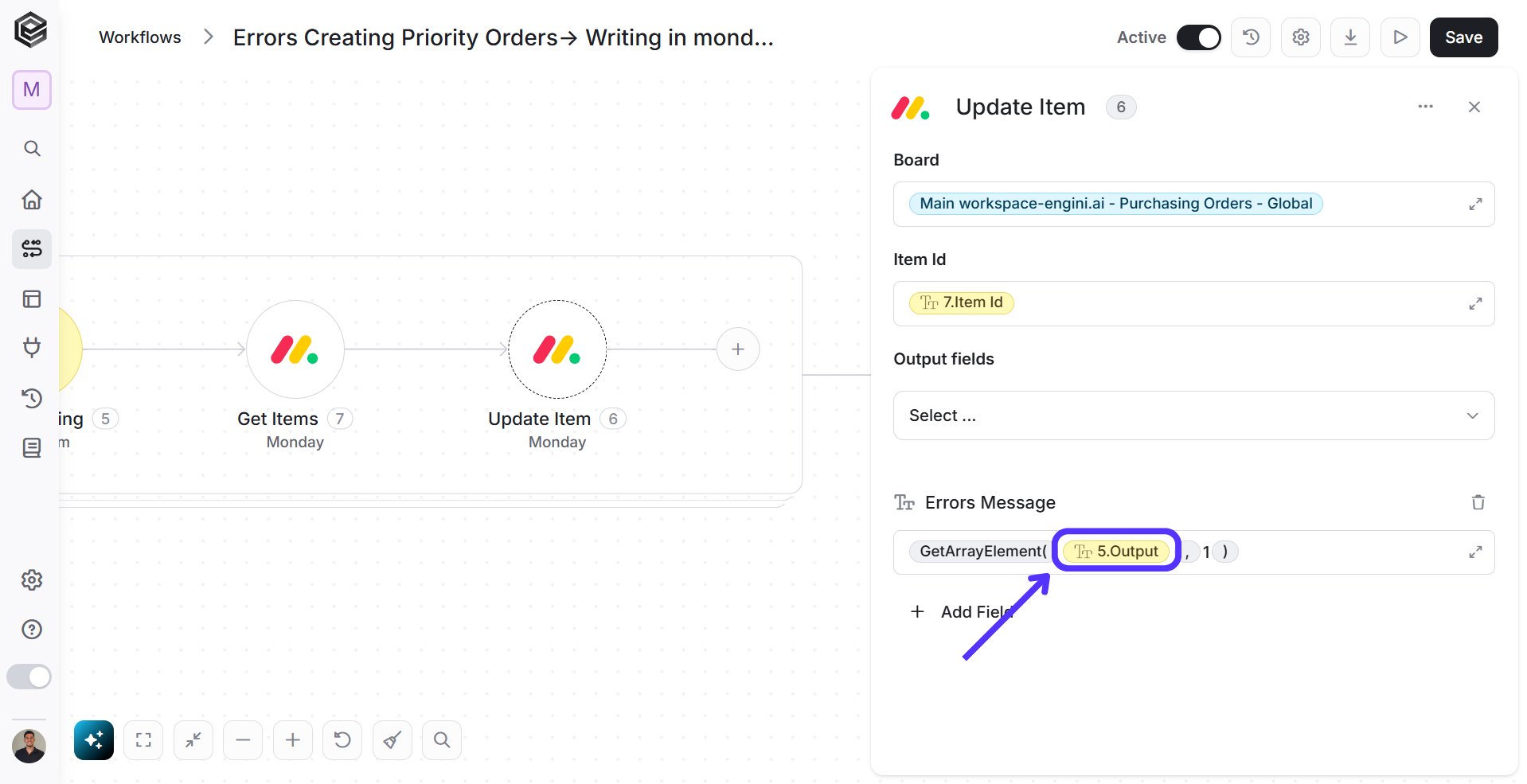
- Click on the first place inside the “GetArrayElement” function and the tooltip will pop up showing contents from the previous activities which you can choose.
-
Press on the “Dynamic Content” located on the top of the tooltip, then go to “Compose String” activity and choose the “Output” value.

-
Add value to the second place inside the “GetArrayElement” function.
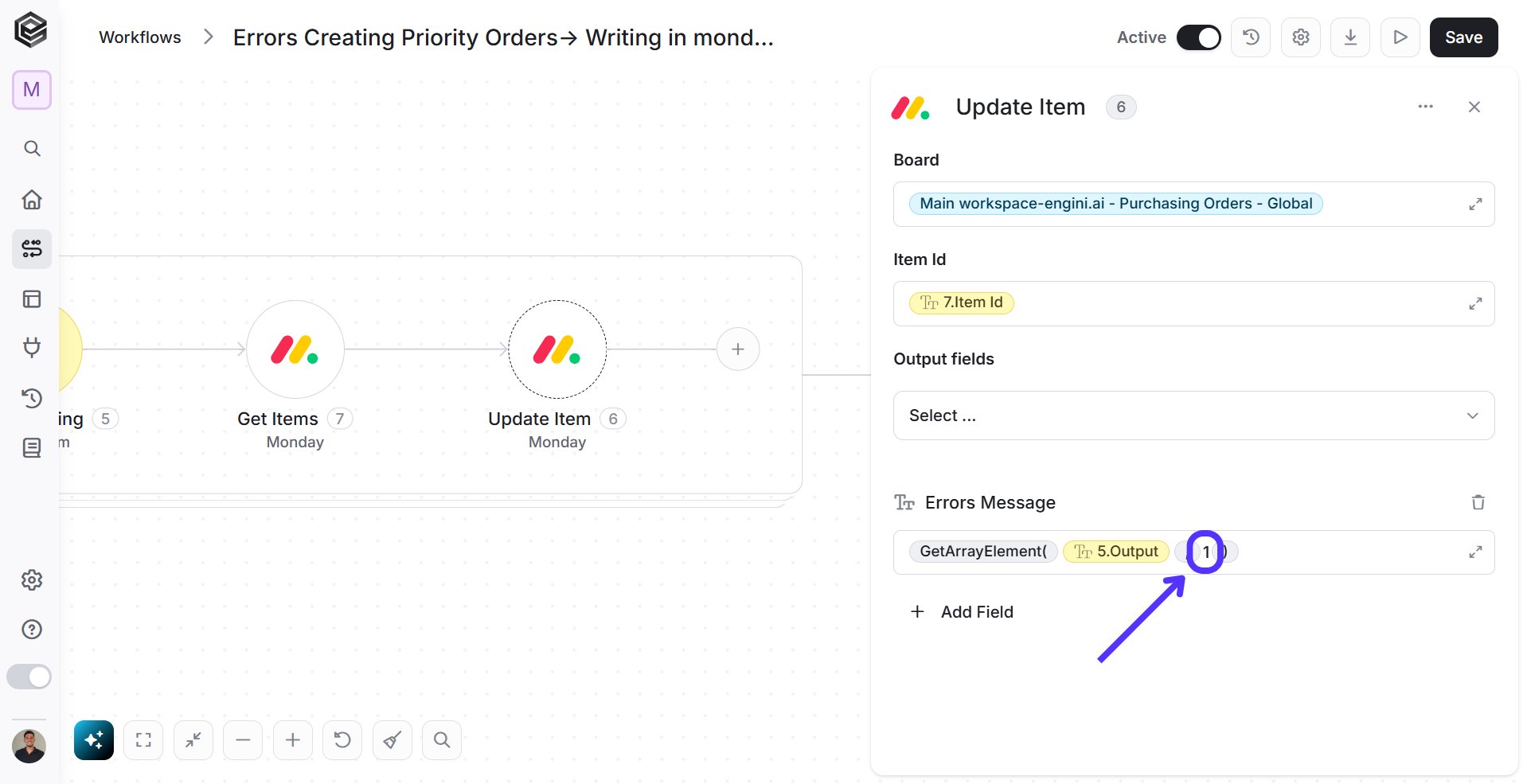
- Click on the second place inside the “GetArrayElement” function and the tooltip will pop up showing contents from the previous activities which you can choose.
- Close the tooltip and write manually the number of the error message place. For example 1.