

Add a Connection to Databricks in Engini
Prerequisites
- A Databricks account and workspace.
- Your Databricks Workspace URL.
- A Personal Access Token from Databricks. Note: Engini works with the permissions of the Databricks user who created the token, so the token can only reach what that user can access.
Retrieve your Databricks Personal Access Token
- Sign in to your Databricks workspace. The address in your browser is your Workspace URL, for example
https://dbc-1234abcd-5678.cloud.databricks.com. - Click your user name at the top right and choose Settings.
- Under User, open Developer, then next to Access tokens click Manage.
- Click Generate new token, enter a comment such as “Engini” and click Generate.
- Copy the token and keep it somewhere safe. Databricks shows it only once.
Connecting Engini to Databricks
- Enter your Engini account at https://app.engini.io.
-
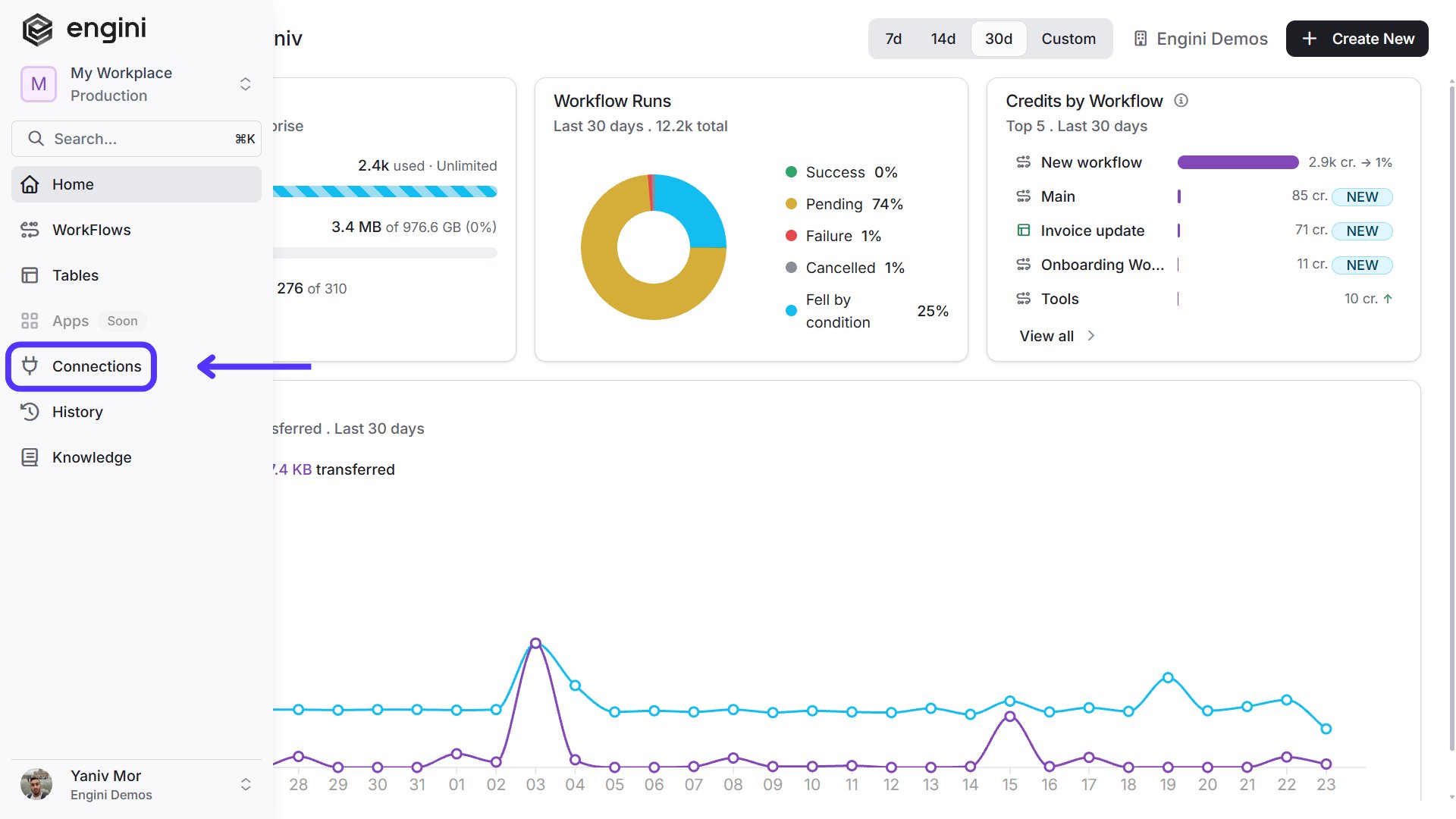
Navigate to the Connections page by clicking on Connections in the left sidebar or by clicking here.
-
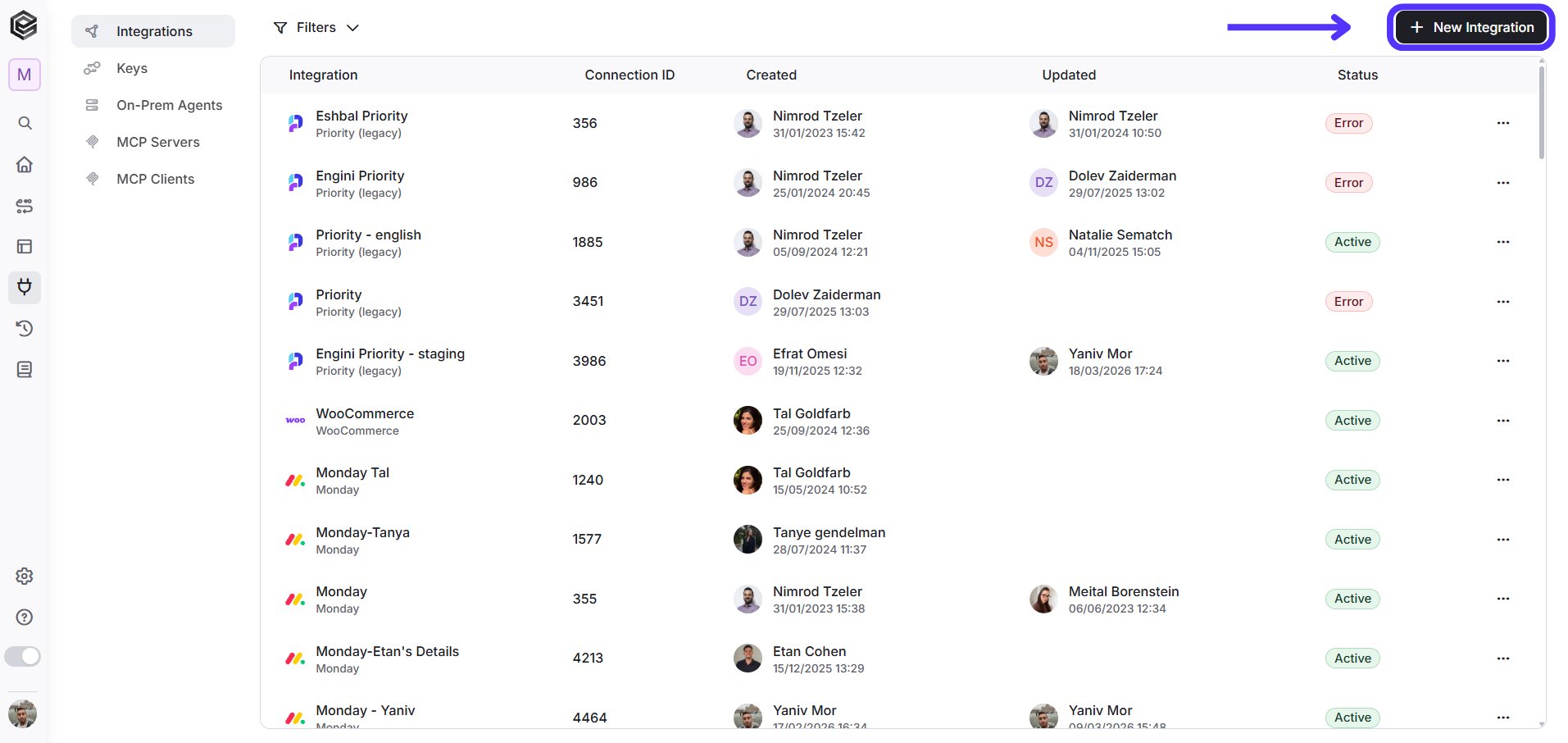
Click on the “New Integration” option located at the top bar.
-
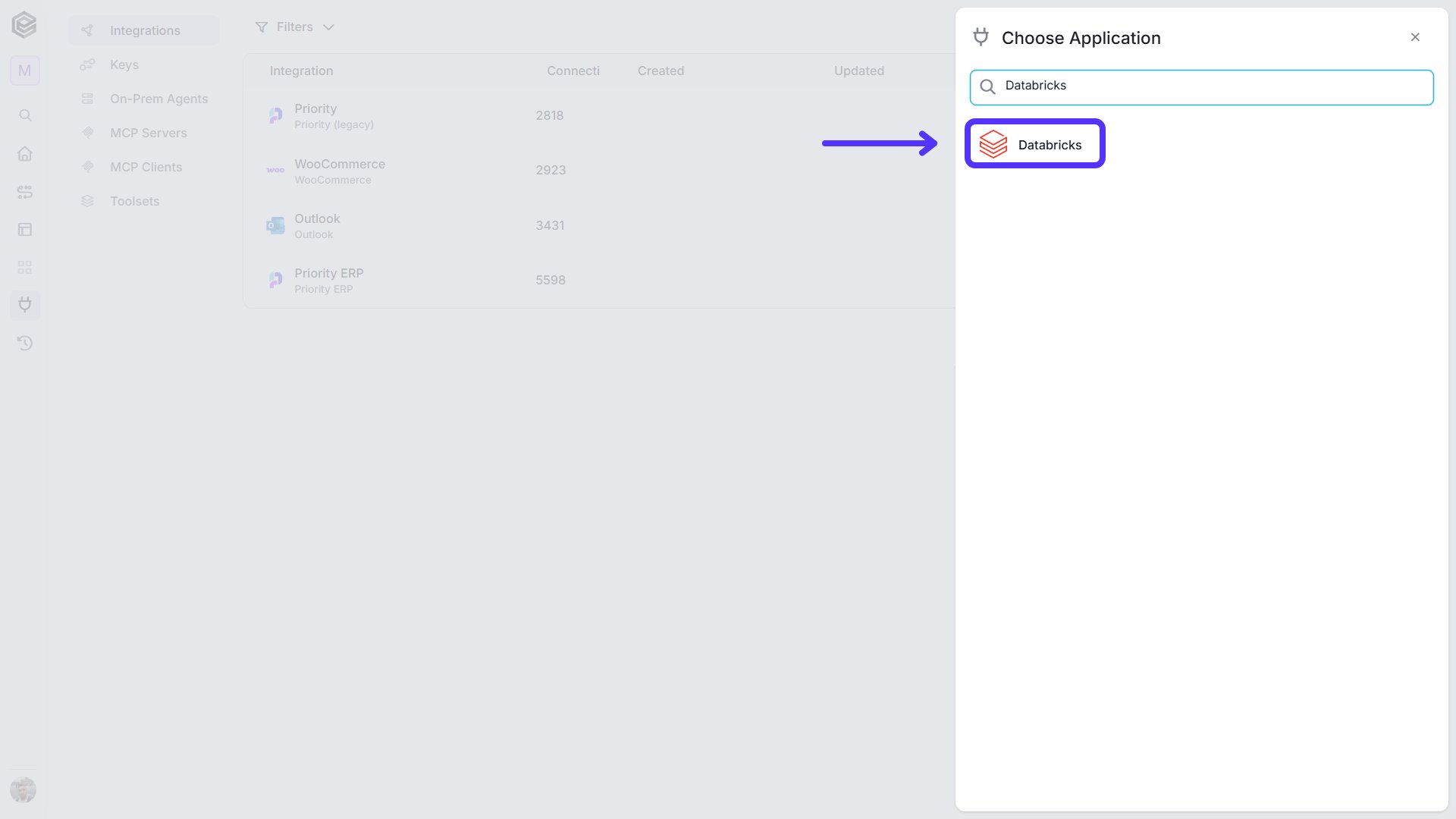
Choose the Databricks option from the available applications.
-
Enter the following details in the “New Integration” form and press Save:
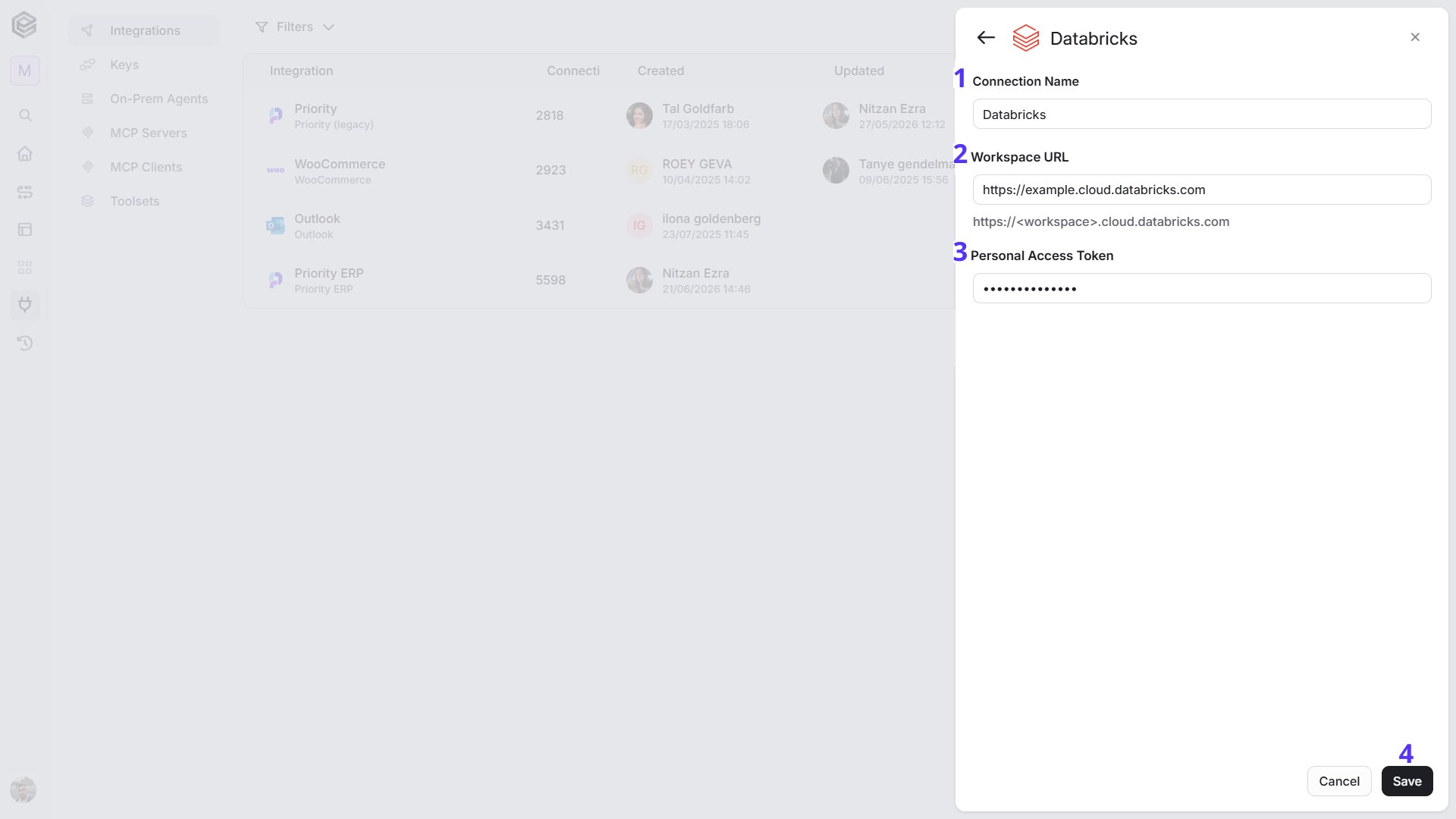
- Connection Name - Enter a name that helps identify the Databricks connection.
-
Workspace URL - Enter the address of your Databricks workspace, for example
https://dbc-1234abcd-5678.cloud.databricks.com. - Personal Access Token - Enter the token you generated in Databricks.
- Save - Click Save to create the connection.
Triggers
Job Run Completed
Starts the workflow when a Databricks job run has completed. Engini checks Databricks on the schedule you set and starts the workflow with the completed runs it finds.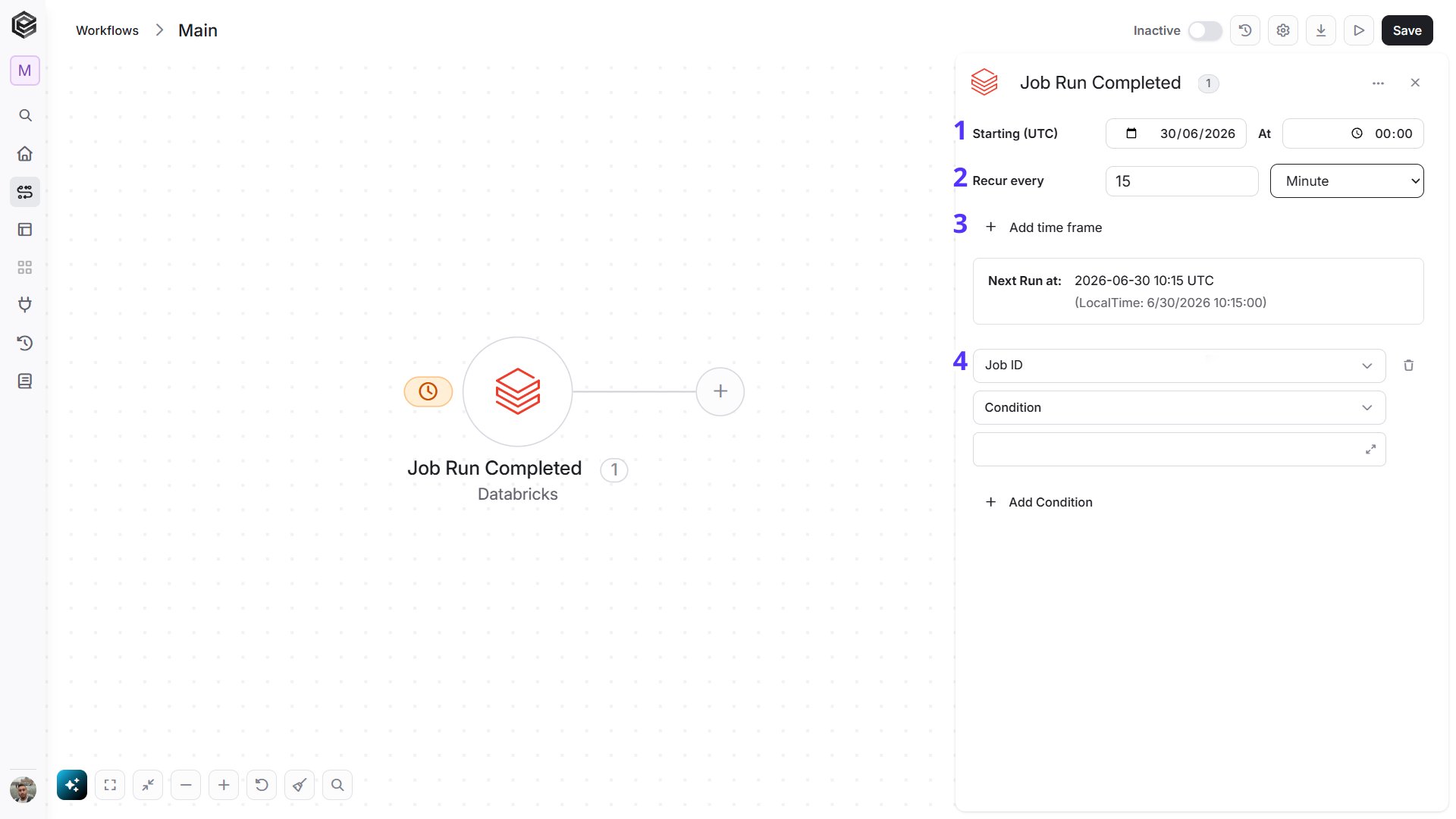
- Starting (UTC) - Select the start date and time for the scheduled trigger.
- Recur every - Choose the time interval for triggering and checking job runs. The minimum time interval is 15 minutes.
- Add time frame - You can specify a time frame during which the trigger will operate.
- Add Conditions - Click Add Conditions to define conditions that narrow down the runs and return only the relevant ones. For example, choose Job ID, select the condition it must meet and enter the value to watch a single job. Without a condition, the trigger reacts to completed runs of all jobs. To learn more about using conditions, click here.
- Run ID - The ID of the run.
- Job ID - The ID of the job the run belongs to.
- Run Name - The name of the run.
- Run Type - The type of the run.
- Run URL - The link to the run in Databricks.
- Creator - The user who created the run.
- Start Time - When the run started, in Unix time (milliseconds).
- End Time - When the run ended, in Unix time (milliseconds).
- Run Duration - How long the run took.
- Trigger - What started the run.
- Number In Job - The sequence number of the run within its job.
- Attempt Number - The attempt number of the run.
- State - How the run ended, with these fields:
- State › Life Cycle State - The stage of the run.
- State › Result State - The result of the run, for example SUCCESS or FAILED.
- State › State Message - A message about the state of the run.
- State › Cancelled Or Timed Out - Whether the run was cancelled by a user or timed out.
- Status - The status of the run, with this field:
- Status › State - The state of the run.
Actions
Databricks jobs and pipelines run in the background: you start one with Run Job or Start Pipeline Update, check it with Get Job Run or Get Pipeline Update, and read its results with Get Job Run Output.Get SQL Warehouses
Retrieves the SQL warehouses in your Databricks workspace.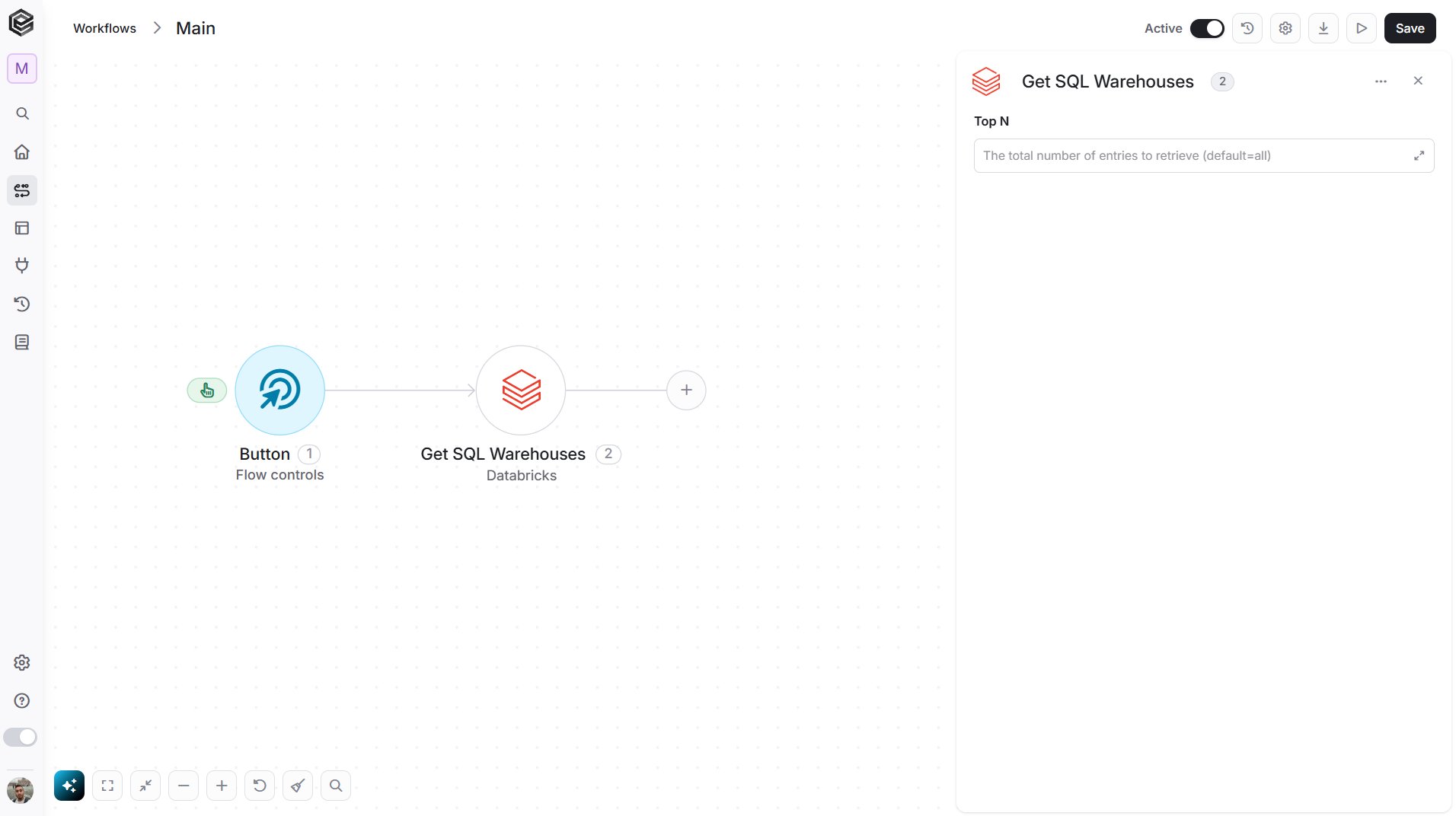
- Top N - You can set the maximum number of records Engini will return for the object you chose (default = all records).
Get Clusters
Retrieves the clusters in your Databricks workspace.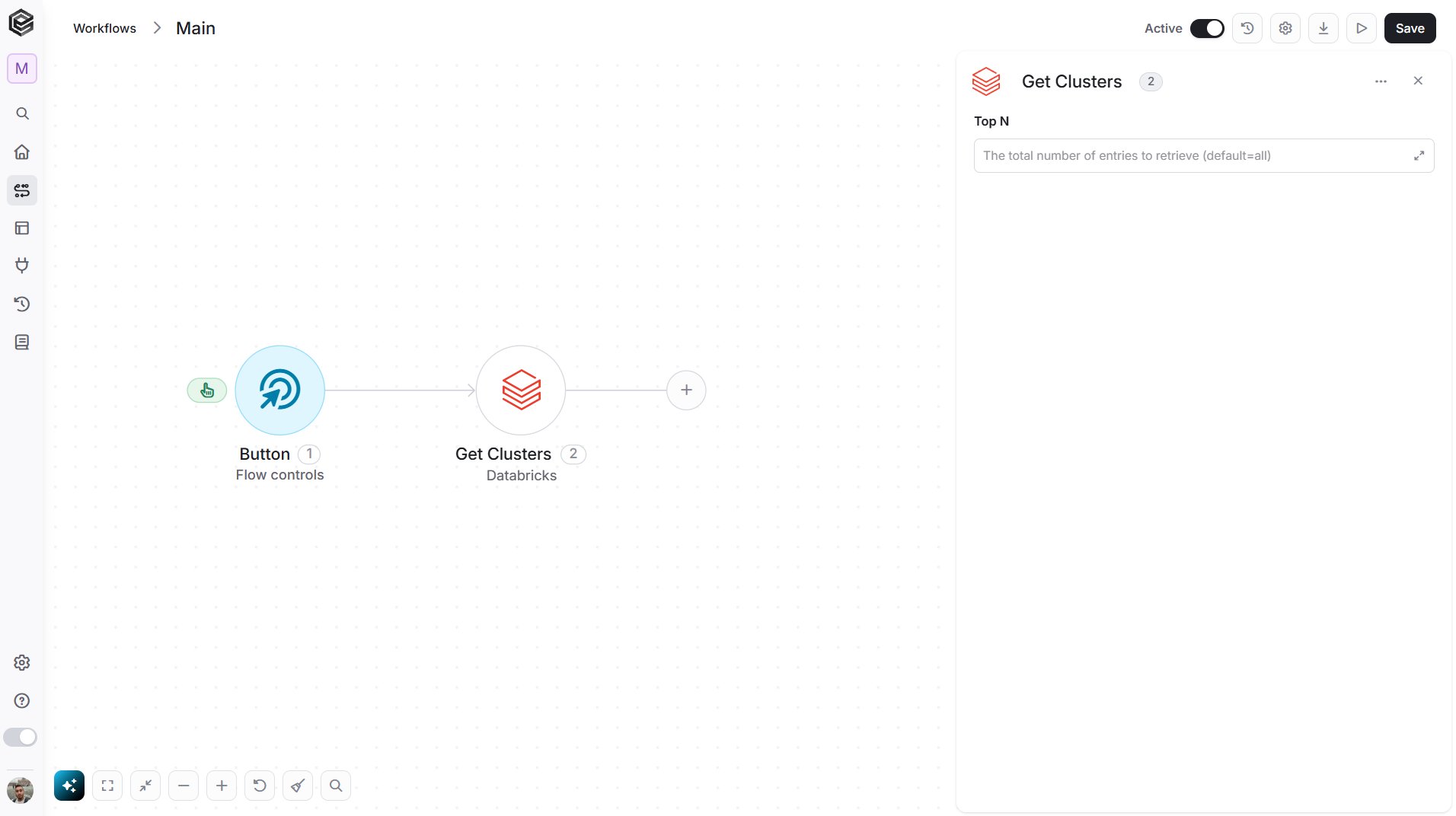
- Top N - You can set the maximum number of records Engini will return for the object you chose (default = all records).
Get Cluster
Retrieves the details of one cluster.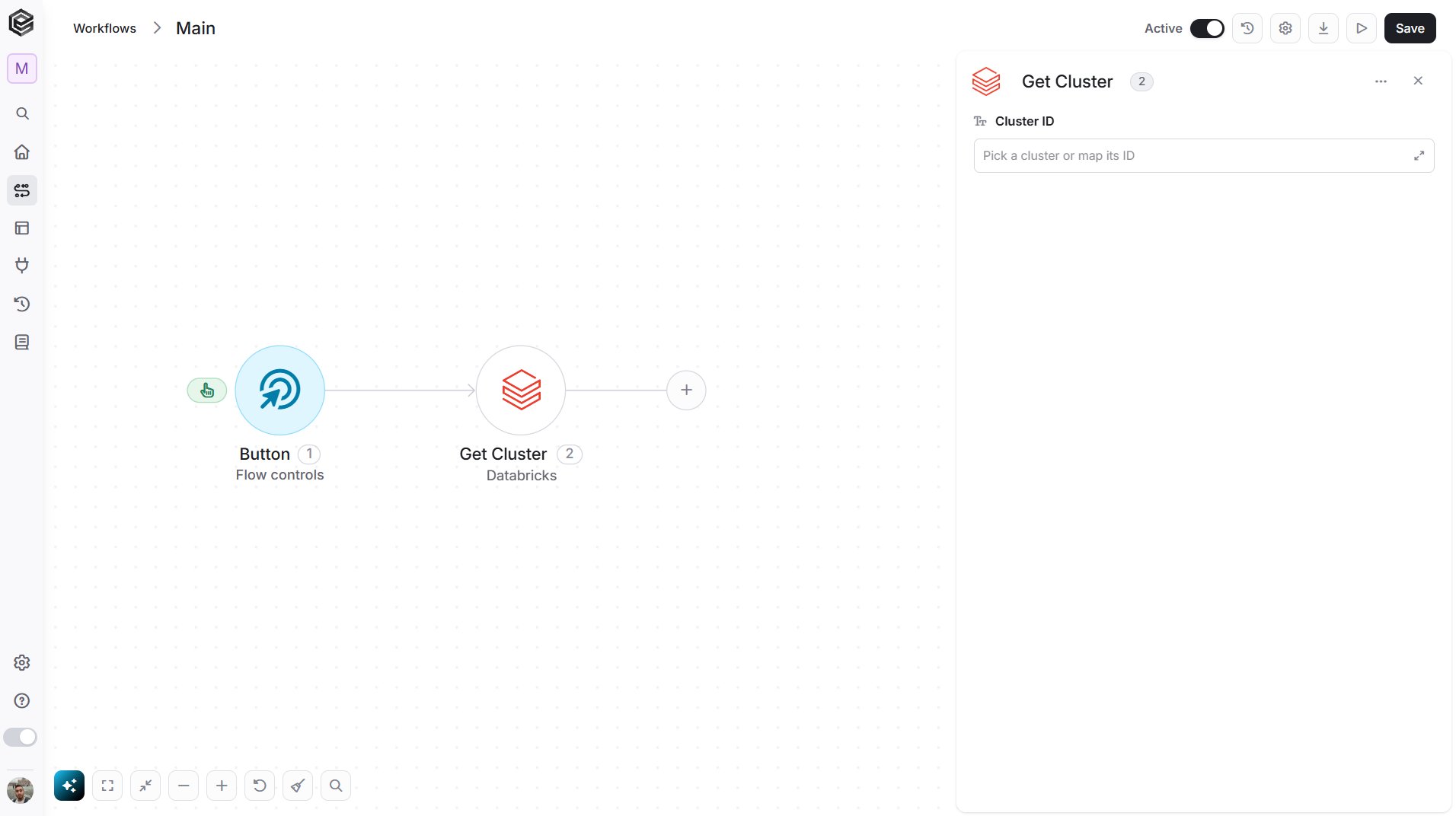
- Cluster ID - The cluster you want. Select it from the list, map its ID from a previous step such as Get Clusters, or enter the ID.
Start Cluster
Starts a cluster that is terminated.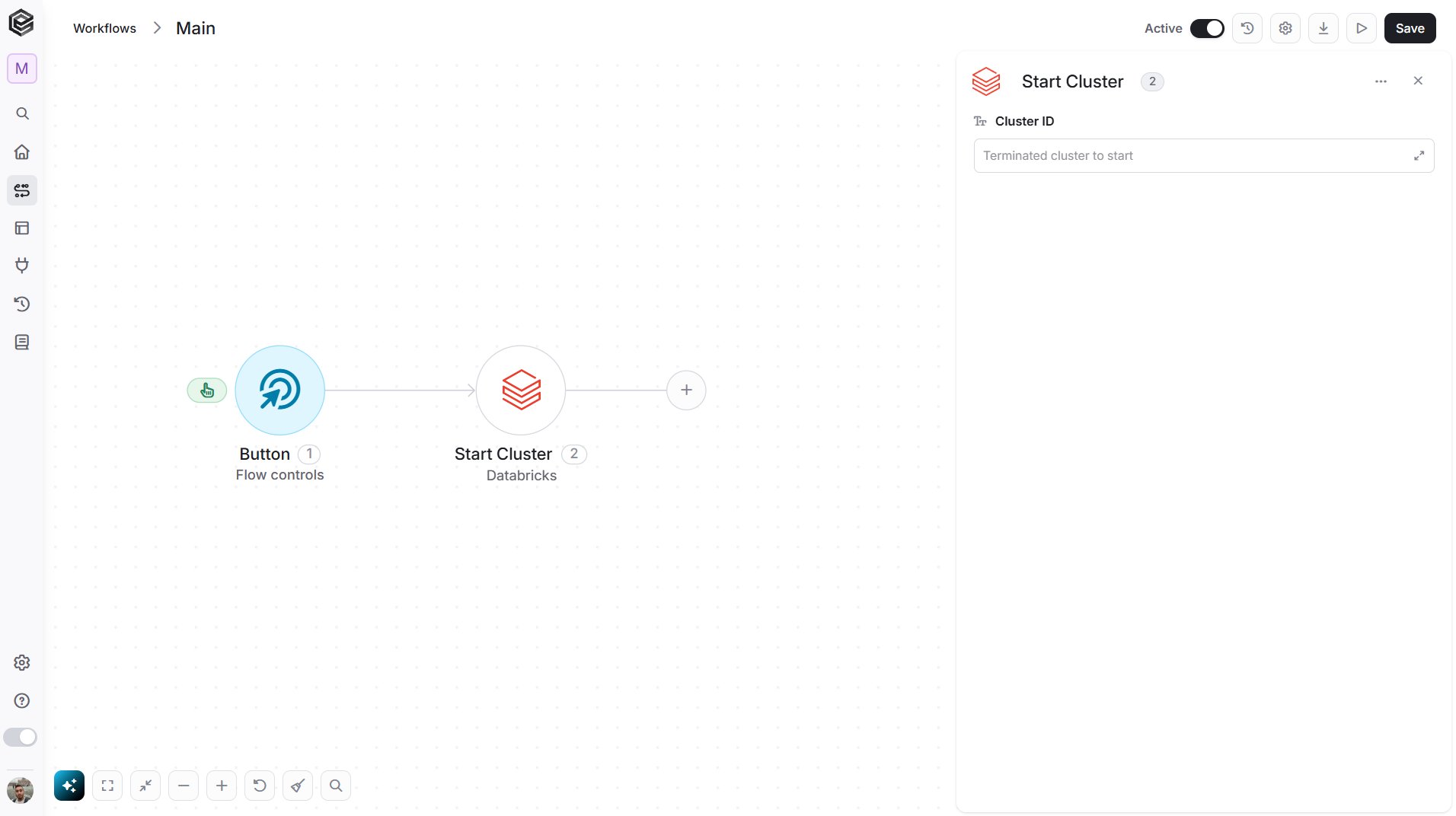
- Cluster ID - The cluster to start. Select it from the list, map its ID from a previous step, or enter the ID.
Terminate Cluster
Terminates a cluster. The cluster is not deleted and can be started again with Start Cluster.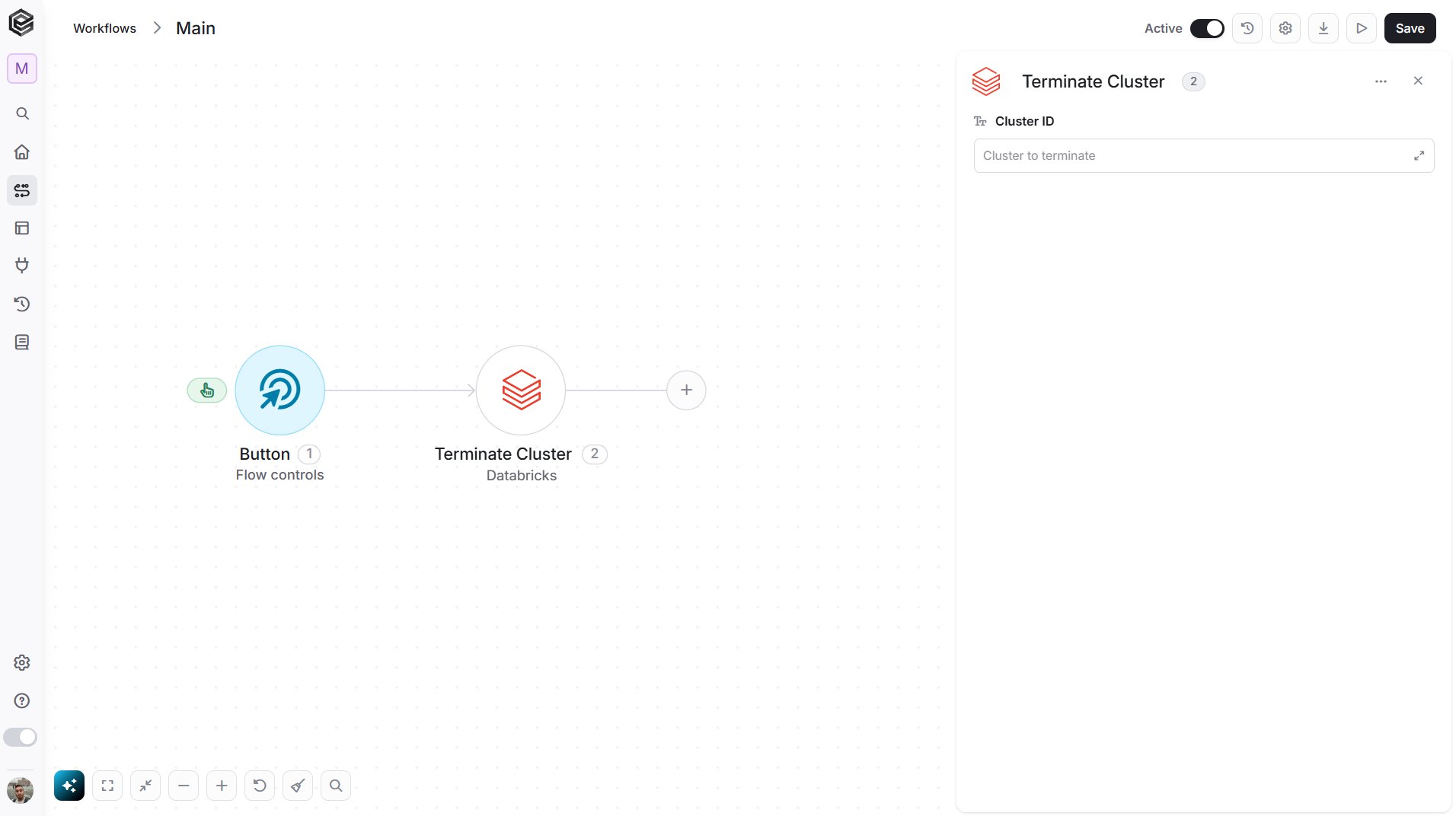
- Cluster ID - The cluster to terminate. Select it from the list, map its ID from a previous step, or enter the ID.
Get Jobs
Retrieves the jobs in your Databricks workspace.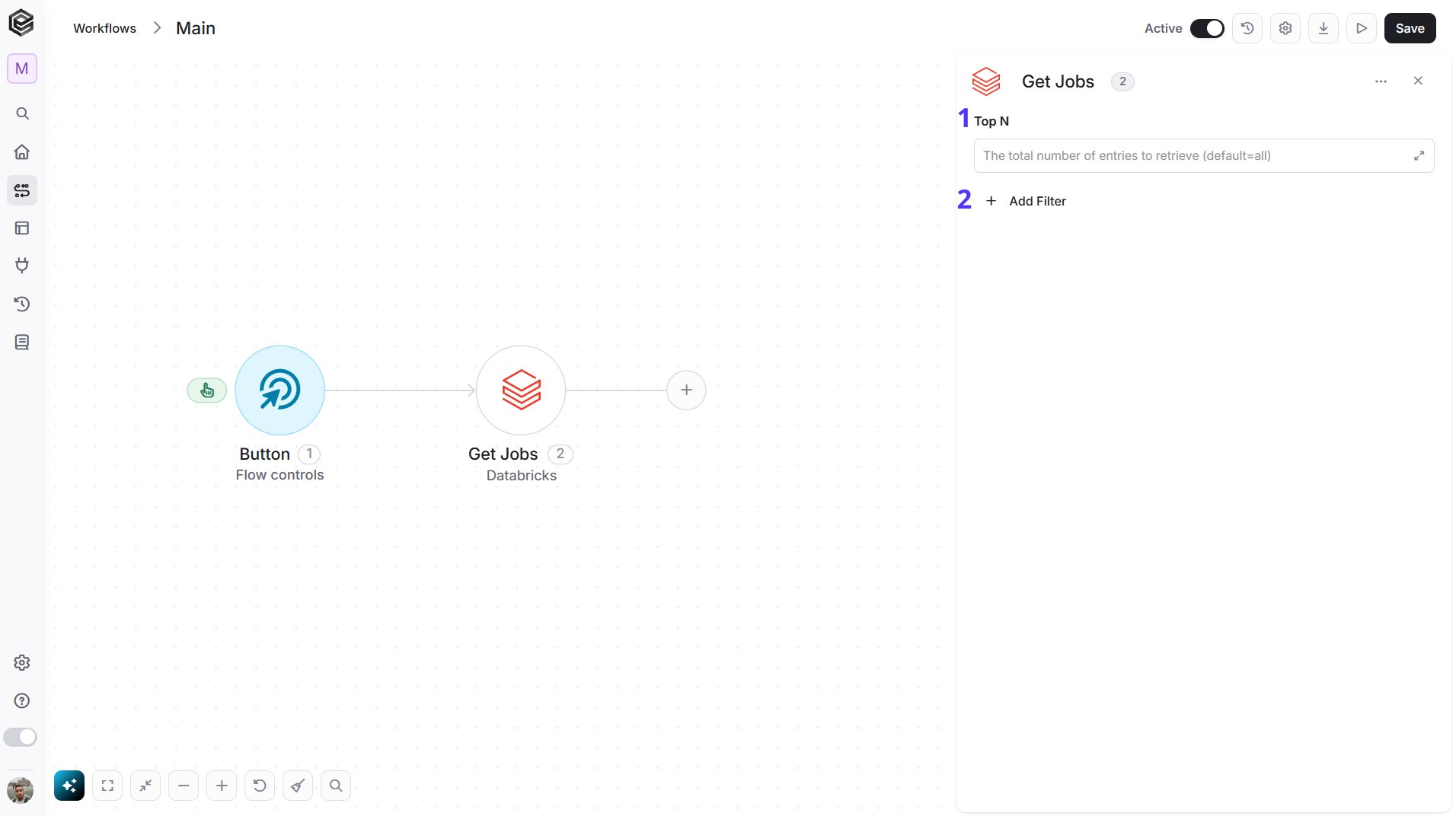
- Top N - You can set the maximum number of records Engini will return for the object you chose (default = all records).
- Add Filter - Click Add Filter to define conditions that narrow down the data list and return only the relevant items. To learn more about using filters, click here.
Get Job
Retrieves the details of one job.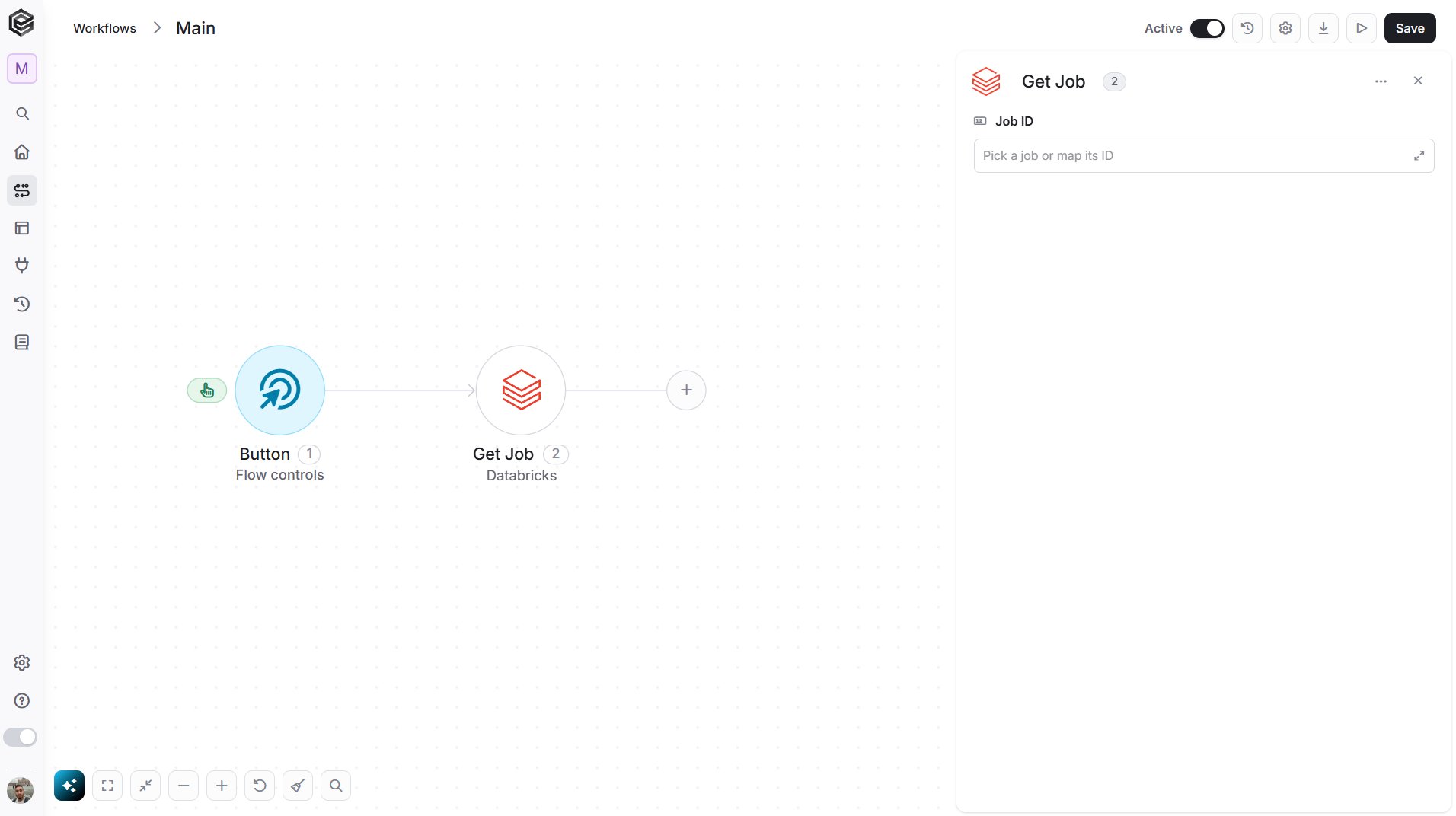
- Job ID - The job you want. Select it from the list, map its ID from a previous step such as Get Jobs, or enter the ID.
Create Job
Creates a new job in your Databricks workspace.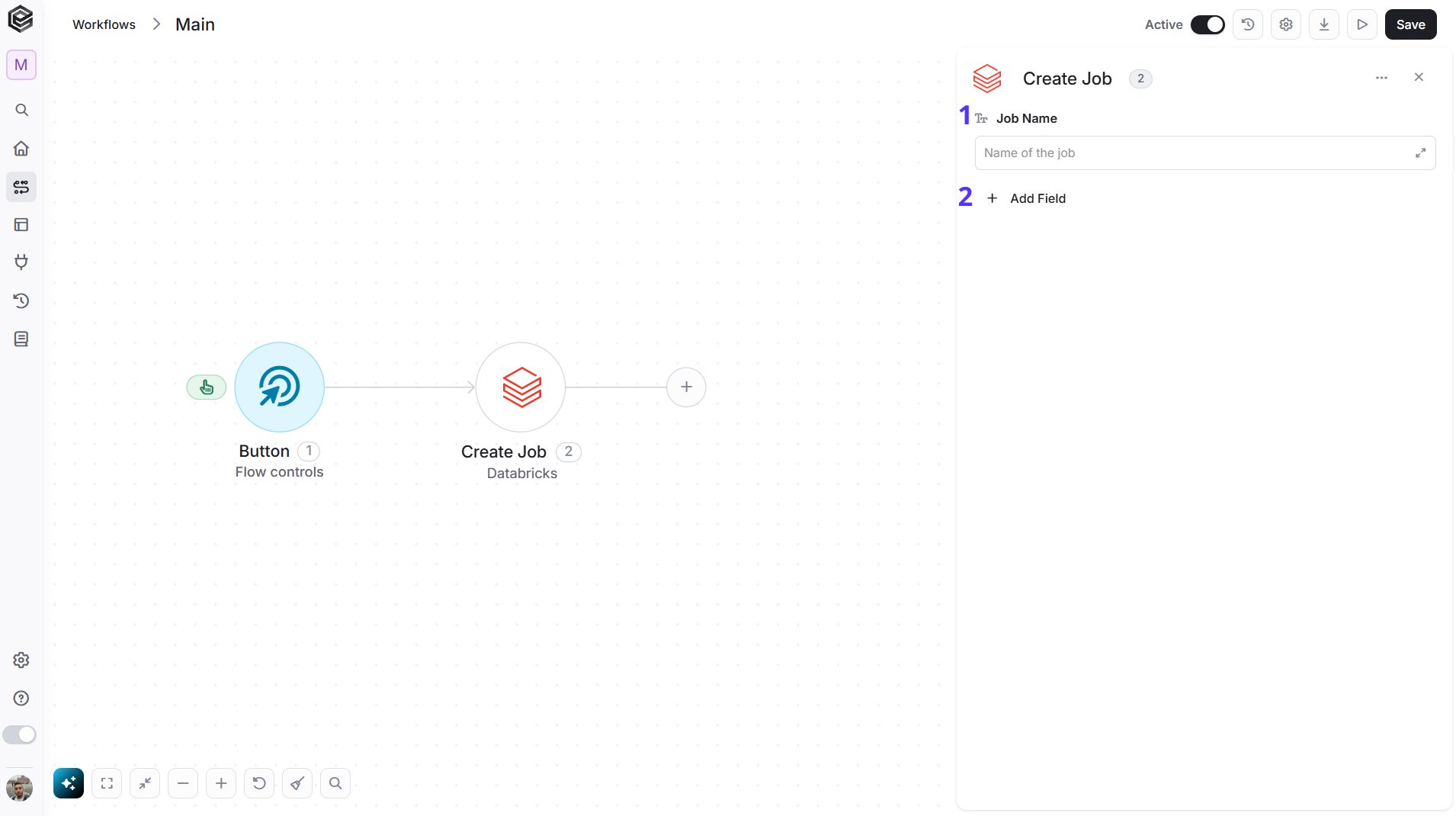
- Job Name - The name of the new job, for example “Nightly sales load”.
- Add Field - Click Add Field to add and populate additional fields for the selected activity. To learn more about managing activity data, click here.
- Description - A description of the job.
- Max Concurrent Runs - The maximum number of runs of this job that can run at the same time. The default is 1.
- Timeout Seconds - The maximum run time of each run, in seconds. Enter 0 for no timeout.
Run Job
Starts a run of a Databricks job.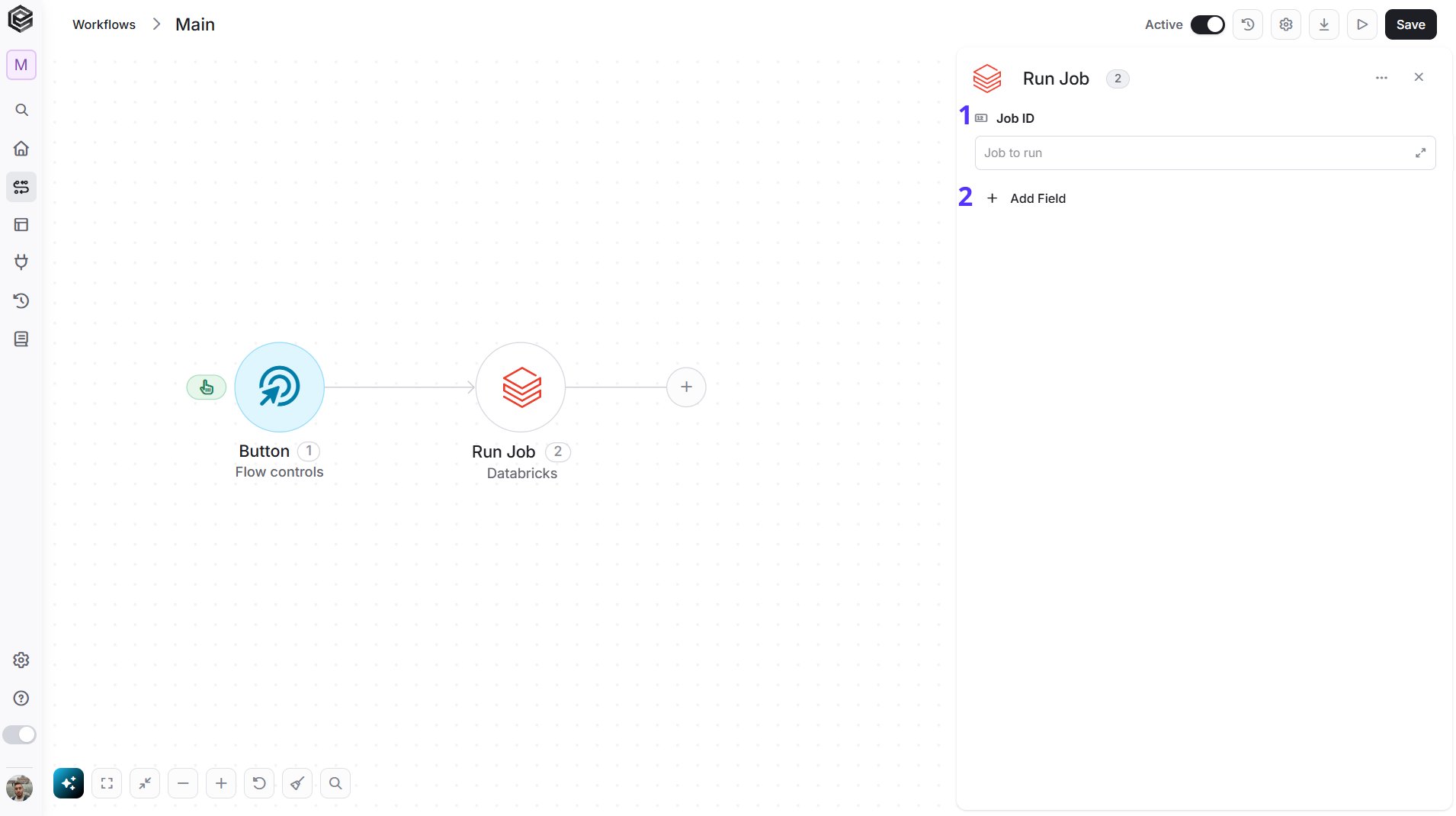
- Job ID - The job to run. Select it from the list, map its ID from a previous step, or enter the ID.
- Add Field - Click Add Field to add and populate additional fields for the selected activity. To learn more about managing activity data, click here.
- Idempotency Token - A token of up to 64 characters. Starting a run again with the same token returns the same run instead of starting a new one.
- Only Tasks - The task keys to run. If you leave it empty, all tasks of the job run.
Get Job Runs
Retrieves the runs of your Databricks jobs.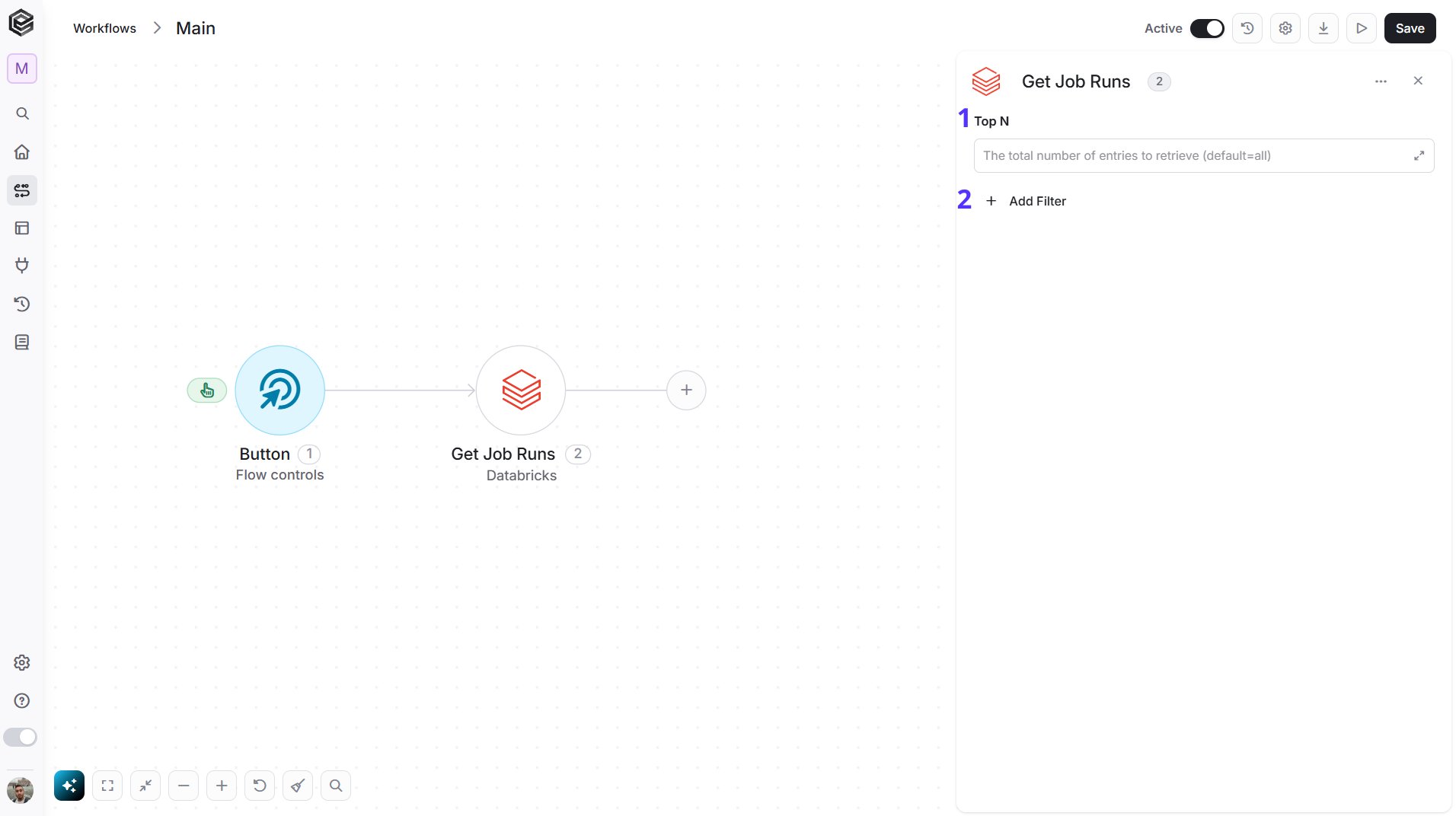
- Top N - You can set the maximum number of records Engini will return for the object you chose (default = all records).
- Add Filter - Click Add Filter to define conditions that narrow down the data list and return only the relevant items. To learn more about using filters, click here.
Get Job Run
Retrieves the status and details of one job run, including its tasks.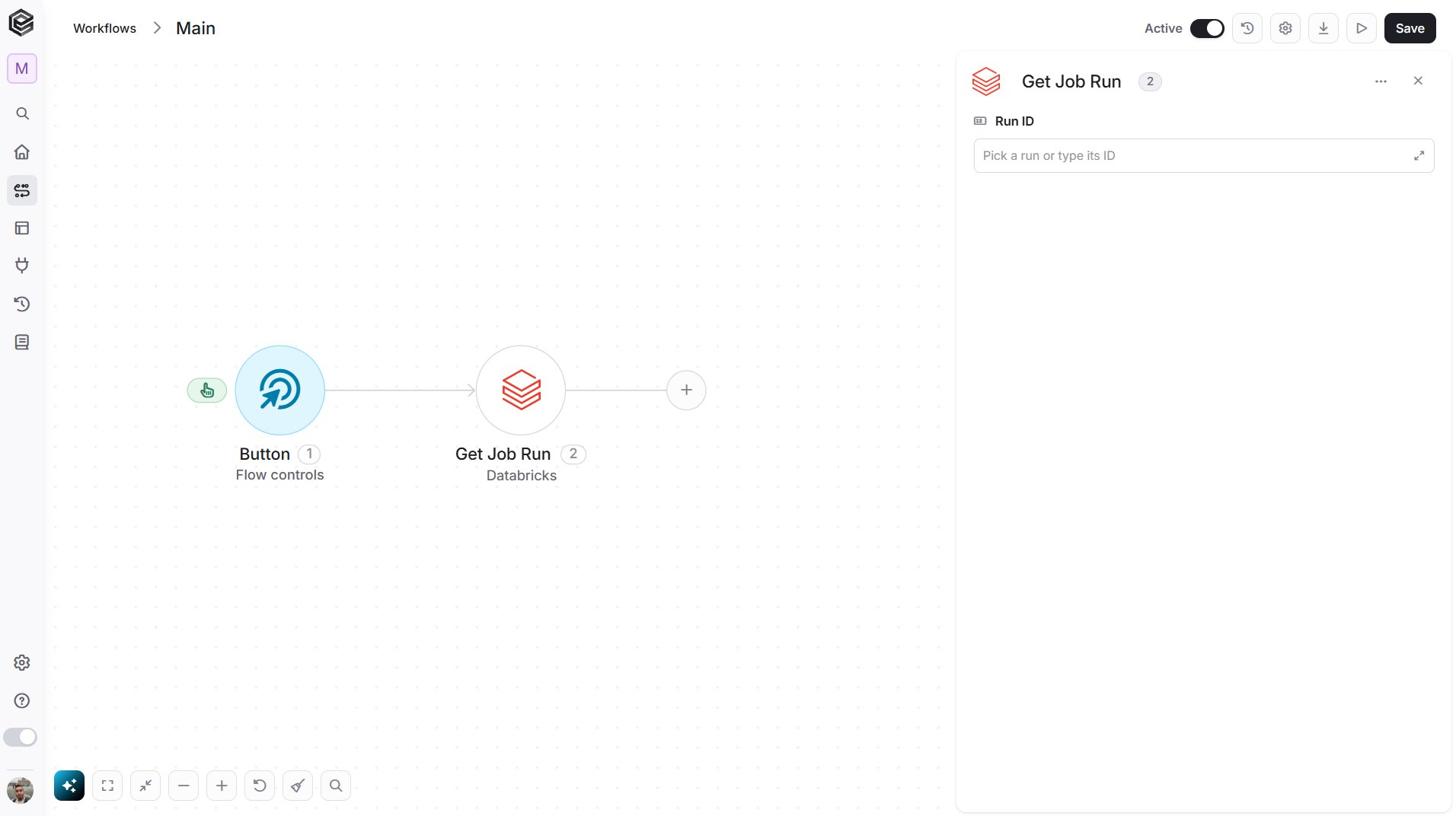
- Run ID - The run you want. Select a recent run from the list, map the Run ID from a previous step such as Run Job, or enter the ID.
Get Job Run Output
Retrieves the output of one task of a job run.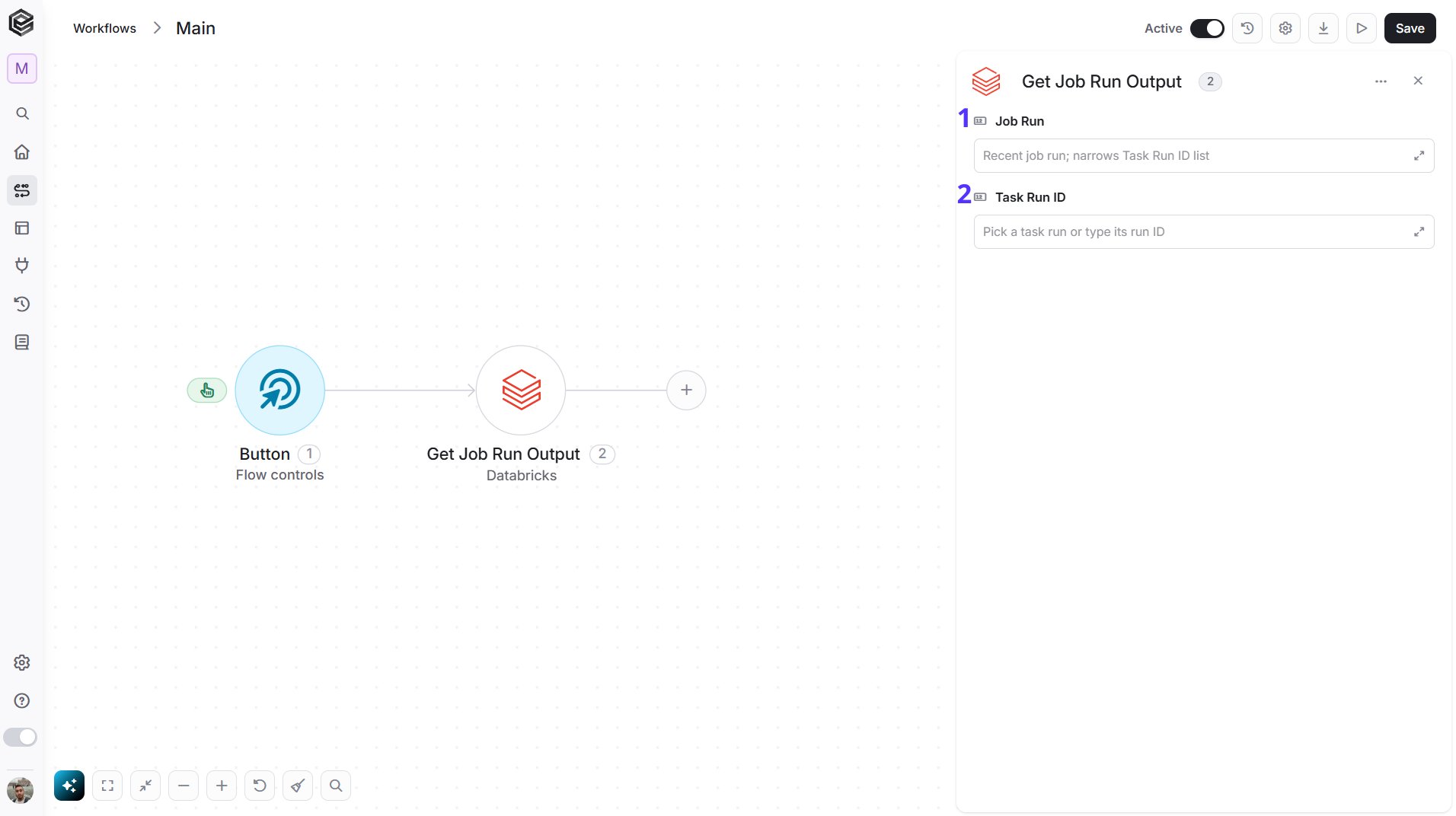
- Job Run - Select the job run that contains the task. It only narrows down the Task Run ID list.
- Task Run ID - The task run whose output you want. Select it from the list, map it from a previous step such as Get Job Run, or enter the ID.
Cancel Job Run
Cancels a job run that is in progress.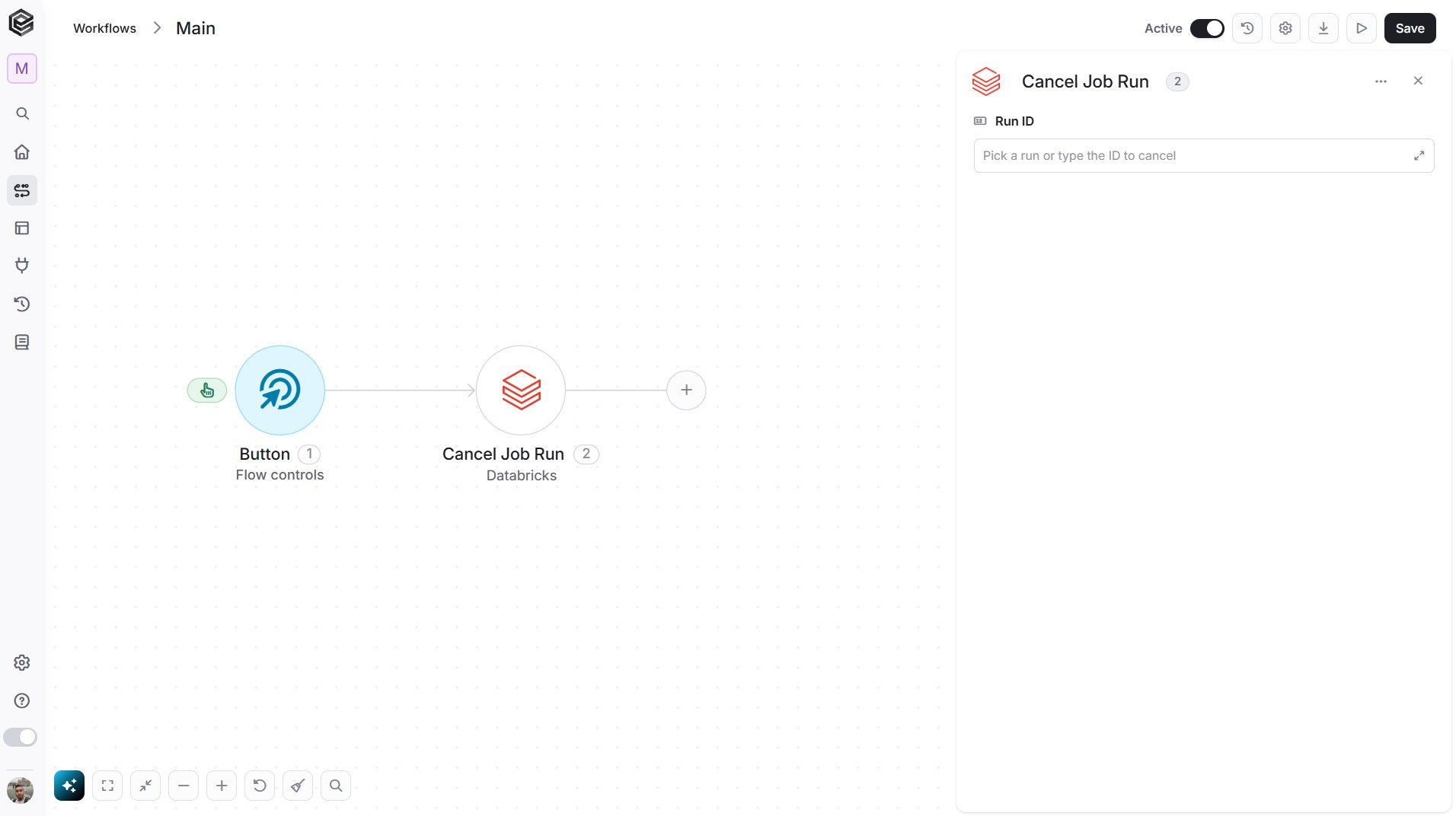
- Run ID - The run to cancel. Select it from the list, map the Run ID from a previous step such as Run Job, or enter the ID.
Execute SQL Statement
Runs a SQL statement on a SQL warehouse.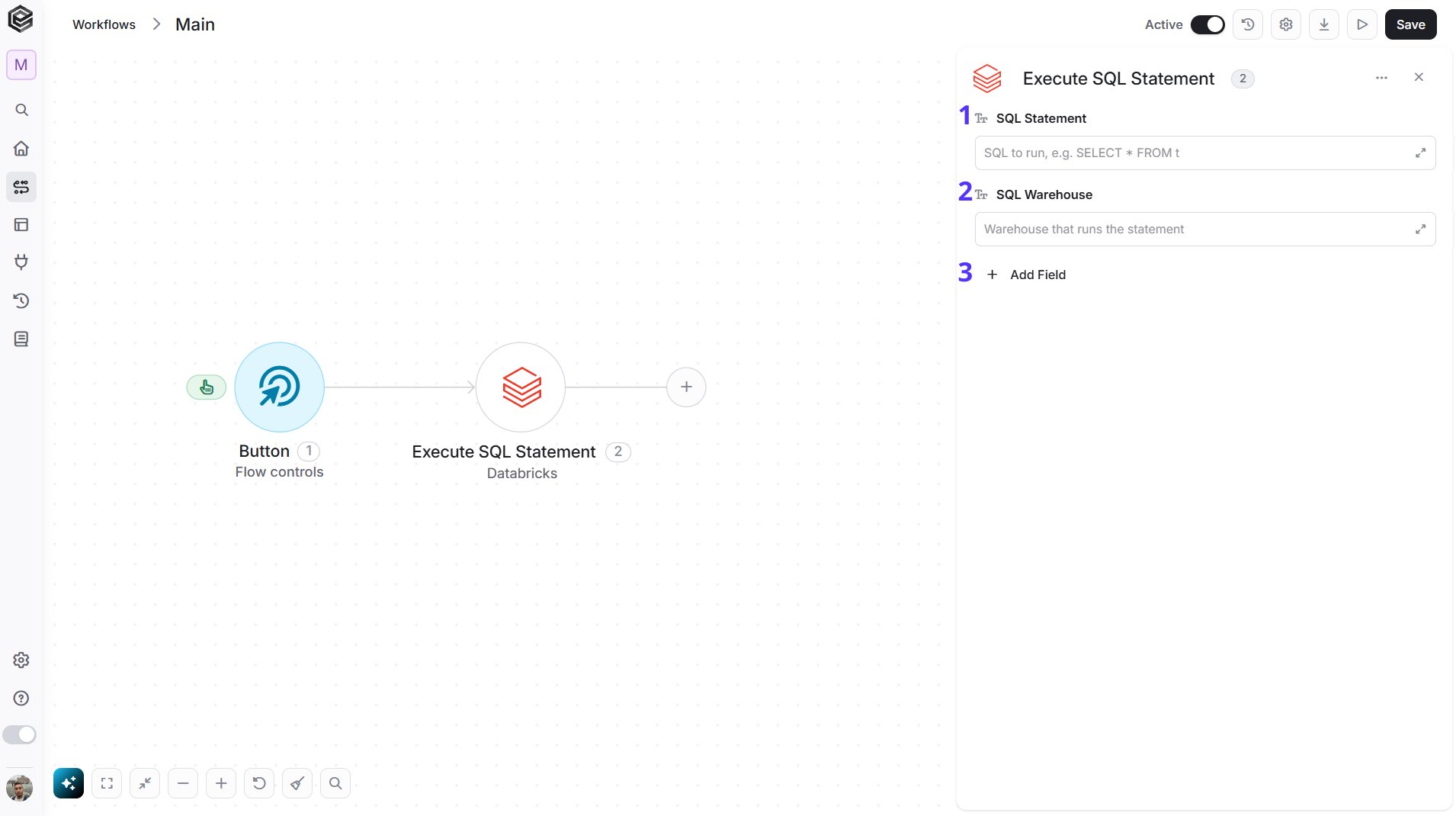
- SQL Statement - The SQL to run, for example
SELECT * FROM sales.orders. - SQL Warehouse - The warehouse that runs the statement. Select it from the list, map its ID from a previous step such as Get SQL Warehouses, or enter the ID.
- Add Field - Click Add Field to add and populate additional fields for the selected activity. To learn more about managing activity data, click here.
- Catalog - The catalog to use for the statement. Select it from the list or enter its name.
- Schema - The schema to use for the statement.
- Wait Timeout - How long Engini waits for the result: 0s, or between 5s and 50s. The default is 10s.
- On Wait Timeout - What happens when the wait time ends before the statement finishes: Continue (the default) or Cancel.
- Row Limit - Return at most this many rows.
- Byte Limit - Return at most this many bytes of results.
Get SQL Statement
Retrieves the status and the result of a SQL statement.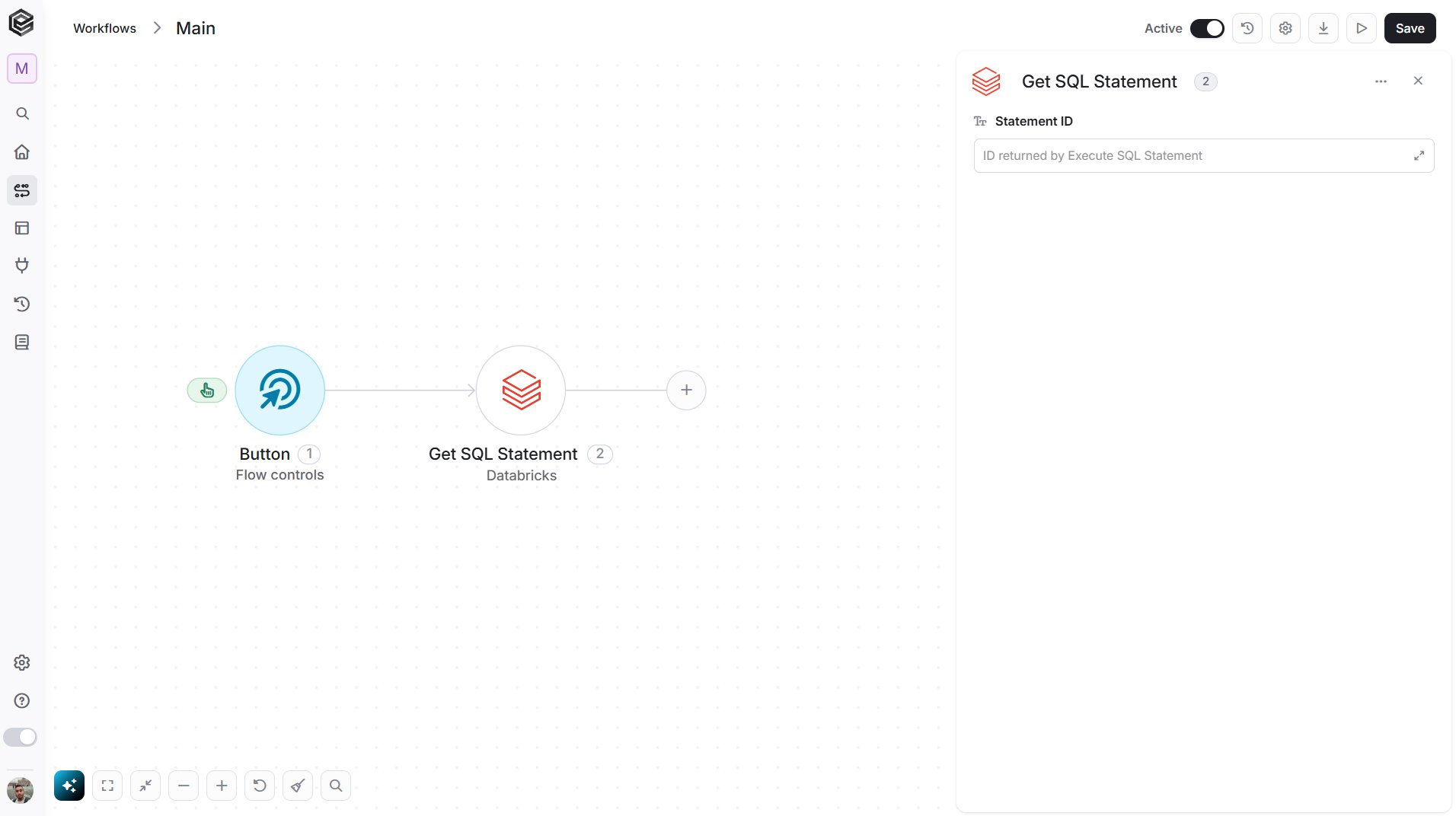
- Statement ID - The ID returned by a previous Execute SQL Statement step.
Cancel SQL Statement
Cancels a SQL statement that is running.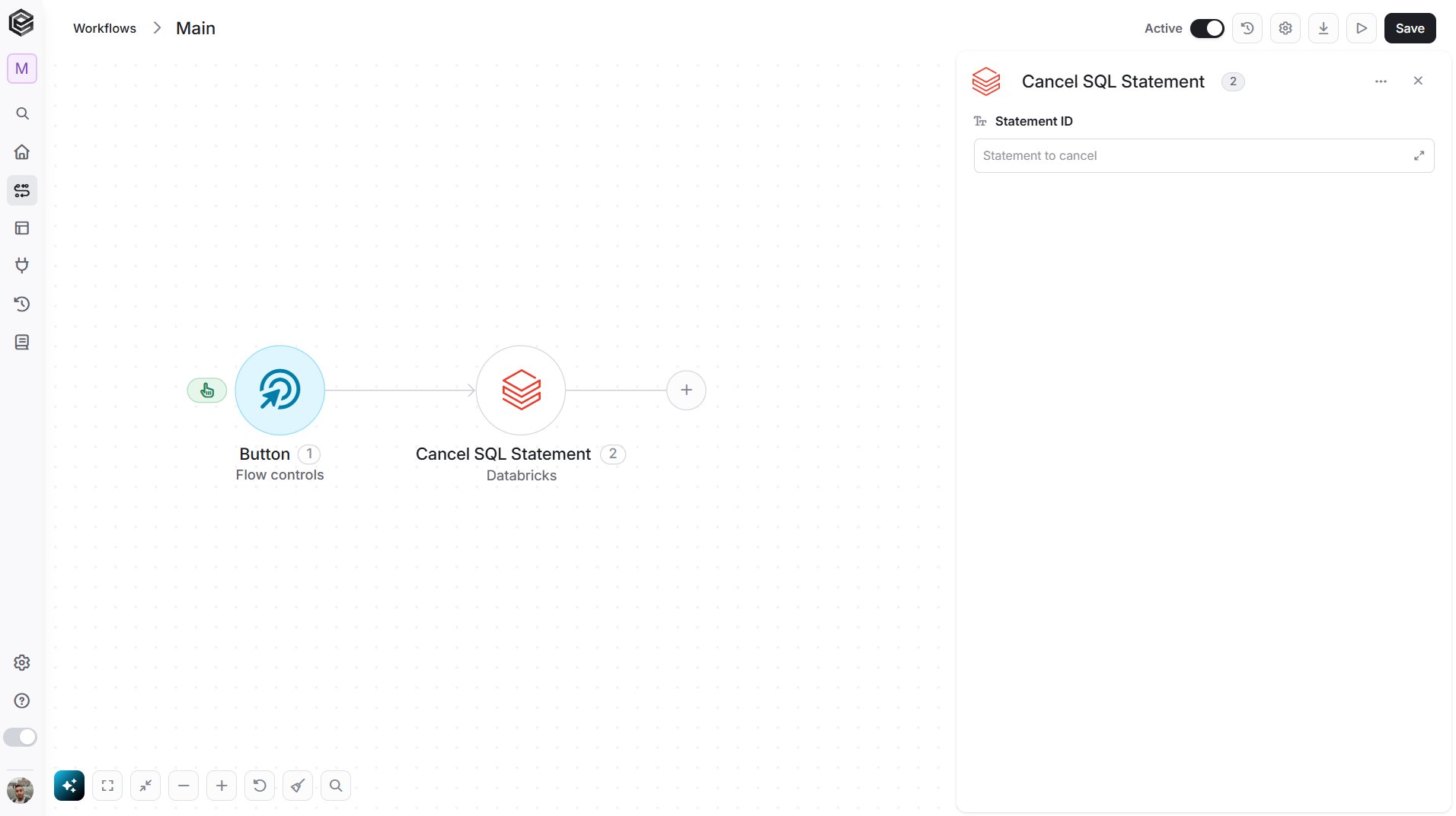
- Statement ID - The ID returned by a previous Execute SQL Statement step.
Get Catalogs
Retrieves the Unity Catalog catalogs you have access to.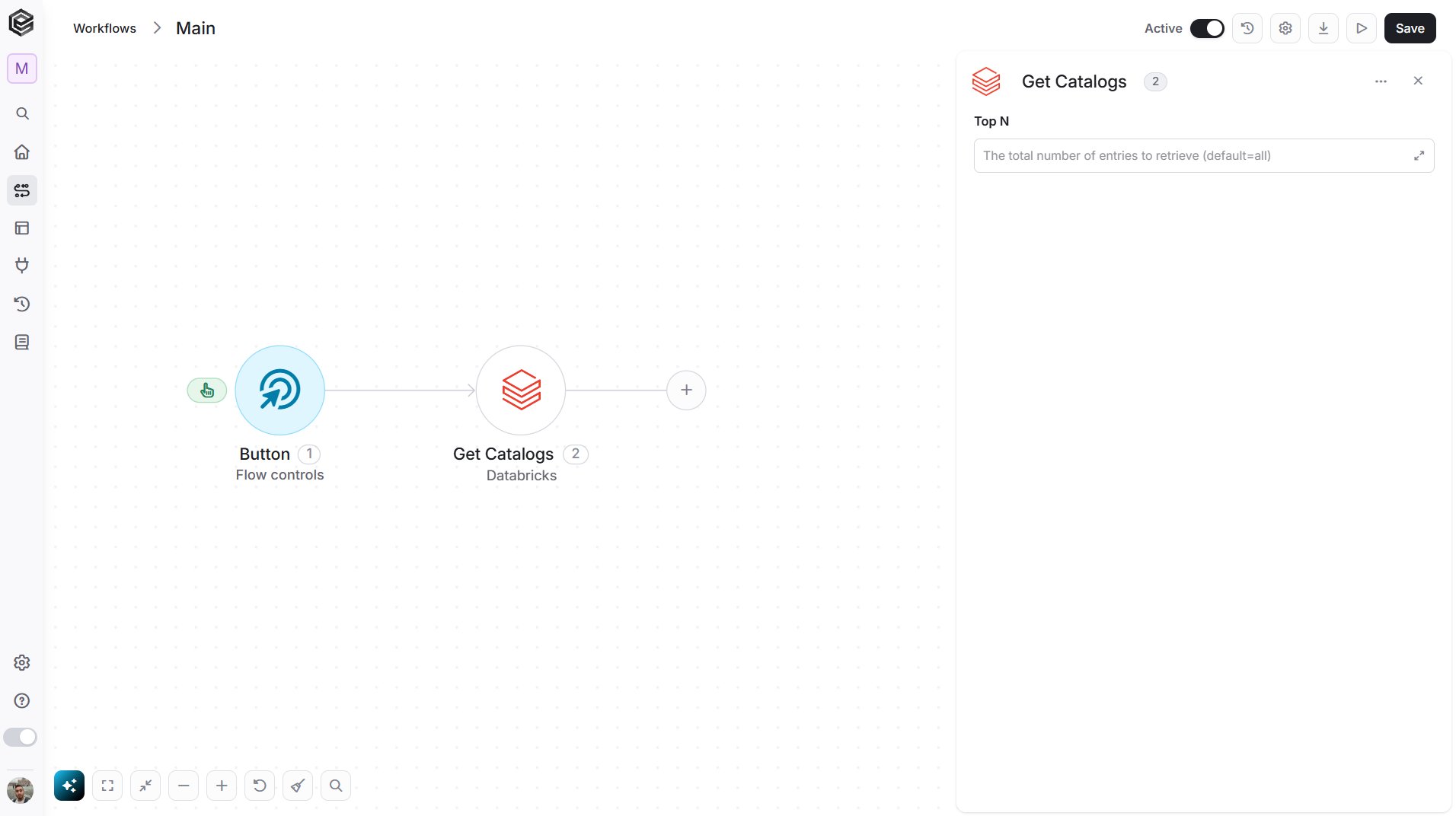
- Top N - You can set the maximum number of records Engini will return for the object you chose (default = all records).
Get Schemas
Retrieves the schemas of a catalog.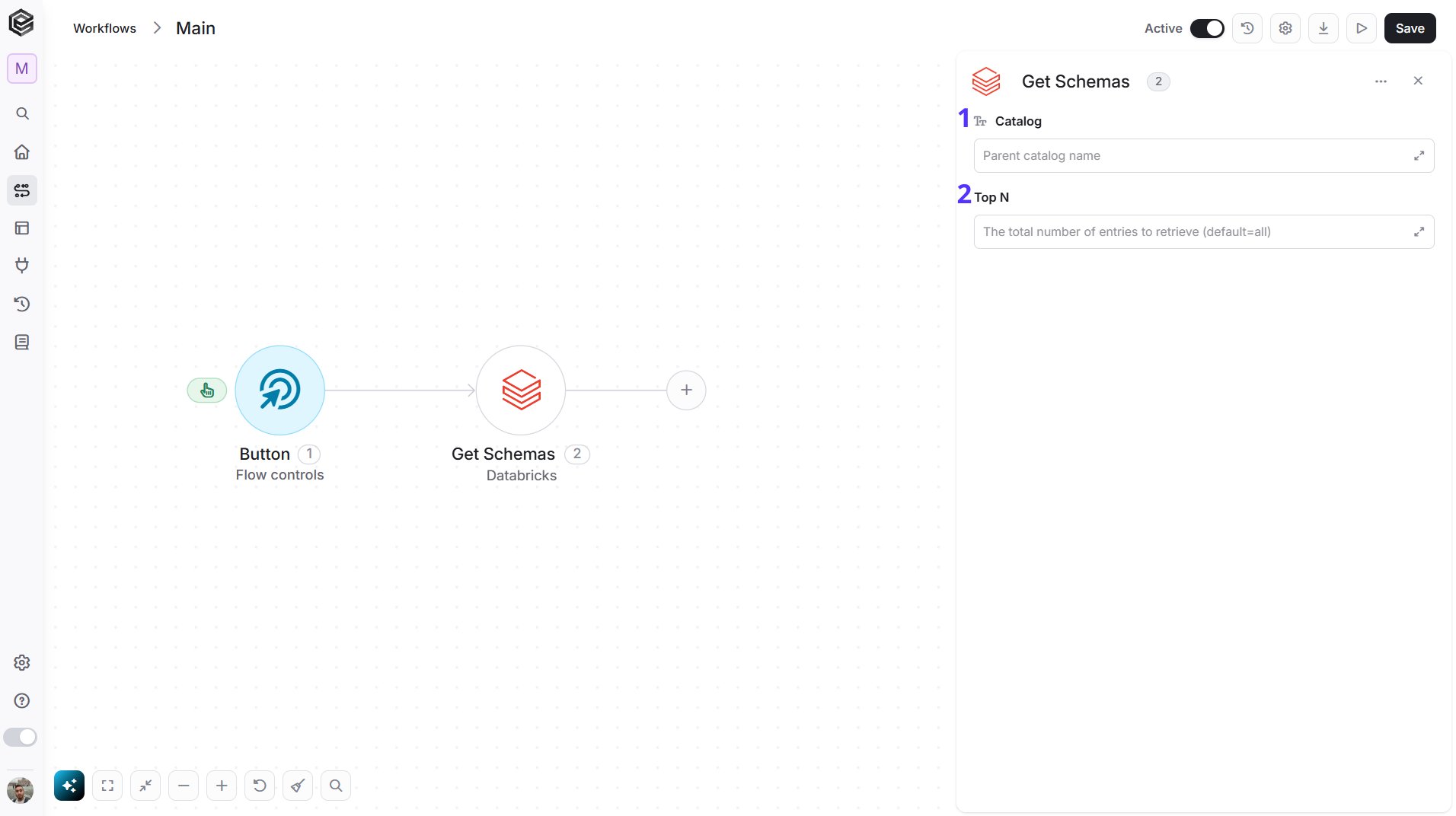
- Catalog - The catalog whose schemas you want. Select it from the list, map its name from a previous step such as Get Catalogs, or enter the name.
- Top N - You can set the maximum number of records Engini will return for the object you chose (default = all records).
Get Tables
Retrieves the tables of a schema.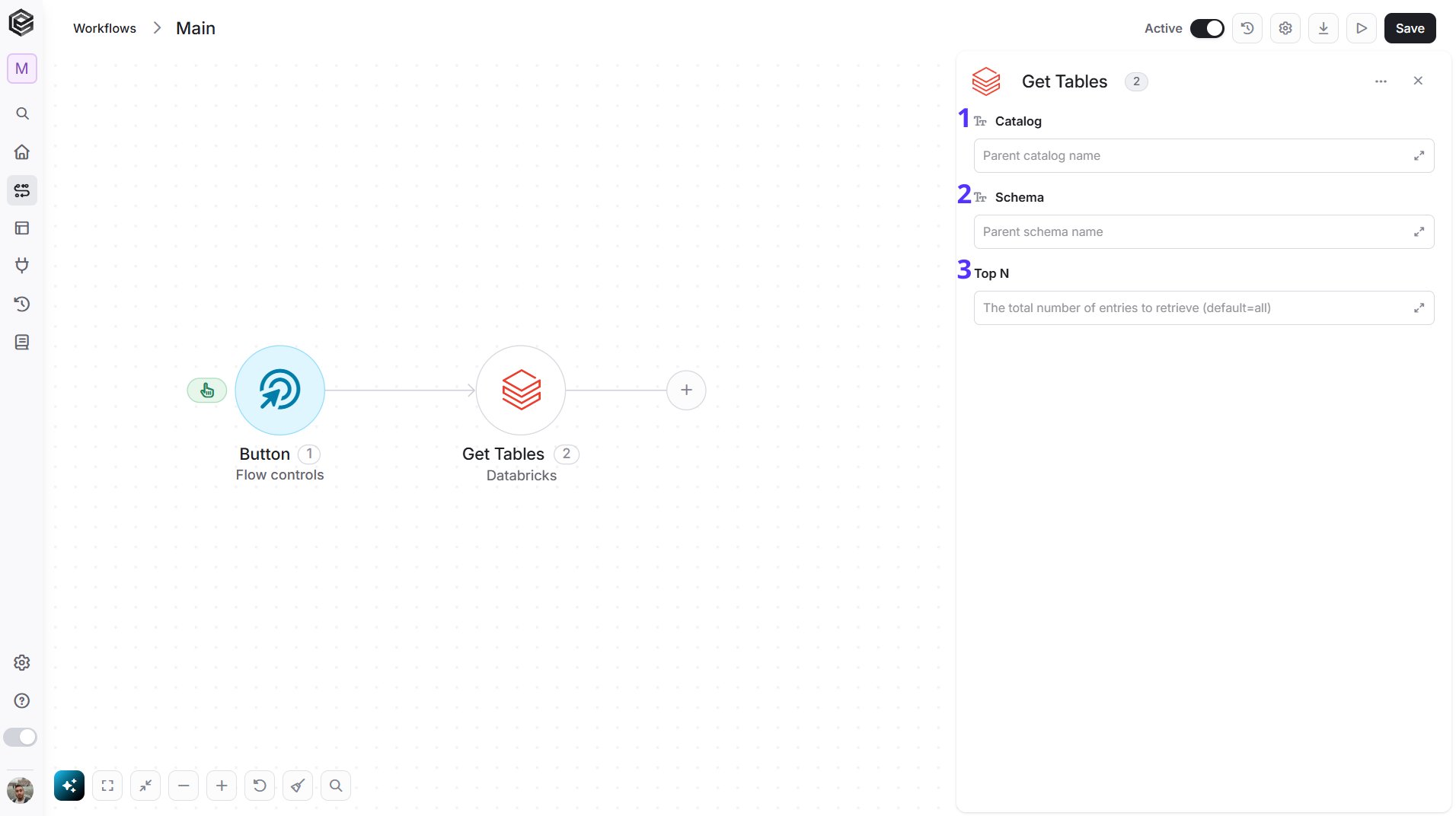
- Catalog - The catalog that contains the schema. Select it from the list, map its name from a previous step, or enter the name.
- Schema - The schema whose tables you want. Select the catalog first to load its schemas.
- Top N - You can set the maximum number of records Engini will return for the object you chose (default = all records).
Get Volumes
Retrieves the Unity Catalog volumes of a schema.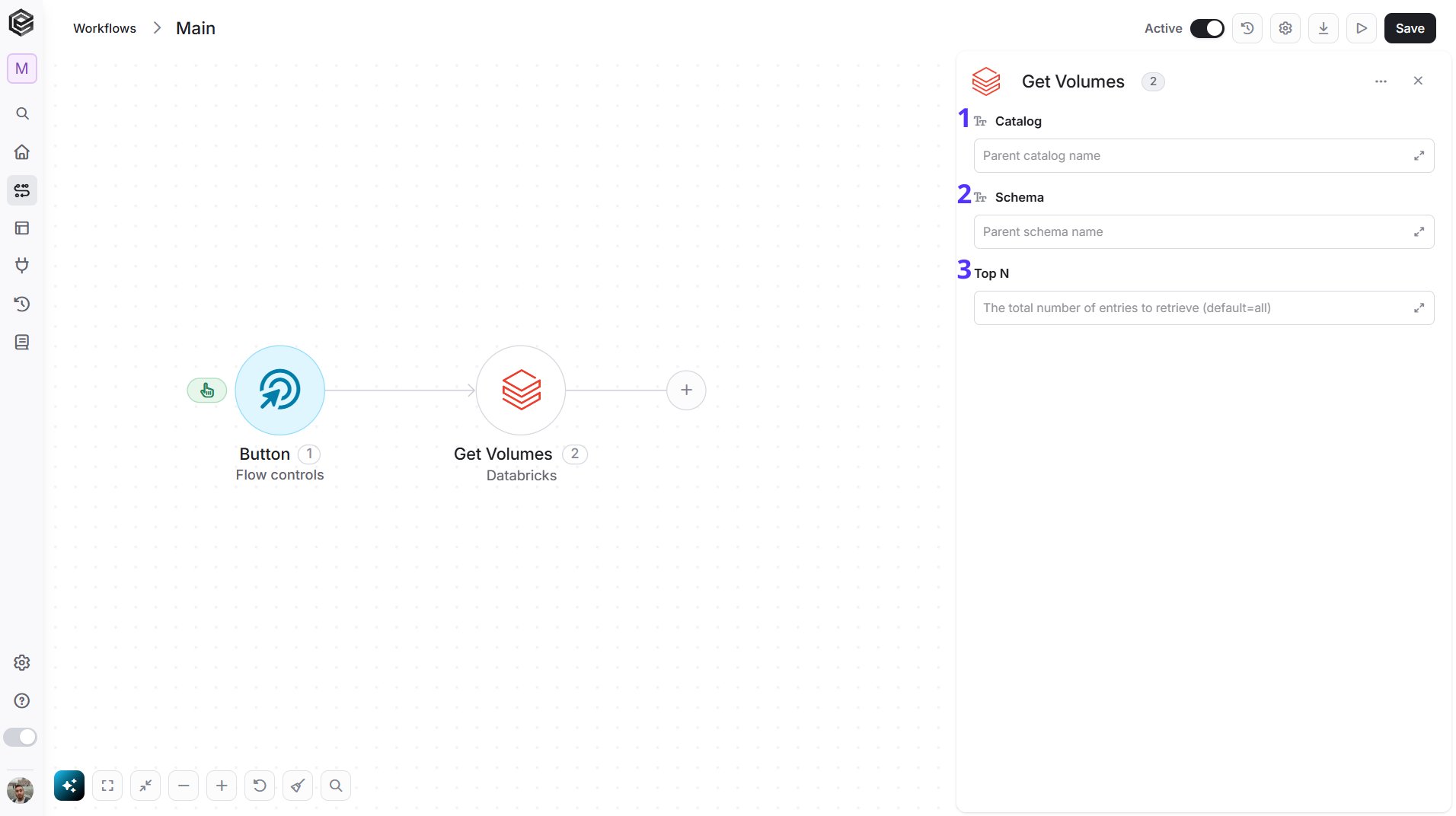
- Catalog - The catalog that contains the schema. Select it from the list, map its name from a previous step, or enter the name.
- Schema - The schema whose volumes you want. Select the catalog first to load its schemas.
- Top N - You can set the maximum number of records Engini will return for the object you chose (default = all records).
Get Files
Retrieves the files and folders inside a folder of a Unity Catalog volume.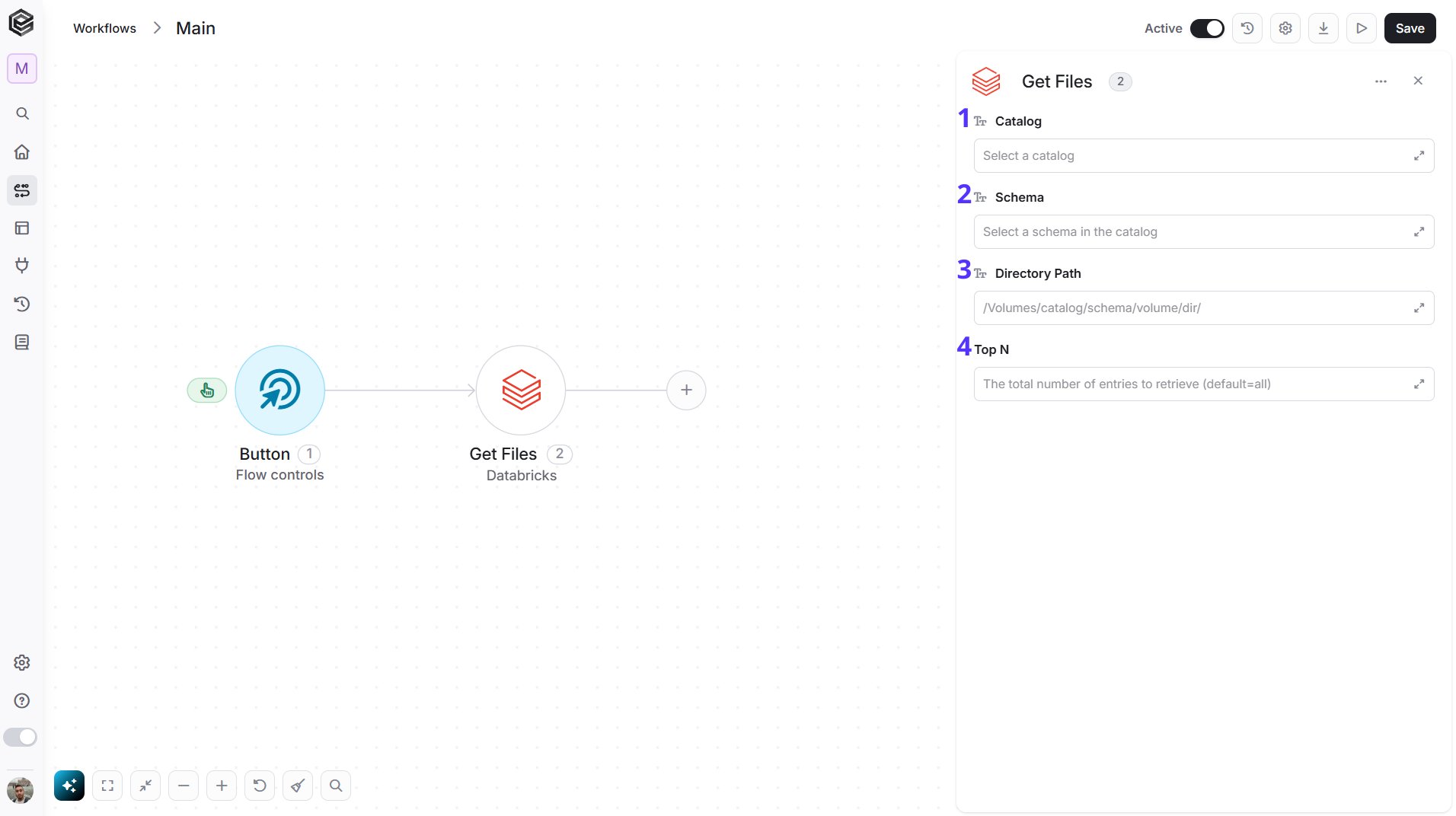
- Catalog - The catalog that contains the volume. Select it from the list.
- Schema - The schema that contains the volume. Select the catalog first to load its schemas.
- Directory Path - The folder to list. Select a volume to list its top level, or enter the full path of a folder, starting with /Volumes, for example
/Volumes/main/sales/reports/2026/. - Top N - You can set the maximum number of records Engini will return for the object you chose (default = all records).
Download File
Downloads a file from a Unity Catalog volume.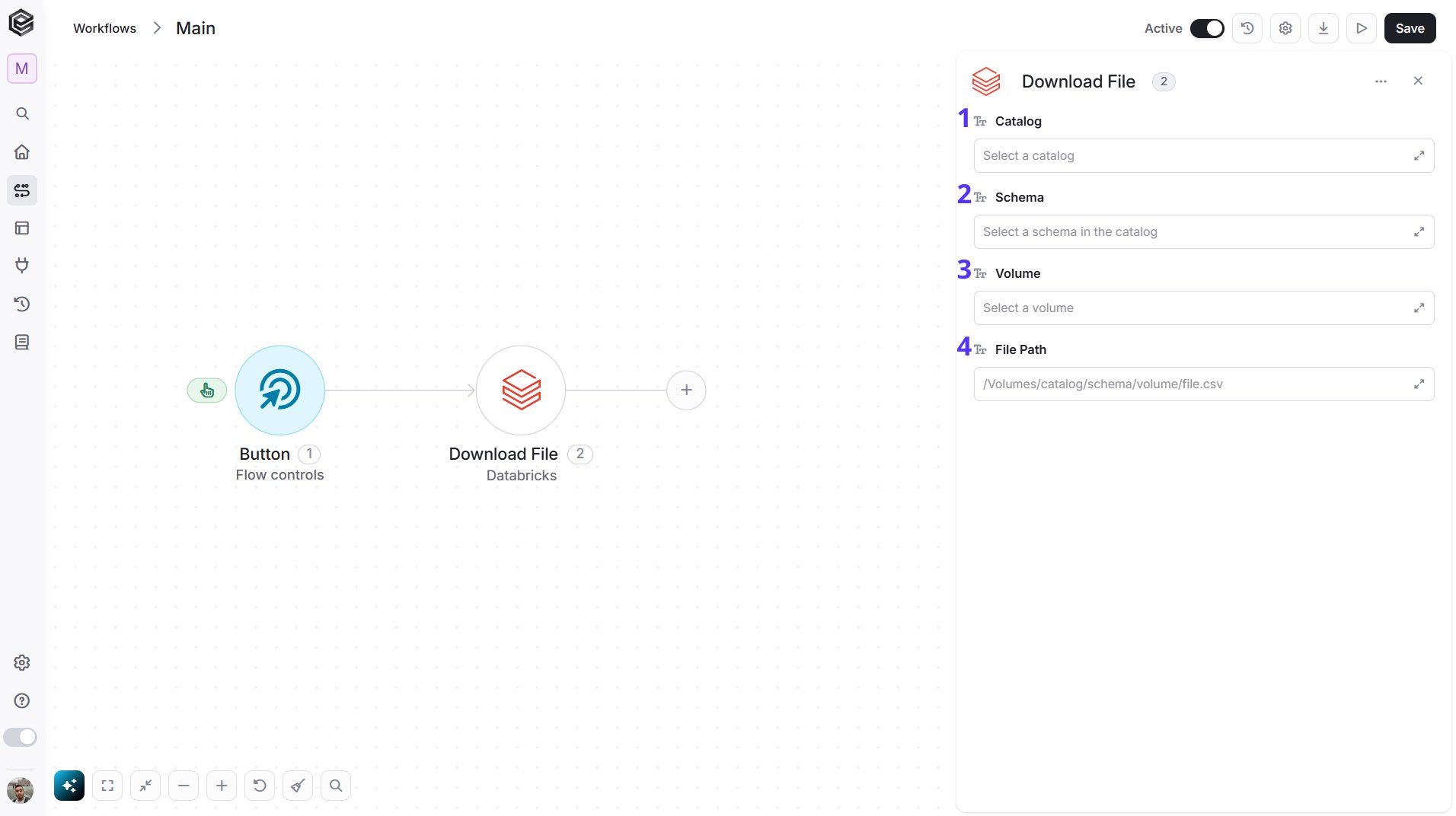
- Catalog - The catalog that contains the volume. Select it from the list.
- Schema - The schema that contains the volume. Select the catalog first to load its schemas.
- Volume - The volume that contains the file. Select the schema first to load its volumes.
- File Path - The file to download. Select the file, or enter its full path, for example
/Volumes/main/sales/reports/summary.csv.
Delete File
Deletes a file from a Unity Catalog volume.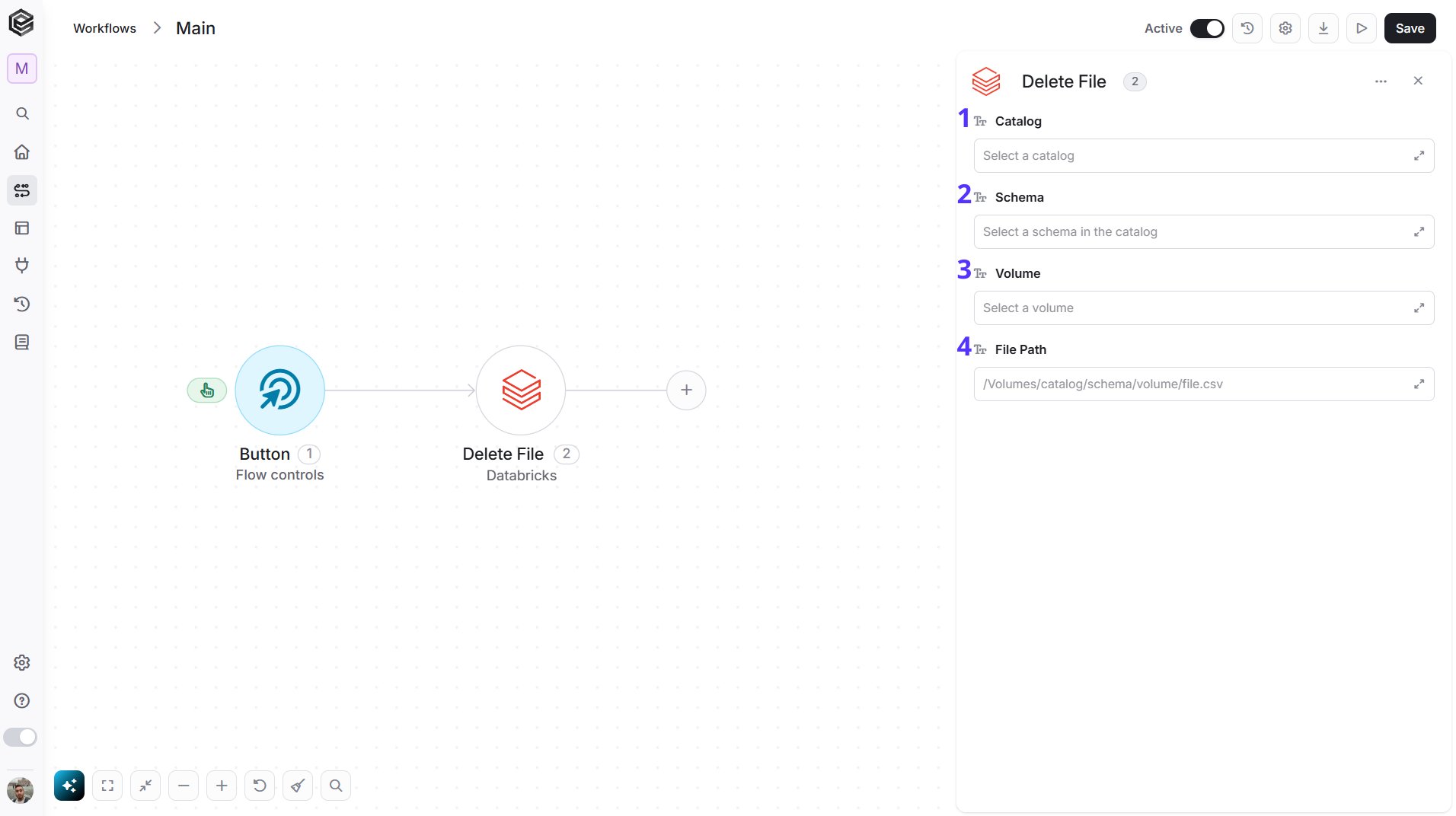
- Catalog - The catalog that contains the volume. Select it from the list.
- Schema - The schema that contains the volume. Select the catalog first to load its schemas.
- Volume - The volume that contains the file. Select the schema first to load its volumes.
- File Path - The file to delete. Select the file, or enter its full path, for example
/Volumes/main/sales/reports/summary.csv.
Get Workspace Objects
Retrieves the notebooks, folders and other objects inside a folder of your Databricks workspace.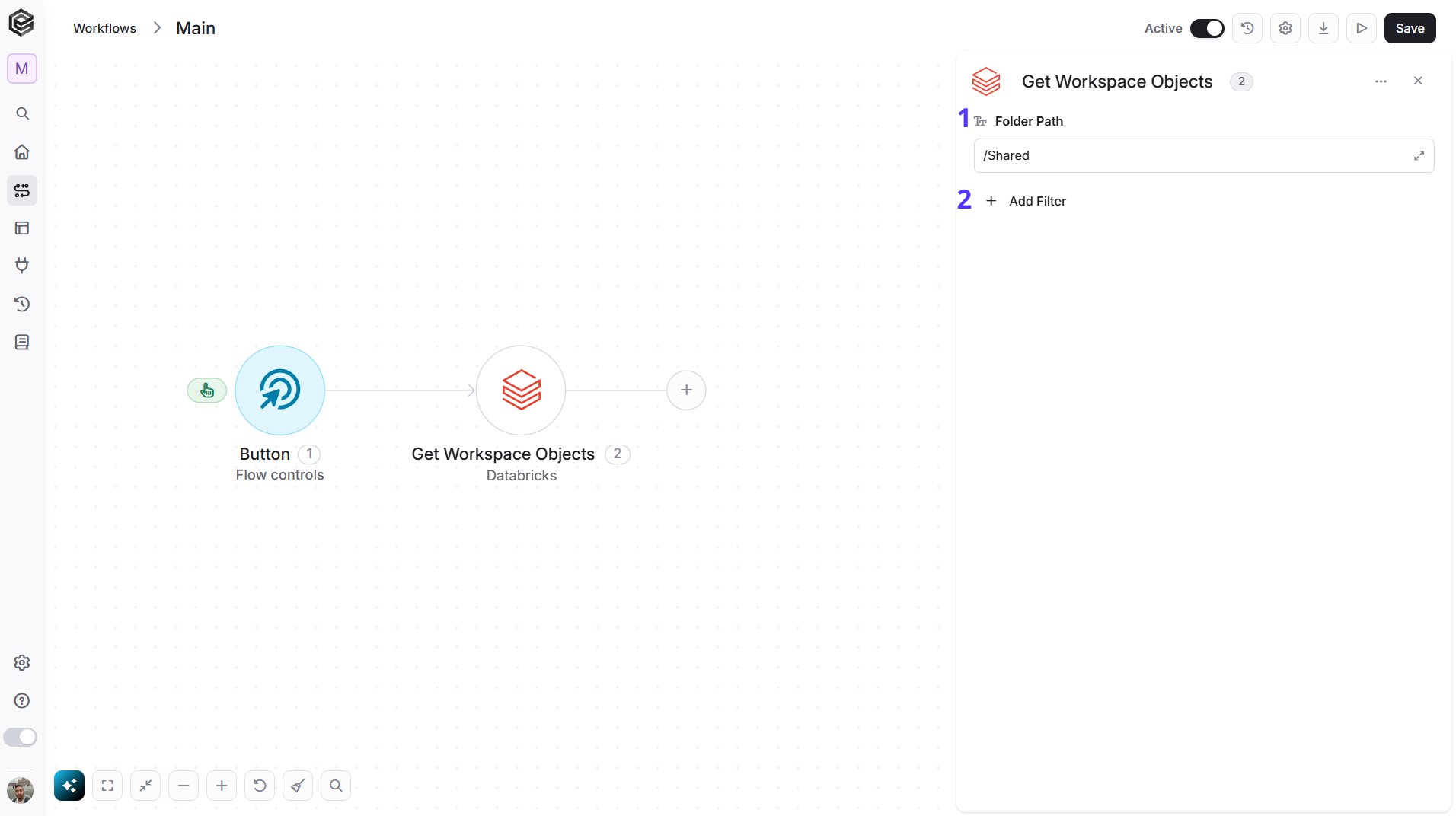
- Folder Path - The folder to list, for example
/Shared. The field starts with /Shared. - Add Filter - Click Add Filter to define conditions that narrow down the data list and return only the relevant items. To learn more about using filters, click here.
Get Pipelines
Retrieves the Lakeflow pipelines in your Databricks workspace.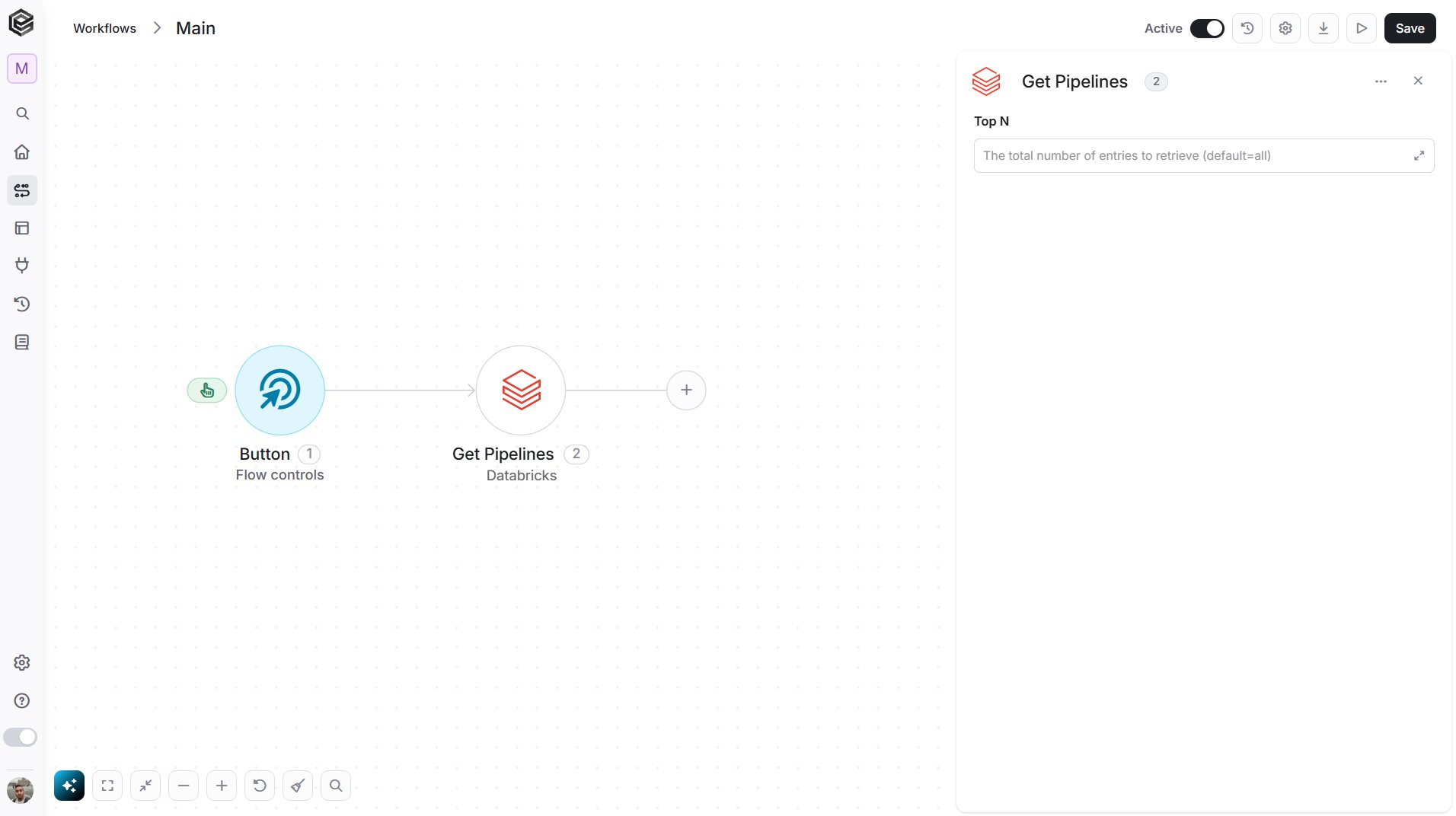
- Top N - You can set the maximum number of records Engini will return for the object you chose (default = all records).
Get Pipeline Updates
Retrieves the updates (runs) of a pipeline.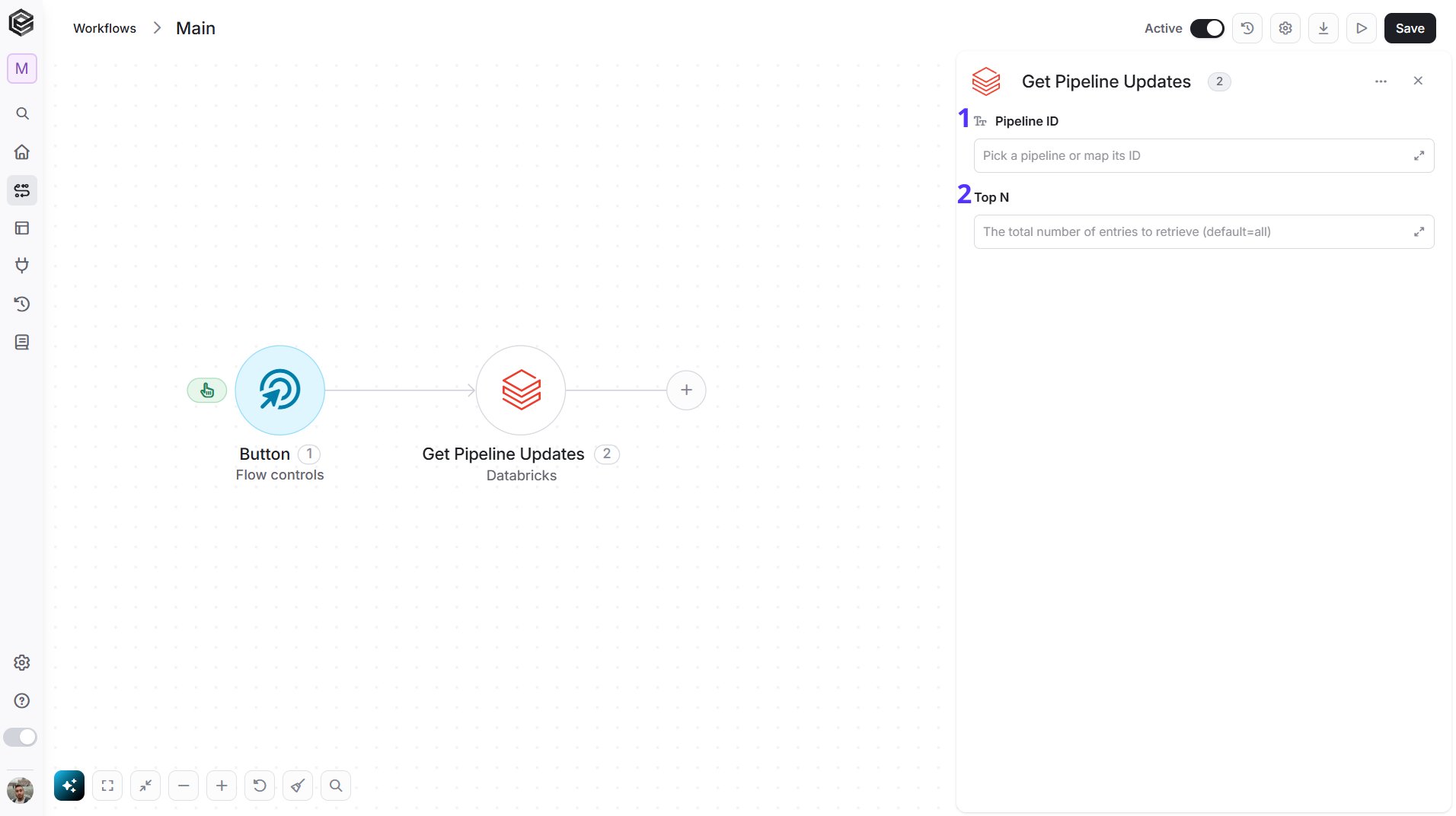
- Pipeline ID - The pipeline you want. Select it from the list, map its ID from a previous step such as Get Pipelines, or enter the ID.
- Top N - You can set the maximum number of records Engini will return for the object you chose (default = all records).
Start Pipeline Update
Starts a new update (run) of a pipeline.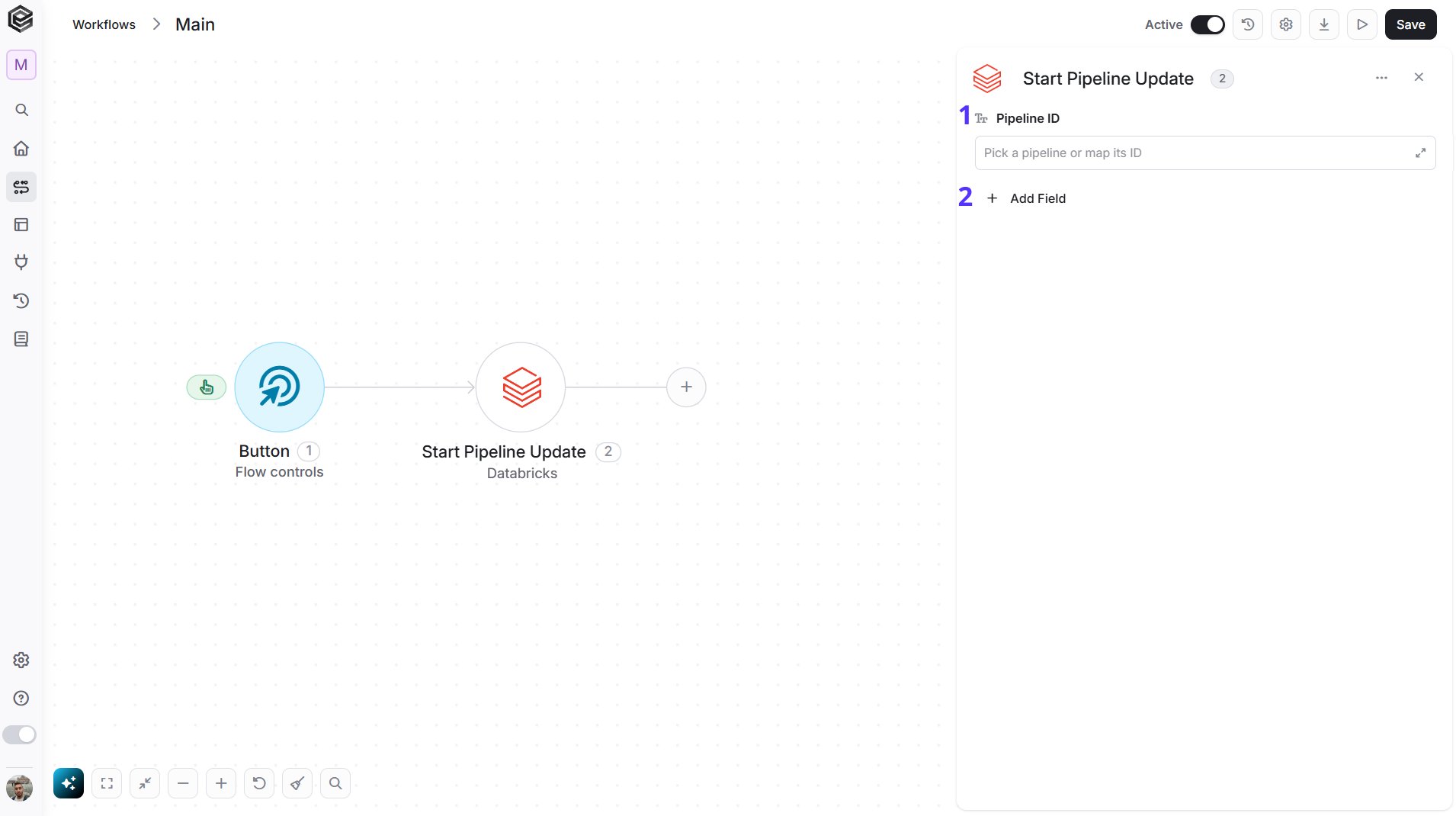
- Pipeline ID - The pipeline to update. Select it from the list, map its ID from a previous step, or enter the ID.
- Add Field - Click Add Field to add and populate additional fields for the selected activity. To learn more about managing activity data, click here.
- Full Refresh - Reset all tables of the pipeline before the update. The default is No.
- Refresh Tables - The tables to refresh. If you leave it empty, the whole pipeline is refreshed.
- Full Refresh Tables - The tables to refresh from scratch, resetting their state.
- Reset Checkpoint Flows - The flows whose checkpoint is reset. Their data is kept.
- Validate Only - Only check the pipeline source code without running an update. The default is No.
- Development Mode - Run the update in development mode, which reuses compute and doesn’t retry on failure. The default is No.
Get Pipeline Update
Retrieves the status and details of one pipeline update.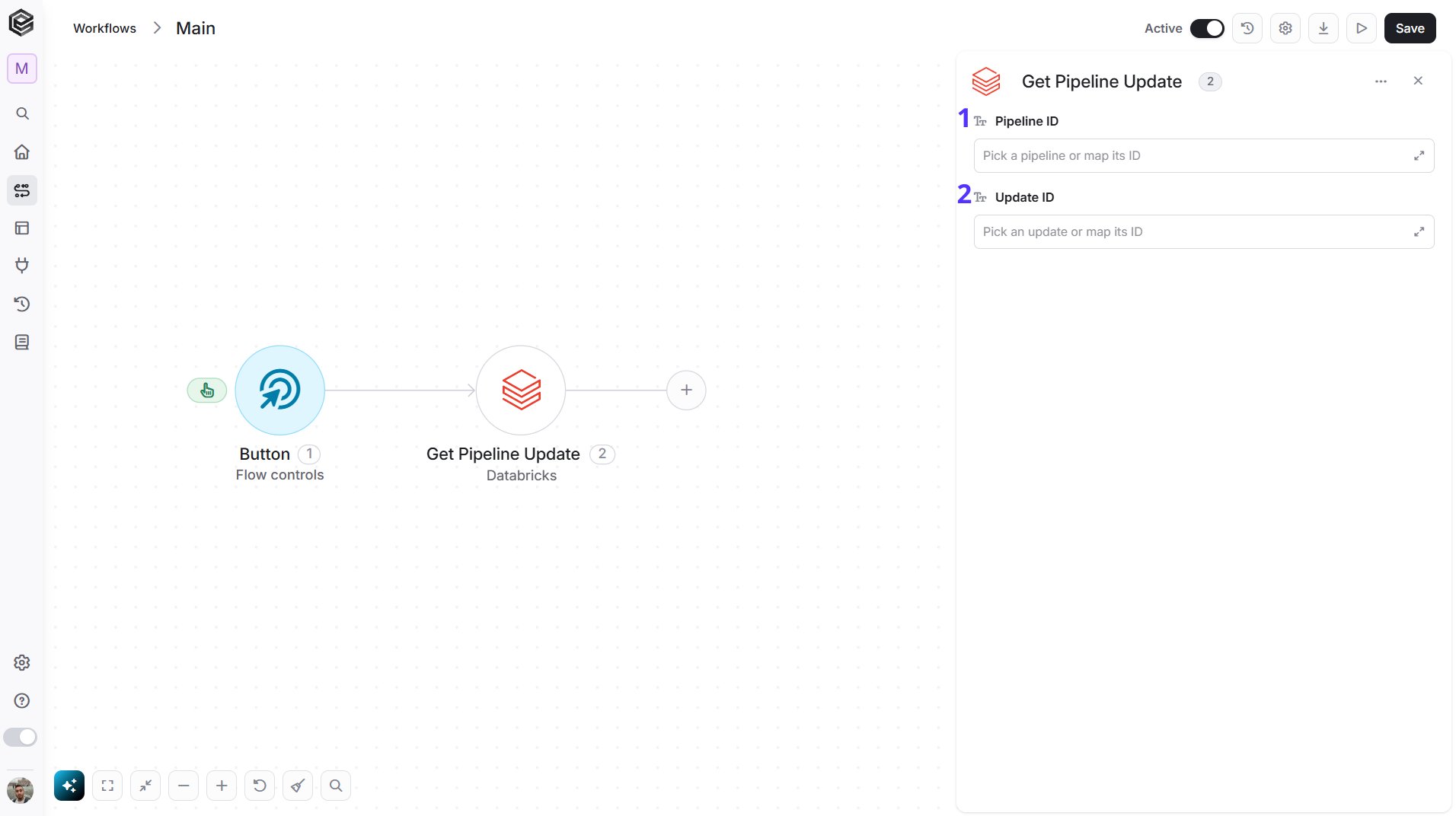
- Pipeline ID - The pipeline the update belongs to. Select it from the list, map its ID from a previous step, or enter the ID.
- Update ID - The update you want. Select the pipeline first to load its updates, or map the Update ID returned by Start Pipeline Update.
Send API Request
This activity allows you to send a custom API request directly to the Databricks API. Use it for Databricks features that the actions above don’t cover.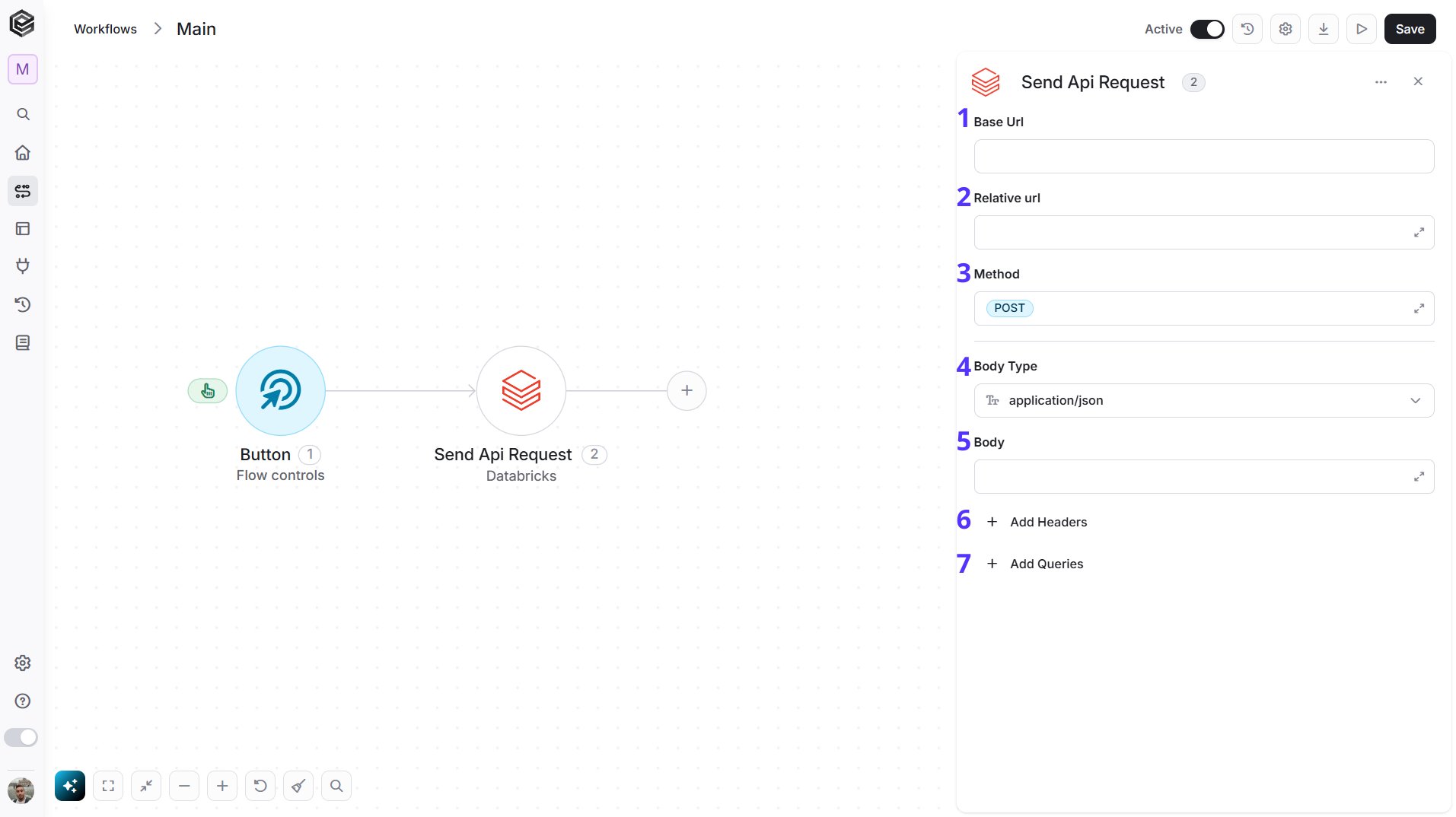
- Base Url - The root URL of the Databricks API. It is filled in from your Databricks connection and can’t be edited here.
- Relative url - You can specify additional path segments or parameters that need to be added to the end of the Base Url. This allows you to customize the specific request you want to perform, for example
/api/2.0/sql/warehouses. - Method - Select the HTTP method (e.g., Get, Post, Put, Delete, Patch). The default is POST.
- Body Type - Defines the format of the data in the body of your request. The default, application/json, means the body contains a JSON-formatted payload.
- Body - Request bodies are not supported for Databricks yet, so use this activity for requests that don’t need a body, such as Get.
- Add Headers - Additional metadata about the request, such as the type of data Engini can accept, the length of the request body, and authentication information.
- Add Queries - The query refers to the parameters or data that are included in the URL of an HTTP request to provide additional information or instructions to the server.