

Getting Started with Dropbox
Prerequisites
- A Dropbox account.
Add a connection to Google Drive in Engini
- Enter your Engini account at https://app.engini.io.
-
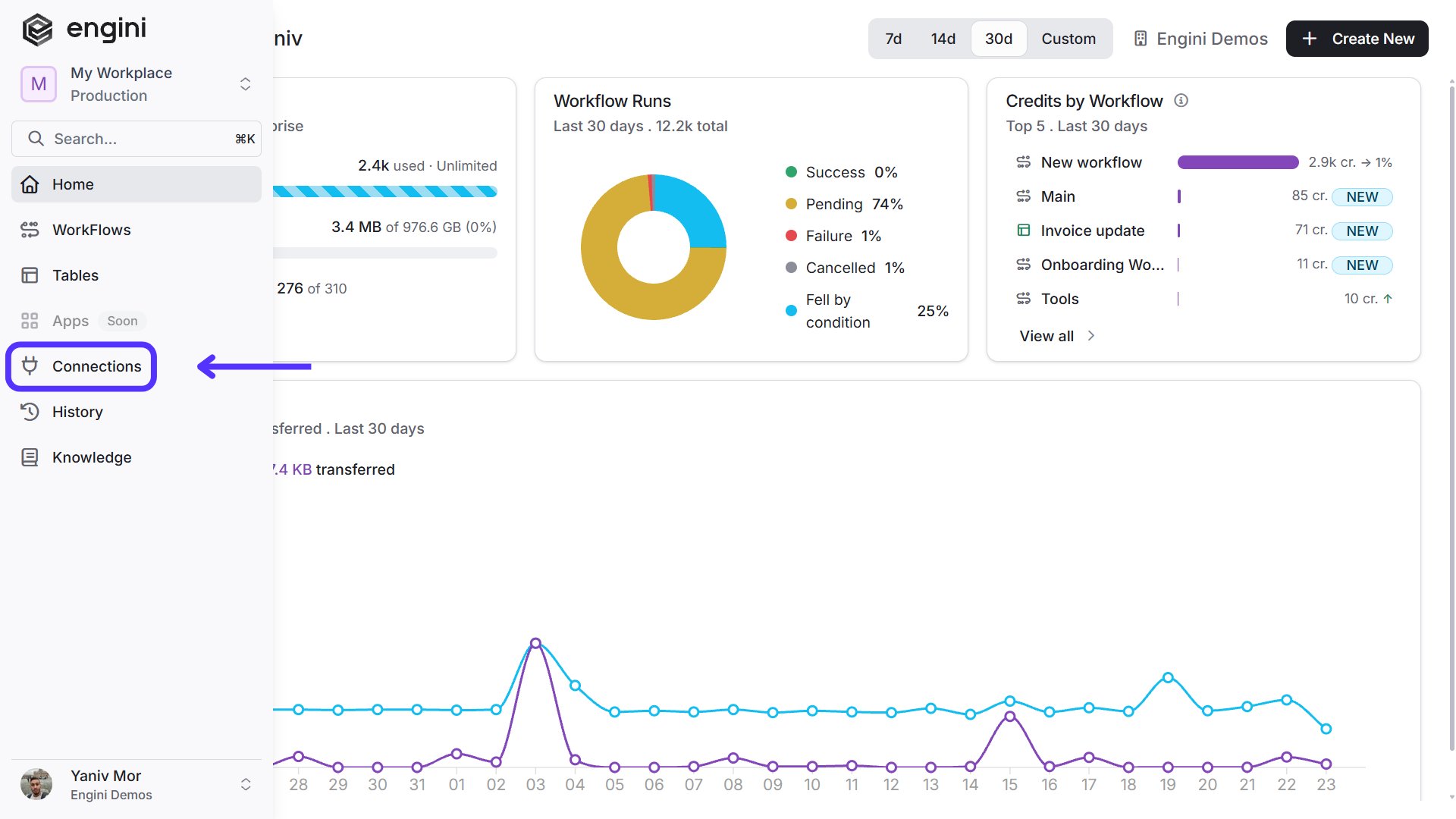
Navigate to Connections page by clicking on the Connections on the left sidebar or by clicking here.
-
Click on the “New Integration” option located at the top bar.

-
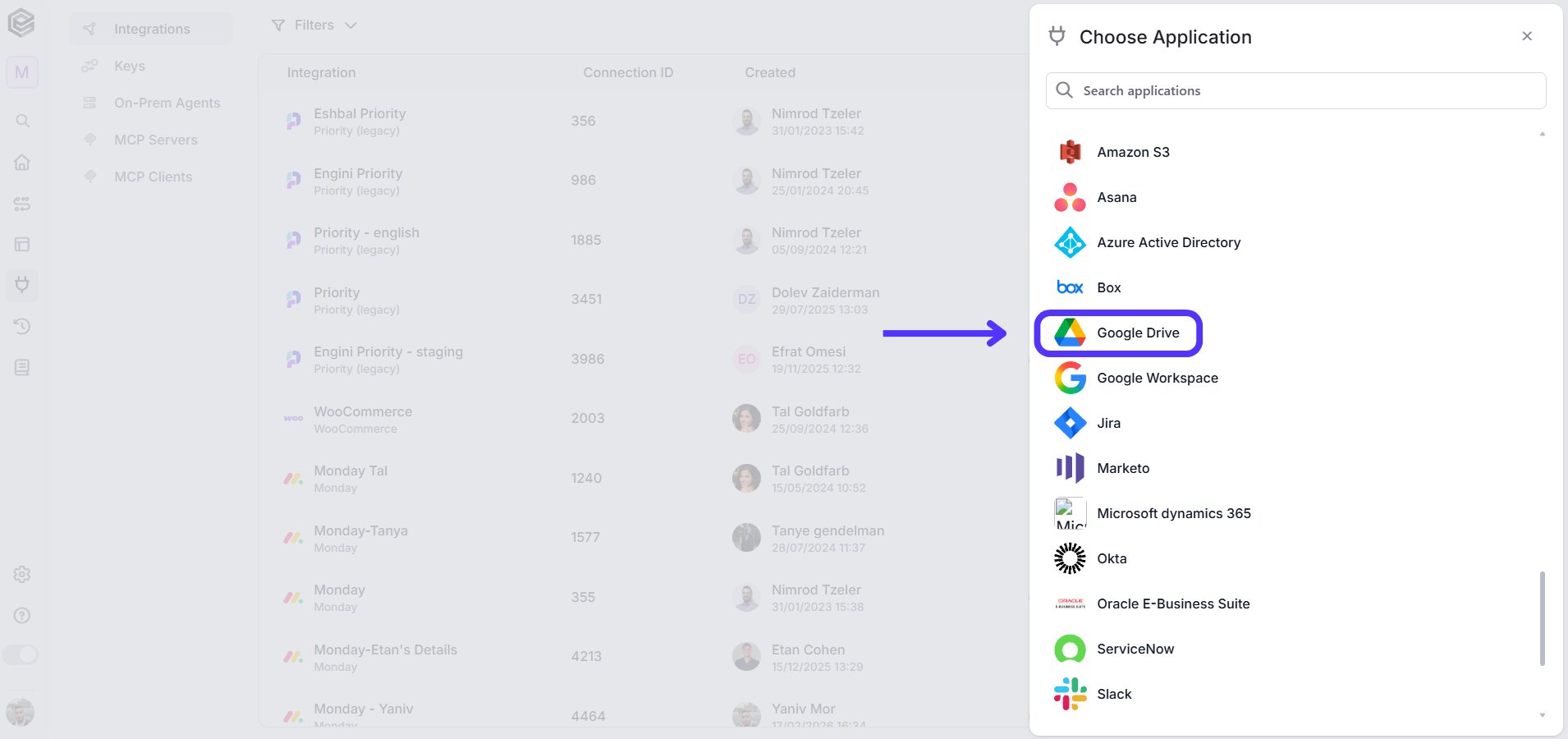
Choose Google Drive option from the available applications.
- Enter the following details in the “New Integration” form and press Save:
OAuth2
This method uses a predefined authentication flow. You don’t need to provide a Client ID or Client Secret, you simply sign in using your account.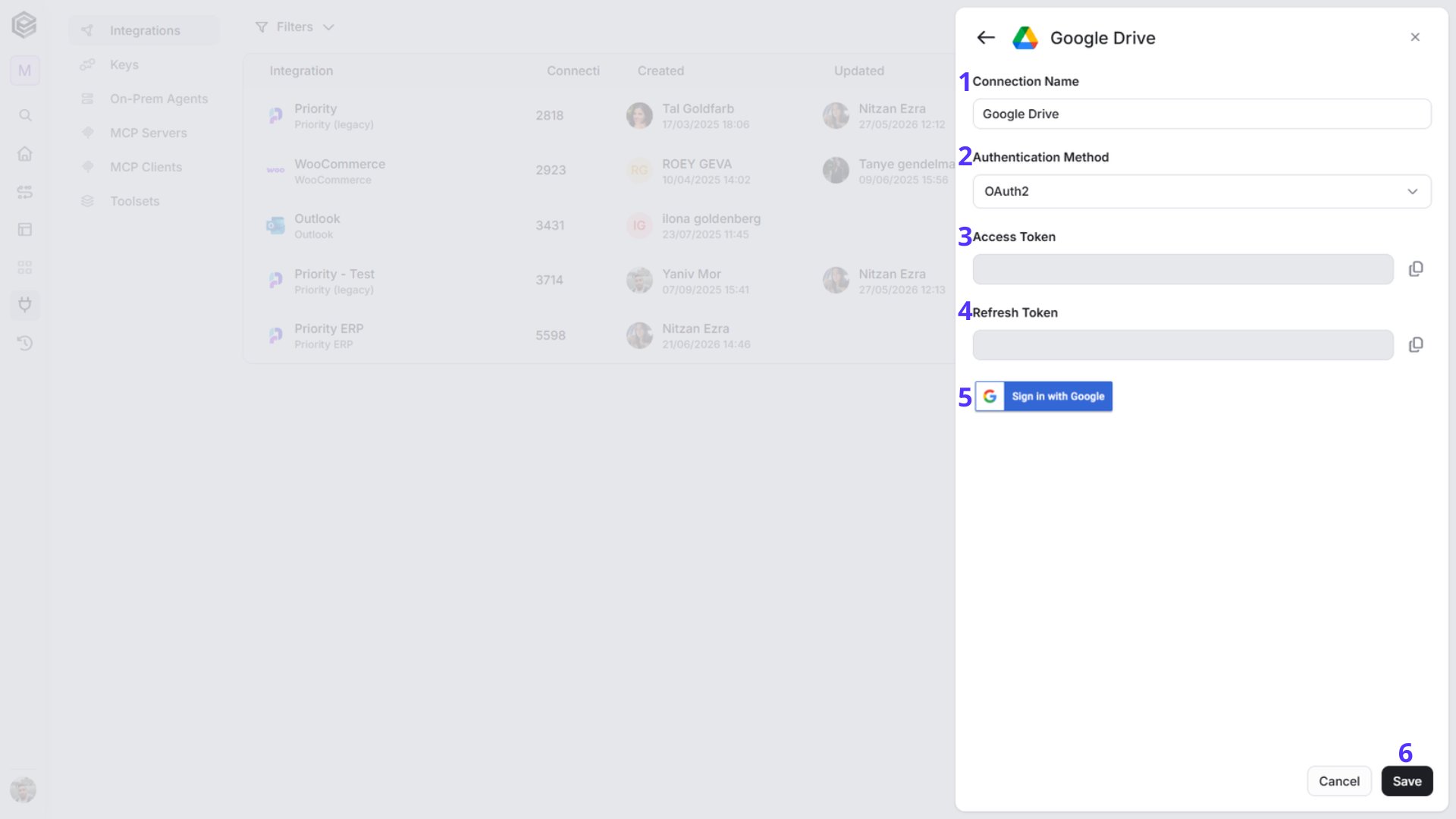
- Connection name - Enter unique identifier for the connection within Engini.
- Authentication Method - Select OAuth2.
- Fields automatically populated post connecting to a Google account include: 4. Access Token: A token for authorization to access Google services. 5. Refresh Token: A token used to obtain a new access token when the current one expires.
- Click on the “Sign in with Google” button.
- Sign into your Google account.
- Save - Click on the save button to save the connection.
Custom OAuth2
This method requires you to configure your own OAuth2 credentials. You must provide both a valid Client ID and Client Secret obtained from your Google Cloud Console project.
- Connection name – Choose a unique identifier for the connection within Engini.
- Authentication Method – Select Custom OAuth2 when connecting to Google services using a custom OAuth client. To learn more about this authentication, enter here.
- client ID – Enter the Client ID from the OAuth 2.0 credentials in the Google Cloud project.
- client_secret – Enter the Client Secret from the same set of OAuth 2.0 credentials in the Google Cloud project.
- Access Token – Automatically populated post connecting to a your Google account.
- Refresh Token - Automatically populated post connecting to a your Google account.
- Sign in with Google – Click Sign in with Google and log in with the Google account used to create the project in Google Cloud. This ensures access to the correct OAuth credentials and permissions.
- Save - Click on the Save button to save the connection.
Triggers
Check for File/Folder Created
The trigger monitors the Google Drive, listening for new files or folders created in the connected drive at scheduled intervals as defined.
- Drive Id – Enter the Id of the drive where you want to monitor for new files or folders. If left empty, the trigger will search in “My Drive” by default.
- Folder Id – Enter the Id of the specific folder you want to monitor for new files or folders. If left empty, the trigger will search in all folders according to the drive selection.
- Content Type – Select the type of content you want the trigger to monitor. You can choose between “Files and Folders,” “Files only,” or “Folders only.”
- Starting (UTC) – Select the start date and time for the scheduled trigger.
- Recur every – Choose the time interval for triggering and checking emails. The minimum time interval is 15 minutes.
-
Add time frame – You can specify a time frame during which the trigger will operate.

- Click on “Add time frame” button.
- Select a specific time frame to activate the trigger. For example, every 15 minutes from 8 AM to 5 PM.
- Top N - Specifies the maximum number of entries to retrieve, with a default setting of all entries if left blank.
- Add Sort - Click Add Sort to organize the data list by a selected field in ascending or descending order. To learn more about sorting data, click here.
- Add Conditions - Click Add Conditions to define conditions that narrow down the data list and return only the relevant items. To learn more about using filters, click here.
Check for File/Folder Modified
The trigger monitors the Google Drive, listening for files or folders that have been modified in the connected drive at scheduled intervals as defined.
- Drive Id – Enter the Id of the drive where you want to monitor for modified files or folders. If left empty, the trigger will search in “My Drive” by default.
- Folder Id – Enter the Id of the specific folder you want to monitor for modified files or folders. If left empty, the trigger will search in all folders according to the drive selection.
- Content Type – Select the type of content you want the trigger to monitor. You can choose between “Files and Folders,” “Files only,” or “Folders only.”
- Starting (UTC) – Select the start date and time for the scheduled trigger.
- Recur every – Choose the time interval for triggering and checking emails. The minimum time interval is 15 minutes.
-
Add time frame – You can specify a time frame during which the trigger will operate.
- Click on “Add time frame” button.
- Select a specific time frame to activate the trigger. For example, every 15 minutes from 8 AM to 5 PM.
- Top N - Specifies the maximum number of entries to retrieve, with a default setting of all entries if left blank.
- Add Sort - Click Add Sort to organize the data list by a selected field in ascending or descending order. To learn more about sorting data, click here.
- Add Conditions - Click Add Conditions to define conditions that narrow down the data list and return only the relevant items. To learn more about using filters, click here.
Actions
Get File/Folder Info
This activity retrieves metadata about a specified file or folder in Google Drive.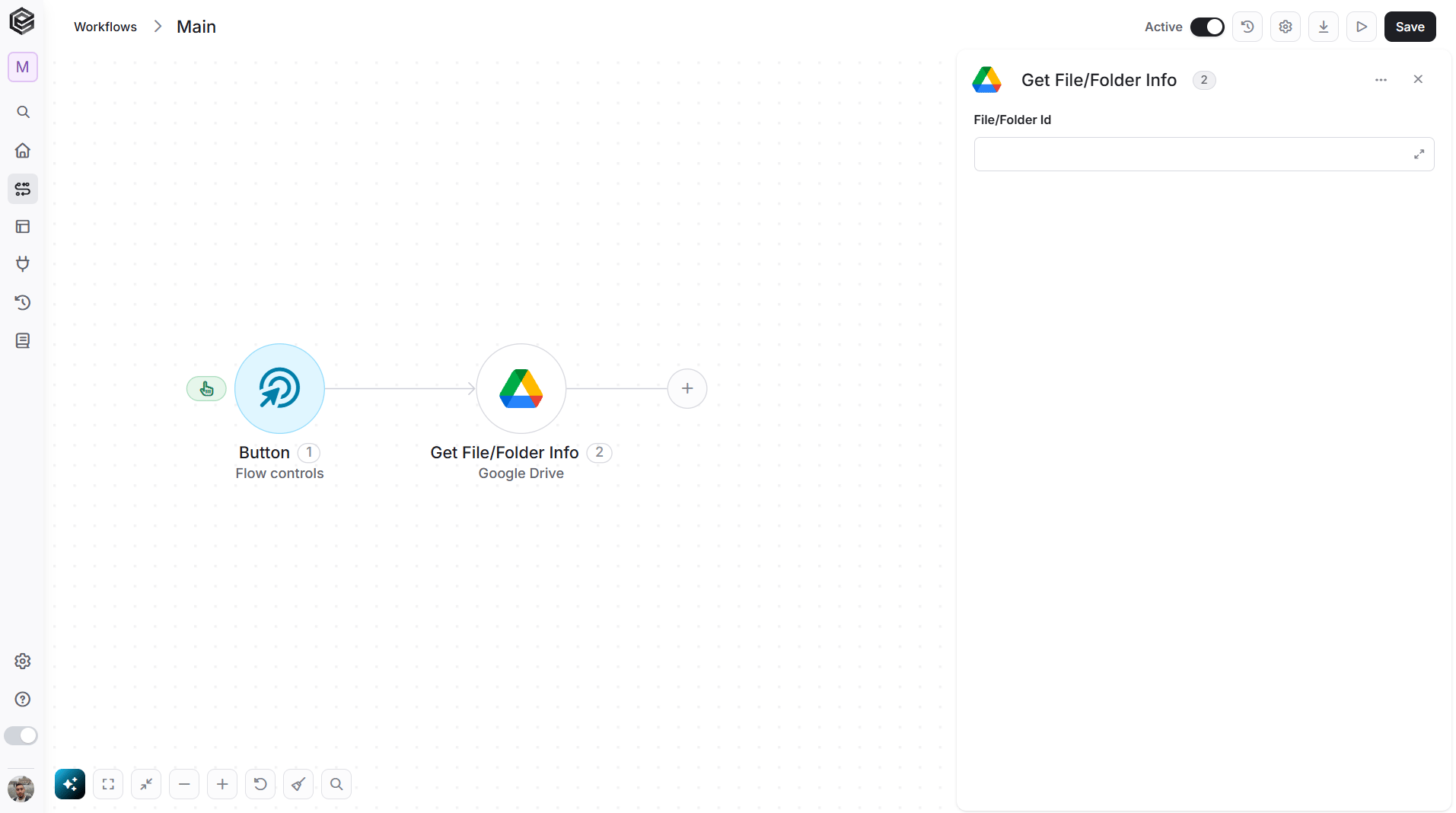
- File/Folder Id – Enter the Id of the file or folder you want to retrieve data about.
Get Drive Info
This activity retrieves metadata about a specified Google Drive.
- Drive Id – Enter the id of the drive you want to retrieve data about:
- Use domain admin access – Specify whether to use domain admin access (True or False).
- Output Type – Specify the output type (Compact or Full).
- Add Field - Click Add Field to add and populate additional fields for the selected activity. To learn more about managing activity data, click here.
Get File Revision
This activity retrieves the revision history of a specified file in Google Drive.
- File Id - Enter the Id of the file you want to retrieve revision history about.
- Revision Id - Enter the Id of the specific revision you want to retrieve.
Get File Revisions
This activity retrieves the entire revision history of a specified file in Google Drive.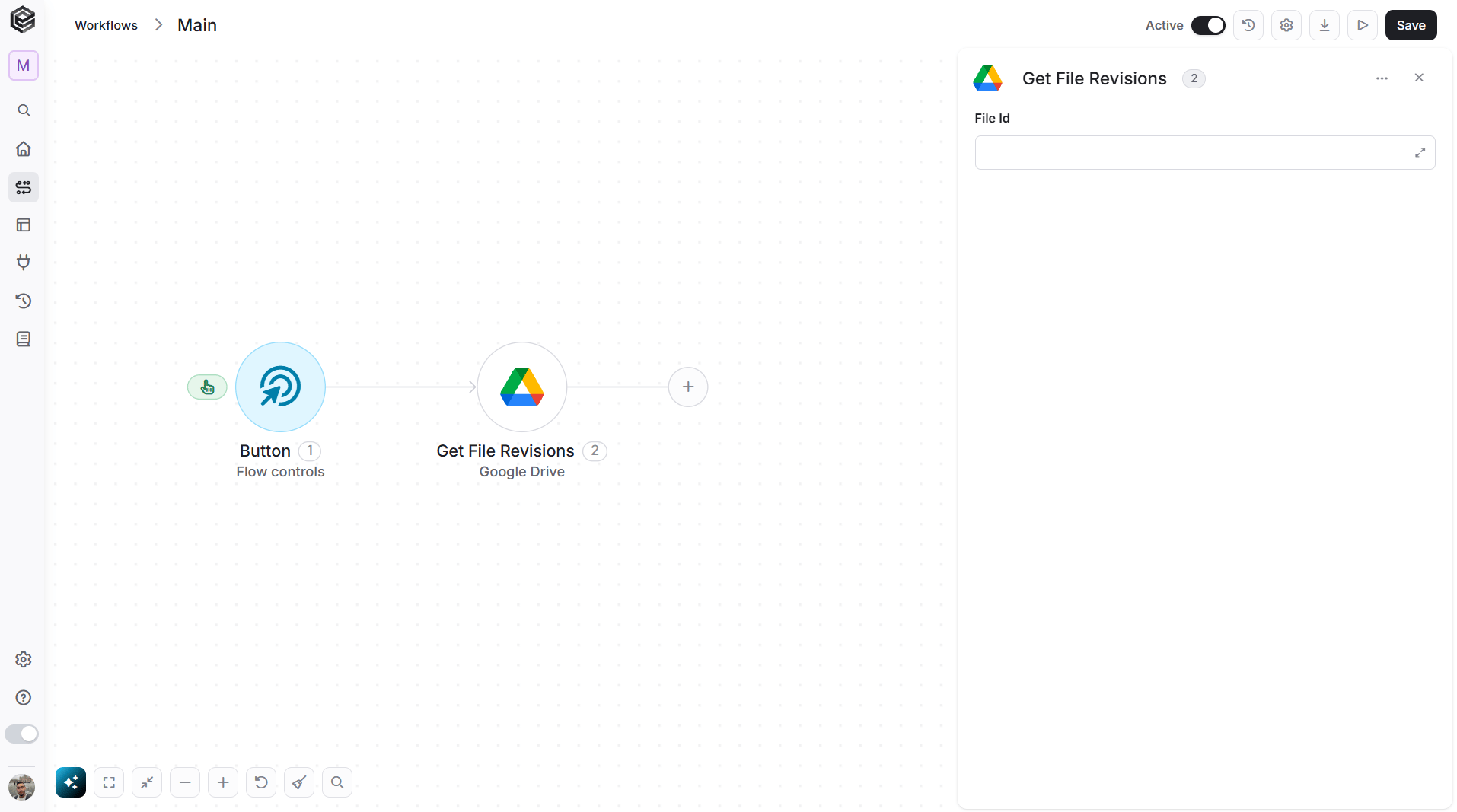
- File Id – Enter the Id of the file you want to retrieve revision history about.
Get Shared Drives
This activity retrieves a list of shared drives in Google Drive.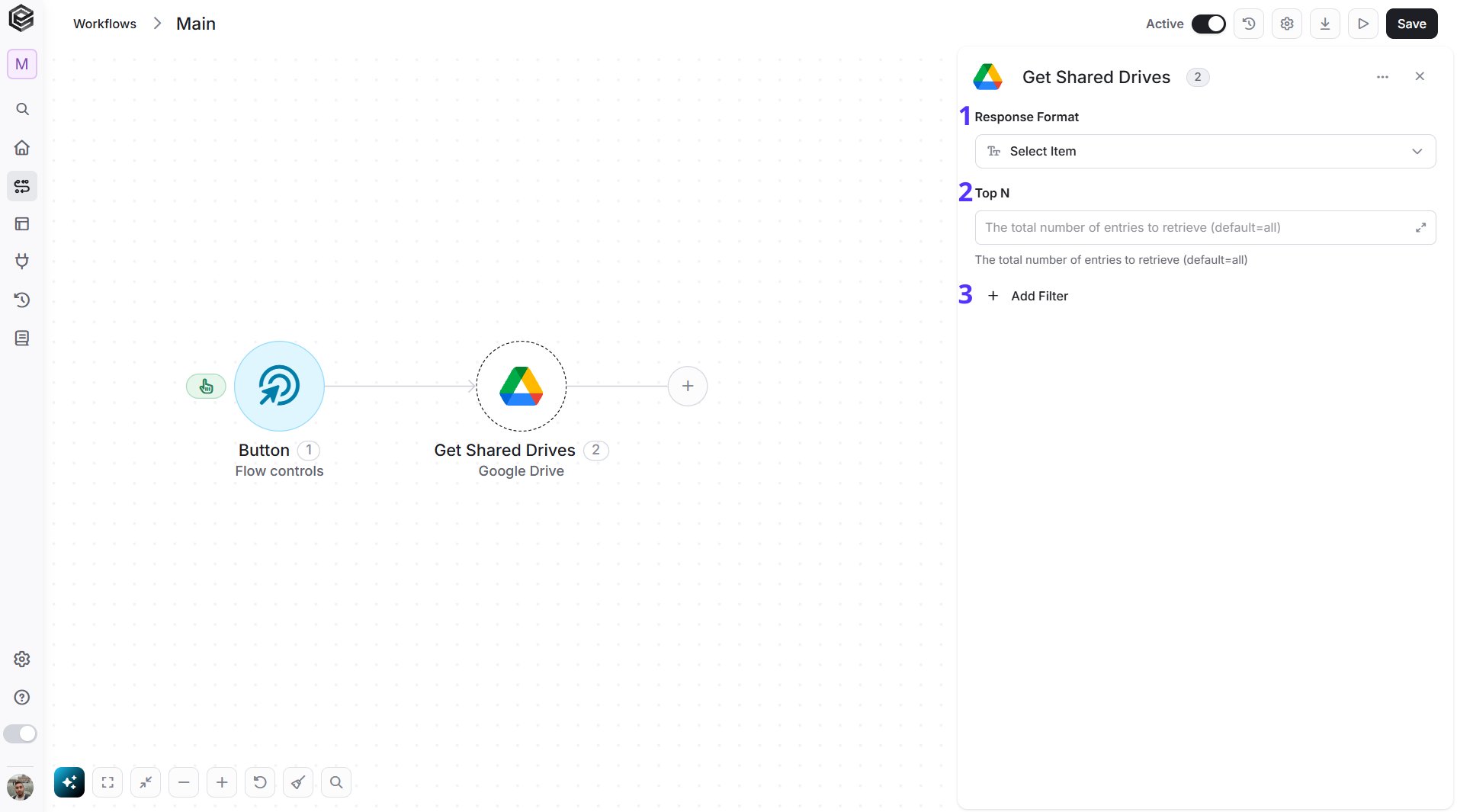
- Response Format – Specify the format of the response (Compact or Full).
- Top N – You can set the maximum number of Shared Order Drives Engini will return during one workflow cycle (default = all Drivers).
- Add Filter - Click Add Filter to define conditions that narrow down the data list and return only the relevant items. To learn more about using filters, click here.
Get Shared Link
This activity retrieves the shareable link for a specified file or folder in Google Drive.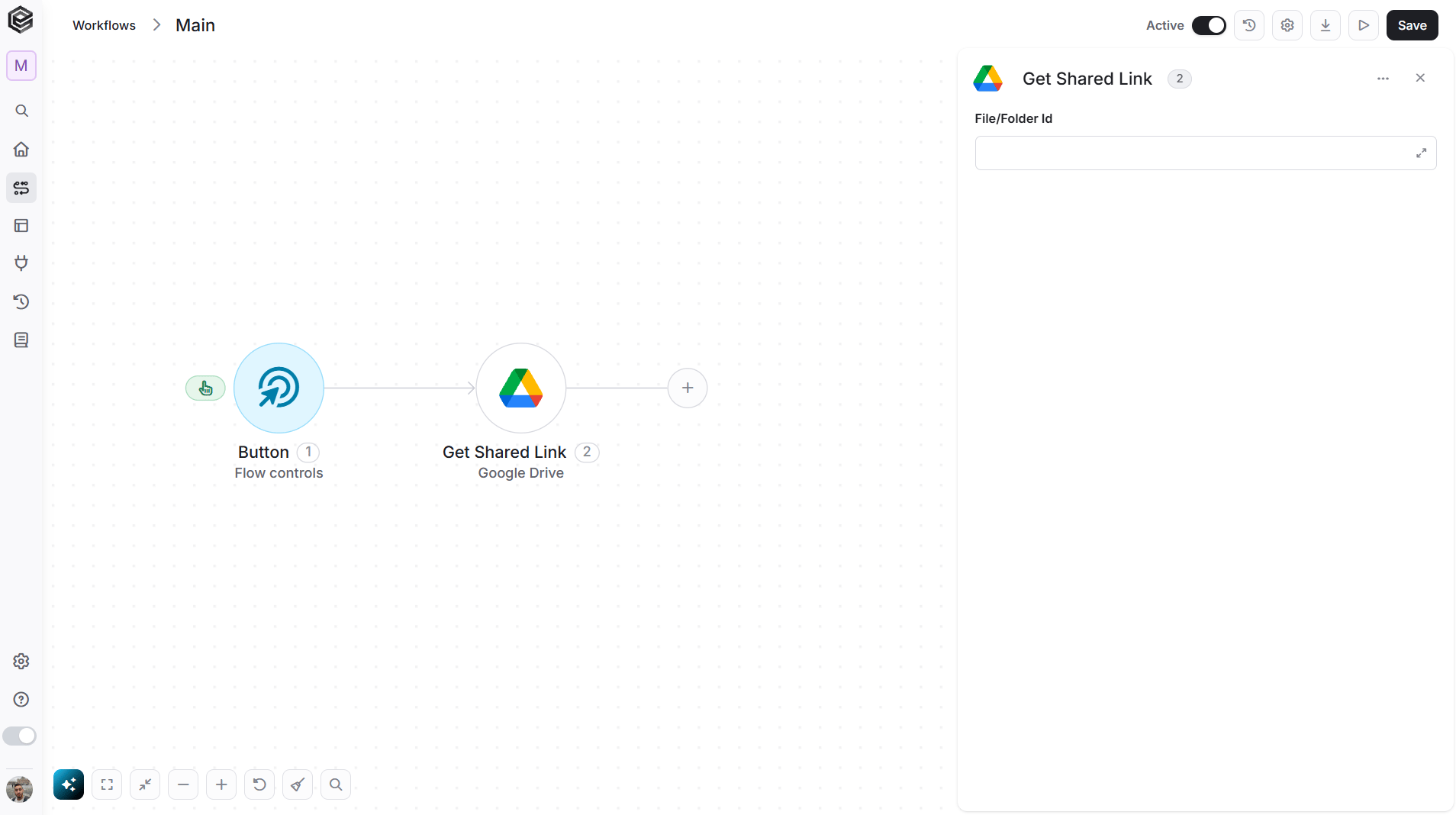
- File/Folder Id – Enter the ID of the file or folder to retrieve its shared link.
Create a Shared Drive
This activity creates a new shared drive in Google Drive.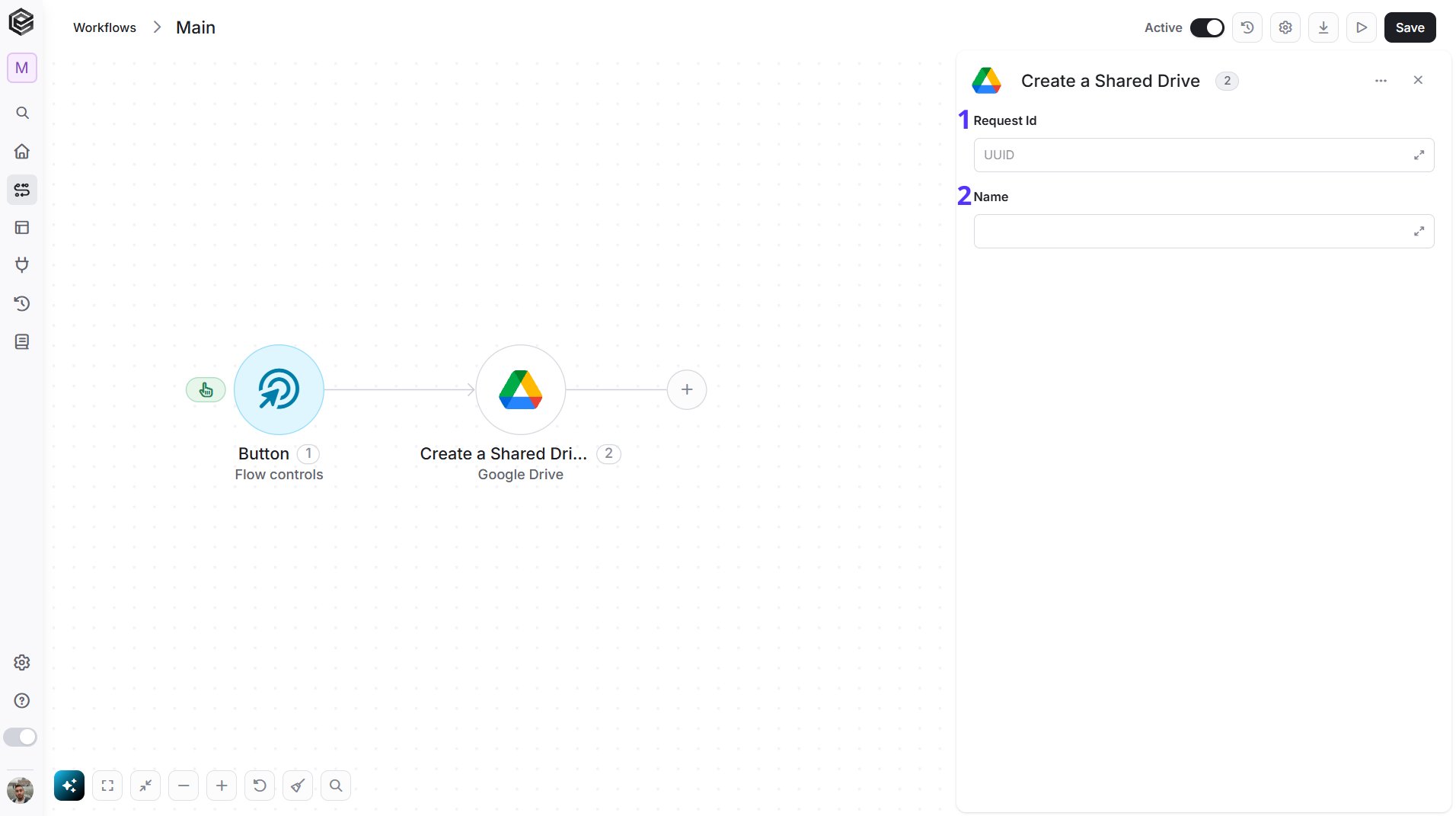
- Request Id – Enter a unique identifier (UUID) for the new shared drive.
- Name – Enter the name for the new shared drive.
Create Folder
This activity creates a new folder in the shared drive.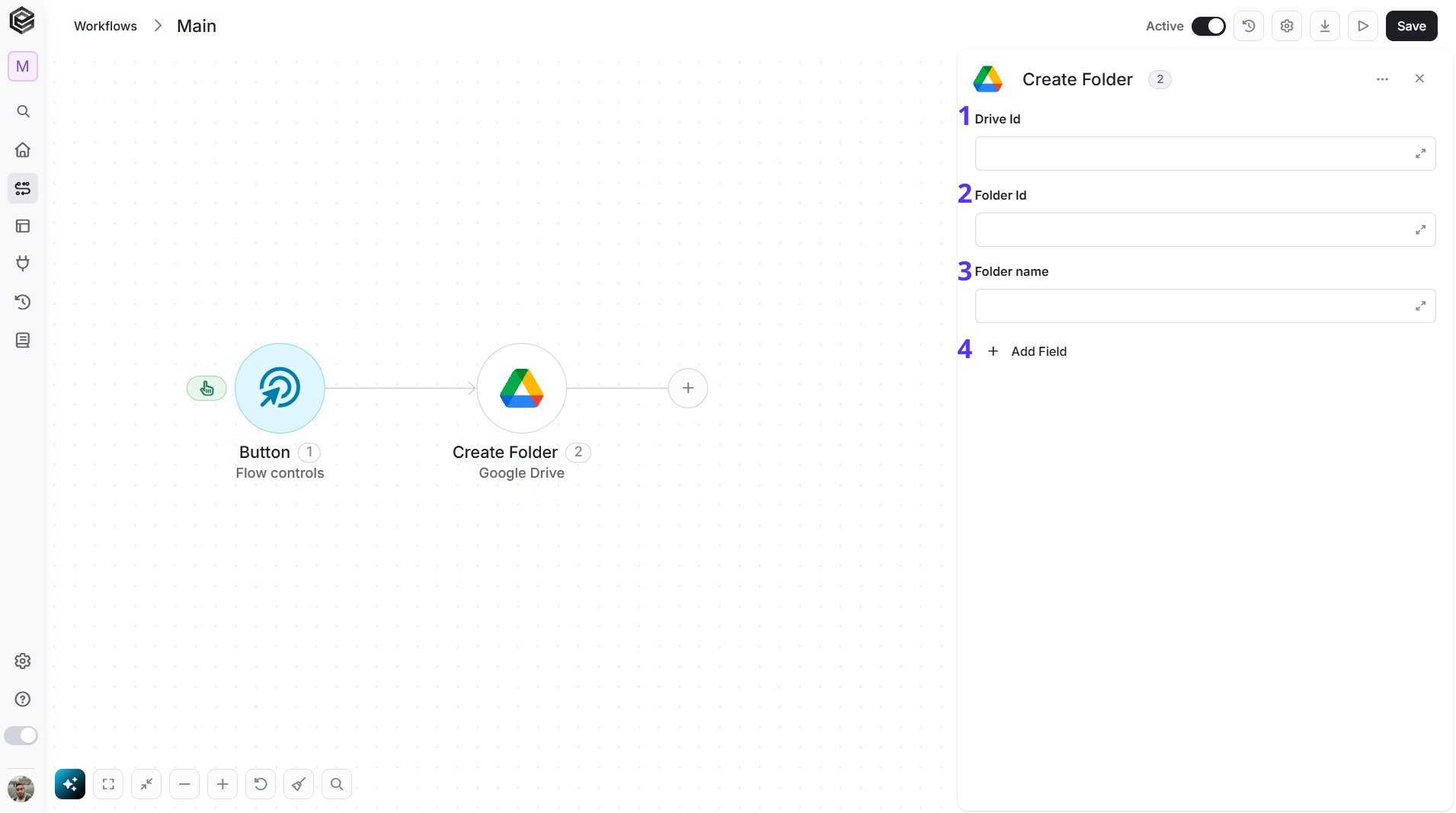
- Drive Id – Enter the drive Id where the folder will be created.
- Folder Id – Enter the folder Id field that specifies the parent folder where the new folder will be created.
- Folder name – Enter the name of the new folder you want.
- Add Field - Click Add Field to add and populate additional fields for the selected activity. To learn more about managing activity data, click here.
Create File/Folder Permission
This activity sets or modifies permissions for a specific file or folder, including the option to transfer ownership.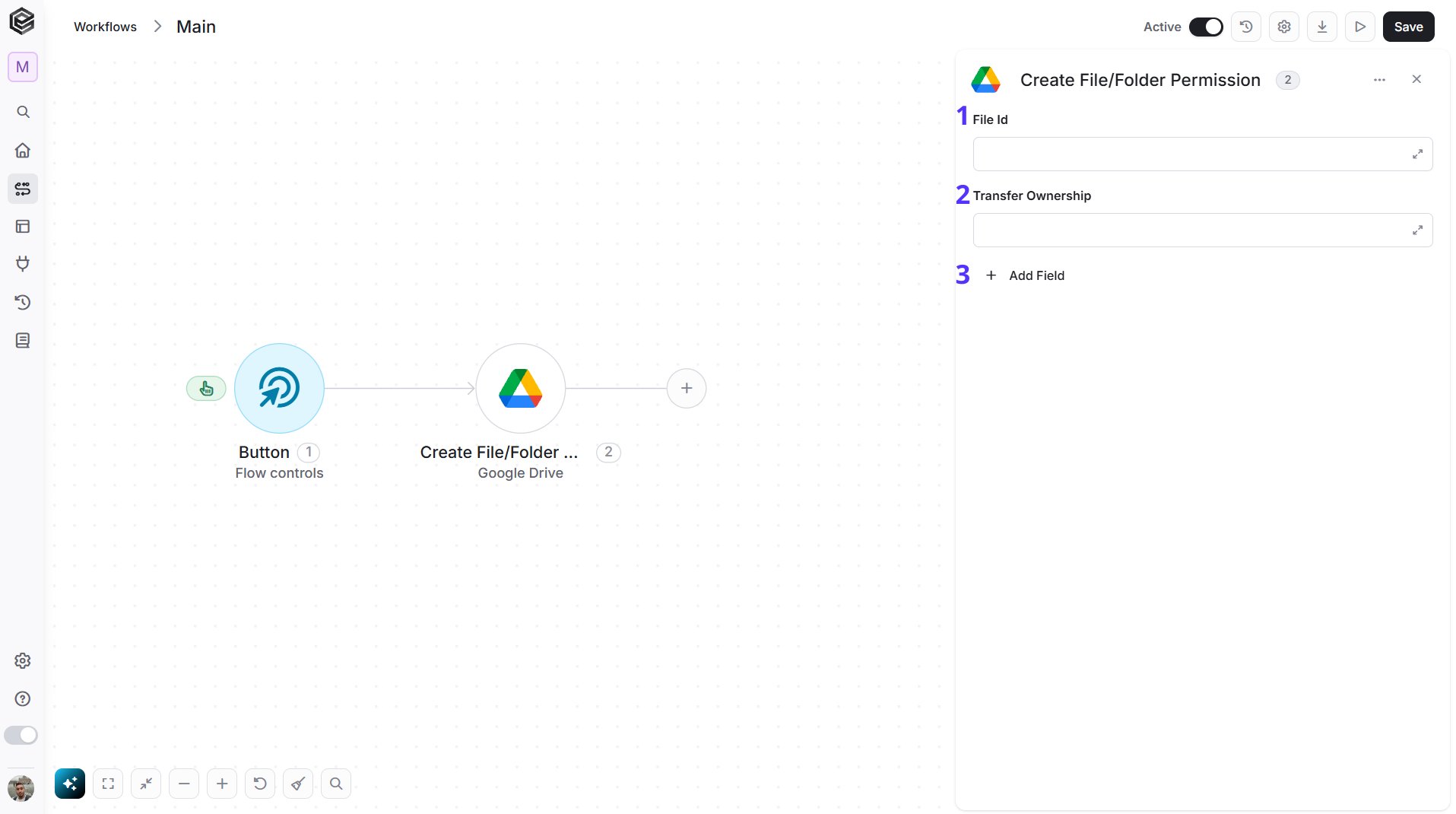
- File Id – Enter the File ID that uniquely identifies the file or folder for which you want to create or modify permissions.
- Transfer Ownership – Specify whether to transfer ownership of the file or folder to another user (True or False), which grants them full control over the item.
- Add Field - Click Add Field to add and populate additional fields for the selected activity. To learn more about managing activity data, click here.
Delete Shared Drive
This activity permanently removes a shared drive and all its contents from Google Drive.
- Drive Id – Enter the Drive ID that specifies the shared drive you want to delete.
Delete File/Folder
This activity permanently removes a specified file or folder from Google Drive.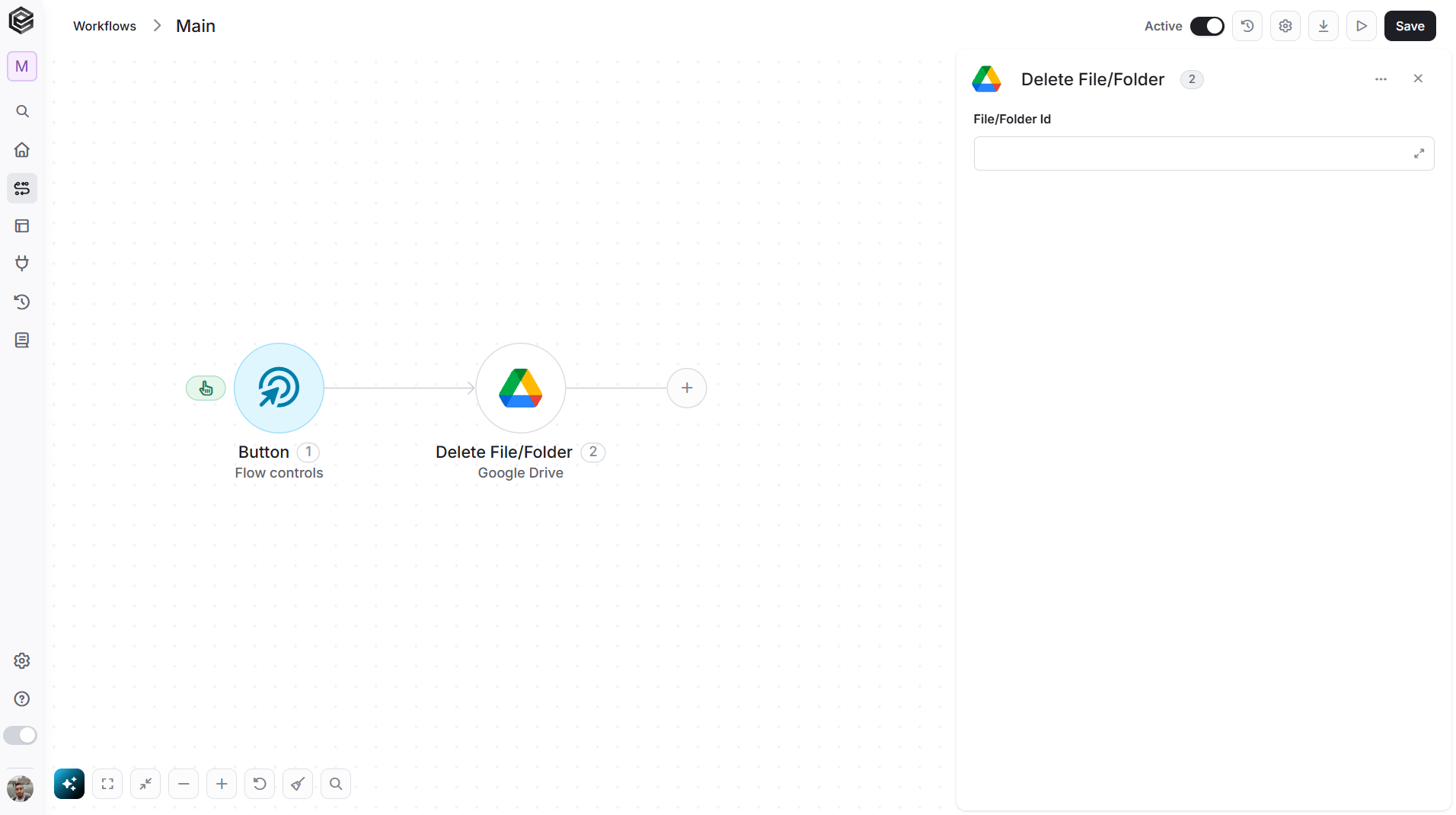
- File/Folder Id – Enter the File/Folder ID that identifies the specific file or folder you want to delete.
Delete File/Folder Permission
This activity removes a specific user’s access permissions from a file or folder in Google Drive. However, permission deletion is subject to the following rules:- The owner of a file cannot have their permission removed by anyone.
- Only the owner can remove permissions for other users, such as editors and viewers.
-
Users who are not the owner can remove their own permission from the file but cannot remove others.

- File Id – Enter the File ID that identifies the specific file or folder from which you want to remove permissions.
- Permission Id – Enter the Permission ID that specifies the particular permission you want to delete from the file or folder.
- Add Field - Click Add Field to add and populate additional fields for the selected activity. To learn more about managing activity data, click here.
Delete File Revision
This activity removes a specific version of a file in Google Drive.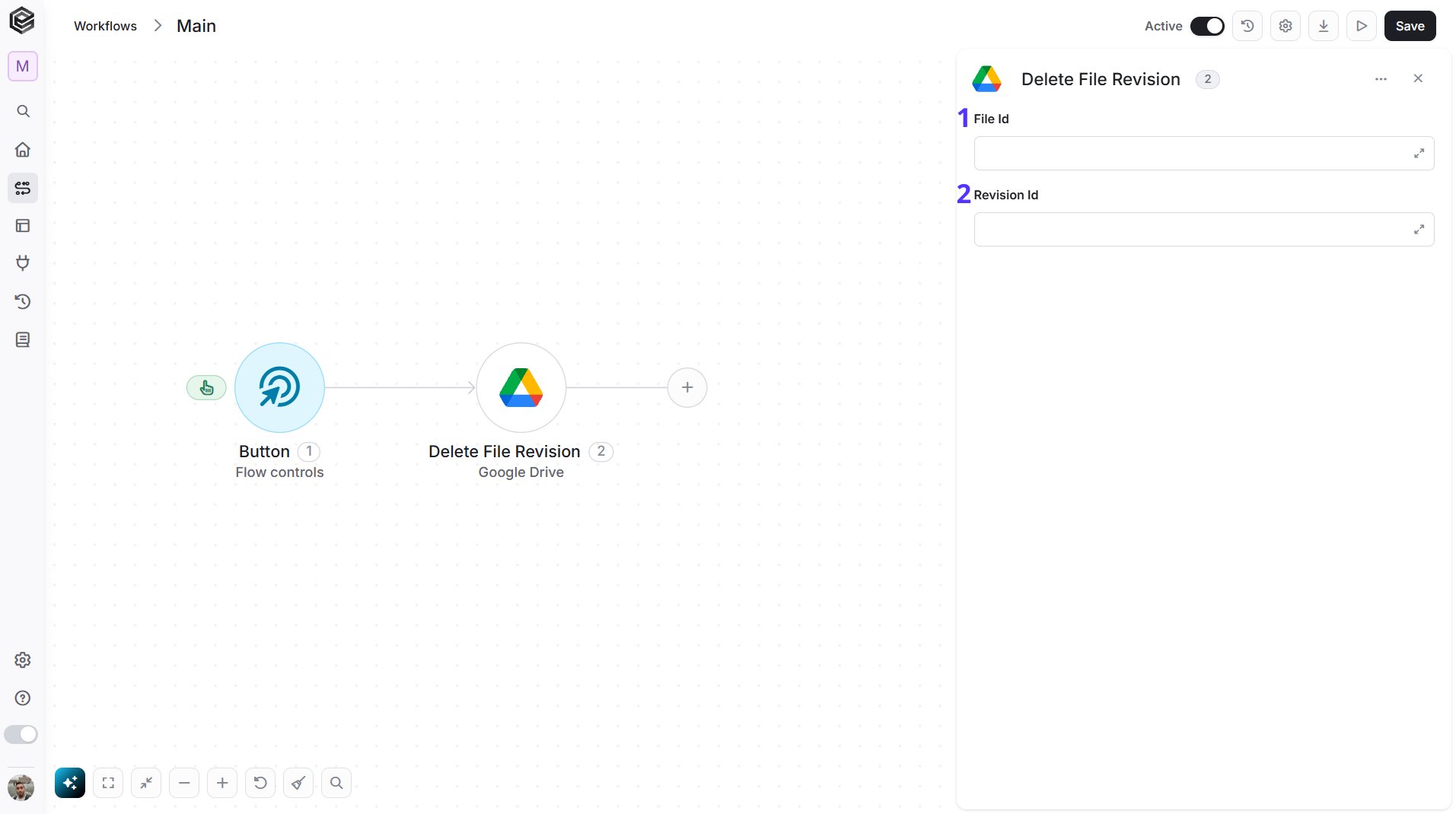
- File Id – Enter the File ID that identifies the file from which you want to delete a revision.
- Revision Id – Enter the Revision ID that specifies the particular version of the file you want to delete.
Update Shared Drive
This activity modifies the settings or metadata of an existing shared drive in Google Drive.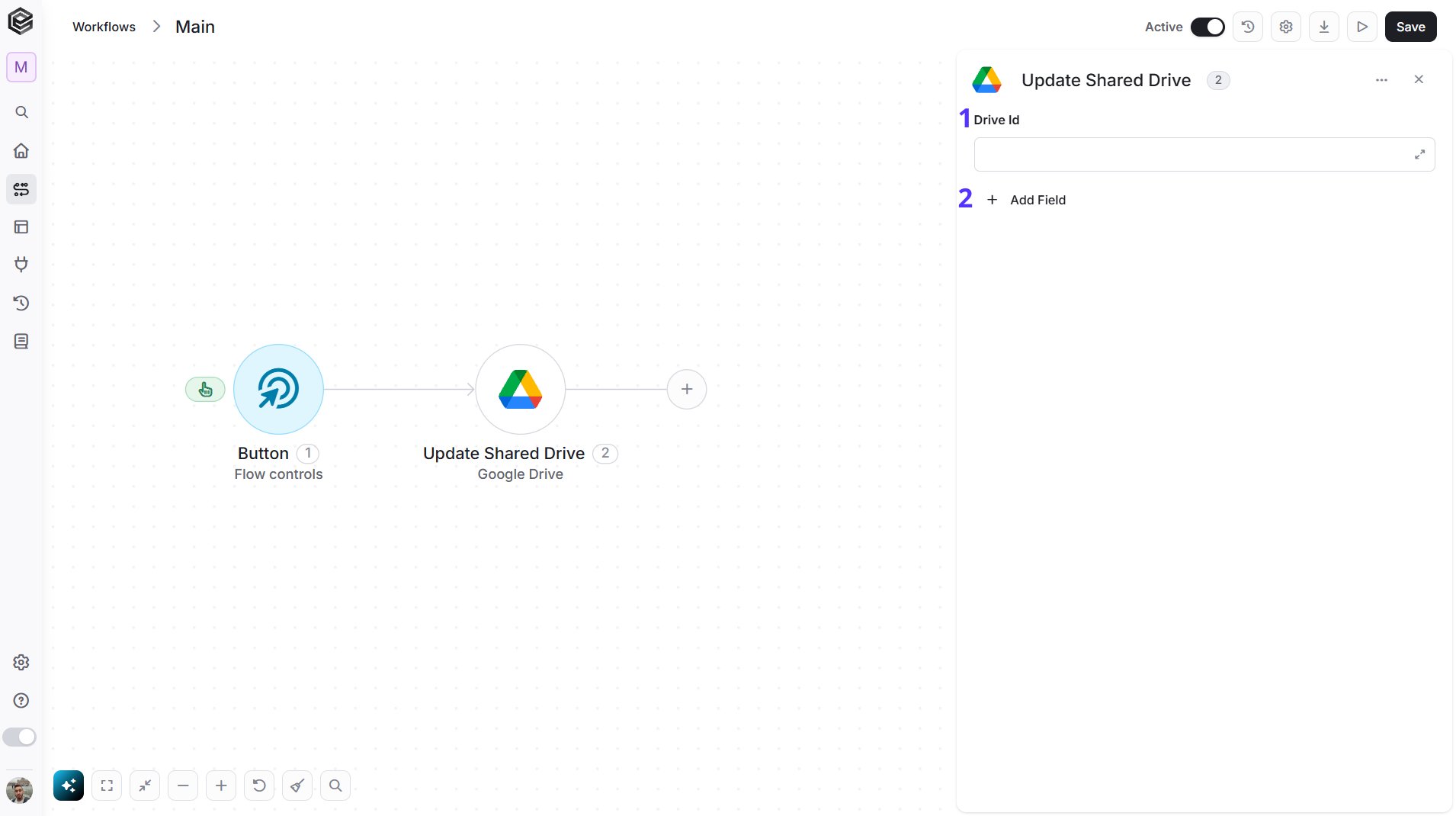
- Drive Id – Enter the Drive ID that identifies the shared drive you want to update.
- Add Field - Click Add Field to add and populate additional fields for the selected activity. To learn more about managing activity data, click here.
Update File
This activity updates the content or metadata of an existing file in Google Drive.
- File Id - Enter the File ID that identifies the file you want to update.
- Add Field - Click Add Field to add and populate additional fields for the selected activity. To learn more about managing activity data, click here.
Update File/Folder Permission
This activity changes the access permissions for a specific file or folder in Google Drive.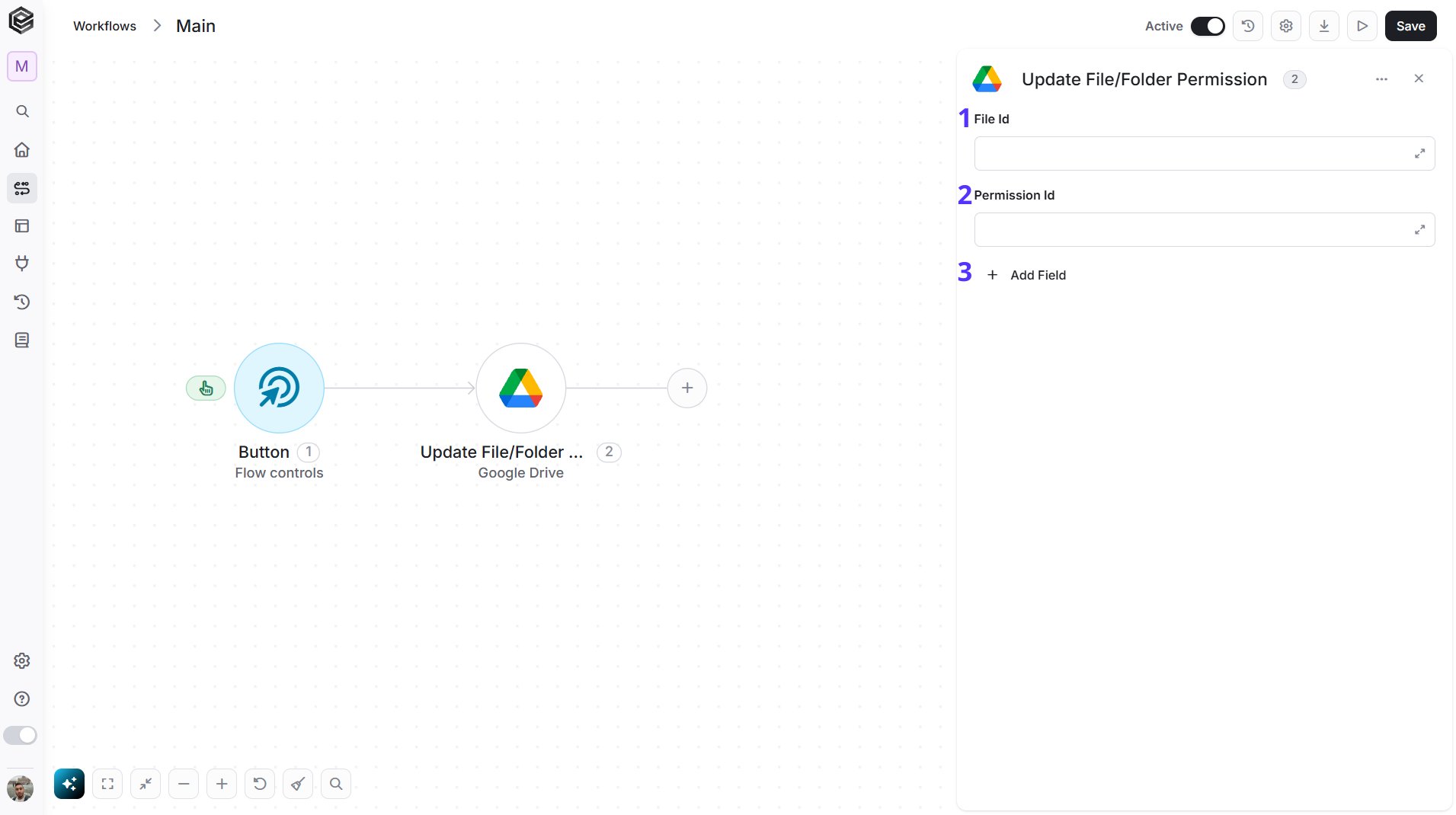
- File Id - Enter the File ID that identifies the specific file or folder for which you want to update permissions.
- Permission Id - Enter the Permission ID that specifies the particular permission you want to modify.
- Add Field - Click Add Field to add and populate additional fields for the selected activity. To learn more about managing activity data, click here.
Update File Revision
This activity modifies the metadata or settings of a specific revision of a file in Google Drive. Only users with editor or owner access can retrieve and update file revisions.
- File Id – Enter the File ID that identifies the file containing the revision you want to update.
- Revision Id – Enter the Revision ID that specifies the particular revision of the file you want to modify.
- Add Field - Click Add Field to add and populate additional fields for the selected activity. To learn more about managing activity data, click here.
Download File
This activity retrieves and downloads the content of a specified file from Google Drive to your local storage.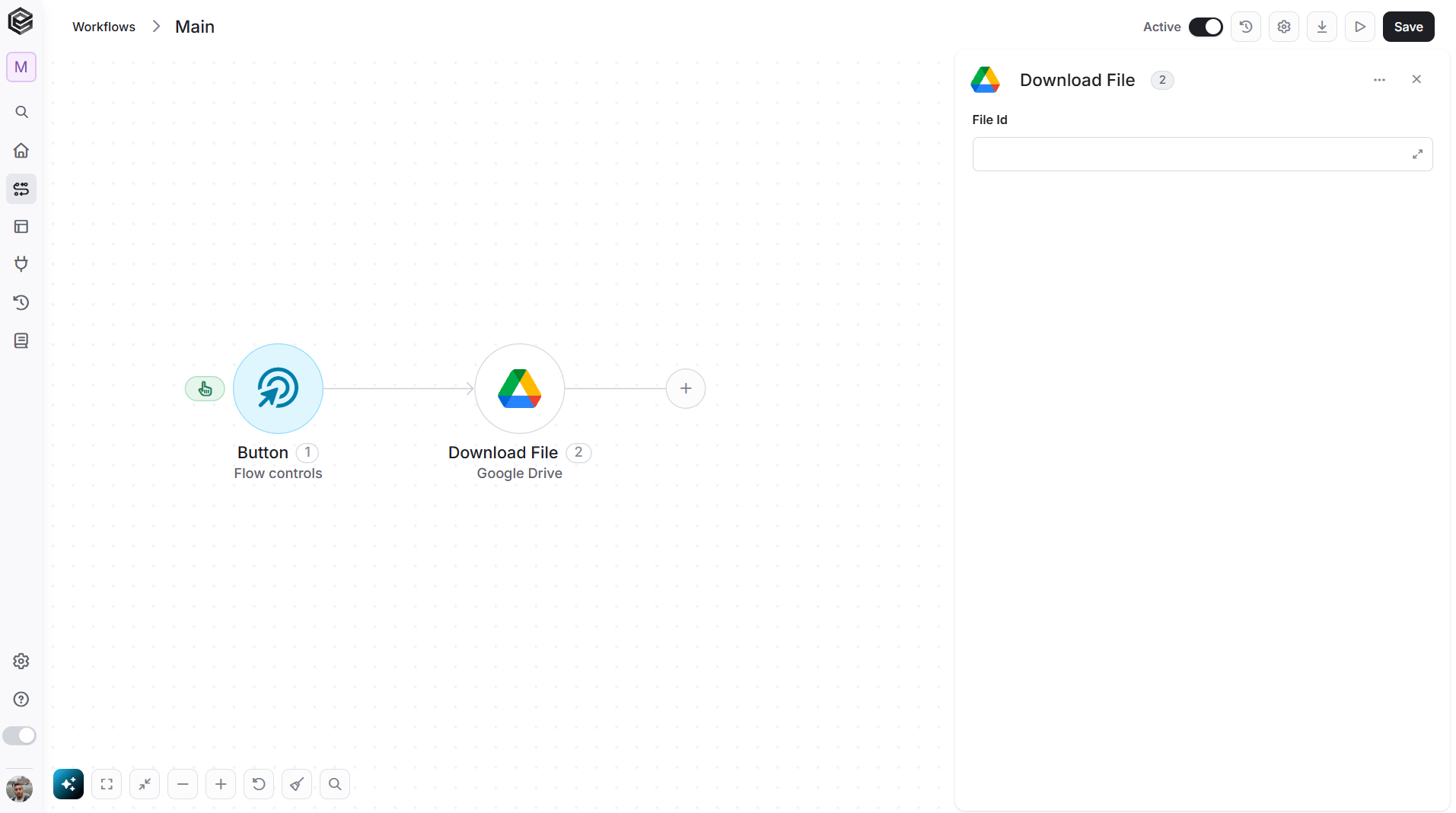
- File Id – Enter the File ID that identifies the specific file you want to download.
Download File Revision
This activity retrieves and downloads a specific version of a file from Google Drive to your local storage, allowing you to access or restore previous file versions.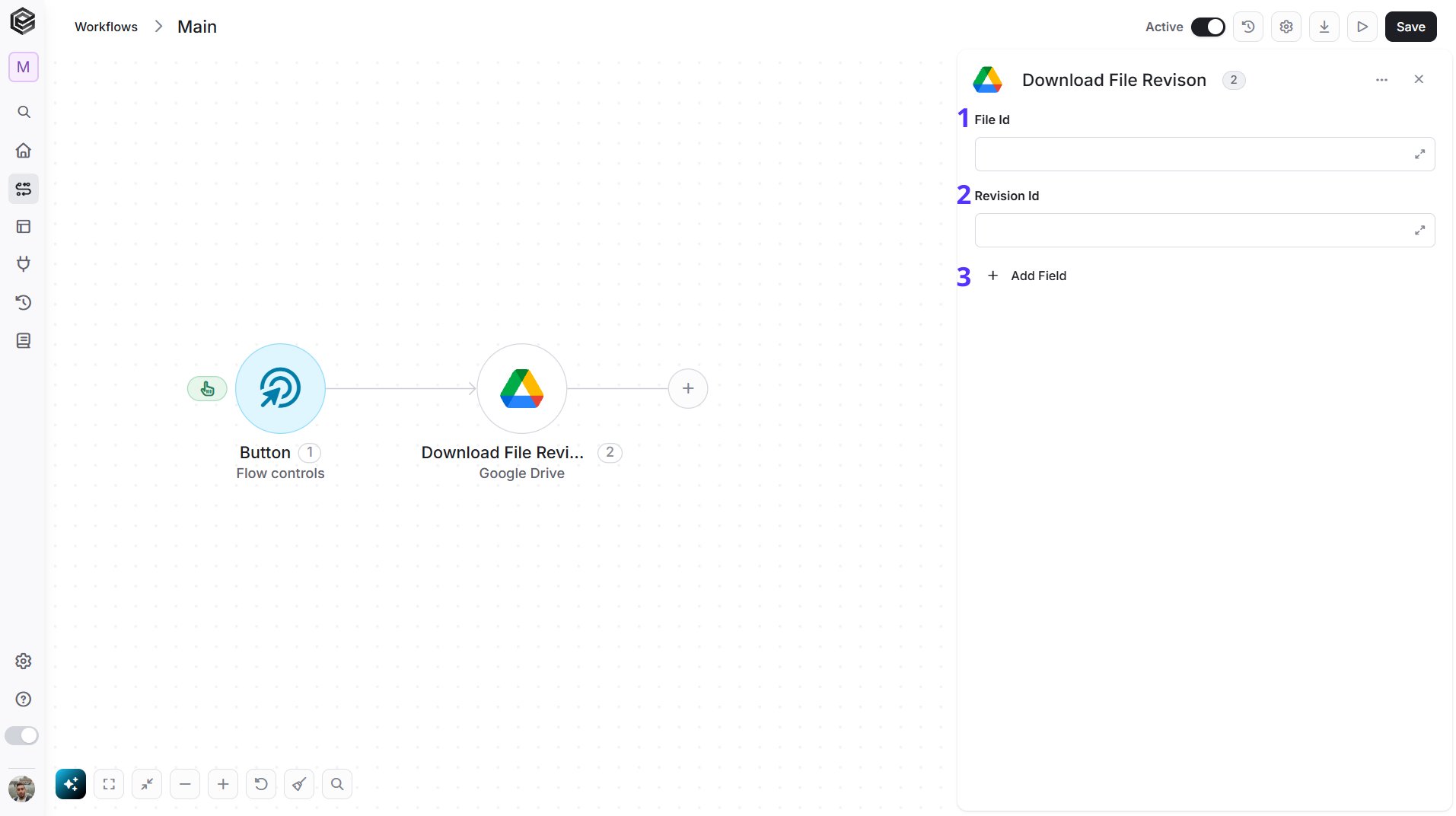
- File Id – Enter the File ID that identifies the file containing the revision you want to download.
- Revision Id – Enter the Revision ID that specifies the particular revision of the file you want to download.
- Add Field - Click Add Field to add and populate additional fields for the selected activity. To learn more about managing activity data, click here.
Copy File
This activity creates a duplicate of an existing file in Google Drive.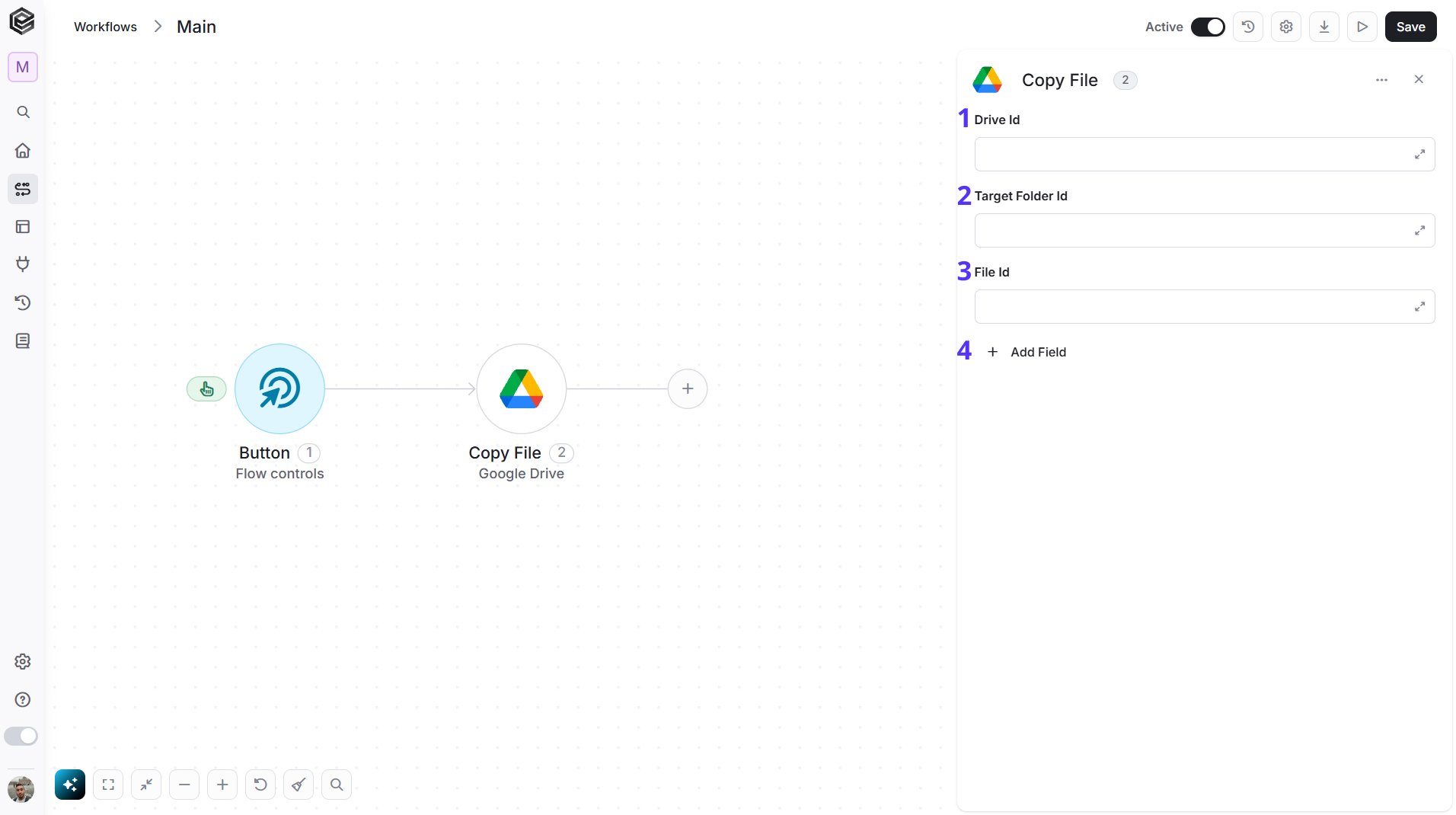
- Drive Id – Enter the Drive ID that identifies the shared drive where the file is located or where the copy will be placed.
- Target Folder Id – Enter the Folder ID of the destination folder where the copied file will be stored.
- File Id – Enter the File ID that identifies the specific file you want to copy.
- Add Field - Click Add Field to add and populate additional fields for the selected activity. To learn more about managing activity data, click here.
List of Files/Folders
This activity retrieves a list of files and folders from Google Drive, allowing you to view or manage the contents of a specific directory or search results based on specified criteria.
- Drive Id – Enter the Drive ID to search within a specific shared drive. If left empty, the search defaults to My Drive.
- Folder Id – Enter the Folder ID to search within a specific folder. If left empty, the search will include all folders according to the drive selection.
- Content Type – Choose whether to list only files, only folders, or both files and folders.
- Output – Specify the output format, such as compact or detailed.
- Top N – You can set the maximum number of files or folders Engini will return during one workflow cycle (default = all items).
- Add Filter - Click Add Filter to define conditions that narrow down the data list and return only the relevant items. To learn more about using filters, click here.
- Add Sort - Click Add Sort to organize the data list by a selected field in ascending or descending order. To learn more about sorting data, click here.
Move File/Folder
This activity transfers a file or folder from one location to another within Google Drive.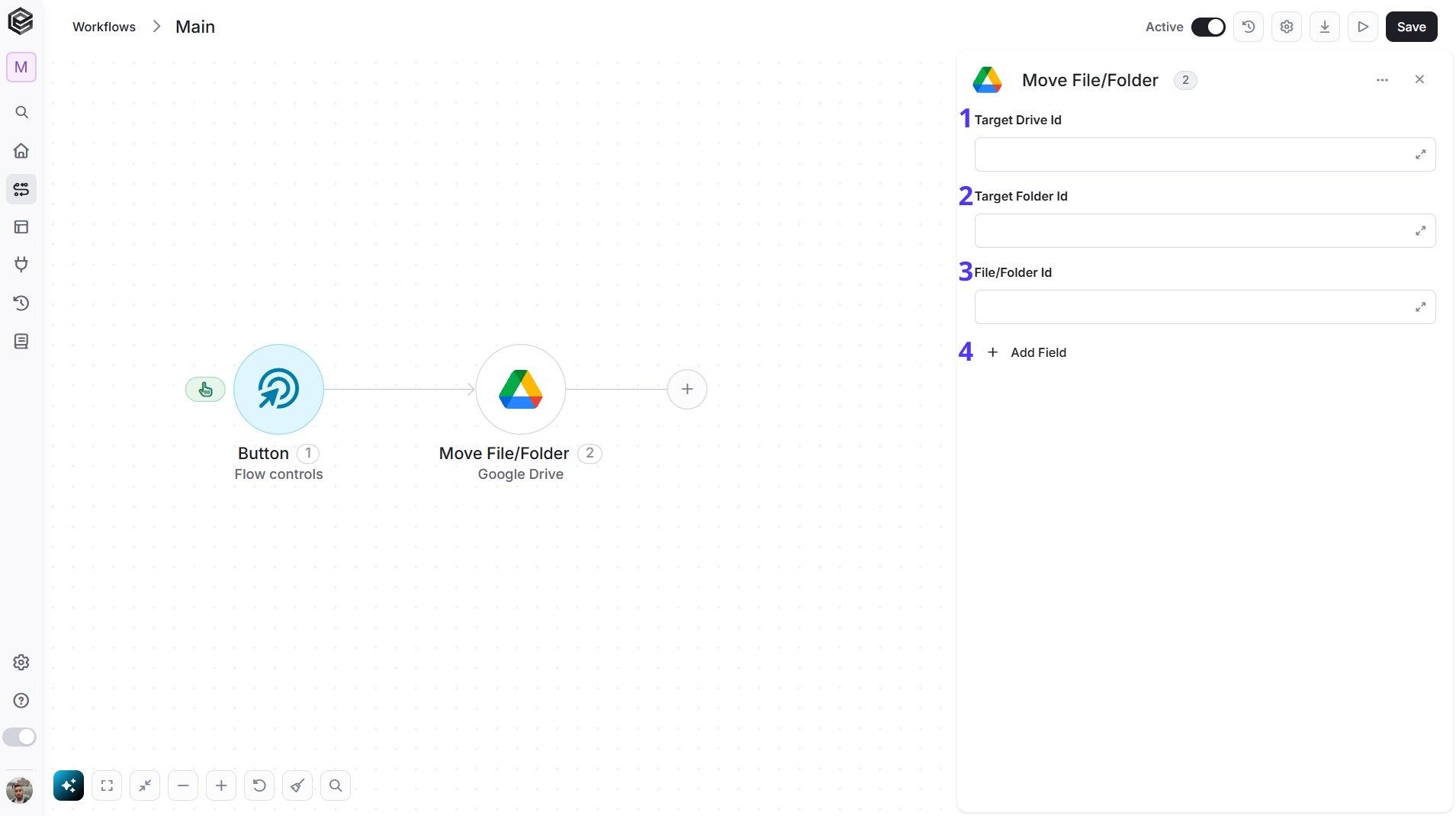
- Target Drive Id – Enter the ID of the shared drive where you want to move the file or folder. If moving within My Drive, leave this empty.
- Target Folder Id – Enter the ID of the destination folder where you want the file or folder to be moved.
- File/Folder Id – Enter the ID of the specific file or folder you want to move to the target location.
- Add Field - Click Add Field to add and populate additional fields for the selected activity. To learn more about managing activity data, click here.
Rename File/Folder
This activity changes the name of a specific file or folder in Google Drive.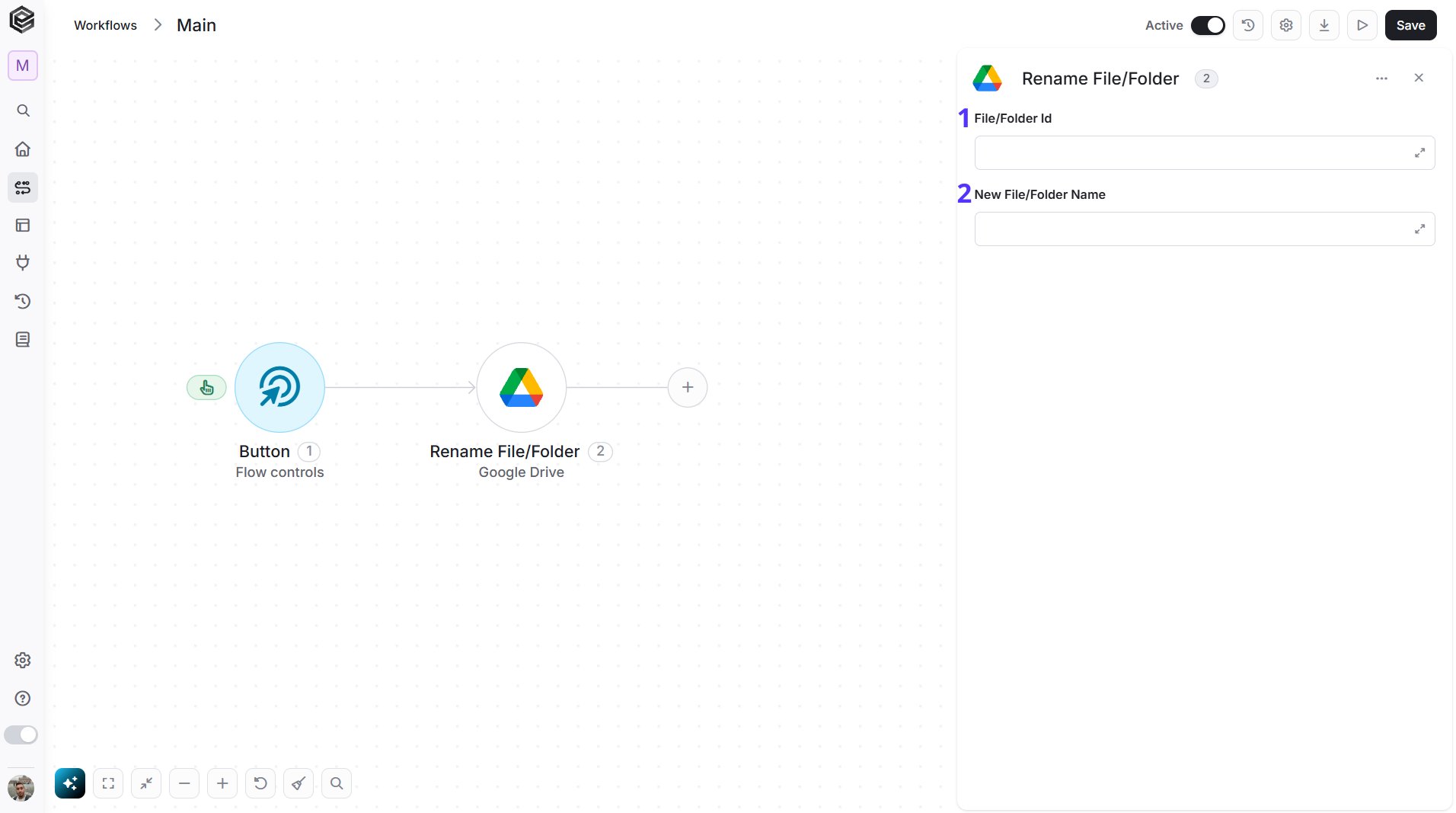
- File/Folder Id – Enter the ID of the specific file or folder you want to rename.
- New File/Folder Name – Specify the new name you want to assign to the file or folder.
Upload File
This activity allows you to upload a file from your local storage to Google Drive, either as a new file or as a new version of an existing file.
- Drive Id – Enter the ID of the shared drive where you want to upload the file. If uploading to My Drive, leave this empty.
- Folder Id – Specify the ID of the folder within the drive where the file should be uploaded.
- File name – Enter the name you want to assign to the uploaded file.
- File content – Provide the content of the file in base64 string format to be uploaded to Google Drive.