

Add a Connection to Base44 in Engini
Prerequisites
- A Base44 account.
- A Base44 personal access token with full access. A read-only token can’t create, update or delete records, invite users, run workflows or send messages.
- Only for the App Event trigger: a Base44 workspace API key with the “Manage outbound webhooks” permission (see Creating a workspace API key).
Creating a workspace API key
The App Event trigger needs a Base44 workspace API key. Workspace API keys are available on Base44’s Business and Enterprise plans, and only workspace owners and admins can create them.- In Base44, click your workspace name at the bottom left and click Settings.
- Click Secrets in the sidebar.
- Click + Create API Key.
- Enter a name for the key and select the Manage outbound webhooks permission.
- Click Create Key, then copy the key and store it somewhere safe. Base44 shows it only once.
- Paste the key into the Workspace API Key field of the Base44 connection in Engini.
Connecting Engini to Base44
- Enter your Engini account at https://app.engini.io.
-
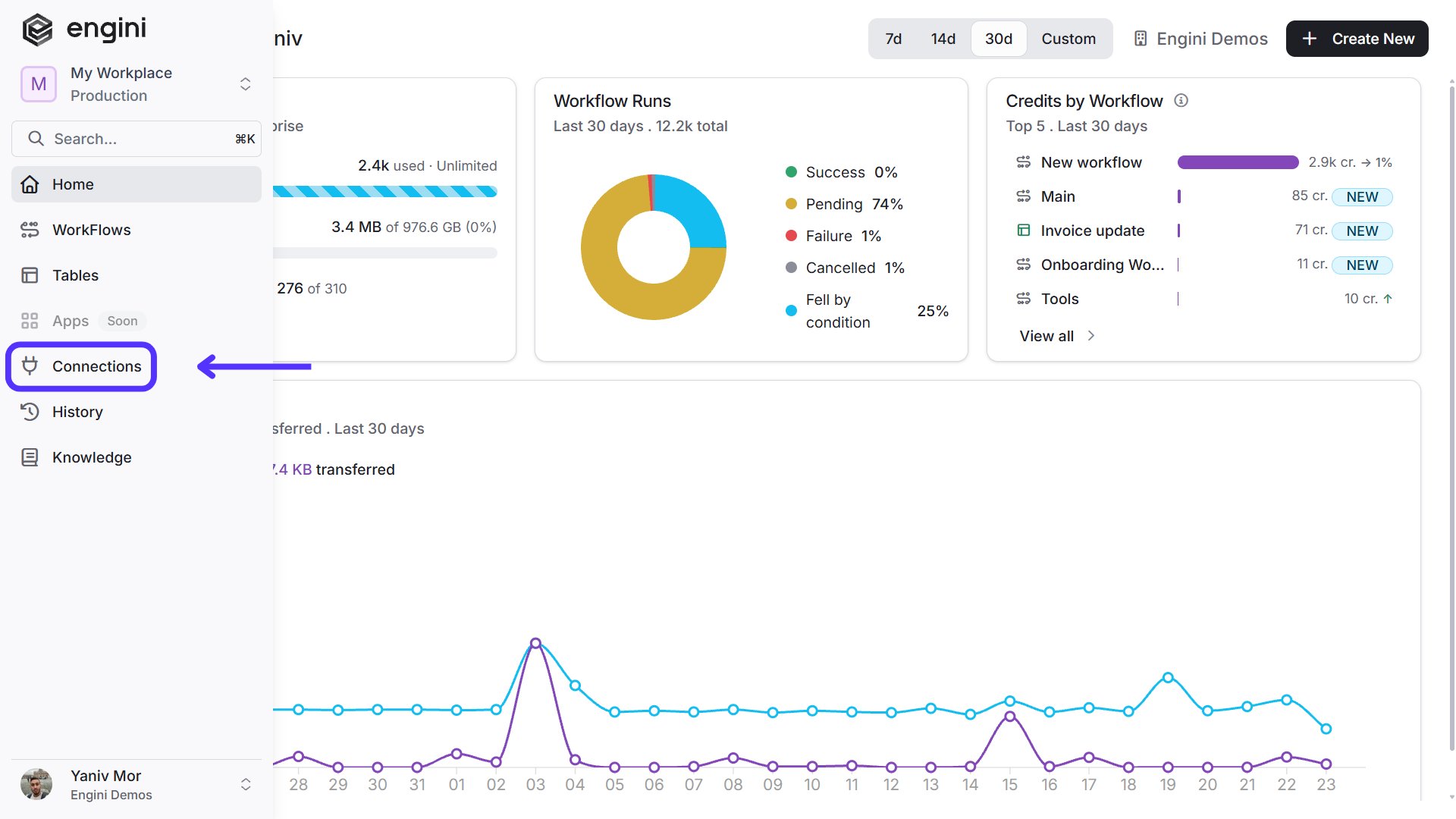
Navigate to the Connections page by clicking on Connections in the left sidebar or by clicking here.
-
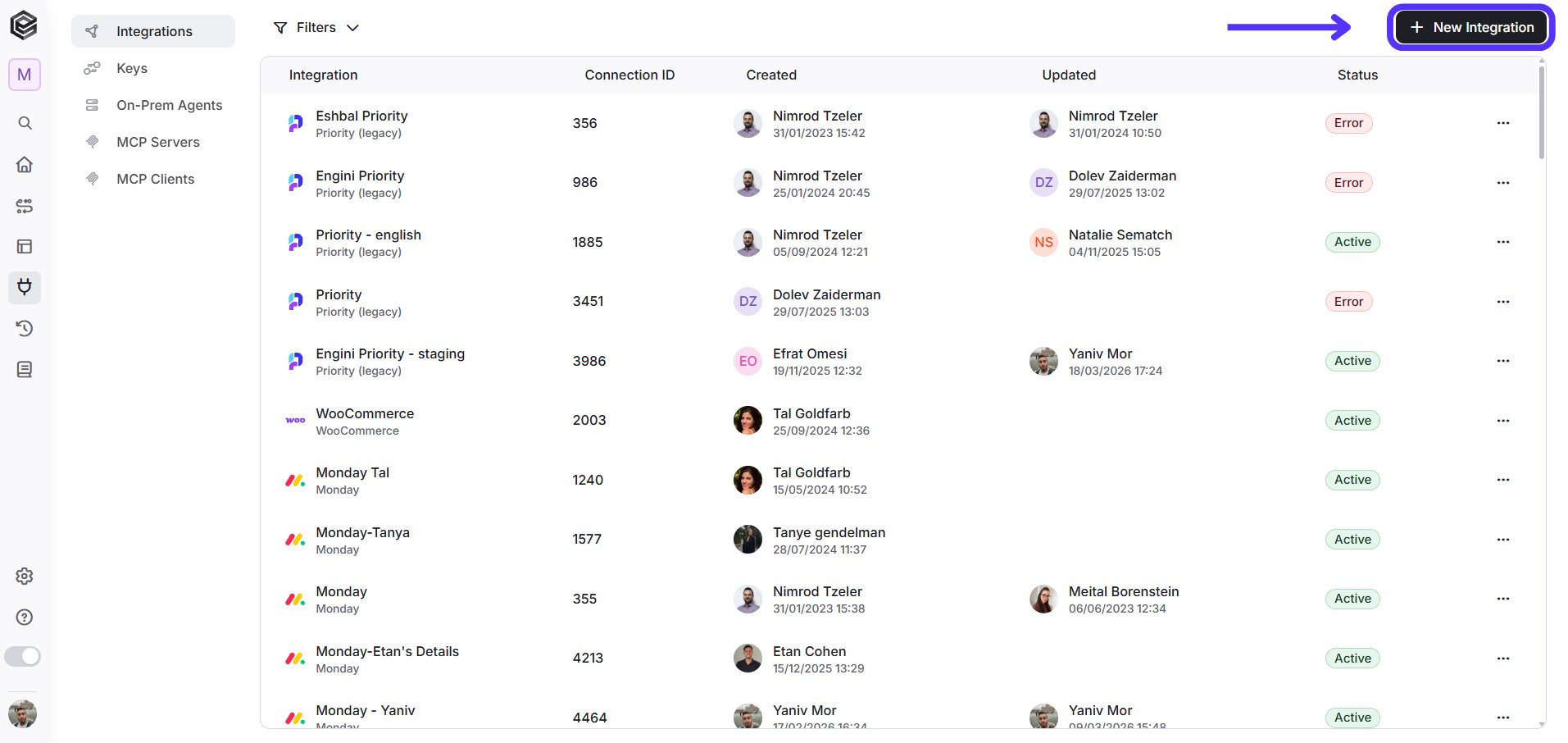
Click on the “New Integration” option located at the top bar.
-
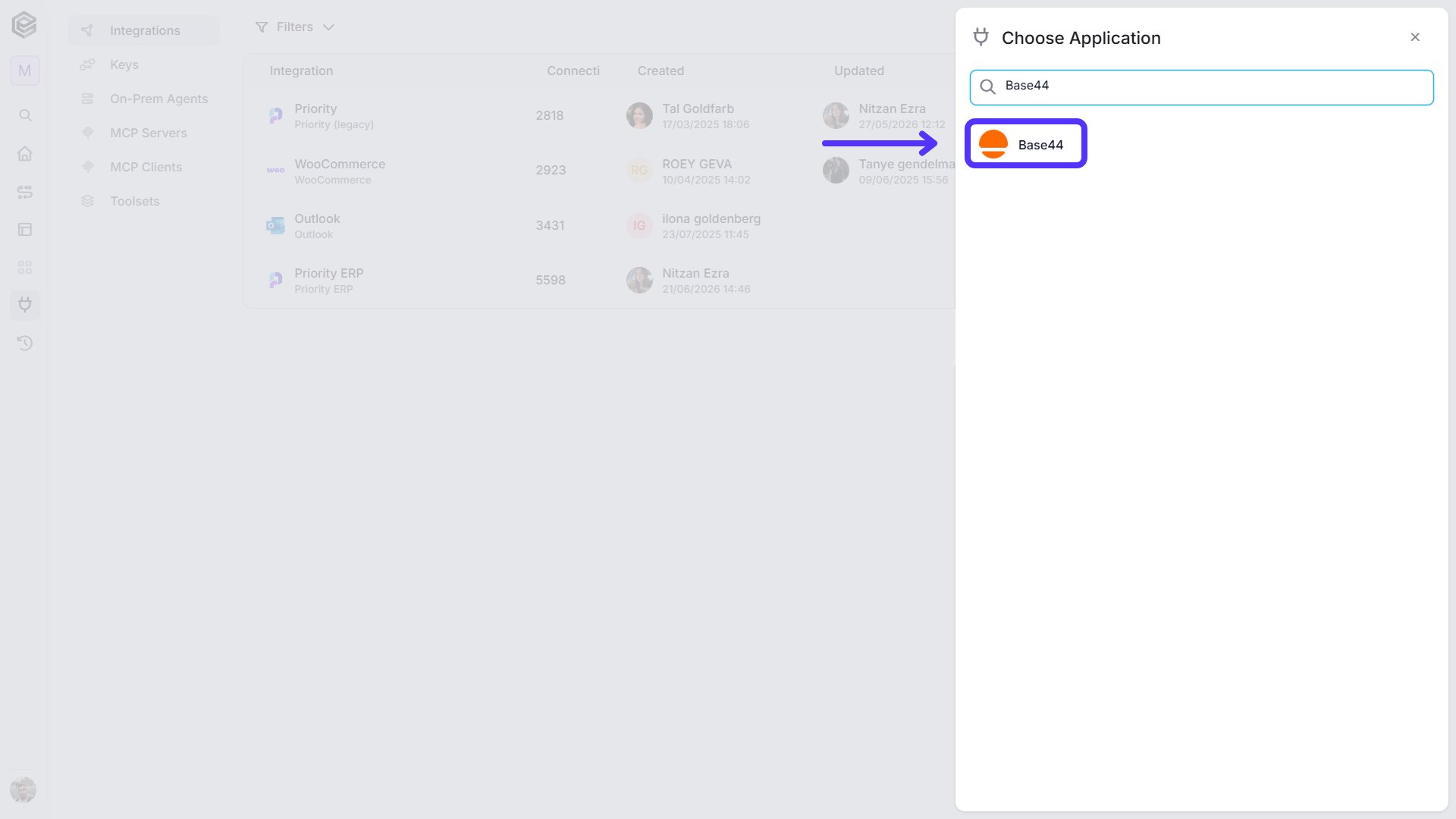
Choose the Base44 option from the available applications.
-
Enter the following details in the “New Integration” form and press Save:
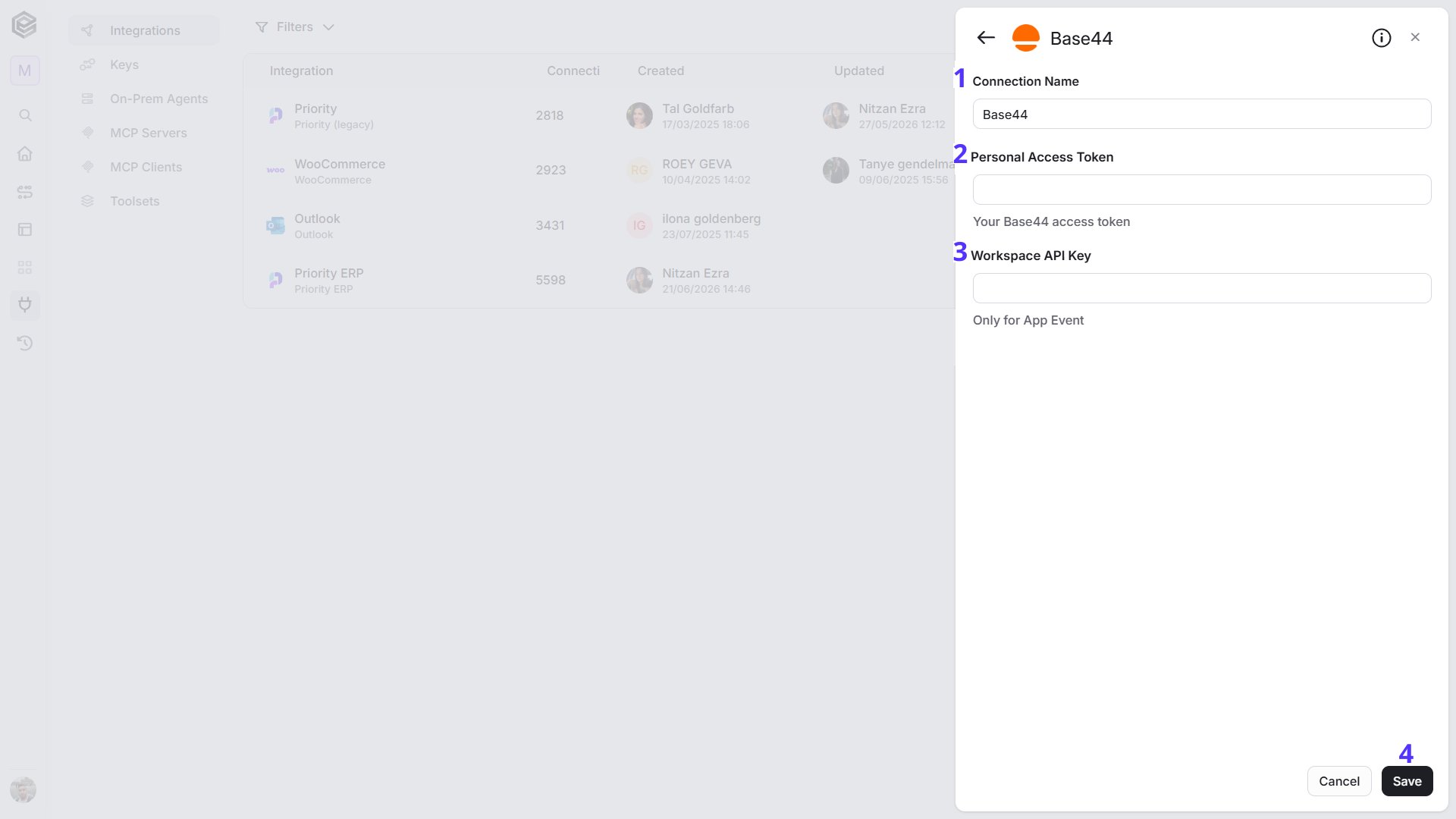
- Connection Name - Enter a name that helps identify the Base44 connection, for example “Base44 - Main account”.
- Personal Access Token - Enter the personal access token you created in your Base44 account. Engini sends it with every Base44 request made through this connection.
- Workspace API Key - Optional. Fill it in only if you use the App Event trigger, and leave it empty otherwise. Enter a Base44 workspace API key with the “Manage outbound webhooks” permission. To create one, follow the steps below.
- Save - Click Save to create the connection.
Triggers
Check for New Records
Starts the workflow when new records are added to an entity of your Base44 app. Engini checks Base44 on the schedule you set.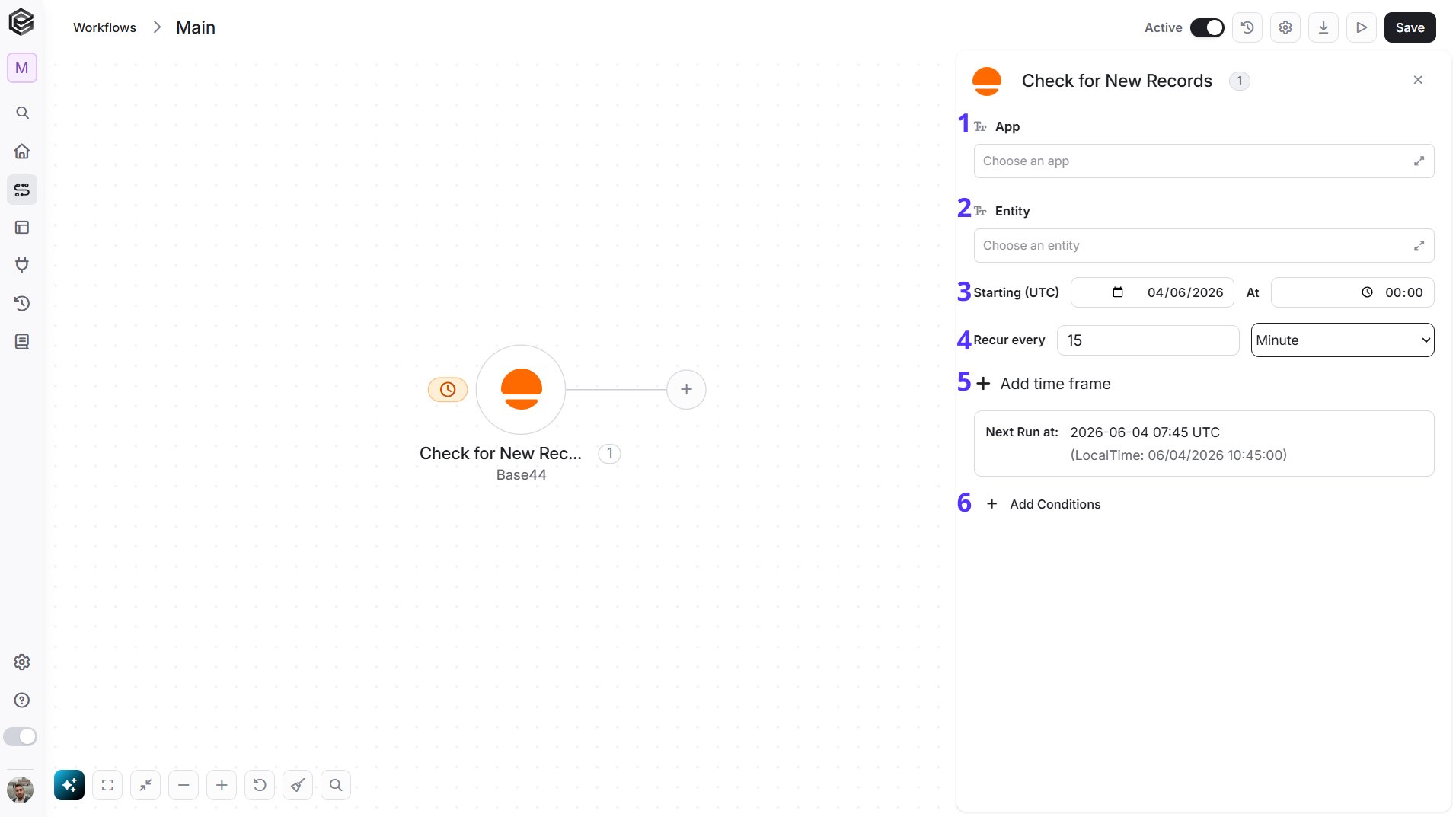
- App - Choose the app from the list that loads from your Base44 account, map an App Id from a previous step, or enter it as text.
- Entity - Choose the entity (the data table of the app) from the list that loads for the selected app, map an entity name from a previous step, or enter it as text. Select the App first so the list can load.
- Starting (UTC) - Select the start date and time for the scheduled trigger.
- Recur every - Choose the time interval for checking Base44. The minimum time interval is 15 minutes.
- Add time frame - You can specify a time frame during which the trigger will operate.
- Add Conditions - Click Add Conditions to define conditions that narrow down the data list and return only the relevant items. To learn more about using filters, click here.
- Record Id - The Id of the record.
- Created Date - When the record was created.
- Updated Date - When the record was last updated.
- Created By - Who created the record.
- Created By Id - The Id of the user who created the record.
- Is Sample - Whether the record is sample data.
Check for Updated Records
Starts the workflow when records of an entity are updated in your Base44 app. Engini checks Base44 on the schedule you set.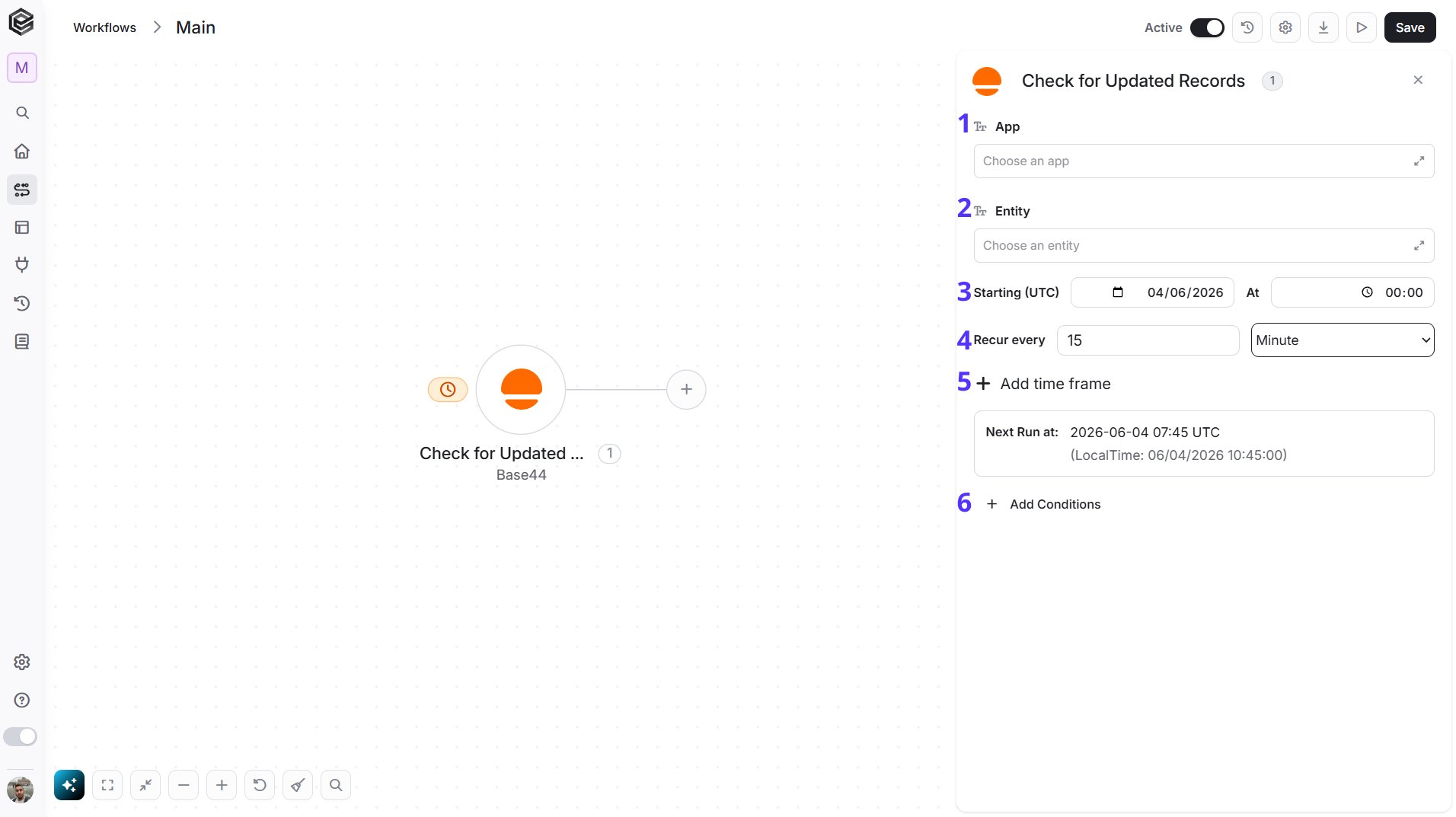
- App - Choose the app from the list that loads from your Base44 account, map an App Id from a previous step, or enter it as text.
- Entity - Choose the entity (the data table of the app) from the list that loads for the selected app, map an entity name from a previous step, or enter it as text. Select the App first so the list can load.
- Starting (UTC) - Select the start date and time for the scheduled trigger.
- Recur every - Choose the time interval for checking Base44. The minimum time interval is 15 minutes.
- Add time frame - You can specify a time frame during which the trigger will operate.
- Add Conditions - Click Add Conditions to define conditions that narrow down the data list and return only the relevant items. To learn more about using filters, click here.
Superagent Message Event
Starts the workflow when Base44 reports a message event for one of your Superagents. It uses the personal access token of your Base44 connection and needs a Superagent in your Base44 account.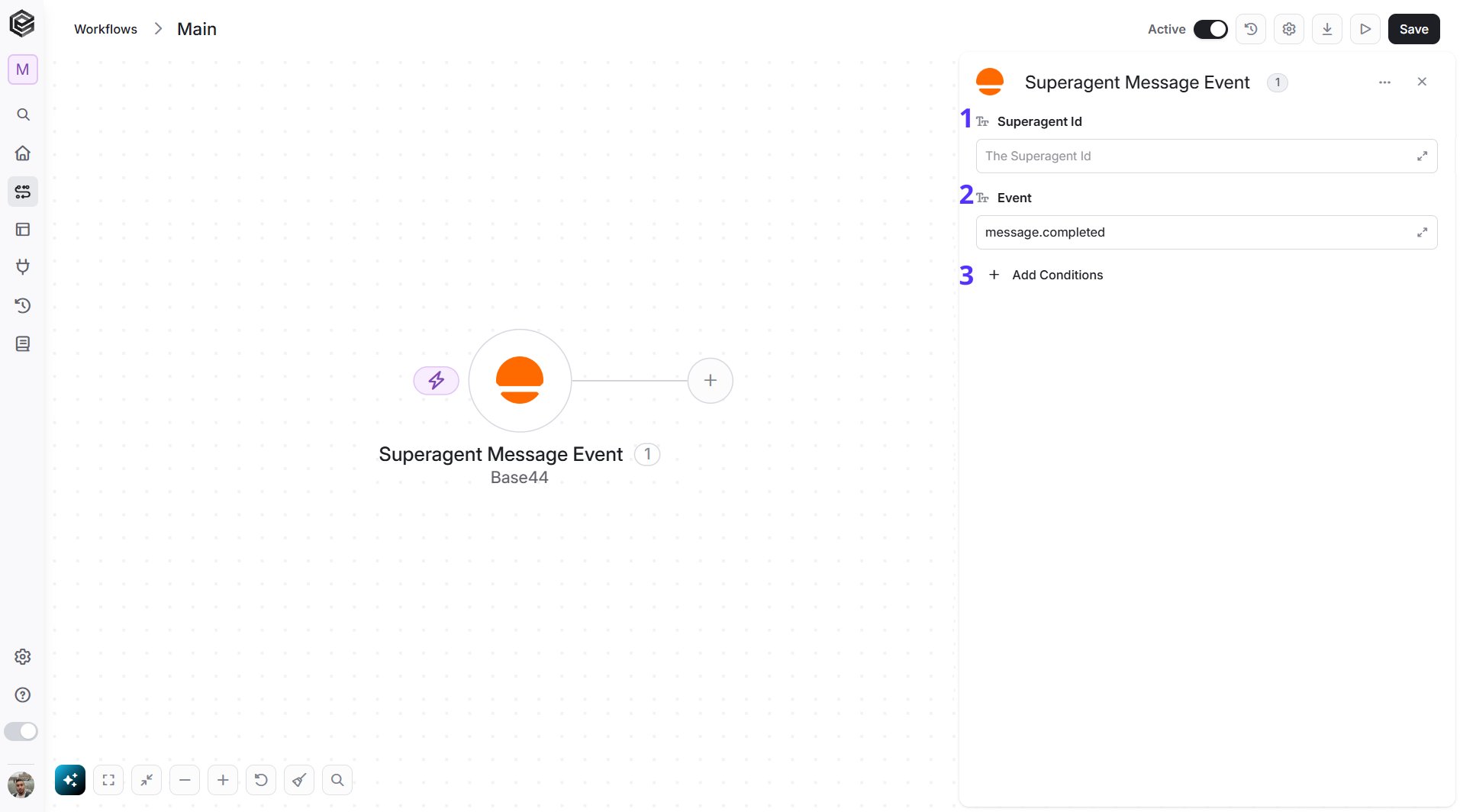
- Superagent Id - The Id of the Superagent to watch. Map it from a previous step or enter it as text.
- Event - The message event that starts the workflow: Message created or Message completed. The field opens with
message.completed; choose another event from the list or enter the event value as text. - Add Conditions - Click Add Conditions to define conditions that narrow down the data list and return only the relevant items. To learn more about using filters, click here.
App Event
Starts the workflow when Base44 reports an event for an app in your workspace. This trigger needs the Workspace API Key of the Base44 connection (see Creating a workspace API key).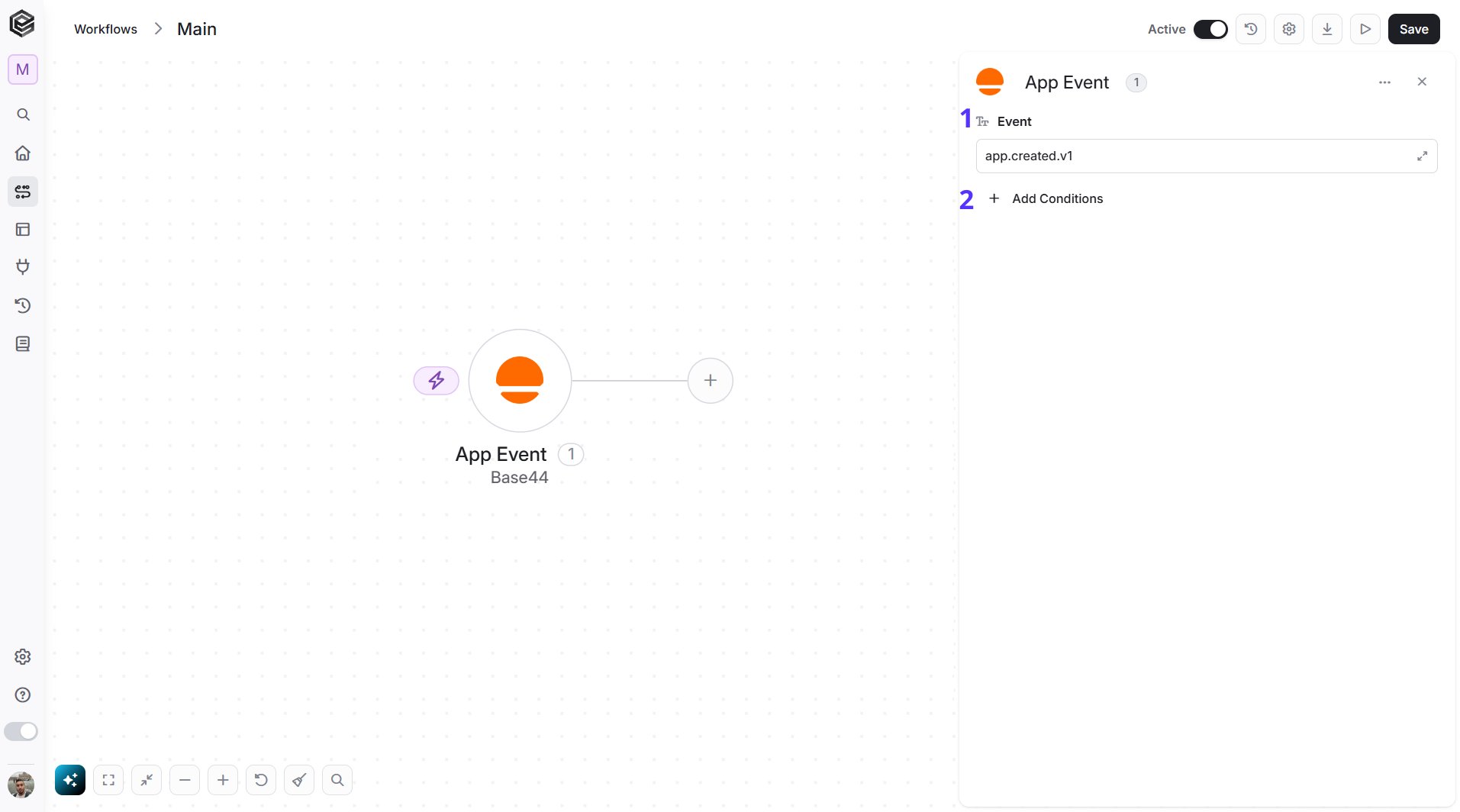
- Event - The app event that starts the workflow: App created, App published, App unpublished, App deleted, App restored, Chat turn started or Chat turn ended. The field opens with
app.created.v1; choose another event from the list or enter the event value as text. - Add Conditions - Click Add Conditions to define conditions that narrow down the data list and return only the relevant items. To learn more about using filters, click here.
- Spec Version - The version of the event format.
- Event Id - The Id of the event.
- Source - Where the event comes from.
- Event Type - The type of the event.
- Subject - What the event is about.
- Time - When the event happened.
- Content Type - The content type of the event data.
- Data Schema - The schema of the event data.
- Auth Type and Auth Id - The kind and Id of the credential behind the event.
- Data - The details of the event.
Actions
Most Base44 actions start with the App field, and record actions also need an Entity. Both load as lists from your Base44 account once the connection is selected.Count Records
Returns the number of records in an entity.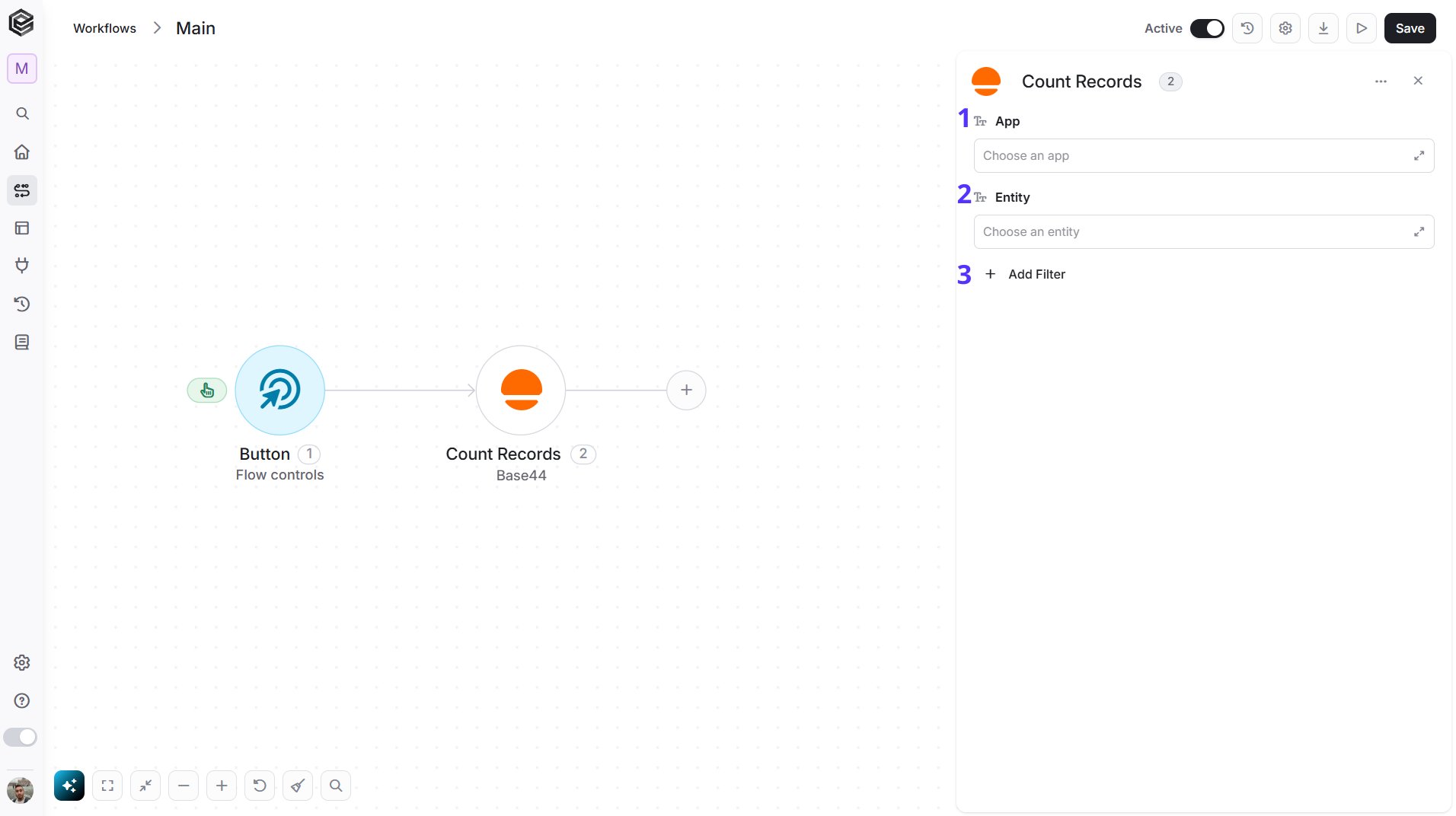
- App - Choose the app from the list that loads from your Base44 account, map an App Id from a previous step, or enter it as text.
- Entity - Choose the entity (the data table of the app) from the list that loads for the selected app, map an entity name from a previous step, or enter it as text. Select the App first so the list can load.
- Add Filter - Click Add Filter to define conditions that narrow down the data list and return only the relevant items. To learn more about using filters, click here.
{"status": "open"}.
Create Record
Creates a single record in an entity of your Base44 app.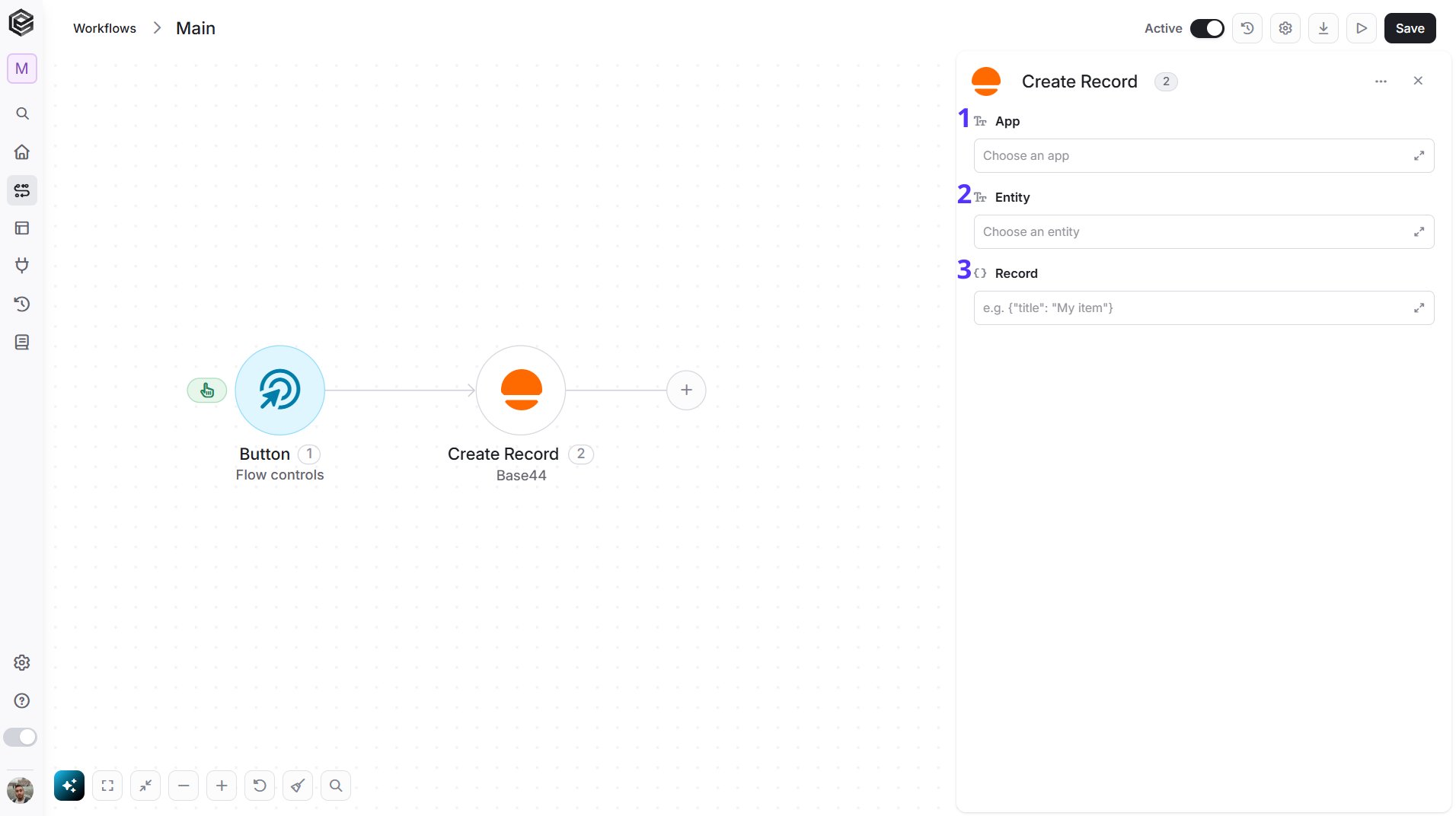
- App - Choose the app from the list that loads from your Base44 account, map an App Id from a previous step, or enter it as text.
- Entity - Choose the entity (the data table of the app) from the list that loads for the selected app, map an entity name from a previous step, or enter it as text. Select the App first so the list can load.
- Record - The fields of the new record as JSON, using your entity’s field names, for example
{"title": "Weekly report"}. Map the JSON from a previous step or type it as text.
Create Records
Creates several records in an entity of your Base44 app in one step.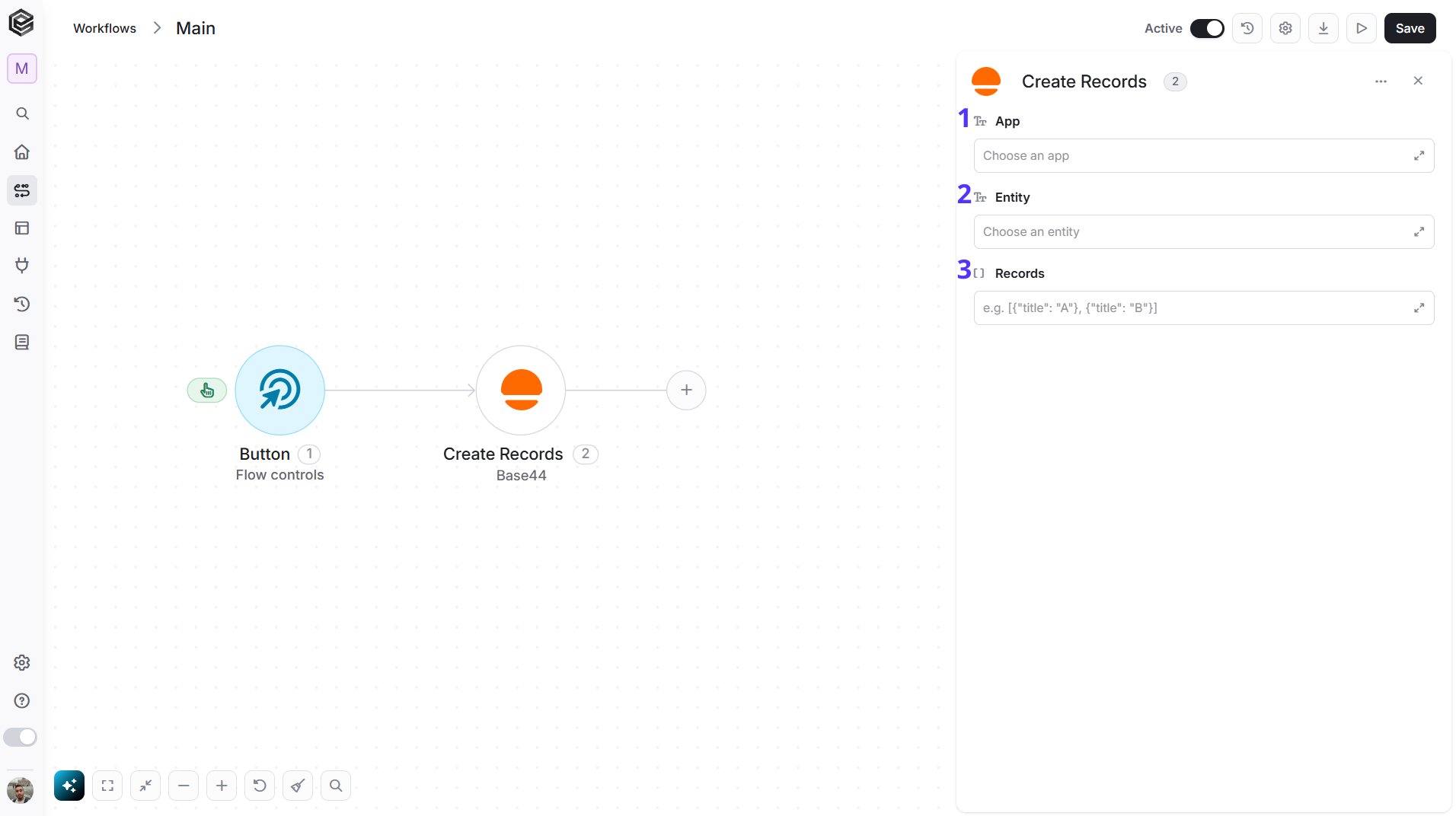
- App - Choose the app from the list that loads from your Base44 account, map an App Id from a previous step, or enter it as text.
- Entity - Choose the entity (the data table of the app) from the list that loads for the selected app, map an entity name from a previous step, or enter it as text. Select the App first so the list can load.
- Records - A JSON array with one object per new record, using your entity’s field names, for example
[{"title": "Task 1"}, {"title": "Task 2"}].
Create Superagent Conversation
Creates the main conversation with a Base44 Superagent, or returns the existing one if it already exists, so you can send it messages. Calling it again for the same Superagent returns the same conversation. This action needs a Superagent in your Base44 account.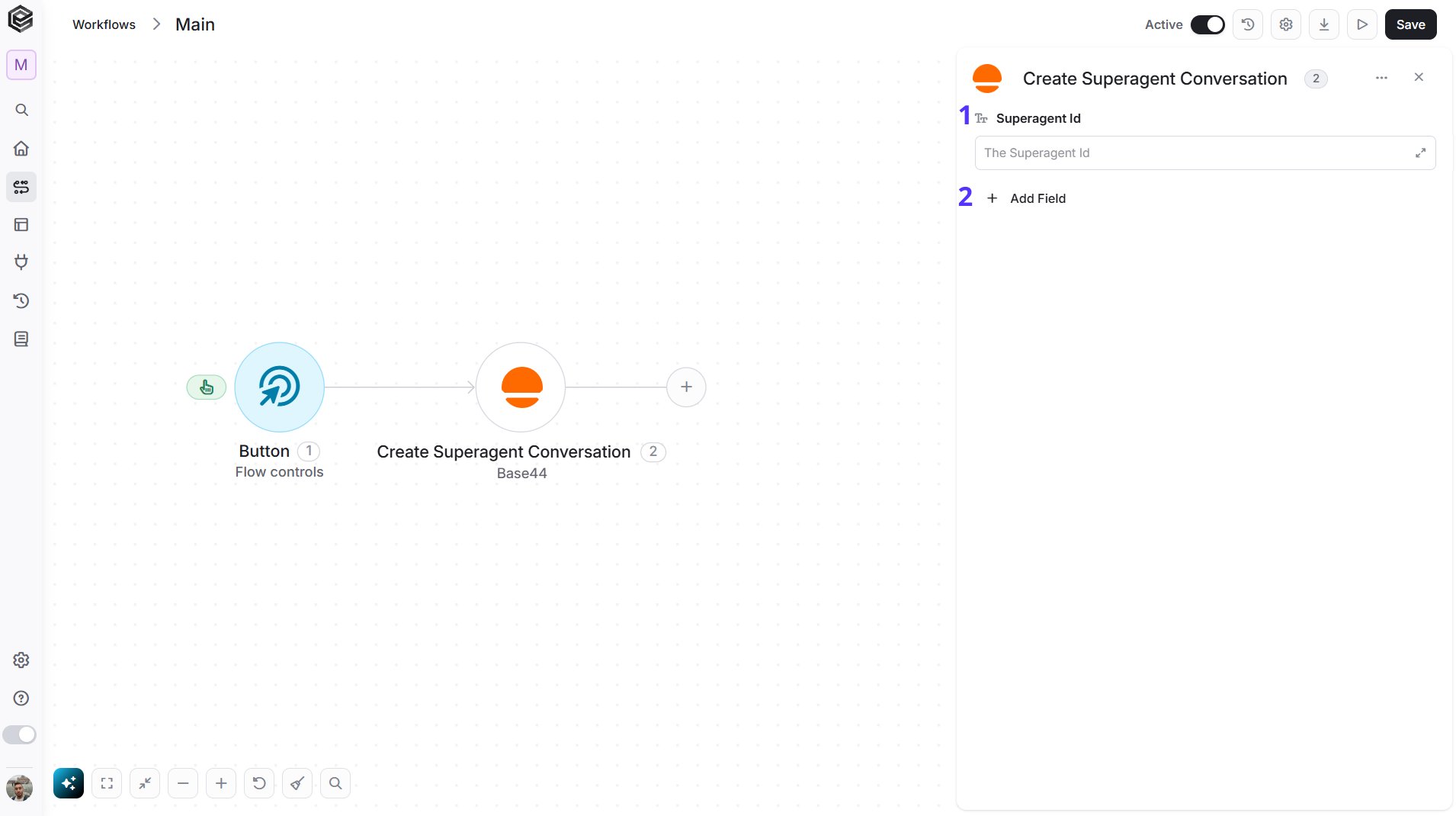
- Superagent Id - The Id of the Superagent. Map it from a previous step or enter it as text.
- Add Field - Click Add Field to add and populate additional fields for the selected activity. To learn more about managing activity data, click here.
- Metadata - Extra details to save with the new conversation, as key and value pairs, for example
sourceas the key andcrmas the value. They are saved only when the conversation is first created; if the conversation already exists, Metadata is ignored.
Delete Record
Permanently deletes a record from an entity.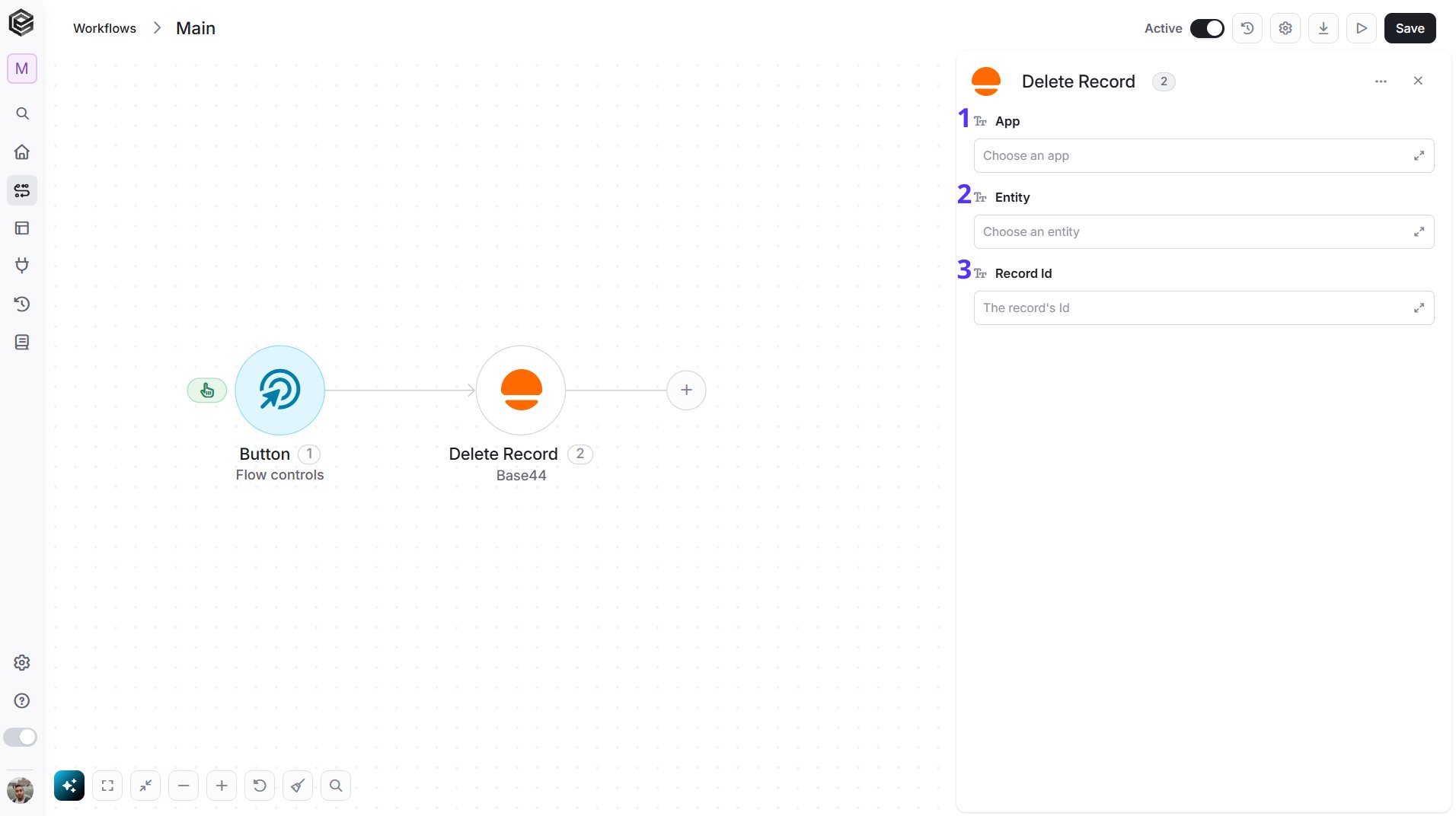
- App - Choose the app from the list that loads from your Base44 account, map an App Id from a previous step, or enter it as text.
- Entity - Choose the entity (the data table of the app) from the list that loads for the selected app, map an entity name from a previous step, or enter it as text. Select the App first so the list can load.
- Record Id - The Id of the record. Map it from a previous Create Record, Get Record or Get Records step, or enter it as text.
Get App
Retrieves the details of one Base44 app.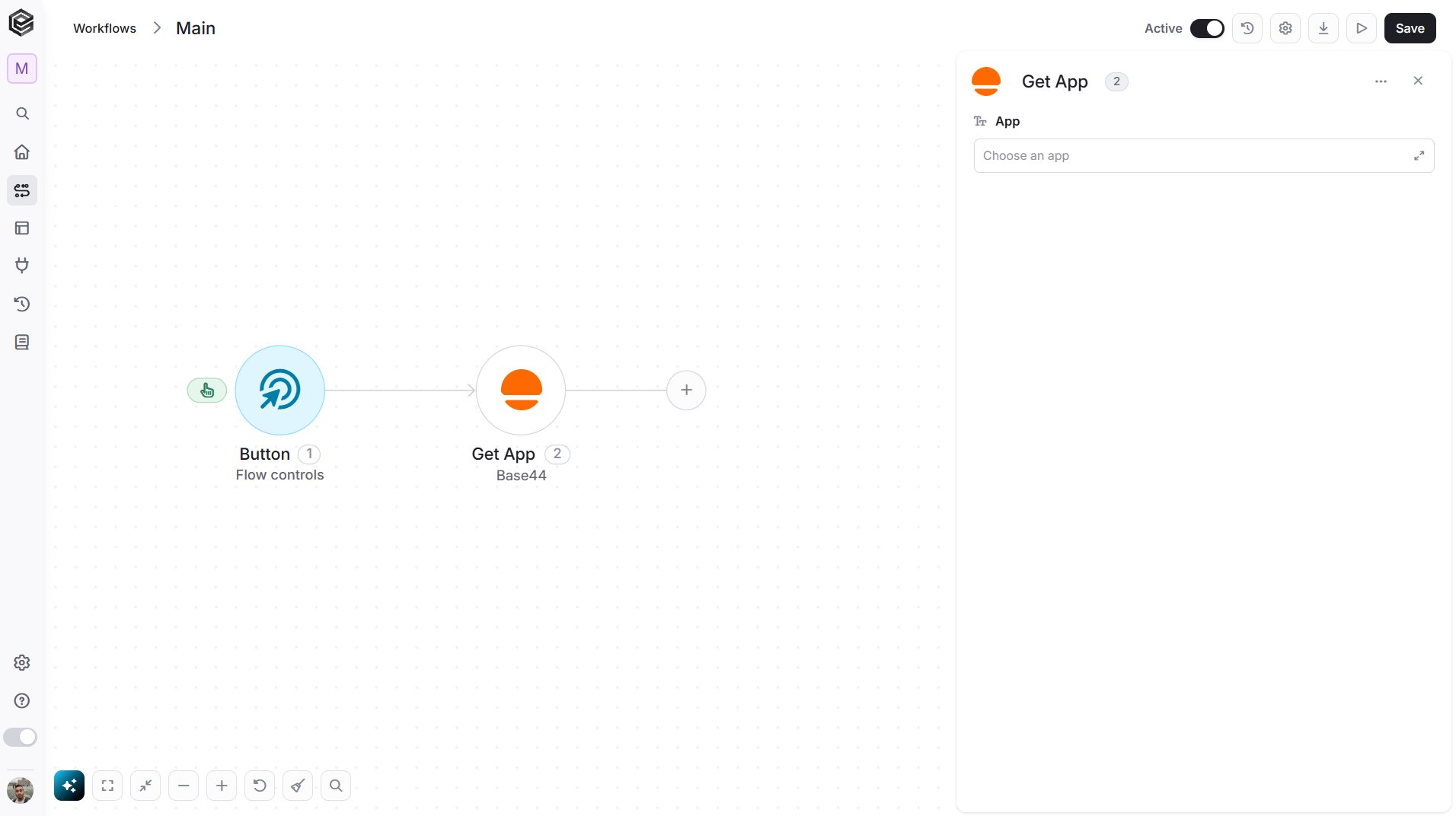
- App - Choose the app from the list that loads from your Base44 account, map an App Id from a previous step, or enter it as text.
Get Apps
Retrieves the Base44 apps that your connection can access.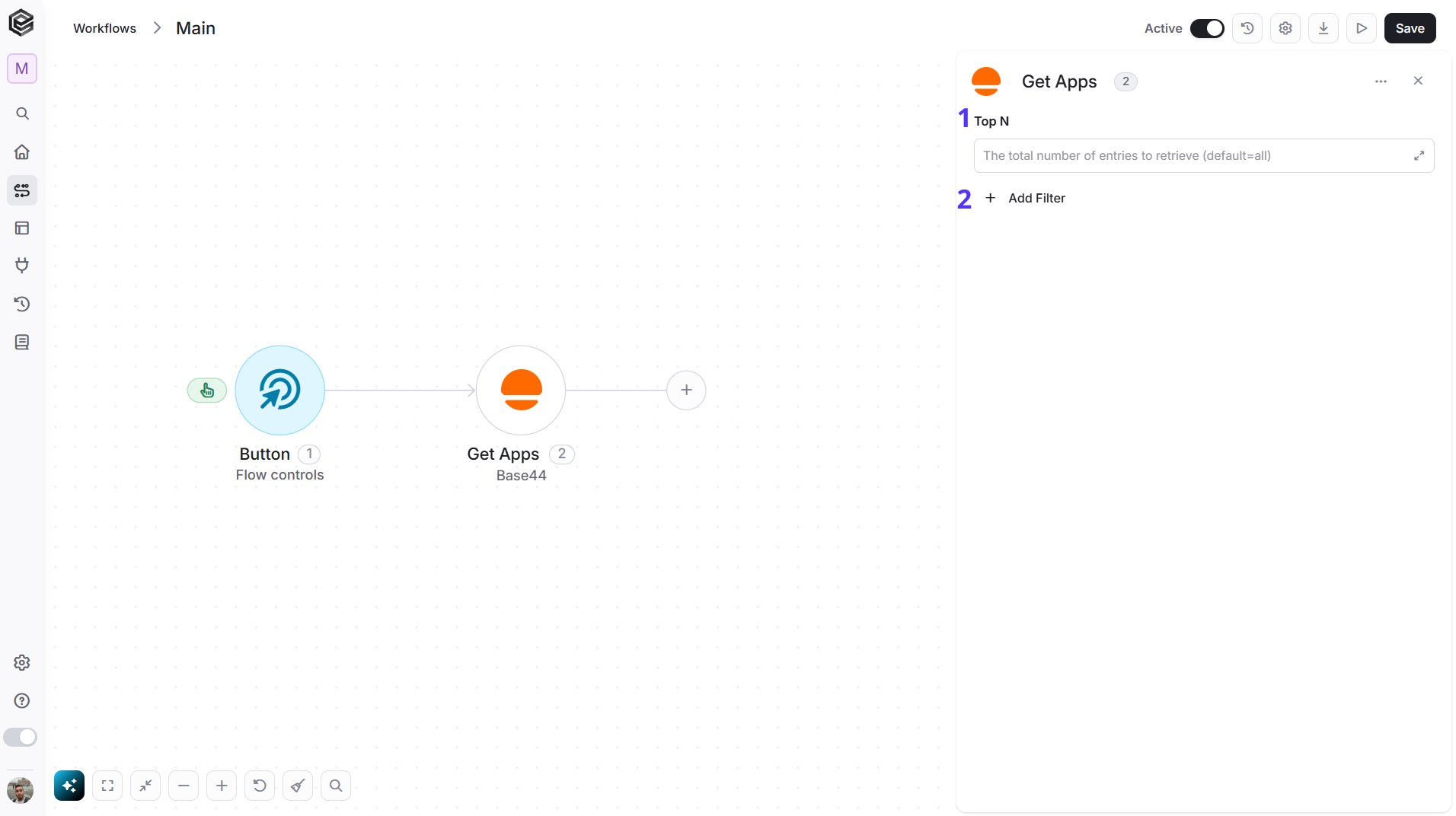
- Top N - You can set the maximum number of apps Engini will return (default = all apps).
- Add Filter - Click Add Filter to define conditions that narrow down the data list and return only the relevant items. To learn more about using filters, click here.
- Workspace Id - The Id of the workspace whose apps you want. Leave it empty to use your own workspace.
- Search - Return only apps that match this text, for example an app name.
- Folder Id - Return only the apps in this folder, for example a folder Id.
- Filter Mode - The Base44 filter mode for the list of apps.
- Sort By - Choose the order: Newest first, Oldest first, Recently updated first or Least recently updated first.
- Fields To Return - A comma-separated list of the app properties to return, for example
id,name,slug.
Get Entity Schemas
Retrieves the entities of an app together with their field definitions, so you can see which fields each entity has.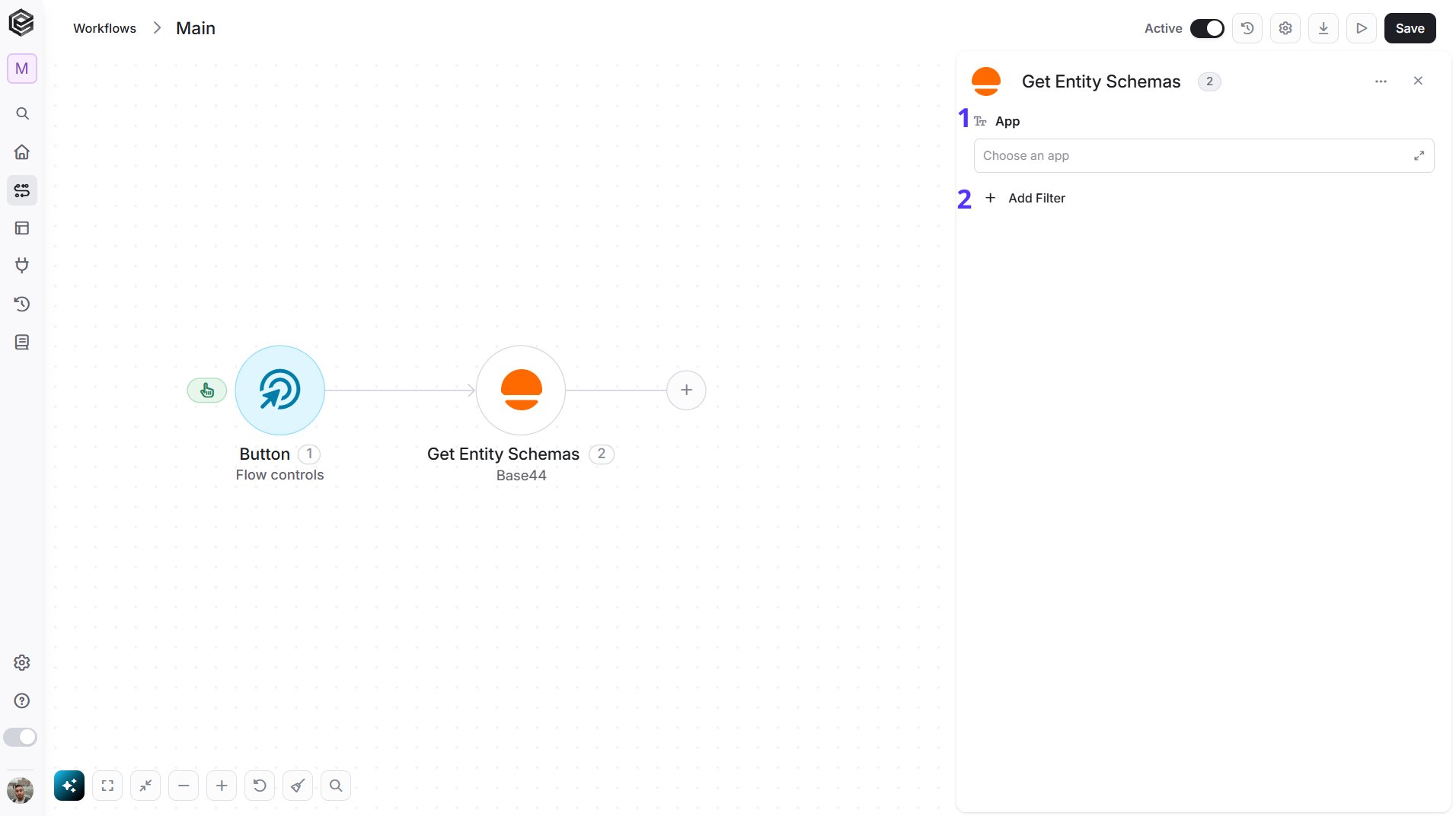
- App - Choose the app from the list that loads from your Base44 account, map an App Id from a previous step, or enter it as text.
- Add Filter - Click Add Filter to define conditions that narrow down the data list and return only the relevant items. To learn more about using filters, click here.
Get Record
Retrieves a single record from an entity.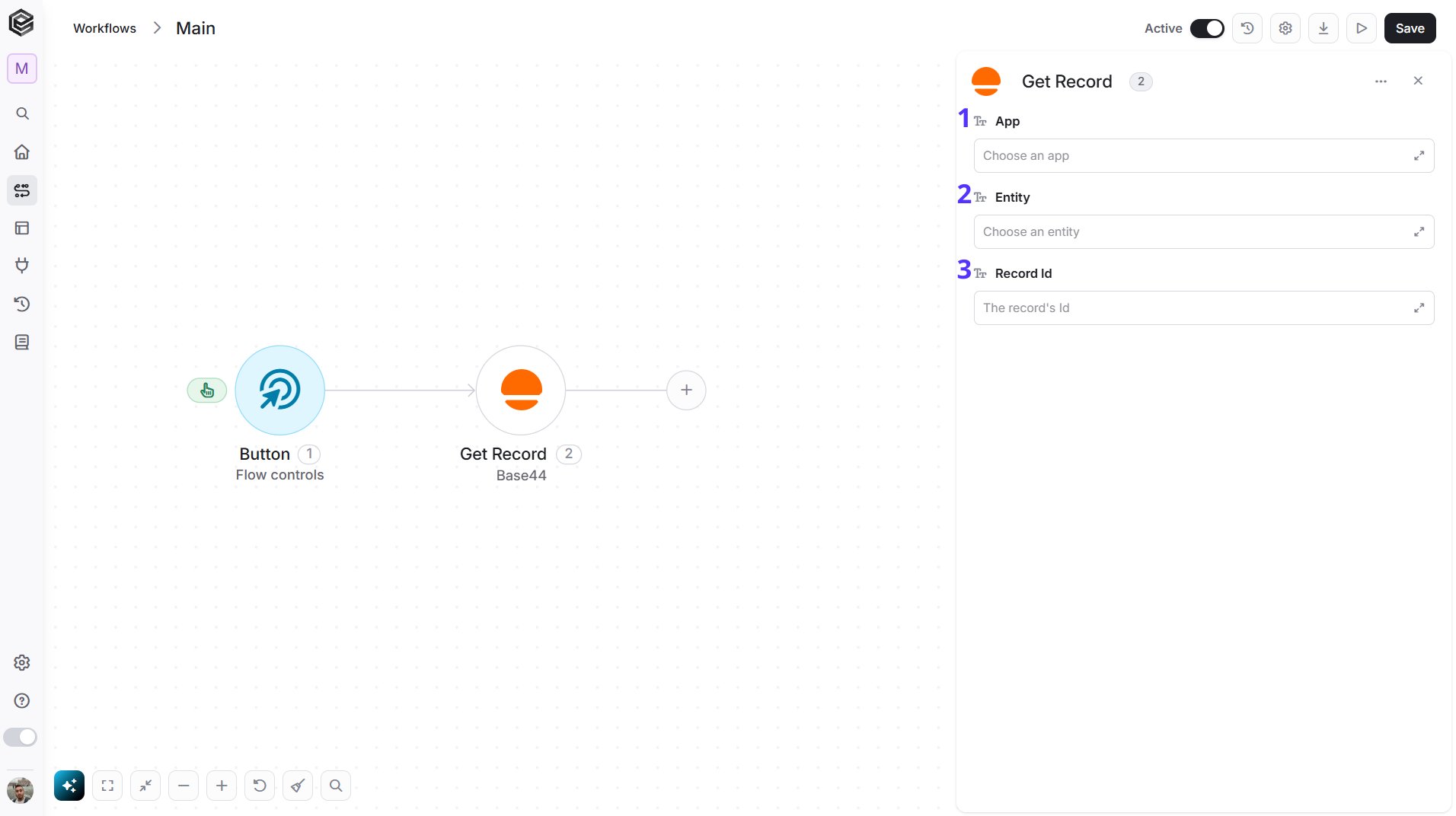
- App - Choose the app from the list that loads from your Base44 account, map an App Id from a previous step, or enter it as text.
- Entity - Choose the entity (the data table of the app) from the list that loads for the selected app, map an entity name from a previous step, or enter it as text. Select the App first so the list can load.
- Record Id - The Id of the record. Map it from a previous Create Record, Get Record or Get Records step, or enter it as text.
Get Records
Retrieves the records of an entity. All matching records are returned unless you set Top N.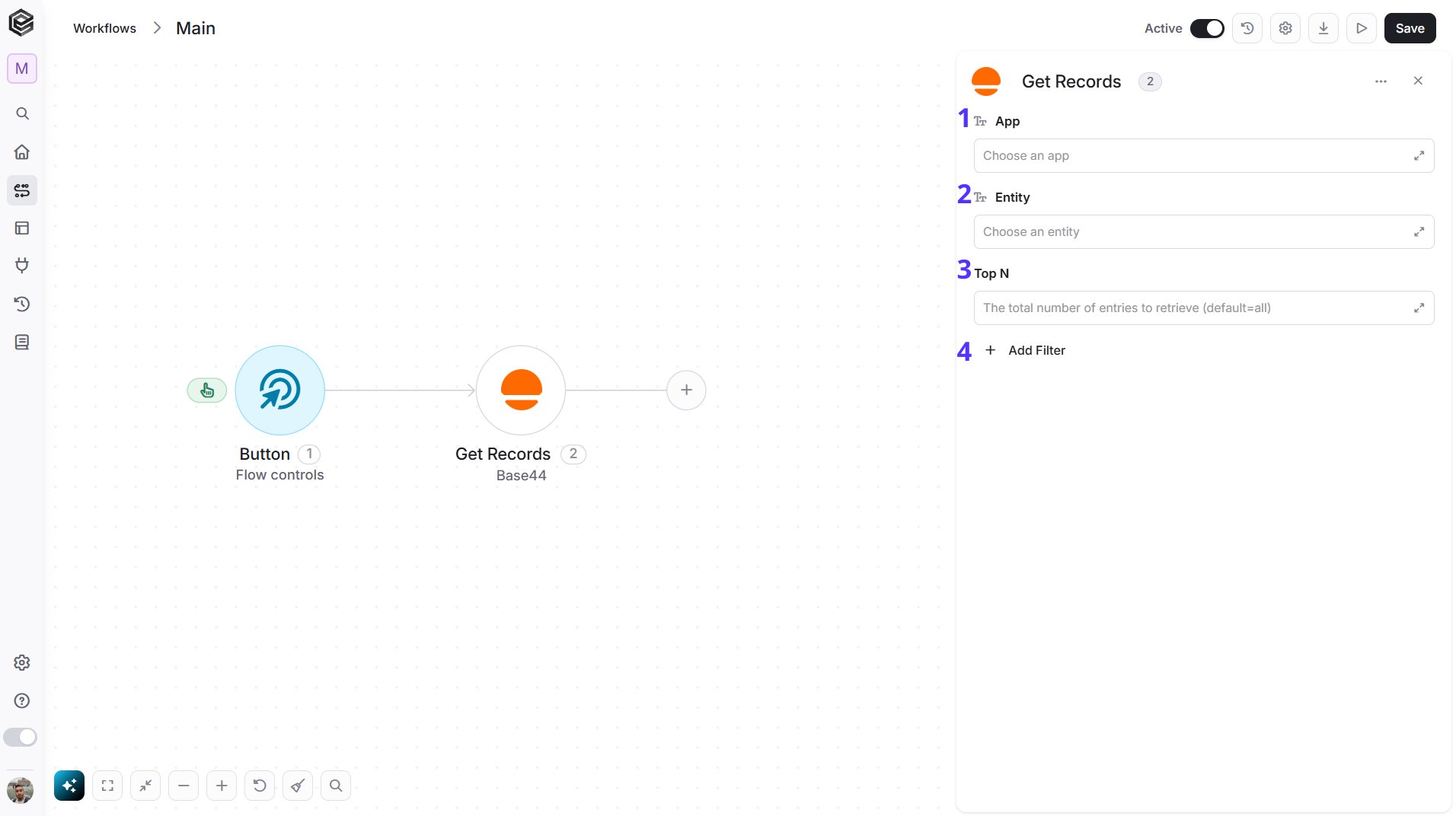
- App - Choose the app from the list that loads from your Base44 account, map an App Id from a previous step, or enter it as text.
- Entity - Choose the entity (the data table of the app) from the list that loads for the selected app, map an entity name from a previous step, or enter it as text. Select the App first so the list can load.
- Top N - You can set the maximum number of records Engini will return (default = all records).
- Add Filter - Click Add Filter to define conditions that narrow down the data list and return only the relevant items. To learn more about using filters, click here.
- Filter - A JSON filter on your entity’s fields, for example
{"status": "paid"}. - Sort By - Choose the order: Newest first, Oldest first, Recently updated first or Least recently updated first.
- Fields To Return - A comma-separated list of the field names to return, for example
id,status.
Get Superagent Conversation
Returns a conversation with a Base44 Superagent together with its latest messages (up to 200, oldest first). This action needs a Superagent in your Base44 account.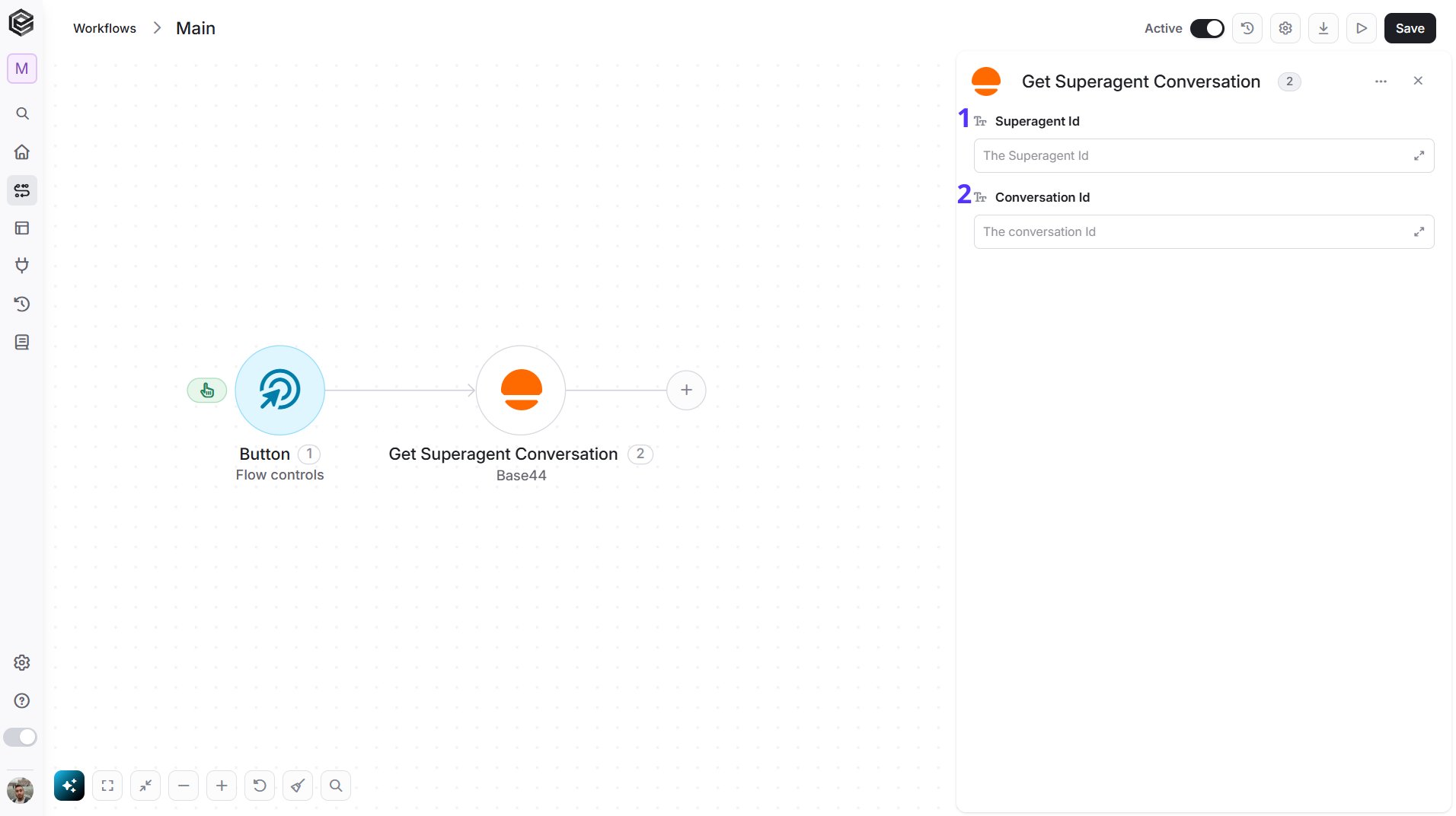
- Superagent Id - The Id of the Superagent. Map it from a previous step or enter it as text.
- Conversation Id - The Id of the conversation. Map it from a previous Create Superagent Conversation step or enter it as text.
Get Superagent Conversations
Returns the conversations of a Base44 Superagent. There is at most one main conversation, so the list is empty until you create it with Create Superagent Conversation. This action needs a Superagent in your Base44 account.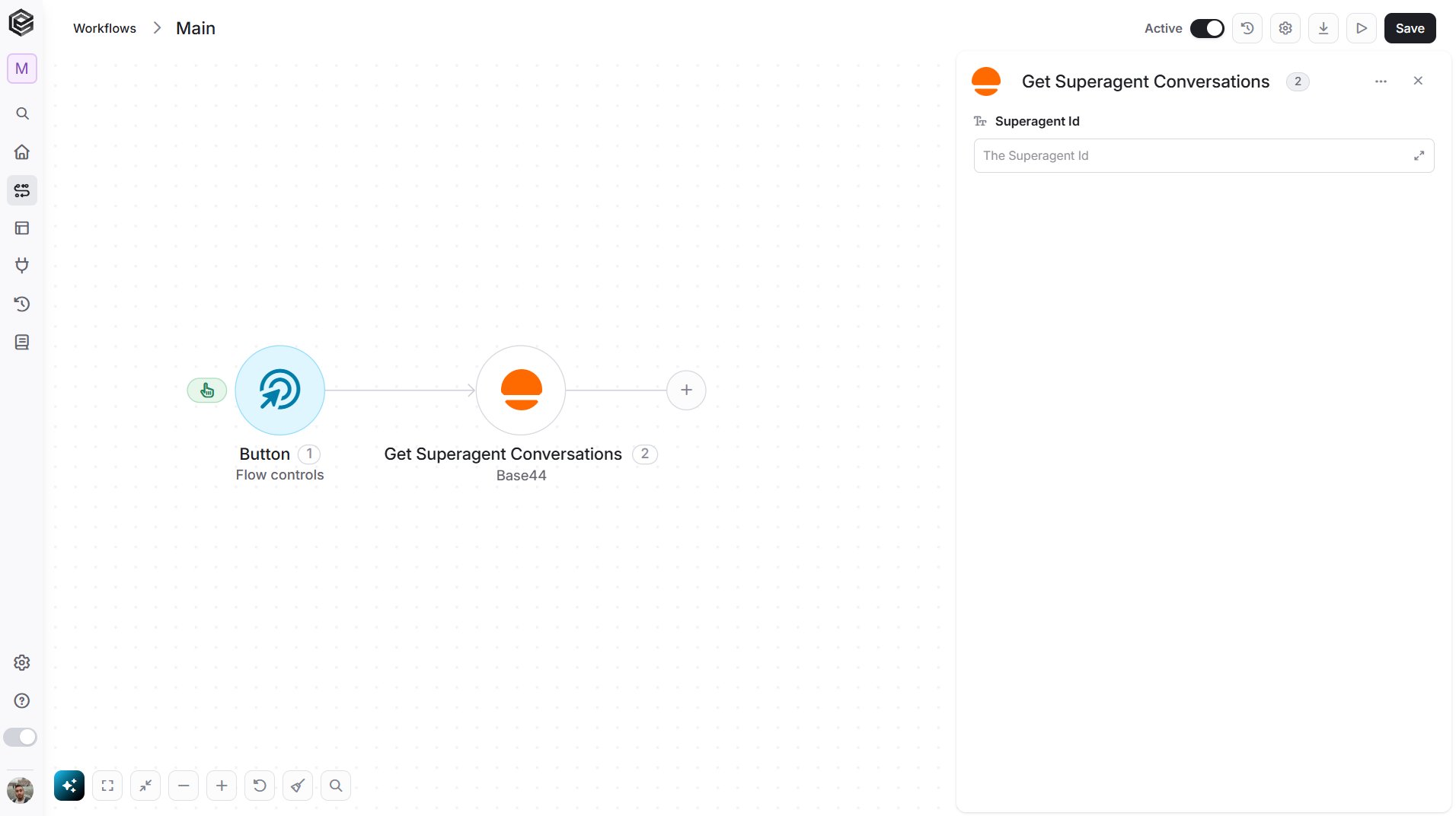
- Superagent Id - The Id of the Superagent. Map it from a previous step or enter it as text.
Get User
Retrieves one user of a Base44 app.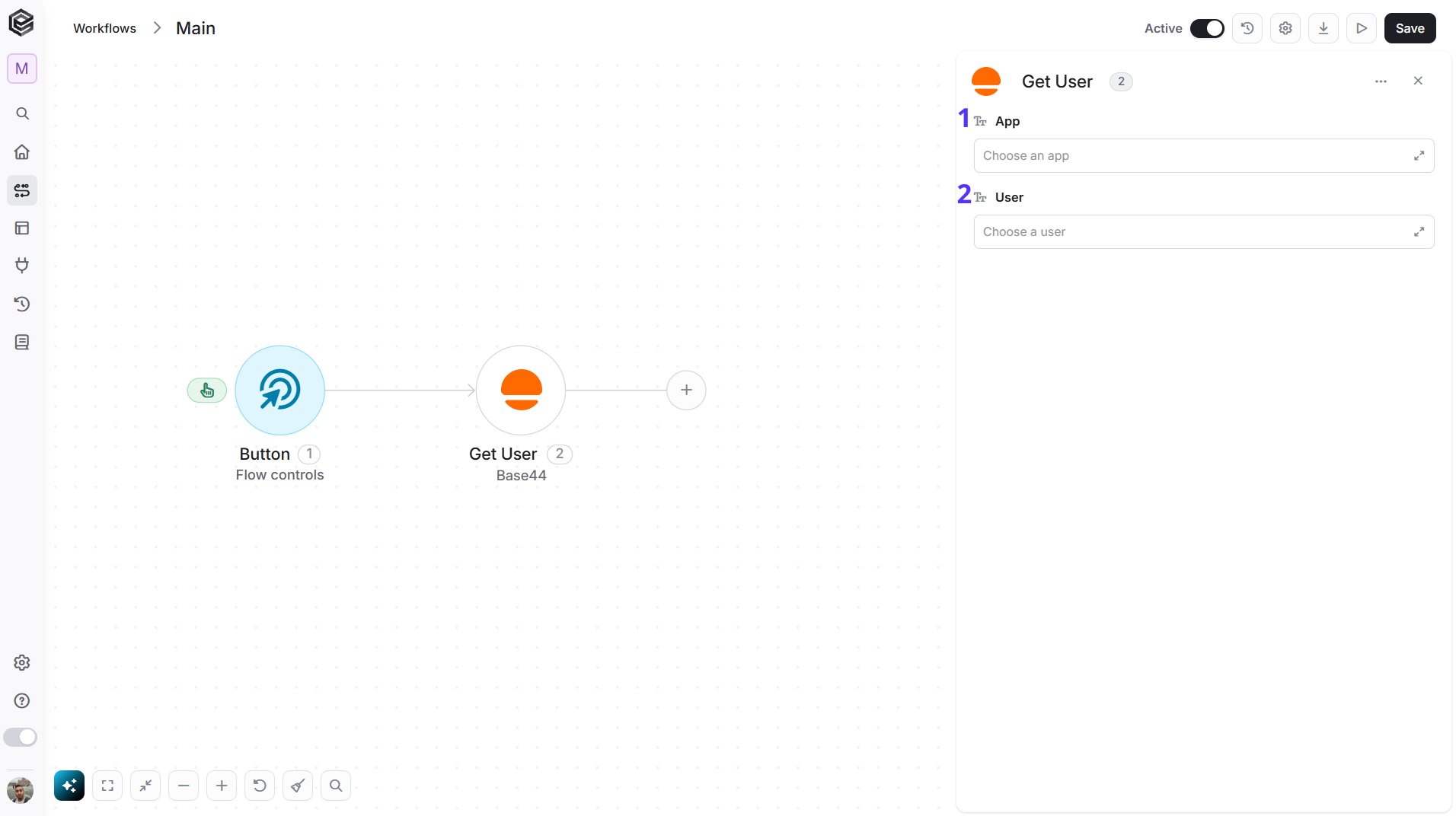
- App - Choose the app from the list that loads from your Base44 account, map an App Id from a previous step, or enter it as text.
- User - Choose the user from the list that loads for the selected app, map a user Id from a previous Get Users step, or enter it as text.
Get Users
Retrieves the users of a Base44 app.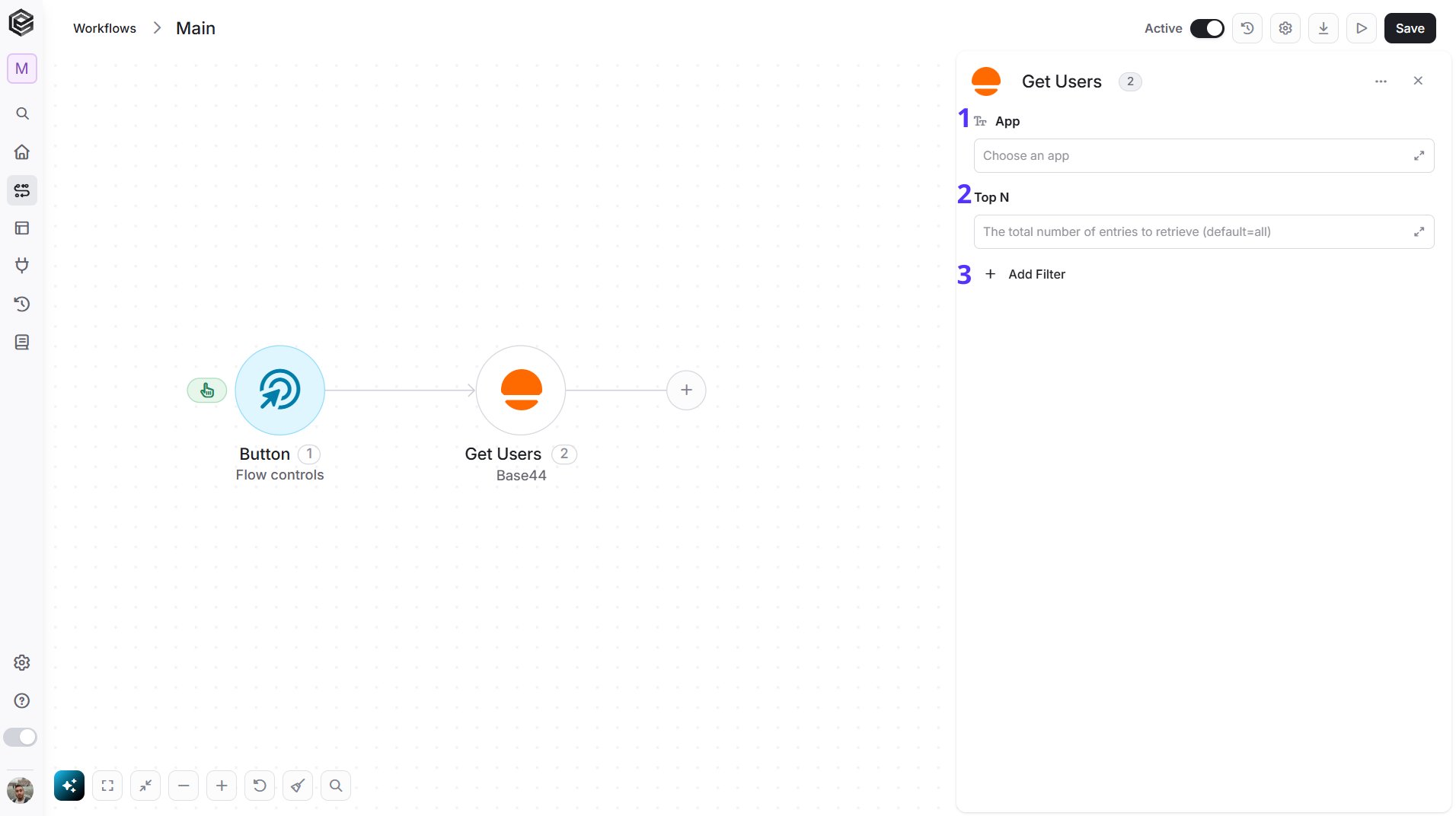
- App - Choose the app from the list that loads from your Base44 account, map an App Id from a previous step, or enter it as text.
- Top N - You can set the maximum number of users Engini will return (default = all users).
- Add Filter - Click Add Filter to define conditions that narrow down the data list and return only the relevant items. To learn more about using filters, click here.
- Filter - A JSON filter on the user fields, for example
{"role": "admin"}. - Sort By - Choose the order: Newest first, Oldest first, Recently updated first or Least recently updated first.
- Fields To Return - A comma-separated list of the field names to return, for example
id,email.
Get Workflow Run
Retrieves the details of one run of a Base44 app workflow, such as its status, start and end time, duration and any error message.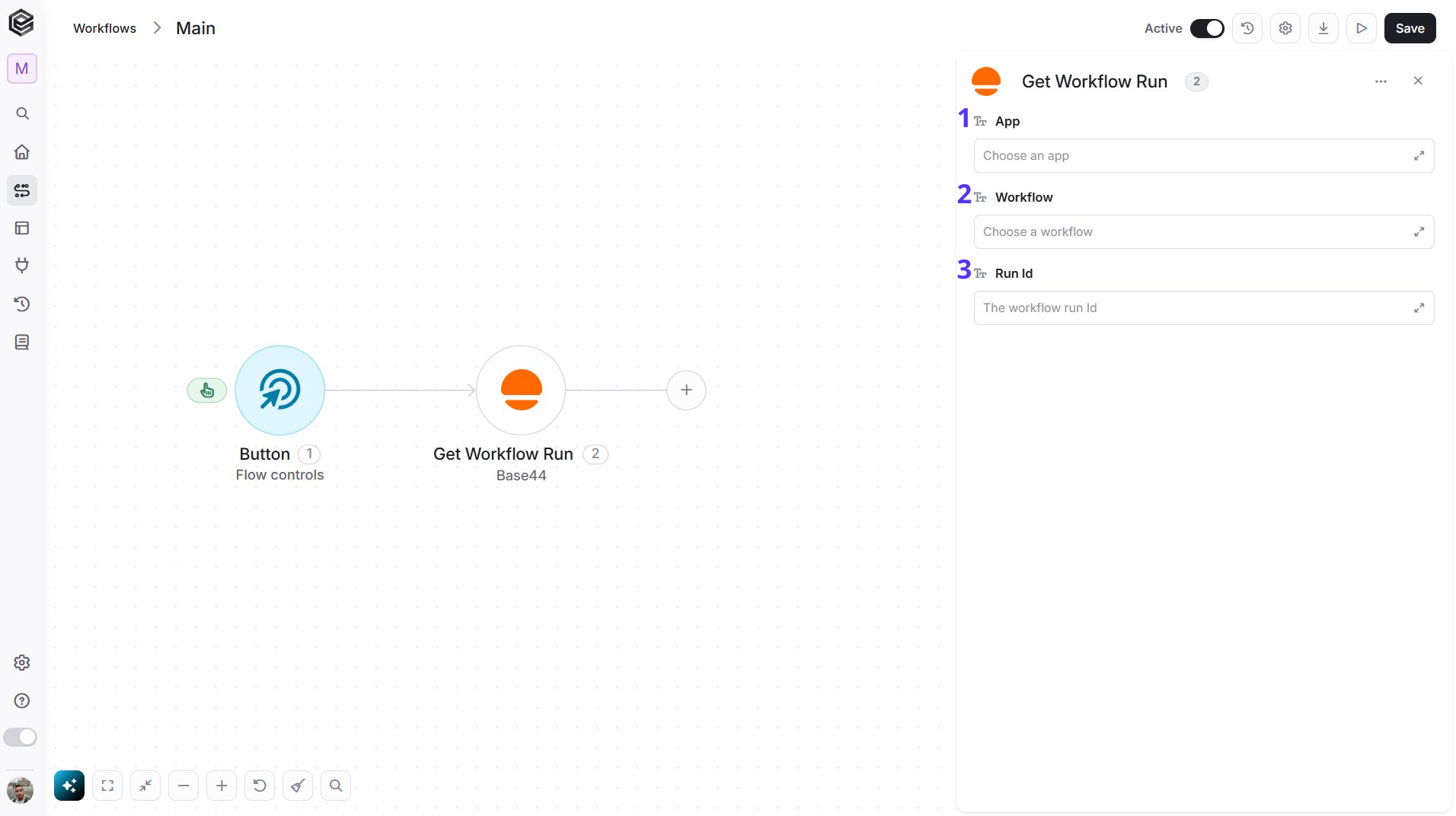
- App - Choose the app from the list that loads from your Base44 account, map an App Id from a previous step, or enter it as text.
- Workflow - Choose the workflow from the list that loads for the selected app, map a workflow Id from a previous Get Workflows step, or enter it as text. Select the App first so the list can load.
- Run Id - The Id of the run. Map it from a previous Run Workflow or Get Workflow Runs step, or enter it as text.
Get Workflow Runs
Retrieves the runs of a Base44 app workflow.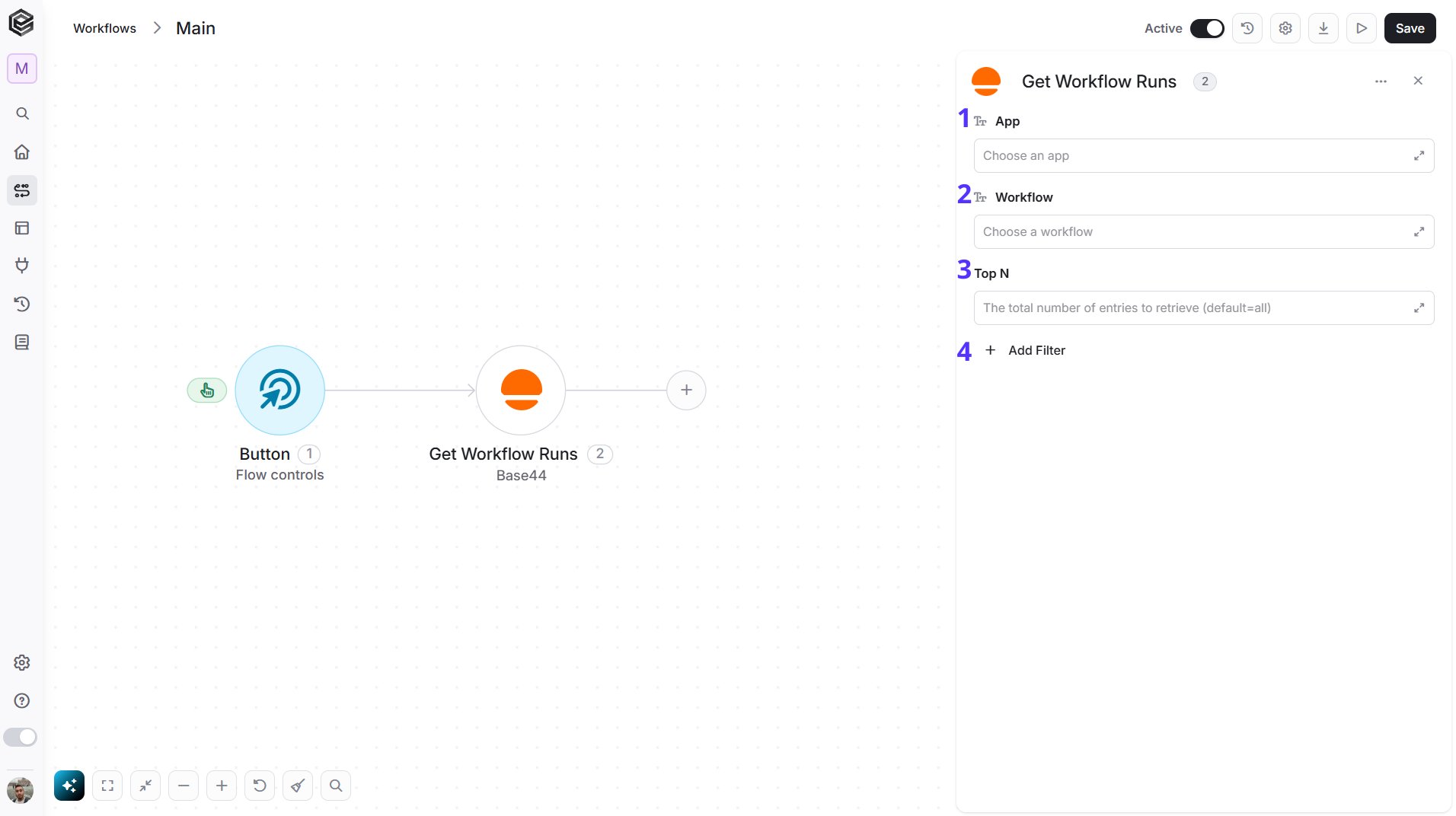
- App - Choose the app from the list that loads from your Base44 account, map an App Id from a previous step, or enter it as text.
- Workflow - Choose the workflow from the list that loads for the selected app, map a workflow Id from a previous Get Workflows step, or enter it as text. Select the App first so the list can load.
- Top N - You can set the maximum number of runs Engini will return (default = all runs).
- Add Filter - Click Add Filter to define conditions that narrow down the data list and return only the relevant items. To learn more about using filters, click here.
- Status - Return only runs with this status, for example
failed. - Started Since - Return only runs that started on or after this date and time.
Get Workflows
Retrieves the workflows of a Base44 app, with their status, number of runs and last run.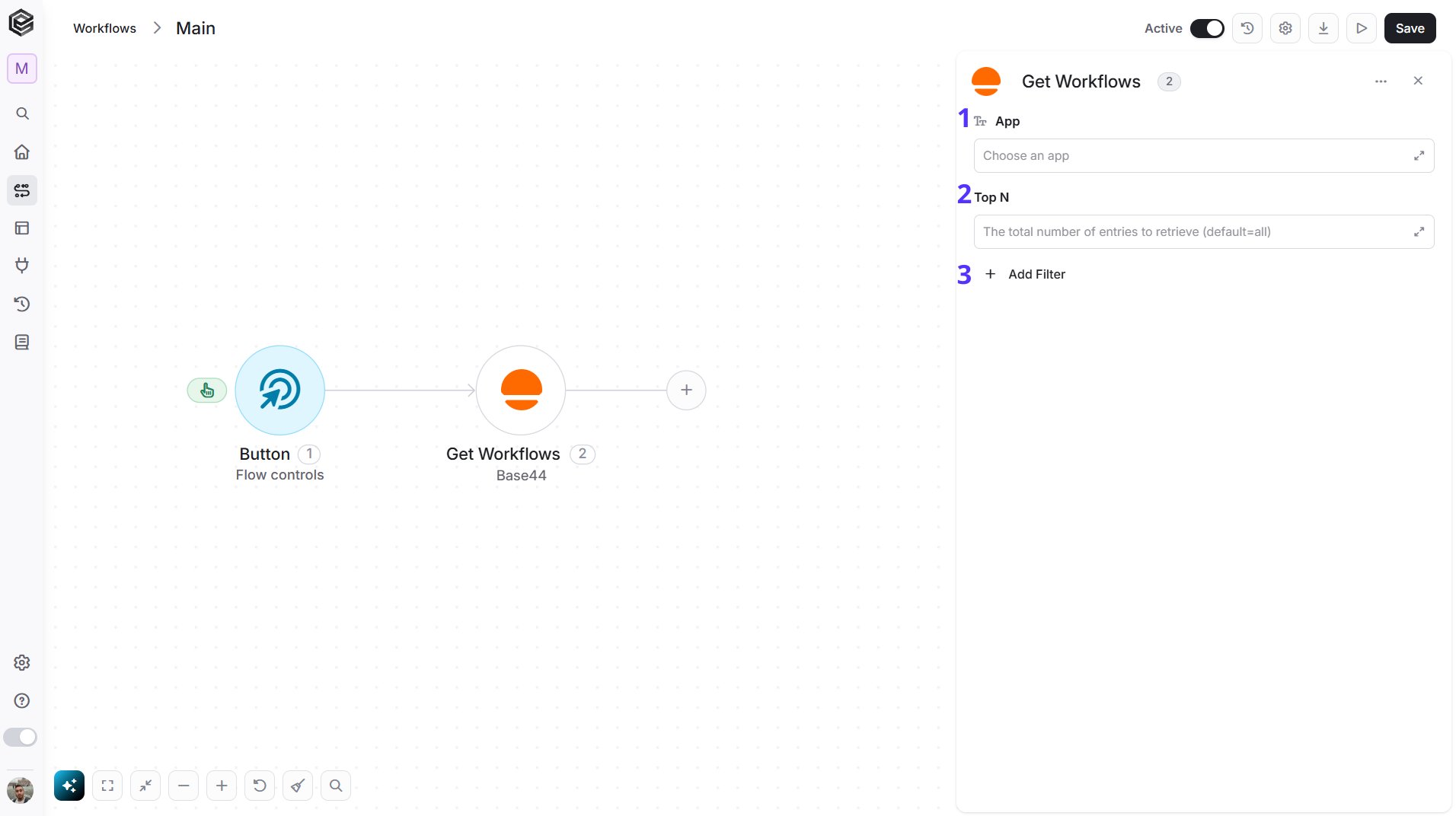
- App - Choose the app from the list that loads from your Base44 account, map an App Id from a previous step, or enter it as text.
- Top N - You can set the maximum number of workflows Engini will return (default = all workflows).
- Add Filter - Click Add Filter to define conditions that narrow down the data list and return only the relevant items. To learn more about using filters, click here.
Invite Users
Invites people to a Base44 app by email.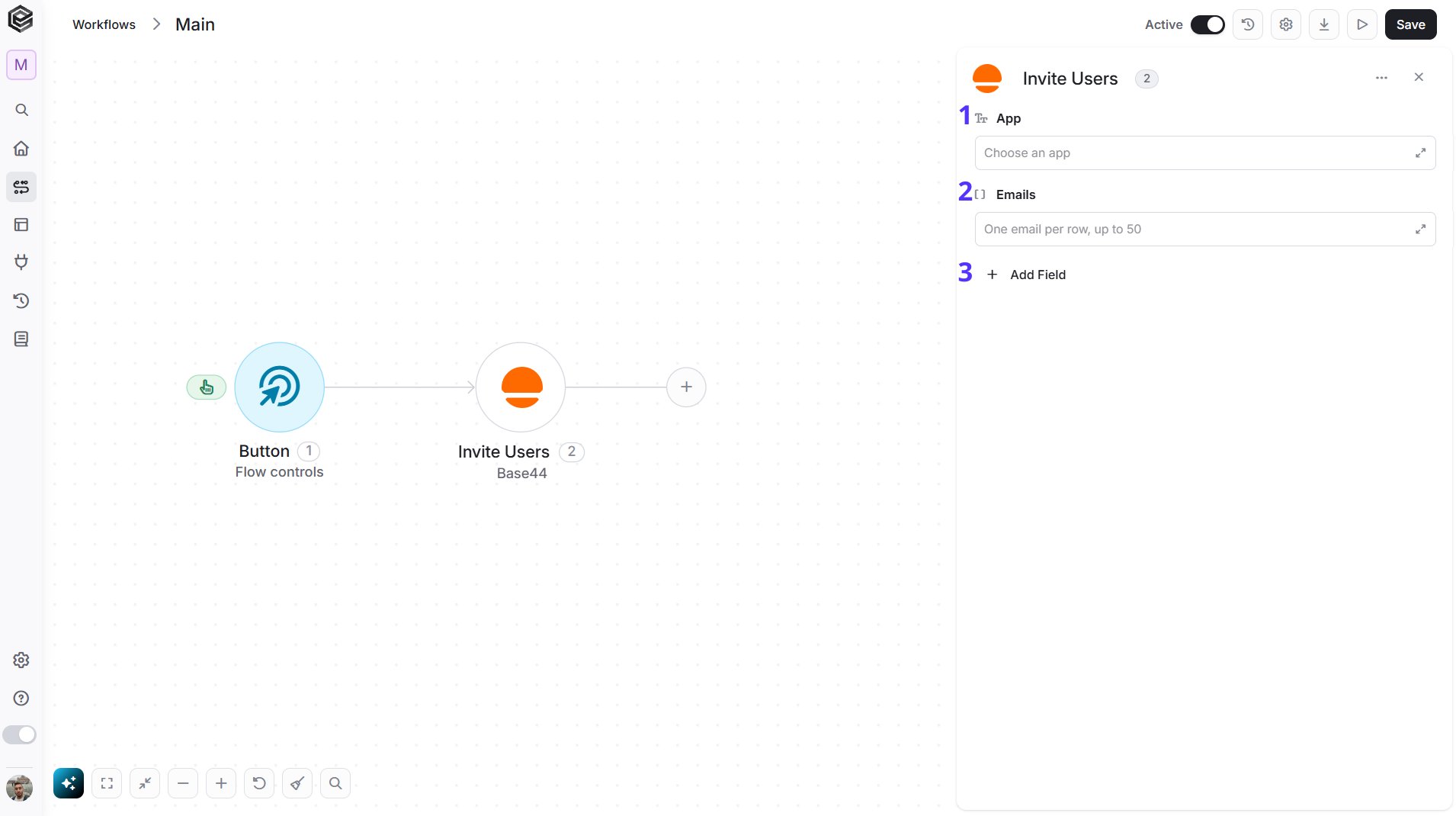
- App - Choose the app from the list that loads from your Base44 account, map an App Id from a previous step, or enter it as text.
- Emails - The email addresses to invite. Enter one email address per row, up to 50 addresses, for example
dana@company.comin the first row andlee@company.comin the second. To invite a list you already have, map the list from a previous step instead. This field is required. - Add Field - Click Add Field to add and populate additional fields for the selected activity. To learn more about managing activity data, click here.
Run Workflow
Starts a run of a Base44 app workflow right now and returns the Id of the new run.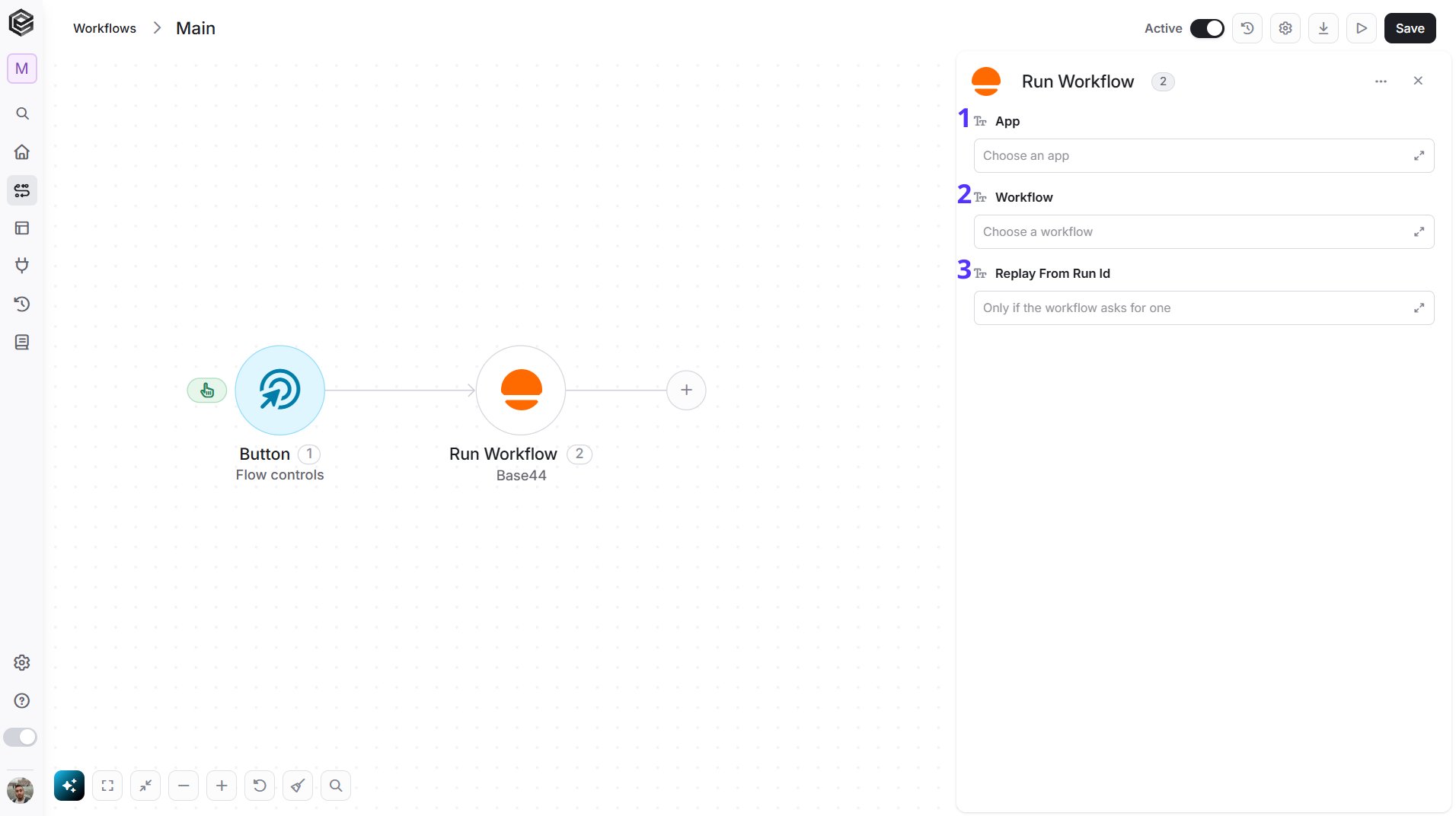
- App - Choose the app from the list that loads from your Base44 account, map an App Id from a previous step, or enter it as text.
- Workflow - Choose the workflow from the list that loads for the selected app, map a workflow Id from a previous Get Workflows step, or enter it as text. Select the App first so the list can load.
- Replay From Run Id - Optional. Enter the Id of an earlier run to replay it, only if the workflow asks for one. You can map the Id from a Get Workflow Runs step.
Send Chat Message
Sends a message to the Base44 AI builder of an app, asking it to build or change the app.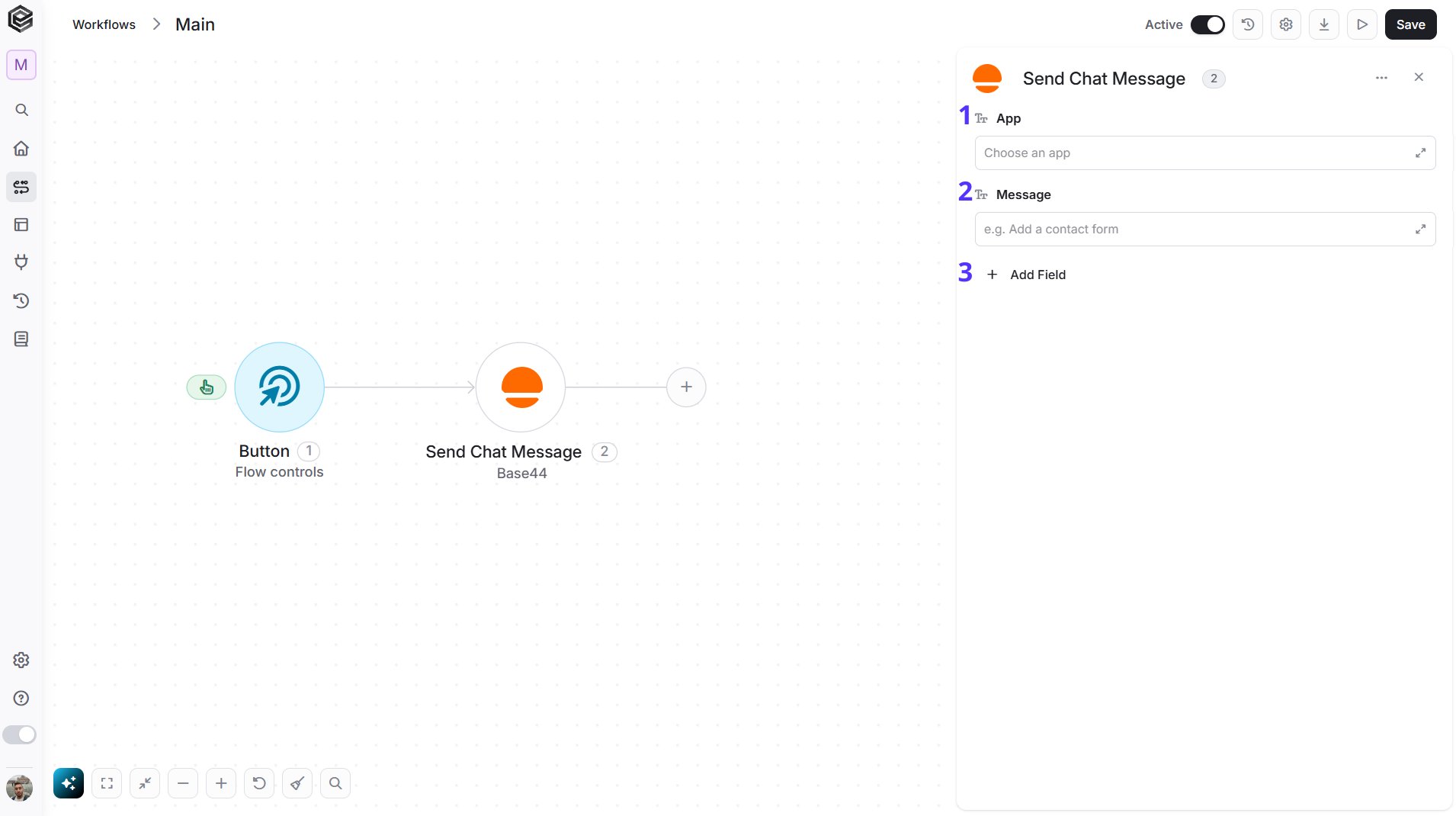
- App - Choose the app from the list that loads from your Base44 account, map an App Id from a previous step, or enter it as text.
- Message - The instruction for the builder, for example
Add a contact form. - Add Field - Click Add Field to add and populate additional fields for the selected activity. To learn more about managing activity data, click here.
Send Superagent Message
Sends a message to a Base44 Superagent in an existing conversation and returns the message. This action needs a Superagent in your Base44 account.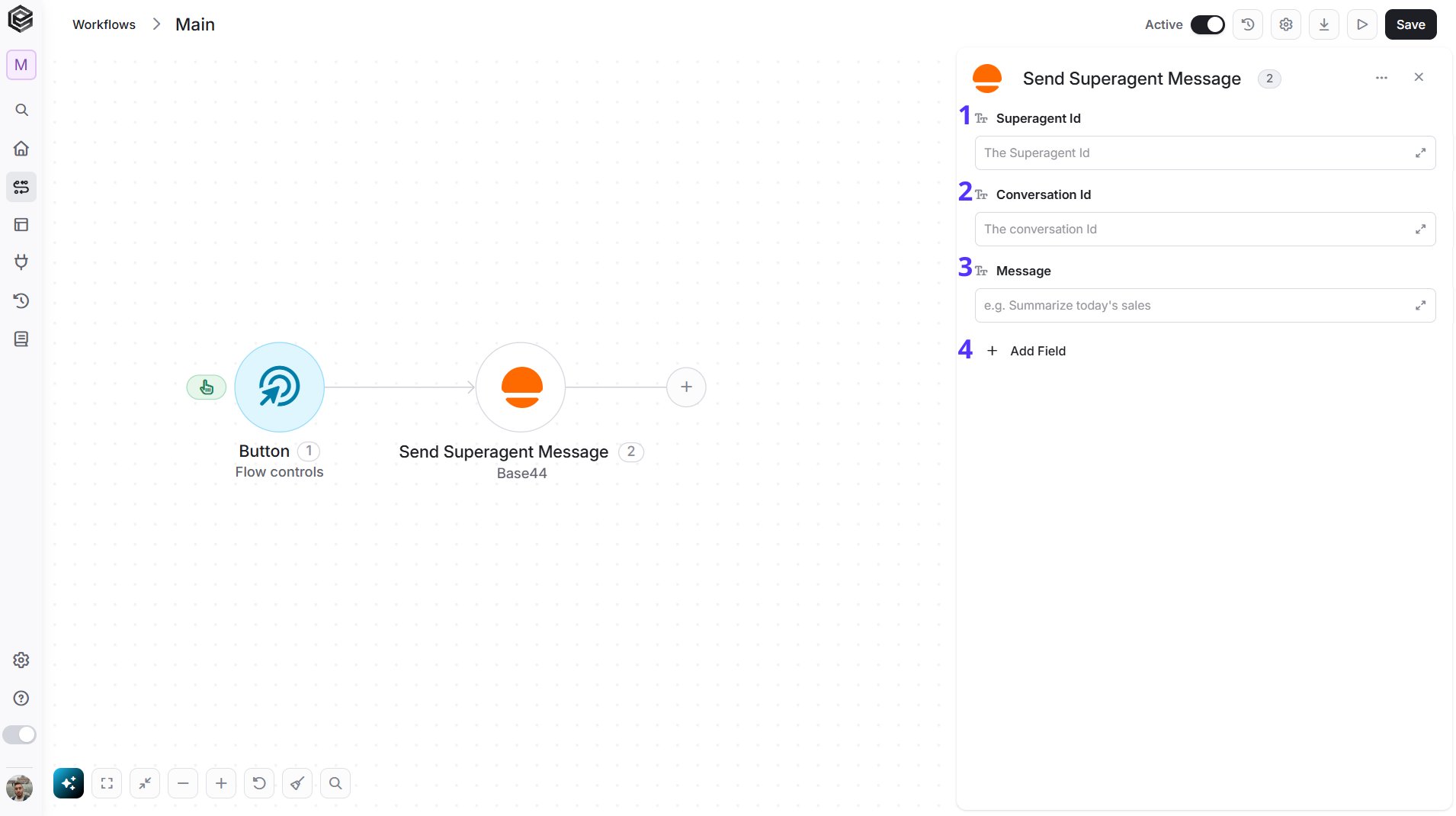
- Superagent Id - The Id of the Superagent. Map it from a previous step or enter it as text.
- Conversation Id - The Id of the conversation. Map it from a previous Create Superagent Conversation step or enter it as text.
- Message - The message to send, for example
Summarize today's sales. - Add Field - Click Add Field to add and populate additional fields for the selected activity. To learn more about managing activity data, click here.
Update Record
Updates the fields of an existing record.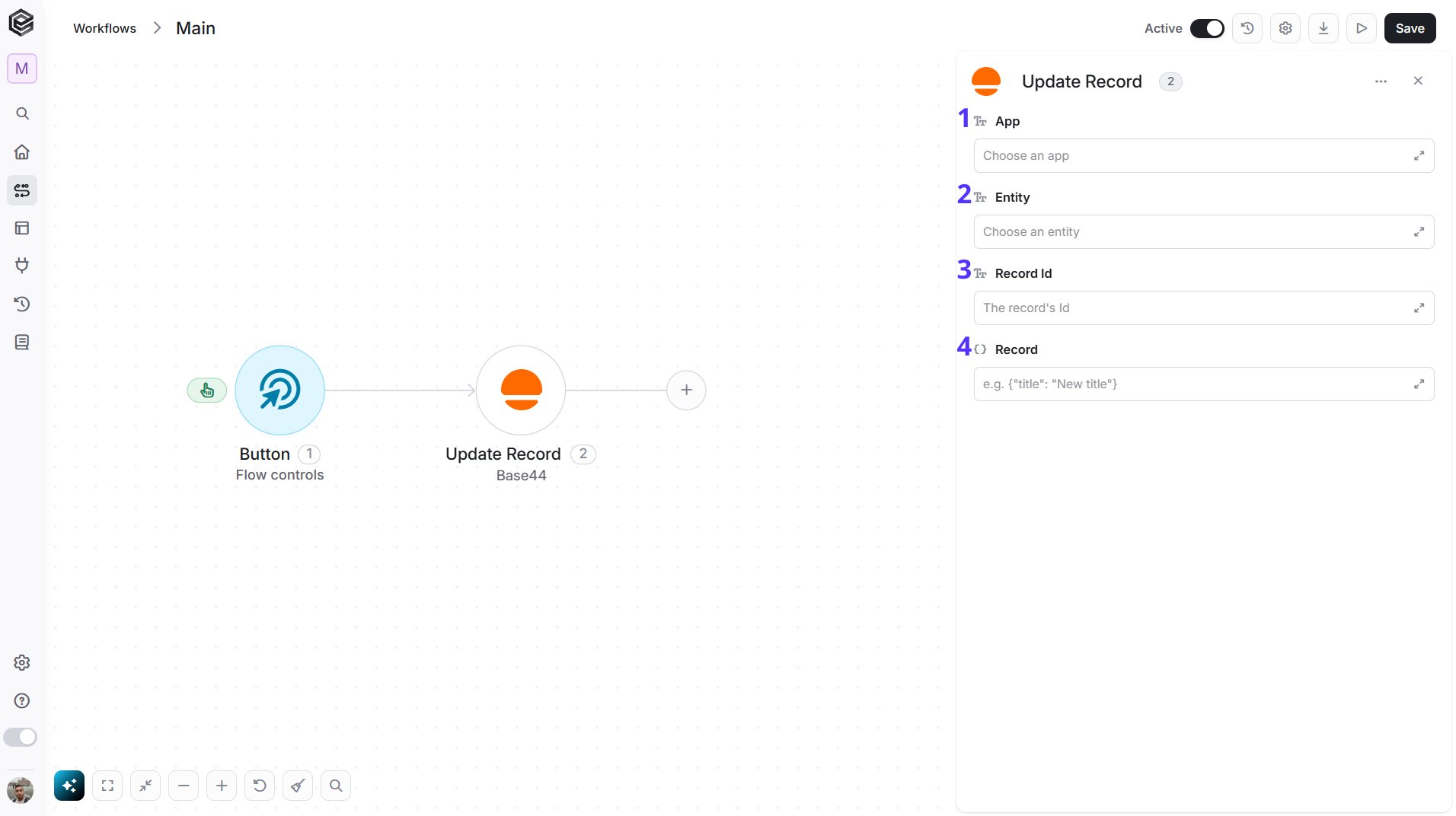
- App - Choose the app from the list that loads from your Base44 account, map an App Id from a previous step, or enter it as text.
- Entity - Choose the entity (the data table of the app) from the list that loads for the selected app, map an entity name from a previous step, or enter it as text. Select the App first so the list can load.
- Record Id - The Id of the record. Map it from a previous Create Record, Get Record or Get Records step, or enter it as text.
- Record - The fields to change as JSON, for example
{"status": "done"}. Fields you leave out stay as they are.
Upsert Records
Creates or updates records in an entity in one step: a record that already matches on the key field is updated, any other is created.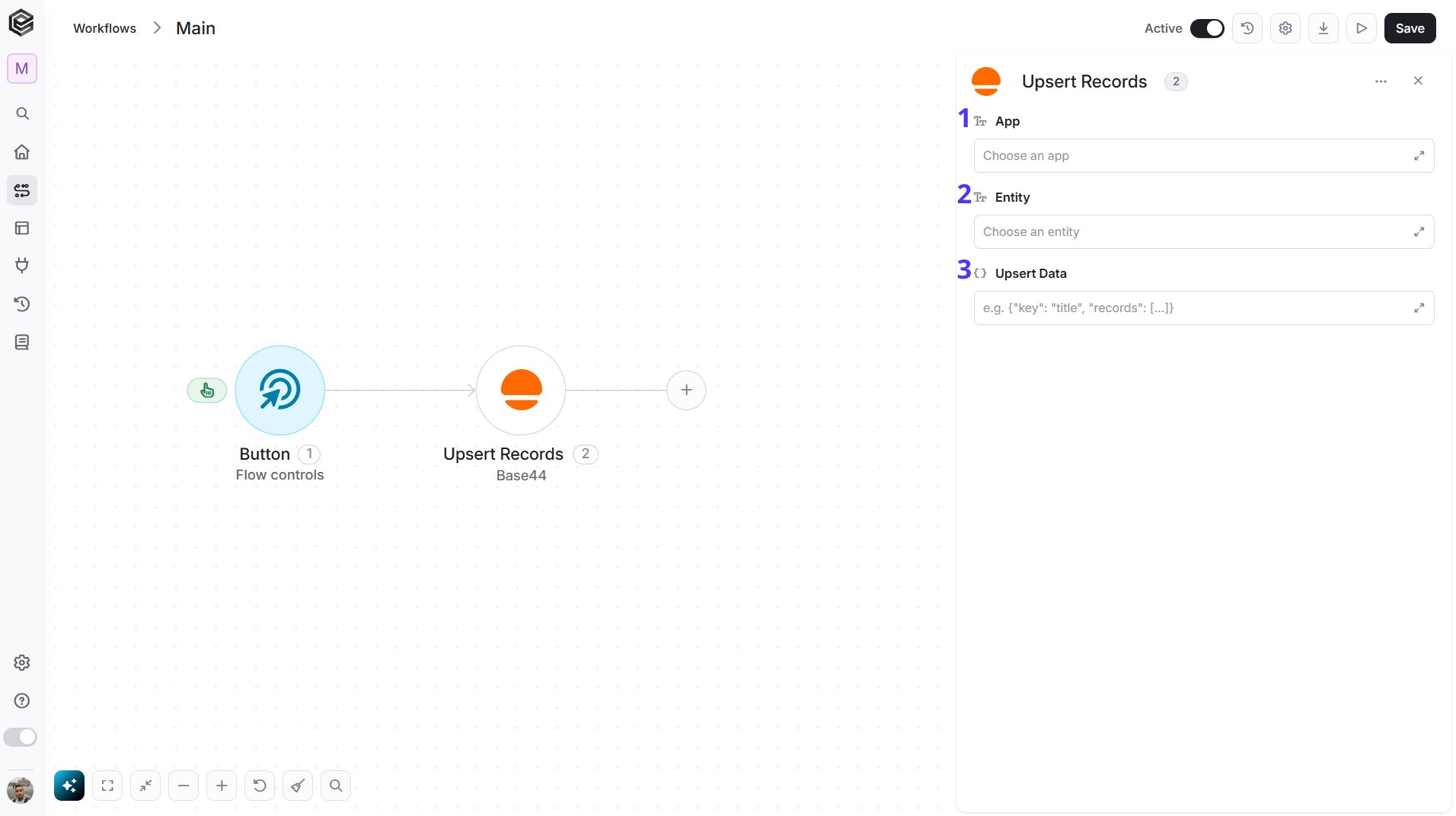
- App - Choose the app from the list that loads from your Base44 account, map an App Id from a previous step, or enter it as text.
- Entity - Choose the entity (the data table of the app) from the list that loads for the selected app, map an entity name from a previous step, or enter it as text. Select the App first so the list can load.
- Upsert Data - JSON with the name of the key field and the records, for example
{"key": "email", "records": [{"email": "dana@company.com", "name": "Dana"}]}.
Send API Request
This activity allows you to send a custom API request directly to Base44’s API.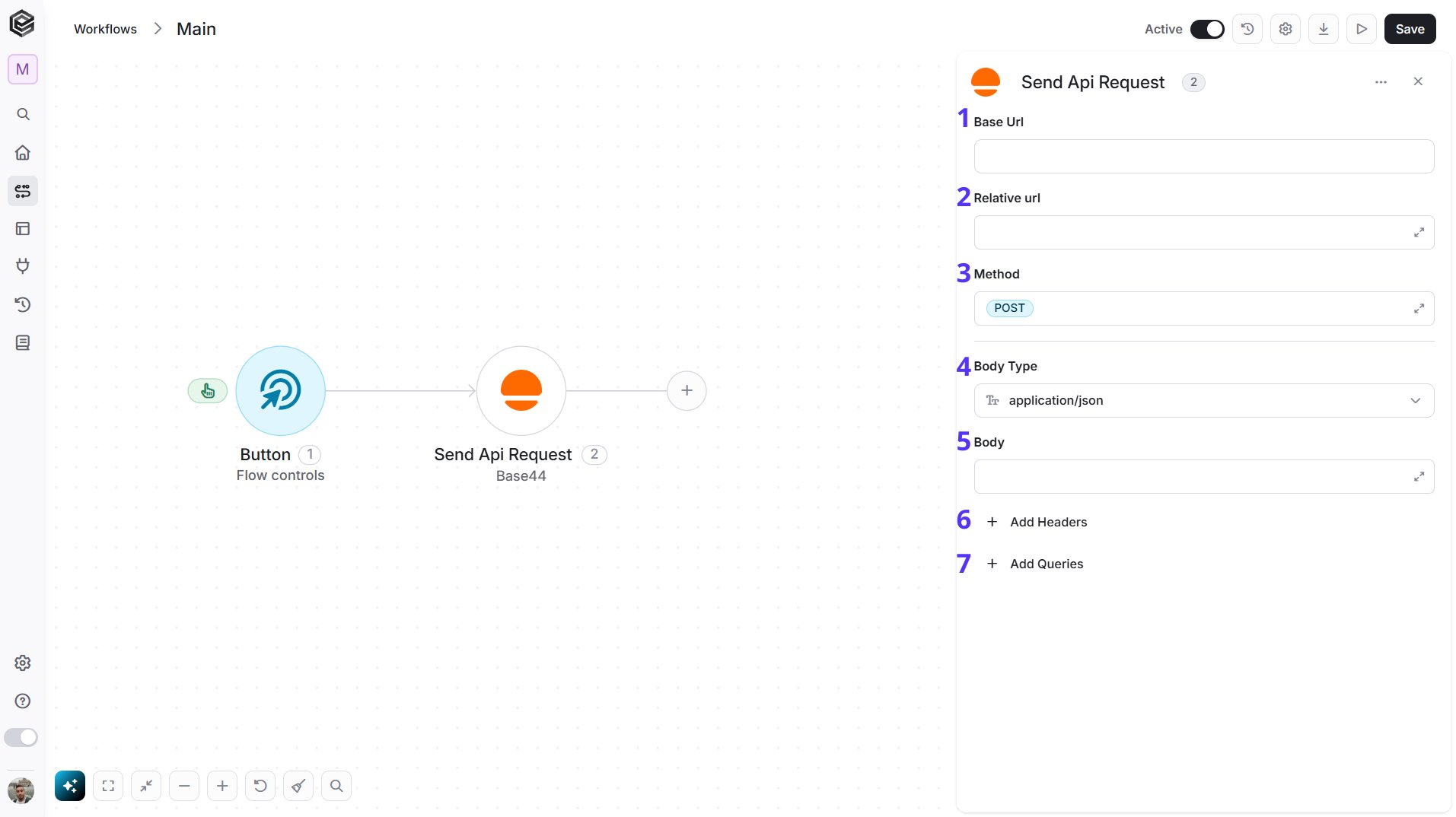
- Base Url - The root URL of the Base44 API. It is filled in from your Base44 connection and can’t be edited here.
- Relative url - You can specify additional path segments or parameters that need to be added to the end of the Base Url. This allows you to customize the specific request you want to perform.
- Method - Select the HTTP method (e.g., Get, Post, Put, Delete, Patch). The default is POST.
- Body Type - Defines the format of the data in the body of your request. The default, application/json, means the body contains a JSON-formatted payload.
- application/json – Sends the request body in JSON format. Commonly used by REST APIs.
- custom – Allows you to define a custom body format by manually setting the Content-Type header. Add a
Content-Typerow in Add Headers with the media type you need (for exampleapplication/xml). With any other Body Type, a Content-Type you type in Add Headers is not sent; Engini sets it from the Body Type, and the run history shows it underheadersnotsent. - application/x-www-form-urlencoded – Sends the body as URL-encoded key-value pairs, commonly used in form submissions.
- file – Sends a file as the request body.
- multipart/form-data – Sends form data that may include both text fields and files.
- text/html – Sends the request body as HTML content.
- text/plain – Sends the request body as plain text.
- text/xml – Sends the request body in XML format.
- Body - Contains any data that is being sent to the server.
- Add Headers - Additional metadata about the request, such as the type of data Engini can accept, the length of the request body, and authentication information.
- Add Queries - The query refers to the parameters or data that are included in the URL of an HTTP request to provide additional information or instructions to the server.