

Add a Connection to AWS Bedrock in Engini
Prerequisites
- An AWS account with access to Amazon Bedrock.
- A Bedrock API key from AWS.
-
The AWS Region where you use Bedrock, for example
eu-west-1. Note: The key must be allowed to use the models you want to call. Models and inference profiles are listed for the Region you enter in the connection.
Retrieve your AWS Bedrock API Key
- Sign in to the AWS Console and open Amazon Bedrock.
- Select API keys in the left menu.
- Generate a new API key and copy it.
Connecting Engini to AWS Bedrock
- Enter your Engini account at https://app.engini.io.
-
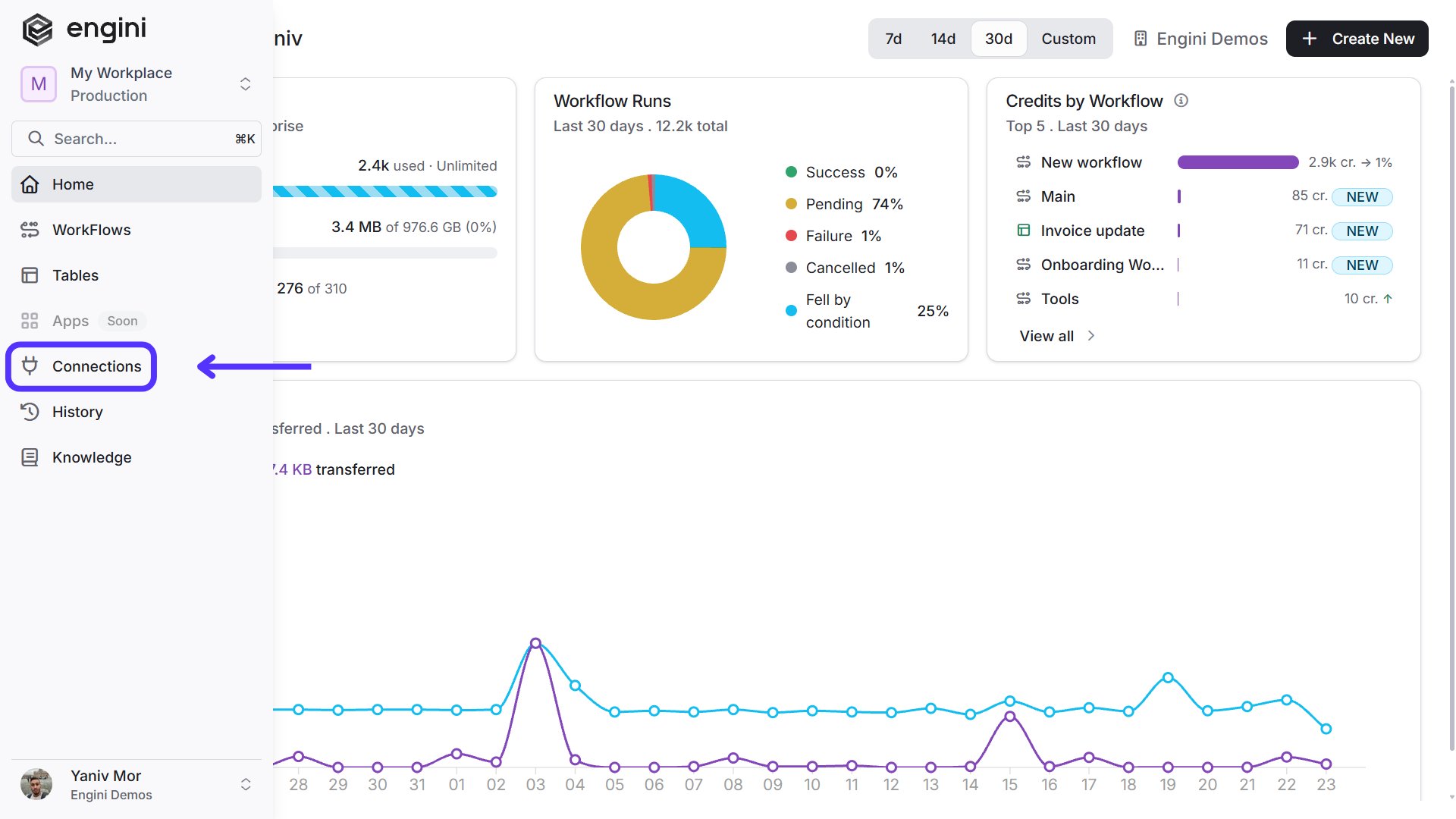
Navigate to the Connections page by clicking on Connections in the left sidebar or by clicking here.
-
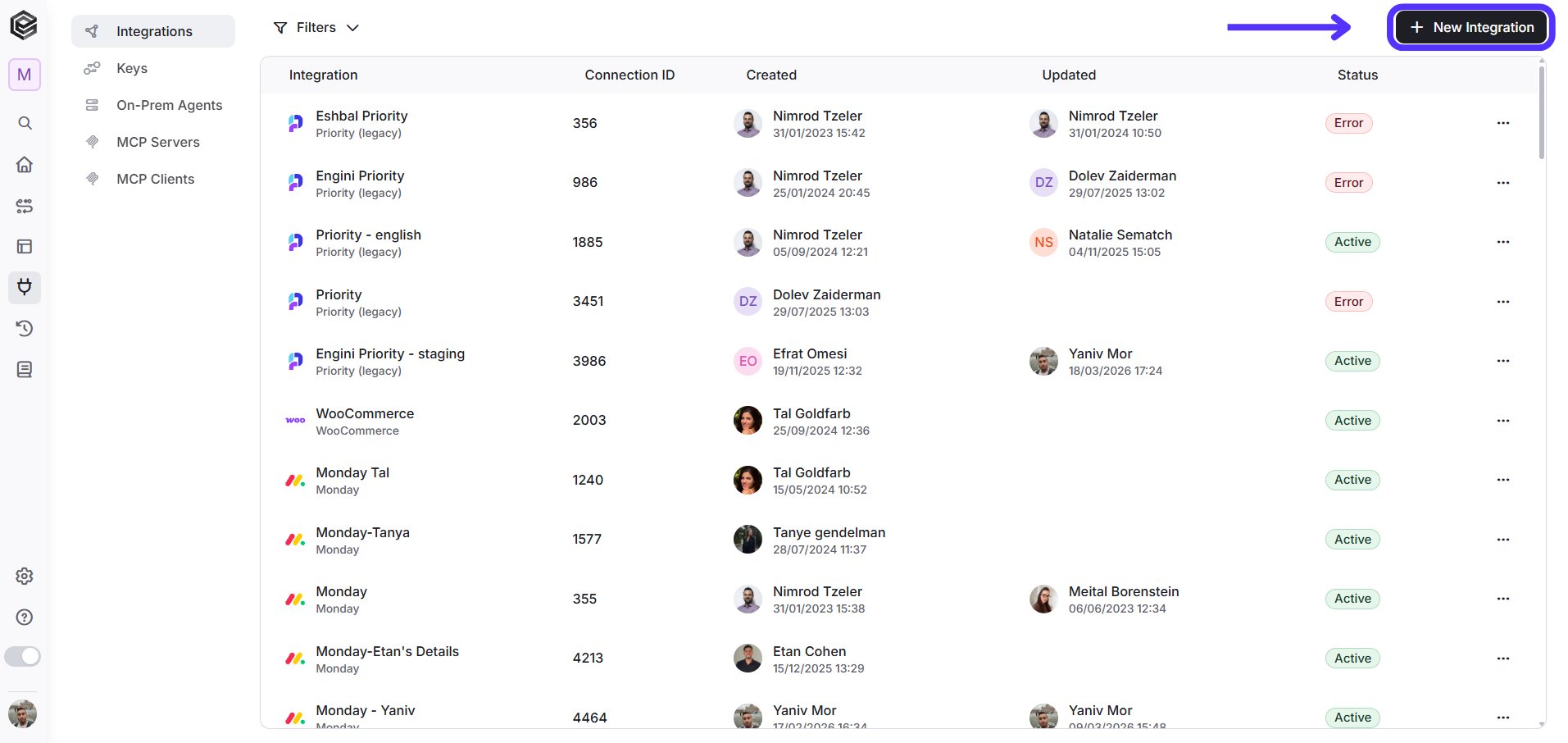
Click on the “New Integration” option located at the top bar.
-
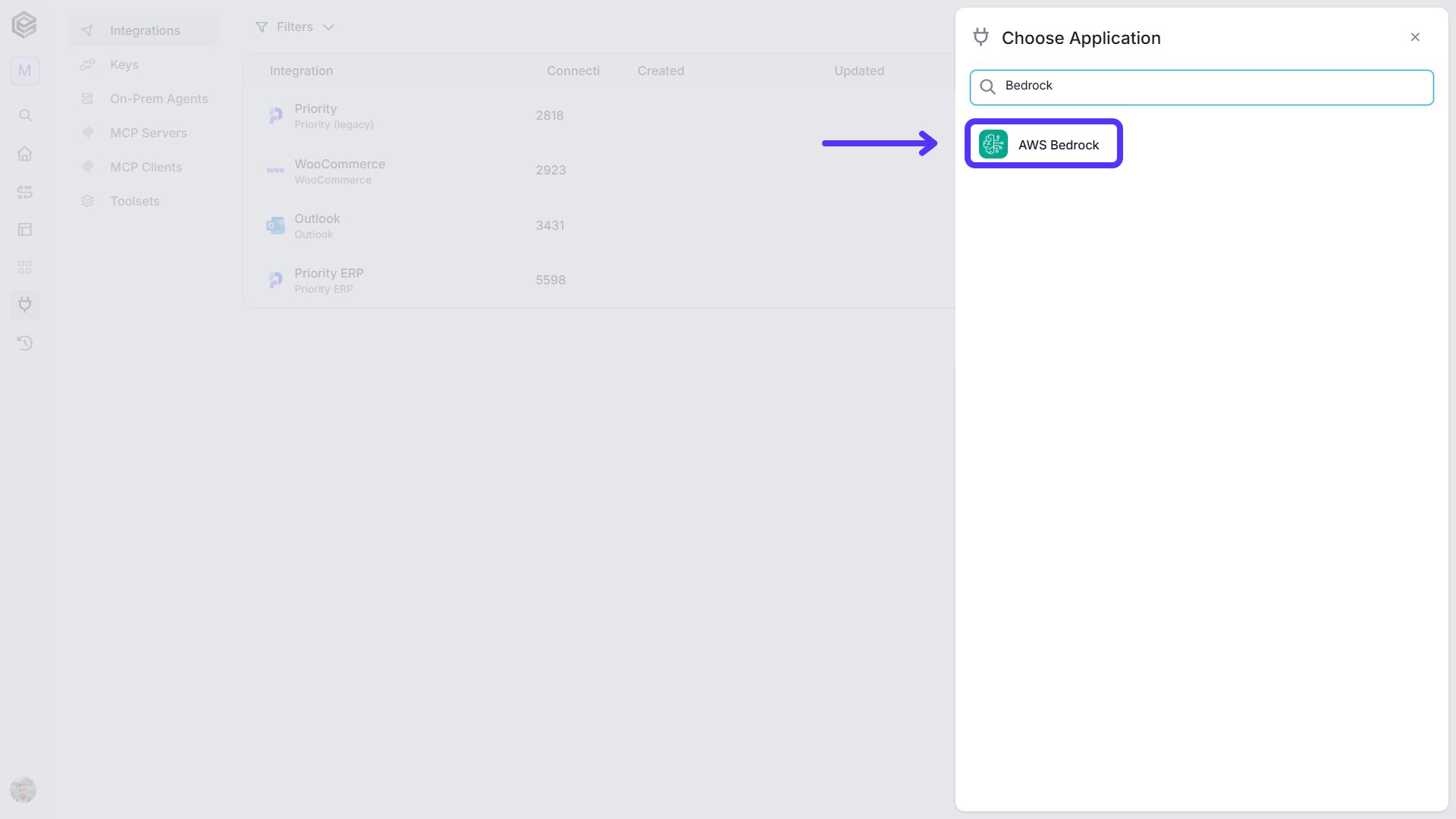
Choose the AWS Bedrock option from the available applications.
-
Enter the following details in the “New Integration” form and press Save:
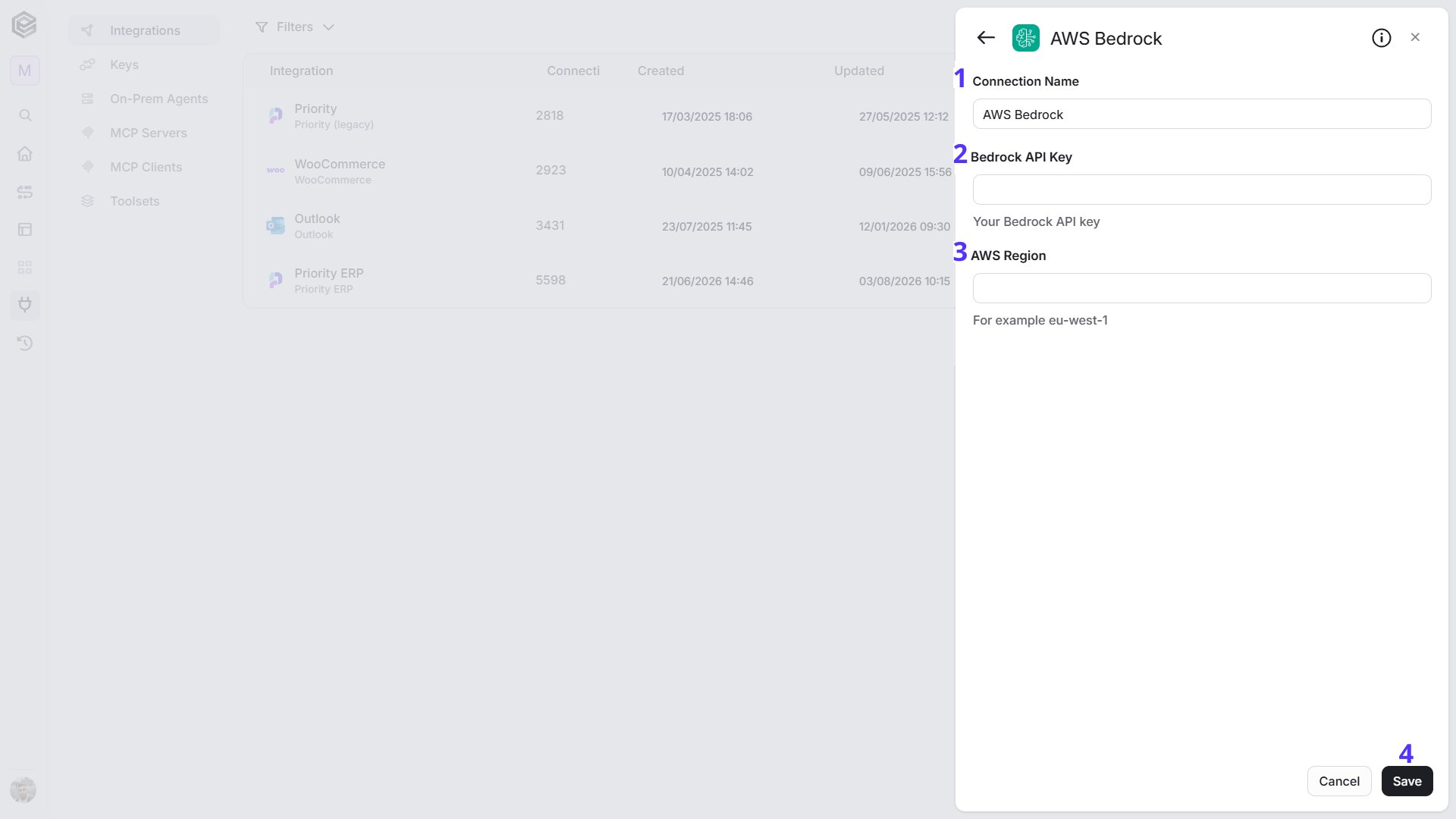
- Connection Name - Enter a name that helps identify the AWS Bedrock connection.
- Bedrock API Key - Enter the Bedrock API key you created in AWS. The key is stored as a secret and is sent with every request to Bedrock.
- AWS Region - Enter the AWS Region you work in, for example eu-west-1. Engini sends your requests to Bedrock in this Region, and the model lists show what is available there.
- Save - Click Save to create the connection.
Use AWS Bedrock as an AI Model
Chat Model
AWS Bedrock chat models can power the AI Agent. In the AI Agent step, add an AI model, choose your AWS Bedrock connection, and set the following field.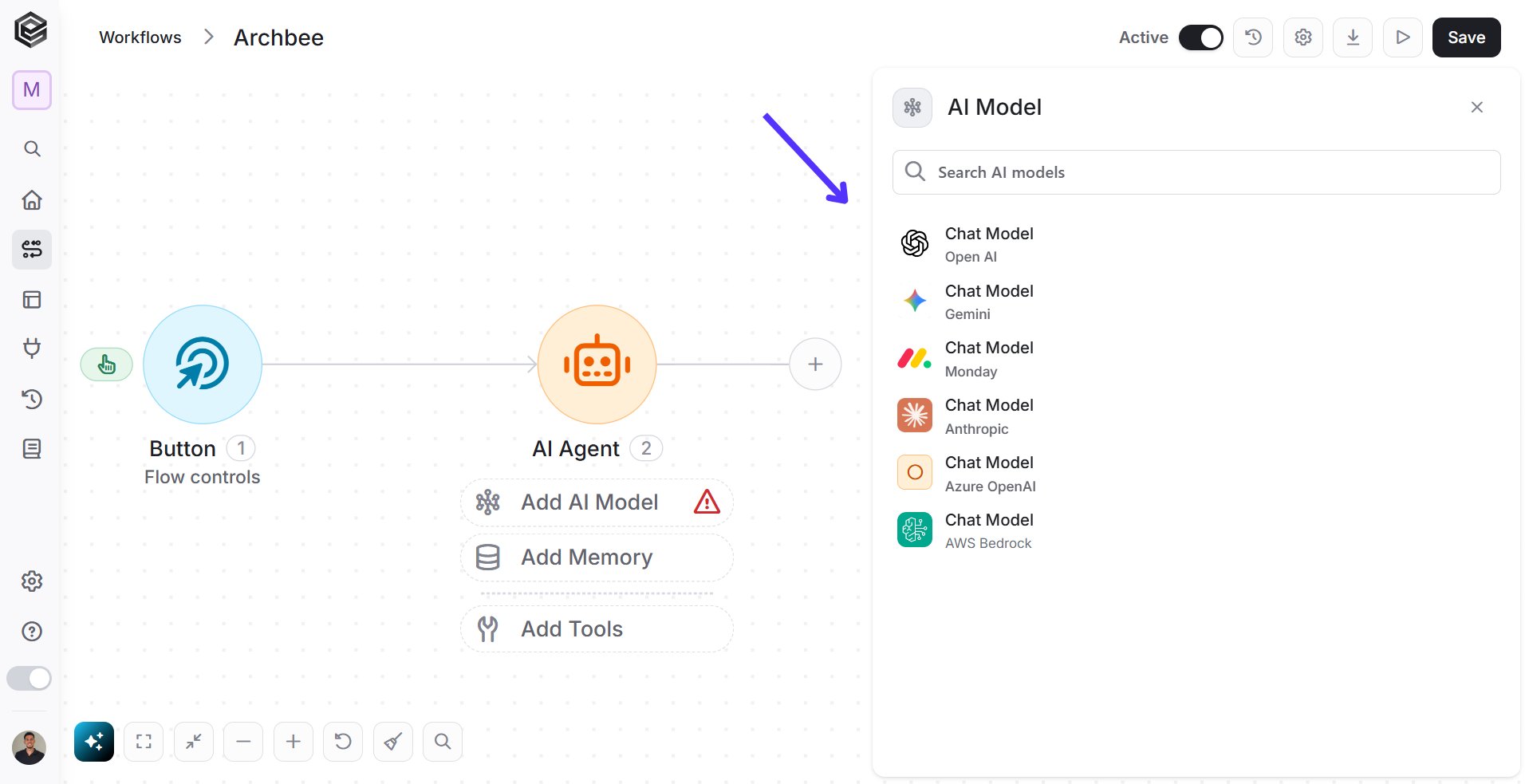
- Model - Choose the Bedrock model or inference profile the agent will use, or enter its Id, for example
anthropic.claude-sonnet-4-6. The list shows the models and inference profiles available in your connection’s Region.
Actions
Apply Guardrail
Checks a piece of text against a guardrail you created in Amazon Bedrock, and tells you whether the guardrail would step in.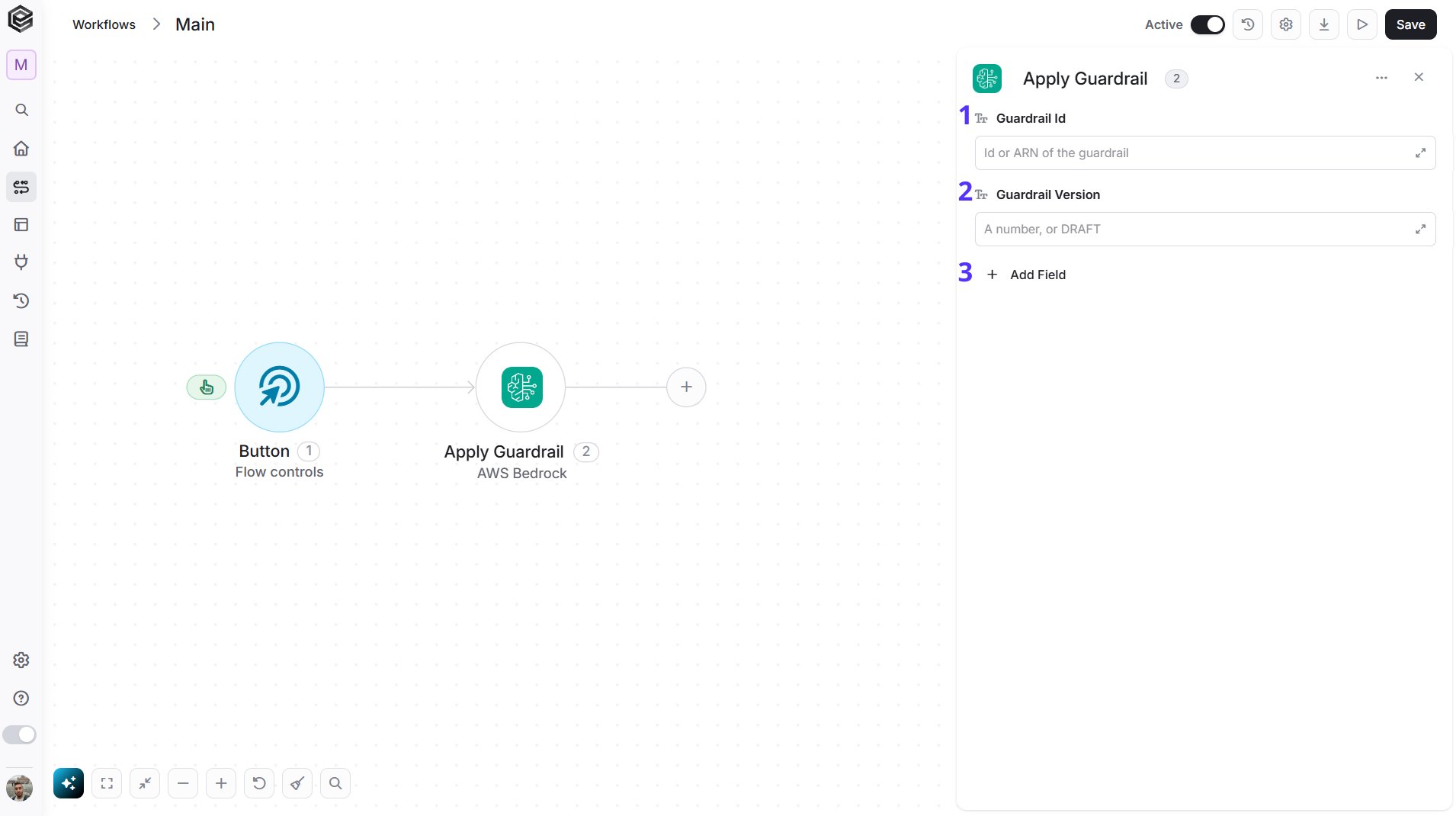
- Guardrail Id - The Id or the full ARN of your guardrail, for example
a1b2c3d4e5f6. You can find it in the Amazon Bedrock console under Guardrails. - Guardrail Version - The version of the guardrail to use: a number such as
1, orDRAFTfor the working draft. - Add Field - Click Add Field to add and populate additional fields for the selected activity. To learn more about managing activity data, click here.
- Source and Content are required and are added through Add Field. In Source, choose Input (user prompt) to check what a user sends to a model, or Output (model reply) to check what a model answers. In Content, add the text to check in its Text field.
- Output Scope is optional and sets how much detail is returned: Interventions only or Full details.
- The result tells you whether the guardrail stepped in, so you can use it in a later Condition step.
Count Tokens
Counts how many tokens a conversation would use with a model, without running the model. Use it to estimate size and cost before you send a request.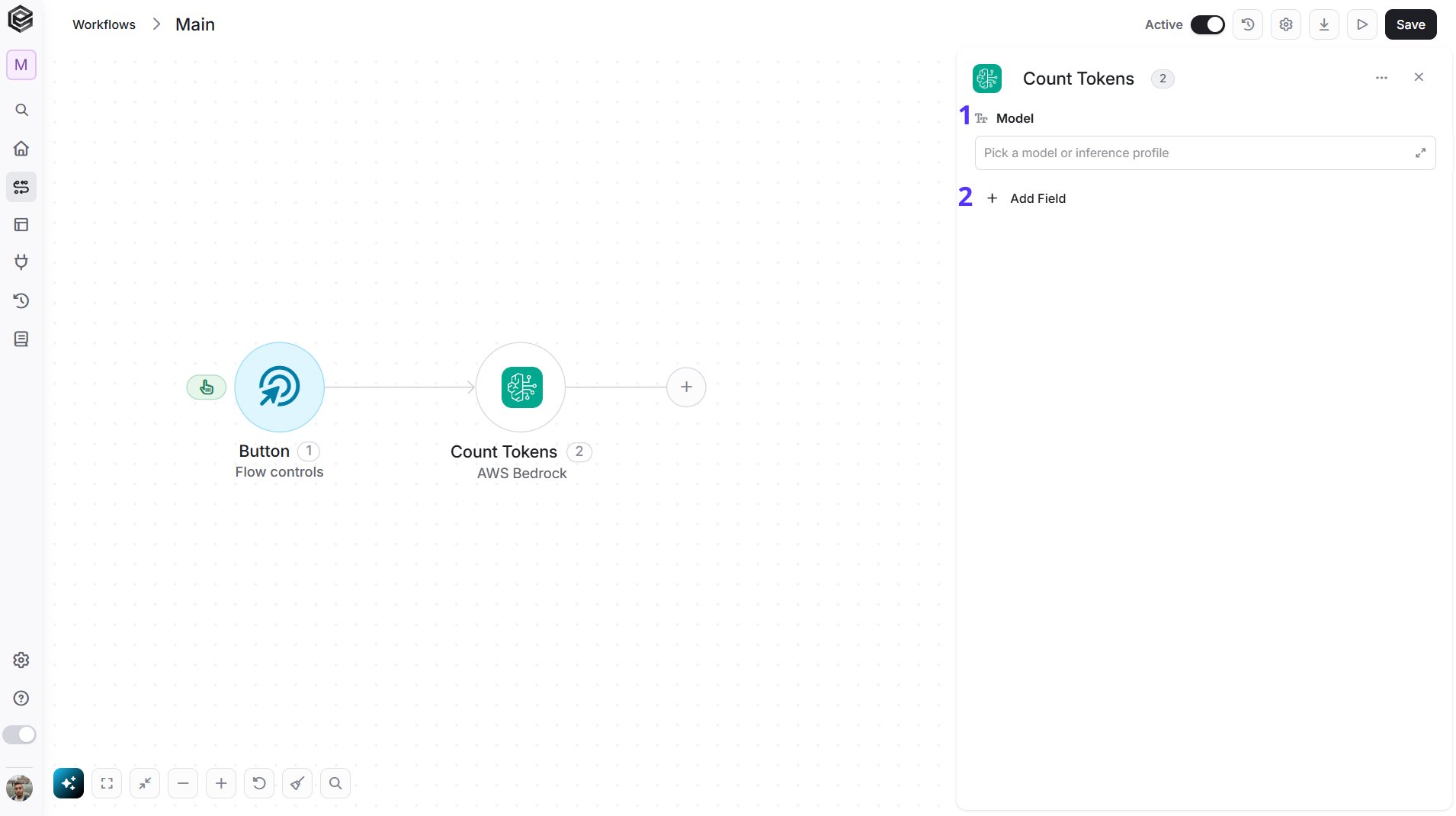
- Model - The model to count tokens for. Enter its Id, choose it from the list, or map the Id from a previous step.
- Add Field - Click Add Field to add and populate additional fields for the selected activity. To learn more about managing activity data, click here.
- Messages is required and is added through Add Field. It has the same structure as in Create Chat Completion. System Prompts is optional.
- Count Tokens works only with models that AWS lets you count tokens for, entered by their plain model Id, for example
anthropic.claude-sonnet-4-6. For other models, including Nova Lite and inference profiles that start witheu., AWS returns an error saying that the model doesn’t support counting tokens.
Create Chat Completion
Sends a conversation to a Bedrock model and returns the model’s reply.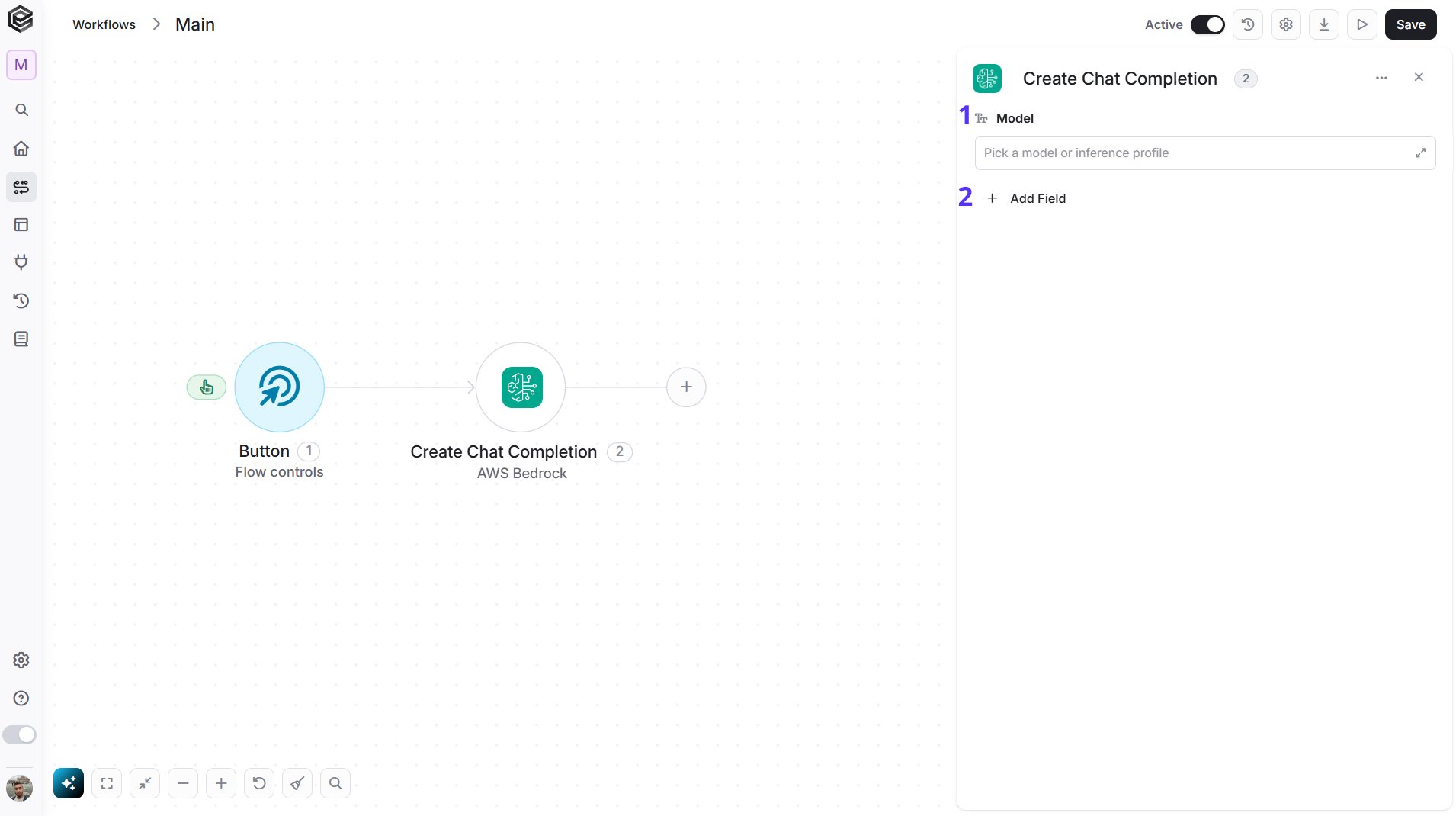
- Model - The model or inference profile that answers. Enter its Id, choose it from the list, or map the Id from a previous step. For example,
anthropic.claude-sonnet-4-6. - Add Field - Click Add Field to add and populate additional fields for the selected activity. To learn more about managing activity data, click here.
- Messages is required and is added through Add Field. It is the conversation so far, oldest first. Build it with Initialize Object Array and Append to Object Array: each message has a role (
userorassistant) and its text. - Optional fields include System Prompts (instructions for the model), Max Tokens, Temperature, Top P and Stop Sequences. Temperature and Top P accept values from 0 to 1, and not every model uses them.
- To apply a guardrail to the conversation, add Guardrail Id and Guardrail Version, and optionally Guardrail Trace.
Generate Image
Creates an image from a text description using a Stability AI model on Amazon Bedrock.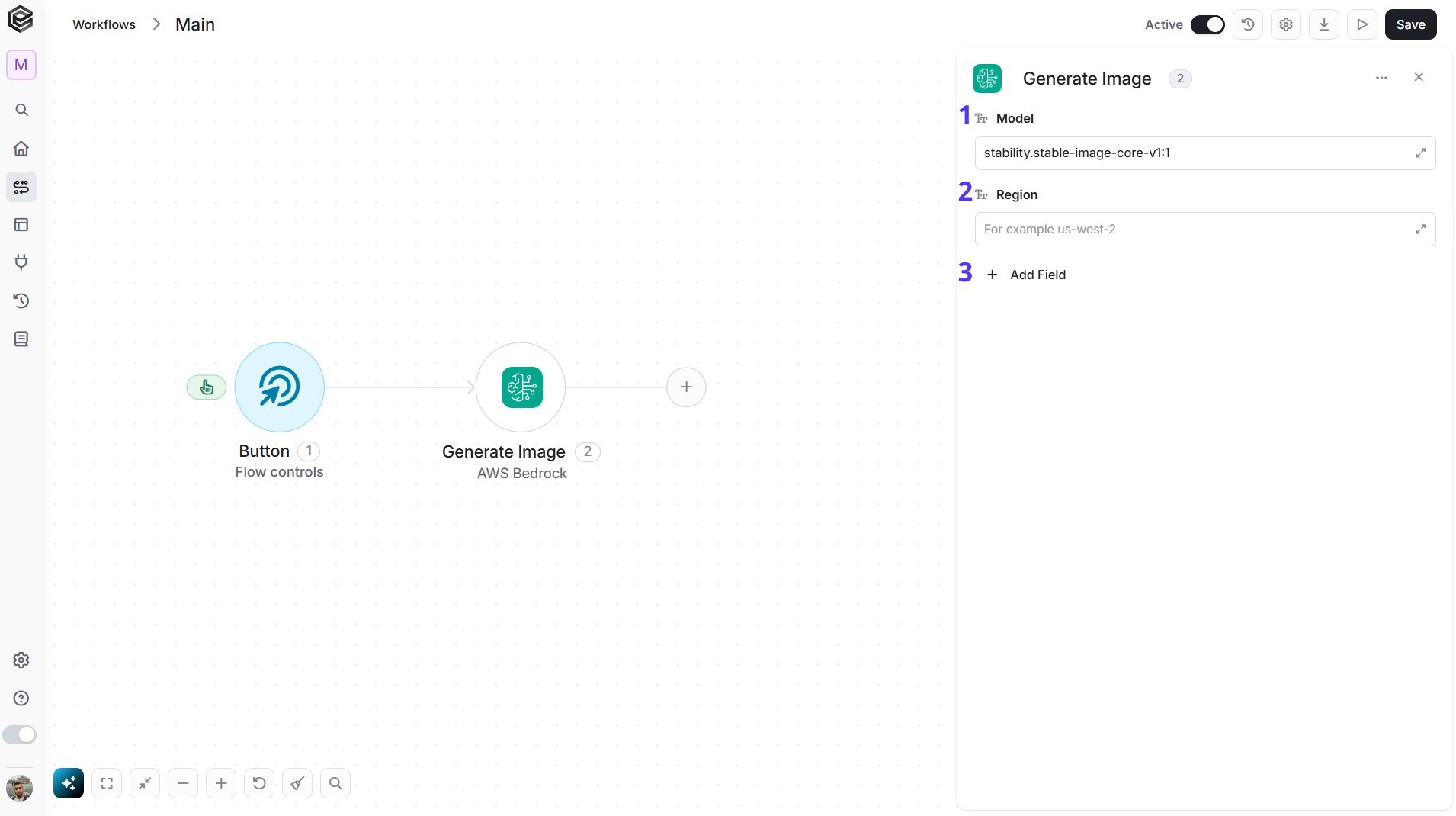
- Model - Choose Stable Image Core, Stable Image Ultra or Stable Diffusion 3.5 Large.
- Region - Choose the Region that runs the model. The image models are available in
us-west-2, so enterus-west-2. If you leave it blank, the Region of your AWS Bedrock connection is used, and that Region may not have an image model. - Add Field - Click Add Field to add and populate additional fields for the selected activity. To learn more about managing activity data, click here.
- Prompt is required and is added through Add Field. Describe what to draw, for example “A red bicycle leaning on a brick wall”.
- Optional fields: Avoid (what to leave out), Aspect Ratio (for example
16:9, default1:1), Seed (a number from 0 to 4294967294, leave blank for a random image) and Image Format (PNG or JPEG, default PNG). - The action returns the generated image as a base64 string, together with the seed and finish reason.
Generate Text Embedding
Turns a piece of text into a list of numbers (an embedding) with the Titan Text Embeddings V2 model. Embeddings are used for search, matching and comparing the meaning of texts.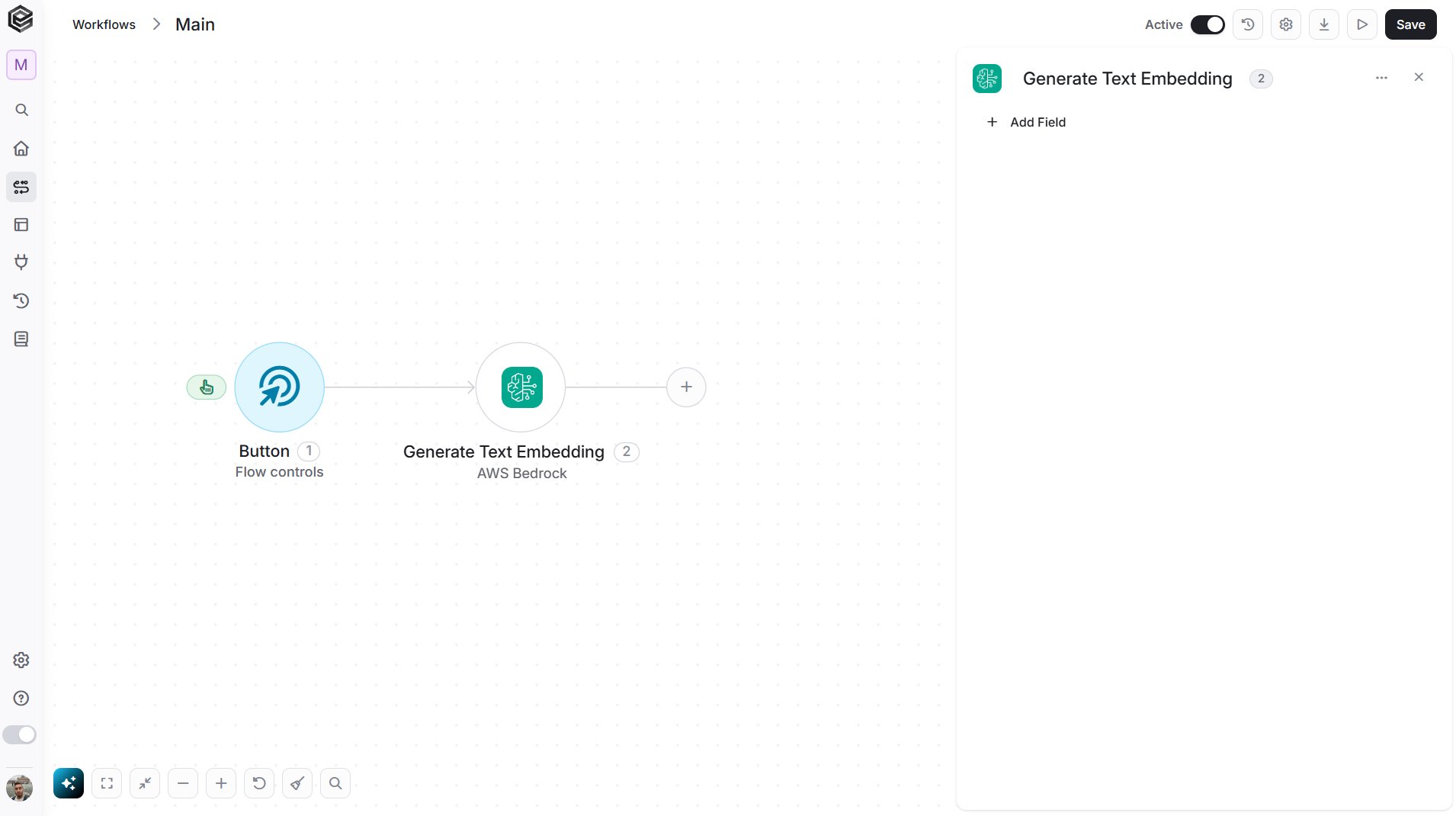
- Add Field - Click Add Field to add and populate additional fields for the selected activity. To learn more about managing activity data, click here.
- Text is required and is added through Add Field. Enter the text to embed, for example a product description.
- Dimensions is optional: choose 256, 512 or 1024 (default 1024). A larger size keeps more detail.
- Normalize is optional and is on by default.
Get Foundation Model
Retrieves the details of one Amazon Bedrock foundation model.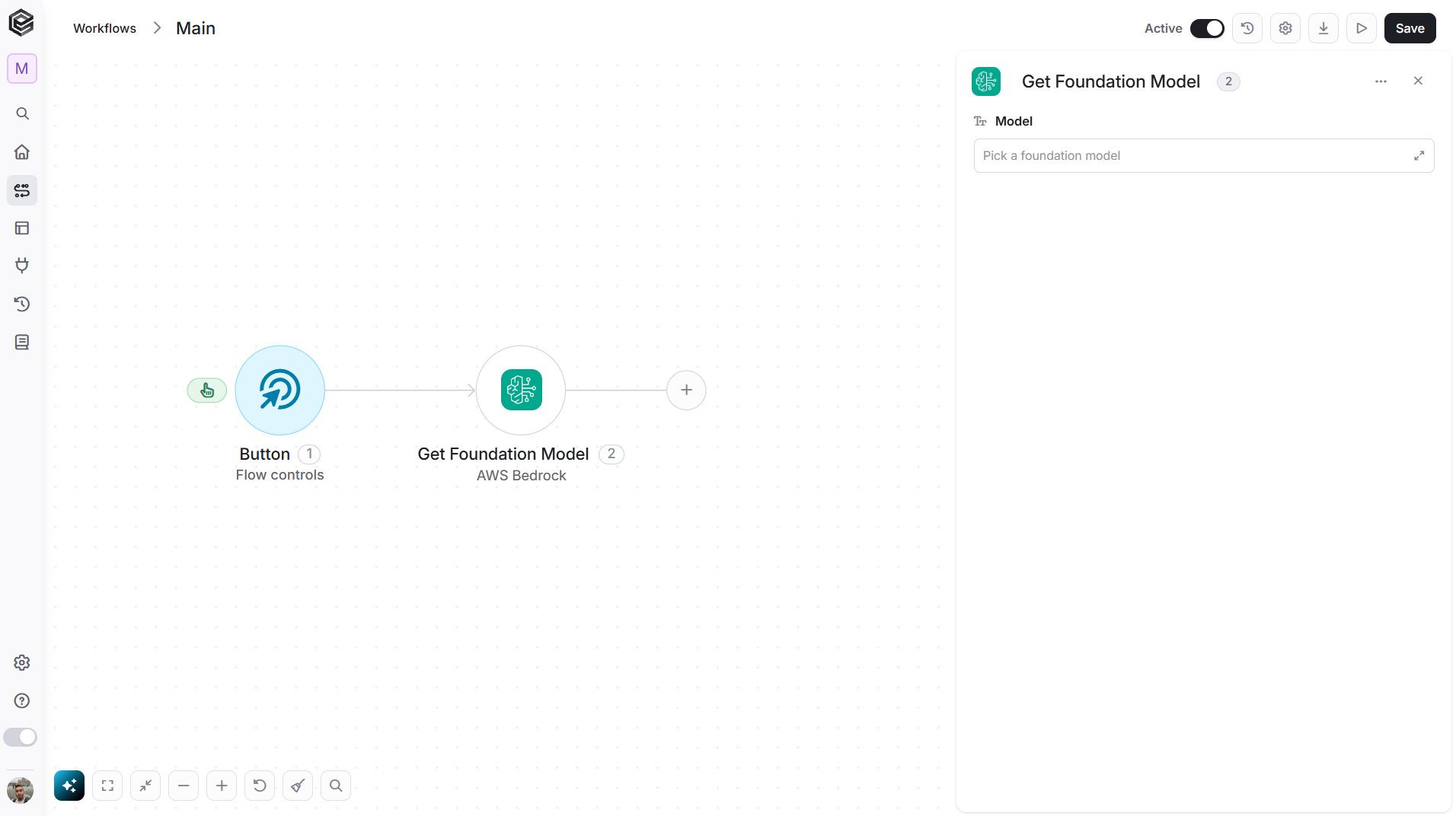
- Model - Enter the Id of the foundation model, choose it from the list, or map its Id from a previous step. The list shows the foundation models available in your connection’s Region.
Get Foundation Models
Retrieves the foundation models that are available in your connection’s Region.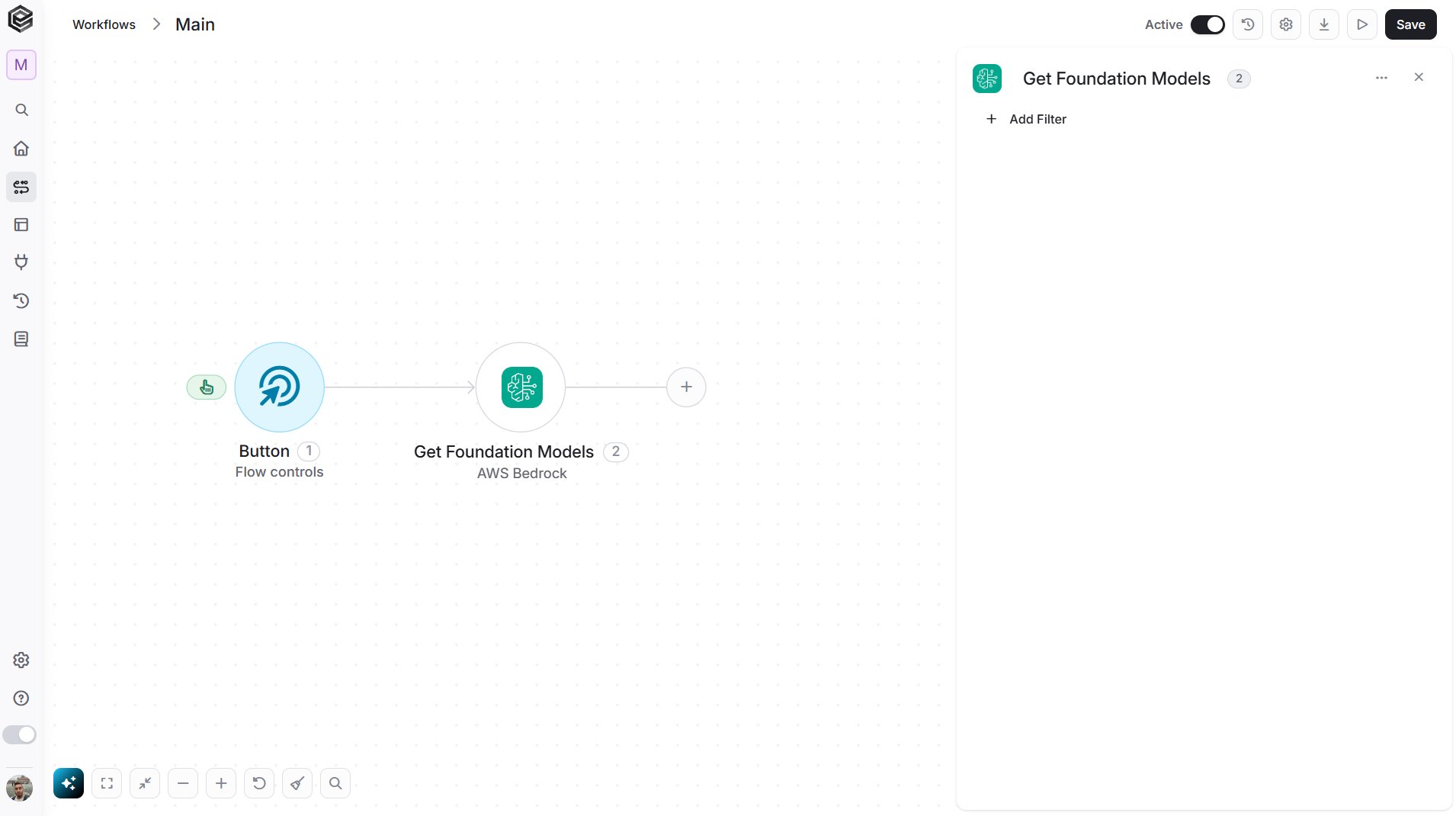
- Add Filter - Click Add Filter to define conditions that narrow down the data list and return only the relevant items. To learn more about using filters, click here.
Get Inference Profiles
Retrieves the inference profiles in your connection’s Region. An inference profile lets you call a model through a Region group, for example a profile whose Id starts witheu..
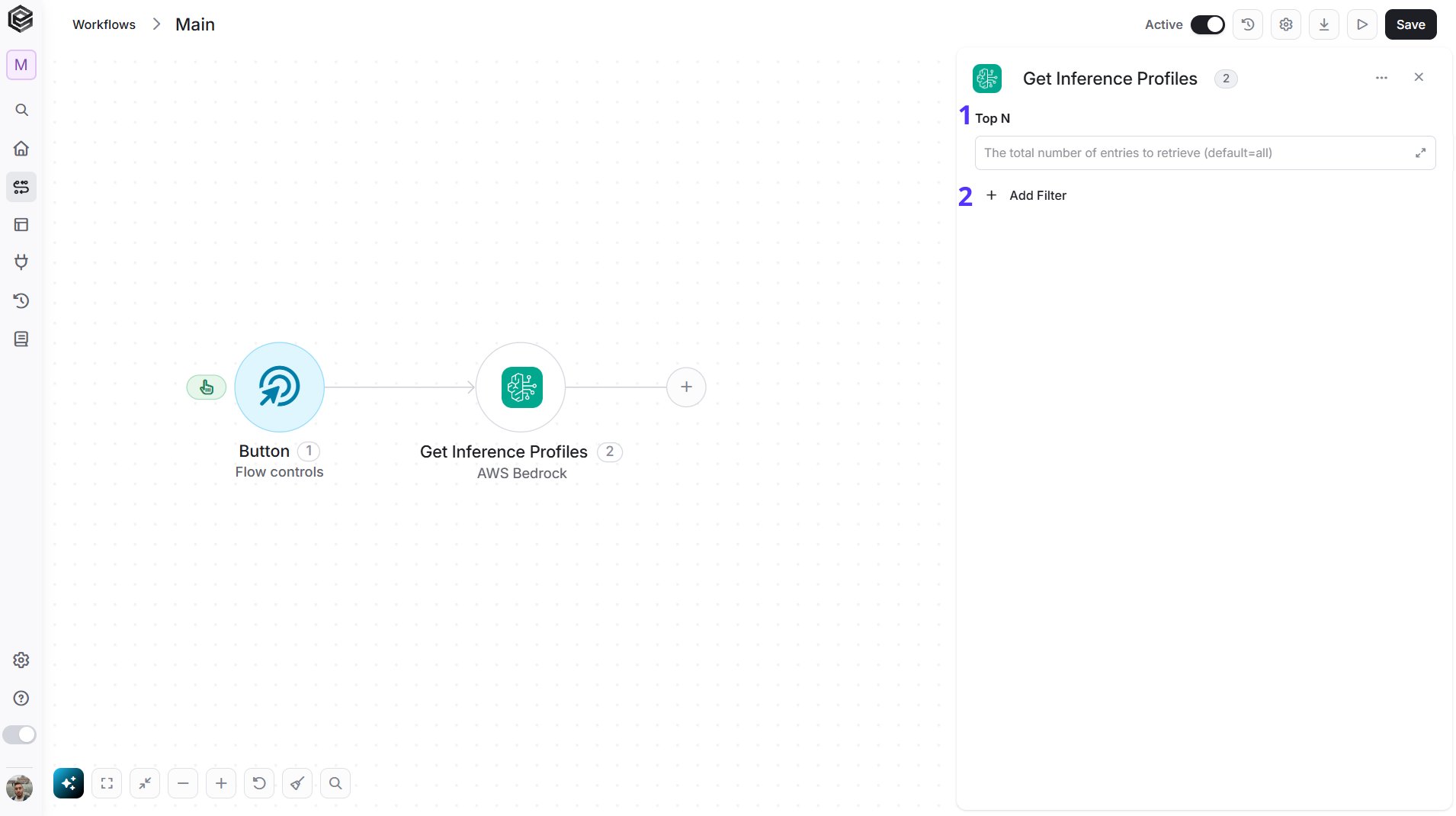
- Top N - You can set the maximum number of records Engini will return for the object you chose (default = all records).
- Add Filter - Click Add Filter to define conditions that narrow down the data list and return only the relevant items. To learn more about using filters, click here.
Invoke Model
Sends a request directly to a model in the format that the model expects. Use it for models and options that Create Chat Completion doesn’t cover.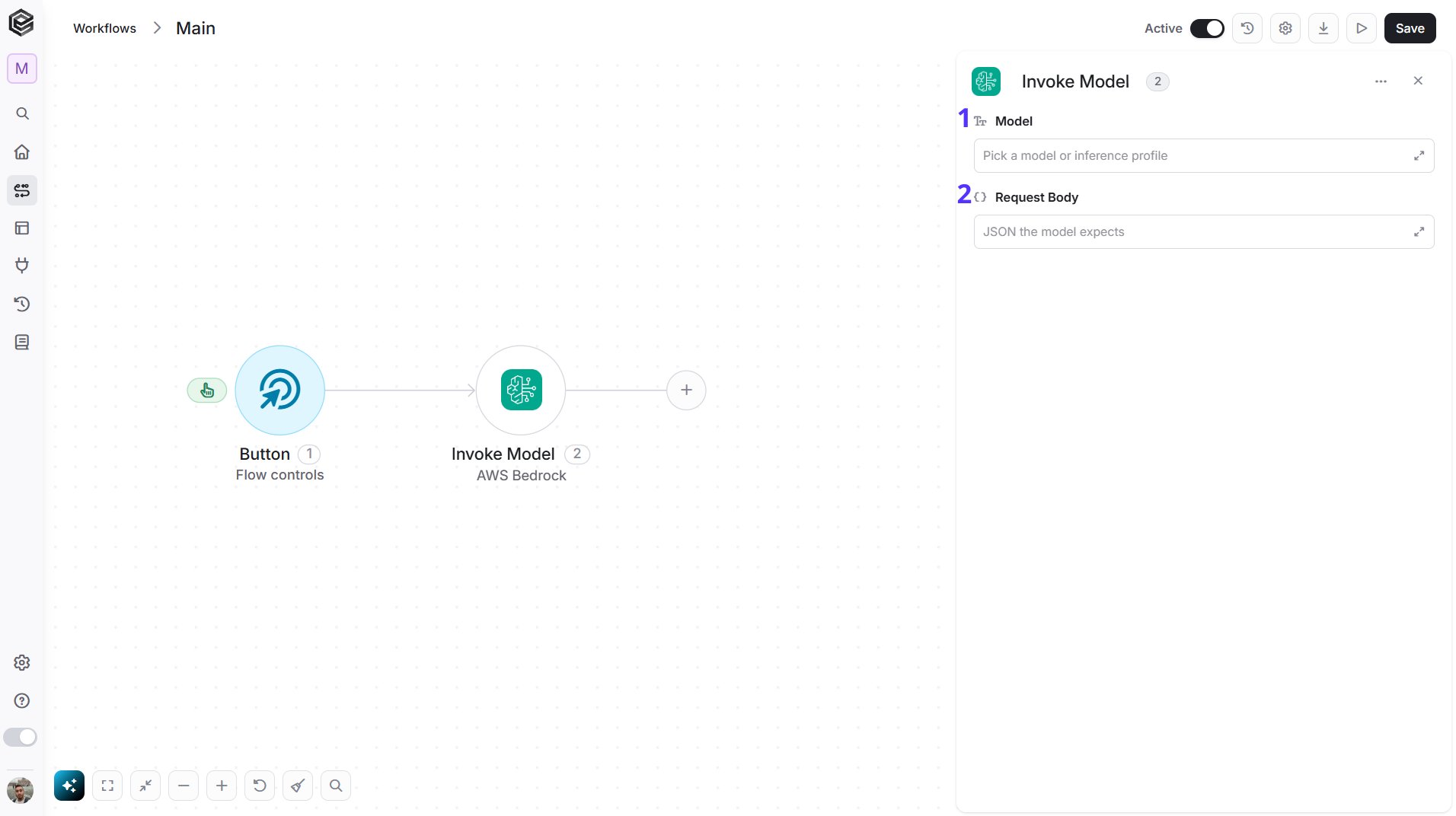
- Model - The model or inference profile to call. Enter its Id, choose it from the list, or map the Id from a previous step.
- Request Body - The JSON that the model expects. Every model family defines its own format, so check the model’s page in the Amazon Bedrock documentation.
Initialize Object Array
Creates a new object array variable in your workflow to store structured AWS Bedrock data for use in later steps, for example the messages you send in Create Chat Completion.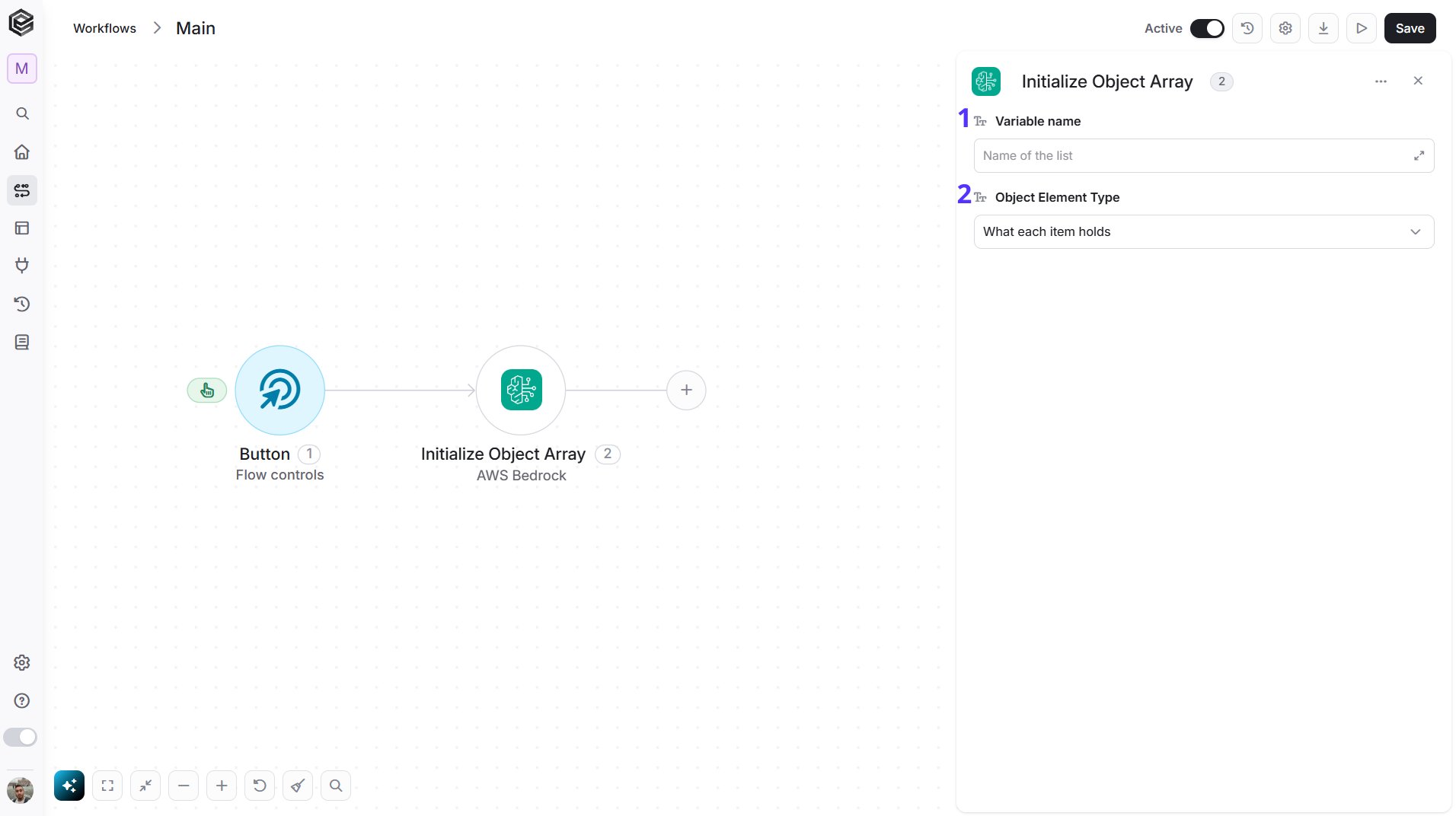
- Variable Name - Enter the name of the variable that will hold the object array. This name will be used throughout the workflow whenever you refer to this object array.
- Object Element Type - Select the type of object the array will store. The selected type determines the structure of the array and opens its fields so you can fill in the values for the first entry.
Append to Object Array
Adds a new entry to an existing object array variable in your workflow.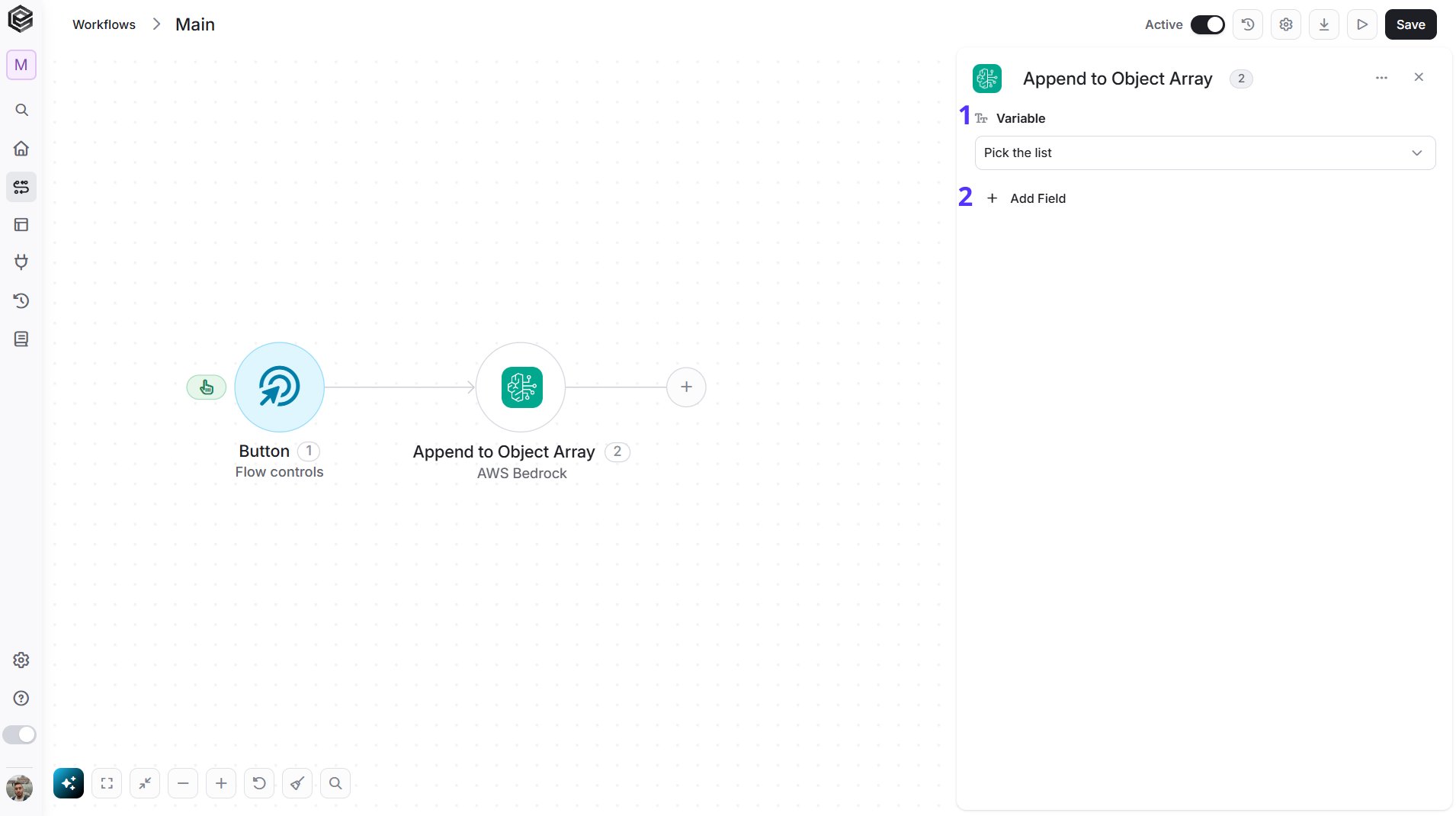
- Variable - Select the object array variable you want to append to. This must be an already initialized object array.
- Add Field - Click Add Field to add and populate additional fields for the selected activity. To learn more about managing activity data, click here.
Map Object Array
Transforms a list of data into a structured object array that can be used later in the workflow. It iterates over each item in the selected data list and maps it into a structured entry.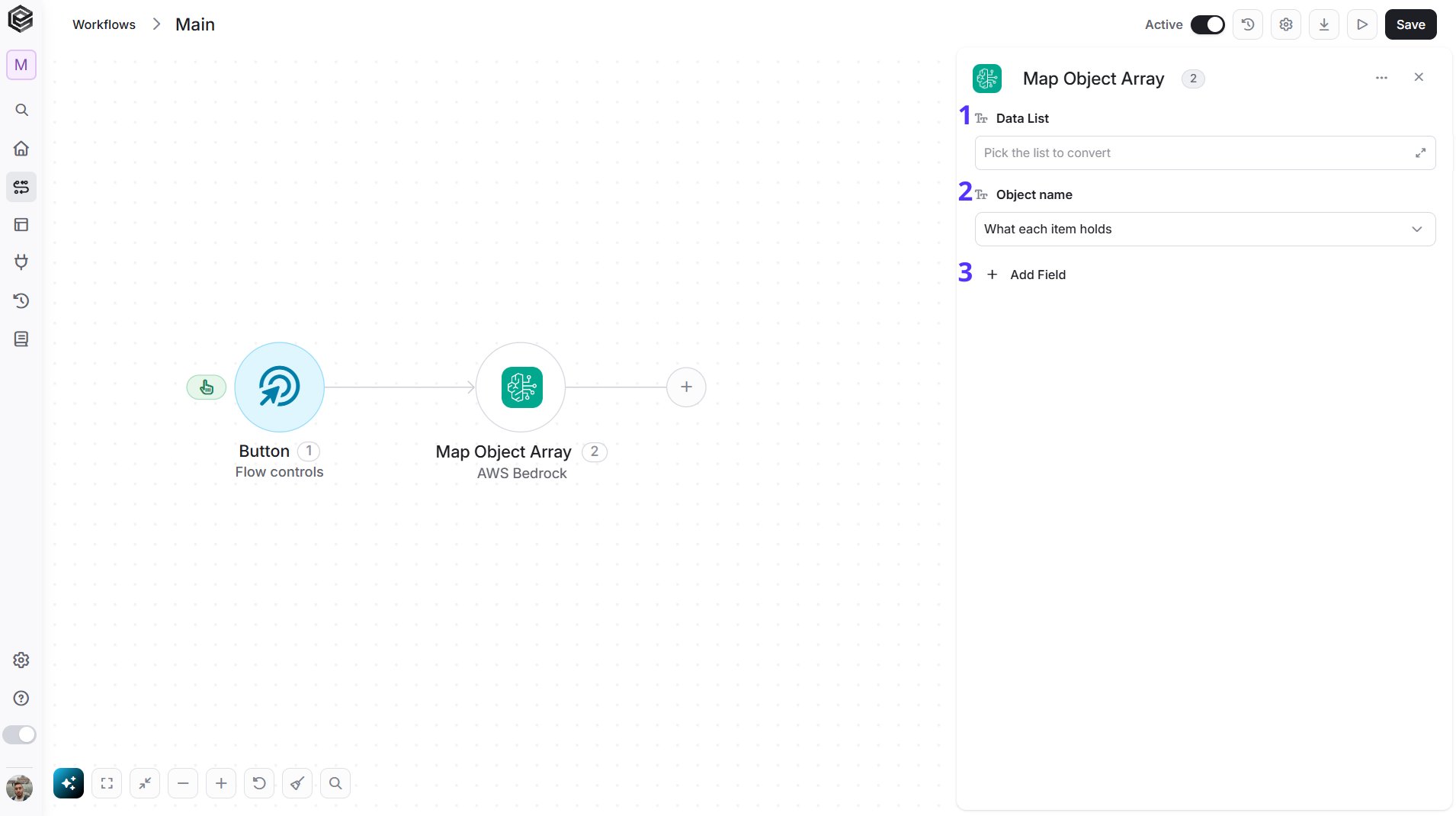
- Data List - Select or map the array or list of data you want to iterate over and transform.
- Object Name - Define the name of the temporary object that represents each item during the mapping. You will use this name when referencing fields from the current item.
- Add Field - Click Add Field to add and populate additional fields for the selected activity. To learn more about managing activity data, click here.
Send API Request
This activity allows you to send a custom API request directly to the Amazon Bedrock runtime API.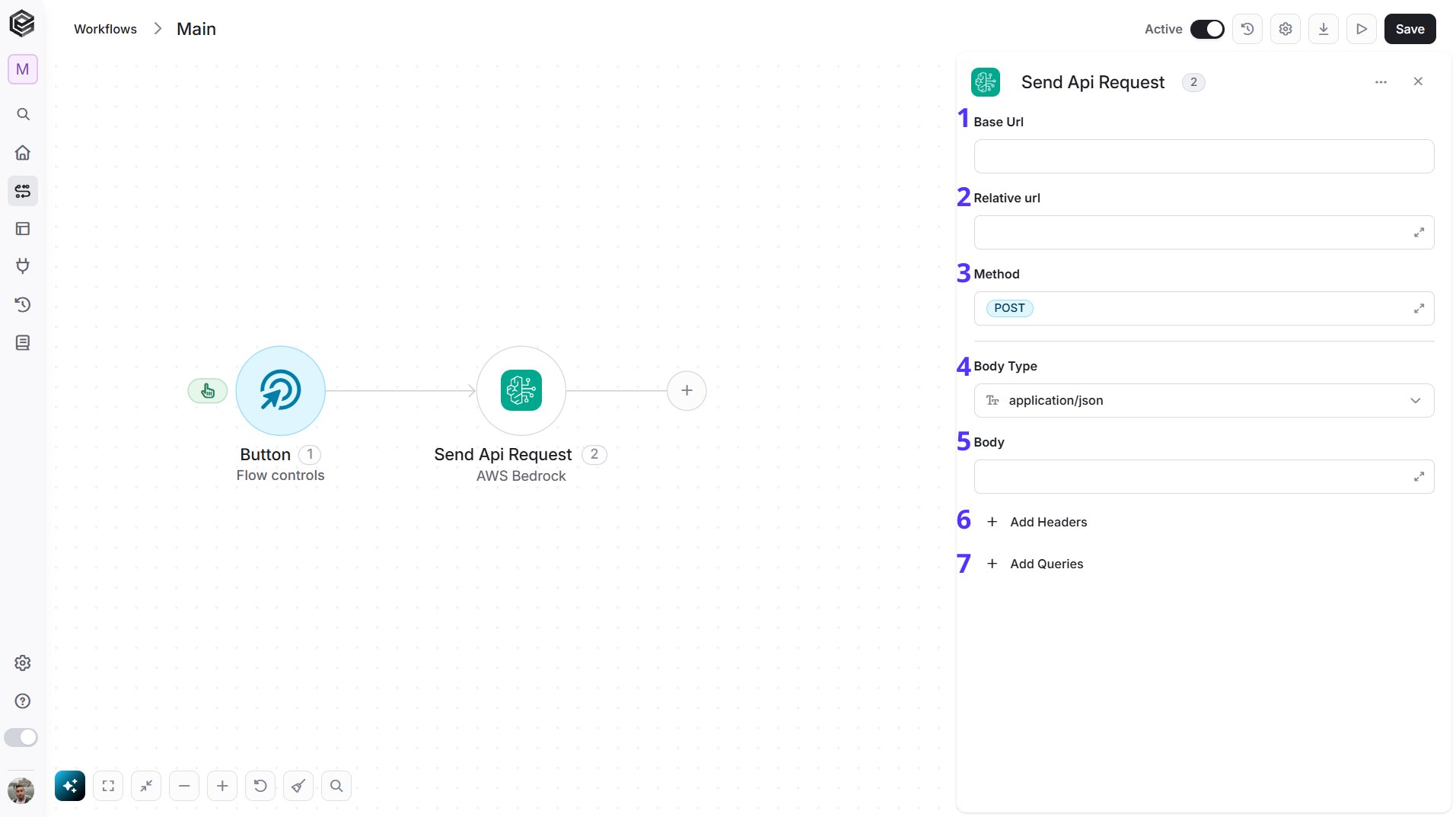
- Base Url - The root URL of the Amazon Bedrock runtime API. It is filled in from your AWS Bedrock connection and can’t be edited here.
- Relative url - You can specify additional path segments or parameters that need to be added to the end of the Base Url. Enter only the path, for example
/model/anthropic.claude-sonnet-4-6/converse. This allows you to customize the specific request you want to perform. - Method - Select the HTTP method (e.g., Get, Post, Put, Delete, Patch). The default is POST.
- Body Type - Defines the format of the data in the body of your request. The default, application/json, means the body contains a JSON-formatted payload.
- application/json – Sends the request body in JSON format. Commonly used by REST APIs.
- custom – Allows you to define a custom body format by manually setting the Content-Type header. Add a
Content-Typerow in Add Headers with the media type you need (for exampleapplication/xml). With any other Body Type, a Content-Type you type in Add Headers is not sent; Engini sets it from the Body Type, and the run history shows it underheadersnotsent. - application/x-www-form-urlencoded – Sends the body as URL-encoded key-value pairs, commonly used in form submissions.
- file – Sends a file as the request body.
- multipart/form-data – Sends form data that may include both text fields and files.
- text/html – Sends the request body as HTML content.
- text/plain – Sends the request body as plain text.
- text/xml – Sends the request body in XML format.
- Body - Contains any data that is being sent to the server.
- Add Headers - Additional metadata about the request, such as the type of data Engini can accept, the length of the request body, and authentication information.
- Add Queries - The query refers to the parameters or data that are included in the URL of an HTTP request to provide additional information or instructions to the server.