

Getting Started with Texas Instruments
Prerequisites
- A Texas Instruments developer account.
Add a connection to Google Drive in Engini
- Enter your Engini account at https://app.engini.io.
-
Navigate to Connections page by clicking on the Connections on the left sidebar or by clicking here.

-
Click on the Add connection option located at the topbar.

-
Choose Google Drive option from the available applications.
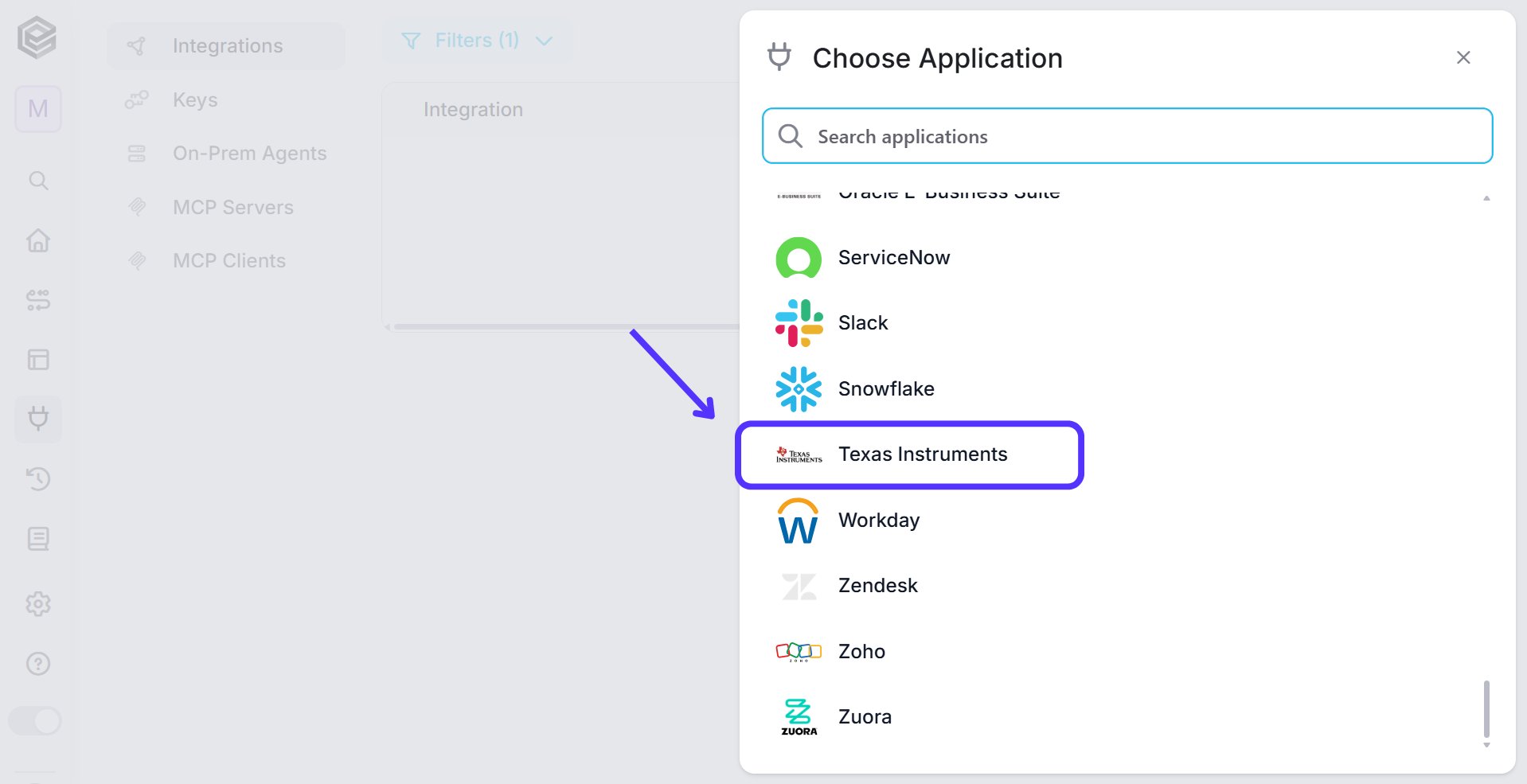
-
Enter the following details in the “Add Connection” form:

- Connection name - Enter a unique and descriptive name for this connection. This name will help you easily identify and manage your Amazon SQS connection within your system.
- Client Id – A unique identifier provided by Texas Instruments when registering your application. It is used to authenticate your connection.
- Client Secret – A secure key generated by Texas Instruments that, alongside the Client ID, ensures that only authorized applications can access the API.
- Save Settings - Click on the save button to save the connection.
Triggers
Backlog – receive ASN Push notifications
The trigger monitors Texas Instruments’ ASN (Advanced Shipping Notice) notifications, listening for shipment updates in real-time as they are pushed to the connected system.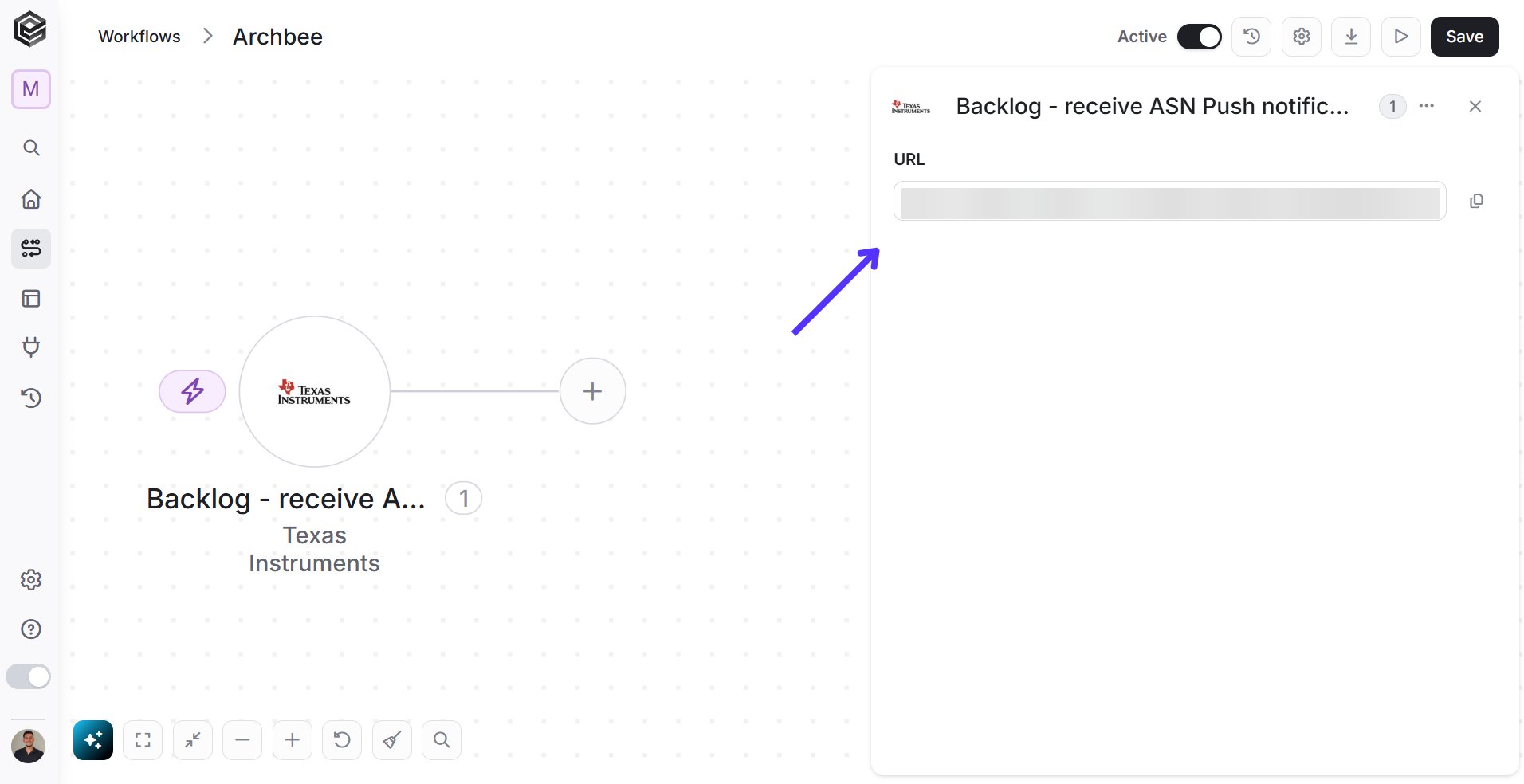
- URL – This field defines the webhook where Texas Instruments sends ASN notifications. It is automatically generated when the trigger is created and is unique to each workflow.
Financial Document Push API
This trigger listens for financial document updates from Texas Instruments, automatically starting a workflow in Engini when new data is pushed.
- URL – This field defines the webhook where Texas Instruments sends the financial document push notifications. It is automatically generated when the trigger is created and is unique to each workflow.
Actions
Get a Specific Product by Its Identifier
This activity retrieves detailed information about a specific product from Texas Instruments by using the product’s unique identifier.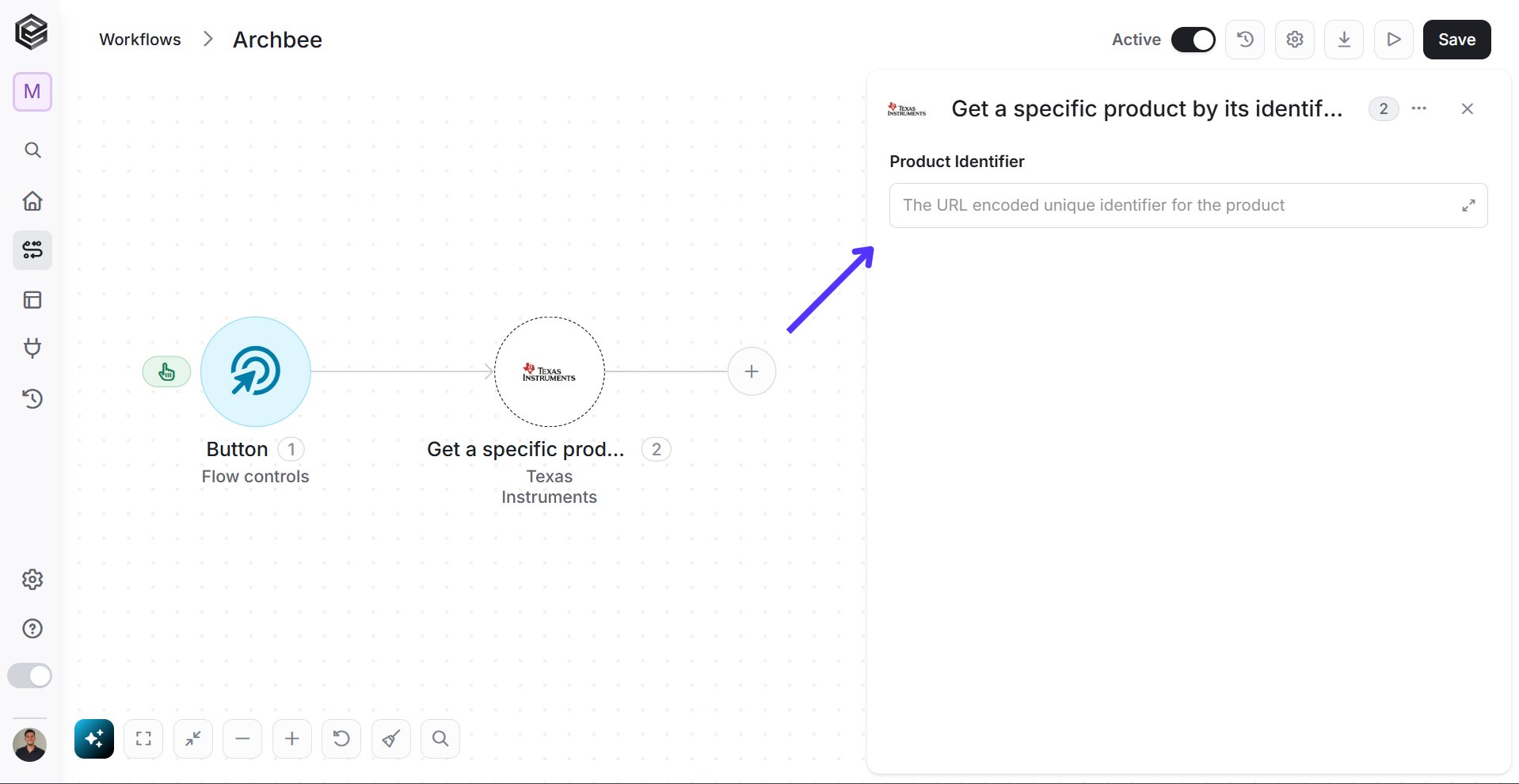
- Product Identifier – Enter the URL-encoded unique identifier for the product you want to retrieve.
Get a Specific Product by Its Identifier (Orchestrated)
This activity retrieves detailed information about a specific product from Texas Instruments using its unique identifier, with additional orchestration applied for more complex workflows.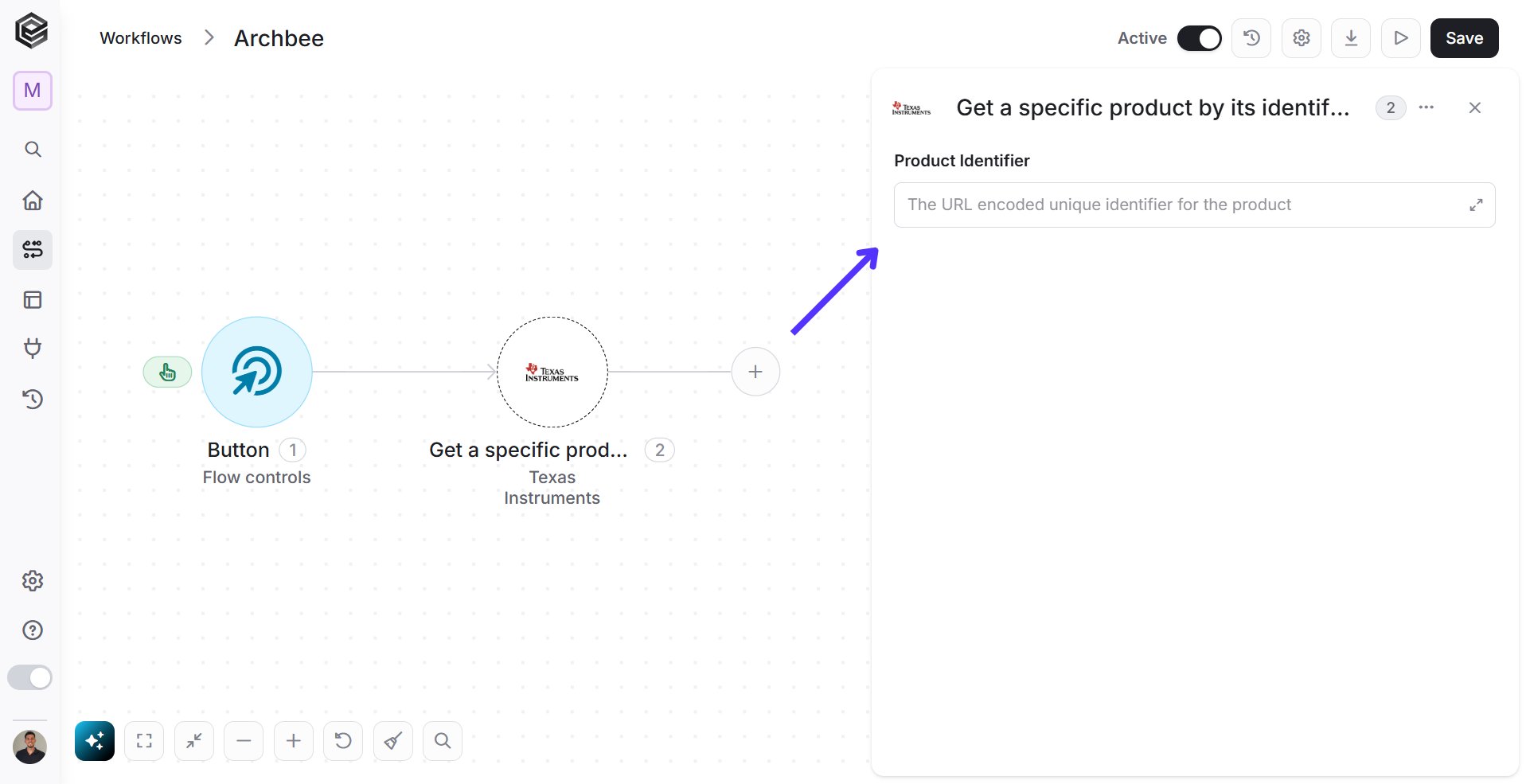
- Product Identifier – Enter the URL encoded unique identifier for the product you want to retrieve.
Get Pageable Products List
This activity retrieves a paginated list of products based on various filters such as product type, lifecycle status, and more.
- Top N – Specify the number of entries to retrieve (default: all).
- Add Filter - Click Add Filter to define conditions that narrow down the data list and return only the relevant items. To learn more about using filters, click here.
Get product parametrics data
This activity retrieves detailed parametric data for a specific product using its unique identifier.
- Product Identifier – Enter the URL-encoded unique identifier for the product you want to retrieve parametric data for.
Get product quality data
This activity retrieves the quality data of a specific product from Texas Instruments by using the product’s unique identifier.
- Product Identifier - Enter the URL-encoded unique identifier for the product to retrieve its quality data.
Initialize Object Array
This activity initializes an object array in Texas Instruments and stores a single structured entry based on the selected object type ( e.g. Creates backlog orderlineItem , Customer Item Comments ).
- Variable Name - Enter the name of the variable that will hold the initialized object array. This name will be used throughout the workflow whenever you refer to this object array.
- Object Element Type - This field defines the type of data the array will store such as, Creates , Customer Item Comments , lineItems Change By Customer PO Number and more. The selected type determines the structure of the array and its use in subsequent actions.
- Add Field - Click Add Field to add and populate additional fields for the selected activity. To learn more about managing activity data, click here.
Append to Object Array
This activity appends a new object to an existing object array variable.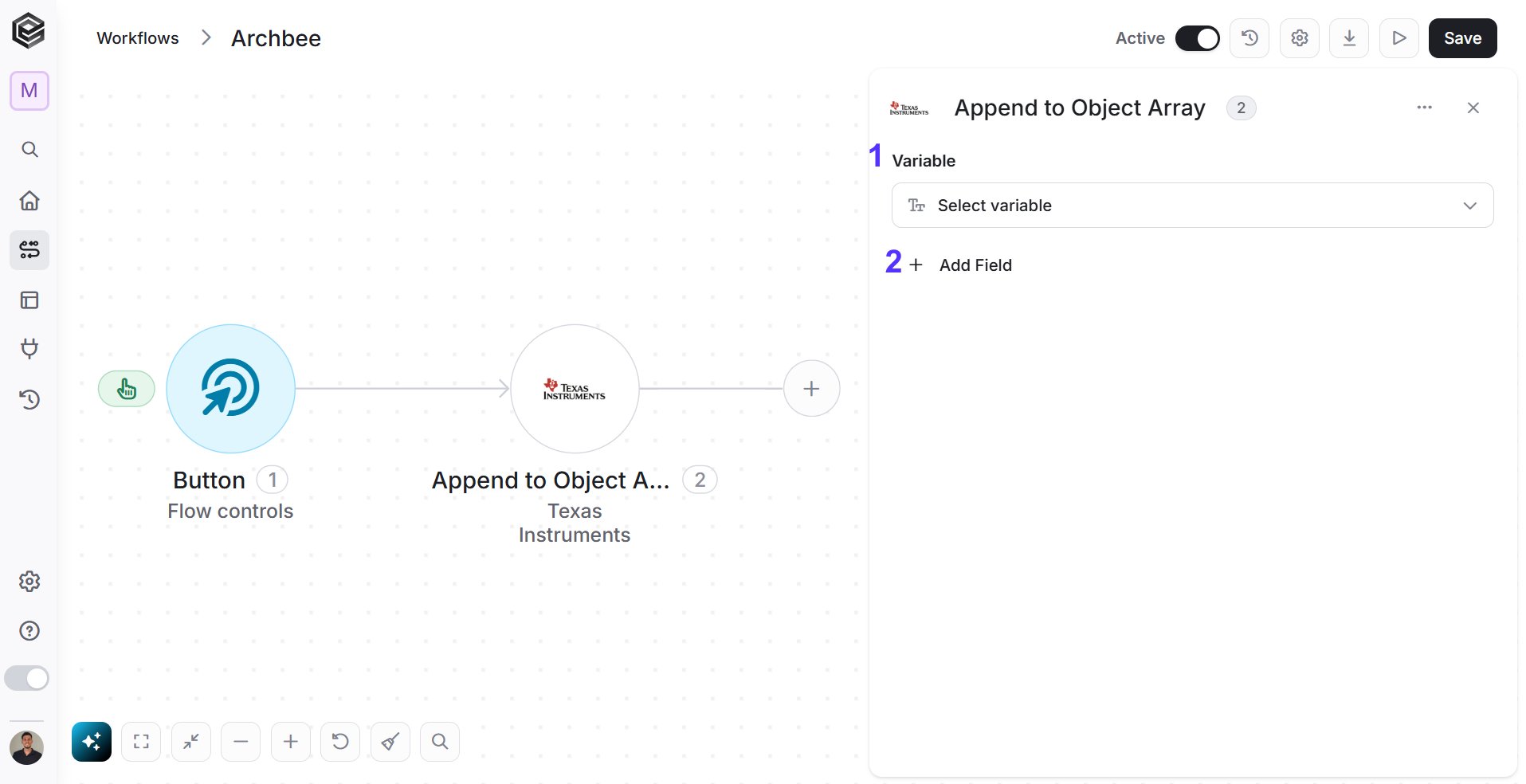
- Variable – Choose the object array variable where the new object will be appended.
- Add Field - Click Add Field to add and populate additional fields for the selected activity. To learn more about managing activity data, click here.
Map Object Array
This activity maps data from a list into an object array. It allows you to structure data according to a predefined object type.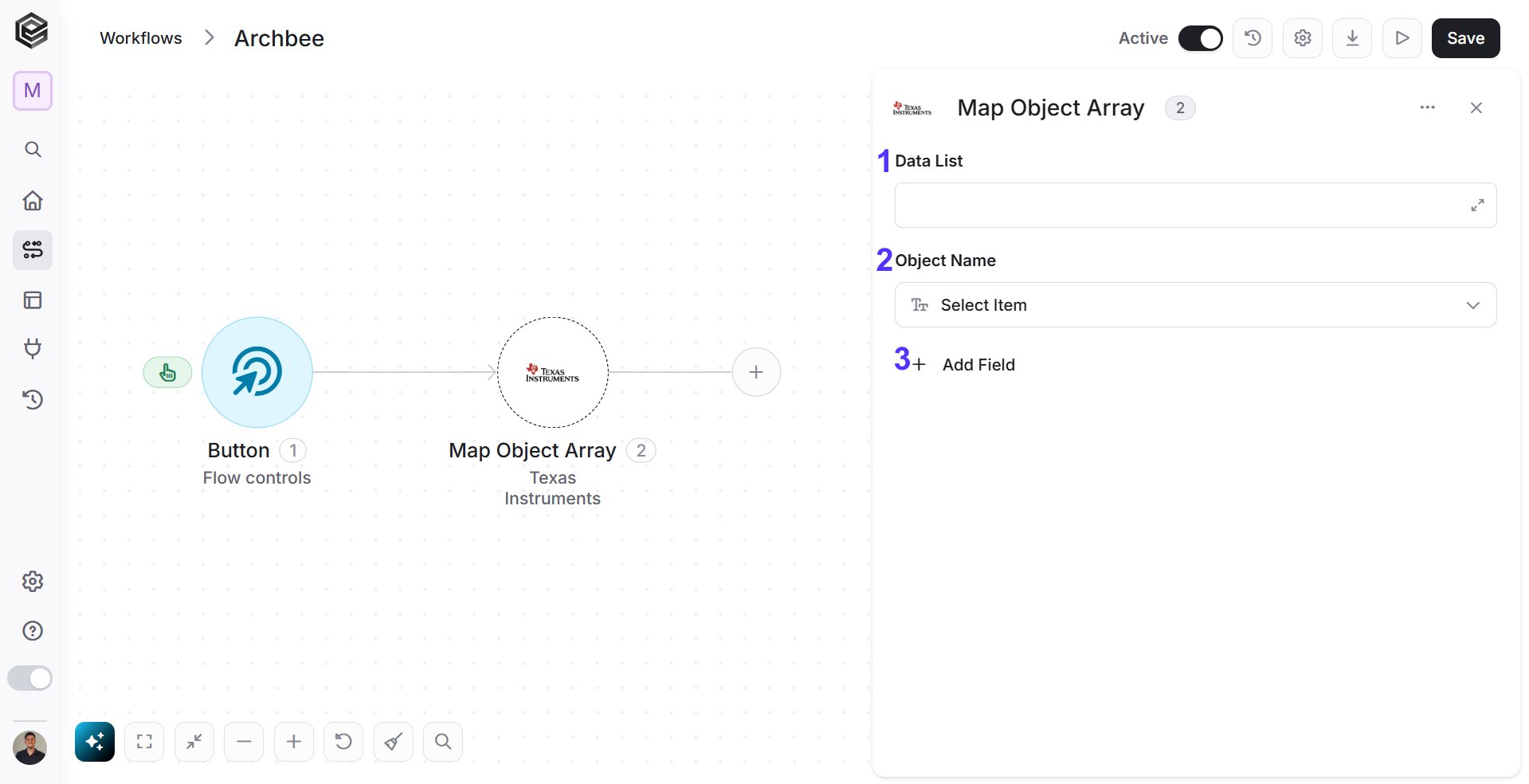
- Data List – Provide the list of data that you want to map into the object array.
- Object Name - Select the type of object (e.g., Line Item, Customer Item Comments, Backlog Order) to map the data into.
- Add Field - Click Add Field to add and populate additional fields for the selected activity. To learn more about managing activity data, click here.
Backlog Actions
Change a backlog order by customerPurchaseOrderNumber
This activity allows you to modify a backlog order based on the specified customer purchase order number.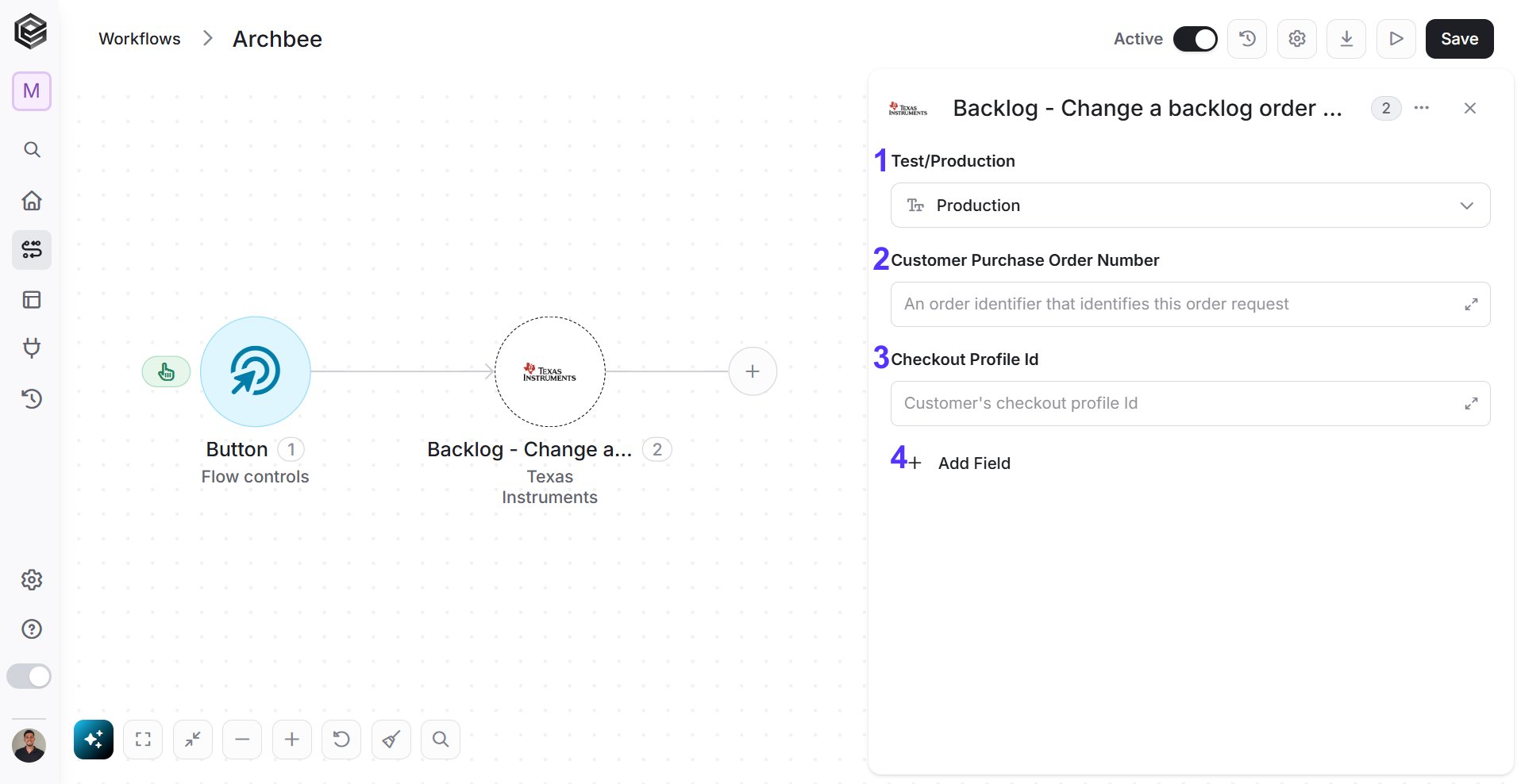
- Test/Production – Select whether the action applies to the Test or Production environment.
- Customer Purchase Order Number – Enter the unique identifier for the order you want to modify.
- Checkout Profile Id – Provide the customer’s checkout profile ID.
- Add Field - Click Add Field to add and populate additional fields for the selected activity. To learn more about managing activity data, click here.
Change a backlog order by orderNumber
This activity allows you to modify a backlog order by using the Texas Instruments (TI) order number.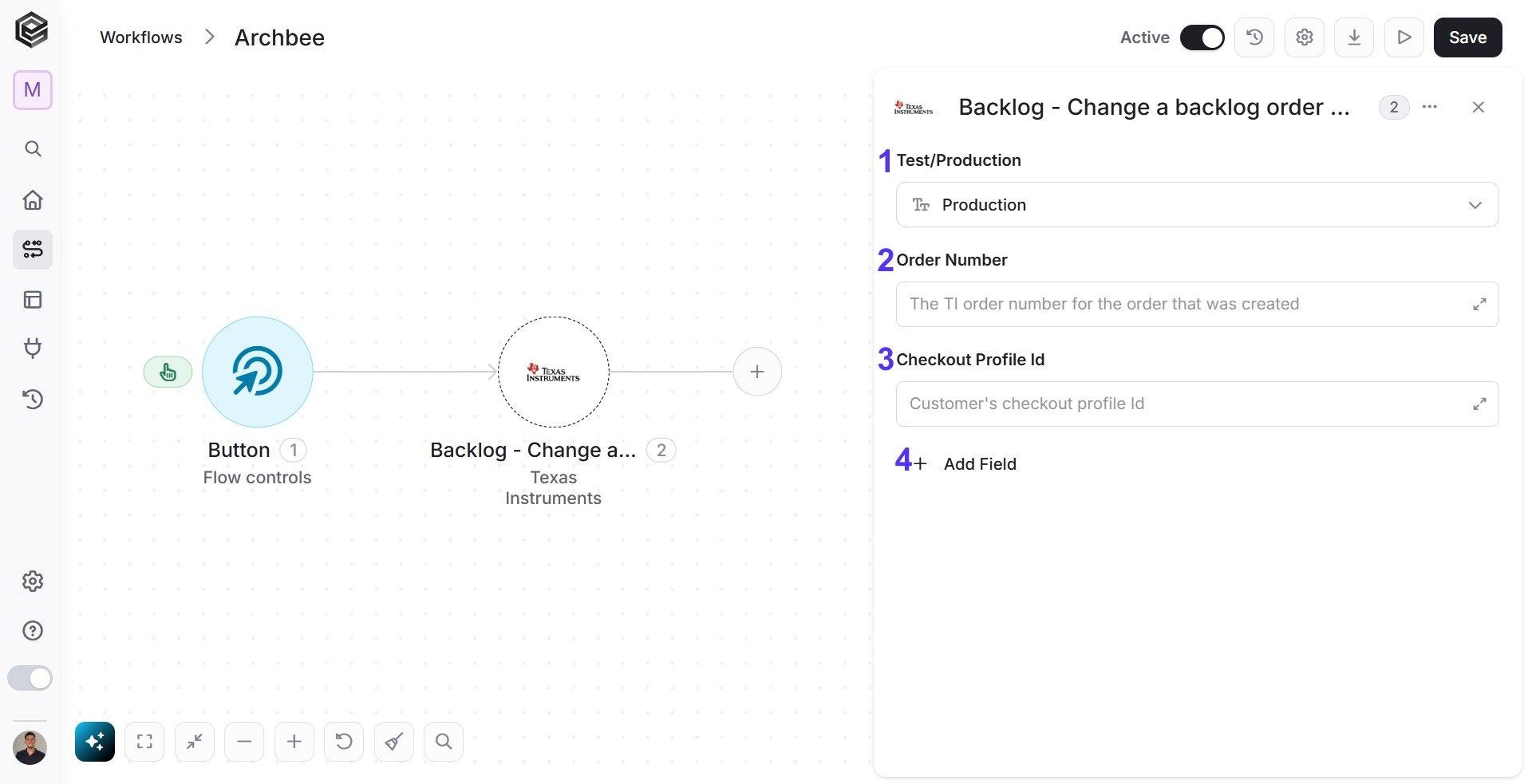
- Order Number – Enter the unique identifier for the order you want to modify.
- Checkout Profile Id – Provide the customer’s checkout profile ID.
- Add Field - Click Add Field to add and populate additional fields for the selected activity. To learn more about managing activity data, click here.
Create a new quote with TI
This activity allows you to create a new quote with Texas Instruments.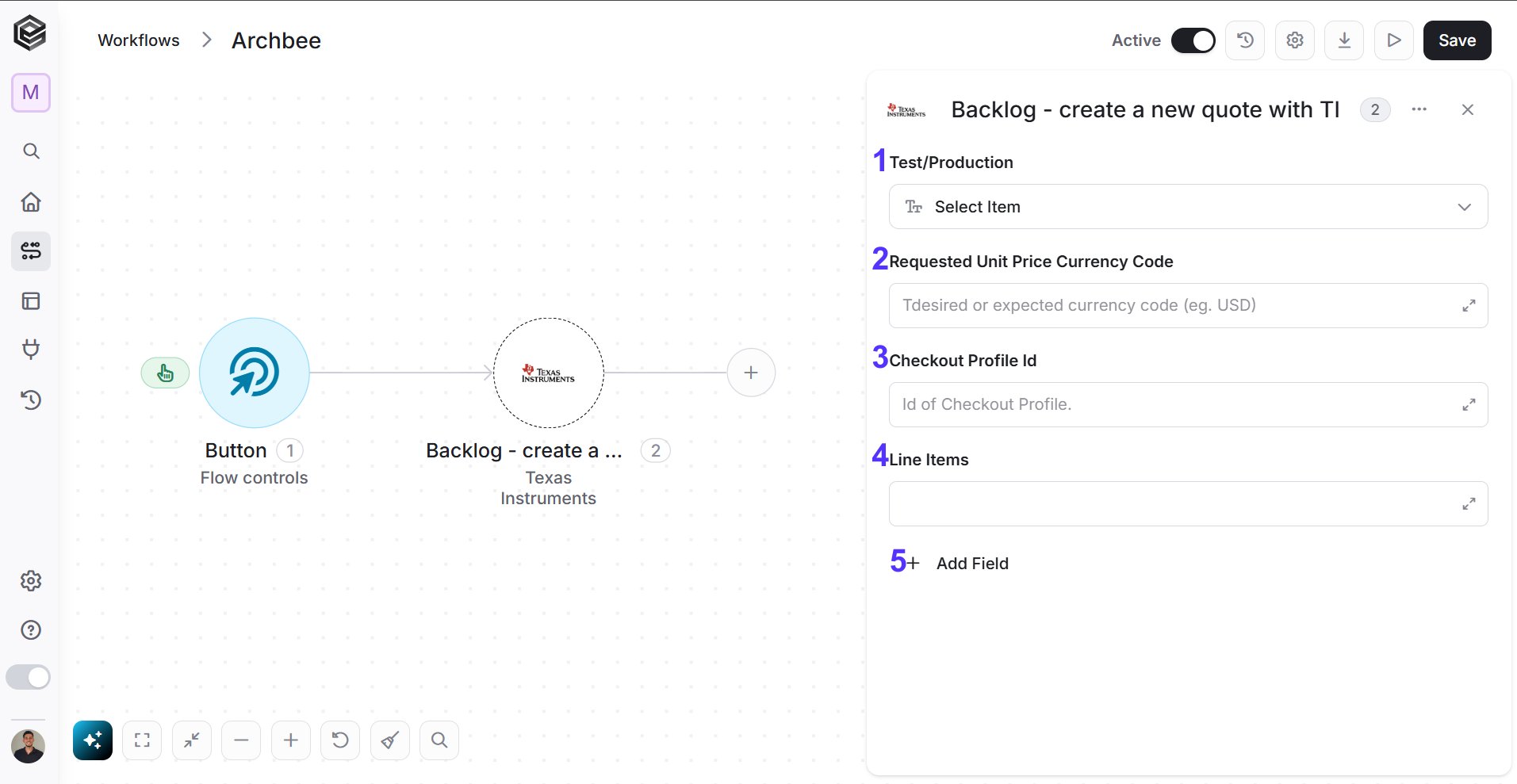
- Test/Production – Select whether the action applies to the Test or Production environment.
- Requested Unit Price Currency Code – Enter the currency code (e.g., USD) for the unit price.
- Checkout Profile Id – Provide the customer’s checkout profile ID.
- Line Items – Select the line items for the quote.
- Add Field - Click Add Field to add and populate additional fields for the selected activity. To learn more about managing activity data, click here.
Creates backlog order
This activity allows you to create a new backlog order for Texas Instruments.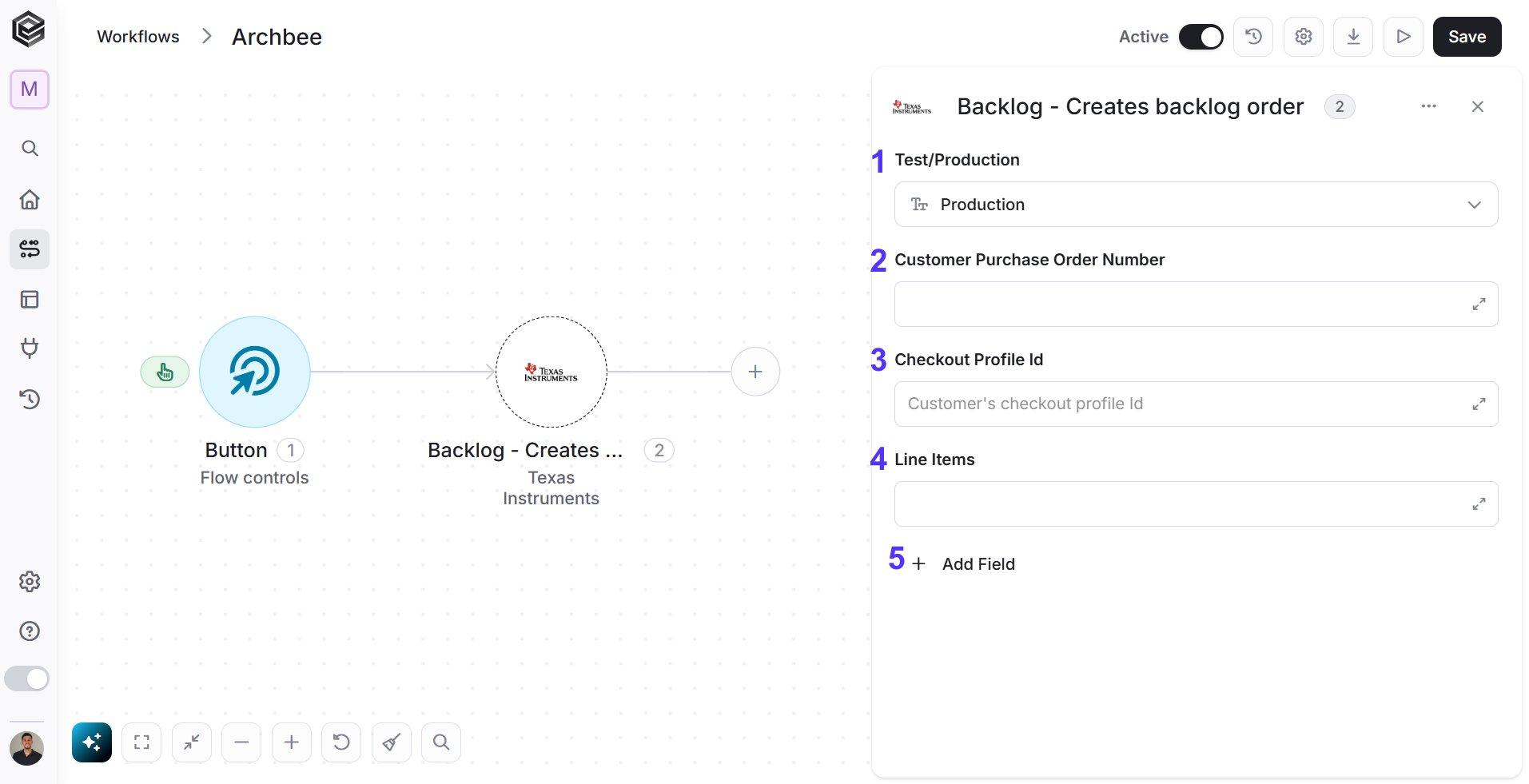
- Test/Production – Select the environment (Test or Production) where the action will be applied.
- Customer Purchase Order Number – Enter the unique identifier for the customer’s purchase order.
- Checkout Profile Id – Provide the customer’s checkout profile ID.
- Line Items – Select the line items to be added to the backlog order.
- Add Field - Click Add Field to add and populate additional fields for the selected activity. To learn more about managing activity data, click here.
Get Backlog Order History
This activity retrieves the history of backlog orders based on a range of filters provided.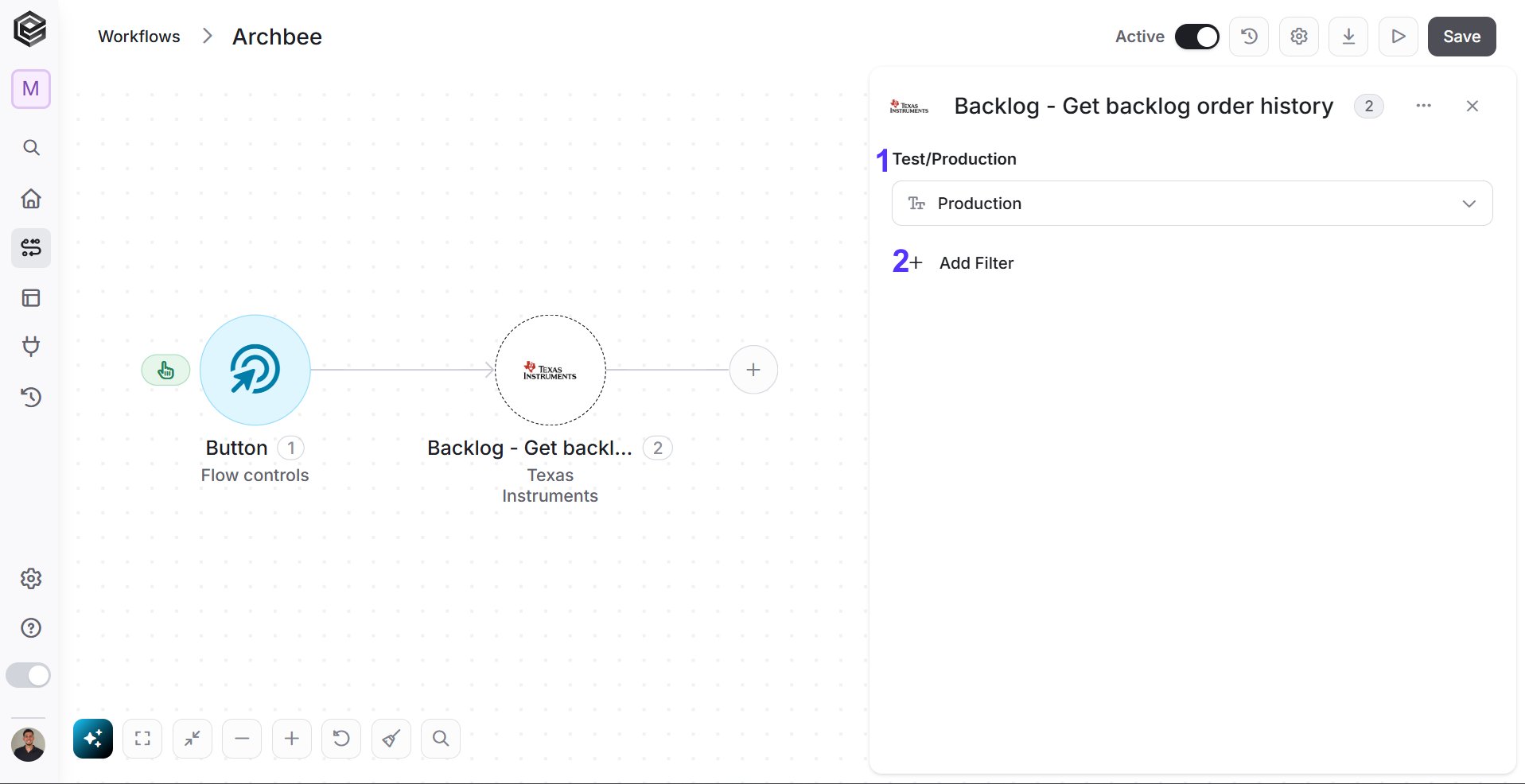
- Test/Production – Select the environment where the action will be applied.
- Add Filter - Click Add Filter to define conditions that narrow down the data list and return only the relevant items. To learn more about using filters, click here.
Get estimated delivery costs
This activity calculates the estimated delivery costs for backlog orders based on the line items and shipping information provided.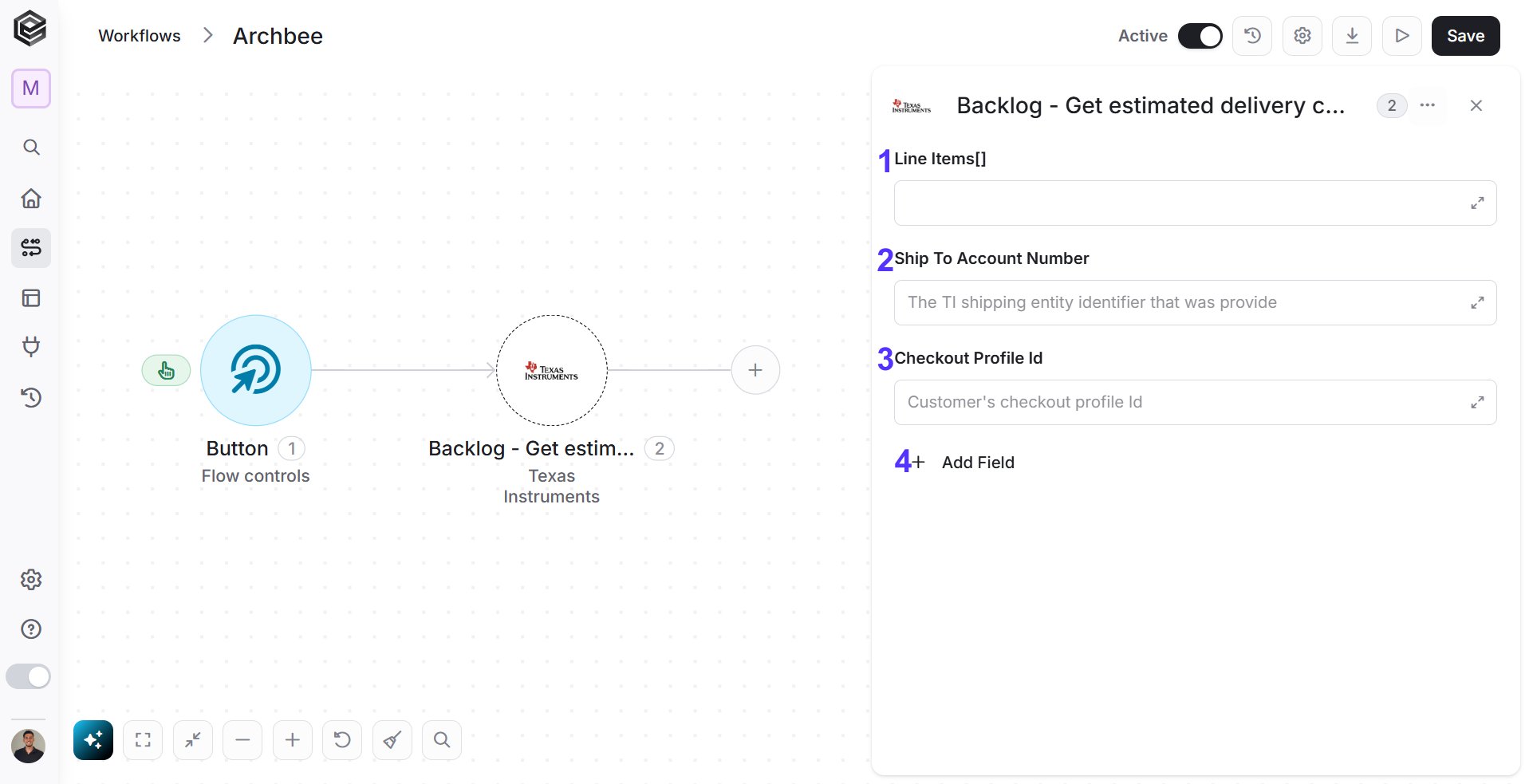
- Line Items[] – Enter the list (array) of items for which you want to estimate delivery costs.
- Ship To Account Number – Provide the TI shipping entity identifier (the account number where items will be shipped).
- Checkout Profile Id – Input the customer’s checkout profile ID.
- Add Field - Click Add Field to add and populate additional fields for the selected activity. To learn more about managing activity data, click here.
Retrieve ASN Details
This activity retrieves the Advanced Shipping Notice (ASN) details for a specific backlog order.
- Test/Production – Select the environment (Test or Production) for the request.
- Add Filter - Click Add Filter to define conditions that narrow down the data list and return only the relevant items. To learn more about using filters, click here.
Retrieve Backlog Order
This activity retrieves backlog order details based on the provided customer purchase order number or TI order number.
- Test/Production – Select the environment (Test or Production) for the action.
- Add Field - Click Add Field to add and populate additional fields for the selected activity. To learn more about managing activity data, click here.
Retrieve Financial Document
This activity retrieves financial documents related to a backlog order, such as invoices or delivery details.
- Test/Production – Select the environment (Test or Production) for the request.
- Add Filter - Click Add Filter to define conditions that narrow down the data list and return only the relevant items. To learn more about using filters, click here.
Retrieve Test Backlog Order
This activity retrieves test backlog orders based on the provided customer purchase order number or TI order number.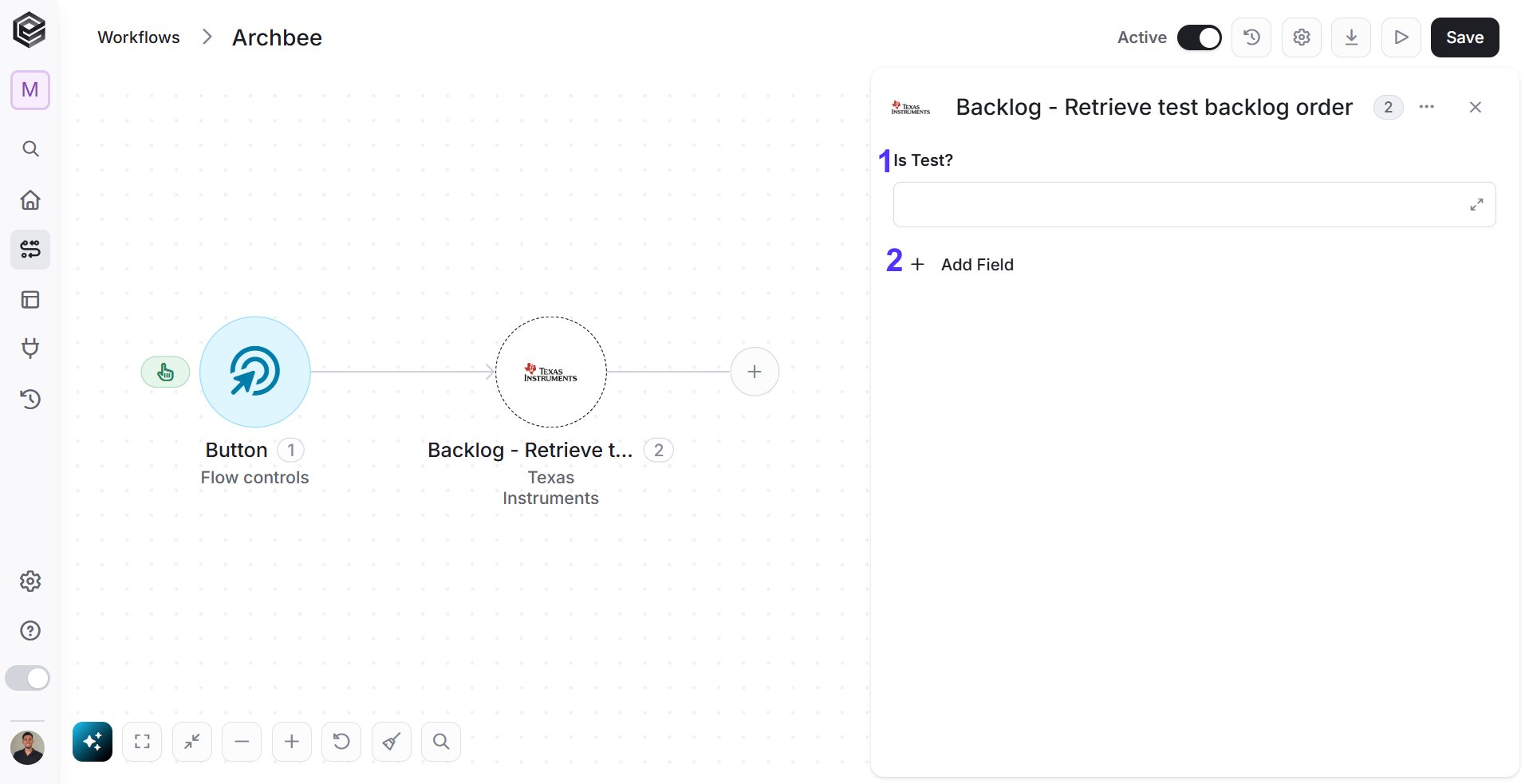
- Is Test – Specify whether this is a test order retrieval(False/True).
- Add Field - Click Add Field to add and populate additional fields for the selected activity. To learn more about managing activity data, click here.
Retrieve your quote from TI
This activity retrieves a quote from Texas Instruments based on the provided quote details.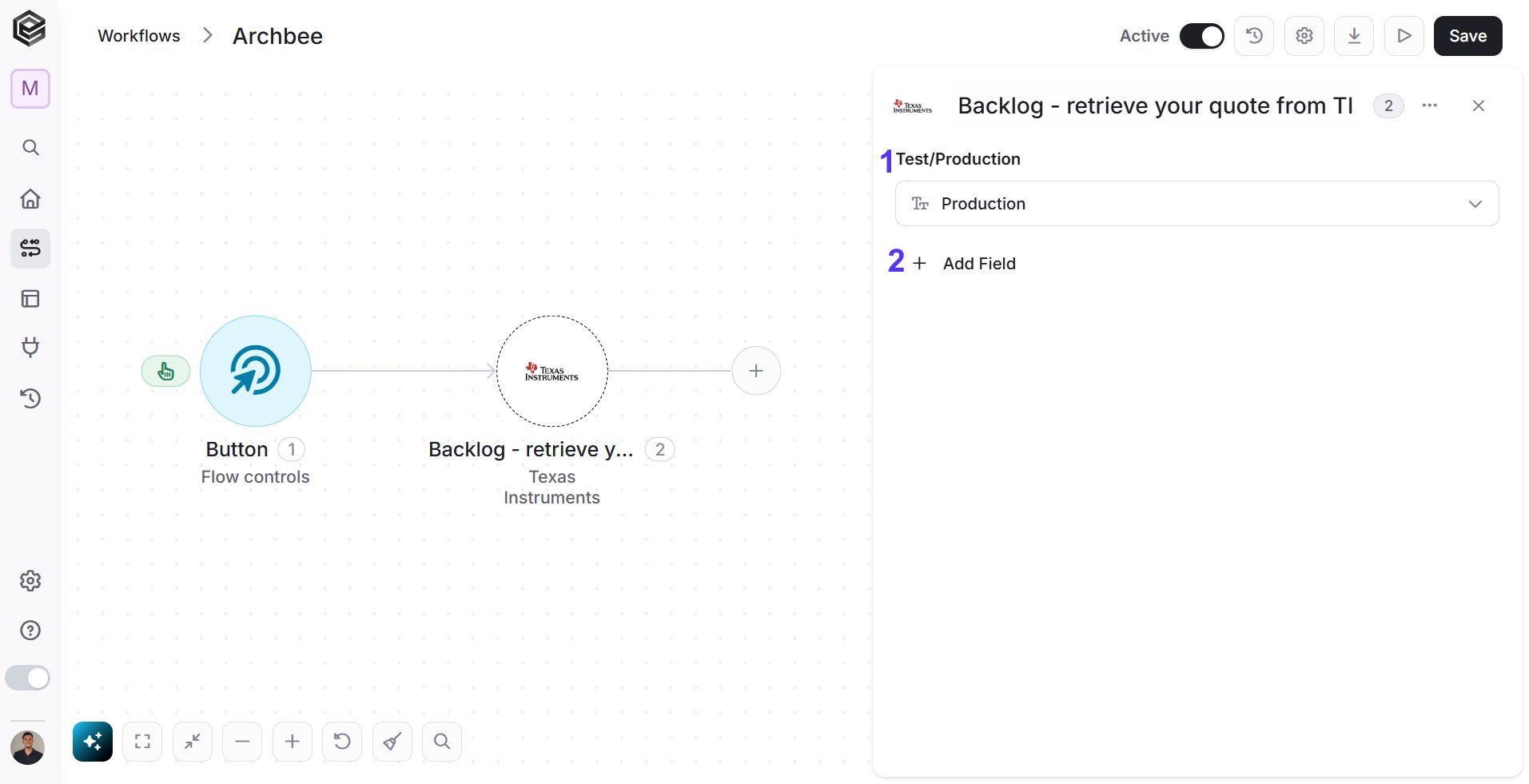
- Test/Production – Select whether to retrieve the quote from the Test or Production environment.
- Add Field - Click Add Field to add and populate additional fields for the selected activity. To learn more about managing activity data, click here.
Retrieves a summary list of Checkout Profiles
This activity retrieves a summary list of all available checkout profiles from Texas Instruments.
Retrieves the Details for a Specific Checkout Profile
This activity retrieves detailed information for a specific checkout profile from Texas Instruments.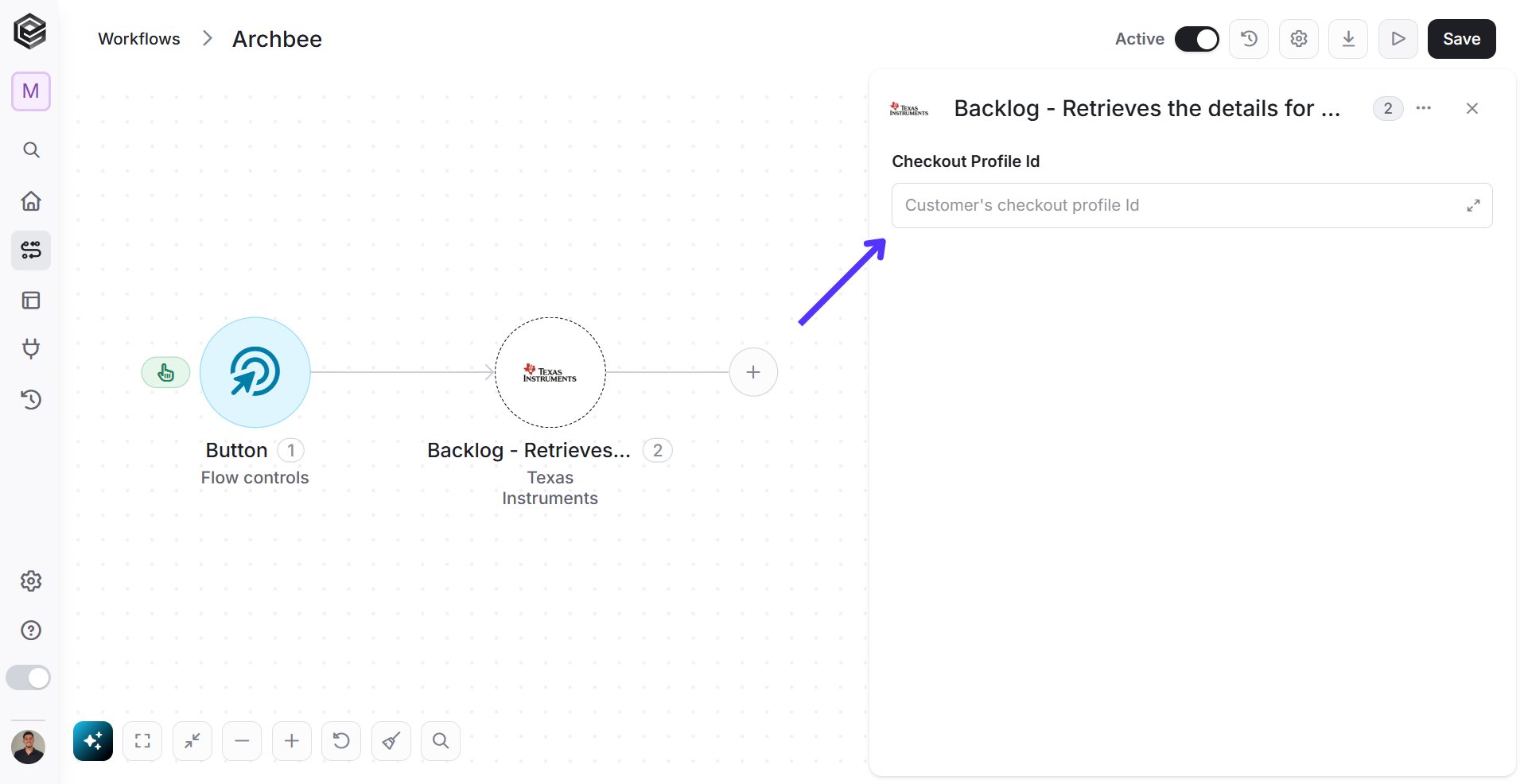
- Checkout Profile ID – Enter the customer’s checkout profile ID to retrieve the details of that specific profile.
Send Remittance Advice
This activity allows you to send remittance advice to Texas Instruments, including the payment details and associated line items.
- Test/Production – Choose whether the action is for the Test or Production environment.
- Currency Code – Specify the currency for the payment (allowed values: USD, JPY).
- Line Items – Enter the line items associated with the payment.
- Add Field - Click Add Field to add and populate additional fields for the selected activity. To learn more about managing activity data, click here.
Store Actions
Checkout Profile Details
This activity retrieves the details of a specific checkout profile based on the customer’s checkout profile ID.
- Customer’s Checkout Profile Id – Enter the unique identifier for the customer’s checkout profile to retrieve the relevant details.
Checkout Profiles Summary
This activity retrieves a summary list of all checkout profiles associated with a customer in the Texas Instruments store. It allows you to view key details of each checkout profile without needing specific identifiers.
Create a TI store order
This activity allows you to create a new store order in the Texas Instruments store. You can specify checkout details, shipping preferences, and line items for the order.
- Test/Production – Select whether the action will be performed in the Test or Production environment.
- Add Field - Click Add Field to add and populate additional fields for the selected activity. To learn more about managing activity data, click here.
Get Details for a specific order
This activity retrieves detailed information about a specific store order from Texas Instruments. By providing the order number, you can obtain all relevant details regarding that particular order.
- Order Number – Enter the unique order number for which you want to retrieve details.
Get Estimated Delivery Costs
This activity calculates the estimated delivery costs for an order based on the provided region, currency, and quantity.
- Region Code – Enter the 2-character ISO country code (e.g., US for the United States).
- Currency Code – Specify the 3-character ISO currency code (e.g., USD for US dollars).
- Quantity – Input the quantity of items for which you want to estimate the delivery cost.
Get Information for a Product by Its OPN
This activity retrieves detailed information about a product in the Texas Instruments store using its Orderable Part Number (OPN). You can request product data, including pricing and availability.
- Part Number – Enter the product’s OPN to retrieve its information.
- Add Field - Click Add Field to add and populate additional fields for the selected activity. To learn more about managing activity data, click here.
Get List of TI store products
This activity retrieves a list of products from the Texas Instruments store based on a generic part number and optional filters such as currency and exclusions.
- Generic part number – Enter the generic part number of one or more child products.
- Top N – Specify the number of entries to retrieve (default: all).
- Add Filter- Click Add Filter to define conditions that narrow down the data list and return only the relevant items. To learn more about using filters, click here.
Retrieve a financial document details
This activity retrieves details of a financial document, such as invoices or receipts, based on the supplier’s sales order or document number.
- Test/Production – Select whether the request is for the Test or Production environment.
- Supplier Sales Order Number – Provide the supplier’s sales order number to retrieve the document.
- Supplier Document Number – Enter the specific supplier document number.
- Add Field - Click Add Field to add and populate additional fields for the selected activity. To learn more about managing activity data, click here.
Retrieve the Full Catalog of Parts Available
This activity retrieves the complete catalog of available parts from the Texas Instruments store. You can apply filters such as currency and whether to exclude Evaluation Module (EVM) products.
- Add Field - Click Add Field to add and populate additional fields for the selected activity. To learn more about managing activity data, click here.
Retrieves ASN Details for a Given TI Sales Order Number and WayBillNumber
This activity retrieves Advanced Shipping Notice (ASN) details based on the TI sales order number and waybill number. You can request related documents like commercial invoices and waybills.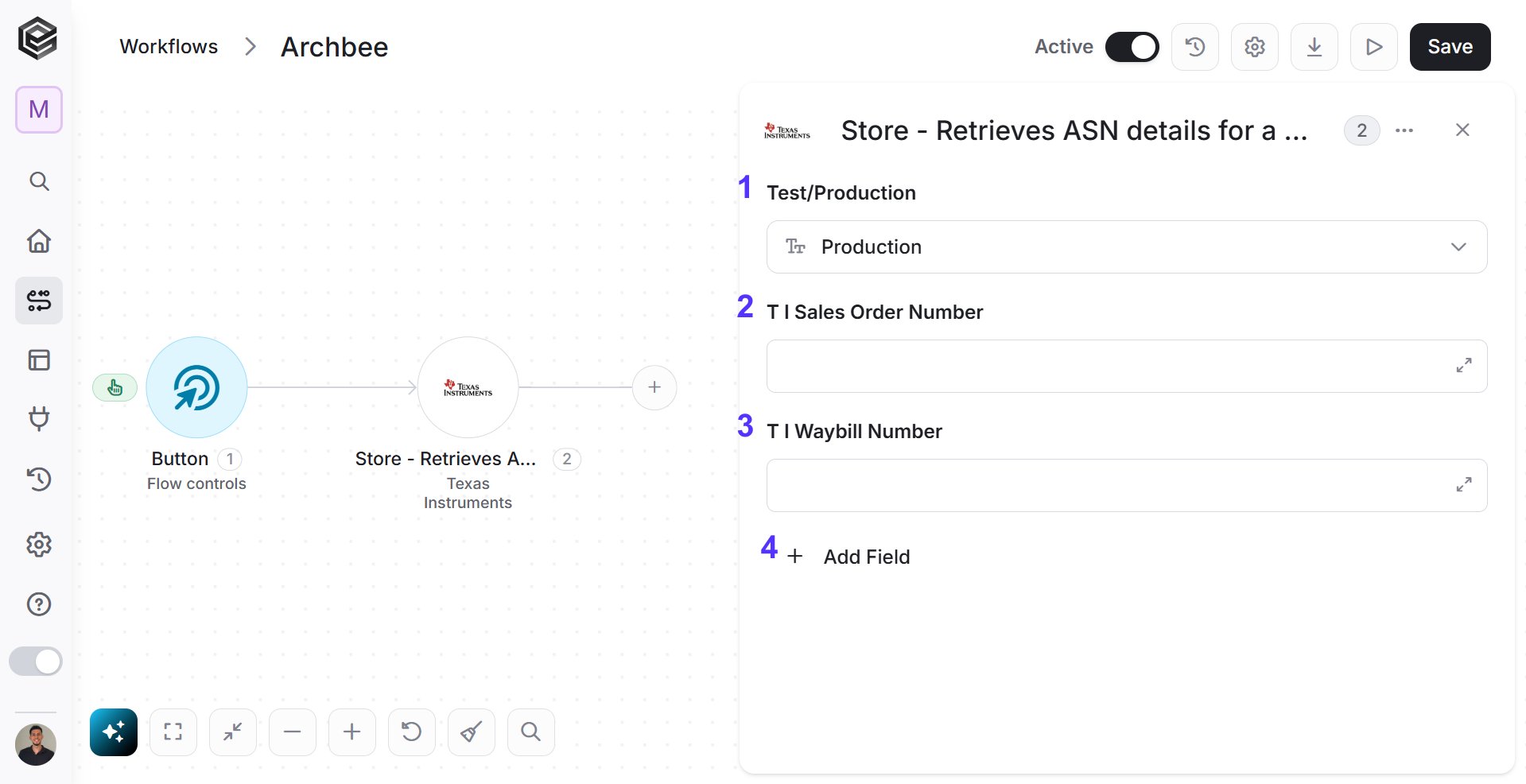
- Test/Production – Select whether the action is for the Test or Production environment.
- TI Sales Order Number – Provide the TI sales order number to retrieve the ASN details.
- TI Waybill Number – Enter the waybill number associated with the sales order.
- Add Field - Click Add Field to add and populate additional fields for the selected activity. To learn more about managing activity data, click here.
Retrieves ASN details for a given TI sales order number
This activity retrieves Advanced Shipping Notice (ASN) details based on a specific TI sales order number. It also allows the retrieval of related documents such as commercial invoices and waybills.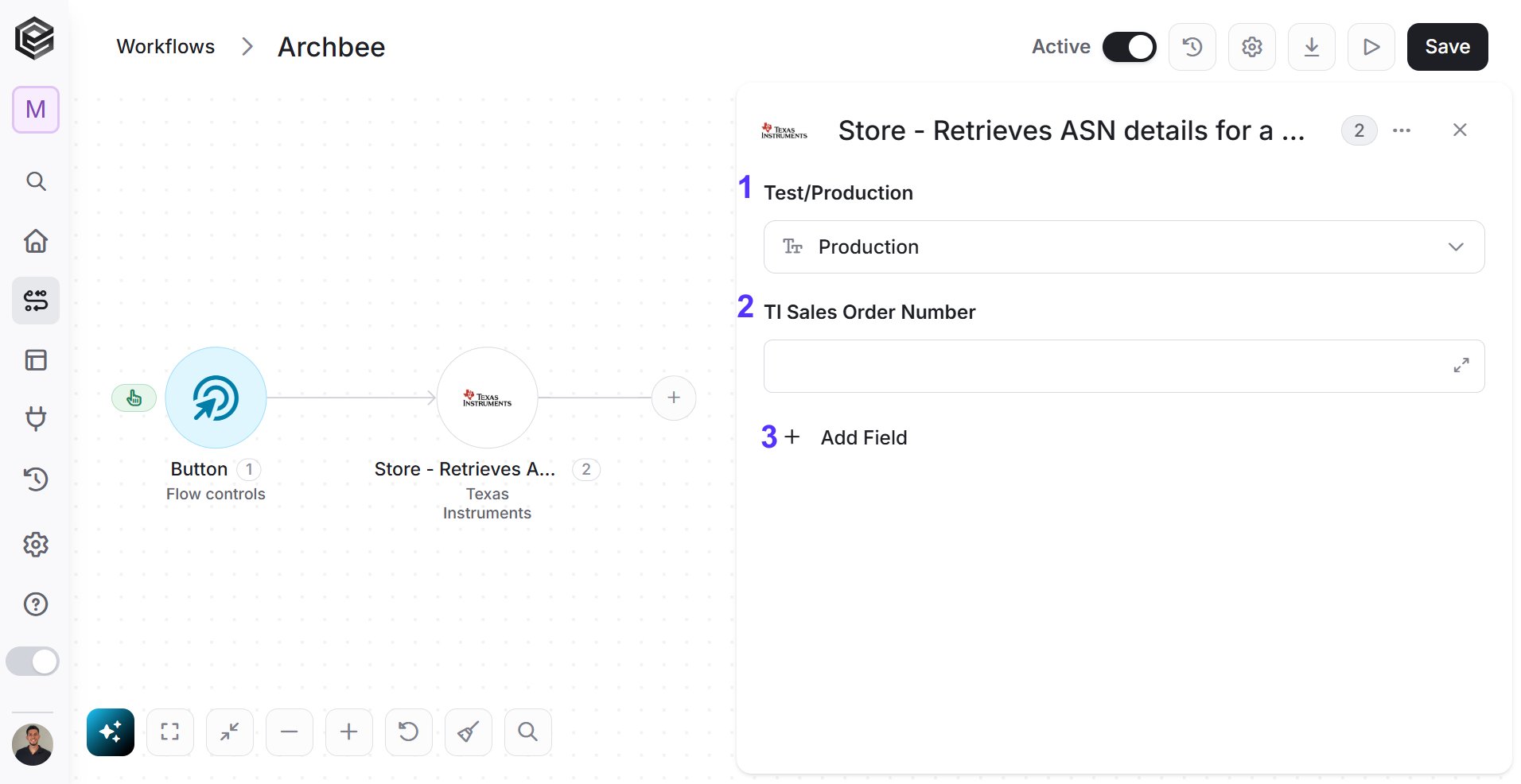
- Test/Production – Select whether the action applies to the Test or Production environment.
- TI Sales Order Number – Enter the TI sales order number to retrieve the ASN details.
- Add Field - Click Add Field to add and populate additional fields for the selected activity. To learn more about managing activity data, click here.
Retrieves Order History for a Specific Date Range
This activity retrieves the order history for a specified date range. You can set the start and end dates to filter the results based on a particular period.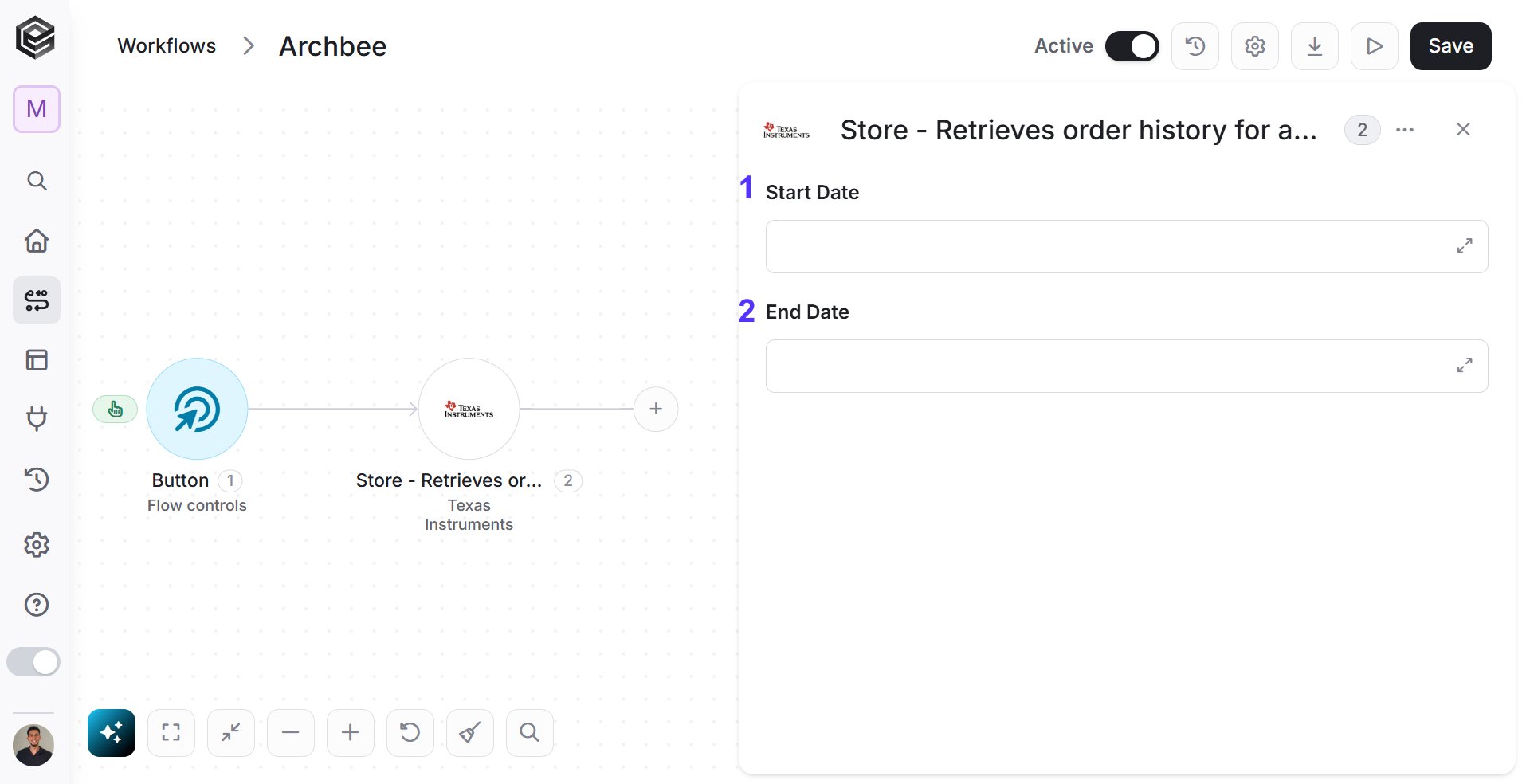
- Start Date – Enter the start date for the order history range.
- End Date – Provide the end date to define the period for the order history.
Send remittance advice
This activity allows you to send remittance advice to Texas Instruments, specifying payment details such as currency and line items.
- Test/Production – Choose between the Test or Production environment.
- Currency Code – Specify the currency code (e.g., USD, EUR) for the remittance.
- Line Items[] – Enter the list of individual items included in the remittance, specifying details like quantity and price for each item.
- Add Field - Click Add Field to add and populate additional fields for the selected activity. To learn more about managing activity data, click here.