

Add a Connection to Gong in Engini
Prerequisites
- A Gong account.
- A technical administrator in Gong, who can create an Access Key or register an integration for Engini.
-
The Base URL of your Gong API. The default is
https://api.gong.io. Note: There are two ways to connect. With Access Key, you create an Access Key and an Access Key Secret in Gong. With Custom OAuth 2.0, you register your own integration in Gong and sign in from Engini.
Retrieve your Gong Access Key and Access Key Secret
- Sign in to Gong as a technical administrator.
- Open the API page in the Gong Admin center (Settings > Ecosystem > API).
- Create an Access Key. Gong shows the Access Key and the Access Key Secret. Copy both, and copy the Base URL shown on the page if it differs from the default.
- Make sure the Access Key is allowed to use the Gong features you plan to use in your workflows. To use Update Meeting or Delete Meeting, also tick the scopes
api:meetings:user:updateandapi:meetings:user:delete, together with the other scopes you need, on the API page.
Register an integration in Gong for Custom OAuth 2.0
- Sign in to Gong as a technical administrator.
- Create a new integration (app) in Gong.
- In Engini, open the Custom OAuth 2.0 connection form (see below) and copy the Callback URL. In Gong, add it as the redirect URL of your integration.
- Grant the integration the scopes your workflows need. Engini requests these scopes when you sign in:
api:calls:read:basic,api:calls:read:extensive,api:calls:read:transcript,api:calls:read:media-url,api:calls:create,api:users:read,api:workspaces:read,api:stats:user-actions,api:engagement-data:write,api:meetings:user:updateandapi:meetings:user:delete. - Copy the Client Id and the Client Secret of your integration.
Connecting Engini to Gong
- Enter your Engini account at https://app.engini.io.
-
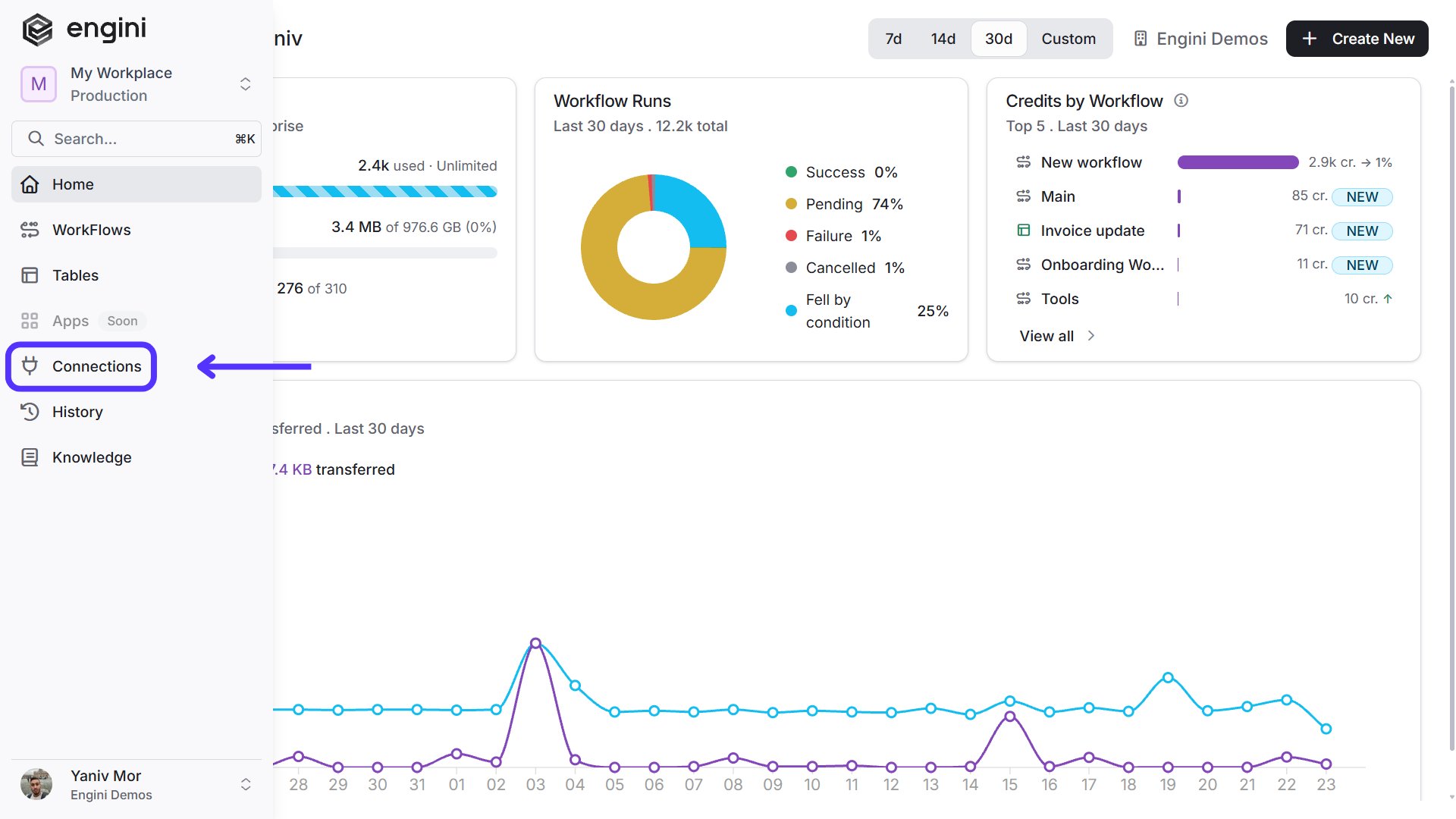
Navigate to the Connections page by clicking on Connections in the left sidebar or by clicking here.
-
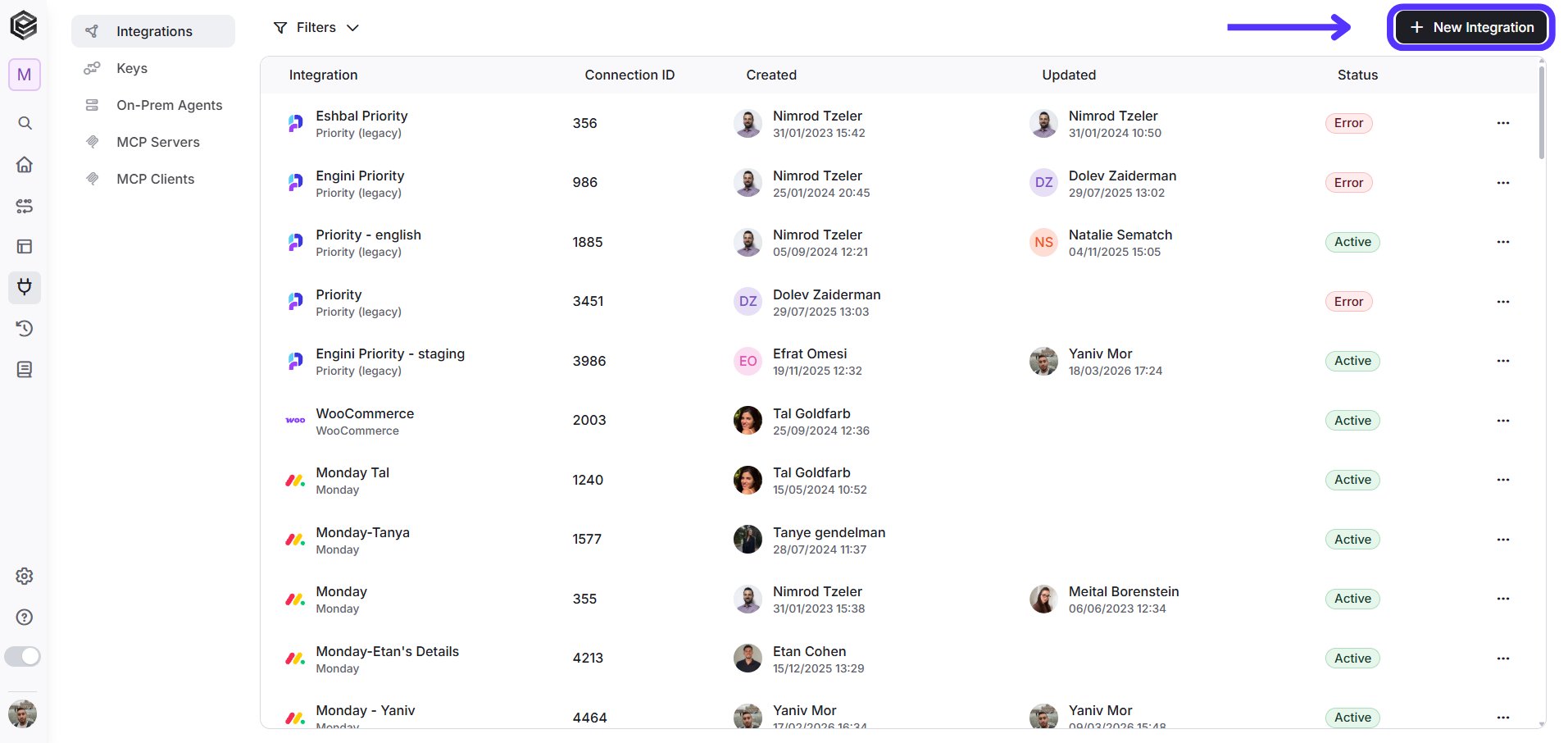
Click on the “New Integration” option located at the top bar.
-
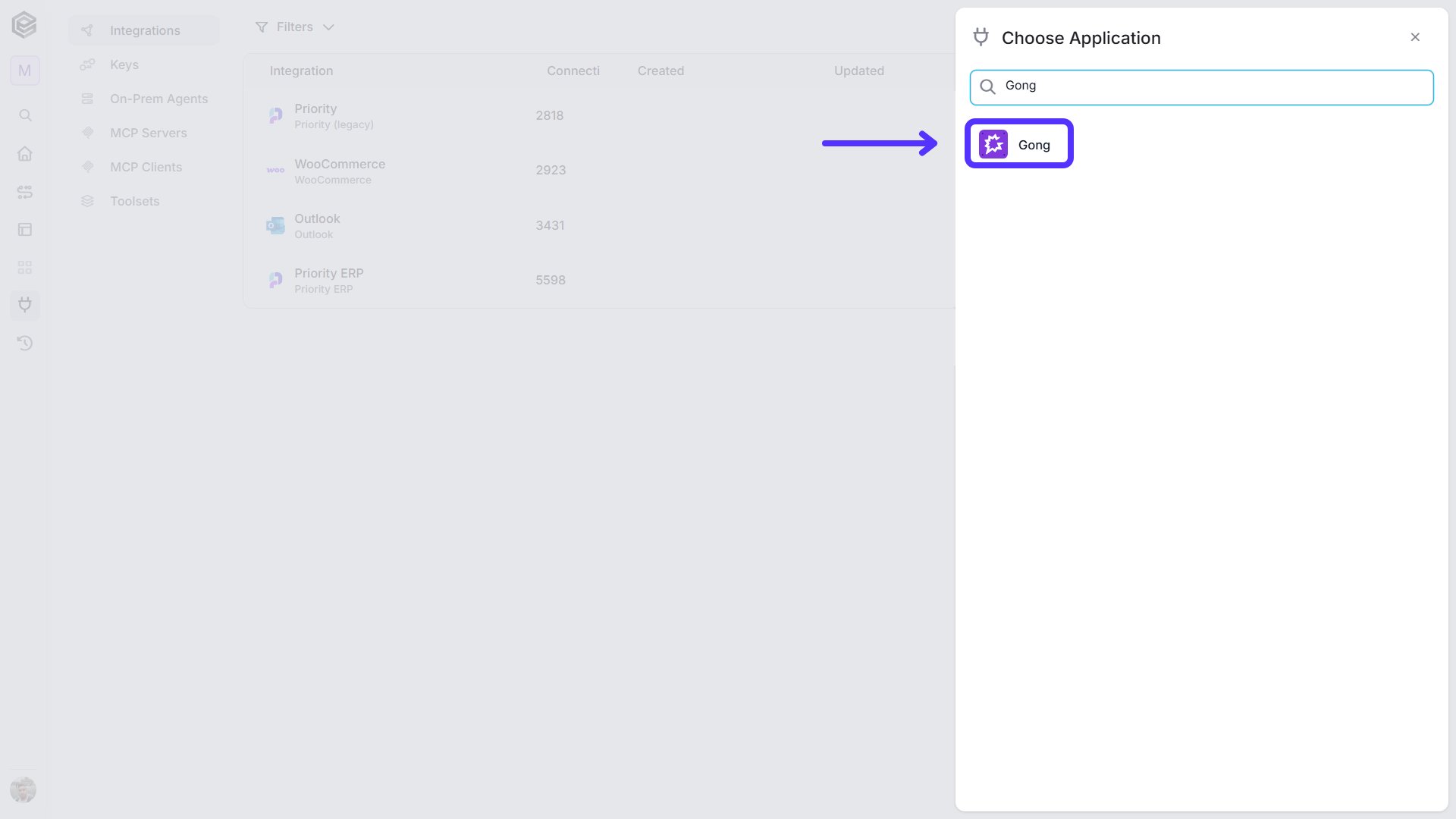
Choose the Gong option from the available applications.
- Enter the following details in the “New Integration” form and press Save.
Access Key
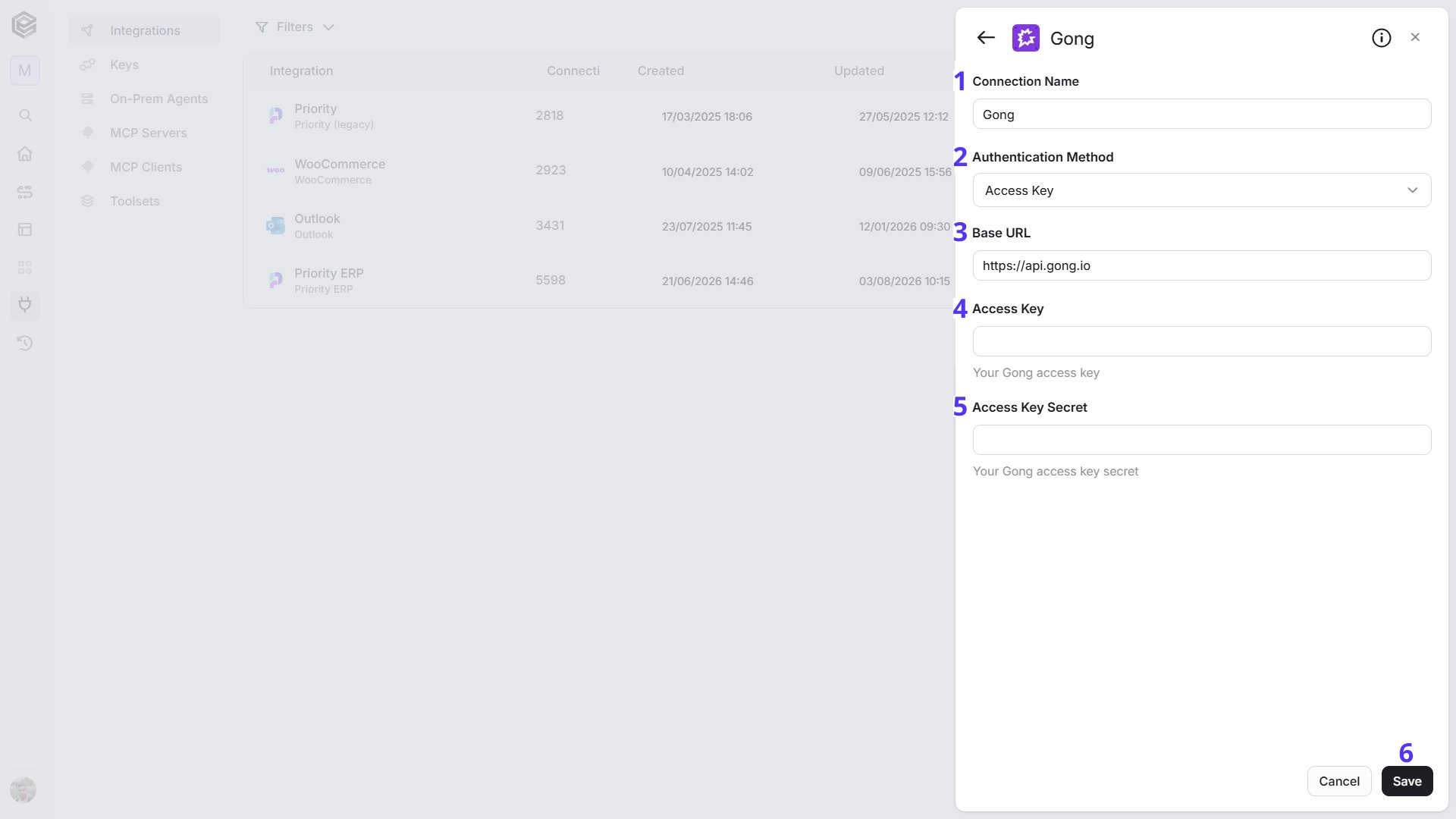
- Connection Name - Enter a name that helps identify the Gong connection.
- Authentication Method - Select Access Key.
- Base URL - The base URL of your Gong API. It is filled in with
https://api.gong.io. Change it only if the API page in Gong shows a different address for your company. - Access Key - Enter the Access Key you created on the API page in Gong, as described in Retrieve your keys.
- Access Key Secret - Enter the Access Key Secret that Gong showed together with the Access Key, as described in Retrieve your keys.
- Save - Click Save to create the connection.
Custom OAuth 2.0
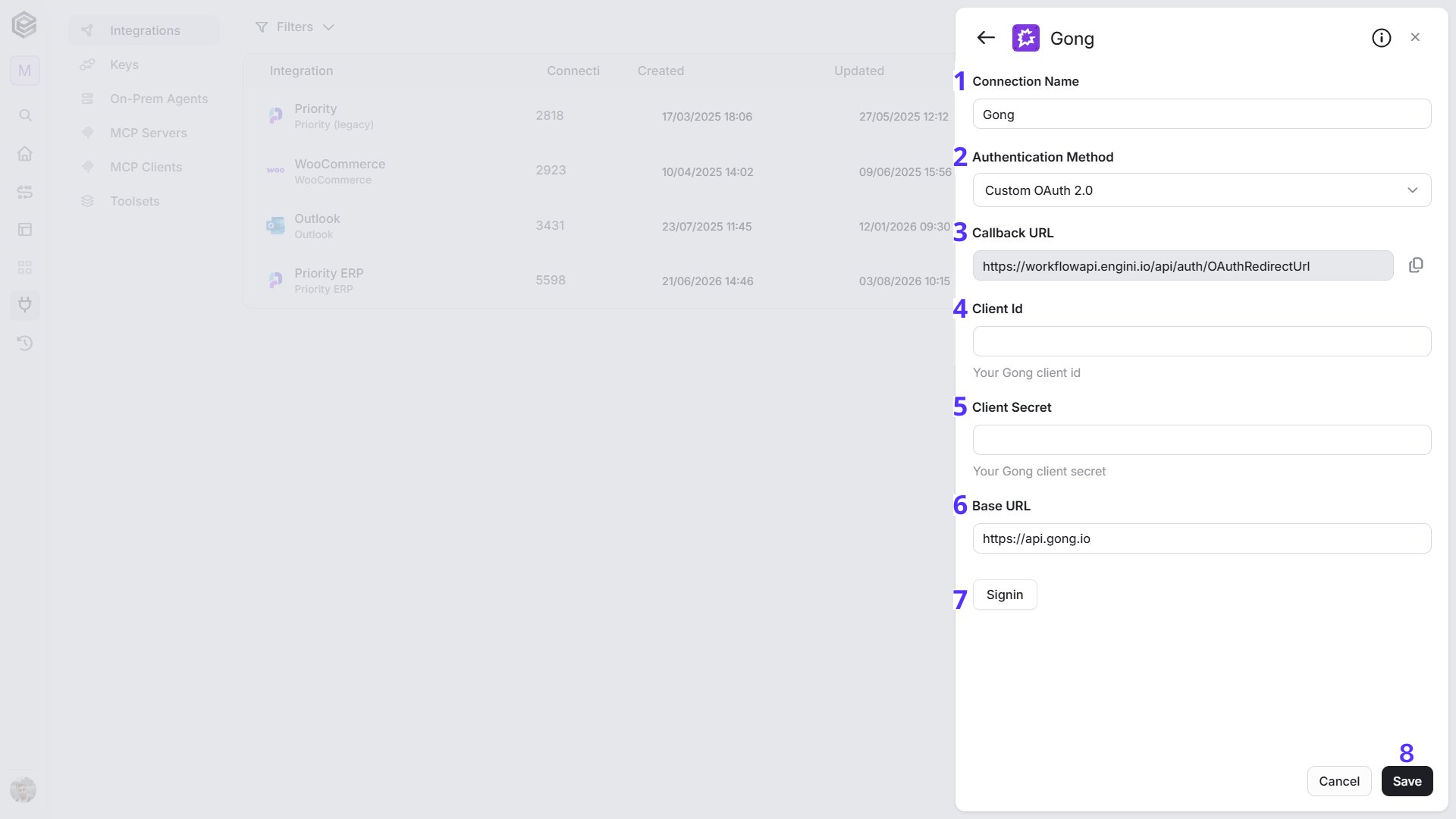
- Connection Name - Enter a name that helps identify the Gong connection.
- Authentication Method - Select Custom OAuth 2.0.
- Callback URL - A read-only address that Engini provides. Click the copy button and add it as the redirect URL of your integration in Gong.
- Client Id - Enter the Client Id of your Gong integration.
- Client Secret - Enter the Client Secret of your Gong integration.
- Base URL - The base URL of your Gong API. It is filled in with
https://api.gong.io. Change it only if your Gong company uses a different address. - Signin - This button stays greyed out (“Fill in to continue: Client Id, Client Secret”) until you fill in the Client Id and Client Secret. Then click it, sign in to Gong as a technical administrator and approve the access that Gong asks for.
- Save - Click Save to create the connection.
Triggers
Call Processed
Starts the workflow when Gong finishes processing a call that matches a rule you set up in Gong. Gong notifies Engini right away, so there is no schedule to set.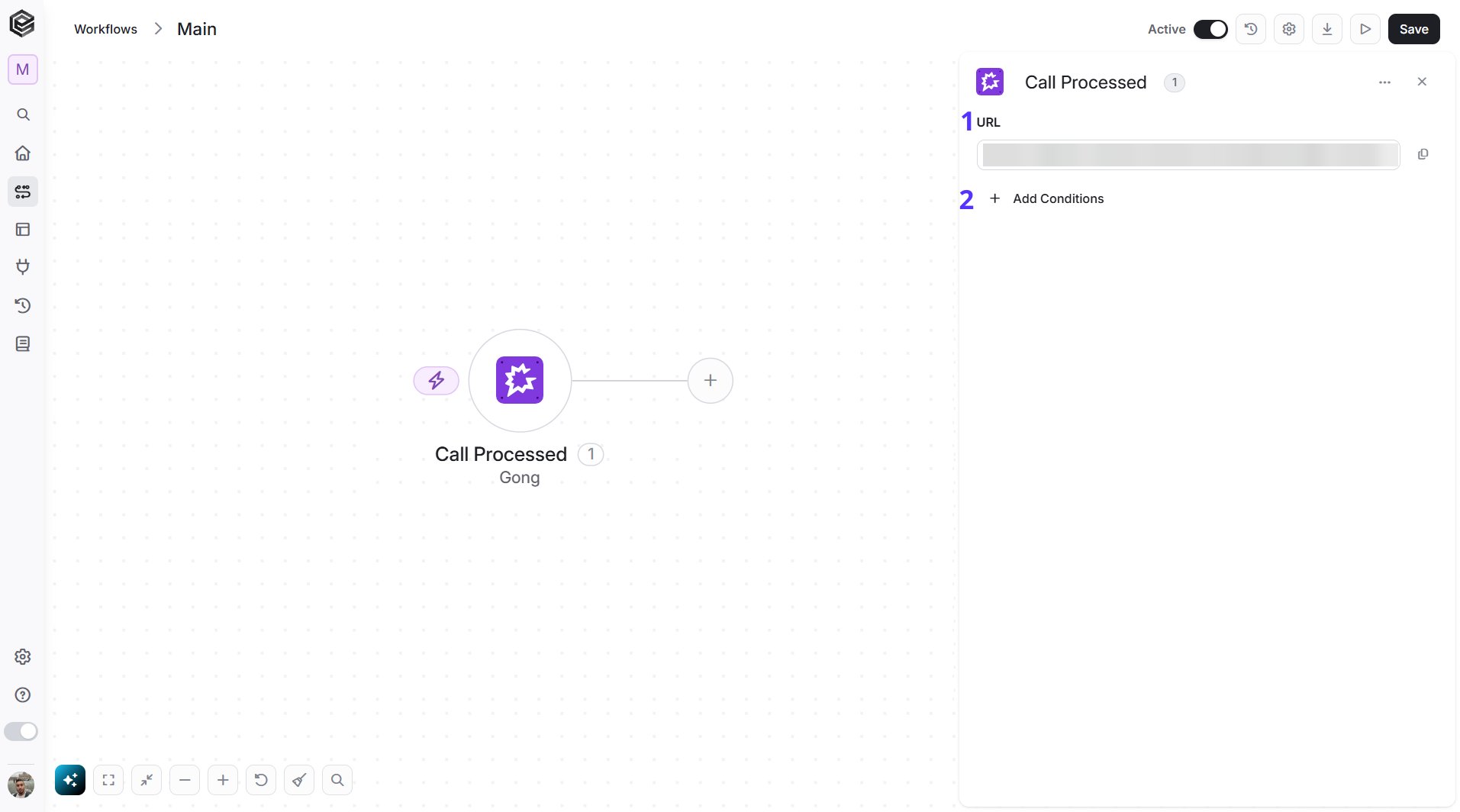
- URL - Copy the URL and paste it into your Gong automation rule, as described below.
- Add Conditions - Click Add Conditions to define conditions that narrow down the data list and return only the relevant items. To learn more about using filters, click here.
- In Gong, open the Automation rules page in the Admin center (Settings > Ecosystem > Automation rules) and click Add Rule.
- Set the filters of the rule if you want only some calls, and choose the action that fires a webhook.
- Paste the URL you copied from the trigger.
- For the authentication, choose the option where the URL includes the key.
- Use Test now in Gong to send a test call, then turn the rule on.
- Is Test - Whether the delivery is a test sent from Gong.
- Call Data - The call, grouped into:
- Meta Data - The call details: Call Id, Call Url, Title, Scheduled, Started, Duration, Direction, Scope, Media, Language, System, Primary User Id, Workspace Id, Disposition, Purpose, Meeting Url, Client Unique Id, Custom Data, Calendar Event Id and Is Private.
- Parties - The people on the call: Party Id, Name, Email Address, Phone Number, Title, Affiliation, Speaker Id, User Id and Methods.
- Content - What Gong found in the call: Brief, Call Outcome (Outcome Id, Name, Category), Highlights, Key Points, Outline (Section, Start Time, Duration), Structure, Topics and Trackers.
- Interaction - Interaction Stats, Questions (Company Count, Other Count), Speakers (Speaker Id, User Id, Talk Time) and Video.
- Collaboration - The Public Comments on the call.
- Media - The Audio Url and the Video Url.
- Context - The CRM context linked to the call.
Check for New Calls
Starts the workflow when new calls appear in your Gong account. Engini checks Gong on the schedule you set.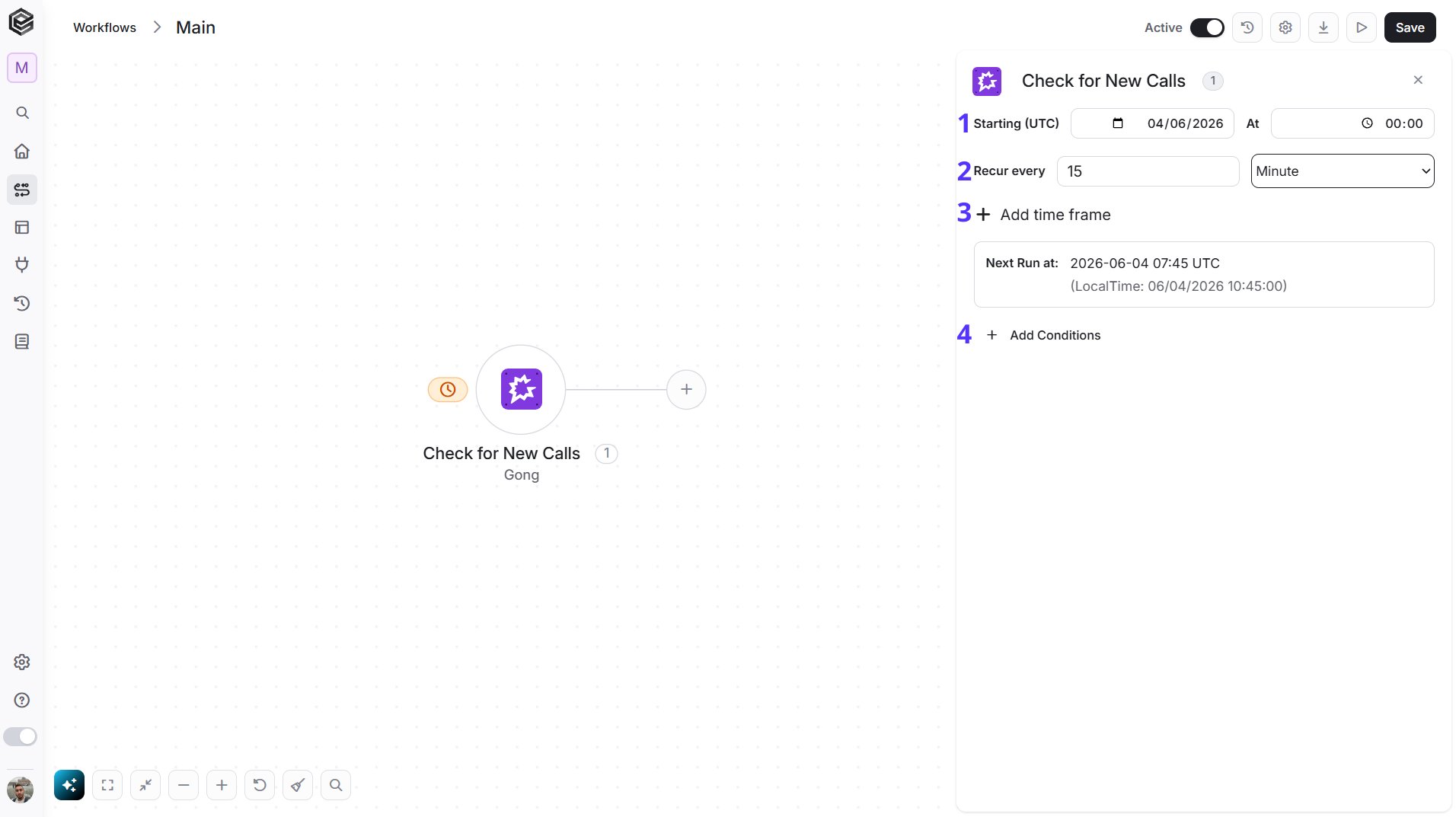
- Starting (UTC) - Select the start date and time for the scheduled trigger.
- Recur every - Choose the time interval for triggering and checking calls. The minimum time interval is 15 minutes.
- Add time frame - You can specify a time frame during which the trigger will operate.
- Add Conditions - Click Add Conditions to define conditions that narrow down the data list and return only the relevant items. To learn more about using filters, click here.
- Call Id - The unique identifier of the call. Use it in later steps, for example in Get Call or Add Call Media.
- Call Url - The link to the call in Gong.
- Title - The title of the call.
- Scheduled - When the call was scheduled to start.
- Started - When the call started.
- Duration - The length of the call in seconds.
- Media - The type of media of the call.
- Language - The language of the call.
- Workspace Id - The Id of the Gong workspace the call belongs to.
- Primary User Id - The Id of the Gong user who hosted the call.
- Direction - Whether the call was inbound, outbound or a conference.
- System - The system that the call came from.
- Scope - Whether the call was internal or external.
- Disposition - The outcome that was recorded for the call.
- Client Unique Id - The Id that the call was given in the system that created it.
- Custom Data - Any custom data stored with the call.
- Purpose - The purpose of the call.
- Meeting Url - The link to the meeting.
- Is Private - Whether the call is private.
- Calendar Event Id - The Id of the calendar event of the call.
Actions
Add Call Media
Adds a recording to a call in Gong.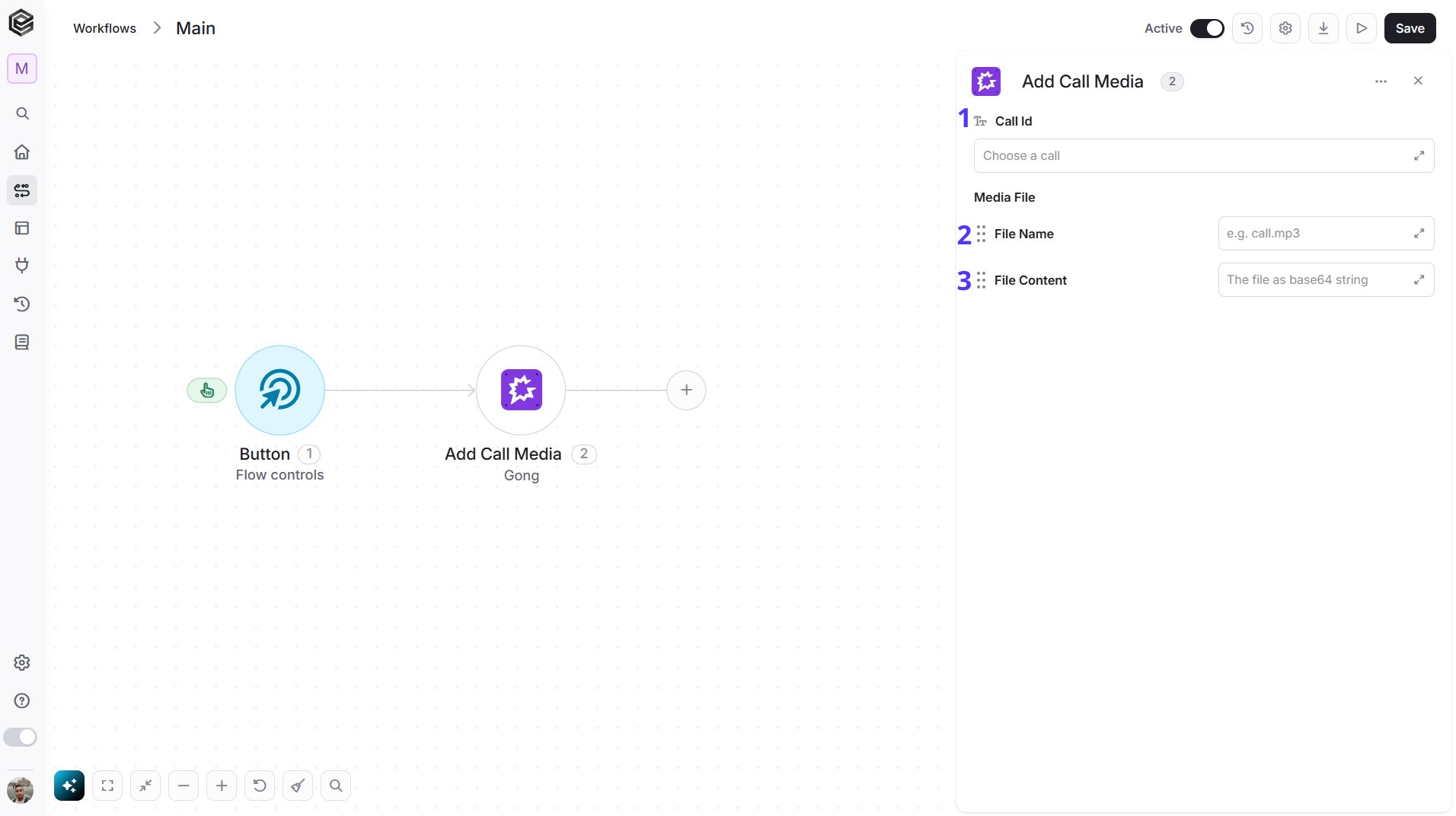
- Call Id - The call to add the recording to. Click the field and choose the call from the list of your calls from the last 30 days, shown as “title - started”, that Engini loads from your Gong account, or map the Id from a previous step, for example the output of Create Call or Get Calls.
- File Name - The name of the recording file, including its extension, for example
call.mp3. - File Content - The content of the recording as a base64 string, for example the base64 content of a file produced by a previous step.
Create Call
Creates a call in Gong with the details you provide.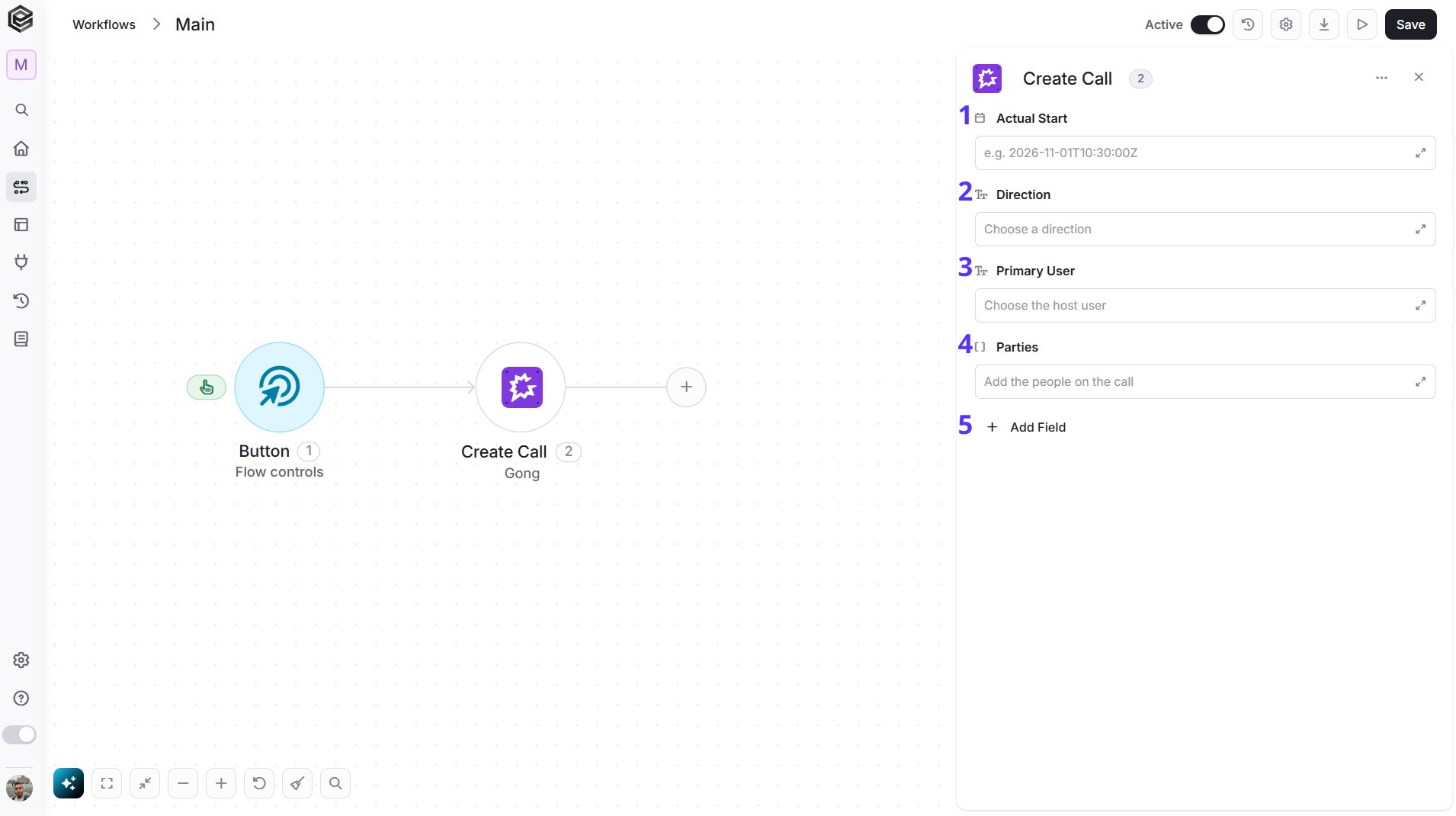
- Actual Start - The date and time the call started, for example
2026-11-01T10:30:00Z. - Direction - Choose the direction of the call from the list (Inbound, Outbound, Conference or Unknown), or map a value from an earlier step.
- Primary User - The Gong user who hosted the call. Choose a user from the list of Gong user names that Engini loads from your Gong account, or map the Id from an earlier step.
- Parties - The people on the call. See the note below on how to fill it.
- Add Field - Click Add Field to add and populate additional fields for the selected activity. To learn more about managing activity data, click here.
Create Content Shared Event
Reports to Gong that a piece of content, such as a document or a presentation, was shared with someone.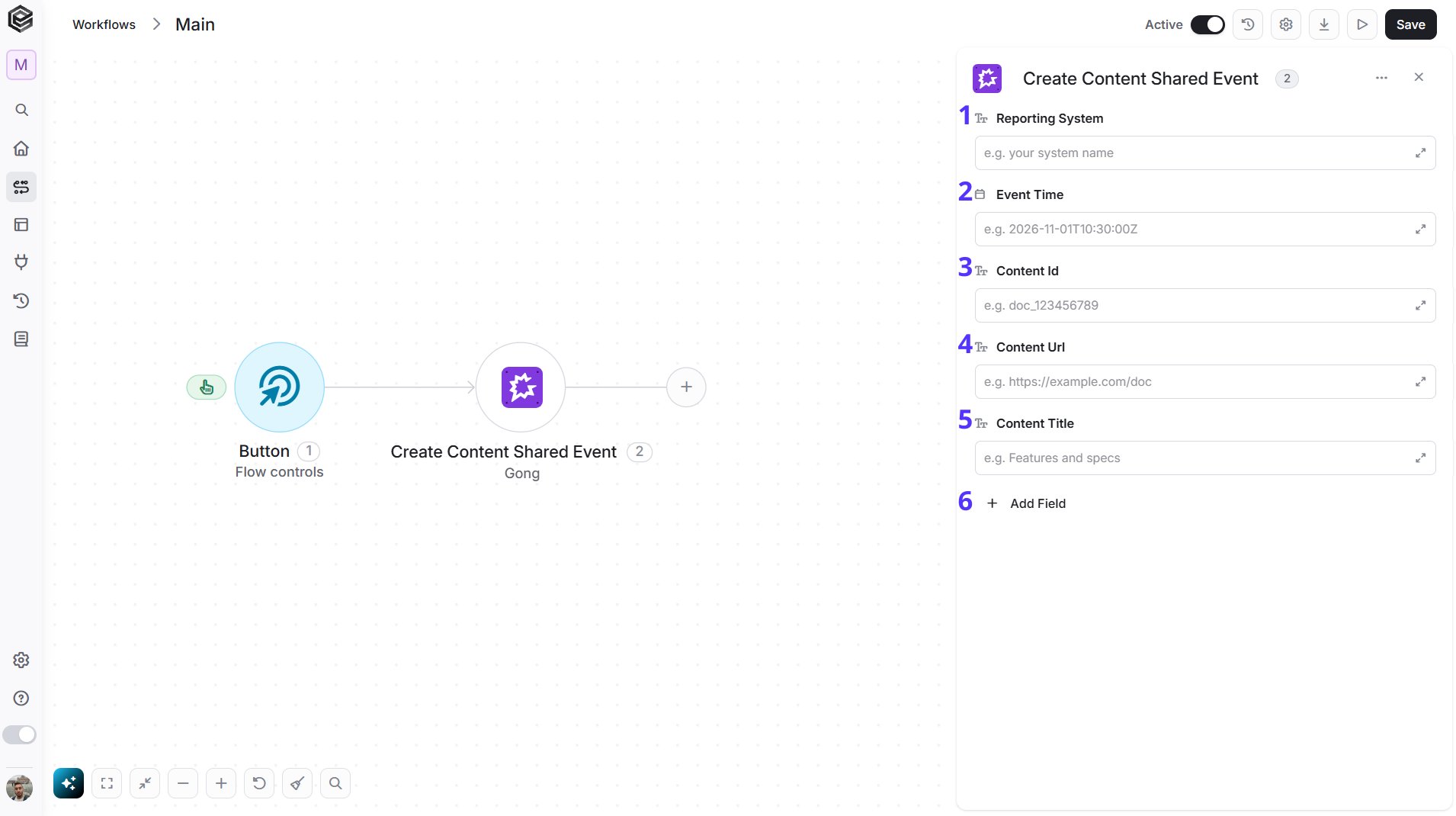
- Reporting System - The name of your system that reports the event, for example the name of your sales engagement tool.
- Event Time - When the content was shared, for example
2026-11-01T10:30:00Z. - Content Id - The Id of the shared content in your system, for example
doc_123456789. - Content Url - The link to the shared content, for example
https://example.com/doc. - Content Title - The title of the shared content, for example
Features and specs. - Add Field - Click Add Field to add and populate additional fields for the selected activity. To learn more about managing activity data, click here.
Create Content Viewed Event
Reports to Gong that someone viewed a piece of content, such as a document or a presentation.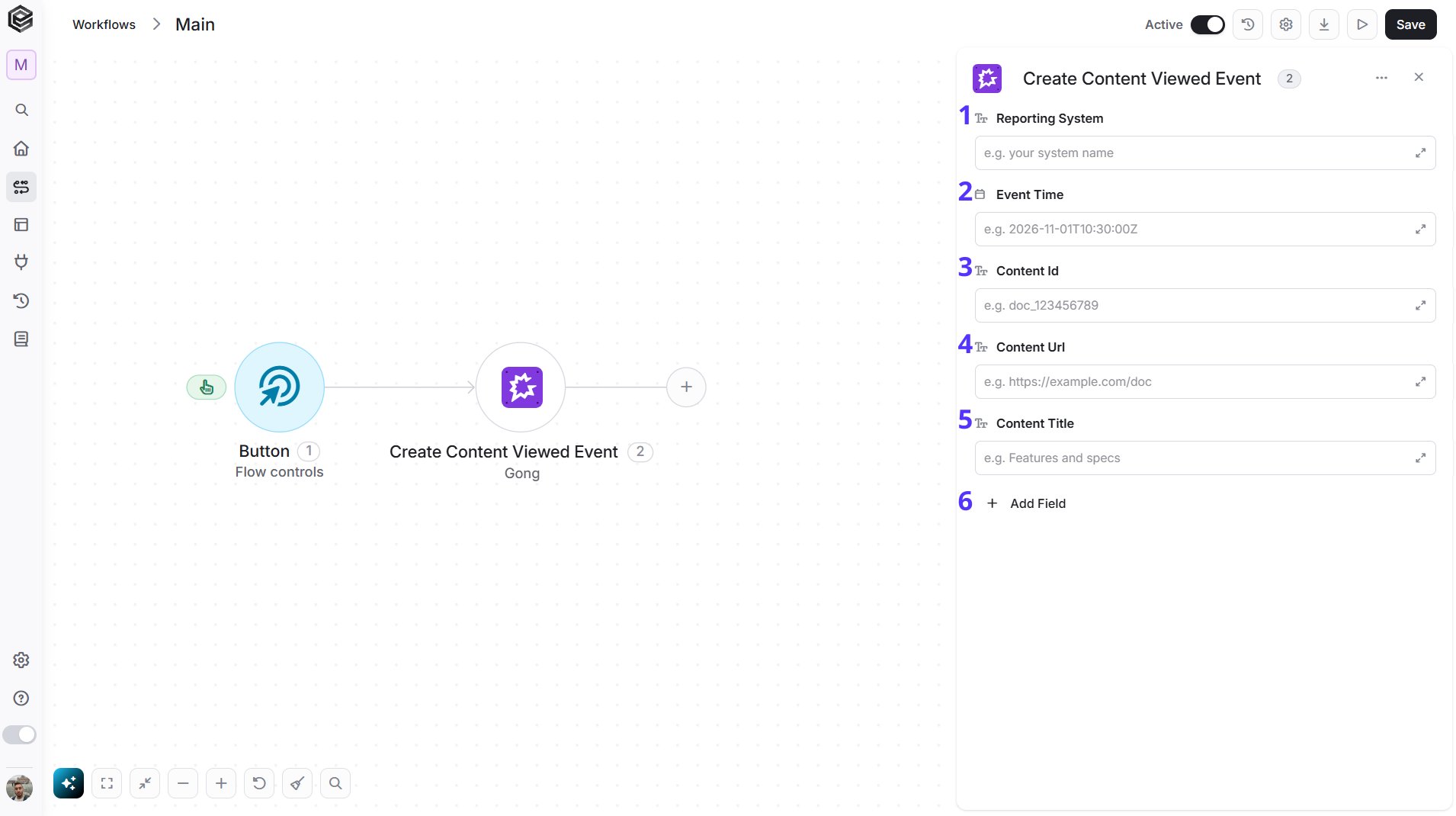
- Reporting System - The name of your system that reports the event, for example the name of your sales engagement tool.
- Event Time - When the content was viewed, for example
2026-11-01T10:30:00Z. - Content Id - The Id of the viewed content in your system, for example
doc_123456789. - Content Url - The link to the viewed content, for example
https://example.com/doc. - Content Title - The title of the viewed content, for example
Features and specs. - Add Field - Click Add Field to add and populate additional fields for the selected activity. To learn more about managing activity data, click here.
Create Custom Action Event
Reports a custom action that happened in your system, such as a presentation that was opened, so that Gong can show it with the related activity.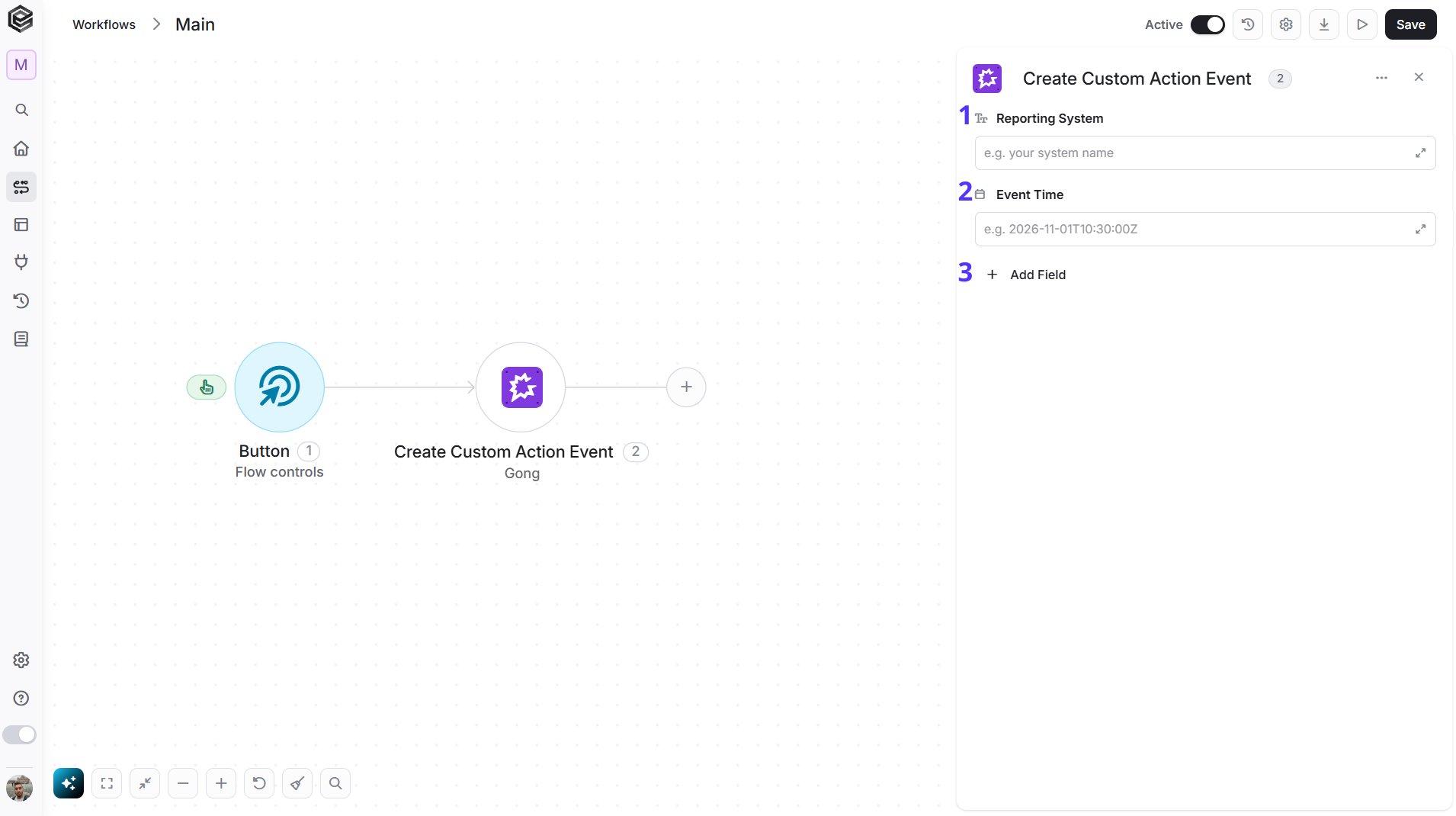
- Reporting System - The name of your system that reports the event, for example the name of your sales engagement tool.
- Event Time - When the action happened, for example
2026-11-01T10:30:00Z. - Add Field - Click Add Field to add and populate additional fields for the selected activity. To learn more about managing activity data, click here.
Delete Meeting
Deletes a meeting in Gong. This action uses a Gong beta endpoint.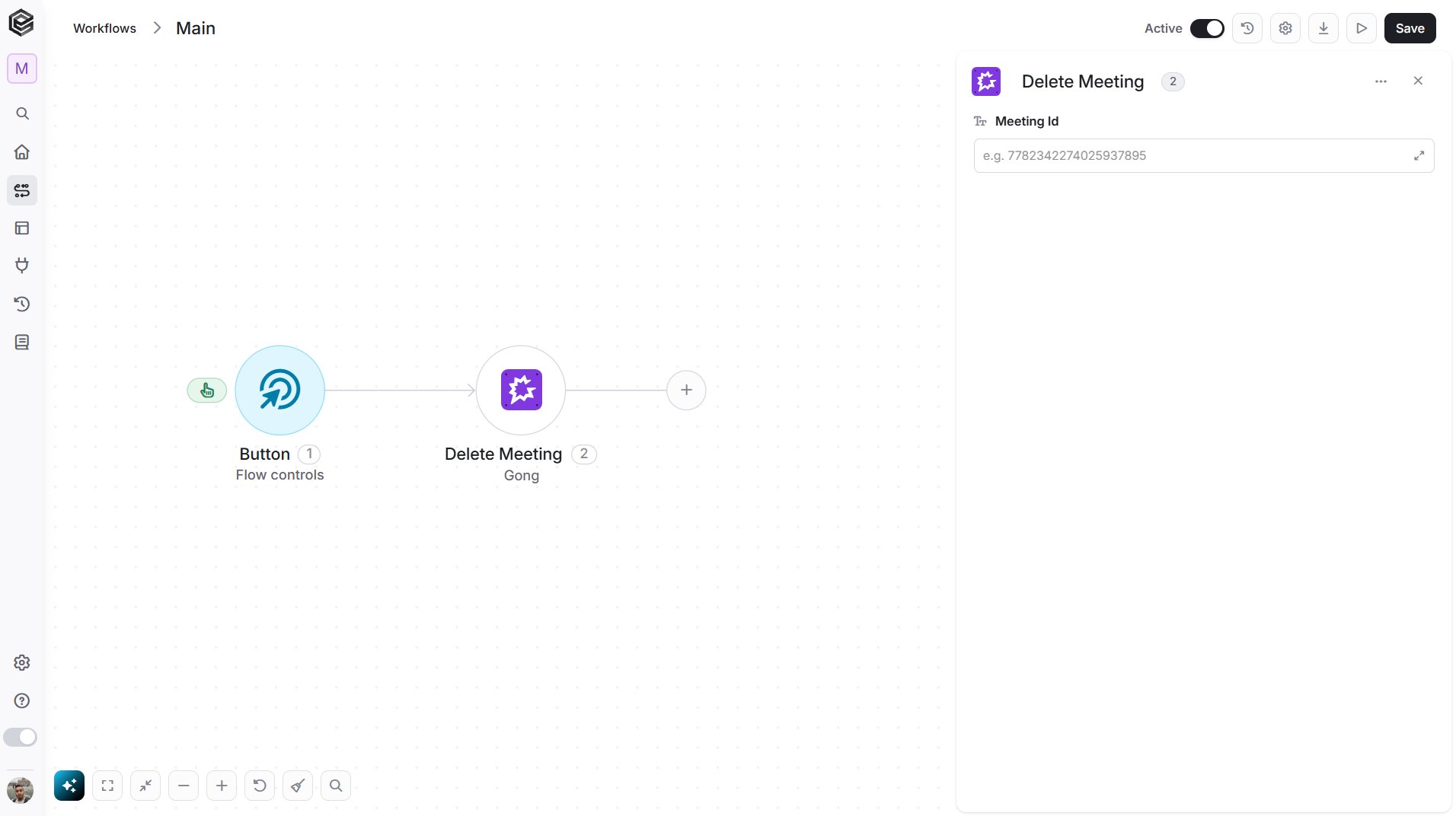
- Meeting Id - The Id of the meeting to delete, for example
7782342274025937895. Enter the Id of a meeting created in Gong, or map it from a previous step.
Get Call
Retrieves the details of a single call.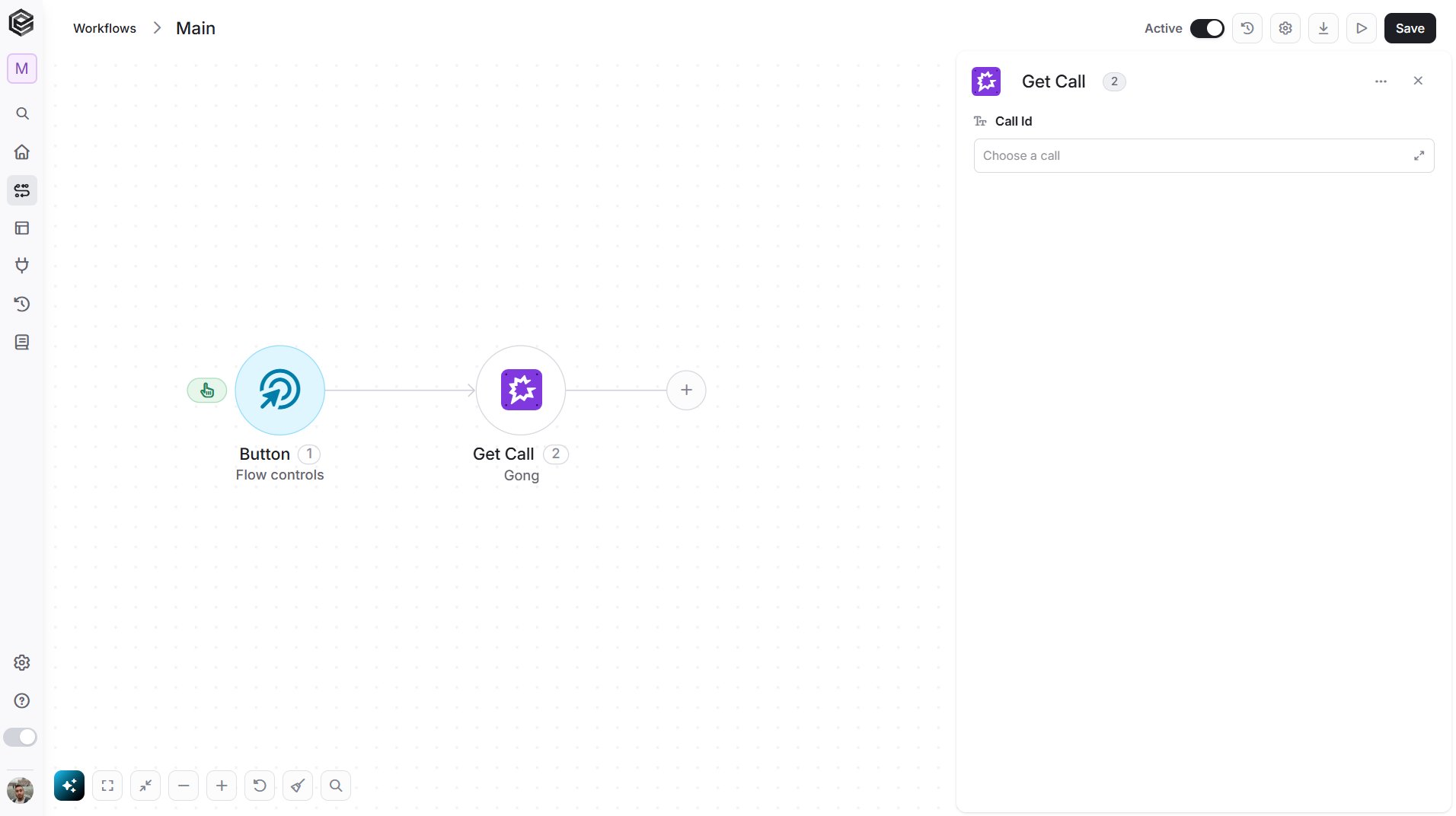
- Call Id - The call to retrieve. Click the field and choose the call from the list of your calls from the last 30 days, shown as “title - started”, that Engini loads from your Gong account, or map the Id from a previous step, for example the output of Get Calls or a trigger.
Get Call Details
Retrieves detailed information about calls in a date range, such as the participants, topics, trackers and summary that Gong found.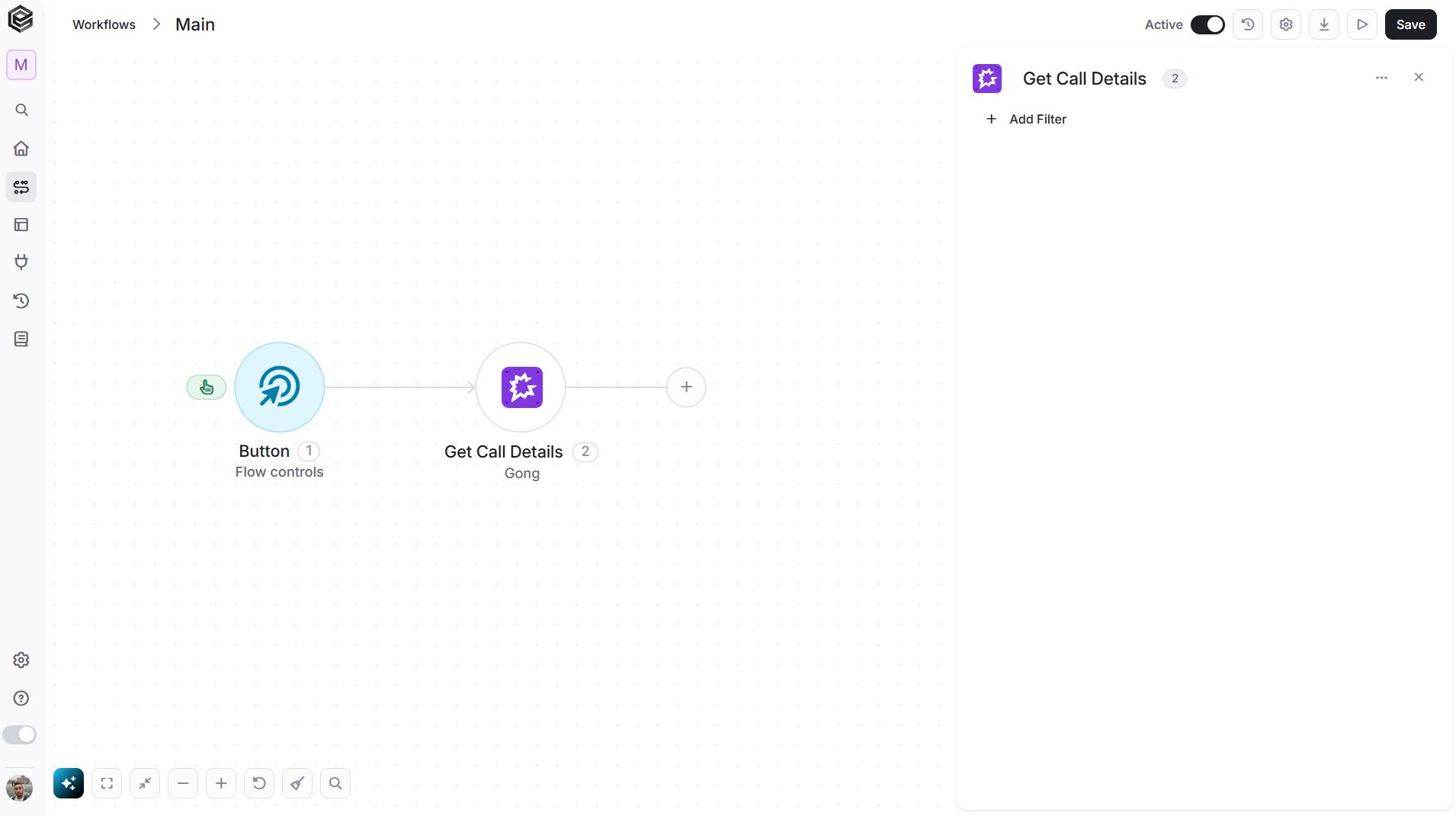
- Add Filter - Click Add Filter to define conditions that narrow down the data list and return only the relevant items. To learn more about using filters, click here.
2026-11-01T00:00:00Z, and to narrow the calls down with Workspace Id, Call Ids or Host Ids. Workspace Id, Call Ids and Host Ids are lists: click the field and choose the workspace from the list of workspace names, the calls from the list of your calls from the last 30 days shown as “title - started”, or the hosts from the list of Gong user names, or map the Ids from a previous step.
To choose what Gong returns for each call, also add these options under Add Filter and set each one to Yes: Include Parties, Include Media, Include Structure, Include Topics, Include Trackers, Include Tracker Hits, Include Brief, Include Outline, Include Highlights, Include Outcome, Include Key Points, Include Speakers, Include Video, Include Talk Stats, Include Questions and Include Comments. CRM Context sets how much CRM data to return, and you choose the level from the list.
Get Call Transcripts
Retrieves the transcripts of calls.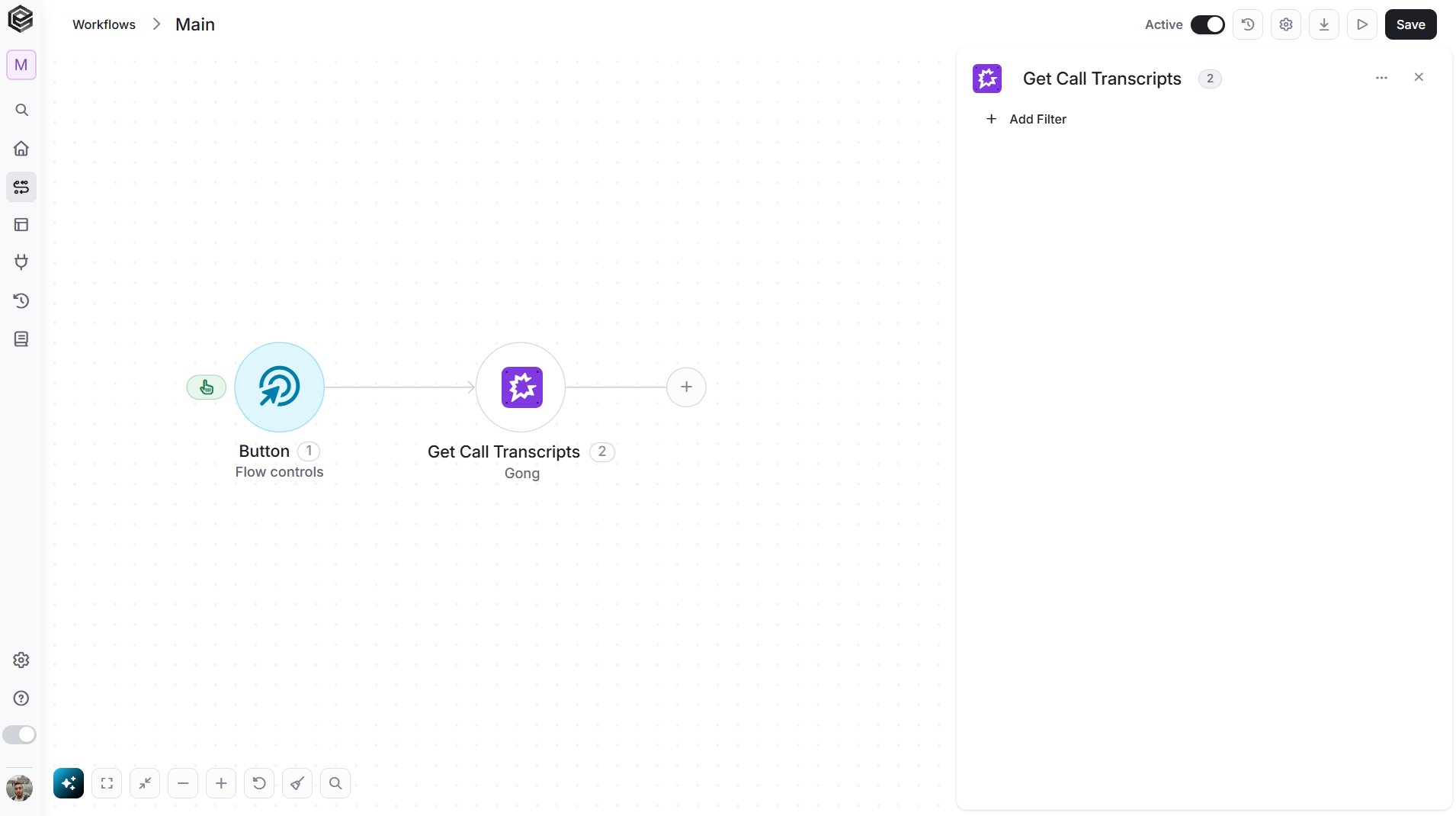
- Add Filter - Click Add Filter to define conditions that narrow down the data list and return only the relevant items. To learn more about using filters, click here.
2026-11-01T00:00:00Z, or of specific calls with Call Ids. Click Call Ids and choose the calls from the list of your calls from the last 30 days, shown as “title - started”, or map the Ids from a previous step. You can also filter by Workspace Id: choose the workspace from the list of workspace names, or map the Id from a previous step.
Get Calls
Retrieves the calls in a date range.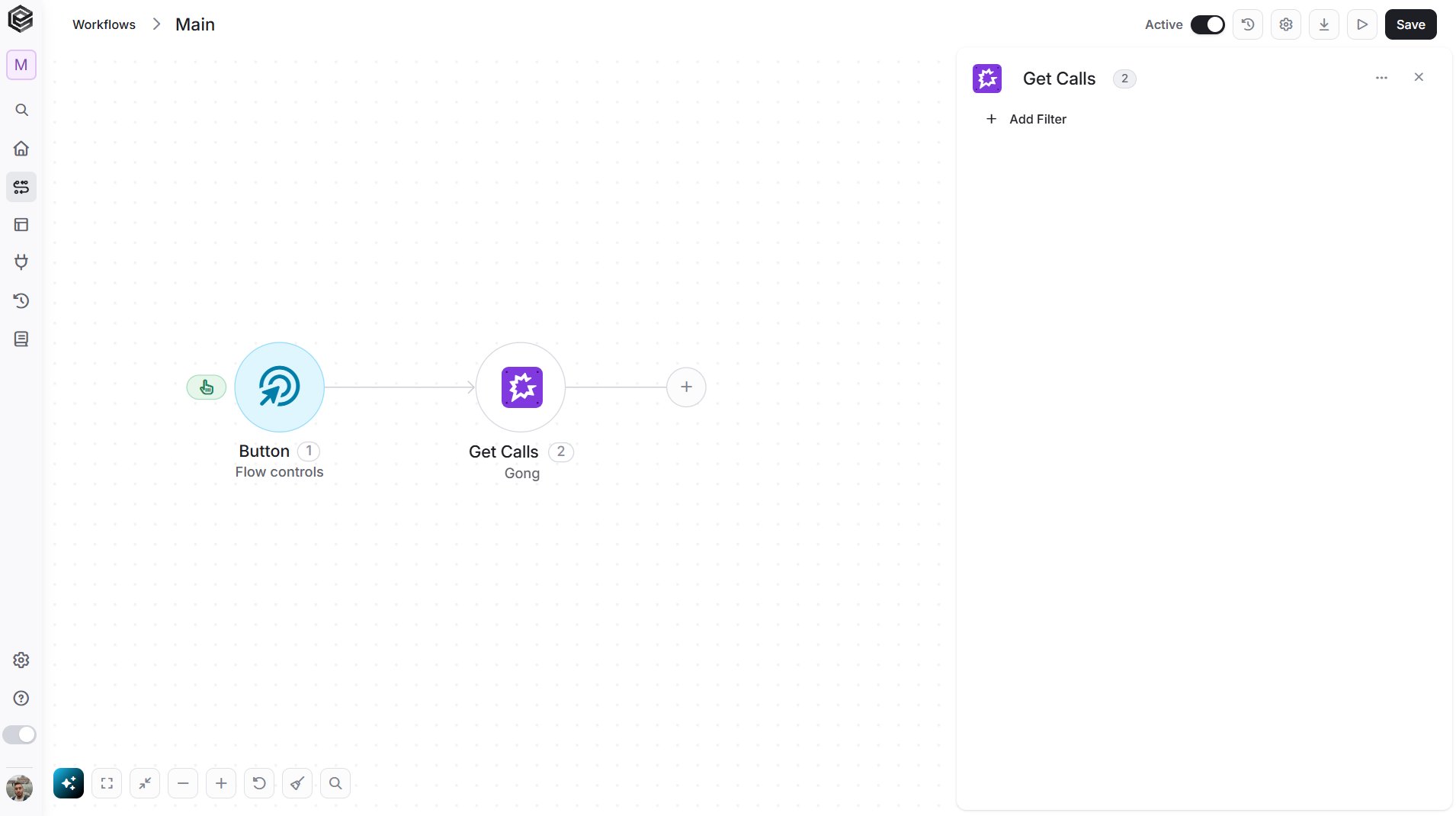
- Add Filter - Click Add Filter to define conditions that narrow down the data list and return only the relevant items. To learn more about using filters, click here.
2026-11-01T00:00:00Z and 2026-11-02T00:00:00Z, or to get the calls of one workspace with Workspace Id. Click Workspace Id and choose the workspace from the list of workspace names that Engini loads from your Gong account, or map the Id from a previous step.
Get User Activity Stats
Retrieves the activity statistics of your Gong users for a period.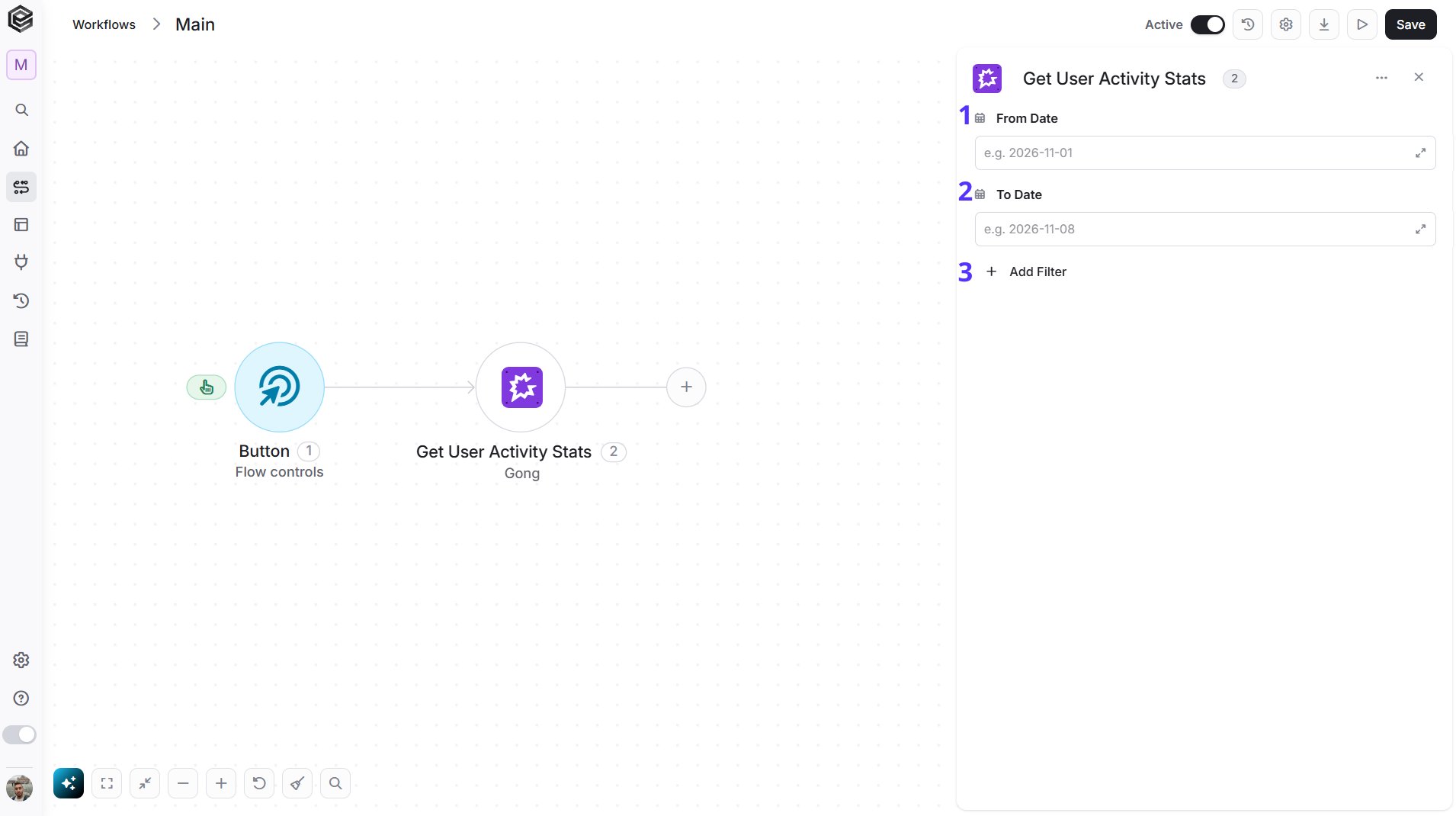
- From Date - The first day of the period, for example
2026-11-01. Required. - To Date - The last day of the period, for example
2026-11-08. Required. - Add Filter - Click Add Filter to define conditions that narrow down the data list and return only the relevant items. To learn more about using filters, click here.
Get Users
Retrieves the users of your Gong account.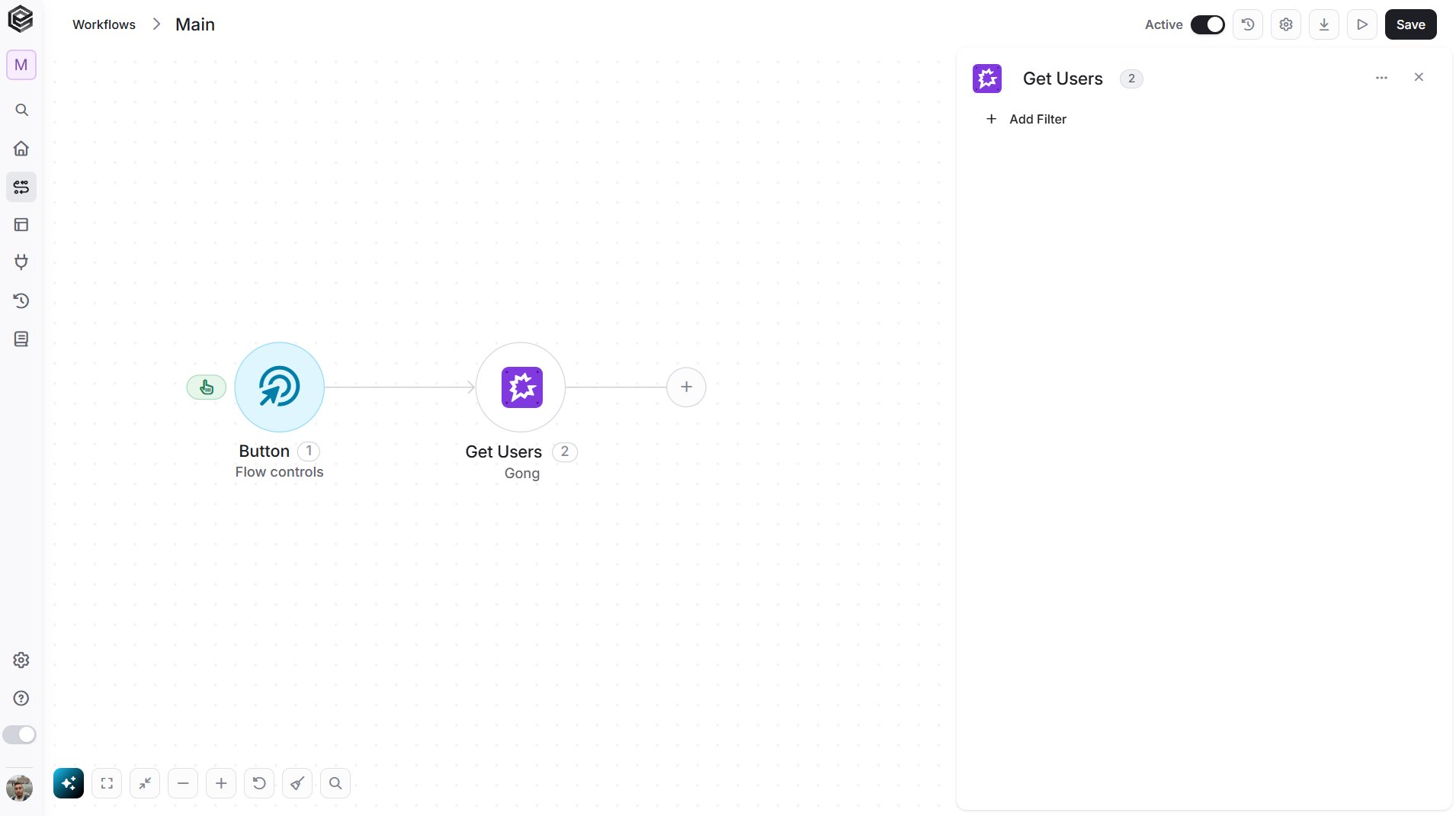
- Add Filter - Click Add Filter to define conditions that narrow down the data list and return only the relevant items. To learn more about using filters, click here.
Get Workspaces
Retrieves the workspaces of your Gong account. This action has no fields to fill in.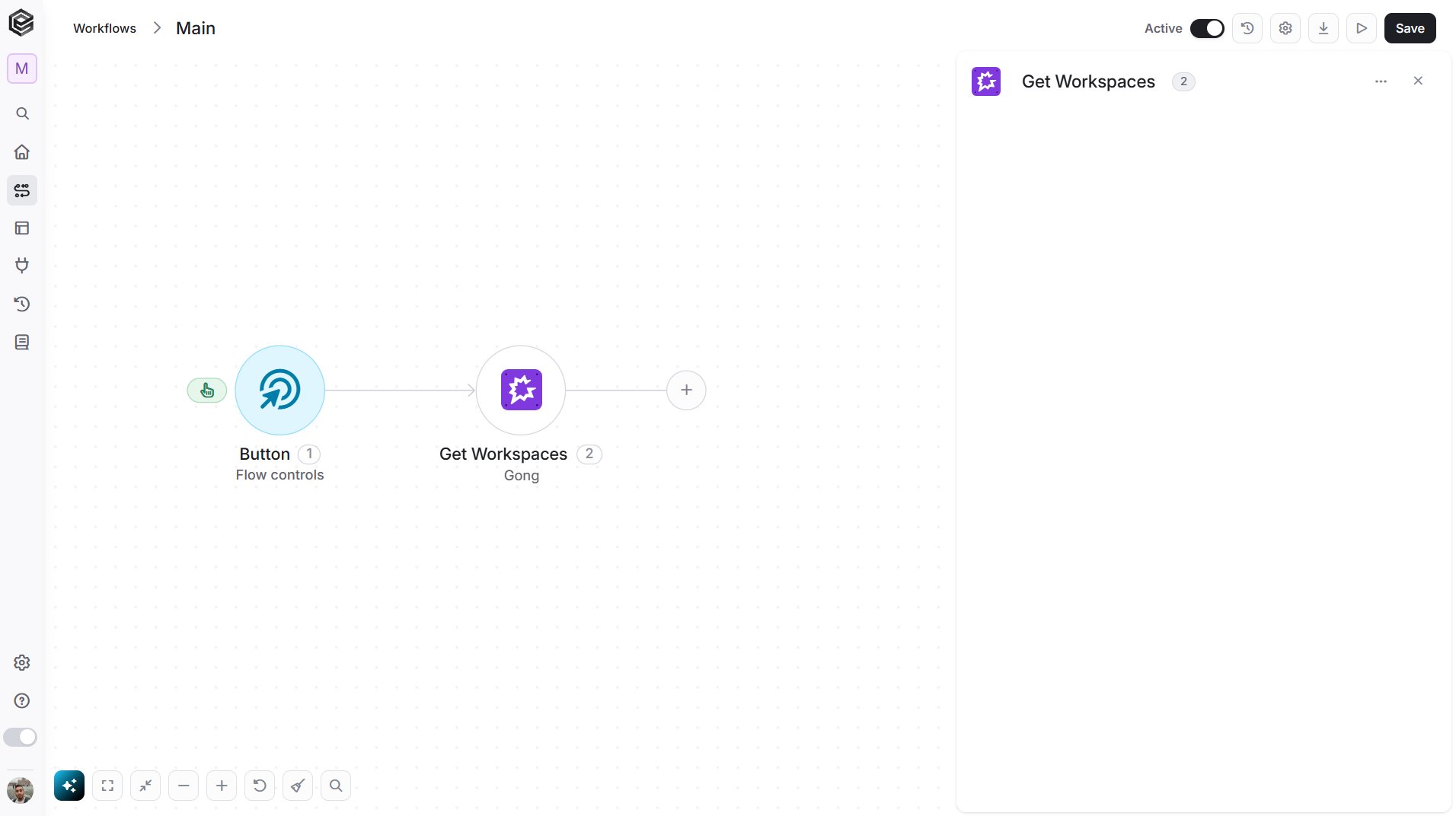
Update Meeting
Updates the details of an existing meeting in Gong. This action uses a Gong beta endpoint.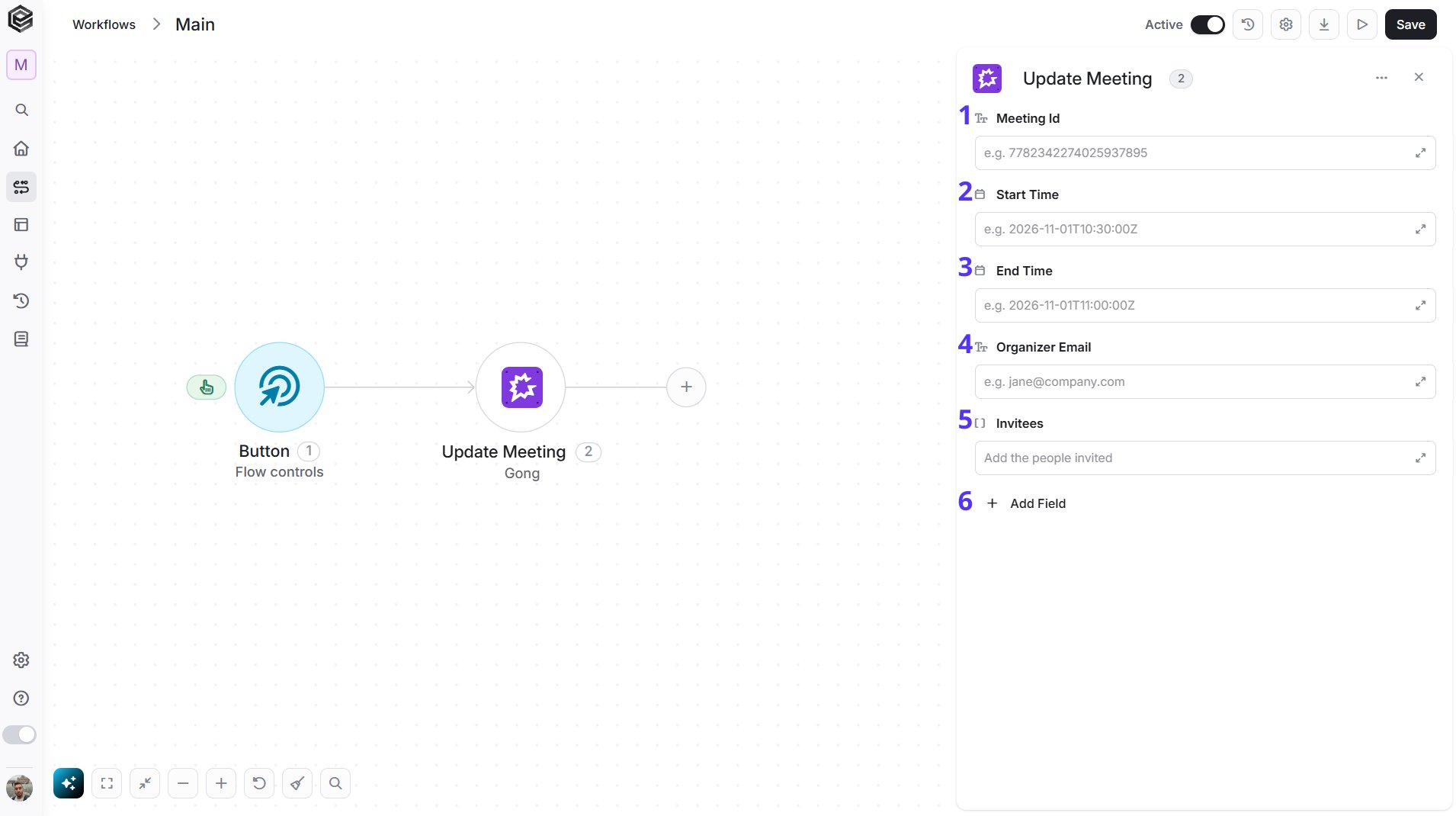
- Meeting Id - The Id of the meeting to update, for example
7782342274025937895. Enter the Id of a meeting created in Gong, or map it from a previous step. - Start Time - The new start date and time of the meeting, for example
2026-11-01T10:30:00Z. - End Time - The new end date and time of the meeting, for example
2026-11-01T11:00:00Z. - Organizer Email - The email of the meeting organizer, for example
jane@company.com. - Invitees - The people invited to the meeting. See the note below on how to fill it.
- Add Field - Click Add Field to add and populate additional fields for the selected activity. To learn more about managing activity data, click here.
Initialize Object Array
Creates a new object array variable in your workflow to store structured Gong data for use in later steps, for example the Parties of Create Call, the Recipients of Create Content Shared Event or the Invitees of Update Meeting.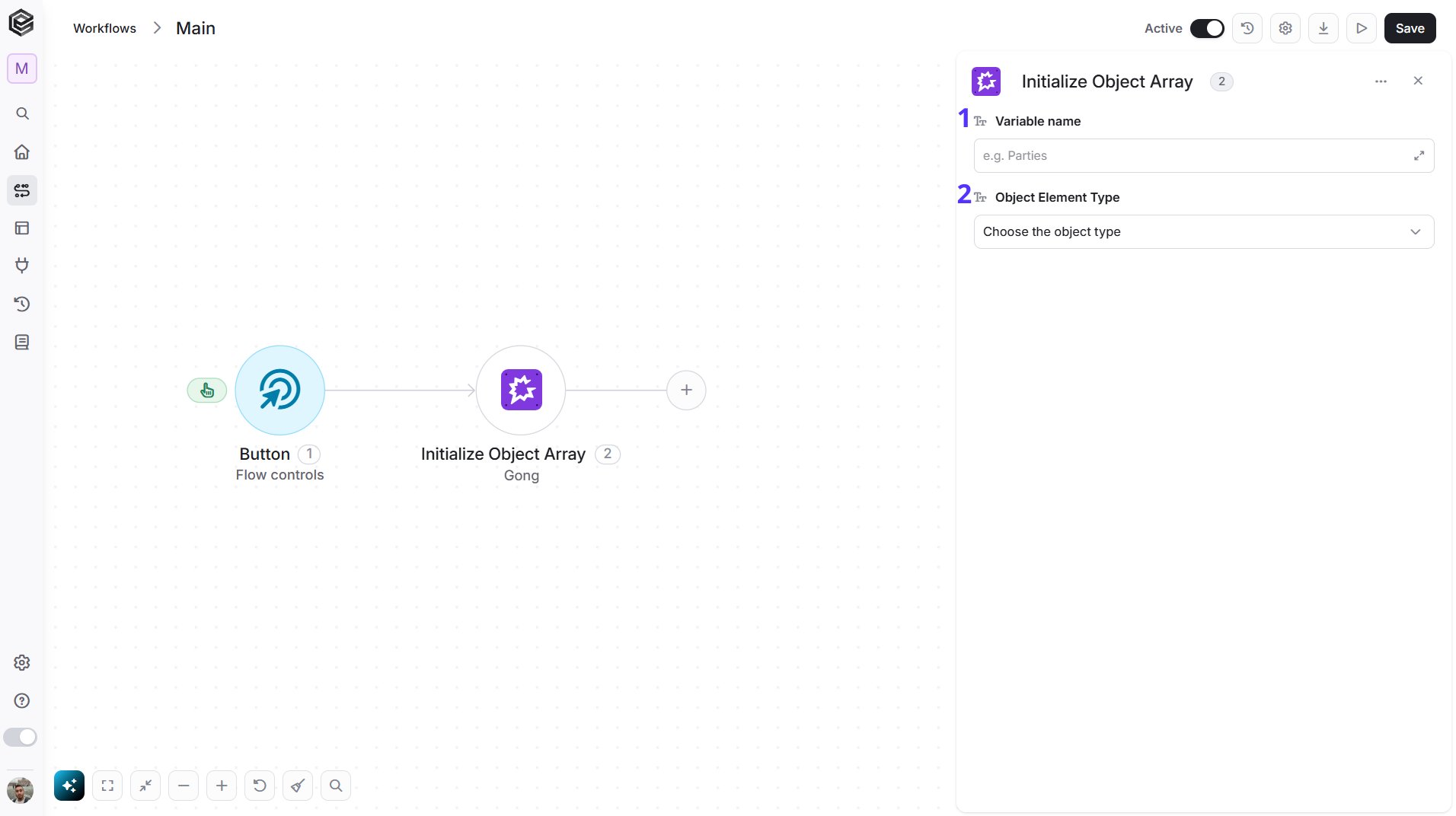
- Variable name - Enter the name of the variable that will hold the object array. This name will be used throughout the workflow whenever you refer to this object array.
- Object Element Type - Select the type of object the array will store. The selected type determines the structure of the array and opens its fields so you can fill in the values for the first entry.
Append to Object Array
Adds a new entry to an existing object array variable in your workflow, for example a person in the Parties of Create Call, in the Recipients of Create Content Shared Event or in the Invitees of Update Meeting.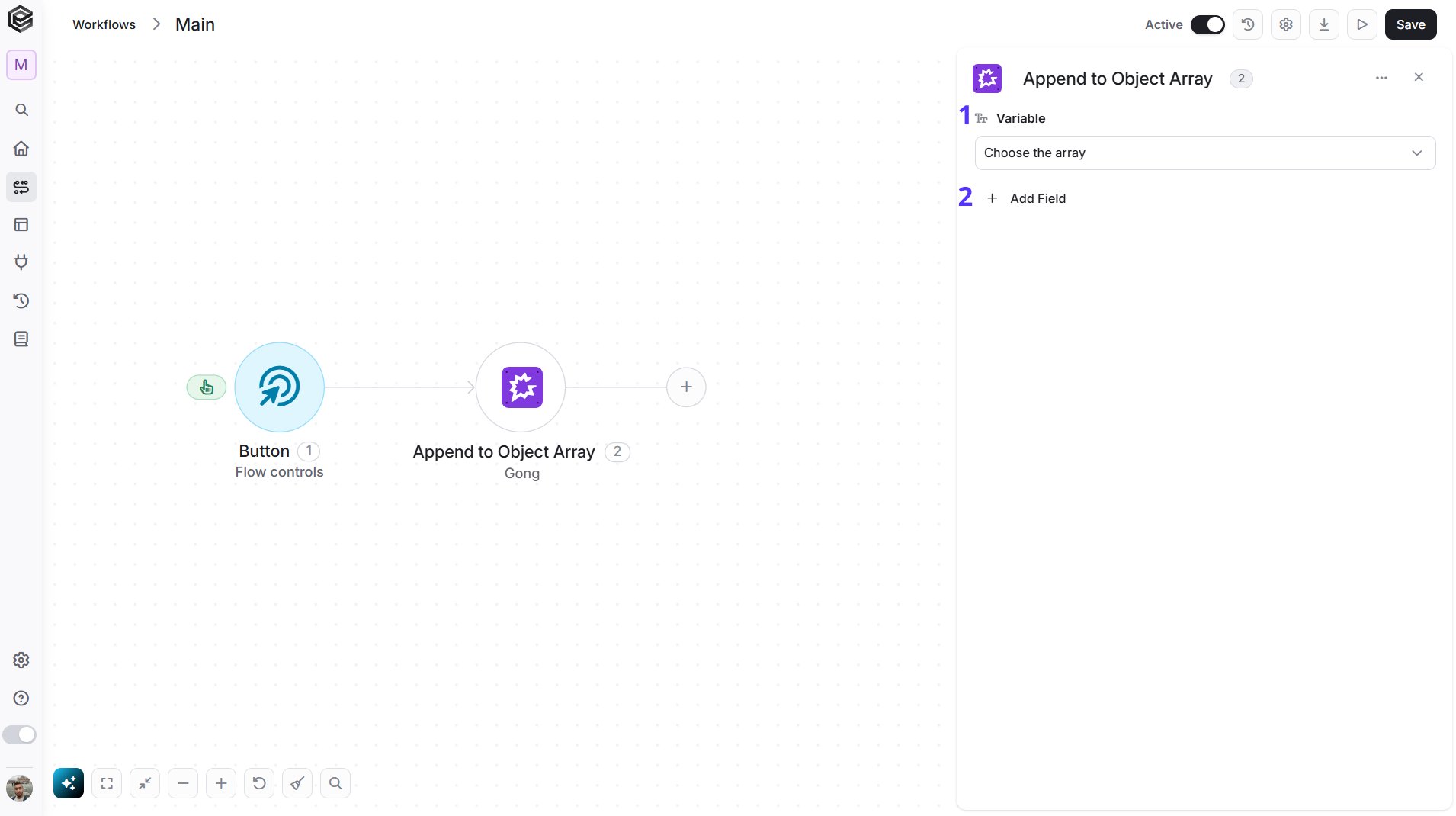
- Variable - Select the object array variable you want to append to. This must be an already initialized object array.
- Add Field - Click Add Field to add and populate additional fields for the selected activity. To learn more about managing activity data, click here.
Map Object Array
Transforms a list of data into a structured object array that can be used later in the workflow. It iterates over each item in the selected data list and maps it into a structured entry. Use it to build the Parties of Create Call, the Recipients of Create Content Shared Event or the Invitees of Update Meeting from a list of data.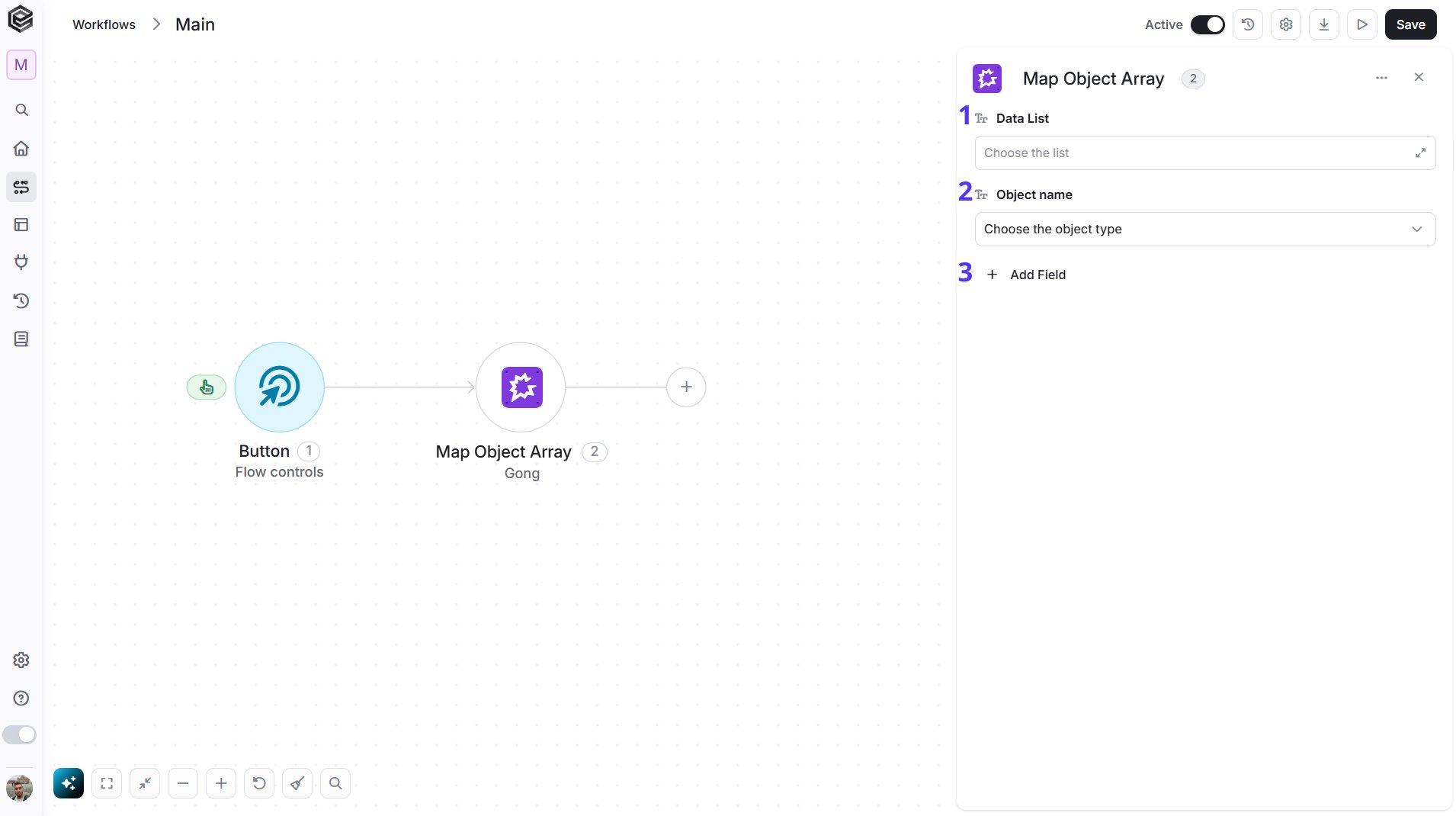
- Data List - Select or map the array or list of data you want to iterate over and transform.
- Object name - Define the name of the temporary object that represents each item during the mapping. You will use this name when referencing fields from the current item.
- Add Field - Click Add Field to add and populate additional fields for the selected activity. To learn more about managing activity data, click here.
Send API Request
This activity allows you to send a custom API request directly to Gong’s API.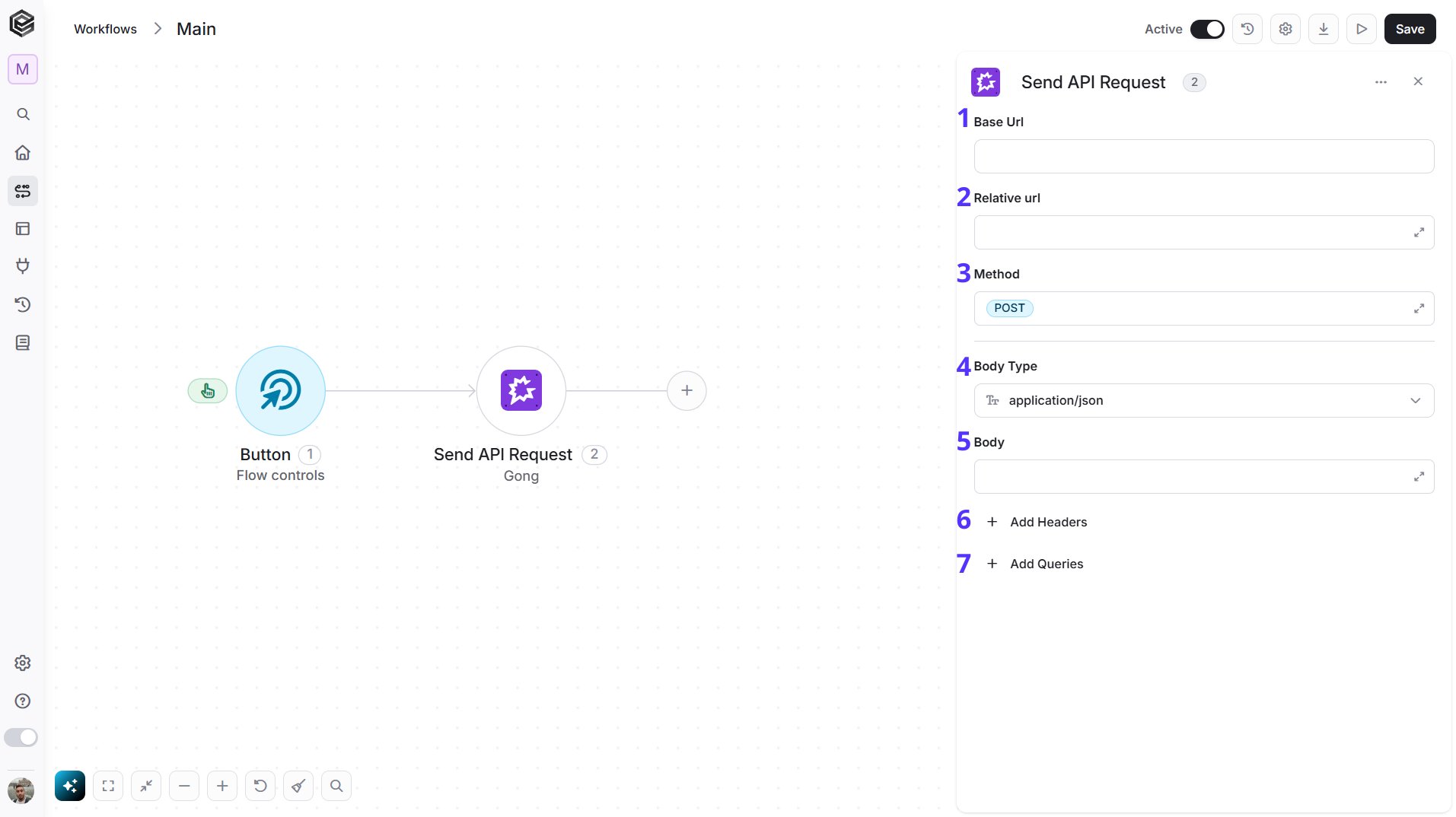
- Base Url - The root URL of the Gong API. It is filled in from your Gong connection and can’t be edited here.
- Relative url - You can specify additional path segments or parameters that need to be added to the end of the Base Url. Enter only the path, for example
/v2/calls. This allows you to customize the specific request you want to perform. - Method - Select the HTTP method (e.g., Get, Post, Put, Delete, Patch). The default is POST.
- Body Type - Defines the format of the data in the body of your request. The default, application/json, means the body contains a JSON-formatted payload.
- application/json – Sends the request body in JSON format. Commonly used by REST APIs.
- custom – Allows you to define a custom body format by manually setting the Content-Type header. Add a
Content-Typerow in Add Headers with the media type you need (for exampleapplication/xml). With any other Body Type, a Content-Type you type in Add Headers is not sent; Engini sets it from the Body Type, and the run history shows it underheadersnotsent. - application/x-www-form-urlencoded – Sends the body as URL-encoded key-value pairs, commonly used in form submissions.
- file – Sends a file as the request body.
- multipart/form-data – Sends form data that may include both text fields and files.
- text/html – Sends the request body as HTML content.
- text/plain – Sends the request body as plain text.
- text/xml – Sends the request body in XML format.
- Body - Contains any data that is being sent to the server.
- Add Headers - Additional metadata about the request, such as the type of data Engini can accept, the length of the request body, and authentication information.
- Add Queries - The query refers to the parameters or data that are included in the URL of an HTTP request to provide additional information or instructions to the server.