

Add a Connection to Oracle E-Business Suite in Engini
Prerequisites
- An Oracle E-Business Suite environment with Integrated SOA Gateway (ISG) REST services enabled, and an administrator who can deploy the services you want to use.
- The ISG REST address (base URL) of your environment. Engini connects to it over the internet, so the address must be reachable from outside your network.
- An Oracle EBS user (username and password) with access to the REST services you want to use, and the Responsibility and Responsibility Application that user works with.
provider. Get REST Interface uses Oracle’s REST Service Locator service, which must be deployed under the alias servicelocator. Ask your EBS administrator to deploy them if you want to use these activities.
Connecting Engini to Oracle E-Business Suite
- Enter your Engini account at https://app.engini.io.
-
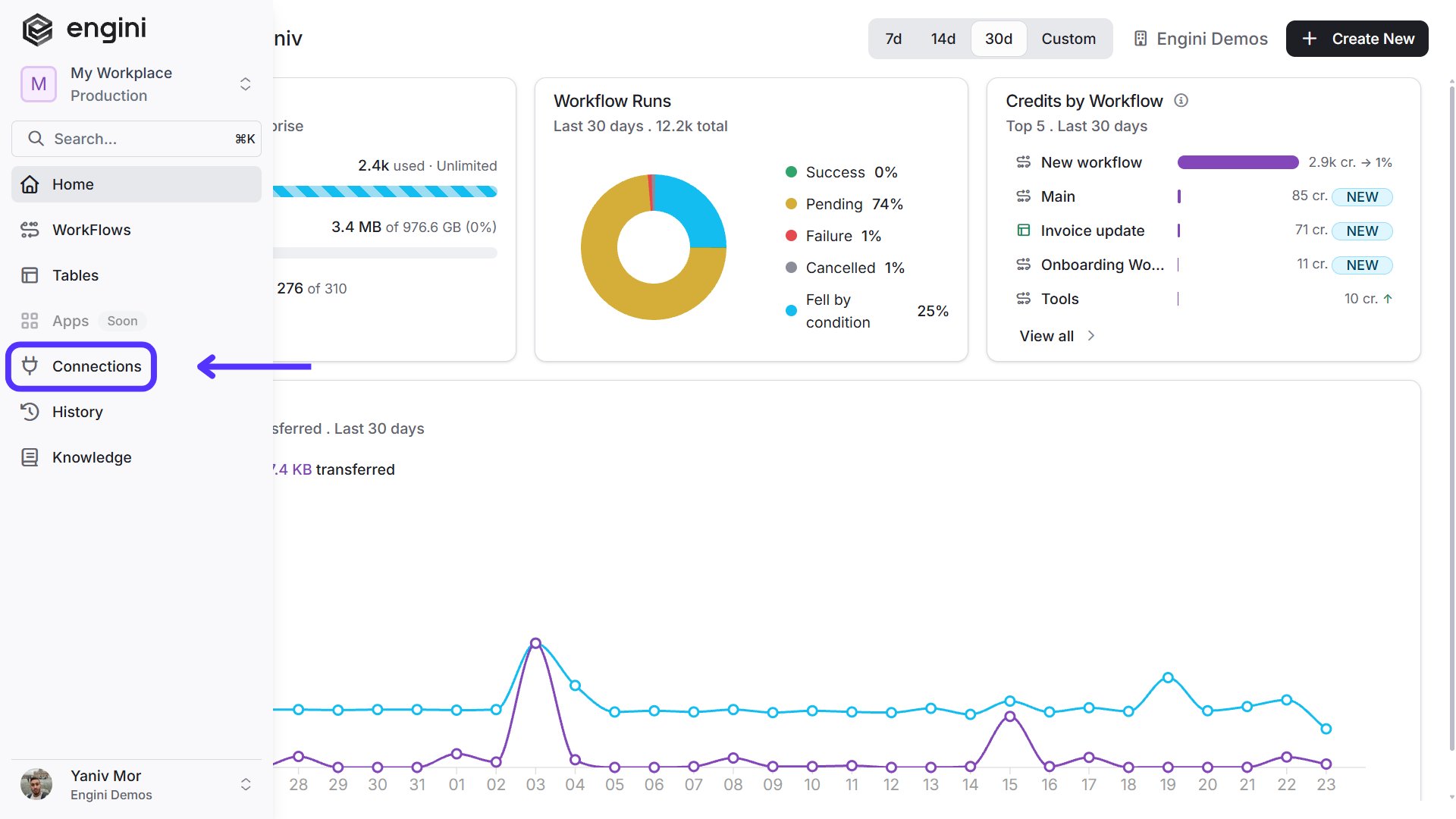
Navigate to the Connections page by clicking on Connections in the left sidebar or by clicking here.
-
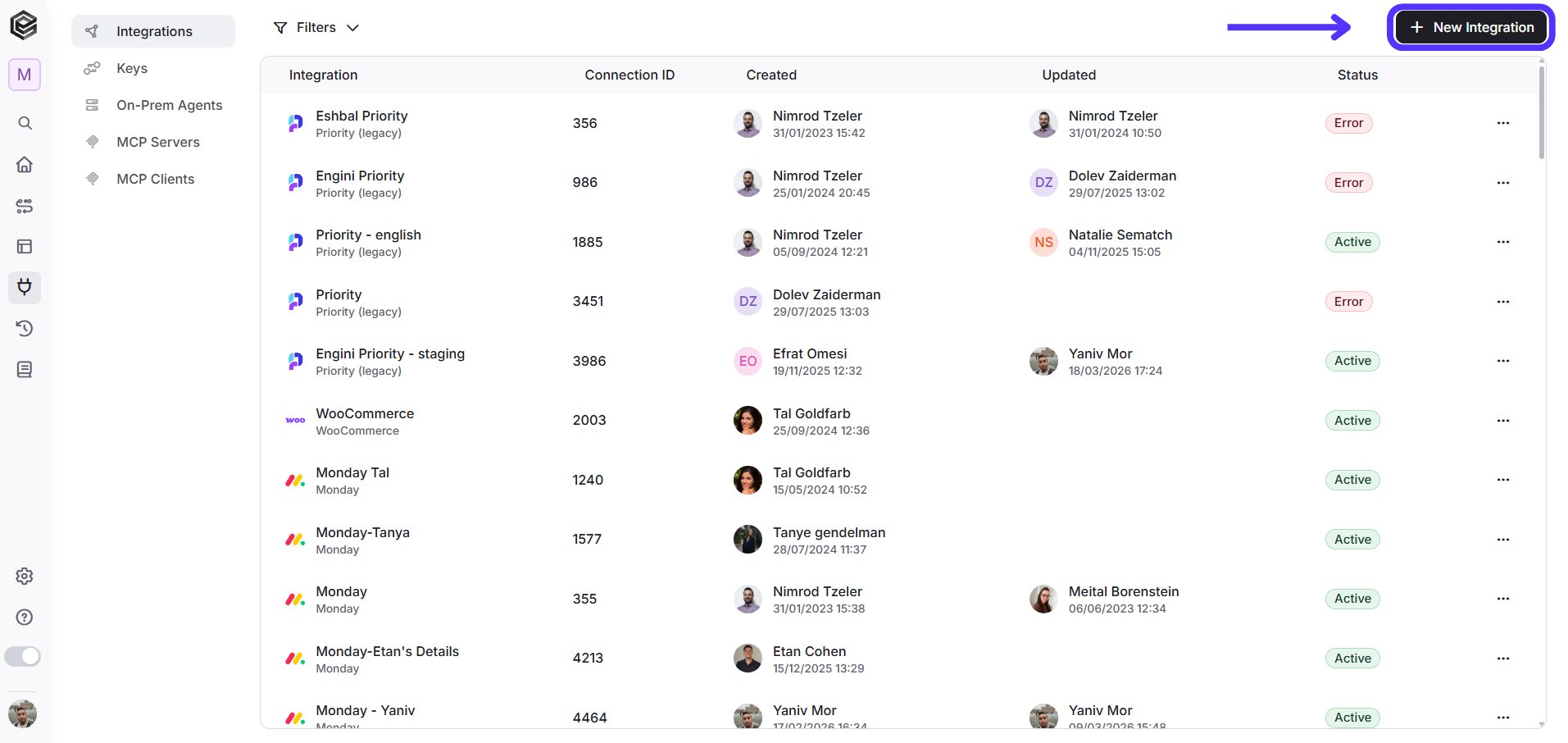
Click on the “New Integration” option located at the top bar.
-
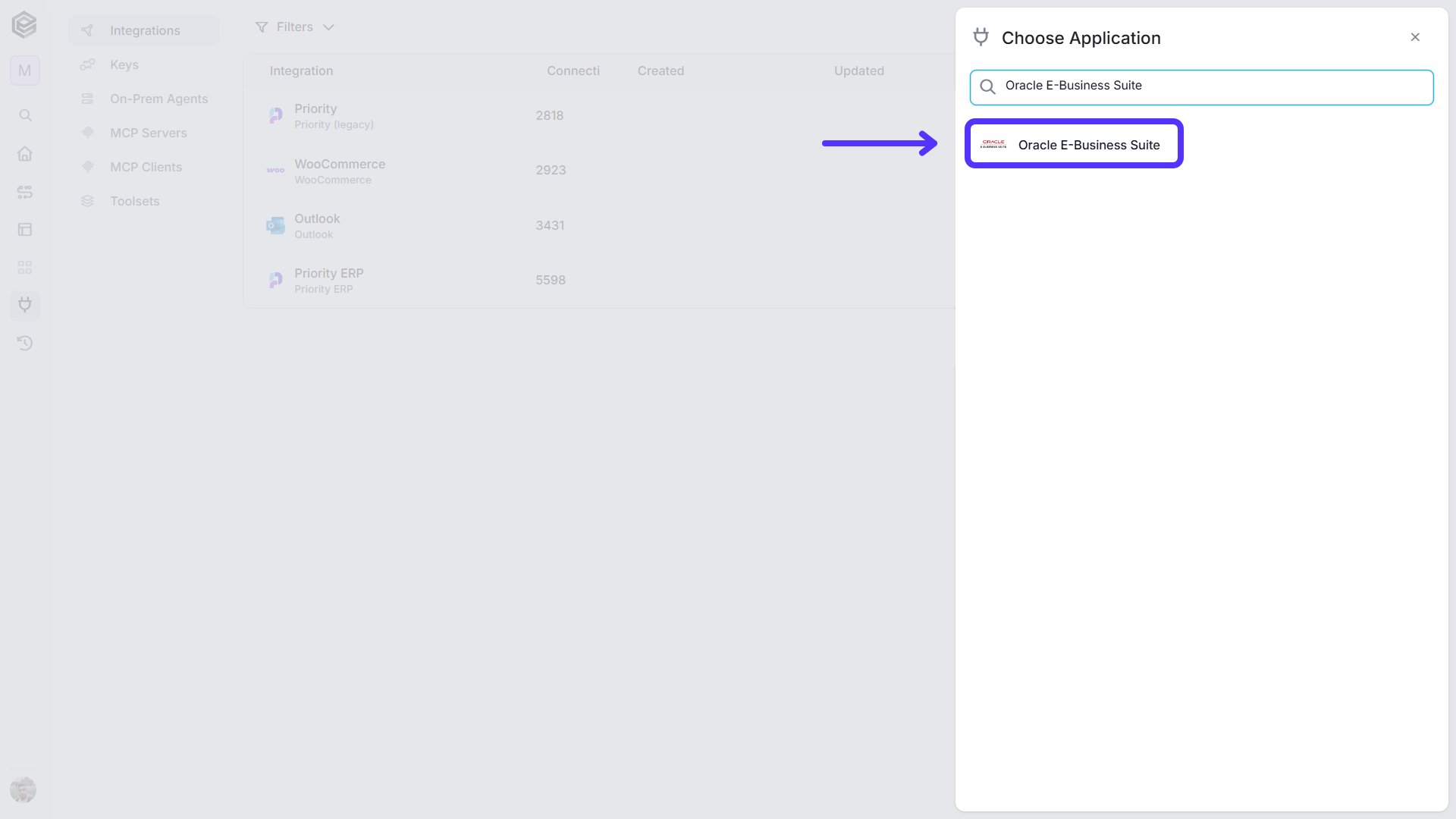
Choose the Oracle E-Business Suite option from the available applications.
-
Enter the following details in the “New Integration” form and press Save. The form has more fields than fit on one screen, so scroll down to reach the last ones and Save. This is the top of the form:
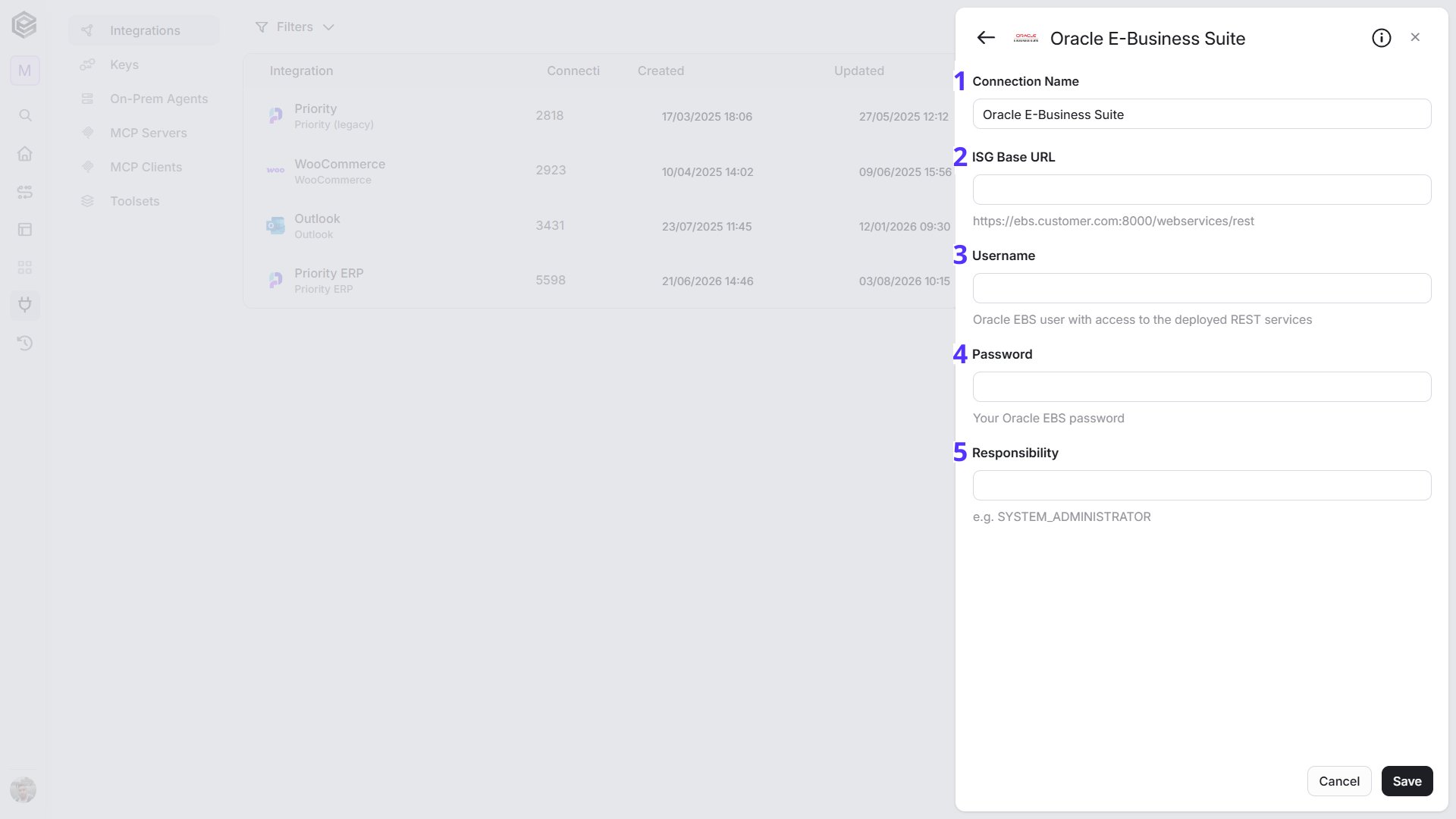
- Connection Name - Enter a name that helps identify the Oracle E-Business Suite connection.
- ISG Base URL - The ISG REST address of your Oracle E-Business Suite environment. Example: https://ebs.customer.com:8000/webservices/rest. Ask your EBS administrator if you don’t know it.
- Username - The Oracle EBS user that has access to the deployed REST services.
- Password - The password of that Oracle EBS user.
- Responsibility - The key of the EBS responsibility Engini works with. You can find it in Oracle E-Business Suite under System Administrator, Security, Responsibility, Define. Example: SYSTEM_ADMINISTRATOR.
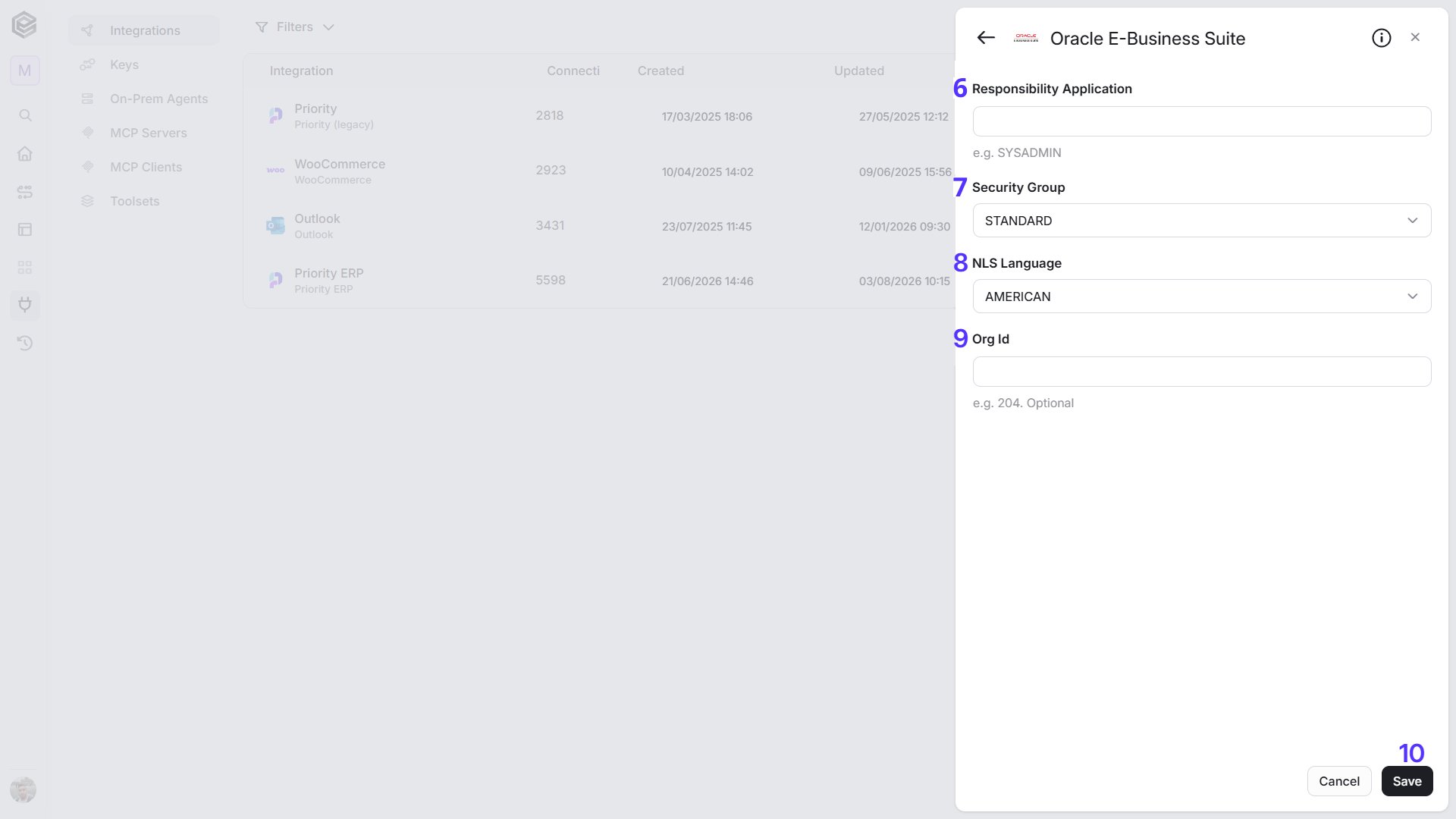
- Responsibility Application - The short name of the application that owns that responsibility. You can find it in the same Define Responsibility form. Example: SYSADMIN.
- Security Group - Select the security group to work in. The default is STANDARD.
- NLS Language - Optional. Select the language Oracle E-Business Suite uses for this connection. The default is AMERICAN.
- Org Id - Optional. The Id of the operating unit to work in. You can find it in the Oracle E-Business Suite profile option MO: Operating Unit. Example: 204.
- Save - Click Save to create the connection.
Triggers
Business Event Received
Starts the workflow when Oracle E-Business Suite sends a business event to Engini.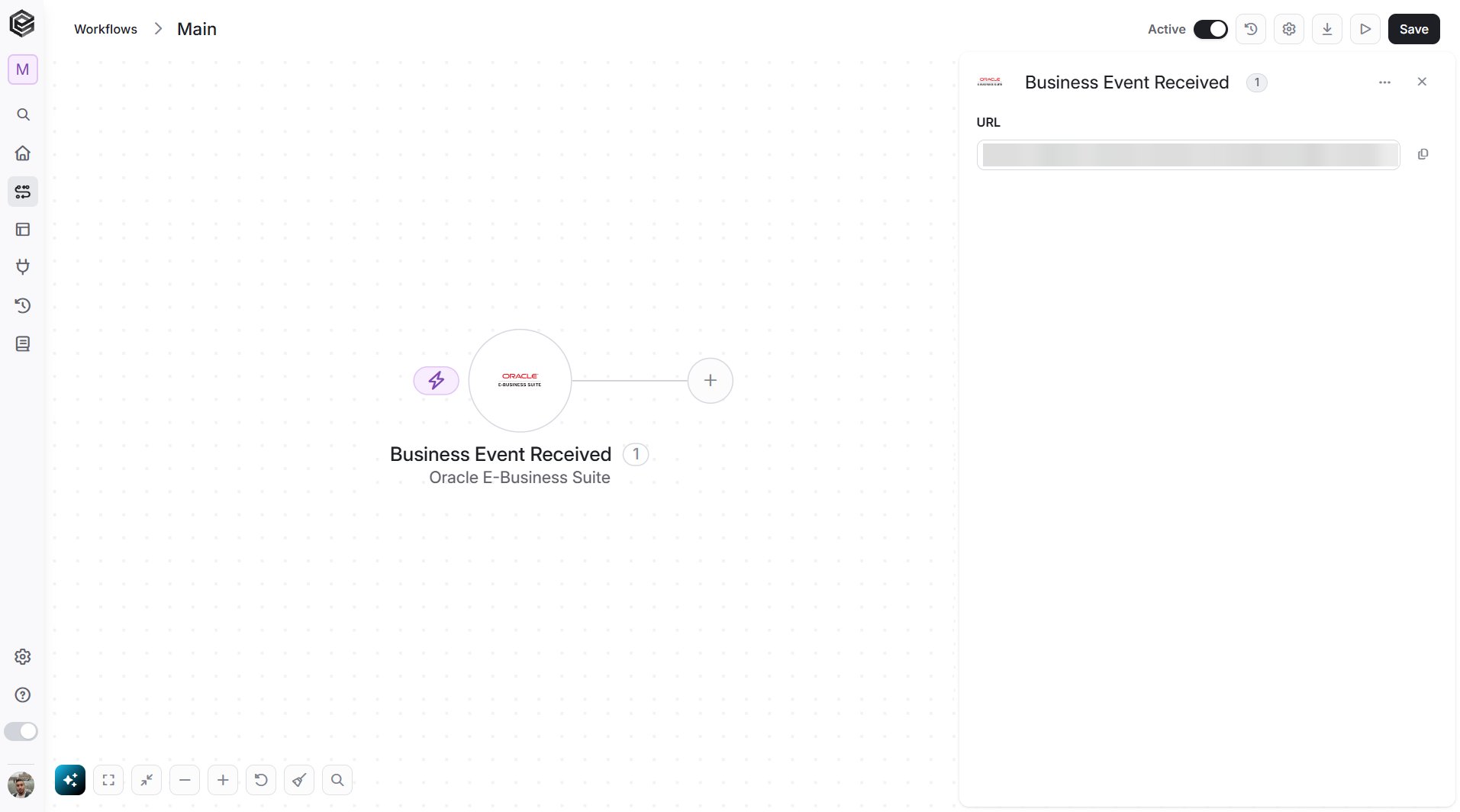
- URL - The webhook address Engini gives this trigger. Copy it, and ask your EBS administrator to add a subscription to the business event you want, set to call this address. The workflow starts each time Oracle E-Business Suite sends that event.
Actions
Get Interfaces
Retrieves the interfaces of a product from your Oracle Integration Repository.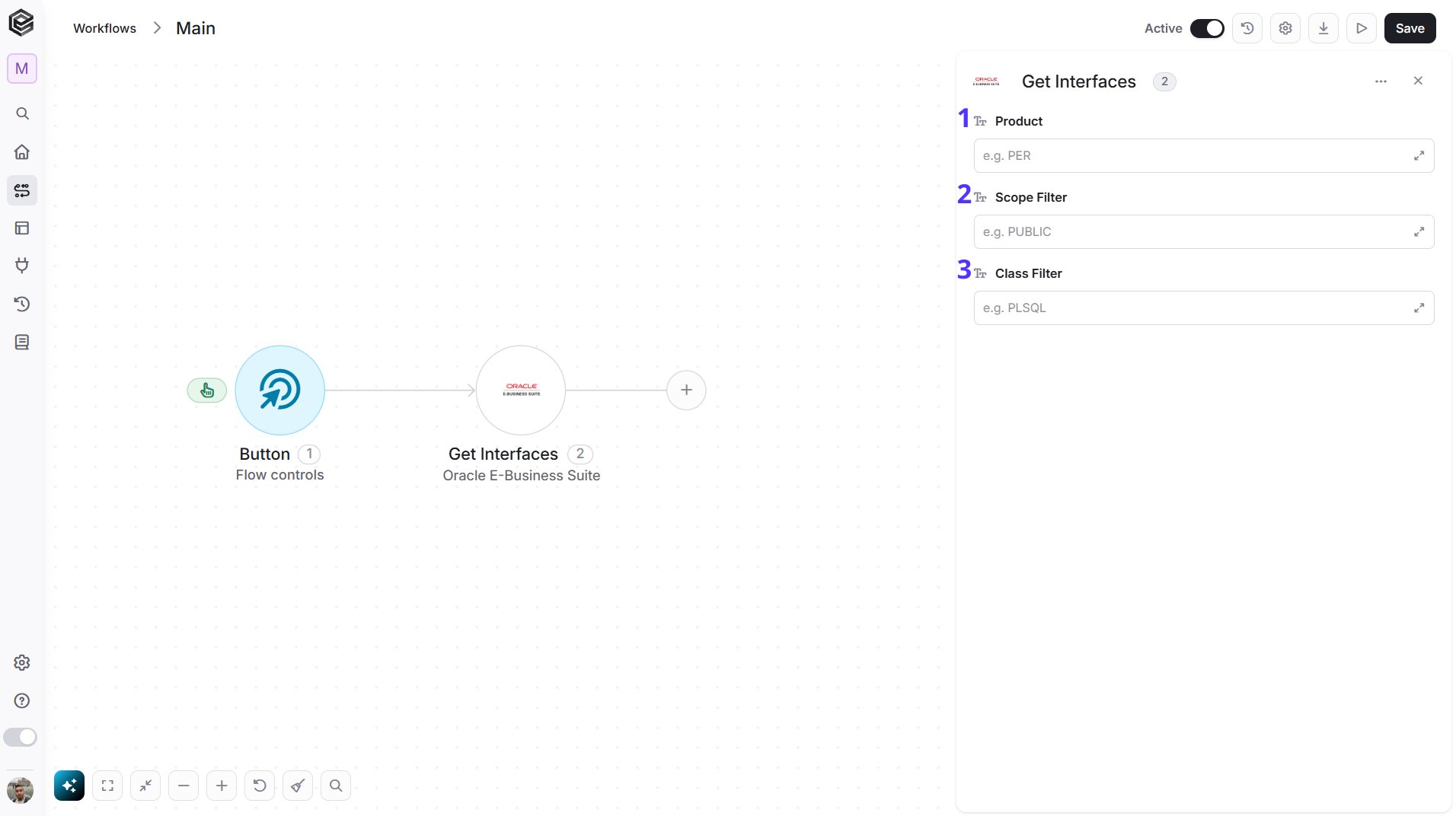
- Product - The product whose interfaces you want to list. Enter the product’s short name. Example: PER.
- Scope Filter - Enter the scope you want to filter the interfaces by.
- Class Filter - Enter the interface class you want to filter by.
Get Methods
Retrieves the methods of an API from your Oracle Integration Repository, so you can see which operations you can call.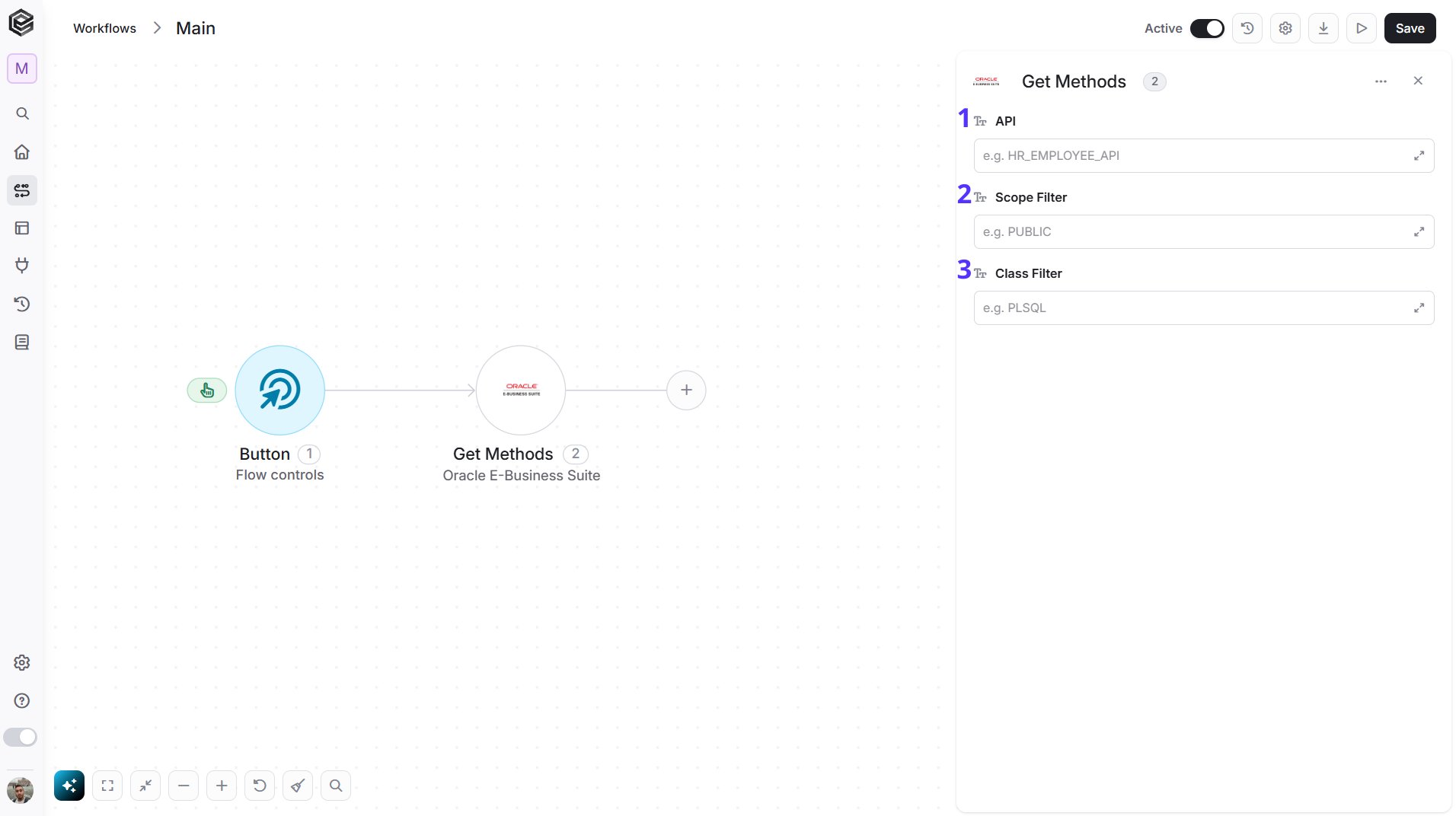
- API - The API whose methods you want to list. Enter the API’s name. Example: HR_EMPLOYEE_API.
- Scope Filter - Enter the scope you want to filter the methods by.
- Class Filter - Enter the interface class you want to filter by.
Get Product Families
Retrieves the product families available in your Oracle Integration Repository.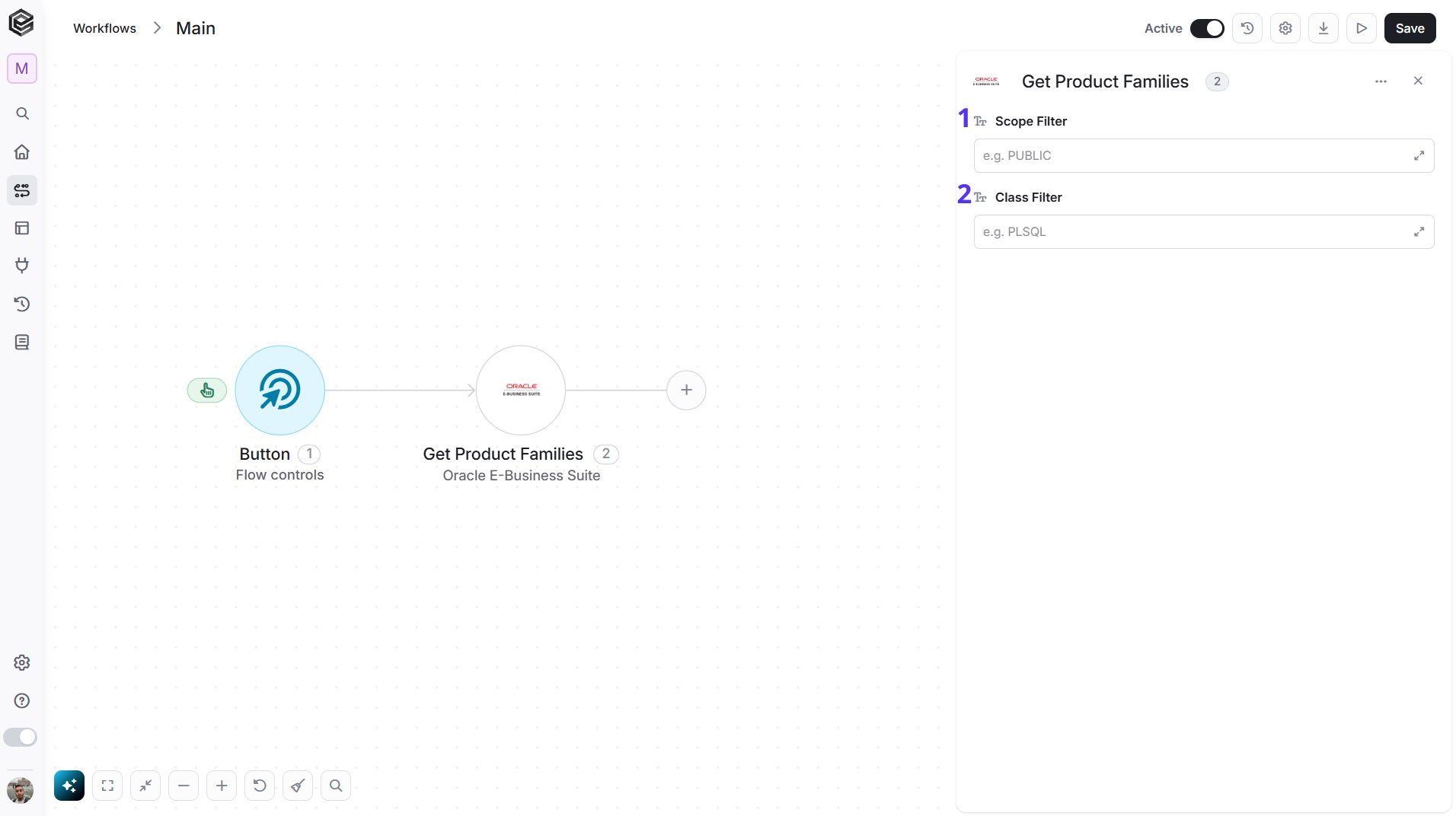
- Scope Filter - Enter the scope you want to filter the product families by.
- Class Filter - Enter the interface class you want to filter by.
Get REST Interface
Finds the REST service of an Oracle interface by its internal name. The result includes the service alias, which you can enter in the Service Alias field of Invoke Service.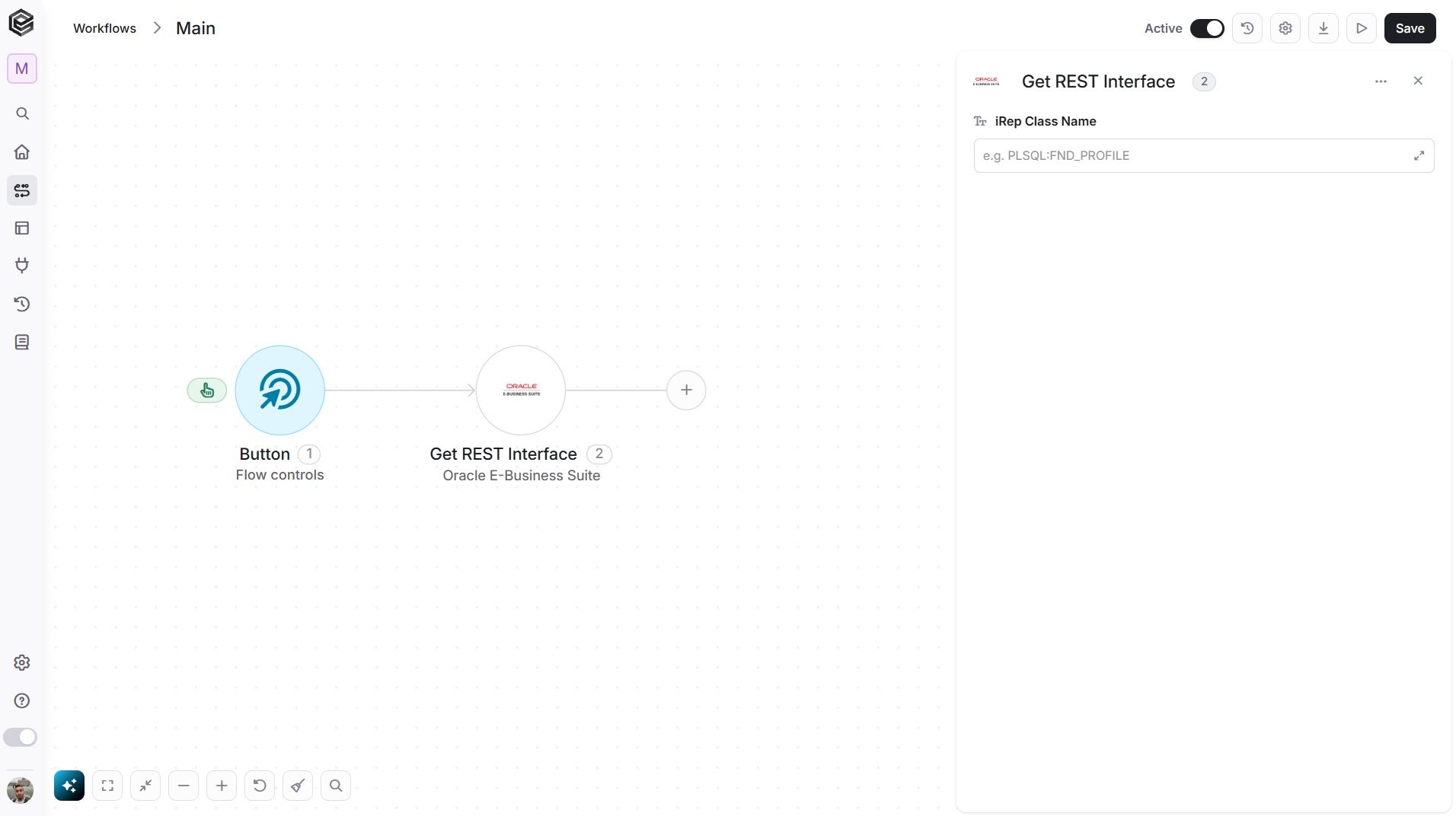
- iRep Class Name - The internal name of the interface, written as the interface class, a colon and the interface name. Example: PLSQL:FND_PROFILE.
Get Service Status
Checks that the Oracle Metadata Provider service in your Oracle E-Business Suite environment is active. It is a quick way to confirm that Engini can reach your environment.
Invoke Service
Calls an operation of a REST service deployed in your Oracle E-Business Suite environment through Integrated SOA Gateway.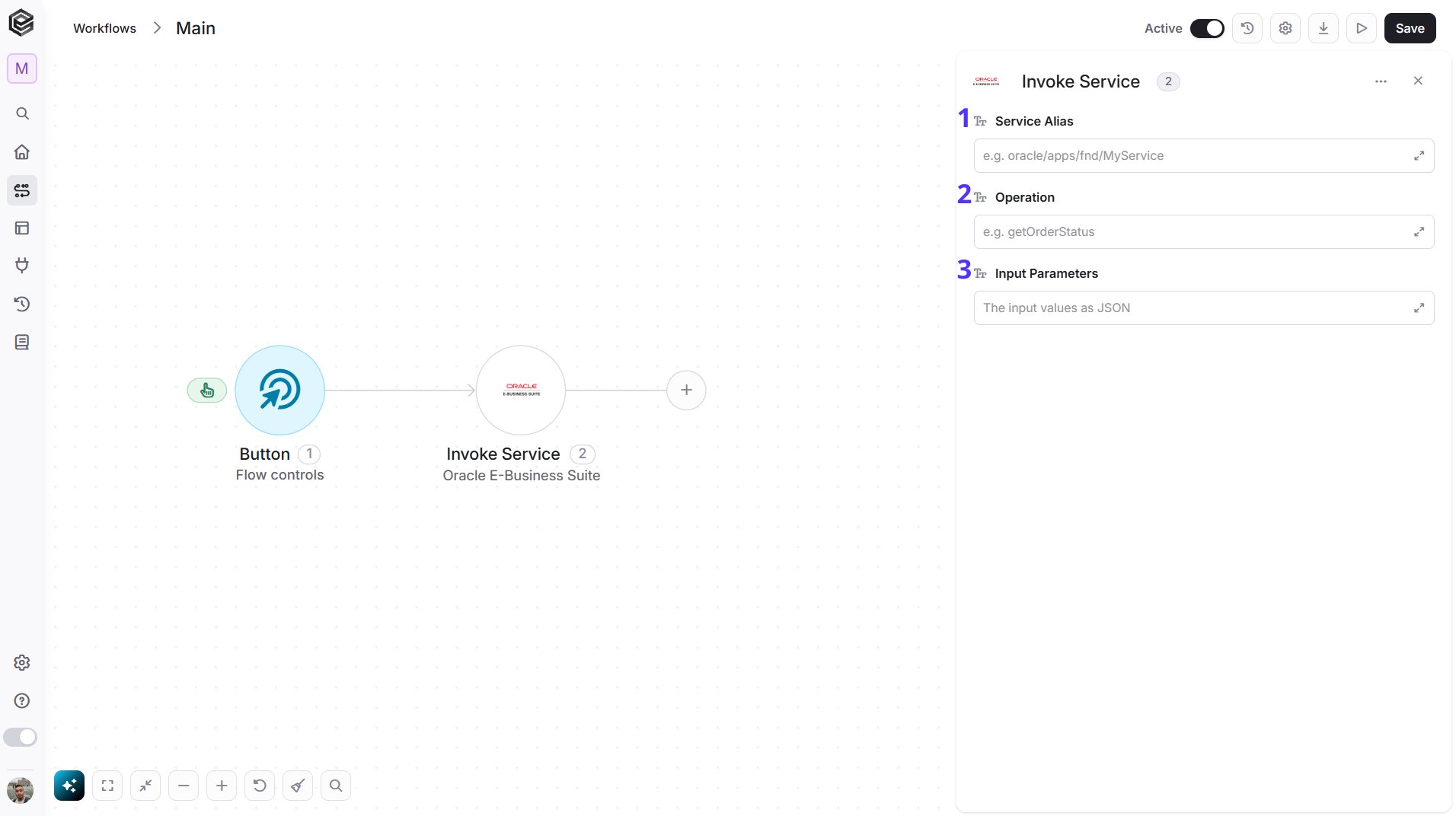
- Service Alias - The alias your EBS administrator gave the service when deploying it in Integrated SOA Gateway. If you don’t know it, use Get REST Interface to look it up. Example: oracle/apps/fnd/MyService.
- Operation - The name of the operation to call on that service. Example: getOrderStatus.
- Input Parameters - The values the operation needs, written as JSON.
Send API Request
This activity allows you to send a custom API request directly to Oracle E-Business Suite’s API. Your Oracle EBS username and password are sent automatically with every request.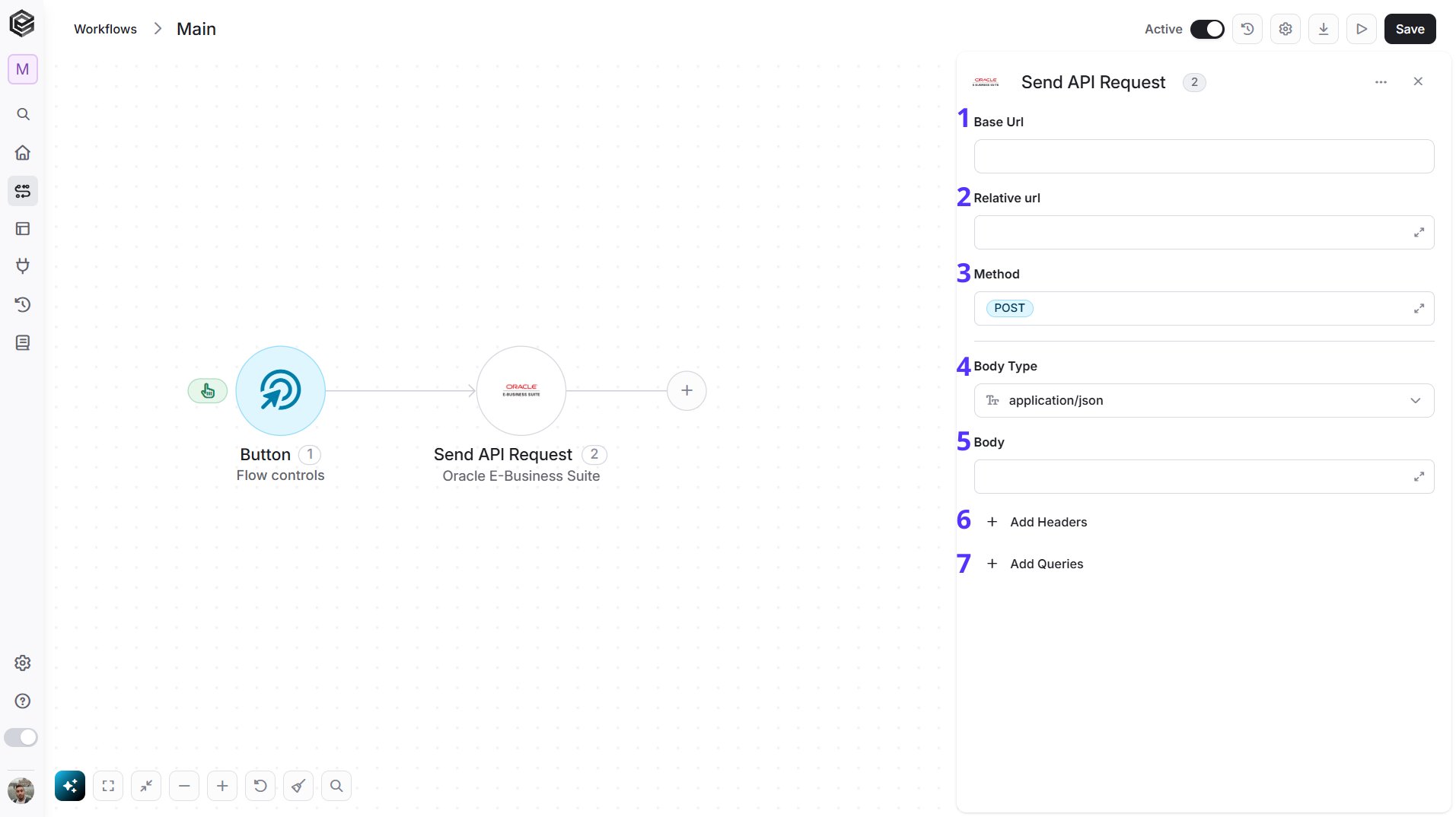
- Base Url - The root URL of the Oracle E-Business Suite API. It is filled in from your Oracle E-Business Suite connection and can’t be edited here.
- Relative url - You can specify additional path segments or parameters that need to be added to the end of the Base Url. This allows you to customize the specific request you want to perform.
- Method - Select the HTTP method (e.g., Get, Post, Put, Delete, Patch). The default is POST.
- Body Type - Defines the format of the data in the body of your request. The default, application/json, means the body contains a JSON-formatted payload.
- application/json – Sends the request body in JSON format. Commonly used by REST APIs.
- custom – Allows you to define a custom body format by manually setting the Content-Type header. Add a
Content-Typerow in Add Headers with the media type you need (for exampleapplication/xml). With any other Body Type, a Content-Type you type in Add Headers is not sent; Engini sets it from the Body Type, and the run history shows it underheadersnotsent. - application/x-www-form-urlencoded – Sends the body as URL-encoded key-value pairs, commonly used in form submissions.
- file – Sends a file as the request body.
- multipart/form-data – Sends form data that may include both text fields and files.
- text/html – Sends the request body as HTML content.
- text/plain – Sends the request body as plain text.
- text/xml – Sends the request body in XML format.
- Body - Contains any data that is being sent to the server.
- Add Headers - Additional metadata about the request, such as the type of data Engini can accept, the length of the request body, and authentication information.
- Add Queries - The query refers to the parameters or data that are included in the URL of an HTTP request to provide additional information or instructions to the server.