

The Workflow Run History provides a comprehensive overview of your workflow execution history. This guide will help you understand how to effectively use the Workflow Run History to monitor, analyze, and optimize your workflow performance.
Workflow History Tile
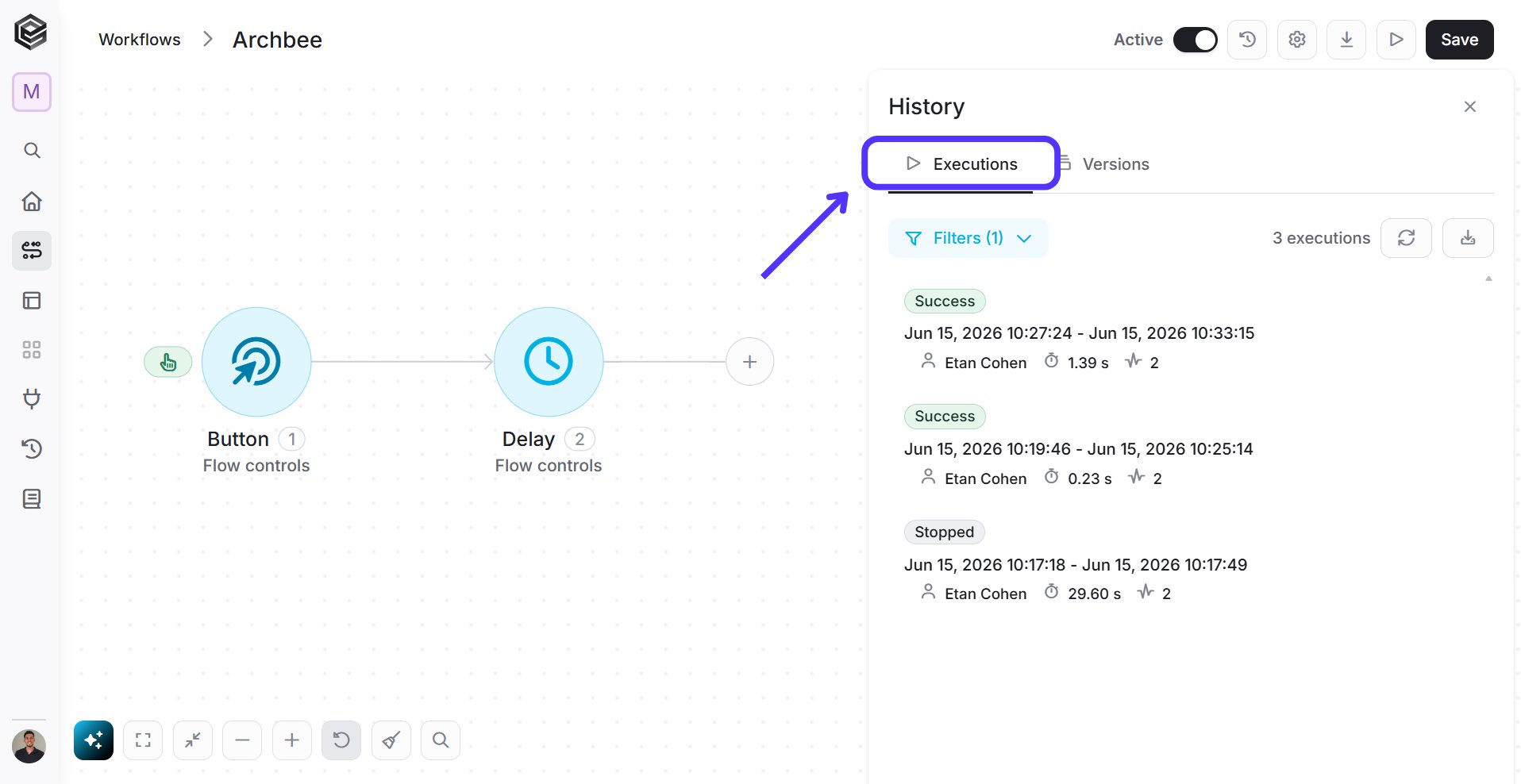
This tile shows everything related to workflow from the last 30 days including any editing done to the workflow. The tile includes the following:Executions
-
Filters - Allows you to filter the execution list based on specific criteria such as status or date. You can sort the workflows by clicking on the filter icon located on the right side of the relevant column and entering the data in the next window that opens:

-
Status – Filter by execution result (Success/Failed).
- Created By – Filter by the user who ran the workflow.
- Created At – Filter by execution start date/time.
- Closed At – Filter by execution end date/time.
-
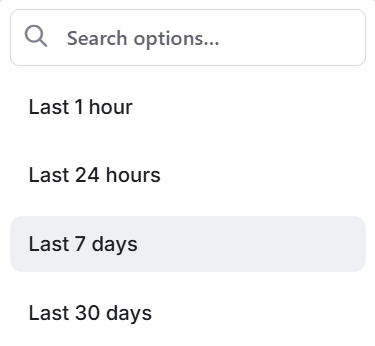
Created Date Period - Filter by execution from last selected days (Default - Last 7 days)
- Duration – Filter by run time length.
- Context – Filter by execution context/environment.
- Activities Count – Filter by number of executed steps.
- Executions Count - Displays the total number of workflow runs shown according to the selected filters.
- Refresh Executions - Refreshes the execution history list to display the latest status of workflow runs. This is useful when a workflow remains in the Running status for a long time, as its updated result, such as Success or Failure, may only appear after refreshing the list.
-
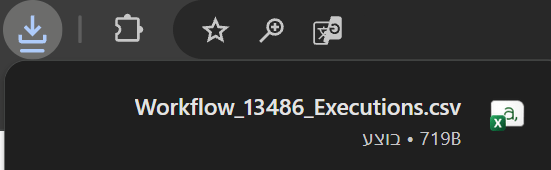
Export Executions - Enables downloading the execution history data.
-
Status - Indicates the result of the workflow run (e.g., Success or Failed). The status of the workflow. There are six types of statuses:
- Worlflow Edited – A status that appears when the workflow has been modified.
- Fell By Condition – A status that appears when the workflow run failed due to specific conditions.
- Running – A status that appears when the workflow is running.
- Success – A status that appears when the workflow ran successfully.
- Turned on - A status that appears when the user has turned on the workflow.
- Turned off - A status that appears when the user has turned off the workflow.
- Stopped – A status that appears when the user has stopped the workflow run.
- Failure - A status that appears when the workflow run failed.
- Start Date & Time - Shows when the workflow execution started.
- End Date & Time - Shows when the workflow execution finished.
- Executed By - Displays the user who triggered or ran the workflow.
- Duration - Shows how long the execution took to complete.
- Steps Count - Indicates the number of steps that were executed during that workflow run.
- Context - The context value represents the data that is explicitly defined in the Configure Context field of an action.
-
Status – Filter by execution result (Success/Failed).
Versions
Under this tab, you can see the history of workflow changes, including the date, time, and user who made each update.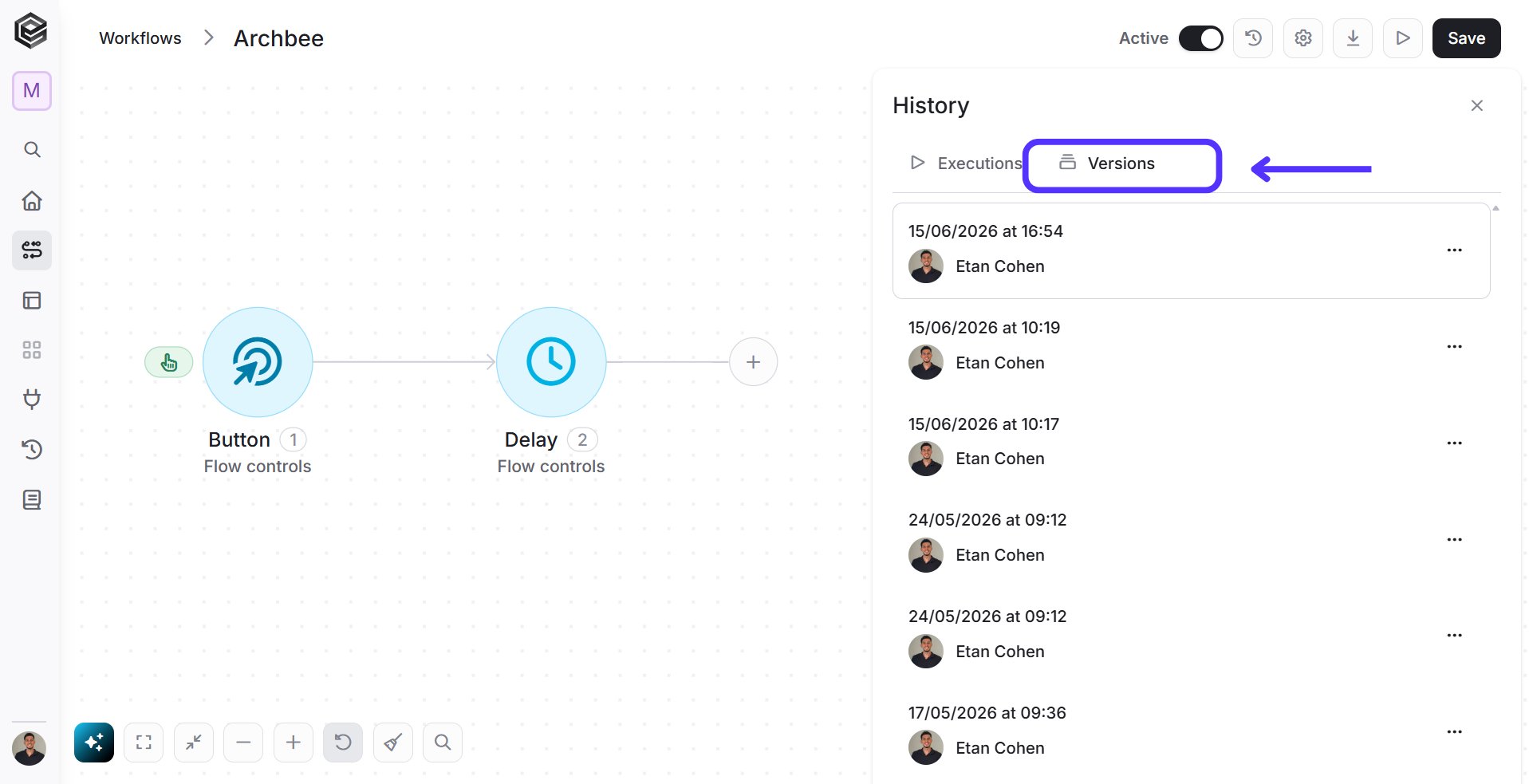
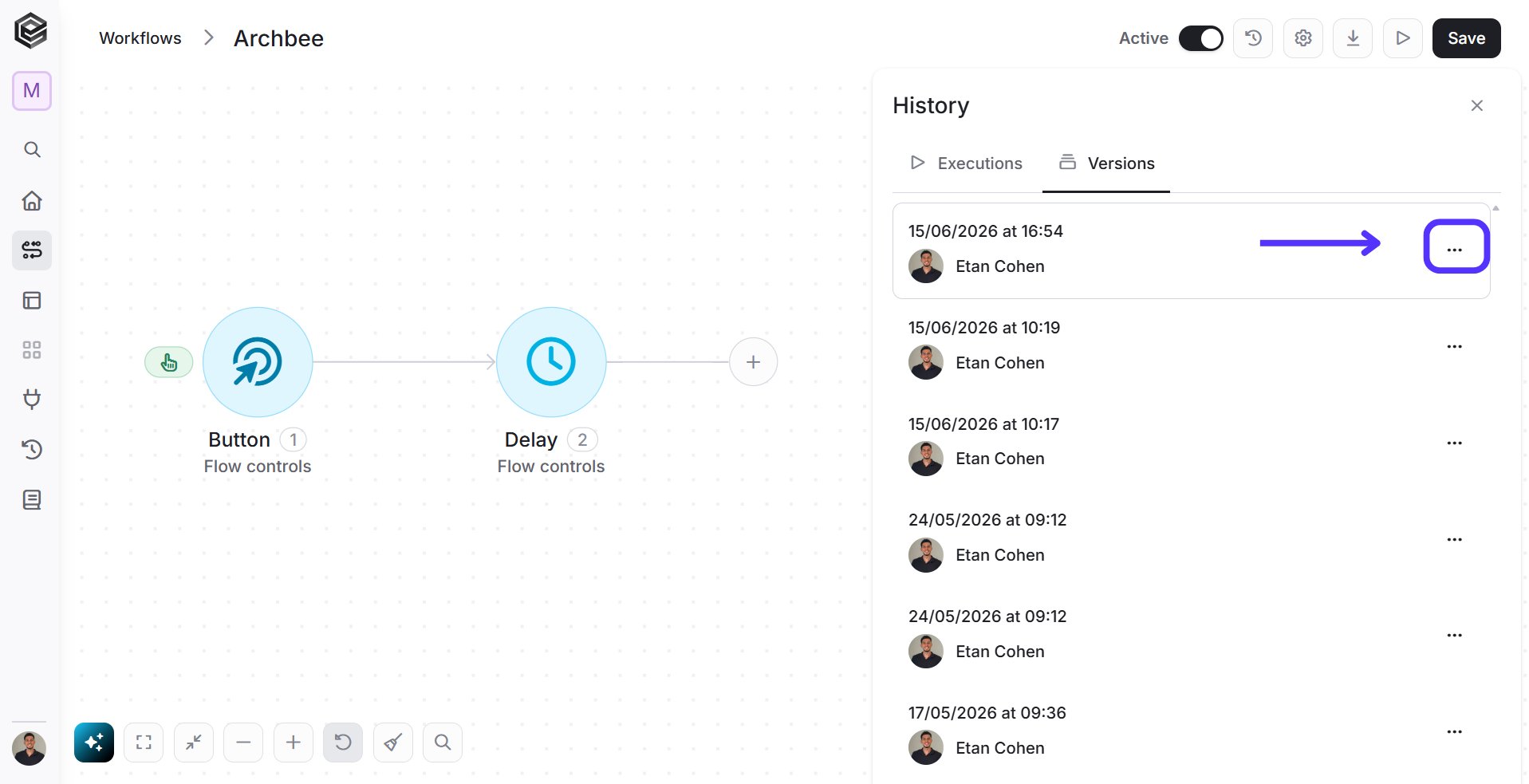
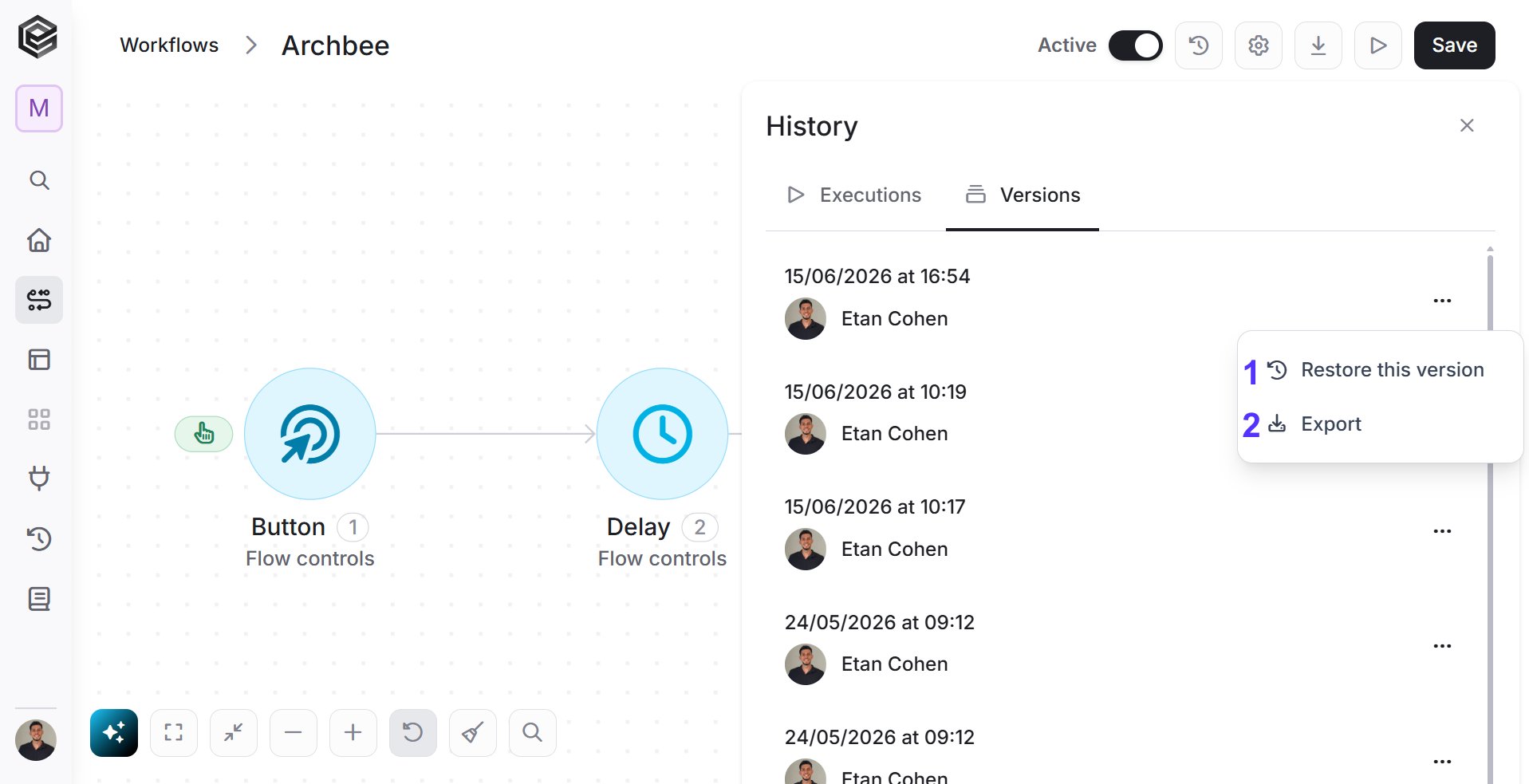
- Restore- Restore the chosen workflow version to make it the active, current version in your editor workspace.
- Export - Export the chosen workflow version to download its configuration file. This allows you to keep a local backup or easily import it into another Engini account.
Activity status options
Activity failed
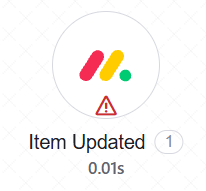

Why did the activity failed?
There are two possibilities in which the failure explanation will be displayed:-
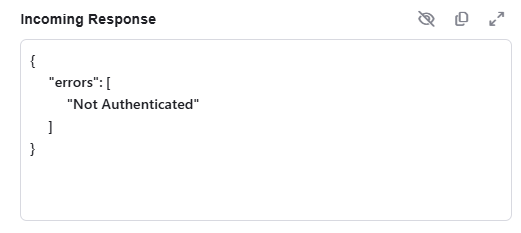
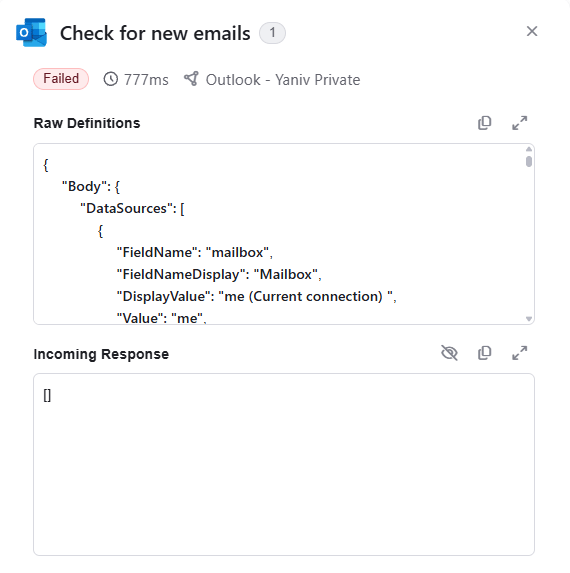
Incoming response – when the operation performed on an external application has failed, and the external application returns a response.
-
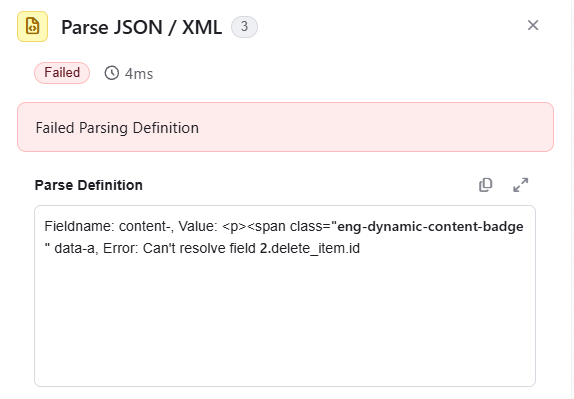
Parse Definition - When Engini has failed parsing the activity definitions. Usually happens when a you try to use a parameter which is out the current scope or there are typo’s in one of the fields definition.
Activity wasn’t executed
A activity which wasn’t executed during the workflow run will be marked without any icon, like the rightmost action in yellow:
Activity executed successfully


Workflow status options
Failure
There are two options in which the workflow run status will be “Failure”:-
If a activity within a workflow fails, the workflow status will be set to “failure”, unless one of the immediate following activities is configured to run after the failure of the previous activity in which the workflow run will continue.
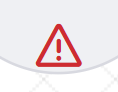
In order to identify why the workflow failed, try to find the activity that has a warning icon on it:
- If a “Terminate workflow” activity was executed and the status defined in it was “Failure”. Executing this activity will end the workflow run and the run status will be the status defined in this activity.
Fell by condition
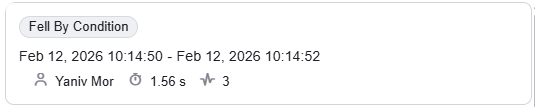
Two types of activities can define the workflow run status as “fell on condition”: a trigger or a “Terminate workflow” activity where you can set the status that will be received when the activity is executed ending the workflow run. Let’s see an example and explore it.-
Enter the “details” page in order to view the history table and select the requested run.
-
By clicking on the button you enter to view the running log.

-
In order to investigate the reason why the first activity was not executed, click on the activity name.
Success
If the workflow ran from start to finish successfully, the workflow will be defined as successful.
Structure of a history run log inside a activity
Raw definitions
The definitions of the fields, objects, filters and conditions are displayed in the structure they are saved as.
Outgoing Request
If the activity is to performs an action on an external application the activity log will include the “Outgoing Request” block. This block displays the request sent to the external application.
Incoming Request
If the activity is a trigger that is receiving webhooks from external applications, the activity log will include the “Incoming Request” block. This block displays the request body received from the external application.
Incoming Response
The response that returned from the external application the activity performed an action on. Usually appears in action activities performed on external applications.
Output
The output of the activity after it has been parsed by Engini. Usually appears in triggers.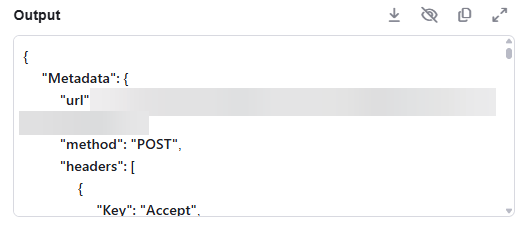
Re-run option
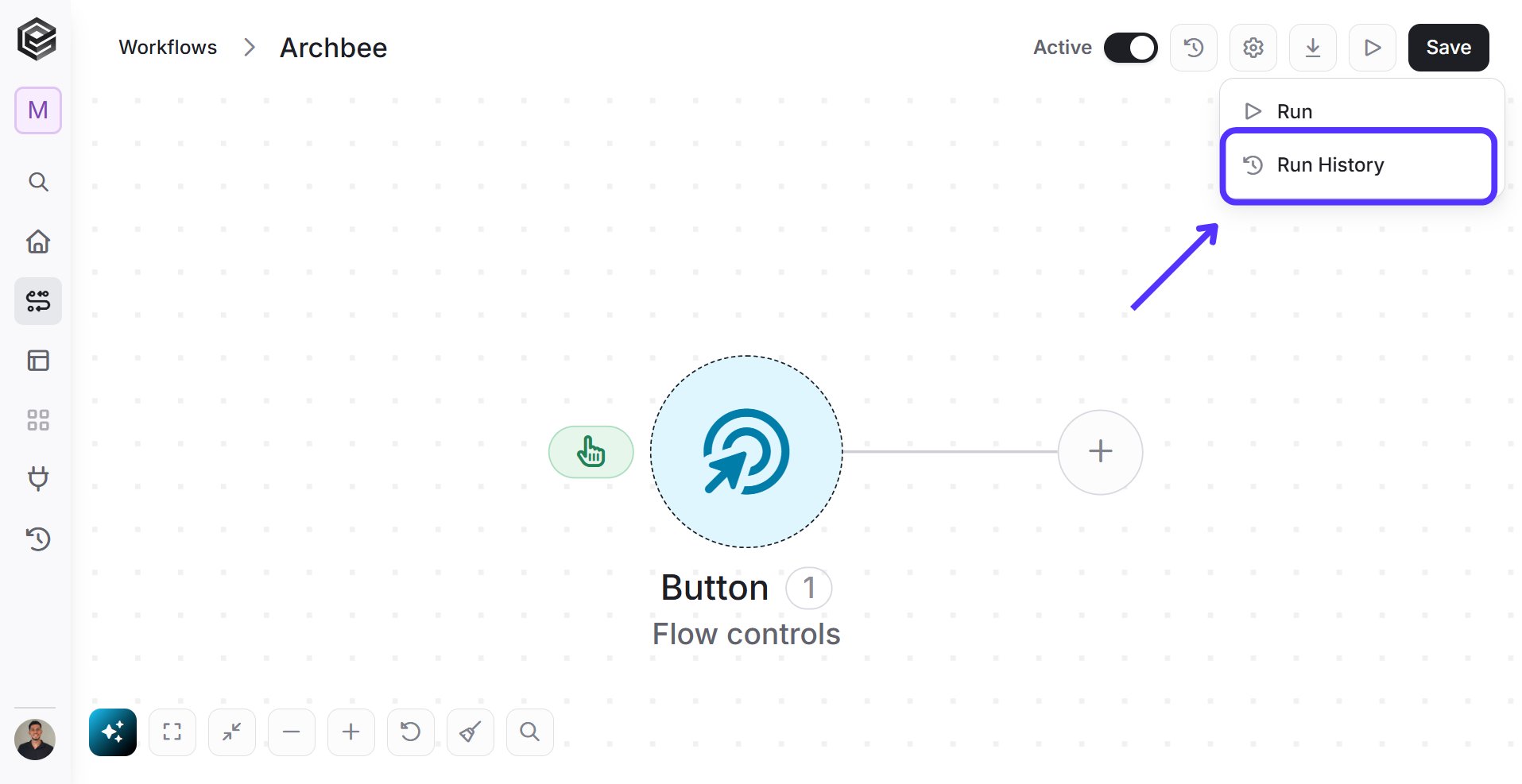
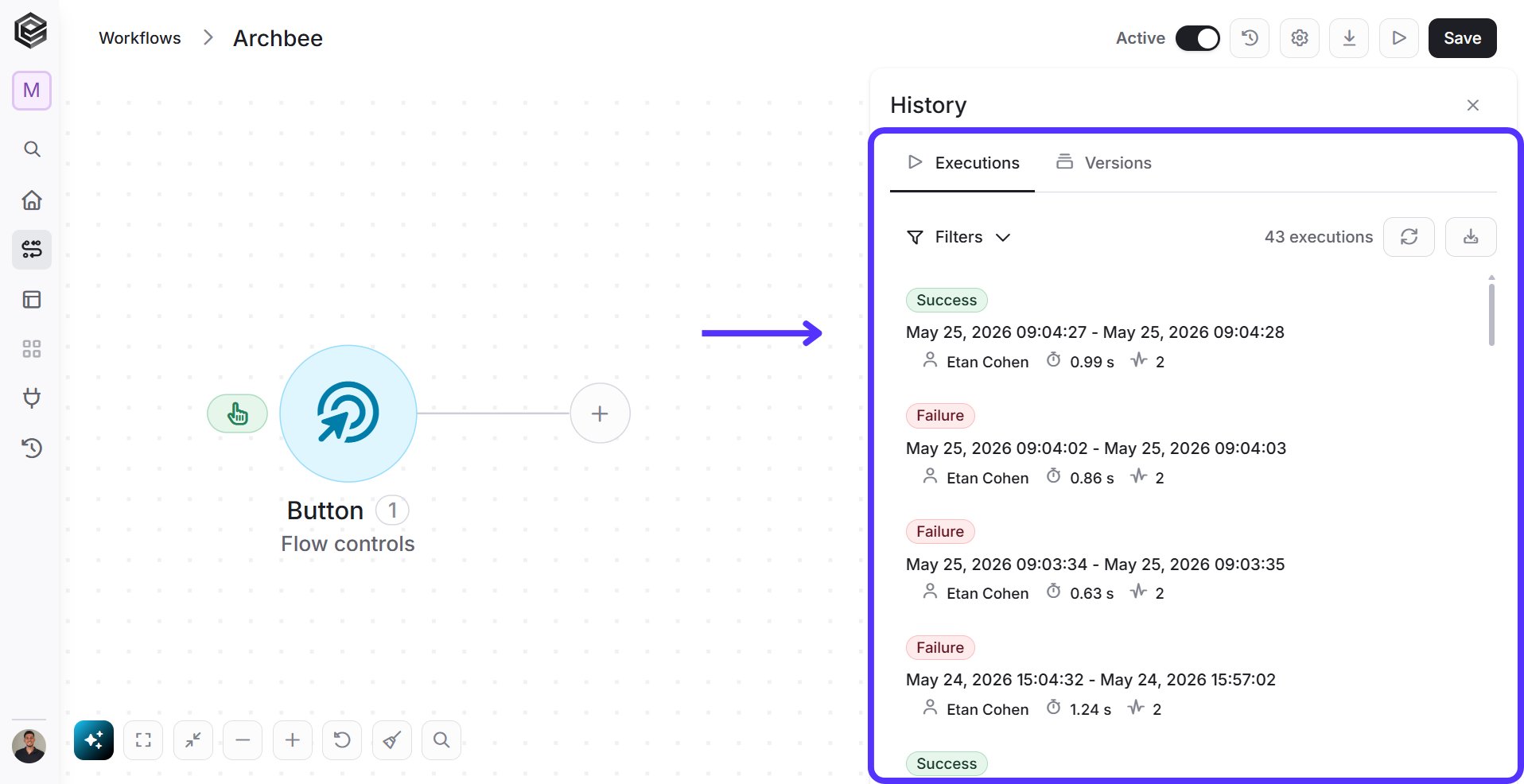
The ‘Re-run’ button allows you to rerun a history run.-
Run - Inside the workflow click on the run logo

-
Run History - click on “Run History”
-
History - From the run history, click on the specific entry you wish to rerun.
-
Workflow run - Within a specific run, you will find the ‘Rerun’ option at the bottom of the screen.

History Page
The Workflow History page is your central command center for everything happening behind the scenes. It keeps a complete record of every process you run, making it easy to monitor live executions, audit past data, and stay on top of your automation’s performance.
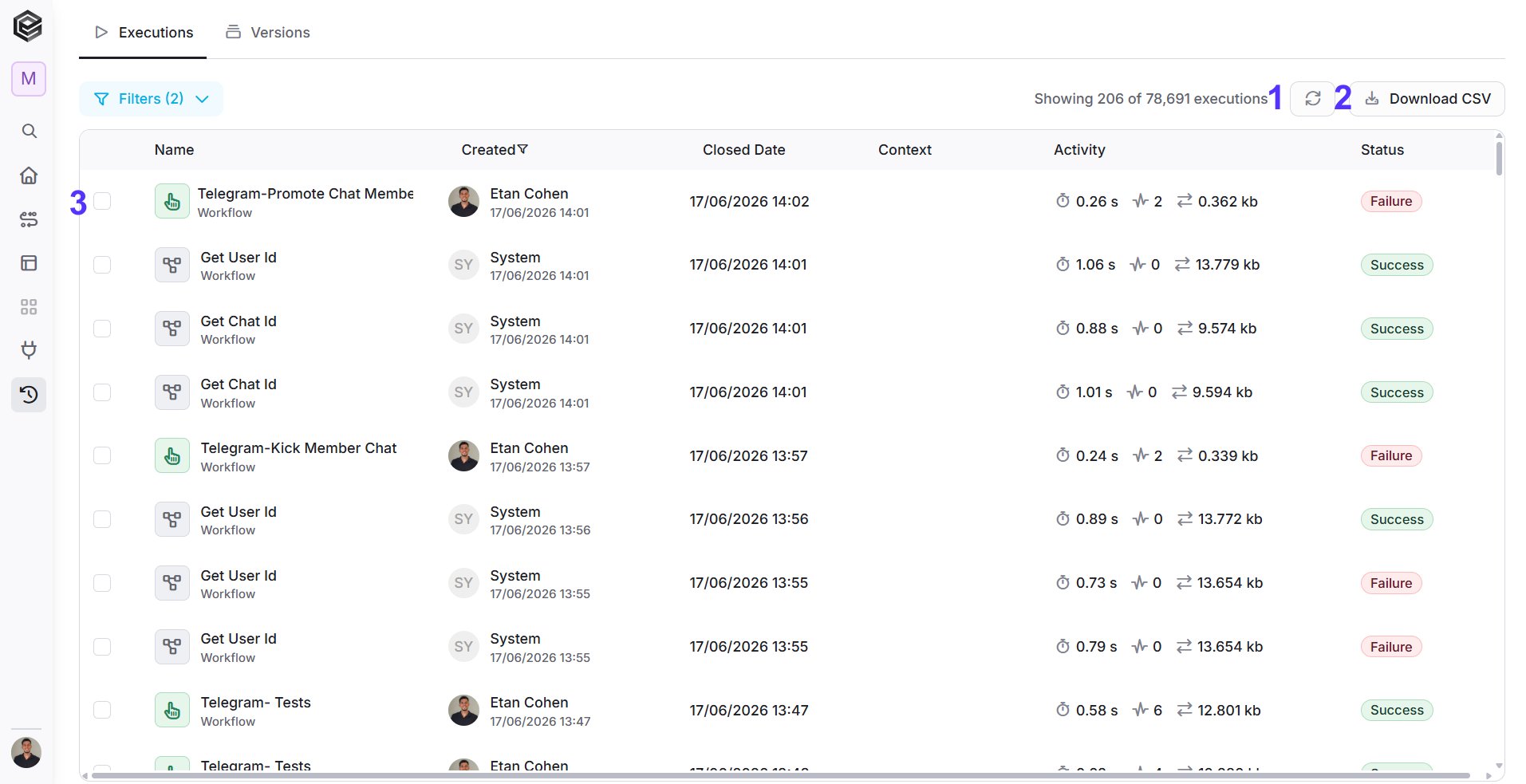
- Refresh- Click the circular arrow icon to instantly update the list with the latest workflow runs and status changes without reloading the entire page.
- Download CSV - Click this button to export your current filtered history view into a CSV file, making it easy to analyze or report your automation data externally.
-
Checkbox - Select individual or multiple workflows using the checkboxes next to each run to perform bulk actions like stopping or re-running processes simultaneously.

Sort
Use the sorting options to organize the executions list according to the information you want to display first. To change the sorting, click the relevant column name. Text-based fields can be sorted from A – Z or Z – A, while date-based fields can be sorted from oldest to newest or newest to oldest.
- Name - Sorts the executions alphabetically by workflow name.
- A – Z – Displays workflow names in alphabetical order.
- Z – A – Displays workflow names in reverse alphabetical order.
- Created - Sorts the executions according to the user who created them or the execution creation date.
- A – Z – Sorts alphabetically by the creator’s name.
- Z – A – Sorts in reverse alphabetical order by the creator’s name.
- Oldest first – Displays executions with the oldest creation date first.
- Newest first – Displays executions with the newest creation date first.
- Closed Date - Sorts the executions according to the date and time they were completed.
- Oldest first – Displays executions with the oldest closed date first.
- Newest first – Displays executions with the newest closed date first.
- Context - Sorts the executions according to their context value.
- A – Z – Displays context values in alphabetical order.
- Z – A – Displays context values in reverse alphabetical order.
- Status - Sorts the executions according to their execution status, such as Success or Failure.
- A – Z – Displays statuses in alphabetical order.
- Z – A – Displays statuses in reverse alphabetical order.