

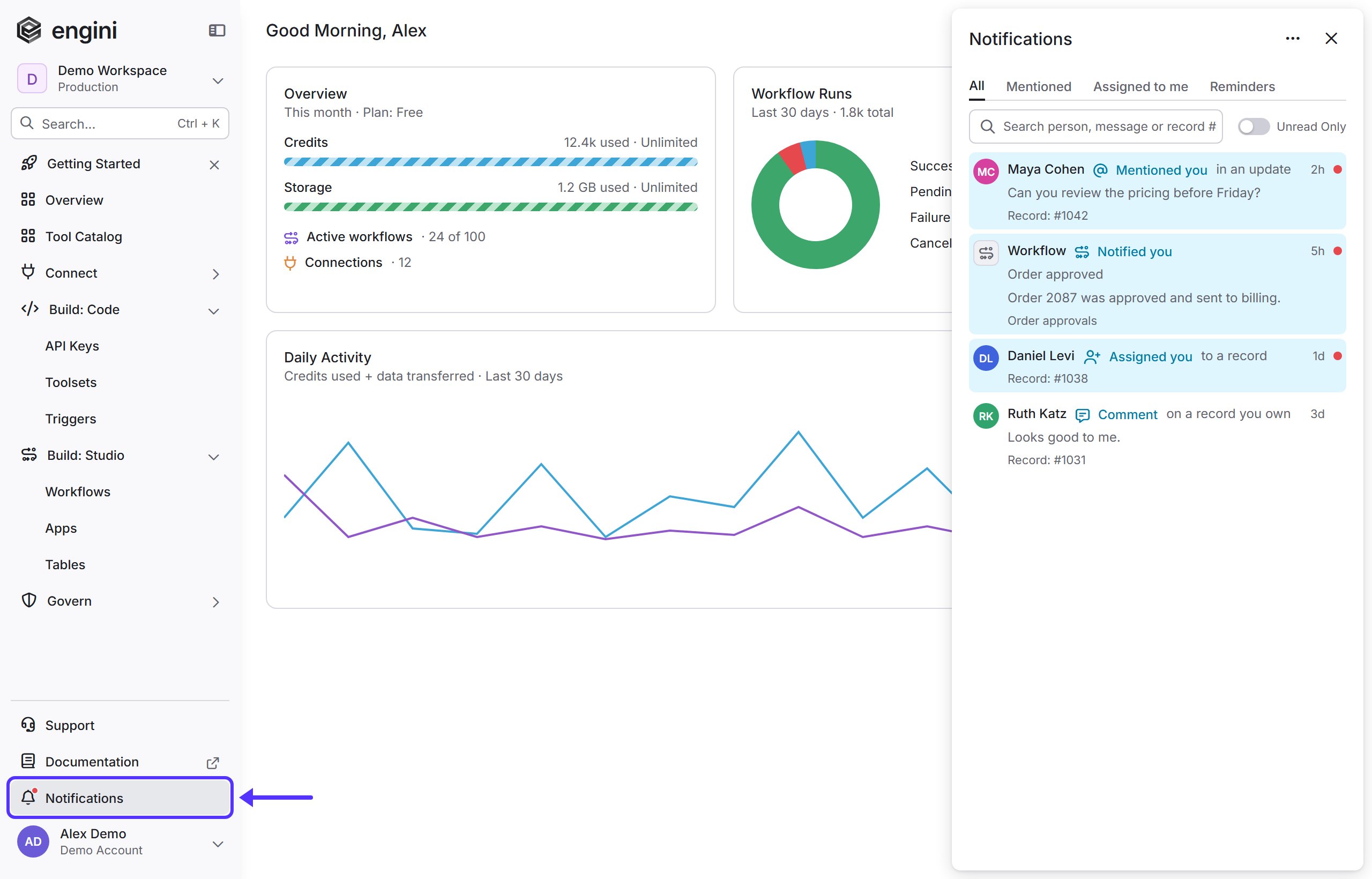
This page is about the in-app bell. To get emails about workflow failures, blocked workflows or activity limits, see Notification Rules.
What sends notifications to the bell
- Tables - comments, replies, reactions and assignments that involve you, and, for tables you follow, new, updated or deleted records and new comments. See Notifications from Tables.
- Workflows - a workflow can send you a message with the Notify activity. These notifications show a Workflow icon, the title and message of the notification and, when the workflow was set to link to its run, the workflow name.
- Reminders - when a reminder you set is due, it appears in the bell. See Reminders.
Read your notifications
- Click Notifications in the sidebar, just above your profile. The Notifications panel opens on the right.
- Use the tabs at the top to filter the list:
- All - every notification.
- Mentioned - notifications where someone mentioned you.
- Assigned to me - notifications where someone assigned you to a record.
- Reminders - your pending reminders.
- To find a specific notification, type a person, a word from the message or a record number in the search box. Turn on Unread Only to hide notifications you have already read.
- Click a notification to open what it is about, for example the record in its table or the workflow run. Unread notifications are highlighted and the notification is marked as read when you open it.
Mark as read, delete and remind
Hover over a notification to show its buttons:- Mark as read / Mark as unread - changes the read state of that notification.
- Delete - removes the notification from your list.
- Remind me - for notifications about a record, sets a reminder so you come back to it later. See Reminders.
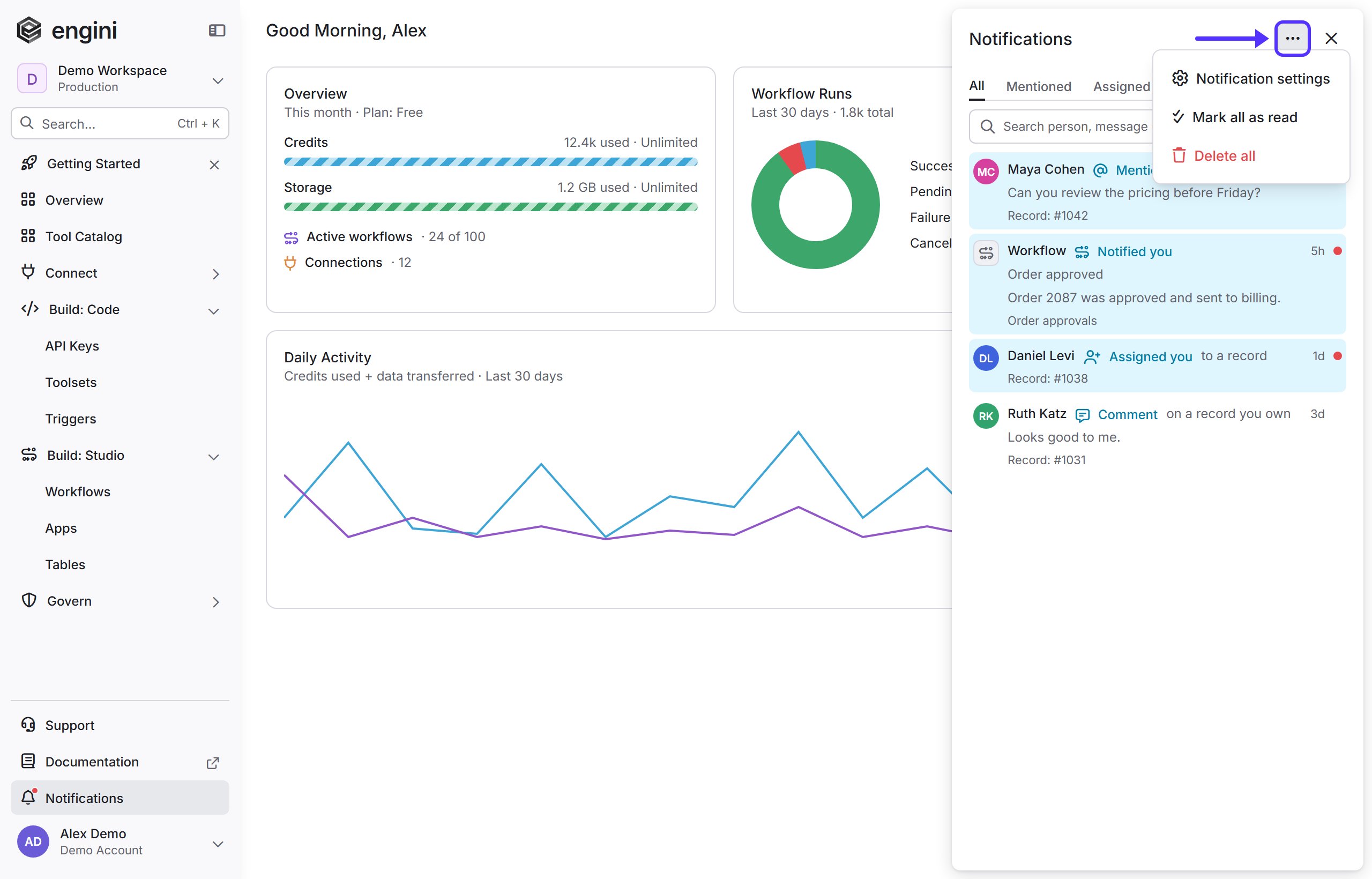
- Notification settings - opens your notification settings.
- Mark all as read - marks every notification as read.
- Delete all - removes every notification from your list.
Reminders
Use Remind me on a notification to be reminded about its record later. Choose one of the suggested times or choose Custom time. Pending reminders are listed in the Reminders tab, and when a reminder is due it arrives as a new notification.Choose what you get and how
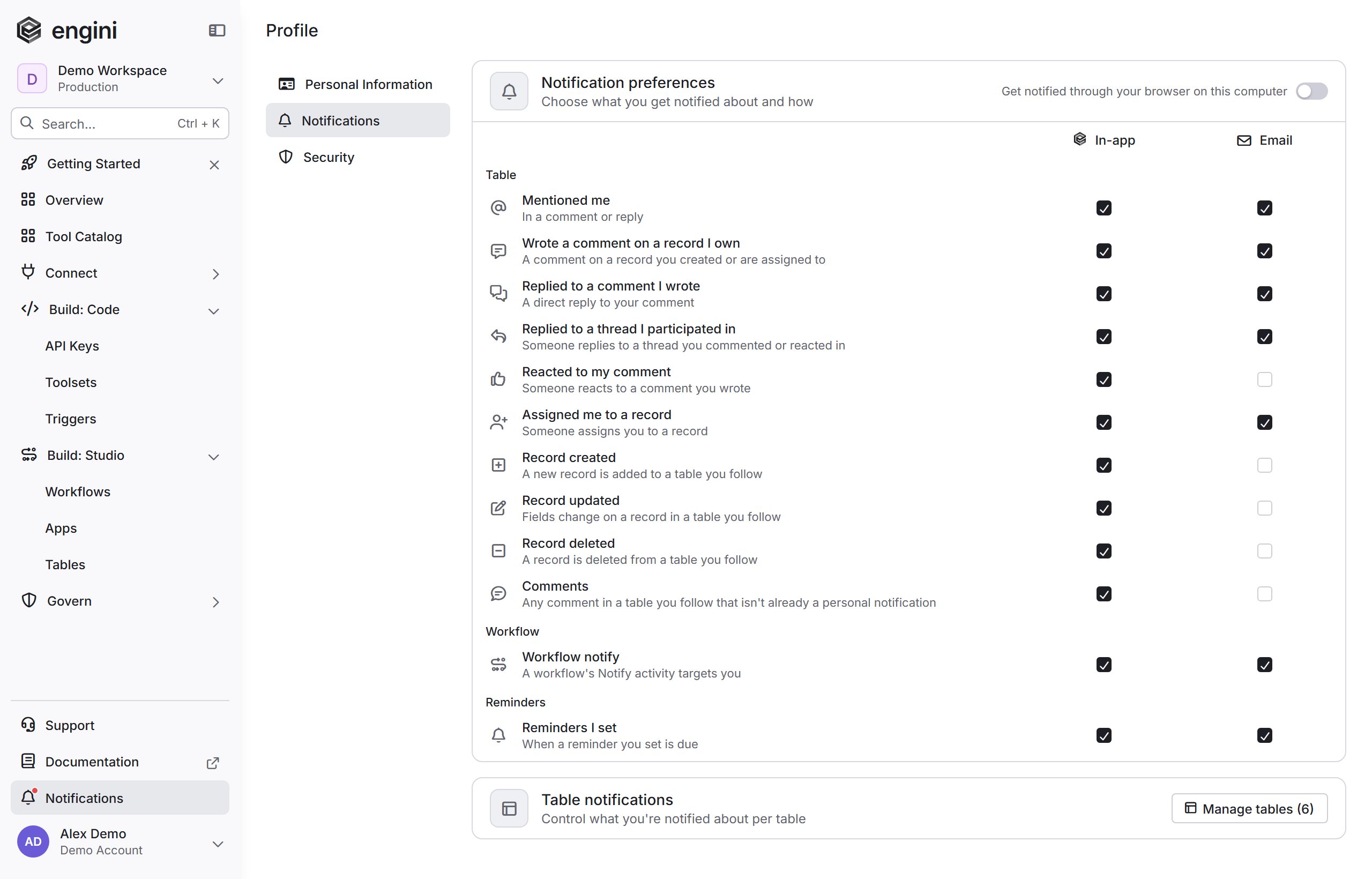
Open Notification settings from the … menu in the panel, or open your Profile and select the Notifications tab. For each type of notification, choose whether you get it In-app (in the bell), by Email, or both:- Table - Mentioned me, Wrote a comment on a record I own, Replied to a comment I wrote, Replied to a thread I participated in, Reacted to my comment, Assigned me to a record, Record created, Record updated, Record deleted and Comments.
- Workflow - Workflow notify, when a workflow’s Notify activity targets you.
- Reminders - Reminders I set, when a reminder you set is due.
Notifications from Tables
Tables send notifications to the bell in two ways:- Personal notifications - you are notified when someone mentions you in a comment, comments on a record you own or are assigned to, replies to your comment or to a thread you took part in, reacts to your comment, or assigns you to a record.
- Updates from tables you follow - you are notified when a record is created, updated or deleted, or a comment is added, in a table you follow.
Choose notifications per table
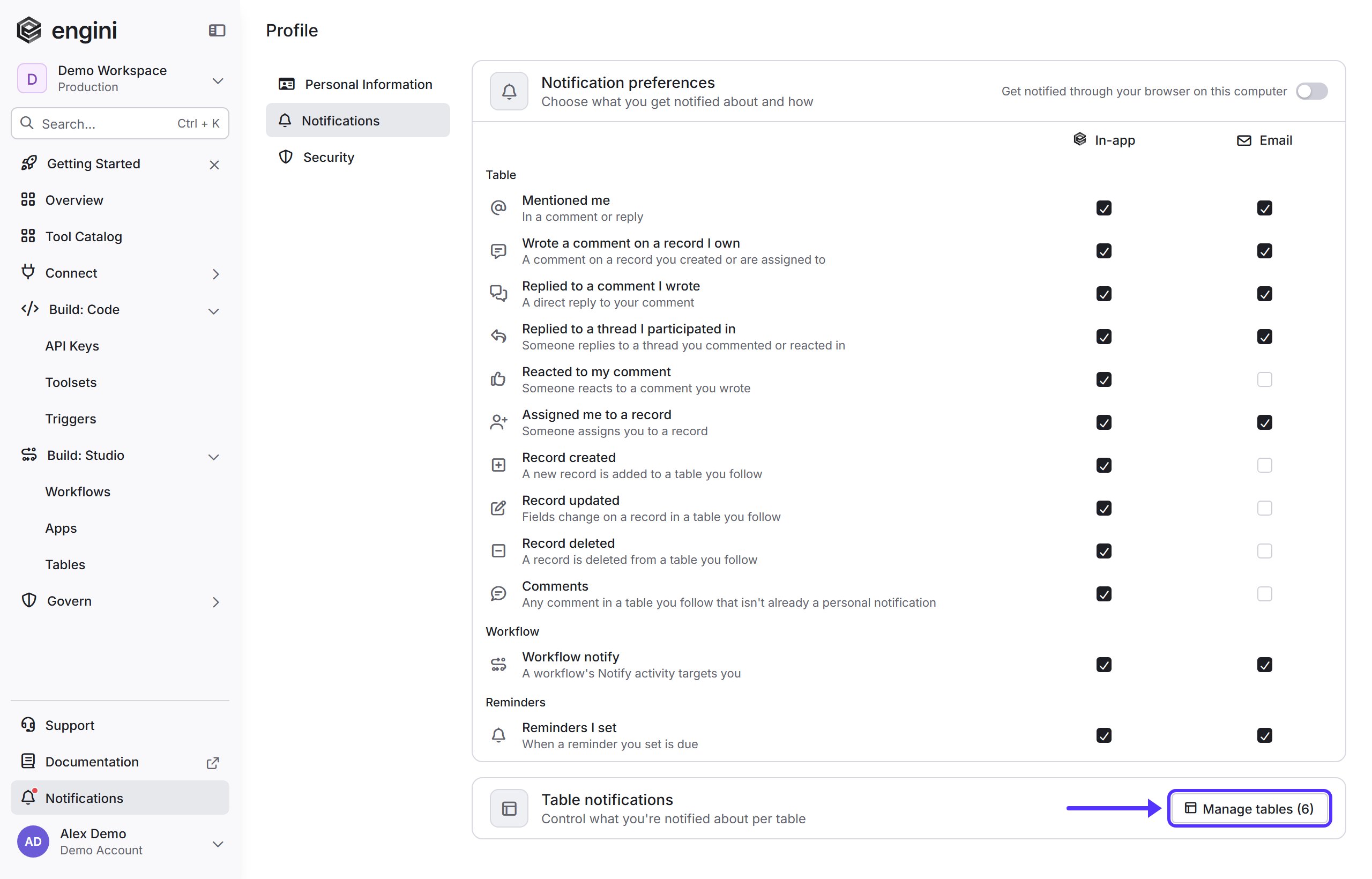
You can decide what each table sends you: Open your Profile and follow these steps. (You can also open a table, open its menu and click Notifications to reach the same editor.)- Select the Notifications tab.
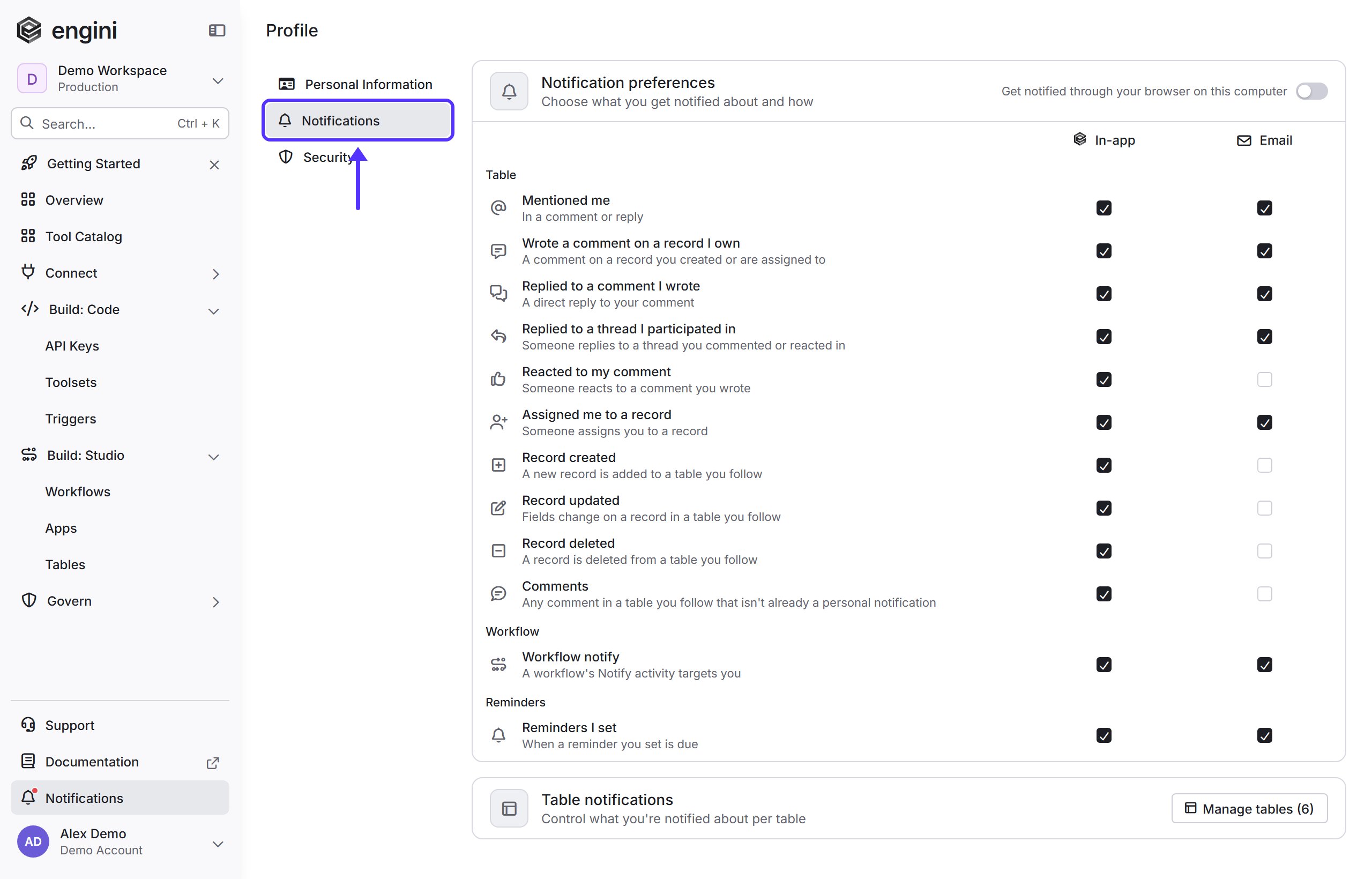
- Scroll to the Table notifications card at the bottom and click Manage tables.
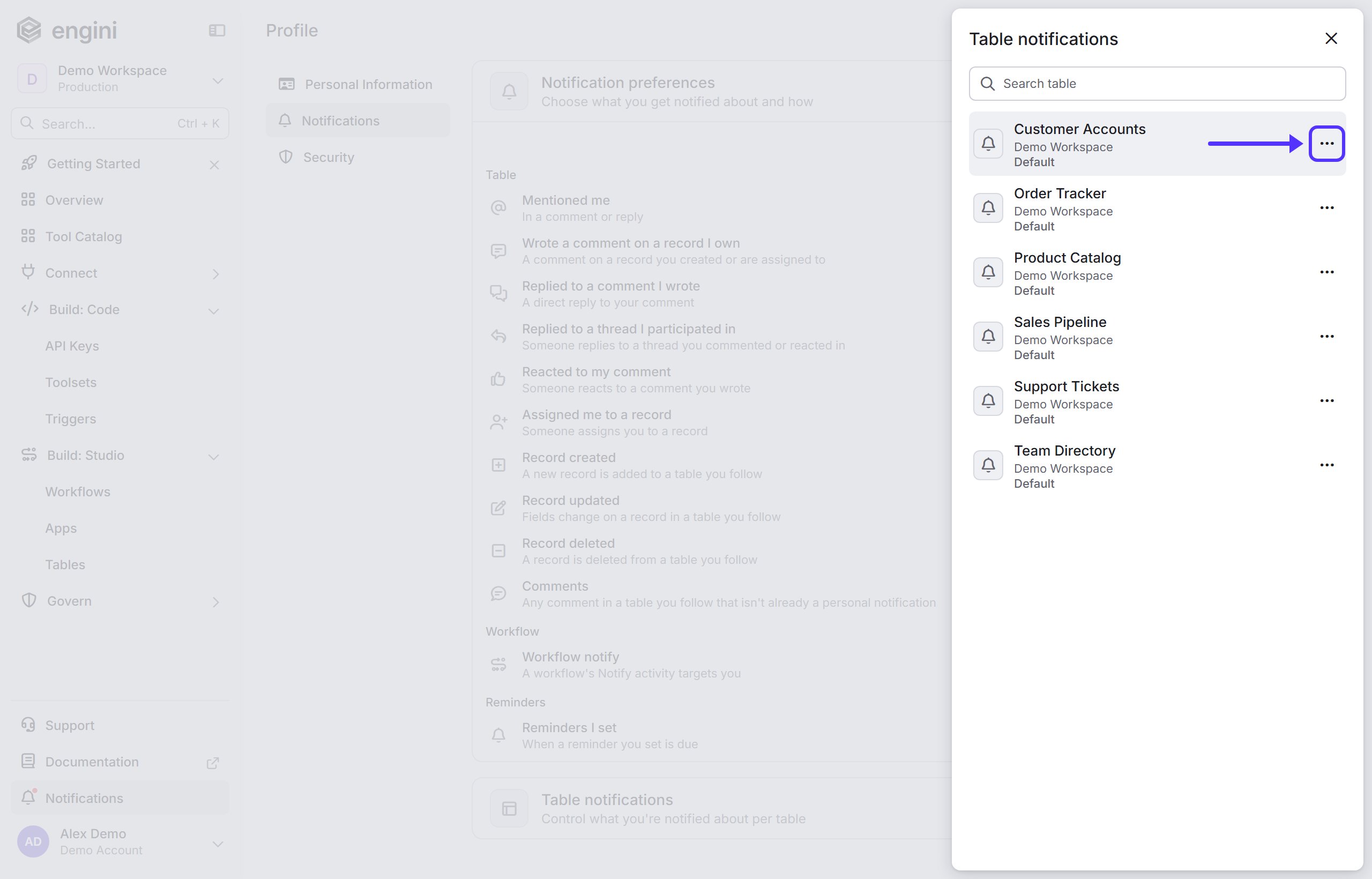
- In the list of your tables, click the … button next to the table.
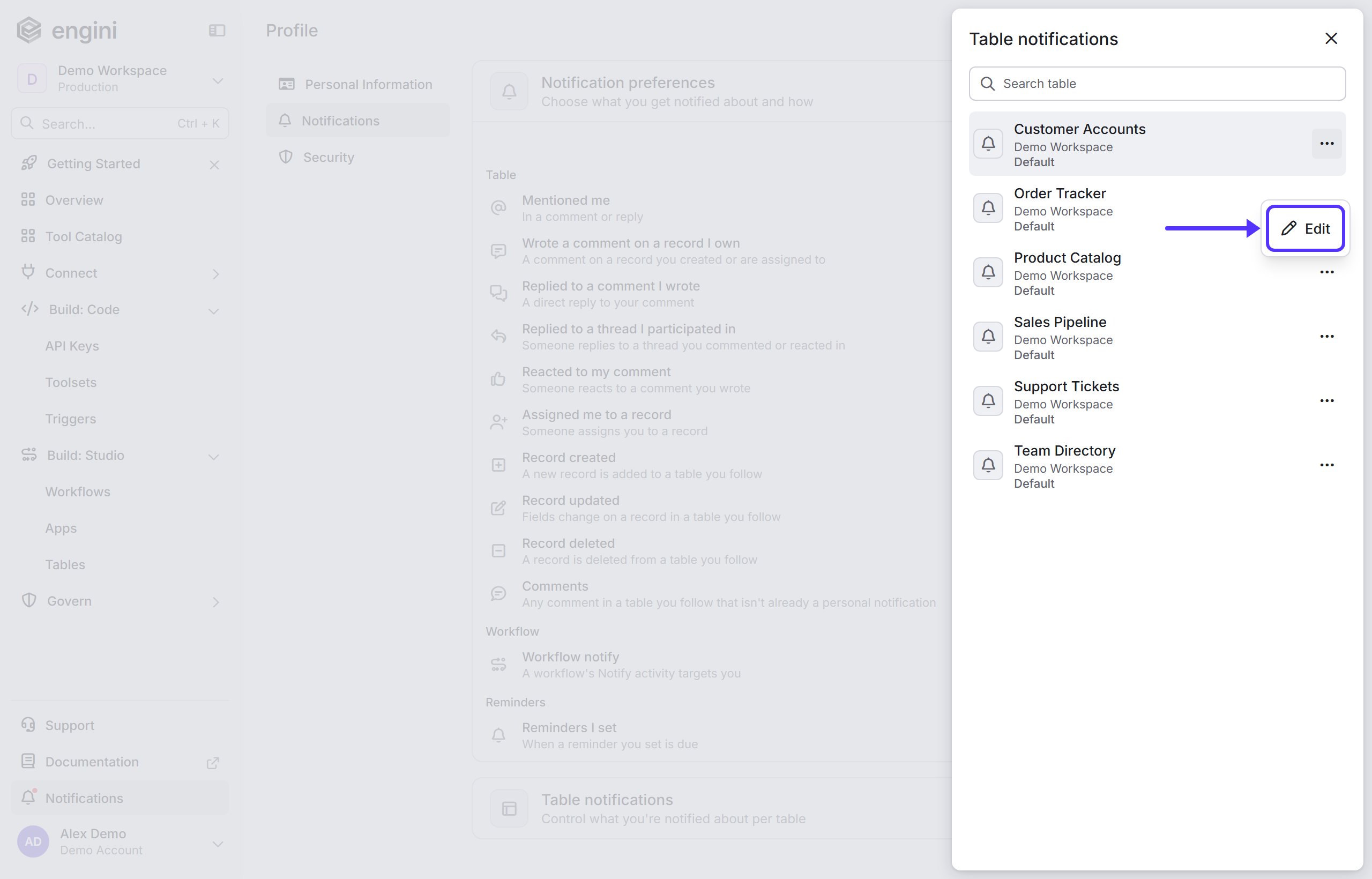
- Click Edit.
- Choose a mode (one of the three):
- Receive all - you get every notification type from this table.
- Custom - you choose which notification types you get from this table.
- Mute - you get no notifications from this table, and it is removed from your followed tables.
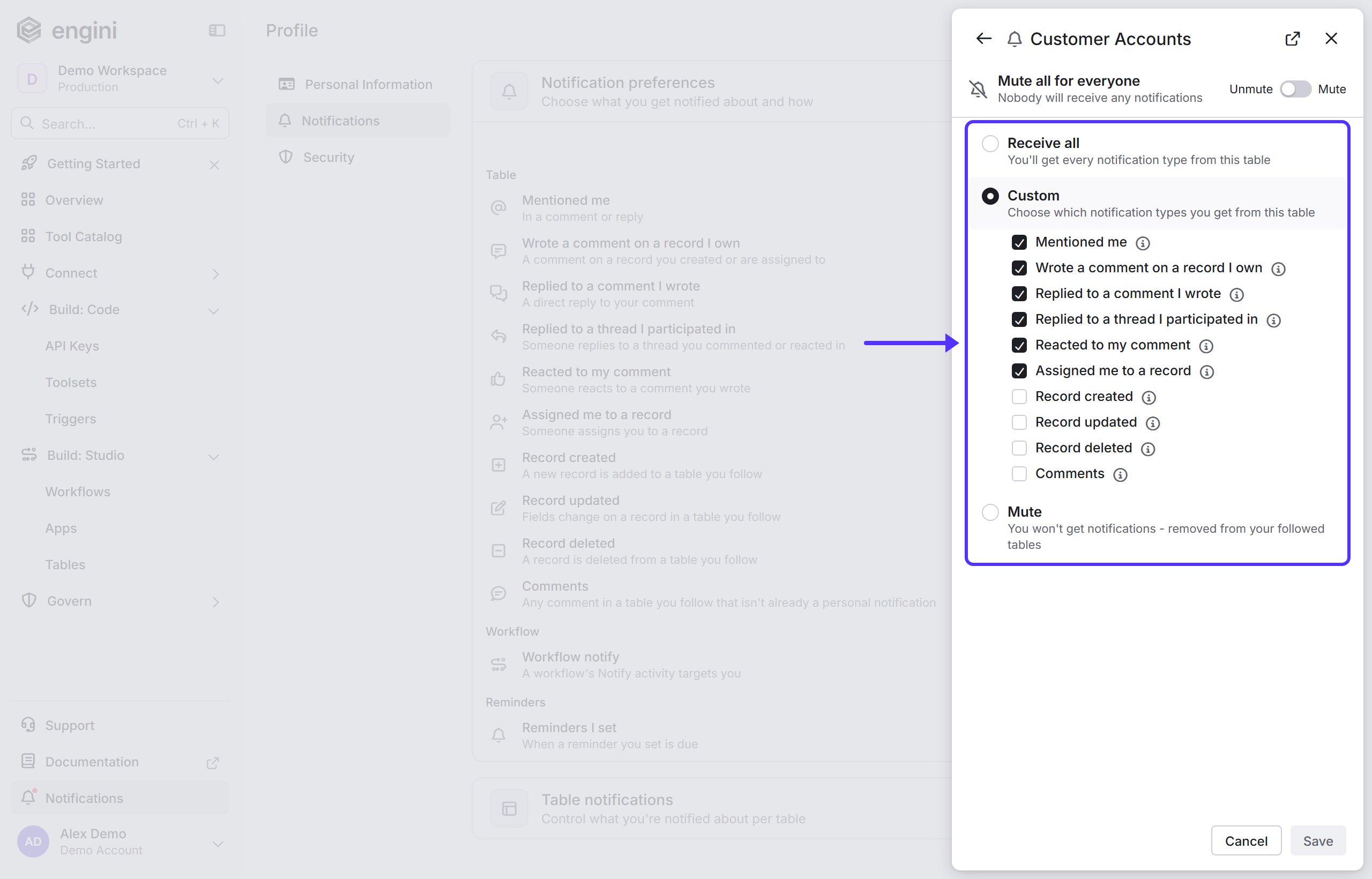
- Click Save.
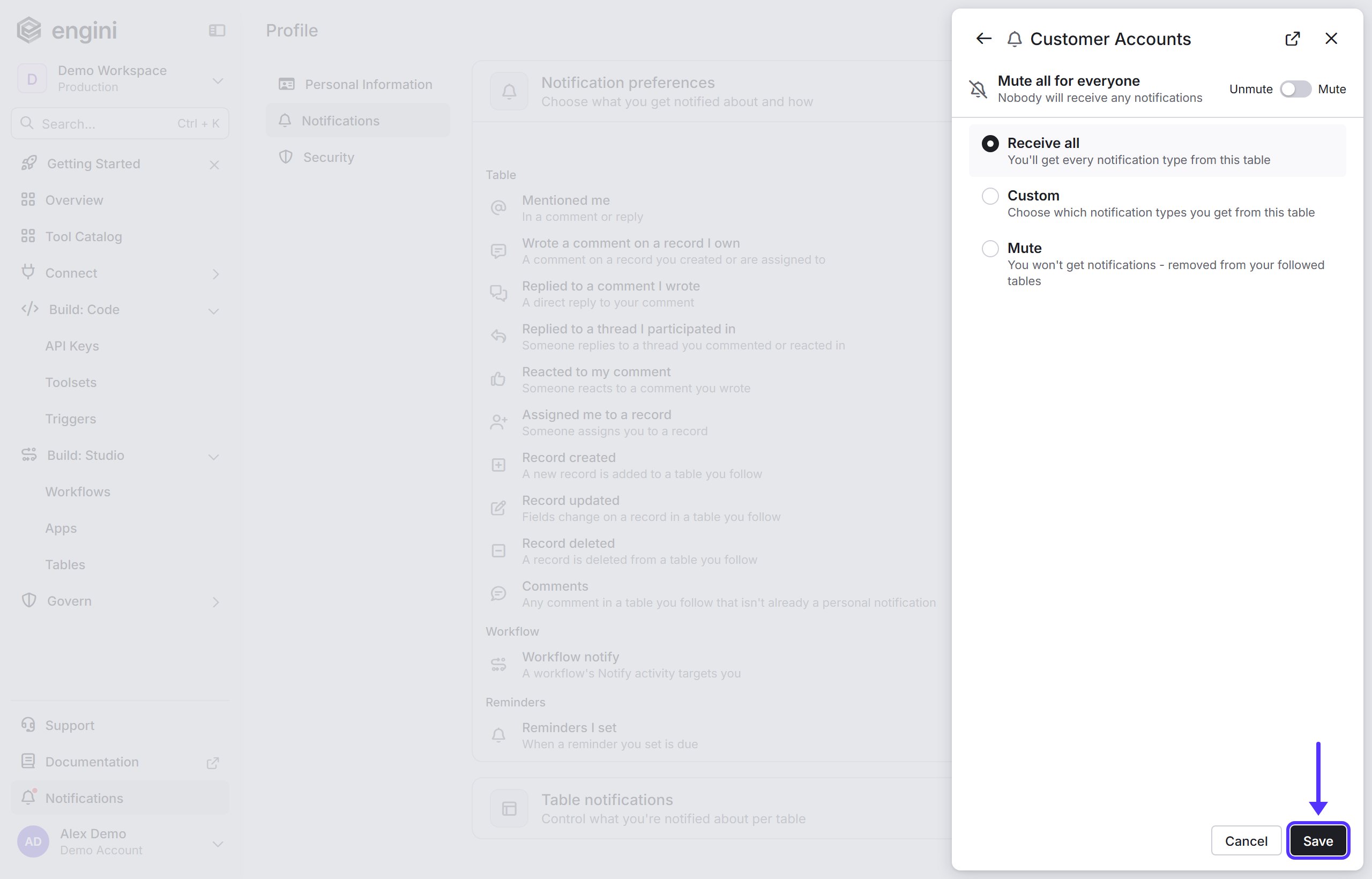
Mute a table
- Only for you - open the table’s notification settings (steps above) and choose Mute. Any user can do this for their own account. You stop getting notifications from that table and it is removed from your followed tables. Nobody else is affected.
- For everyone - use the Mute all for everyone switch at the top of the same screen, above the three modes. Slide it to Mute and nobody receives notifications from that table. Slide it back to Unmute to turn them on again.