> ## Documentation Index
> Fetch the complete documentation index at: https://docs.engini.ai/llms.txt
> Use this file to discover all available pages before exploring further.
# Run and Stop Workflow
## How to Run Workflow
Run your workflow to ensure that all components are functioning correctly.
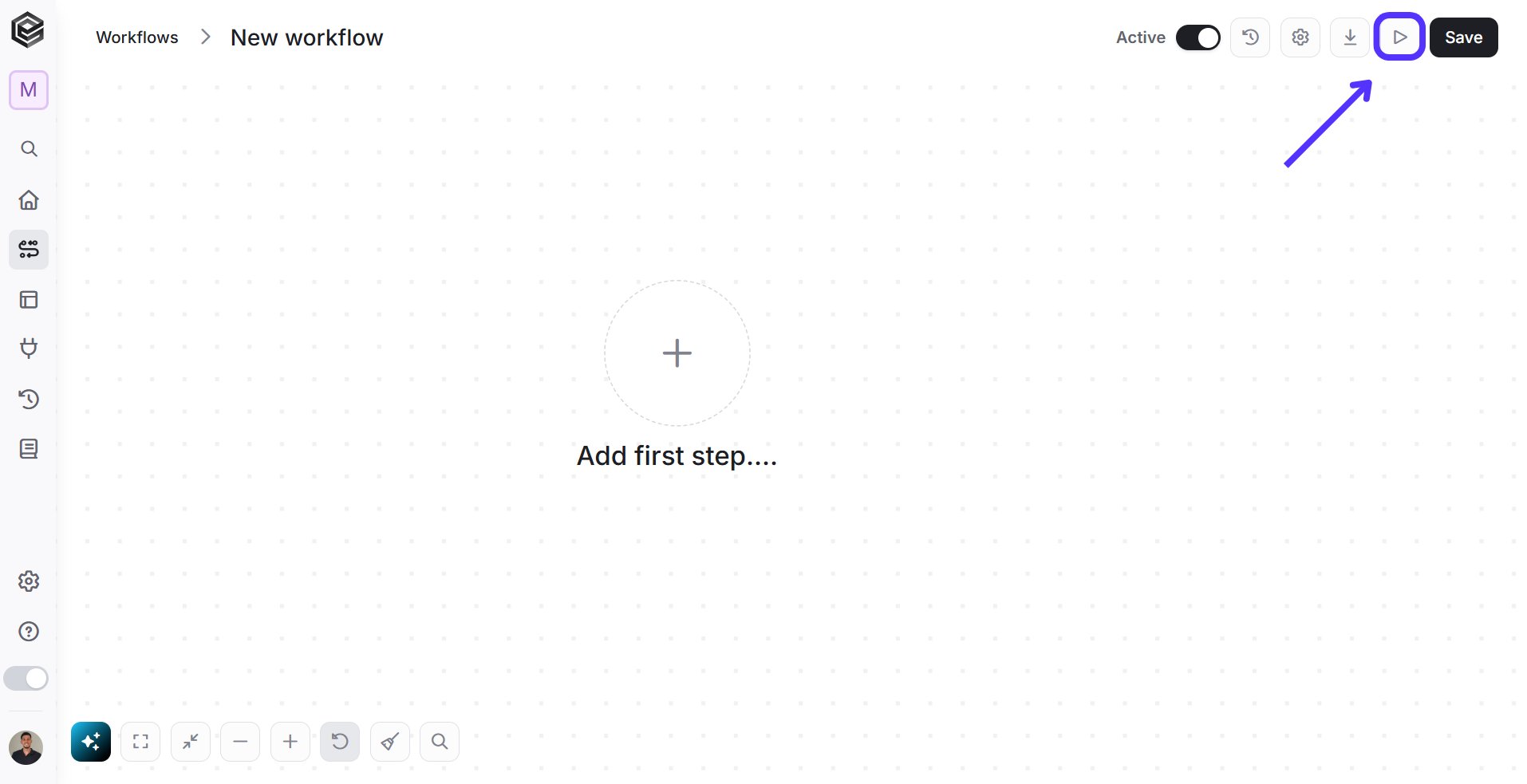
To run your workflow follow the next steps:
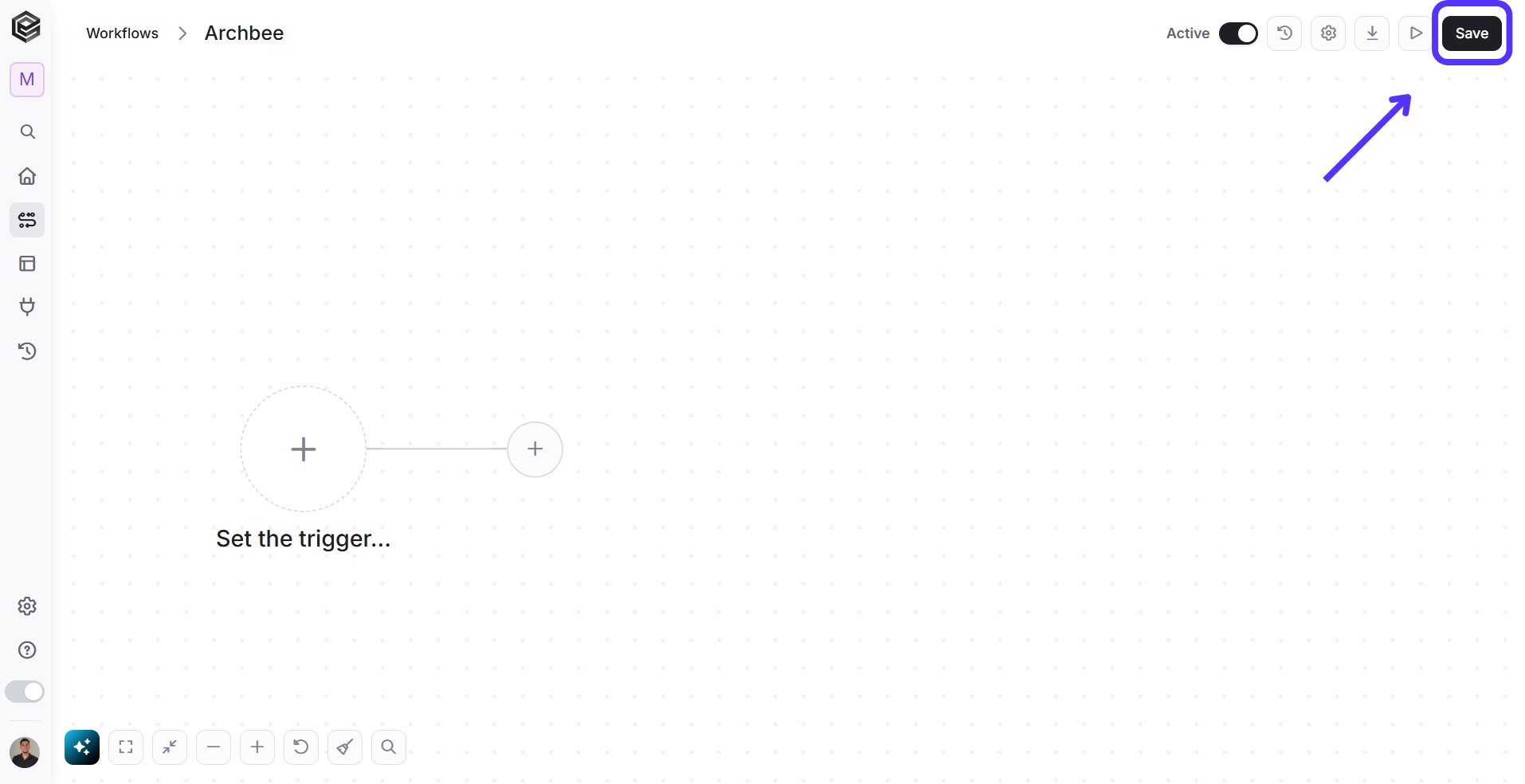
1. Save the workflow you’ve built.
2. Upon a successful saving, a message will be presented at the bottom of the page.
3. Click on the test tubes icon located at the top bar.
### Types of runs
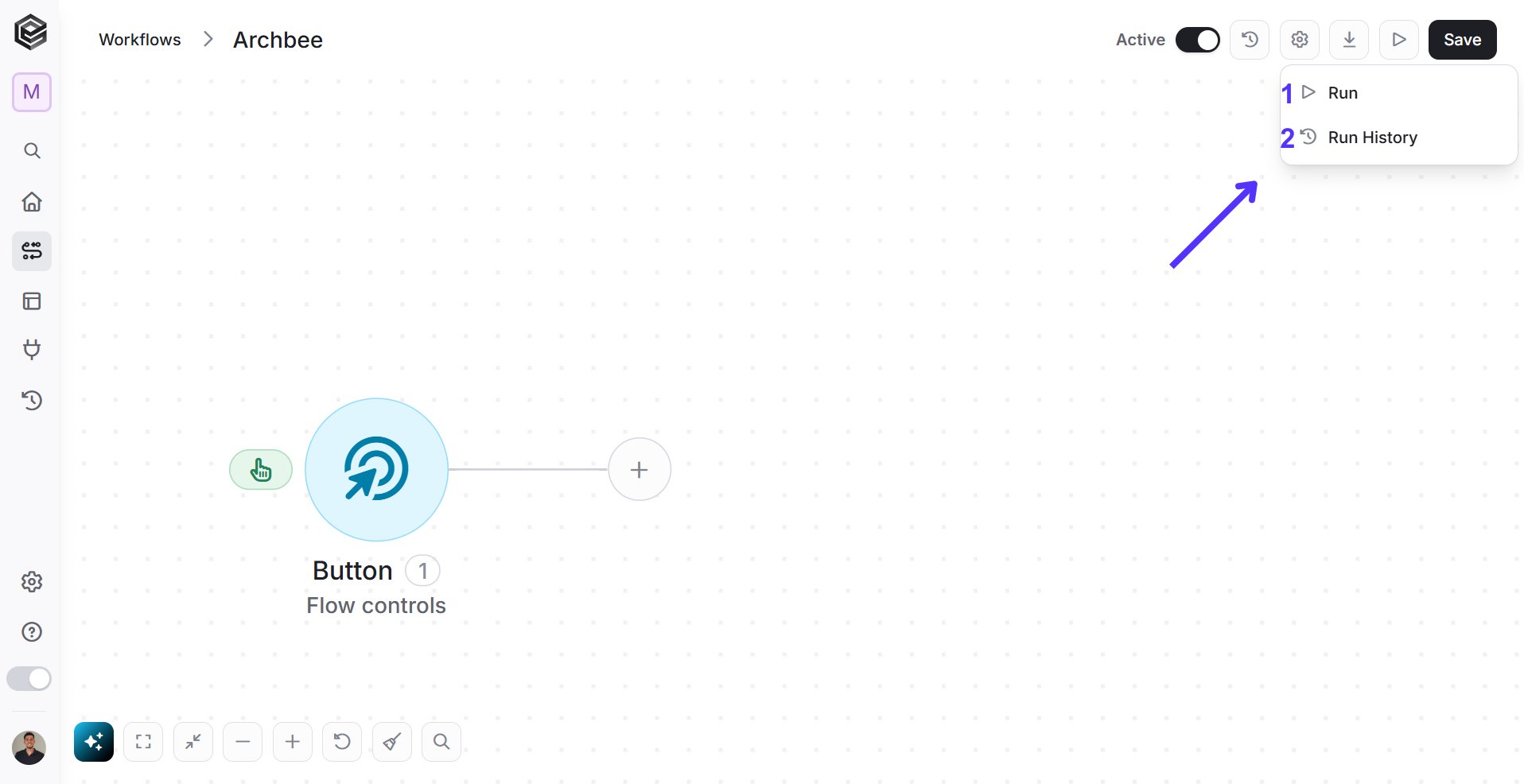
You can choose two types of testing depending on your workflow type:
1. *Run* – Choosing to run option will allow the workflow test all the activities and nodes you created.
2. *Run History* – Learn more about the Workflow Run History [here.](/help/workflows/workflow-run-history)
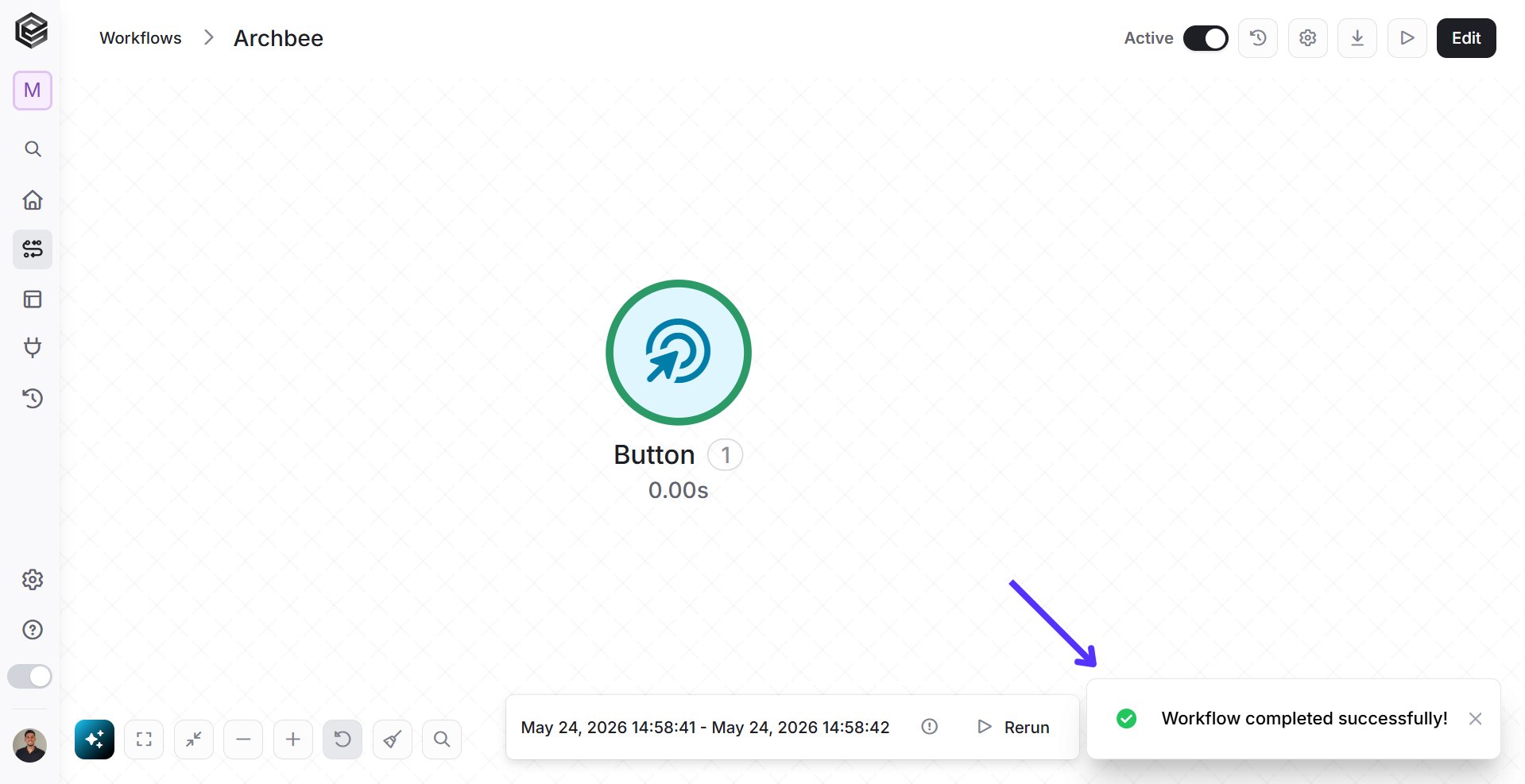
Upon a successful running, a message will be presented.
To learn how to read the run log, see the [workflow run history](/help/workflows/workflow-run-history) guide.
### Running from Workflow Run History
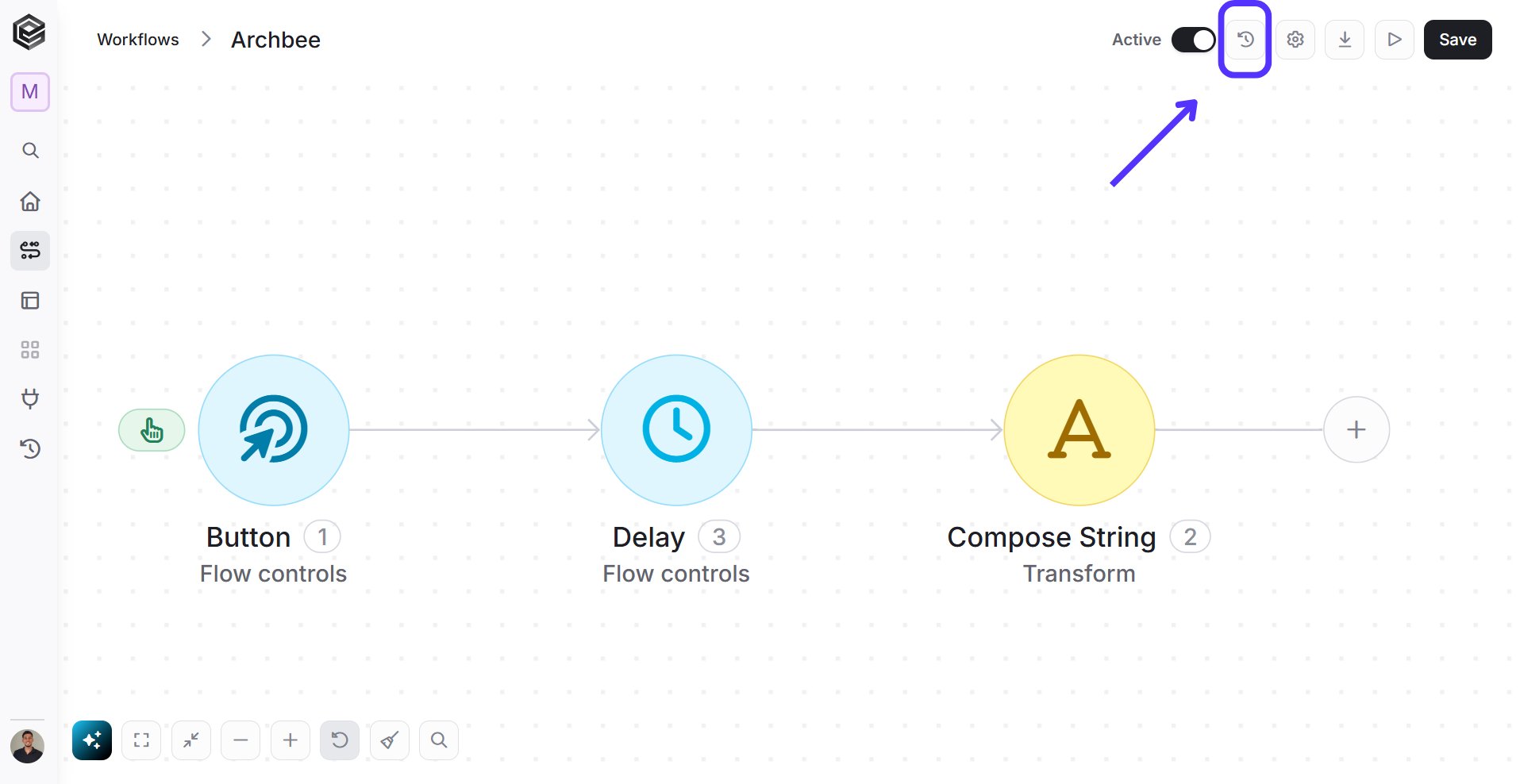
You can re-run the workflow by opening the history log:
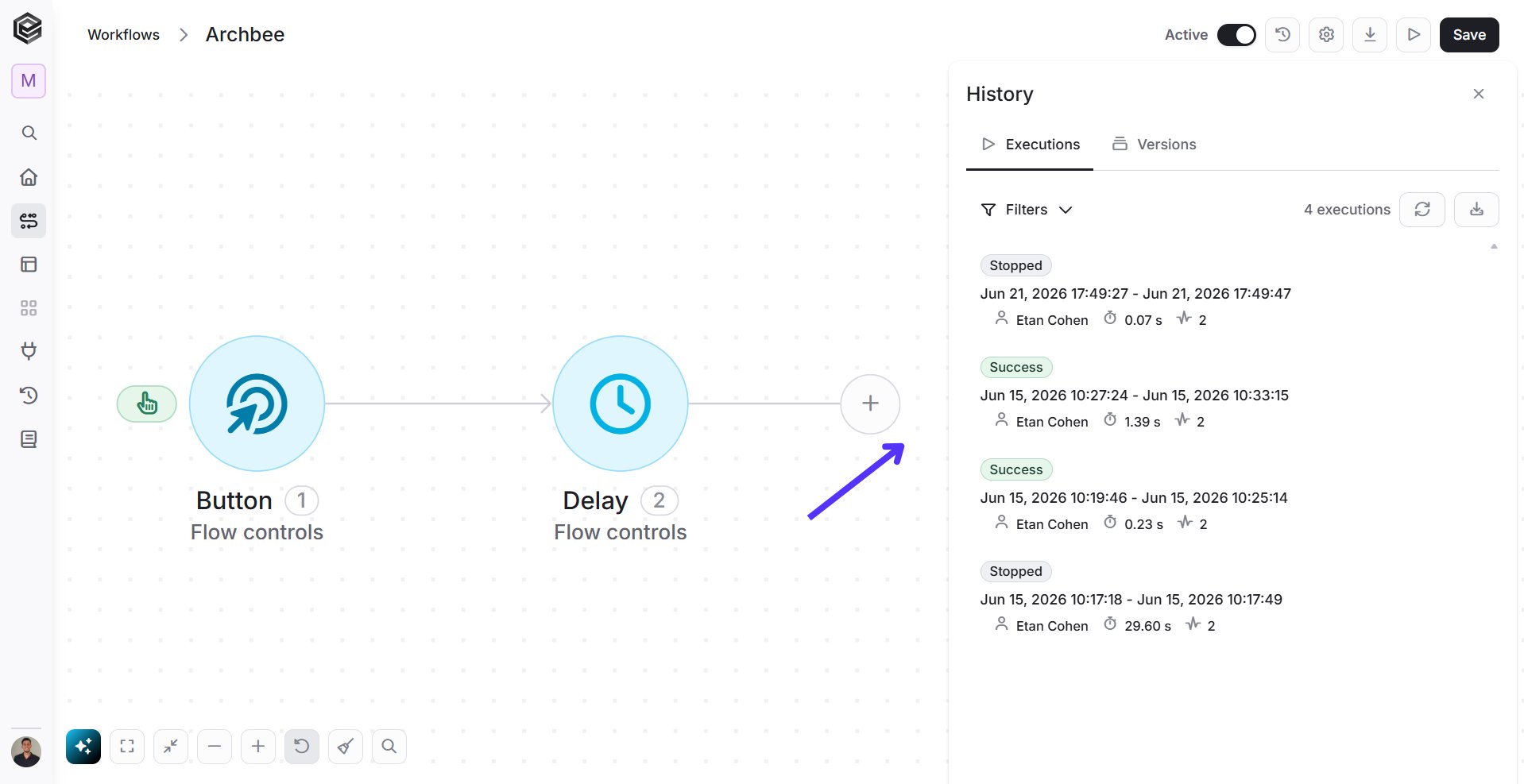
The window of workflow history will pop up, you can see now the status of each workflow run. You can press on each workflow on the list, choose the one you want to re-run.
## How to Stop Workflow
Engini provides two convenient methods to promptly stop a workflow run. Additionally, the system allows you to stop up to 50 workflows at once, if they are in a ‘Running’ or ‘Waiting’ status.
### Option 1: View Workflow Run in Real Time
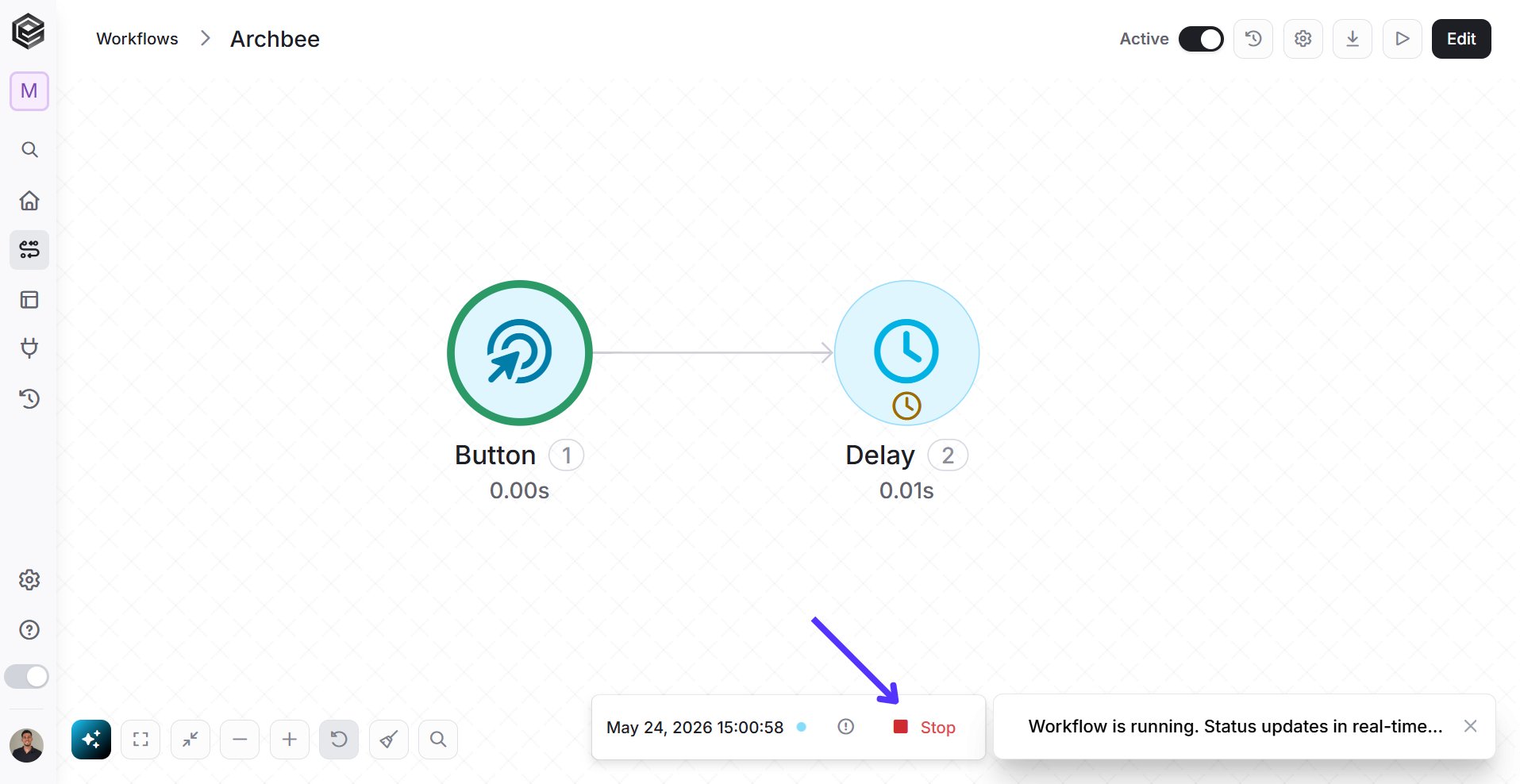
You can also view the workflow execution in real time. The currently running action is highlighted with a blinking dark indicator above it, making it easy to track progress step by step.
At the bottom of the screen, you can see the execution status and have the option to click **Stop** at any time to stop the run immediately.
1. When workflow is running, Look for the loading circle in the middle of the screen, indicating the workflow is currently running.
2. Click on the blue “Stop” button located Below the running status to halt the workflow immediately.
### Option 2: Stopping from Workflow Run History
You can stop the workflow from running by opening the history log:
The window of workflow history will pop up, you can see now the status of each workflow run. The status we are looking for is "*Running*".
Press the square button to stop workflow from running.
You can view, analyze and control workflow's status in the History page. On the left bar in the page click the History tab.
Here you have all the history of the workflows in your account:
Here you can search for you workflow or filter by its name. when you find it you can see its status, if the status is "waiting", that means that you can stop it manually.
1. *Checkbox* - Check the box of the workflow you want to stop. In general you can choose multiple workflows at once.
2. *Stop* - Press the stop button.
This documentation is built and hosted on [Mintlify](https://mintlify.com), a developer documentation platform.
 To run your workflow follow the next steps:
1. Save the workflow you’ve built.
To run your workflow follow the next steps:
1. Save the workflow you’ve built.
 2. Upon a successful saving, a message will be presented at the bottom of the page.
 3. Click on the test tubes icon located at the top bar.
 1. *Run* – Choosing to run option will allow the workflow test all the activities and nodes you created.
2. *Run History* – Learn more about the Workflow Run History [here.](/help/workflows/workflow-run-history)
Upon a successful running, a message will be presented.
1. *Run* – Choosing to run option will allow the workflow test all the activities and nodes you created.
2. *Run History* – Learn more about the Workflow Run History [here.](/help/workflows/workflow-run-history)
Upon a successful running, a message will be presented.
 To learn how to read the run log, see the [workflow run history](/help/workflows/workflow-run-history) guide.
### Running from Workflow Run History
You can re-run the workflow by opening the history log:
To learn how to read the run log, see the [workflow run history](/help/workflows/workflow-run-history) guide.
### Running from Workflow Run History
You can re-run the workflow by opening the history log:
 The window of workflow history will pop up, you can see now the status of each workflow run. You can press on each workflow on the list, choose the one you want to re-run.
 ## How to Stop Workflow
Engini provides two convenient methods to promptly stop a workflow run. Additionally, the system allows you to stop up to 50 workflows at once, if they are in a ‘Running’ or ‘Waiting’ status.
### Option 1: View Workflow Run in Real Time
You can also view the workflow execution in real time. The currently running action is highlighted with a blinking dark indicator above it, making it easy to track progress step by step.
At the bottom of the screen, you can see the execution status and have the option to click **Stop** at any time to stop the run immediately.
## How to Stop Workflow
Engini provides two convenient methods to promptly stop a workflow run. Additionally, the system allows you to stop up to 50 workflows at once, if they are in a ‘Running’ or ‘Waiting’ status.
### Option 1: View Workflow Run in Real Time
You can also view the workflow execution in real time. The currently running action is highlighted with a blinking dark indicator above it, making it easy to track progress step by step.
At the bottom of the screen, you can see the execution status and have the option to click **Stop** at any time to stop the run immediately.
 1. When workflow is running, Look for the loading circle in the middle of the screen, indicating the workflow is currently running.
2. Click on the blue “Stop” button located Below the running status to halt the workflow immediately.
### Option 2: Stopping from Workflow Run History
You can stop the workflow from running by opening the history log:
1. When workflow is running, Look for the loading circle in the middle of the screen, indicating the workflow is currently running.
2. Click on the blue “Stop” button located Below the running status to halt the workflow immediately.
### Option 2: Stopping from Workflow Run History
You can stop the workflow from running by opening the history log:
 Press the square button to stop workflow from running.
You can view, analyze and control workflow's status in the History page. On the left bar in the page click the History tab.
Press the square button to stop workflow from running.
You can view, analyze and control workflow's status in the History page. On the left bar in the page click the History tab.
 Here you have all the history of the workflows in your account:
 Here you can search for you workflow or filter by its name. when you find it you can see its status, if the status is "waiting", that means that you can stop it manually.
 1. *Checkbox* - Check the box of the workflow you want to stop. In general you can choose multiple workflows at once.
2. *Stop* - Press the stop button.
This documentation is built and hosted on [Mintlify](https://mintlify.com), a developer documentation platform.
1. *Checkbox* - Check the box of the workflow you want to stop. In general you can choose multiple workflows at once.
2. *Stop* - Press the stop button.
This documentation is built and hosted on [Mintlify](https://mintlify.com), a developer documentation platform.