> ## Documentation Index
> Fetch the complete documentation index at: https://docs.engini.ai/llms.txt
> Use this file to discover all available pages before exploring further.
# Import /Export workflow
In this guide you will learn how you can import and export workflows from one account to another with just a few clicks.
## Export Workflow
Export workflow enables users to export existing workflow to other accounts.
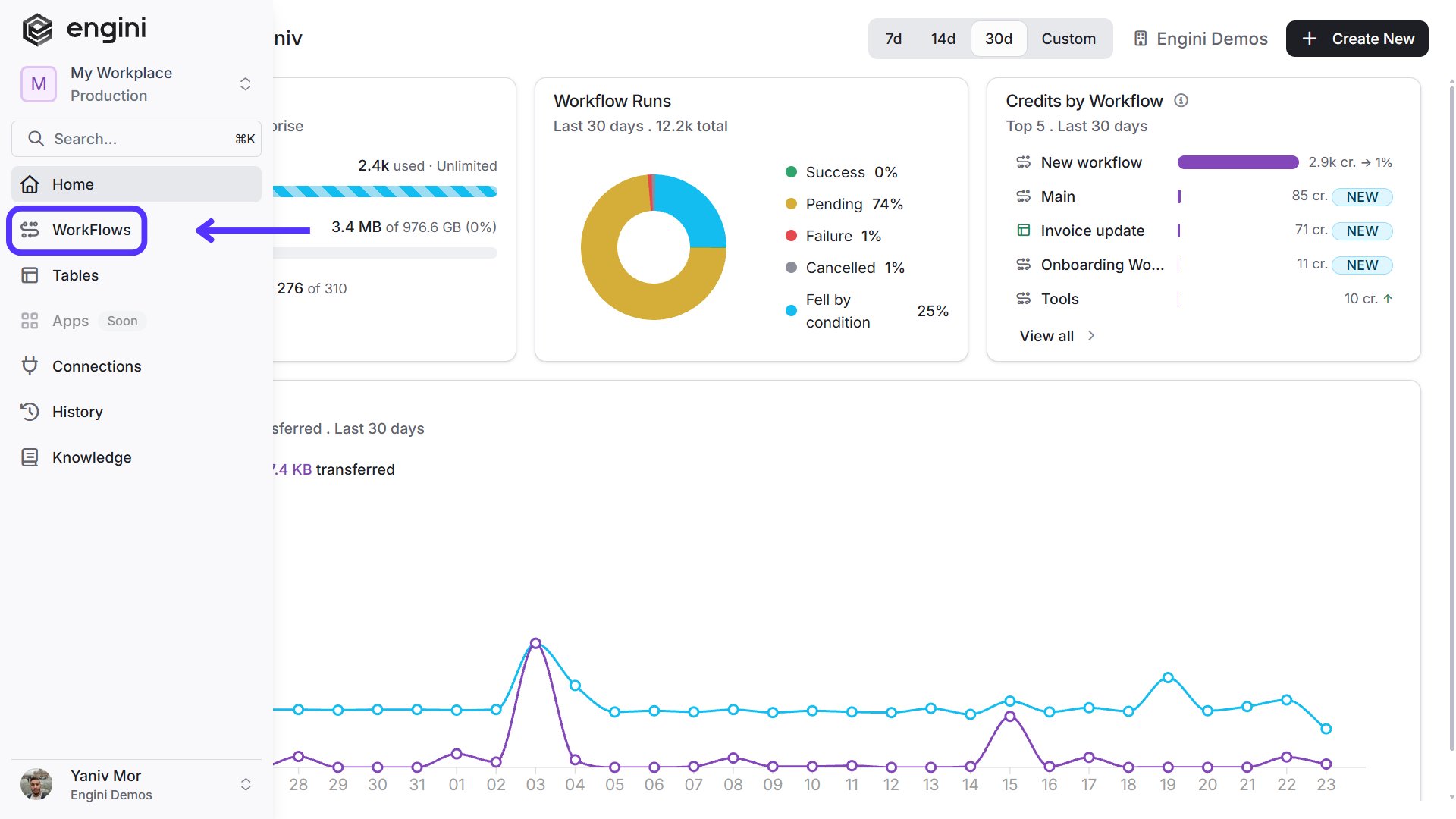
1. On the sidebar, click on the “WorkFlows” option.
2. Choose over the workflow you want to export and click on the three points.
3. Press on “Export”.
Clicking Export downloads the JSON file.
**Note:** Sticky notes on the workflow canvas are not included in the export.
## Import Workflow
Import workflow enables users to import existing workflow from other accounts.
1. On the sidebar, click on the “WorkFlows” option.
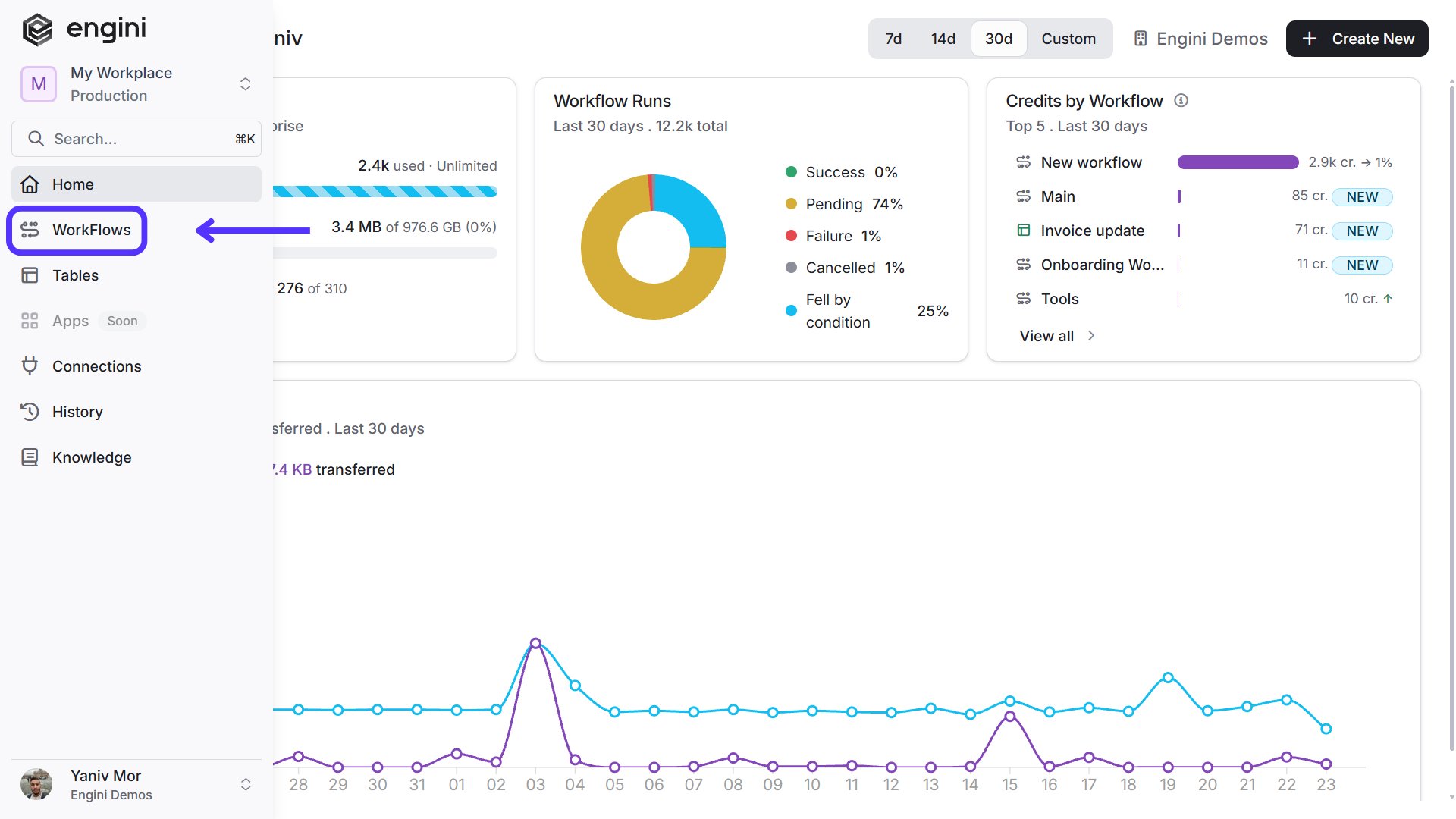
2. Press on the “Add workflow” button located at the top bar.
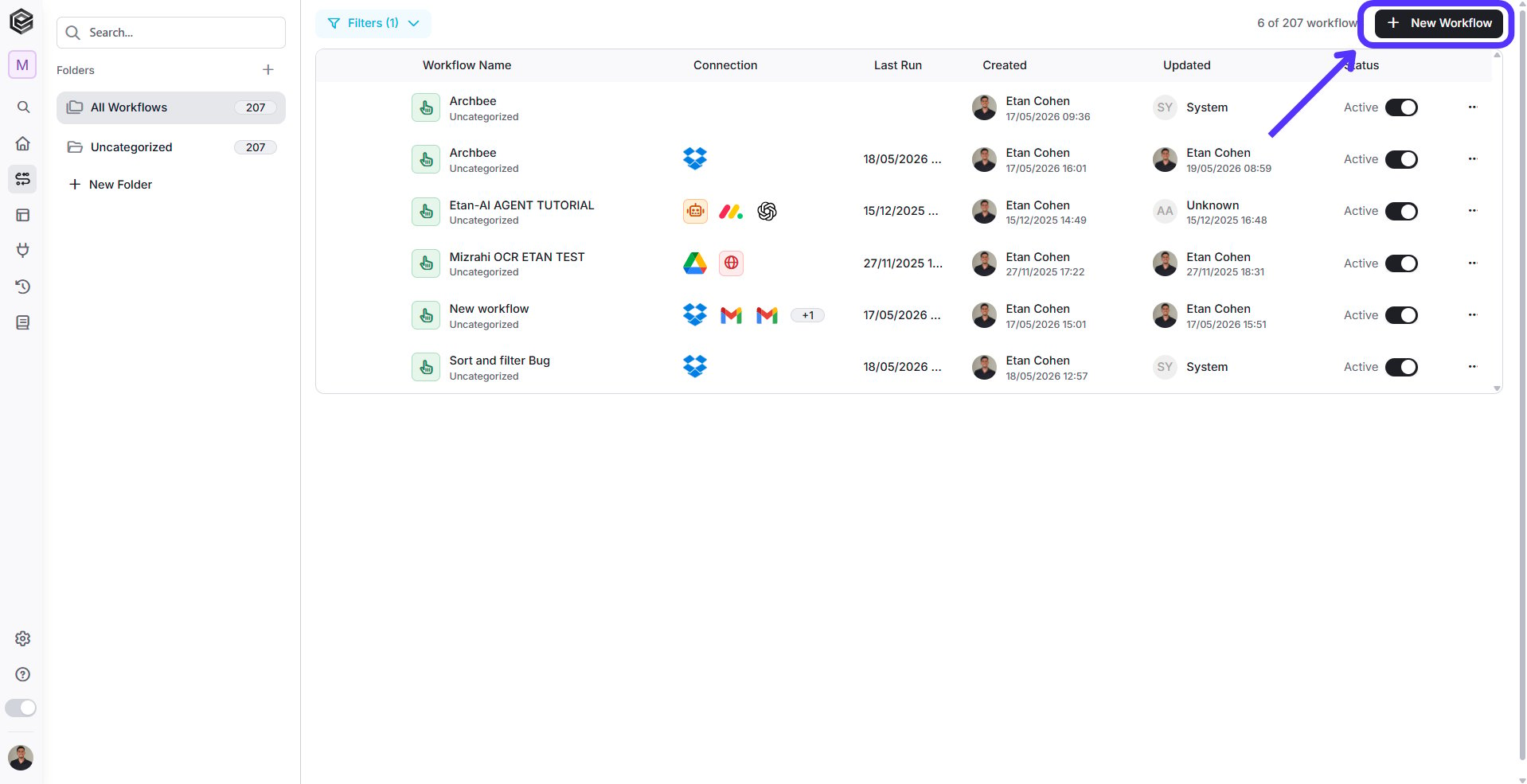
3. Press on “Import (.json)”.
4. Choose the relevant file from your file explorer.
5. Click the save icon to save your progress.
Note that the workflow isn’t saved automatically. If you do not save the workflow and exit the page, the changes won’t be saved.
### Possible Errors
Pay attention to possible mistakes that can appear when you import a workflow from one account to another.
1. *There is no connection*– This means that the connector relevant to one or more of the activities does not exist in this account. In this case the relevant connector must be added.
2. *There is a connection, but this activity is not in the connection* – This means that although there is a connector for this specific software, there is no API access to the entity\form\object that this specific activity is trying to access to.
This documentation is built and hosted on [Mintlify](https://mintlify.com), a developer documentation platform.
 2. Choose over the workflow you want to export and click on the three points.
 3. Press on “Export”.
 Clicking Export downloads the JSON file.
**Note:** Sticky notes on the workflow canvas are not included in the export.
## Import Workflow
Import workflow enables users to import existing workflow from other accounts.
1. On the sidebar, click on the “WorkFlows” option.
Clicking Export downloads the JSON file.
**Note:** Sticky notes on the workflow canvas are not included in the export.
## Import Workflow
Import workflow enables users to import existing workflow from other accounts.
1. On the sidebar, click on the “WorkFlows” option.
 2. Press on the “Add workflow” button located at the top bar.
 3. Press on “Import (.json)”.
 4. Choose the relevant file from your file explorer.
5. Click the save icon to save your progress.
4. Choose the relevant file from your file explorer.
5. Click the save icon to save your progress.
 Note that the workflow isn’t saved automatically. If you do not save the workflow and exit the page, the changes won’t be saved.
### Possible Errors
Pay attention to possible mistakes that can appear when you import a workflow from one account to another.
1. *There is no connection*– This means that the connector relevant to one or more of the activities does not exist in this account. In this case the relevant connector must be added.
Note that the workflow isn’t saved automatically. If you do not save the workflow and exit the page, the changes won’t be saved.
### Possible Errors
Pay attention to possible mistakes that can appear when you import a workflow from one account to another.
1. *There is no connection*– This means that the connector relevant to one or more of the activities does not exist in this account. In this case the relevant connector must be added.
 2. *There is a connection, but this activity is not in the connection* – This means that although there is a connector for this specific software, there is no API access to the entity\form\object that this specific activity is trying to access to.
This documentation is built and hosted on [Mintlify](https://mintlify.com), a developer documentation platform.
2. *There is a connection, but this activity is not in the connection* – This means that although there is a connector for this specific software, there is no API access to the entity\form\object that this specific activity is trying to access to.
This documentation is built and hosted on [Mintlify](https://mintlify.com), a developer documentation platform.