> ## Documentation Index
> Fetch the complete documentation index at: https://docs.engini.ai/llms.txt
> Use this file to discover all available pages before exploring further.
# Opportunity closed won in monday.com -> create customer and order in Sap Business One
In this tutorial, learn how to automate the creation of customers and orders in Sap Business One when an Opportunity is Closed Won in monday.com.
## Prerequisites
Before you begin, ensure the following connections are established:
1. Connection between Engini and monday.com.
Learn how to [connect monday.com to Engini](/help/apps/mondaycom#connecting-engini-to-monday-com)
2. Connection between Engini and Sap Business One.
Learn how to conn[ect Sap Business One to Engini](/help/apps/sap-business-one#connecting-engini-to-sap-business-one).
## Item Updated
Add the “Item Updated” action in monday.com so that the flow will be triggered when the item’s status changes to “Closed Won.”
 1. *Board -* Choose the board from which the trigger will originate. For this tutorial. choose the “Demos – SBO Opportunities” Board.
2. *Columns to listen to-* By clicking on the “Add column to listen to” button, select the “Status” column that will activate the sequence of activities in the workflow if an update occurs in it.
1. Click on the “Add column” button.
2. Click on the field to open the drop down.
3. Choose the “Status” column.
3. *Conditions -* Choose to add a condition for the status. The workflow will only work if the condition you define is met. Follow the next steps to add conditions:
1. Select from the drop down the “Status” field.
2. Select the “Equal” condition.
3. Click on the empty field and the tooltip will pop up showing the options you can choose and choose the “Closed Won” status.
## Initialize Variable
Now, let’s initialize a variable that will later hold the customer Id of the customer in SBO:
1. *Board -* Choose the board from which the trigger will originate. For this tutorial. choose the “Demos – SBO Opportunities” Board.
2. *Columns to listen to-* By clicking on the “Add column to listen to” button, select the “Status” column that will activate the sequence of activities in the workflow if an update occurs in it.
1. Click on the “Add column” button.
2. Click on the field to open the drop down.
3. Choose the “Status” column.
3. *Conditions -* Choose to add a condition for the status. The workflow will only work if the condition you define is met. Follow the next steps to add conditions:
1. Select from the drop down the “Status” field.
2. Select the “Equal” condition.
3. Click on the empty field and the tooltip will pop up showing the options you can choose and choose the “Closed Won” status.
## Initialize Variable
Now, let’s initialize a variable that will later hold the customer Id of the customer in SBO:
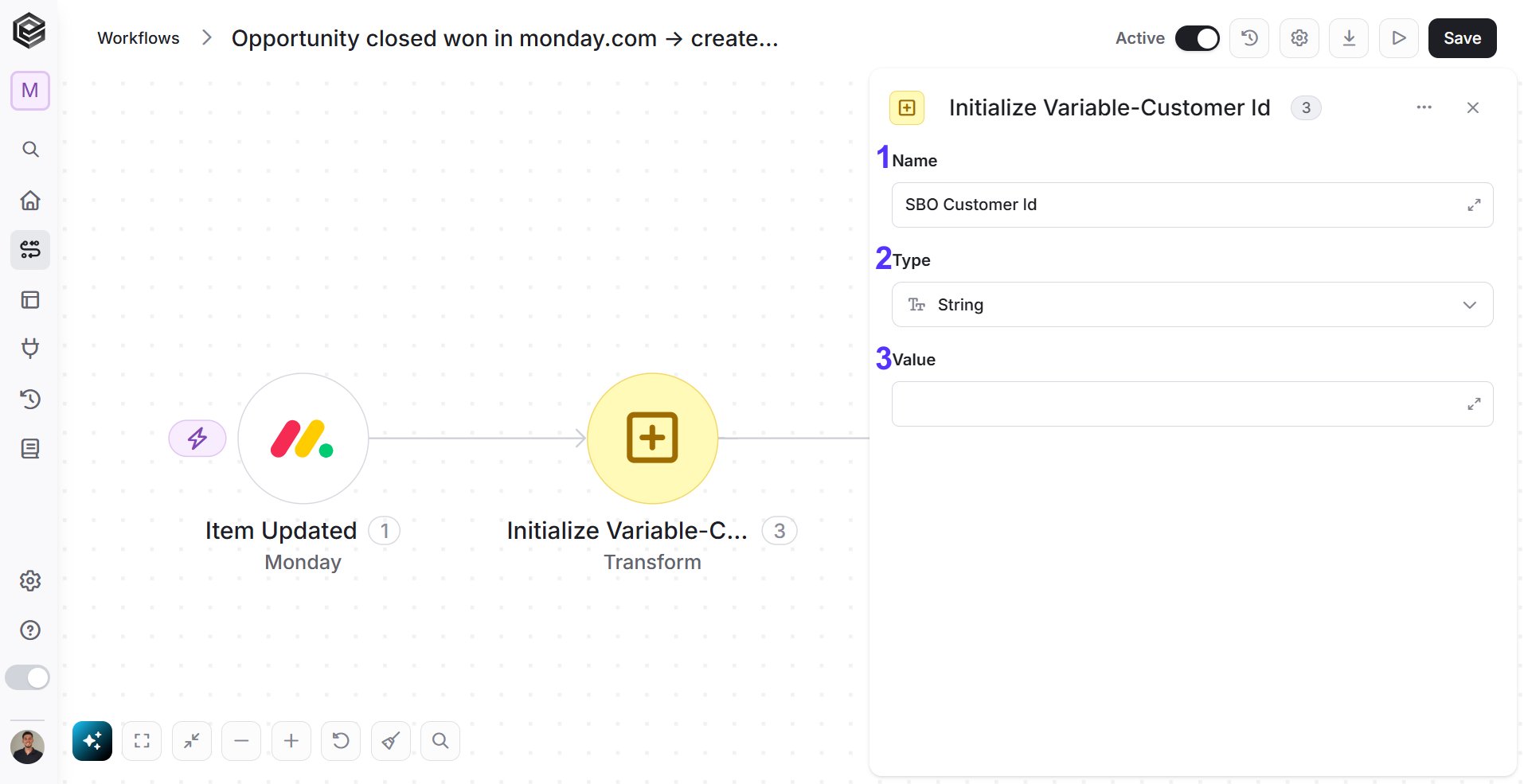 1. *Name* - Click on the empty field and choose a name for the variable. For example “SBO Customer id”.
2. *Type -* Choose from the drop down the “String” option.
3. *Value -* Leave this field empty.
## Add If Condition
Add the “If Condition” action of Engini to check whether the customer has been established in SBO or not. When we create a customer in SBO, we will populate the “SBO customer id” field with the number of the created customer.
Using the if activity, we check whether the value in the “SBO customer id” field is populated or not, if so – it means that the customer has been created and there is no need to create the customer. If not – it means that the customer has not been created, and we will need to create the customer.
1. *Name* - Click on the empty field and choose a name for the variable. For example “SBO Customer id”.
2. *Type -* Choose from the drop down the “String” option.
3. *Value -* Leave this field empty.
## Add If Condition
Add the “If Condition” action of Engini to check whether the customer has been established in SBO or not. When we create a customer in SBO, we will populate the “SBO customer id” field with the number of the created customer.
Using the if activity, we check whether the value in the “SBO customer id” field is populated or not, if so – it means that the customer has been created and there is no need to create the customer. If not – it means that the customer has not been created, and we will need to create the customer.
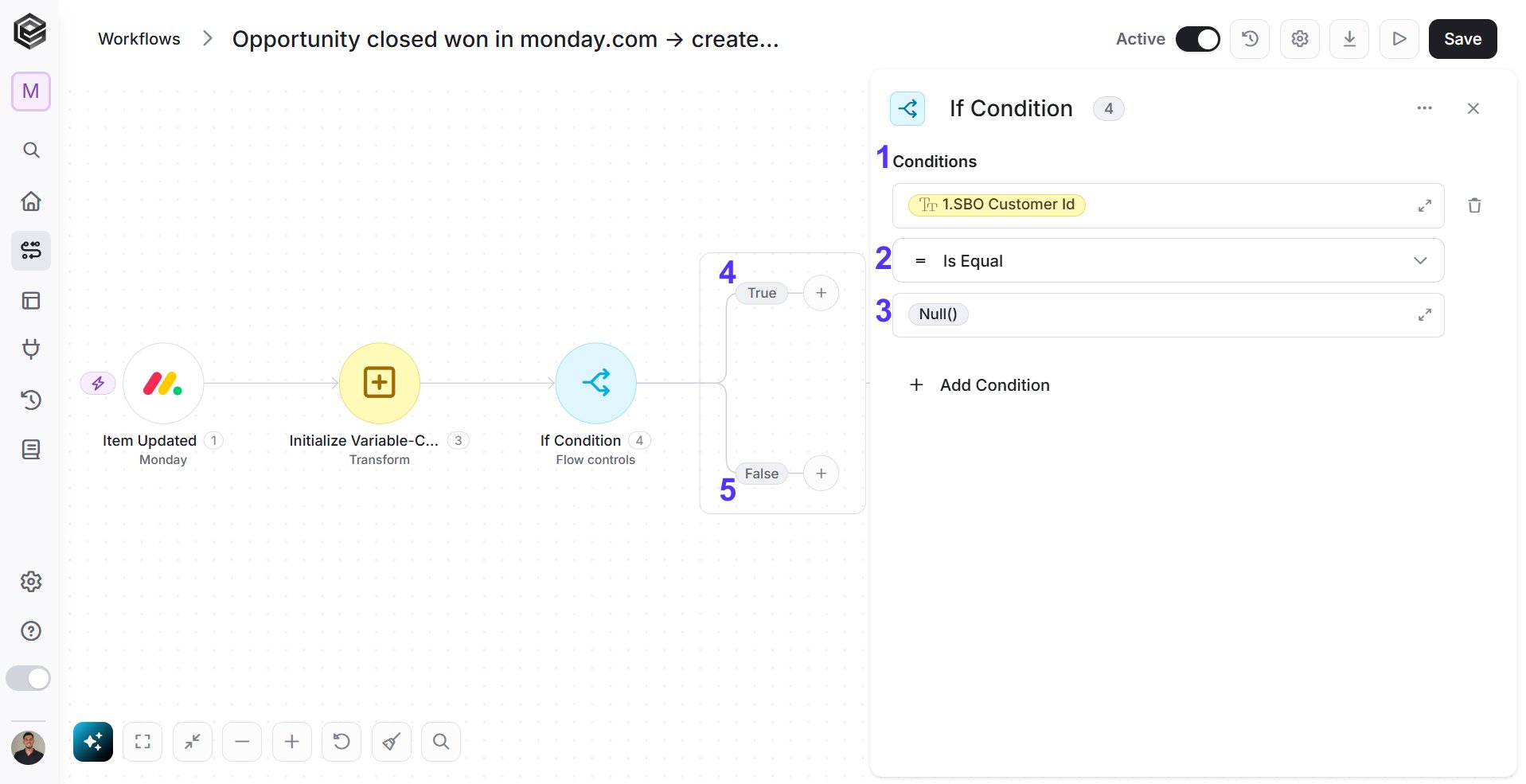 1. *Field -* Click on left the field to show the tooltip with all the options you can choose:
* Click on the Dynamic Content label.
* Choose the “SBO customer id” field from the trigger.
2. *Condition -* Select the “Is Equal” (=) condition.
3. *Value -* Click on the right to show the tooltip with all the options you can choose:
* Click on the functions label
* Choose the “Null()” function, which return null.
4. *If True -* If the condition is met, create a customer:
1. Click on “Next step” button to add the next activity.
2. Add the ‘Get Item’ activity in monday.com to retrieve the item linked to this item through the ‘Connect Board’ column.
1. *Field -* Click on left the field to show the tooltip with all the options you can choose:
* Click on the Dynamic Content label.
* Choose the “SBO customer id” field from the trigger.
2. *Condition -* Select the “Is Equal” (=) condition.
3. *Value -* Click on the right to show the tooltip with all the options you can choose:
* Click on the functions label
* Choose the “Null()” function, which return null.
4. *If True -* If the condition is met, create a customer:
1. Click on “Next step” button to add the next activity.
2. Add the ‘Get Item’ activity in monday.com to retrieve the item linked to this item through the ‘Connect Board’ column.
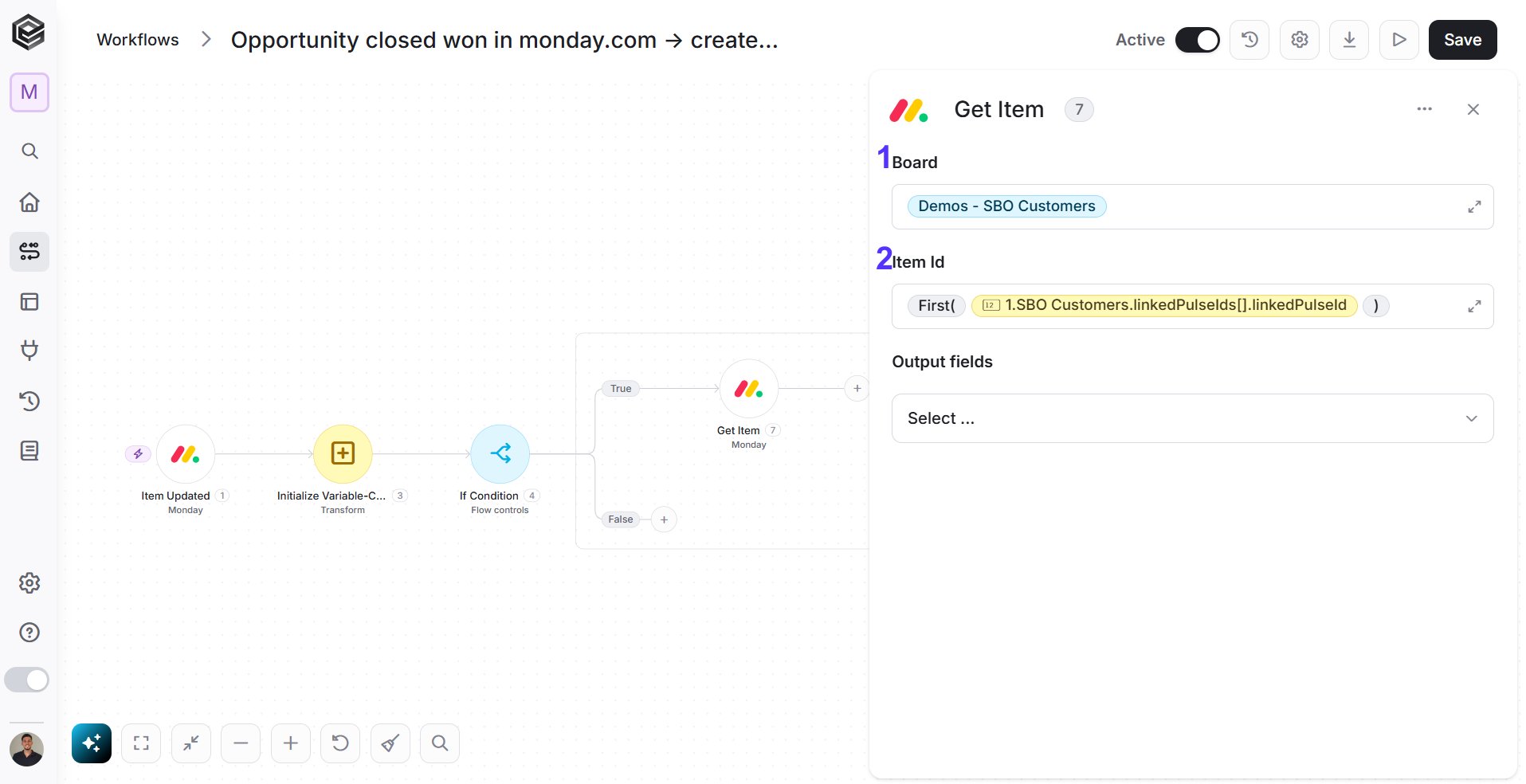 1. *Board -* Choose the board from which the activity will originate. For this tutorial. choose the “Demos – SBO Customers” Board.
2. *Item Id* – The format in which data from the Connect Board in monday.com is received through the API is an array, so manipulation is necessary. We will extract the first cell from the array of values named “linkedPulseId.” This way, we will retrieve the ID of the record connected to this entry in the Connect Board column.
3. Add the “Create Record” Activity of SBO and create the card of the “Business Partner”.
1. *Board -* Choose the board from which the activity will originate. For this tutorial. choose the “Demos – SBO Customers” Board.
2. *Item Id* – The format in which data from the Connect Board in monday.com is received through the API is an array, so manipulation is necessary. We will extract the first cell from the array of values named “linkedPulseId.” This way, we will retrieve the ID of the record connected to this entry in the Connect Board column.
3. Add the “Create Record” Activity of SBO and create the card of the “Business Partner”.
 4. Add the “Update Item” activity in monday.com to update the item with the business partner ID (“Card Code”) that was created.
 5. Finally, add “Set Variable” activity to update the variable you initialized with the “Card Code” obtained from the previous activity.
5. *If False -* If the condition isn’t met, add “Set Variable” activity to update the variable you initialized with the “Card Code” obtained in the trigger.
5. Finally, add “Set Variable” activity to update the variable you initialized with the “Card Code” obtained from the previous activity.
5. *If False -* If the condition isn’t met, add “Set Variable” activity to update the variable you initialized with the “Card Code” obtained in the trigger.
 ## Get SubItems
Add the “Get SubItems” action for monday.com.
## Get SubItems
Add the “Get SubItems” action for monday.com.
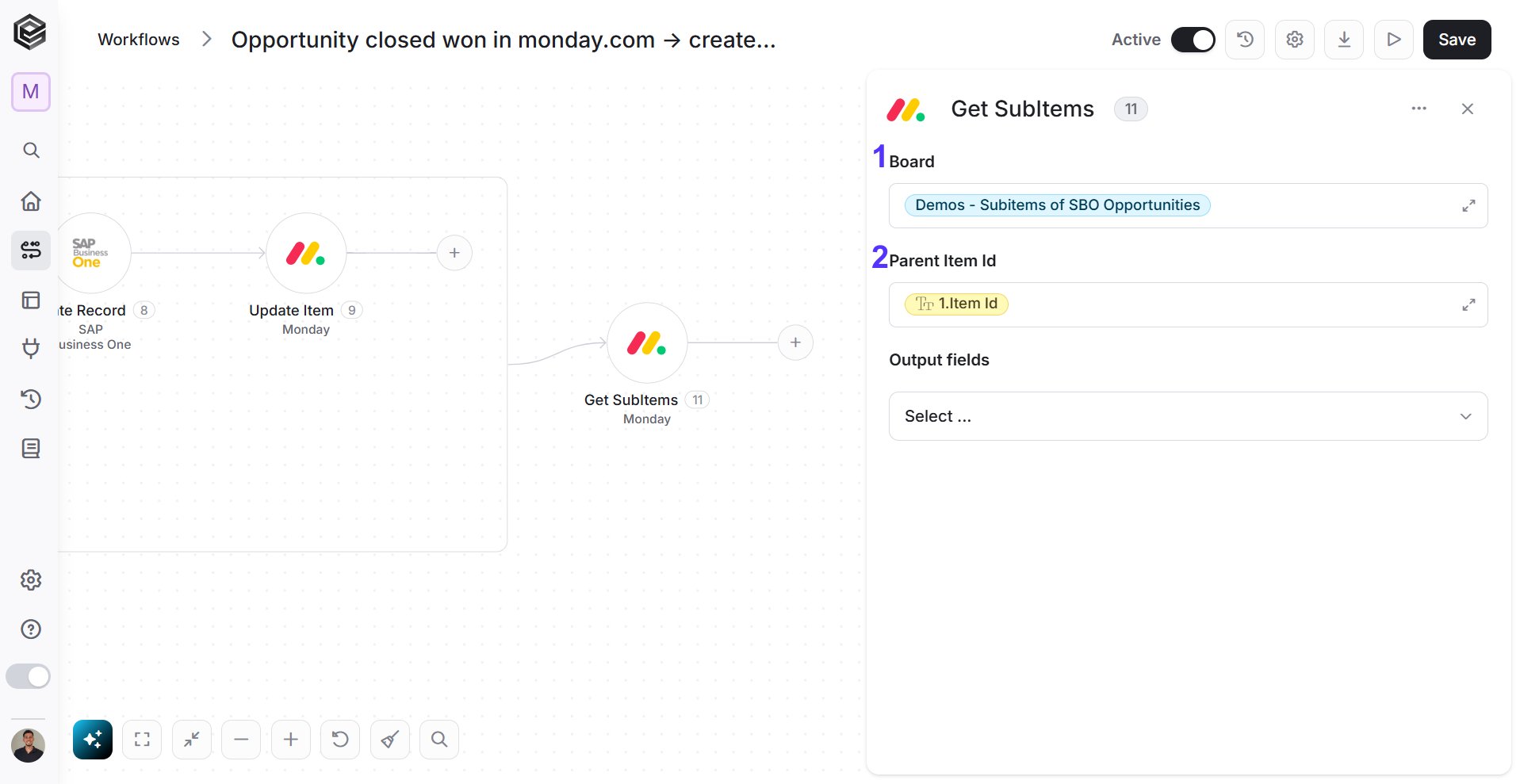 1. *Board -* Select from the drop-down menu the “Demos – Subitems of SBO Opportunities” board option.
2. *Parent Item Id*
1. Click on the empty field, and a tooltip will appear showing the options of available values.
2. Select the “Item Id” from the trigger.
## Map Object Array
Add the “Map Object Array” activity for SAP Business One
1. *Board -* Select from the drop-down menu the “Demos – Subitems of SBO Opportunities” board option.
2. *Parent Item Id*
1. Click on the empty field, and a tooltip will appear showing the options of available values.
2. Select the “Item Id” from the trigger.
## Map Object Array
Add the “Map Object Array” activity for SAP Business One
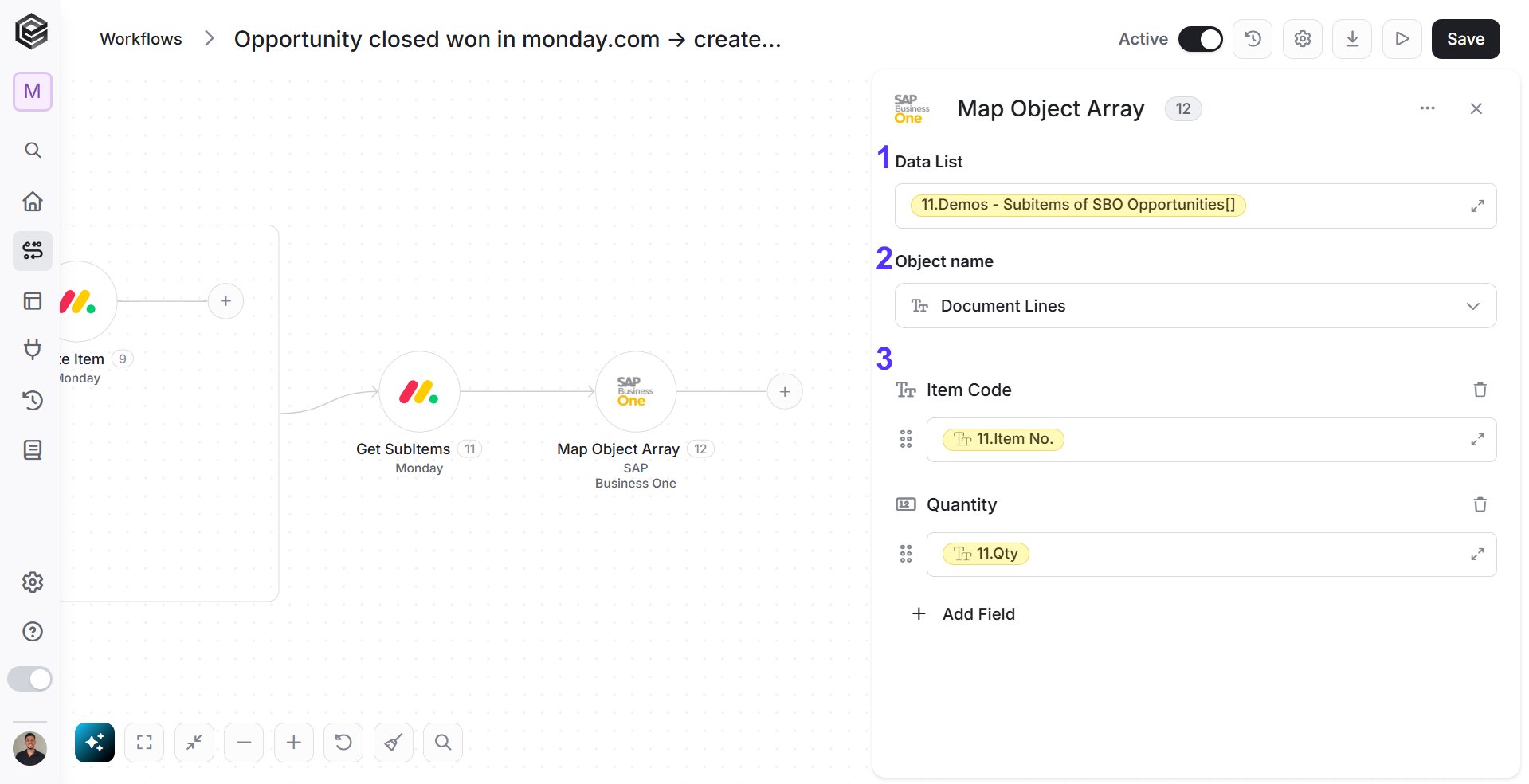 1. *Data List -* Select “Demos – Subitems of SBO Opportunities” from the “Get Subitems” activity.
2. *Object Name -* Choose from the drop down the “Document Lines” as the object name.
3. *Fields*
* *Item Code -* Choose “Item No.” from the “Get Subitems” activity.
* *Quantity -* Select “Qty” to specify the quantity.
* You can continue adding more fields as needed.
## Create Order
Add the “Create Order” action for SAP Business One.
1. *Data List -* Select “Demos – Subitems of SBO Opportunities” from the “Get Subitems” activity.
2. *Object Name -* Choose from the drop down the “Document Lines” as the object name.
3. *Fields*
* *Item Code -* Choose “Item No.” from the “Get Subitems” activity.
* *Quantity -* Select “Qty” to specify the quantity.
* You can continue adding more fields as needed.
## Create Order
Add the “Create Order” action for SAP Business One.
 1. *Object Type -* Select from the drop down the “Orders” as the object type.
2. *Fields*
* *Card Code -* Choose “SBO Customer Id” variable.
* *Document Lines -* Select “Document Lines” from the “Map Object Araay” activity, to link the associated document lines.
* *Doc Date -* Choose the functions `AddDays` and `UtcNow` to crate the manipulation of `AddDays(UtcNow(), -1)` to set the document date to one day prior to the current date.
* *Doc Due Date -* Choose the functions [AddDays](/help/tools/enginis-functions#adddays-function) and [UtcNow](/help/tools/enginis-functions#utcnow-function) to crate the manipulation of `AddDays(UtcNow(), 7)` to set the document due date.
* You can add more fields if necessary.
## Update Item
Add the “Update Item” action for monday.com.
1. *Object Type -* Select from the drop down the “Orders” as the object type.
2. *Fields*
* *Card Code -* Choose “SBO Customer Id” variable.
* *Document Lines -* Select “Document Lines” from the “Map Object Araay” activity, to link the associated document lines.
* *Doc Date -* Choose the functions `AddDays` and `UtcNow` to crate the manipulation of `AddDays(UtcNow(), -1)` to set the document date to one day prior to the current date.
* *Doc Due Date -* Choose the functions [AddDays](/help/tools/enginis-functions#adddays-function) and [UtcNow](/help/tools/enginis-functions#utcnow-function) to crate the manipulation of `AddDays(UtcNow(), 7)` to set the document due date.
* You can add more fields if necessary.
## Update Item
Add the “Update Item” action for monday.com.
 1. *Board -* Select from the drop-down menu the “Demos – Subitems of SBO Opportunities” board option.
2. *Item Id -* Select the “Item Id” from the trigger.
3. *Fields*
* *SBO Order* – Choose the “Doc Entry” of the Order you created in the previous activity.
This documentation is built and hosted on [Mintlify](https://mintlify.com), a developer documentation platform.
1. *Board -* Select from the drop-down menu the “Demos – Subitems of SBO Opportunities” board option.
2. *Item Id -* Select the “Item Id” from the trigger.
3. *Fields*
* *SBO Order* – Choose the “Doc Entry” of the Order you created in the previous activity.
This documentation is built and hosted on [Mintlify](https://mintlify.com), a developer documentation platform.