> ## Documentation Index
> Fetch the complete documentation index at: https://docs.engini.ai/llms.txt
> Use this file to discover all available pages before exploring further.
# Errors Creating Priority Orders-> Writing in monday.com Field
In this tutorial, learn how to automate the writing specific errors in a dedicated field in monday.com when getting workflow errors of creating an orders in Priority.
## Prerequisites
Before you begin, ensure the following connections are established:
1. Connection between Engini and Monday.
Learn how to [connect monday to Engini](/help/apps/mondaycom#connecting-engini-to-monday-com)
2. Connection between Engini and Priority.
Learn how to [connect priority to Engini](/help/apps/priority-erp#connecting-engini-to-priority-erp)
## Initialize Variable
To get started insert the simple trigger called Button, and then let’s initialize a variable that will later hold the error’s title of error in Priority:
 1. *Name -* Click on the empty field and choose from the tooltip a name for the variable. For example “Errors”
2. *Type -* Choose from the drop down the “Array” option.
3. *Value -* Sets the initial value of the variable.
## Parse JSON / XML
Next, add a new activity and choose the “Parse JSON/XML” activity of Engini:
1. *Name -* Click on the empty field and choose from the tooltip a name for the variable. For example “Errors”
2. *Type -* Choose from the drop down the “Array” option.
3. *Value -* Sets the initial value of the variable.
## Parse JSON / XML
Next, add a new activity and choose the “Parse JSON/XML” activity of Engini:
 1. Click on the empty field and the tooltip will pop up showing contents from the previous activities which you can choose to parse.
2. Press on the “Functions” button located on the topbar, then go to “Workflow functions” and choose the “Errors()” function.
1. Click on the empty field and the tooltip will pop up showing contents from the previous activities which you can choose to parse.
2. Press on the “Functions” button located on the topbar, then go to “Workflow functions” and choose the “Errors()” function.
 3. Press the blue phrase “Load Json/Xml sample to generate structure” and a window will open.
 4. Paste this JSON sample payload and press “Save”:
```text theme={null}
[
{
"Title": "Failed Parsing Definition",
"Message": "Fieldname: input-, Value: ##1.test Error: Can't resolve field 1.test",
"StepNo": 9,
"Application": "Engini",
"ActivityName": "Construct",
"loopPath": [
{
"ParentStep": 8,
"StepIteration": 1
}
],
"Handled": false
},
{
"Title": "Failed Parsing Definition",
"Message": "Fieldname: input-, Value: ##1.test Error: Can't resolve field 1.test",
"StepNo": 9,
"Application": "Engini",
"ActivityName": "Construct",
"loopPath": [
{
"ParentStep": 8,
"StepIteration": 2
}
],
"Handled": false
}
]
```
## For Each Loop
Add a new activity and choose the “For Each Loop” activity of Engini:
4. Paste this JSON sample payload and press “Save”:
```text theme={null}
[
{
"Title": "Failed Parsing Definition",
"Message": "Fieldname: input-, Value: ##1.test Error: Can't resolve field 1.test",
"StepNo": 9,
"Application": "Engini",
"ActivityName": "Construct",
"loopPath": [
{
"ParentStep": 8,
"StepIteration": 1
}
],
"Handled": false
},
{
"Title": "Failed Parsing Definition",
"Message": "Fieldname: input-, Value: ##1.test Error: Can't resolve field 1.test",
"StepNo": 9,
"Application": "Engini",
"ActivityName": "Construct",
"loopPath": [
{
"ParentStep": 8,
"StepIteration": 2
}
],
"Handled": false
}
]
```
## For Each Loop
Add a new activity and choose the “For Each Loop” activity of Engini:
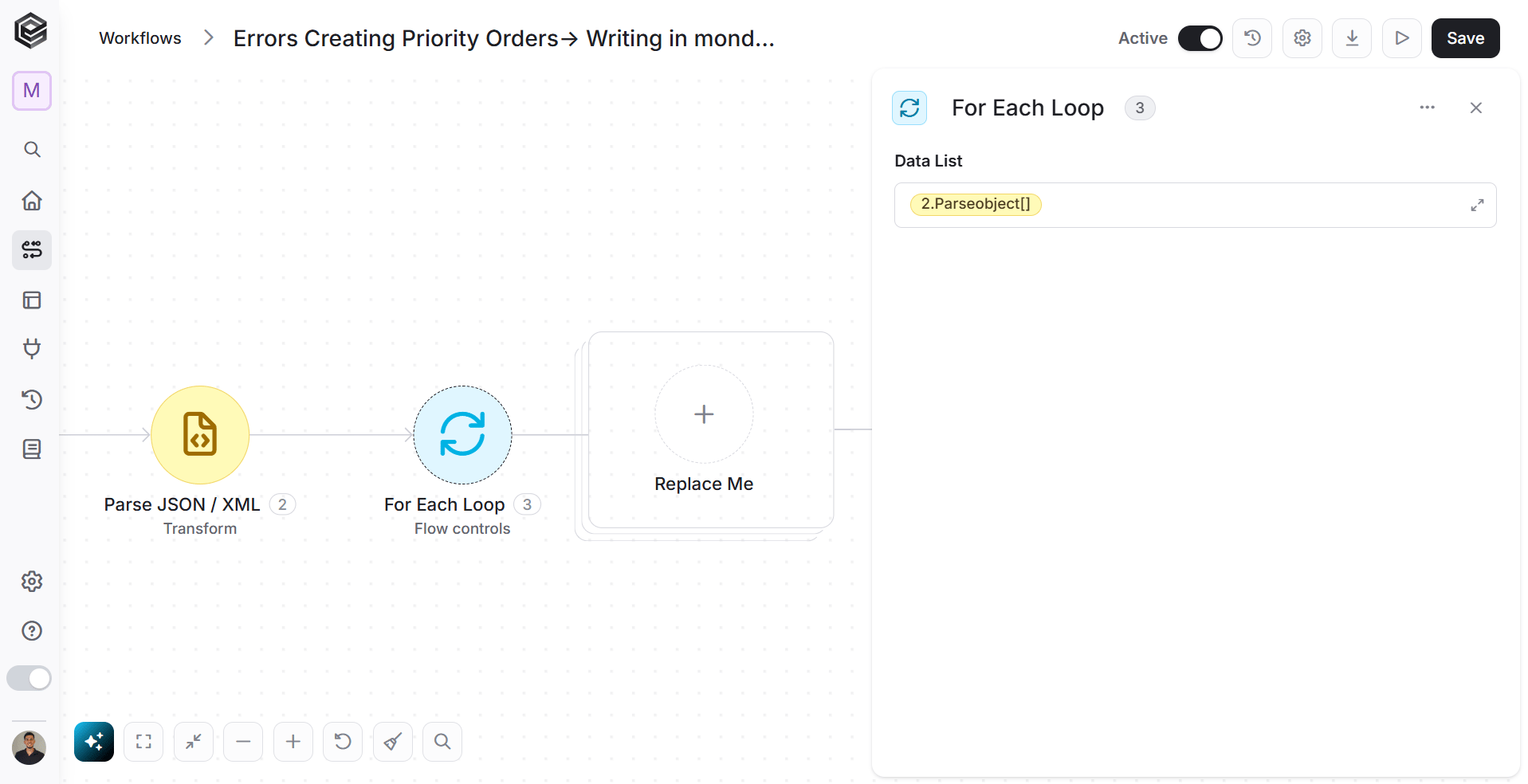 1. Click on the empty field and the tooltip will pop up showing contents from the previous activities which you can choose.
2. In the pop-up window that appears, click on “Dynamic Content” in the top toolbar, then navigate to the “Parse JSON/XML” property and choose the “parseobject\[]” value.
1. Click on the empty field and the tooltip will pop up showing contents from the previous activities which you can choose.
2. In the pop-up window that appears, click on “Dynamic Content” in the top toolbar, then navigate to the “Parse JSON/XML” property and choose the “parseobject\[]” value.
 ## Append to Array variable
Now, Inside “For each loop” block, add a new activity and choose the “Append to Array variable” activity of Engini:
## Append to Array variable
Now, Inside “For each loop” block, add a new activity and choose the “Append to Array variable” activity of Engini:
 1. Click on the drop down and choose the name you gave the variable you initialize. For example “Errors”.
2. Click on the empty field next to the “value” and the tooltip will pop up showing contents from the previous activities.
3. In the popped-up tooltip, click on “Dynamic Content” in the top of the tooltip, then navigate to the “Parse JSON/XML” property and choose the “jsonobject\[]” value.
1. Click on the drop down and choose the name you gave the variable you initialize. For example “Errors”.
2. Click on the empty field next to the “value” and the tooltip will pop up showing contents from the previous activities.
3. In the popped-up tooltip, click on “Dynamic Content” in the top of the tooltip, then navigate to the “Parse JSON/XML” property and choose the “jsonobject\[]” value.
 ## Compose string
Add a new activity inside the For Each Loop action and choose the “Compose string” activity of Engini:
## Compose string
Add a new activity inside the For Each Loop action and choose the “Compose string” activity of Engini:
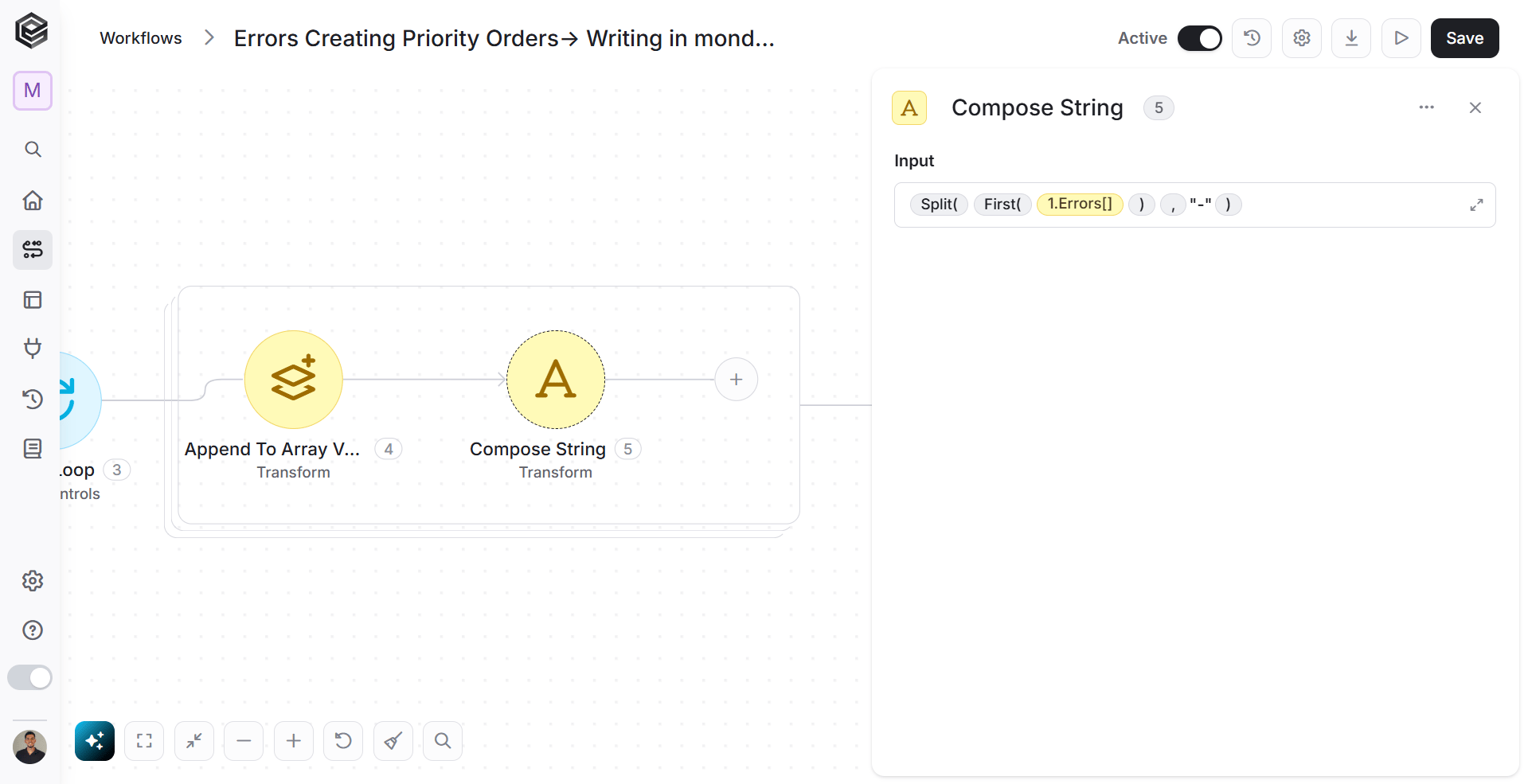 1. Click on the empty field and the tooltip will pop up showing contents from the previous activities which you can choose.
2. Press on the “Functions” button located on the top of the tooltip then go to “Text functions” and choose the “Split()” function.
1. Click on the empty field and the tooltip will pop up showing contents from the previous activities which you can choose.
2. Press on the “Functions” button located on the top of the tooltip then go to “Text functions” and choose the “Split()” function.
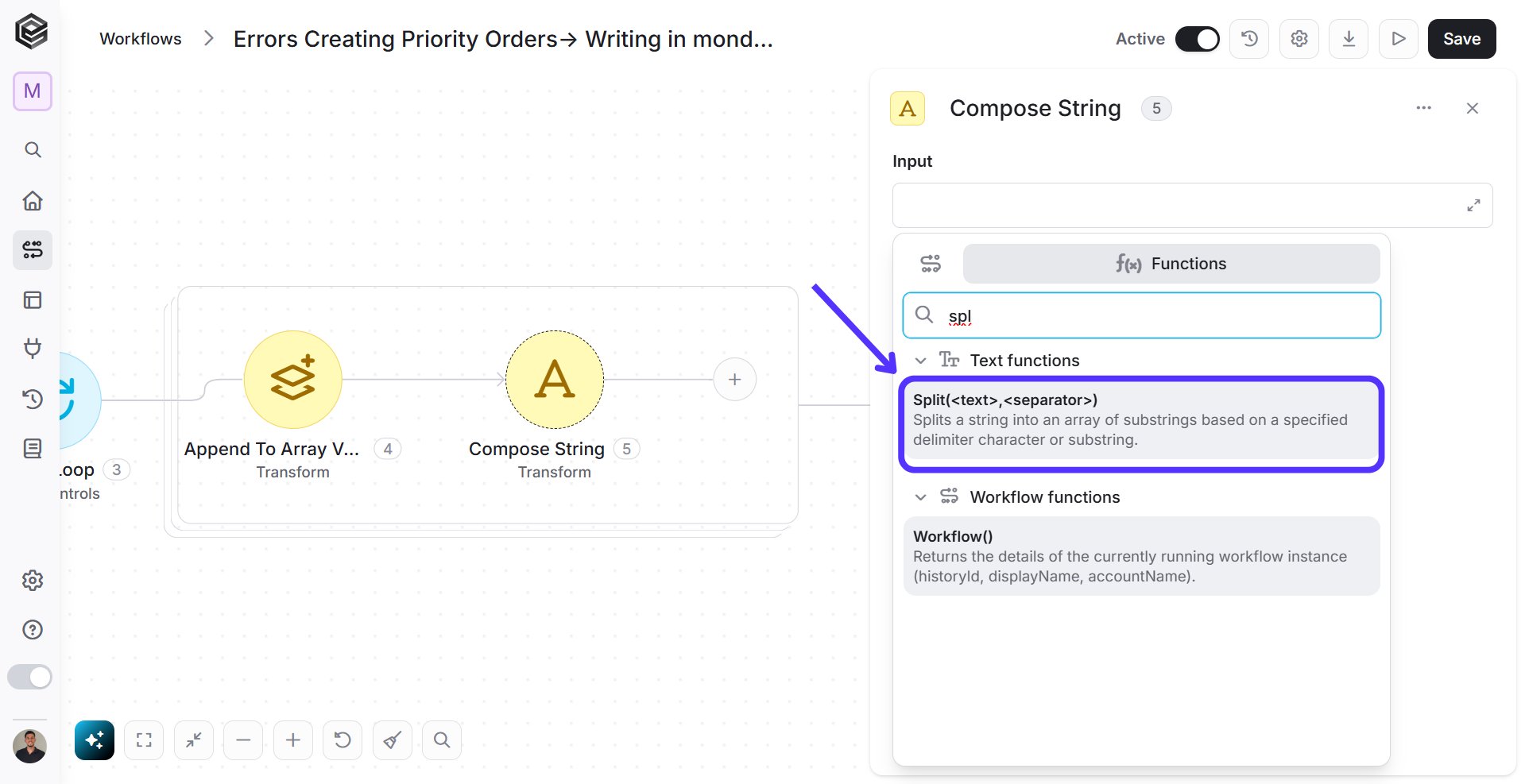 3. Add function to the first place inside the “split” function.
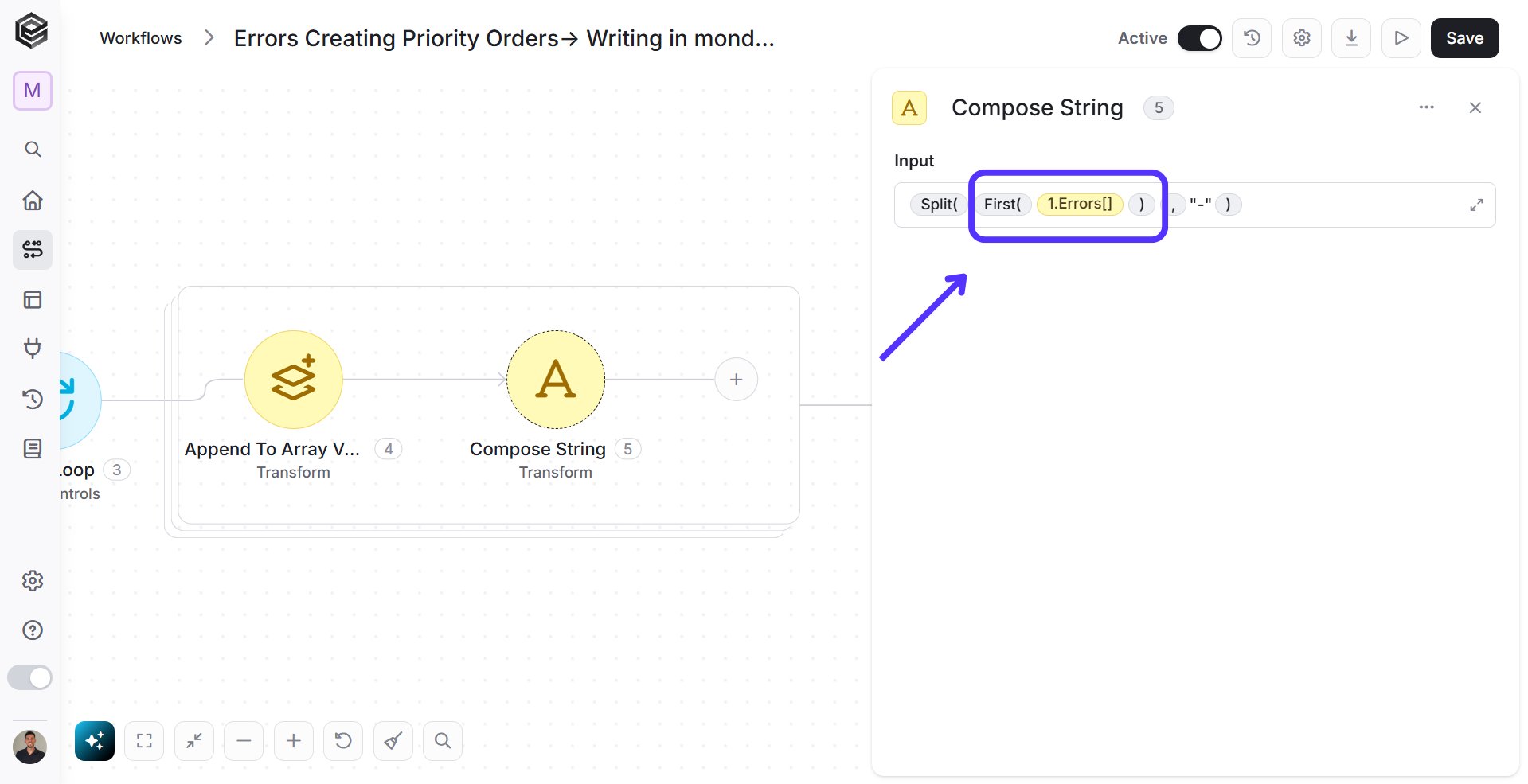 * Click on the first place inside the “split” function and the tooltip will pop up showing contents from the previous activities which you can choose.
* Press on the “Functions” button located on the top of the tooltip then go to “Text functions” and choose the “Split()” function.
* Click on the first place inside the “split” function and the tooltip will pop up showing contents from the previous activities which you can choose.
* Press on the “Functions” button located on the top of the tooltip then go to “Text functions” and choose the “Split()” function.
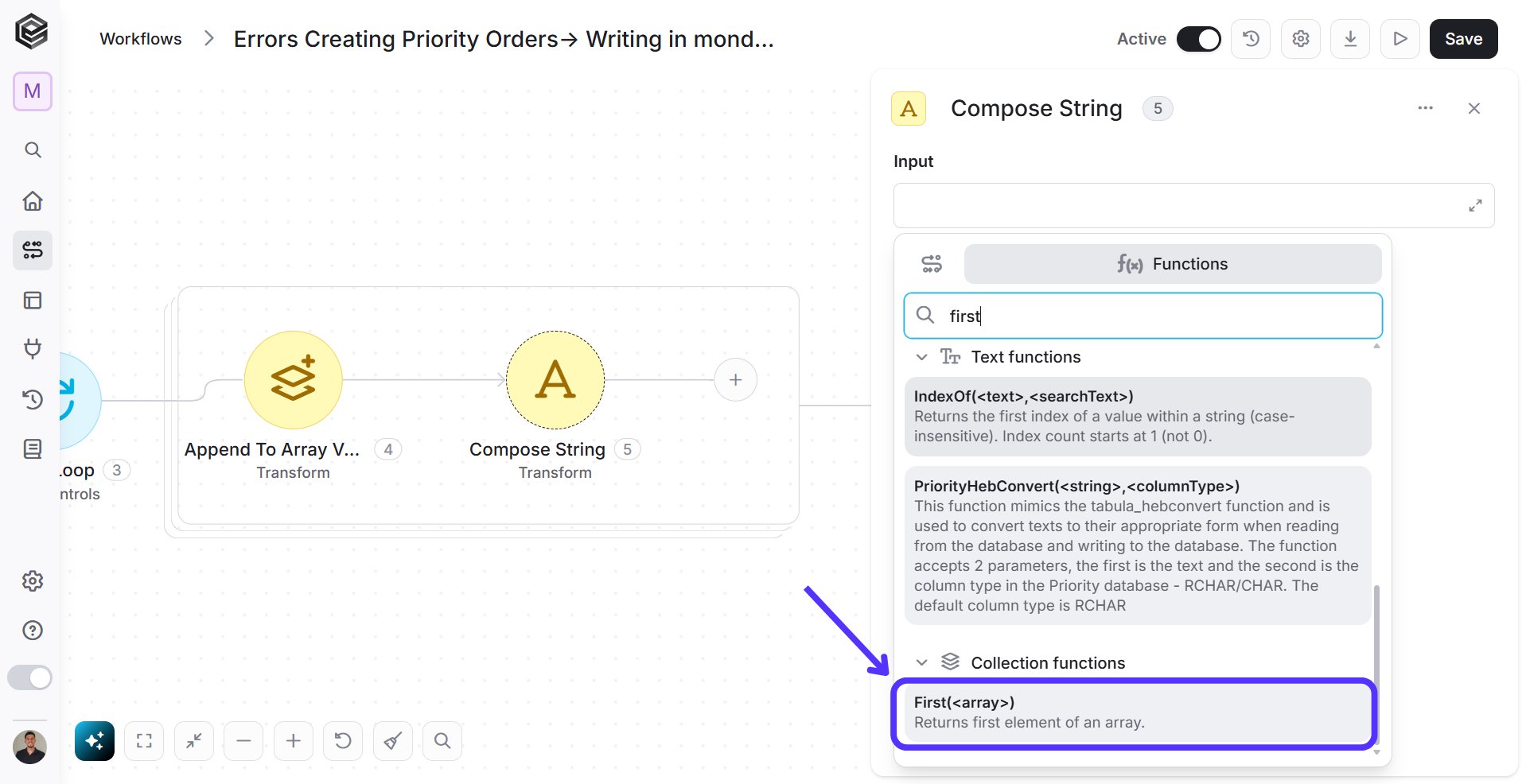 * Click on the empty place ( ) inside the “First” function and the tooltip will pop up showing contents from the previous activities which you can choose.
* Press on the “Dynamic Content” located on the top of the tooltip, then go to “Variable – Errors” activity and choose the “Errors\[]” value.
* Click on the empty place ( ) inside the “First” function and the tooltip will pop up showing contents from the previous activities which you can choose.
* Press on the “Dynamic Content” located on the top of the tooltip, then go to “Variable – Errors” activity and choose the “Errors\[]” value.
 4. Add phrase to the second place inside the “split” function.
 * Click on the second place inside the “split” function and the tooltip will pop up showing contents from the previous activities which you can choose.
* Close the tooltip and write manually the value “-“.
## Get Items
Add a new activity inside the loop, choose the “Get Items” activity of monday.com:
* Click on the second place inside the “split” function and the tooltip will pop up showing contents from the previous activities which you can choose.
* Close the tooltip and write manually the value “-“.
## Get Items
Add a new activity inside the loop, choose the “Get Items” activity of monday.com:
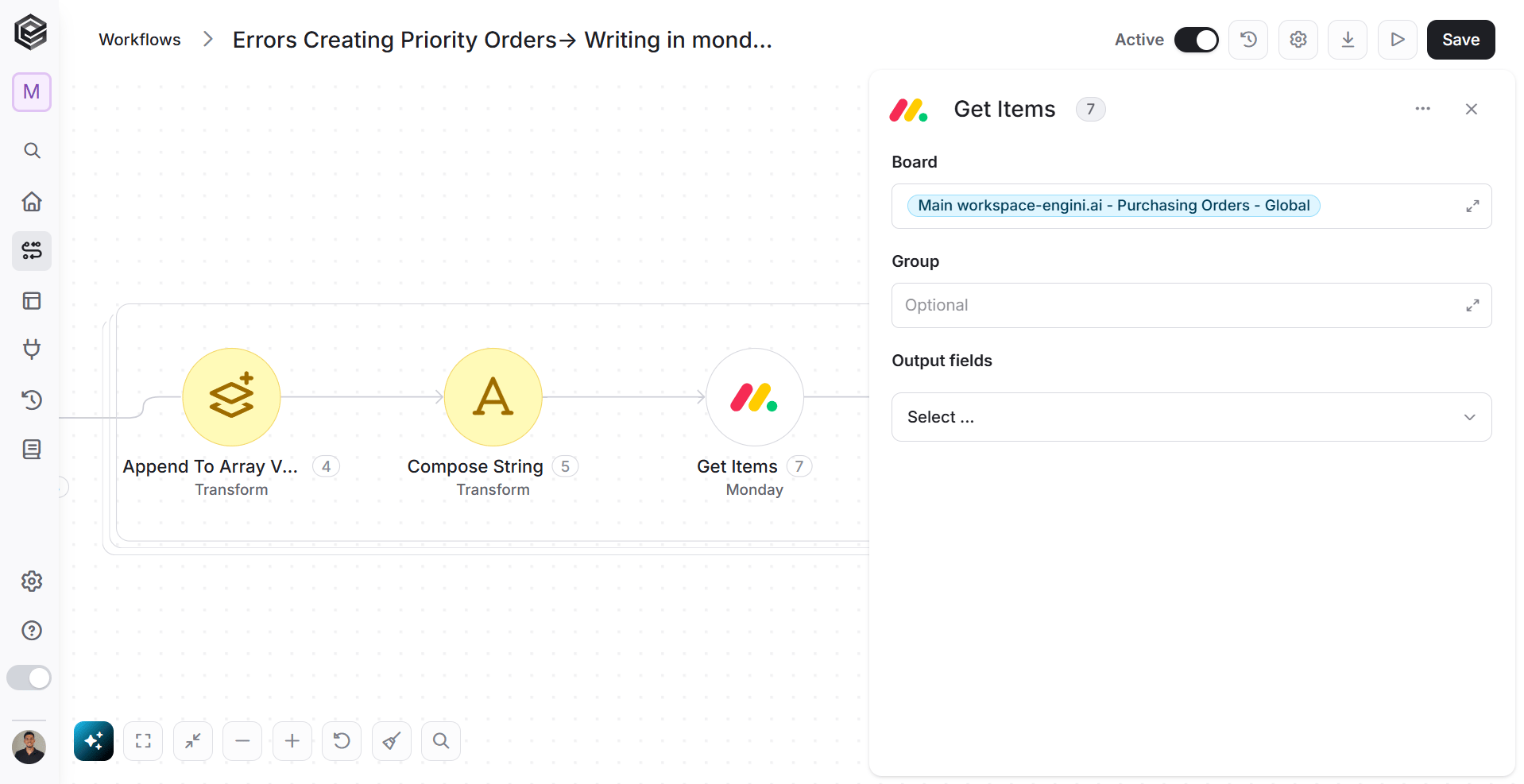 Fill the “Board” field according to your needs.
## Update Item
Add a new activity inside the loop, choose the “Update Item” activity of monday.com:
Fill the “Board” field according to your needs.
## Update Item
Add a new activity inside the loop, choose the “Update Item” activity of monday.com:
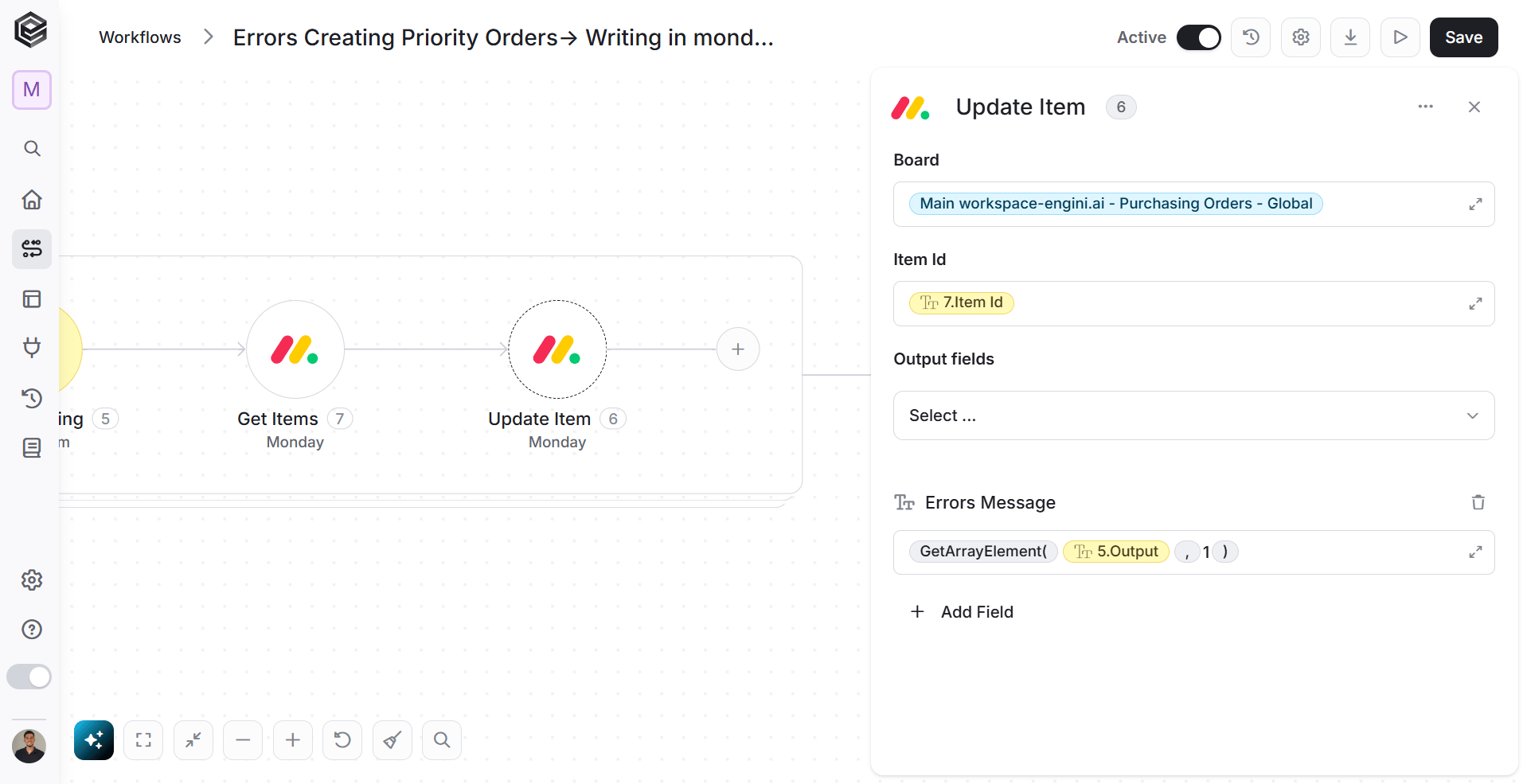 1. Fill the “Board” and “Item Id” fields according to your needs.
2. *Fields*
1. Click on the drop down and choose the field you want to update.
For example “Error Message”.
2. Click on the empty field and the tooltip will pop up showing contents from the previous activities.
3. Press on the “Functions” button located on the top bar, then go to “Collection functions” and choose the “GetArrayElement()” function.
1. Fill the “Board” and “Item Id” fields according to your needs.
2. *Fields*
1. Click on the drop down and choose the field you want to update.
For example “Error Message”.
2. Click on the empty field and the tooltip will pop up showing contents from the previous activities.
3. Press on the “Functions” button located on the top bar, then go to “Collection functions” and choose the “GetArrayElement()” function.
 4. Add value to the first place inside the “GetArrayElement” function.
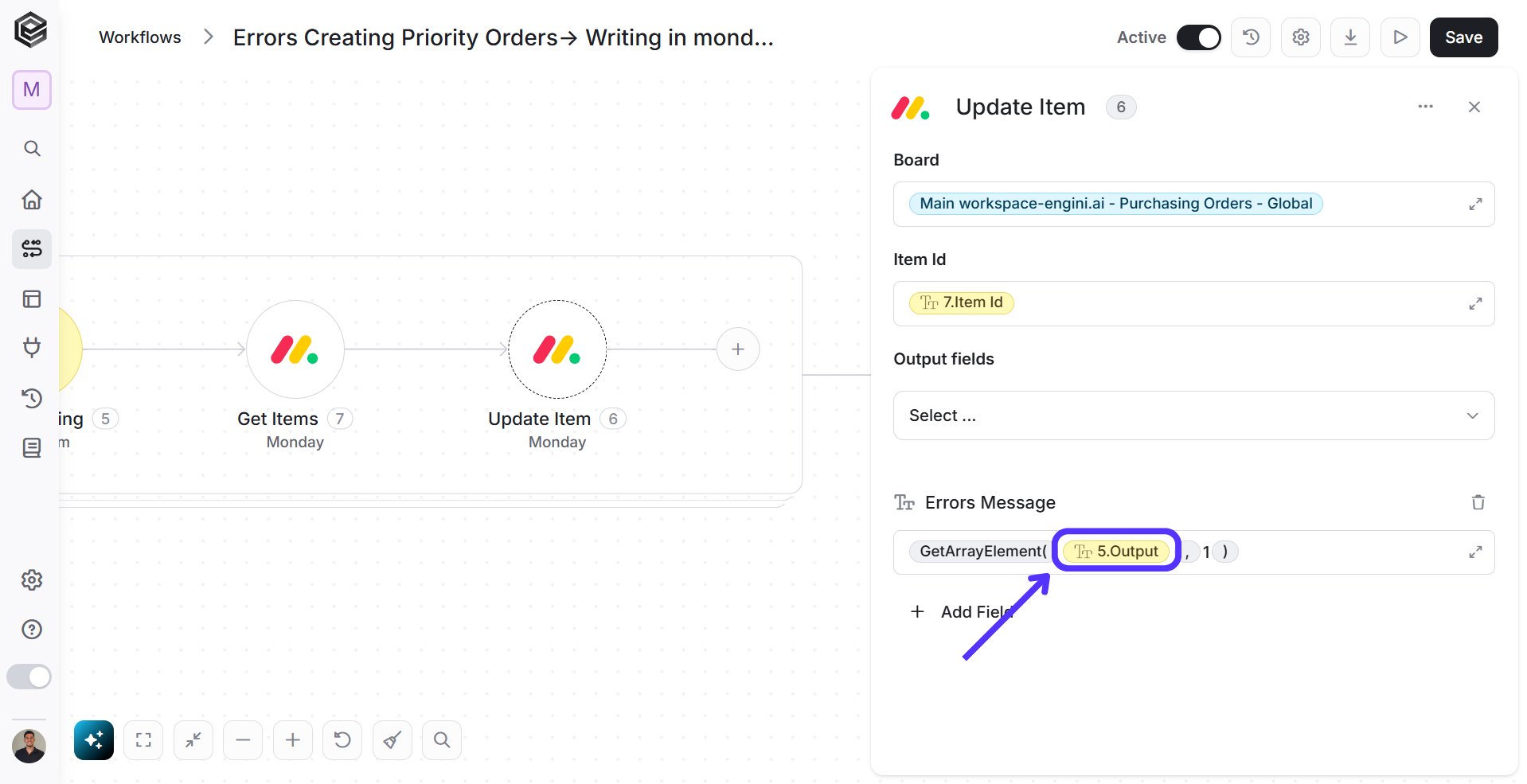 * Click on the first place inside the “GetArrayElement” function and the tooltip will pop up showing contents from the previous activities which you can choose.
* Press on the “Dynamic Content” located on the top of the tooltip, then go to “Compose String” activity and choose the “Output” value.
* Click on the first place inside the “GetArrayElement” function and the tooltip will pop up showing contents from the previous activities which you can choose.
* Press on the “Dynamic Content” located on the top of the tooltip, then go to “Compose String” activity and choose the “Output” value.
 5. Add value to the second place inside the “GetArrayElement” function.
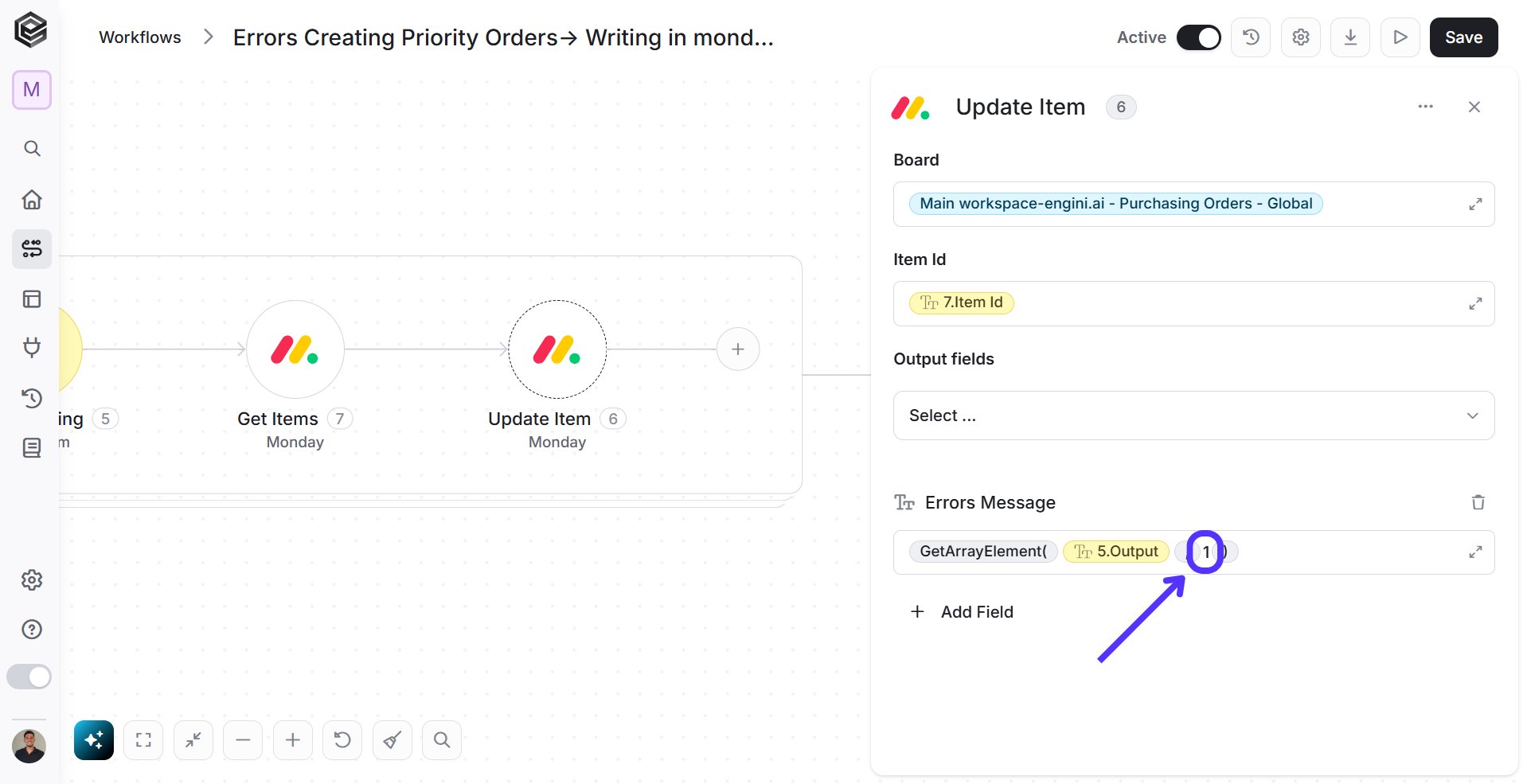 * Click on the second place inside the “GetArrayElement” function and the tooltip will pop up showing contents from the previous activities which you can choose.
* Close the tooltip and write manually the number of the error message place. For example 1.
This documentation is built and hosted on [Mintlify](https://mintlify.com), a developer documentation platform.
* Click on the second place inside the “GetArrayElement” function and the tooltip will pop up showing contents from the previous activities which you can choose.
* Close the tooltip and write manually the number of the error message place. For example 1.
This documentation is built and hosted on [Mintlify](https://mintlify.com), a developer documentation platform.