> ## Documentation Index
> Fetch the complete documentation index at: https://docs.engini.ai/llms.txt
> Use this file to discover all available pages before exploring further.
# Create Folders/Tables
Engini’s tables bring hierarchical organization to your account, helping you manage multiple departments, teams, and projects in one unified place.
## Create a Folder
Create multiple folders to manage your tables correctly and give your table page a cleaner look.
1. On the sidebar, click on ‘Tables’ option.
2. Choose one of the two buttons, to create a brand new custom folder.
3. Choose a significant name to your new folder.
### Table's Page View
* *All Tables* – This views your entire table library in one master list. The number on the right shows the total count of all tables created across your entire account.
* *Uncategorized* – This acts as your default inbox. Any new table you create starts here automatically until you choose to move it into a specific folder.
* *Folders created -* Any custom folders you create will appear in this list. Clicking on a specific folder filters the view to show only the tables grouped inside it.
**Note** To learn how to build tables, check out the following links: [Columns](/help/tables/build-a-table#create-columns), [Records.](/help/tables/tables-records#add-a-record)
## Create a Table
1. On the sidebar, click on ‘Tables’ option.
2. Click on the button “New Table” (located at the top bar).
3. To create a new table, you need to fill in the following fields.
1. *Folder -* Selects the location where the new table will be stored and organized.
2. *Table Name -* Defines the name of the table, which will be used to identify it in the system.
3. *Create -* Confirms the action and creates the new table with the selected settings.
## Edit Table Page
Learn how to manage the table page correctly according to your need.
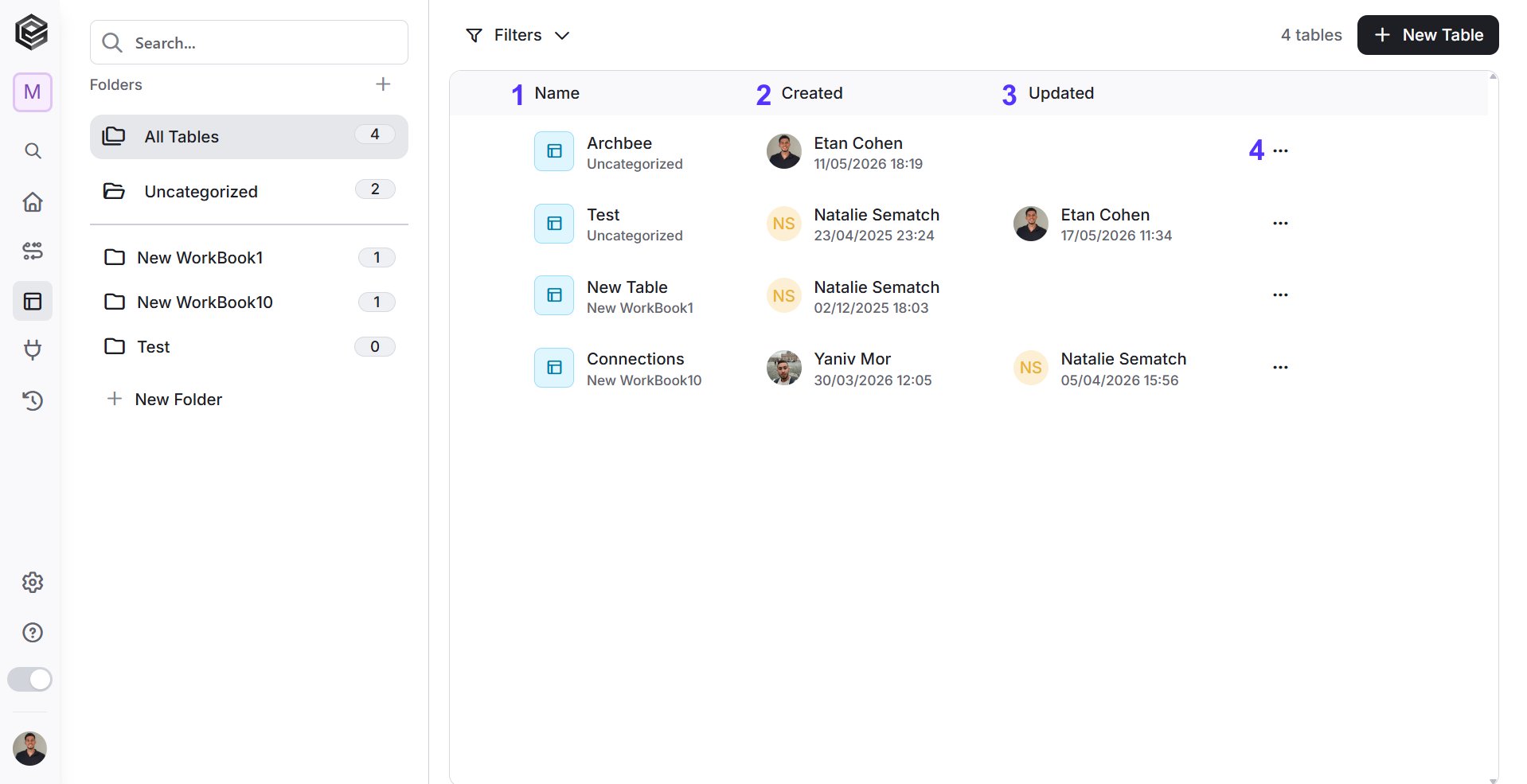
1. *Name-* Displays the title of the table along with the workbook or folder it belongs to right beneath it.
2. *Created-* The user who created the workflow and date and time when the workflow was created.
3. *Updated-* The last user who updated the workflow and date and time when the workflow was updated.
4. *Edit Table-* Explanation down below.
### Edit Table
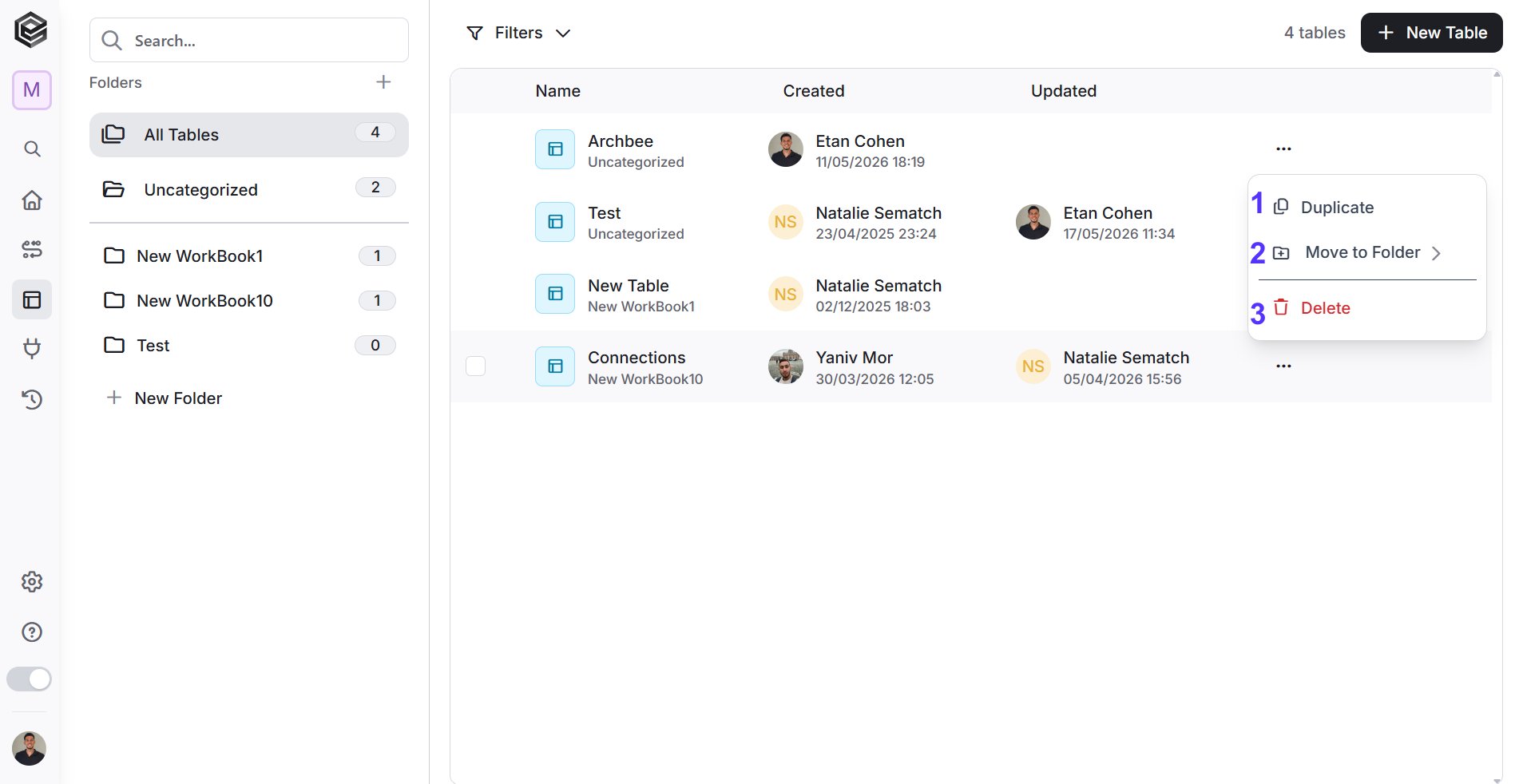
1. *Duplicate-* Make an exact copy of your table instantly. This is great if you want to test out new changes safely without messing up your original version.
2. *Move to Folder –* Choose a folder from your sidebar to drop this workflow into. It’s the easiest way to keep your dashboard clean and organized. More explanations down below.
3. *Delete –* Permanently erase the table from your account.
### Sort
Use the sorting options to organize the tables list according to the information you want to display first.
To change the sorting, click the relevant column name. The *Name* column is initially sorted from *A – Z*. For the *Created* and *Updated* columns, clicking the column name opens the available sorting options, allowing you to sort either by the user’s name or by date.
1. *Name -* Sorts the tables alphabetically by table name. By default, the list is sorted from *A – Z*.
* *A – Z* – Displays table names in alphabetical order.
* *Z – A* – Displays table names in reverse alphabetical order.
2. *Created -* Click the column name to sort the tables by the creator’s name or by creation date.
* *A – Z* – Sorts alphabetically by the creator’s name.
* *Z – A* – Sorts in reverse alphabetical order by the creator’s name.
* *Oldest first* – Displays the tables with the oldest creation date first.
* *Newest first* – Displays the tables with the newest creation date first.
3. *Updated -* Click the column name to sort the tables by the last user who updated them or by the update date.
* *A – Z* – Sorts alphabetically by the name of the last user who updated the table.
* *Z – A* – Sorts in reverse alphabetical order by the name of the last user who updated the table.
* *Oldest first* – Displays the tables with the oldest update date first.
* *Newest first* – Displays the tables with the newest update date first.
This documentation is built and hosted on [Mintlify](https://mintlify.com), a developer documentation platform.
 2. Choose one of the two buttons, to create a brand new custom folder.
 3. Choose a significant name to your new folder.
### Table's Page View
3. Choose a significant name to your new folder.
### Table's Page View
 * *All Tables* – This views your entire table library in one master list. The number on the right shows the total count of all tables created across your entire account.
* *Uncategorized* – This acts as your default inbox. Any new table you create starts here automatically until you choose to move it into a specific folder.
* *Folders created -* Any custom folders you create will appear in this list. Clicking on a specific folder filters the view to show only the tables grouped inside it.
**Note** To learn how to build tables, check out the following links: [Columns](/help/tables/build-a-table#create-columns), [Records.](/help/tables/tables-records#add-a-record)
## Create a Table
1. On the sidebar, click on ‘Tables’ option.
* *All Tables* – This views your entire table library in one master list. The number on the right shows the total count of all tables created across your entire account.
* *Uncategorized* – This acts as your default inbox. Any new table you create starts here automatically until you choose to move it into a specific folder.
* *Folders created -* Any custom folders you create will appear in this list. Clicking on a specific folder filters the view to show only the tables grouped inside it.
**Note** To learn how to build tables, check out the following links: [Columns](/help/tables/build-a-table#create-columns), [Records.](/help/tables/tables-records#add-a-record)
## Create a Table
1. On the sidebar, click on ‘Tables’ option.
 2. Click on the button “New Table” (located at the top bar).
 3. To create a new table, you need to fill in the following fields.
 1. *Folder -* Selects the location where the new table will be stored and organized.
2. *Table Name -* Defines the name of the table, which will be used to identify it in the system.
3. *Create -* Confirms the action and creates the new table with the selected settings.
## Edit Table Page
Learn how to manage the table page correctly according to your need.
1. *Folder -* Selects the location where the new table will be stored and organized.
2. *Table Name -* Defines the name of the table, which will be used to identify it in the system.
3. *Create -* Confirms the action and creates the new table with the selected settings.
## Edit Table Page
Learn how to manage the table page correctly according to your need.
 1. *Name-* Displays the title of the table along with the workbook or folder it belongs to right beneath it.
2. *Created-* The user who created the workflow and date and time when the workflow was created.
3. *Updated-* The last user who updated the workflow and date and time when the workflow was updated.
4. *Edit Table-* Explanation down below.
### Edit Table
1. *Name-* Displays the title of the table along with the workbook or folder it belongs to right beneath it.
2. *Created-* The user who created the workflow and date and time when the workflow was created.
3. *Updated-* The last user who updated the workflow and date and time when the workflow was updated.
4. *Edit Table-* Explanation down below.
### Edit Table
 1. *Duplicate-* Make an exact copy of your table instantly. This is great if you want to test out new changes safely without messing up your original version.
2. *Move to Folder –* Choose a folder from your sidebar to drop this workflow into. It’s the easiest way to keep your dashboard clean and organized. More explanations down below.
3. *Delete –* Permanently erase the table from your account.
### Sort
Use the sorting options to organize the tables list according to the information you want to display first.
To change the sorting, click the relevant column name. The *Name* column is initially sorted from *A – Z*. For the *Created* and *Updated* columns, clicking the column name opens the available sorting options, allowing you to sort either by the user’s name or by date.
1. *Duplicate-* Make an exact copy of your table instantly. This is great if you want to test out new changes safely without messing up your original version.
2. *Move to Folder –* Choose a folder from your sidebar to drop this workflow into. It’s the easiest way to keep your dashboard clean and organized. More explanations down below.
3. *Delete –* Permanently erase the table from your account.
### Sort
Use the sorting options to organize the tables list according to the information you want to display first.
To change the sorting, click the relevant column name. The *Name* column is initially sorted from *A – Z*. For the *Created* and *Updated* columns, clicking the column name opens the available sorting options, allowing you to sort either by the user’s name or by date.
 1. *Name -* Sorts the tables alphabetically by table name. By default, the list is sorted from *A – Z*.
* *A – Z* – Displays table names in alphabetical order.
* *Z – A* – Displays table names in reverse alphabetical order.
2. *Created -* Click the column name to sort the tables by the creator’s name or by creation date.
* *A – Z* – Sorts alphabetically by the creator’s name.
* *Z – A* – Sorts in reverse alphabetical order by the creator’s name.
* *Oldest first* – Displays the tables with the oldest creation date first.
* *Newest first* – Displays the tables with the newest creation date first.
3. *Updated -* Click the column name to sort the tables by the last user who updated them or by the update date.
* *A – Z* – Sorts alphabetically by the name of the last user who updated the table.
* *Z – A* – Sorts in reverse alphabetical order by the name of the last user who updated the table.
* *Oldest first* – Displays the tables with the oldest update date first.
* *Newest first* – Displays the tables with the newest update date first.
This documentation is built and hosted on [Mintlify](https://mintlify.com), a developer documentation platform.
1. *Name -* Sorts the tables alphabetically by table name. By default, the list is sorted from *A – Z*.
* *A – Z* – Displays table names in alphabetical order.
* *Z – A* – Displays table names in reverse alphabetical order.
2. *Created -* Click the column name to sort the tables by the creator’s name or by creation date.
* *A – Z* – Sorts alphabetically by the creator’s name.
* *Z – A* – Sorts in reverse alphabetical order by the creator’s name.
* *Oldest first* – Displays the tables with the oldest creation date first.
* *Newest first* – Displays the tables with the newest creation date first.
3. *Updated -* Click the column name to sort the tables by the last user who updated them or by the update date.
* *A – Z* – Sorts alphabetically by the name of the last user who updated the table.
* *Z – A* – Sorts in reverse alphabetical order by the name of the last user who updated the table.
* *Oldest first* – Displays the tables with the oldest update date first.
* *Newest first* – Displays the tables with the newest update date first.
This documentation is built and hosted on [Mintlify](https://mintlify.com), a developer documentation platform.