> ## Documentation Index
> Fetch the complete documentation index at: https://docs.engini.ai/llms.txt
> Use this file to discover all available pages before exploring further.
# TimeZone
Set up a time zone in your Engini account that is tailored to your company’s specific needs. This setting affects various functions across the platform, ensuring a consistent time representation that suits your operational requirements.
## Setting Up Timezone
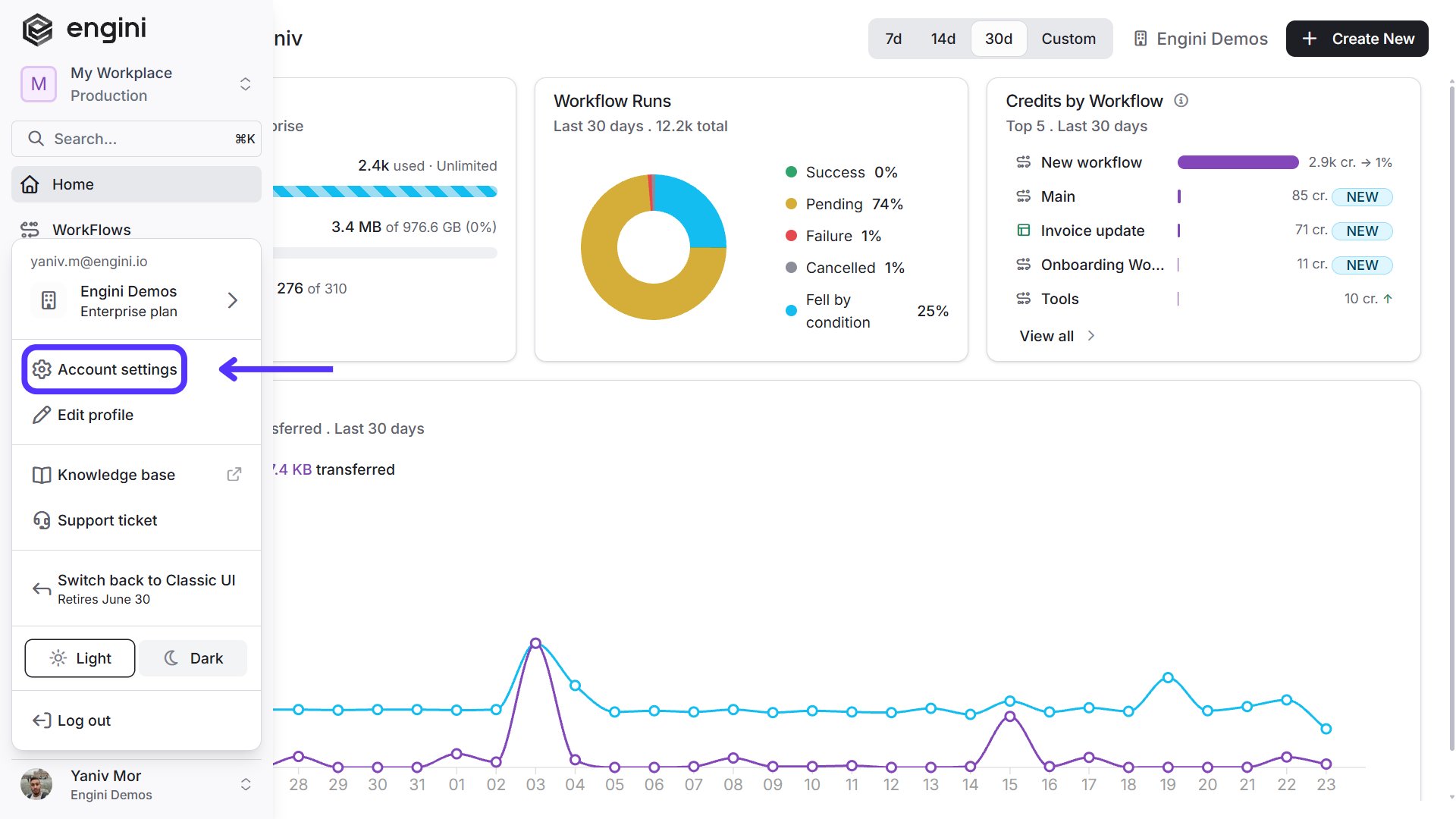
1. Navigate to the ‘Settings’ menu located on lower side of the side bar.
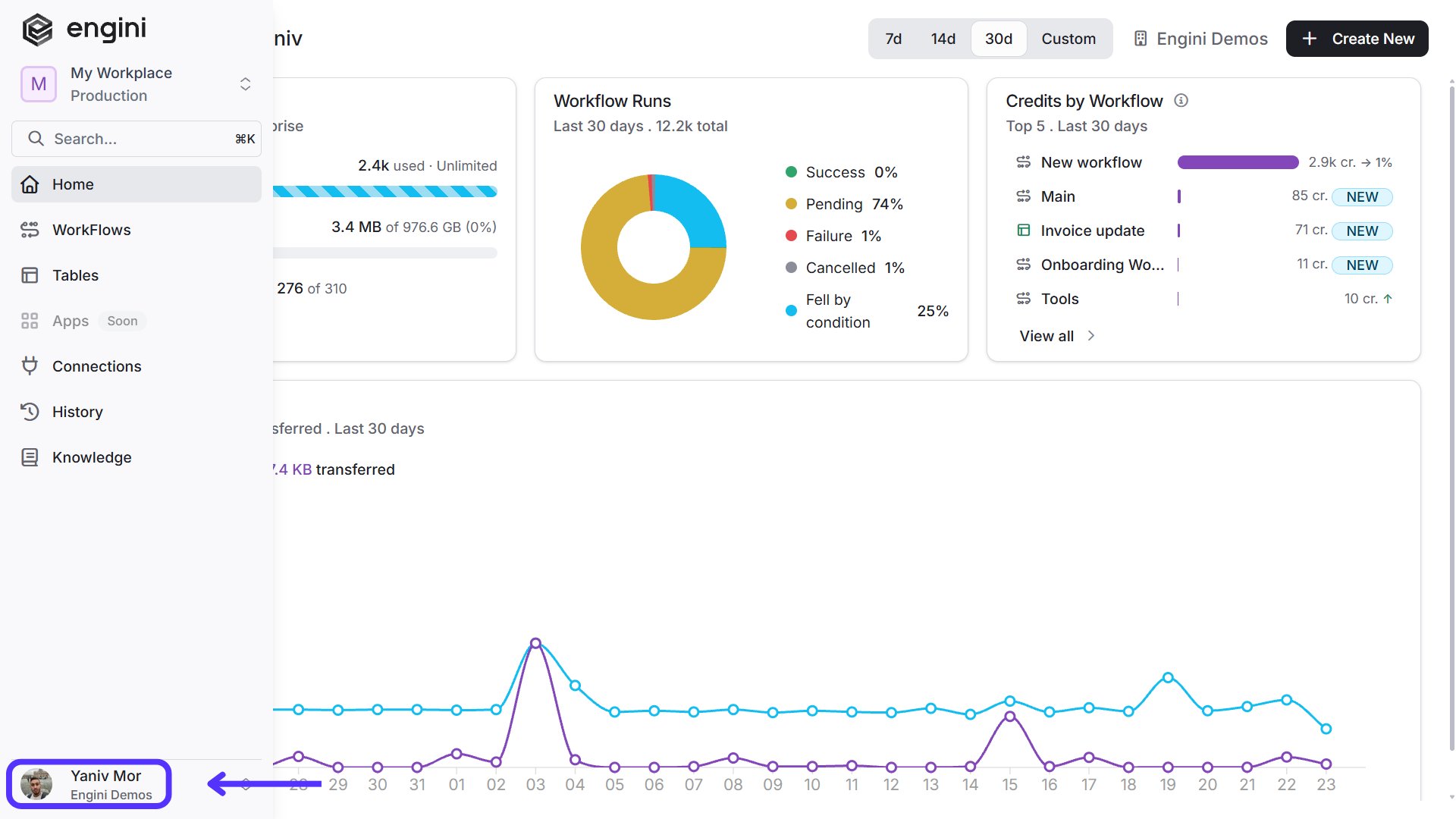 2. Click on the Gear Wheel Icon (setting) locate in the lower left corner of the screen.
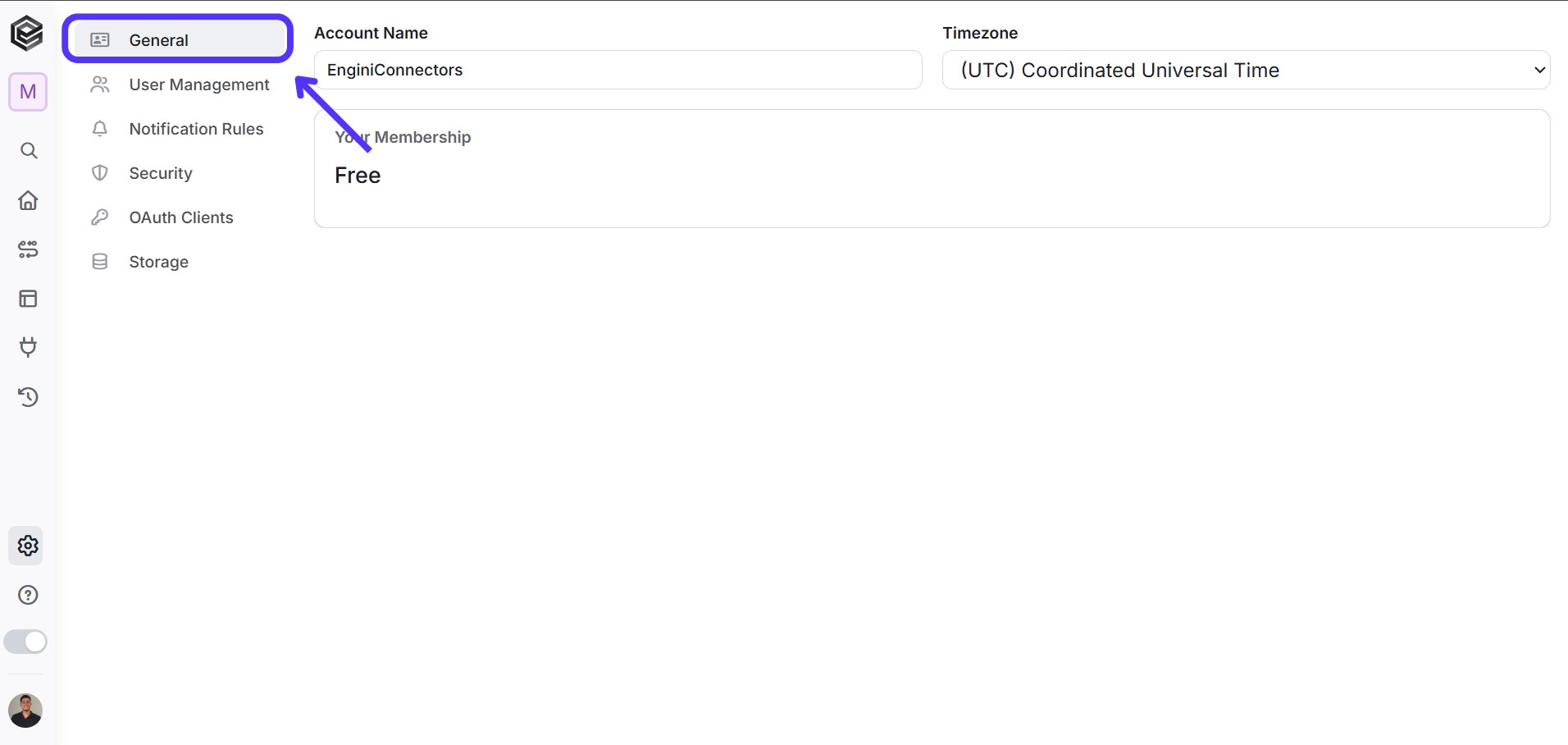
 3. Proceed to the ‘General’ section within the settings.
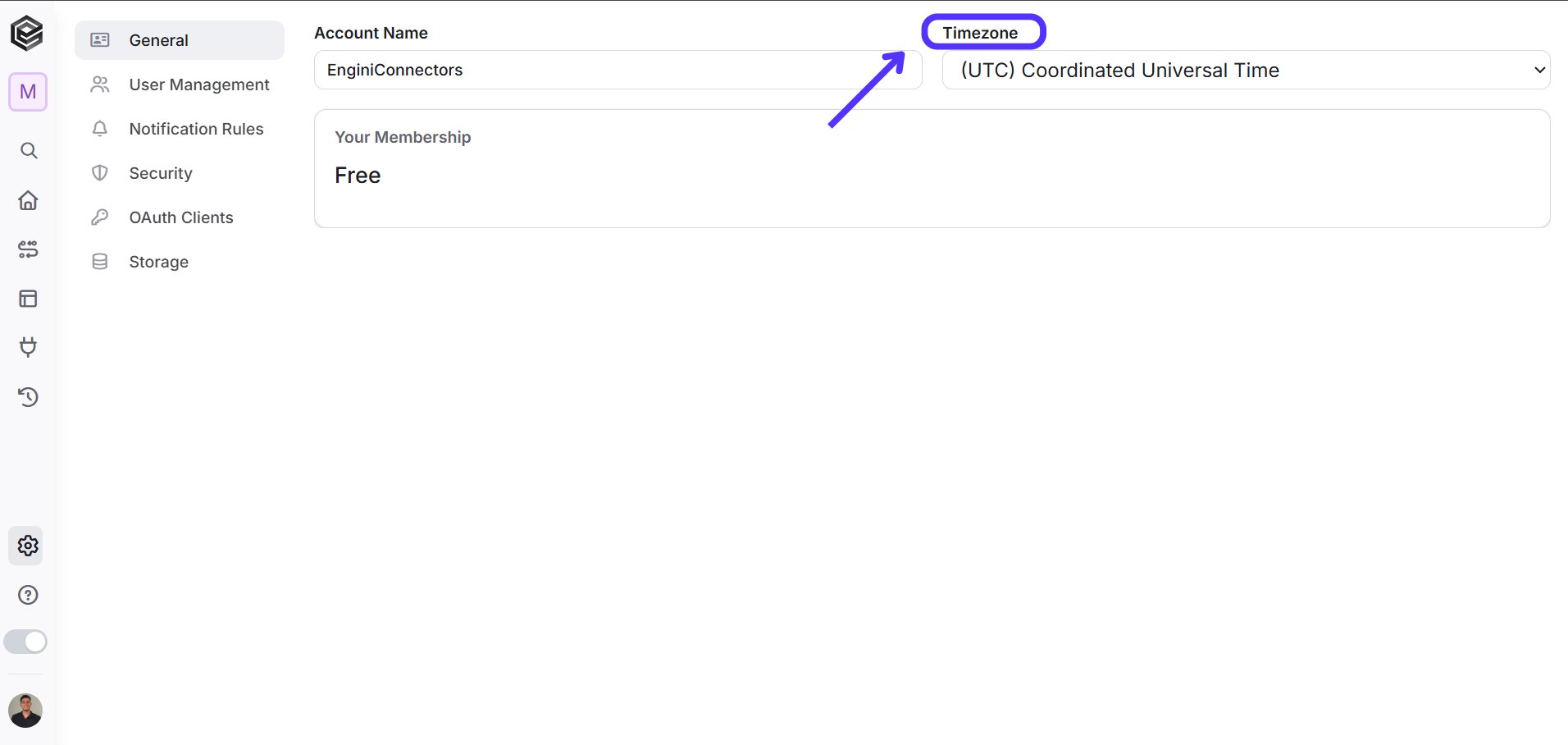
 4. Locate the Timezone setting. Click on the arrow to reveal a dropdown menu of available Timezones categorized by countries.
 5. Select the appropriate Timezone that best suits your company’s location and requirements and press “Save changes”.
**Important Notes**:
* The selected time zone setting directly affects how time-related functions within Engine work.
* It affects the representation of dates and times across various functionalities and workflow executions.
* This setting is integral when using Timezone-specific functions during process building.
For detailed guidance on leveraging Timezone functions and additional functionalities within Engini go to [Engini’s Functions](/help/tools/enginis-functions).
This documentation is built and hosted on [Mintlify](https://mintlify.com), a developer documentation platform.
5. Select the appropriate Timezone that best suits your company’s location and requirements and press “Save changes”.
**Important Notes**:
* The selected time zone setting directly affects how time-related functions within Engine work.
* It affects the representation of dates and times across various functionalities and workflow executions.
* This setting is integral when using Timezone-specific functions during process building.
For detailed guidance on leveraging Timezone functions and additional functionalities within Engini go to [Engini’s Functions](/help/tools/enginis-functions).
This documentation is built and hosted on [Mintlify](https://mintlify.com), a developer documentation platform.