> ## Documentation Index
> Fetch the complete documentation index at: https://docs.engini.ai/llms.txt
> Use this file to discover all available pages before exploring further.
# Postgres SQL
Learn how to seamlessly connect PostgreSQL to Engini, enabling efficient database integration for your workflows. With the PostgreSQL connector, you can manage data, run queries, and automate database interactions directly in Engini. Enhance productivity by integrating PostgreSQL's powerful capabilities into your business processes.
## Getting Started with Postgres SQL
### Prerequisites
* **A PostgreSQL account:** This includes the username and password to access the database.
## Connecting Engini to Postgres SQL
1. Enter your Engini account at [https://app.engini.io.](https://app.engini.io/)
2. Navigate to Connections page by clicking on the Connections on the left side bar or by clicking [here](https://app.engini.io/connections).
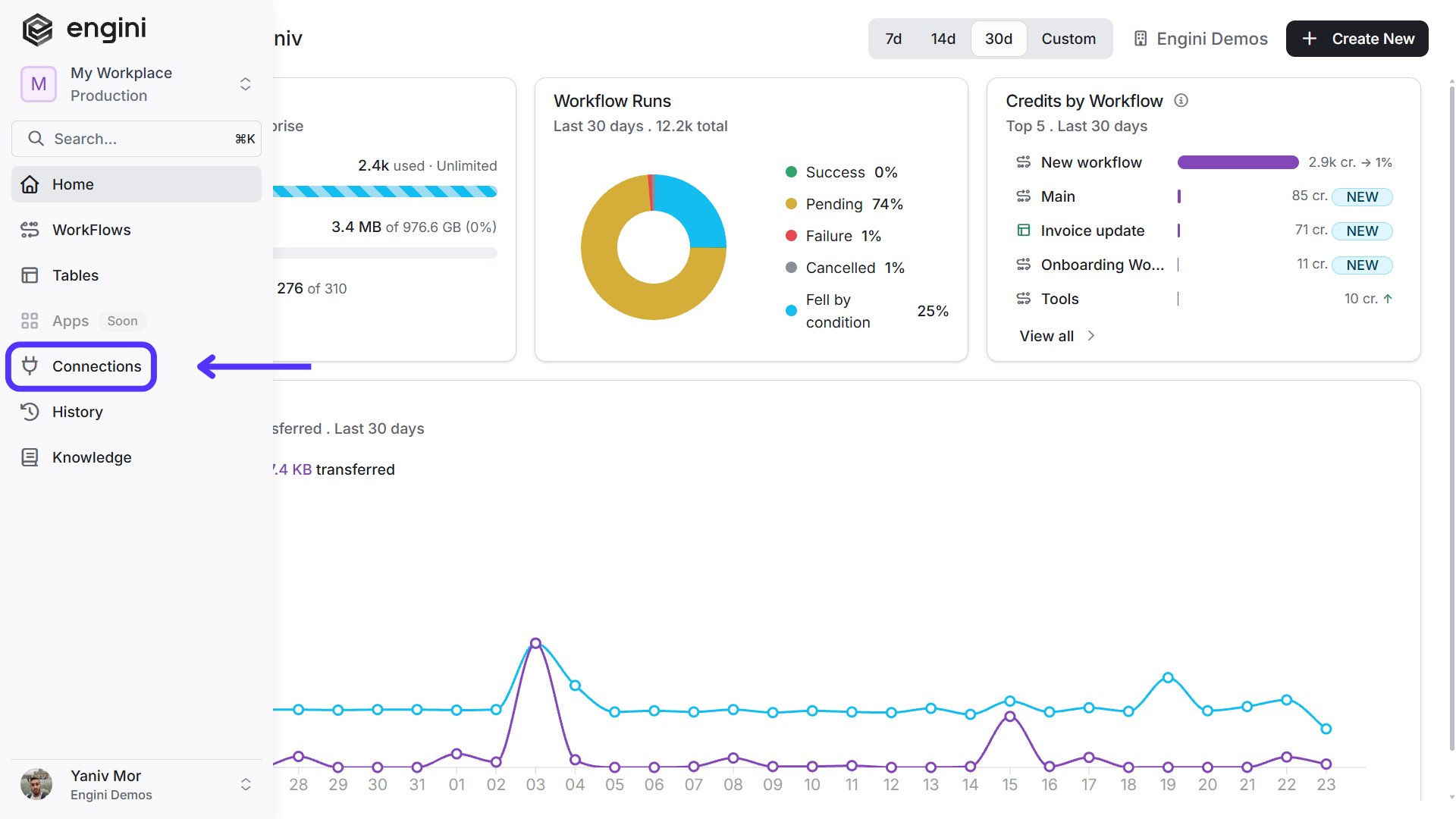 3. Click on the "New Integration" option located at the top bar.
 4. Choose Postgres SQL option from available applications.
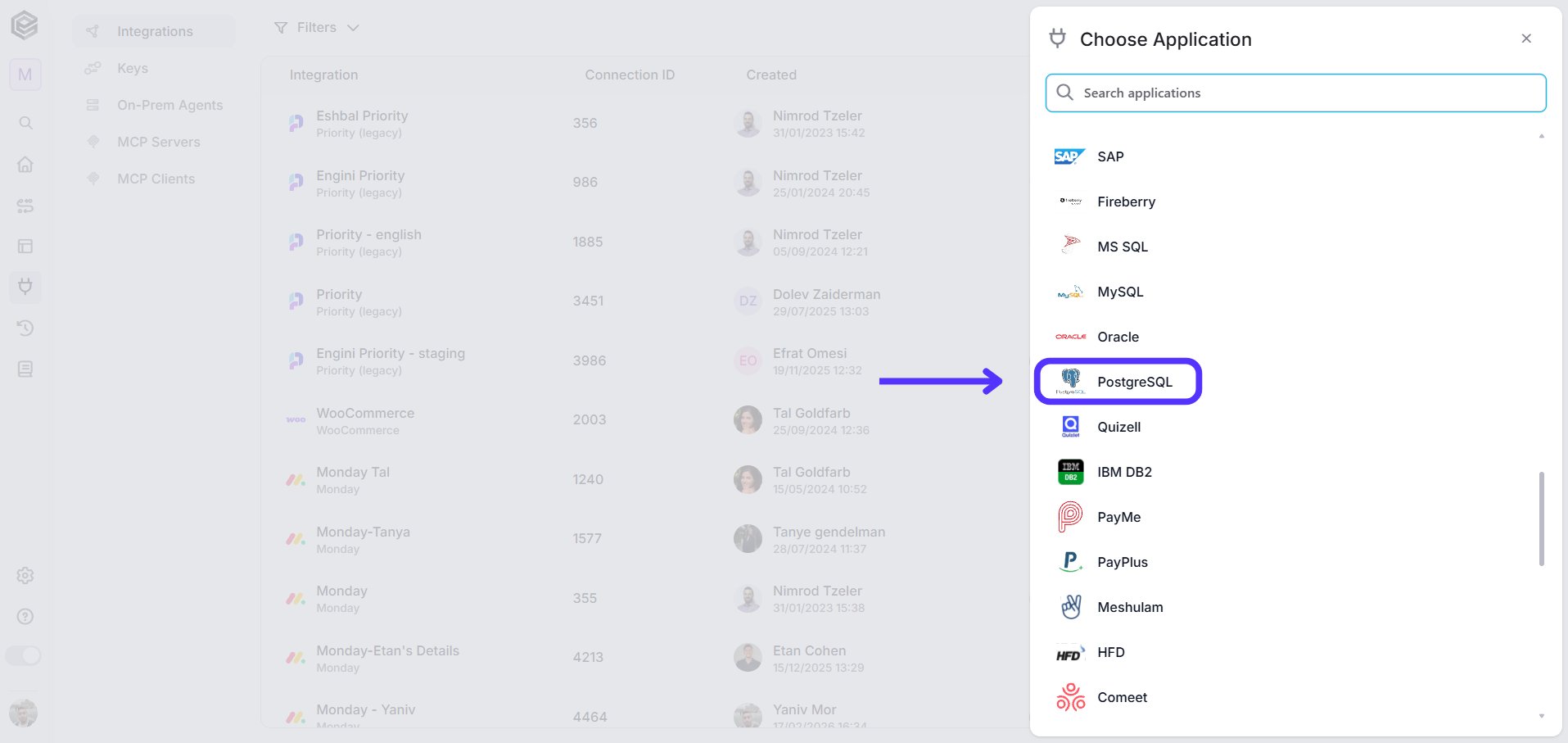 5. Enter the following details in the "New Integration" form:
 1. *Connection Name -* Choose a name for easy reference to this PostgreSQL connection.
2. *Server Address -* The IP address or domain where the PostgreSQL server is hosted.
3. *Database Name -* The name of the specific PostgreSQL database you want to connect to.
4. *Schema -* The schema within the database, usually set to public if no other schema is specified.
5. *Username -* The PostgreSQL username with sufficient access rights.
6. *Password -* The corresponding password for the PostgreSQL username.
7. *Communication Channel -* Ensure the communication channel (Cloud or OPA) is accessible for remote connection, depending on your preferred method.
8. *Save Settings -* Click on the Save button located at the bottom of the form.
## Actions
Specific tasks you want to perform in your PostgreSQL database through Engini. These actions can automate data management, such as inserting records, running queries, or interacting with specific tables and databases in PostgreSQL.
### Create Record
This activity allows you to create a new record in a specified PostgreSQL table.
1. *Connection Name -* Choose a name for easy reference to this PostgreSQL connection.
2. *Server Address -* The IP address or domain where the PostgreSQL server is hosted.
3. *Database Name -* The name of the specific PostgreSQL database you want to connect to.
4. *Schema -* The schema within the database, usually set to public if no other schema is specified.
5. *Username -* The PostgreSQL username with sufficient access rights.
6. *Password -* The corresponding password for the PostgreSQL username.
7. *Communication Channel -* Ensure the communication channel (Cloud or OPA) is accessible for remote connection, depending on your preferred method.
8. *Save Settings -* Click on the Save button located at the bottom of the form.
## Actions
Specific tasks you want to perform in your PostgreSQL database through Engini. These actions can automate data management, such as inserting records, running queries, or interacting with specific tables and databases in PostgreSQL.
### Create Record
This activity allows you to create a new record in a specified PostgreSQL table.
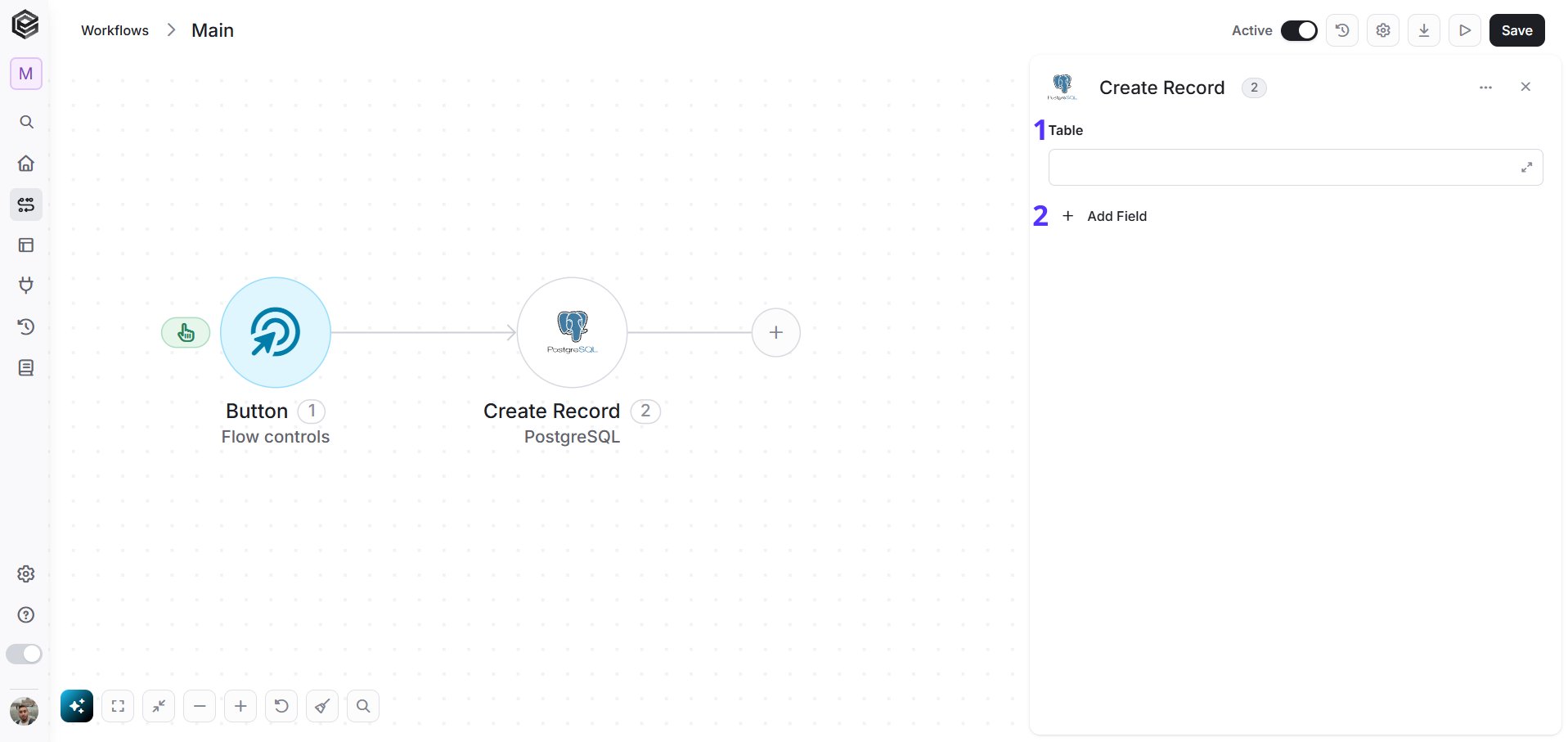 1. *Table* - Choose the table where the new record will be inserted. Make sure to select the correct table from your PostgreSQL database.
2. *Add Field* - Click Add Field to add and populate additional fields for the selected activity. To learn more about managing activity data, [click here](/help/workflows/workflow-editor#add-fields).
### Get Records
This activity retrieves records from a specified PostgreSQL table or view. You can set limits, sorting, and filters to refine the results.
1. *Table* - Choose the table where the new record will be inserted. Make sure to select the correct table from your PostgreSQL database.
2. *Add Field* - Click Add Field to add and populate additional fields for the selected activity. To learn more about managing activity data, [click here](/help/workflows/workflow-editor#add-fields).
### Get Records
This activity retrieves records from a specified PostgreSQL table or view. You can set limits, sorting, and filters to refine the results.
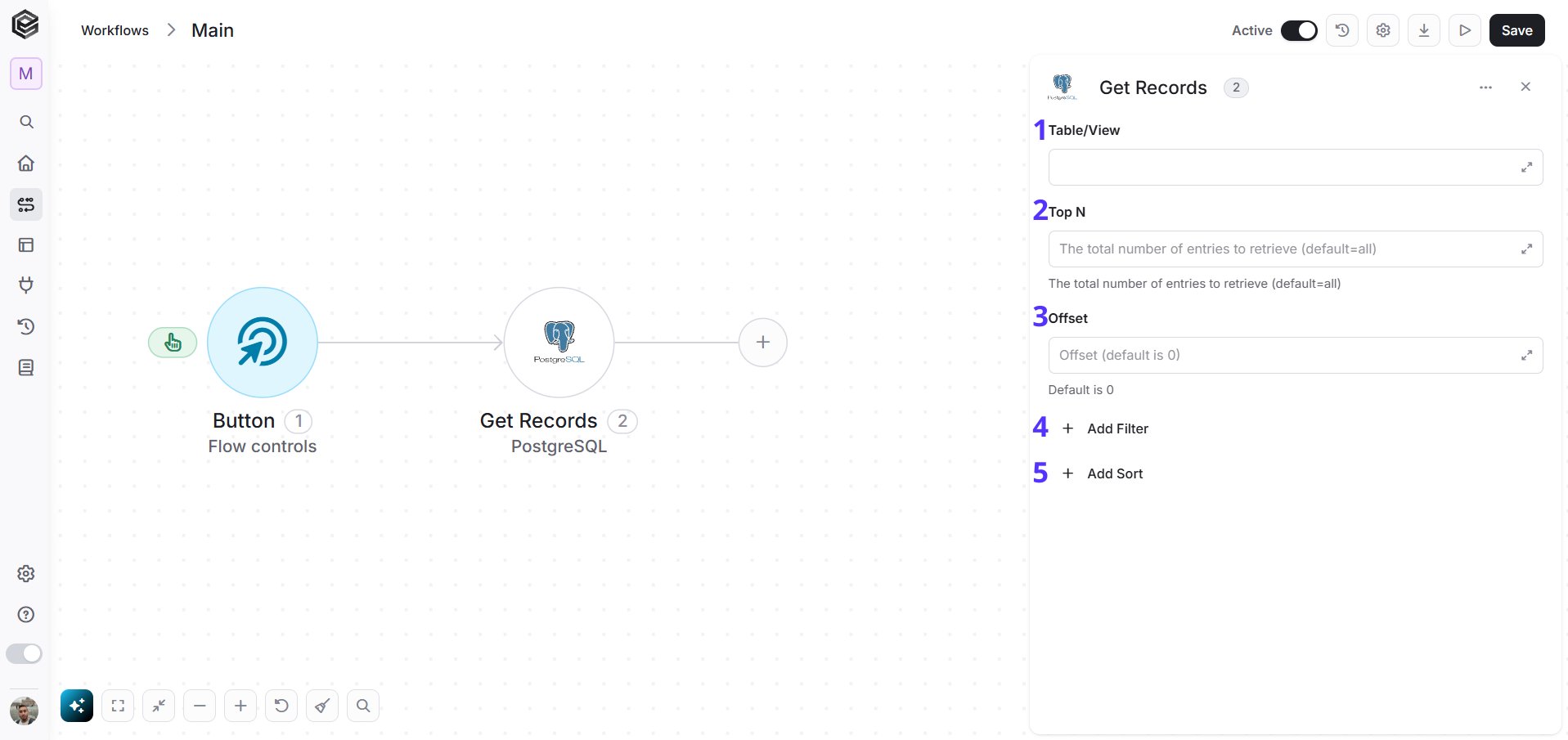 1. *Table/View* - Specify the name of the table or view from which you want to retrieve records. Ensure the correct PostgreSQL table or view is selected.
2. *Top* - Define the maximum number of rows to retrieve. The default is 100 if no value is provided.
3. *Offset* - Specify the number of rows to skip before starting the retrieval. This is useful for pagination. The default is 0 (no rows skipped).
4. *Add Filter -* Click Add Filter to define conditions that narrow down the data list and return only the relevant items. To learn more about using filters, [click here](/help/workflows/workflow-editor#add-filters).
5. *Add Sort -* Click Add Sort to organize the data list by a selected field in ascending or descending order. To learn more about sorting data, [click here](/help/workflows/workflow-editor#add-sorts).
### Update Record
This activity allows you to update an existing record in a specified PostgreSQL table.
1. *Table/View* - Specify the name of the table or view from which you want to retrieve records. Ensure the correct PostgreSQL table or view is selected.
2. *Top* - Define the maximum number of rows to retrieve. The default is 100 if no value is provided.
3. *Offset* - Specify the number of rows to skip before starting the retrieval. This is useful for pagination. The default is 0 (no rows skipped).
4. *Add Filter -* Click Add Filter to define conditions that narrow down the data list and return only the relevant items. To learn more about using filters, [click here](/help/workflows/workflow-editor#add-filters).
5. *Add Sort -* Click Add Sort to organize the data list by a selected field in ascending or descending order. To learn more about sorting data, [click here](/help/workflows/workflow-editor#add-sorts).
### Update Record
This activity allows you to update an existing record in a specified PostgreSQL table.
 1. *Table* - Specify the name of the table where the record you want to update is located. Ensure the correct PostgreSQL table is selected.
2. *Add Field* - Click Add Field to add and populate additional fields for the selected activity. To learn more about managing activity data, [click here](/help/workflows/workflow-editor#add-fields).
### Update Records
This activity allows you to update multiple records in a specified PostgreSQL table based on a filter. You can specify the table, and add filtering conditions.
1. *Table* - Specify the name of the table where the record you want to update is located. Ensure the correct PostgreSQL table is selected.
2. *Add Field* - Click Add Field to add and populate additional fields for the selected activity. To learn more about managing activity data, [click here](/help/workflows/workflow-editor#add-fields).
### Update Records
This activity allows you to update multiple records in a specified PostgreSQL table based on a filter. You can specify the table, and add filtering conditions.
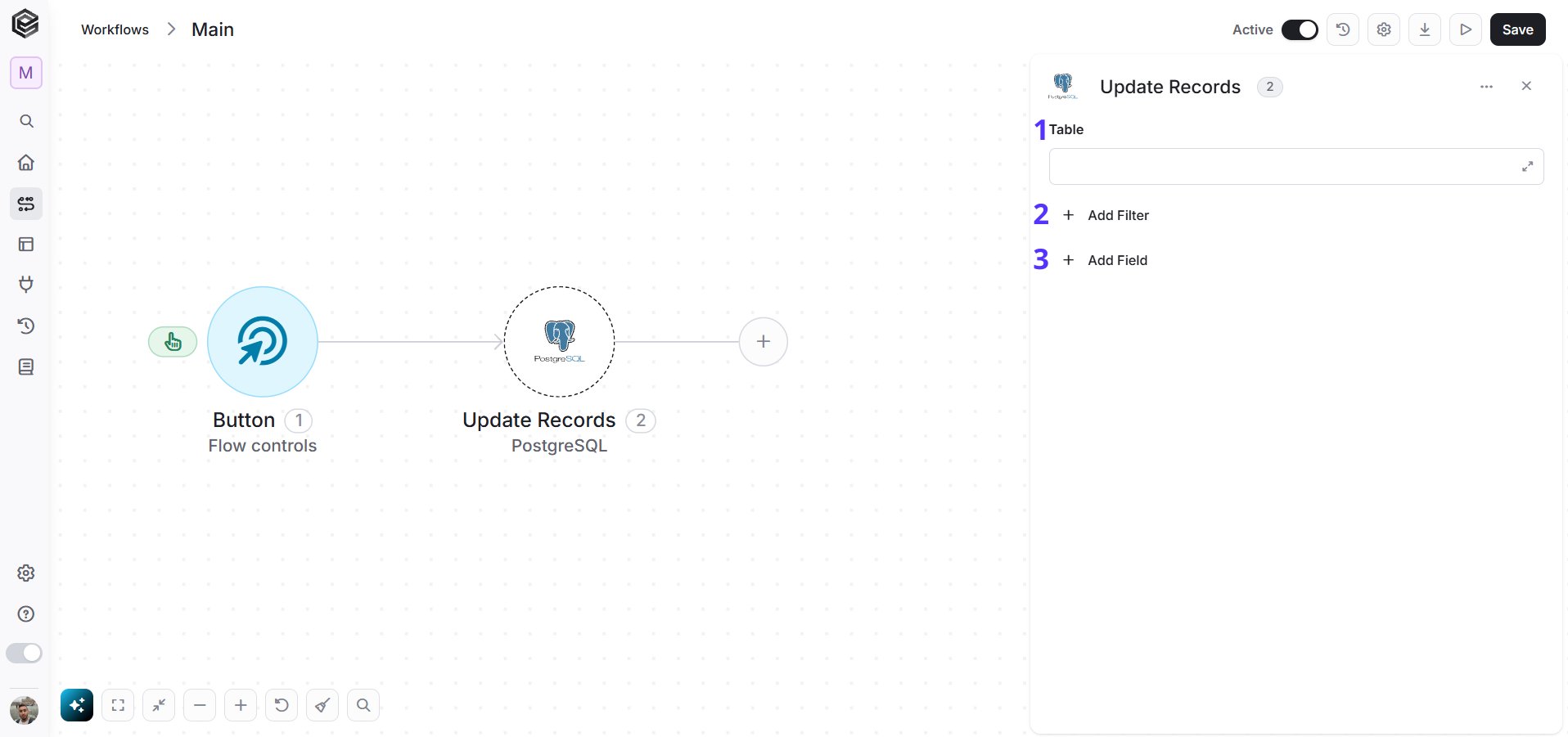 1. *Table* - Enter the name of the table where the records you want to update are located. Ensure the correct PostgreSQL table is selected.
2. *Add Filter -* Click Add Filter to define conditions that narrow down the data list and return only the relevant items. To learn more about using filters, [click here](/help/workflows/workflow-editor#add-filters).
3. *Add Field* - Click Add Field to add and populate additional fields for the selected activity. To learn more about managing activity data, [click here](/help/workflows/workflow-editor#add-fields).
### Delete Records
This activity allows you to delete records from a specified PostgreSQL table based on a defined filter.
1. *Table* - Enter the name of the table where the records you want to update are located. Ensure the correct PostgreSQL table is selected.
2. *Add Filter -* Click Add Filter to define conditions that narrow down the data list and return only the relevant items. To learn more about using filters, [click here](/help/workflows/workflow-editor#add-filters).
3. *Add Field* - Click Add Field to add and populate additional fields for the selected activity. To learn more about managing activity data, [click here](/help/workflows/workflow-editor#add-fields).
### Delete Records
This activity allows you to delete records from a specified PostgreSQL table based on a defined filter.
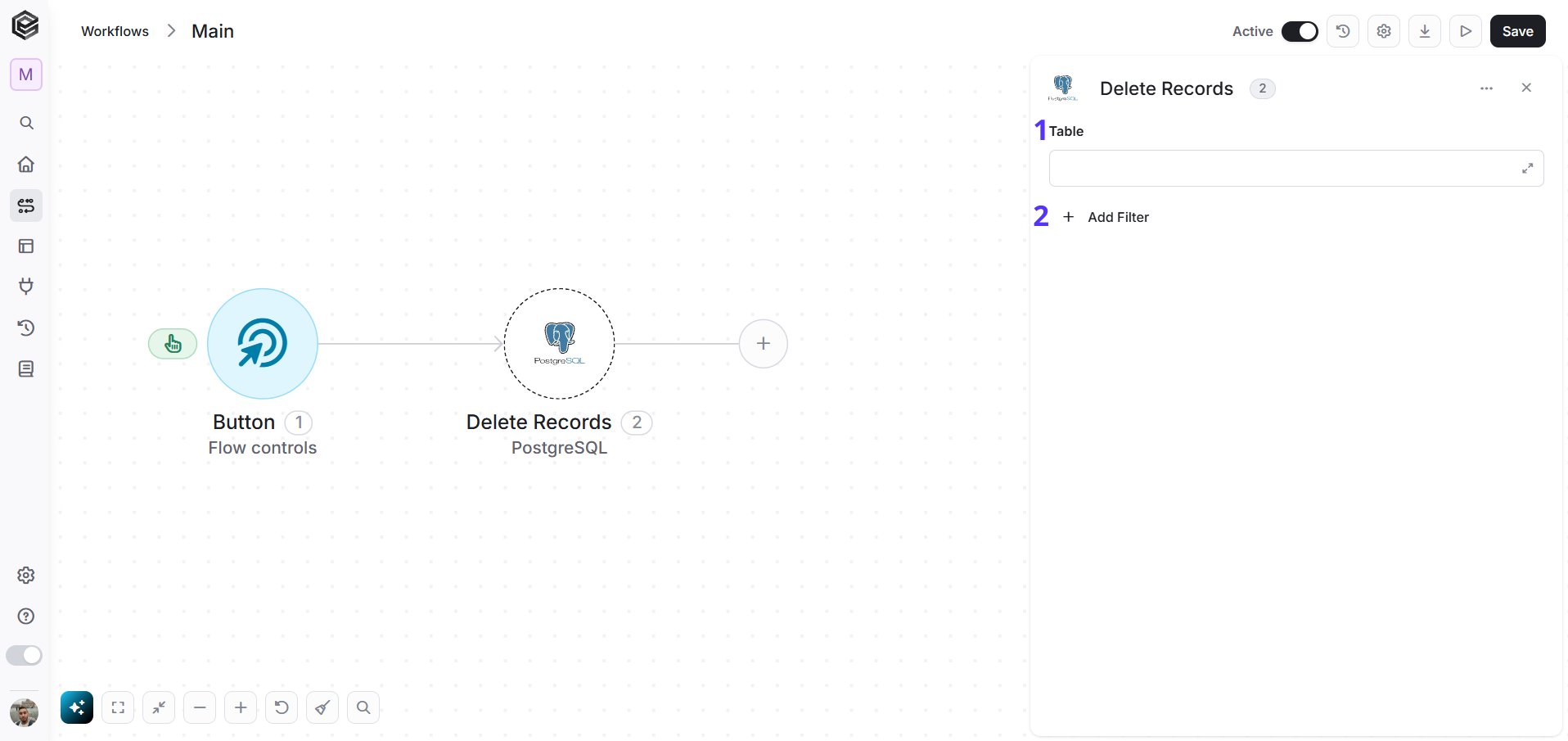 1. *Table* - Specify the table from which records will be deleted. Make sure to select the correct table from your PostgreSQL database.
2. *Add Filter -* Click Add Filter to define conditions that narrow down the data list and return only the relevant items. To learn more about using filters, [click here](/help/workflows/workflow-editor#add-filters).
### Create Batch of Records
This activity allows you to insert a batch of records into a specified PostgreSQL table.
1. *Table* - Specify the table from which records will be deleted. Make sure to select the correct table from your PostgreSQL database.
2. *Add Filter -* Click Add Filter to define conditions that narrow down the data list and return only the relevant items. To learn more about using filters, [click here](/help/workflows/workflow-editor#add-filters).
### Create Batch of Records
This activity allows you to insert a batch of records into a specified PostgreSQL table.
 1. *Data List* - Specifies the list of records you want to insert. The batch can handle up to 1000 items.
2. *Table* - The name of the table where the records will be inserted. Ensure the correct table from your PostgreSQL database is selected.
3. *Add Field* - Click Add Field to add and populate additional fields for the selected activity. To learn more about managing activity data, [click here](/help/workflows/workflow-editor#add-fields).
### Get Records Batch
This activity retrieves a batch of records from a specified PostgreSQL table. You can define the batch size, set sorting and filtering options.
1. *Data List* - Specifies the list of records you want to insert. The batch can handle up to 1000 items.
2. *Table* - The name of the table where the records will be inserted. Ensure the correct table from your PostgreSQL database is selected.
3. *Add Field* - Click Add Field to add and populate additional fields for the selected activity. To learn more about managing activity data, [click here](/help/workflows/workflow-editor#add-fields).
### Get Records Batch
This activity retrieves a batch of records from a specified PostgreSQL table. You can define the batch size, set sorting and filtering options.
 1. *Data List* - Specifies the list of records to retrieve in a batch. The maximum batch size is 1000 items.
2. *Table* - Enter the name of the table from which you want to retrieve the batch of records. Ensure the correct PostgreSQL table is selected.
3. *Top* N - Define the maximum number of rows to retrieve. The default value is 100.
4. *Add Filter -* Click Add Filter to define conditions that narrow down the data list and return only the relevant items. To learn more about using filters, [click here](/help/workflows/workflow-editor#add-filters).
5. *Add Sort -* Click Add Sort to organize the data list by a selected field in ascending or descending order. To learn more about sorting data, [click here](/help/workflows/workflow-editor#add-sorts).
### Update Batch of Records
This activity allows you to update a batch of records in a specified PostgreSQL table. You can provide the list of data to update, and set filtering conditions.
1. *Data List* - Specifies the list of records to retrieve in a batch. The maximum batch size is 1000 items.
2. *Table* - Enter the name of the table from which you want to retrieve the batch of records. Ensure the correct PostgreSQL table is selected.
3. *Top* N - Define the maximum number of rows to retrieve. The default value is 100.
4. *Add Filter -* Click Add Filter to define conditions that narrow down the data list and return only the relevant items. To learn more about using filters, [click here](/help/workflows/workflow-editor#add-filters).
5. *Add Sort -* Click Add Sort to organize the data list by a selected field in ascending or descending order. To learn more about sorting data, [click here](/help/workflows/workflow-editor#add-sorts).
### Update Batch of Records
This activity allows you to update a batch of records in a specified PostgreSQL table. You can provide the list of data to update, and set filtering conditions.
 1. *Data List* - Specifies the list of records to be updated. The maximum batch size is 1000 items.
2. *Table* - Enter the name of the table where the batch of records will be updated. Ensure the correct PostgreSQL table is selected.
3. *Add Filter -* Click Add Filter to define conditions that narrow down the data list and return only the relevant items. To learn more about using filters, [click here](/help/workflows/workflow-editor#add-filters).
4. *Add Field* - Click Add Field to add and populate additional fields for the selected activity. To learn more about managing activity data, [click here](/help/workflows/workflow-editor#add-fields).
### Execute Customized SQL
This activity allows you to run a custom SQL query directly on a PostgreSQL database. You can write any SQL command, such as SELECT, INSERT, UPDATE, or DELETE, and execute it against the database.
1. *Data List* - Specifies the list of records to be updated. The maximum batch size is 1000 items.
2. *Table* - Enter the name of the table where the batch of records will be updated. Ensure the correct PostgreSQL table is selected.
3. *Add Filter -* Click Add Filter to define conditions that narrow down the data list and return only the relevant items. To learn more about using filters, [click here](/help/workflows/workflow-editor#add-filters).
4. *Add Field* - Click Add Field to add and populate additional fields for the selected activity. To learn more about managing activity data, [click here](/help/workflows/workflow-editor#add-fields).
### Execute Customized SQL
This activity allows you to run a custom SQL query directly on a PostgreSQL database. You can write any SQL command, such as SELECT, INSERT, UPDATE, or DELETE, and execute it against the database.
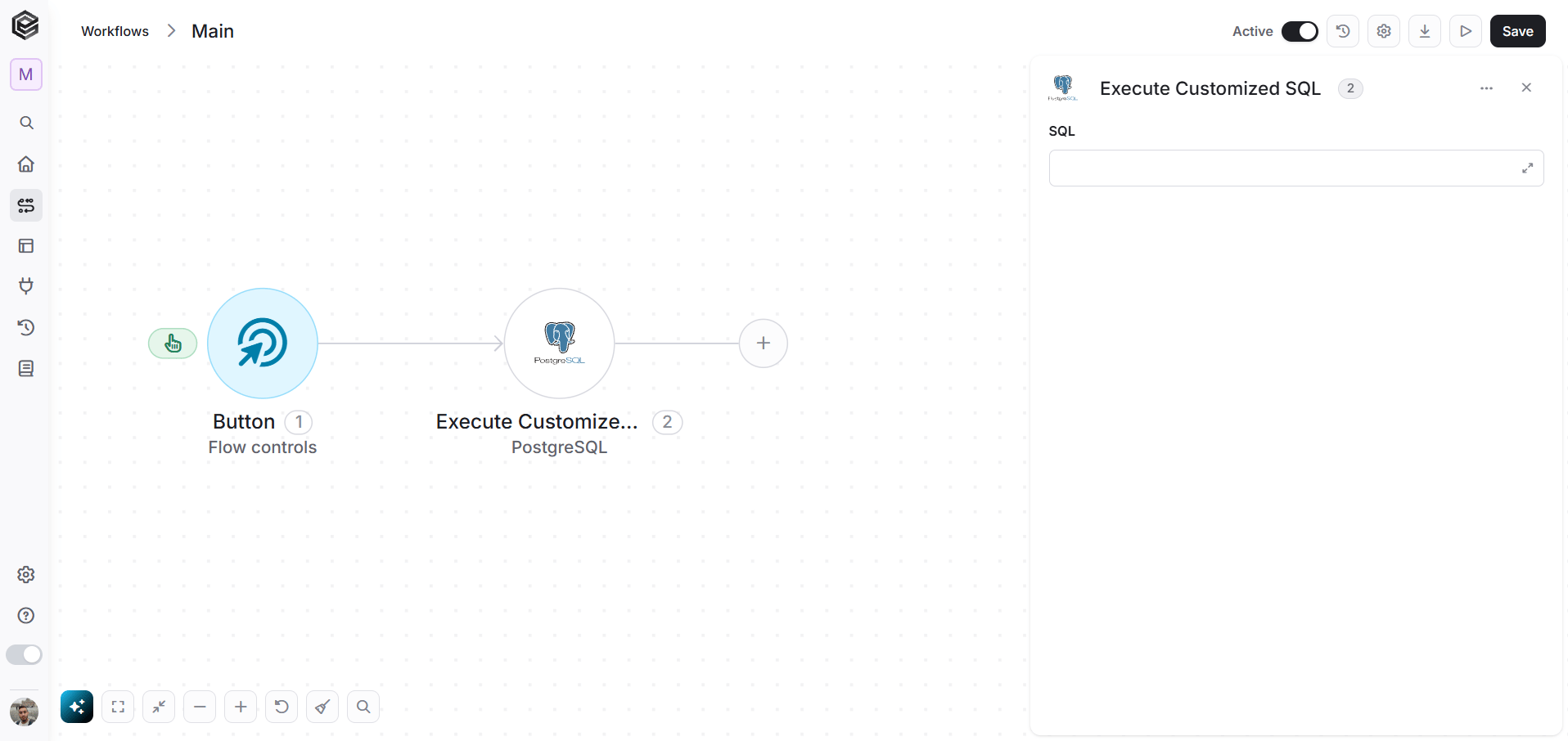 *SQL* - Enter the custom SQL query you want to execute. Ensure the query is correctly formatted for PostgreSQL and targets the correct database objects (e.g., tables, views).
### Execute Procedure
This activity allows you to execute a stored procedure in a PostgreSQL database. A stored procedure is a set of SQL statements that can perform a specific task, such as data manipulation or complex operations, in one call.
*SQL* - Enter the custom SQL query you want to execute. Ensure the query is correctly formatted for PostgreSQL and targets the correct database objects (e.g., tables, views).
### Execute Procedure
This activity allows you to execute a stored procedure in a PostgreSQL database. A stored procedure is a set of SQL statements that can perform a specific task, such as data manipulation or complex operations, in one call.
 1. *Procedure Name* - Enter the name of the stored procedure you want to execute. Ensure that the procedure exists in the PostgreSQL database and that it has the required parameters (if any).
2. *Add Field* - Click Add Field to add and populate additional fields for the selected activity. To learn more about managing activity data, [click here](/help/workflows/workflow-editor#add-fields).
This documentation is built and hosted on [Mintlify](https://mintlify.com), a developer documentation platform.
1. *Procedure Name* - Enter the name of the stored procedure you want to execute. Ensure that the procedure exists in the PostgreSQL database and that it has the required parameters (if any).
2. *Add Field* - Click Add Field to add and populate additional fields for the selected activity. To learn more about managing activity data, [click here](/help/workflows/workflow-editor#add-fields).
This documentation is built and hosted on [Mintlify](https://mintlify.com), a developer documentation platform.