> ## Documentation Index
> Fetch the complete documentation index at: https://docs.engini.ai/llms.txt
> Use this file to discover all available pages before exploring further.
# HiBob
Learn how to connect Engini to Hibob.
Using Engini’s Hibob activities, you can get all open tasks, the list of employees’ employment history, a list of work history for a list of employees, company employee fields, and mark a task as complete.
To get started, create an account on [HiBob](http://www.hibob.com/).
## Add a connection to Hibob in Engini
1. Enter your Engini account at [https://app.engini.io](https://app.engini.io/).
2. Navigate to Connections page by clicking on the Connections on the left sidebar or by clicking [here](https://app.engini.io/connections).
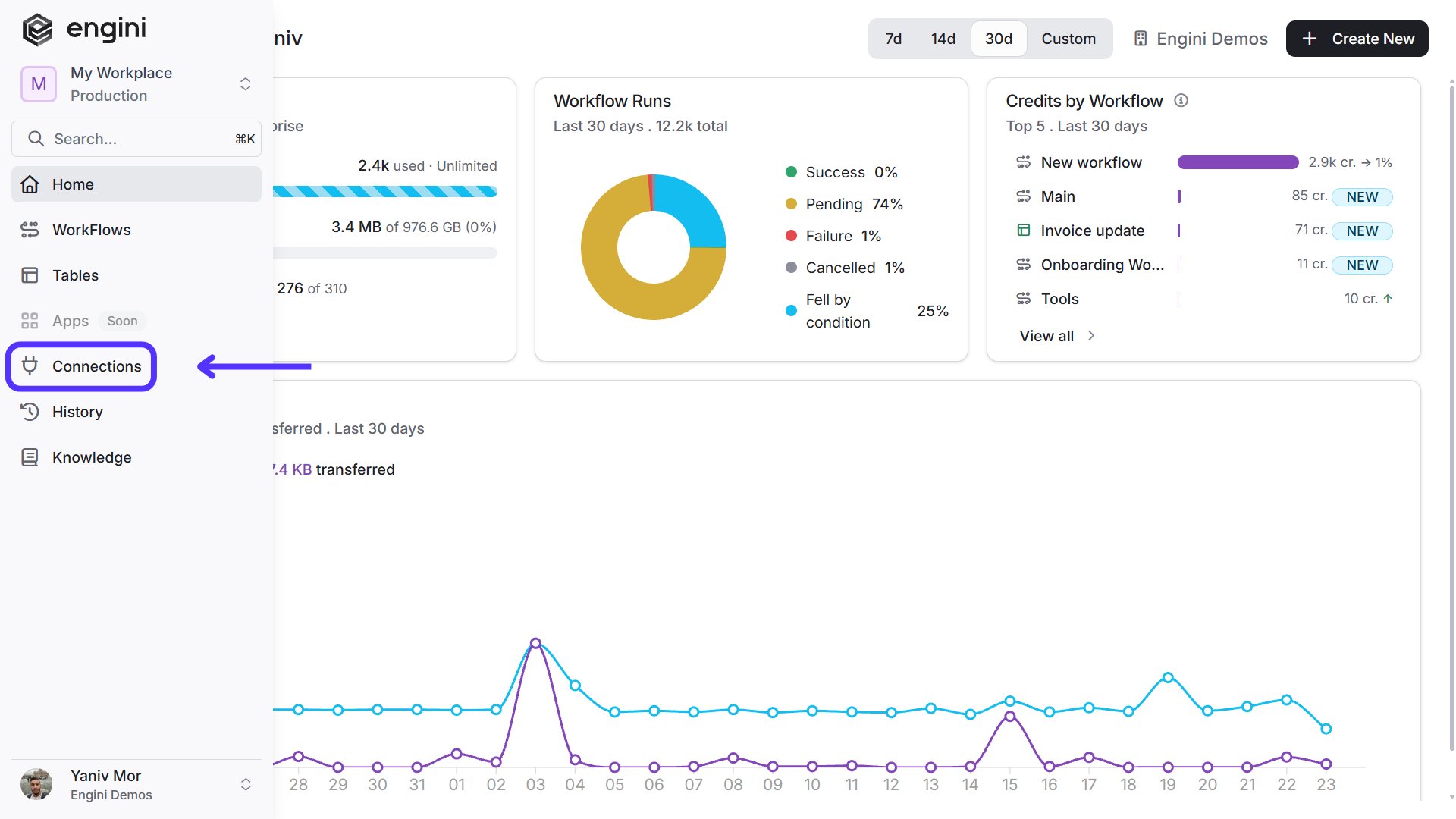 3. Click on the "New Integration" option located at the top bar.
 4. Choose “Hibob” option from available applications.
 5. Enter the following details in the “New Integration” form and press Save:
 1. *Connection name* – A unique identifier for the connection within Engini.
2. *User ID* – This is the unique ID for the service user you create in your HiBob account for API access.
3. *Token* – Enter the secret authentication token associated with the User ID.
4. *Save -* After signing in, click on the Save button to save the connection.
## Triggers
### Webhooks Employee
This trigger starts a workflow when a specific employee event occurs in HiBob.
1. *Connection name* – A unique identifier for the connection within Engini.
2. *User ID* – This is the unique ID for the service user you create in your HiBob account for API access.
3. *Token* – Enter the secret authentication token associated with the User ID.
4. *Save -* After signing in, click on the Save button to save the connection.
## Triggers
### Webhooks Employee
This trigger starts a workflow when a specific employee event occurs in HiBob.
 1. *URL* – This is an automatic webhook URL generated by Engini. This URL cannot be edited or modified. Use the copy icon on the right to copy the URL and paste it into your HiBob webhook configuration.
2. *Type*-Use the type field to select the employee event you want to listen for (e.g. employee created)
3. *Add Conditions -* Click Add Conditions to define conditions that narrow down the data list and return only the relevant items. To learn more about using filters, [click here](/help/workflows/workflow-editor#add-conditions).
### Webhooks Docs
This trigger starts a workflow when a specific docs event occurs in HiBob.
1. *URL* – This is an automatic webhook URL generated by Engini. This URL cannot be edited or modified. Use the copy icon on the right to copy the URL and paste it into your HiBob webhook configuration.
2. *Type*-Use the type field to select the employee event you want to listen for (e.g. employee created)
3. *Add Conditions -* Click Add Conditions to define conditions that narrow down the data list and return only the relevant items. To learn more about using filters, [click here](/help/workflows/workflow-editor#add-conditions).
### Webhooks Docs
This trigger starts a workflow when a specific docs event occurs in HiBob.
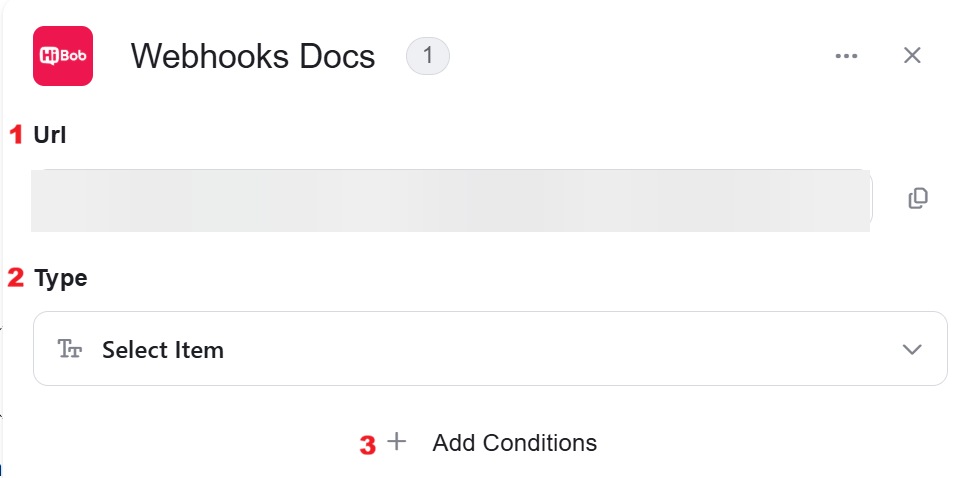 1. *URL* – This is an automatic webhook URL generated by Engini. This URL cannot be edited or modified. Use the copy icon on the right to copy the URL and paste it into your HiBob webhook configuration.
2. *Type*-Use the type field to select the docs event you want to listen for (e.g. eSign Document Signing Complete)
3. *Add Conditions -* Click Add Conditions to define conditions that narrow down the data list and return only the relevant items. To learn more about using filters, [click here](/help/workflows/workflow-editor#add-conditions).
### Webhooks Task
This trigger starts a workflow when a specific task event occurs in HiBob.
1. *URL* – This is an automatic webhook URL generated by Engini. This URL cannot be edited or modified. Use the copy icon on the right to copy the URL and paste it into your HiBob webhook configuration.
2. *Type*-Use the type field to select the docs event you want to listen for (e.g. eSign Document Signing Complete)
3. *Add Conditions -* Click Add Conditions to define conditions that narrow down the data list and return only the relevant items. To learn more about using filters, [click here](/help/workflows/workflow-editor#add-conditions).
### Webhooks Task
This trigger starts a workflow when a specific task event occurs in HiBob.
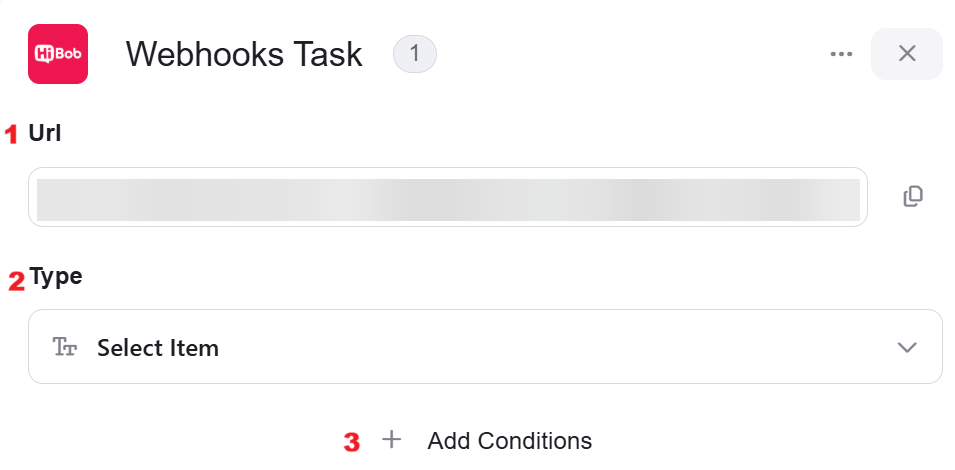 1. *URL* – This is an automatic webhook URL generated by Engini. This URL cannot be edited or modified. Use the copy icon on the right to copy the URL and paste it into your HiBob webhook configuration.
2. *Type*-Use the type field to select the docs event you want to listen for (e.g. Task status changed)
3. *Add Conditions -* Click Add Conditions to define conditions that narrow down the data list and return only the relevant items. To learn more about using filters, [click here](/help/workflows/workflow-editor#add-conditions).
### Webhooks Time-off
This trigger starts a workflow when a specific time-off event occurs in HiBob.
1. *URL* – This is an automatic webhook URL generated by Engini. This URL cannot be edited or modified. Use the copy icon on the right to copy the URL and paste it into your HiBob webhook configuration.
2. *Type*-Use the type field to select the docs event you want to listen for (e.g. Task status changed)
3. *Add Conditions -* Click Add Conditions to define conditions that narrow down the data list and return only the relevant items. To learn more about using filters, [click here](/help/workflows/workflow-editor#add-conditions).
### Webhooks Time-off
This trigger starts a workflow when a specific time-off event occurs in HiBob.
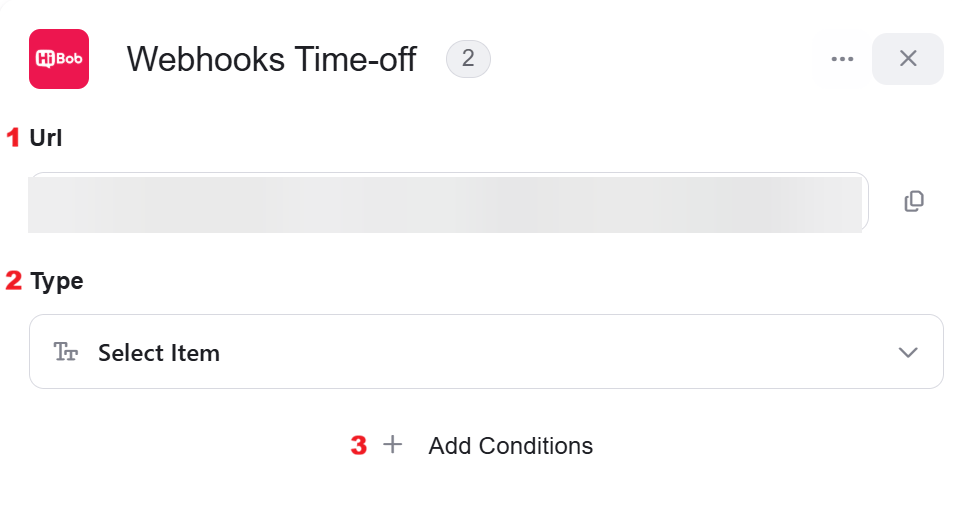 1. *URL* – This is an automatic webhook URL generated by Engini. This URL cannot be edited or modified. Use the copy icon on the right to copy the URL and paste it into your HiBob webhook configuration.
2. *Type*-Use the type field to select the docs event you want to listen for (e.g. Time-off Request Approved)
3. *Add Conditions -* Click Add Conditions to define conditions that narrow down the data list and return only the relevant items. To learn more about using filters, [click here](/help/workflows/workflow-editor#add-conditions).
### Webhooks Workforce Planning
This trigger starts a workflow when a specific workforce planning event occurs in HiBob.
1. *URL* – This is an automatic webhook URL generated by Engini. This URL cannot be edited or modified. Use the copy icon on the right to copy the URL and paste it into your HiBob webhook configuration.
2. *Type*-Use the type field to select the docs event you want to listen for (e.g. Time-off Request Approved)
3. *Add Conditions -* Click Add Conditions to define conditions that narrow down the data list and return only the relevant items. To learn more about using filters, [click here](/help/workflows/workflow-editor#add-conditions).
### Webhooks Workforce Planning
This trigger starts a workflow when a specific workforce planning event occurs in HiBob.
 1. *URL* – This is an automatic webhook URL generated by Engini. This URL cannot be edited or modified. Use the copy icon on the right to copy the URL and paste it into your HiBob webhook configuration.
2. *Type*-Use the type field to select the docs event you want to listen for (e.g.
Position Updated)
3. *Add Conditions -* Click Add Conditions to define conditions that narrow down the data list and return only the relevant items. To learn more about using filters, [click here](/help/workflows/workflow-editor#add-conditions).
## Activities
### Mark A Task As Complete
This activity updates a task in Hibob, marking it as complete by using its unique Task ID.
1. *URL* – This is an automatic webhook URL generated by Engini. This URL cannot be edited or modified. Use the copy icon on the right to copy the URL and paste it into your HiBob webhook configuration.
2. *Type*-Use the type field to select the docs event you want to listen for (e.g.
Position Updated)
3. *Add Conditions -* Click Add Conditions to define conditions that narrow down the data list and return only the relevant items. To learn more about using filters, [click here](/help/workflows/workflow-editor#add-conditions).
## Activities
### Mark A Task As Complete
This activity updates a task in Hibob, marking it as complete by using its unique Task ID.
 * *Task ID*– Enter the unique ID of the task that you want to mark as complete.
### Read All Open Tasks
This activity gets a list of all tasks that are currently active or incomplete within the Hibob system.
* *Task ID*– Enter the unique ID of the task that you want to mark as complete.
### Read All Open Tasks
This activity gets a list of all tasks that are currently active or incomplete within the Hibob system.
 ### Read Company Employee Fields By Employee ID
This activity retrieves specific data fields for a single employee using their backend-id.
### Read Company Employee Fields By Employee ID
This activity retrieves specific data fields for a single employee using their backend-id.
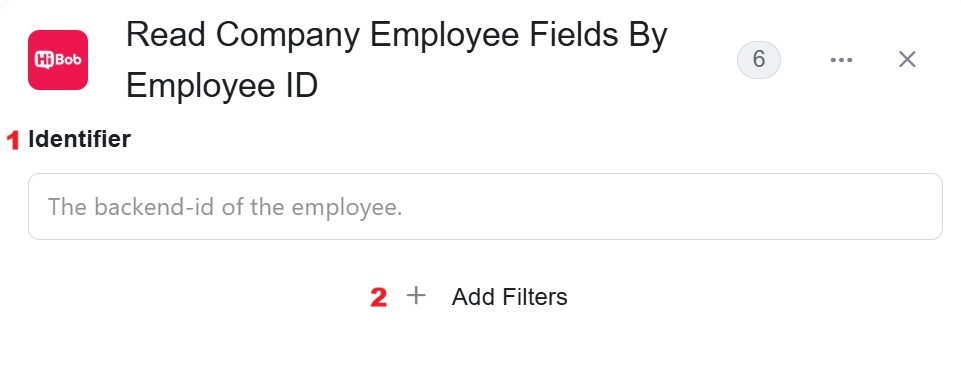 1. *Identifier*– Provide the employee’s unique backend-id to access their company fields.
2. *Add Filter -* Click Add Filter to define conditions that narrow down the data list and return only the relevant items. To learn more about using filters, [click here](/help/workflows/workflow-editor#add-filters).
### List Work History For A List Of Employees
This activity retrieves the work history for multiple employees at once, by providing a list of their IDs
1. *Identifier*– Provide the employee’s unique backend-id to access their company fields.
2. *Add Filter -* Click Add Filter to define conditions that narrow down the data list and return only the relevant items. To learn more about using filters, [click here](/help/workflows/workflow-editor#add-filters).
### List Work History For A List Of Employees
This activity retrieves the work history for multiple employees at once, by providing a list of their IDs
 * *Add Filter -* Click Add Filter to define conditions that narrow down the data list and return only the relevant items. To learn more about using filters, [click here](/help/workflows/workflow-editor#add-filters).
### List Employees Employment History
This activity fetches the full employment history for a specific employee.
* *Add Filter -* Click Add Filter to define conditions that narrow down the data list and return only the relevant items. To learn more about using filters, [click here](/help/workflows/workflow-editor#add-filters).
### List Employees Employment History
This activity fetches the full employment history for a specific employee.
 * *ID*– Enter the employee’s ID to retrieve their employment history.
### Send API Request
This activity allows you to send a custom API request directly to Hibob’s API.
* *ID*– Enter the employee’s ID to retrieve their employment history.
### Send API Request
This activity allows you to send a custom API request directly to Hibob’s API.
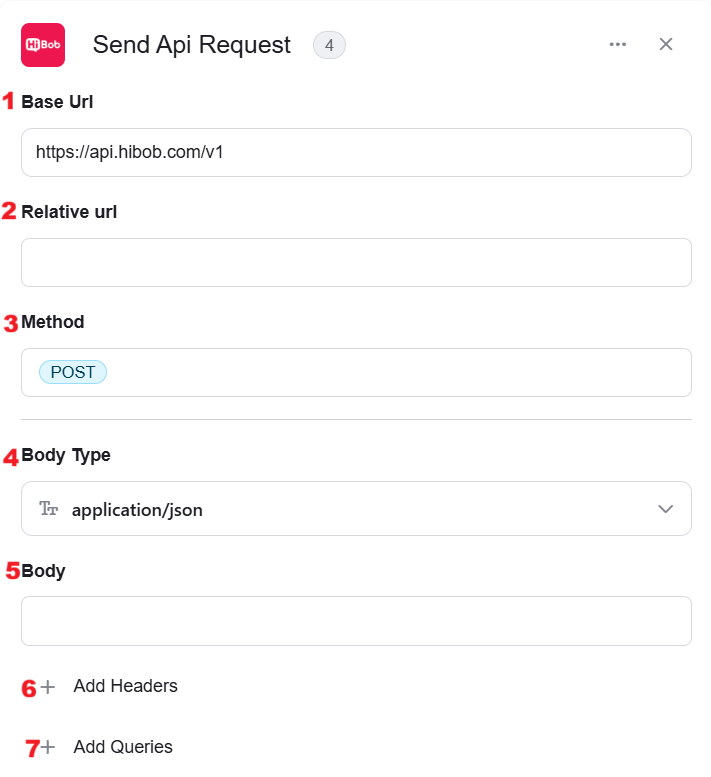 1. *Base Url –* This is the root URL of the API you’re sending the request to.
2. *Relative url –* You can specify additional path segments or parameters that need to be added to the end of the automatically generated URL. This allows you to customize the specific request you want to perform.
3. *Method –* Select the HTTP method (e.g., Get, Post, Put, Delete, Patch).
4. *Body Type –* Defines the format of the data in the body of your request. Commonly used values include application/json (as shown), which means the body will contain a JSON-formatted payload.
5. *Body –* Contains any data that is being sent to the server.
6. *Add Headers –* Additional metadata about the request, such as the type of data the Engini can accept, the length of the request body, and authentication information.
* Click on the “Add Headers” button to add a header.
1. *Base Url –* This is the root URL of the API you’re sending the request to.
2. *Relative url –* You can specify additional path segments or parameters that need to be added to the end of the automatically generated URL. This allows you to customize the specific request you want to perform.
3. *Method –* Select the HTTP method (e.g., Get, Post, Put, Delete, Patch).
4. *Body Type –* Defines the format of the data in the body of your request. Commonly used values include application/json (as shown), which means the body will contain a JSON-formatted payload.
5. *Body –* Contains any data that is being sent to the server.
6. *Add Headers –* Additional metadata about the request, such as the type of data the Engini can accept, the length of the request body, and authentication information.
* Click on the “Add Headers” button to add a header.
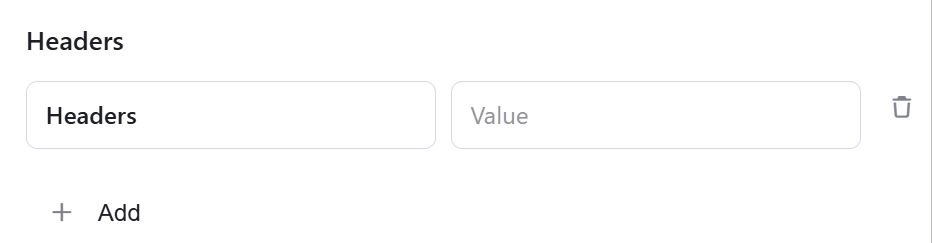 * Click on the headers field to enter the key, and on the value field to enter a value. Each header consists of a key-value pair, where the key is the name of the parameter, and the value is the data associated with that parameter.
* Click on the “Add” button to add more headers.
7. *Add Queries –* The query refers to the parameters or data that are included in the URL of an HTTP request to provide additional information or instructions to the server.
* Click on the “Add Queries” button to add a Query.
* Click on the headers field to enter the key, and on the value field to enter a value. Each header consists of a key-value pair, where the key is the name of the parameter, and the value is the data associated with that parameter.
* Click on the “Add” button to add more headers.
7. *Add Queries –* The query refers to the parameters or data that are included in the URL of an HTTP request to provide additional information or instructions to the server.
* Click on the “Add Queries” button to add a Query.
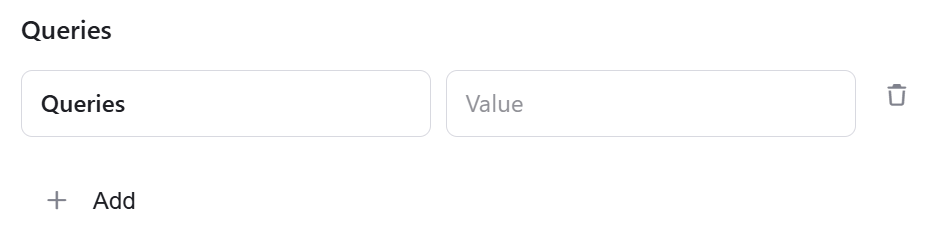 * Click on the queries field to enter the key, and on the value field to enter a value. Each query consists of a key-value pair, where the key is the name of the parameter, and the value is the data associated with that parameter.
* Click on the “Add” button to add more queries.
This documentation is built and hosted on [Mintlify](https://mintlify.com), a developer documentation platform.
* Click on the queries field to enter the key, and on the value field to enter a value. Each query consists of a key-value pair, where the key is the name of the parameter, and the value is the data associated with that parameter.
* Click on the “Add” button to add more queries.
This documentation is built and hosted on [Mintlify](https://mintlify.com), a developer documentation platform.