> ## Documentation Index
> Fetch the complete documentation index at: https://docs.engini.ai/llms.txt
> Use this file to discover all available pages before exploring further.
# Google Workspace
Learn how to connect Engini to Google WorkSpace.
Using Engini’s Google WorkSpace activities, you can check for new sent emails, send emails and include attachments seamlessly.
To get started with the gmail app, create an free account at Google.com or use your organizational google mailbox.
## Getting Started with Google WorkSpace
### Prerequisites
* An Google WorkSpace account.
### Add a connection to Google WorkSpace in Engini
1. Enter your Engini account at [https://app.engini.io.](https://app.engini.io/)
2. Navigate to Connections page by clicking on the Connections on the left sidebar or by clicking [here.](https://app.engini.io/connections)
 3. Click on the "New Integration" option located at the top bar.
 4. Choose Google WorkSpace option from the available applications.
 5. Enter the following details in the “New Integration” form and press Save:
**Note** : There are two different authentication methods available, and the required fields differ depending on the option you choose.
Please follow the relevant instructions based on your selected method.
### OAuth2
This method uses a predefined authentication flow. You don’t need to provide a Client ID or Client Secret, you simply sign in using your account.
5. Enter the following details in the “New Integration” form and press Save:
**Note** : There are two different authentication methods available, and the required fields differ depending on the option you choose.
Please follow the relevant instructions based on your selected method.
### OAuth2
This method uses a predefined authentication flow. You don’t need to provide a Client ID or Client Secret, you simply sign in using your account.
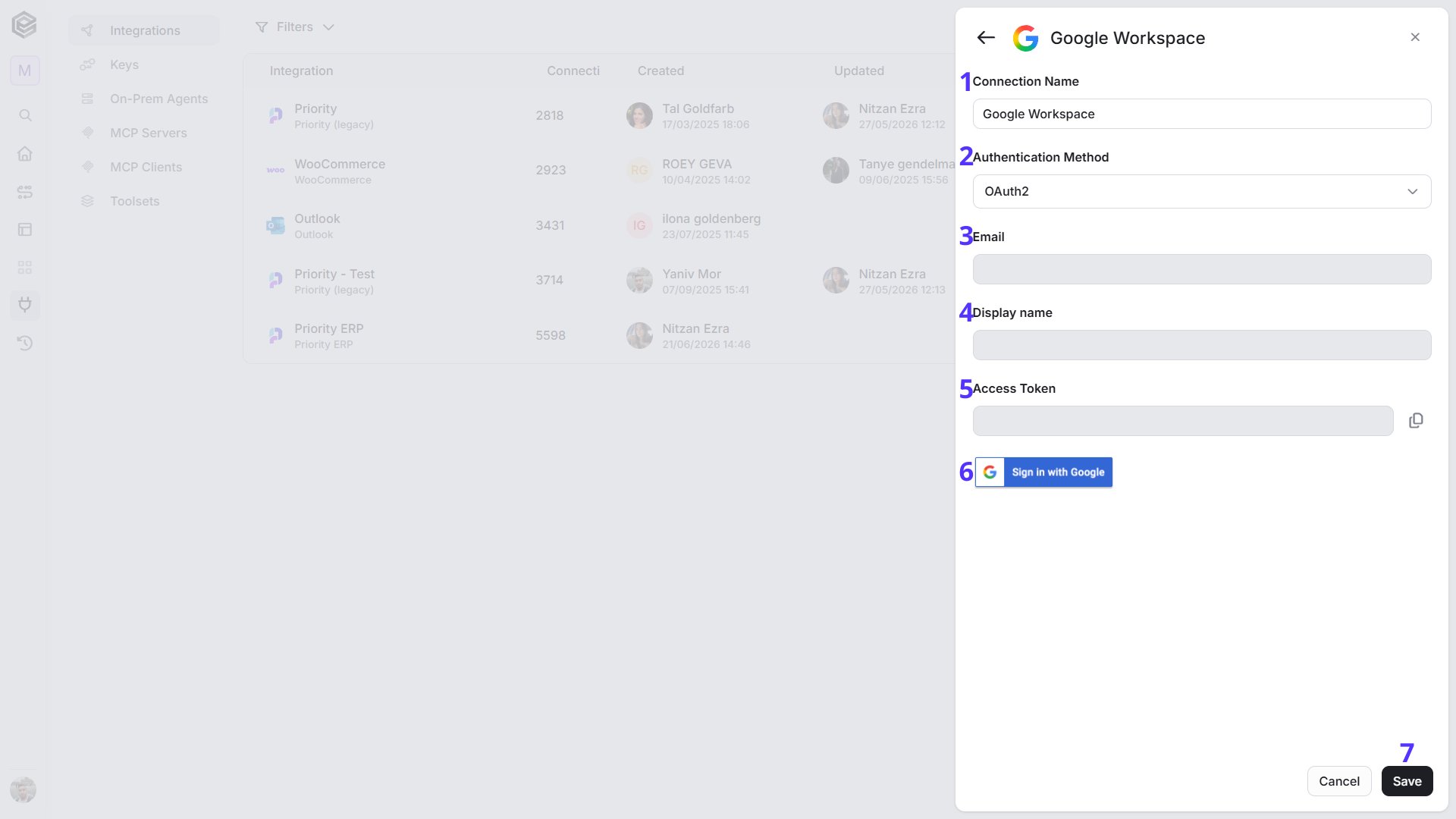 1. *Connection name* – Enter unique identifier for the connection within Engini.
2. *Authentication Method –* Select ***OAuth2***.
* Fields automatically populated post connecting to a Google account include:
3\. *Email* - Used as the primary email address associated with the account.
4\. *Display Name* - Employed when utilizing the email sending activity, enabling customized sender names.
5\. *Access Token* - A token for authorization to access Google services.
3. Click on the “Sign in with Google” button.
* Sign into your Google account.
4. Click on the save button to save the connection.
### *Custom OAuth2*
This method requires you to configure your own OAuth2 credentials. You must provide both a valid Client ID and Client Secret obtained from your Google Cloud Console project.
1. *Connection name* – Enter unique identifier for the connection within Engini.
2. *Authentication Method –* Select ***OAuth2***.
* Fields automatically populated post connecting to a Google account include:
3\. *Email* - Used as the primary email address associated with the account.
4\. *Display Name* - Employed when utilizing the email sending activity, enabling customized sender names.
5\. *Access Token* - A token for authorization to access Google services.
3. Click on the “Sign in with Google” button.
* Sign into your Google account.
4. Click on the save button to save the connection.
### *Custom OAuth2*
This method requires you to configure your own OAuth2 credentials. You must provide both a valid Client ID and Client Secret obtained from your Google Cloud Console project.
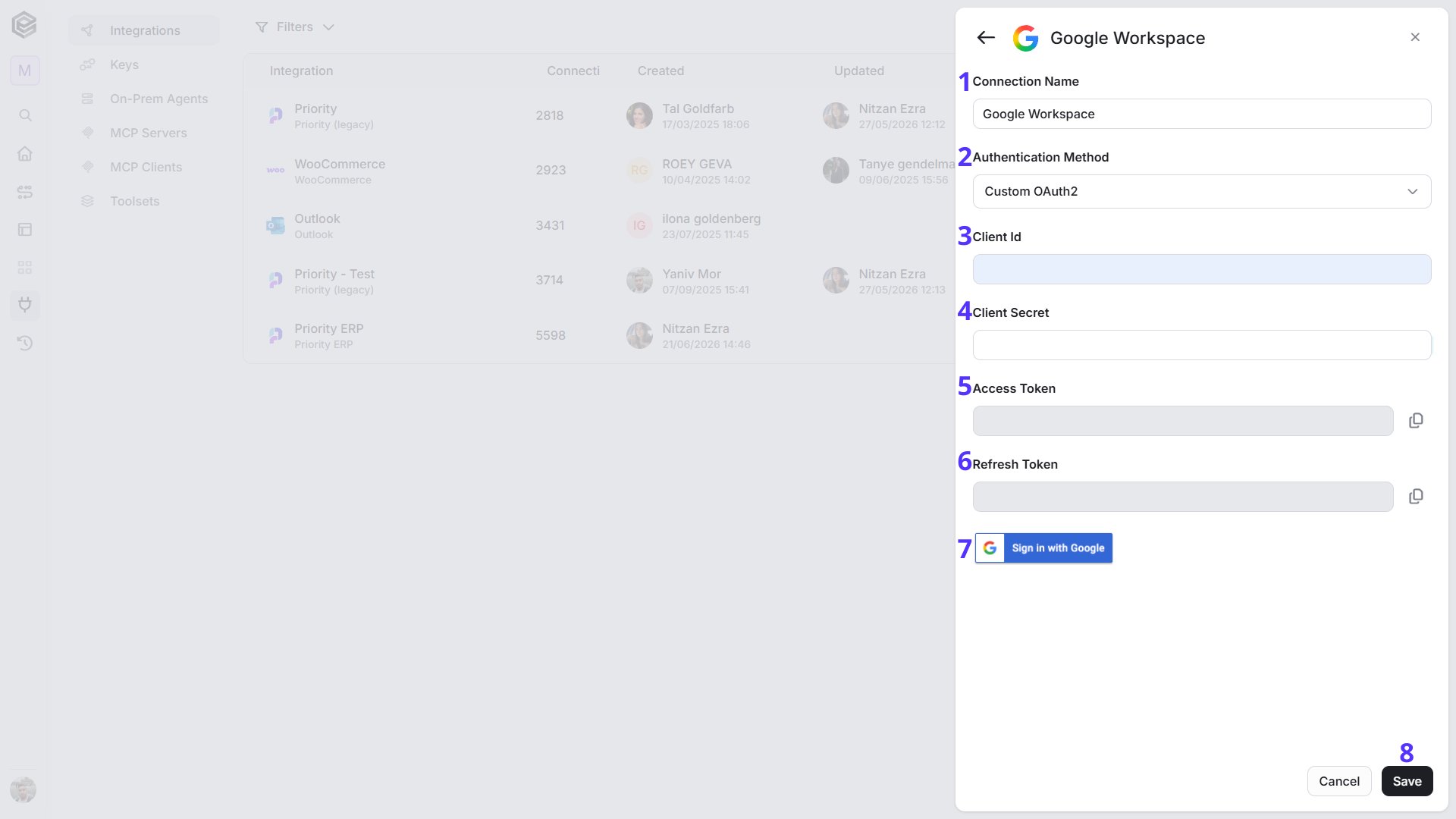 1. *Connection name* – Choose a unique identifier for the connection within Engini.
2. *Authentication Method –* Select ***Custom OAuth2*** when connecting to Google services using a custom OAuth client.
To learn more about this authentication, enter here.
3. *client ID* – Enter the **Client ID** from the OAuth 2.0 credentials in the Google Cloud project.
4. *client\_secret* – Enter the **Client Secret** from the same set of OAuth 2.0 credentials in the Google Cloud project.
5. *Access Token* – Automatically populated post connecting to a your Google account.
6. *Refresh Token -* Automatically populated post connecting to a your Google account.
7. *Sign in with Google –* Click **Sign in with Google** and log in with the Google account used to create the project in Google Cloud. This ensures access to the correct OAuth credentials and permissions.
8. Click on the **Save** button to save the connection.
## Actions
### Get Group
This activity retrieves information about a specified Google Workspace group, including details such as the group’s email address and membership settings.
1. *Connection name* – Choose a unique identifier for the connection within Engini.
2. *Authentication Method –* Select ***Custom OAuth2*** when connecting to Google services using a custom OAuth client.
To learn more about this authentication, enter here.
3. *client ID* – Enter the **Client ID** from the OAuth 2.0 credentials in the Google Cloud project.
4. *client\_secret* – Enter the **Client Secret** from the same set of OAuth 2.0 credentials in the Google Cloud project.
5. *Access Token* – Automatically populated post connecting to a your Google account.
6. *Refresh Token -* Automatically populated post connecting to a your Google account.
7. *Sign in with Google –* Click **Sign in with Google** and log in with the Google account used to create the project in Google Cloud. This ensures access to the correct OAuth credentials and permissions.
8. Click on the **Save** button to save the connection.
## Actions
### Get Group
This activity retrieves information about a specified Google Workspace group, including details such as the group’s email address and membership settings.
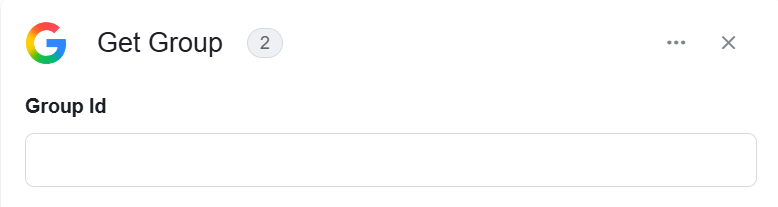 *Group Id* – Enter the Group id of the Group you want to get.
### Get User
This activity retrieves details about a specified user, including information such as their email address, account status, and organizational unit within Google Workspace.
*Group Id* – Enter the Group id of the Group you want to get.
### Get User
This activity retrieves details about a specified user, including information such as their email address, account status, and organizational unit within Google Workspace.
 1. *User key* – Enter the user’s primary email, alias email, or unique user ID to specify which user you want to retrieve.
2. *Projection* – Choose the level of detail for the user data you want to retrieve (basic or full).
3. *View Type* – Choose the scope of data visibility, such as admin-only information (Admin View) or publicly available data within the domain (Domain Public).
### Get a user’s License by product SKU
This activity retrieves a user’s license details for a specific product using the product ID and SKU.
1. *User key* – Enter the user’s primary email, alias email, or unique user ID to specify which user you want to retrieve.
2. *Projection* – Choose the level of detail for the user data you want to retrieve (basic or full).
3. *View Type* – Choose the scope of data visibility, such as admin-only information (Admin View) or publicly available data within the domain (Domain Public).
### Get a user’s License by product SKU
This activity retrieves a user’s license details for a specific product using the product ID and SKU.
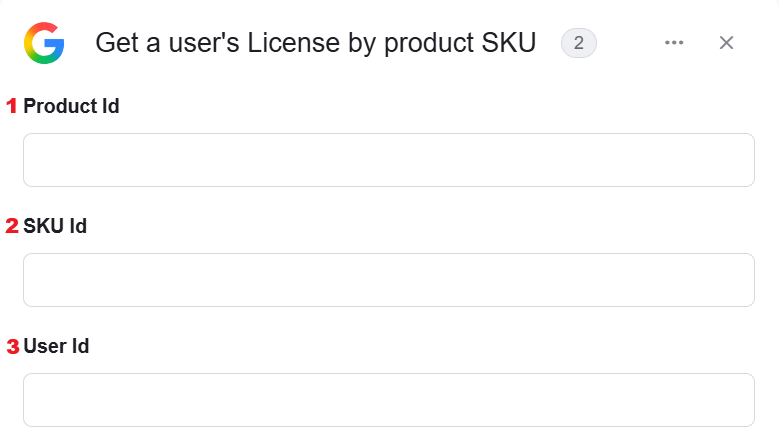 1. *Product Id* – Enter the unique identifier of the product for which you want to retrieve the license.
2. *SKU Id* – Enter the SKU (Stock Keeping Unit) associated with the product to specify the license.
3. *User Id* – Enter the unique user ID for the user whose license you want to retrieve.
### Get Group Members
This activity retrieves the list of members belonging to a specified group.
1. *Product Id* – Enter the unique identifier of the product for which you want to retrieve the license.
2. *SKU Id* – Enter the SKU (Stock Keeping Unit) associated with the product to specify the license.
3. *User Id* – Enter the unique user ID for the user whose license you want to retrieve.
### Get Group Members
This activity retrieves the list of members belonging to a specified group.
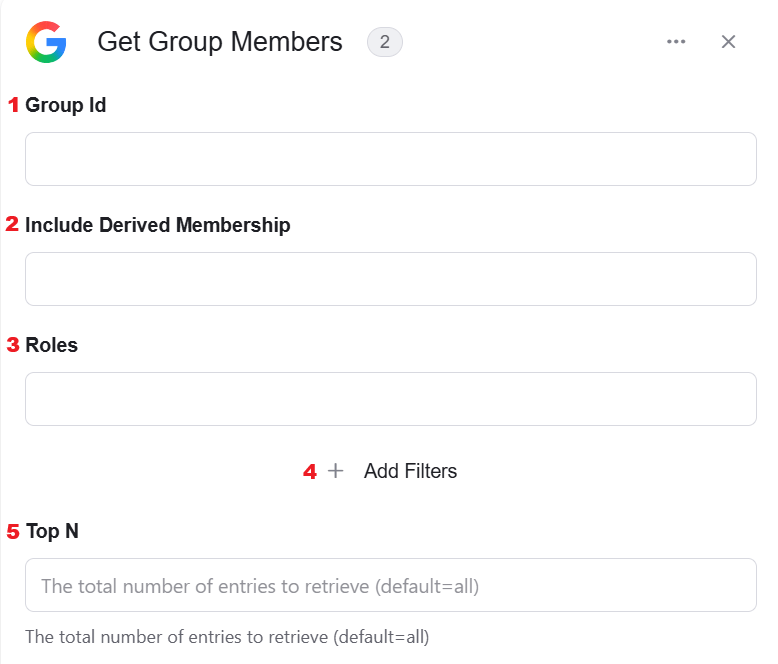 1. *Group Id* – Enter the unique identifier of the group whose members you want to retrieve.
2. *Include Derived Membership* – Choose whether to include indirect members, such as those from nested groups. (True or False).
3. *Roles* – Enter the specific roles to filter members by their roles within the group. OWNER, MEMBER, MANAGER).
4. *Add Filters* - Click Add Filter to define conditions that narrow down the data list and return only the relevant items. To learn more about using filters, [click here](/help/workflows/workflow-editor#add-filters).
5. *Top N* – You can set the maximum number of group members that will be returned during one workflow cycle (default = all members).
### Get Groups
This activity retrieves a list of groups in Google Workspace, providing details such as group names, email addresses, and descriptions.
1. *Group Id* – Enter the unique identifier of the group whose members you want to retrieve.
2. *Include Derived Membership* – Choose whether to include indirect members, such as those from nested groups. (True or False).
3. *Roles* – Enter the specific roles to filter members by their roles within the group. OWNER, MEMBER, MANAGER).
4. *Add Filters* - Click Add Filter to define conditions that narrow down the data list and return only the relevant items. To learn more about using filters, [click here](/help/workflows/workflow-editor#add-filters).
5. *Top N* – You can set the maximum number of group members that will be returned during one workflow cycle (default = all members).
### Get Groups
This activity retrieves a list of groups in Google Workspace, providing details such as group names, email addresses, and descriptions.
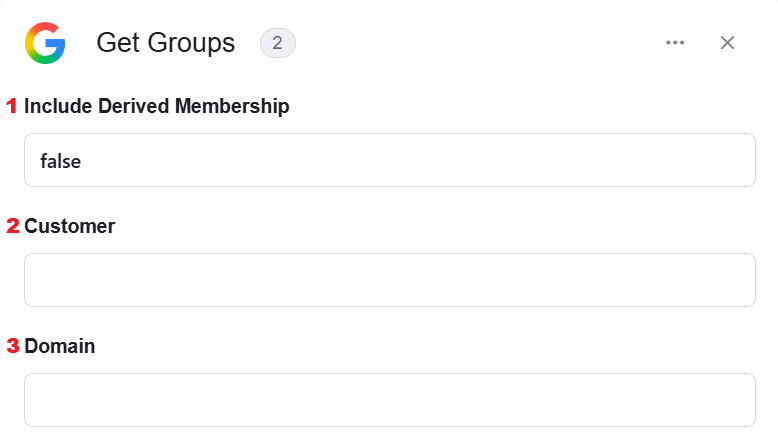 1. *Include Derived Membership* – Choose whether to include indirect members, such as those from nested groups. (True or False).
2. *Customer* – Enter the customer ID to specify which customer account’s groups you want to retrieve.
3. *Domain* – Enter the domain name to retrieve all groups associated with that domain.
### Get Users
This activity retrieves a list of users from a specified domain or customer account.
1. *Include Derived Membership* – Choose whether to include indirect members, such as those from nested groups. (True or False).
2. *Customer* – Enter the customer ID to specify which customer account’s groups you want to retrieve.
3. *Domain* – Enter the domain name to retrieve all groups associated with that domain.
### Get Users
This activity retrieves a list of users from a specified domain or customer account.
 1. *Customer* – Enter the unique customer ID to retrieve users from a specific Google Workspace account.
2. *Domain name* – Enter the domain name to retrieve users associated with that domain.
3. *Projection* – Choose the level of detail for the user data you want to retrieve (basic or full).
4. *Order By* – Choose the field by which to sort the users, (Email, Family Name, Given Name).
5. *Sort Order* – Choose the sort order (Ascending or Descending).
6. *Show Deleted* – Choose whether to include deleted users in the results (true/false).
7. *View Type* – Choose the scope of data visibility, such as admin-only information (Admin View) or publicly available data within the domain (Domain Public).
8. *Add Filters* – Click Add Filter to define conditions that narrow down the data list and return only the relevant items. To learn more about using filters, [click here](/help/workflows/workflow-editor#add-filters).
9. *Top N* – You can set the maximum number of users that will be returned during one workflow cycle (default = all users).
### List all users assigned licenses
This activity retrieves a list of users who have been assigned licenses for a specific product.
1. *Customer* – Enter the unique customer ID to retrieve users from a specific Google Workspace account.
2. *Domain name* – Enter the domain name to retrieve users associated with that domain.
3. *Projection* – Choose the level of detail for the user data you want to retrieve (basic or full).
4. *Order By* – Choose the field by which to sort the users, (Email, Family Name, Given Name).
5. *Sort Order* – Choose the sort order (Ascending or Descending).
6. *Show Deleted* – Choose whether to include deleted users in the results (true/false).
7. *View Type* – Choose the scope of data visibility, such as admin-only information (Admin View) or publicly available data within the domain (Domain Public).
8. *Add Filters* – Click Add Filter to define conditions that narrow down the data list and return only the relevant items. To learn more about using filters, [click here](/help/workflows/workflow-editor#add-filters).
9. *Top N* – You can set the maximum number of users that will be returned during one workflow cycle (default = all users).
### List all users assigned licenses
This activity retrieves a list of users who have been assigned licenses for a specific product.
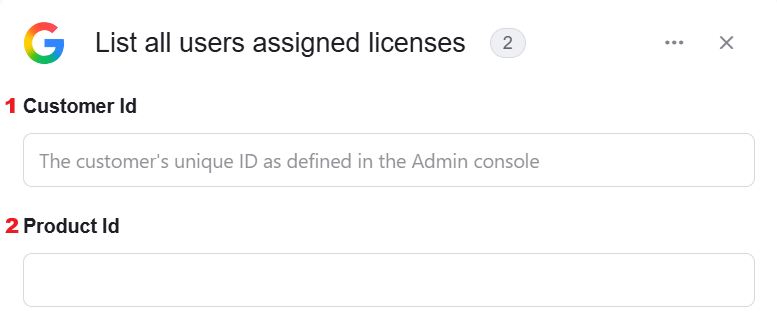 1. *Customer Id* – Enter the unique customer ID to retrieve the list of users for that customer.
2. *Product Id* – Enter the product ID to filter only the users who have a license for that specific product.
### List all users assigned licenses for product SKU
This activity retrieves a list of users who have have licenses for a specific version of a product.
1. *Customer Id* – Enter the unique customer ID to retrieve the list of users for that customer.
2. *Product Id* – Enter the product ID to filter only the users who have a license for that specific product.
### List all users assigned licenses for product SKU
This activity retrieves a list of users who have have licenses for a specific version of a product.
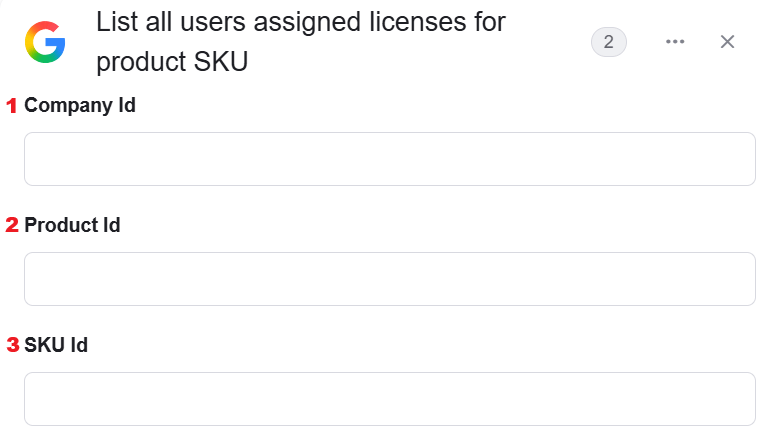 1. *Company Id* - Enter the unique ID of the company to specify which organization users to retrieve.
2. *Product Id* – Enter the unique ID of the product to retrieve users with licenses for that specific product.
3. *SKU Id* – Enter the SKU (Stock Keeping Unit) ID, which represents the specific version or type of the product.
### Add member to Group
This activity adds a new member to a specified Google Workspace group.
1. *Company Id* - Enter the unique ID of the company to specify which organization users to retrieve.
2. *Product Id* – Enter the unique ID of the product to retrieve users with licenses for that specific product.
3. *SKU Id* – Enter the SKU (Stock Keeping Unit) ID, which represents the specific version or type of the product.
### Add member to Group
This activity adds a new member to a specified Google Workspace group.
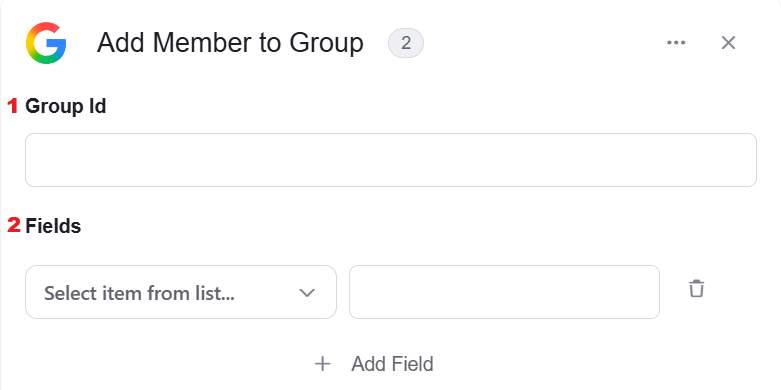 1. *Group Id* – Enter the unique ID of the group where you want to add the new member.
2. *Field*s - Allows you to specify additional details for the new group member. (Email, Role, Status ,etc.)
### Assign a License
This activity allows to assigns a specific product license to a user within Google Workspace.
1. *Group Id* – Enter the unique ID of the group where you want to add the new member.
2. *Field*s - Allows you to specify additional details for the new group member. (Email, Role, Status ,etc.)
### Assign a License
This activity allows to assigns a specific product license to a user within Google Workspace.
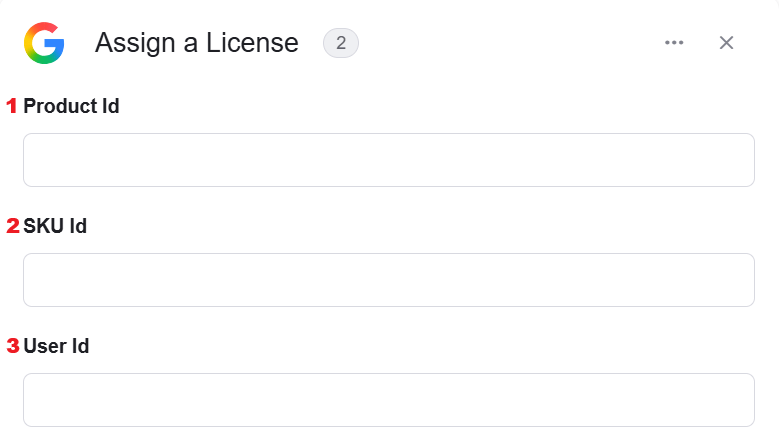 1. *Product Id* – Enter the unique ID of the product.
2. *SKU Id* – Enter the SKU ID to specify the version of the product.
3. *User Id* – Enter the user’s email or ID to assign the license.
### Create Group
This activity creates a new Google Workspace group with specific settings.
1. *Product Id* – Enter the unique ID of the product.
2. *SKU Id* – Enter the SKU ID to specify the version of the product.
3. *User Id* – Enter the user’s email or ID to assign the license.
### Create Group
This activity creates a new Google Workspace group with specific settings.
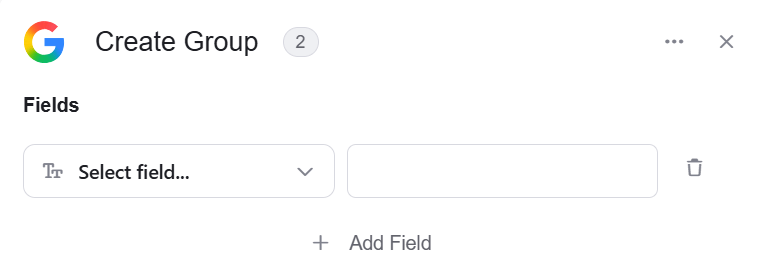 * *Add Field* - Click Add Field to add and populate additional fields for the selected activity. To learn more about managing activity data, [click here](/help/workflows/workflow-editor#add-fields).
### Create User
This activity creates a new user in Google Workspace.
* *Add Field* - Click Add Field to add and populate additional fields for the selected activity. To learn more about managing activity data, [click here](/help/workflows/workflow-editor#add-fields).
### Create User
This activity creates a new user in Google Workspace.
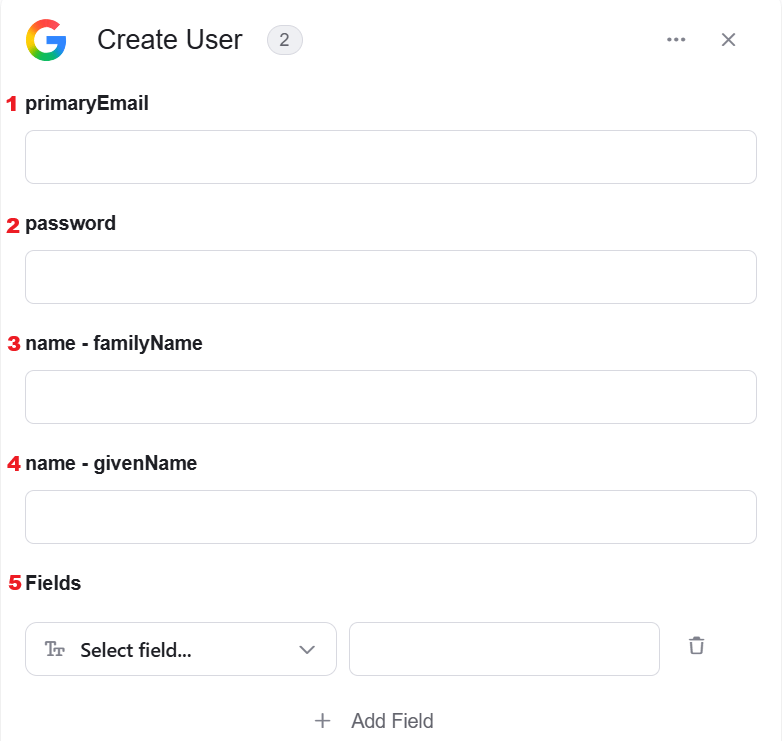 1. *primary Email* – Enter the user’s primary email address.
2. *password* – Set a password for the user.
3. *familyName* – Enter the user’s last name.
4. *givenName* – Enter the user’s first name.
5. *Add Field* - Click Add Field to add and populate additional fields for the selected activity. To learn more about managing activity data, [click here](/help/workflows/workflow-editor#add-fields).
### Update Group
This activity allows you to update the details of an existing group in Google Workspace.
1. *primary Email* – Enter the user’s primary email address.
2. *password* – Set a password for the user.
3. *familyName* – Enter the user’s last name.
4. *givenName* – Enter the user’s first name.
5. *Add Field* - Click Add Field to add and populate additional fields for the selected activity. To learn more about managing activity data, [click here](/help/workflows/workflow-editor#add-fields).
### Update Group
This activity allows you to update the details of an existing group in Google Workspace.
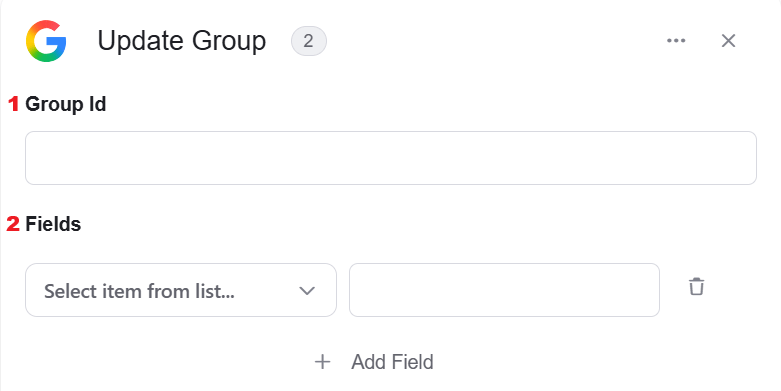 1. *Group Id* – Enter the unique ID of the group you want to update.
2. *Fields* – Allows you to include additional properties or information when updating a group.
* *adminCreated* – Specify whether the group was created by an admin.
* *aliases* – Update the alternate email addresses (aliases) for the group.
* *description* – Update the group’s description.
* *directMembersCount* – Shows the updated number of direct members in the group.
* *email* – Update the group’s email address.
* *etag* – A unique identifier for the group (used internally).
* *kind* – The type of group (used internally).
* *name*: Update the group’s name.
* *nonEditableAliases* – Lists aliases that cannot be edited.
### Update User
This activity allows you to update the details of an existing user in Google Workspace.
1. *Group Id* – Enter the unique ID of the group you want to update.
2. *Fields* – Allows you to include additional properties or information when updating a group.
* *adminCreated* – Specify whether the group was created by an admin.
* *aliases* – Update the alternate email addresses (aliases) for the group.
* *description* – Update the group’s description.
* *directMembersCount* – Shows the updated number of direct members in the group.
* *email* – Update the group’s email address.
* *etag* – A unique identifier for the group (used internally).
* *kind* – The type of group (used internally).
* *name*: Update the group’s name.
* *nonEditableAliases* – Lists aliases that cannot be edited.
### Update User
This activity allows you to update the details of an existing user in Google Workspace.
 1. *id* – Enter the unique ID or email of the user you want to update.
2. *Fields* – Allows you to add additional fields to update specific details about the user.
* *addresses* – Update the user’s physical addresses, such as home or work.
* *agreedToTerms* – Specify whether the user has agreed to the terms of service.
* *aliases* – Add or update alternate email addresses for the user.
* *changePasswordAtNextLogin* – Require the user to change their password upon their next login.
* *emails* – Update the user’s email addresses.
* *customSchema* – Add or modify custom fields for the user based on your organization’s specific needs.
* *externalIds* – Add or update external IDs linked to the user.
* *gender* – Update the user’s gender information.
* *phones* – Add or update the user’s phone numbers.
* *organizations* – Update the user’s organization details.
### Delete Group
This activity permanently removes a group from the Google Workspace domain.
1. *id* – Enter the unique ID or email of the user you want to update.
2. *Fields* – Allows you to add additional fields to update specific details about the user.
* *addresses* – Update the user’s physical addresses, such as home or work.
* *agreedToTerms* – Specify whether the user has agreed to the terms of service.
* *aliases* – Add or update alternate email addresses for the user.
* *changePasswordAtNextLogin* – Require the user to change their password upon their next login.
* *emails* – Update the user’s email addresses.
* *customSchema* – Add or modify custom fields for the user based on your organization’s specific needs.
* *externalIds* – Add or update external IDs linked to the user.
* *gender* – Update the user’s gender information.
* *phones* – Add or update the user’s phone numbers.
* *organizations* – Update the user’s organization details.
### Delete Group
This activity permanently removes a group from the Google Workspace domain.
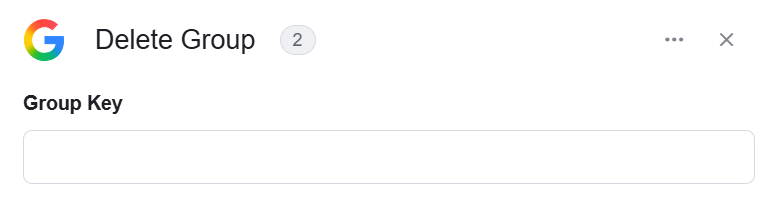 *Group Key* – Enter the group’s email address or unique group ID to specify which group to delete.
### Delete User
This activity permanently removes a user from the Google Workspace domain.
*Group Key* – Enter the group’s email address or unique group ID to specify which group to delete.
### Delete User
This activity permanently removes a user from the Google Workspace domain.
 *User Key* – Enter the user’s primary email address, alias email, or unique user ID to identify which user to delete.
### Remove a License
This activity removes a product license from a specified user in Google Workspace.
*User Key* – Enter the user’s primary email address, alias email, or unique user ID to identify which user to delete.
### Remove a License
This activity removes a product license from a specified user in Google Workspace.
 1. *Product Id*– Enter the unique ID of the product from which you want to remove the license.
2. *SKU Id* – Enter the SKU (Stock Keeping Unit) ID to specify the version of the product license to be removed.
3. *User Id* – Enter the unique ID or email of the user whose license you want to remove.
### Remove Member from Group
This activity removes a specified member from a Google Workspace group.
1. *Product Id*– Enter the unique ID of the product from which you want to remove the license.
2. *SKU Id* – Enter the SKU (Stock Keeping Unit) ID to specify the version of the product license to be removed.
3. *User Id* – Enter the unique ID or email of the user whose license you want to remove.
### Remove Member from Group
This activity removes a specified member from a Google Workspace group.
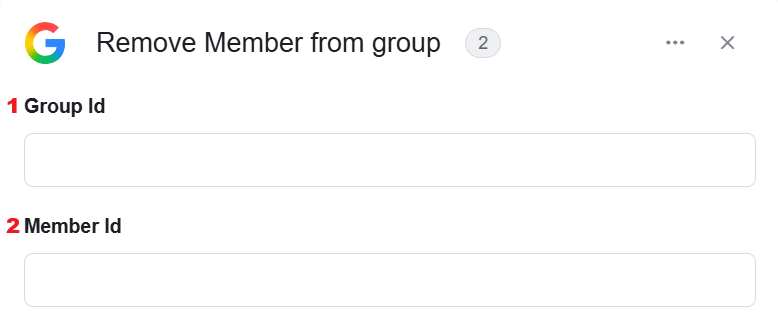 1. *Group Id* – Enter the unique ID of the group from which you want to remove the member.
2. *Member Id* – Enter the unique ID or email of the member you want to remove from the group.
### Initialize Object Array
This activity initializes an object array in Google Workspace and stores a single structured entry based on the selected object type (e.g. addresses, emails).
1. *Group Id* – Enter the unique ID of the group from which you want to remove the member.
2. *Member Id* – Enter the unique ID or email of the member you want to remove from the group.
### Initialize Object Array
This activity initializes an object array in Google Workspace and stores a single structured entry based on the selected object type (e.g. addresses, emails).
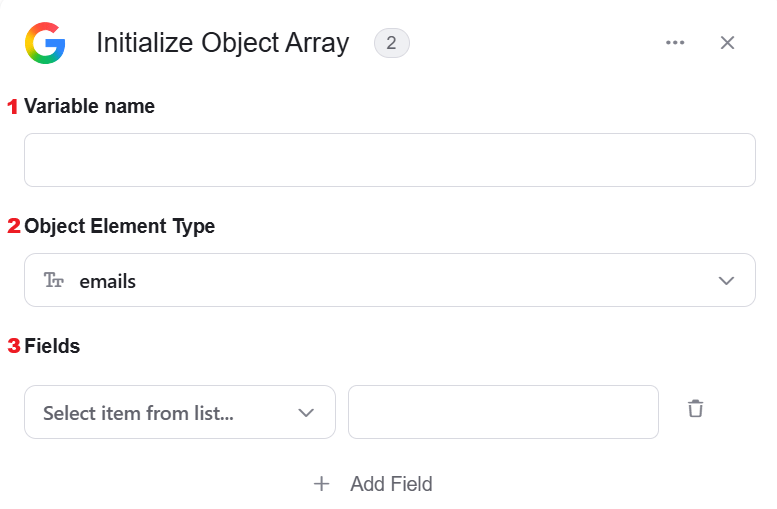 1. *Variable Name -* Enter the name of the variable that will hold the initialized object array. This name will be used throughout the workflow whenever you refer to this object array.
2. *Object Element Type -* This field defines the type of data the array will store, such as addresses and emails .The selected type determines the structure of the array and its use in subsequent actions.
3. *Add Field* - Click Add Field to add and populate additional fields for the selected activity. To learn more about managing activity data, [click here](/help/workflows/workflow-editor#add-fields).
### Append to Object Array
This activity adds an item to an existing array of objects in Google Workspace.
1. *Variable Name -* Enter the name of the variable that will hold the initialized object array. This name will be used throughout the workflow whenever you refer to this object array.
2. *Object Element Type -* This field defines the type of data the array will store, such as addresses and emails .The selected type determines the structure of the array and its use in subsequent actions.
3. *Add Field* - Click Add Field to add and populate additional fields for the selected activity. To learn more about managing activity data, [click here](/help/workflows/workflow-editor#add-fields).
### Append to Object Array
This activity adds an item to an existing array of objects in Google Workspace.
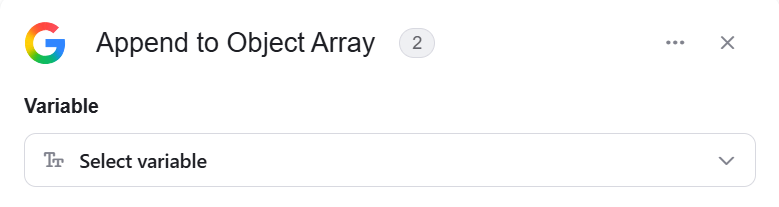 *Variable* – Select the array where you want to add the new item.
This documentation is built and hosted on [Mintlify](https://mintlify.com), a developer documentation platform.
*Variable* – Select the array where you want to add the new item.
This documentation is built and hosted on [Mintlify](https://mintlify.com), a developer documentation platform.