> ## Documentation Index
> Fetch the complete documentation index at: https://docs.engini.ai/llms.txt
> Use this file to discover all available pages before exploring further.
# FillFaster
With FillFaster, you can track submissions in real time and view completed forms as structured PDF documents. Easily automate form processes and prefill user data to make your workflow faster.
## Getting Started with FillFaster
### Prerequisites
* A FillFaster account.
You can create an account at [FillFaster](https://fillfaster.com/).
* A personal API Token.
### API Token
After creating your account, go to your FillFaster account and click on Developer:
 Copy the token you received.
## Connecting Engini to FillFaster
1. Enter your Engini account at [https://app.engini.io](https://app.engini.io/).
2. Navigate to connections page by clicking on the Connections on the left sidebar or by clicking [here](https://app.engini.io/connections).
Copy the token you received.
## Connecting Engini to FillFaster
1. Enter your Engini account at [https://app.engini.io](https://app.engini.io/).
2. Navigate to connections page by clicking on the Connections on the left sidebar or by clicking [here](https://app.engini.io/connections).
 3. Click on the Add connection option located at the top bar.
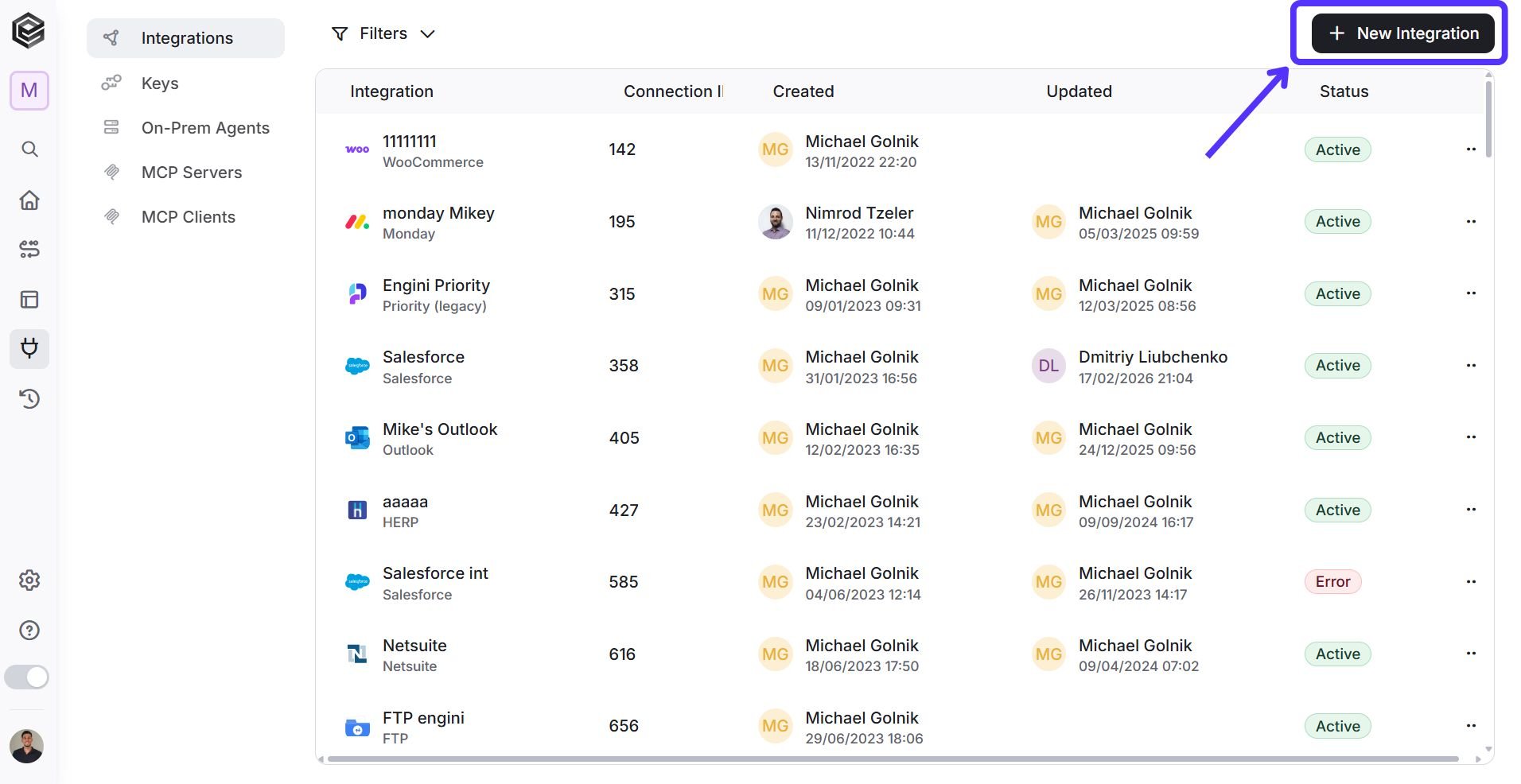 4. Choose FillFaster option from the available applications.
 5. Enter the following details in the “Edit Connection” form:
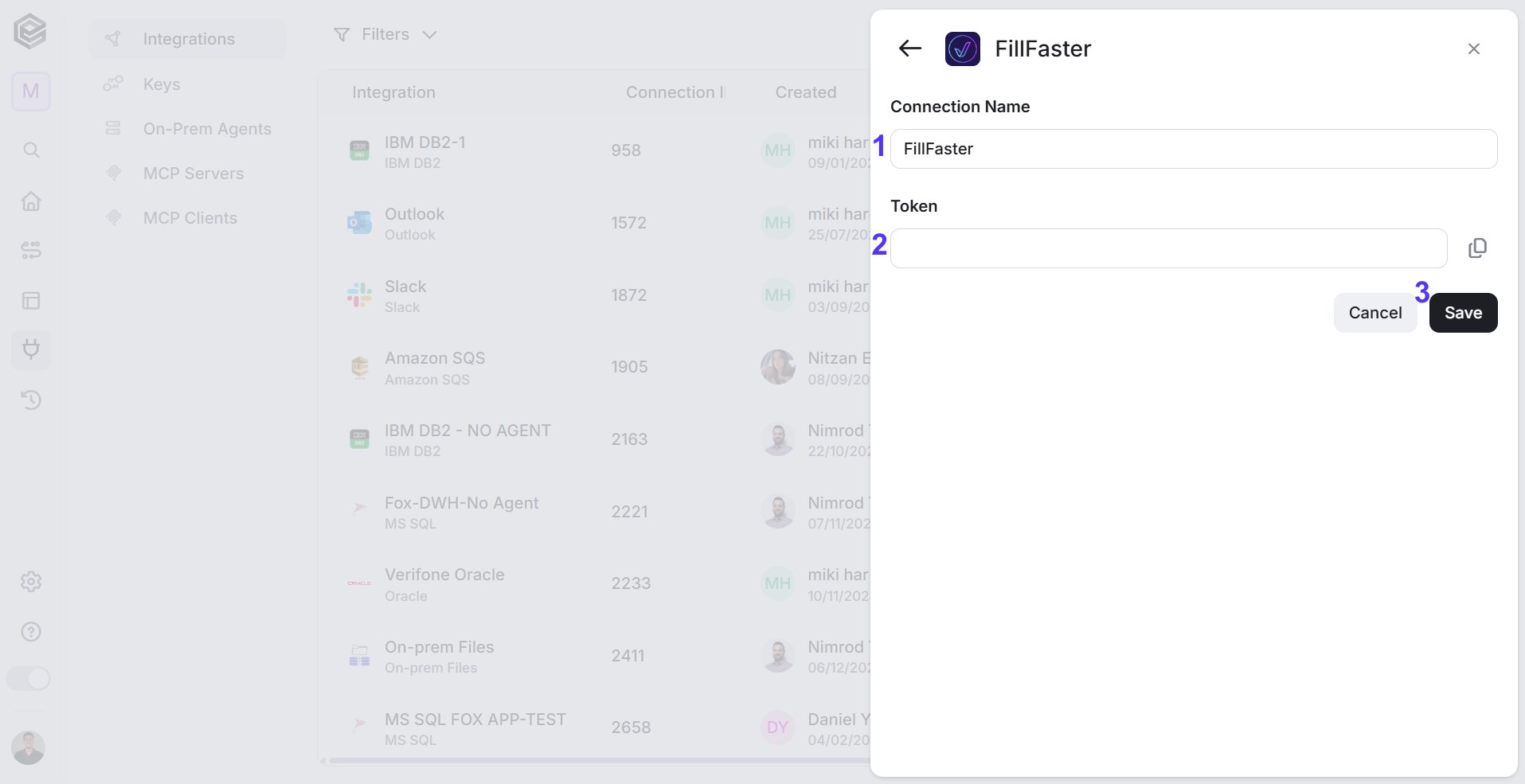 1. *Connection name* – Enter a meaningful name for your connection.
2. *Token* – Generate your unique API Token from your FillFaster Account Settings. paste the API Token you copied earlier from the Developer section.
3. *Save* – Click on the save button to save your connection.
## Trigger
### Webhook
The webhook trigger allows FillFaster to automatically notify Engini through a predefined HTTP callback that an event has occurred.
1. *Connection name* – Enter a meaningful name for your connection.
2. *Token* – Generate your unique API Token from your FillFaster Account Settings. paste the API Token you copied earlier from the Developer section.
3. *Save* – Click on the save button to save your connection.
## Trigger
### Webhook
The webhook trigger allows FillFaster to automatically notify Engini through a predefined HTTP callback that an event has occurred.
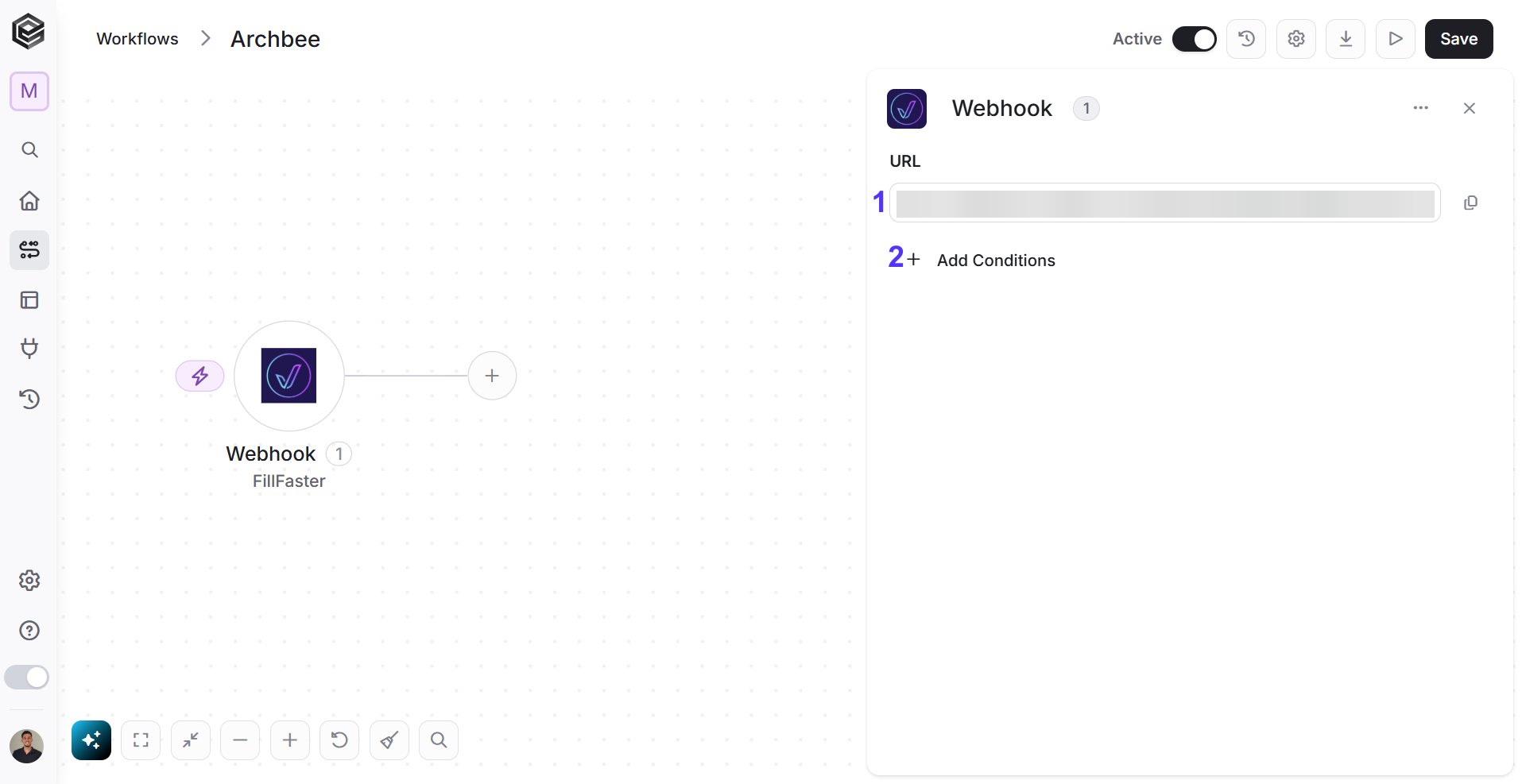 1. *URL-* The URL is automatically created by Engini. It’s not possible to edit it. Click on the icon to the right of the URL to copy it.
Each webhook URL is unique to the specific workflow you created.
2. *Add Conditions -* Click Add Conditions to define conditions that narrow down the data list and return only the relevant items. To learn more about using filters, [click here](/help/workflows/workflow-editor#add-conditions).
## Actions
### Create Submission
This action is used to create a new submission in your FillFaster workspace, based on an existing form template.
1. *URL-* The URL is automatically created by Engini. It’s not possible to edit it. Click on the icon to the right of the URL to copy it.
Each webhook URL is unique to the specific workflow you created.
2. *Add Conditions -* Click Add Conditions to define conditions that narrow down the data list and return only the relevant items. To learn more about using filters, [click here](/help/workflows/workflow-editor#add-conditions).
## Actions
### Create Submission
This action is used to create a new submission in your FillFaster workspace, based on an existing form template.
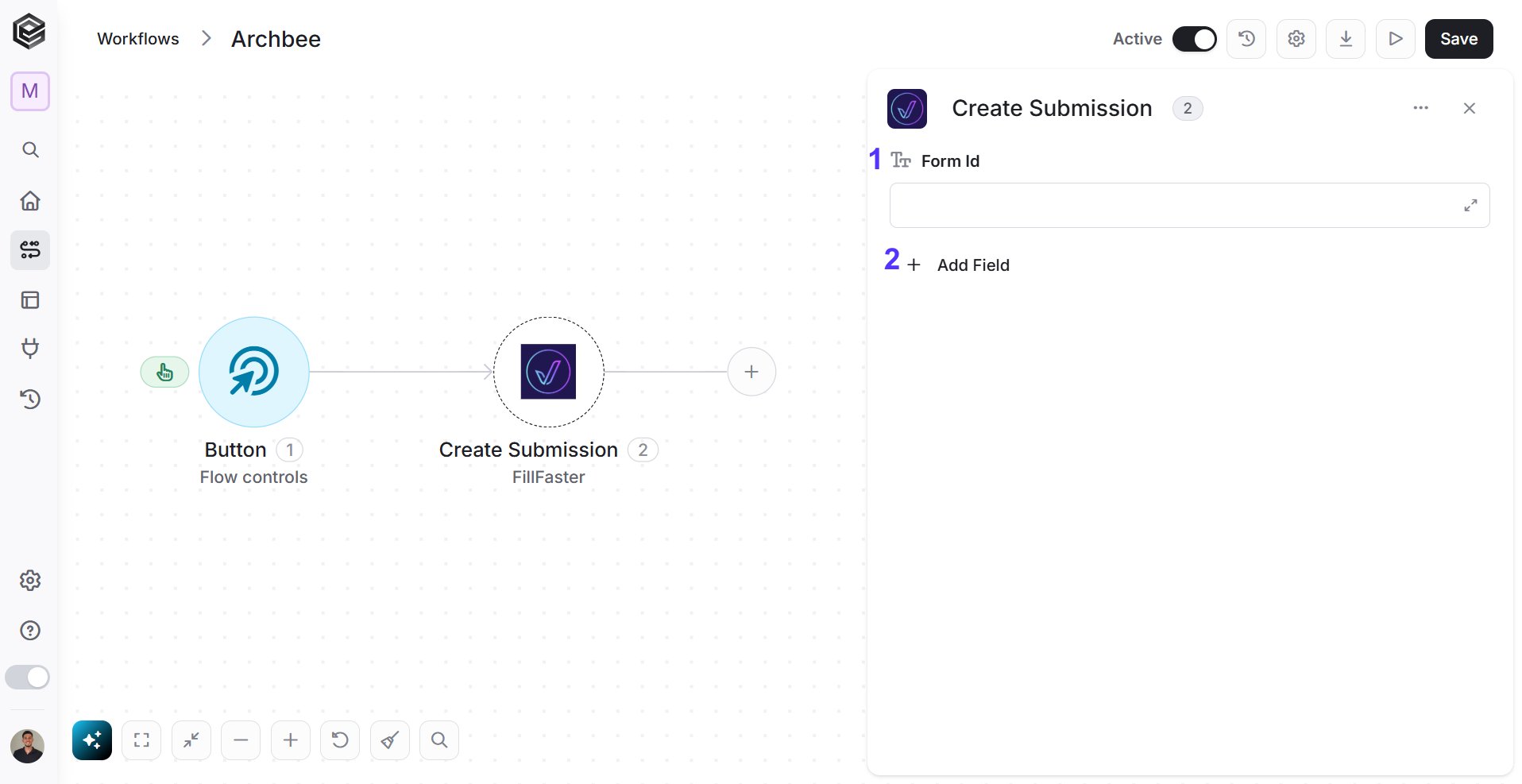 1. *Form Id –* Enter the unique identifier of the form you want to submit. It tells the system which specific form to use for the submission.
2. *Add Field* - Click Add Field to add and populate additional fields for the selected activity. To learn more about managing activity data, [click here](/help/workflows/workflow-editor#add-fields).
### Get Submission PDF
This action retrieves the submitted signed PDF file in your FillFaster workspace.
1. *Form Id –* Enter the unique identifier of the form you want to submit. It tells the system which specific form to use for the submission.
2. *Add Field* - Click Add Field to add and populate additional fields for the selected activity. To learn more about managing activity data, [click here](/help/workflows/workflow-editor#add-fields).
### Get Submission PDF
This action retrieves the submitted signed PDF file in your FillFaster workspace.
 *Submission Id –* Enter the unique identifier of the submission you want to download. You may use an ID returned from the Create Submission action, or any existing Submission Id from FillFaster.
### Get Submission status
This action retrieves the submitted status file in your FillFaster workspace.
*Submission Id –* Enter the unique identifier of the submission you want to download. You may use an ID returned from the Create Submission action, or any existing Submission Id from FillFaster.
### Get Submission status
This action retrieves the submitted status file in your FillFaster workspace.
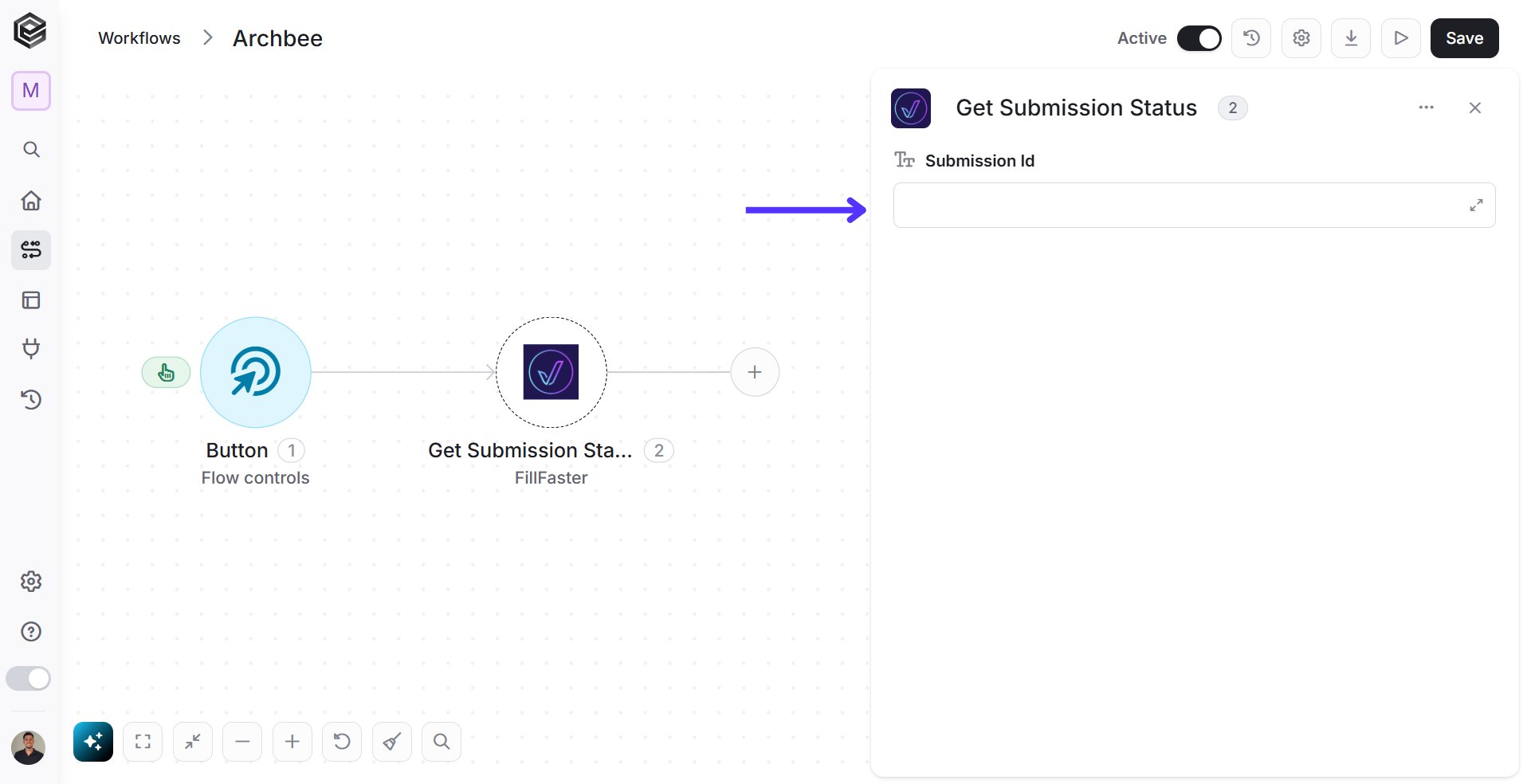 *Submission Id –* Enter the unique identifier of the submission you want to download. You may use an ID returned from the Create Submission action, or any existing Submission Id from FillFaster.
### Send API Request
This action allows you to send a fully customizable request to any FillFaster API endpoint.
Use this action for operations not covered by the built-in actions.
*Submission Id –* Enter the unique identifier of the submission you want to download. You may use an ID returned from the Create Submission action, or any existing Submission Id from FillFaster.
### Send API Request
This action allows you to send a fully customizable request to any FillFaster API endpoint.
Use this action for operations not covered by the built-in actions.
 1. *Base Url* – This is the root URL of the API you’re sending the request to.
2. *Relative url* – You can specify additional path segments or parameters that need to be added to the end of the automatically generated URL. This allows you to customize the specific request you want to perform.
3. *Method* – Select the HTTP method (e.g., Get, Post, Put, Delete, Patch).
4. *Body Type* – Defines the format of the data in the body of your request. Commonly used values include application/json (as shown), which means the body will contain a JSON-formatted payload.
5. *Body* – Contains any data that is being sent to the server.
6. *Add Headers* – Additional metadata about the request, such as the type of data the Engini can accept, the length of the request body, and authentication information.
7. *Add Queries* – The query refers to the parameters or data that are included in the URL of an HTTP request to provide additional information or instructions to the server.
This documentation is built and hosted on [Mintlify](https://mintlify.com), a developer documentation platform.
1. *Base Url* – This is the root URL of the API you’re sending the request to.
2. *Relative url* – You can specify additional path segments or parameters that need to be added to the end of the automatically generated URL. This allows you to customize the specific request you want to perform.
3. *Method* – Select the HTTP method (e.g., Get, Post, Put, Delete, Patch).
4. *Body Type* – Defines the format of the data in the body of your request. Commonly used values include application/json (as shown), which means the body will contain a JSON-formatted payload.
5. *Body* – Contains any data that is being sent to the server.
6. *Add Headers* – Additional metadata about the request, such as the type of data the Engini can accept, the length of the request body, and authentication information.
7. *Add Queries* – The query refers to the parameters or data that are included in the URL of an HTTP request to provide additional information or instructions to the server.
This documentation is built and hosted on [Mintlify](https://mintlify.com), a developer documentation platform.