> ## Documentation Index
> Fetch the complete documentation index at: https://docs.engini.ai/llms.txt
> Use this file to discover all available pages before exploring further.
# CSV
Learn how to work with CSV files in Engini!
The CSV activities in Engini allow you to create CSV files, process structured data, and automate data handling across your workflows efficiently.
## Getting Started with CSV
CSV (Comma-Separated Values) files are a simple and widely used format for storing data. In Engini, you can use CSV-based activities to handle data operations.
## Actions
### Create CSV
The Create CSV activity creates a CSV file from a list of data. The output is provided as a string. If you need to upload or send this file to a system that requires a Base64 format, you should convert the string to Base64.
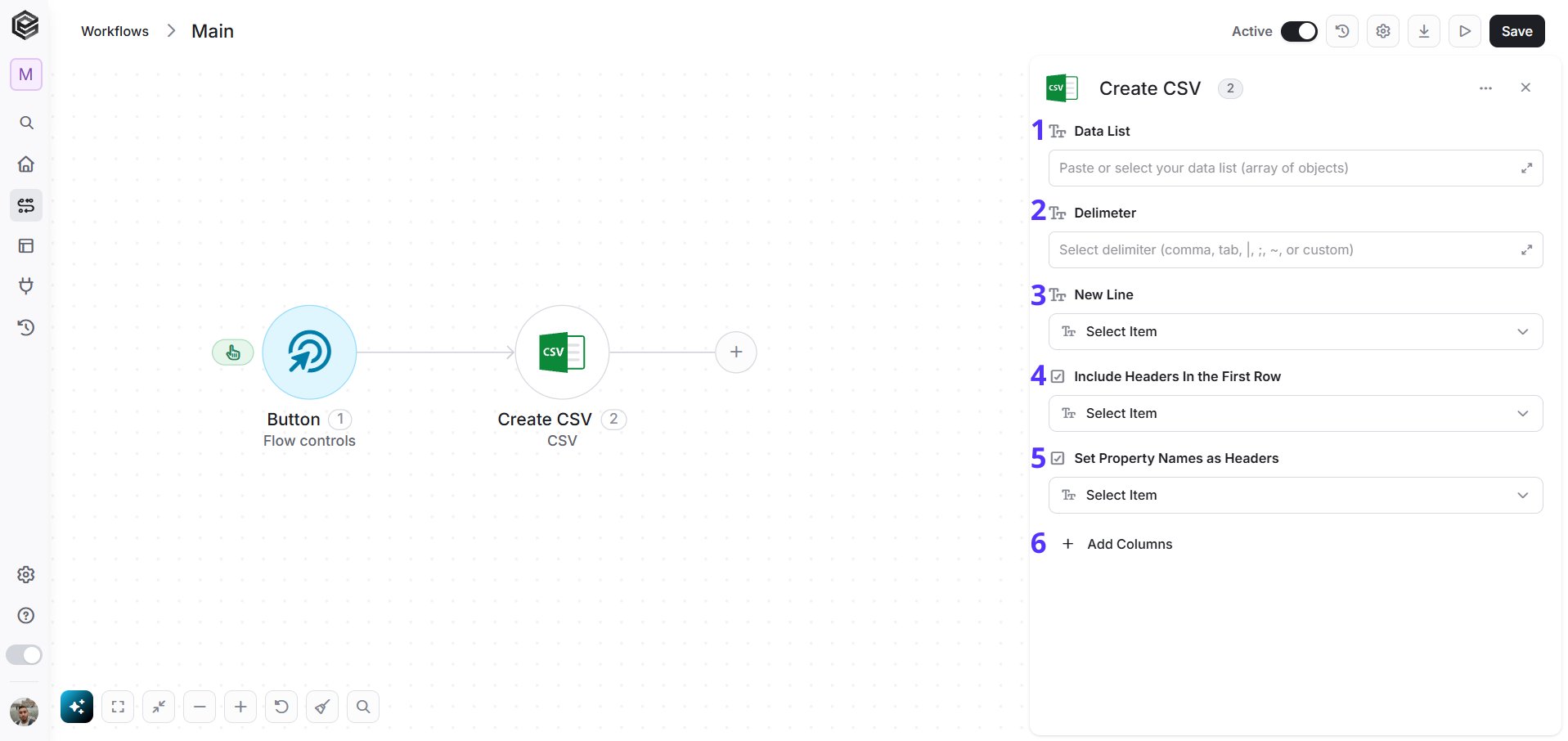 1. *Data List* - The input array of objects that will be converted into CSV rows.
2. *Delimiter -* Defines how values are separated (comma, tab, semicolon, or custom).
3. *New Line -* Determines how each row is separated (line break format).
4. *Override Header Names -* Allows you to manually define column names instead of using default property names.
5. *Include Headers In the First Row -* When enabled, the CSV file will include a header row at the top of the file.
6. *Set Property Names as Headers -* When enabled, the connector will automatically use the property names from the provided objects as the column headers in the CSV file, so there is no need to define them manually in the Add Columns fields.
Note: If "Include Headers In the First Row" is set to False, the CSV will be generated without a top header row. Consequently, the option to "Set Property Names as Headers" (as well as any custom header naming) will be disabled.
7. *Add Columns -* Lets you define custom columns for the CSV file.
### Parse CSV
The Parse CSV activity reads and converts raw CSV content (such as output from the 'Create CSV' activity) into structured data, making it available for use in subsequent steps of the workflow.
1. *Data List* - The input array of objects that will be converted into CSV rows.
2. *Delimiter -* Defines how values are separated (comma, tab, semicolon, or custom).
3. *New Line -* Determines how each row is separated (line break format).
4. *Override Header Names -* Allows you to manually define column names instead of using default property names.
5. *Include Headers In the First Row -* When enabled, the CSV file will include a header row at the top of the file.
6. *Set Property Names as Headers -* When enabled, the connector will automatically use the property names from the provided objects as the column headers in the CSV file, so there is no need to define them manually in the Add Columns fields.
Note: If "Include Headers In the First Row" is set to False, the CSV will be generated without a top header row. Consequently, the option to "Set Property Names as Headers" (as well as any custom header naming) will be disabled.
7. *Add Columns -* Lets you define custom columns for the CSV file.
### Parse CSV
The Parse CSV activity reads and converts raw CSV content (such as output from the 'Create CSV' activity) into structured data, making it available for use in subsequent steps of the workflow.
 1. *CSV Content -* The raw CSV data to be parsed.
2. *Delimiter -* Defines how values in the CSV are separated.
3. *Preserve Quotes in Unquoted Fields -* Controls whether quotes are kept or removed during parsing.
4. *Start Mapping From Line -* Defines from which line the parsing should begin.
5. *Add Column Mappings -* Allows mapping each column in the CSV to specific fields in the output. Please specify the exact position.
This documentation is built and hosted on [Mintlify](https://mintlify.com), a developer documentation platform.
1. *CSV Content -* The raw CSV data to be parsed.
2. *Delimiter -* Defines how values in the CSV are separated.
3. *Preserve Quotes in Unquoted Fields -* Controls whether quotes are kept or removed during parsing.
4. *Start Mapping From Line -* Defines from which line the parsing should begin.
5. *Add Column Mappings -* Allows mapping each column in the CSV to specific fields in the output. Please specify the exact position.
This documentation is built and hosted on [Mintlify](https://mintlify.com), a developer documentation platform.