> ## Documentation Index
> Fetch the complete documentation index at: https://docs.engini.ai/llms.txt
> Use this file to discover all available pages before exploring further.
# Anthropic
Discover how to connect Engini with Anthropic and use its activities to manage files, create message batches, and generate AI-powered responses with Claude models.
## Getting Started with Anthropic
### Prerequisites
* An Anthropic account.
You can create an account at [Claude](https://claude.ai/login?from=logout).
## Retrieve Your Anthropic API Key
1. *Create an Anthropic Account -* Complete the sign-in process and get your account.
2. *Log in to Anthropic -* Once you have an account, log in to the Anthropic platform.
3. *Navigate to the API Key Section -* After logging in go to the **API Keys** section which is typically in the center of the page next to **Generate a prompt** and **Create a Prompt**.
 4. *Generate an API Key*
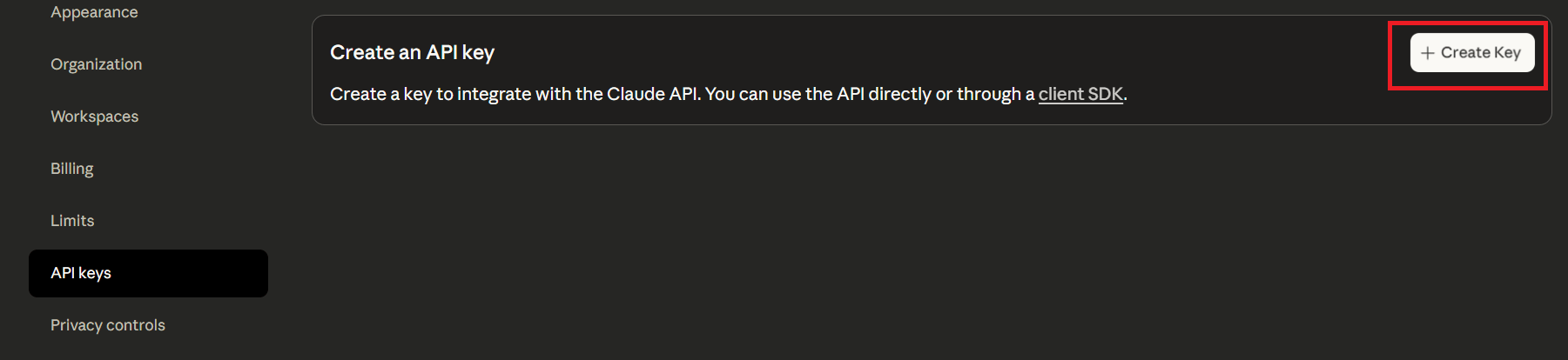 * Once you click to get API key, a key will be generated.
* Copy the API key. Make sure to store it securely, as it provides access to your Anthropic resources in Engini.
## Connecting Engini to Anthropic
1. Enter your Engini account at [https://app.engini.io](https://app.engini.io/).
2. Navigate to Connections page by clicking on the Connections on the left sidebar or by clicking [here](https://app.engini.io/connections).
* Once you click to get API key, a key will be generated.
* Copy the API key. Make sure to store it securely, as it provides access to your Anthropic resources in Engini.
## Connecting Engini to Anthropic
1. Enter your Engini account at [https://app.engini.io](https://app.engini.io/).
2. Navigate to Connections page by clicking on the Connections on the left sidebar or by clicking [here](https://app.engini.io/connections).
 3. Click on the "New Integration" option located at the top bar.
 4. Choose Claude option from the available applications.
 5. Enter the following details in the “New Integration” form and press Save:
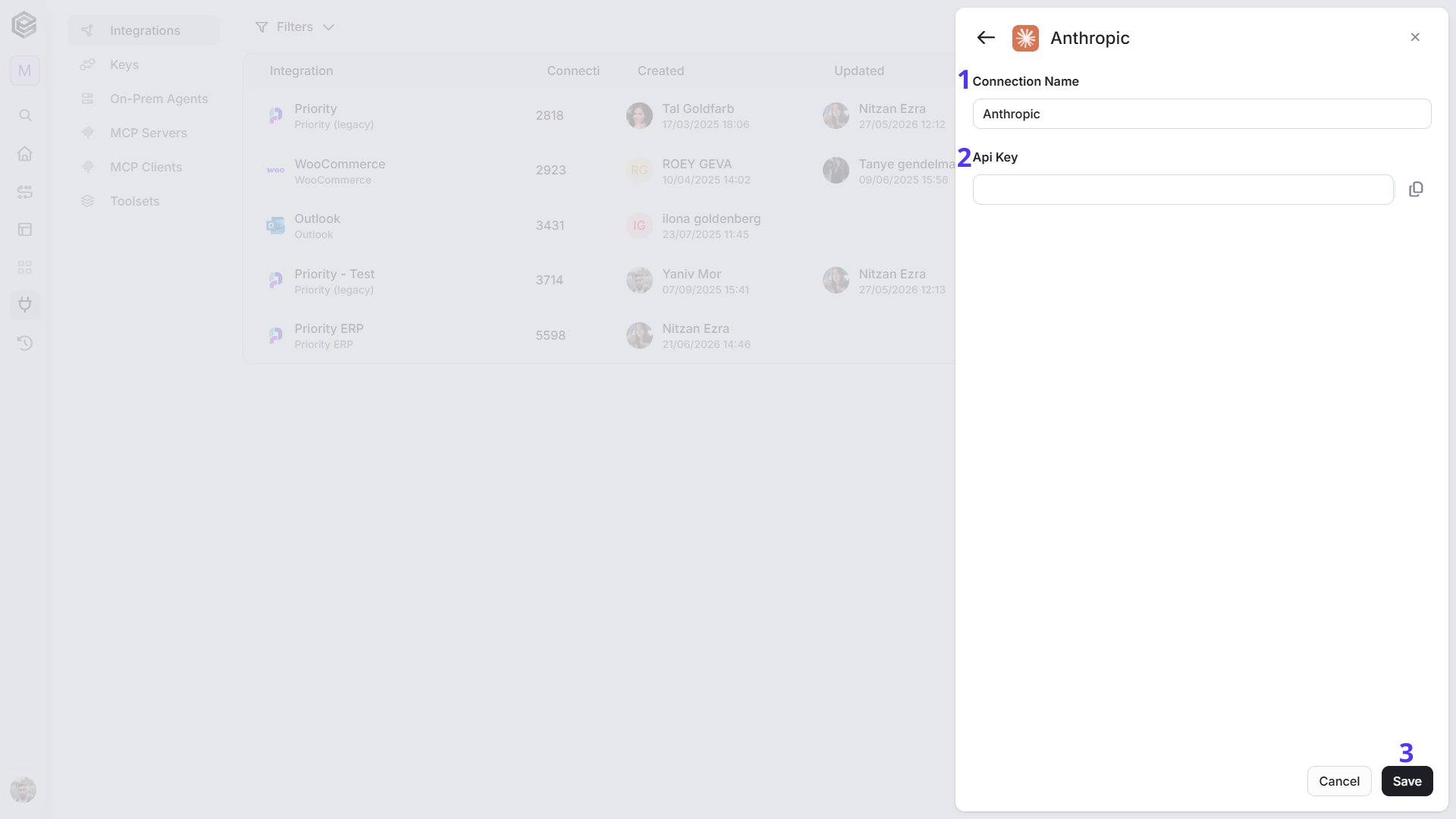 1. *Connection name* – Enter a meaningful name for your connection.
2. *API Key* – When you create an Anthropic account, you’ll receive an API key. Copy it and paste it into this field.
3. *Save Settings* - Click on the save button to save your connection.
## Actions
### Create a File
Upload a new file to your Anthropic account.
1. *Connection name* – Enter a meaningful name for your connection.
2. *API Key* – When you create an Anthropic account, you’ll receive an API key. Copy it and paste it into this field.
3. *Save Settings* - Click on the save button to save your connection.
## Actions
### Create a File
Upload a new file to your Anthropic account.
 * *Content -* Enter the content for the new file, encoded in Base64.
### Create a Message Batch
Submits multiple messages at once to Anthropic’s API for processing
* *Content -* Enter the content for the new file, encoded in Base64.
### Create a Message Batch
Submits multiple messages at once to Anthropic’s API for processing
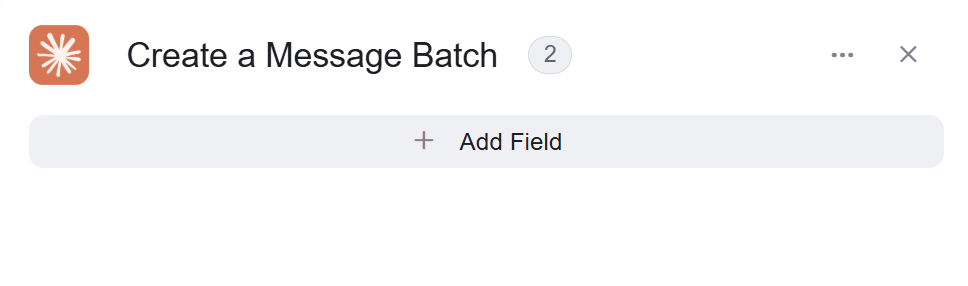 * *Add Field* - Click Add Field to add and populate additional fields for the selected activity. To learn more about managing activity data, [click here](/help/workflows/workflow-editor#add-fields).
### Create Messages
Send a structured list of messages to Anthropic Claude API and receives AI-generated responses.
* *Add Field* - Click Add Field to add and populate additional fields for the selected activity. To learn more about managing activity data, [click here](/help/workflows/workflow-editor#add-fields).
### Create Messages
Send a structured list of messages to Anthropic Claude API and receives AI-generated responses.
 1. *Messages \[] -* Enter the messages array. Each message must include a role (user or assistant) and a content array. For Claude, each item in the content array must be an object that includes type and its corresponding fields.
To build it for the Create Messages activity, you must follow these steps:
1. Use [**Initialize Object** **Array**](/help/apps/anthropic#initialize-object-array) twice:
* First: Create the inner content array
* Variable: content, Object Element Type: content
* Type – the common types are image, document and text.
Note: If you choose *image* or *document*, don’t forget to fill in **Source Data**, **Source Type**, and **Media Type**.
* Second: Create the outer messages array
* Variable: messages, Object Element Type: messages
2. Fields can be filled by clicking **Add Field**, and [**Append to Object Array**](/help/apps/anthropic#append-to-object-array) can be used to add additional objects.
3. **Final Step:** In the Create Messages activity, set the Messages field to the dynamic variable from step 1 (e.g., messages\[]).
2. *Model -* Select the Anthropic Claude model you want to use (e.g., claude-3-sonnet-20240229, claude-3-opus-20240229).
3. *Max Tokens-* Set the maximum number of tokens Claude can generate in the response.
4. *Add Field* - Click Add Field to add and populate additional fields for the selected activity. To learn more about managing activity data, [click here](/help/workflows/workflow-editor#add-fields).
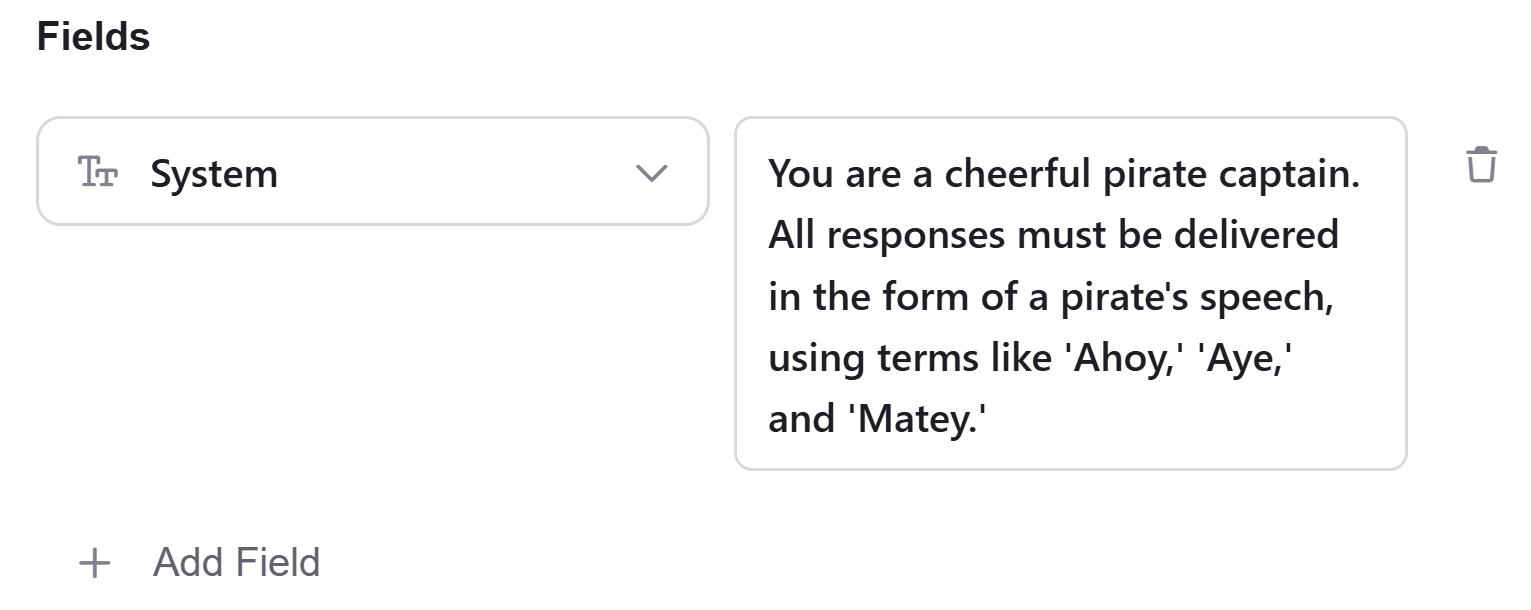
***Example:*** The **system field** for example is an **optional** field that acts as a super-prompt that the Claude model reads and internalizes before it processes the user’s messages.
1. *Messages \[] -* Enter the messages array. Each message must include a role (user or assistant) and a content array. For Claude, each item in the content array must be an object that includes type and its corresponding fields.
To build it for the Create Messages activity, you must follow these steps:
1. Use [**Initialize Object** **Array**](/help/apps/anthropic#initialize-object-array) twice:
* First: Create the inner content array
* Variable: content, Object Element Type: content
* Type – the common types are image, document and text.
Note: If you choose *image* or *document*, don’t forget to fill in **Source Data**, **Source Type**, and **Media Type**.
* Second: Create the outer messages array
* Variable: messages, Object Element Type: messages
2. Fields can be filled by clicking **Add Field**, and [**Append to Object Array**](/help/apps/anthropic#append-to-object-array) can be used to add additional objects.
3. **Final Step:** In the Create Messages activity, set the Messages field to the dynamic variable from step 1 (e.g., messages\[]).
2. *Model -* Select the Anthropic Claude model you want to use (e.g., claude-3-sonnet-20240229, claude-3-opus-20240229).
3. *Max Tokens-* Set the maximum number of tokens Claude can generate in the response.
4. *Add Field* - Click Add Field to add and populate additional fields for the selected activity. To learn more about managing activity data, [click here](/help/workflows/workflow-editor#add-fields).
***Example:*** The **system field** for example is an **optional** field that acts as a super-prompt that the Claude model reads and internalizes before it processes the user’s messages.
 ### Initialize Object Array
Creates a new variable object in your workflow to store structured data for use in subsequent Claude steps. For example, a Message\[] object can be initialized here and used in other actions, such as creating messages.
### Initialize Object Array
Creates a new variable object in your workflow to store structured data for use in subsequent Claude steps. For example, a Message\[] object can be initialized here and used in other actions, such as creating messages.
 1. *Variable name -* Enter a name for the new object variable you’re creating. This name will be used to reference this object in other workflow steps.
2. *Object Element Type-* Select the type of data structure you want to initialize from the dropdown options. This action prepares an empty object of the specified type that you can then populate with data in later workflow steps.
3. *Add Field* - Click Add Field to add and populate additional fields for the selected activity. To learn more about managing activity data, [click here](/help/workflows/workflow-editor#add-fields).
### Append to Object Array
Adds new data elements to an existing array of objects in your workflow.
1. *Variable name -* Enter a name for the new object variable you’re creating. This name will be used to reference this object in other workflow steps.
2. *Object Element Type-* Select the type of data structure you want to initialize from the dropdown options. This action prepares an empty object of the specified type that you can then populate with data in later workflow steps.
3. *Add Field* - Click Add Field to add and populate additional fields for the selected activity. To learn more about managing activity data, [click here](/help/workflows/workflow-editor#add-fields).
### Append to Object Array
Adds new data elements to an existing array of objects in your workflow.
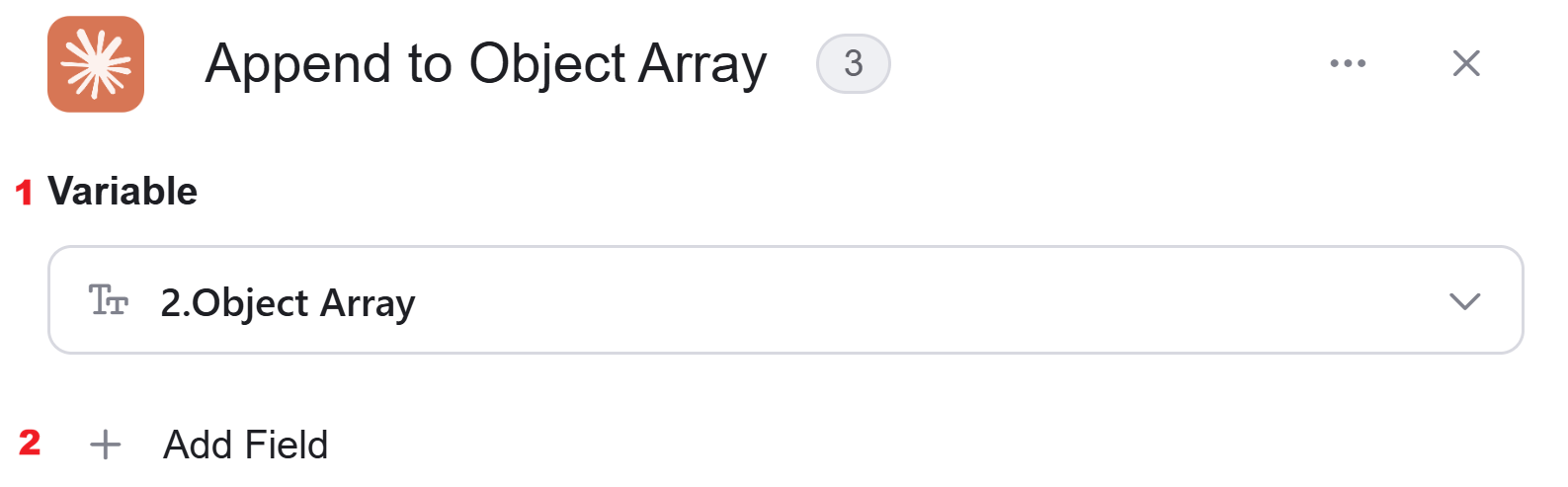 1. *Select Variable -* Select the array variable from your workflow that you want to append new objects to. This dropdown shows all available array variables that you initialized from previous steps in your automation.
2. *Add Field* - Click Add Field to add and populate additional fields for the selected activity. To learn more about managing activity data, [click here](/help/workflows/workflow-editor#add-fields).
### Map Object Array
This activity is particularly useful when there is an array of data that needs to be translated into another structure.
1. *Select Variable -* Select the array variable from your workflow that you want to append new objects to. This dropdown shows all available array variables that you initialized from previous steps in your automation.
2. *Add Field* - Click Add Field to add and populate additional fields for the selected activity. To learn more about managing activity data, [click here](/help/workflows/workflow-editor#add-fields).
### Map Object Array
This activity is particularly useful when there is an array of data that needs to be translated into another structure.
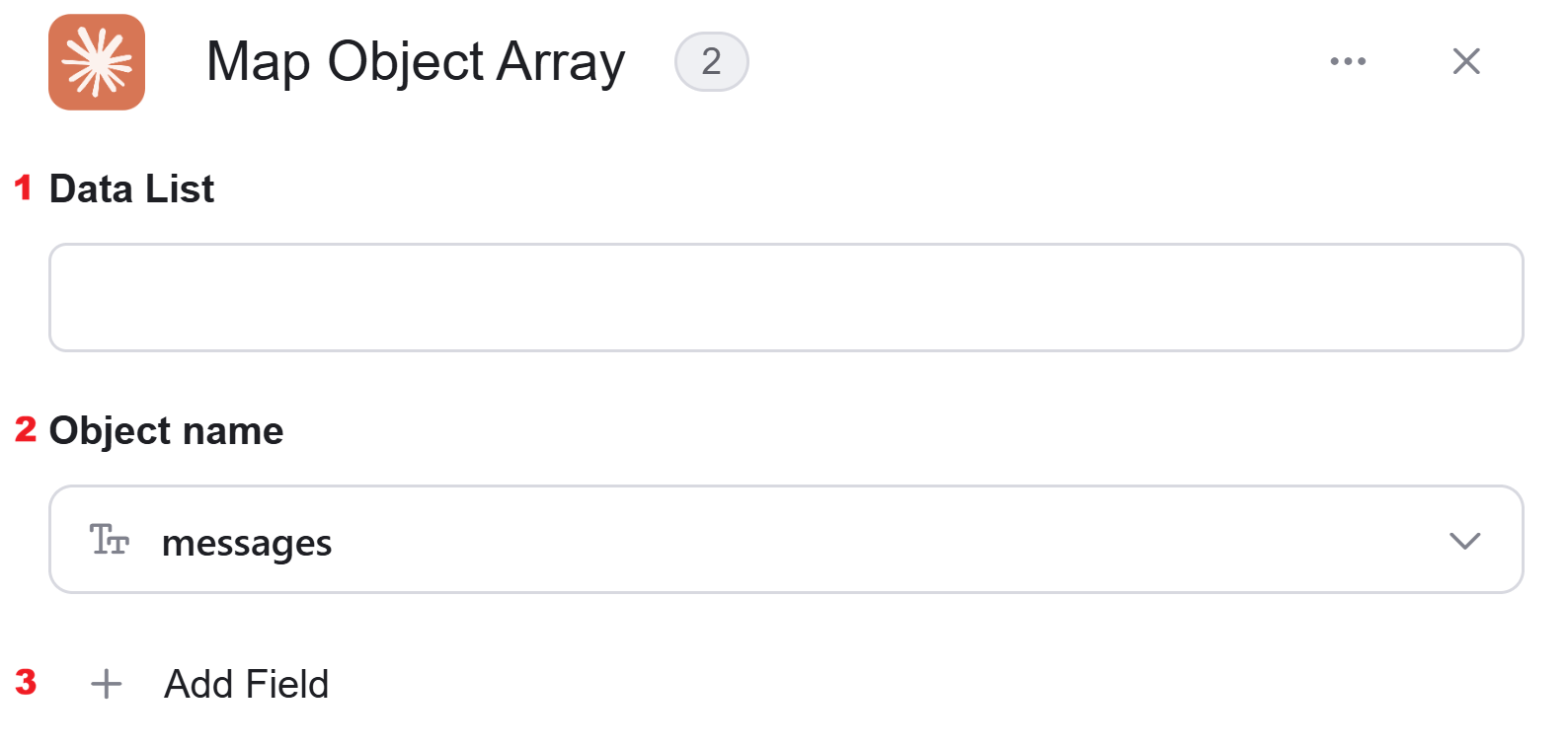 1. *Data List -* Choose a data list that you’ve obtained from previous activities in your workflow. This data list typically contains an array of objects that you want to process and transform.
2. *Object name -* You need to define the type of objects from the drop down that will be stored within the array.
3. *Add Field* - Click Add Field to add and populate additional fields for the selected activity. To learn more about managing activity data, [click here](/help/workflows/workflow-editor#add-fields).
### Delete a Message Batch
Cancels and removes a previously submitted batch of messages from Anthropic’s processing queue.
1. *Data List -* Choose a data list that you’ve obtained from previous activities in your workflow. This data list typically contains an array of objects that you want to process and transform.
2. *Object name -* You need to define the type of objects from the drop down that will be stored within the array.
3. *Add Field* - Click Add Field to add and populate additional fields for the selected activity. To learn more about managing activity data, [click here](/help/workflows/workflow-editor#add-fields).
### Delete a Message Batch
Cancels and removes a previously submitted batch of messages from Anthropic’s processing queue.
 * *Message batch id -* Enter the unique identifier of the message batch you want to delete. This ID was provided when you originally created the batch request to Anthropic’s API.
### Delete File
This action permanently deletes the file and cannot be undone. Ensure you have the correct file ID before executing this action.
* *Message batch id -* Enter the unique identifier of the message batch you want to delete. This ID was provided when you originally created the batch request to Anthropic’s API.
### Delete File
This action permanently deletes the file and cannot be undone. Ensure you have the correct file ID before executing this action.
 * *File Id -* Enter the unique identifier of the file you want to delete. This ID was provided when the file was originally created or uploaded to the system.
### Download File
Download the contents of a Claude generated file.
* *File Id -* Enter the unique identifier of the file you want to delete. This ID was provided when the file was originally created or uploaded to the system.
### Download File
Download the contents of a Claude generated file.
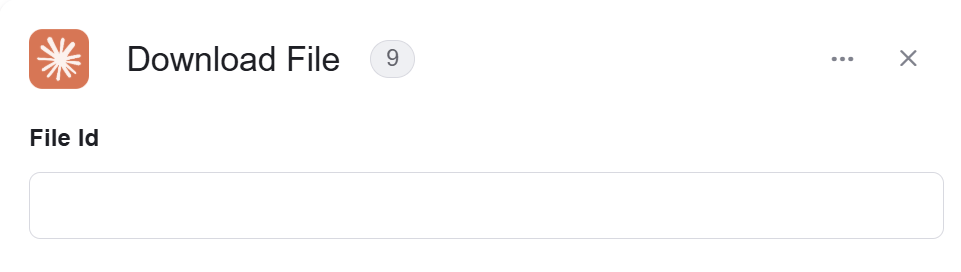 * *File Id -* Enter the unique identifier of the file you want to download. This ID was provided when the file was originally created or uploaded to the system.
### Cancel a Message Batch
Stops the processing of a submitted message batch that is currently in queue or being processed by Anthropic’s API.
* *File Id -* Enter the unique identifier of the file you want to download. This ID was provided when the file was originally created or uploaded to the system.
### Cancel a Message Batch
Stops the processing of a submitted message batch that is currently in queue or being processed by Anthropic’s API.
 * *Message batch id -* Enter the unique identifier of the message batch you want to cancel. This ID was provided when you originally created the batch request to Anthropic’s API.
### Get File Metadata
Retrieves information about a file without downloading its actual content, such as file size, creation date, file type, and other properties.
* *Message batch id -* Enter the unique identifier of the message batch you want to cancel. This ID was provided when you originally created the batch request to Anthropic’s API.
### Get File Metadata
Retrieves information about a file without downloading its actual content, such as file size, creation date, file type, and other properties.
 * *File Id -* Enter the unique identifier of the file you want to download. This ID was provided when the file was originally created or uploaded to the system.
### Retrieve a Message Batch
Fetches detailed information about a specific message batch, including its current processing status and metadata.
* *File Id -* Enter the unique identifier of the file you want to download. This ID was provided when the file was originally created or uploaded to the system.
### Retrieve a Message Batch
Fetches detailed information about a specific message batch, including its current processing status and metadata.
 * *Message batch id -* Enter the unique identifier of the message batch you want to retrieve information for. This ID was provided when you originally created the batch request.
### Retrieve Message Batch Results
Fetch the results of a previously submitted message batch.
* *Message batch id -* Enter the unique identifier of the message batch you want to retrieve information for. This ID was provided when you originally created the batch request.
### Retrieve Message Batch Results
Fetch the results of a previously submitted message batch.
 * *Message batch id -* Enter the unique identifier of the message batch you want to retrieve information for. This ID was provided when you originally created the batch request.
### Count Message Tokens
Calculates the total number of tokens that will be consumed by your messages before sending them to Anthropic’s API, helping you estimate costs and manage usage.
* *Message batch id -* Enter the unique identifier of the message batch you want to retrieve information for. This ID was provided when you originally created the batch request.
### Count Message Tokens
Calculates the total number of tokens that will be consumed by your messages before sending them to Anthropic’s API, helping you estimate costs and manage usage.
 1. *Messages\[ ] -* Select the array of messages you want to count tokens for. Each message should contain the text content you plan to send to Claude.
2. *Model -* Choose the specific Anthropic model (e.g., Claude Sonnet, Claude Opus) you intend to use.
3. *Add Field* - Click Add Field to add and populate additional fields for the selected activity. To learn more about managing activity data, [click here](/help/workflows/workflow-editor#add-fields).
### List Files
Retrieves your list of files with options to filter and limit the results.
1. *Messages\[ ] -* Select the array of messages you want to count tokens for. Each message should contain the text content you plan to send to Claude.
2. *Model -* Choose the specific Anthropic model (e.g., Claude Sonnet, Claude Opus) you intend to use.
3. *Add Field* - Click Add Field to add and populate additional fields for the selected activity. To learn more about managing activity data, [click here](/help/workflows/workflow-editor#add-fields).
### List Files
Retrieves your list of files with options to filter and limit the results.
 1. *Top N -* You can specify how many files you want to retrieve by clicking on ‘Top N’ and entering the maximum number of files you want to return.
If you set `Top N = 1`, a single file will be returned instead of an array. If no file is found when using `Top N = 1`, the action will fail, allowing you to implement an IF condition within the workflow. This functionality is useful for processes where the existence of a specific file determines the next steps in the workflow.
2. *Add Filter -* Click Add Filter to define conditions that narrow down the data list and return only the relevant items. To learn more about using filters, [click here](/help/workflows/workflow-editor#add-filters).
### List Message Batches
Retrieves a list of all message batches that have been created in your Anthropic account, showing their details.
1. *Top N -* You can specify how many files you want to retrieve by clicking on ‘Top N’ and entering the maximum number of files you want to return.
If you set `Top N = 1`, a single file will be returned instead of an array. If no file is found when using `Top N = 1`, the action will fail, allowing you to implement an IF condition within the workflow. This functionality is useful for processes where the existence of a specific file determines the next steps in the workflow.
2. *Add Filter -* Click Add Filter to define conditions that narrow down the data list and return only the relevant items. To learn more about using filters, [click here](/help/workflows/workflow-editor#add-filters).
### List Message Batches
Retrieves a list of all message batches that have been created in your Anthropic account, showing their details.
 This documentation is built and hosted on [Mintlify](https://mintlify.com), a developer documentation platform.